
Supply User Manual ENG -> Products -> 3.4 LU-SU2103: Products in Supplier Catalogues -> B. How to create a supplier product catalogue price list
B. How to create a supplier product catalogue price list
In order to create a Supplier Catalogue Price List for a supplier, the user should follow the relevant MSF procedures outlined for gathering this sort of information, commonly known as market analysis (which may involve a Tendering process) before entering this data into the system. To make this inputting process as efficient as possible, it is possible to both enter this information directly into the Supplier/Product record as well as to import the data into the system via an excel file.
To enter the Supplier Catalogue Price List directly into the system, Go to: Partners/Suppliers
- Enter the relevant search values in the header fields to find the Supplier you want
- Tick the checkbox next to the supplier in the list view
- In the Actions Menu on the right-hand side, click on New Catalogue. A screen displaying New
Catalogue will appear.
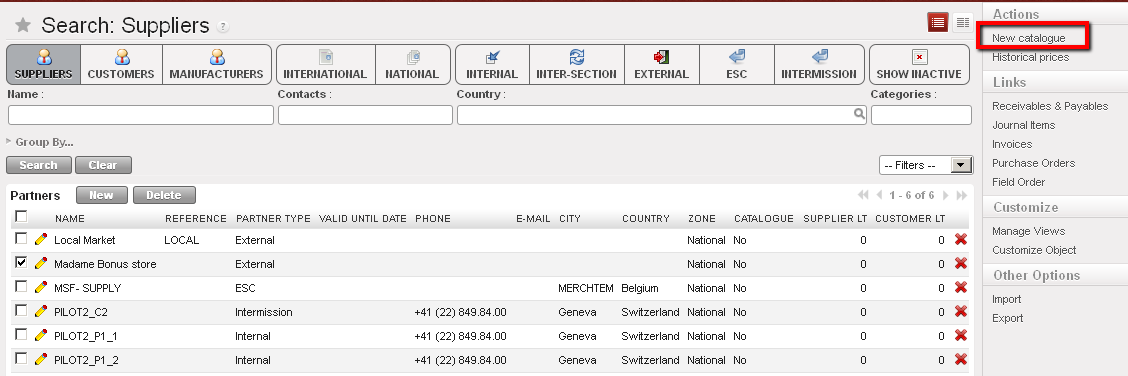
Product catalogue – 1
- Enter the Name (how you want to call this Supplier’s catalogue)
- The “From” field will automatically display today’s date but can be edited
- Enter the “To” date using the calendar button. This should reflect the last day on which the information you are entering is valid (e.g. if the price is fixed how long it is fixed at this price according to the supplier’s bid). This field is not mandatory.
- The currency will pull through from the currency entered for this supplier
- Each new catalogue must have a ranking. A default “3rd choice” ranking is automatically assigned for catalogues created via synch or auto VI import but can be changed.
- The Partner field will display the name of the Supplier that for which you are adding the catalogue price.
- The Active box will reflect the state from the Supplier record (i.e. this should have been ticked if we are considering using them and have asked for product pricing etc)
- In the Import Line section, the Add Attachment button will allow us to browse and select the excel file that we want to import, and next to this is the “Import file” button which will import the data from the excel file.
- To Add products individually to the catalogue, in the Products tab, click on the New button
- Click on the magnifying glass icon
 to bring up the search products window and enter the relevant values to find the product(s).
 - Select all relevant products, and check that the default UoM is correct (or changing it if need be)
- Enter the minimum quantity which the supplier had based their price on. If there is none then 1 can be entered. If you try to save a line with 0 as a minimum quantity, the system will display an error message
- Enter the Unit Price (which should be related to currency selected)
- Enter any SoQ Rounding figure (e.g. if Pens are the product, the UoM and price may be per pen (i.e. pce), but the supplier sells the pens in packets of 50, in which can the rounding would be 50.)
- Enter the minimum order quantity – depending on the supplier, the lowest quantity of the goods they would accept to supply per order
- Enter any other comment
- Click on the floppy disk icon
 to save the line and either repeat the steps to add another product or click on the Save button to save the catalogue list.
 - When catalogue is complete and all lines are saved, user can confirm catalogue by clicking on the Confirm button. This means all data it contains will be used by system for relevant transactions.
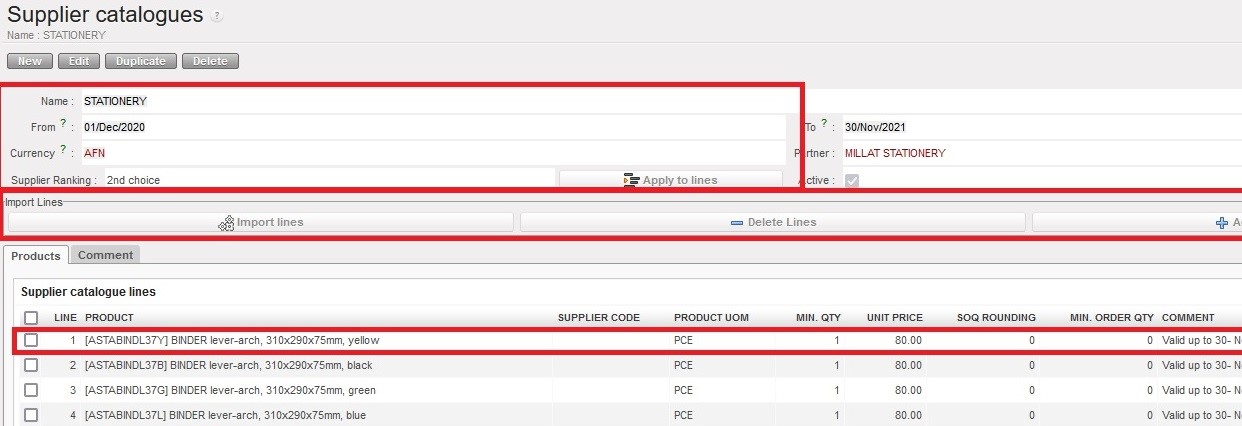
Product catalogues – 2
N.B: It is possible to have 2 active catalogues for the same supplier in the same instance as long as the products are different in each catalogue. If one supplier has more than one catalogue for the same product, user will receive a warning message.
Please note that it is possible to create a Catalogue of the Coordination instance at coordination instance. This function has been added to enable the related projects, to which this catalogue is synchronized down, to have a Coordination Supplier Catalogue. This will help to get more accurate estimation prices for intra-mission orders.
