H. PRE-PACKING LISTS REFERENCES

Supply User Manual ENG -> 5. Warehouse -> 5.3 LU-SU4102: Picking -> H. PRE-PACKING LISTS REFERENCES

H. PRE-PACKING LISTS REFERENCES

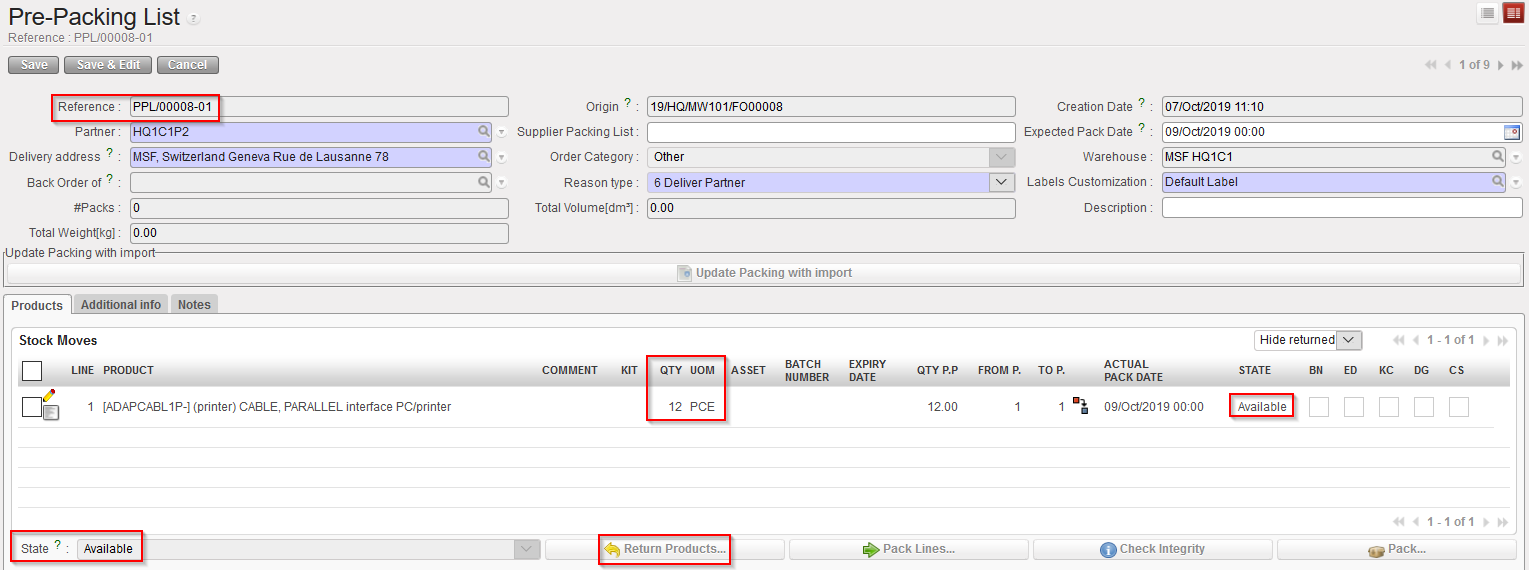
All Pre-Packing Lists have a reference which looks like PPL/XXXXX-YY.

This reference matches with the reference of the Picking Ticket (sub PICK). Once processed, the Picking Ticket PICK/XXXXX-YY generates the Pre-Packing List PPL/XXXXX-YY.

In case of full picking, the main PICK has the reference PICK/XXXXX, the sub PICK has the reference PICK/XXXXX-01 and the corresponding Pre-Packing List has the reference PPL/XXXXX-01.

In case of partial picking, YY takes the value 01 for the first partial picking, 02 for the second partial picking, 03 for the third partial picking,… The Pre-Packing List PPL/XXXXX-01 matches with the partial picking PICK/XXXXX-01, the Pre-Packing List PPL/XXXXX-02 matches with the partial picking PICK/XXXXX-02, the Pre-Packing List PPL/XXXXX-03 matches with the partial picking PICK/XXXXX-03,…

On some reports (see, at the end of the chapter, sections on reporting), references PACK/XXXX-YY-ZZ may appear. The “PACK” reference is actually the reference of a Packing List. We refer to Packing List (and not to Pre-Packing List) when a PPL is on a Shipment (sub SHIP) which is in the state “Shipped“, “Closed” or “Delivered”. The Packing List PACK/XXXXX-YY-ZZ matches with the Pre-Packing List PPL/XXXXX-YY which matches with the Picking Ticket (sub PICK) PICK/ XXXXX-YY. ZZ always takes the value 01. Note that a PACK is not a new document but is just another way to name a PPL.
G. HOW TO UNPACK PRODUCTS AND RETURN THEM TO STOCK

Supply User Manual ENG -> 5. Warehouse -> 5.3 LU-SU4102: Picking -> G. HOW TO UNPACK PRODUCTS AND RETURN THEM TO STOCK

G. HOW TO UNPACK PRODUCTS AND RETURN THEM TO STOCK

It is possible to return to stock products which have been picked and are ready to be packed. The PPL has to be in “Available” state (i.e. the products should not be declared as packed yet or the parcels should not be included on a shipment yet). The return can be total or partial.

Go to: Warehouse / Warehouse Management / Deliveries / Packing

  1. Open the PPL from which you wish to return products to stock.
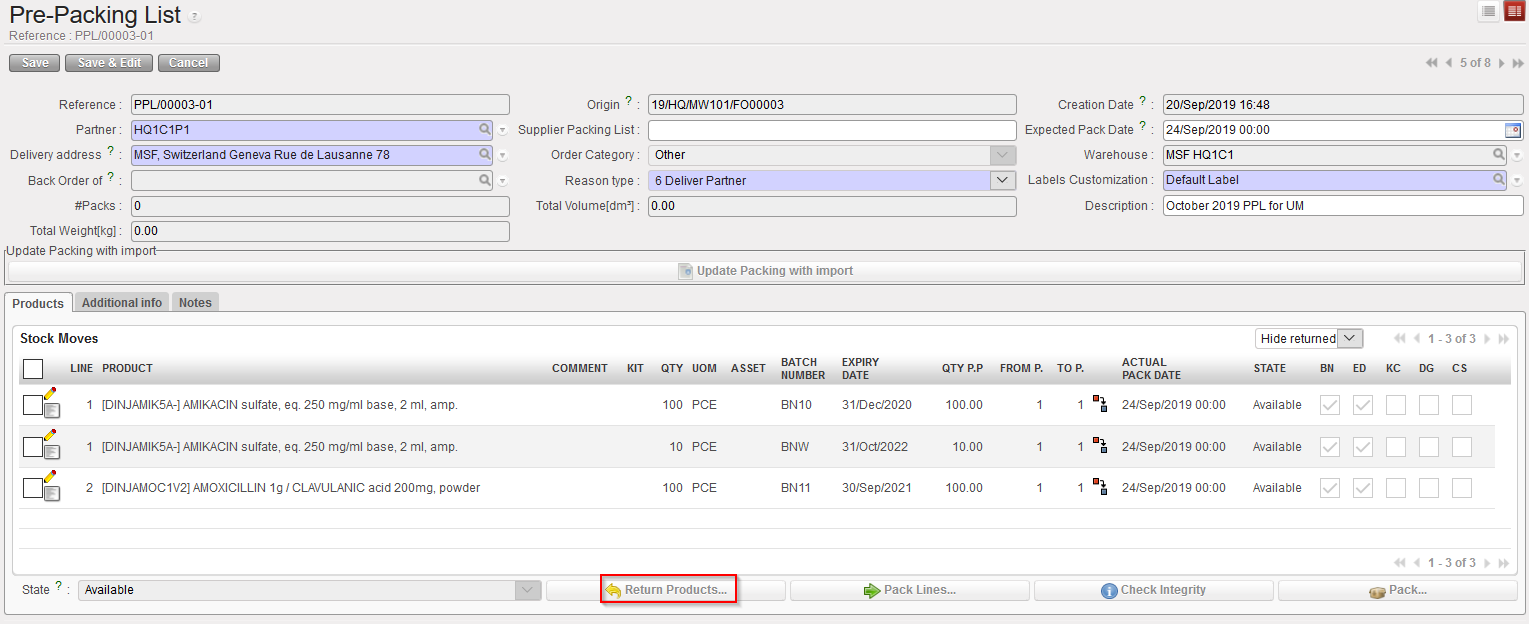
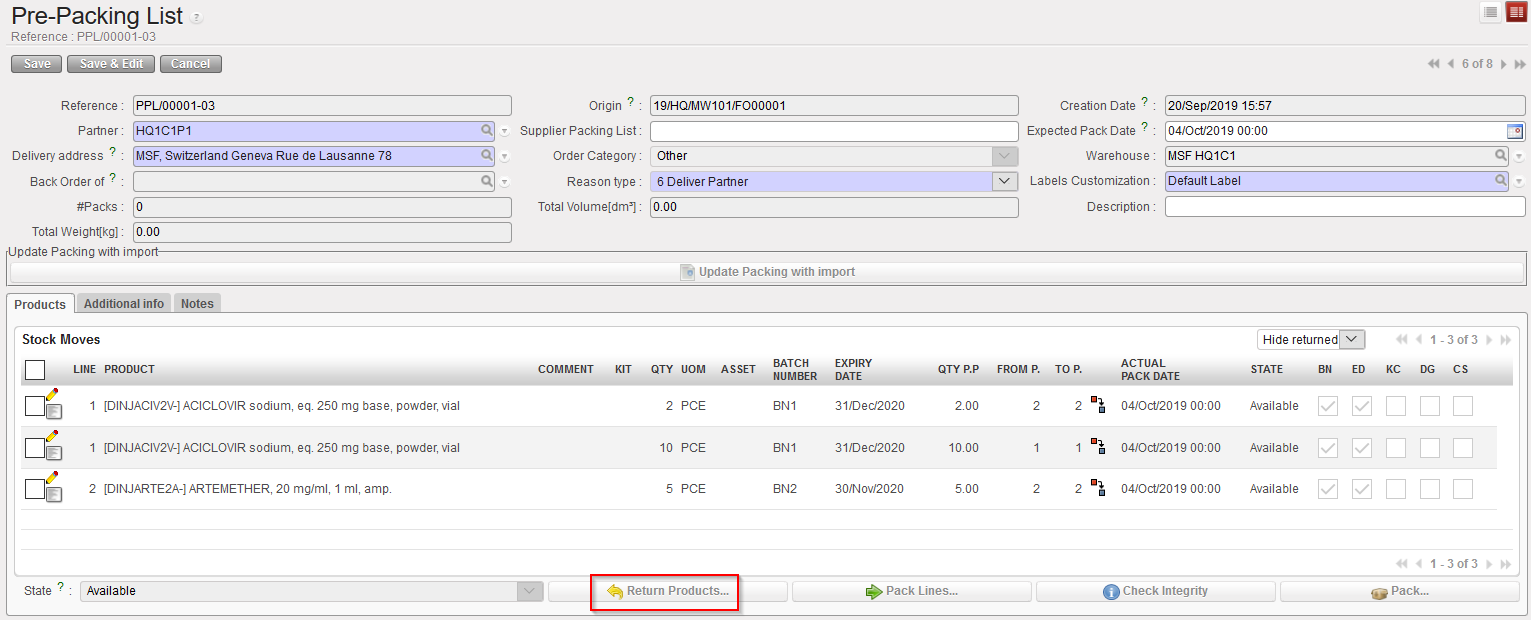
  2. Click on the “Return Products…” button.
Returning products to stock from a PPL

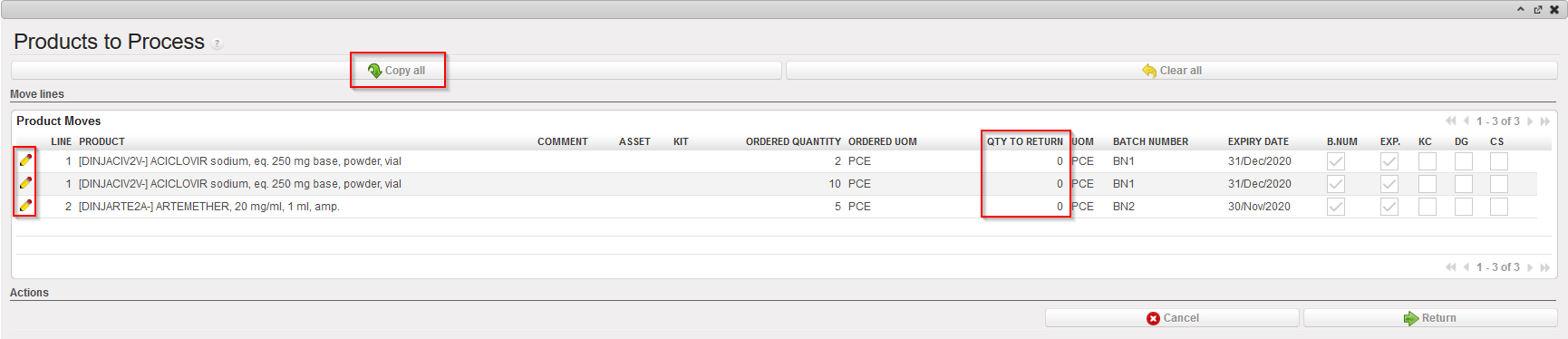
3. Click on the “Copy all buttons” to return all the products from the PPL to the stock. Alternatively, you may use the pencil icons if you want to specify which products/batches/quantities you wish to return to stock (i.e. return the goods partially to stock).

Returning products to stock from a PPL

4. Click on the “Return” button located at the bottom of the screen.

Returning products to stock from a PPL
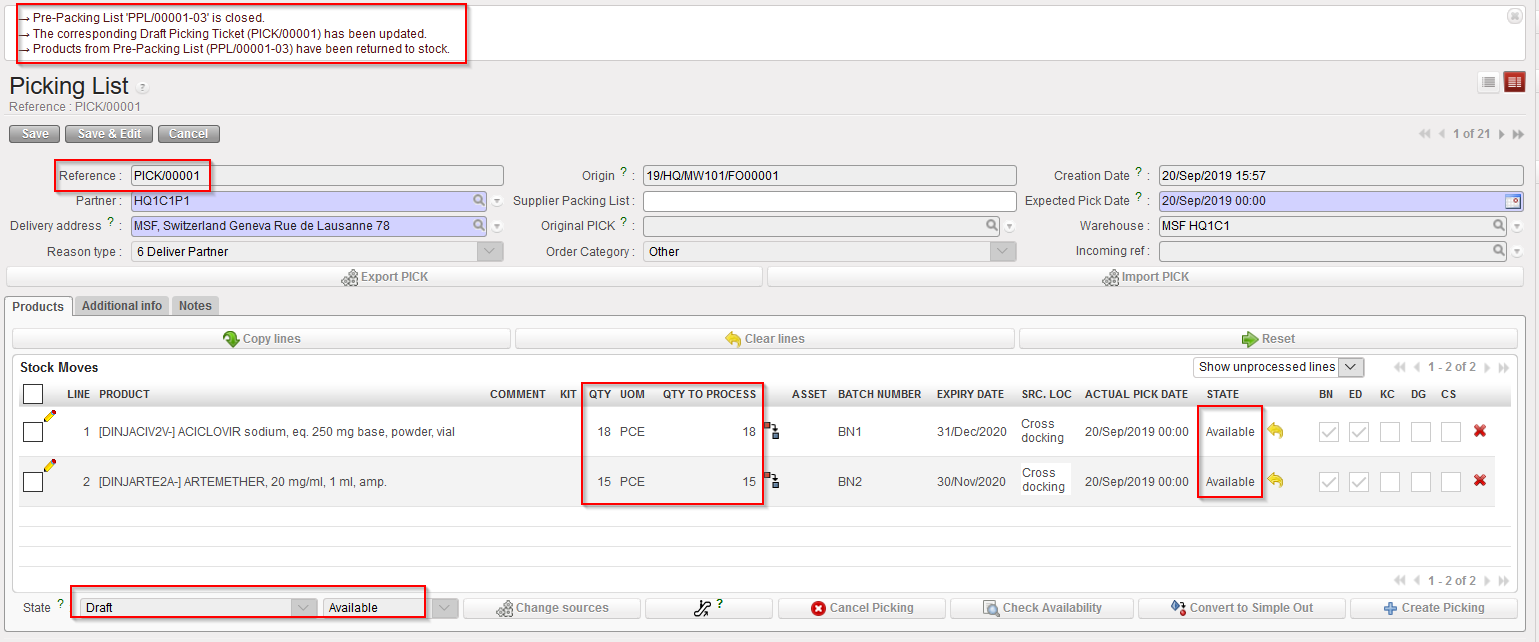
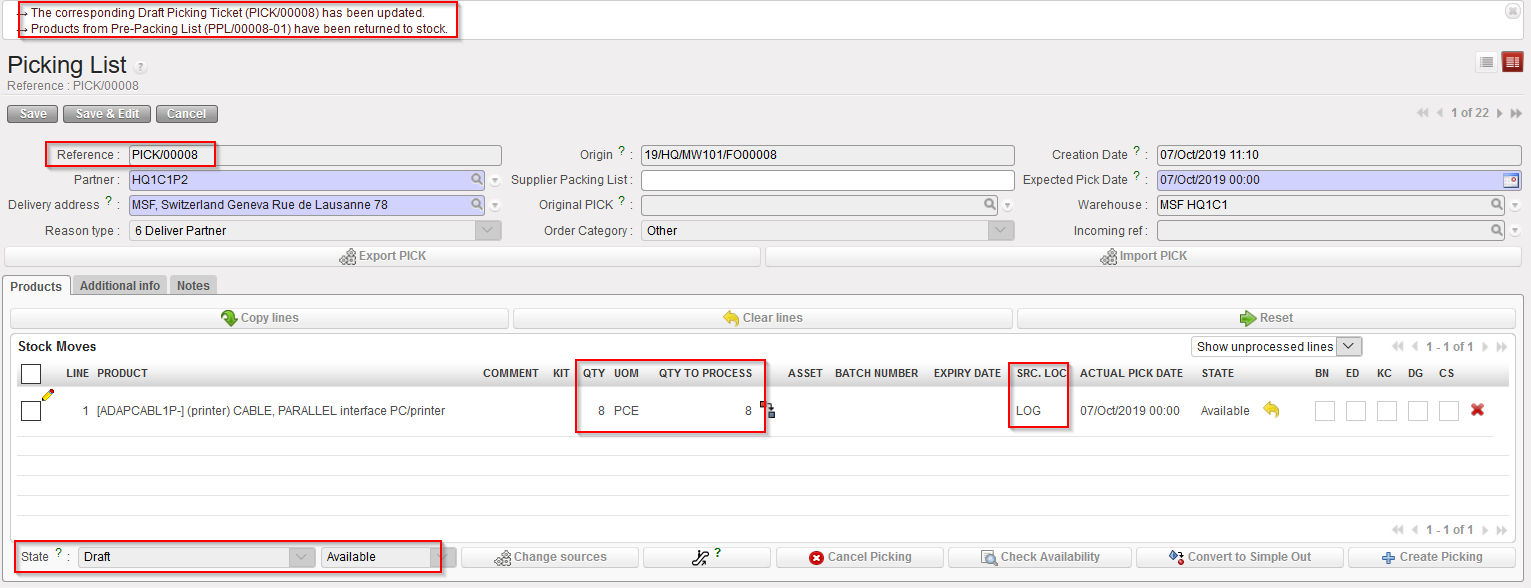
Main PICK corresponding to the PPL from which products were returned

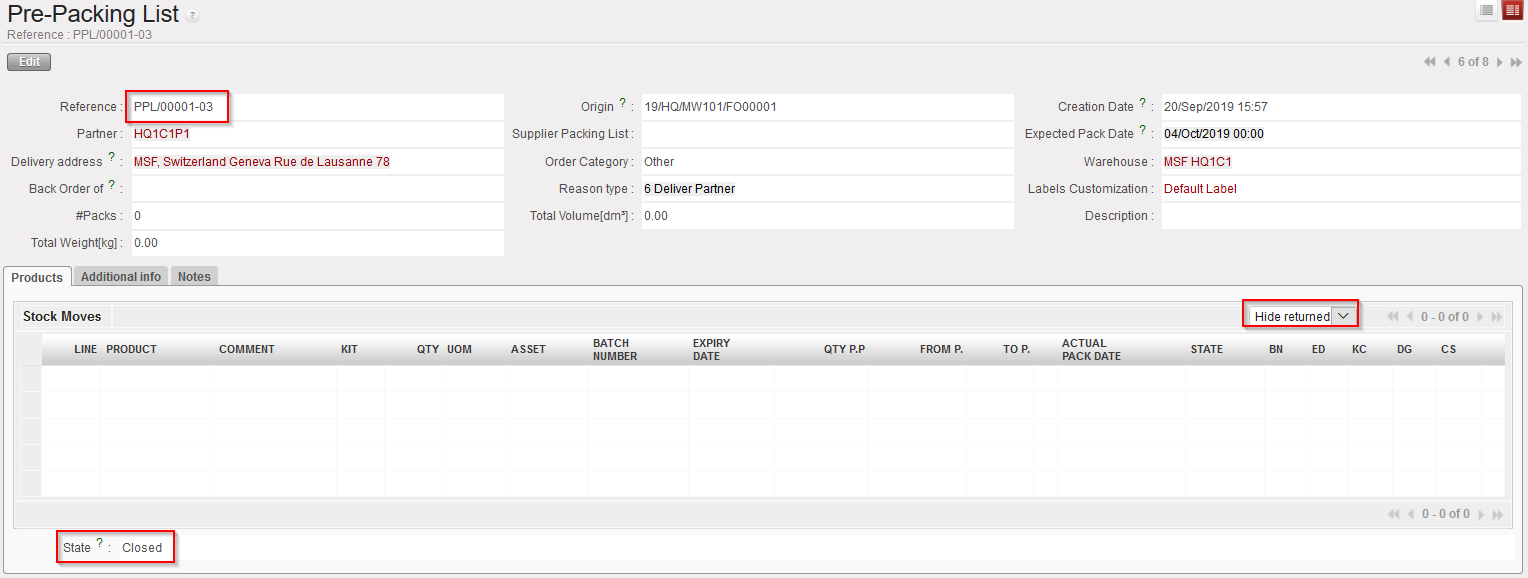
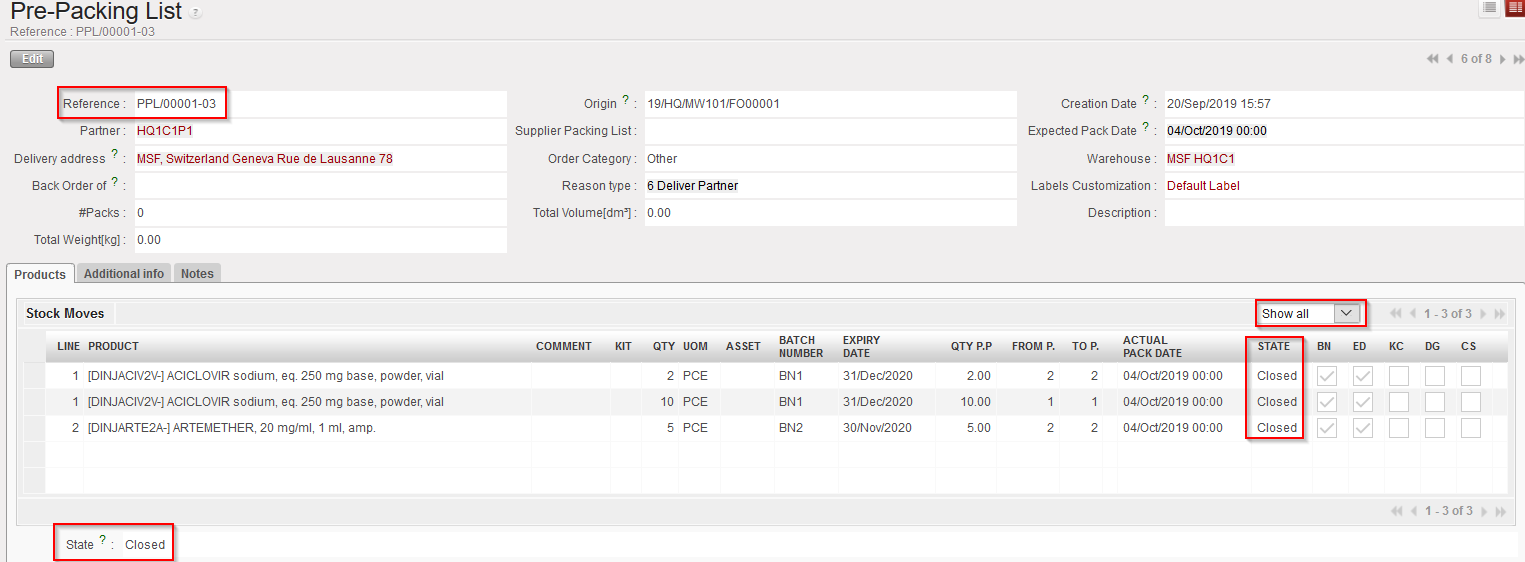
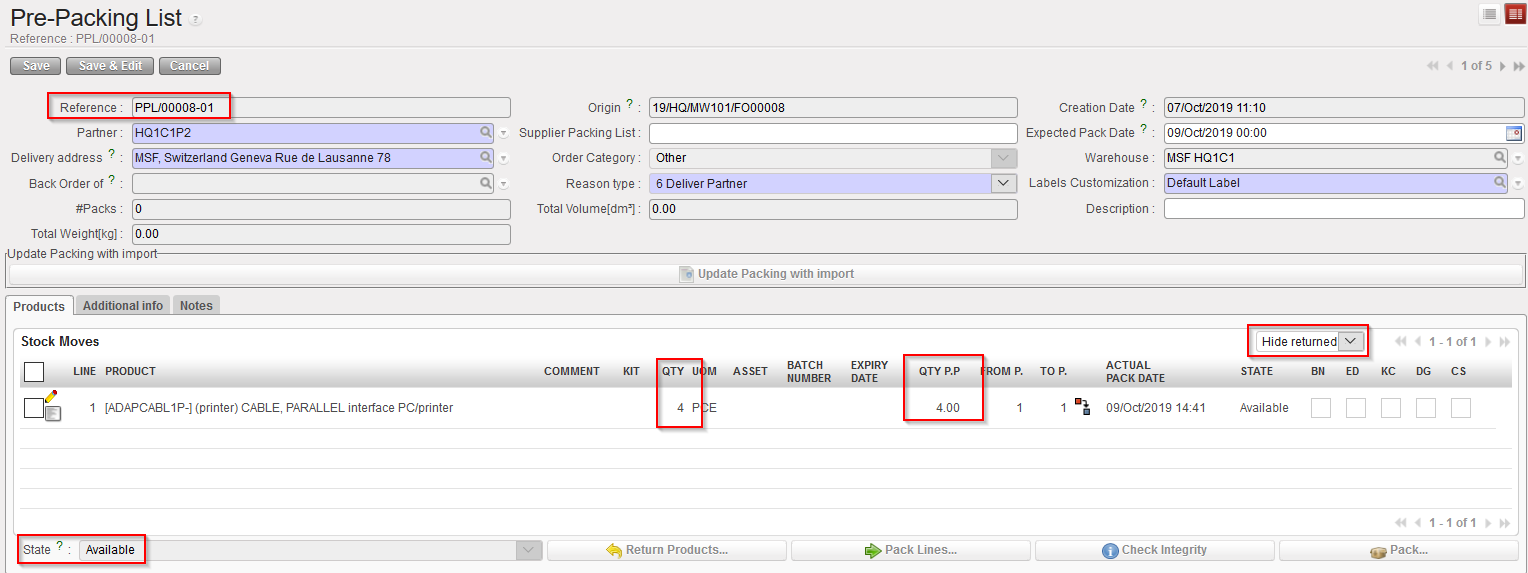
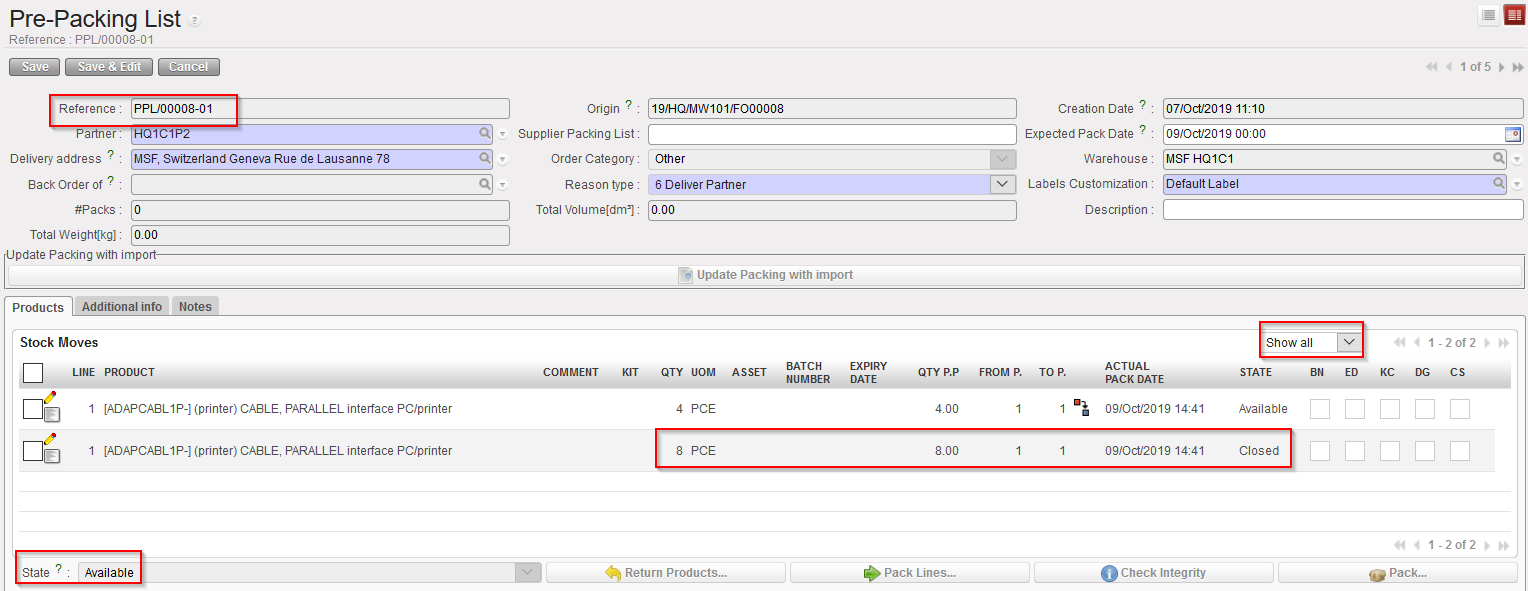
PPL after goods have been returned to stock – Note that you will have to change the filter from “hide returned” line to “Show all” in order to see the returned lines
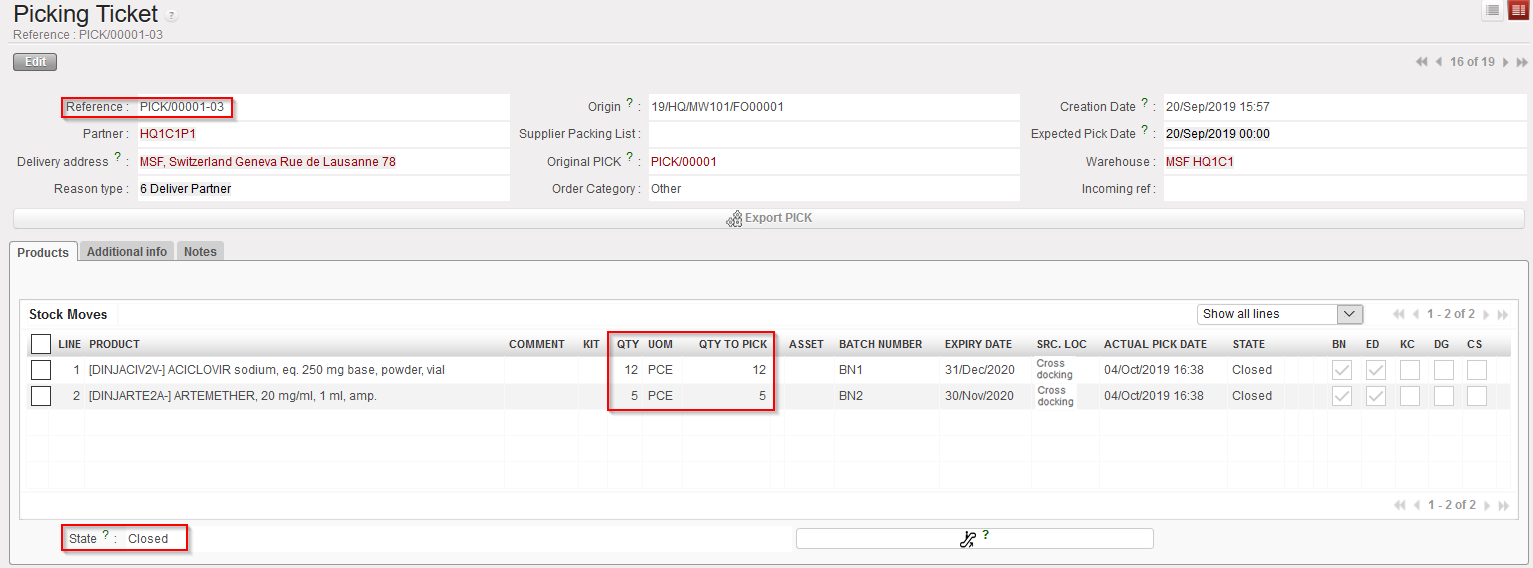
Sub PICK which was used to move the goods to the “Packing” location

The system switches back to the main PICK corresponding to the PPL from which a return was done. In the above example, products are sent back to this main PICK which is in state “Draft” with all its lines “Available“. Products have actually been returned from the “Packing” location to the “Cross Docking” location (as the picking was done following the sourcing of an FO on order).

The PPL is now closed with all its lines closed. After updating the “Hide returned” line filter, we can see the returned lines.

Note that the sub PICK which was used to move the goods from “Cross docking” to “Packing(before they were returned) did not change. Its state is “Closed” with all its lines “Closed” as this movement has been done.

Picking should be repeated. For this you need to start from the main PICK and create a new sub PICK.

Below, you find an example of a picking done from stock (FO sourced from stock) with goods partially returned to stock from the PPL to the stock.

  1. Situation before partial return.
PPL before return
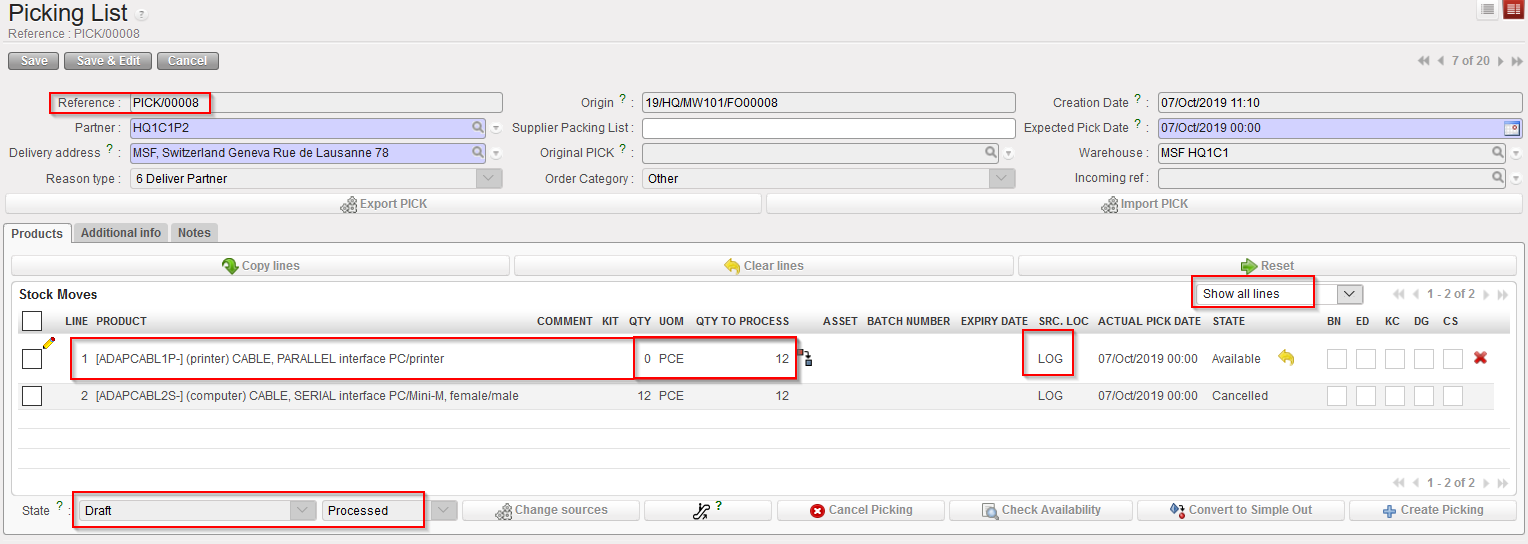
Corresponding main PICK before return – note that “Show all lines” filter is on
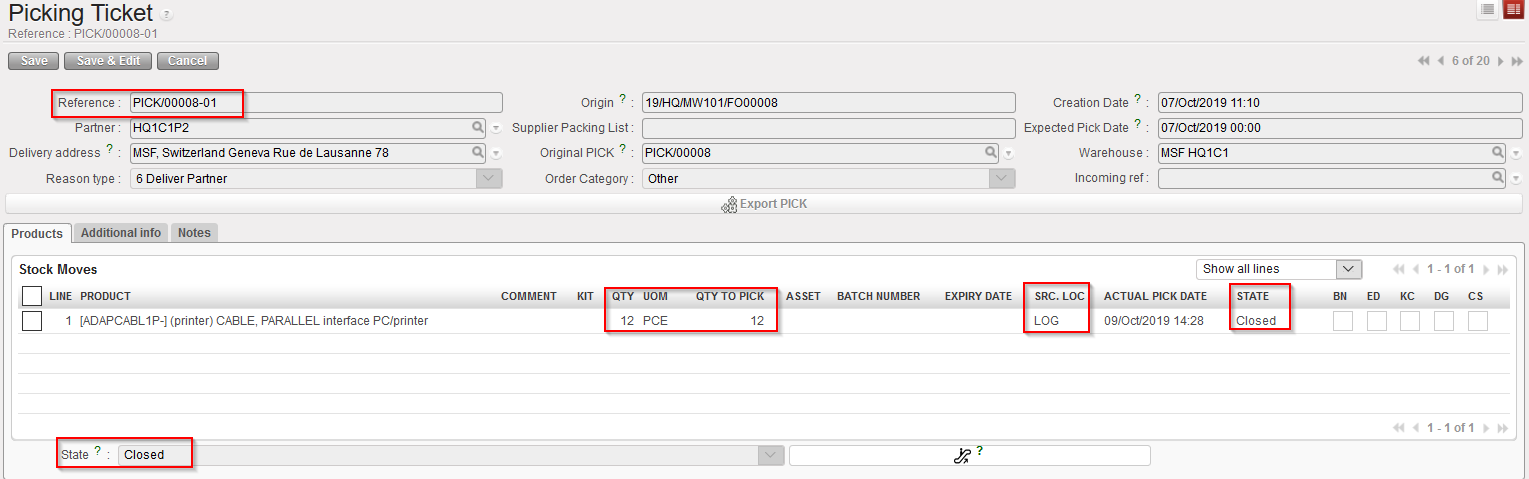
Sub PICK which was processed to pick the goods

2. Goods are partially returned to stock.

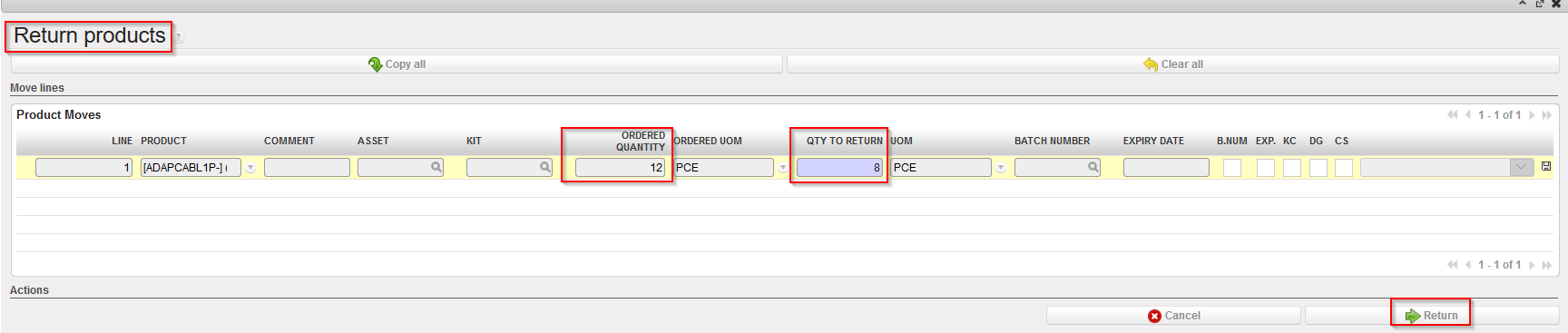
Returning partially the products from PPL to stock

3. Situation after partial return.

Corresponding main PICK after partial return

PPL after partial return – please note the change after using filter “Show all

Again, many alternative scenarios may exist involving partial validation of FOs, partial sourcing of FOs, partial validation of POs, partial confirmation of POs, partial reception of INs, partial picking, cancellation, cancel & resource, … All scenarios could not be described here but the most common were outlined.

F. HOW TO CANCEL A PRE-PACKING LIST (it is actually impossible to do)

Supply User Manual ENG -> 5. Warehouse -> 5.3 LU-SU4102: Picking -> F. HOW TO CANCEL A PRE-PACKING LIST (it is actually impossible to do)

F. HOW TO CANCEL A PRE-PACKING LIST (it is actually impossible to do)

You cannot cancel a Pre-Packing List. However, you can return the products to stock; this will close the PPL and update the Picking Ticket. See next LU to return items to stock.

Returning products to stock from a PPL

E. HOW TO PRINT THE PRE-PACKING LIST

Supply User Manual ENG -> 5. Warehouse -> 5.3 LU-SU4102: Picking -> E. HOW TO PRINT THE PRE-PACKING LIST

E. HOW TO PRINT THE PRE-PACKING LIST

Printing a document from an available PPL can be useful as it allows the storekeeper to write on it how picked items have been packed. Once done, this will be encoded in the system through the steps 1 & 2 described in the previous section.

Go to: Warehouse / Warehouse Management / Deliveries / Packing

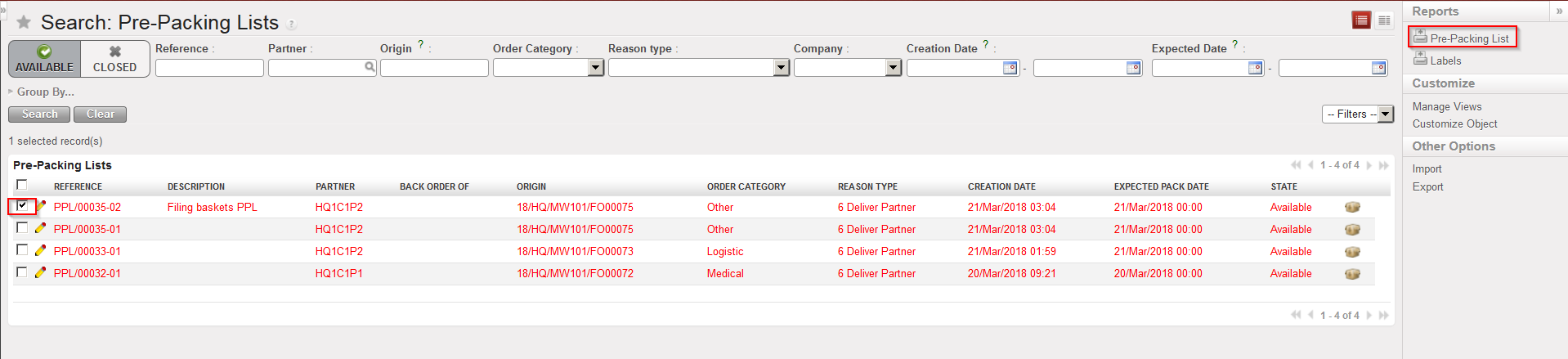
  1. Using the check boxes, tick the PPL you wish to print
  2. Select the “Pre-Packing List” option in the action menu to export the PPL to PDF

Selecting a PPL an exporting it to PDF

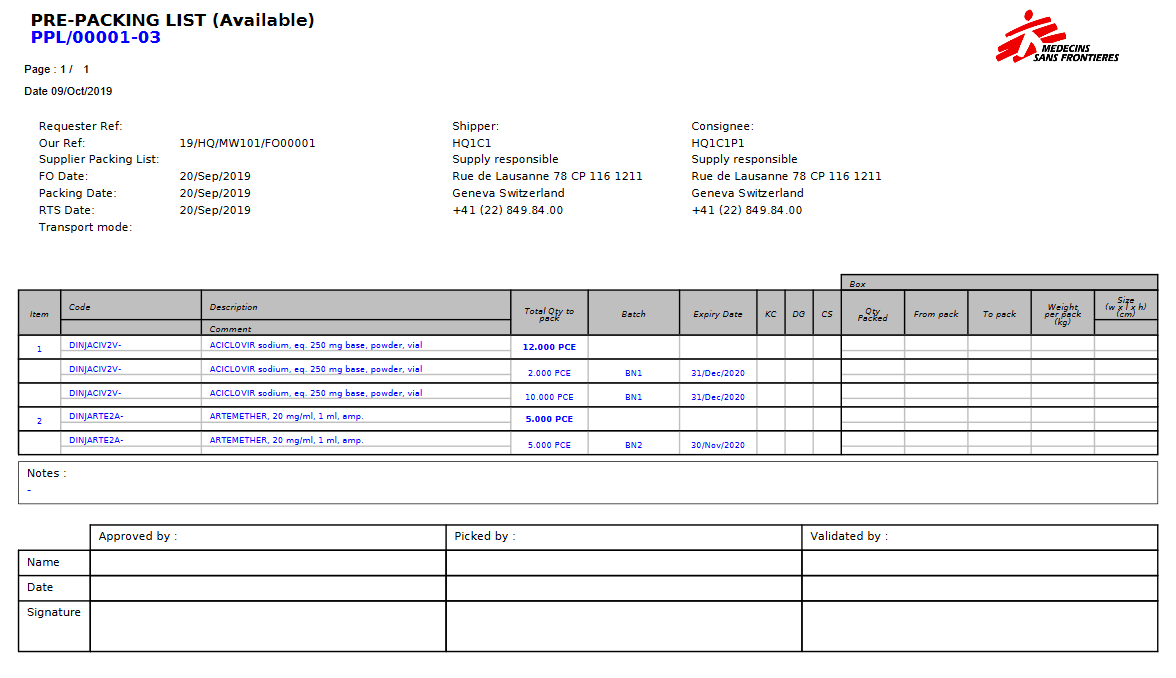
PPL in PDF

The “Pre-Packing List” option is also available in the action menu from within the PPL.

PPL can be exported to PDF in the state “Available” or “Closed“. However, if a “ClosedPPL is exported to PDF, the parcel information will not appear on the PDF document.

Note that labels may also be printed from a “Closed” PPL. Use the option “Labels” in the action menu to print them. You will get a PDF file with one page per parcel. Labels can be put on parcels in order to allow the shipper and the customer to properly identify them.

D. HOW TO IMPORT A PPL TO AN EXCEL FILE

Supply User Manual ENG -> 5. Warehouse -> 5.3 LU-SU4102: Picking -> D. HOW TO IMPORT A PPL TO AN EXCEL FILE

D. HOW TO IMPORT A PPL TO AN EXCEL FILE

Available PPL can be imported to Excel file with the information on screen:

Go to: Warehouse / Warehouse Management / Deliveries / Packing

  1. Click “Edit(pencil icon) on the PPL you want to import
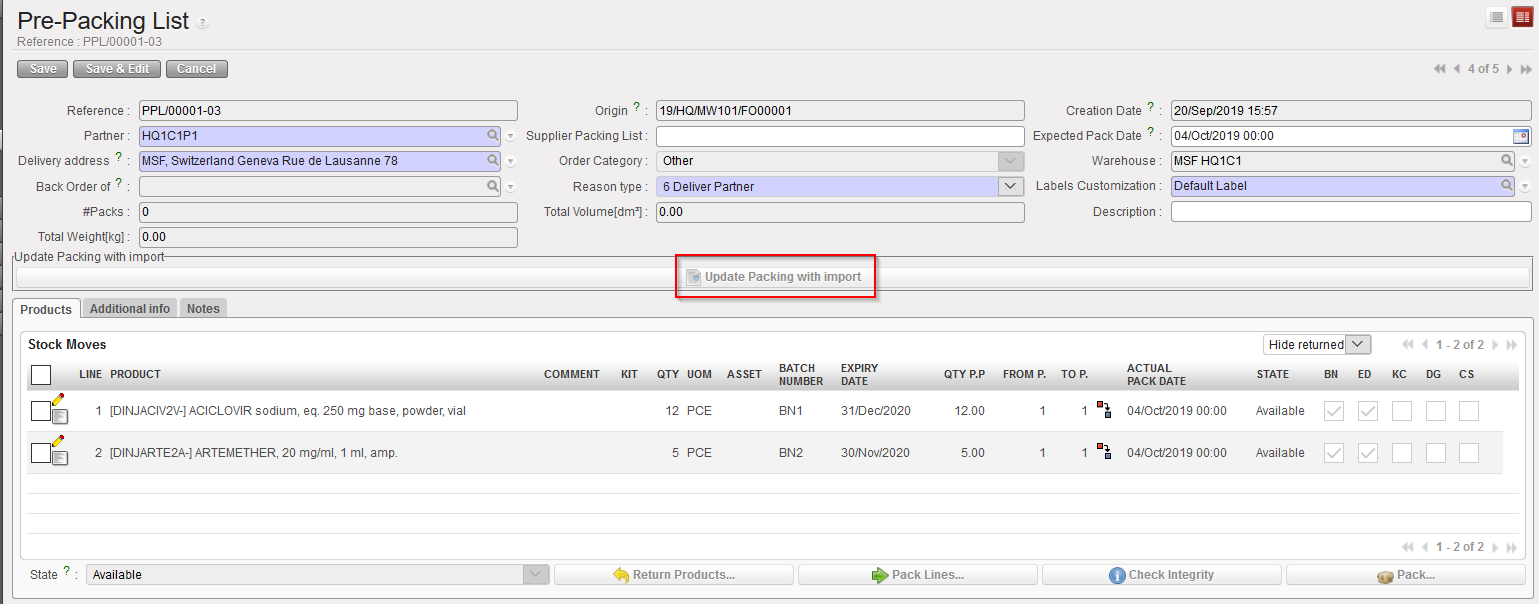
  2. From the PPL form view, click on button “Update Packing with import” and update your file
  3. Click on “add attachment
  4. Click on “Browse” to retrieve the import file
  5. Click on “Import file

Click on “Update Packing with import

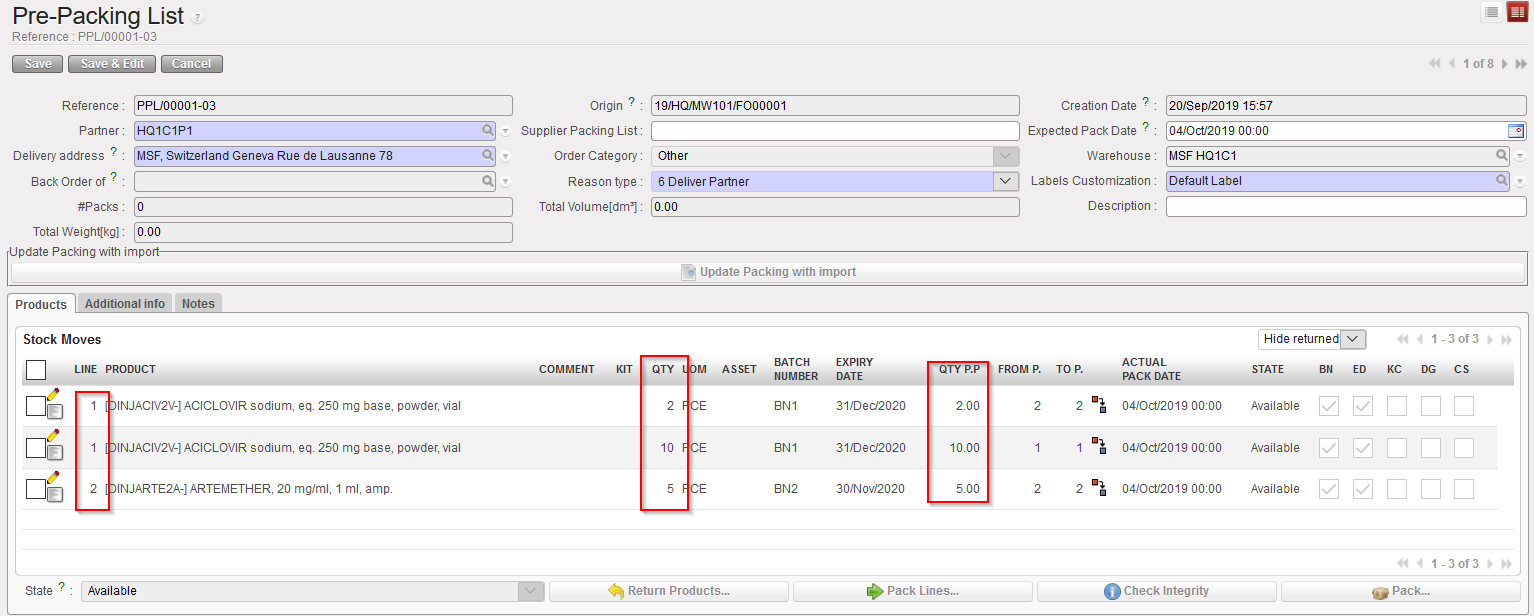
PPL in Excel – one line has been split in this example

Result after import of above Excel file

Note that after import the split lines cannot be aggregated back ( but they can be put in the same range pack eventually). Import checks will ensure that total of split quantities will equal original line quantity. Other checks will control line # and code matching; line Availability; BN/ED existence…

C. HOW TO EXPORT A PPL TO AN EXCEL FILE

Supply User Manual ENG -> 5. Warehouse -> 5.3 LU-SU4102: Picking -> C. HOW TO EXPORT A PPL TO AN EXCEL FILE

C. HOW TO EXPORT A PPL TO AN EXCEL FILE

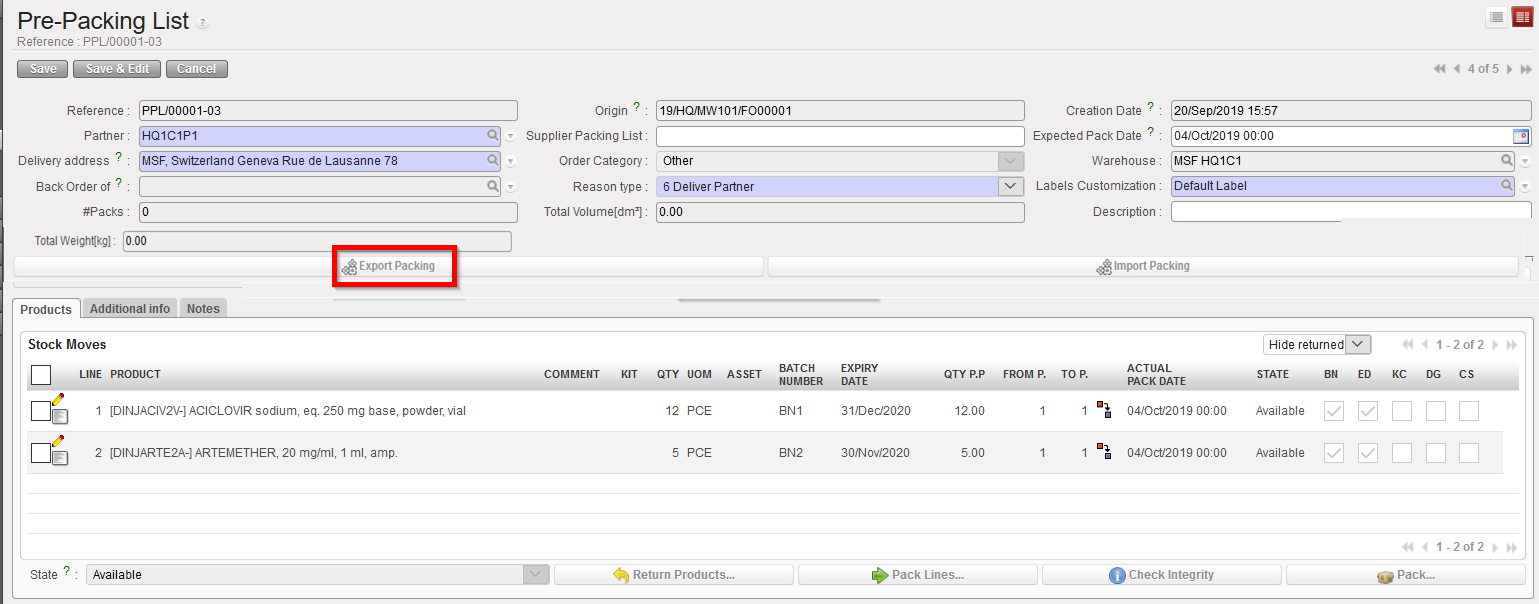
Available PPL can be exported to Excel file with the information on screen:

Go to: Warehouse / Warehouse Management / Deliveries / Packing

  1. Using the check boxes, tick the PPL you wish to Export
  2. Click on the “Export Packing” button

Selecting a PPL and exporting it to Excel

PPL in Excel

A. LU INTRODUCTION (LU-SU4103)

Supply User Manual ENG -> 5. Warehouse -> 5.3 LU-SU4102: Picking -> A. LU INTRODUCTION (LU-SU4103)

A. LU INTRODUCTION (LU-SU4103)

After the picking process, all picked products (and batches) are transferred on Pre-Packing Lists. A Pre-Packing List can be seen as a sub-packing list, from where parcels can be shipped to the requesting projects/customers. This means that pre-packing lists can be shipped partially to the customer if needed (e.g. if there is not sufficient available space on the plane).

The Pre-Packing List process can also be seen as an internal stock move. Indeed, the selected products and quantities are moved from the “Packing” location to the “Dispatch” location when validating the PPL. Similarly, if products are returned to stock from a PPL, the aforementioned stock move will be cancelled and new one, moving the products from the “Packing” location back to the physical “stock” location, will be created.

5.4 PACKING.

Supply User Manual ENG -> 5. Warehouse -> 5.3 LU-SU4102: Picking.

LU-SU4103: Packing.

A. LU INTRODUCTION

B. HOW TO PACK PRODUCTS

C. HOW TO EXPORT A PPL TO AN EXCEL FILE

D. HOW TO IMPORT A PPL TO AN EXCEL FILE

E. HOW TO PRINT THE PRE-PACKING LIST

F. HOW TO CANCEL A PRE-PACKING LIST (it is actually impossible to do)

G. HOW TO UNPACK PRODUCTS AND RETURN THEM TO STOCK

H. PRE-PACKING LISTS REFERENCES

K. PICKING TICKETS REFERENCES

Supply User Manual ENG -> 5. Warehouse -> 5.3 LU-SU4102: Picking -> K. PICKING TICKETS REFERENCES

K. PICKING TICKETS REFERENCES

If you look at the PICK references, you will find various types of references (document numbers):

  1. PICK/XXXXX is used for the references of the main PICKS
  2. PICK/XXXXX-YY is used for the references of the sub PICKS
  3. You will also find references such as PICK-return, PICK-surplus, which are created by claims (see specific LU on claims for further details)

J. HOW TO CANCEL & RESOURCE ON PICKING TICKETS

Supply User Manual ENG -> 5. Warehouse -> 5.3 LU-SU4102: Picking -> J. HOW TO CANCEL & RESOURCE ON PICKING TICKETS

J. HOW TO CANCEL & RESOURCE ON PICKING TICKETS

Cancel & resource is available on Picking Tickets but only on the main PICKS and only on Picking Tickets which have been created following the sourcing of an FO from stock (i.e. not on order). This may be useful if, for example, after deciding to source from stock you realize that goods are actually not available in the stock. Cancel & resource will allow you to resource the request to a supplier (PO).

1) Cancel & resource a Picking Ticket at header level

Go to: Warehouse / Warehouse Management / Deliveries / Picking

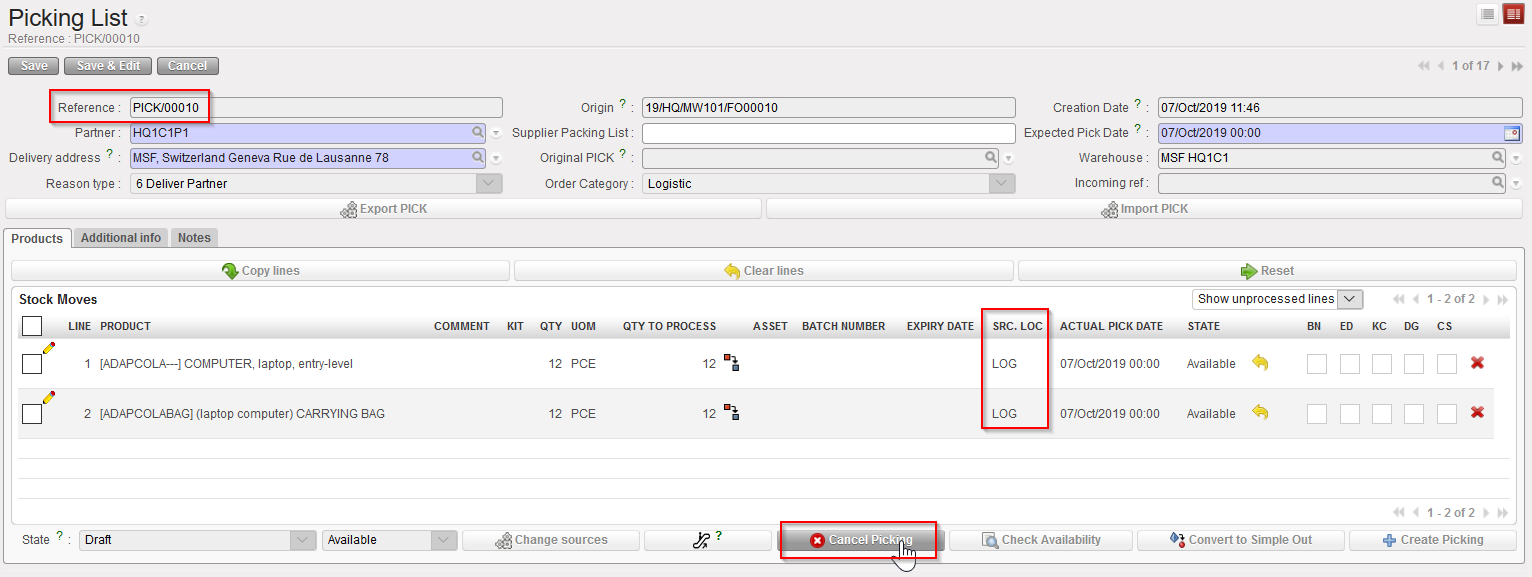
  1. Open the Picking Ticket you wish to cancel & resource.
  2. Click on the “Cancel Picking” button located at the bottom of the screen.

Cancelling a main PICK at header level

      3. On the “Cancel Picking” window, click on the “Cancel & Resource” button.

Cancelling & resourcing a main PICK at header level

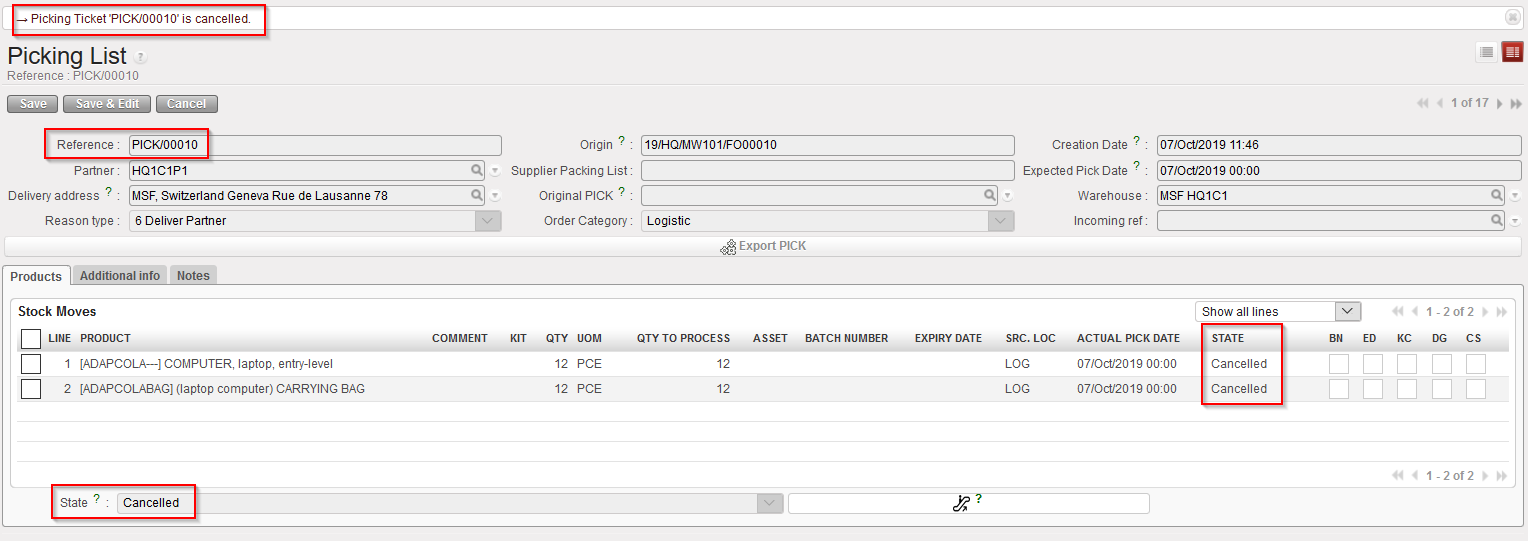
Cancelled and resourced main PICK

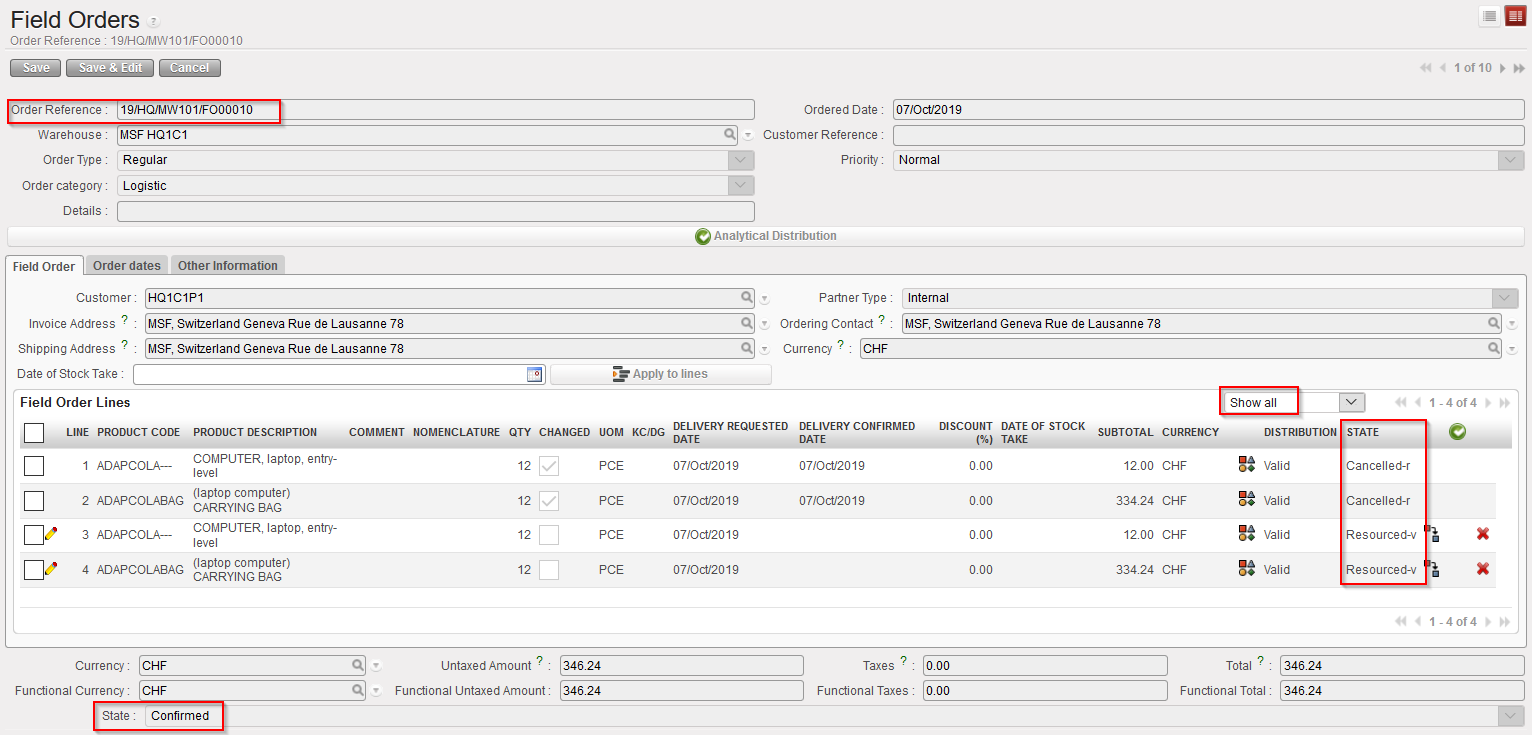
FO related to the cancelled and resourced main PICK

The main PICK (and all its lines) is now cancelled.

The corresponding FO remains in the state “Confirmed“. Lines which have been cancelled & resourced on the PICK are now in the state “Cancelled” (use “Show all lines” filter) while new lines, copy of the “Cancelled” ones, are added on this FO in state “Resourced-v“. In the FO the original Cancelled lines are in state “Cancelled-r” when using filter “Show all”.

2) Cancel & resource a Picking Ticket at line level

Go to: Warehouse / Warehouse Management / Deliveries / Picking

  1. Open the Picking Ticket on which you wish to cancel & resource a line.
  2. Click on the red cross located at the right of the line you wish to cancel & resource.

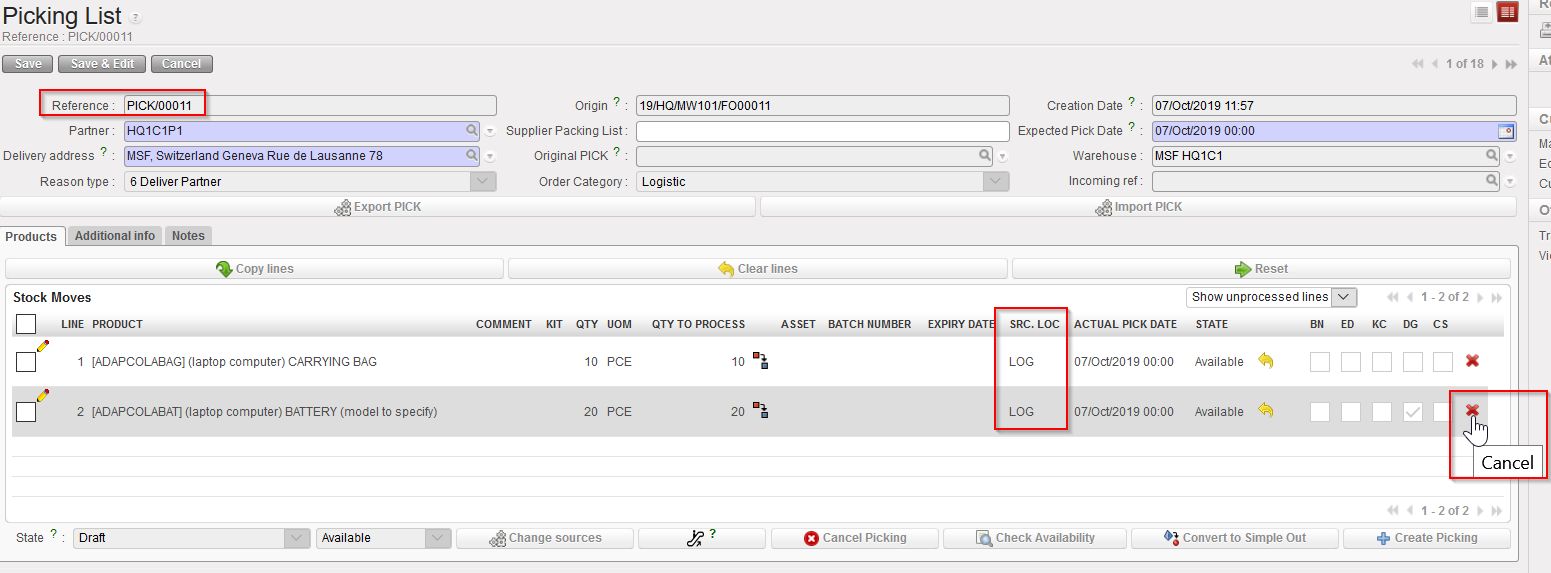
Cancelling one line of a main PICK

       3.  On the “Cancel move” window, click on the “Cancel and Resource” button.

Cancelling & resourcing one line of a main PICK

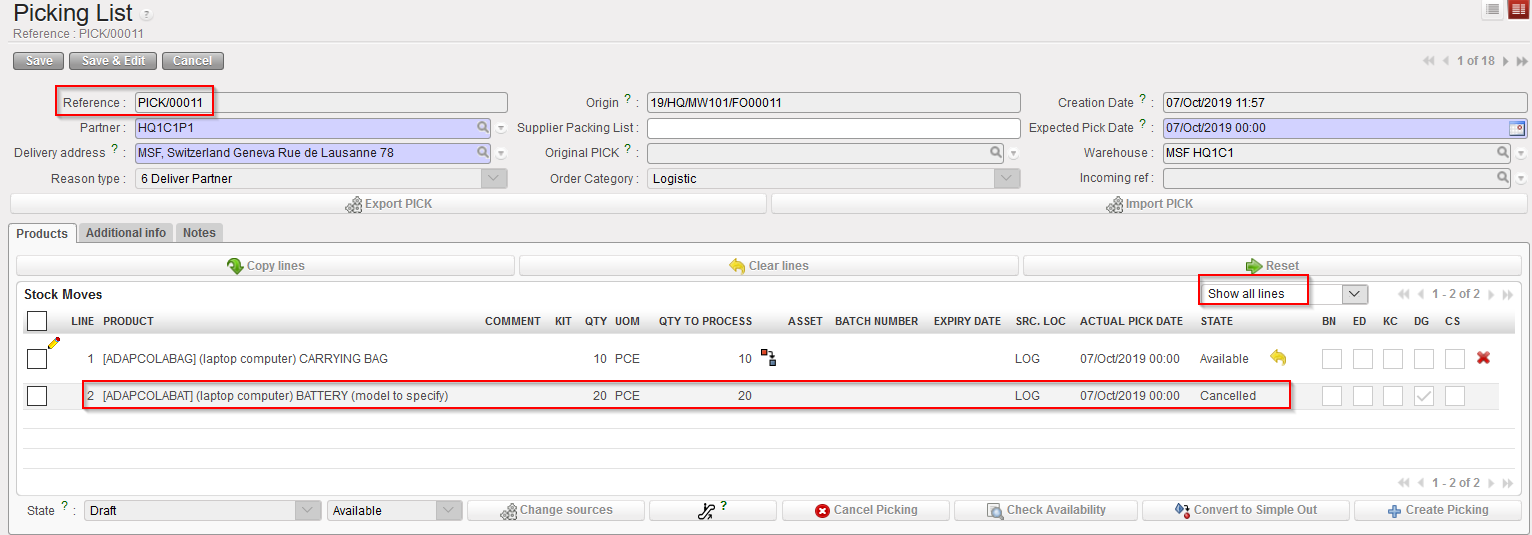
Cancelled and resourced line on a main PICK

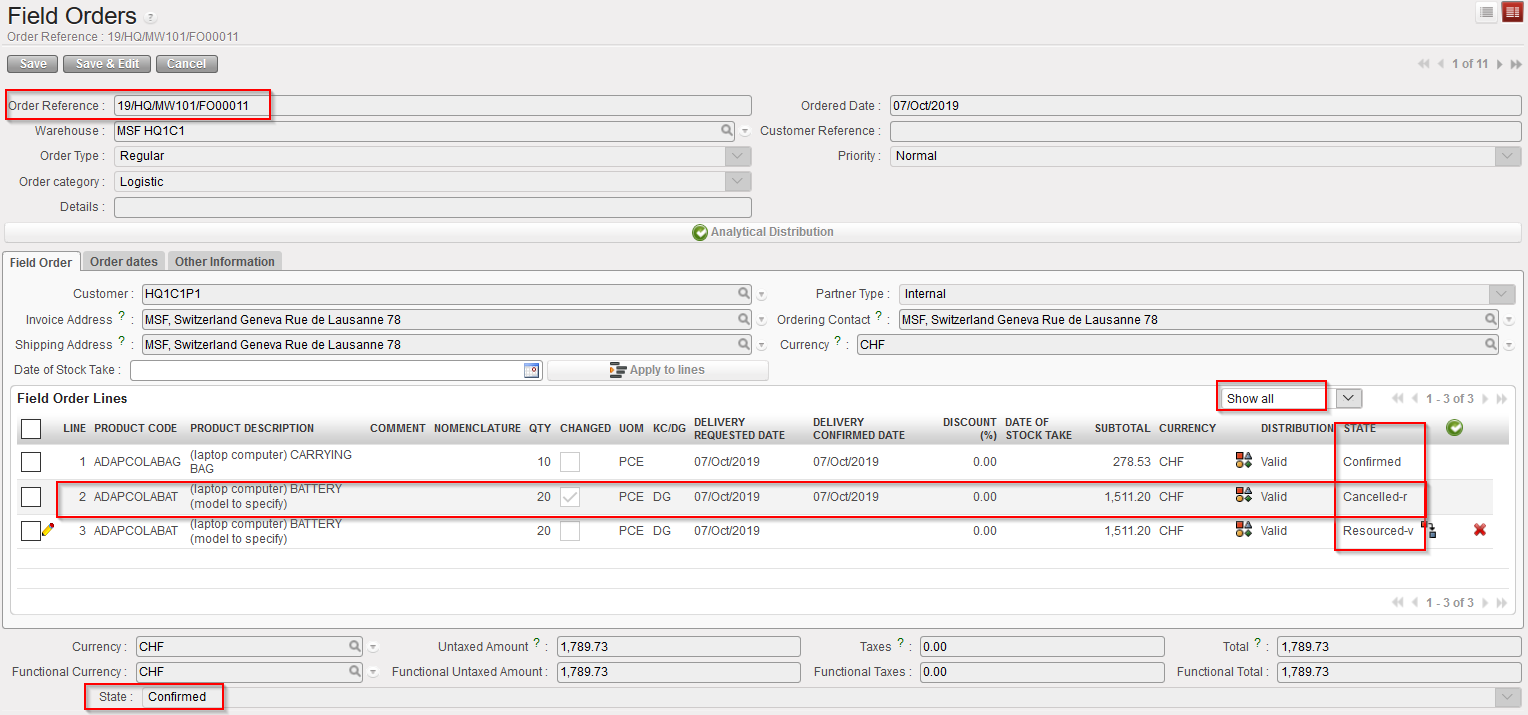
FO related to the main PICK on which a line was cancelled & resourced

The cancelled & resourced line on the main PICK has the state “Cancelled“.

The corresponding FO remains in the state “Confirmed“. The original line which was cancelled & resourced on the PICK is now in the state “Cancelled-r” on the FO while a new line, copy of the “Cancelled-r” one, is added on this FO in state “Resourced-v“.

3) Conclusion of the section

Remember that cancel & resource is only available on main PICKS and can only be done if FO has been sourced from stock. In this section, 2 scenarios were outlined. Again, many alternative scenario exist involving partial sourcing, FO sourced partly from stock and partly on order, cancel & resourced done after partial picking, cancel & resource done on split lines, …