1.3 Installation

1.3 Installation

1.3.1 Installation with the wizard

Use Windows Explorer to browse to the directory where the UniField installer is located.
Double click on the installer e.g: openerp-allinone-setup-UF10.0-20180914-083009-r1.exe
In case the window User Account Control appears, allow the program from an unknown publisher to make changes.
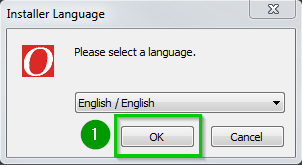
Click Yes. The following window appears:
Click on OK 1
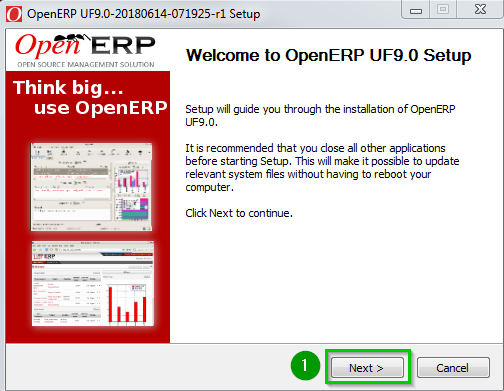
Click Next 1
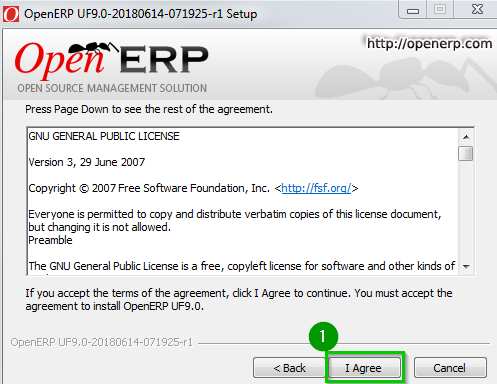
Click I Agree 1
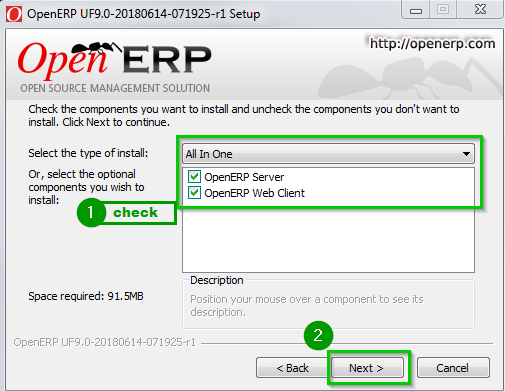
Select 1 All In One as type of install Leave all the boxes checked
Click Next 2
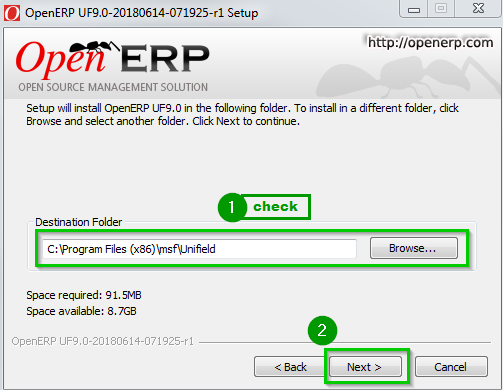
Click on Browse 1 if the standard path does not suit you.
Otherwise, Click Next 2
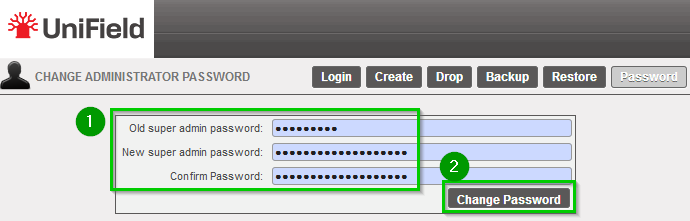
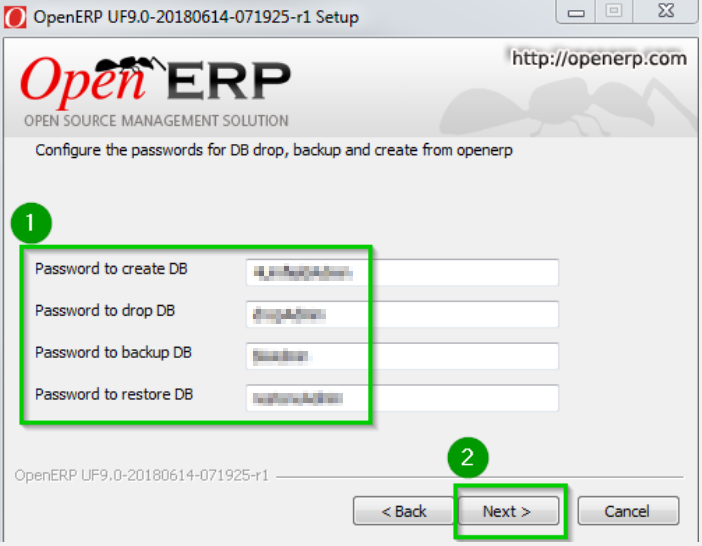
You need to define different passwords 1 to drop backup and restore the database.
Click Next 2
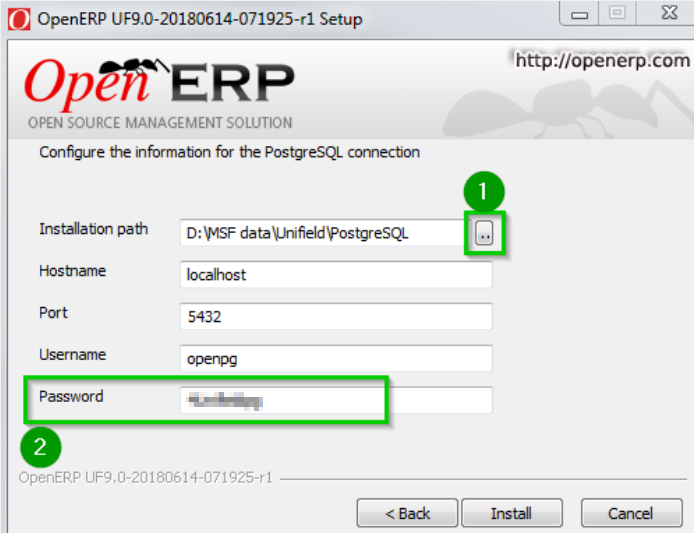
Click on “…” 1 if the standard path does not suit you.
Leave all the fields as shown except for the Password. For security reasons, you should not leave this default value; change Password 2 to something that will be remembered. This value will never be changed.
Click Install
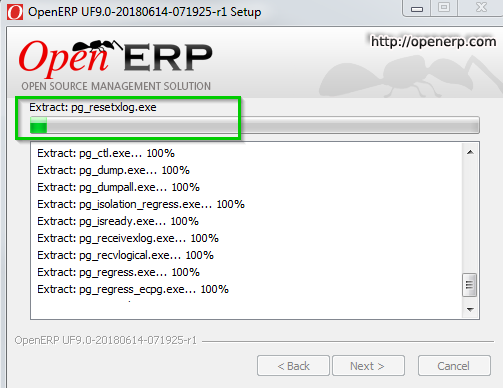
The installation starts running and the following screens will appear during the installation, wait until it is completed
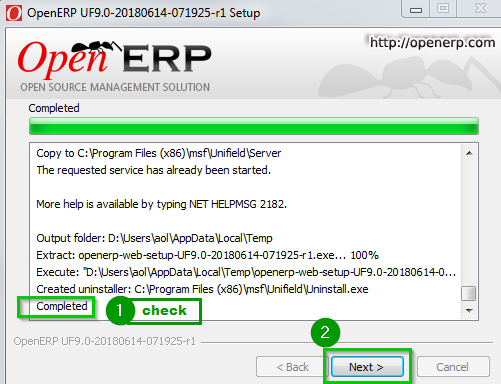
When it finishes you will see at the bottom of the text area a Completed notification 1 meaning the installation is now done.
Click Next 2
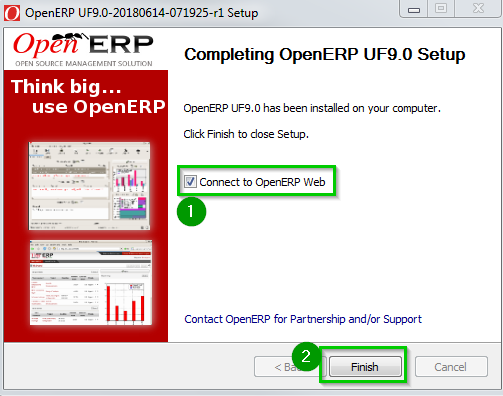
Leave the Connect to OpenERP Web box checked 1.
Click on Finish 2
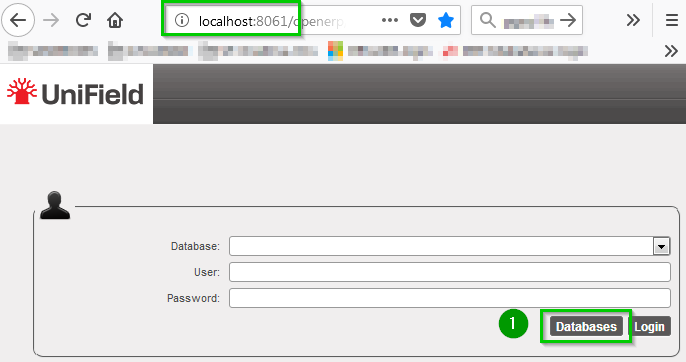
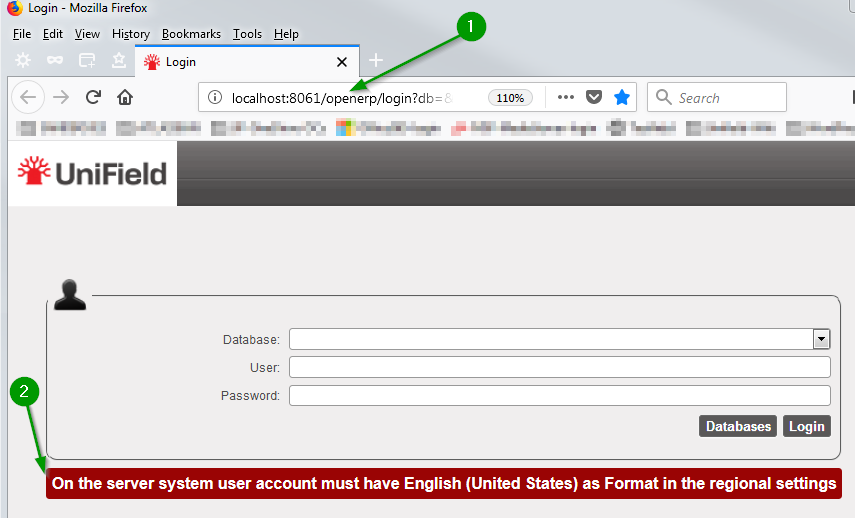
The default browser starts running and connects locally to UniField 1
A warning message 2 is displayed on the homepage to ensure that your regional settings are set to “English (United States)”. If it is already done, you can omit it and proceed.

UniField is correctly installed and will start automatically when the computer boots up.
On the computer where UniField has been installed, you can later connect to the UniField Web Interface using the address http://localhost:8061

1.3.2 Silent installation

Use the following command for silent installation: openerp-allinone-....exe /S
In this example: openerp-allinone-....exe is the AIO
By default:

  • OpenERP is installed into C:\Program Files (x86)\msf\Unifield
  • PostgreSQL data is installed into: D:\MSF Data\Unifield\PostgreSQL
  • PostgreSQL application software is installed into: C:\Program Files (x86)\msf\Unifield\pgsql

UniField is correctly installed and will start automatically when the computer boots up.
On the computer where UniField has been installed, you can later connect to the UniField Web Interface using the address http://localhost:8061

1.1 Requirements

1.1 Requirements.

The All-In-One (AIO) is targeted to be installed on Windows 11 or on Windows Server versions 2019 or 2022.  
The AIO installation requires administrative rights as it is going to install:

  • OpenERP Server
  • OpenERP Web
  • The database PostgreSQL and all the dependencies, such as Windows C++ 2005 Redistributable.

Other important considerations:

  • System user account must have English (United States) as Format in the regional settings.
  • Once UniField is installed, the web port (default: 8061, but possibly 80 or 443) needs to be open on the firewall to accept inbound connections.
  • Some outgoing ports must be opened on the firewall to be able to synchronize; refer to this section

1. Installation / Un-installation of an Instance

1. Installation / Un-installation of an Instance

1.1 Requirements

IT Manual

Contents