Supply User Manual ENG -> 4. Procurement -> 4.10 LU-SU3401: Procurement Advanced Features -> F. How to close a document/transaction and cancel its associated documents
F. How to close a document/transaction and cancel its associated documents
It may be necessary to close a document and cancel the related documents, so that they are not left pending or mistakenly processed. UniField offers this tool to close IRs, FOs and POs, and cancel their associated documents.
Go to: Tools / Documents “in Progress“
- Find the document / transaction which you want to close by using the search filters at the top, and clicking on “Search“. Note that by default the filter “Creator” is activated. Clear it if needed.
- The system displays attributes of each document, including creation date, partner, document type and state. You can see if there are associated documents thanks to the “associate doc.” checkbox (flagged means there are associated documents).
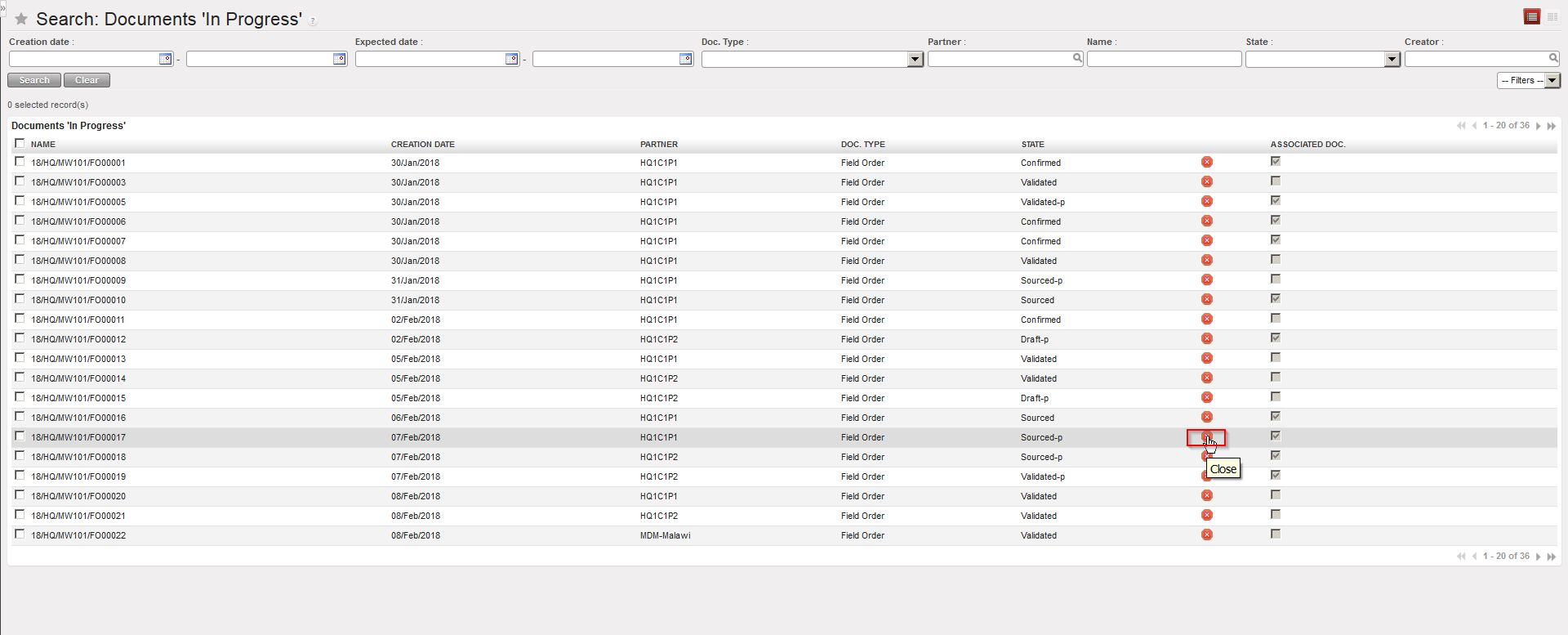 |
| Documents in Progress |
- To close a document, click on the “Close”
 button on the right side of the line.
 - The system displays all associated documents to it. If you wish to open any of these documents, click on the magnifying glass next to it and the system will open this transaction in a new tab.
 |
| Documents in Progress – Associated documents |
3. If you are happy for all the listed associated documents to be cancelled, click on the “Cancel associated documents and close the document” button.
4. The system will display a message confirming that the original document has been closed and that the associated document(s) have been cancelled.