A. How to create a new local product

Supply User Manual ENG -> Products -> 3.2 LU-SU2101: General Product Management -> A. How to create a new local product

A. How to create a new local product

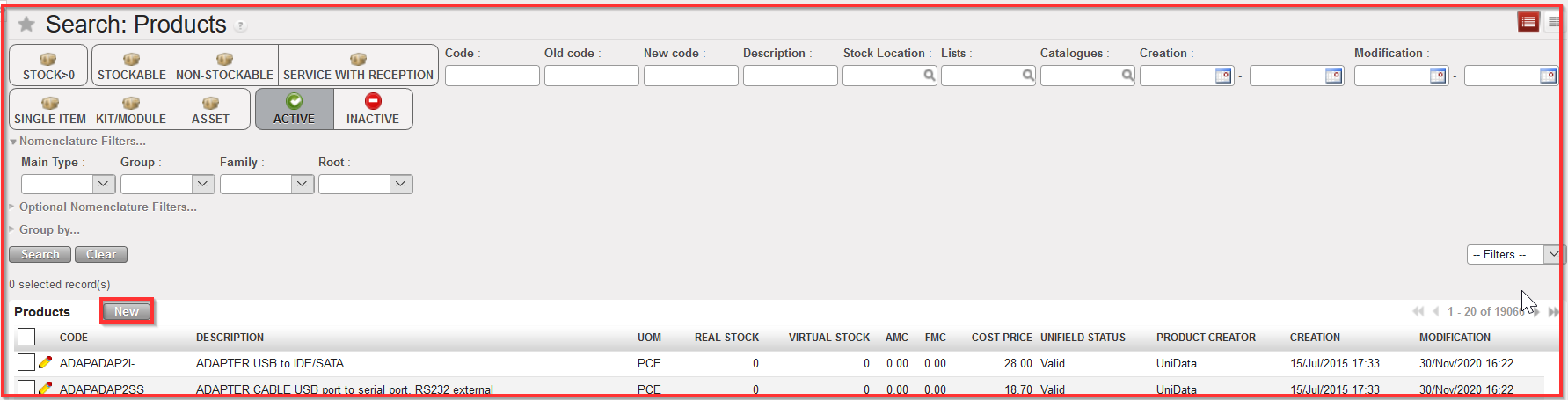
Products can only be created at coordination level and above; the process for new products is quite similar for local and international products.

The last developments with UniData and the management of UD Non-Standard Local product should considerably reduce the creation of local product at Coordination level if not suppress it. It should remain exceptional and subject to specific user rights.

Go to: Products/ Products / Products

  1. Click “New” button to begin the process
  2. Fill in all the blue mandatory fields (see the relevant headings in this Learning Unit for detailed explanations on fields, options etc)
  3. Fill in any additional information
  4. Save

Create a new local product

Please note that Local products can also be managed for intermission and intersection flows.

D. LU-SU1106: Additional information on user rights

Supply User Manual ENG->Supply Configurations-> 2.6 LU-SU1106:Users and user rights -> D. LU-SU1106: Additional information on user rights

D. LU-SU1106: Additional information on user rights

It is possible to create a user on the HQ instance and synchronize it down to all related instances so that this user has access to all instances.

More detailed information on users and user rights is available in the UniField IT configuration manual.

C. LU-SU1106: User groups

Supply User Manual ENG->Supply Configurations-> 2.6 LU-SU1106:Users and user rights -> B. LU-SU1106: Users

C. LU-SU1106: User groups

User groups are maintained at HQ level and synchronized down to all related instances. User groups should never be modified at field level. However, it may be useful to know where they can be viewed as they will give you information on access they can give to users.

Go to: Administration / Users / Groups

The existing user groups appear on the screen

Open one of them in read mode (in the example below, we open the group “Sup_Purchase_Officer)

User group

The most interesting part is the “Access Rights” tab as it lists all the objects to which a group can access. It also details if the object can be accessed in read, write (modify), create or delete.

B. LU-SU1106: Users

Supply User Manual ENG->Supply Configurations-> 2.6 LU-SU1106:Users and user rights -> B. LU-SU1106: Users

B. LU-SU1106: Users

Each user working on UniField should have its own login and password. This allows limiting the number of functionalities to which a user has access. This also allows tracking who created or modified a document or a master data.

Go to: Administration / Users / Users

2 users are existing by default on every instance.

  • Administrator (admin) should not be used to perform the daily operations but could be needed to perform specific operations. Access to this user is usually restricted to HQ staff.
  • Synch (synch) is used by the synchronization in order to create/modify document or master data.

Users

To create additional users:

  1. Click on the “New” button.
  2. Enter a “User name” (name or function of the user).
  3. Enter a “Login” (the login will be needed to connect to UniField).
  4. Make sur the “Active” checkbox is ticked.
  5. Enter a password in the “Change password” field (The password must have at least 6 characters and include at least 1 number. The password will also be needed to connect to UniField).
  6. If the field “Change password on next login” is ticked, the user will have to change his/her password at next login (this allows strict confidentiality).
  7. Use the field “Language” to define which language should be used when the user connects to UniField.
  8. In the “Access Groups” section, select the access groups needed by the user. This pilots which functionalities a user can access.


    • Every user must have the access group “Sync / User”.
    • Access groups related to supply starts with “Sup_”.
    • Access groups related to finance starts with “Fin”.

User creation

A. LU-SU1106: LU Introduction

Supply User Manual ENG->Supply Configurations-> 2.6 LU-SU1106:Users and user rights -> A. LU-SU1106: LU Introduction

A. LU-SU1106: LU Introduction

Users working on UniField do not necessarily need to access all functionalities. Supply users should not have access to finance functionalities. People working in the warehouse should have access to warehouse functionalities only.

Users working in procurement should have access to procurement functionalities only. Some users should have access to a wide range of functionalities while others should have access to a limited number of functionalities.

C. LU-SU1105: Pack Type

Supply User Manual ENG -> Supply Configurations -> 2.5 LU-SU1105: Additional configuration points -> C. LU-SU1105: Pack Type

C. LU-SU1105: Pack Type

If the dimensions of the boxes used for shipping the goods to customers are standard, it may be useful to define pack types in configuration. These pack types can be used when Pre-Packing Lists are processed. Behind a pack type, you find the dimension of a box (length, width, height) in centimeters.

Go to: Supply Configuration / Warehouse Configuration / Regular Warehouse Management / Pack Types

Pack Types

New pack types can be created via the “New” button.

Existing pack types can be edited via the pencil icon.

B. LU-SU1105: PO Automation

Supply User Manual ENG -> Supply Configurations -> 2.5 LU-SU1105: Additional configuration points -> B. LU-SU1105: PO Automation

B. LU-SU1105: PO Automation

This configuration point pilots how procurement documents are created by the OST. Most of the time, these documents are created as soon as a request is sourced on order. However, the setting may be changed, and procurement documents will then only be created when the user launches the “Auto POs creation” batch.

Go to: Supply Configuration / Orders / PO Automation

PO Automation

By default, the setting “Run scheduler automatically” is set to “Yes”. In this case, procurement documents are created automatically as soon as requests are sourced on order. If the setting is changed to “No”, the procurement documents are only created when a user launches the “Auto POs creation” batch.

This batch can be launched from the action menu of the OST (option “Auto POs creation”) or via Warehouse / PO Creation / Auto POs creation.

Additional information related to “Auto POs creation” is available in the Procurement chapter.

A. LU-SU1105: Sourcing groups

Supply User Manual ENG -> Supply Configurations -> 2.5 LU-SU1105: Additional configuration points -> A. LU-SU1105: Sourcing groups

The field “Order creation mode” which is available on the partner master data sheet allows splitting/merging requests on different POs according to different rules: by project, by category, by category & project or by order.

Sourcing groups allow going even further as they enable the split of 1 single request on different POs, even if all lines of this request are sourced to the same supplier and are requested for the same date. However, sourcing groups can only be used with ESC suppliers.

The use of this configuration point is described in detail in the Procurement chapter.

Go to: Supply Configuration / Orders / Sourcing groups

New sourcing groups can be created via the “New” button.

Existing sourcing groups can be edited via the pencil icons.

Sourcing groups

Sourcing groups can be used in the Orders Sourcing Tool when requests are sourced on order (PO) with an ESC as supplier. See Procurement chapter for details (LU_SU3401 Procurement advanced feature) –>H. How to source on order (IR or FO) on several Pos for the same ESC (and same RDD)