LUFI-20301 Currency Files Loading

Finance User Manual ENG -> 2. Finance Configurations ->  2.3 Multi-Currency Management -> LUFI-20301 Currency Files Loading

LUFI-20301 Currency Files Loading

LU Introduction

When a new mission is opened, a list of standard currencies is loaded at HQ level with current FX rates and then synchronized as inactive to the field. For specific use in the field, a non-standard currency can be created manually by HQ and synchronized to the field as inactive, too.

See LUFI-20204 Manual currency creation for further information.
How to Load Standard Currencies in an Instance

As MSF expects the same exchange rates to be used across all missions, currency creation should only take place in the Headquarter instance as it is then synchronized downwards to all missions.

Go to the following website to download the file:

http://ec.europa.eu/budget/contracts_grants/info_contracts/inforeuro/inforeuro_en.cfm

This link is just an example; please refer to your section procedures to find out which website you should use or create your own CSV file

CSV Currency Exchange Rate File

  1. Select the rate period as the reference period to display the FX rate and select {OK}.
  2. Click on {Download in csv format} and save the file.
  3. Check if rates were properly downloaded.
  4. Copy/paste them into your currency import file
  5. In UniField go to Accounting/Configuration /Currency Management/Import Currencies.
  6. Browse the file to upload and click on {Import}.
  7. Click on {OK}.
  8. In UniField go to Accounting/Configuration /Currency Management/Currencies

A list of currencies displays with their corresponding FX rate
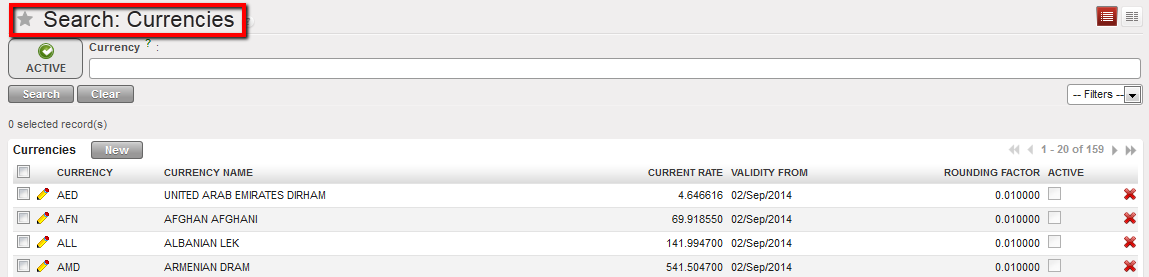

Currencies List displayed in the Currencies Search view

9. Synchronize

2.3 Multi-Currency Management.

Finance User Manual ENG -> 2. Finance Configurations ->  2.3 Multi-Currency Management.

LUFI-20301 Currency Files Loading
LUFI-20302 Currency Activation
LUFI-20303 Currency FX Rate Update
LUFI-20304 Applied FX Rate over Multiple Periods
LUFI-20305 Manual Currency Creation
LUFI-20306 Manual Currency Update

2.3 Multi-Currency Management

MSF normally tracks cash movements in the local currency. We call these currencies the “Booking Currencies”. In addition, each OC has a consolidation currency. This currency is Euro for all sections except MSF Switzerland which consolidates its financial figures in Swiss Francs. We call these currencies the “Functional Currencies”. Monthly currency rates can be loaded into UniField in order to provide accurate values of accounting entries in functional currency.

In addition to monthly currency rates, specific currency tables can be used in various situations. There may be a case where an institutional donor defines a fixed or variable rate to be used for reporting purposes. With UniField, users are able to create currency tables and attach them to a grant in order to generate donor reports with compliant rates. Please see LUFI-60301 of Chapter 6 Donor management.

Specific currency tables can also be created to value actual budget rates and explain budget vs. actual discrepancies notwithstanding FX rates variation effects. In addition, specific currency tables can be used to revaluate balance sheet account balances at a year-end closing rate.

These tables must be created and imported in the HQ instance and once validated, they will synchronize to the field instances.

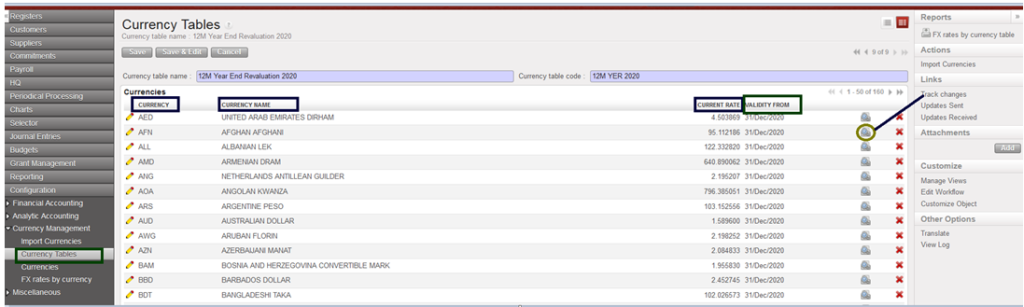
Search view of currency tables


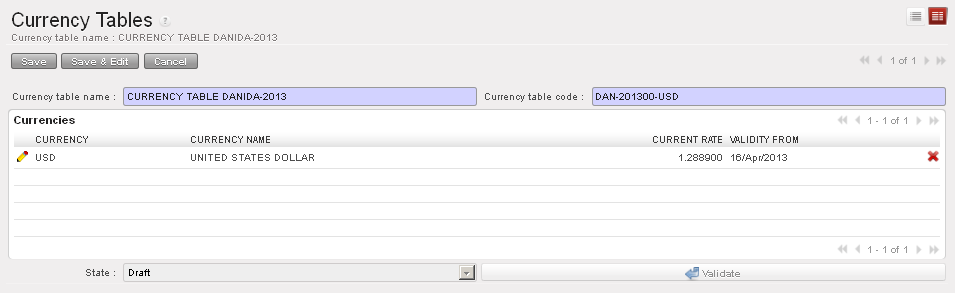
Currency table Form view

Track changes in the screen of  “Currency Tables” :

The track on “Currency Tables as below:

  • the creation of the currency table
  • the editions of the code, the name, the state, the addition and deletion of currencies
  • to see the changes on a currency itself: click on the button on the right of the currency line .
Display of track changes after editing one currency table from yellow pen

Further information on donor currency tables can be found in UniField Finance User Manual Chapter 6 Donors, Funding Pools and financing contracts.

In UniField you will be able to:

  • Manage a list of standard and non-standard currencies (manually or with a downloaded file)
  • Activate/inactivate currencies
  • Book and display automatic accounting transactions in booking and functional currency in the financial and analytical journals.
  • Manage several currency tables attached to budget, grant and revaluation
  • Automatically calculate and book exchange rate gain/loss

LUFI-20203 Configuration Fiscal Year Dates

Finance User Manual ENG -> 2. Finance Configurations -> 2.2 Fiscal Year and Accounting Periods -> LUFI-20203 Configuration Fiscal Year Dates

LUFI-20203 Configuration Fiscal Year Dates

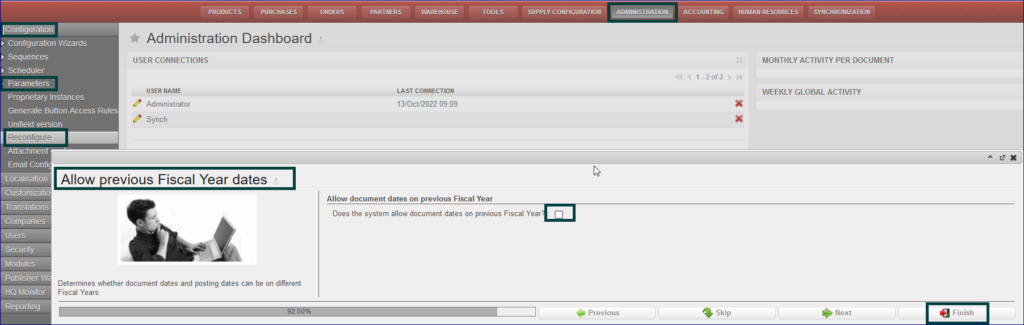
It is possible for any OC to choose whether to allow document dates from previous fiscal year or not. A new option is added in the Reconfigure “Allow document dates on previous Fiscal Year“. During instance creation, if you want to allow having documents dates from previous fiscal year then you need to tick the box. According to the current internal procedures on each OC, this box will be ticked only in OCB and OCP for the auto creation, the process as below:

Go to Administration> Configuration > Parameters > Reconfigure

It will open new window “Allow previous Fiscal Year dates

Tick on box with “Does the system allow document dates on previous Fiscal Year?

Click on “Finish

Reconfigure previous fiscal year dates

LUFI-20202 Accounting Period Opening

Finance User Manual ENG -> 2. Finance Configurations -> 2.2 Fiscal Year and Accounting Periods -> LUFI-20202 Accounting Period Opening

LUFI-20202 Accounting Period Opening

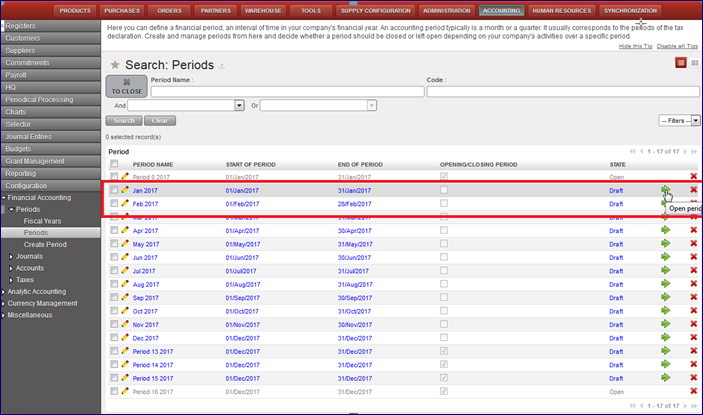
Go to Accounting/Configuration/Financial Accounting/Periods/Periods

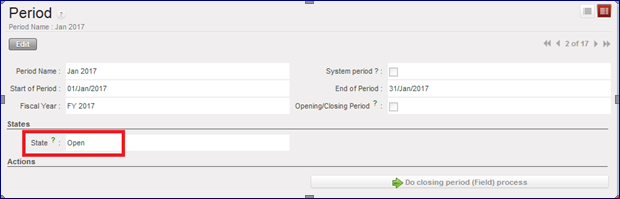
  1. Click on the green arrow  to open the relevant accounting period. In the below example, we want to open January 2017.

>>>  The accounting period is {Open}.

Green Arrow to select to open January 2017
Form view of the period January 2017 display the state {Open}

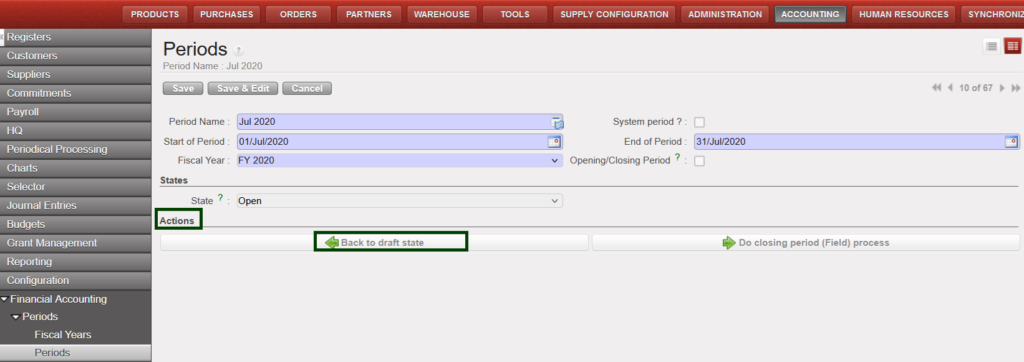
Possible to set period back to draft state in case the period opened in mistake and no JI line    created as below with example Jul 2024 period opened in mistake:

How to set period back to draft state

2.2 Fiscal Year and Accounting Periods

Finance User Manual ENG -> 2. Finance Configurations -> 2.2 Fiscal Year and Accounting Periods

LUFI-20201 Fiscal Year and Periods Creation
LUFI-20202 Accounting Period Opening
LUFI-20203 Configuration Fiscal Year Dates

LUFI-20201 Fiscal Year and Periods Creation

LU Introduction

Fiscal years and accounting periods have to be defined in order to establish a timeframe for all accounting entries. At MSF, the fiscal year corresponds to the calendar year starting from January 1st and ending on December 31st.

In UniField, creating accounting periods automatically generates the creation of the corresponding fiscal year in {Open} state. UniField creates 12 periods and 5 extra-accounting periods (e.g. for fiscal year opening balances, adjustments posting or corrections required by auditors) by default.

The fiscal year and accounting periods are created at HQ level and synchronized downwards to the mission (coordination and projects) in {Draft} status. The periods are in {Draft} status until an authorized user opens them.
Note! Periods 0 and 16 are automatically in {Open} status and their status cannot be manually modified.

How to set the configuration for Fiscal Year

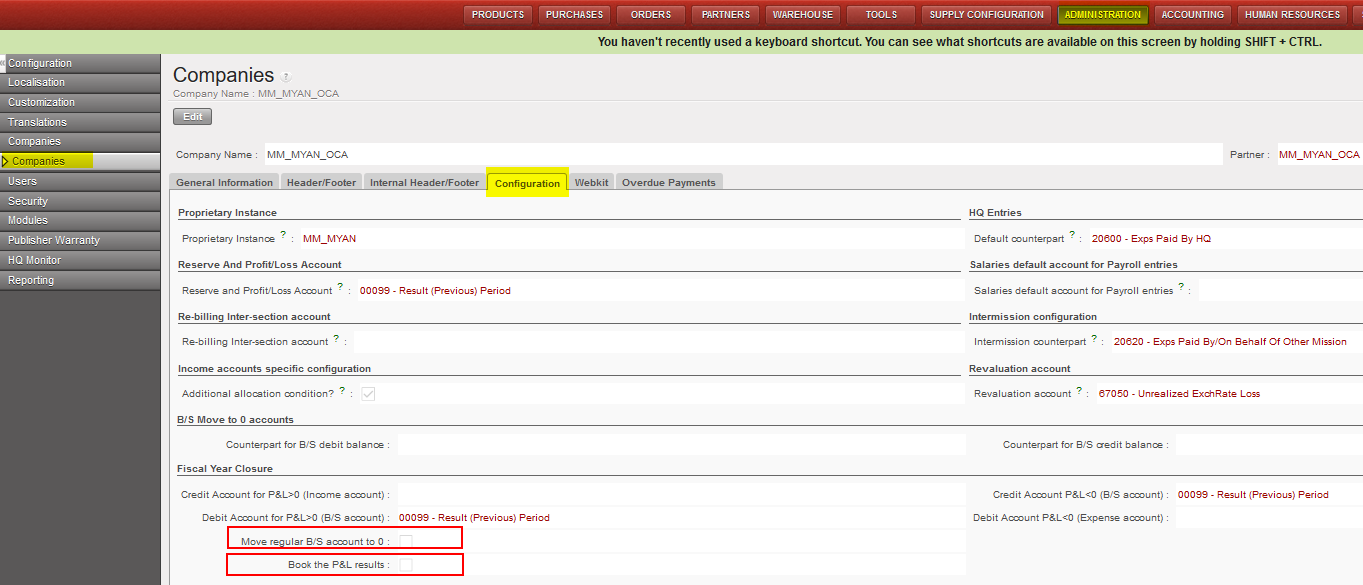
To set the configuration setup related to FY closure, you go to HQ instance and follow the below steps:

Go to Administration/Configuration/Select the instance/Configuration

  • You will have two main tick boxes for that “Move regular B/S account to 0” and “Book the P&L results”
  • When proceeding the yearly closure, system will check the company configuration to apply the option of (move regular B/S) and/or option of (Book the P&L).
  • The checkboxes which should be ticked must be effective just at coordination level.
  • The checkboxes which should be ticked will be anyway in the view at project, coordination and HQ level.

For each OC section, the selection should be done as below based on their internal procedures:

  • OCG:

Tick Move regular B/S account to 0

  • OCB:

Tick Move regular B/S account to 0

Tick Book the P&L results

  • OCA:

No tick in the checkbox

  • OCP:

No tick in the checkbox

How to Create a Fiscal Year and Associated Accounting Periods

The Headquarter instance will create the fiscal year and synchronize the information downwards to coordination and the projects.

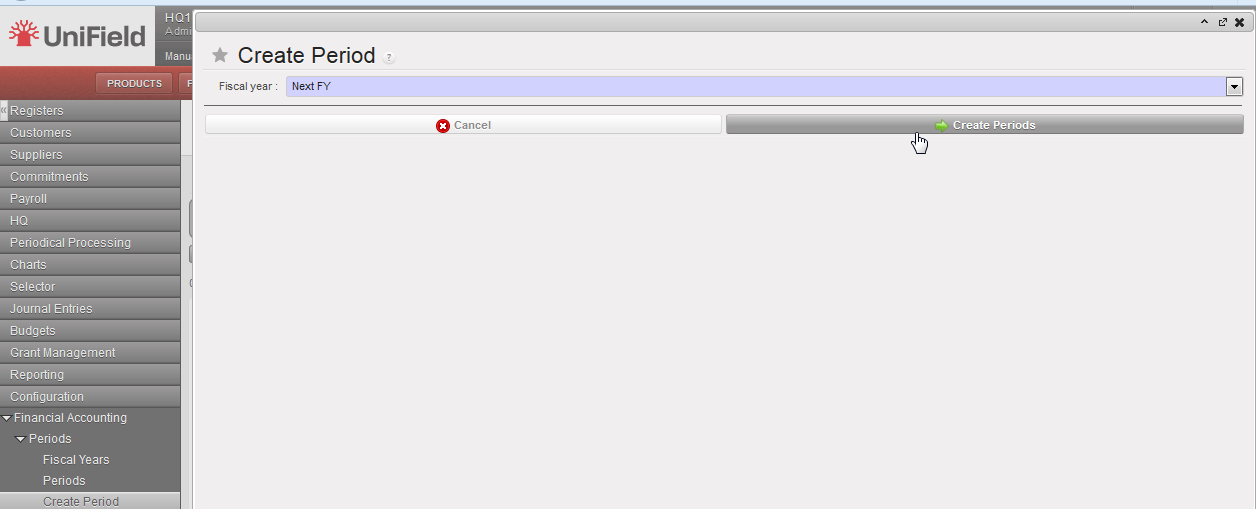
Go to Accounting/Configuration/Financial Accounting/Periods/Create Periods

  1. In the field {Fiscal year} select {Next FY} or {Current FY} if you want to create the current fiscal year. In the below example, we want to create the (next) FY 2017.


Fiscal Year selection: Current or Next FY

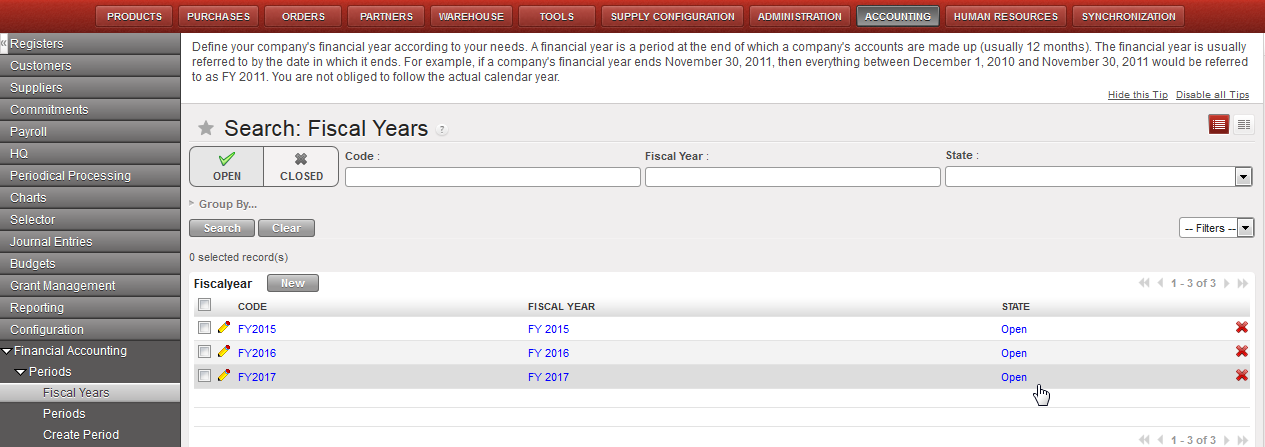
2. Click on {Create Periods} and go to Fiscal Years.

The fiscal year is created in {Open} state.


FY 2017 is displayed in {Open} state in the Search Fiscal Years view


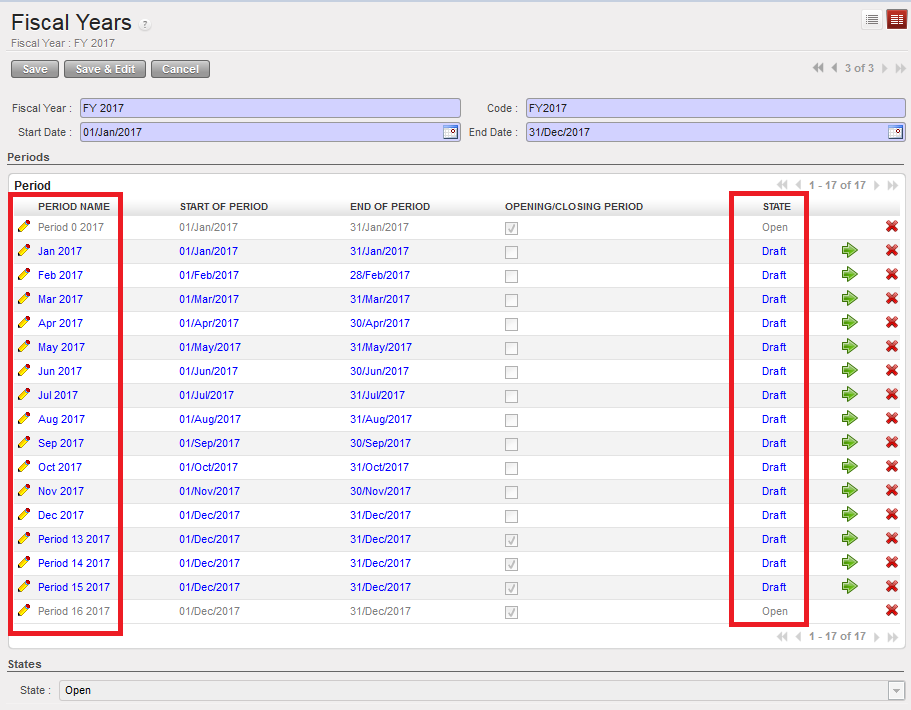
When the fiscal year is created, the accounting periods are in {Draft} status. Periods 0 and 16 are automatically in {Open} status and their status can’t be manually modified.

There are 12 periods plus 5 additional ones displayed in the Fiscal Years Form view.

Field titleentry protocol: fiscal years formSource for Information
Fiscal Year NameFY YYYY (e.g. FY 2017) automatic inputSystem
CodeFYYYYY (e.g. FY2017) automatic inputSystem
Start DateDD/M/YYYY (e.g. 01/Jan/2017) automatic inputSystem
End DateDD/M/YYYY (e.g. 31/Dec/2017) automatic inputSystem

2.1 Chapter Overview: Finance configurations.

Finance User Manual ENG -> 2. Finance Configurations -> 2.1 Chapter Overview: Finance configurations.

2.1 CHAPTER OVERVIEW

The Configuration module is the first module to complete before starting to use UniField. In order to function properly, UniField requires completing this module.

Most of the configuration of the instances is done in this module.

The initial configuration of a UniField instance is only done one time and it deals with data that cannot be undone later such as the Fiscal year and Accounting periods, Chart of Accounts, Financial and Analytical Journals, Currency, Internal and Intermission partners, ICT products and the Proprietary Instances. However during the project implementation, a need of introducing new financial items can arise for instance adjusting the project address, adding new cost centers to a proprietary instance, local suppliers, VAT, etc. These parameters can be added later on.

Most of the financial master data is set in the HQ instance. The data is then sent to Coordination and Project instances via the synchronization engine.

UniField introduces a new process which allows standardising the data exchange across different locations. It’s called the synchronization process. The data exchange follows a set of rules named synchronization rules which define the data exchange direction among the instances. Some data is sent downwards, from HQ to Coordination, other upwards from Project to Coordination or bi-directionally (downwards and upwards).

For instance, a liquidity journal (cash, bank or cheque) created in a project instance and then synchronized will be displayed in the list of liquidity journals in the coordination instance (upwards). This allows coordination to perform some checks on the project’s journals. Any corrections done at coordination level on a project posted journal entry will be reflected at project level via the synchronization (downwards).

At the end of the chapter, you will find a table which explains in which instance data is set and how it is synchronized.

The synchronization is an automatic process performed on a daily basis and scheduled by the IT staff. It is possible to launch the synchronization also manually at any point of time if needed.

Please remember that some UniField functionalities were developed to match certain OC’s procedures. They are highlighted with a star *.

After completing reading this chapter you will be able to:

  1. Understand which parameters are essential to set in UniField instances to properly record financial transactions
  2. Understand how these parameters are created in the instances
  3. Install the parameters either at HQ, Coordination or Project according to the nature of the data
  4. Manage the synchronization process manually and monitor the results

2. Finance Configurations.

Finance User Manual ENG -> 2. Finance Configurations.

2. Finance Configurations.

2.1 CHAPTER OVERVIEW: Finance Configurations

2.2 Fiscal Year and Accounting Periods

2.3 Multi-Currency Management

2.4 Financial Accounts

2.5 Analytic Accounts

2.6 Financial Journals

2.7 Liquidity Journals and their Corresponding Registers

2.8 Suppliers and Customers

2.9 Products and Product Categories

2.10 VAT and Taxes

2.11 Company Set Up

2.12 Finance Configurations’ Synchronization