LUFI-6.6 Funding Pool Illustrations.

 Finance User Manual ENG -> 6. Donor Management -> LUFI-6.6 Funding Pool Illustrations.

DONOR MANAGEMENT ILLUSTRATIONS

LUFI-6.5 Funding Pool Illustrations

LU Introduction

In this LU we will explain what the types of funding pools to create are in order to reflect three funding scenarios. You will find below three use cases:

  1. Earmarked + Total project costs same cost centers and funding duration dates
  2. Total project costs same cost centers and funding duration dates
  3. Earmarked + Total project costs different cost centers and funding duration dates

Example Case #1: Earmarked + Total Project Costs

Let’s assume that we have signed two financing contracts: Grant A and B corresponding to Donors requiring ear-marked AND total project costs reporting, for the same cost center and with the same start/end (eligibility) dates.

To produce all relevant reporting to all Donors, the user needs to create three funding pools to allocate expenses:

  • Pool AGRANT type: Expenses earmarked specifically to GRANT A
  • Pool BGRANT type: Expenses earmarked specifically to GRANT B
  • Pool ZCOFI type: Expenses declarable to both Donors A & B (but not specifically earmarked)
  • Pool PFPF type: Expenses paid by private funds (not declared to any Donors) already exists in the system.

The actual total cost of the project for MSF is the sum of the 4 funding pools, for the same dates & cost centers, and in MSF functional currency.

Note that expenses allocated to funding pool PF will not be included in the reports to institutional Donors.

To produce reports for Donor A, the user will pick all expenses included in the following funding pools (converted in the Donor relevant currency, and as per its relevant reporting format / financing lines):

– Grant use: Funding pool A

– Total project costs: Funding pools A+B+Z

And to produce reports for Donor B, the user will pick all expenses included in the following funding pools:

– Grant use: Funding pool B

– Total project costs: Funding pools A+B+Z (same as for Donor A)

Example Case #2: Two Donors with Total Project Costs

For the second illustration we will start over from a case where we expect to sign contracts with 2 Donors, for same cost center and the same dates (1st January to 31st December). Both Donors are global contributors.

In this case, we need only to create 1 funding pool in addition to PF:

  • Pool Z – COFI type : Expenses declarable to both Donors A & B

No need for any specific {GRANT} type funding pool, as neither of the 2 Donors require a specific reporting on earmarked expenses paid by its grant.

Reporting to Donor A – from 01/Jan to 31/Dec:

– Total project costs: Funding pool Z

Reporting to Donor B – from 01/Jan to 31/Dec:

– Total project costs: Funding pool Z

Example Case #3: Two Donors with different Cost Centers

After having played with grant types and eligible dates we will now add 2 other factors which may influence the funding pools structure: coverage in terms of cost centers (in use cases 1 and 2 all grants were covering the same set of cost centers) and eligible expenses (some Donors may accept a few specific natures of expenses while others do not consider them as eligible).

Let’s imagine we have 2 fundings confirmed:

  • One from Donor A, a global contribution type, for 6 months until end of June, and only for cost center AA
  • And a second grant from Donor B, which requires mixed reporting on grant + total project costs valid for the whole year and for both cost centres AA + BB

In this case, we would need to create 4 funding pools:

  • 2 of GRANT type for both cost centers, for the earmarked expenses allocated to Donor B (with cut-off at the end of grant A = 30/06, because it is really in the middle of the year and as this is probably a major institutional Donor for a large grant amount, there are high chances that there may be freight expenses which were earmarked to this grant but may be charged late by HQ). Now of course if the earmarked expenses were only for very few expenses which have no risk to be delayed there would not be need to split in 2 the GRANT pool– it is up to the user to asses this.
  • The 2 other pools of COFI type are absolutely necessary, as cut-off is compulsory when a contract ends on a Donor who required reporting on total project costs (because there are very high chances of having to include such late-charge expenses!).

NB: It is not necessary to create separate COFI pools for the various cost centers. Indeed, cost centers can be managed via the selection associated to the financing contract.

In the case of the 2 COFI type pools we can simply link the 2 cost centers AA+BB (and not only AA), because even though we don’t need BB for reporting to Donor A, we will however need those COFI pools for the reporting of total project costs to Donor B (which covers cost center BB).

=> As we have restricted the cost centers on the specifications of each financing contract (just as for eligibility dates), in addition to the specifications of the funding pool only expenses allocated to pool Z1 AND on cost center AA will be selected for the reporting to Donor A (not the expenses allocated to Z1 & cost center BB).

LUFI-6.5 Donor Reports.

 Finance User Manual ENG -> 6. Donor Management -> LUFI-6.5 Donor Reports.

LUFI-6.5 Donor Reports.

UniField offers various report formats in order to meet the needs of Donors and also to provide internal control tools to make sure financing contract parameters are set correctly. The system allows an accurate follow-up of actual costs vs. budgets submitted to Donors according to their reporting guidelines. You will find an explanation on which data is showed per report type and how to produce them. All the reports are available in printable version.

Financing Contract Reports

Analytic Account Report

How to Produce an Allocated Expense Donor Report

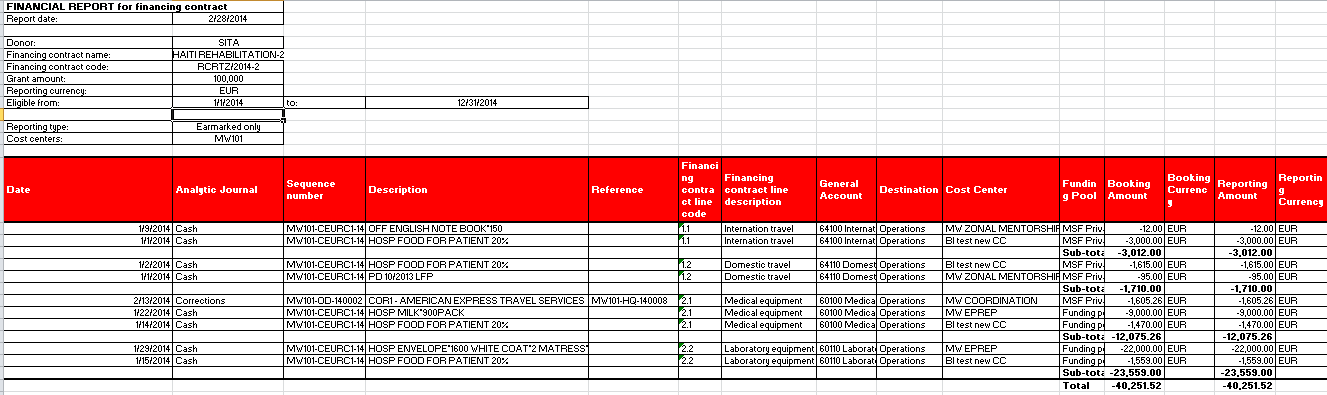
The {Allocated expense} report is a list of analytical journal items allocated to an earmarked grant (in other words a list of actual earmarked expenses) included in a selected financing contract. It will select all the expenses allocated to the funding pool set as {earmarked} in the financing contract and included in the reporting lines of the financing contract. As a consequence this report is useless for financing contracts defined as {Total project only}.

Go to Accounting/Grant management/Financing Contracts

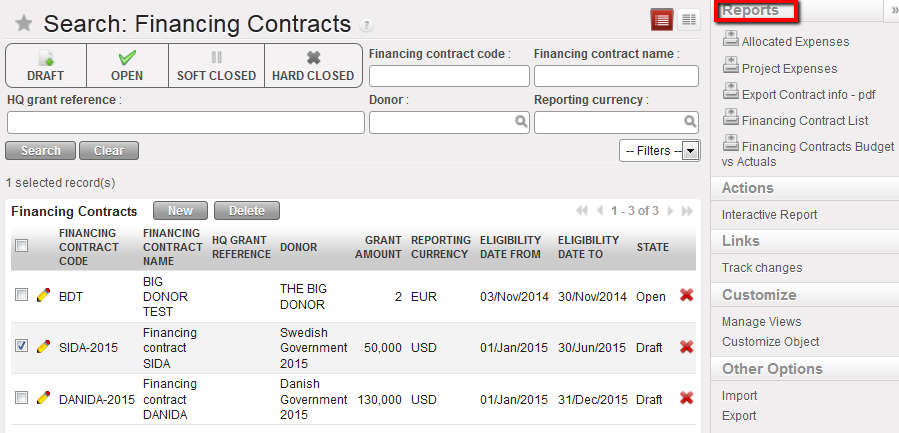
  1. In the {Search Financing Contracts} view, tick the checkbox of the contract you want to open

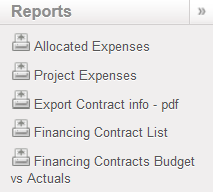
⮡ The Reports menu displays on the right hand side of the screen

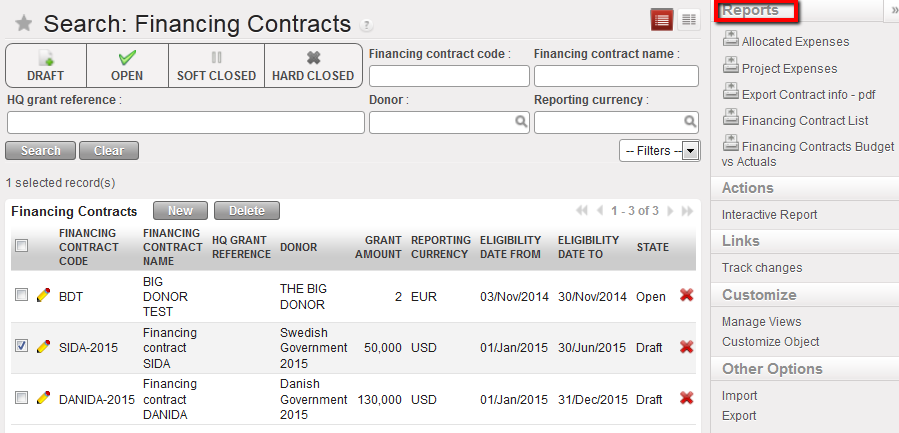
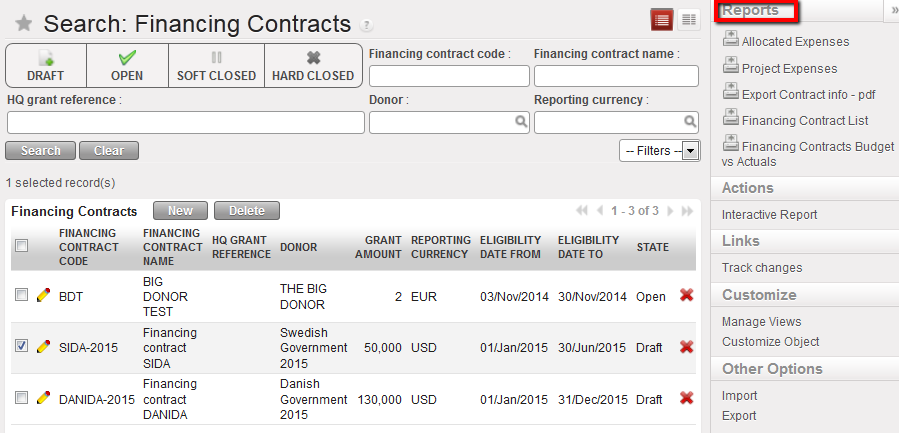
Reports menu displays as soon as a financing contract in selected in the Search Financing Contracts view

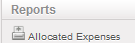
2. Select {Allocated expenses} and select {OK} in the Allocated Expenses window

⮡ The contract displays in xls format in both booking and reporting currency

Allocated expense report

How to Produce a Project Expense Donor Report

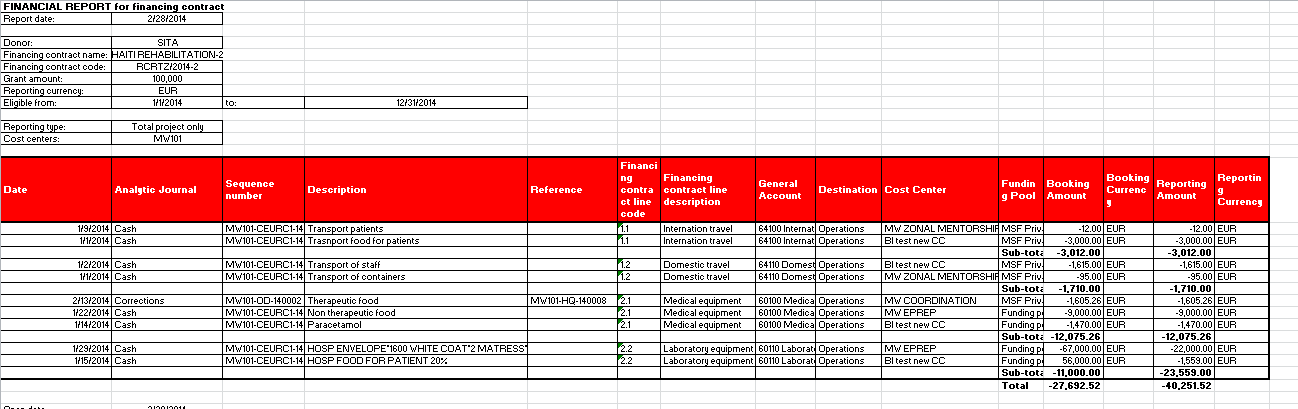
The {Project Expense report} is a list of analytical journal items allocated to one of the cost centers selected in the financing contract (in other words, a list of all actual project expenses included in the financing contract). It will select all the expenses allocated to the Funding pool set as {Total Project} in the Financing contract and included in the reporting lines of the Financing Contract. As a consequence this report will not need to be issued for financing contracts defined as {Earmarked only}.

Go to Accounting/Grant management/Financing Contracts

  1. In the {Search Financing Contracts} view, tick the checkbox of the contract you want to open

⮡ The Reports menu displays on the right hand side of the screen

Reports menu displays as soon as a financing contract in selected in the Search Financing Contracts view

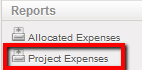
2. Select {Project Expenses} and select {OK} in the opening Project Expenses window

⮡ The contract displays in xls format in both booking and reporting currency

Total project only expense report

How to Produce an Export Contract Report

The {Export Contract} is a PDF internal report with a summary of the financing contract set-up. You can use it to check the overall set-up or more detailed information i.e. expenses accounts and associated destinations linked to a financing contract.

Go to Accounting/Grant management/Financing Contracts

  1. In the {Search Financing Contracts} view, tick the checkbox of the contract you want to open

⮡ The Reports menu displays on the right hand side of the screen

Reports menu displays as soon as a financing contract in selected in the Search Financing Contracts view

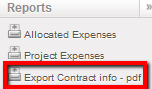
2. Select {Export Contract info – pdf} and select {OK} in the opening Allocated Expenses window

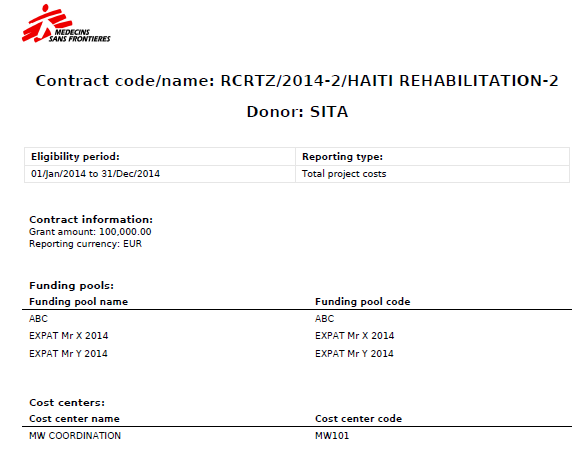
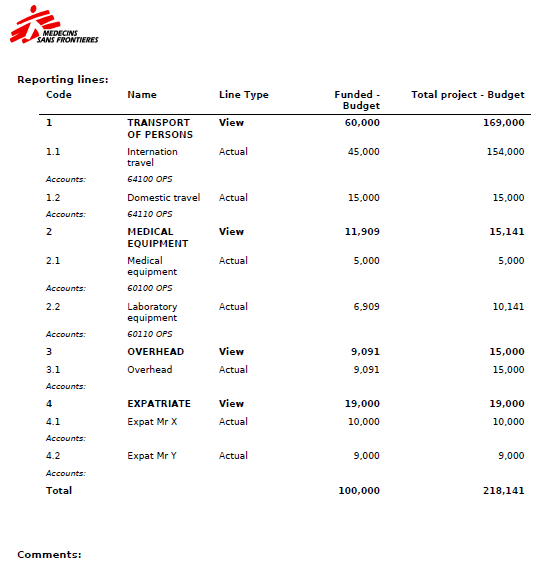
    • A PDF displays showing general contract information as well as the reporting lines set up

Export contract information (p1) report

Export contract information (p2) report

How to Produce a Financing Contract List Report

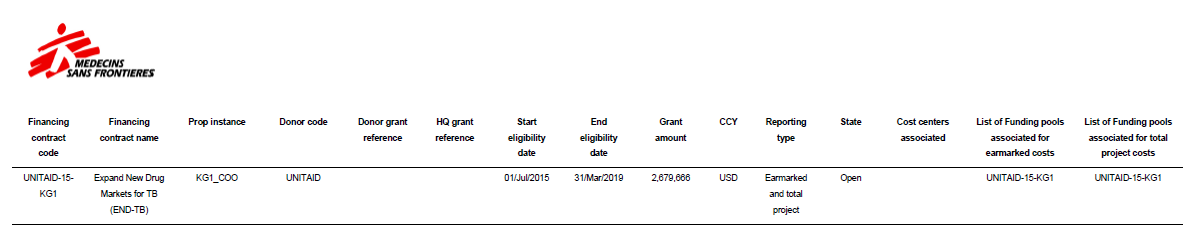
The {Financing Contract list} is an internal report in pdf or excel format used to review the contract parameters (excluding reporting lines). This will help you to get a quick overview of the contract set-up.

Go to Accounting/Grant management/Financing Contracts

  1. Open the {Reports} menu
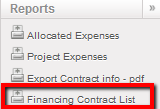
  2. Select {Financing Contract List – pdf}
  1. Select OK in the opening Financing Contract List window

⮡ A PDF displays showing a detailed list of financing contracts set in your instance. You can select 3 reports out of 5 listed if need be.

Financing contracts list report

How to Produce a Financing Contracts Budget vs. Actuals Report

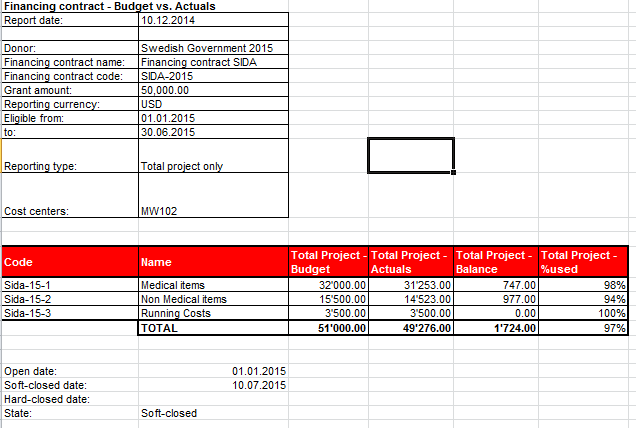
This report displays actuals vs budget follow up allocated per reporting lines by earmarked or by total project or both depending on the reporting type set. This report is designed to follow-up on funding consumption: it helps user identify if the budget agreed with a Donor within a particular financing contract is consumed.

Go to Accounting/Grant management/Financing Contracts

  1. In the {Search Financing Contracts} view, tick the checkbox of the contract you want to open
  2. In the {Reports} section, select {Financing Contracts Budget vs Actuals}
  3. Select the desired output currency and click {Create Report}

Financing Contracts Budget vs Actuals

How to Produce an Interactive Report

This report is a display on the screen of the financing contract budget vs actuals report.

Go to Accounting/Grant management/Financing Contracts

  1. In the {Search Financing Contracts} view, tick the checkbox of the contract you want to open
  2. In the {Reports} section, select {Interactive report}
  3. Select the desired output currency and click {Create Report}

Interactive report displayed on the screen. No budgetted and actaul expenses were recorded yet.

How to Produce a Funding Pool Export

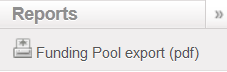
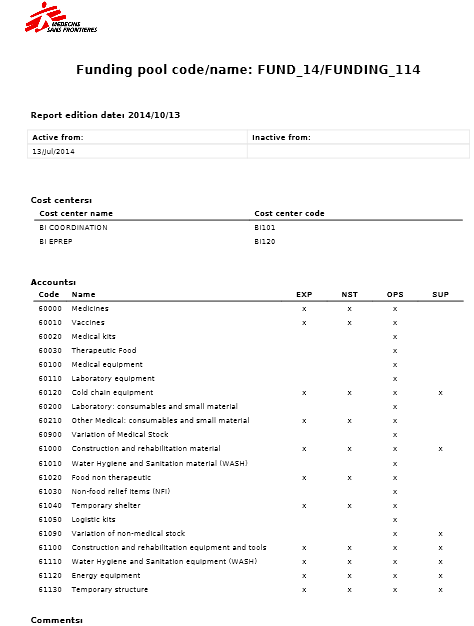
The {Funding Pool export} is an internal PDF report used to review all the Funding Pool parameters (Cost Centers and Couple Account/Destination).

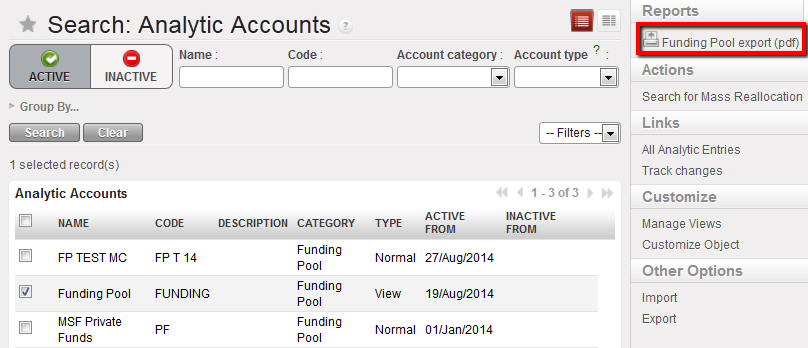
Go to Accounting/Grant management/Analytic Accounts

⮡ A list of funding pool appears.

  1. Select one of the funding pools.

⮡ A report menu displays in the right-hand side menu

  1. Select the report type {Funding Pool Export (pdf)}

Summary of funding pool

LUFI-6.4 Financing Contract Principles

 Finance User Manual ENG -> 6. Donor Management -> LUFI-6.4 Financing Contract Principles.

FINANCING CONTRACT PRINCIPLES

LU Introduction

In UniField, the financing contracts are the key grant management tool as all reports are produced from there; they link the funding pools and the Donors to provide the ability to issue adequate reporting to institutional Donors.

By linking financing contracts to a Donor, the following information from the Donor form is carried over in the financing contracts:

  • Reporting type
  • Overhead percentage
  • Reporting lines

The financing contract form includes the following fields and tabs:

  1. {Financing Contract Code & Name}: Manually input a recognizable code and name.
  2. {Donor Name}: Select a Donor from the list created via the {Donor} sub module. By associating a Donor to a contract the system will pick-up the reporting lines associated with the Donor form. This template remains editable to adapt to specific contexts or reporting requirements.
  3. {Reporting type}: Is an essential parameter defining what type of costs the user needs to report on. The three options are: earmarked, total project costs, or earmarked and total project costs. By selecting a Donor, this information will be carried over from the Donor form but remains editable.
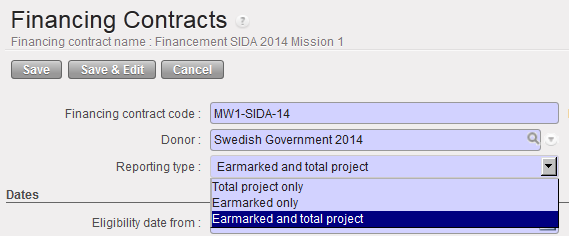
Reporting types of a financing contract

4. {Proprietary instance}: Select an instance from the list of instances available in your database. It should be the proprietary instance of the coordination of the mission. It determines the coordination to which the financing contract will sync and avoids synching all financing contracts to all missions.

5. {Eligibility Dates}: reflect the financing contract duration. It determines if a specific expense should be included in the Donor report based on the expense’s {document date}.

6. {Contract information}: The reports are issued in the Donor currency as manually selected by the user. When the Donor requires specific exchange rates to value expenses included in the report, UniField offers the possibility to link a specific currency table to a contract; as a result the expenses presented in the contract will be valued at the Donor exchange rates table rather than system rates.
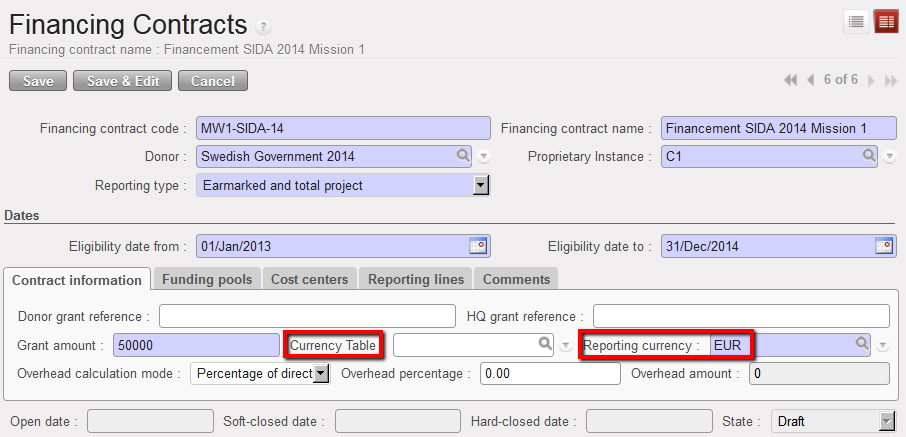
Reporting currency

The overhead amount will display if the Donor is funding overhead and if this option was set in the Donor form.
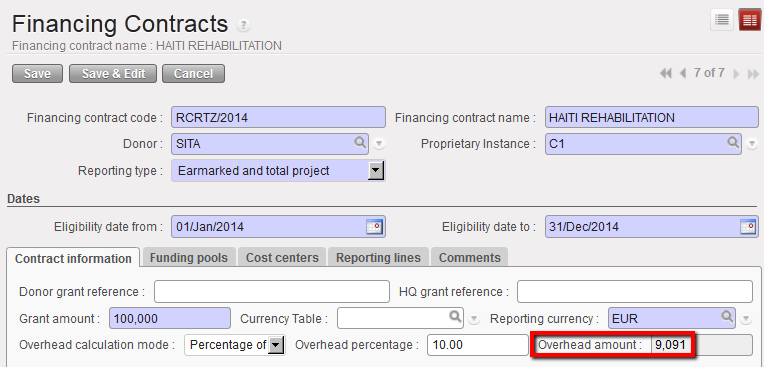
Overhead Donor contribution calculated

In the above example, overhead amounts 9,091 EUR. The chart below shows how the system calculated the direct costs and from there the overhead amount:
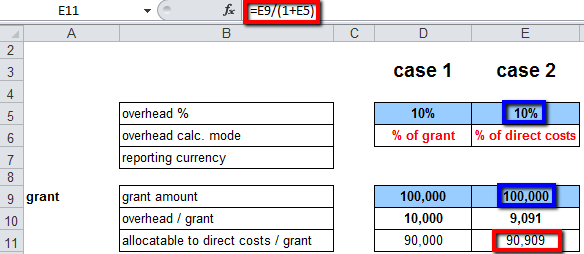
Direct cost and Overhead calculation explanation when overhead calculation is based on direct costs

If the overhead calculation was out of the total grant, we would have the following calculation:
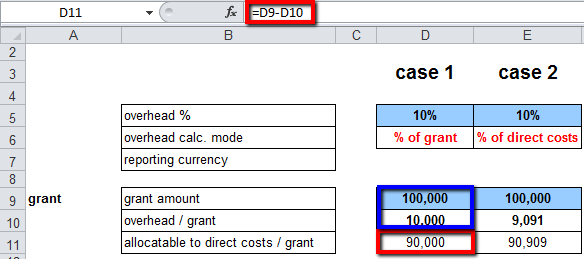
Direct cost and Overhead calcualtion explanation when overhead calculation is based on total grant

7. {Funding Pools}: Defines which funding pools should be included in the report, both for earmarked (grant) and total project costs. By default, UniField selects the report type listed in the Donor form. However, it can be edited.
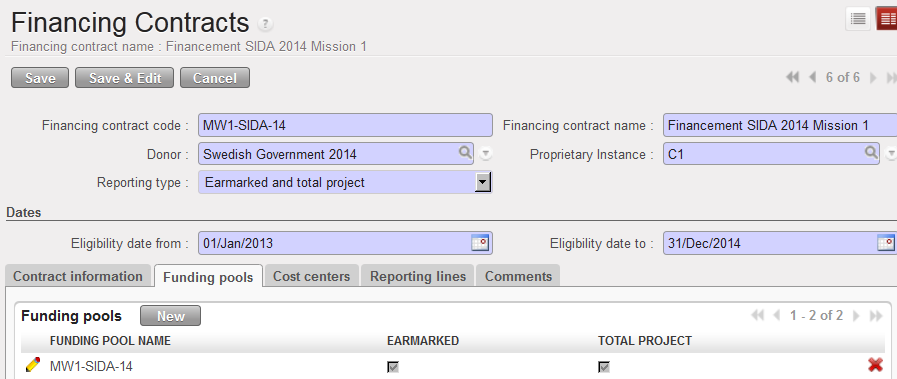
Funding pools tab displaying FP linked to a financing contract

8. {Cost Centers}: Selects the analytical cost centers (projects) the Donor has agreed to provide funds to. The cost center selected here should also be selected on the matching funding pool.
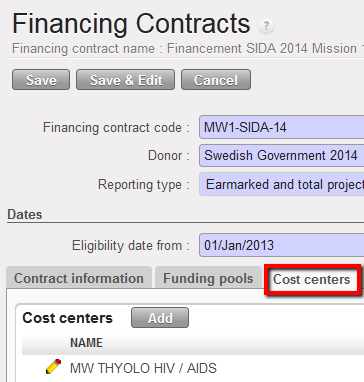
Cost centers associated to a financing contract

9. {Reporting Lines}: Are a given MSF expense account/destination code & cost center which are mapped to the Donors reporting requirements. By selecting the Donor, UniField automatically selects the reporting lines as defined in the Donor’s form.

These lines will be standard: they will be retrieved every time you create a financing contract with this particular Donor, provided the reporting guidelines remain unchanged.

You can edit, add and remove reporting lines to adapt to specific reporting guidelines valid for a particular financing contract. In case the changes performed are meant to be generic and valid across all grants, they should be executed in the Donor form.

The expense codes/destinations associated to the contract’s reporting lines should also be selected in the funding pools used in the contract.

In the reporting lines tab, you enter a budget per reporting line, both for earmarked costs {Funded – Budget} and for total project costs {Total Project – Budget}. The total budget (including overhead) will have to match the budget included in the proposal submitted to and signed with the Donor. The {Funded – Budget} is the amount the Donor has agreed to pay. The {Total Project – Budget} is the amount for these expense codes for the entire project (excluding expenses allocated to {MSF private funds}.
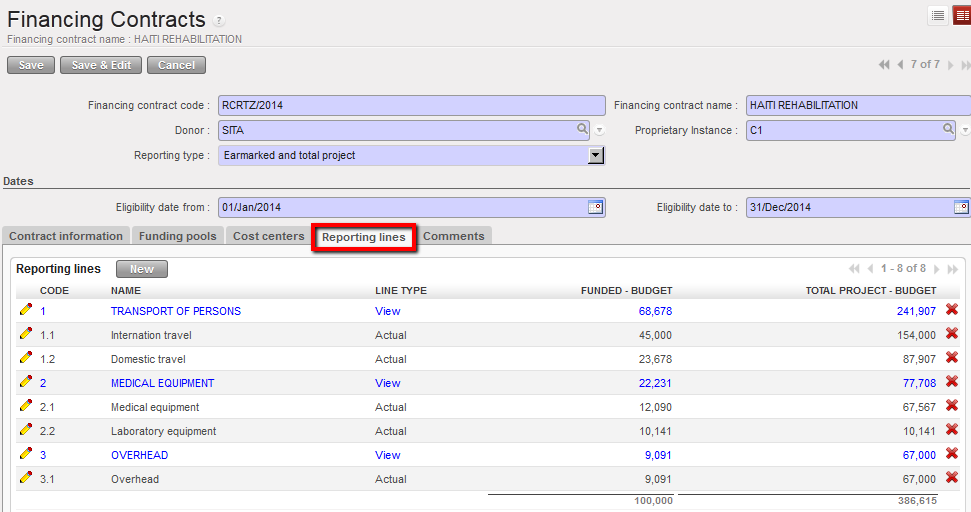
Reporting lines

In the example below, the Donor has agreed to pay the full budget for Laboratory equipment cost.
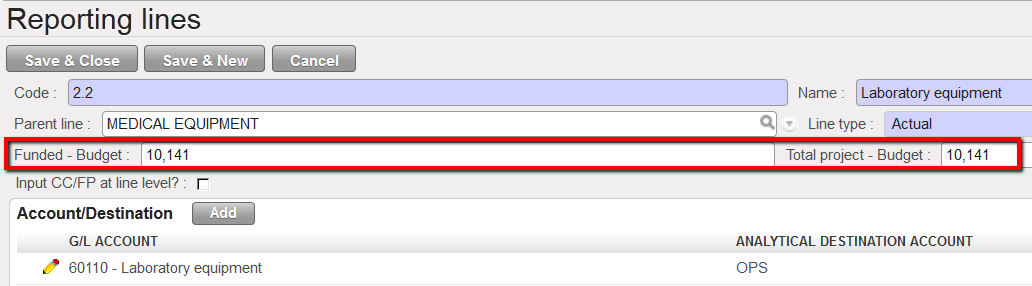
Reporting line and associated budget (earmarked and total)


Suppose now the Donor wants a more detail of the expense report, for example per expat. To be able to select twice the same accounting code, it is possible to use quadruplets made of {expense account, destination, cost center, funding pool} instead of couples made of {expense account, destination}. Such feature allows the user to pick the same expense account in different reporting lines and provides the ability to report on the related expenses under different reporting lines so that nature of expenses funded is similar.

For example, DANIDA requests a reporting displaying expense per Danish expat.

  • In order to comply with this requirement you need to isolate expenses on account {66220 – per diem} for Mr X and for Mr Y by creating 2 reporting lines. You will also need to create a funding pool for Mr X and a funding pool for Mr Y and tie them to the appropriate reporting lines created.
  • For the Expat, you will create 2 funding pools associated to the account code {66220 – per diem} as showed below:
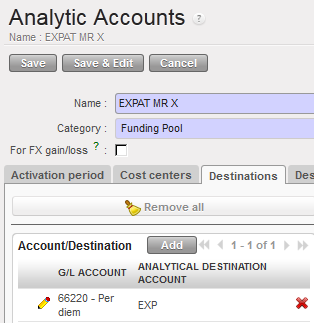
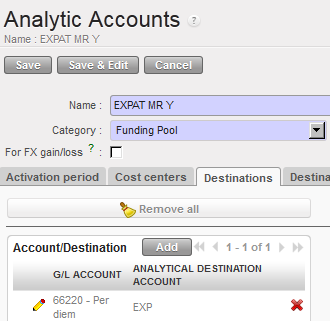
Funding Pools to use when setting reporting line

In the financing contract, you will assign the reporting line Mr X to the funding pool EXPAT MR X and the reporting line Mr Y to the funding pool EXPAT MR Y. To do so, you will need to use the functionality {Input CC/FP at line level} available on the reporting line window:

Option 1:
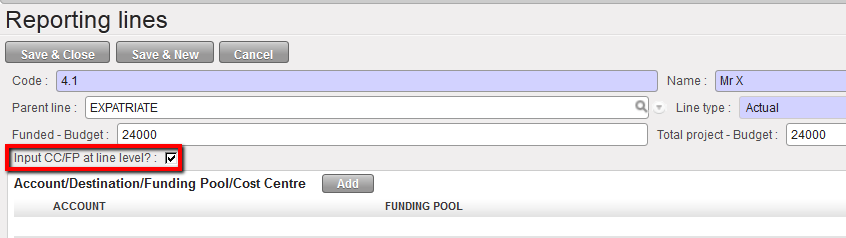
Ticking the checkbox Input CC/FP at line level

Or option 2:


Then link the line to the funding pool EXPAT Mr X
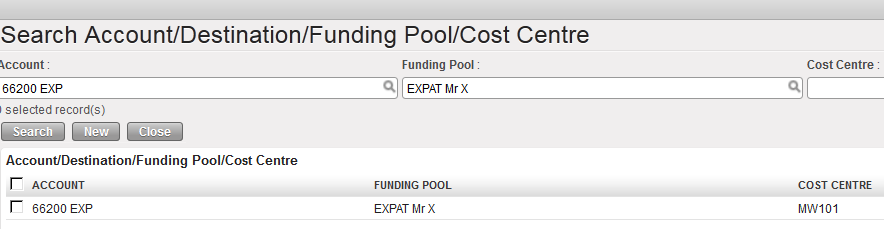
Linking the reporting line Mr X to the funding pool EXPAT Mr X in the Search Account/Destination/Funding Pool/Cost Center
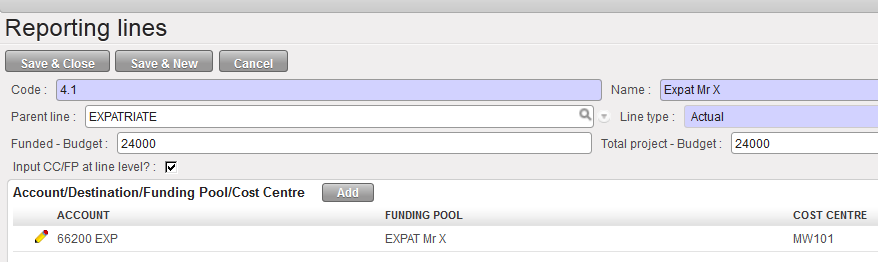
Reporting line associated to the funding pool EXPAT Mr X

Remember, you must first assign the cost centers and funding pools to the financing contract in the tabs {Cost Centers} and {Funding Pools}, then save the contract, prior to linking quadruplets to reporting lines otherwise they will not display in the {Search Account/Destination/Funding Pool/Cost Center} window.

10. {Comments}: Any type of relevant comment you want to add in the financing contract (text format).


Financing contracts have four status types:

  • {Draft}: The proposal was submitted to the Donor and is likely to be accepted. Contract info can therefore be integrated in the system and the appropriate funding pools can already be created.
  • {Open}: MSF reached an agreement with the Donor and received a formal approval on the submitted proposal.
  • {Soft-closed}: A draft report was finalized and sent to the Donor. From the moment a contract is soft-closed in the system, the corresponding expenses cannot be modified / corrected (Expense account, Destination, Cost Centre, Funding Pool). However an authorized user can re-open this contract, making allocation on the funding dimension open to modification again.
  • {Hard-closed}: The final report was finalised and sent to the Donor; a hard-closed contract cannot be set back to ‘soft-closed’ ever again

How to Create a Financing Contract

Go to: Accounting/Configuration/Grant Management/Financing Contracts

⮡ A list of active financing contracts appears

Click on {New} to create a new contract.

⮡ A new contract form appears

  1. Enter the contract code and financing contract name.
  2. Select the Donor form by clicking on the magnifying glass
  3. The type of reporting is automatically populated by the one set up in the Donor form but remains editable.
  4. The proprietary instance is not editable (it is the user’s one)
  5. Enter the eligibility date {From and To}.
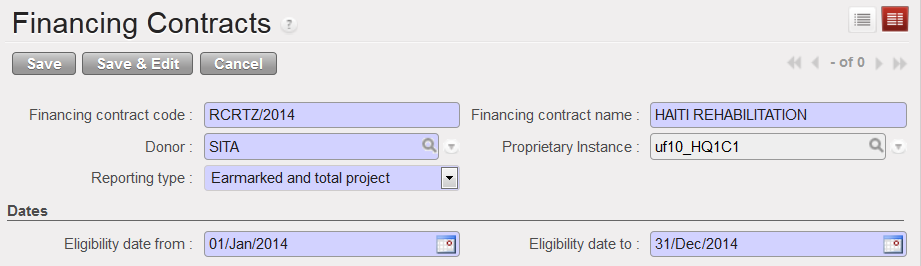
Financing contract creation

  1. {Contract information} tab: complete the {Donor grant reference} and {HQ grant reference} fields. They are optional but provide additional information on the report for better follow-up.
  2. Enter the grant / global contribution amount (the funded amount).
  3. If required by the Donor, select a currency table to produce the report at the requested exchange rates. If not required, simply enter a reporting currency.
  4. The overhead amount is automatically calculated based on the Grant amount.

Contract information tab

5. In the {Funding pools} tab, click on {New} and in the field {Funding pool name} click on the magnifying glass to select the funding pools you want to link to this contract. Save the line 

Tick the checkbox {Earmarked} if the Donor requested a specific report on its funding. If you want to link a funding pool to a reporting line, remember to add it here.
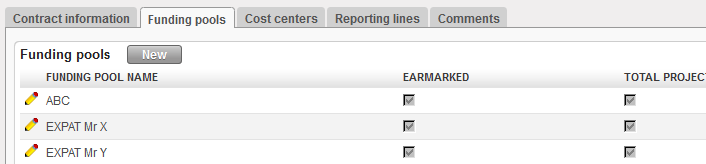
Funding Pools tab and pools added

6. In the {Cost centers} tab, click on {Add}. The Search Analytic account view display.

Select the cost centers you want to add to this contract.

Cost centers tab and adding data

7. In the {Reporting lines} tab, the lines default to the lines mapped to the Donor form.

8. Open each reporting line type {Actual} by selecting the edit button of the line to enter the funded and budgeted amount. Funded budget is the amount the Donor has agreed to fund for these expense accounts/destinations. The total budget – project is the total budget for only these expense accounts/destinations.

Option 1:

Budgeted amount for the reporting line {Personnel}

Option2:

  1. If you need to allocate a quadruplet account/destination/cost center/funding pool to a reporting line, open the relevant reporting line
  2. Tick the check box of the statement {Input CC/FP at line level} for the first option
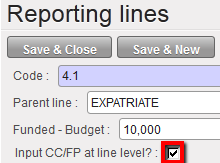
Ticking the checkbox to input CC/FP at line level

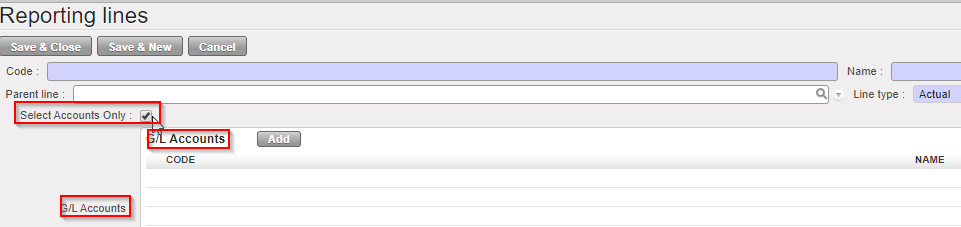
3. Or tick the check box Select Accunts Only for the second option:
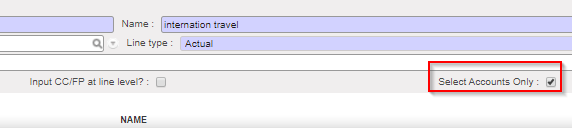
4. In the box {Account/Destination/Funding Pool/Cost Center}, select to insert a quadruplet account/destination/cost center/funding pool


Linking cost centers and funding pools at line level

5. In the {Search Account/Destination/Funding Pool/Cost Center} view, select the relevant quadruplet
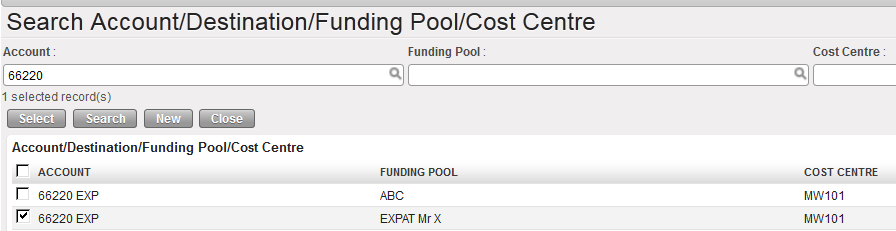
Choosing a quadruplet to link it to a reporting line

6. Save & Close. The window closes.
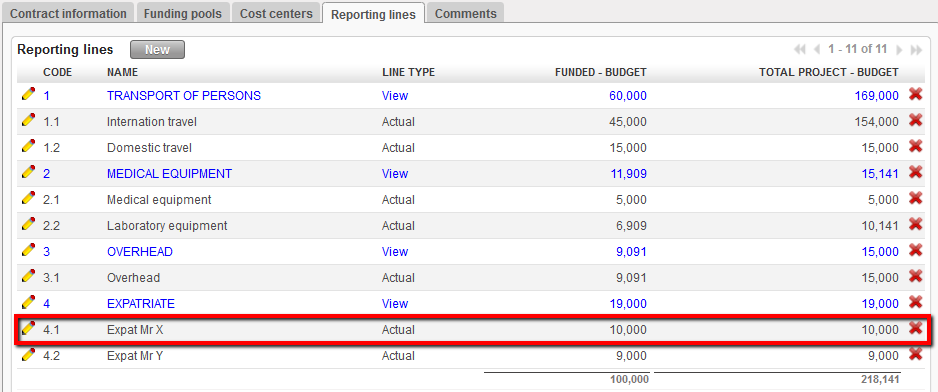

The reporting line Expat Mr X was associated to the quadruplet 66220/EXP/EXPAT Mr X/MW101. The quadruplet does not display in the reporting line tab

Please note that if you ticked the “Input Account Only” check box, the current display selection is removed (like when you tick on “Input CC/FP at line level”). The new display: only one column “G/L Accounts” is displayed.

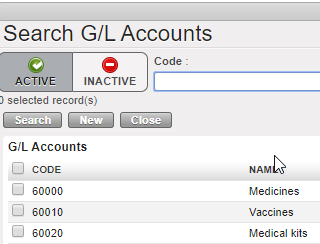
When clicking in “Add”, it brings to “Search Account”, filter is still “G/L Account” and only one column remains “GL Account”.
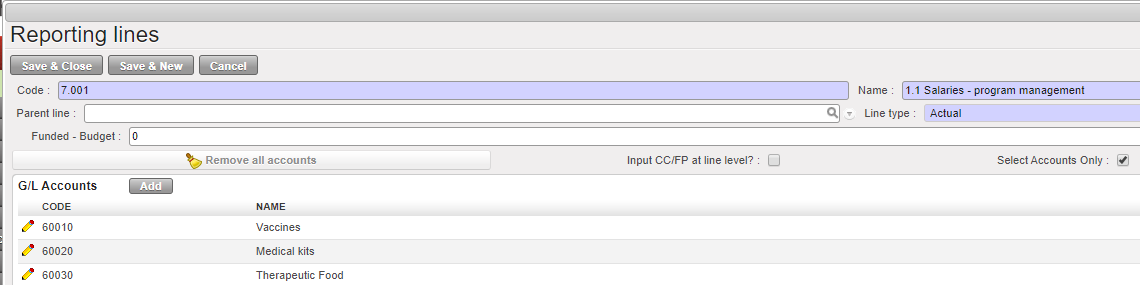

Regarding “Input Account Only” checkbox, please note the following:

  • When G/L Accounts are selected, this implies all G/L-Destination combination allowed with this account. System will link directly with the account object and look for all Analytical Destinations tied to the G/L Account.
  • The reports “Allocated Expenses” and “Project Expenses” will have the same display. The code has been reviewed so it searches all entries that matches the financing contract settings, and when “Input Account only” is ticked, it takes all combination account/destination from the account object.
  • The report “Export Contract info” will also have the same display. That means that this report could change along time even if Financing contract has not been touched but if additional destinations have been tied to the G/L Account.
  • The report “Financing contract – Budget vs. Actuals” will have the same display but when “Input Account Only” is ticked, it also searches all allowed combination allowed.
  • The reports “Financing Contract List” and “Financial Contract List pdf” will remain the same.
  • The “Interactive report” will have the same display but when “Input Account only” is ticked, it also searches all allowed combination.

In the {Comments} tab, you can insert any relevant comment related to the financing contract.

  • Finally, save the contract

⮡ The contract is saved in {Draft}. If the grant is approved formally, you will need to set the contract to {Open}

At the end of the funding period, you will be able to retrieve following report:
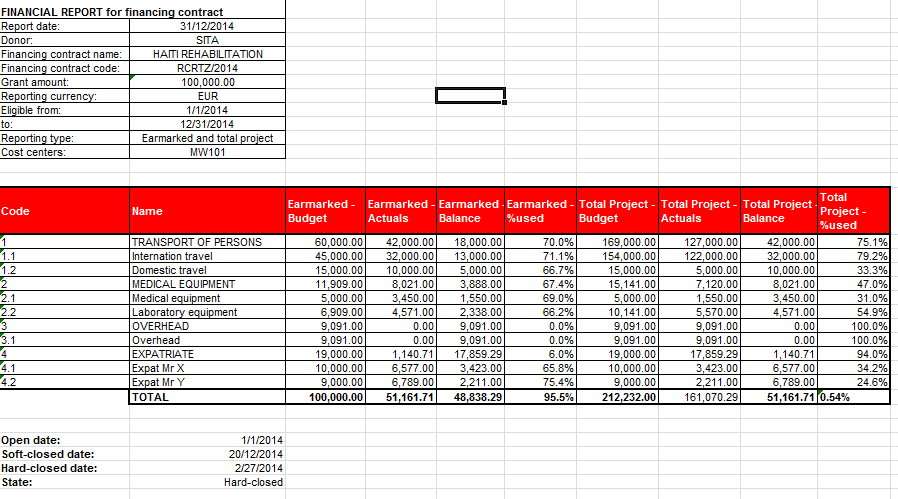
Interactive report showing expenses incurred in 2014 and splitting EXPATRIATE cost in two reporting lines

How to Create a Currency Rate Table for a Donor

The reports are issued in the Donor currency. When the Donor requires specific exchange rates, UniField offers the possibility to link a specific currency table to a contract; as a result the expenses presented in the contract will be valued at the Donor exchange rates table, rather than system rates.

You will create a currency table by importing a file containing the currency rate and the functional currency with value equal to 1 (EUR = 1 or CHF = 1).

The table will be created in UniField once the green light from the Donor for the funding proposal is received and it should be provided by the Donor and converted to UF format for import if many currencies are involved. If not, rates can be manually inserted in the specific Donor table created.

It will then be linked to an {Open} financing contract.

Go to Accounting/Configuration /Currency Management/CurrencyTables

  1. Click on {New} button.

⮡ A currency table form is displayed
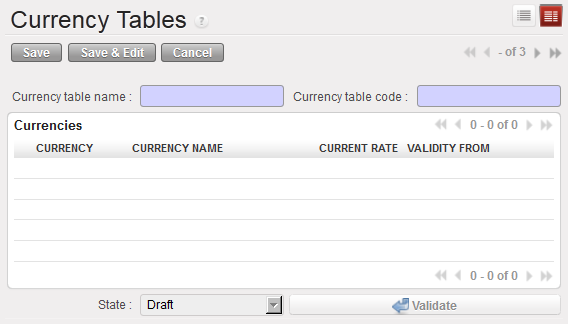
Currency table form

2. Enter the {Currency table name} and {Currency table code}

Title of field Currency table: entry protocol Source for Information
Currency table name Name FREE HQ
Currency table code Code FREE HQ
Currencies See above See above

3. Click {Save} button. The table is saved in {Draft} status.
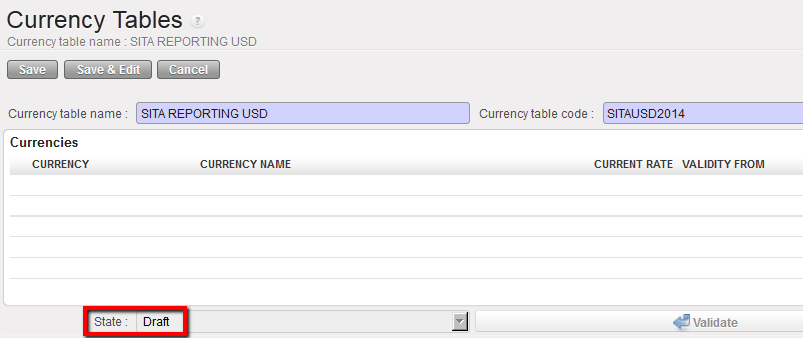
Currency table in Draft state

4. In the {Actions} menu on the top right side of the screen, select {Import Currencies},
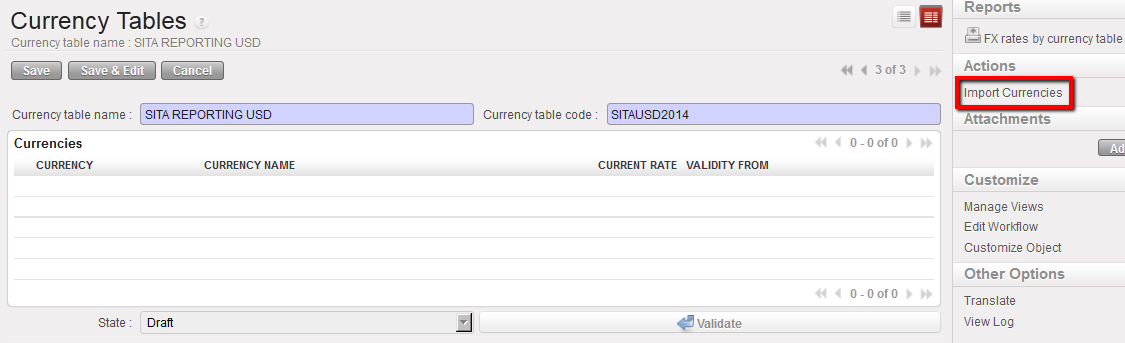
Import currency action

⮡ The {Import Currencies} Wizard appears

5. Select the uploaded rates date and {add attachment} to import the csv file containing the currencies and associated exchange rates.
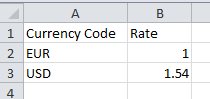
Example of currency rate import file

6. Click on {Import} button and {OK},

Import Currencies window

⮡ The currency table rate is imported in the section {Currencies}

7. Click on the {Save}, and followed by clicking the {Validate} button. Validate the table to be able to use it when you create a financing contract and produce a financing or budget report
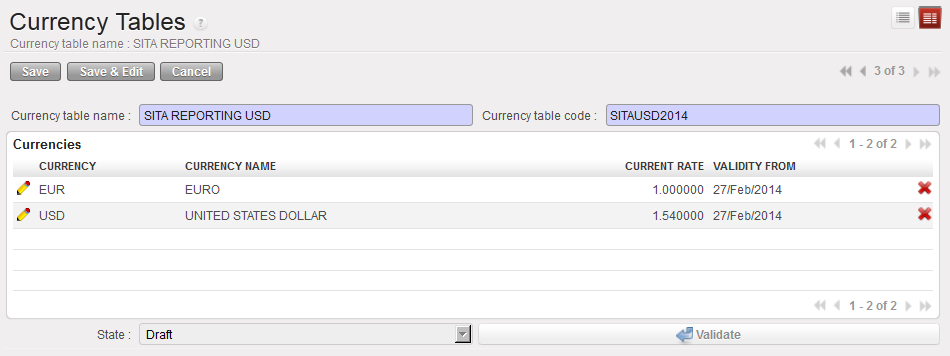
The currency table rate is imported in the section {Currencies}

8. Click button , to close the table when you do not use it anymore.
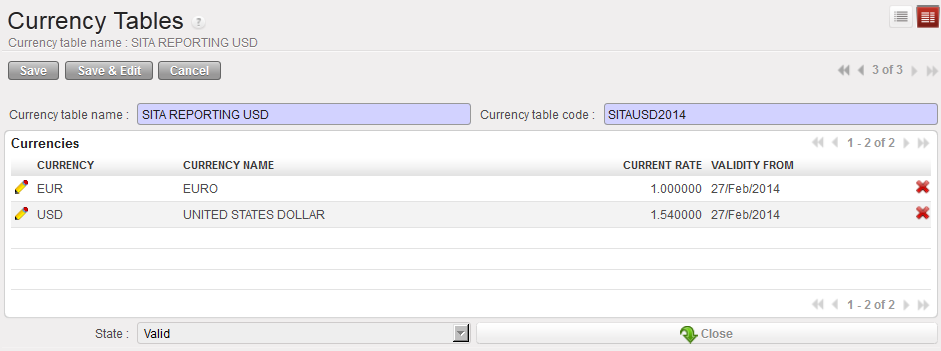
Valid currency table

How to Set a Contract to Open, Soft-Closed and Hard-Closed

To set the contract from draft to open

Go to: Accounting/Configuration/Grant Management/Financing Contracts

⮡ A list of active financing contracts appears

  1. Select your desired contract from the lists of {Draft} contracts
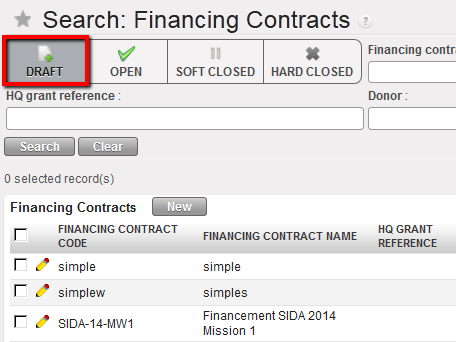
List of Draft contracts

⮡ The list of draft contract form appears.

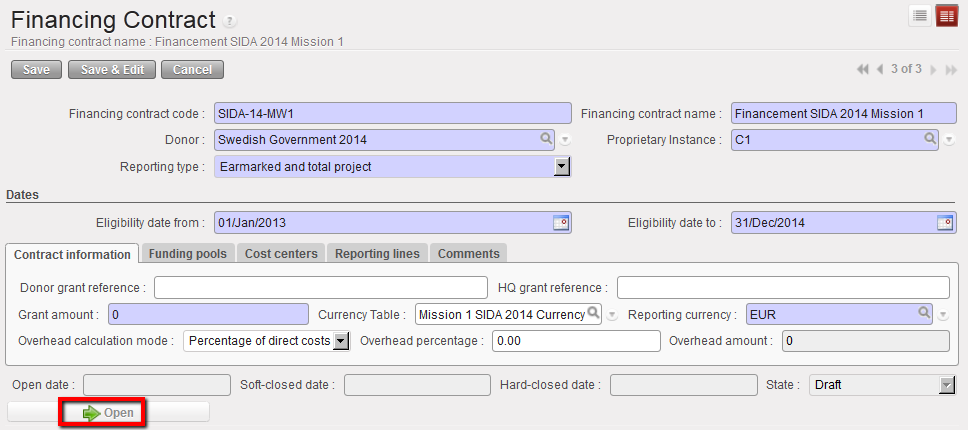
2. Select the button.


Opening a financing contract for Draft state contract

3. The contract becomes {Open}.
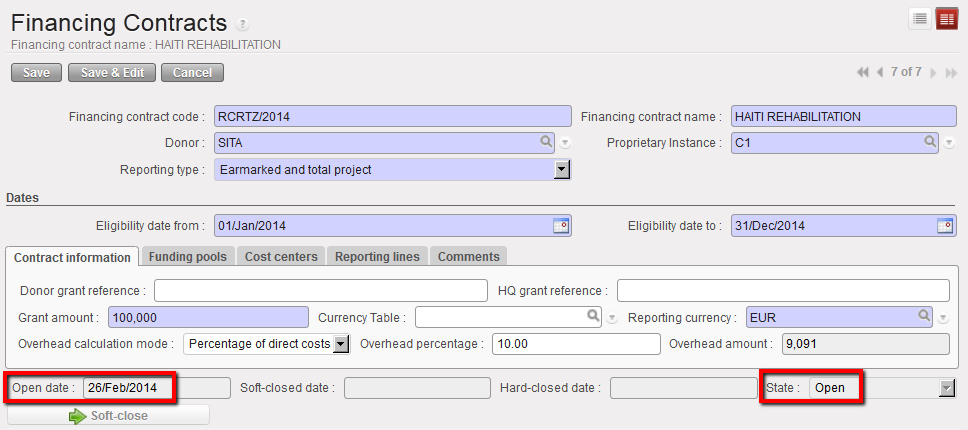
Contract in Open state from 26/Feb/2014

To set the contract from open to soft closed

Go to: Accounting/Configuration/Grant Management/Financing Contracts

⮡ A list of active financing contracts appears

  1. Select your desired contract from the lists of {Open} contracts.
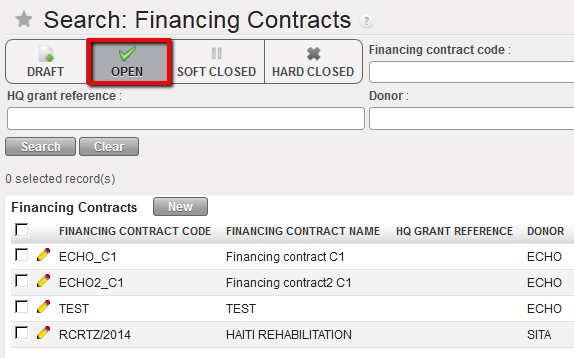

⮡ The contract form appears

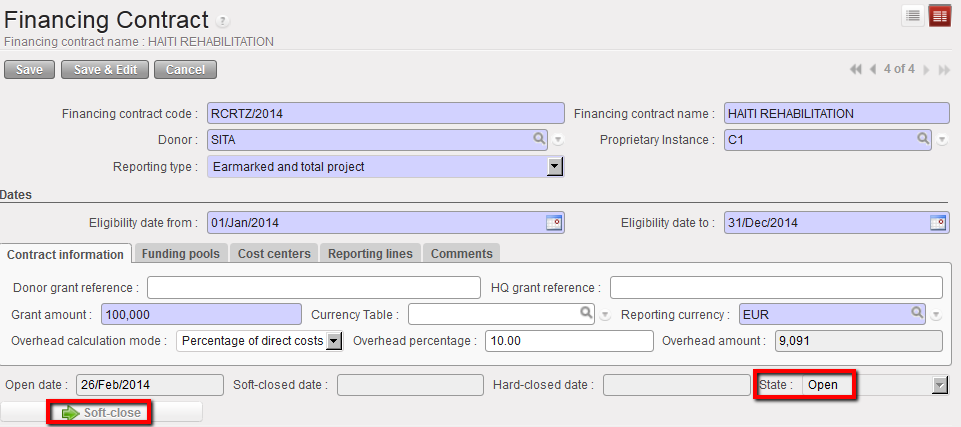
2. Select the button.


Soft Close Screen for Open state contract

3. The contract becomes {Soft-closed}.
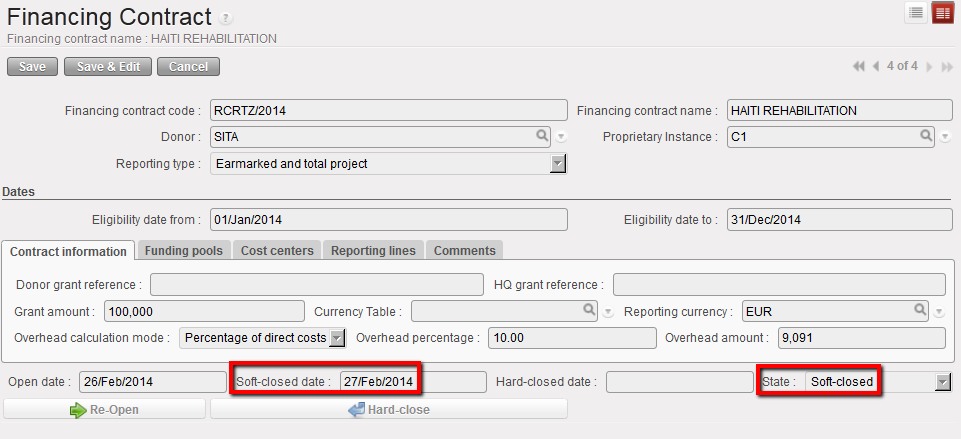
Contract in Soft-closed state from 27/Feb/2014

To set the contract from soft closed to hard closed

Go to: Accounting/Configuration/Grant Management/Financing Contracts

⮡ A list of active financing contracts appears

  1. Select your desired contract from the lists of {SOFT CLOSED} contracts.
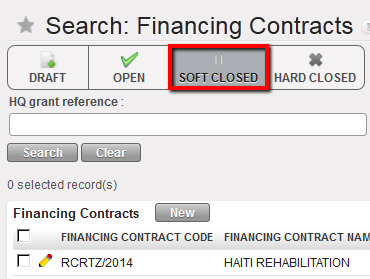
List of Soft-Closed contracts

        • The contract form appears

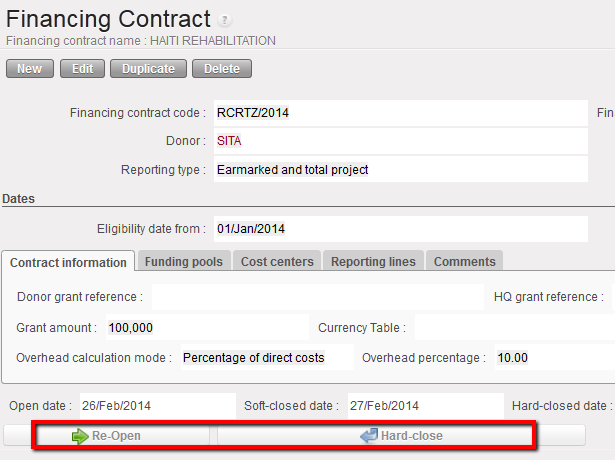
2. Select the button or the

Reopen or Hard-Close Screen

3. The contract becomes {Hard-Closed}
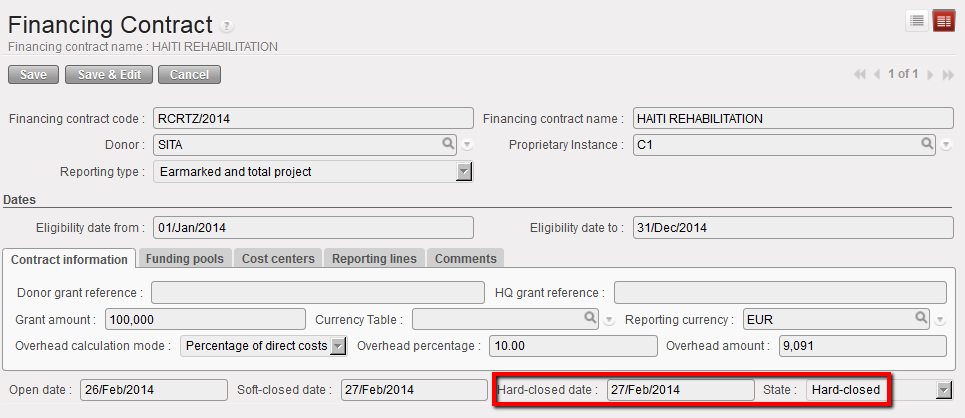
Contract in Hard-closed state from 27/Feb/2014

LUFI-6.2 Donor Principles

 Finance User Manual ENG  -> 6. Donor Management -> LUFI-6.2 DONOR PRINCIPLES

LUFI-6.2 Donor Principles

LU Introduction

In the {Donors} module, the user links Donor reporting requirements with the MSF Chart of Accounts and Destinations. The user defines which expense accounts / destinations need to be selected to create reporting lines according to the expenses the Donor agreed to finance and its reporting requirements.

The Donor form includes the following fields:

  1. Donor code and name
  2. Reporting type
  3. Overhead calculation mode
  4. Overhead percentage
  5. Reporting Lines
  6. The {Donor code} and {Name} input type depends on your section’s guidelines. Please refer to them.
  7. The {Reporting type} reflects the type of report requested by the Donor. There are 3 types of reports available in UniField:

Drop down menu to choose Donor Reporting Type
{Total project only} reporting shows the costs of the entire project, excluding expenses allocated to the {Private Funds} funding pool which are considered non eligible for any Donor. In this case:

  • The Donor does not fund a budget line in particular. He is only interested in the total project costs. The amount of money budgeted with the Donor is used to fund a portion of the total project costs.
  • The grant has a defined amount which may be a % of the total project costs or a fixed amount
  • Expenses included in this kind of report should be allocated to generic funding pools called Co-funding (COFI); they may be co-funded by several Donors. This leaves MSF with greater flexibility in terms of allocations (no cost type restriction: expats vs. drugs etc.)
  • Reporting is done on total project costs only and would display only one {Total project costs} column with budget and actual amounts.

{Earmarked only} reporting shows only the expenses allocated to a specific grant.

  • Expenses must be allocated to a specific funding pool. This funding pool is dedicated to report on this earmarked grant, though it may also be used in a global contribution to report on “Total project costs” as well.
  • Costs paid directly by the Donor can be easily audited down to the document level
  • Reports exclude the total project cost. The report would include only one {Earmarked costs} column in the Donor report with budget and actual amounts funded.

{Ear-marked and total project} reporting is for Donors requiring reporting both on the specific use of their grant and on total project costs

  • The Donor funds a specific reporting line but would also expect to see reporting on the total project costs in order to assess the project efficiency and potentially to avoid cost funding duplication.
  • Reports on the earmarked and total project costs expenses would include two columns: one for the earmarked costs and one for total project costs, both presenting budget and actual costs.

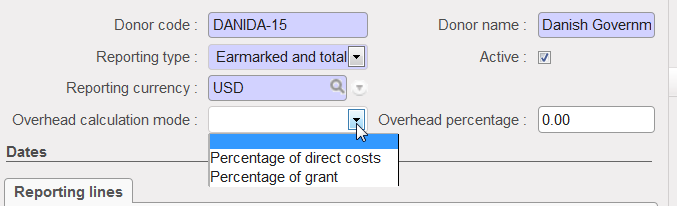
The {Overhead calculation mode} allows you to record a Donor’s contribution for overhead cost funding. In the Donor form, you need to specify the calculation mode that the Donor is working with as far as overheads costs are concerned.

Overhead calculation mode

{Percentage of Direct costs}

  • An (eligible) direct cost is a cost necessary to carry out the actions, complying with the principles of sound financial management in particular value for money. For instance it could be cost of travels and subsistence, equipment, goods or service purchase, field living cost. As opposed to Direct cost, Indirect costs or Overhead are used for overall administration expenses and do not need to be justified.
  • If you select the option {Percentage of direct costs}, the Donor funds a percentage of direct costs as far as Overheads are concerned.
  • In this case you set up a reporting line of overhead type called {Overhead} for overhead costs. Then only a percentage of these costs are linked to the Donor. You do not need to link the reporting line to accounting codes to report on actuals for this reporting line.
  • For example, if the Donor agrees to fund 5% of direct cost for overhead, and the total grant was 30,000 Euro and direct costs were 28,571 Euro the Donor would provide 1,429 Euro for overhead.

{Percentage of Grant}

  • A second possibility for Donors is to finance Overhead based on a percent of the total grant. In UniField, you will select the overhead calculation type {Percentage of Grant}.
  • For example, if the Donor agrees to fund 5% of the total grant for overheads, and the total grant was 50,000 Euro the Donor would finance 2,500 Euro.

The {Reporting lines} represent the Donors standard reporting format with the type of expenses funded identified through the link to expense accounts.

Reporting lines can bear different types:

  • {View}: the total of all associated Actual Reporting Lines.
  • {Actual}: total of all posted entries done on the account linked to this reporting Line.
  • {Consumptions}: a raw figure based on consumption reports (for instance on stocks) over a defined period. The related expenses must be justified through an inventory or a consumption report built outside UniField.
  • {Overhead}: administrative costs calculated either on the total cost of the project or only on direct costs.

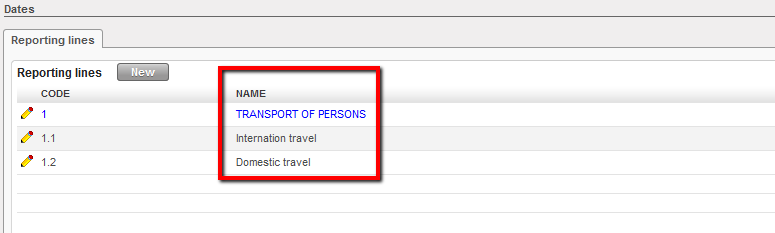
For example, if the Donor agrees to pay for transport cost which includes both international and domestic travel, a user should create 3 reporting lines:

– One {View} reporting line TRANSPORT OF PERSONS

– Two {Actual} reporting lines: Domestic travels cost with all 64110 expenses and International travel with all 64100 expenses. The {Transport of persons} lines are based on the Donor requirements and are linked to the MSF chart of accounts’ domestic and international travel expense codes.

Example of View and Actual reporting lines
These reporting lines remain editable to match any reporting changes submitted by the Donor.

How to Create a Donor Form

Go to: Accounting/Grant Management/Donors

  1. Click on {New} button to open a new form.
  2. Enter the {Donor Code}, {Donor Name} and choose the type of reporting according to the Donor’s reporting requirement. It could be {Total Project Only}, {Earmarked only}, {Earmarked and Total project}.
  3. Select a {Reporting Currency}
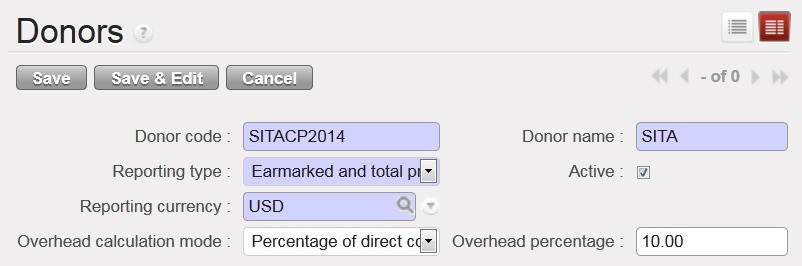
  4. If the Donor contributes to overhead cost, select the overhead calculation mode {percentage of direct costs} or {percentage of grant} and enter a value in the {overhead percentage} field. For instance, 10% of direct cost:

Donor form creation –SITA

1.  In the {Reporting Lines} field, click on {New}

       —->>>A reporting lines wizard appears

2. You need to create the {View} reporting lines first. Enter the reporting line code, name, type {View} and click {Save & New} button. For this example, let’s create a view reporting line with a name “Medical Equipment” and code “2”.

{View} reporting line created

3. Once you have created the {View} reporting lines, you can associate the {Actual} reporting lines. For this example, let’s create “2.1 Medical Equipment” and “2.2 Laboratory Equipment” actual reporting lines.

4. In the {Parent Line} field, click on the magnifying glass to link the line you are creating to a {View} parent line. Select the {MEDICAL EQUIPMENT} line.
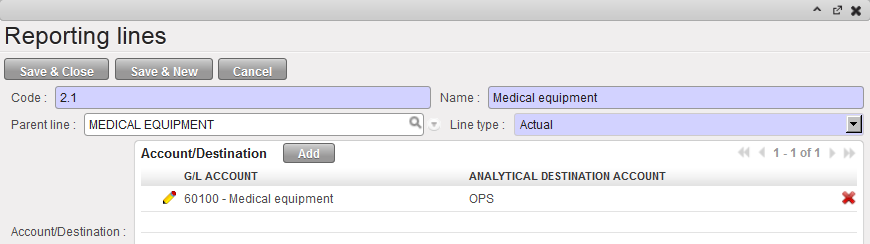
5. Enter the line code “2.1” and name the actual line “Medical Equipment”.

6. Select {Account/destination} to link the reporting line to a {expense account/destination} couple. For this example, select account code 60100 which defaults to OPS destination.

Reporting lines configuration

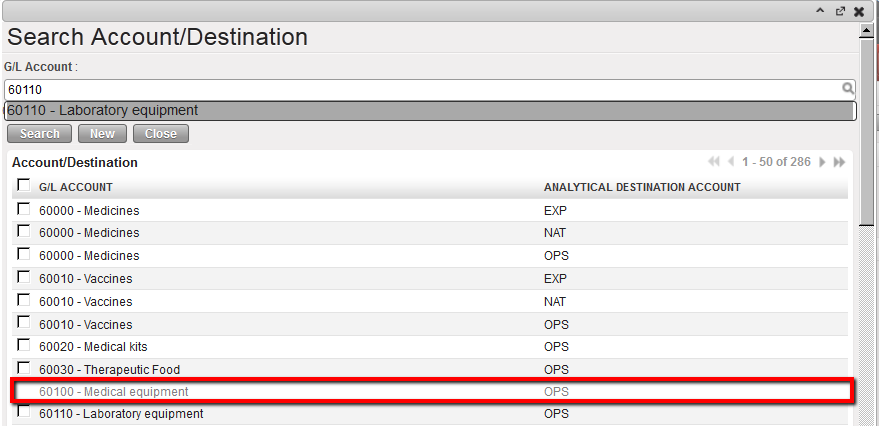
Click {Save & New} button to continue mapping the reporting lines. When associating the reporting lines to {expense account/destination} couples, user will not be able to use the couples already associated to a different reporting line (they will be in grey in the display).

System shows account/destination unavailable (in grey) when mapping the reporting lines

7. Once you created the second actual reporting line, save the form.

Please note that if If this tick box “Selects Accounts Only” is ticked, the current display selection is removed.

  1. When clicking in “Add”, it brings to “Search G/L Accounts” and only one column remain “GL Accounts” (account code + account code name).

How to Set Up Overhead Costs Reporting Lines

Go to: Accounting/Grant Management/Donors

Select the appropriate Donor.

  1. Under reporting line select the {New} button.
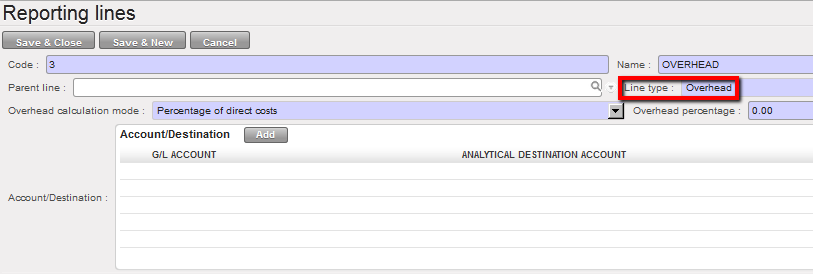
  2. Create a code, code name and select {Overhead} for the line type.

Select the Line Type

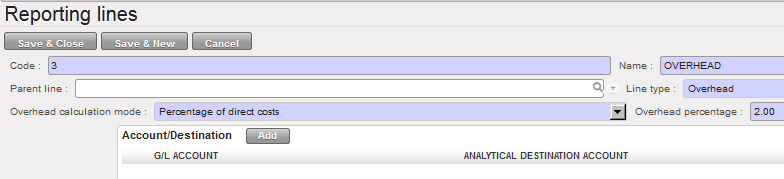
3. Choose the overhead calculation mode {Percentage of direct costs} if overhead was calculated on direct cost of the project or % of grant. Insert the overhead percentage.

Overhead calculation mode setting

4. Click {Save} button.

6.1 CHAPTER OVERVIEW: Donor Management

Finance User Manual ENG -> 6. Donor Management -> Chapter overview: Donor Management.

6.1 CHAPTER OVERVIEW: Donor Management

Donor reporting is a custom-made module in UniField that enables users to handle both simple and complex reporting requirements, enabling the production of reports once the funding period is over.

When MSF starts negotiating a grant with a Donor, a project proposal is submitted together with a budget; until this proposal is accepted (or well under way) this information will not translate into UniField. Once the proposal is accepted, users will start encoding the related information in the software, from specific analytic accounts and Donor templates to financing contracts object.

Once analytical accounts are set and linked to a specific financing contract, the system recognizes how costs should be distributed when the allocation (in mass or individually) is performed. (See section Analytical accounts, Analytic Allocation execution, Chapter 1 Configurations). In Chapter 1 Configurations, we have extensively explained the purpose and setting of cost centers, destinations and Free Axis 1 and 2. This chapter addresses specifically the principles and configuration of funding pools.

{Funding pools} are specific types of analytic accounts that will allow the system to build direct links between expenses and reports issued from the Grant management module; they are accessed from the {Configuration} module.

Specific reporting requirements are first managed through the {Donors} sub-module which enables the creation of templates that could be used in different grants.

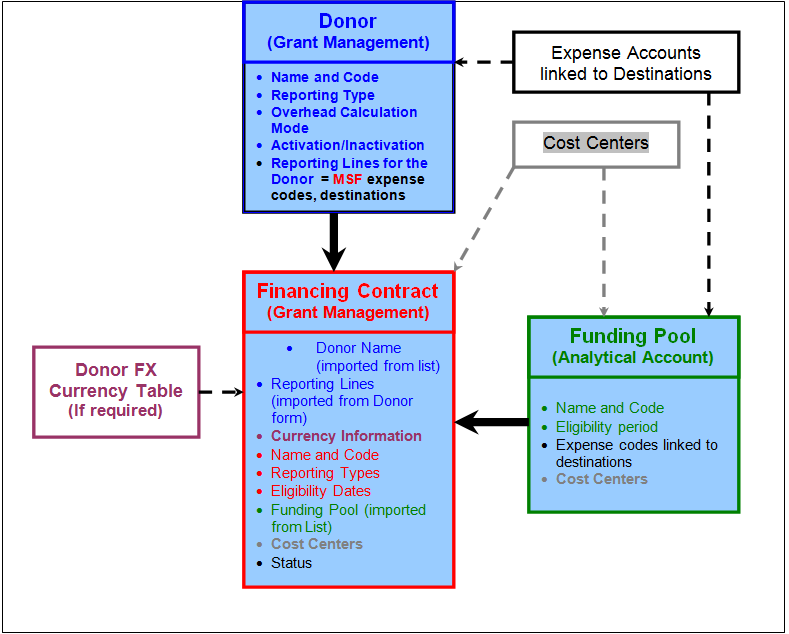
{Funding Pools} and {Donors} are linked together within a central object in terms of grant management: the {Financing contract}. It is the foundation on which all Donor reports are built in UniField.

More specifically, the Funding Pool is a specific type of analytic account to which users allocate expense entries with a specific funding source. The funding pool is defined by cost centers and expense account/ destination couples. When allocating a given expense, a user can pick a determined funding pool if and only if the expense account, destination and cost centers selected have been linked to this funding pool and if the expense document date belongs to the funding pool eligibility date range.

In the financing contract sub-module, funding pools are linked to one or more financing contracts. This allows expenses to be co-funded by several Donors. There are three types of Funding Pools: “Private funds (PF)” for expense paid only by MSF, “Co-funded (CoFI)” for groups of expenses included in several Donor reports and “Grant” for earmarked expenses.

The Donor sub-module allows users to set the parameters of reporting according to the Donor’s requirements. In the Donor form, a user defines which MSF expense accounts and destinations shall be selected and grouped to create reporting lines according matching the template imposed by the Donor.

It translates the type of expenses funded (Donor policy) into the system. End users may choose from three reporting formats: total project only, earmarked only, or earmarked and total project; they determine the reporting format to be used for a particular Donor.

Overhead costs can also be defined on the Donor form.

A Donor form can be used for several financing contracts in case an institutional Donors funds different projects in distinct missions.

A Financing Contract is created for each individual grant or global contribution agreed with an institutional Donor. By setting up a financing contract the user identifies which cost centers (projects / activities) and which funding pools (groups of expenses) are included in the funding perimeter, as well as the funding periods through eligibility dates.

By linking the financing contracts to a Donor, the system will by default retrieve the reporting lines set in the Donor template and import them in the financing contract, where the user will be able to customise it. Here the user will enter the agreed budget per reporting line.

Financing contracts are linked to at least one funding pool in order for the system to compute actual amounts included in Donor reporting in the appropriate reporting lines.

Donor, financing contract and funding pool

After completing the reading of this chapter you will be able to:

  1. Create a Donor form
  2. Understand the concept of funding pools
  3. Create a funding pool
  4. Understand the composition of a financing contract
  5. Create a financing contract
  6. Produce reports requested by institutional Donors.