2.10 VAT and Taxes.

Finance User Manual ENG -> 2. Finance Configurations -> 2.10 VAT and Taxes.

LUFI-21001 VAT Configuration
LUFI-21002 VAT and Product Linkage
LUFI-21003 Partner Fiscal Position Configuration
LUFI-21004 Withholding Tax Configuration
LUFI-21005 How to link a partner to VAT/ Withholding Tax Configuration

VAT AND TAXES

Depending on the agreements made with local governments, MSF may manage 2 types of taxes: VAT and withholding taxes. Both types can be managed directly in UniField. Please refer to your procedures to check if the recording of VAT and withholding taxes is mandatory in your section.

LUFI-20901 Local Product Configuration

Finance User Manual ENG -> 2. Finance Configurations -> 2.9 Products and Product Categories -> LUFI-20901 Local Product Configuration

LUFI-20901 Local Product Configuration

A.   LU Introduction

While there is a master file of international products that is common across all sections and missions individual missions may also create local products based on their missions’ individual financial and supply procedures. Remember the common Unit of Measure used in MSF is the Unit (PCE).

B.   How to Create a New Local Product

Go to: Products/Products

  • Click .
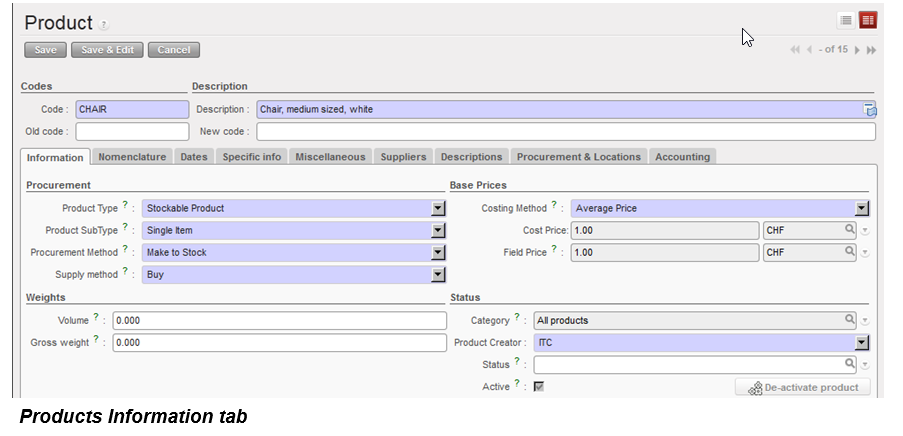
  • Fill in all blue mandatory fields. Code and Description should follow mission standards.
  • On the Information tab you must fill in:
    • Stockable product, a non-stockable product or a service with reception.
    • Costing Method = Average Price or Standard Price. Select Average Price and UniField will automatically recalculate the average costs based on the costs paid when the good is received in the warehouse module. If Standard Price is chosen the user must write in a standard price. This price will continue to be used regardless of actual costs paid.
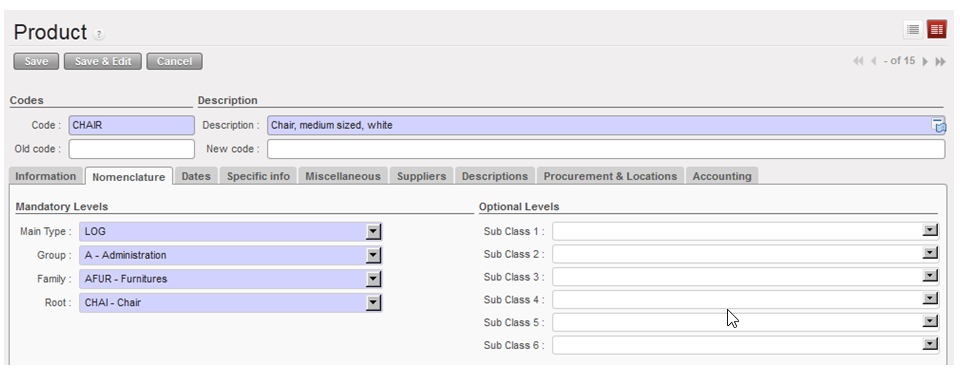
  • On the nomenclature tab you must fill in the four layers which make up the product category.  Please follow mission protocols.

Products Nomenclature tab

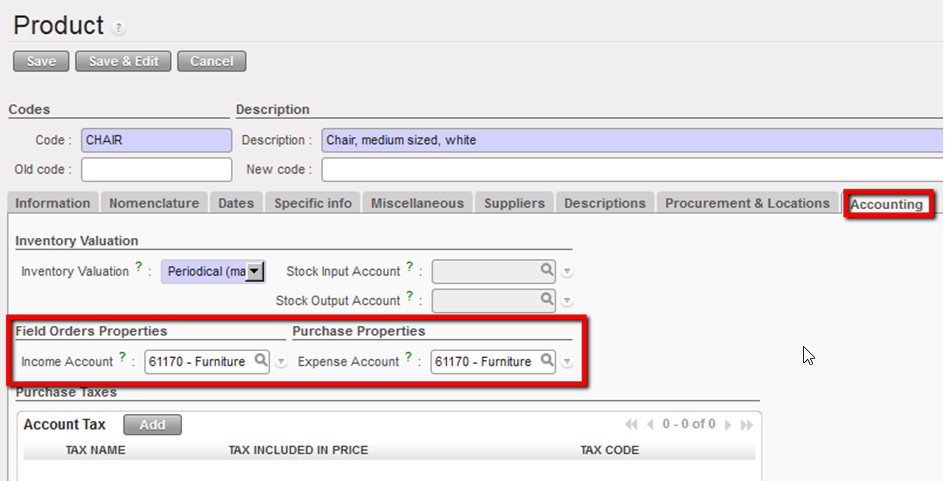
  • The product category will set the account code based on a standard list. If the account code has to be changed, please follow the steps in 2.8.2 to modify it.

Products Accounting Tab

  • Click {Save} button.

2.9 Products and Product Categories.

Finance User Manual ENG -> 2. Finance Configurations -> 2.9 Products and Product Categories.

LUFI-20901 Local Product Configuration

PRODUCTS AND PRODUCT CATEGORIES

The ITC Product Master data (Unidata) is loaded as part of the installation and is shared by all OCs. All single products are linked to a product category, which is linked to an Accounting code. It means that each individual product doesn’t necessarily have an individual accounting code, the one by default taken into account being the one of the product category.

If the account code to be associated to a product differs from the account set on the product category, you will then link a specific account code directly to the product itself. In this case UniField will by default use the account defined on the product instead of the one defined on the product category.

In each mission, it is possible to create local product that is not in the master data file, for instance a product of type service like “house rental”.


There are different product types:

  1. Stockable product: for products which are usually in stock and can be stored
  2. Non-stockable: for products which will not be managed in the warehouse storage. For example: Expat food, some stationeries, etc.
  3. Service with reception; services that are formally received in the system to confirm they have been consumed. For example: Electricity bills, construction contracts, or transport contracts.

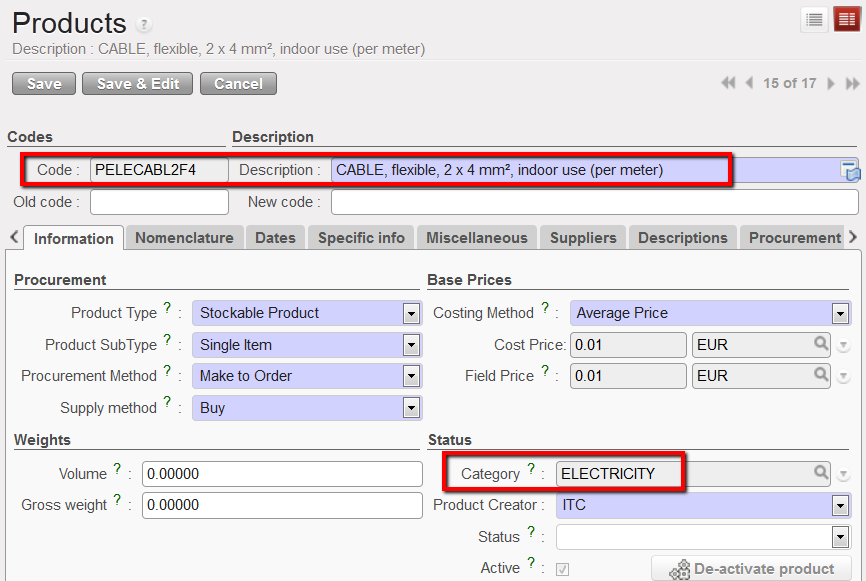
A product, e.g. cable, is assigned to a Category field on the Information tab.

Product category displayed on the information tab of a product form view

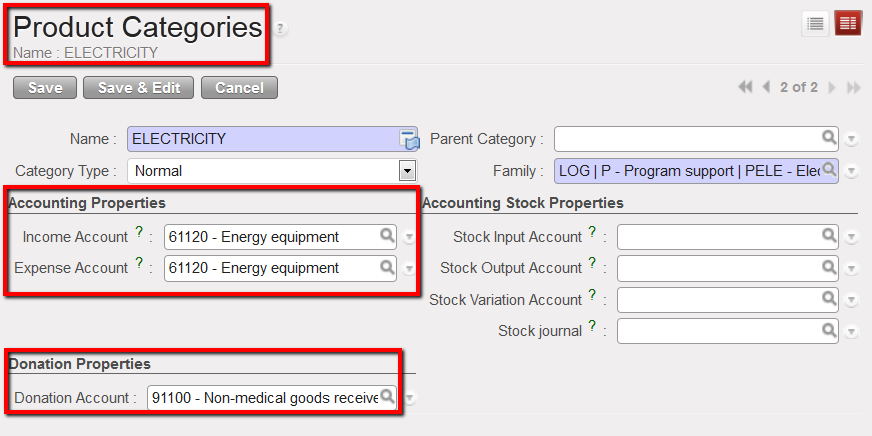
Each product category is linked to an expense and an income account (booked on the purchase journal) and a donation account (booked on the extra-accounting journal). Therefore, every time a product is selected UniField will automatically link this product to an expense account and a donation account.


Product category {ELECTRICITY} and associated accounting properties

The mapping (and updating) of the product category / expense account / income account / donation account link should be done by the person in charge of the data base set up at HQ level (import file) in the sub-module {Products Categories} in Accounting/Configuration/Miscellaneous.

LUFI-20803 Inactivating a Partner

Finance User Manual ENG -> 2. Finance Configurations -> 2.8 Suppliers and Customers -> LUFI-20803 Inactivating a Partner

LUFI-20803 Inactivating a Partner

LU Introduction

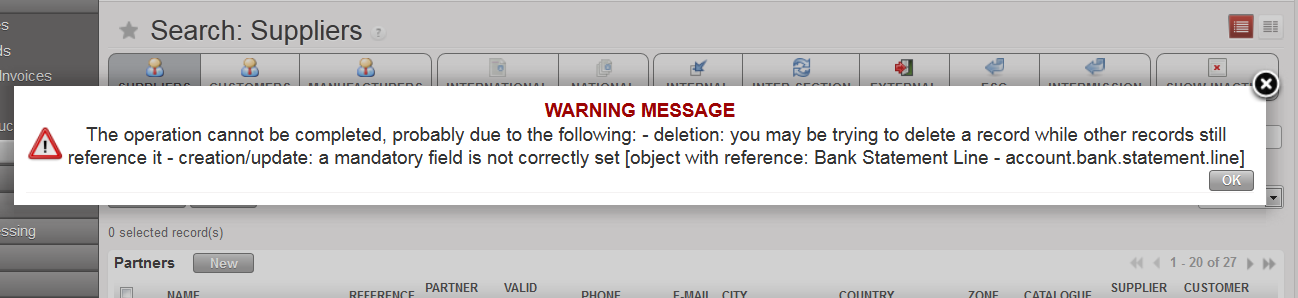
Before inactivating a partner/supplier, you must confirm all documents (invoices, purchase orders, field orders, and vouchers of any kind) associated to this partner are closed. If not you will be prevented from disabling the partner and the following error message will appear:

How to Inactivate a Supplier

Go to: Accounting/Suppliers/Suppliers

1. The partners list appears. You can use the filter buttons or fields to narrow your search to a specific supplier or customer.

2. To display partners states with 3 buttons :

  • SHOW ACTIVE : Display only active partners
  • SHOW PHASE OUT : Display deactivated partner but still linked with open documents ,so no more creation of future documents with phased out partner
  • SHOW INACTIVE : Display the inactive partner. All linked documents should be closed with the end process.

  1. When your partner is located, click on the pencil to edit the partner form,then partner form opens:
  • box “Partner Status” with active under combo-box “Partner type
  • buttons “Deactivate partner” & ” Re-activate partner “under box “Partner Status
  • for active tick box always frozen whether ticked or unticked , the active tick box ticked in both status: Active & Phase out
  • In Search: Track changes is possible to see the following:
  1. Field Description >> “Active” with 2 values True & False
  2. Field Description >>”Partner Status” with 2 values active , inactive & phase out as below:

LUFI-20802 Partner Deletion

Finance User Manual ENG -> 2. Finance Configurations -> 2.8 Suppliers and Customers -> LUFI-20802 Partner Deletion

LUFI-20802 Partner Deletion

LU Introduction

Authorized financial and supply users have the option to delete a partner for example when a partner was created by mistake. However, partners cannot be deleted if they have transactions against them. In such a case, there is a warning message. Also, partners can’t be deleted if they originate from other instances.

In this example, you cannot delete this partner because there is a transaction booked against it in a bank register.

How to Delete a Supplier

Go to: Accounting/Suppliers/Suppliers

  1. The partners list appears. You can use the filter buttons or fields to narrow your search to a specific supplier or customer.
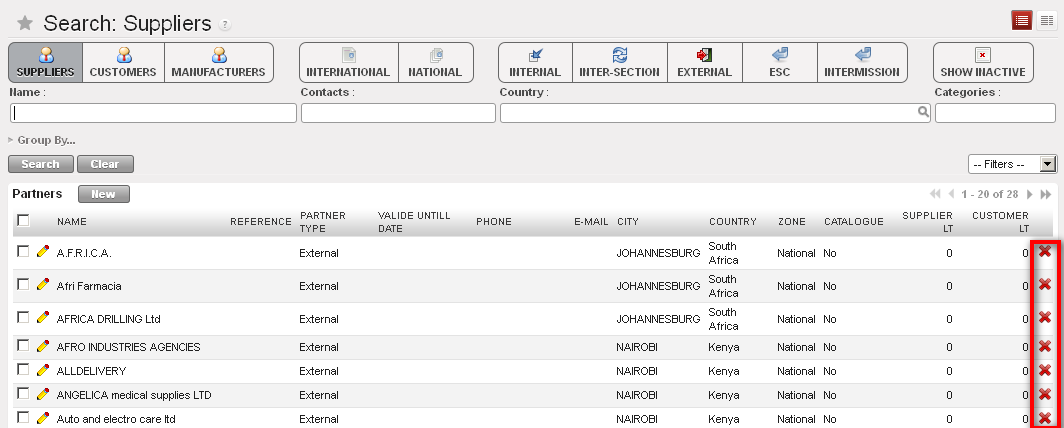
  2. Click on the red cross on the right corresponding to the partner which you want to delete.
  3. A confirmation pop up appears.
  4. Click {Yes}.


Partners form removal buttons


LUFI-20801 Partner Creation

Finance User Manual ENG -> 2. Finance Configurations -> 2.8 Suppliers and Customers -> LUFI-20801 Partner Creation

LUFI-20801 Partner Creation

LU Introduction

In the below example we will create a partner form type external to book the social security liabilities.

How to Create a Supplier

Go to: Accounting/Suppliers/Suppliers

A list of suppliers appears

  1. Click on {New} to create a new supplier form.

A supplier form appears (the supplier’s box is automatically checked)

2. Enter the supplier name in the {Name} field. In this case it will be {Social security}.

    • If it concerns a business company, spell the name exactly as it is on the company’s invoice/letterhead.

3. Enter the reference in the {Reference} field, e.g {SSEC}.

    • It could be the type of services provided if it is a business company.

4. Set {Partner type} field to {External} as we are creating a partner which is not linked to MSF

5. Set the {Language} of communication. All documents related to this partner will be printed in this language. If not, it will default to English

6. Set {Zone} field to {National}.

    • {National} is used for all-in country partners. If {International} check with LogCo.

7. In the field {Order creation mode} {All requirements} is set by default.

8. The {Active} box is checked by default.

9. In the General tab, in the {contact name} section, enter the name of your contact in {Contact Name}.

    • If it is a business company, spell exactly as it is on the company’s invoice/letterhead

10. Choose the right title using the combo box {Title}, enter manually a function.

11. Check the box active if you want to display the contact details in the partners Search view

12. In the {Postal address} section, fill in the different information fields.

    • If it is a business company, spell exactly as it is on the company’s invoice.

13. In the {Communication} section, fill in the different information fields.

    • If it is a business company, spell exactly as it appears on the company’s invoice.

14. In the tab {Field Orders & Purchases}, select the {Default Purchase Currency}. The {Default field order currency} should be identical. The selected currency will be the default currency you use to pay this supplier.

  • The standard in the partner is that both Purchase Default Currency & Field Order Default Currency must be unique with the currency code, so once Purchase Default Currency has a value, the field automatically updates the Field Order Default Currency with the same currency code.
  • It’s not possible to edit Field Order Default Currency otherwise a popup with a warning message will appear as below:


15. In the {Supplier lead time} keep {0} days.

16. In the Accounting tab, enter the Account Receivable 12040 {Social security receivable} and Account Payable 30200 {Social security).

17. You do not need to complete any other tabs/fields. Save the form.

The social security supplier form is created
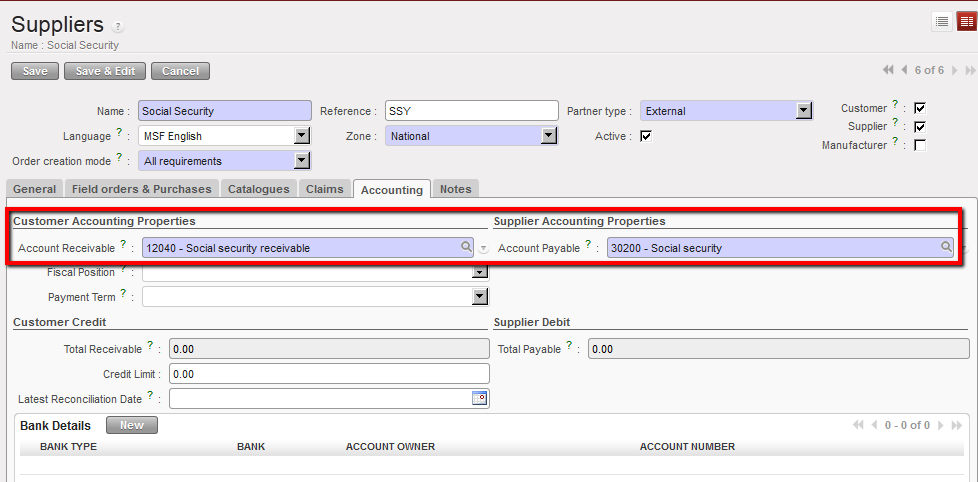

                                         Social Security form and accounting tab


A faster way to create a partner form is to use the “Import” function at the top pane in the “Actions” menu. You will need a template of type csv to process the import. Remember that restrictions on account codes will apply too.
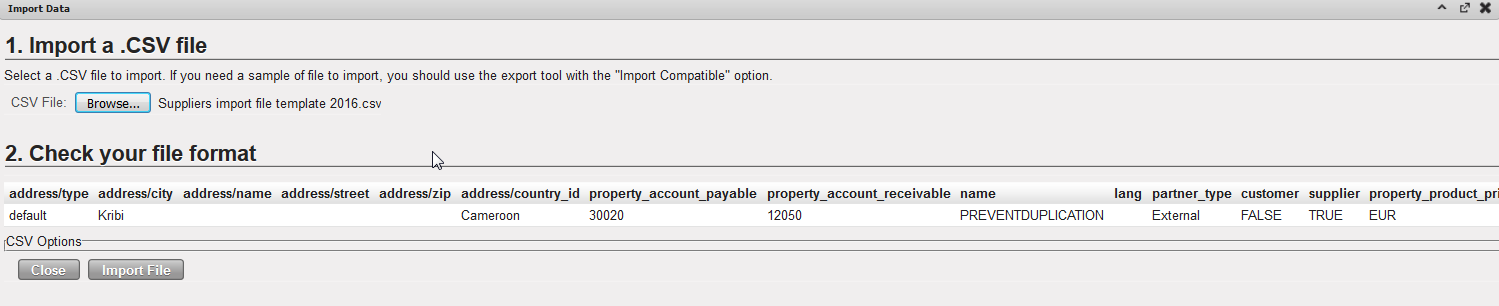
Supplier Import View

2.8 Suppliers and Customers.

Finance User Manual ENG -> 2. Finance Configurations -> 2.8 Suppliers and Customers.

LUFI-20801 Partner Creation
LUFI-20802 Partner Deletion
LUFI-20803 Inactivating a Partner

2.8 SUPPLIERS AND CUSTOMERS

Partners are third parties which MSF is doing business with. UniField transactions with third parties must be recorded as Payables or Receivables which recognizes a debt or a receivable.

UniField introduces different partnership types. They are:

  1. Internal: entities belonging to the same mission. They could be suppliers, customers or both (e.g. a coordination purchasing for a project, they both belong to the same mission).
  2. Inter-mission: entities belonging to the same section but different missions. They could be suppliers, customers or both (e.g. a coordination in Bunia purchasing for a coordination in Nairobi They both belong to Operational Center Geneva OCG).
  3. Inter-section: entities belonging to different sections. They could be suppliers, customers or both, (e.g. OCA coordination in Chad providing tents to OCG coordination in Chad).
  4. External: entities not related to MSF. They could be suppliers, customers or both (e.g. a landlord providing office space to MSF, or an office supply company providing pens to a project, or OCA receiving mosquito nets from UNICEF).
  5. ESC: European Supply Centers such as MSF Logistic and MSF Supply which are used by various sections to purchase goods internationally.

Which users (supply, finance or both) create suppliers will vary per section. Please seek guidance from your mission’s financial procedures.

Suppliers and Customers can be set-up in the {Partners} supply business application or in the {Accounting} business application. This depends on the level of access rights the user has. As supply and finance share the same database, a supplier created through the {Accounting} business application will be visible in the {Partners} business application and vice versa.

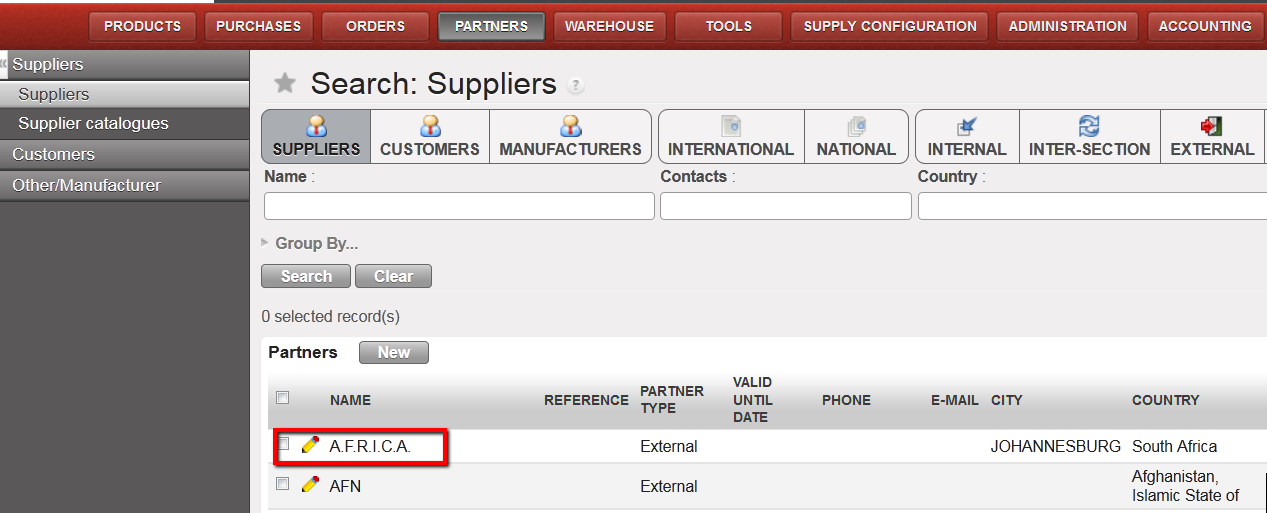
Supplier A.F.R.I.C.A. visible in the PARTNERS business application
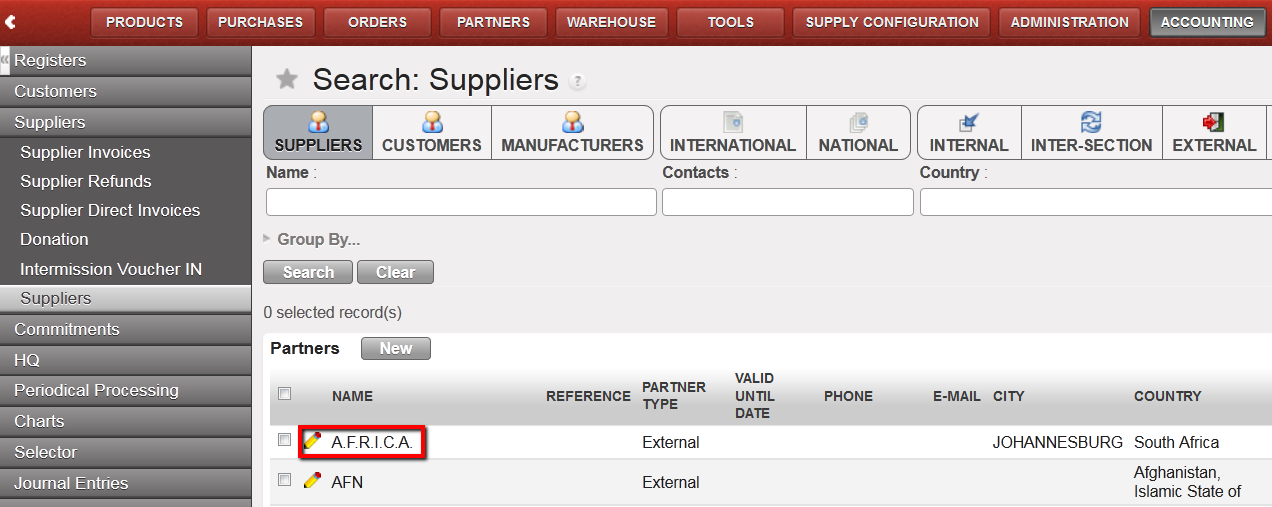
Supplier A.F.R.I.C.A. visible in the ACCOUNTING business application
  1. If you create a supplier (or customer) which already exists in the database with the same name and city, you will get a warning message and be blocked in the process. This is to avoid duplicated (external) partner.
  2. If you are creating a partner for the same company but for a different location with separate billing, then add the location to the partner name (e.g., Local market Addis Abeba vs. Local market Abdurafi).
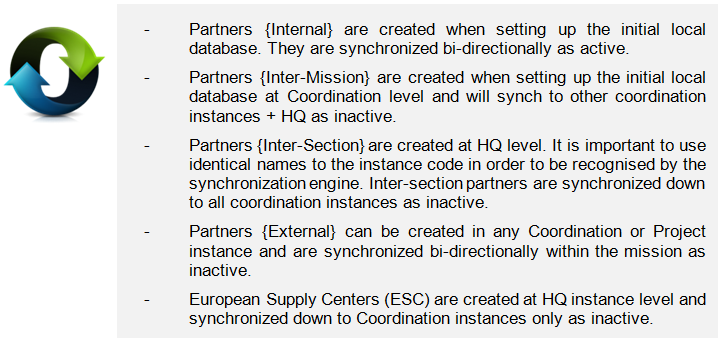
  3. Please note that all external partners created in one instance will synch bi-directionally as inactive within the mission. If one partner is used by several instances within a mission, it will have to be created only once in one instance and then synchronized as active to the other instances so the partner will be the same in all the instances.


Please keep in mind that the type of partners (and orders) impacts the generation of specific financial documents. Therefore the right partner type must be chosen when a partner form is created.

Accounting on suppliers (Accounts Payables or A/P) reflects what an instance owes to suppliers for products and services purchased, while accounting for customers (Accounts Receivables or A/R) is the money to be received for products and services provided by an instance.

In UniField, each partner need to be linked to financial accounts in the {Accounting} tab of the Supplier/Customer form, one for the account receivable and one for the account payable. Therefore, the documents generated linked with the supplier will use one of these accounting codes, depending if this is an amount to pay (accounts payable, i.e. supplier invoice) or an amount to collect (accounts receivable, i.e. supplier refund).

OCs should define procedures to decide whether finance will need to provide this information to the supply team or if it is up to the finance to enter the accounts into supplier forms.

Some examples:

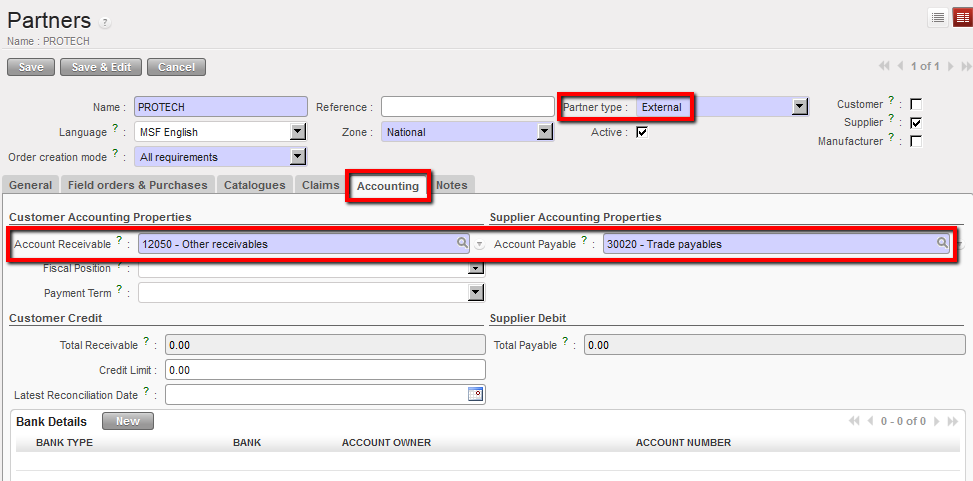
An {External} supplier of goods or service should be linked to account 30020 {Trade payables} and 12050 {Other receivables}.

A supplier {External} of goods and services and associated accounting codes
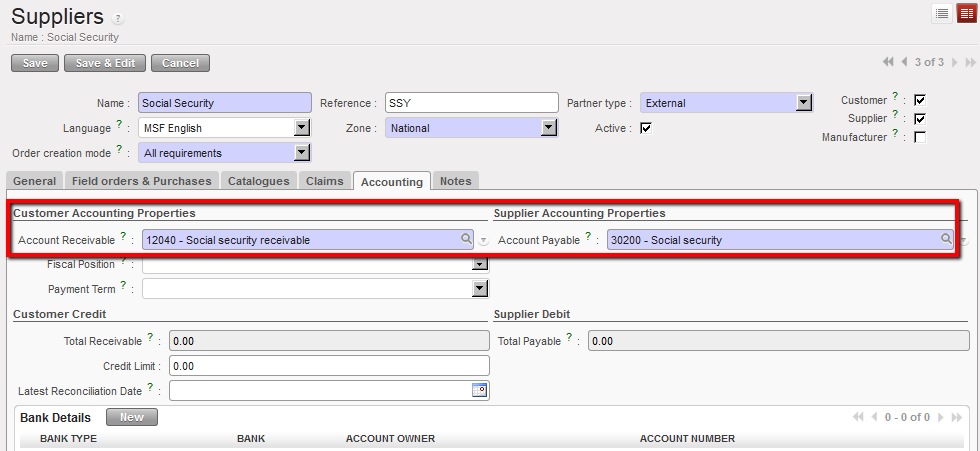
The social security is an {External} partner and should be linked to the account 30200 {Social security} and 12040 {Social security receivable}.

Social security partner (external supplier) and associated accounting codes
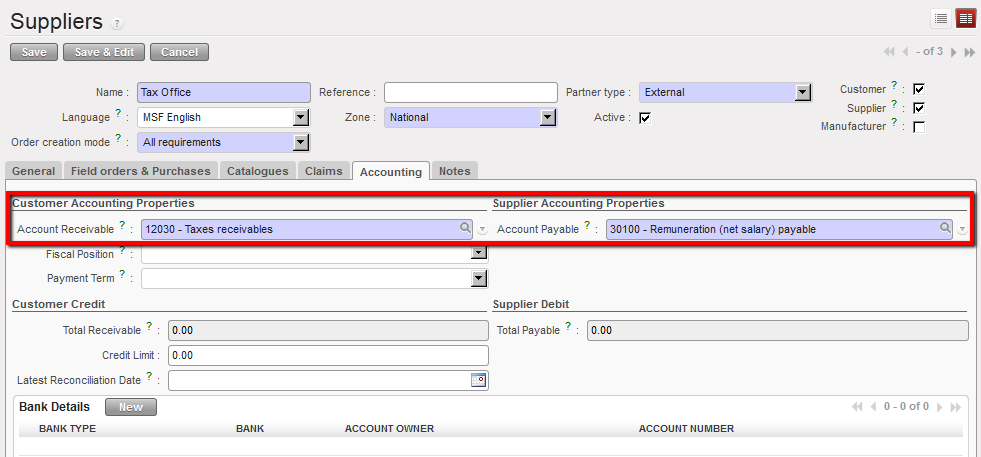
The tax office (to record income taxes liabilities) should be linked to the account 30310 {Payroll taxes} and 12030 {Tax receivables}.

Tax office partner (external supplier) and associated accounting codes
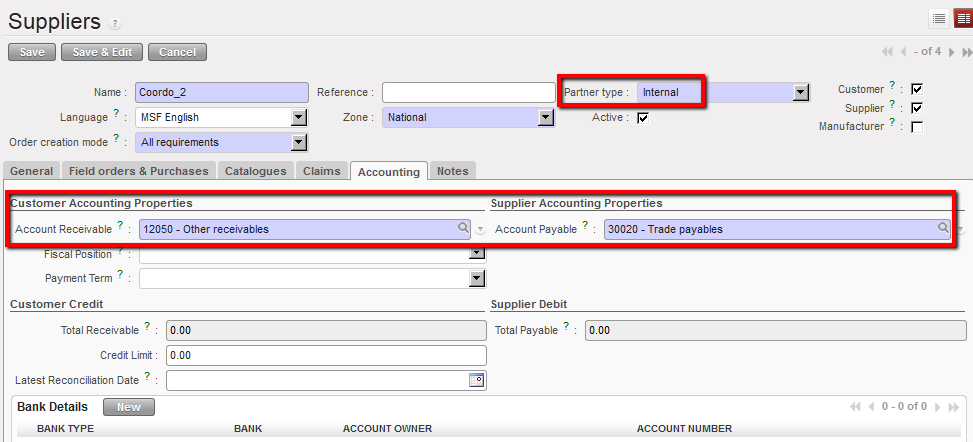
An {internal} supplier (coordination) should be linked to the account 30020 {Trade payables} and 12050 {Other receivables}.

Coordo_2 is both a supplier and customer type of internal partner
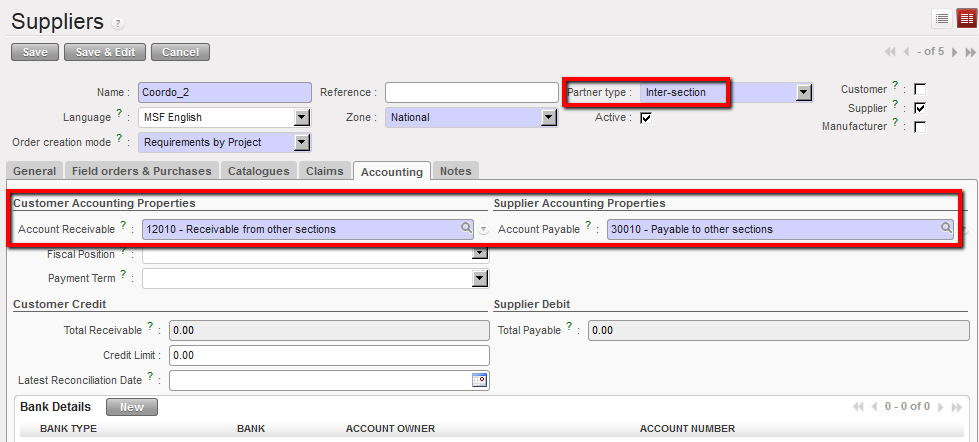
A/P and A/R accounts need to be assigned to partners of type {inter-section} and {inter-mission}:

Inter-section partners are associated to the accounts 12010 {Receivables from other sections} and 30010 {Payable to other sections}.

Coordination-002 is a supplier type of inter-section partner
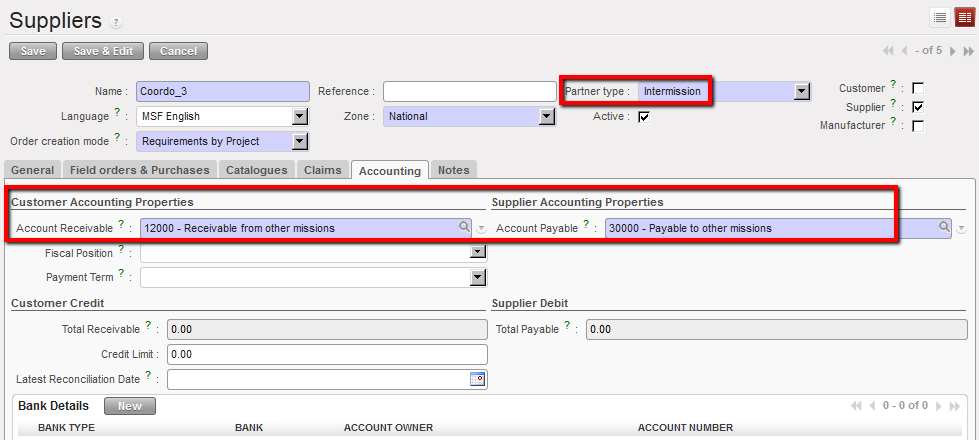

You can also decide to associate a partner of type {inter-section} to the A/R account 12011 {Expense re-invoiced to other sections} and periodically create debit notes.

Inter-mission partners are associated by default to the accounts 14010 {Advances or expenses for other missions} and 30000 {Payable to other missions}.

Coordination-3 is a supplier type of intermission partner

When activating a partner type intermission, the system will check if the same name exists in the internal partners; if yes, the system will not allow to activate the partner (regardless of the status of the internal partner and whatever the letter case) and we will have an error message as follows:

“There is already an Internal Partner with the name ‘XE_ZZZZ_XYZ’. The Intermission Partner could not be created and activated”

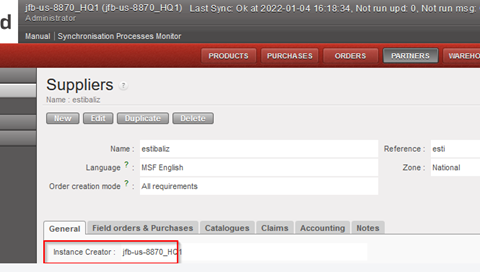
In the Suppliers/Customers form we have created a new field “Instance Creator” in the tab “General”.

We have added this field in all partners type synchronization rules.

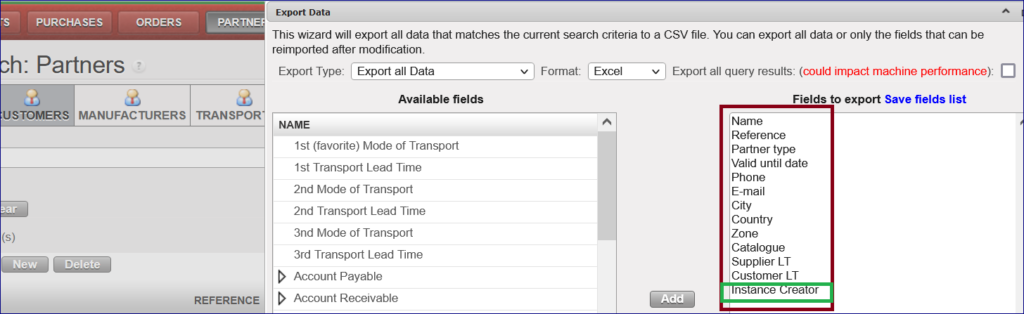
We have also added this field in the export action menu as a default field

Filter parameters through “Group By…”:

You can filter suppliers by different parameters.

Go to Partners > Click on “Group By…” > It will display below by toggling in each one of them:

Filter parameters through “Group By…”

There are four roles for a partner: Supplier, Customer , Manufacturer and Transporter .

When creating/editing a partner, it is mandatory to tick one of the roles, otherwise a warning message will pop up below:

It is possible to have two external partners with the same name but different cities within the same instance, but it is not possible to edit the external partner to have the same city for both external partners with the same name, otherwise you will get a warning popup as below:

LUFI-20705 Register Deactivation.

Finance User Manual ENG -> 2. Finance Configurations -> 2.7 Liquidity Journals and Their Corresponding Registers -> LUFI-20705 Register Deactivation

LUFI-20705 Register Deactivation

LU Introduction

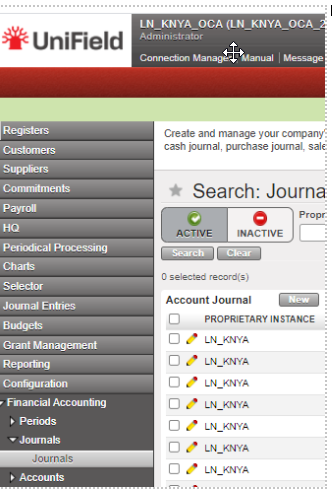
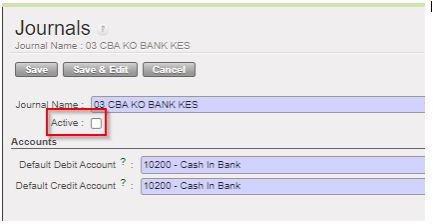
In the [Accounting/configuration/financial accounting/journals/journals] screen, we have created a filter with [active] or [inactive] status on the header of the journal list for activation and inactivation of the GL journal.

The standard display is [active]: Only active journals are displayed in the standard display screen. Registers related to inactive journals are not listed anymore on the register creation screen on [accounting/registers/register creation]. In the Journals we have the field Active:

The [inactive] journals cannot be used anymore in the interface:

  • as third party of an entry
  • to book a manual journal entry
  • We cannot import a file to the journal from manual journal entry, or into a register for register lines should check the active status of the journal code seen in the import.

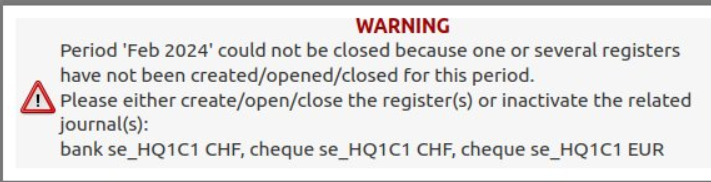
Deactivation of the liquidity journal is a must if the journal is not to be used in the future, otherwise the closing period of the following month on which the journal of the register was not created will be blocked, so you will receive warning message as below:

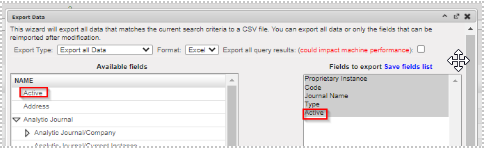
The creation of a journal with the same code as an inactive journal it is not allowed. We have added in the exportable fields the [Active] status in the export of the list of journals.

The conditions to allow the inactivation will be:

  • For liquidity journals, before allowing the inactivation check:
  • all registers have been closed
  • all manual journal entries have been posted
  • the balance of the last register is zero

We will receive error messages as the following one:

  • A Cheque journal correspond to the bank register must be deactivated before bank journal ,otherwise warning message with “The bank journal BXXX cannot be inactivated because the related cheque journal CHQXXX is still active
  • For non-liquidity journals: all entries have been posted on the journals.

The activation-deactivation will synchronize to the other instances. We will prevent the deactivation if there are draft, or temp posted entries / documents. For the GL journals that have been deactivated, we will show the correction wizard in AJI and JI. We have added the field “Active” in the Journal Track Changes. We will not allow:

  • The selection of inactive journals in the invoices
  • The duplication of JE and invoices on inactive journals
  • The re-opening of a register on an inactive journal
  • The selection of inactive journals in the Recurring Models
  • The inactivation of a journal if a Recurring Plan which isn’t “Done” uses it
  • The selection of a Recurring Model on an inactive journal, in the Recurring Plans
  • The duplication of a Recurring Model on an inactive journal / of a Recurring Plan using a Recurring Model on an inactive journal
  • The selection of an inactive Bank Journal in the Cheque Journal form
  • The selection of inactive journals as Refund Journal in the Refund Wizard
  • The Refund Type “Modify” for the invoices booked on an inactive journal

Reporting

  • We will not show the registers related to inactive liquidity journal in the [liquidity position report]
  • We will show the inactive journals in the [liquidity balances] report as far as there have been movements within the period considered in the report. So, the related line won’t be displayed on the condition that the journal is inactive, and the “Starting Balance”, the “Movements”, and the “Closing Balance” are all 0.00.
  • We have added a new column in the [liquidity balances] report: [Journal Status].
  • In the reports “Trial Balance”, “Partner Balance”, “General Ledger”, and “Partner Ledger” the inactive journals will be displayed in red.
  • In the Search views of the invoices, we have done a standard search view, with a filter hiding the inactive journals by default.

LUFI-20704 Register Deletion

Finance User Manual ENG -> 2. Finance Configurations -> 2.7 Liquidity Journals and Their Corresponding Registers -> LUFI-20704 Register Deletion

LUFI-20704 Register Deletion

LU Introduction

If a register has been created by mistake, you need to delete the corresponding journal. It is not possible to delete the register directly. You can only delete the corresponding journal if the register is still in {Draft}.

How to Delete a Register

Go to: Accounting/Configurations/Financial Accounting/Journals

  1. Retrieve the journal you want to delete e.g. by using the filter {Journal type}.
  2. When you have identified the correct journal, click on the pencil of the journal to open the form.
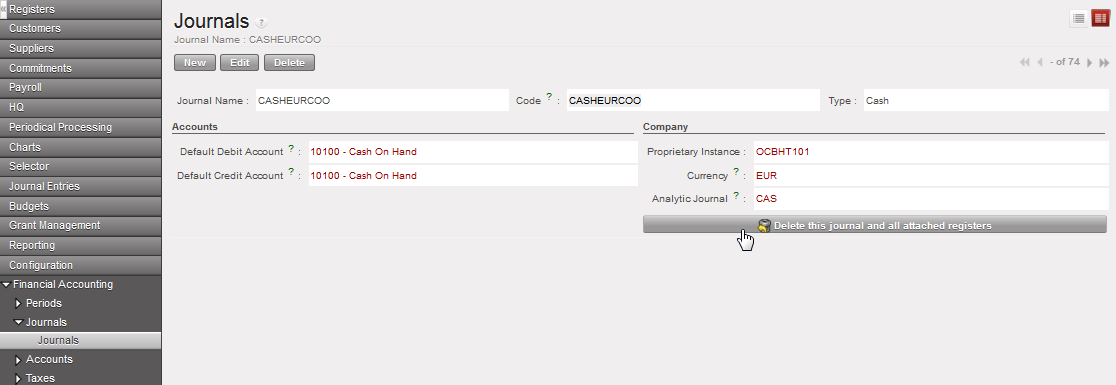
  3. Click on {Delete this Journal and all attached Registers} and confirm

The journal and associated register are deleted

LUFI-20703 Monthly Register Creation

Finance User Manual ENG -> 2. Finance Configurations -> 2.7 Liquidity Journals and Their Corresponding Registers -> LUFI-20703 Monthly Register Creation

LUFI-20703 Monthly Register Creation

LU Introduction

Cash, bank and cheque registers need to be reconciled at the end of each month (period). Therefore, at the end of each month, the user needs to close their register(s) and create new registers for the following month. The user does not need to wait for the closing of the previous months register to open the new register. The opening balance will not be finalized until the previous month’s register is closed.

To create a new register, a function called {Register Creation} is used. It is virtually the same process to create a month’s bank, cheque or cash register.

How to Create a New Months’ Register Using the Register Creation Function

Go to: Accounting/Registers/Register Creation

  1. In the {Period} field, select the period in which you want to create the registers (remember that UniField only displays {open} periods).
  2. Click on {Confirm Period}.

{Register creation} wizard.

3. Delete the registers you do not want to create by clicking on the Red Cross . You want to create all cash, cheque and bank registers that have active cashboxes and bank accounts.

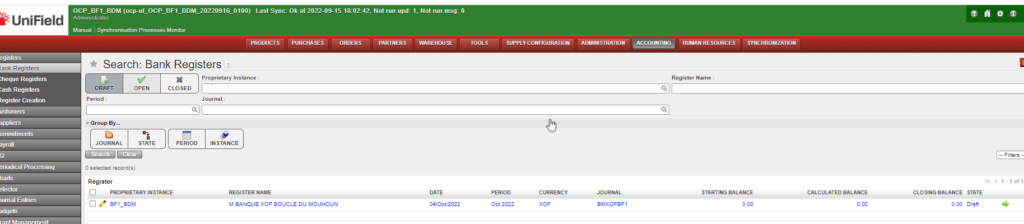
Deleting registers that should not be created

4. Click on {Create Registers}

The registers are created in {Draft}. You will need to open each register. You will find the cash registers in the {Cash registers} sub-module, the bank registers in the {Bank registers} sub-module and the cheque registers in the {Cheque Registers} sub-module.