LUFI-20702 Register Creation

Finance User Manual ENG -> 2. Finance Configurations -> 2.7 Liquidity Journals and Their Corresponding Registers -> LUFI-20702 Register Creation 

LUFI-20702 Register Creation

LU Introduction

A liquidity journal and a register must be created for each physical cashbox, safe, cheque book or bank account. The creation of a liquidity journal (cash, cheque or bank) triggers the automatic creation of the related register in {Draft} state in the same currency. The liquidity journals remain indefinitely open while the associated registers will be monthly closed and re-created again for next period.

As the register is opened in {Draft} state, the user needs to open the register to book entries. When a new register is opened for the first time, the user needs to enter an opening balance by changing the {CashBox} cash count value or bank opening balance in UniField unless the opening balances are recorder as a direct entry in register (please check your OC’s procedures).

Same process applies to creating cash, cheque or bank journals with slight field differences for the cheque registers. For the purpose of this exercise we will create a cash register.

How to Create and Open a Register

In this example we will create a Cash register. You will first need to create a Cash Journal.

Go to: Accounting/Configuration/Financial Accounting/Journals/Journals

  1. Click on {New} to create a new journal.
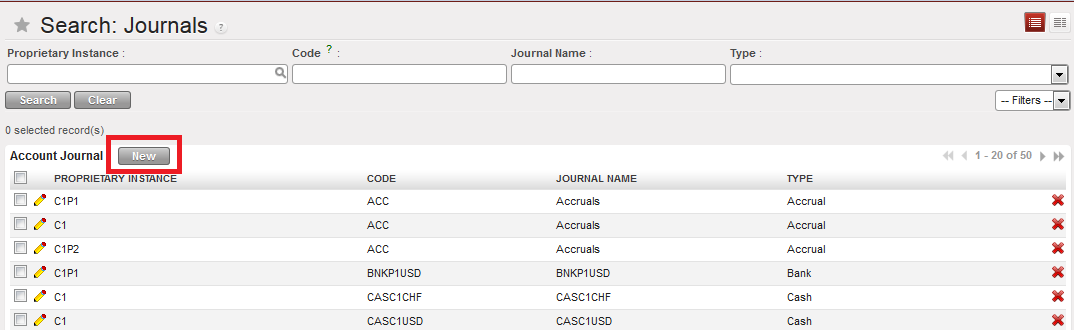
{Journals Search} view and {New} button

A new journal form appears
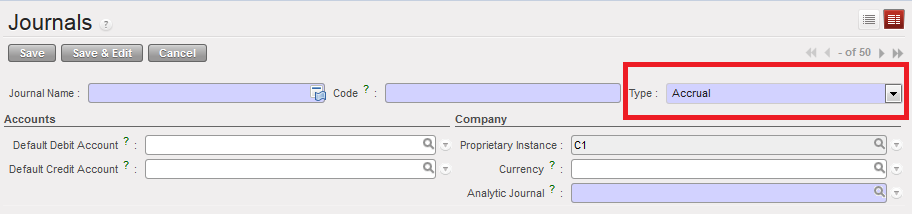
{Journal Form} view and journal type defaults to {Accrual}

  1. Complete the {Journal Name} and {Journal Code}. The Journal name and code must indicate the currency and the location to easily spot the corresponding register.
  2. Choose Journal type {Cash}. You would have chosen a {Bank} or {Cheque} types to create a bank or cheque journal.
  3. In the {Accounts} section, choose the account {10100 Cash on Hand} to set the default debit and credit accounts. You would have chosen {10200 Cash at Bank} and {10210 Outstanding Cheques} for Bank and Cheque Accounts.
  4. In the {Currency} field, select the currency of your cashbox.
  5. The Analytic Journal defaults to {CAS}
  6. Save the form

A cash journal is created
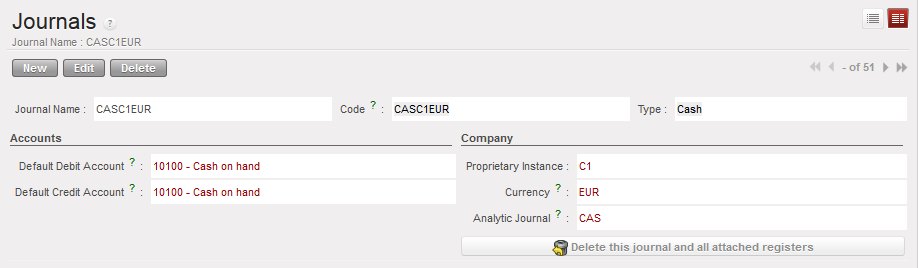
AFN cash journal created

Title of fieldEntry protocolSource for Information
Journal Name<CASH/BANK/CHEQUE> <CUR> <TYPE> <PROJ>


<CUR> is the currency code, <TYPE> is MAIN or PETTY, and <PROJ> is COORD or the short name for the project, e.g.

01 CASH PGK MAIN POM 03 CHEQUE PGK LAE

02 CASH PGK PETTY POM 04 BANK PGK LAE

FinCo/HQ
Code## <CAS/BNK/CHE>-<CUR>, e.g. 01 CAS PGKFinCo/HQ
TypeDrop down: Cash, Bank, ChequeFinCo/HQ
Default Debit Account10100 Cash on hand for cash journals


10200 Cash at Bank for bank journals

10210 Outstanding Cheques

FinCo/HQ
Default Credit Account10100 Cash on hand for cash journals


10200 Cash at Bank for bank journals

10210 Outstanding Cheques

FinCo/HQ
Proprietary InstanceSystem Default 
CurrencySelect the currency appropriate for this journalFinCo/HQ
Analytic JournalCash, Bank, ChequeFinCo/HQ
Bank Account Name (only bank journals)Optional field for Name of the bank account from bank statementFinCo/HQ
Bank Account Number (only bank journals)Optional field for Bank Account NumberFinCo/HQ
Swift Code (only bank journals)Optional field for Bank Swift CodeFinCo/HQ
Address (only bank journals)Optional field for Bank addressFinCo/HQ

When the creation of the cash journal is completed you need to open the corresponding cash register.

Go to: Accounting/Registers/Cash Registers

A list of open cash registers displays (if you have created and open cash registers before)

  1. Search for the draft registers. You need to clear the current filter {Open} and select the filter {Draft}
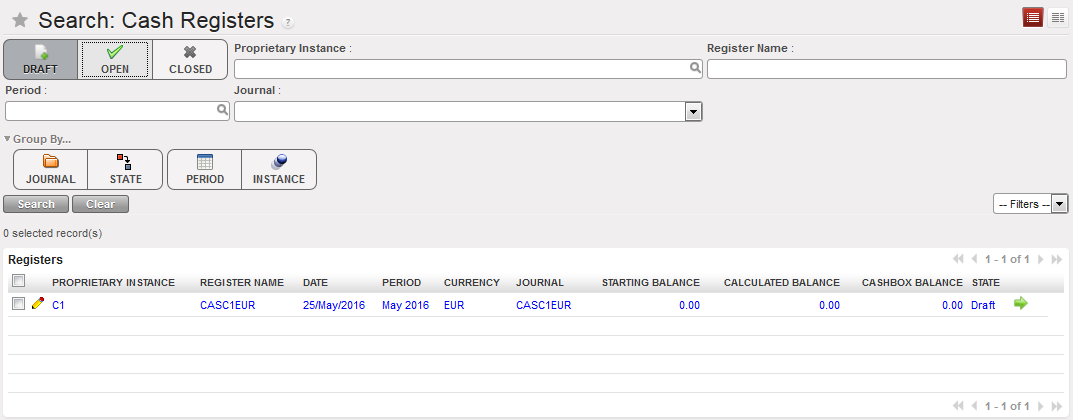
{Cash registers} Search view showing a draft register as the filter Draft was selected

2. Click on the Green Arrow located on the register line to open the register form

A wizard asks you to confirm the period of the register.

{Open Register confirmation} wizard

3. Select {Yes}

The draft cash register disappears from the draft cash registers list and becomes Open. The starting balance is zero.

4. Select the filter {Open} to access the register
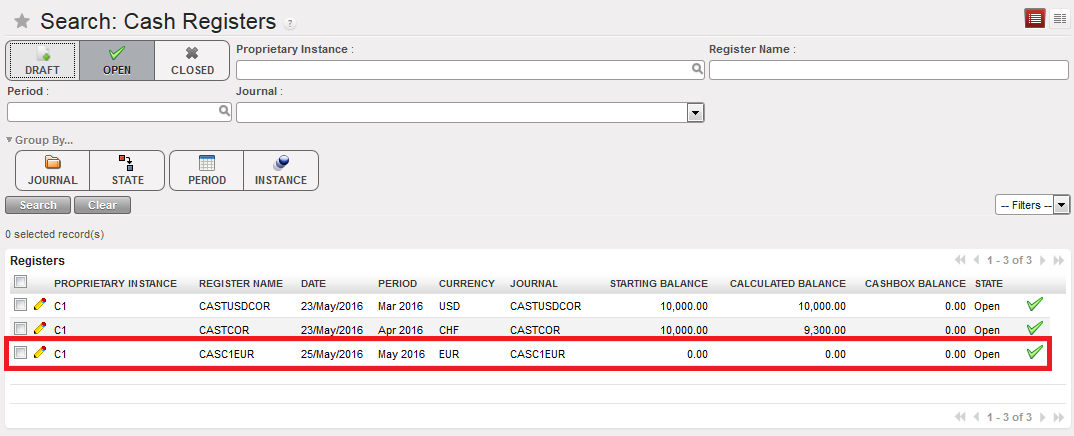
Open Cash register and starting balance of 0.00

The next step will be to record a cash transfer by creating a register line. This is addressed in Chapter 3 – Payments LUFI-30301.

If you are opening a register with a cash balance for instance in case of data migration*, you will report the closing balance of the previous period in the register cashbox. For instance, you want to report 2,000 USD in the register cashbox:

  1. In the Search Cash register view, open the relevant Draft Cash register.
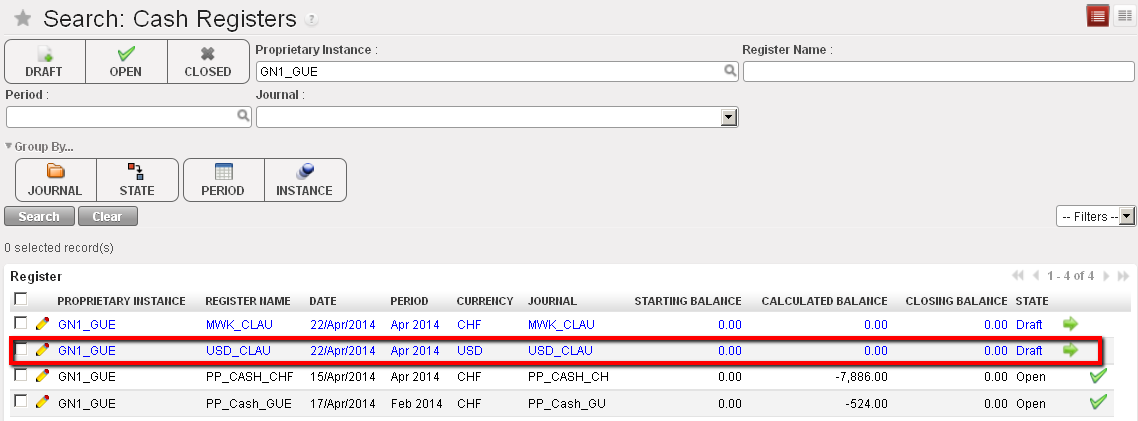
List of Draft cash registers

2. On the Cash register form view, select the {Edit} button to be able to input the opening balance in the register cashbox.
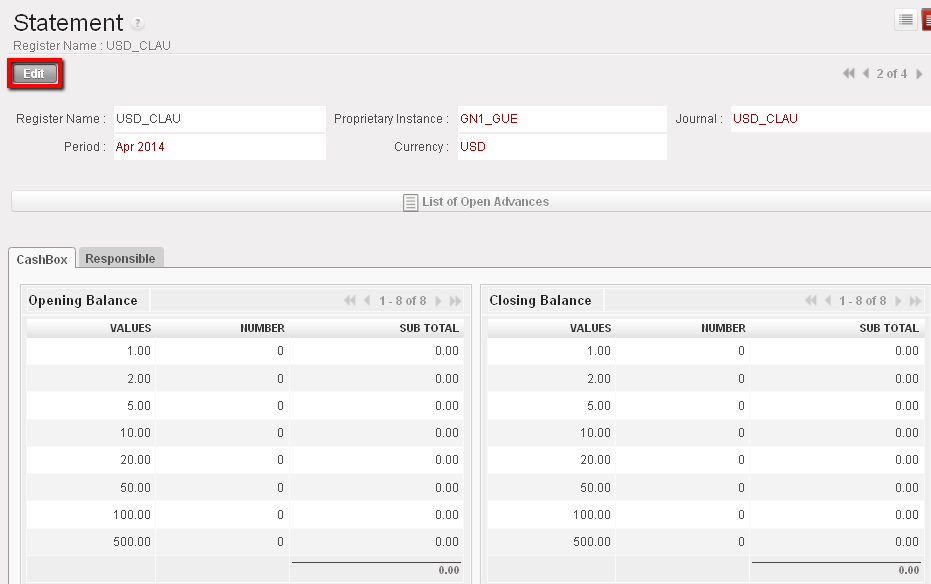
Draft cash register and Cashbox to edit

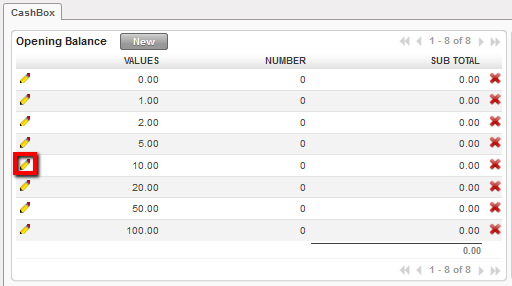
3. Change the value of the cashbox by selecting the

Edit button used to change the the cashbox value
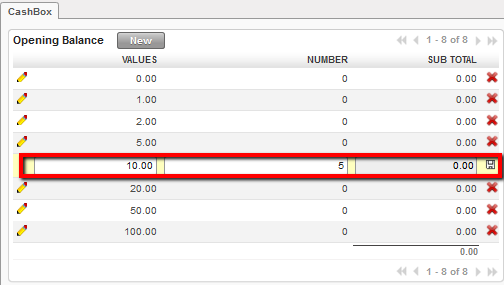
Changing the value of the cashbox

4. Save each line by clicking on .

5. At the bottom of the screen, select to open the register

The cash register becomes Open displaying an opening balance of 2,000 USD
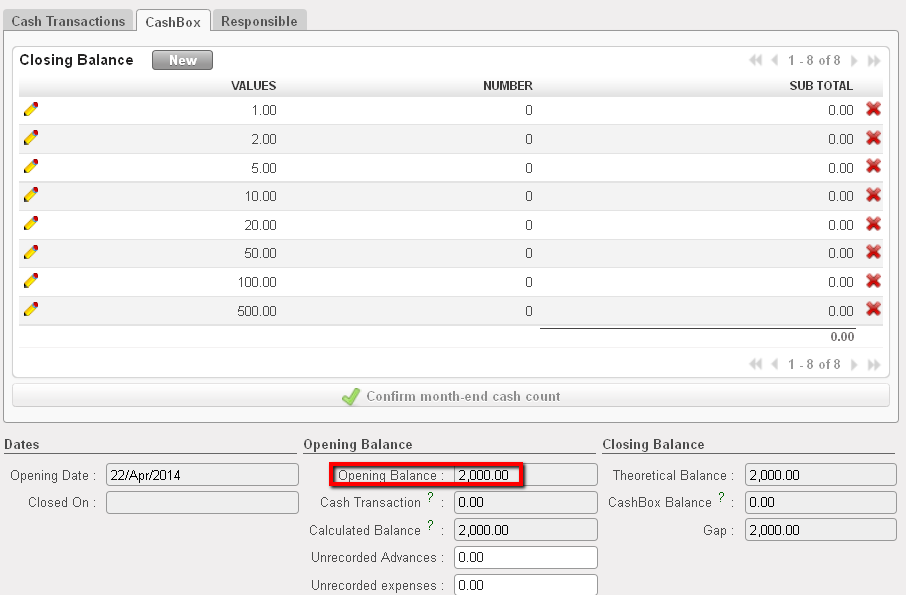
Opening balance reported in the register cashbox

If you are opening a register with a bank balance linked to data migration, you will report the closing balance of the previous period in the bank register form view. For instance, you want to report 40,000 USD in the bank register:

  1. In the Search Cash register view, open the relevant Draft Bank register.
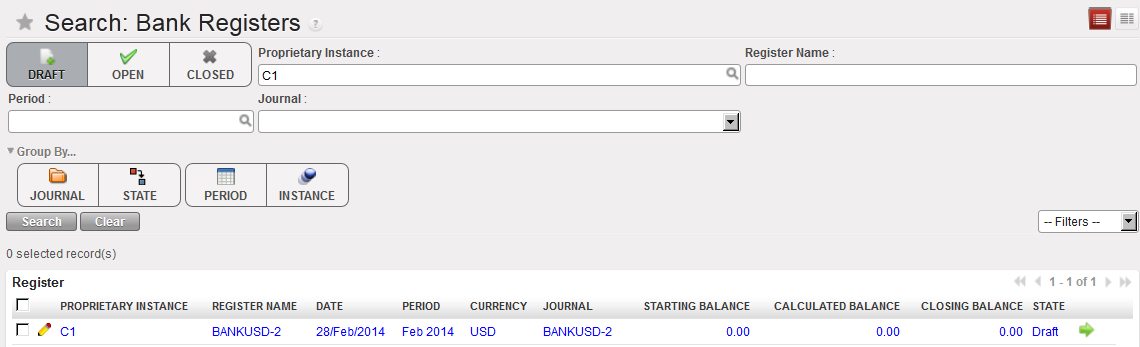
List of Bank cash registers

2. In the Bank statement form view, insert the starting balance 40,000 USD.
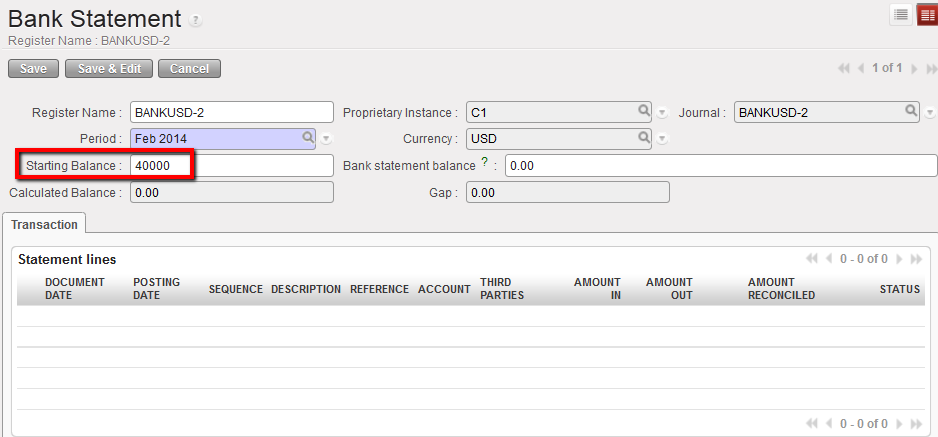
Opening balance reported in the bank register

3. Save the form by clicking the {Save} button.

4. At the bottom of the screen, select

The bank register is in {Open} status displaying an opening balance of 40,000 USD
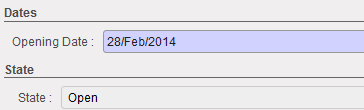
Bank register state changed to Open

Finally, in the tab {Responsible} you specify the users authorized to access the register.
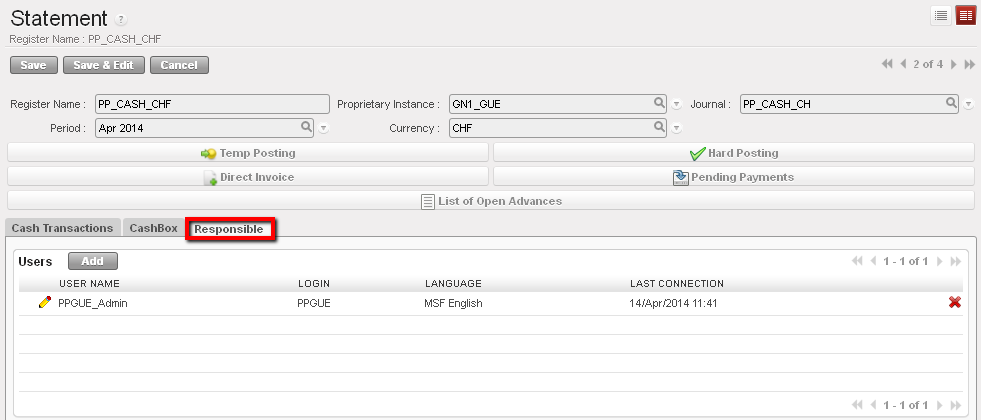
List of authorised user who can access to this cash register

Case of Cheque registers:

To limit the import of a cheque into the wrong bank register (See Chapter 3 – Payments), it is required to link a cheque register, where cheque payments are recorded, to its corresponding bank register when the cheque register is being created.

It will restrict the cheques selection to the cheques associated to the bank register when using the {Import Cheques} function.

  1. In the Journals Form view, select the type of journal {Cheque}

The field {Corresponding bank journal displays}
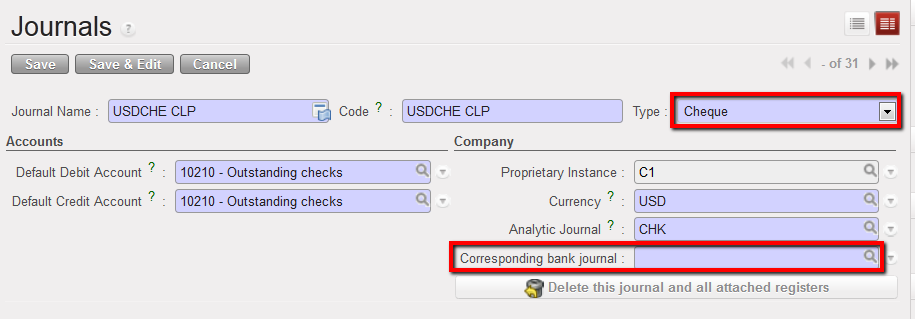
Journal form view and creation of a Cheque journal.

The field Corresponding to a bank journal displays as soon as the type: cheque is selected.

2. Select a bank journal the cheque journal will be tied to using the magnifying glass. Remember, the bank journal must be open.
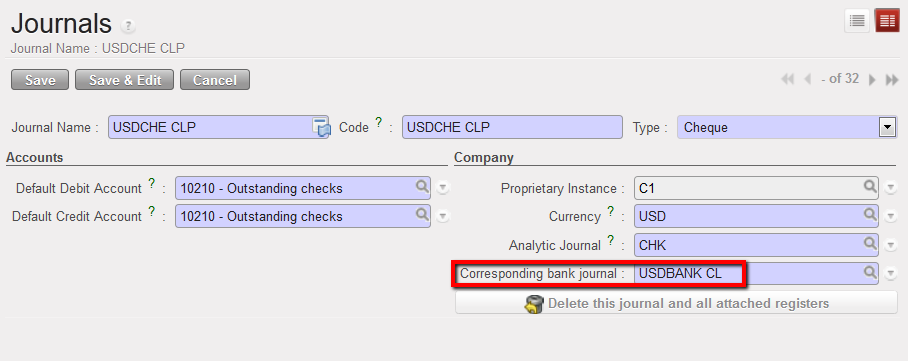
Bank journal associated to a cheque journal

3. Save the form

For OCA* please refer to OCA Migration Guidelines

Remember, the period of a register can be changed if the register is in {Draft} and if it is the first register of the chain:
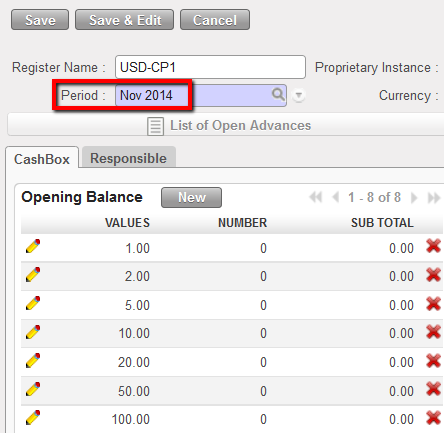
Period field editable on a register form view

How to have default liquidity default accounts when creating a new liquidity Journal

If you want to have a default debit/credit account when any user creates a liquidity journal (Bank, Cash and cheque) in order to avoid any mistake in the chosen accounts for the liquidity journal, you can then add the default accounts to be used for each liquidity journal in the company configuration.

Go to: Administration/Company/Configuration/Liquidity Accounts

  • The Cheque Default Debit/Credit Account should be (15630 – Outstanding Cheques) for OCA and (10210 -Outstanding Cheques) for OCB, OCG and OCP.
  • The Bank Default Debit/Credit Account should be (10200 – Cash In Bank) for all OCs.
  • The Cash Default Debit/Credit Account should be (10100 – Cash On Hand) for all OCs.

OCA:

OCB, OCG and OCP:

 

LUFI-20601 Editing Financial Journals

Finance User Manual ENG -> 2. Finance Configurations ->  2.6 Financial Journals -> LUFI-20601 Editing Financial Journals

LUFI-20601 Editing Financial Journals

LU Introduction

Most financial journals are created during the instance set-up. Liquidity journals are manually created in a second step but always in the instance where they belong. Once created, they will synch up to Coordo / HQ depending on the level at which they have been created.

How to Edit a Financial Journal

Go to: Accounting/Financial Accounting/Journals/Journals

  1. In the {Journal} Search view locate the journal you want to edit. Once located click on the pencil of the journal line to edit the journal form.
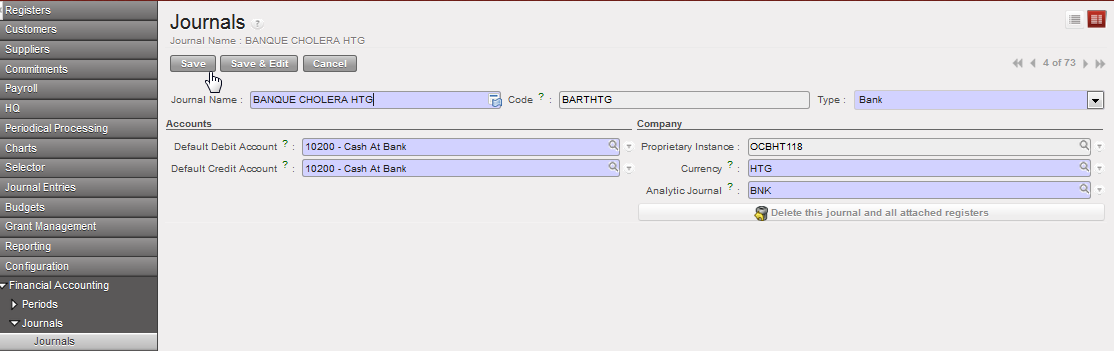

  2. In the journal Form view, you can edit all the fields except the proprietary instance and Code. For instance you can change the journal name or code to correct a typo. This task must be performed by an authorized user and avoided as much as possible.
  3. Save

The financial journal is edited

2.7 Liquidity Journals and Their Corresponding Registers

Finance User Manual ENG -> 2. Finance Configurations -> 2.7 Liquidity Journals and Their Corresponding Registers

LUFI-20701 Liquidity Journals and Their Corresponding Registers.
LUFI-20702 Register Creation.
LUFI-20703 Monthly Register Creation.
LUFI-20704 Register Deletion.
LUFI-20705 Register Deactivation

LIQUIDITY JOURNALS AND THEIR CORRESPONDING REGISTERS

LUFI-20701 Liquidity Journals and Their Corresponding Registers

LU Introduction

For all entries related to liquidity movements, a register is used as an encoding interface to book the entries in their corresponding liquidity journals.

  • Registers are used as an interface to book entries in the liquidity journals. UniField registers functionality is used to manage cash at field level by recording all cash movements for every individual cash box, safe, cheque book or bank account. Every single cash box, safe, cheque book or bank account is linked to one and only one register which is in turn tied to a single liquidity journal. Registers are closed at the end of each period and therefore need to be created at the beginning of every new period (automated creation).
  • Liquidity Journals are the journals linked to their corresponding registers. A journal details the financial transactions resulting from the register entries using the double-entry accounting method. They record both cash movements (on liquidity accounts) and their counterpart entries.

How to Understand Liquidity Journals and Their Corresponding Registers

When you record an entry in a register, only the first leg of the accounting entry is visible in the register. The full accounting entry (first leg and its counterpart) is visible in the journals. It is important to remember that the typical end user creates manual entries in the registers, NOT directly in the journals. The journals are strictly used by advanced users for specific operations (correction, reconciliation, overall accounting checks).

Liquidity journals such as Bank, Cheque and Cash Journals are created in each UniField instance. The creation of a liquidity journal triggers the automatic creation of a corresponding Register in the same currency. This task is done by finance staff when setting up UniField for the first time, or when a new cash box or bank account is set up.


2.6 Financial Journals.

Finance User Manual ENG -> 2. Finance Configurations ->  2.6 Financial Journals.

2.6 FINANCIAL JOURNALS

UniField is an accrual accounting system using journals to record all accounting entries. Financial journals are the placeholders for double entries. Journals are not closed per period but remain open all the time. They are imported or created manually in every UniField instance. Financial journals are linked to the corresponding Analytic Journals: an Analytic Journal determines in which journal the costs and income are allocated.

Financial journals can be found in Accounting/Configuration/Financial Accounting/Journals/Journals

There are different types of financial journals:

  • ACC: Accrual journal, used to record accounting entries corresponding to accruals.
  • FXA: FX adjustment journal, used to record automated accounting entries reflecting currency exchange rate loss or gain.
  • HQ: Headquarter journal, used to record accounting entries initially booked in the HQ application (e.g. international procurement and expatriates’ salaries).
  • HR: Human Resources journal, used to record accounting entries linked to national staff payroll.
  • IKD: In-Kind Donation journal, used to record extra-accounting entries reflecting in-kind donations received in the field.
  • INT: Inter-mission journal, used to record accounting entries linked to transactions between missions belonging to the same section.
  • MIG: Migration journal used to migrate the initial balances to UniField when setting up a new mission.
  • OD: Correction journal, used to record accounting entries linked to financial accounting correction (reversal and correction entries).
  • ODX: Extra Accounting corrections journal, used to record corrections performed on extra accounting accounts (e.g. in-kind donations accounts, 81 and 91).
  • ODHQ: Correction automatic HQ journal.
  • ODM: Manual Correction journal.
  • PUF: Purchase Refund journal, used to record accounting entries linked to supplier refunds (payables and expense accounts).
  • PUR: Purchase journal, used to record accounting entries linked to financial transaction involving purchases operations (payables and expenses accounts).
  • ISI: Intersection supplier invoice, used for intermission flows.
  • REV: Revaluation journal, used to revaluate B/S accounts at the end of the period and/or fiscal year.
  • SAL: Sale journal, used to record accounting entries linked to financial transaction involving sales operations (receivables and expense accounts) like stock transfers between 2 coordinations belonging to different OCs.
  • SAR: Sale Refund journal, used to record accounting entries linked to customer refunds (receivables and expense accounts).
  • STO: Stock journal, used to record accounting entries linked to stock transfers and variation.
  • DEP: Depreciation journal.
  • Liquidity journals: Used to record liquidity transactions (Cash, Cheque and Bank). Unlike other journals, liquidity journals are created locally in each instance.

In addition, two journals are automatically created upon first fiscal year closing (See LUFI-50401 Fiscal Year Closing):

  • EOY: This journal is used only for automatic End of Year entries in Period 16 upon closing the fiscal year if the options of setting regular BS accounts to 0 and/or booking the P&L result have been selected.
  • IB: This journal is used only for automatic Initial Balances entries in Period 0 upon closing the previous fiscal year.

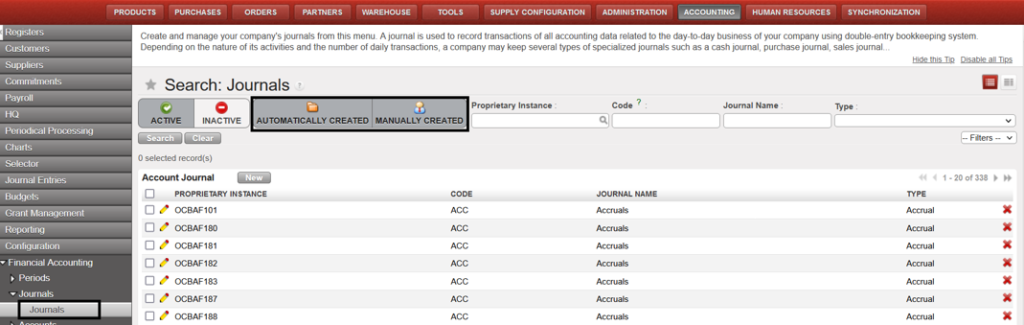
To distinguish between journals that have been imported (automatic) or created manually, there are two buttons toggled on by default in the Journal Search view:

  1. AUTOMATICALLY CREATED: To view journals automatically created by import during instance creation.
  2. MANUALLY CREATED: To view journals manually created by users after an instance has been created.
Journal’s view to differentiate between auto and manually created

LUFI-20505 Analytic Account Inactivation.

Finance User Manual ENG -> 2. Finance Configurations ->  2.5 Analytic Accounts -> LUFI-20505 Analytic Account Inactivation

LUFI-20505 Analytic Account Inactivation

A. LU Introduction

Inactivating analytic accounts is performed at HQ. This action prevents users from booking future entries on an account that is not in use anymore.

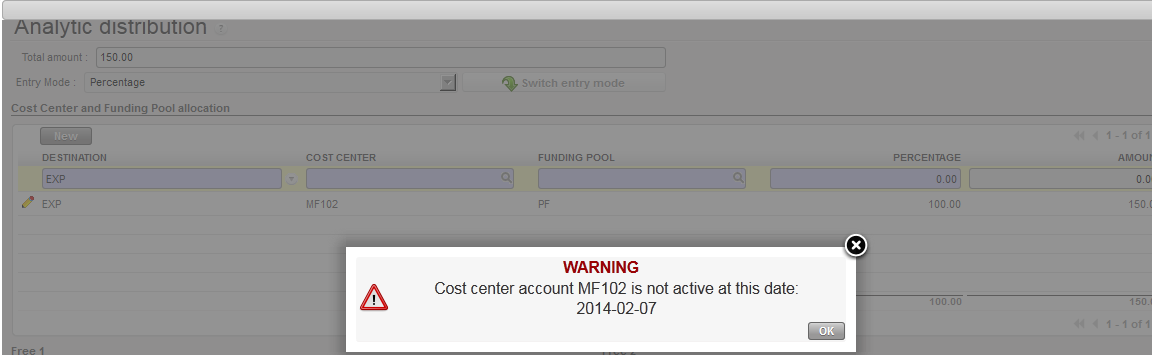
Deactivation is synchronized down to all missions and new entries for the inactivated analytic accounts are blocked. The check on Destination and Cost Center are based on Posting Date, e.g. the Posting Date of a new entry can’t be on or later than the inactivation date of the account. For Funding Pools, the check is on Document Date. If the entry’s Posting Date (Destination or CC) or Document Date (funding Pool) is outside the analytic account activation period, you will get the following error message:

System control on an inactive analytic account

Because the inactivation date can be set for a past date, it may result in not run synchronization updates if entries that have been created earlier for the now inactive accounts are modified.

B. How to Inactivate an Analytic Account

Go to: Accounting/Configuration/Analytic Accounting/Analytic Accounts

  1. A list of active analytical accounts appears.
  2. In the {Name} field, enter the account name you want to inactivate.
  3. Once the account is retrieved, click on the pencil to edit the form.
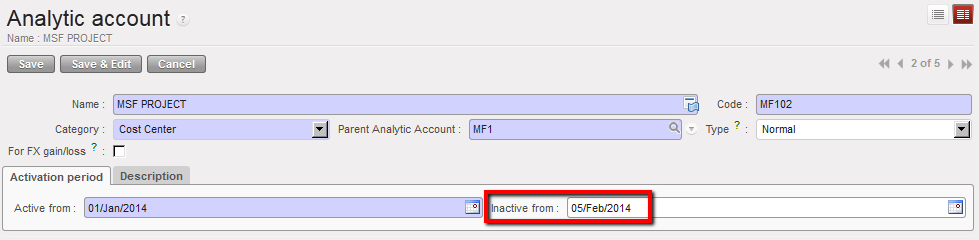
  4. In the {Activation period} tab, go to the {Inactive from} field, enter a date to inactivate the account.
  5. Click {Save} button.

The analytical account is inactivate


Analytic account inactivation

The validity of sub cost center must match with the parent cost center validity; in case of not matching, a warning popup will appear based on the posting date of the entry:

  • If the parent Cost Center is not active, you cannot create a child to this parent:

If the sub-cost center validity date is greater than the parent cost center validity date, you will be blocked.

If the sub-cost center validity date is greater than the parent cost center validity date and also if the sub-cost center activation date is lower than the parent cost center activation date, we will see a warning popup as below:

LUFI-20504 Chart of Analytic Accounts

Finance User Manual ENG -> 2. Finance Configurations ->  2.5 Analytic Accounts -> LUFI-20504 Chart of Analytic Accounts

LUFI-20504 Chart of Analytic Accounts

A. LU Introduction

A Chart of Analytic Accounts is a tree view of accounts of category cost center, destination, funding pool, Free1 and Free2. Below we show you where to find the chart of analytical accounts.

B. How to View the Chart of Analytic Accounts

Go to: Accounting/Charts/Charts of Analytic Accounts

The chart of analytic accounts window appears

  1. Select a fiscal year and decide if you want to display inactive account. Once done, click “Open chart”.

Chart of Analytic Accounts window

The chart of accounts appears and defaults to the destination category.

Account category Destination shows the chart of destination accounts
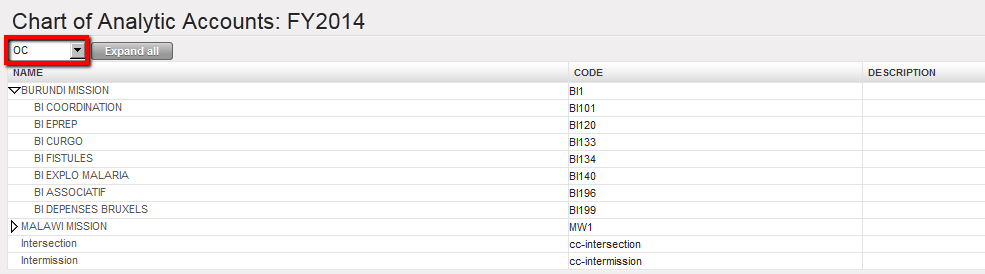
2. Change the category if necessary.

Account category Cost centers shows the chart of cost centers accounts
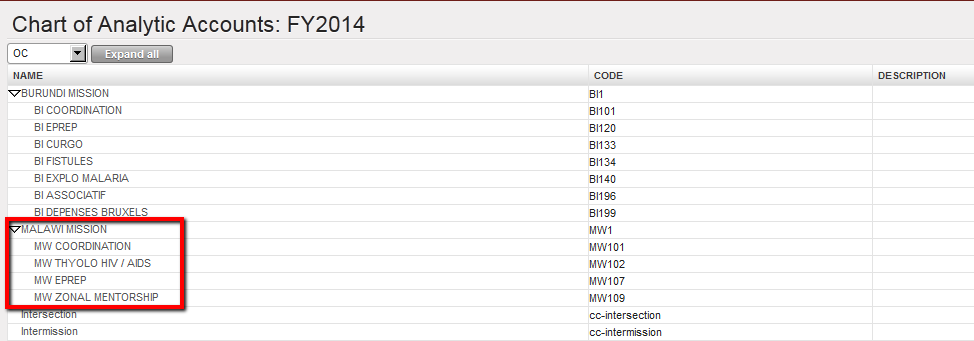
3. You can also have a complete tree view by clicking on the arrow located next to the account. Clicking on will open all the elements of the analytic tree selected.


Malawi mission tree view cost centers

LUFI-20503 Free Axis

Finance User Manual ENG -> 2. Finance Configurations ->  2.5 Analytic Accounts -> LUFI-20503 Free Axis

LUFI-20503 Free Axis

A. LU Introduction

Free 1 and Free 2 axis are optional and can be set freely according to the specific needs of a mission. Once expenses have been allocated on these dimensions user can display them through the selector and export the outcome in Excel. Analytic lines booked on “Free1” and “Free2” accounts sync within the mission but do not sync up to HQ.

B. How to Create a Free Analytical Axis

Suppose you pay 2 rental houses’ and you want to split the rental cost allocation per house. You will allocate the rental to the cost center tree of your instance and create 2 additional analytic accounts inside the “Free 1” category. In the below example we show you the creation of Free 1.


Go to: Configuration/Analytic Accounting/Analytic Accounts

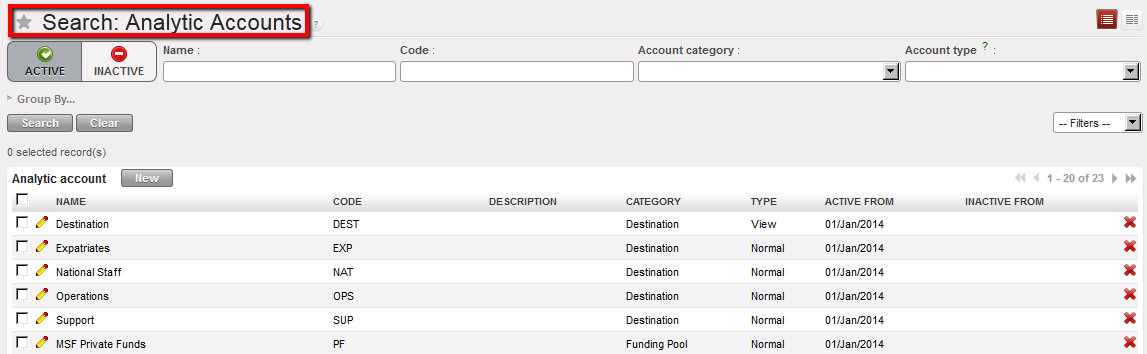
Analytic Accounts Search view displaying Active accounts

The Analytic Accounts Search view displays.

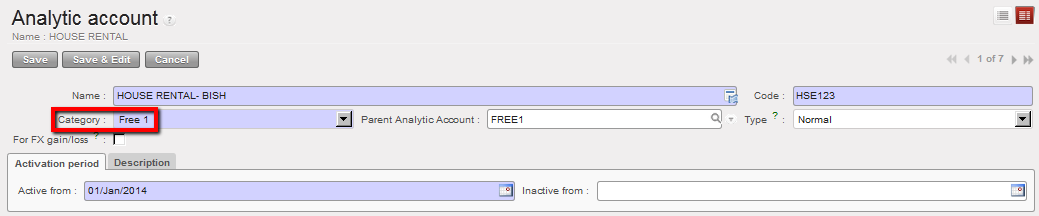
  1. Select to open an analytic account form view.
  2. Complete the form. Make sure the Account Category is set to Free 1 and Type is Normal. The account should be linked to the parent Analytic Account FREE 1.
  3. Save the form.


Analytic Account Free 1 is created

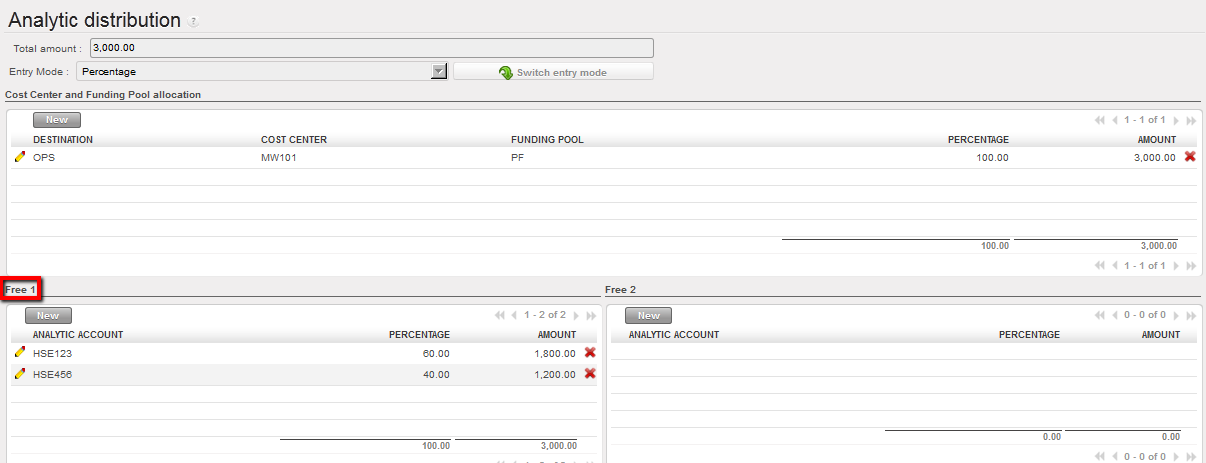
Suppose you want to pay now the houses rental. You record a transaction in the registers and allocate the cost splitting it into 2 additional analytic accounts. The allocation will look like this in the analytic distribution wizard.

More precision on payments will be given in Chapter 3 – Payments.

Analytic distribution wizard used to increase the cost allocation accuracy

LUFI-20502 Cost Centers and Proprietary Instances

Finance User Manual ENG -> 2. Finance Configurations ->  2.5 Analytic Accounts -> LUFI-20502 Cost Centers and Proprietary Instances

LUFI-20502 Cost Centers and Proprietary Instances

A. LU Introduction

The cost centers set-up is done when creating the instances at HQ level by the person in charge of the finance master data creation and maintenance. (See IT User Manual for more information).

The set-up assigns the cost centers to a defined proprietary instance. It enables limiting the selection of cost centers available when booking an entry on an income or expense account. It indicates how budgets should be consolidated within a mission and automates the cost center reference for PO and FO. This is an important task to perform to ensure costs and incomes are properly tracked.

The set-up encompasses:

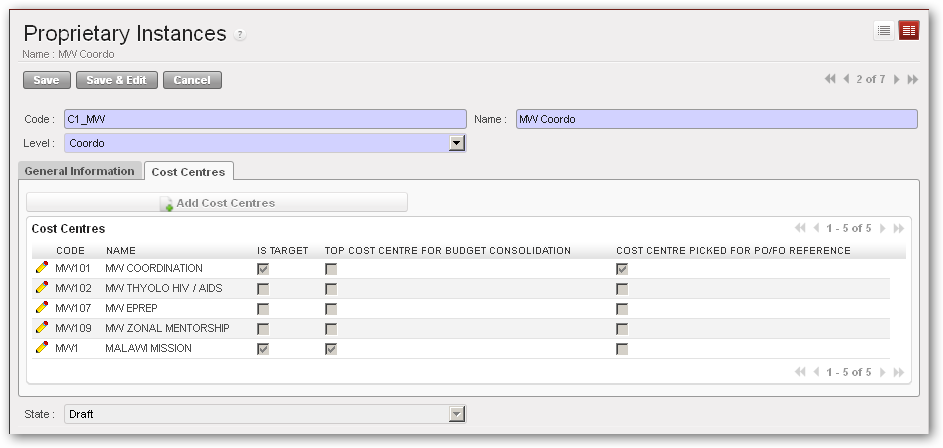
  • Linking associated cost centers to a proprietary instance to define which cost centers should be synchronized to a specific proprietary instance (mission or field). In the example below the proprietary instance/mission is Malawi Coordination.
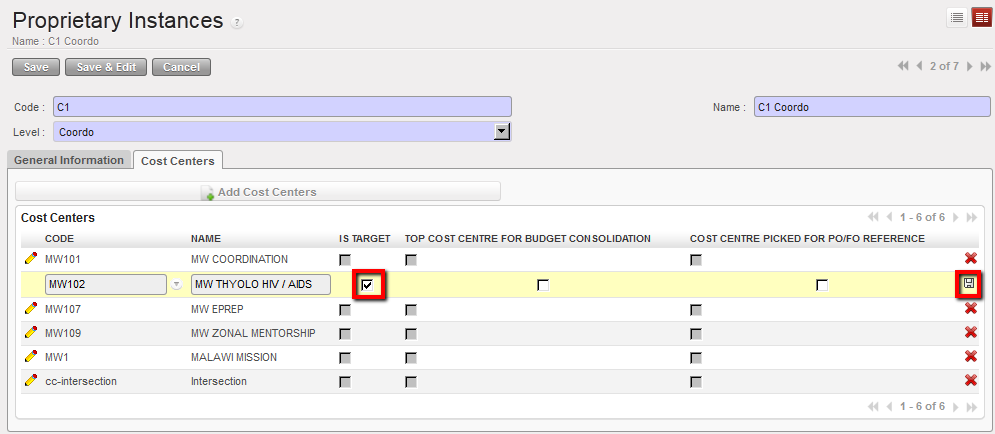
  • The “Is Target” attribute is used for synchronization purposes and to define which cost center is managed through the concerned proprietary instance. Several target cost centers will be linked to one instance in case coordination or project manages several cost centers, for example a coordination managing an emergency preparedness (EPREP) budget, or, a project managing a hospital and mobile clinic activities. A cost center can be set as {Target} in one and only one proprietary instance.
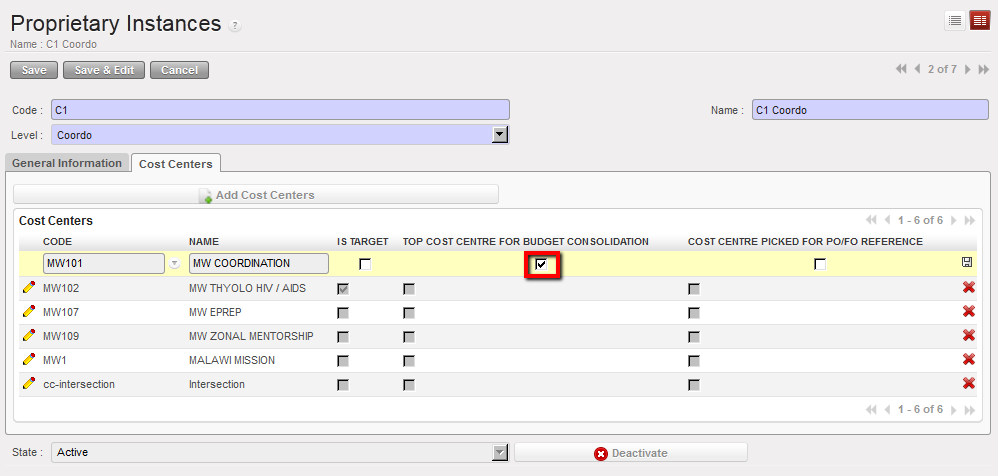
  • The top cost center is chosen for budget consolidation attribute definition. In the example below MW1 will group together all Malawi Cost Centers.
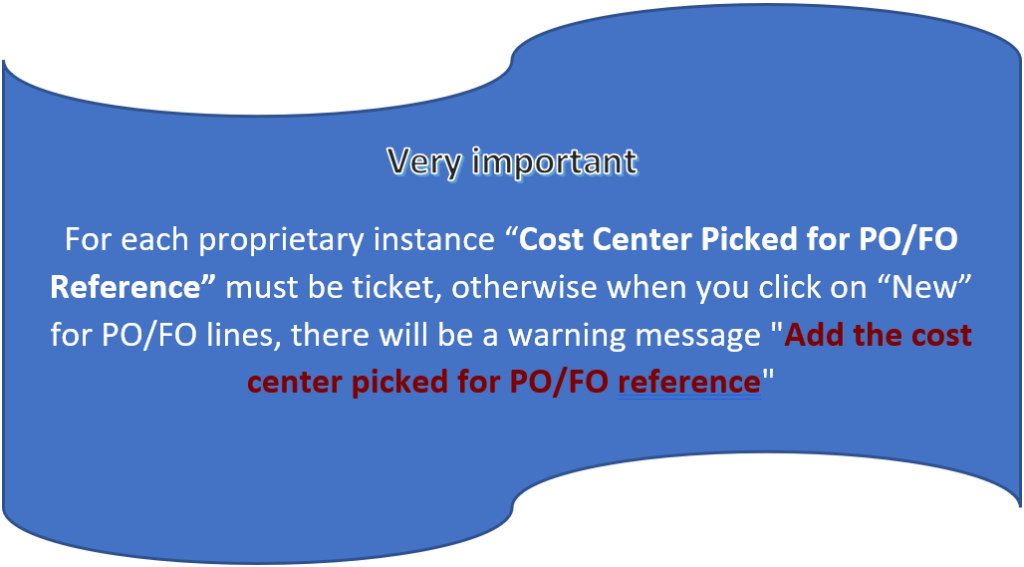
  • The Cost Center Picked for PO/FO Reference must be selected in order to be used as a reference in the supply documents like Purchase Orders or Field Orders. In the example below this would be MW101.

This configuration is created in Administration/Configuration/Proprietary Instances.

In case several projects are managed from a single location (at project level, not from coordination), HQ will need to create an intermediate cost center in order to consolidate budgets at project level. See below an example:

Creation of an intermediate cost center to consolidate budgets at project level.

Proprietary instances form view accessible from Administration/Configuration menu

In the case above budget consolidations can be made for both at ZW00 level and at ZW1 level.

B. How to Configure Cost Centers Linked to a Proprietary Instance

HQ will need to link specific cost centers to the appropriate instance.

Go to: Administration/Configuration/Proprietary Instances

  1. In the proprietary instance Search view, select the instance to link to cost centers
  2. In the proprietary instance Form view, go to the Cost Centers tab
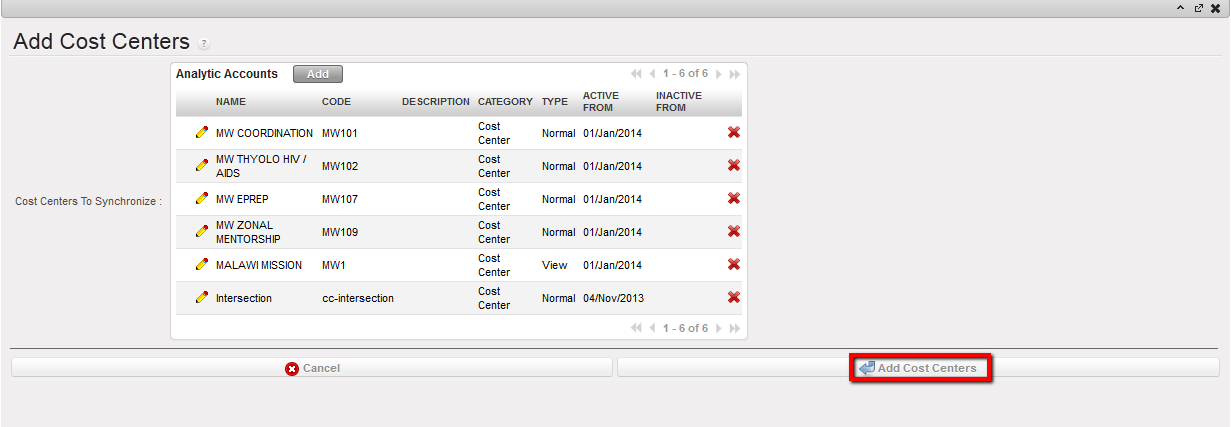
  3. Click on the {Add Cost centers} button
  4. Select all cost centers from the instance and Add Cost Centers to close the window

Adding cost centers to a proprietary instance

5. Select one {IS Target} cost center representing the instance. A cost center can be set as target in only one instance. Click on to edit the line and save .Selecting IS TARGET

6. You will select the code of the cost center that will determine up to which level the system will automatically create consolidation budgets (the one corresponding to the view cost center). You perform this action by ticking a {Top cost for budget consolidation}.

Selecting Top cost center for budget consolidation
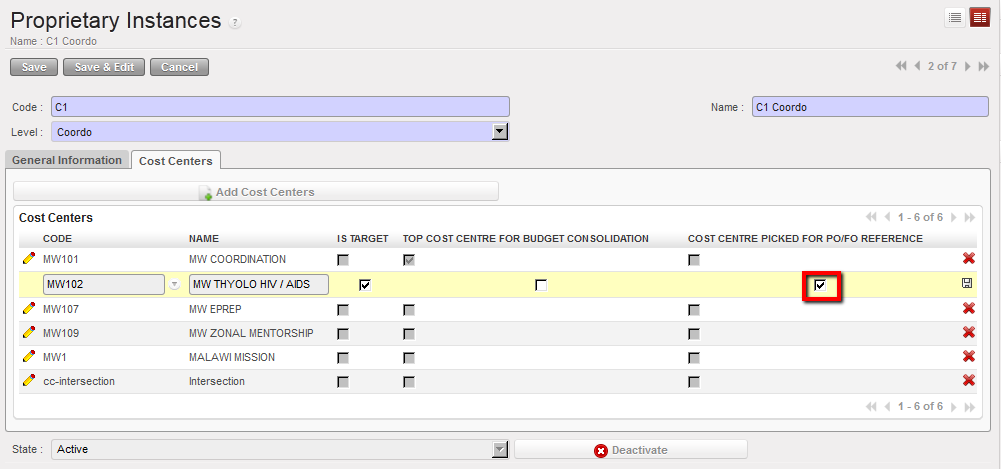
7. Finally you will choose the cost center used in all Purchase Order (PO) / Field Order (FO) identification (i.e.MW101). The system will use this parameter as a reference in all PO/FO codes. It is a key reference on the supply side that could be used for international orders billing (from ESC to HQ).

Selecting Cost center for PO/FO reference
8. Save your selection.

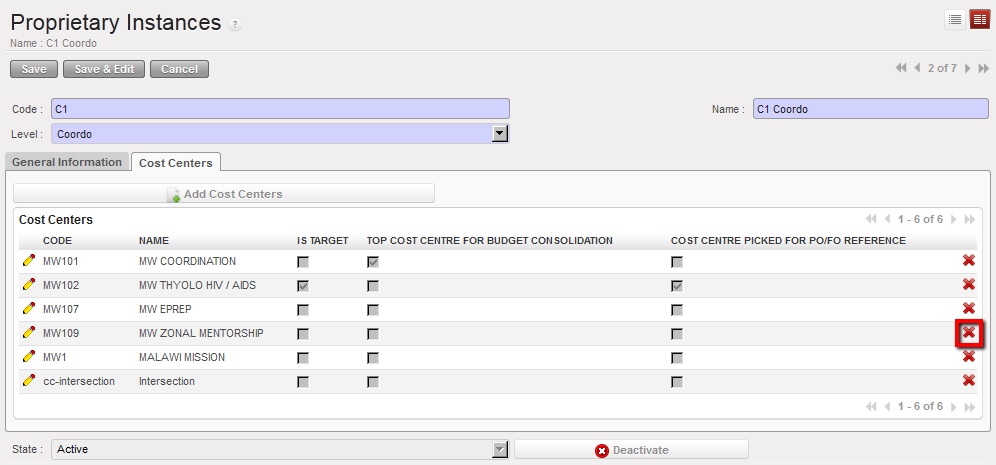
C. How to Remove a Cost Center Linked to a Proprietary Instance

Go to: Administration/Configuration/Proprietary Instances

If you need to remove a cost center from the set of cost centers linked to a proprietary instance, click on  the of the cost center line. Using located on the cost center line to remove the cost center from the proprietary’s cost center setting

How to Set Up Cost Centers When Several Projects Are Managed in One Location

In case several projects are managed from a single location (at project level, not from coordination), HQ will need to create an intermediate cost center in order to consolidate budgets at project level. See below an example:

Go to: Administration/Configuration/Proprietary Instances

  1. Follow the steps above
  2. Create an additional cost center and add it to the instance which is managing two projects. In the example below the user would create ZW00 in proprietary instance 2 (Harare Project) as a view account to be used as a top cost center for budget consolidation.

Creation of an intermediate cost center to consolidate budgets at project level.

In the above case, budget consolidations will be in done in ZW00 to cover both ZW007 & ZW020.

How to Manually Create a Cost Center

Go to: Accounting/Configuration/Analytic Accounting/Analytic Accounts

  1. To create a new cost center, select {New} button
  2. In the {Name} field, enter a cost center name.
  3. In the {Code} field enter a cost center code.
  4. In the {Category} field, select {Cost Center}.
  5. In the {Parent Analytic Account} field, select the associated parent analytical account using the magnifying glass . To do so, check your cost center tree.
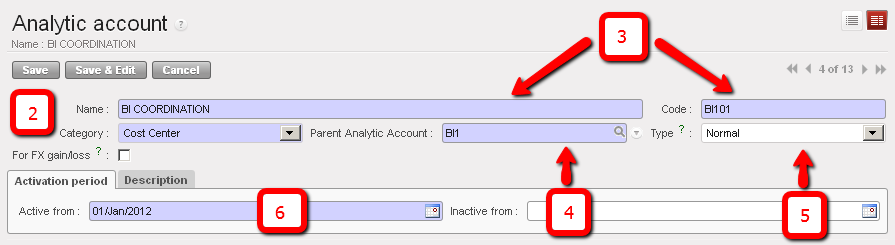

  6. In the {Type} field, select {Normal}.
  7. In the {Activation period} tab, select a date.
  8. In the {description} tab, add notes if relevant
  9. Click {Save} button.

The cost center is created


Cost center creation

Change account code of FXA entries allocation based on account code involved in the reconciliation

Some FXA entries might be generated when performing the reconciliation, whether the account was internal transfer currency exchange or any other account in case of rounding difference.

You can decide on which FXA account you want the FXA entries generated by reconciliation to be booked. You can define that by changing the setting on any Balance sheet account to be reconciled. If you didn’t specify that, then the FXA entries will take automatically the default FXA account.

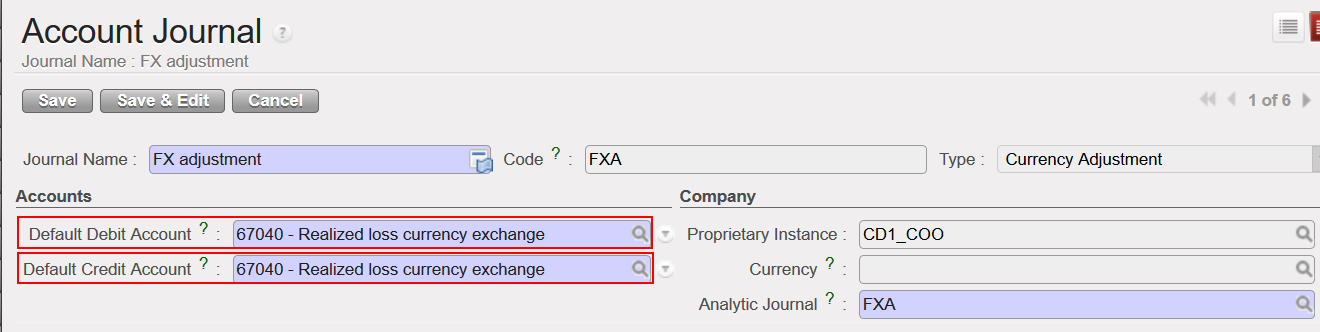
The default account for FXA entries is set in the FXA Journal (usually 67040 and or 71110) and those account codes are used for any FXA entries generated by the system.

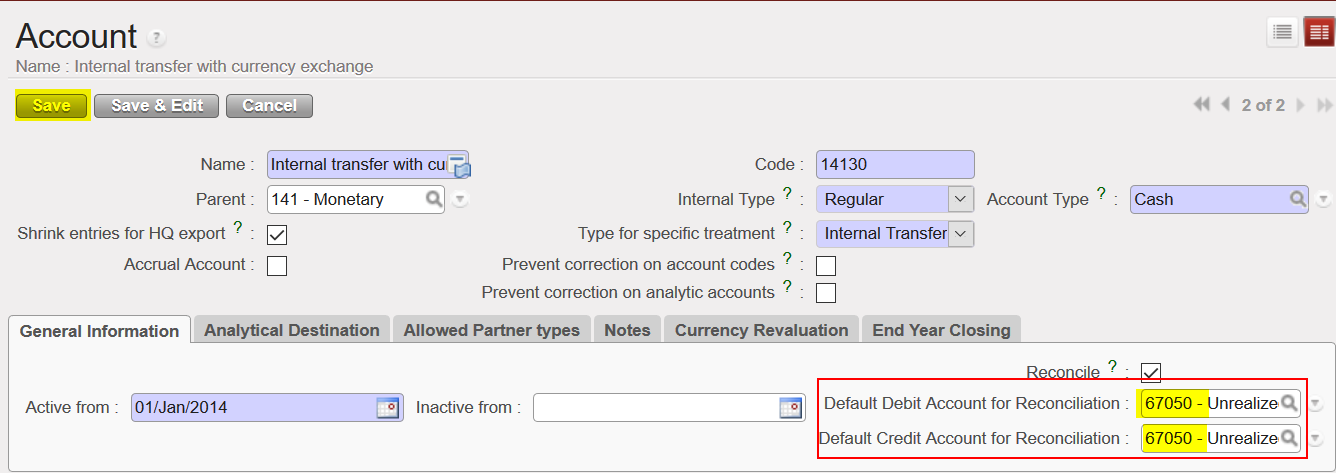
In the chart of account, each account code “Reconcilable” have now 2 additional fields (Default Debit / Credit Account for Reconciliation) where account code for FXA can be filled. Those account codes will prevail on the default account code for FXA set in the FXA Journal.

For instance, you can choose to have automatically the account 67050 to be used for any FXA entry related to the account 14130 (internal transfer currency exchange rate) by defining that in the configuration of this account otherwise the system will keep taking automatically the default FXA account set in the FXA Journal (67040).

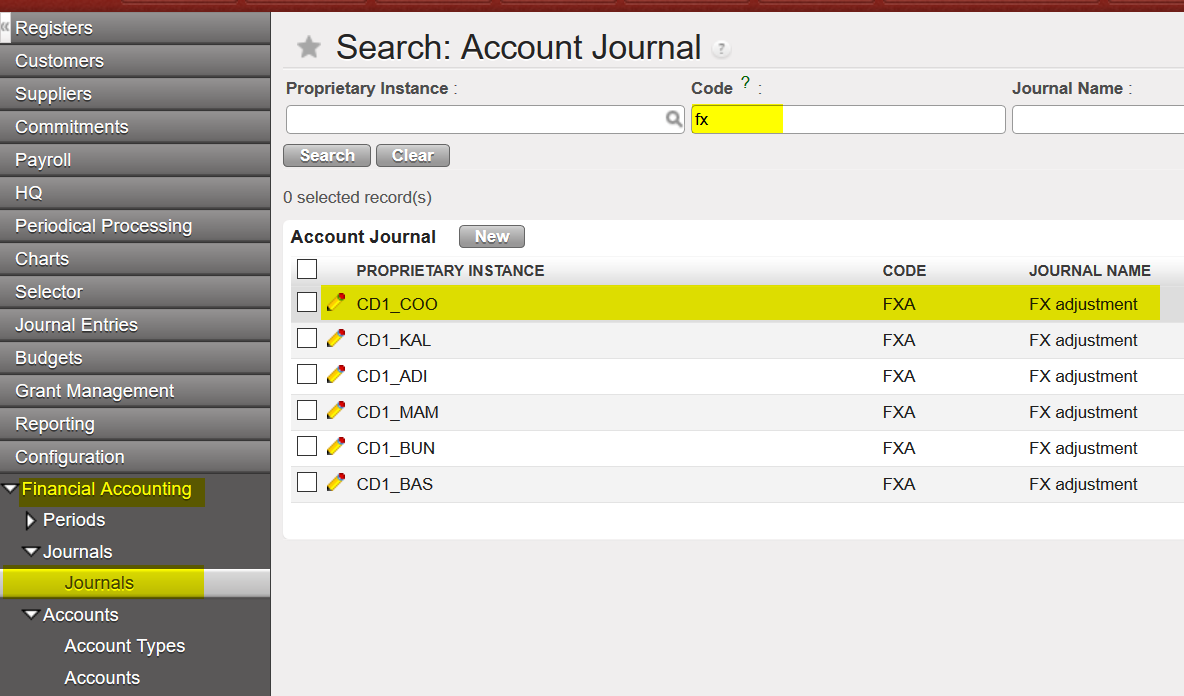
Go to: Configuration/Financial Accounting/Journals

  1. Go to Journals/ Search for the Code {FXA}/ Select

2. The default Debit/Credit account here is 67040. This will be the default account for any FXA entries generated from reconciliation when doing reconciliation for a balance sheet account, unless you set another expense account for FXA reconciliation on specific B/S account.


To do that, you can follow the below steps:

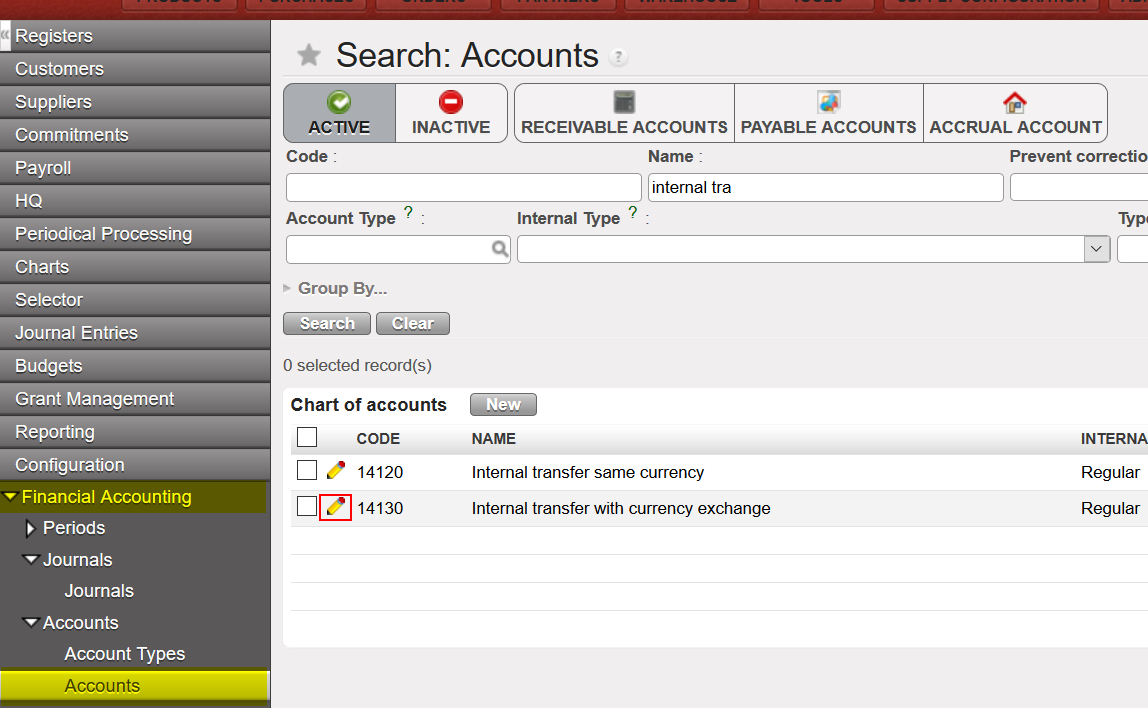
Go to: Configuration/Financial Accounting/Accounts

  1. Select the account you want, in our example we will choose (Internal transfer with currency exchange – 14130)

2. The default account for reconciliation for both debit and credit will be empty, you can add 67050 as the default account and then {Save}.

3. When you do any reconciliation for (Internal transfer with currency exchange – 14130), the FXA entries generated from that will be booked under 67050 and not 67040.

You can filter “active” and “inactive” CC through form view of Proprietary Instance, to see follow below:

Go to ADMINISTRATION > Configuration > Proprietary Instance

In “Code” filter by instance code

Click on “Cost centers” tab.

The filter set with default with “Hide inactive”, when click on it will show also “Show all”

When select “Show all” it will show inactive in red color and active in black color.

LUFI-20501 Destinations

Finance User Manual ENG -> 2. Finance Configurations ->  2.5 Analytic Accounts -> LUFI-20501 Destinations

LUFI-20501 Destinations

LU Introduction

The Analytical Destination is used to complete the information linked to an expense account (G/L accounts). With UniField you will associate each expense line entry to one of the four (4) analytical destinations (depending on how this expense/cost is going to be used). These destinations are:

  • Operations
  • Support (e.g. office cost, evaluation study, training, consultant)
  • National Staff
  • Expatriates

The analytical destination is an analytical dimension defined in the {Analytic Accounts} sub-module. When it is set, this dimension is reflected by default in the related expense accounts.

One expense account is linked to at least one default destination and one destination can be used in several expense accounts.


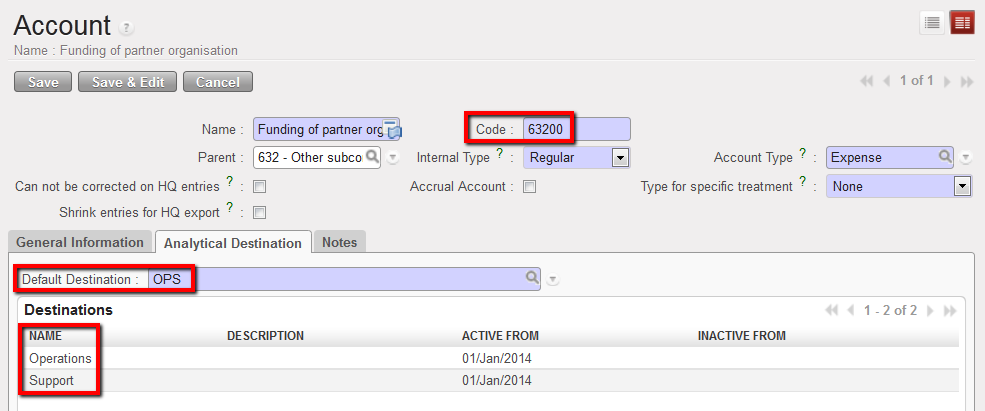
In this example, the account 63200 is associated to 2 destinations and defaults to Operations destination.


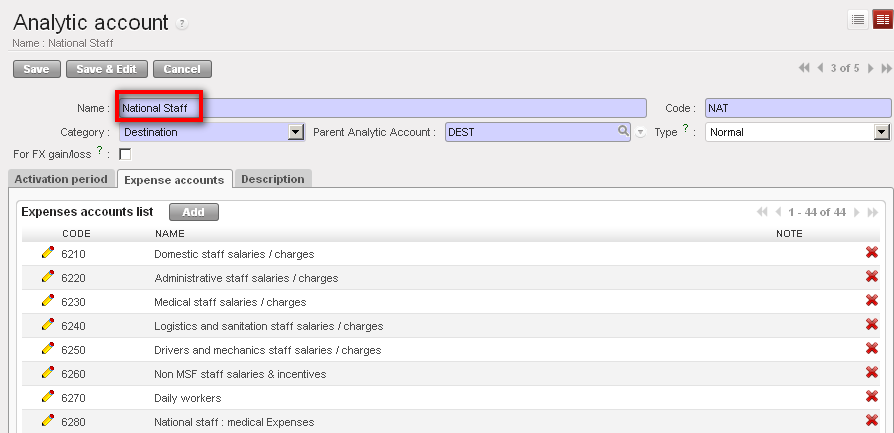
{National staff} destination and associated expenses accounts

How to Manually Create a Destination

As mentioned above, destinations are set up at time of the creation of the HQ instance and any modification, update or creation should be done at HQ. Manual creation of a destination should remain exceptional.The user will learn how to create manually destination accounts if for any reason they cannot be uploaded.

Go to: Accounting/Configuration/Analytic Accounting/Analytic Accounts

  1. To create a new destination, select {New} button.
  2. In the {Category} field, select {Destination}.
  3. In the {Name} field, enter a destination name. In the {Code} field, select a destination code.
  4. In the {Parent Analytic Account} field, select the associated parent analytical account using the magnifying glass . To do so, check your destination tree.
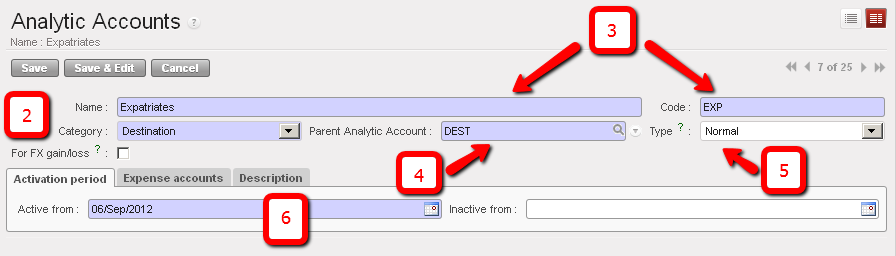
  5. In the {Type} field, select {Normal}. You would select {View} if you were creating a Parent account.
  6. In the {Activation period} tab, select a date.

Destination creation. In this example we are creating a destination type Expatriates
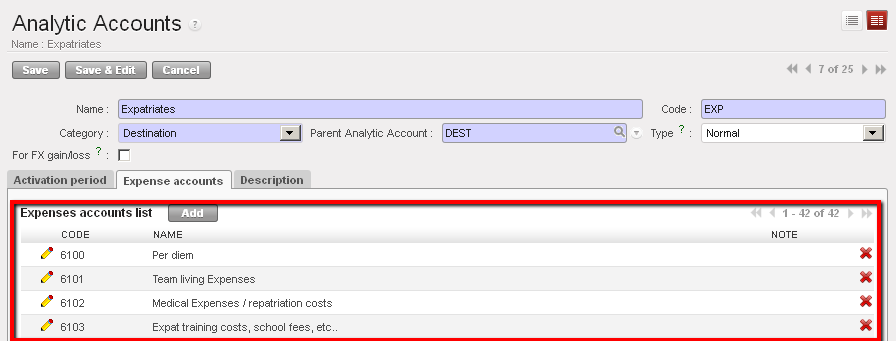
7. In the {Expense accounts} tab click {Add} to open the {Search Charts of Accounts} window and check the boxes of the {expense} accounts you want to associate to this destination. Click {Select} to close the Search window.

Expatriate destination and associated {Expense accounts}

8. Save the form

The destination is created

Inactivation Date for the combination “Dest / CC”

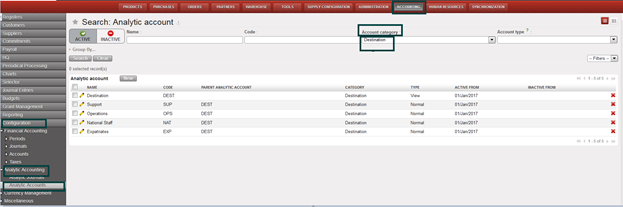
Go to Accounting >Configuration >Analytic Accounting>Analytic Accounts > Account category > search by Destinations

Searching destination

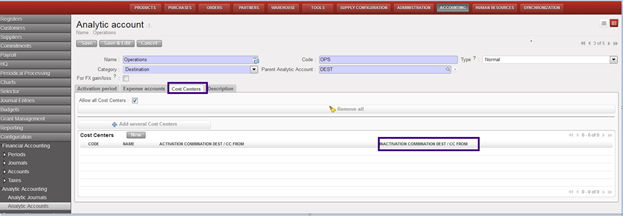
How to access new function of “Inactivation combination DEST/CC From”:

  • Edit from yellow pen
  • Click on “Cost Centers” tab
  • You will find new list view “Inactivation combination DEST/CC From”:
How to access “Inactivation combination DEST/CC From”

2.5 Analytic Accounts.

Finance User Manual ENG -> 2. Finance Configurations ->  2.5 Analytic Accounts

LUFI-20501 Destinations
LUFI-20502 Cost Centers and Proprietary Instances
LUFI-20503 Free Axis
LUFI-20504 Chart of Analytic Accounts
LUFI-20505 Analytic Account Inactivation

2.5 ANALYTIC ACCOUNTS

MSF operational finance consists of following the expenditures per project or per activity meaning that resources mobilized in the field are allocated to a project and directly expensed.

Analytic accounts enable users to track revenues and expenses per project and per expense type to maintain efficient control over MSF resources and report back both internally and to external stakeholders (Associative members, private donors, institutional donors etc.).

Expenses need to be allocated according to an analytical distribution. In UniField, there are several types of analytical distribution. We call them analytic account categories which are:

  • Destination: Operations, Support, National staff, Expatriate staff are the four destinations (See LUFI-20401 Destinations)
  • Cost Center: Some sections handle cost centers at a project and activity level while others handle them only at a project level (See LUFI-20402 Cost Centers and proprietary instances)
  • Funding Pool: A group of expenses meeting a donor defined set of conditions (for further details on funding pool, refer to Chapter 6 – Donors, Funding Pools and financing contracts in UniField)

In addition to these 3 main account categories, we have also 2 additional analytical dimensions:

Free 1 and Free 2 (See LUFI-20503 Free Axis )

Destinations, cost centers and funding pools can be found in Accounting/Configuration/Analytical Accounting/Analytic Accounts.

The entries on expense accounts cannot be validated if the expense is not fully allocated to a destination, a cost center and a funding pool. A dedicated wizard helps the user to do it (further details are given in chapter 3 – Payments). Allocation remains optional on Free 1 and Free 2 analytic accounts.

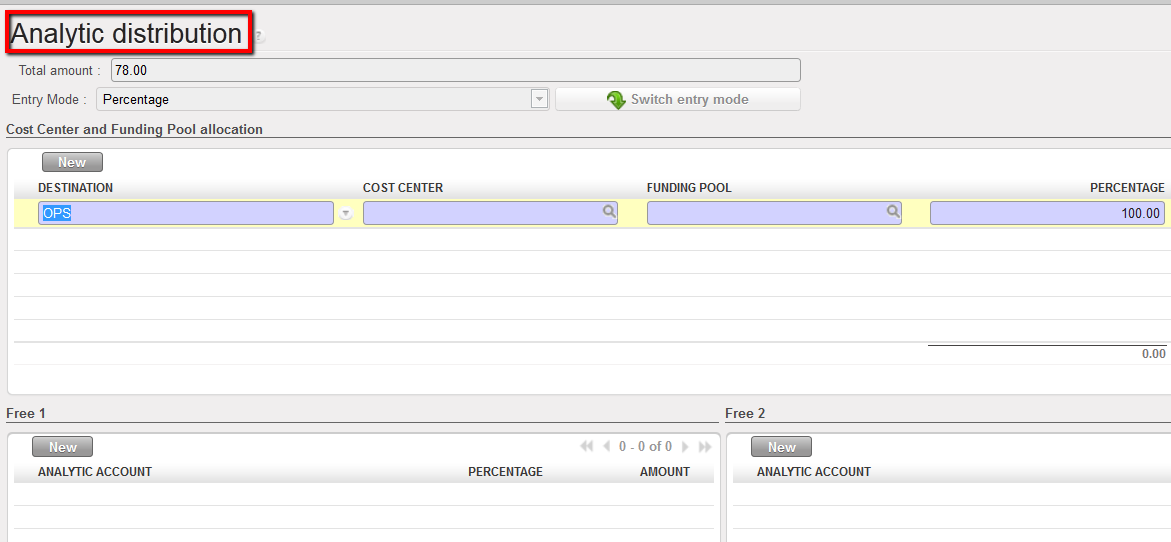
Analytic distribution wizard

There are various ways (functionalities) to execute an analytical allocation:

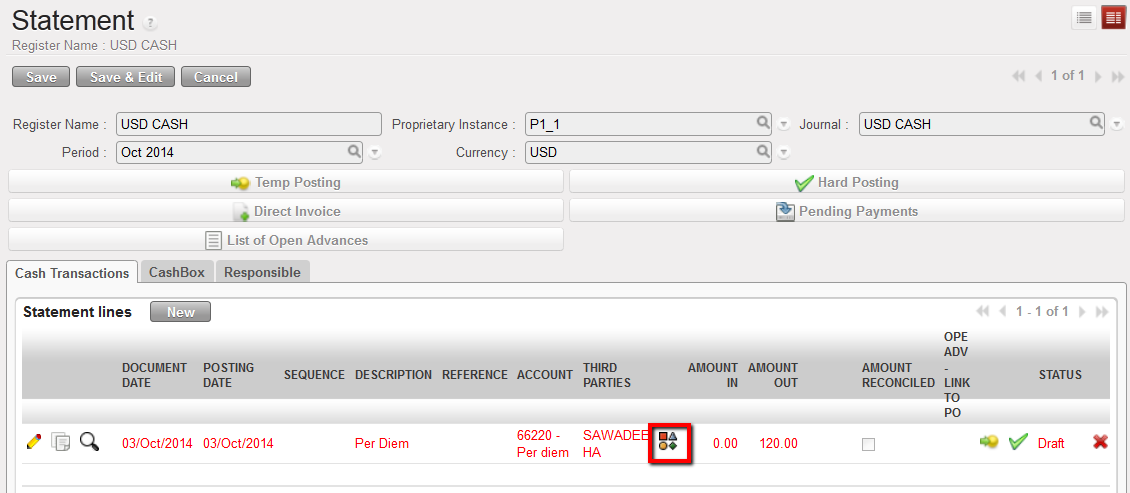
  1. The allocation is done individually through an {allocation button} represented by the icon located on each expense line in a register, manual journal entry or an invoice (direct invoice, supplier invoice, refund invoice, stock transfer voucher and intermission voucher).
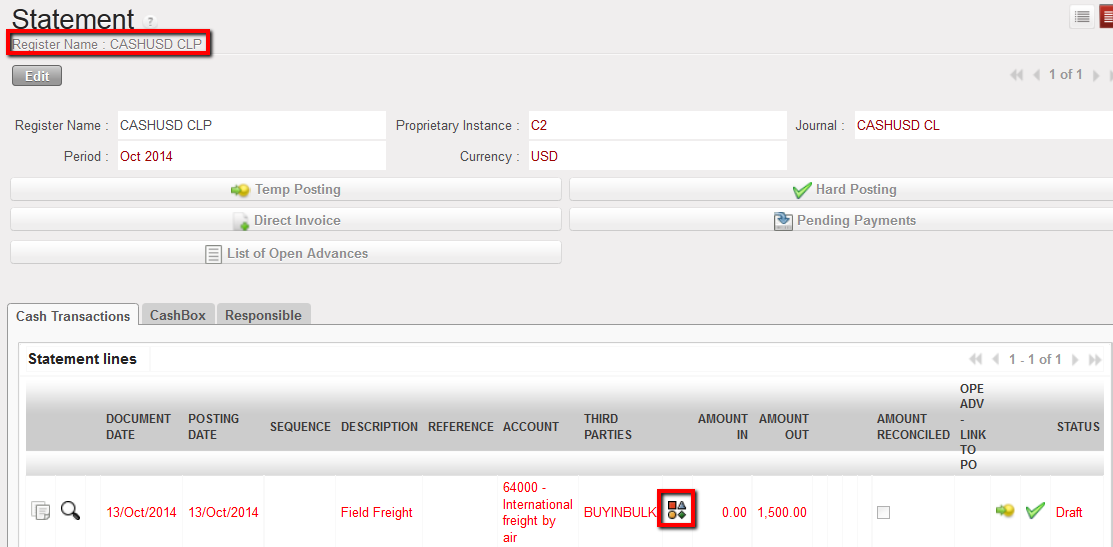
Analytical allocation icon to allocate an expense individually on a register entry
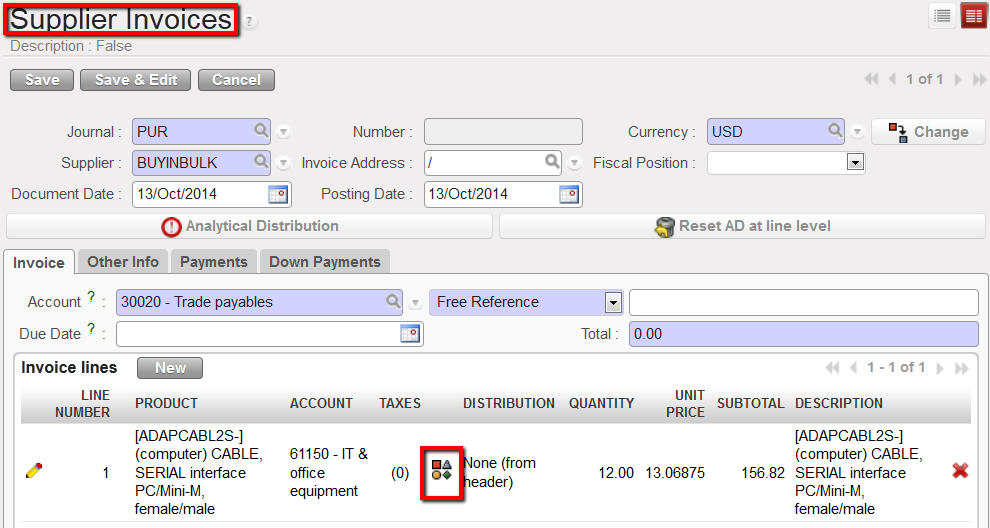
Analytical allocation icon to allocate an expense individually on an invoice line
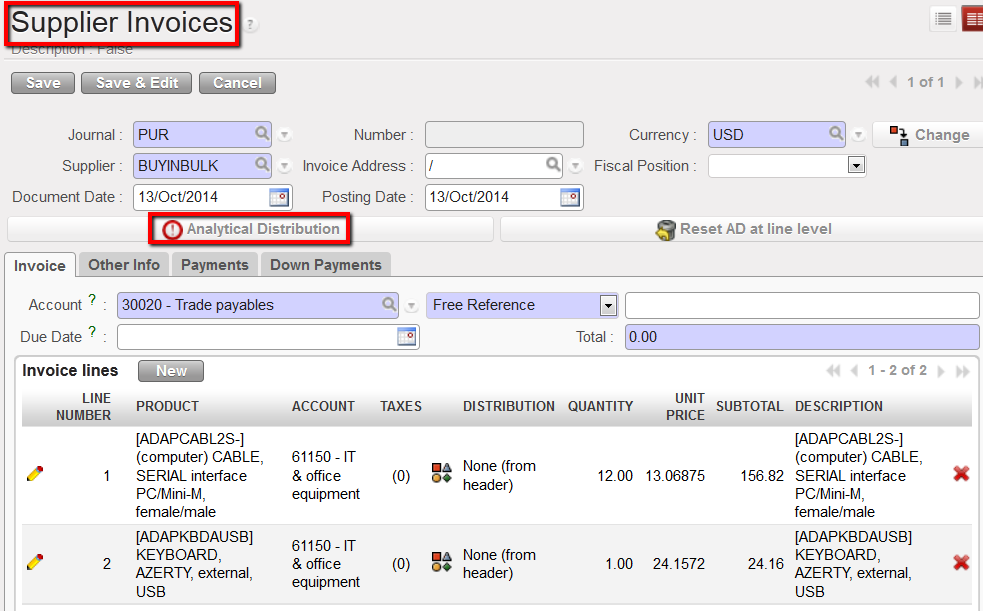
2. The allocation is done for multiple invoice lines through the {Analytical Distribution} button at header level

Analytical Distribution located at invoice header
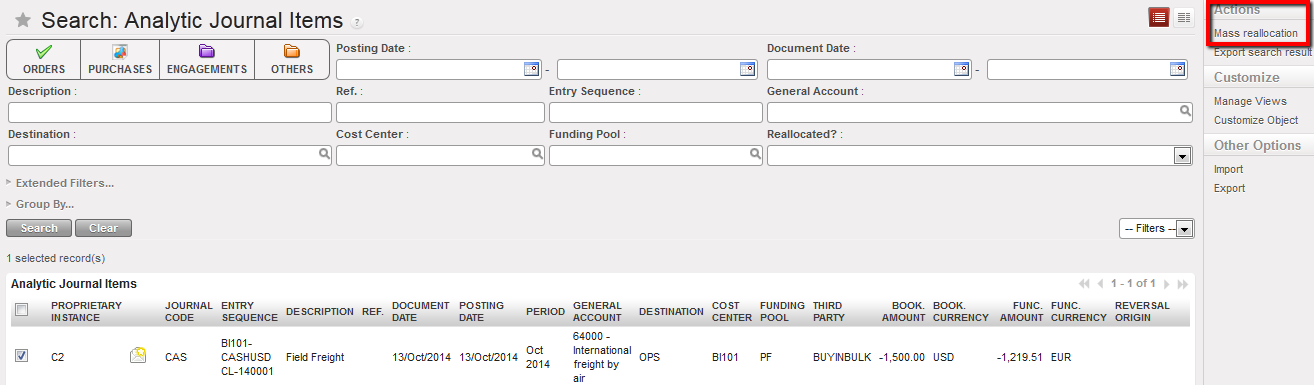
3. The allocation is done in mass using a dedicated action tied to the Analytical Journal Items

Mass reallocation function to allocate several analytical journal items
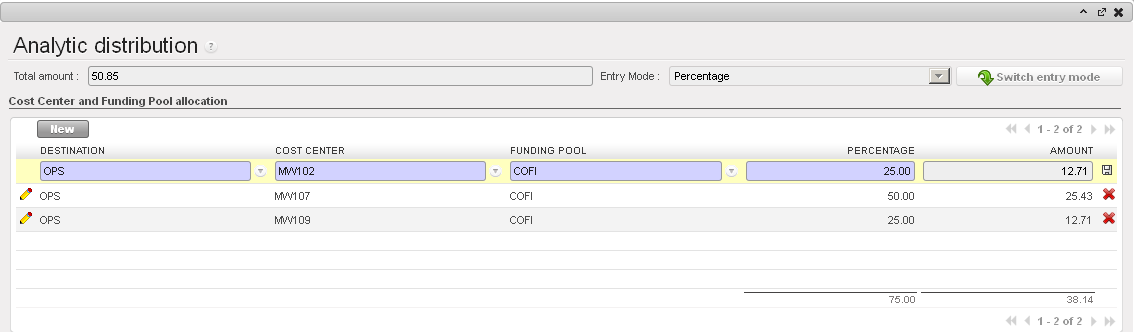
If one expense needs to be allocated across multiple cost centers or funding pools, clicking on the {New} button in the analytical distribution wizard creates additional lines. The user can distribute the cost by amount or by percentage by clicking on {Switch entry mode}. Remember that cost centers and funding pools are entered manually while destinations are proposed by default when the allocation is done individually per register or invoice line. The default destination can be modified.


In this example, the total purchase worth USD 50.85, the cost is spread over 3 cost centers by percentage.

Entries on income accounts may require an analytic allocation too if you use income accounts. Please check your OCs procedures.

UniField behaviour is similar to the allocation on expense accounts. You will use the Analytic distribution wizard as well.


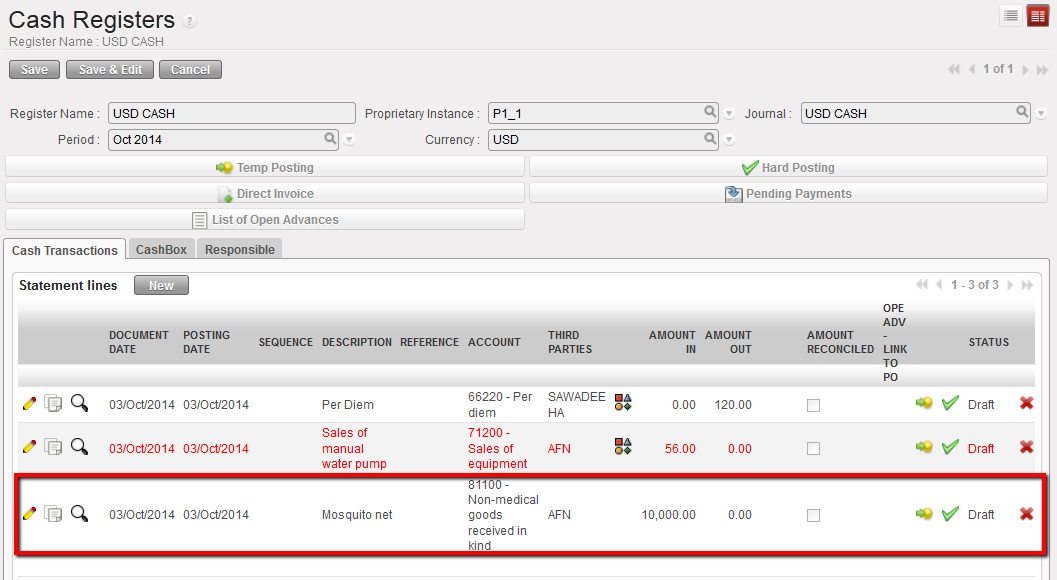
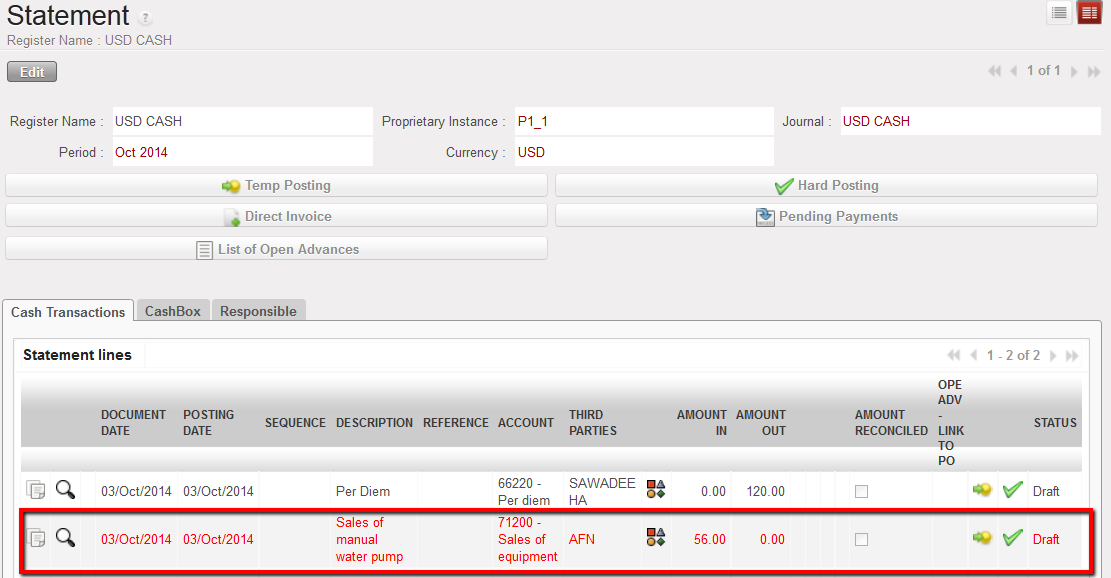
In this example, the sale of a manual water pump is booked on an income account requiring an analytical distribution.

Should the allocation be incorrect, the entry line will remain in red until it is changed.


Analytical distribution button located on a line of a cash register. The register line is red because the analytical allocation was not done or is invalid

In this example, no allocation is requested for income accounts of type 8.
Destinations, cost centers and funding pools can be either {View} type or {Normal} type. This defines the account behavior. {Normal} accounts are the actual accounts assigned to expense entries while {View} accounts consolidate {Normal} type accounts.

The duplication of a register line, supplier invoice and any other financial documents where a cost allocation was set also duplicates the analytical distribution.

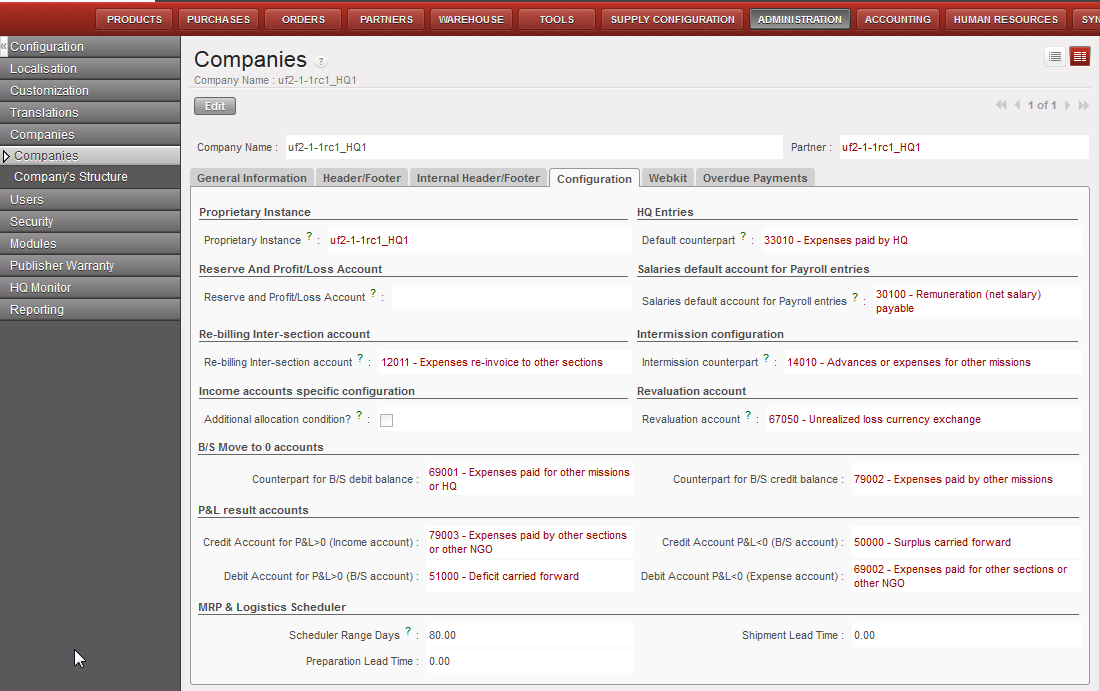
OCA specific*:

In order for the system not to consider all income accounts for analytic allocation, a check box has been created in company settings. Checking the box will only require an analytic distribution for the income accounts starting with 7. The other income accounts will not require any allocation.

This means in both cases (unchecked or checked box) accounts starting with 7 will require an allocation.

To change this company setting, Go to: Administration/Company as shown in the below view: