LUFI-20405 Country Code Mapping*

Finance User Manual ENG -> 2. Finance Configurations ->  2.4 Financial Accounts -> LUFI-20405 Country Code Mapping

LUFI-20405 Country Code Mapping*

LU Introduction


This functionality is specific to OCA *.

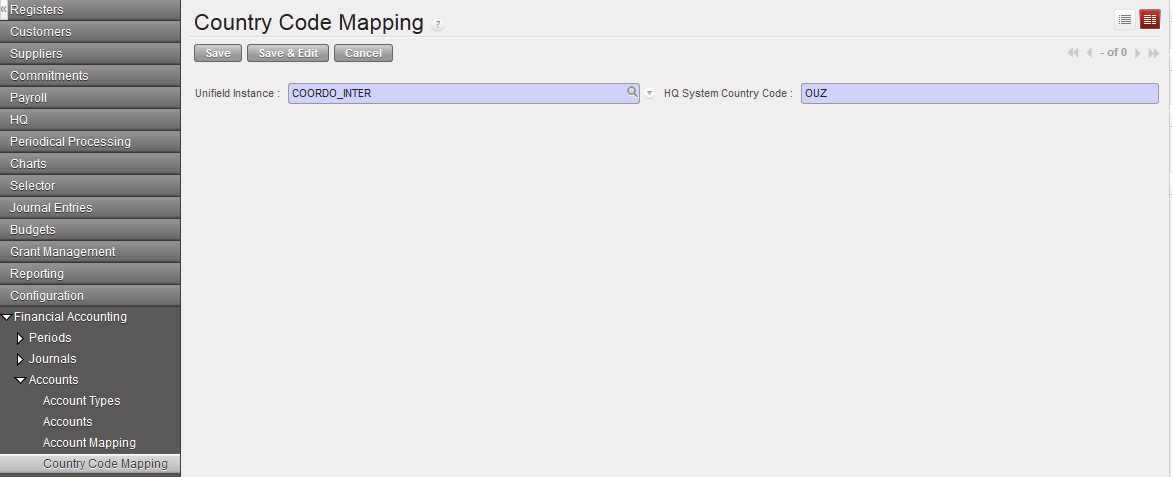
At OCA, the Country Code Mapping is used in the vertical integration framework. OCA needs a country code which does not exist in UniField but is used in Oracle (HQ system). This code must be displayed in each reporting line of the OCA vertical integration report. This is why you need to create a country code mapping which will link the proprietary instance and a country code so that the country code is displayed in the export file and can be then imported in Oracle.

How to Use the Function Country Code Mapping

This mapping is performed manually.

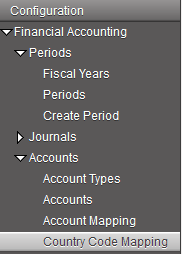
Go to: Accounting/Configuration/Financial Accounting/Accounts/Country Code Mapping

  1. In the Search Country Code Mapping view, select

2. Select the UniField instance and input an HQ System Country Code.

Country code mapping

3. Click on the {Save} button.

LUFI-20404 Account Mapping

Finance User Manual ENG -> 2. Finance Configurations ->  2.4 Financial Accounts -> LUFI-20404 Account Mapping

LUFI-20404 Account Mapping *

LU Introduction

This functionality is specific to OCG *.


At OCG, the function Account Mapping is used in the vertical integration framework.

In HQ system, the B/S accounts are different from UniField. A mapping is therefore needed between the field B/S accounts and HQ B/S accounts. You will therefore perform an account mapping using the Account Mapping function.

When this is done, UniField uses the mapping for the generation of the OCG vertical integration report so that the output can be directly integrated in Axapta.

Remember it is possible to link several field accounts to a single HQ account

How to Use the Function Account Mapping

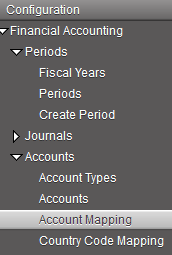
Go to: Accounting/Configuration/Financial Accounting/Accounts/Account Mapping

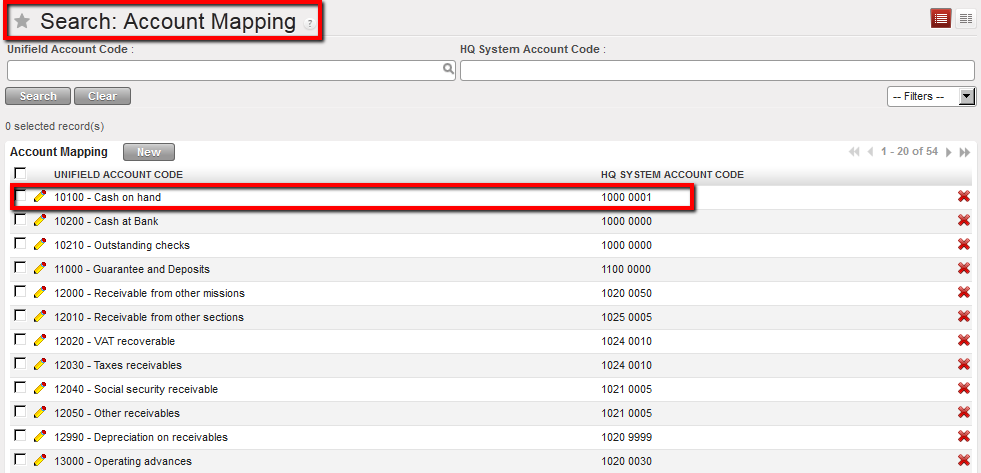
The Search Account Mapping view displays

Search Account Mapping view

  1. In the Actions menu, select “Import Mappings”.
  2. In the import mapping window, add the table which defines the account mapping. Remember it should be a csv file.
  3. Select Import to close the window.

Import Mappings window

4. Select Import to close the window.

Account Mapping between HQ and Field on B/S accounts is set. For instance, entries booked on the account 10100 in UniField will be automatically recorded on the account 1000 0001 in Axapta.

LUFI-20403 Chart of Financial Accounts

Finance User Manual ENG -> 2. Finance Configurations ->  2.4 Financial Accounts -> LUFI-20402 Account Inactivation

LUFI-20403 Chart of Financial Accounts

LU Introduction

A Chart of Accounts (CoA) is a list of accounts divided into groups reflecting the nature of financial transactions. In UniField you can find a financial and analytical chart of accounts. Below we show how to display the chart of financial accounts.

How to View the Chart of Financial Accounts

Go to: Accounting/Charts/Chart of Accounts

The Chart of Accounts window appears.

  1. Select a Fiscal year and check the box of show inactive accounts if relevant.

Chart of Accounts window

2. Select Open Charts.

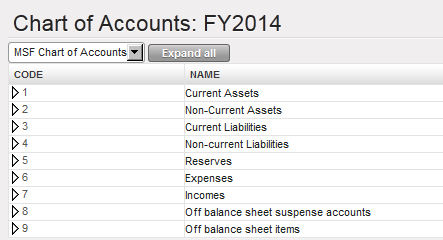
The Chart of Accounts for the selected fiscal year displays the view accounts

Chart of financial accounts, View account type

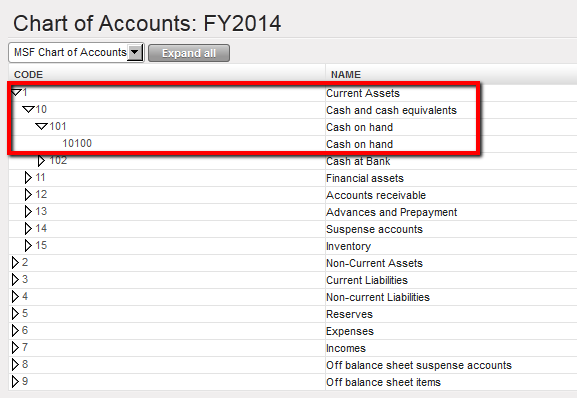
3. You can also have a complete tree view by clicking on the arrow located next to the account code.

Chart of financial accounts, extended on Cash and Cash equivalents account

4. Finally, you can also click on button to open the chart of accounts tree down to the deepest level of detail for all account types.

How to block Inter-Currencies reconciliation on Balance Sheet accounts

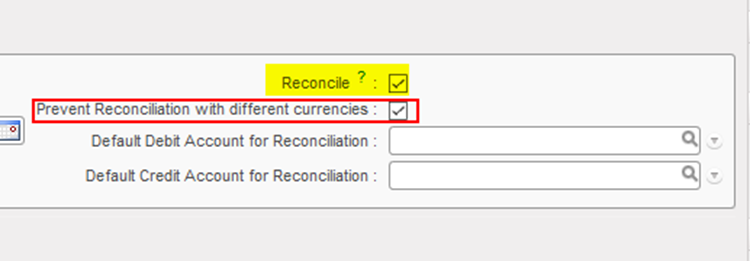
It is possible to block the possibility of reconciliation for account codes in case the related entries contained more than one currency. That can be done through the configuration of the account, as we have now a new field called “Prevent Reconciliation with different currencies” which should be ticked to prevent the reconciliation of this account in case of different currencies. However, it can be ticked only if the tick box “Reconcile” is ticked.

LUFI-20402 Account Inactivation

Finance User Manual ENG -> 2. Finance Configurations ->  2.4 Financial Accounts -> LUFI-20402 Account Inactivation

LUFI-20402 Account Inactivation

LU Introduction

Inactivating accounts is performed at HQ. This action prevents users from booking future entries on an account that is not in use anymore.

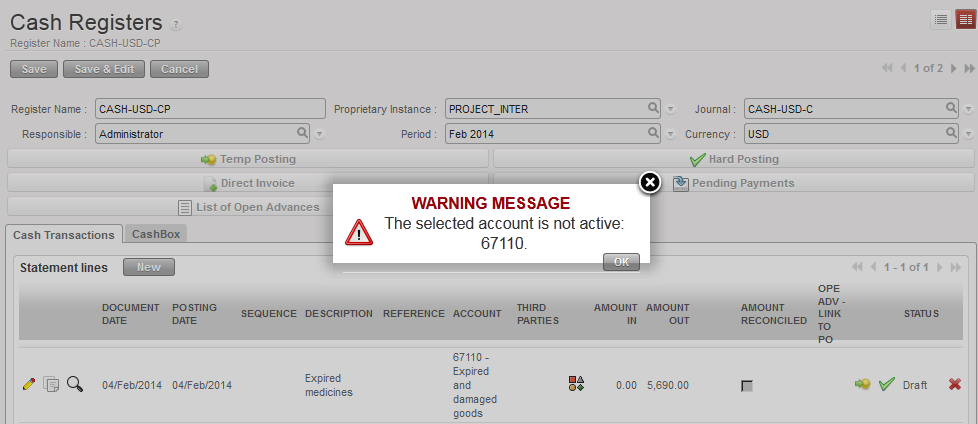
Deactivation is synchronized down to all missions and new entries for the inactivated accounts are blocked. The check on entries is based on Posting Date, e.g. the Posting Date of a new entry can’t be on or later than the inactivation date of the account. If the entry’s Posting Date is outside the financial account activation period, you will get the following error message:

System control on an inactive financial account

How to Inactivate a Financial Account

Go to: Accounting/Financial Accounting/Accounts/Accounts

  1. In the field {Code} enter the account code to inactivate and {Search}
  2. Once the system retrieves the account, click on the pencil to edit the account form
  3. In the {General Information} tab, enter a date to inactivate the account and save

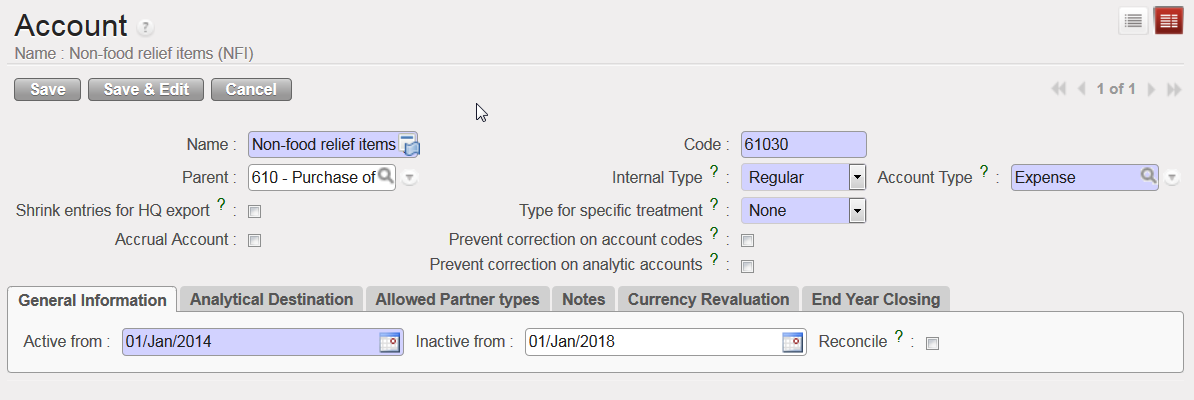
The financial account {Expired and damaged goods} is inactivated

Account {61030} is inactivated since 1st January 2018

It is possible to delete the inactivation date in order to re-activate and to use this account again.

2.4 Financial Accounts.

Finance User Manual ENG -> 2. Finance Configurations ->  2.4 Financial Accounts.

LUFI-20401 Account Properties
LUFI-20402 Account Inactivation
LUFI-20403 Chart of Financial Accounts
LUFI-20404 Account Mapping
LUFI-20405 Country Code Mapping

FINANCIAL ACCOUNTS

LUFI-20401 Account Properties

LU Introduction

Financial accounts classify, measure and record MSF expenses via the Chart of Accounts. In this LU we explain what the account properties are and how they should be set up in the financial account forms. In order to function well, a financial account needs a proper set up of parameters.

The Account Type defines the account category to which the financial account is related. It defines the nature of accounting entries booked under this account.

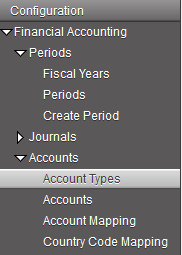
Go to Accounting/Configuration/Financial Accounting/Accounts/Account Types
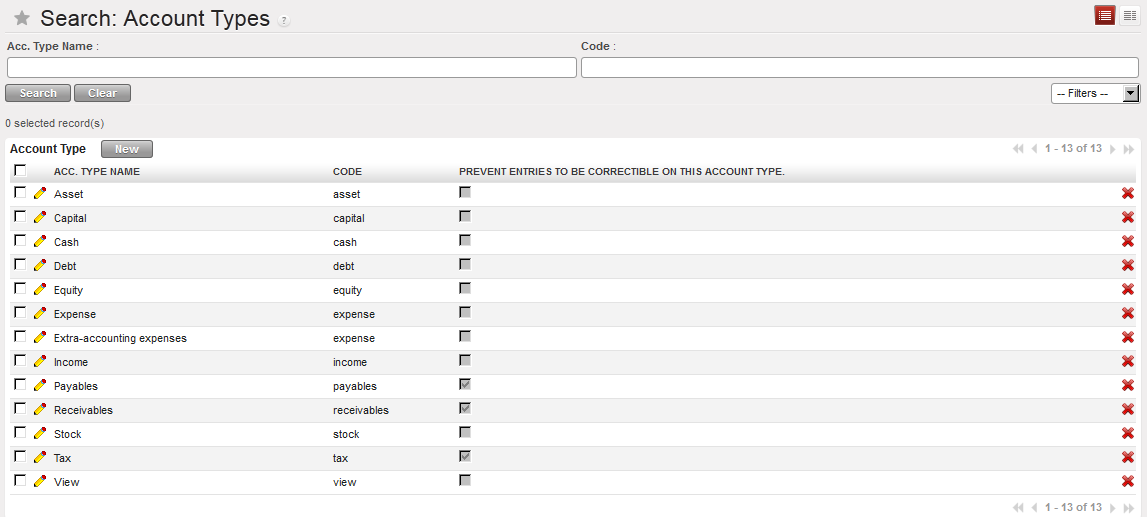

Account Type in UniField displayed in the Search Account Types view

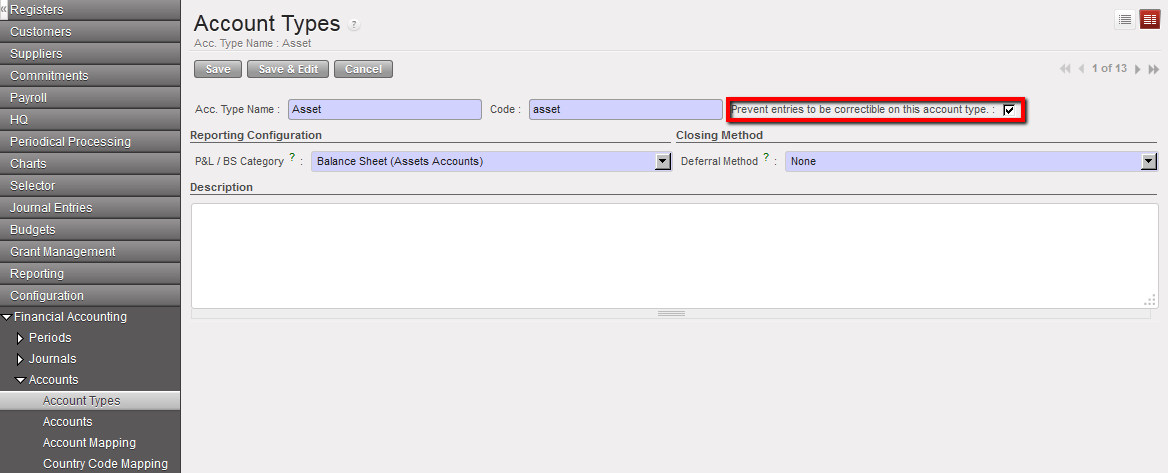
If you want to limit corrections on a specific account type, check the box of the attribute {Prevent Entries To Be Correctible On This Account Type}.

Select the {Edit} button to proceed.Account type Asset not correctible
Each financial account has Attributes or properties. These are:

  • Internal type,
  • Account type,
  • Type for specific treatment,
  • Accrual Account,
  • Prevent correction on account codes
  • Prevent correction on analytic accounts
  • Shrink entries for HQ export
  • Activation/Inactivation date
  • Reconcilable
  • Allowed Partner Types
  • End-year closing
  • Revaluation

Go to Accounting/Configuration/Financial Accounting/Accounts

The account properties can be found on the Account form itself.
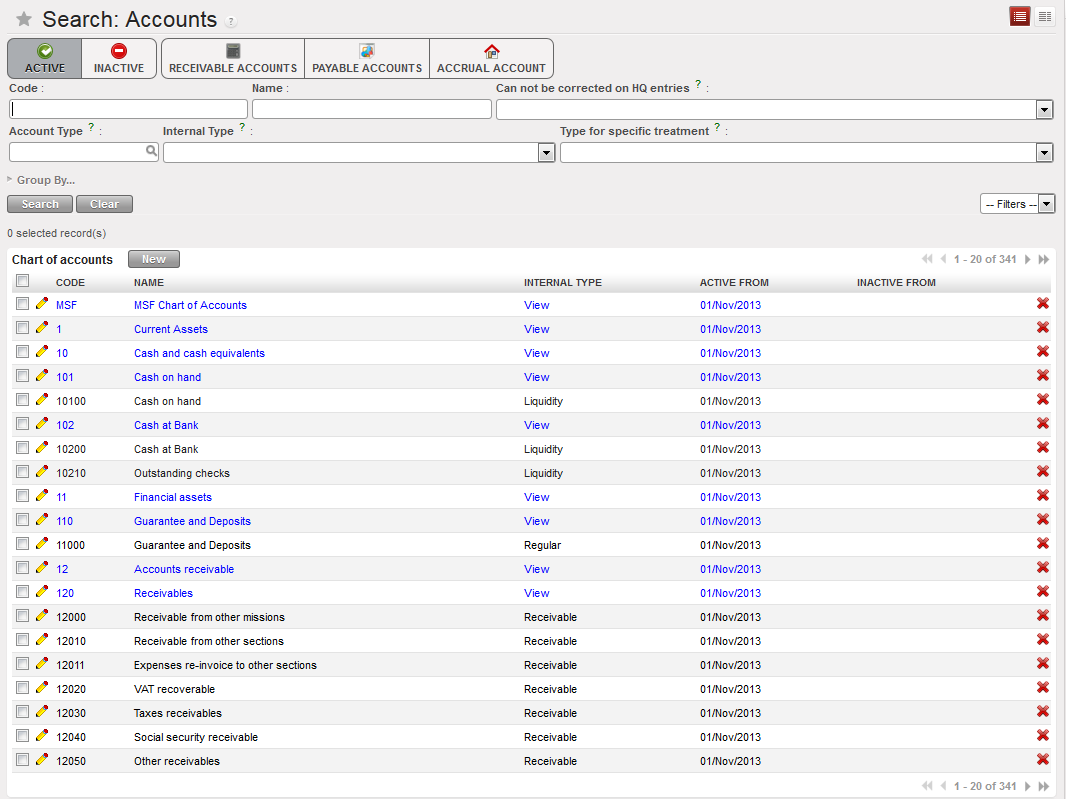
List of Accounts available in the {Search Accounts} view. The view offers a list of buttons to filter the accounts you search. In this view, only the active accounts are displayed as the Active button is checked.
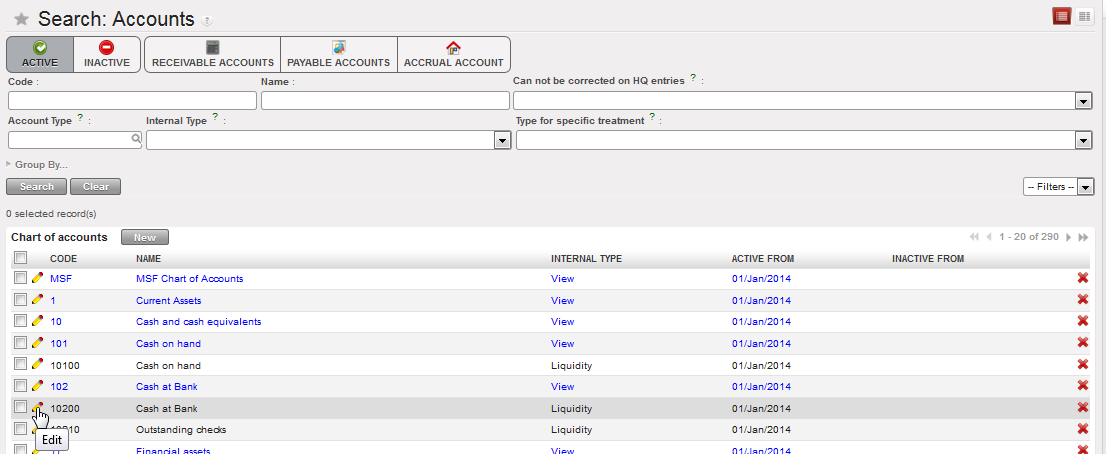
Select the pencil to open the Account form view to see or edit the account’s properties
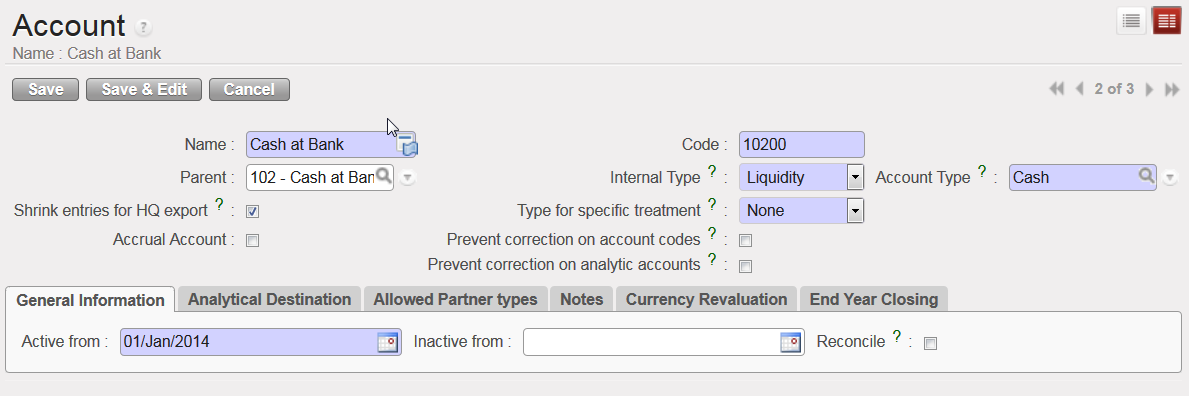
Account form view and corresponding attributes

The Internal Type specifies the account behaviour:

  • A {View} or parent account consolidates the regular (or children) accounts which are linked to it.
  • A {Regular} or child account does not have specific properties and is used to post entries.
  • {Receivable} and {Payable} accounts are used to book transactions with Third Parties. A third party can be a supplier, employer or a journal and the accounts are defined as {reconcilable}.
  • {Liquidity} accounts are used to book transactions every time there is a liquidity movement in the bank, cash or cheque register.
  • {Consolidation} accounts are not currently used in UniField.
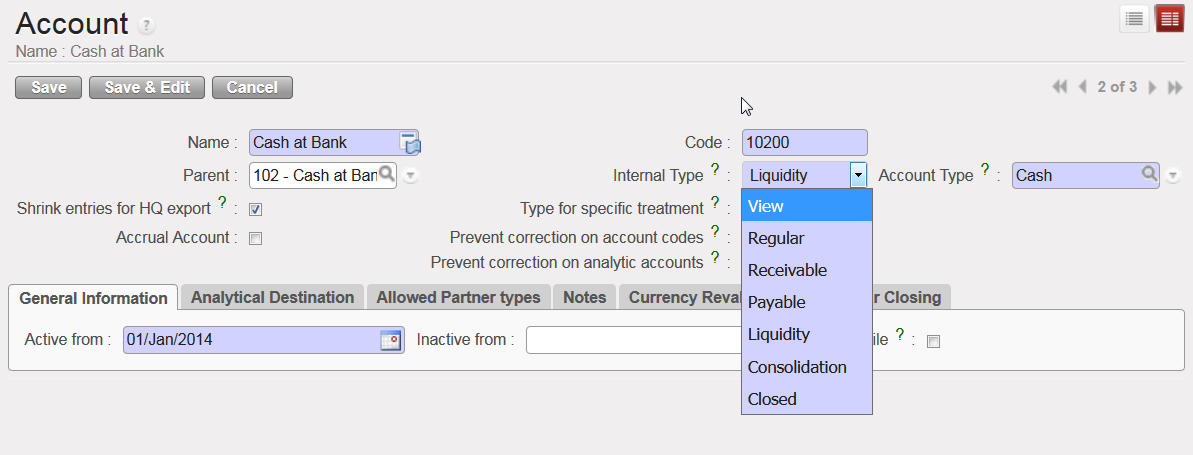
  • {Closed} accounts are not currently used in UniField.

Internal Type options for the accounts

The Type for specific treatment sets attributes triggering specific behaviours for well-defined use cases as detailed below:

  • {Internal Transfer} when booking an internal transfer on an account associated to this type for specific treatment, at time of selecting the third party, UniField will display the liquidity journal(s) that will be used as a counterpart and that are defined in a currency other than the register line being created.
  • {Internal Transfer (same currency)} when booking an internal transfer on an account associated to this type for specific treatment, at time of selecting the third party, UniField will display the liquidity journal(s) that will be used as a counterpart and that are defined in the same currency as the register line being created.
  • {Operational Advance} once the entry is posted in a register, it displays a button called {operational advance} which is a wizard used to close the advance. The third party in this case will be the employee the advance was delivered to.
  • {Third party required – Payroll} is used to record the counterpart elements of payroll entries (e.g social security, income taxes accounts) when validating the staff payroll in UniField.
  • {Down payment} will let user link an advance requested by a supplier with a purchase order. This function allows you to better track outstanding advance payments to external suppliers.
  • {Donation} is used to record donation entries in extra-accounting journals.
  • {Reconciliation – Disregard 3rd party} is used to enable reconciliation of entries booked on the same account code with a different third party.
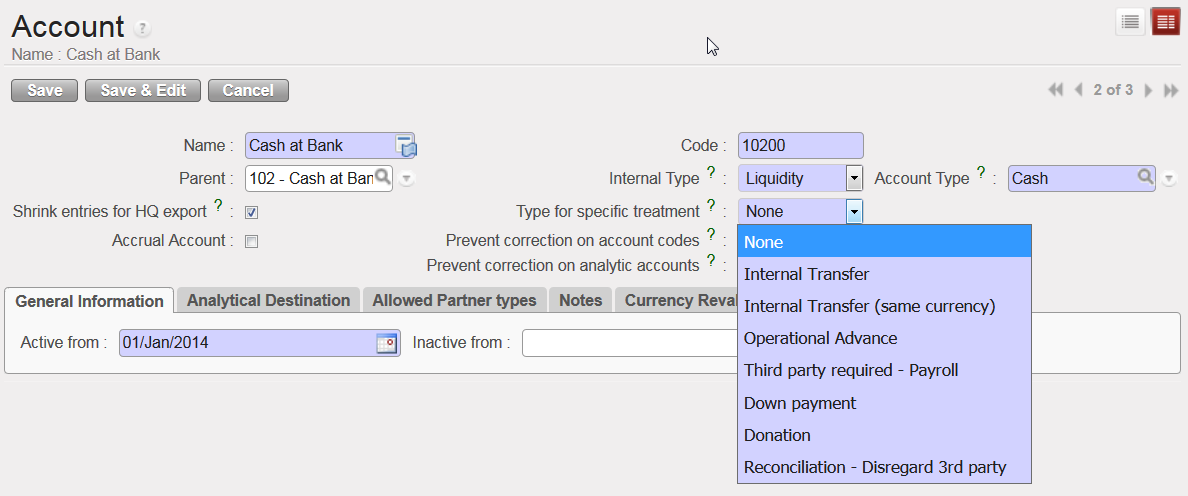
Types for specific treatment

UniField introduces the use of Accrual Accounting. It is a method that recognises economic events (expense or income) regardless of when cash transactions occur and the point of time at which supporting documents are received, with some uncertainty related to the booking (period, exact amount etc.). In UniField the {Accrual Account} attribute will help you semi-automate the creation of accrual entries at month or year-end cut-off. For more information on how to book accrual entries, see Chapter 5 – Searching, Correcting, Closing.

In the Account Form view, the {Accrual Account} box should be checked on balance sheet accounts if the account is used to record accruals. Only accounts with ticked {Accrual account} checkbox are available to be selected for accrual entries.
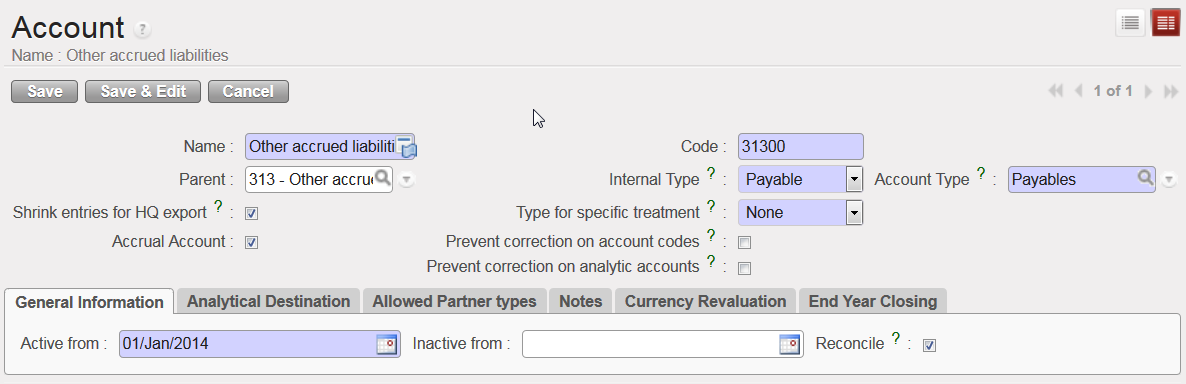

Accrual Account {31300 – Other accrued liabilities} and Accrual Account box checked

In order to easily retrieve accrual accounts when encoding a transaction, an {Accrual Account} filter is available in the G/L accounts list. If you select this button, it will only show a list of accounts that have the {Accrual Account} box ticked.
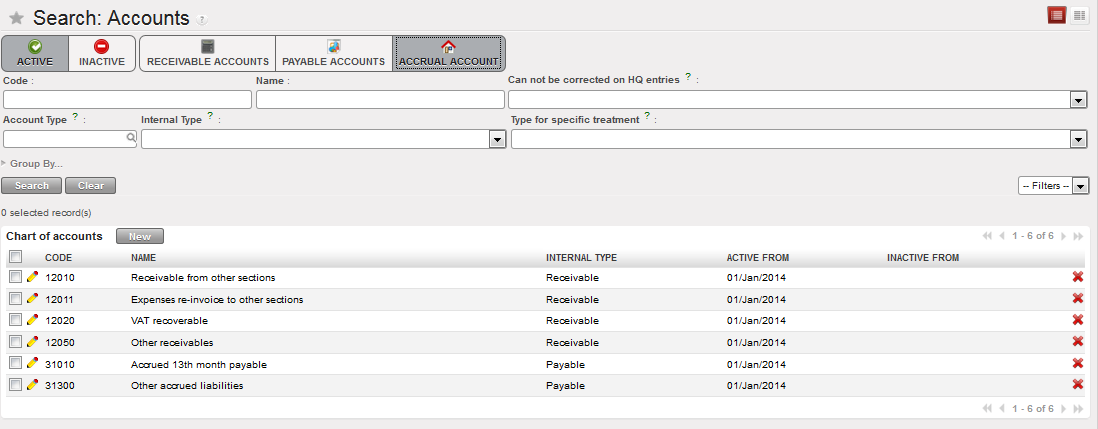
Accrual accounts listed when selecting the filter {Accrual Account}

Another account feature is linked to the accounting correction. In the Account Form view, there is a {Prevent correction on account codes} box that you need to select if the account must not be corrected at mission level when importing entries from HQ system. There is also a box {Prevent correction on analytic accounts} to tick to disable changes on analytical distribution. Please note if you tick box {Prevent correction on analytic accounts}, {Prevent correction on account codes} will be ticked as well. Check your section’s procedures to define which account codes should not be corrected in UniField at field level.
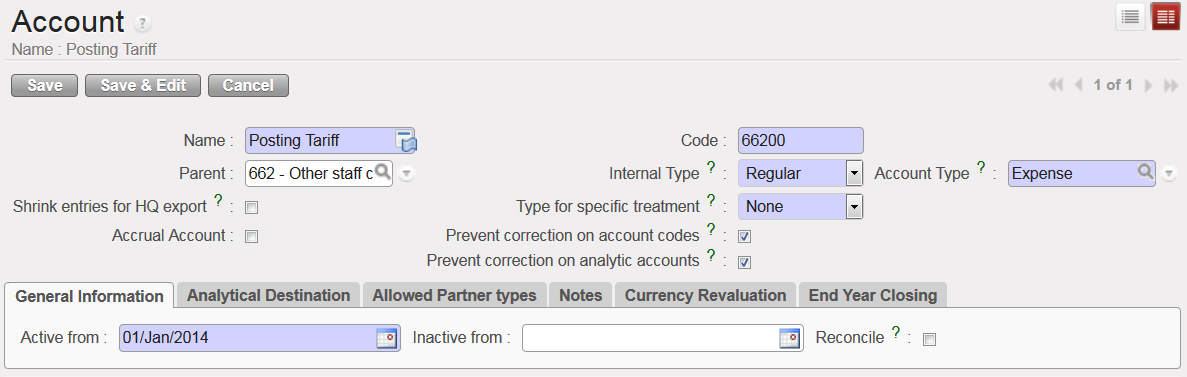

Account {66200} and Analytical Distribution not correctable

If you want to consolidate entries on an account before they are exported to the HQ system, you need to check the {Shrink entries for HQ export} box.
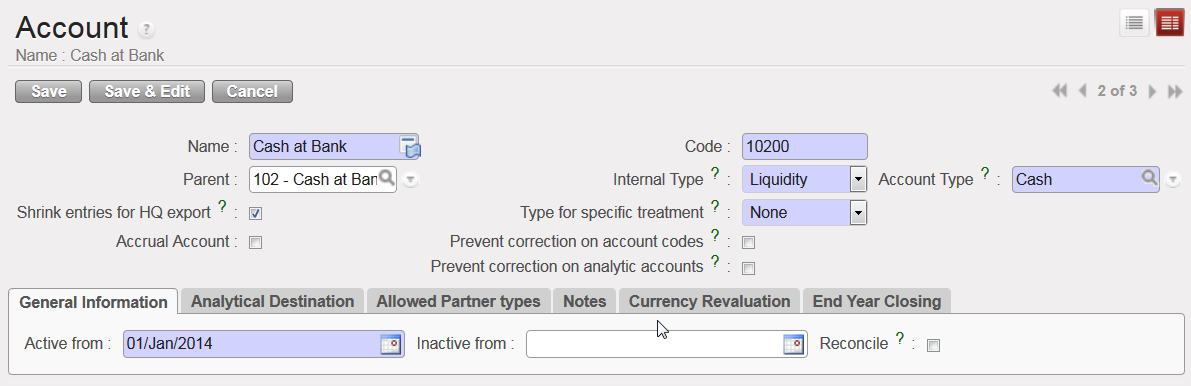
Entries on the account {10200} will be shrinked for HQ export

As soon as an account is created in your instance, it is automatically activated. The {Active from} date is visible in the {General Information} tab. When the account becomes obsolete, it can be inactivated. The {Inactive from} date must be the following day of the last day entries can be booked in this account, e.g. if an account is used until 31st December 2017, the {Inactive from} date is 1st January 2018.

Active date is taking automatically first day of the current month ,eg, if the account created today 20/06/2018 it will take automatically 01/06/2018.
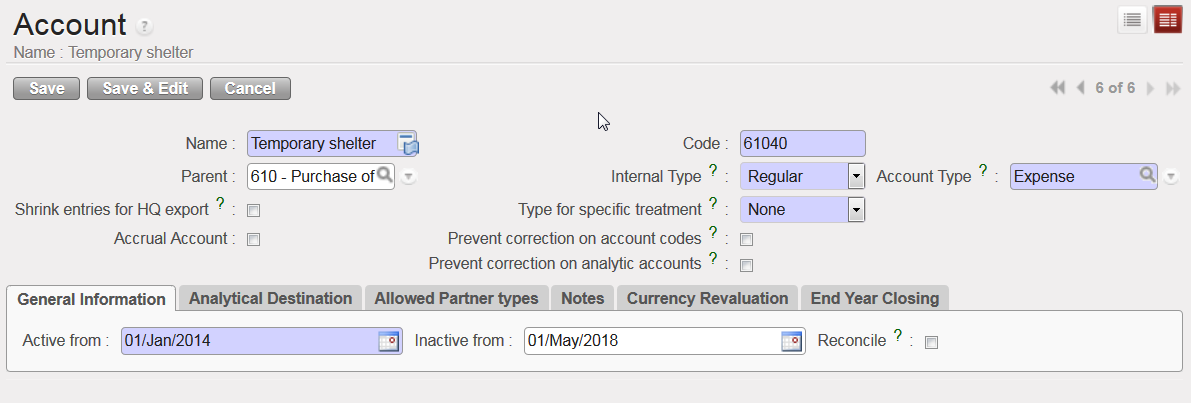
Account 61040 inactive from 1stMay 2018

In the {General Information} tab, the {Reconcile} box should be ticked if entries on the account need to be reconciled. In UniField, accounting reconciliations are automatically done for some accounts but for other accounts the user will have to do a manual reconciliation. Account reconciliation is addressed in Chapter 5: Searching, Correcting, Closing.
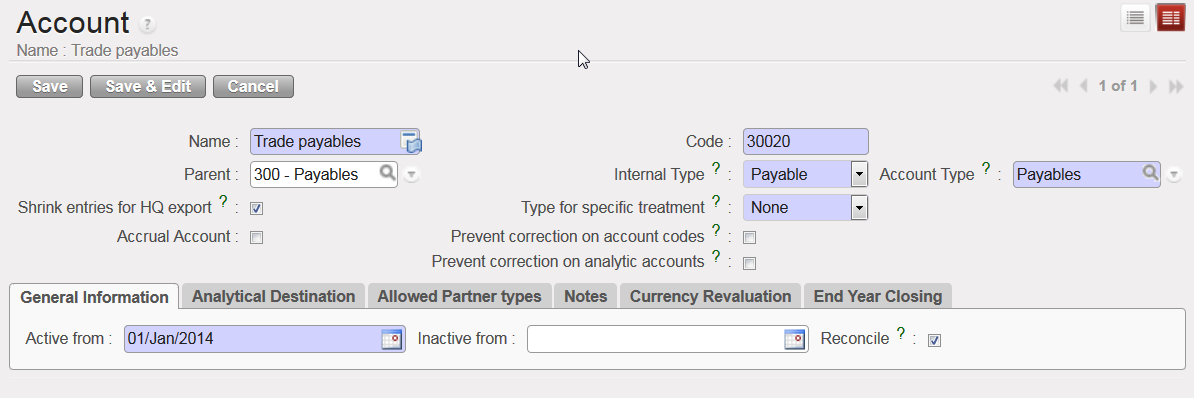

{30020 Trade payables} account, reconcilable

In {Allowed Partner Types} tab, the types of Partners allowed to be used for entries in each account can be edited. By default, all Partner types are selected for all accounts and any restrictions on Partners can be done by unticking the box for the specific Partner Type.

The restriction applies at the time of validating an entry: if a Partner/Account combination is not allowed, the entry cannot be validated. Please check your OCs procedure in regards to any Partner/Account restrictions.
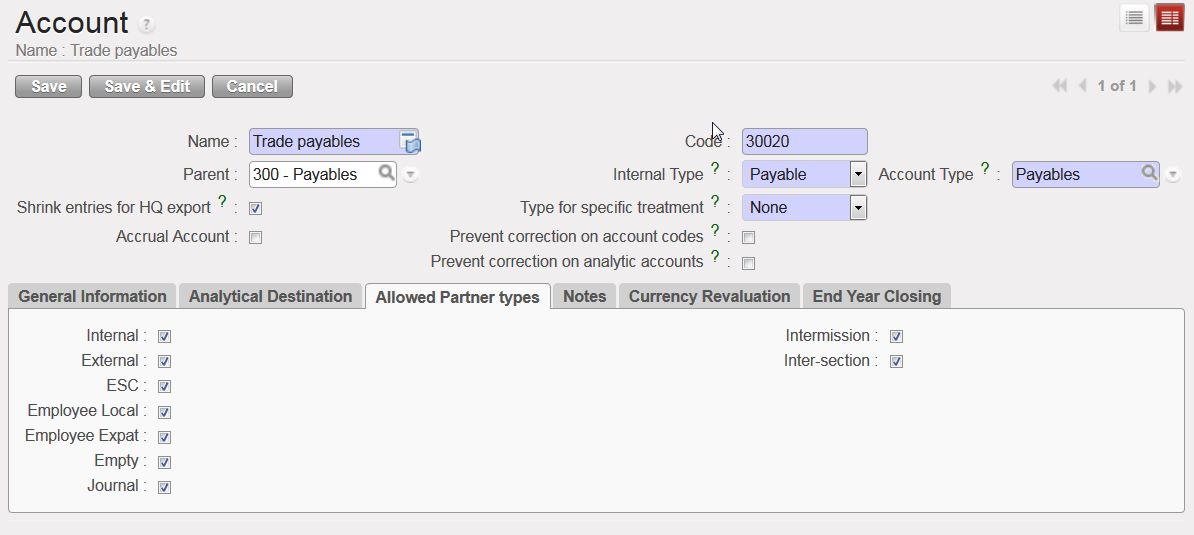
Allowed Partner Types for account 30020

The {End Year Closing} tab relates to a specific Action {Move regular B/S accounts to 0} of the Year-End closing. If the checkbox in this tab is ticked, the Account’s balance is set to 0 with a year-end entry at the time of closing the fiscal year. For further information on Fiscal Year closing, see Chapter 5 – Searching, Correcting, Closing.
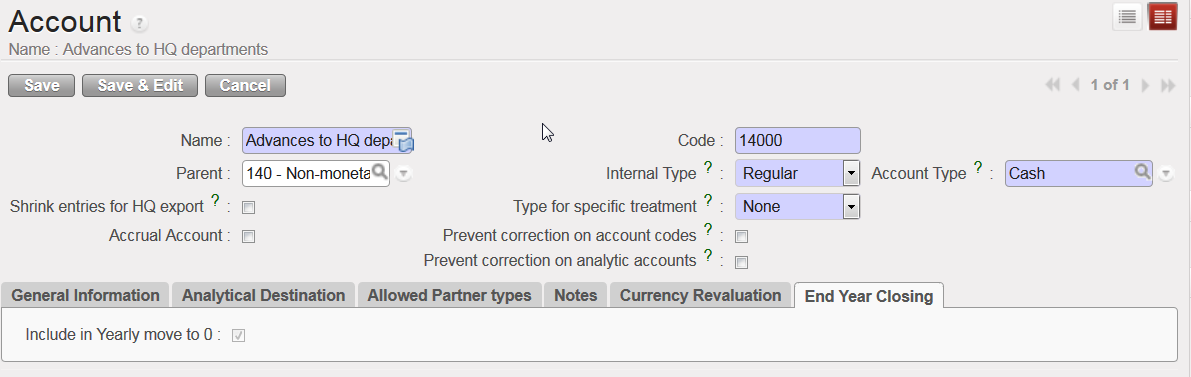
The Account {14000} balance is selected to be set to 0 at Fiscal Year closing

If the checkbox in the {Currency Revaluation} tab is ticked, the selected Account will be included in the month and/or year-end revaluation of the Account balances. Please refer to your OCs policies in regards to currency revaluation practices.
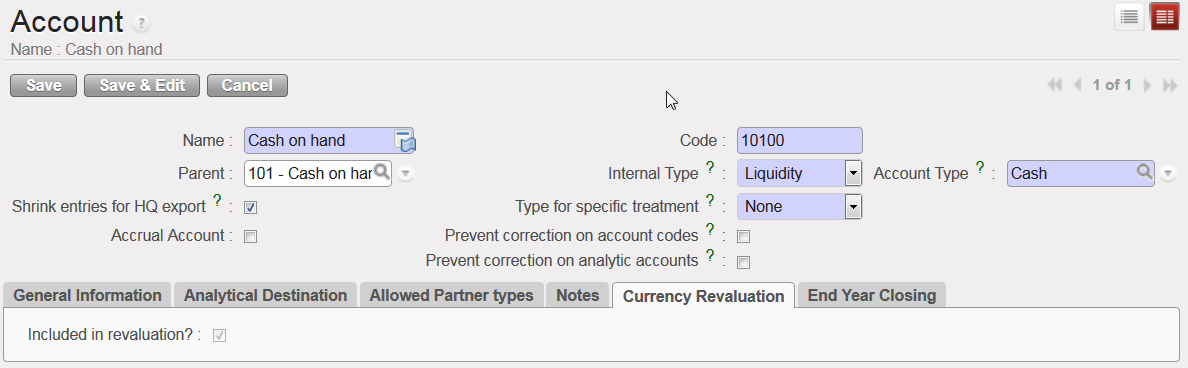
The Account {10100} is selected to be included in month and year-end currency revaluation

How to Manually Create a Financial Account

Manual creation of financial accounts should remain exceptional and based on the section procedures. Once again, it is handled at HQ level as it will synchronize down to all missions.

This example shows the manual creation of an expense account for a boat rental. You must link this new account to the parent account {Transport Freight, Storage} and analytical destination {operations}. Please note that the linkage between the expense accounts and analytical destination is normally done manually once the Chart of Accounts is uploaded and from the Analytic Accounts sub-module (for further detail, please check the UniField IT user manual).

The activation date is input manually in this case.

Go to: Accounting/Financial Accounting/Accounts/Accounts.

  1. Click on {New} to display a new account Form view.
  2. In the {Name} field enter {Boat rental} and in the {Code} field enter {65022}.
  3. In the {Parent} field, click on the magnifying glass and in the wizard Search Chart of Accounts type the code {650} in the {Code} field to link this account to the parent account Rental.
  4. Once you have typed the code, click on {Search} to bring up results.
  5. Select the code {650}.
  6. On the account Form view, select {Regular} in the field {Internal Type}.
  7. Select {Expense} in the field {Account Type}.
  8. Select {None} in the field {Type for Specific treatment}.
  9. Enter an activation date in the {General Information} tab.
  10. In the {Analytical Destination} tab, enter the default destination code {OPS}.
  11. Click Save button.

The financial account {Boat rental} is created and linked by default to the analytical destination {Operations}.
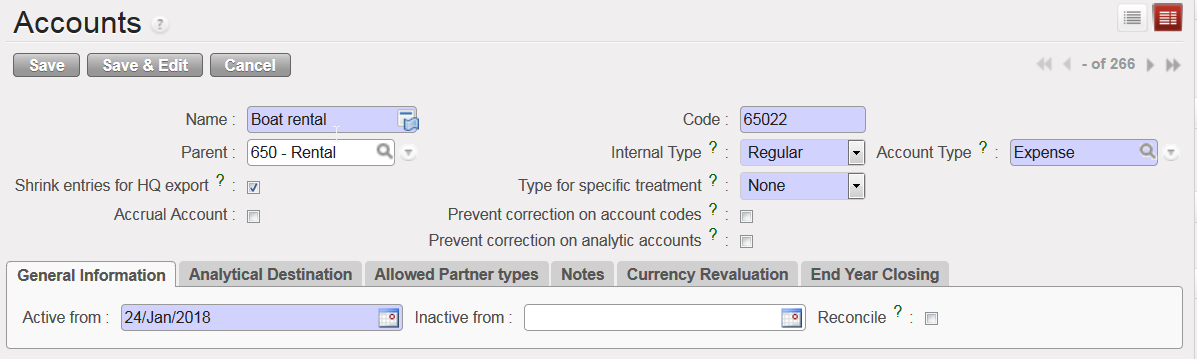
Account 65022 Boat rental Form view
LUFI-20306 Manual Currency Update

Finance User Manual ENG -> 2. Finance Configurations ->  2.3 Multi-Currency Management -> LUFI-20306 Manual Currency Update

LUFI-20306 Manual Currency Update

LU Introduction

Like creating currencies manually at the HQ instance, you can also change or add an FX rate manually. As MSF expects the same exchange rates to be used across all missions, the currency rate update should only take place in the HQ instance as it then synchronized downwards to all missions.

How to Update a Currency Rate for a Period Manually

Go to Accounting/Configuration /Currency Management/Currencies

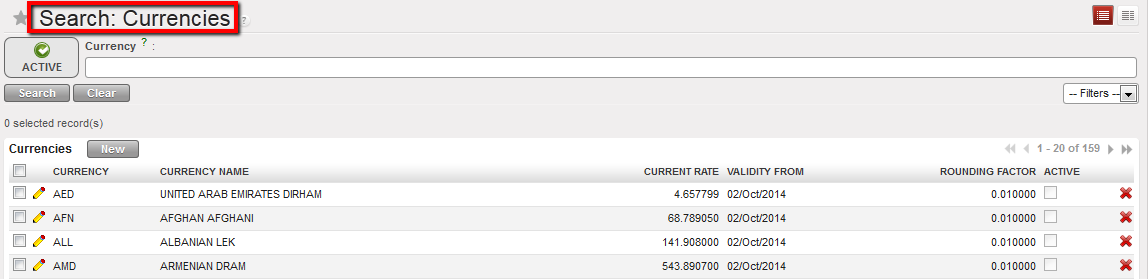
A list of active currencies appears

  1. Remove the default current filter {Active} by clicking on the button {Clear}.

A list of standard currencies appears (active and inactive)

In the currency field, type the code of the currency you want to edit.

2. Once the currency is retrieved click on the pencil icon of the currency line to edit the form
The currency form you selected is displayed

3. In the rates field, click on {New} to add a new rate. Remember to save the form .

4. Synchronize


FX rate updated


FX Rates list in the currency form

LUFI-20305 Manual Currency Creation

Finance User Manual ENG -> 2. Finance Configurations ->  2.3 Multi-Currency Management -> LUFI-20305 Manual Currency Creation

LUFI-20305 Manual Currency Creation

LU Introduction

Most currencies used by MSF are based on the accepted ISO standard. However, on occasion it may be necessary to add a non-standard currency. If this is the case in your mission, you must request Headquarter (HQ) to create the currency. It will then synch down to your instance as inactive. You will have to activate it.

How to Create a Non-Standard Currency Manually

Go to: Accounting/Configuration/Currency Management/Currencies

A list of active currencies appears

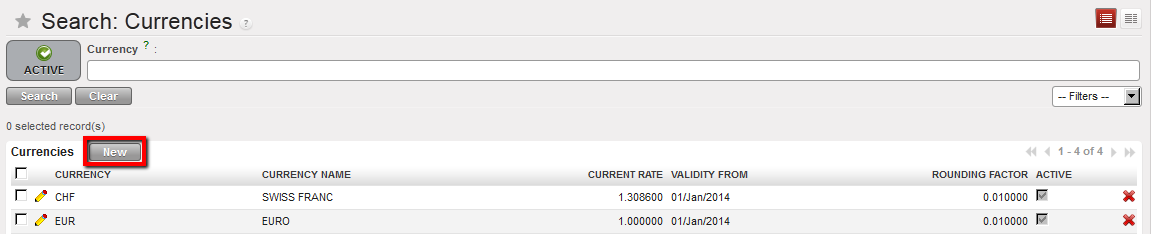
  1. In the {Currencies} Search view, click on {New} button.


Select {New} in the Search Currencies view to create manually a new currency

2. Complete the currency form as follows.

Field titleentry protocol: currency formSource for Information
Currency3-character code in capital letterHQ
Currency RateManual input.HQ
Currency NameCOUNTRY CURRENCY ALL CAPSHQ
SymbolNot requiredN/A
Rounding factorDefaults to 0.01000System
Computational AccuracyDefaults to 4System

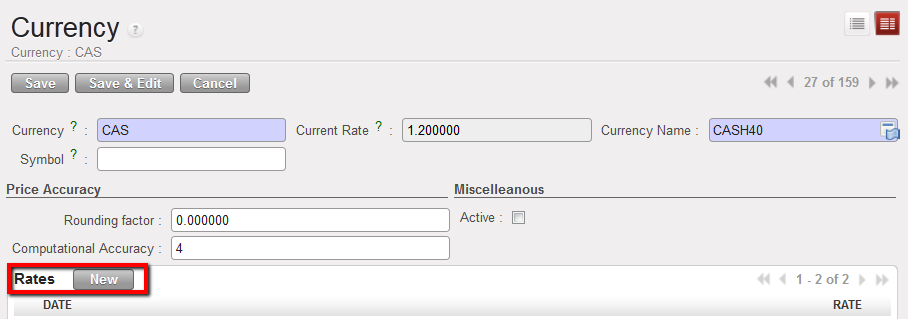
3. In the Rates field, click on {New} to add a new rate.

4. Enter the effective “as of” {Date} and the {Rate}. Click {Save & Close} if finished, or {Save & New} if adding more rates for additional periods.

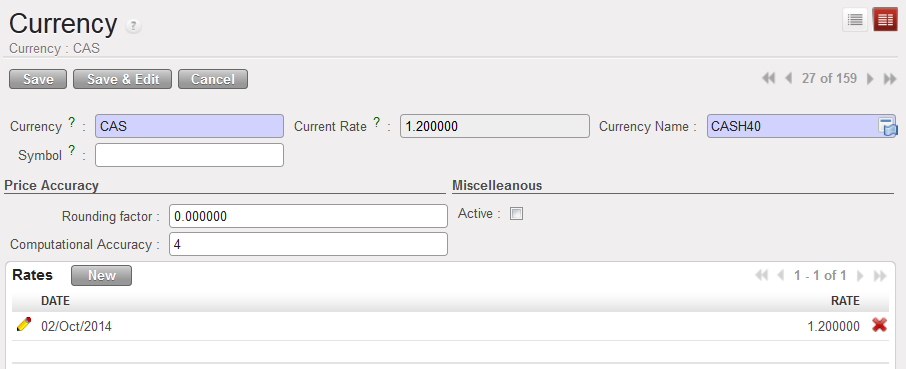
The rate is saved in the currency form.

Title of fieldentry protocol: currency ratesSource for Information
DateThe effective start date of the rate to be used for converting entries to the functional currency. If no additional rates are added for subsequent dates, then this rate will prevail.Consider the earliest posting date for which you will have entries in this nonstandard currency.
RateThe exchange rate relative to the EUR or CHF, e.g. CUR/EUR.HQ

5. Remember to save the form.

6. Synchronize


Manual creation of a non-standard currency

LUFI-20304 Applied FX Rate over Multiple Periods

Finance User Manual ENG -> 2. Finance Configurations ->  2.3 Multi-Currency Management -> LUFI-20304 Applied FX Rate over Multiple Periods

LUFI-20304 Applied FX Rate over Multiple Periods

LU Introduction

In some cases, you might want to use the same FX rate for a defined currency over several periods. The “FX rate by currency” function will produce a report in xls showing the rates used for given periods.

How to Apply an FX Rate on a Defined Currency over Multiple Periods

Go to: Accounting/Configuration /Currency Management/FX rate by currency

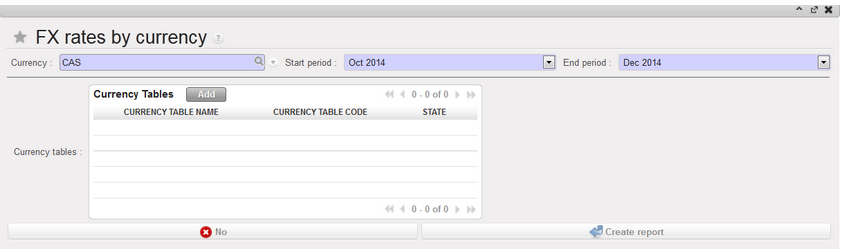
  1. In the FX rates by currency window, insert a Currency, Start and End period.
  2. Select a currency table if need be
  3. Press on Create report.
FX rates by currency window

4.Confirm (OK)

>> An xls report is produced

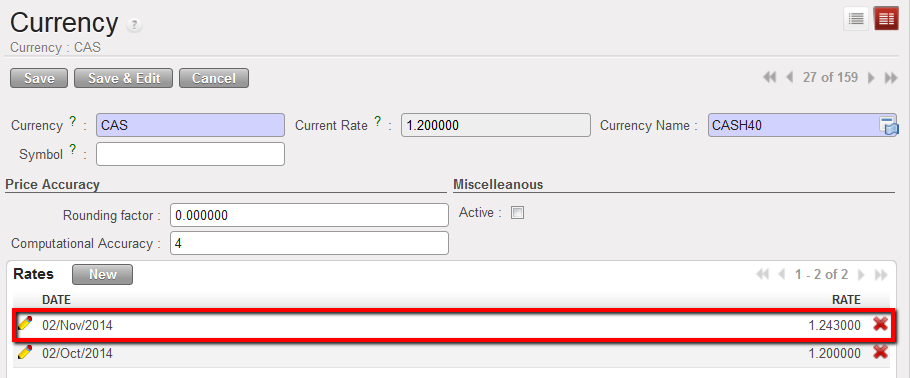
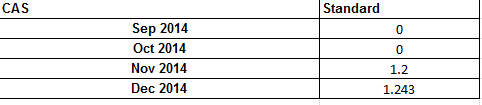
FX rates by currency report displays the rates applied to the CAS currency from September to December 2014

LUFI-20303 Currency FX Rate Update

Finance User Manual ENG -> 2. Finance Configurations ->  2.3 Multi-Currency Management -> LUFI-20303 Currency FX Rate Update

LUFI-20303 Currency FX Rate Update

In UniField, accounting entries are shown in booking currencies in the registers and booking and functional currencies in the financial and analytical journals. This requires setting up currencies with their monthly exchange rates against their functional currency.

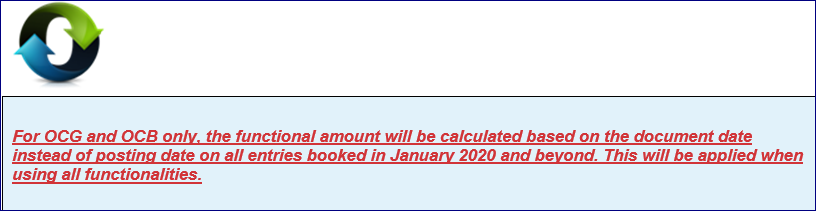
FX rate changes from one period to another. This results in an automatic calculation of a FX rate gain or loss when two entries posted in different periods are reconciled together (i.e. cash disbursed in May 2017 and returned in June 2017). This revaluation is therefore based on the entry posting date.

How to Update FX Rate Currencies by File Import

  1. Go to the following website to download the file:

http://ec.europa.eu/budget/contracts_grants/info_contracts/inforeuro/inforeuro_en.cfm

This link is just an example; please refer to your section procedures to find out which website you should use.

CVS Currency Exchange Rate File

  1. Select the rate period as the reference period to display the Fx rate and {OK}.
  2. Select the currencies to update.
  3. Click on {Download in csv format} and save the file.
  4. Check if rates were properly downloaded.
  5. Copy/paste them into your currency import template
  6. In UniField go to: Accounting/Configuration /Currency Management/Import Currencies
  7. Browse the file to upload and click on {Import}.
  8. Click on {OK}.
  9. In UniField go to: Accounting/Configuration /Currency Management/Currencies

A list of currencies displays with updated FX rate


FX rate updated

10. Synchronize

11. Make sure you import the rate at the beginning of the month (import date)

LUFI-20302 Currency Activation

Finance User Manual ENG -> 2. Finance Configurations ->  2.3 Multi-Currency Management -> LUFI-20302 Currency Activation

LUFI-20302 Currency Activation

LU Introduction

Imported or manually created currencies need to be activated or the user will not be able to record entries in such currency. When a currency is not needed anymore (e.g. because it is not used locally anymore), it can be manually inactivated.

How to Activate a Currency

The Headquarter instance will synchronize downwards all currencies as inactive. In the mission instances, only the currencies used in the specific mission must be activated. The currencies to activate may be local currency for everyday bookings but also for example DKK if the mission employs a Danish expat whose salary is paid in DKK at HQ (the corresponding entry will be synchronized to the field using this currency).

Go to: Accounting/Configuration /Currency Management/Currencies

  1. Clear the default current filter {Active} by clicking on the button {Clear}.

A list of standard currencies appears (active and inactive)In the currency field, type the code of the currency you want to activate.

2. Once the currency is retrieved click on the pencil of the currency line to edit the form.

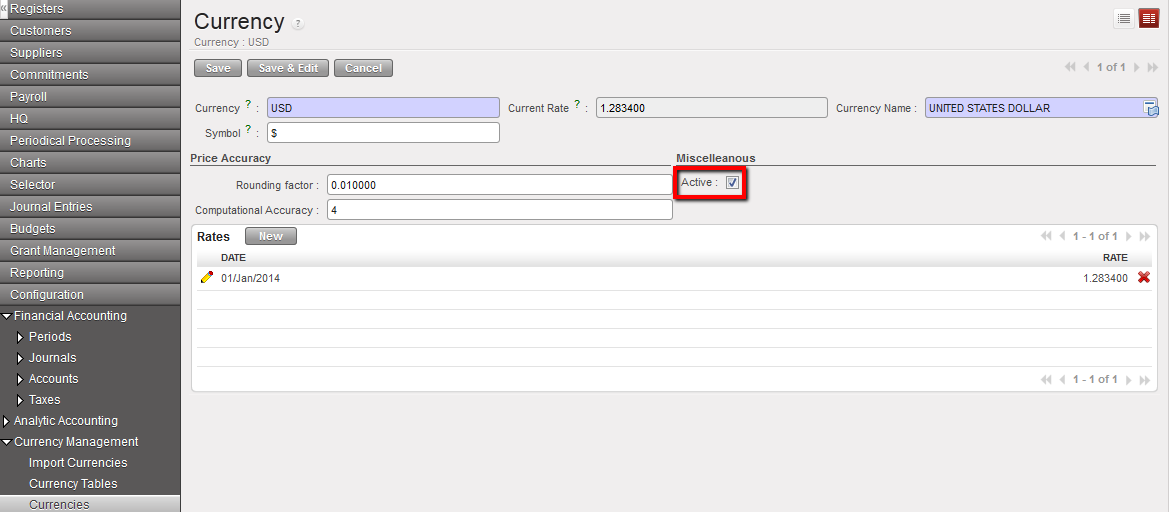
3. In the Form view, check the {Active} box and Save. In the below example, we activate the USD

The currency (USD) is activated. Entries can be recorded using this currency.


Checking the box “Active” to activate USD

How to Activate Multiple Currencies

You can activate multiple currencies by using the action Activate / Deactivate currencies by selecting currencies from the currencies list:

Go to: Accounting/Configuration /Currency Management/Currencies

  1. Clear the default current filter {Active} by clicking on the button {Clear}.

A list of standard currencies appears (active and inactive)

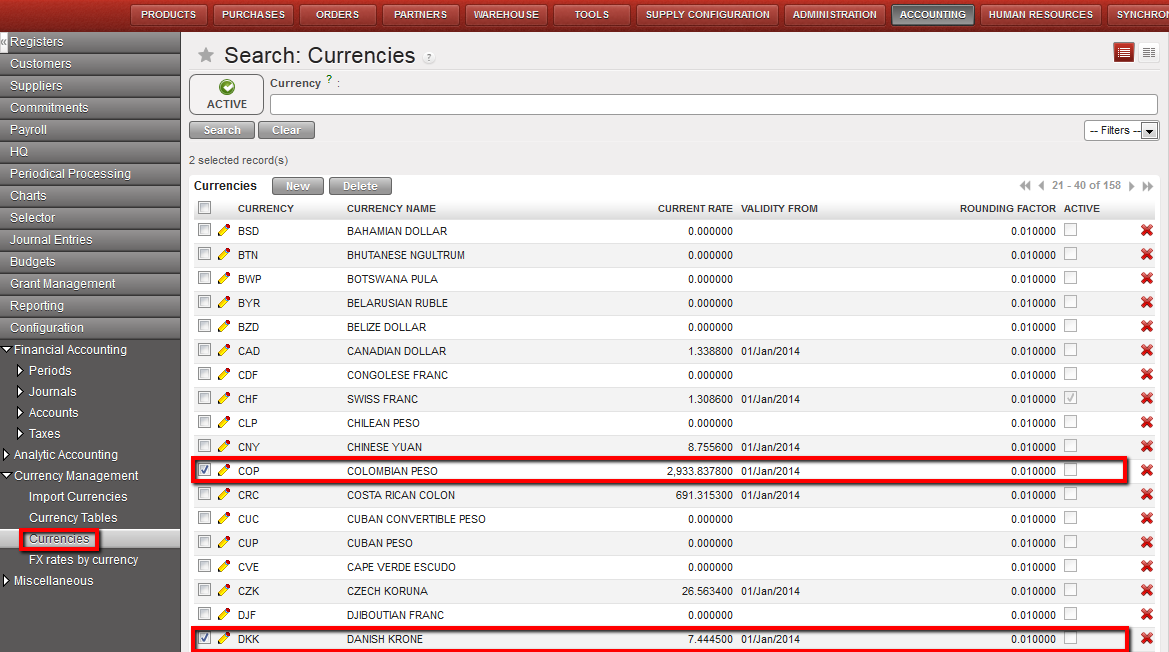
2. Select the currencies to activate. Here we want to activate DKK and COP.


DKK and COP selected for activation

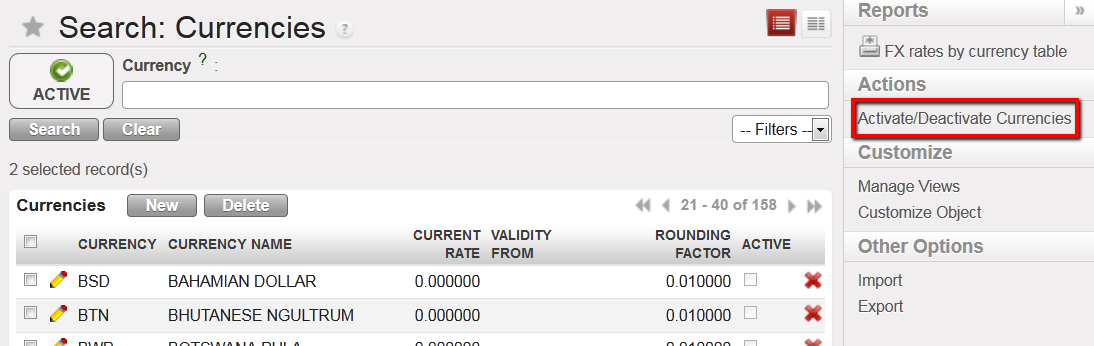
3. On the right side of the screen, select the action Activate / Deactivate multiple currencies


Action function to Activate / Deactivate multiple currencies

A windows pop-up to conform the action

Active / Deactivate Currencies window

  1. Select {Approve}
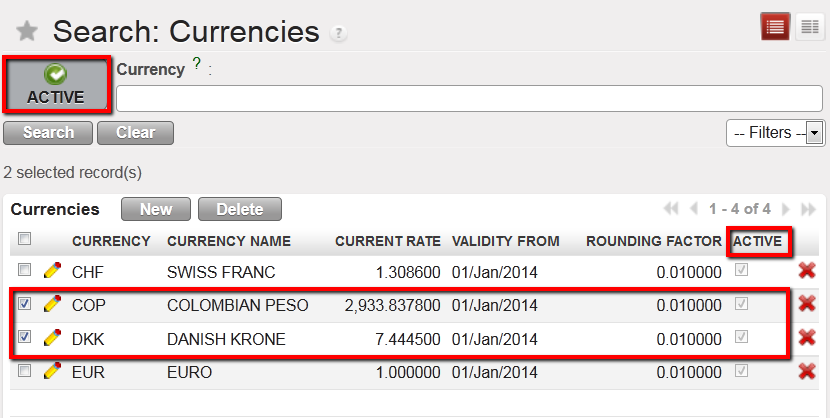
  2. Check whether the currencies were activated in the currencies search view by selecting the Active filter

DKK and COP are active

To track changes on the currencies:

Go to > Accounting/configuration/currency management/currencies

You will be able to track below:

  • the creation of the currency
  • The editions of every field, including the changes on the rates.
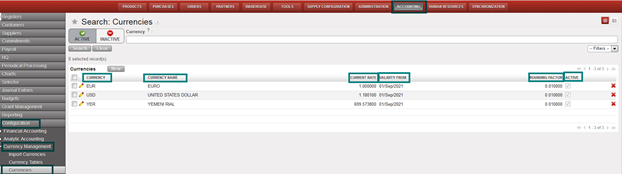
Display of track changes for “Currencies”