LUFI-20301 Currency Files Loading

Finance User Manual ENG -> 2. Finance Configurations ->  2.3 Multi-Currency Management -> LUFI-20301 Currency Files Loading

LUFI-20301 Currency Files Loading

LU Introduction

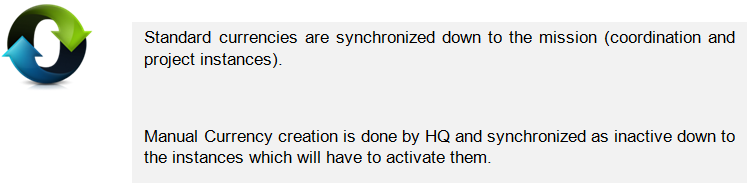
When a new mission is opened, a list of standard currencies is loaded at HQ level with current FX rates and then synchronized as inactive to the field. For specific use in the field, a non-standard currency can be created manually by HQ and synchronized to the field as inactive, too.

See LUFI-20204 Manual currency creation for further information.

How to Load Standard Currencies in an Instance

As MSF expects the same exchange rates to be used across all missions, currency creation should only take place in the Headquarter instance as it is then synchronized downwards to all missions.

Go to the following website to download the file:

http://ec.europa.eu/budget/contracts_grants/info_contracts/inforeuro/inforeuro_en.cfm

This link is just an example; please refer to your section procedures to find out which website you should use or create your own CSV file

CSV Currency Exchange Rate File

  1. Select the rate period as the reference period to display the FX rate and select {OK}.
  2. Click on {Download in csv format} and save the file.
  3. Check if rates were properly downloaded.
  4. Copy/paste them into your currency import file
  5. In UniField go to Accounting/Configuration /Currency Management/Import Currencies.
  6. Browse the file to upload and click on {Import}.
  7. Click on {OK}.
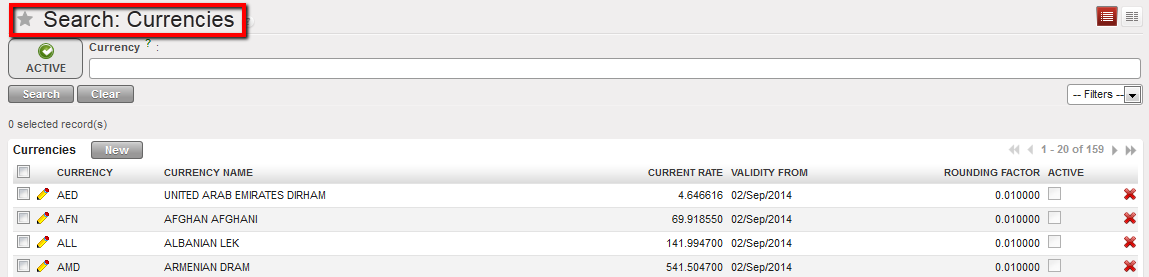
  8. In UniField go to Accounting/Configuration /Currency Management/Currencies

A list of currencies displays with their corresponding FX rate


Currencies List displayed in the Currencies Search view

9. Synchronize

2.3 Multi-Currency Management.

Finance User Manual ENG -> 2. Finance Configurations ->  2.3 Multi-Currency Management.

LUFI-20301 Currency Files Loading
LUFI-20302 Currency Activation
LUFI-20303 Currency FX Rate Update
LUFI-20304 Applied FX Rate over Multiple Periods
LUFI-20305 Manual Currency Creation
LUFI-20306 Manual Currency Update

2.3 Multi-Currency Management

MSF normally tracks cash movements in the local currency. We call these currencies the “Booking Currencies”. In addition, each OC has a consolidation currency. This currency is Euro for all sections except MSF Switzerland which consolidates its financial figures in Swiss Francs. We call these currencies the “Functional Currencies”. Monthly currency rates can be loaded into UniField in order to provide accurate values of accounting entries in functional currency.

In addition to monthly currency rates, specific currency tables can be used in various situations. There may be a case where an institutional donor defines a fixed or variable rate to be used for reporting purposes. With UniField, users are able to create currency tables and attach them to a grant in order to generate donor reports with compliant rates. Please see LUFI-60301 of Chapter 6 Donor management.

Specific currency tables can also be created to value actual budget rates and explain budget vs. actual discrepancies notwithstanding FX rates variation effects. In addition, specific currency tables can be used to revaluate balance sheet account balances at a year-end closing rate.

These tables must be created and imported in the HQ instance and once validated, they will synchronize to the field instances.


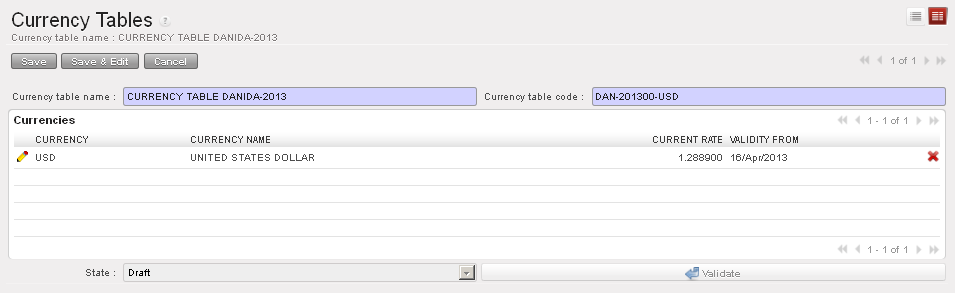
Currency table Form view

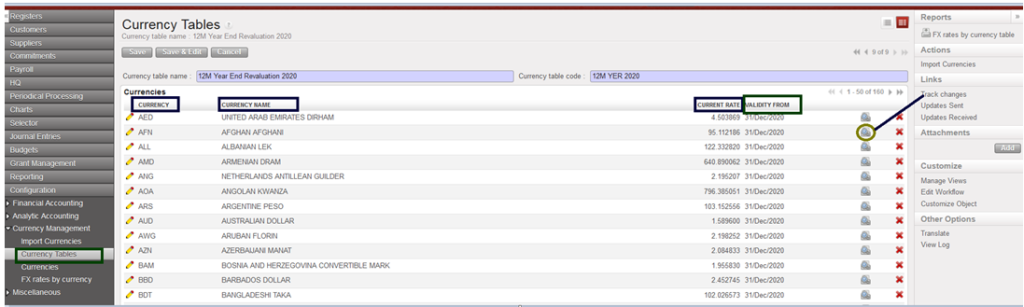
Track changes in the screen of  “Currency Tables” :

The track on “Currency Tables as below:

  • the creation of the currency table
  • the editions of the code, the name, the state, the addition and deletion of currencies
  • to see the changes on a currency itself: click on the button on the right of the currency line .
Display of track changes after editing one currency table from yellow pen

Further information on donor currency tables can be found in UniField Finance User Manual Chapter 6 Donors, Funding Pools and financing contracts.

In UniField you will be able to:

  • Manage a list of standard and non-standard currencies (manually or with a downloaded file)
  • Activate/inactivate currencies
  • Book and display automatic accounting transactions in booking and functional currency in the financial and analytical journals.
  • Manage several currency tables attached to budget, grant and revaluation
  • Automatically calculate and book exchange rate gain/loss

LUFI-20203 Configuration Fiscal Year Dates

Finance User Manual ENG -> 2. Finance Configurations -> 2.2 Fiscal Year and Accounting Periods -> LUFI-20203 Configuration Fiscal Year Dates

LUFI-20203 Configuration Fiscal Year Dates

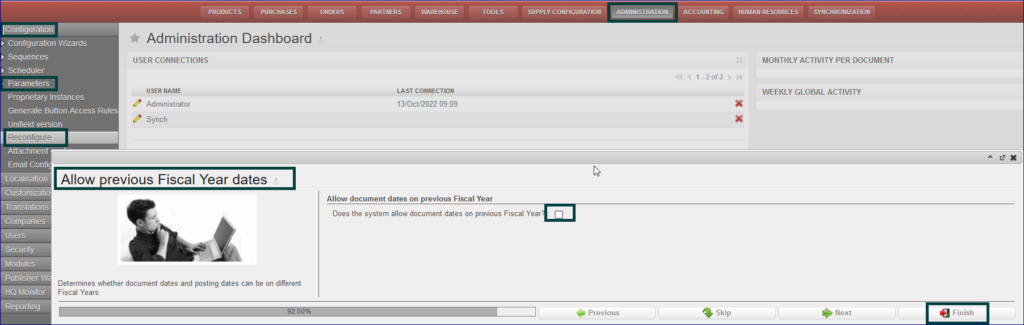
It is possible for any OC to choose whether to allow document dates from previous fiscal year or not. A new option is added in the Reconfigure “Allow document dates on previous Fiscal Year“. During instance creation, if you want to allow having documents dates from previous fiscal year then you need to tick the box. According to the current internal procedures on each OC, this box will be ticked only in OCB and OCP for the auto creation, the process as below:

Go to Administration> Configuration > Parameters > Reconfigure

It will open new window “Allow previous Fiscal Year dates

Tick on box with “Does the system allow document dates on previous Fiscal Year?

Click on “Finish

Reconfigure previous fiscal year dates

LUFI-20202 Accounting Period Opening

Finance User Manual ENG -> 2. Finance Configurations -> 2.2 Fiscal Year and Accounting Periods -> LUFI-20202 Accounting Period Opening

LUFI-20202 Accounting Period Opening

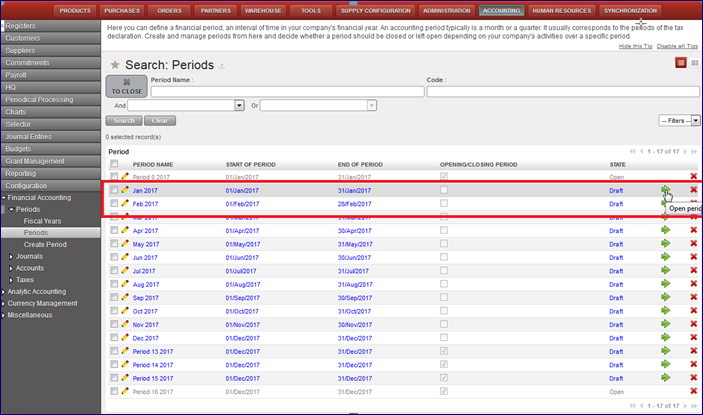
Go to Accounting/Configuration/Financial Accounting/Periods/Periods

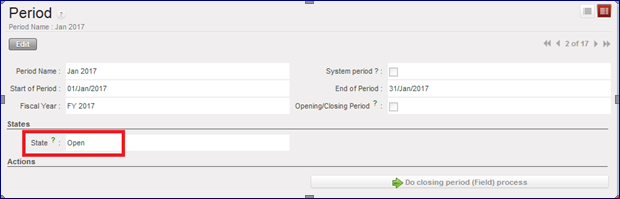
  1. Click on the green arrow  to open the relevant accounting period. In the below example, we want to open January 2017.

>>>  The accounting period is {Open}.

Green Arrow to select to open January 2017
Form view of the period January 2017 display the state {Open}

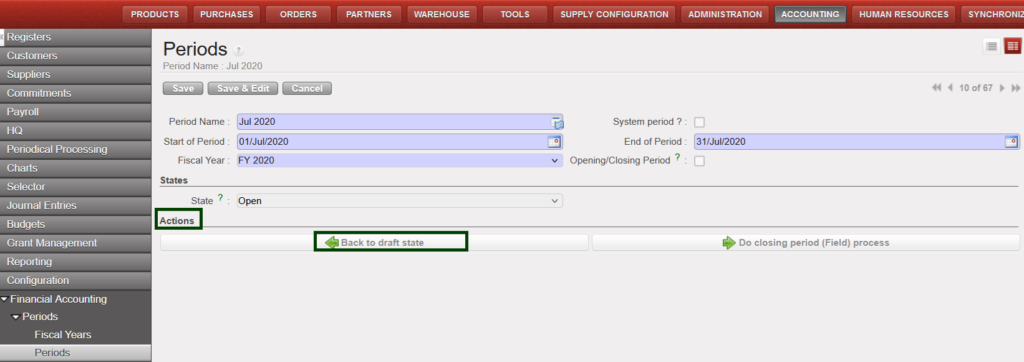
Possible to set period back to draft state in case the period opened in mistake and no JI line    created as below with example Jul 2024 period opened in mistake:

How to set period back to draft state

2.2 Fiscal Year and Accounting Periods

Finance User Manual ENG -> 2. Finance Configurations -> 2.2 Fiscal Year and Accounting Periods

LUFI-20201 Fiscal Year and Periods Creation
LUFI-20202 Accounting Period Opening
LUFI-20203 Configuration Fiscal Year Dates

LUFI-20201 Fiscal Year and Periods Creation

LU Introduction

Fiscal years and accounting periods have to be defined in order to establish a timeframe for all accounting entries. At MSF, the fiscal year corresponds to the calendar year starting from January 1st and ending on December 31st.

In UniField, creating accounting periods automatically generates the creation of the corresponding fiscal year in {Open} state. UniField creates 12 periods and 5 extra-accounting periods (e.g. for fiscal year opening balances, adjustments posting or corrections required by auditors) by default.

The fiscal year and accounting periods are created at HQ level and synchronized downwards to the mission (coordination and projects) in {Draft} status. The periods are in {Draft} status until an authorized user opens them.

Note! Periods 0 and 16 are automatically in {Open} status and their status cannot be manually modified.

How to set the configuration for Fiscal Year

To set the configuration setup related to FY closure, you go to HQ instance and follow the below steps:

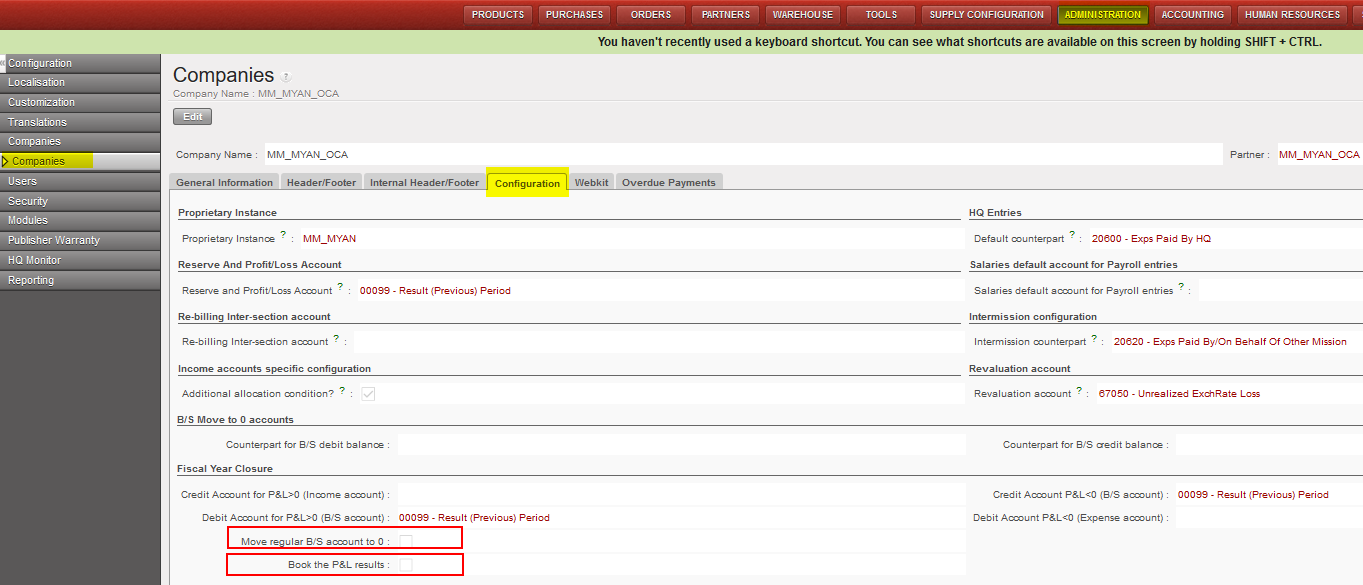
Go to Administration/Configuration/Select the instance/Configuration

  • You will have two main tick boxes for that “Move regular B/S account to 0” and “Book the P&L results”
  • When proceeding the yearly closure, system will check the company configuration to apply the option of (move regular B/S) and/or option of (Book the P&L).
  • The checkboxes which should be ticked must be effective just at coordination level.
  • The checkboxes which should be ticked will be anyway in the view at project, coordination and HQ level.

For each OC section, the selection should be done as below based on their internal procedures:

  • OCG:

Tick Move regular B/S account to 0

  • OCB:

Tick Move regular B/S account to 0

Tick Book the P&L results

  • OCA:

No tick in the checkbox

  • OCP:

No tick in the checkbox

How to Create a Fiscal Year and Associated Accounting Periods

The Headquarter instance will create the fiscal year and synchronize the information downwards to coordination and the projects.

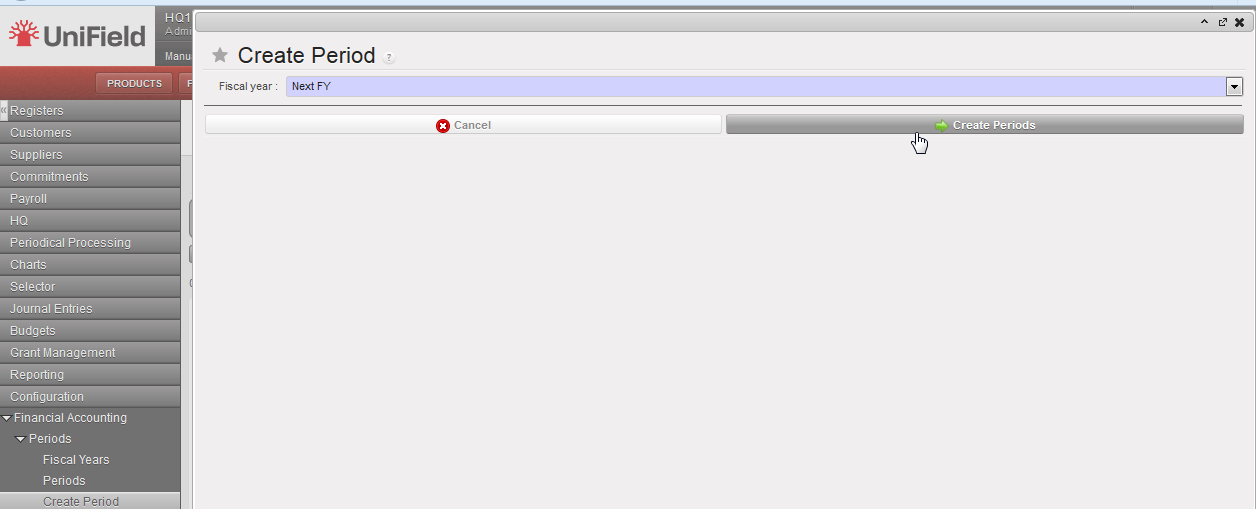
Go to Accounting/Configuration/Financial Accounting/Periods/Create Periods

  1. In the field {Fiscal year} select {Next FY} or {Current FY} if you want to create the current fiscal year. In the below example, we want to create the (next) FY 2017.


Fiscal Year selection: Current or Next FY

2. Click on {Create Periods} and go to Fiscal Years.

The fiscal year is created in {Open} state.


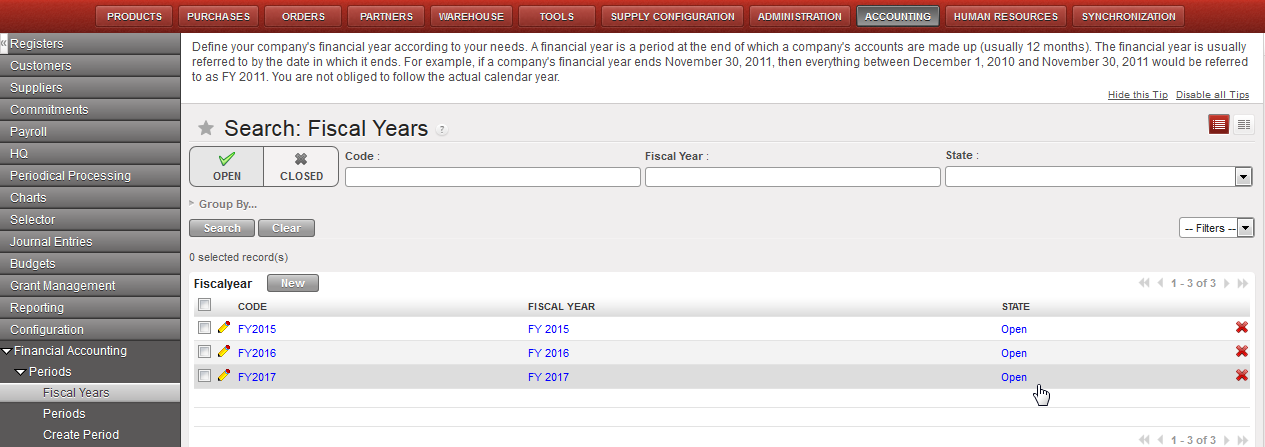
FY 2017 is displayed in {Open} state in the Search Fiscal Years view


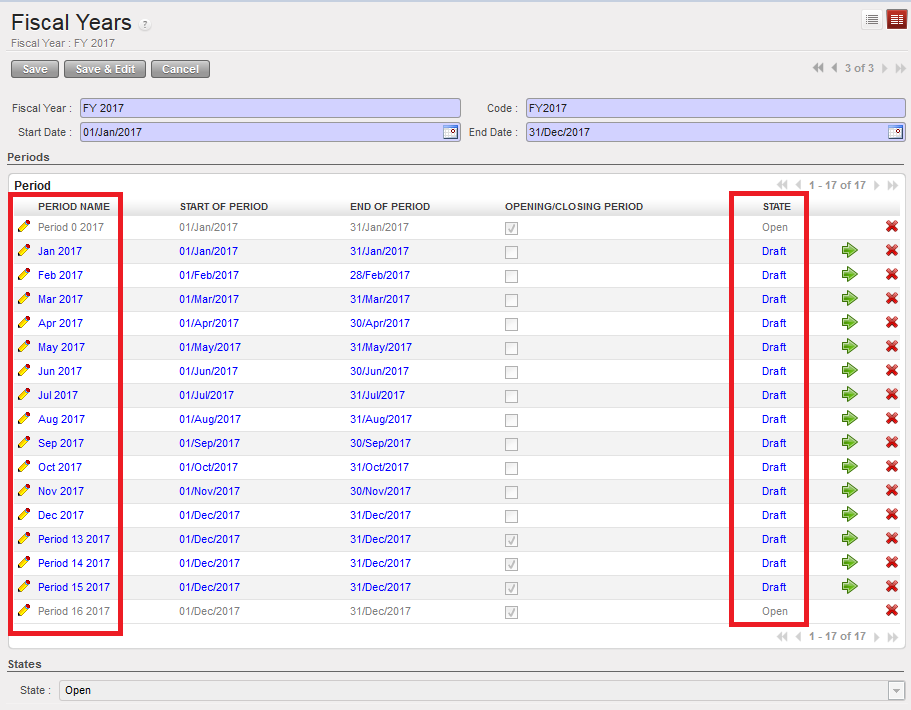
When the fiscal year is created, the accounting periods are in {Draft} status. Periods 0 and 16 are automatically in {Open} status and their status can’t be manually modified.

There are 12 periods plus 5 additional ones displayed in the Fiscal Years Form view.

Field titleentry protocol: fiscal years formSource for Information
Fiscal Year NameFY YYYY (e.g. FY 2017) automatic inputSystem
CodeFYYYYY (e.g. FY2017) automatic inputSystem
Start DateDD/M/YYYY (e.g. 01/Jan/2017) automatic inputSystem
End DateDD/M/YYYY (e.g. 31/Dec/2017) automatic inputSystem

2.1 Chapter Overview: Finance configurations.

Finance User Manual ENG -> 2. Finance Configurations -> 2.1 Chapter Overview: Finance configurations.

2.1 CHAPTER OVERVIEW

The Configuration module is the first module to complete before starting to use UniField. In order to function properly, UniField requires completing this module.

Most of the configuration of the instances is done in this module.

The initial configuration of a UniField instance is only done one time and it deals with data that cannot be undone later such as the Fiscal year and Accounting periods, Chart of Accounts, Financial and Analytical Journals, Currency, Internal and Intermission partners, ICT products and the Proprietary Instances. However during the project implementation, a need of introducing new financial items can arise for instance adjusting the project address, adding new cost centers to a proprietary instance, local suppliers, VAT, etc. These parameters can be added later on.

Most of the financial master data is set in the HQ instance. The data is then sent to Coordination and Project instances via the synchronization engine.

UniField introduces a new process which allows standardising the data exchange across different locations. It’s called the synchronization process. The data exchange follows a set of rules named synchronization rules which define the data exchange direction among the instances. Some data is sent downwards, from HQ to Coordination, other upwards from Project to Coordination or bi-directionally (downwards and upwards).

For instance, a liquidity journal (cash, bank or cheque) created in a project instance and then synchronized will be displayed in the list of liquidity journals in the coordination instance (upwards). This allows coordination to perform some checks on the project’s journals. Any corrections done at coordination level on a project posted journal entry will be reflected at project level via the synchronization (downwards).

At the end of the chapter, you will find a table which explains in which instance data is set and how it is synchronized.

The synchronization is an automatic process performed on a daily basis and scheduled by the IT staff. It is possible to launch the synchronization also manually at any point of time if needed.

Please remember that some UniField functionalities were developed to match certain OC’s procedures. They are highlighted with a star *.

After completing reading this chapter you will be able to:

  1. Understand which parameters are essential to set in UniField instances to properly record financial transactions
  2. Understand how these parameters are created in the instances
  3. Install the parameters either at HQ, Coordination or Project according to the nature of the data
  4. Manage the synchronization process manually and monitor the results

2. Finance Configurations.

Finance User Manual ENG -> 2. Finance Configurations.

2. Finance Configurations.

2.1 CHAPTER OVERVIEW: Finance Configurations

2.2 Fiscal Year and Accounting Periods

2.3 Multi-Currency Management

2.4 Financial Accounts

2.5 Analytic Accounts

2.6 Financial Journals

2.7 Liquidity Journals and their Corresponding Registers

2.8 Suppliers and Customers

2.9 Products and Product Categories

2.10 VAT and Taxes

2.11 Company Set Up

2.12 Finance Configurations’ Synchronization

Track Changes in UniField

Finance User Manual ENG -> General Finance_en -> Track Changes in UniField

Track Changes in UniField

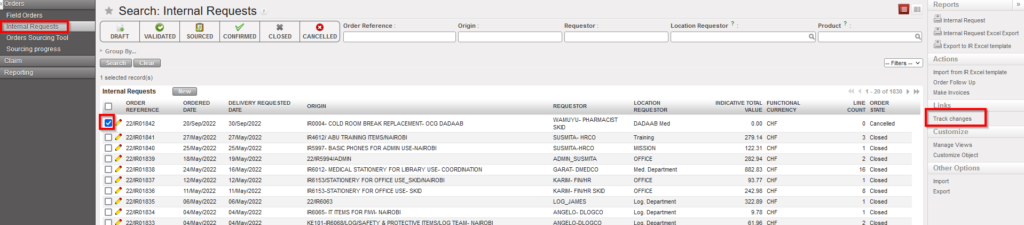
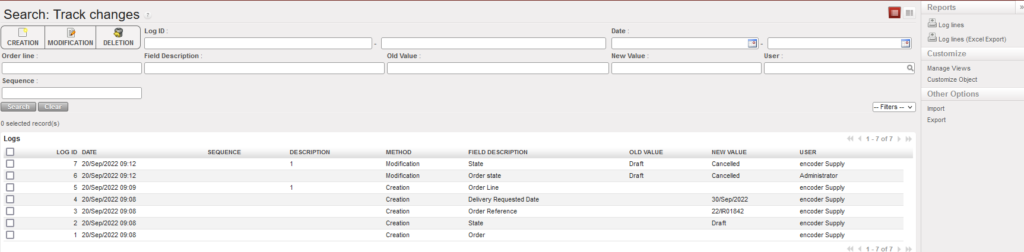
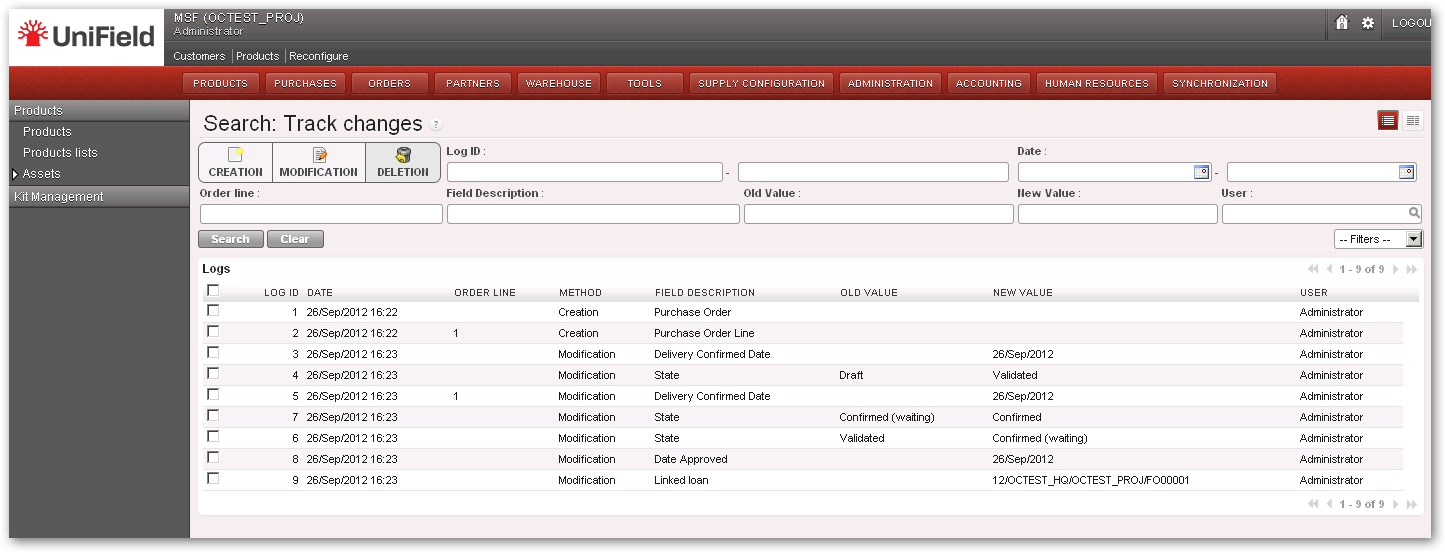
For an easy follow up of the history of changes of supply/finance objects, users can use the Track changes on the right action menu to display information about changes for many objects in supply/finance:

Example of one of the objects – Track changes
Information displayed in Track changes report

This option is available for below supply/finance objects:

Supply Objects:

  1. IRs
  2. FOs
  3. RFQs
  4. POs
  5. INs
  6. OUTs
  7. Pick (Parent & child)
  8. Products

Finance objects:

  1. Registers
  2. Customers
  3. Suppliers
  4. HQ Entries
  5. Journal Items
  6. Journal Entries
  7. Budgets
  8. Grant Management
  9. Periods
  10. Journals
  11. Accounts
  12. Taxes
  13. Analytic Accounting
  14. Currency Management
  15. Product Categories

1.4 System Help and Suggestions

Finance User Manual ENG -> General Finance_en -> 1.4 System Help and Suggestions

LU-GE 0104 System Help and Suggestions

How to Use the UniField Helps and Suggestions?

Searching Tools

Many options are given to users to optimize searches. The system facilitates filtering and searching for groups of important documents using the relevant buttons.

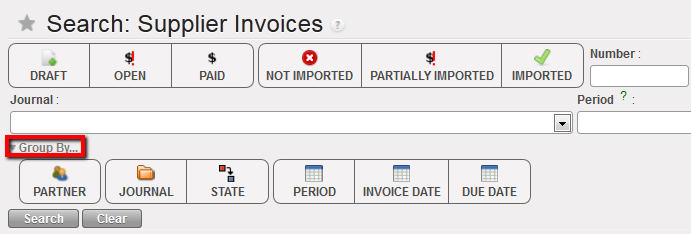
Supplier Invoice search options

  1. Filter buttons: when a filter is active the button turns dark grey; click again to deselect. It is important to note that the system’s searching options are based on “and” not “or”, so in this example pressing the filter buttons {Draft} and {Paid} will look for documents with status Draft AND Paid and therefore it will return zero documents as an invoice can only have one status at a time.

In some search views there is a filter button selected by default. Normally it is the button that shows all open documents to avoid seeing cancelled and closed documents.

In some search views there is a filter button selected by default. Normally it is the button that shows all open documents to avoid seeing cancelled and closed documents.

  1. In all search views, there are also default search fields. These fields are usually chosen according to the importance of the object (related to the list view column) and provide a quick way to search without building a query. They can be text fields, look-up fields or drop-down menus.
  2. {Group By} button filters show the search results by group according to the selections made


Group by filters

  1. {Search} button executes the search, while the {Clear} button clears all filters so all records are returned

Printing

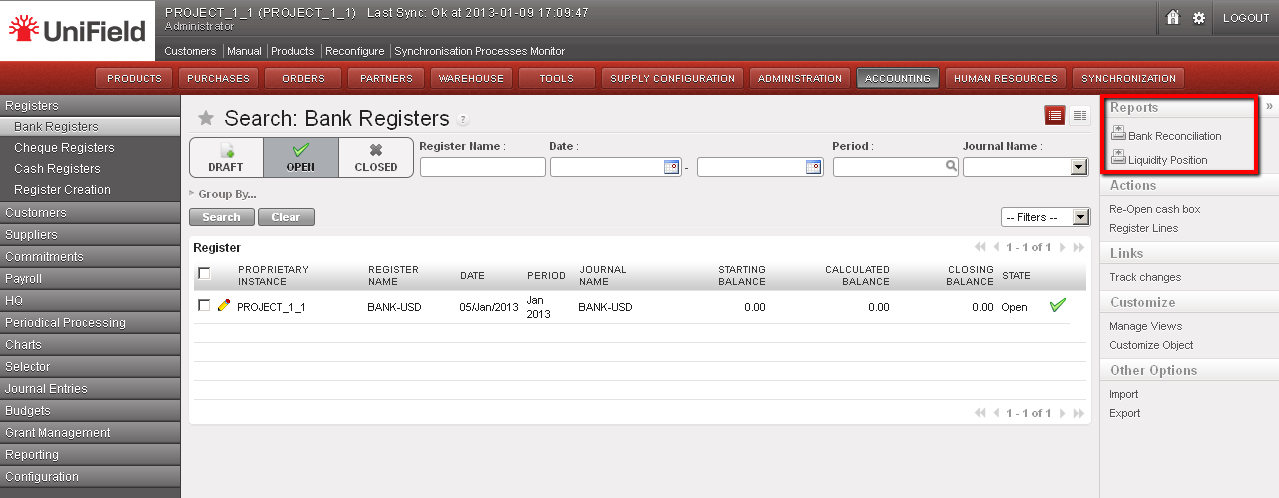
Printing in UniField is always generated via a pdf, xls or csv file; printing options are located in the {Action Menu} on the right-hand side of the screen. All the options under {Reports} are usually printable; this will work on views, search and form.


Printing report options in the {Bank registers} sub-module

Exporting and Importing Documents

  1. Exporting

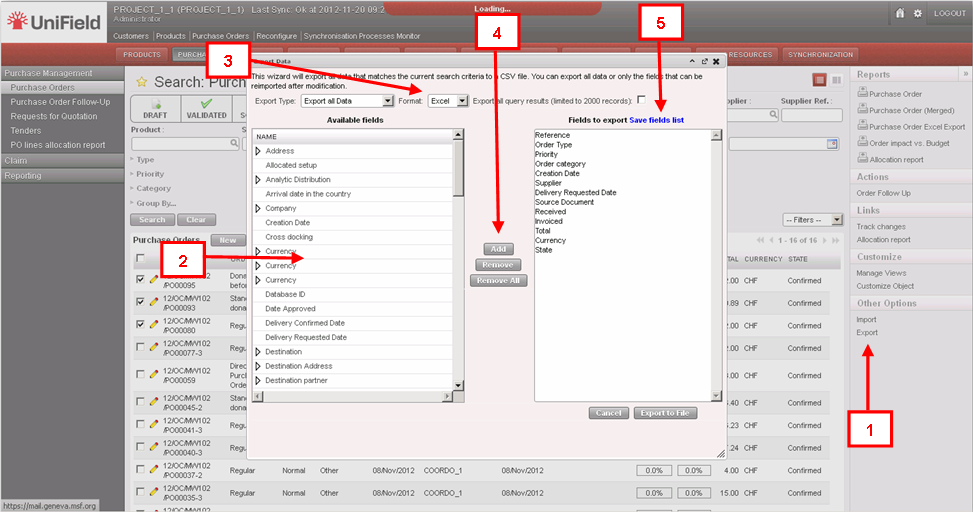
Exporting capabilities in UniField are various. An export can be in PDF, Excel, XML or CSV formats. If the task allows exporting the option is located in the {Action} menu on the right. The user must have the appropriate user rights to perform an export. The user should select the columns to export as well as the format.


Export file or data

Exporting step:

  1. Select the line/ product/partner or other transaction, display the {Action menu} on the right and click on {Export}.
  2. The export wizard will appear, the user will need to choose the fields to export
  3. The most common format is xls or csv.
  4. Once the fields to export have been selected, use the {Add} button to display the content to export in the right column and click on the {Export to file} button
  5. If this type of export is performed regularly, the system offers the possibility to save the list to use repeatedly. The exported file will contain the default fields listed. It is possible to add to the default data which will be exported by selecting from the Available fields (2) and clicking on the {Add} button (4).
  6. Importing

The UniField importable file types are XML, XLS or CSV. The format depends on the business application, module and transaction (most often is in XML).

There are four different import types:

  • Those related to the data migration when installing and configuring an instance (e.g. initial stock level import)  
    • This type of import will be seen in the module 02 – Configurations
  • Specific imports from another software for accounting matters (e.g. HQ entries, Payroll)
  • Those related to transfer of data from one object to another inside UniField to avoid retyping them (e.g. importing a Supplier Invoice into a register to pay it)
  • Those related to the creation of some documents or entries, in order to ease and make the job quicker (e.g. import of product lines into IR or FO, Tender or PO, import of journal items or register lines).

It is extremely important to have the exact right import format with exact column descriptions.

The import functionality can be found directly from inside a specific transaction (by clicking on the {Import} button) or from the {Action menu} on the right hand side of the screen.

Please note: The import functionality is linked to specific business applications and modules, so please refer to the relevant user manual for specific actions. In many UF modules the import option is available.

Opening the Application in a Second Tab

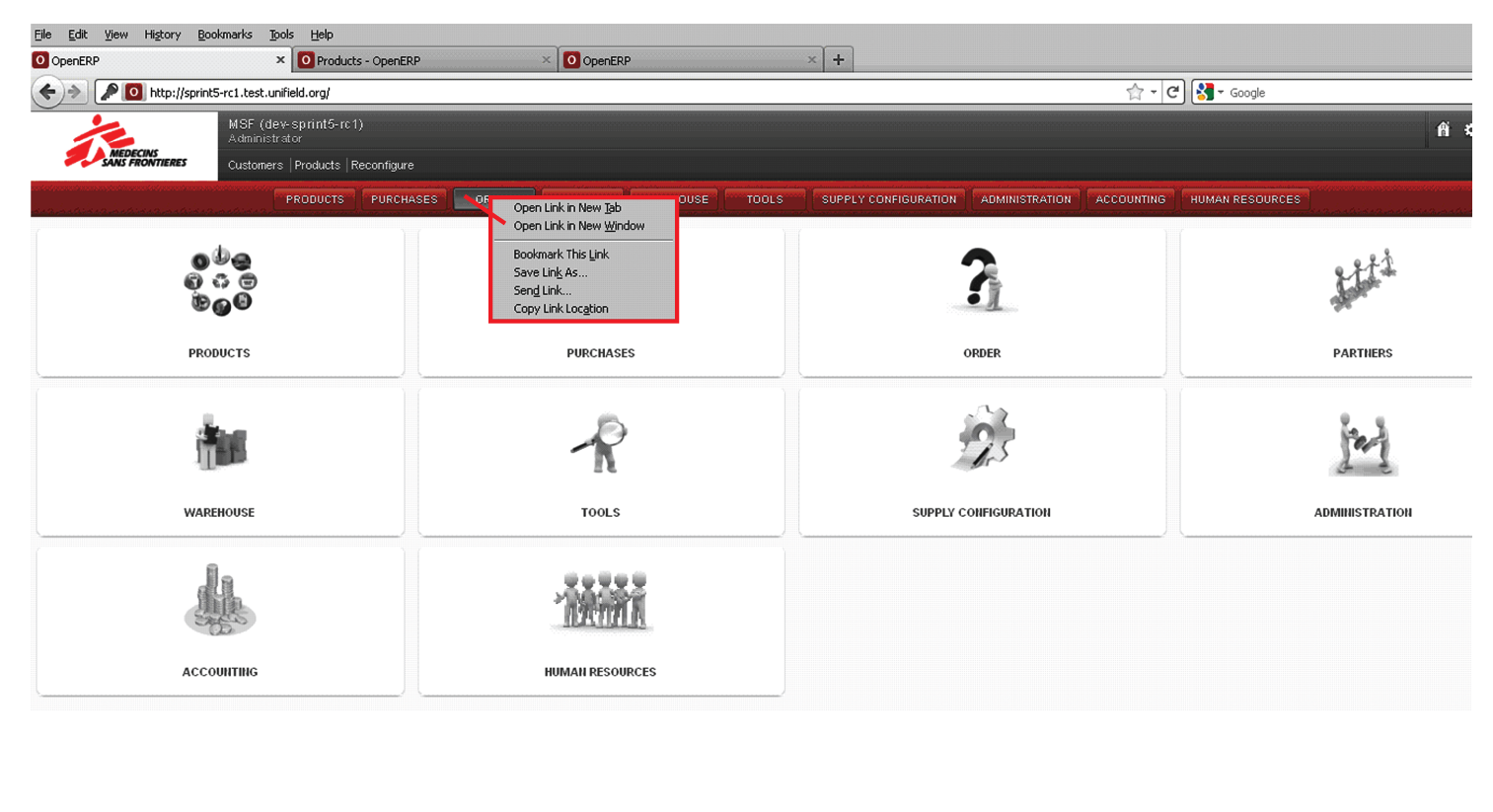
At times, it may be useful to open more than one screen at a time. It is possible to do this by right clicking on the button (on top) of the application you wish to see. A drop down menu will appear and if you click on the option “Open Link in New Tab” the application selected will be opened in the next tab. It is also possible to drag the application button in to the browser header to open it in a new tab. In some cases, UniField will automatically open a new tab to display search results.


Opening a second tab

Viewing Track Changes


UniField offers visibility of how and by whom some documents have been modified. For example, for a Purchase Order, click on Track Changes on the right hand side {Action menu}. This will take you to a new screen where you will see any changes for this document (e.g. modifications, approvals, etc.) displayed together with the date this change was made and the user who made these changes.

Track changes for Supply can be viewed for Field Orders, Purchase Orders, Incoming Shipments, Internal Request, and Supplier Invoices. For Finance, track changes are available for example in Registers, Supplier Invoices and Journal Entries.


Track changes

Item Resources

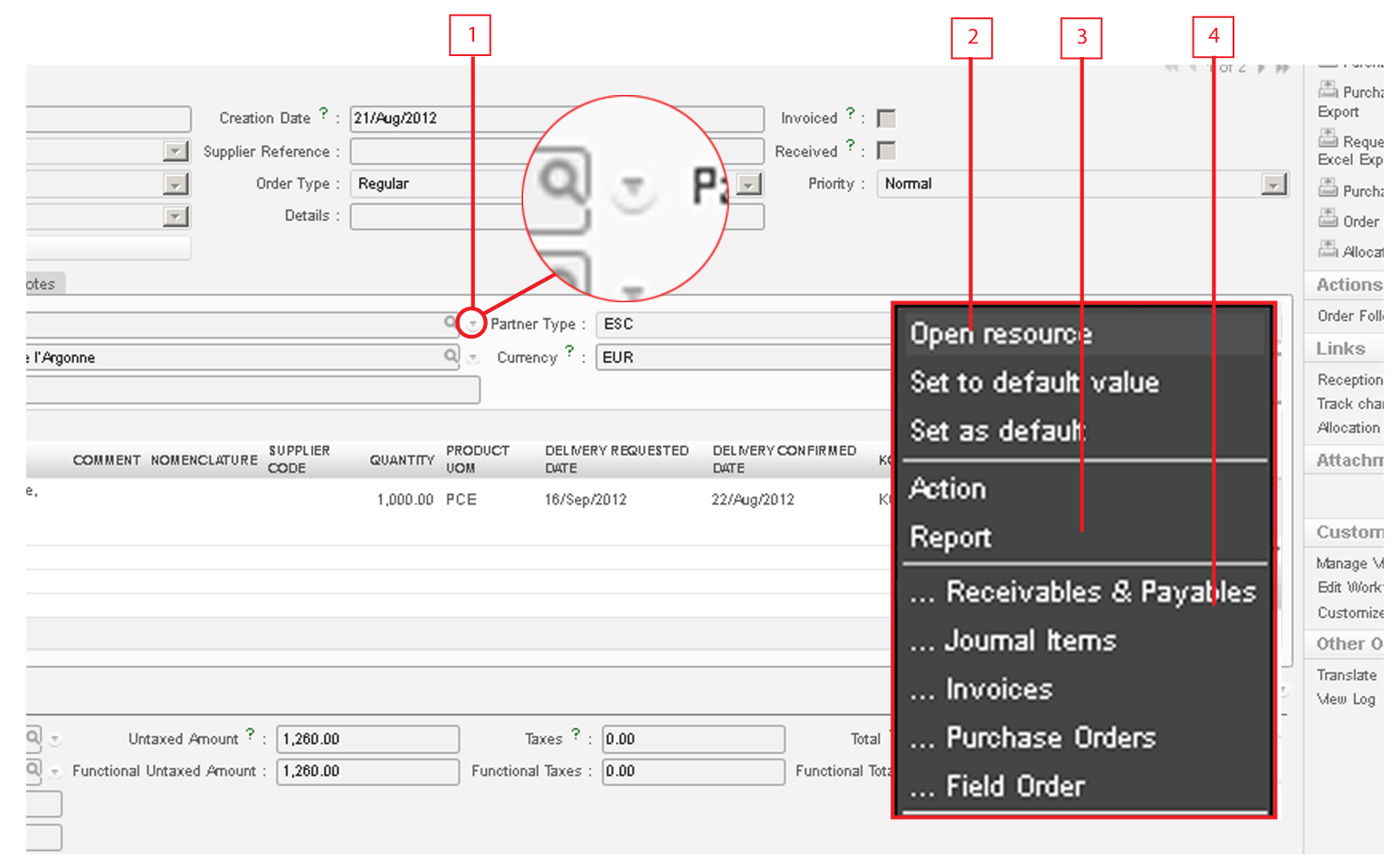
Throughout the system, the resources icon will be on the right side of some fields. This icon is a short cut to the main data of the field. For example, if in a PO you click on the resources icon of a supplier, the system will open the master data form regarding that supplier. The resources panel is divided into the following sections:


Resources menu

  1. Icon to access resources panel
  2. Links to open and settings, only available to administrator of the instance  
    • Open Resource: will open the related resource such partner, product, invoice, etc.
    • Set as default: choose this option to make the resource the default value. When you create a new entry, automatically this field will be set to the default value. If other value is required click on the magnifying glass or overwrite the text field.
    • Set to default value: choose this option to retrieve the previously set default value by right click or clicking on the icon.
  3. Actions or reports, only available to administrator of the instance
  4. Different documents where these particular resources may appear

Note! In some views parts of the sections are hidden in order to prevent using the default values where they are not supposed to be used (e.g. setting up a wrong journal for accounting entries).

System Process Workflows

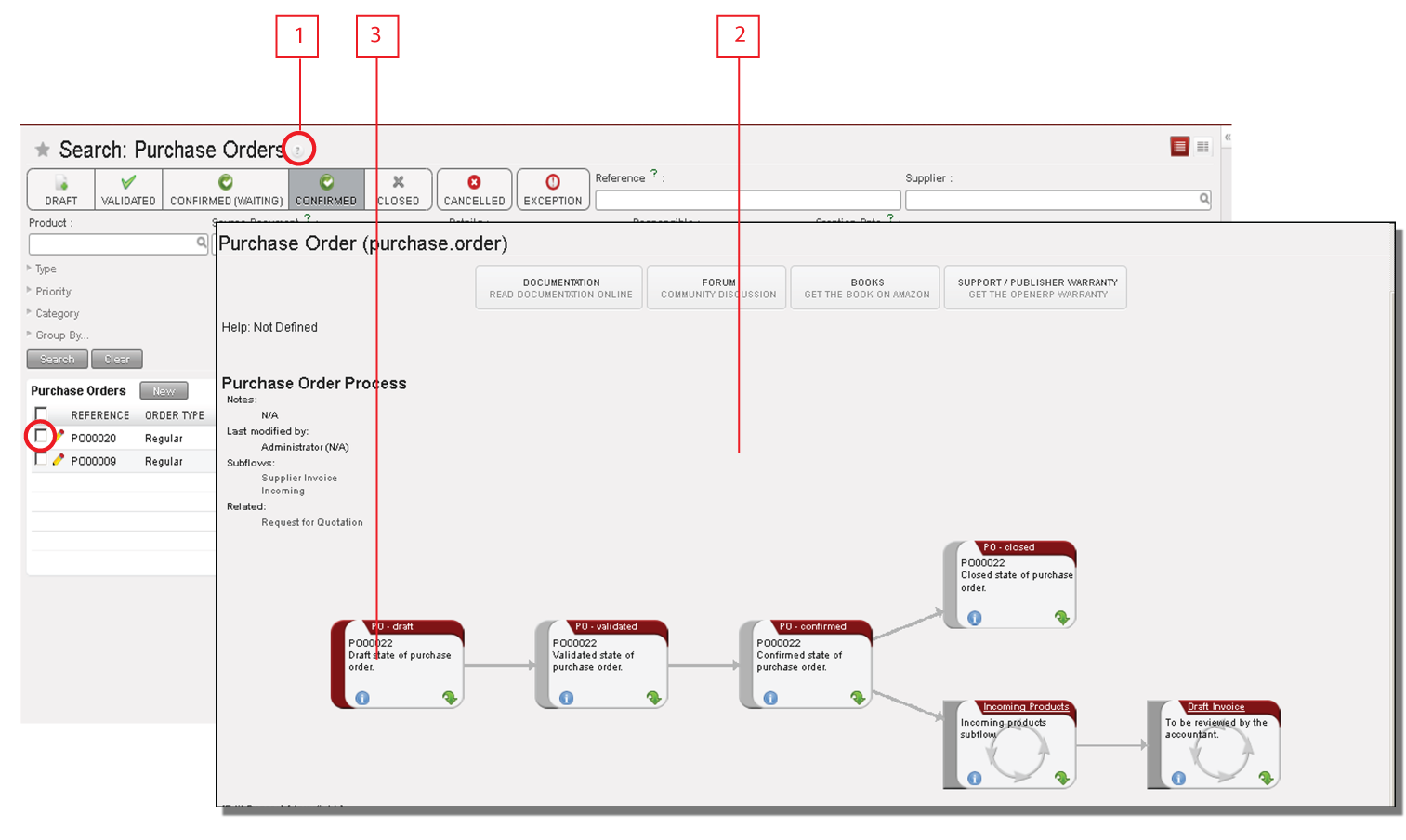
UniField has integrated process work flows to view most of the order types in a graph showing the process and status. The workflows can be viewed by clicking on the question mark in the dashboard view, as per figure below. This is a practical way to view and understand the full process and all the related documents.


System process workflows

UniField has the capacity to show users the workflow of different transactions. It can show the default work flow. For example, if an order is selected, it will display the specific workflow of the order and the steps completed.

  1. Click on the question mark and select from the menu the type of order in the {Select process} field.
  2. A new window will display a graph with the full work flow of the selected type of orders.
  3. If an order is selected it will display the steps already completed in red and the steps which are pending in grey.

The Green arrow will show that specific step in the system.

Warning Messages

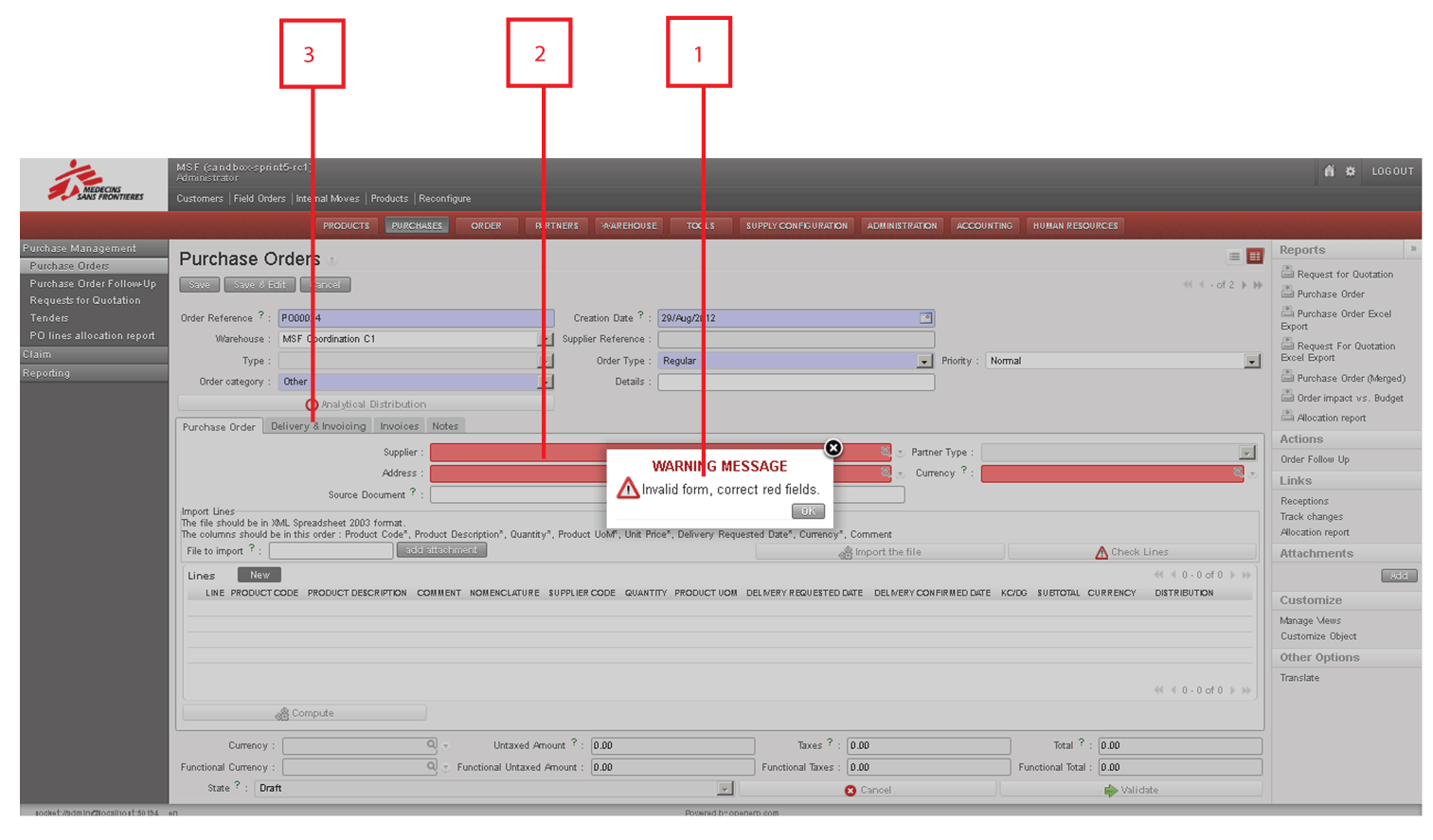
The system displays warning messages when some parameters are missing or incorrect, or to alert the user of something they may not be aware.

The key points to remember when a warning message is displayed are:

  1. The message displays descriptive information about the error
  2. Any incomplete or incorrect information is displayed in red
  3. The system displays all incorrect fields in red in all of the relevant tabs


Warning message


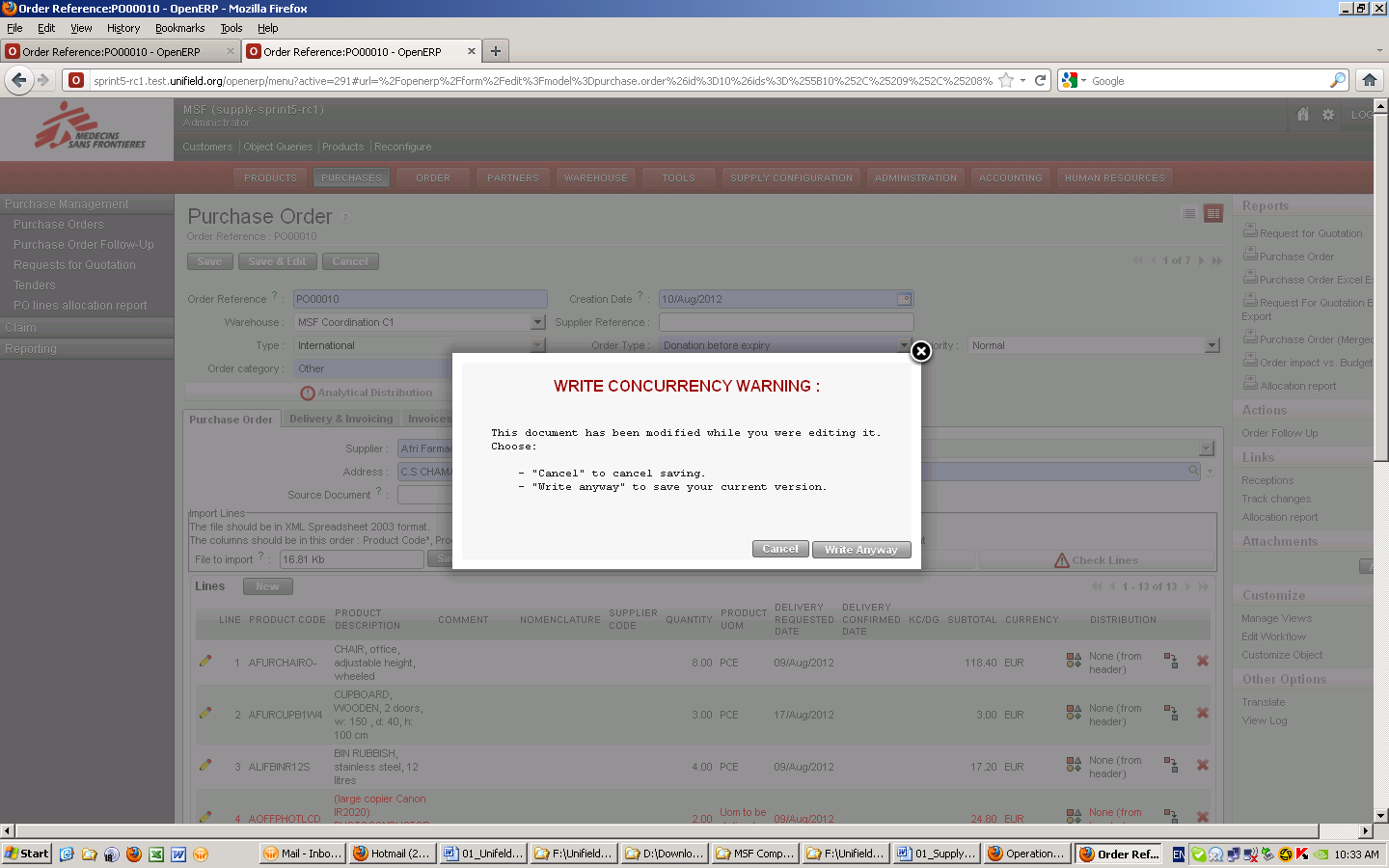
Write concurrency warning

The system may display this type of warning message after the user has tried to save a transaction. This warning message indicates that while the user has been viewing and editing this transaction, another user has modified and resaved the document during this time. The warning message will offer 2 options:

  • Cancel: cancels the transaction so that the user can reopen it and view the changes made by the other user, and if necessary modify again
  • Write Anyway: cancels any changes made by the other user, and will only save changes made by the user who is currently clicking on this option.

Wizards

Wizards in UniField present a user with a pop-up window or series of dialog boxes in which parameters are entered. Upon clicking {Ok}, the system executes pre-defined action instead of requiring the user to perform multiple steps. Wizards are intended to simplify tasks that are complex, infrequently performed, or unfamiliar.

Examples of financial wizards include:

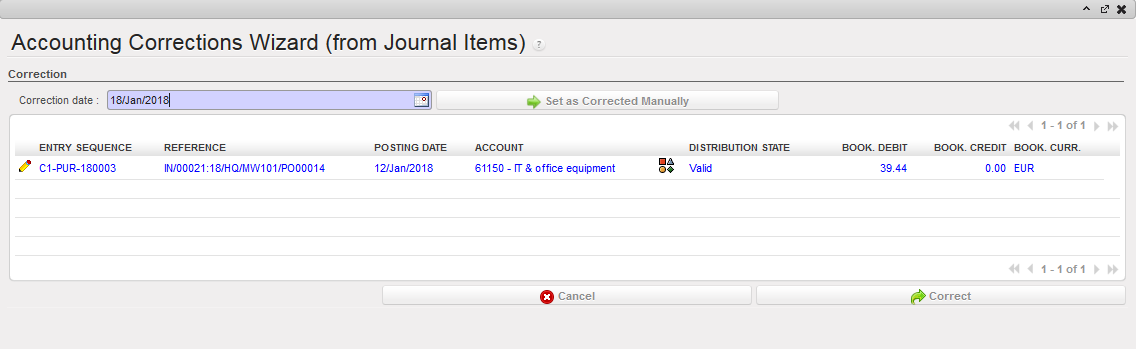
Accounting Corrections Wizard: Entries in Journal Items are automatically corrected with the values entered in the wizard.


Accounting Corrections Wizard

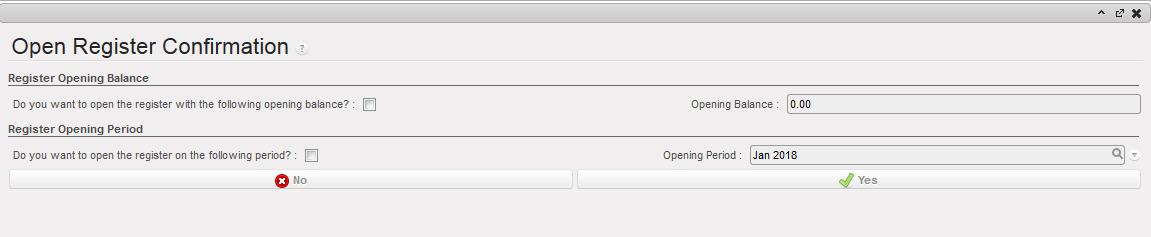
Register Opening Wizard: in cash, cheque and bank registers, user checks the tick boxes to confirm the correct period and the correct opening balance

Register Opening Wizard

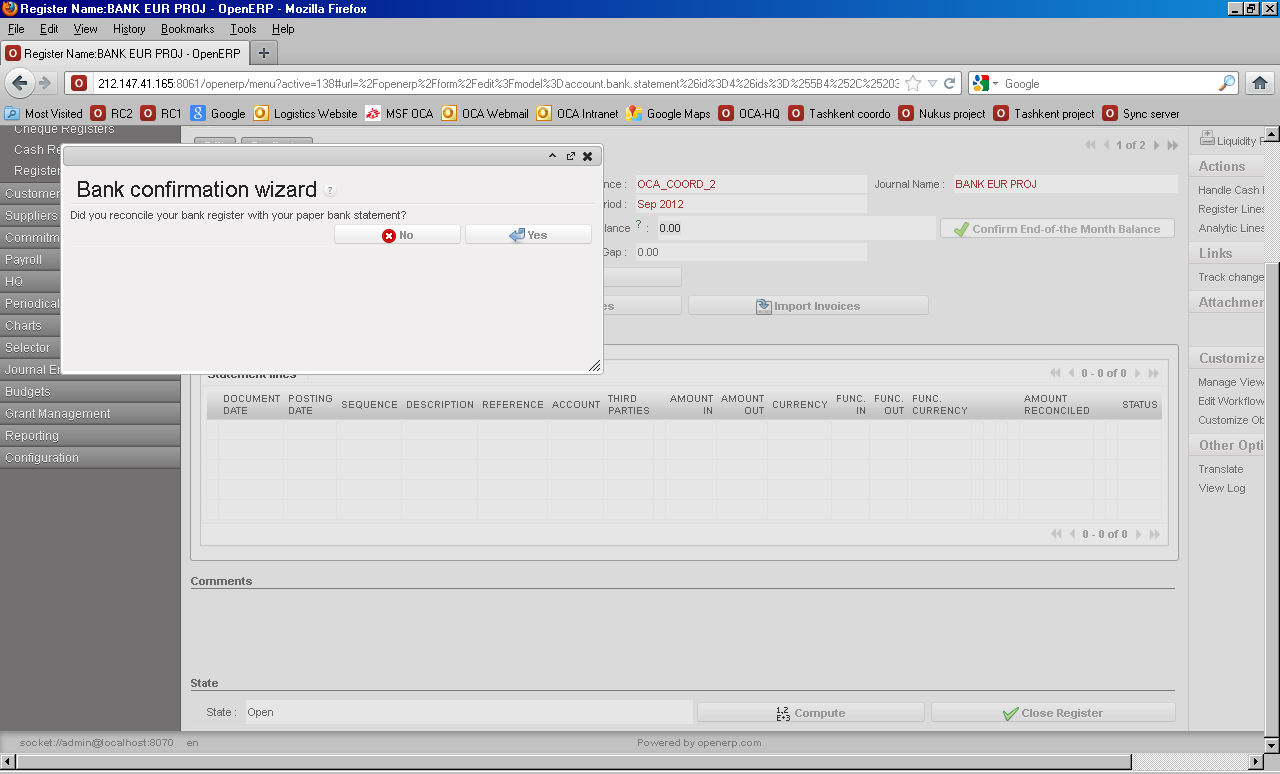
Bank Confirmation Wizard: user clicks {Yes} which changes the status of the Bank Register from {Open} to {Closed}


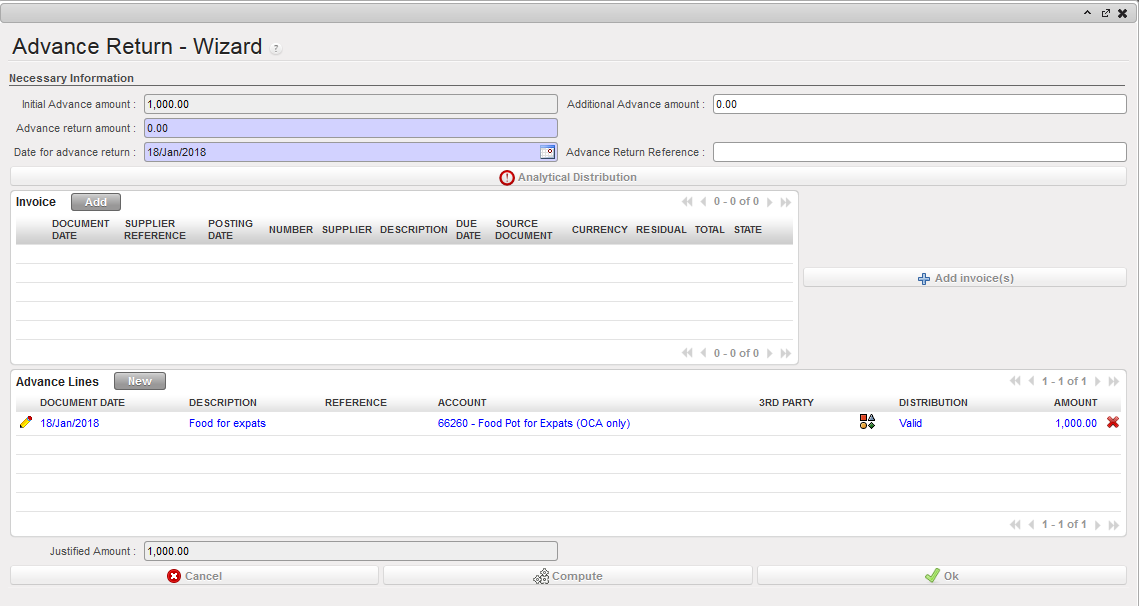
Bank confirmation wizard Advance Return Wizard: user enters expenses regarding the Operational Advance, the system verifies expense amounts and returned cash matched the advance given, and expenses as well as advance return entries are automatically created in the Cash or Bank Register.


Advance Return wizard

UniField Icons

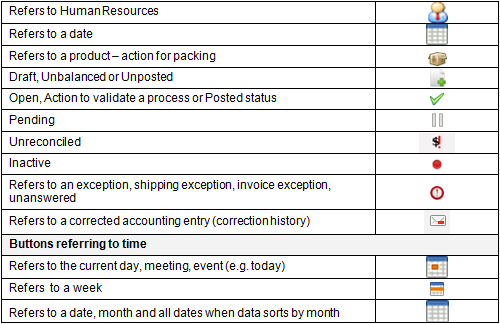
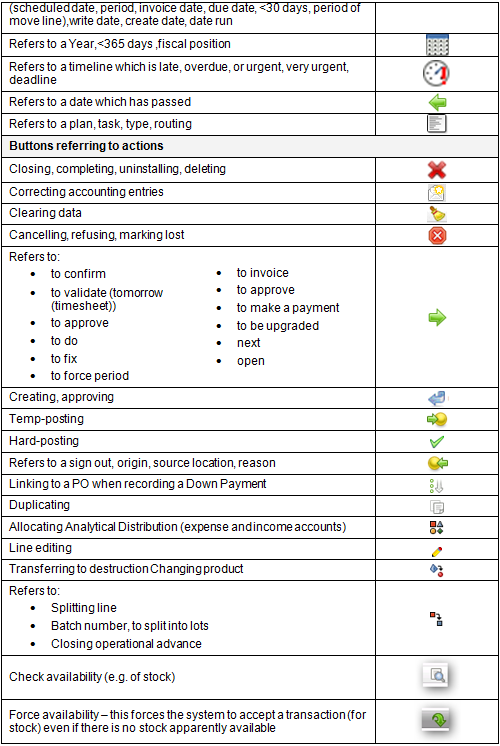
Most of the icons are in search view. All of the buttons have an icon relevant to the function. UniField uses a range of predefined icons.

Below are the most common icons:

1.3 UniField Main Screens and Views.

Finance User Manual ENG -> General Finance_en -> 1.3 UniField Main Screens and Views.

LU-GE 0103 UniField Main Screens and Views

How to Use the UniField Main Screens and View?

UniField Log In

UniField is a web based application. To access the application the user must have a previously defined username and password. New usernames (logins) are created in the Coordination data base.

The three parameters required are:

  1. A database (i.e. an instance) to connect the instance.
  2. A username, created in advance and to be linked with the user rights.
  3. A password, created specific to the username.
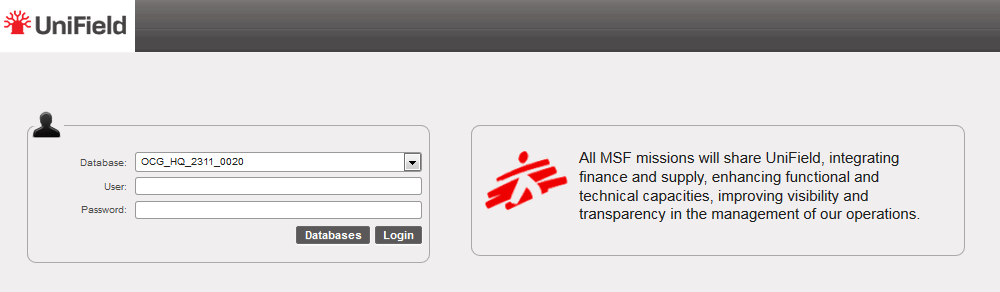
UniField logon screen

UniField Business Applications

UniField contains different integrated Business Applications. Each application contains different modules. The active applications currently are:

  • Products
  • Purchases
  • Orders
  • Partners
  • Warehouse
  • Tools
  • Supply Configuration
  • Administration
  • Accounting
  • Human Resources
  • Synchronization

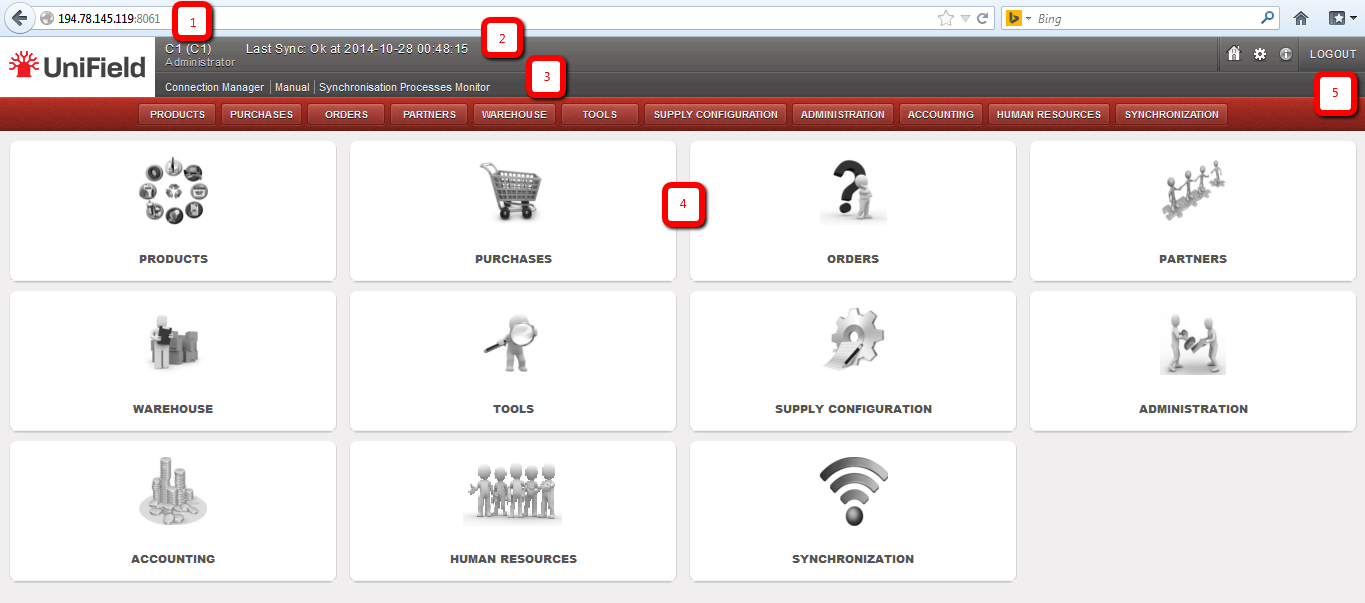
UniField main view

The application contains different view modes to facilitate working procedures; below is a description of each of them. The main areas in the welcome screen in UniField are:

  1. UniField” in the address bar to connect to the database.
  2. Database/Instance in use and user information.
  3. Shortcuts created by the user.
  4. UniField business applications: there are two ways to reach the different applications: a) with buttons/horizontal menu and b) with icons. Please note, you may only be able to view some of the business applications, according to specified roles and permissions.
  5. Buttons to :  
  • Return to initial screen (homepage)
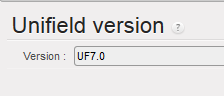
  • Preferences
  • UniField version

  • Exit (logout) from the application

Dashboard Views

UniField has two main view options:

  • List view, to view transactions/items in a list mode showing one transaction per line.
  • Form view, to view all the data related to one single transaction. If no line is selected, the system will display the first line of the list. To return to the List view of search results you can just click on the List view icon.

Dashboard List View

As previously mentioned, UniField has been developed within a business framework and vision. The main views are listed, and one item/record will be visible per line. UniField will display different options according to the application selected. Together these view options are considered a “dashboard”. Each application will display a dedicated set of tools as shown in the image.

List view will display transactions in a “list” mode i.e. one line per transaction displaying only a selection of all the data related. The dashboard displays different modules and tools according to the application selected. The display remains similar, as only names and values change.
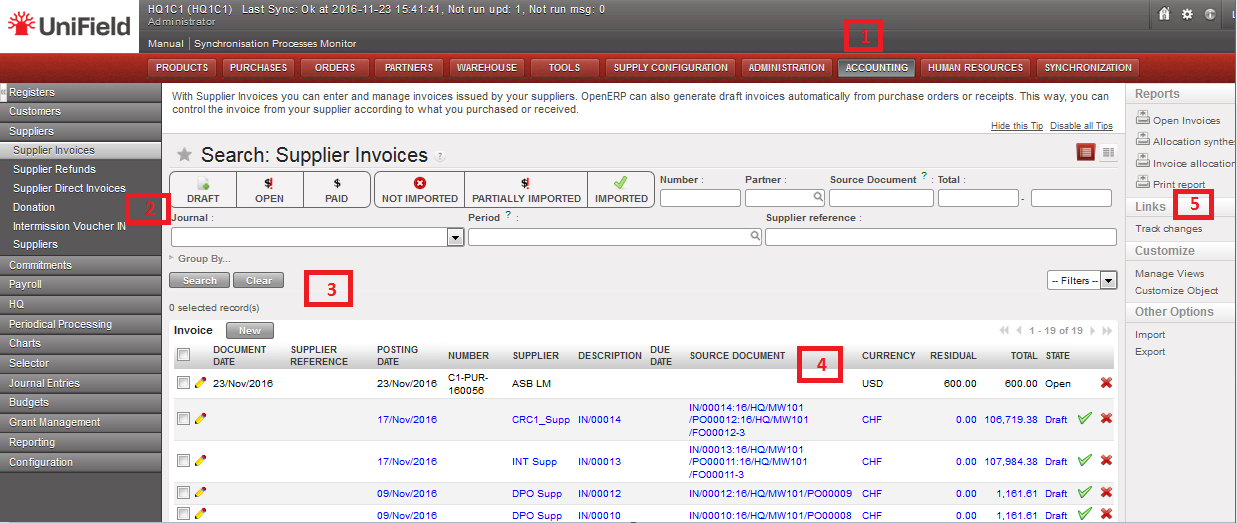
Supplier Invoices Search View

Contents of a business application:

  1. Business application selected.
  2. Modules related to the selected application.
  3. View, search, grouping and filter options: these are discussed in more detail in a later section.
  4. Search view: the system displays only a selection of the data with the most relevant columns and values.
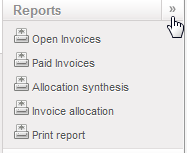
  5. Reports and Action menu: complementary tools related to the module selected are listed on the right hand side bar. This menu will only be visible for specific tools or operations.  
  • To display, click on the icon « on the top right side of the screen
  • To hide, click on the icon »

Let’s continue looking at the options that are available in Search view.
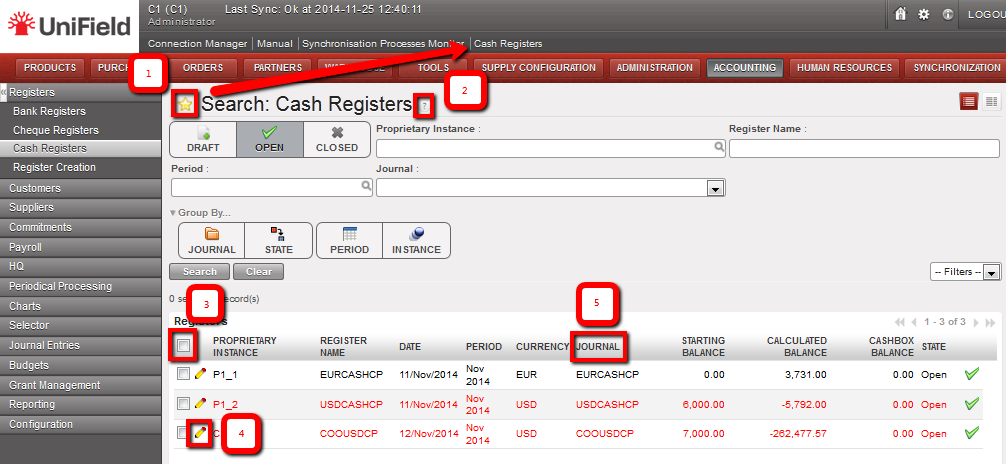
Search Cash Registers view

  1. By clicking on the star, the user can create a shortcut to the selected dashboard; the shortcut can be seen above the applications menu.
  2. In many fields, the system displays a question mark sign. By clicking on this icon, you can view the process workflow.
  3. The checkbox in the header row allows the user to (de)select all entries, or individual checkboxes can be checked. Some action is then performed on the selected items such as hard posting or export (not on all screens).
  4. Click on the pencil icon to open and edit the entry. Depending on the type of record, the Form view will open in edit mode (with Save buttons displayed), or the fields that can be edited will show directly in the entry. Otherwise, clicking anywhere on the line will open the specific record of this line in “read only” mode.
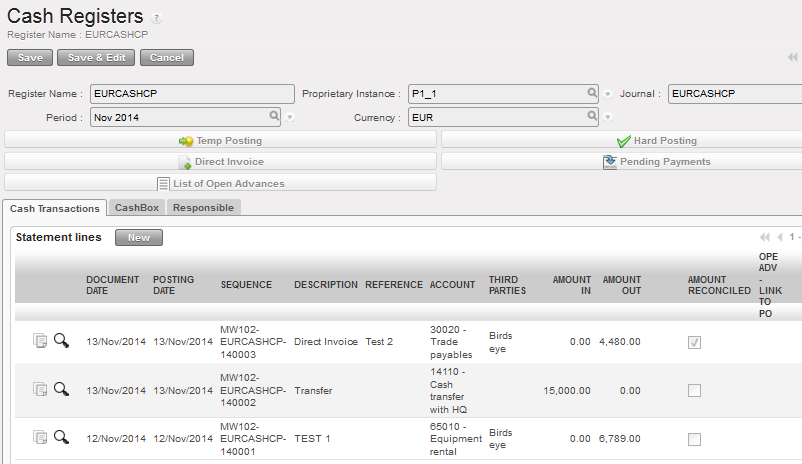
Clicking on the pencil on a cash register in List view opens the Form for editing

  1. In some List views, the user can click on a column header to sort in ascending or descending order.
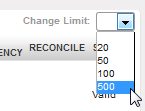
  2. At the bottom right of the screen, the user can see the number of entries in the view versus the total number of entries. By default, the system displays 20 entries. The navigation arrows take you to the First, Previous, Next or Last set of records.

The number of entries on display can be adjusted by clicking on the on top of the numbers. The user can select the number of lines to they wish to be displayed.
Dashboard (Form View)

The form view displays a more complete view of an individual record. This data is displayed in different tabs as shown in the figure below.
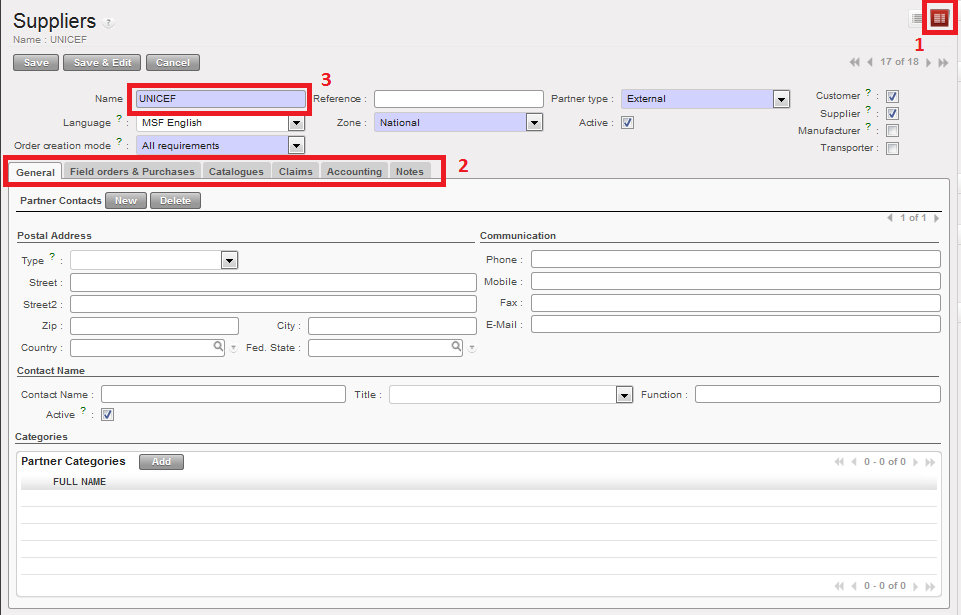
In the form view mode, each transaction, supplier, product or customer record will contain specific tabs. See figure below for detailed explanation. To enter into the transaction data, simply select by clicking on the line or the pencil icon.

Suppliers – Form view

  1. This icon is one of the indications of the form view.
  2. These are the different tabs related to the form. In this case, we are viewing a supplier and the information in these tabs must usually be completed by both supply and finance departments, depending on the tab.
  3. All the mandatory fields will be displayed in blue, but it is important to realise that even when the field is not mandatory, the more information is entered, the better the capacity of the system will be to maintain and generate useful and detailed information. Whenever entering further data in this form please ensure each modification is saved.

Header Buttons

The header is the top part of the record, document, product or partner. In UniField, this is where primary information about the entity is located, as well as the main editing buttons. The system normally automatically saves it when the document is closed, but it is good practise to save it using the header buttons.

If the document is in {Edit} mode, the following buttons display:

  1. Save: saves the current work done in the document and changes to view mode.
  2. Save & Edit: saves and continues in edit mode.
  3. Cancel: cancels the last changes in the document. Please note: it does not cancel the entire document.
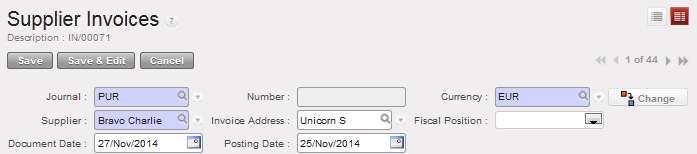
Supplier Invoice – Header buttons in edit mode

If the document is in view mode, the following buttons display:

  1. New: opens a blank form to create a new document (not on every screen).
  2. Edit: changes to edit mode.
  3. Duplicate: can be used to create a second copy of the document on view, the details of which can then be edited (not on every screen).
  4. Delete: deletes the current document; UniField does not allow deletion if the document has been used in another document, e.g. Supplier has been used in a Purchase Order.
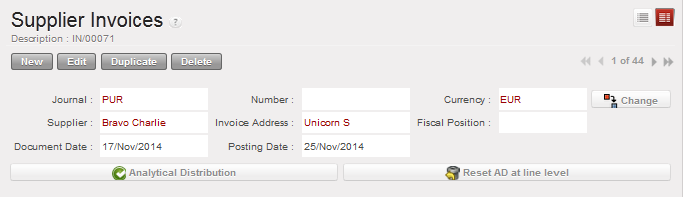
Supplier Invoice – Header buttons in view mode

Footer Buttons

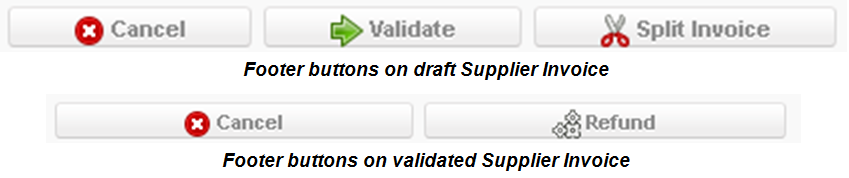
The footer is the bottom part of the record, document, product or partner. Typically, the buttons in the footer are for actions associated with the process flow, e.g. validation, confirmation, closing, cancellation. Once clicked, there is often no way to revert it so it is recommended that the user is careful in selecting this action.

Different buttons will appear depending on the type of document; some of the common buttons are:

  1. Cancel: cancels the document and changes the status to {Cancelled}. The cancelled document will remain in the system, e.g. a supplier invoice is cancelled.
  2. Validate: information has been reviewed/approved; should be used in accordance with agreed procedures and will progress the document to the next stage.
  3. Confirm: information is confirmed on the system after obtaining other counterparts confirmation.
Field Types

Data in UniField are displayed on different field types. Blue fields indicate mandatory fields; white fields are optional; and gray fields are read-only.

  1. Text: can be any combination of alphanumeric characters; maximum character limits will apply.
  2. Drop down list: indicated by a down arrow, the user selects from a default list.
  3. Checkbox: clicking will (de)select the box.
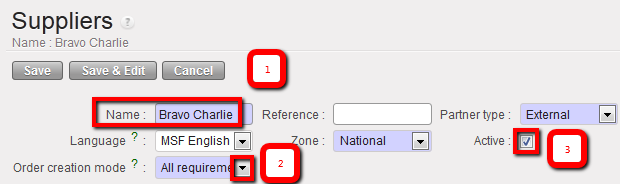
Field types in Supplier Form view

    4. Validated list: these fields are similar to drop down fields but the user selects from a list of other records in UniField, e.g. Suppliers, Accounts, Products. There are various ways for the user to make a selection.

Validated list field in Supplier Form view

Clicking on the magnifying glass/loop icon the system opens up a search window whereby the user can further refine his search and make a selection.
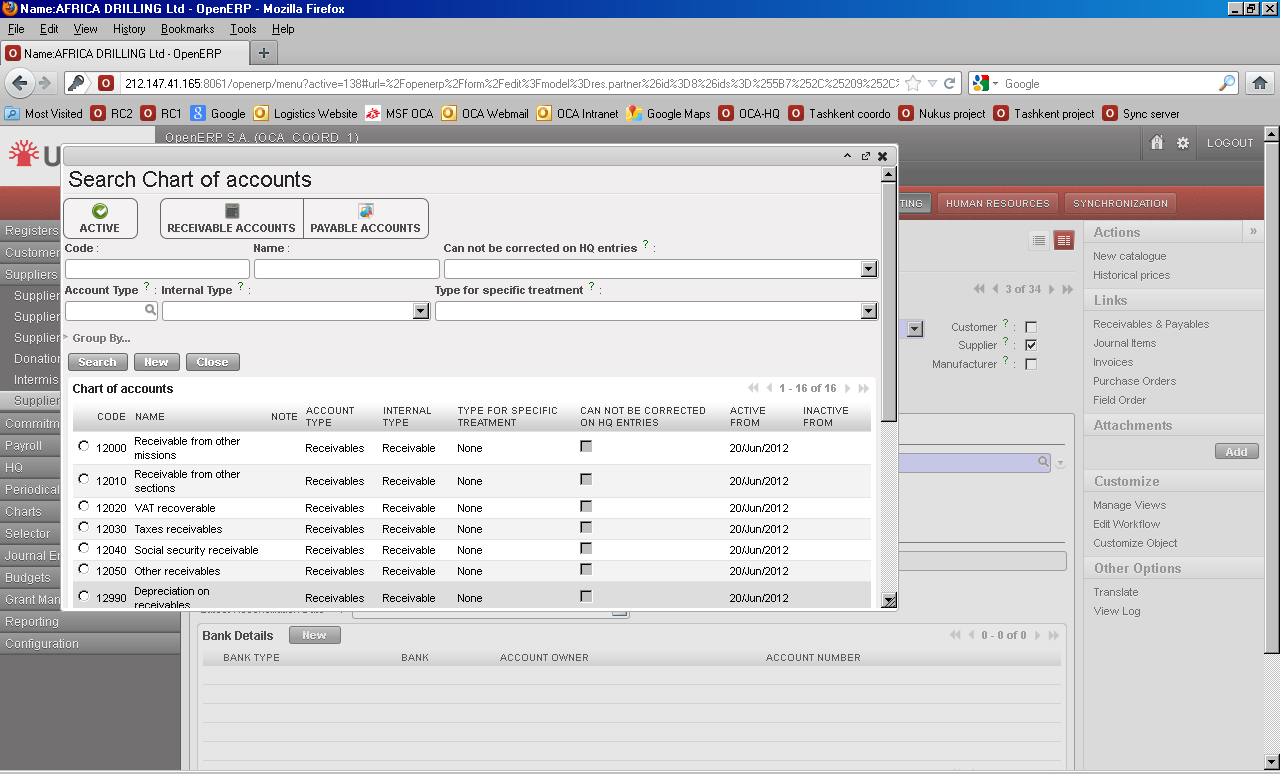
Search list from clicking on loop

Entering part of the desired value will display a list of pre-searched values from which the user can make a selection.
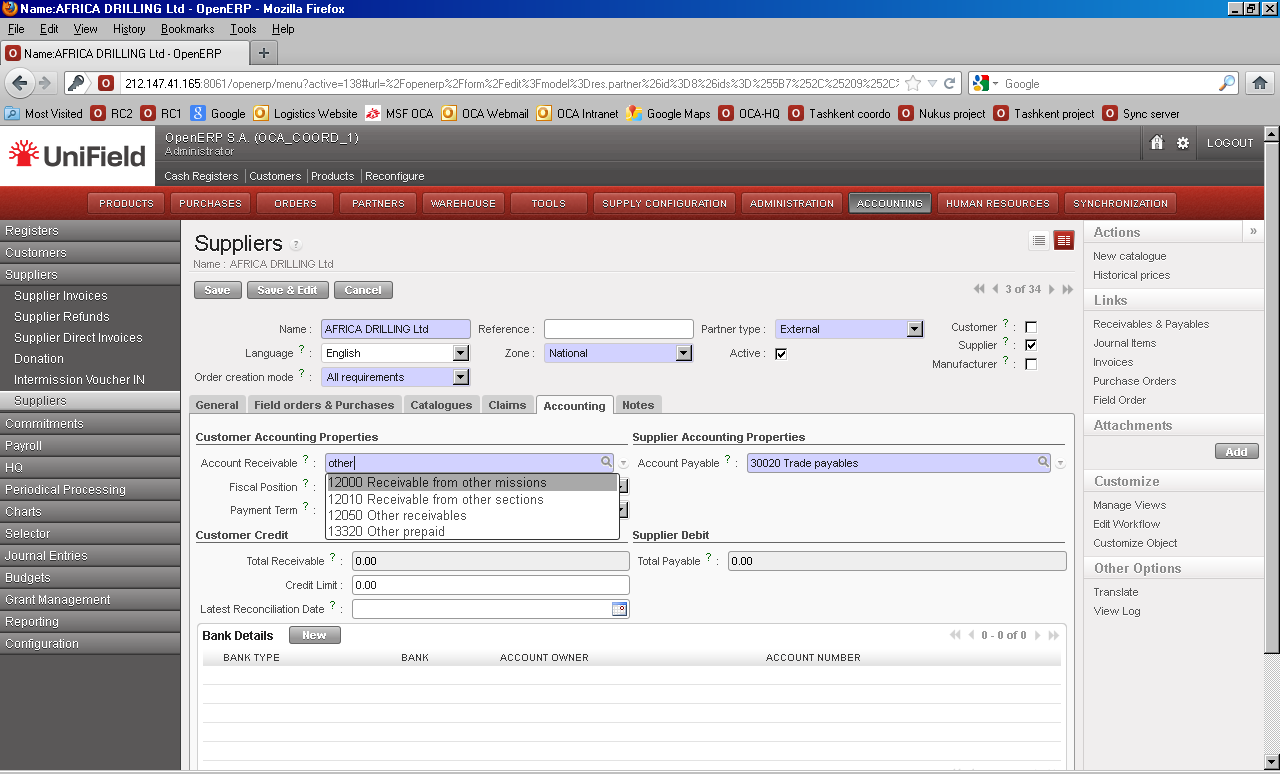
Pre-searching in validated list field

If a selection was made by mistake the user must first highlight and delete the contents of the field before selecting the correct value.
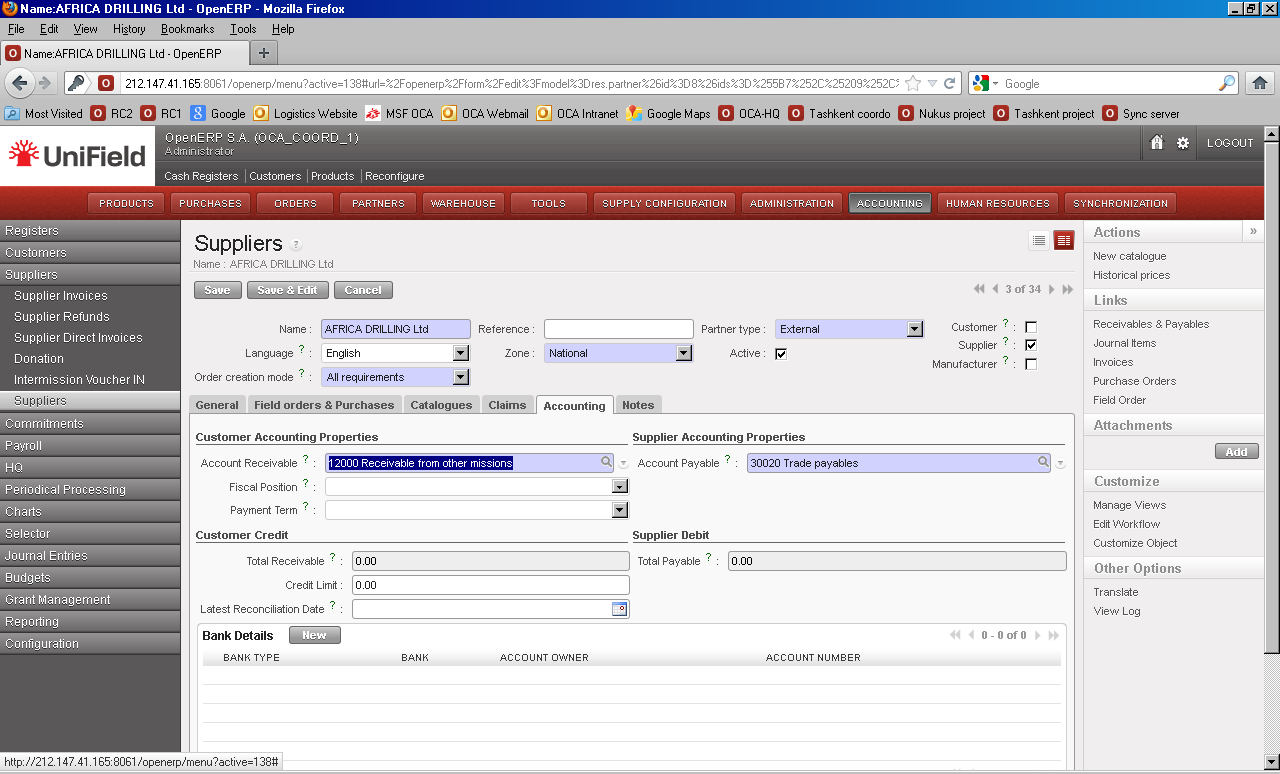
Highlight and delete incorrect value in validated list field before entering correct value

Another common mistake is entering a wrong value and clicking the loop or entering <tab>. This opens up the search window with a warning message to prompt the user to create a value. In most situations it is not appropriate to use this method to create a new record. The user should close the window by clicking on the {X} in the upper right corner.
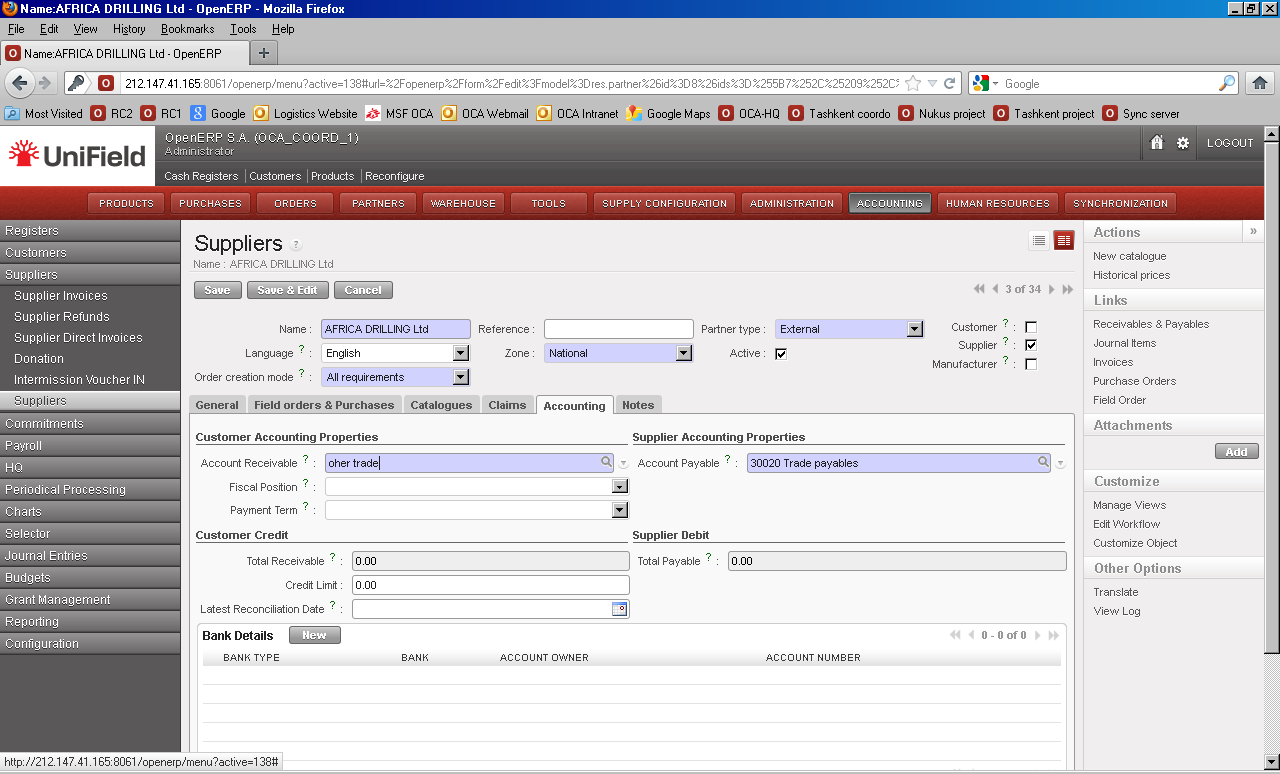
Incorrect value entered in validated list field
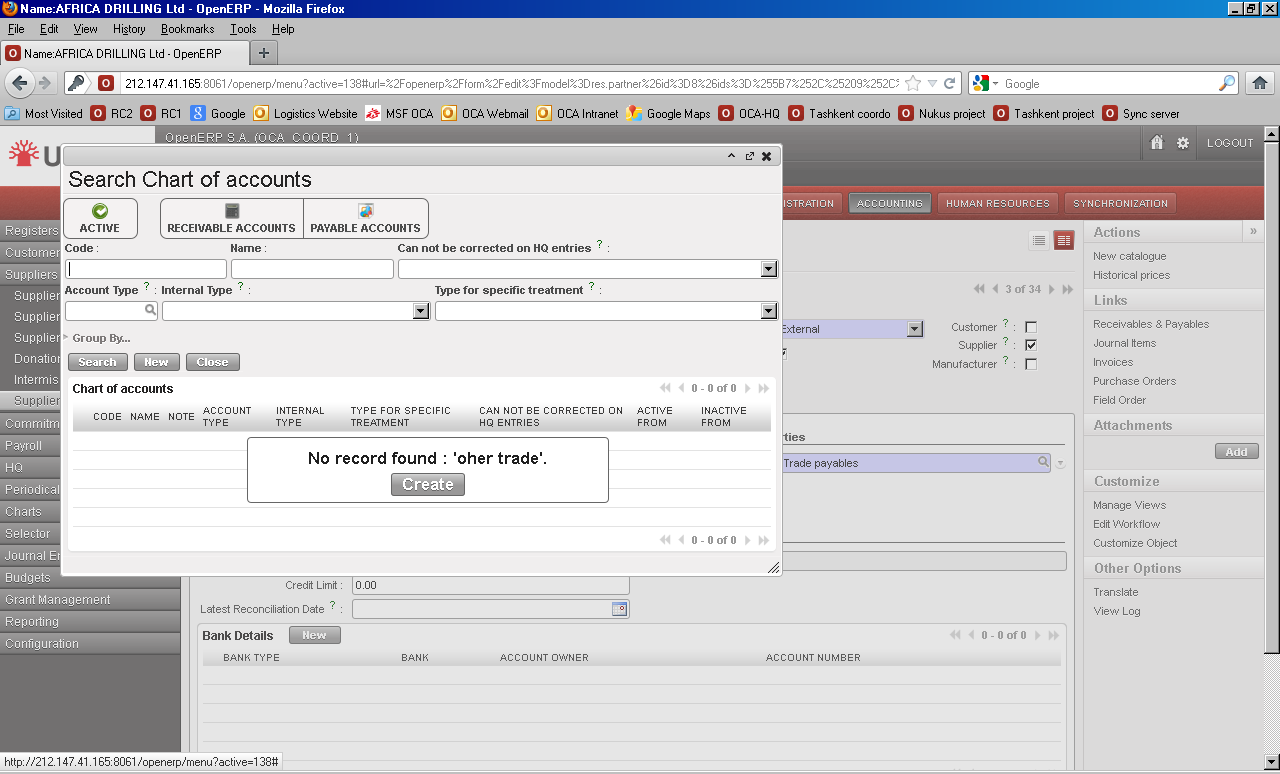
Incorrect value entered in validated list field prompt user to create

As more advanced users become accustomed to UniField and if they have appropriate user rights, they can create a new record for their validated list field. Once saved, the record is automatically selected in the validated list field and the user is back in his original form.

  1. Numeric: only numeric values are accepted.
  2. Date/Time or Date: click on the pop-up calendar icon to select date or manual entry as dd/MMM/yyyy, e.g. 08/Oct/2012; other date formats manually entered are not accepted in the English version.
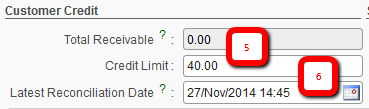
Numeric and date fields

Memo field: for a large amount of text.
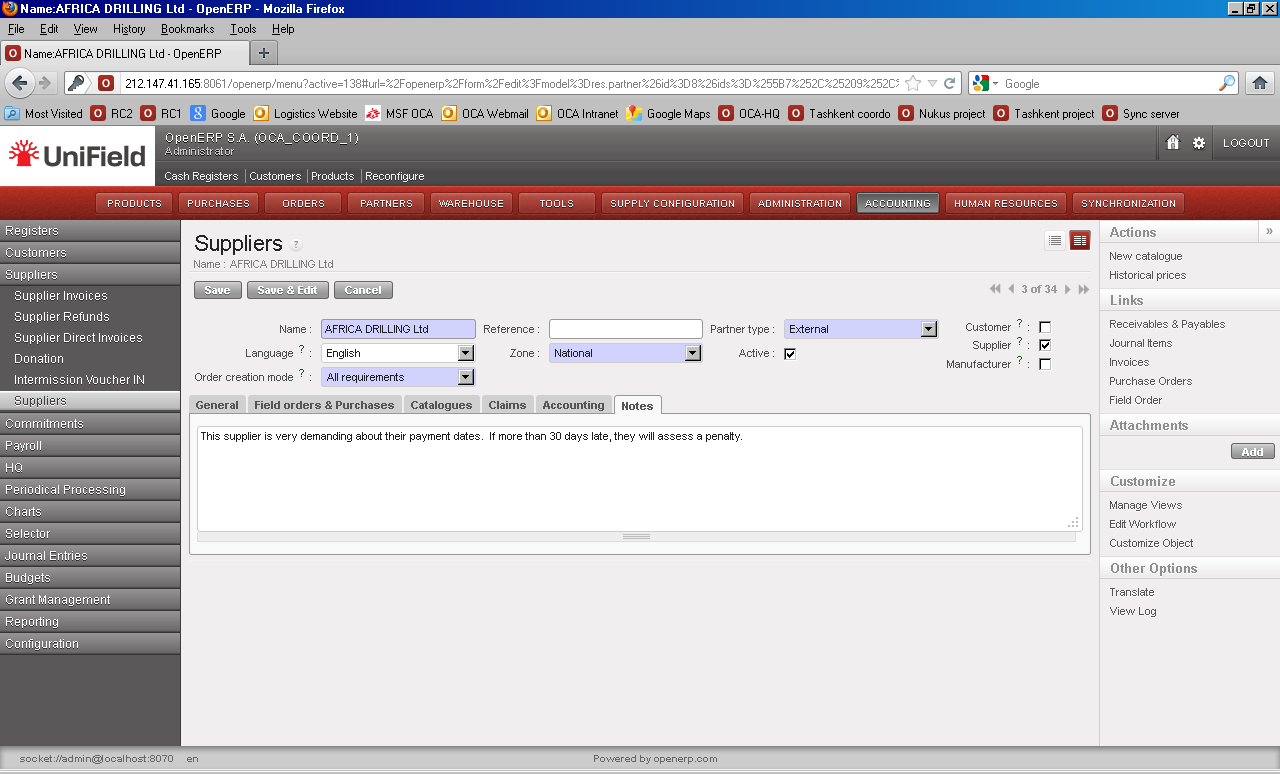
Memo field

  • System Display Colours
  • Black: the default colour in UniField is black.
  • Red: can be seen as an alarm or alert and it’s displayed to highlight incomplete or invalid information such as analytical allocation, insufficient stocks, cash register closed with a cash discrepancy and so on. When a line is displayed in red, pay special attention to it.
  • Blue: in some processes, this indicates the status is {Draft} or could be a hyperlink to another transaction.
  • Green: in some supply processes this is used to display a “preferred supplier” (e.g. in the order sourcing tool).
  • Grey: in some processes this indicates that the transaction is cancelled, archived or closed and that there is nothing to action for it.
  • Language Preferences

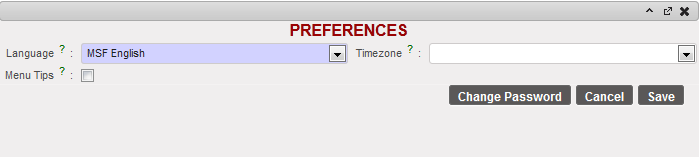
The Preferences button can be used to edit languages as well as enabling or disabling the menu tips in the system.
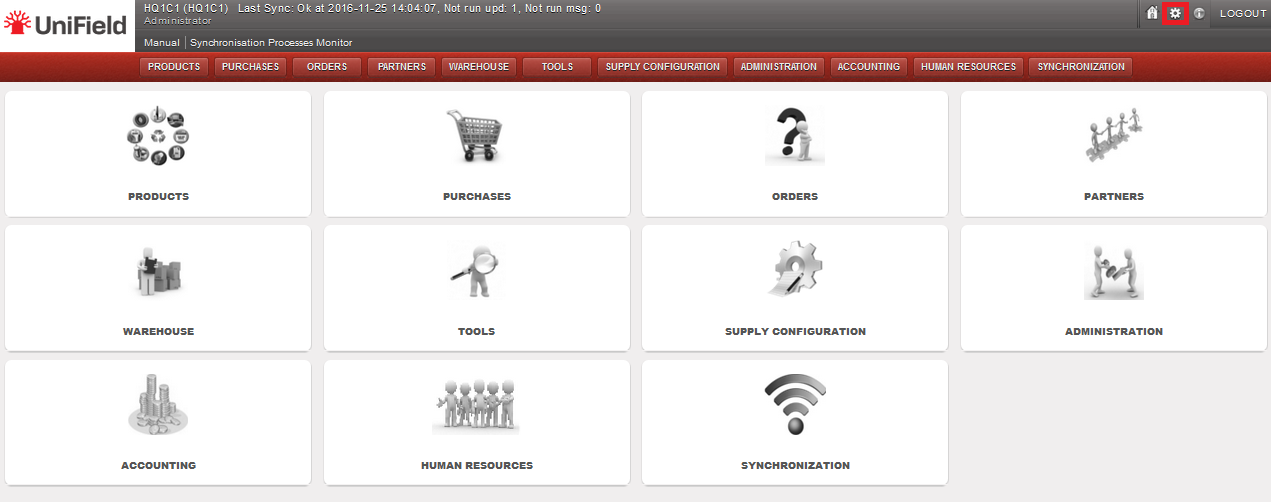
Home page, showing the Preferences icon

From the home screen, Click on the preferences icon in the top right hand corner.

Language selection in the preferences wizard

  1. Select the language which you would like to use (e.g. in French or English).
  2. Click on the {Save} button.

Refreshing the homepage

  1. Ensure that the application is refreshed (e.g. by clicking on the UniField icon in the top left hand corner).
  2. The application will be displayed in the language selected.