LUFI-50103 Journal Search

Finance User Manual ENG -> 5. Searching, Correcting and Closing -> 5.1 Searching -> LUFI-50103 Journal Search

LUFI-50103 Journal Search

LU Introduction

Journal items, journal entries and analytical journal items are accessible from the module {Journal Entries}. Chapter 2 – Configurations explains which financial and analytical journals you can find in your instance.

How to Search in the Journal Items

The sub-module {Journal Items} displays accounting lines either as debit or credit transactions. You will notice that each entry is displayed in booking and functional currency.

Accounting reconciliations and corrections are performed in this sub-module.
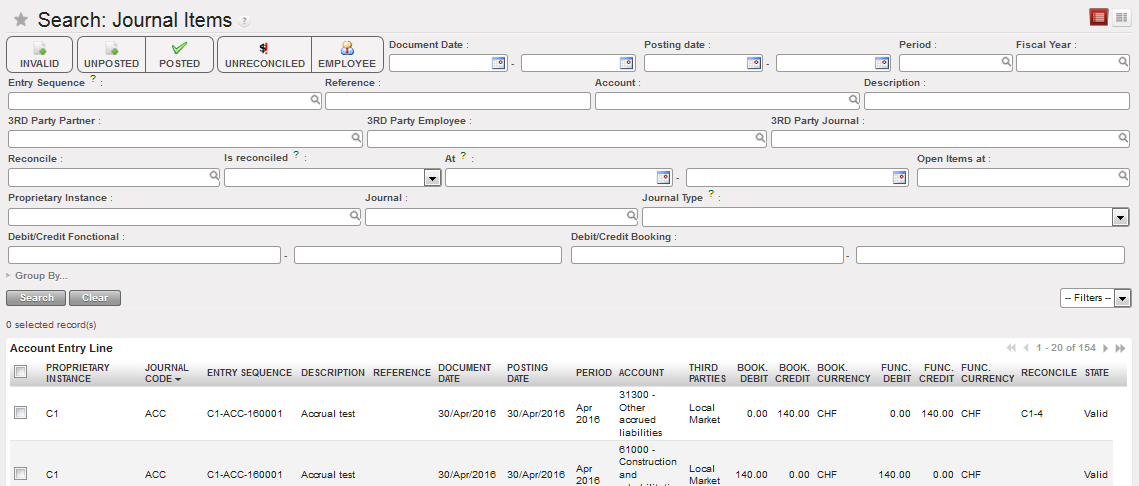
Journal Items Search view

Go to: Accounting/Journal Entries/Journal Items

  • In the Journal Items Search view, you can enter criteria using the filter buttons, search fields, custom filters and group by options to search for journal items. In this example, we want to search for unreconciled posted entries to reconcile them. Toggle on the search filters {Posted} and {Unreconciled} and click {Search}.
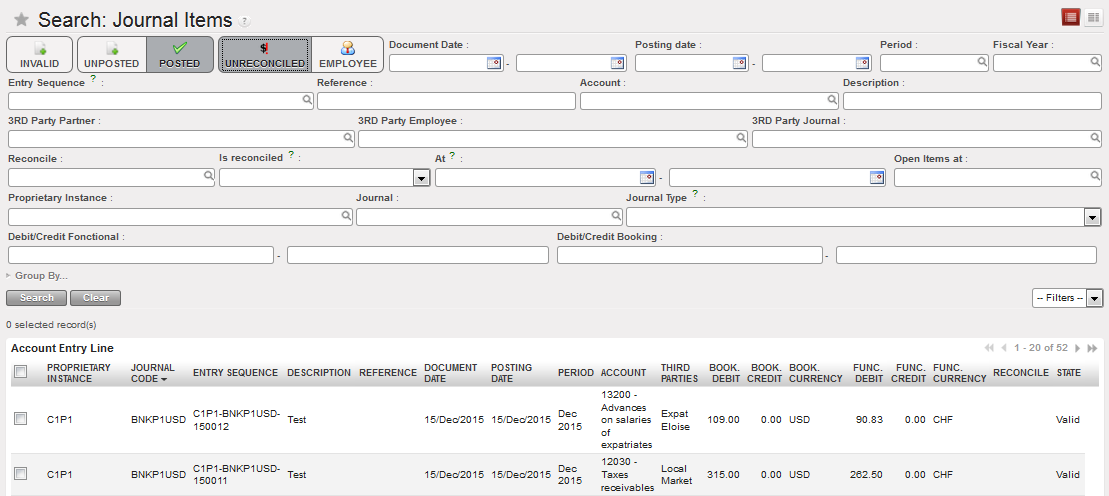
Journal Items – search options Posted and Unreconciled selected
Related Entries Search in Journal Items:

In journal items view it is possible to directly search for all related entries linked to a specific journal item. This function is especially useful when searching for entries that have been included in the same supplier invoice, that are linked to a specific payment, that have been reconciled together or that have been corrected.

Go to: Accounting/Journal Entries/Journal Items

  • In journal items search view, select a journal item. In this example we use a payment entry line.
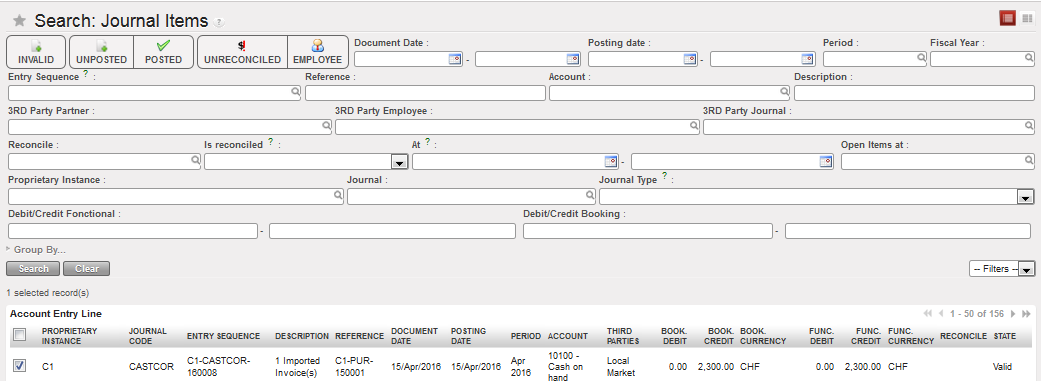
Payment JI line selected

  1. In the Actions menu on the right hand side, click on {Related Entries}
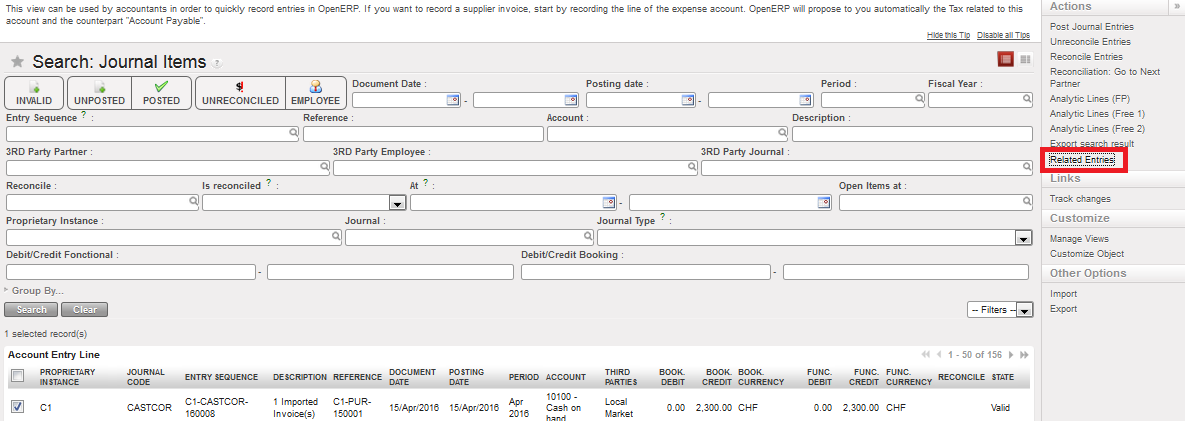
Related Entries in the Actions menu

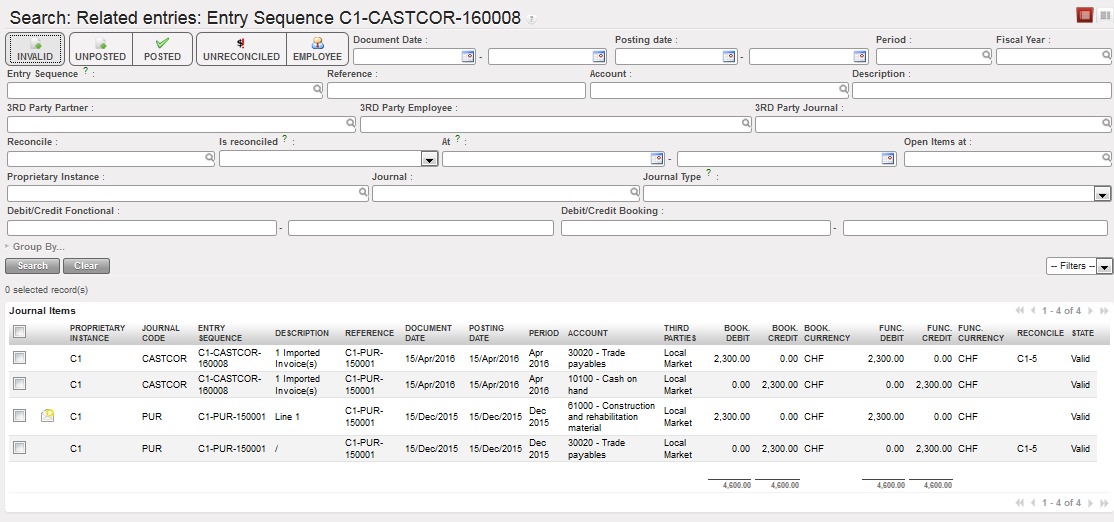
  • A new view called {Search: Related Entries} is opened in a new tab with a list of all related entries. In this example, the user can see which expense lines were paid with the payment from cash register and which trade payable lines were included in the same reconciliation.

Search results for all related entries to the selected journal item:
It is also possible from corrected entries to find back the original entries as UniField search for all entries that have an entry sequence matching the reference of the original entry.

Searching for the original entry related to the correction COR1- Paracetamol (reference CD1AD-PUR-180002)
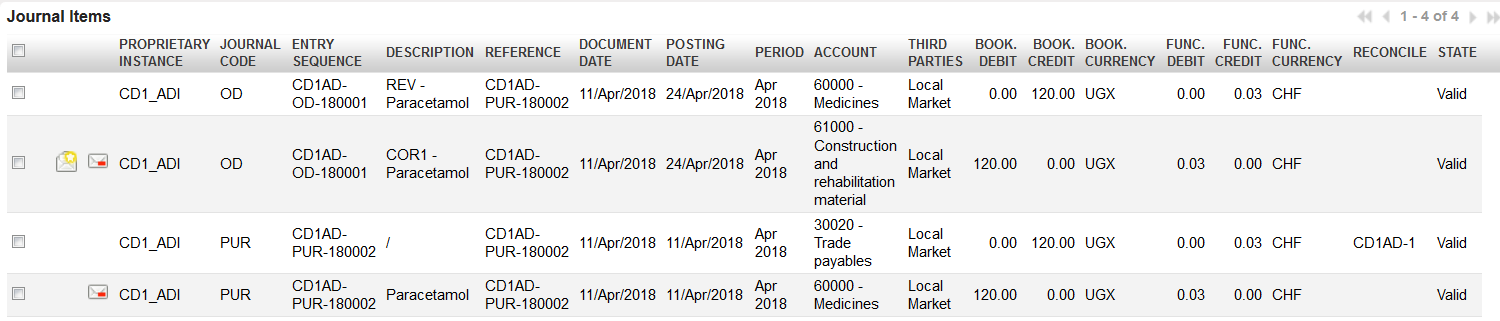
Original entry CD1AD-PUR-180002 (reference CD1AD-PUR-180002) related to COR1- Paracetamol

How to Search in the Journal Entries

A journal entry consists of all the journal items that form one, balanced entry. Each journal item is either a debit or a credit transaction. Within any journal entry, the total amount of debit equals the total amount of credit.

Journal entry view can be used for example to check the accounting lines automatically created from a financial document (temp- or hard-posted register entry, validated supplier invoice, operational advance delivered and closed). Depending on the user rights, an advanced user can also manually create journal entries in the financial journals, e.g. payroll booking for the sections not using Homere. For further information please see Chapter 3 – Payments LUFI-30312.

When Journal Entries is opened in Search view, no filter button is set by default so all journal entries are listed. Unposted entries will be displayed in blue font. Entries are displayed in both, booking and functional currency.

Go to: Accounting/Journal Entries/Journal Entries

  • In the Journal Entries Search view, you can enter criteria using the filter buttons, search fields, custom filters and group by options to search for journal items. Click {Search}.

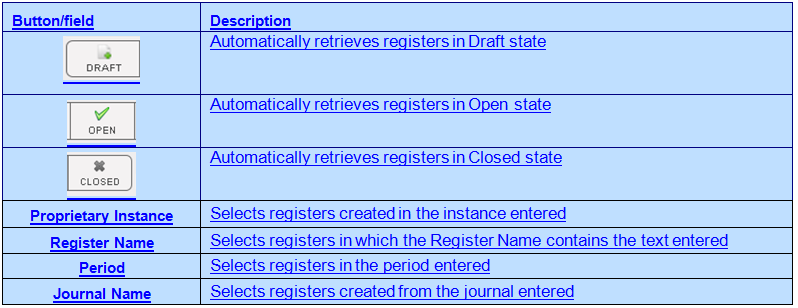
Journal Entries Search Options

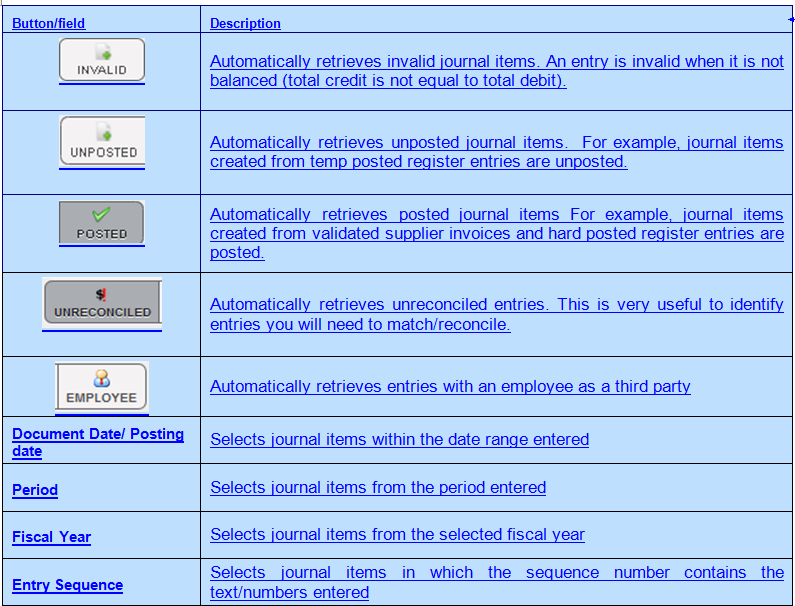
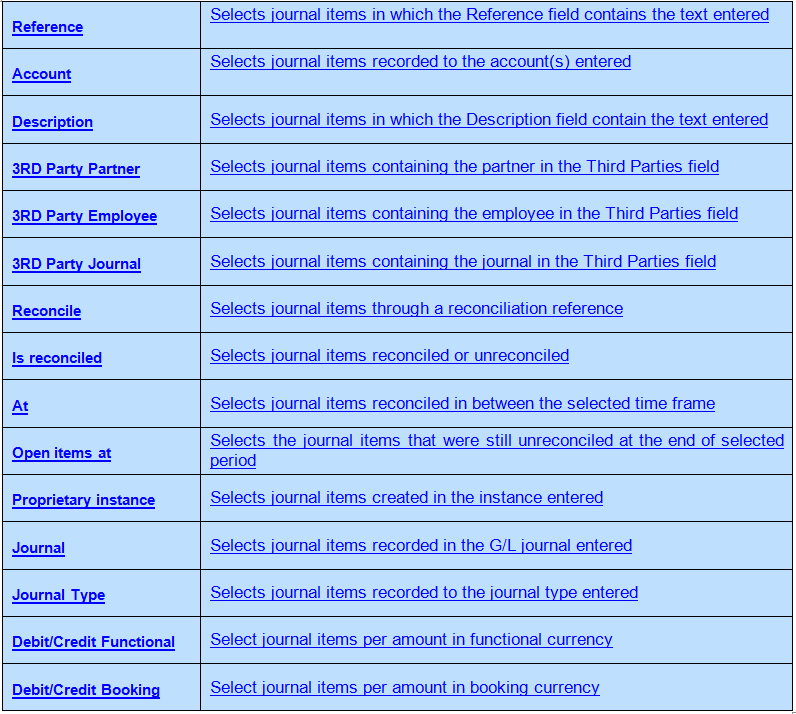
Button/field

Description

  • To view the batch of journal items related to a journal entry, tick the checkbox of a journal entry. Go to the Links menu on the right side and select {Journal Items}. It is important to note that only one journal entry can be selected at a time to display the related journal items.
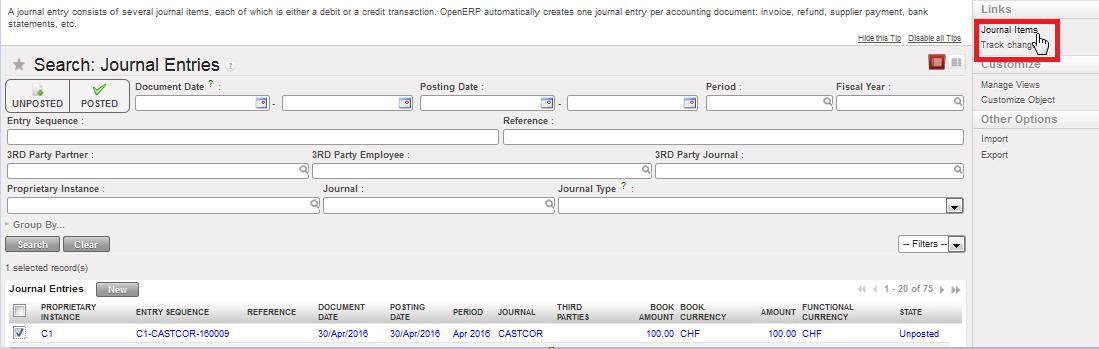
Linking journal entries to the related journal items

  • A new window opens in Journal Items with the linked entries. You can further refine the results by using the search fields available. It is important to note that you cannot perform general searches in Journal Items in this linked window. It will only display the journal items related to the original journal entry selected in Journal Entries.

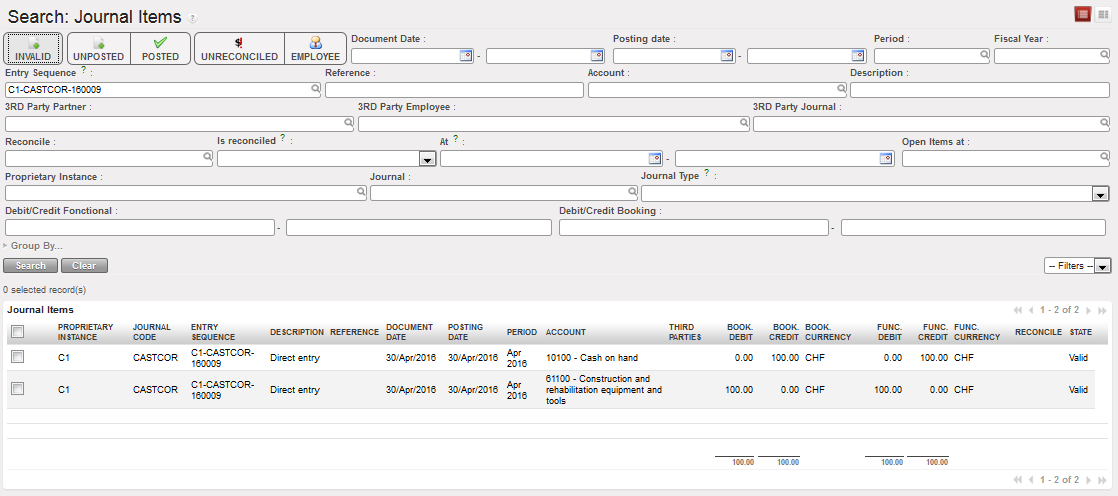
Journal Items related to journal entry
How to Search in the Analytic Journal Items:

Analytic journal items are expense or income entries allocated to the analytic accounts (Destination, Cost Center, Funding Pool). Analytic journal items are created whenever an entry to an expense or revenue accounts is generated. Analytic journal items are used to determine expenses in budget control reports and donor reports. Analytic journal items are displayed in booking and in functional currency. Analytic Journal Items only relate to expense / income entries and do not have any counterpart entry.

Go to: Accounting/Journal Entries/Analytic Journal Items

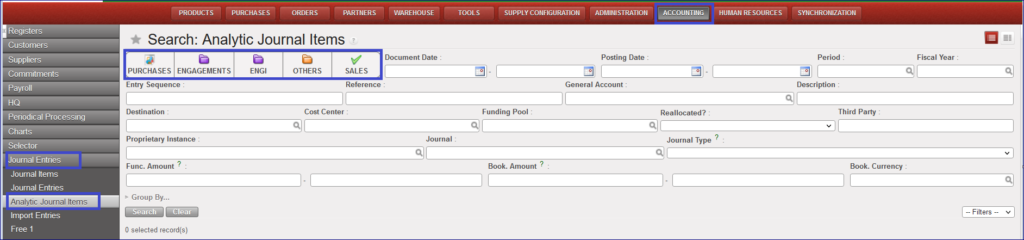
In the Analytic Journal Items Search view, you can enter criteria using the filter buttons, search fields, custom filters and group by options to search for journal items. Click {Search}.

Example:

Go to Accounting >Journal Entries > Analytic Journal Items

  • If we toggle on search button “ENGAGEMENTS”, the result of the search will be the journal code column with “ENG” only.
  • If we toggle on search button “ENGI”, the result of the search will be the journal code column with “ENGI” only
  • If we toggle on both search buttons “ENGAGEMENTS” and “ENGI”, the result of the search will be the journal code column with both “ENG” and “ENGI

The ENGI will be seen in the filter of the ordinary periods (Jan-Dec) only.
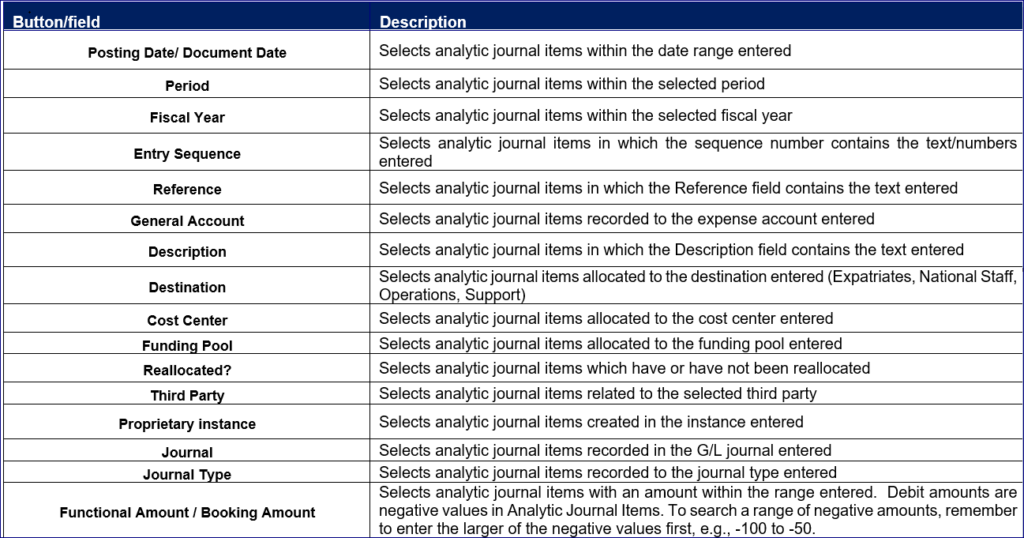
Analytical Journal Item Search Options

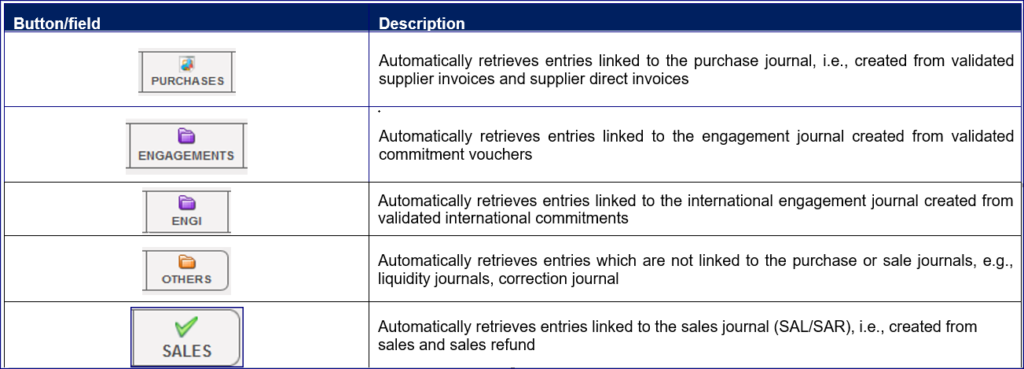
Button/field

Description
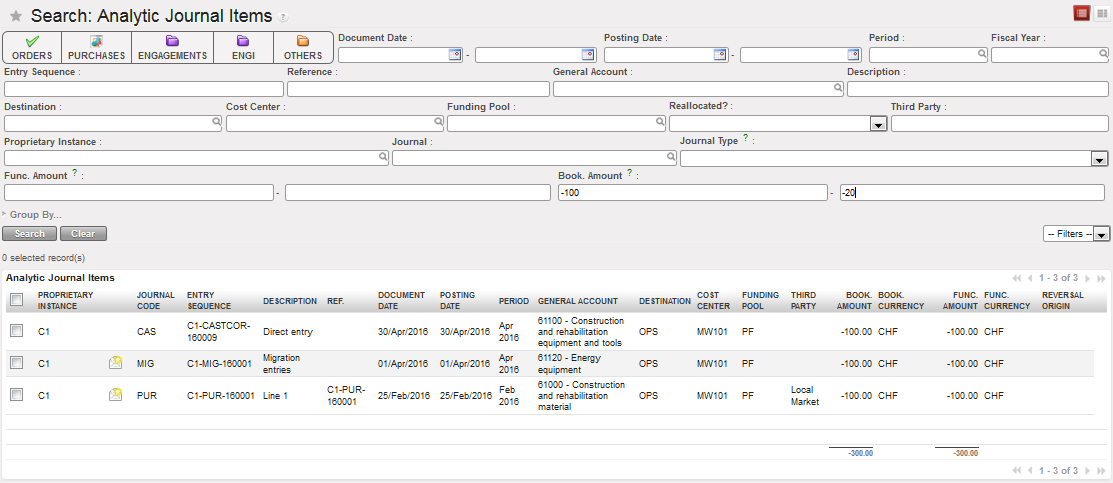
Searching a negative range of amounts in Analytic Journal Items Search view
Analytic Allocation with Free1/2 Report:

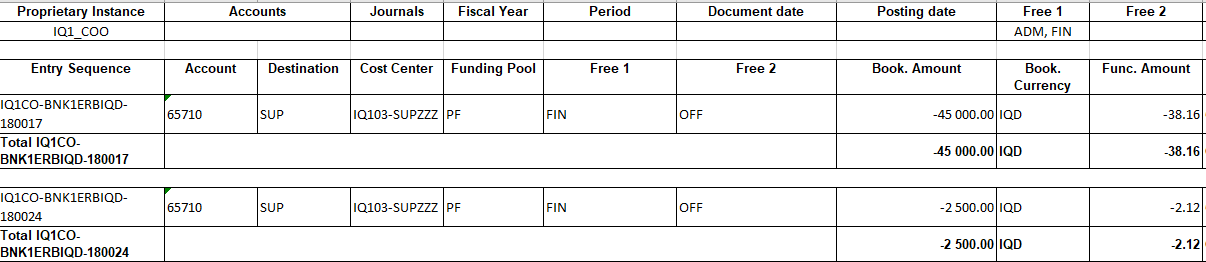
The analytic Allocation with Free Report is an excel report that combined the analytic distributions “Destination/Cost Centers/Funding Pools” and Free axis. It is located in Free sub menu, in the windows action wizard and it is possible to save the queries.

How to Produce Analytic Allocation with Free 1/2 Report:

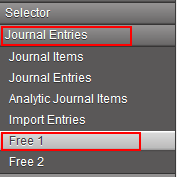
  • From Journal Entries, select {Free 1}
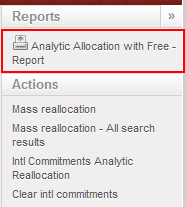
  • From the right-side menu, click on {Analytic Allocation with Free Report}
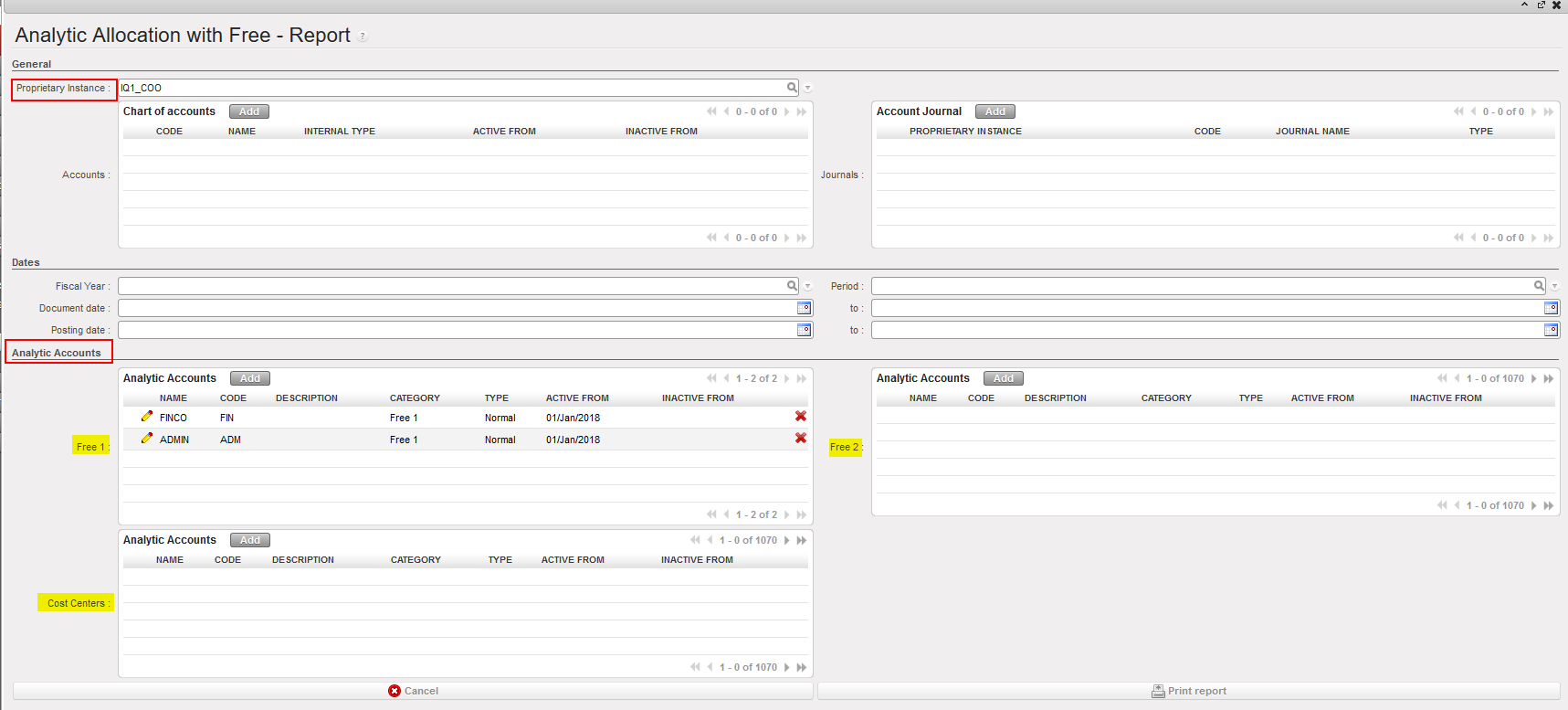
  • Make your selection, unless you want all information to be in your report.
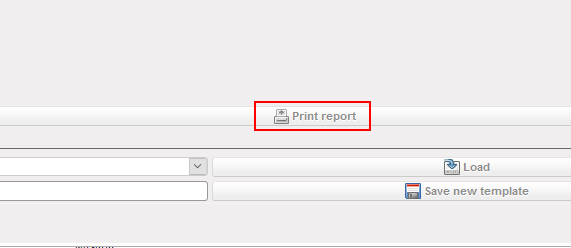
  • In order to export the report, you need to click on {Print Report}
  • Then you will get the report based on the selection you made
Clear/Cancel the request when loading:

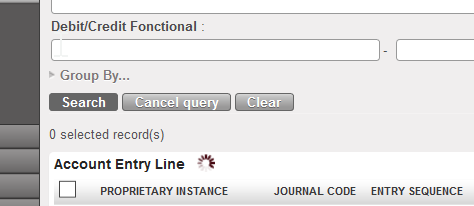
When a query/search is launched from a Search view, there is a button that appears while the search is loading and called “Cancel Query”. This button enables to cancel the query that is running in background when it keeps loading.

  • Use the cancel Query button that appears when the search takes time and the system is loading.
  • This button will cancel the query that is running in background, so space is freed in the server. This is useful when the search keeps on running because there are no results matching with the search.
LUFI-50102 Register Search

Finance User Manual ENG -> 5. Searching, Correcting and Closing -> 5.1 Searching -> LUFI-50102 Register Search

LUFI-50102 Register Search

LU Introduction

In Registers, there are two types of searches. You can search for registers, but more importantly, you can search the register lines, i.e. the entries made within a register. This is useful when you need to correct or review specific entries in a register with a large number of lines.

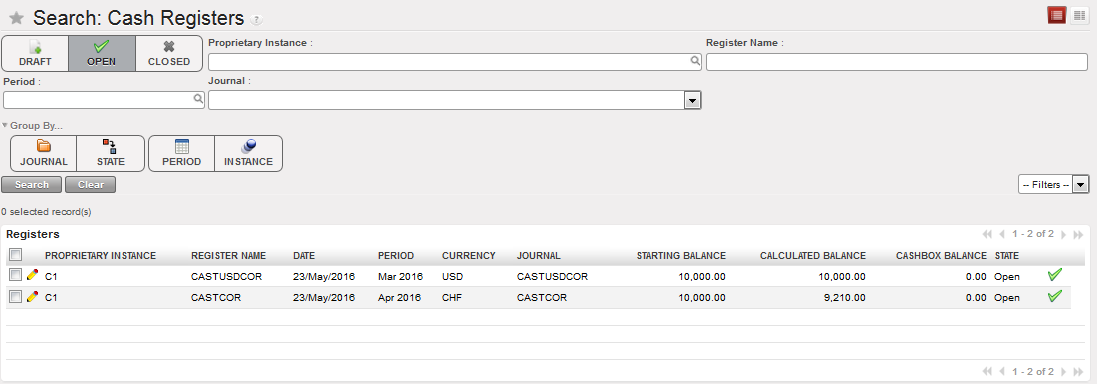
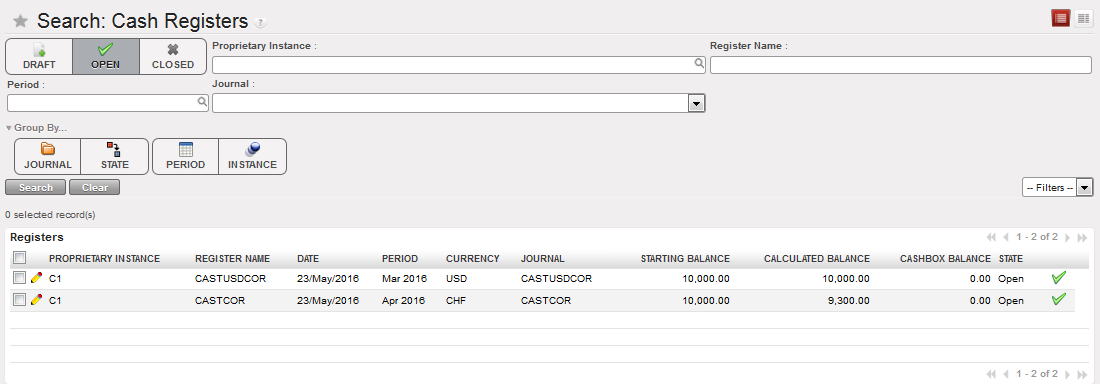
When any register module is opened (cash, bank or cheque), the {Open} filter button is active by default so only open registers are listed. This allows you to easily find a register to make or review entries. Otherwise, without this filter, all registers for closed periods and draft registers will display. You can further refine your search by entering criteria in the search fields, using the Group by buttons, or creating a custom filter.

Cash registers Search view and Search options

Button/field

Description

How to Search Register Lines

In this example, we want to select all register lines made in a specific cash register for invoice payments and export the results to Excel.

Go to: Accounting/Registers/Cash Registers

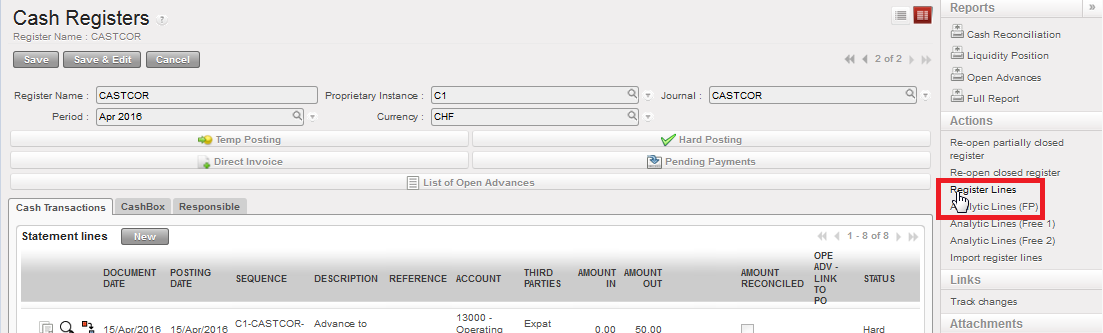
  • Open a register in Form view
  • Click on {Register Lines} on the Actions menu on the right side.

Cash Register – Form view and Actions menu

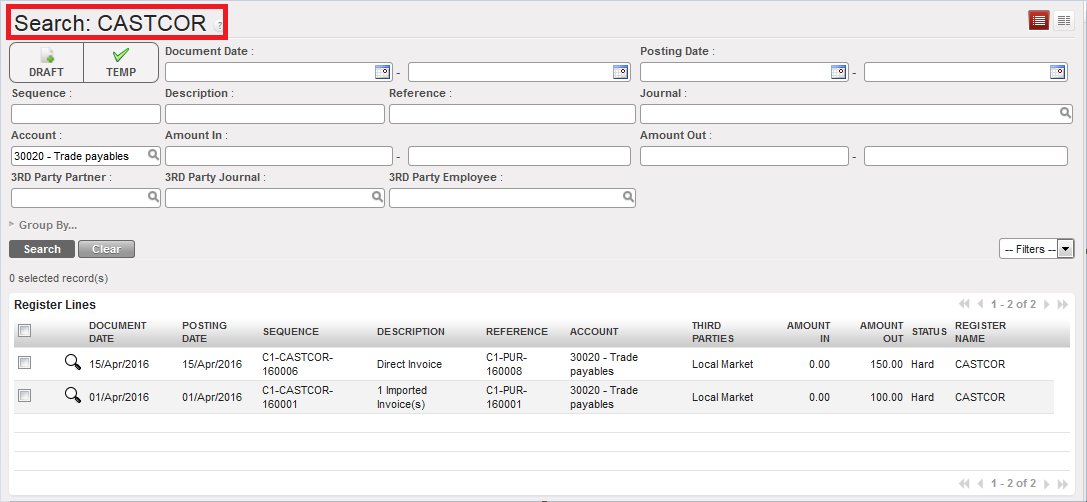
  • A new search tab displays with the entries (register lines) in your selected register. You can enter criteria using the filter buttons, search fields, custom filters and group by options to search for specific entries made in this register. For invoice payments, we enter {30020 – Trade payables} in the Account search field. Click {Search}.

Cash Register Lines – search options

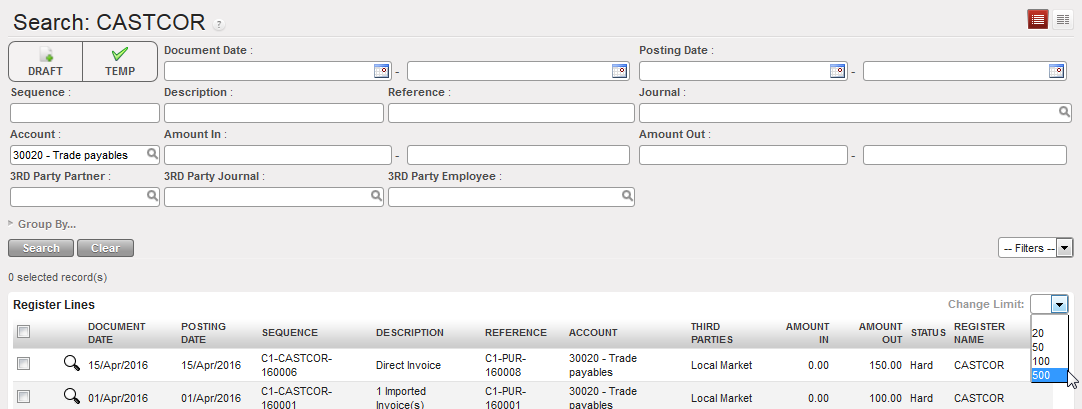
  • By default, the first 20 lines will display. If necessary, change the limit to display up to 500 entries. You can choose to sort by a column header by clicking on the column header.

Change Limit

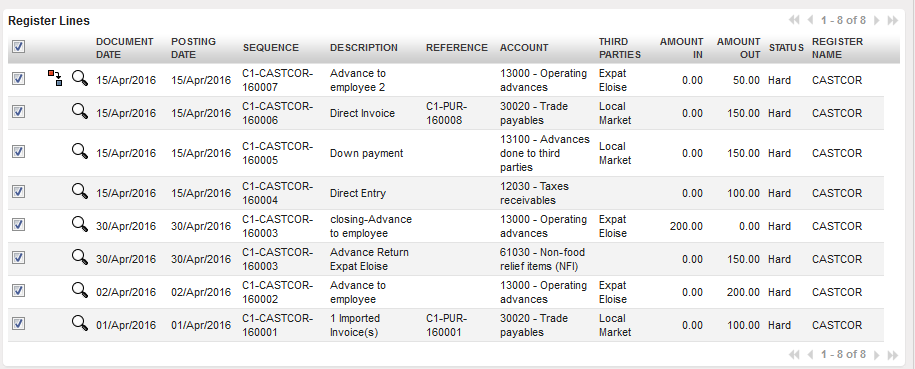
  • To select all entries, tick the checkbox in the header row on the top left of the screen. Unticking will deselect all entries.

Tick top checkbox to select all entries

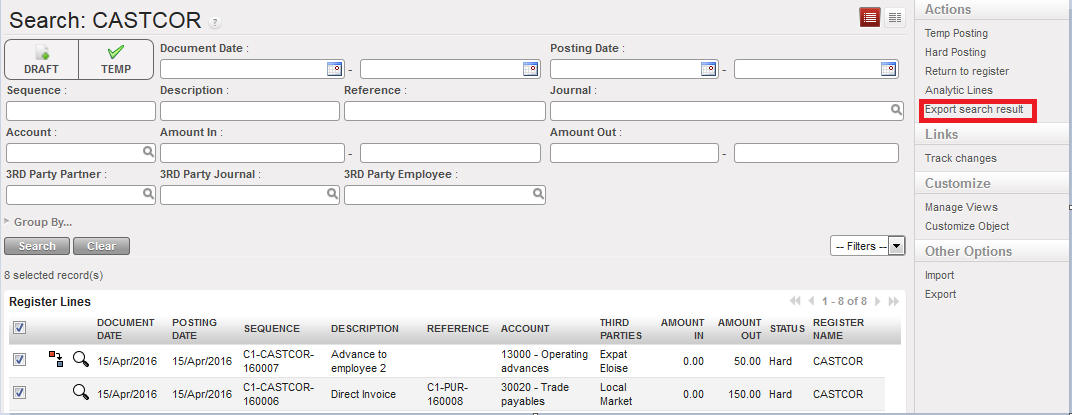
  • To export, go to the {Actions} menu and select {Export search results}.

Export search results

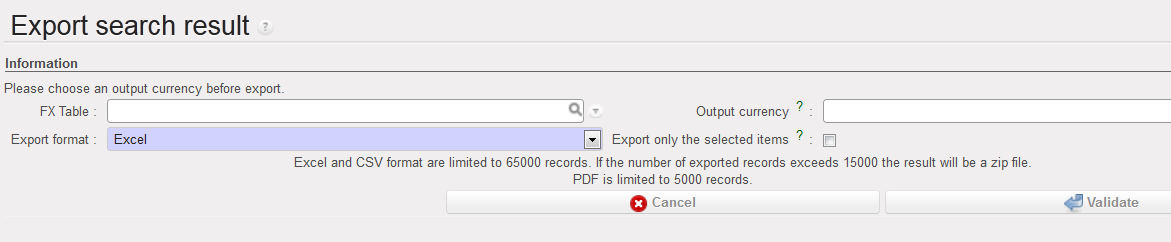
  • A new window will display with additional export options to select. Click {Validate} once you have input the relevant criteria.

Options for export

Button/field

Description

FX Table

If you would like the export to display amounts converted to a currency on a currency table, then select the table and select the currency in Output Currency

Output Currency

In the “Output Currency” column of the export, the amount converted to selected currency will display; if this field is left blank, the “Output Currency”column in the export will display the amount in the functional currency

Export format

Select from Excel, CSV or PDF

Export only the selected items

If the checkbox on the register line is ticked, it will be exported

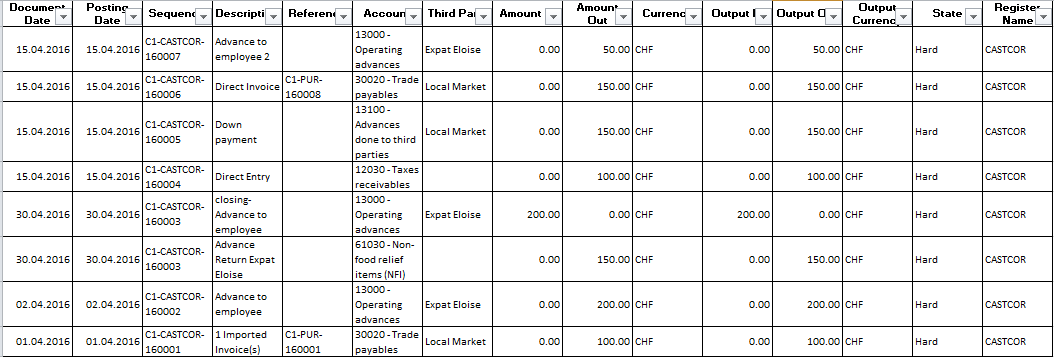
  • Selected entries are exported to Excel.

Excel export of selected register lines

LUFI-50101 Searching Filters

Finance User Manual ENG -> 5. Searching, Correcting and Closing -> 5.1 Searching -> LUFI-50101 Searching Filters

SEARCHING

LUFI-50101 Searching Filters

LU Introduction

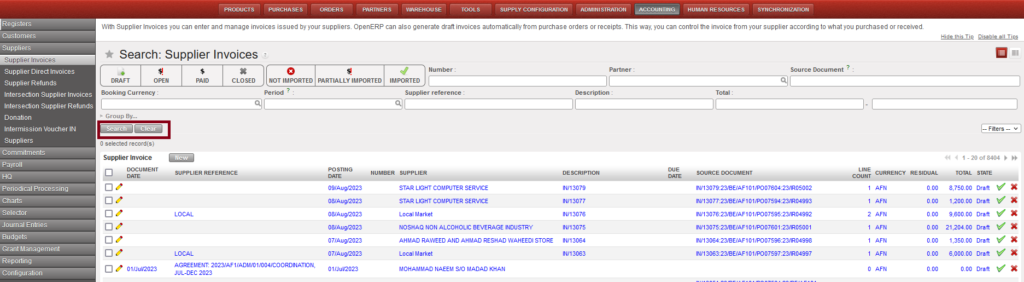
Many options are given to users to optimize their searches. The system facilitates filtering and searching for groups of important documents using the relevant buttons.

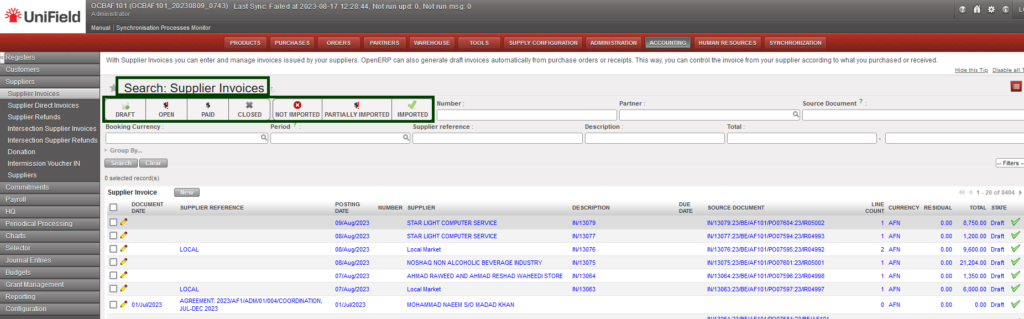
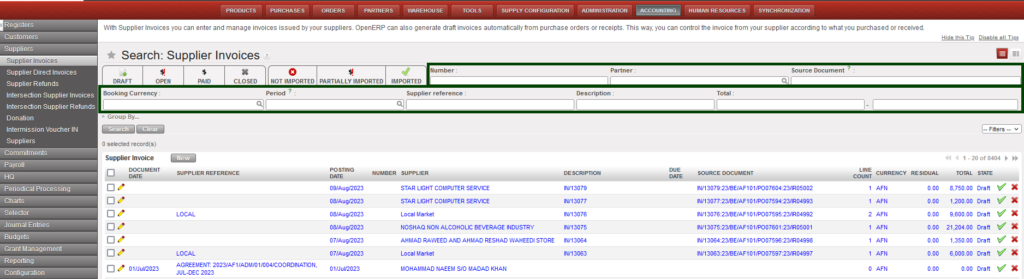
Filter buttons on a supplier invoice form

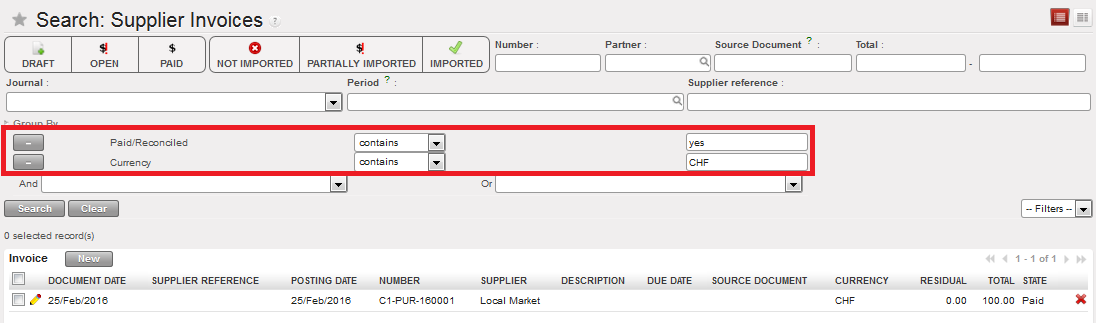
When active, filter buttons turn dark grey; click again to deselect. The system’s searching options are based on “And”, not “Or”, so in this example pressing the filter buttons {Draft} and {Paid} will not return any result as an invoice cannot be both Draft and Paid.

Cash registers Search view and Open filter button activated when the view opens

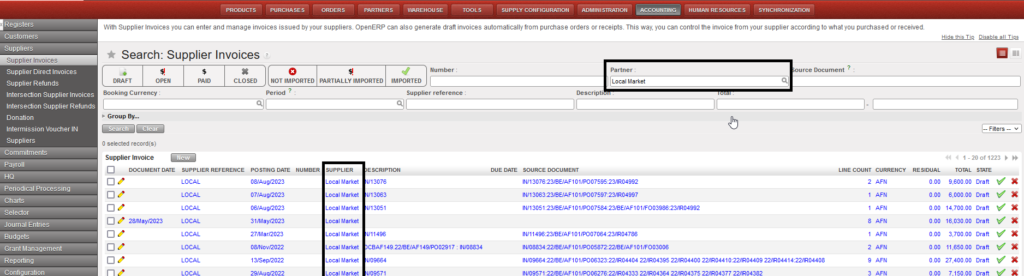
Search fields on a supplier invoice form

Searching the supplier invoices of Local Market

In all search views, there are default search fields which provide a quick way to search. Because UniField has the capacity to search for free text, you can enter any text into a search field. By entering a few characters, the system will display a list to choose from as can be seen in the next figure. To search the database, the user can also use the magnifying glass to get a full list of options available.

  • Only one value per search field is allowed
  • Text fields execute a “contains” search
  • Date or numeric ranges: if the ending value is left blank, there is no maximum limit; if the starting value is left blank, there is no minimum limit on the search
  • If multiple fields have search values, then all criteria must be satisfied, i.e. operates as an “and” search
  • Filter buttons and search fields can be used together and operate as an “And” search

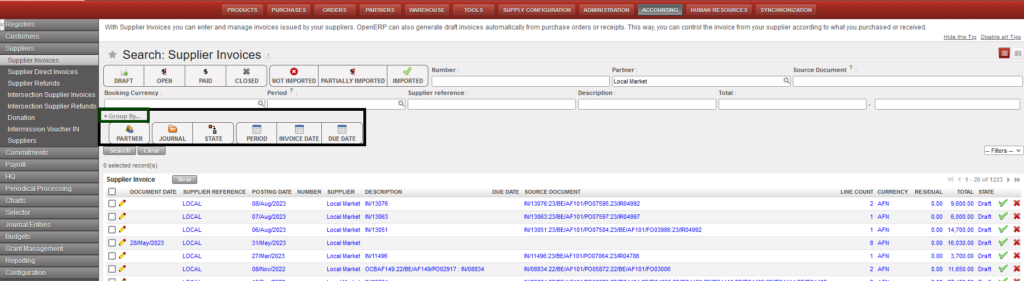
Group by filters

Group filters output: Grouping by PARTNER and DUE DATE

Clicking on the arrow next to {Group by} displays options to group the search results by particular fields.

  • These buttons behave similar to the filter buttons, i.e. they are active when grey, and clicking again deselects the filter and turns the button back to white.
  • Subtotals per grouping are displayed where numeric fields are applicable, e.g. Residual and Total for Supplier Invoices.
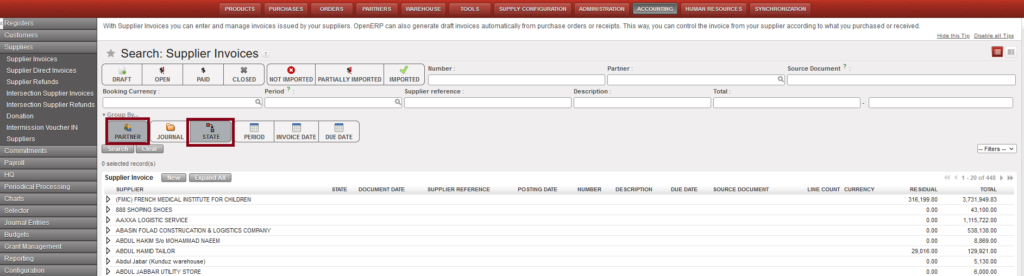
  • Selecting multiple buttons groups the next level of records within your initial grouping. In the example below, supplier invoices are first grouped by Partner then by State {Draft}, {Open}, {Closed} within each Partner.
  • Clicking {Expand All} will display all search results by grouping.
  • Group by can be used in conjunction with filter buttons and search fields and operates as an “And” search.

Search and Clear buttons

{Search} button executes the search, while the {Clear} button clears all filters so all records are returned.

How to Create a Custom Search Filter

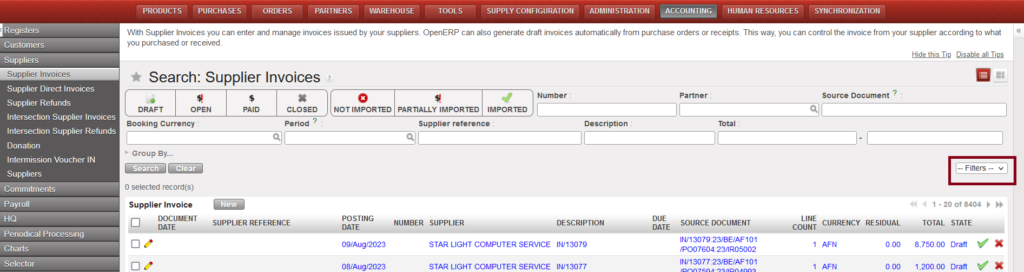
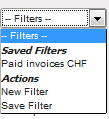
UniField allows creating custom filters, which can be used repeatedly. Clicking on the arrow next to {–Filters–} displays the possible actions.

  • Click on the arrow next to {–Filters–} to open the drop-down list.

Creating a custom filter

  • From the list, select {New Filter}.

Filter Actions

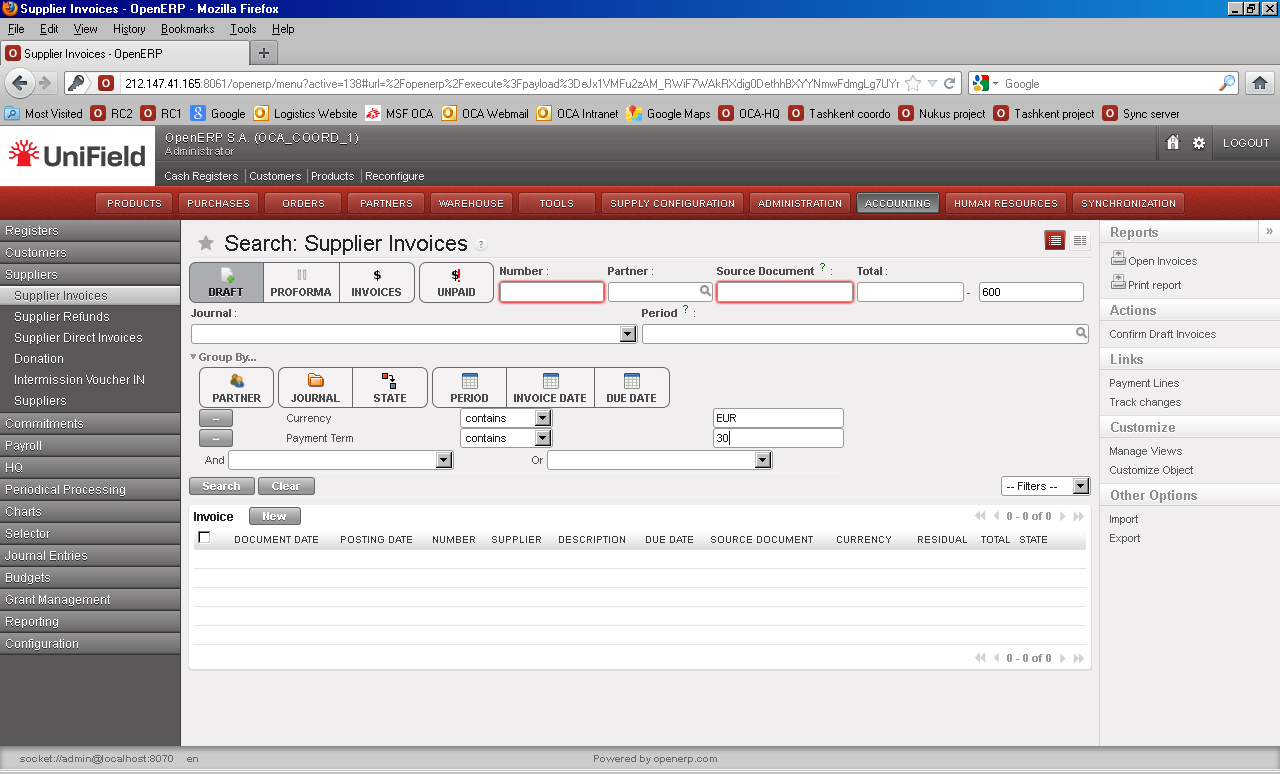
  • Two extra search fields will appear: “And” and “Or”.

Custom filter – selecting search field

  • In the “And” field, select from the drop-down list of available fields to search.
  • In the next drop-down list, select how you would like it to search e.g. “less than” “doesn’t contain”, “is equal to”, etc.

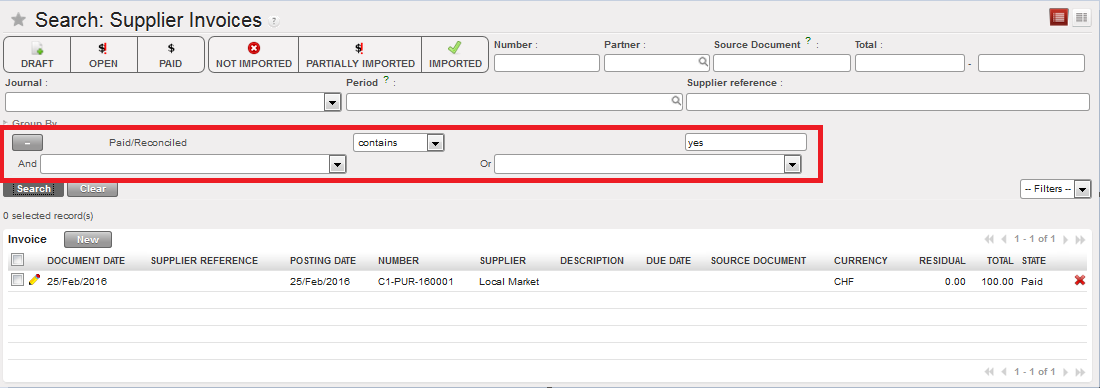
Custom filter – search expression

  • And in the final field, enter the value which you would like the system to use to perform the search. In the example above, the system will search for all reconciled supply invoices for which the {Paid/Reconciled} field contains “yes”.
  • The user can add multiple search expressions using the And or Or operators. To delete an expression, use the button.

Multiple search expressions

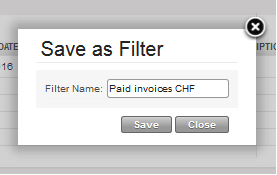
  1. Save the filter by clicking again on the Filters drop-down list, and select {Save filter}. Enter the name that you would like to call this filter, and then click {Save}.

Saving new search filters

  • Saved filters are then available to select from the Filters drop-down list.

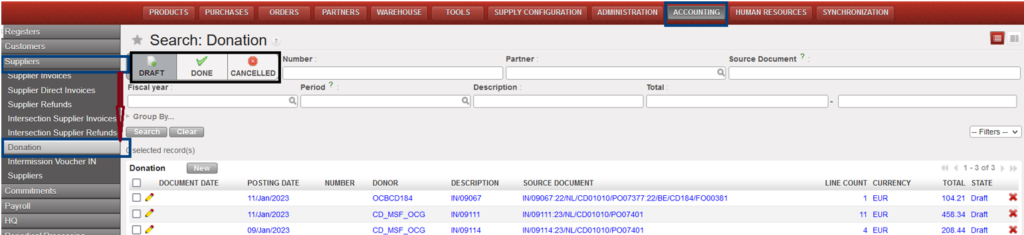
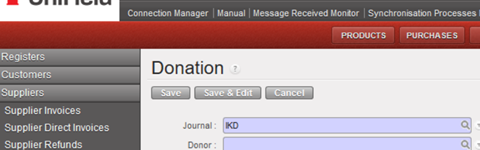
Go to Accounting > Suppliers > Donation:

How to search in Donation:

  • The default search of the donations is the “Draft” state:

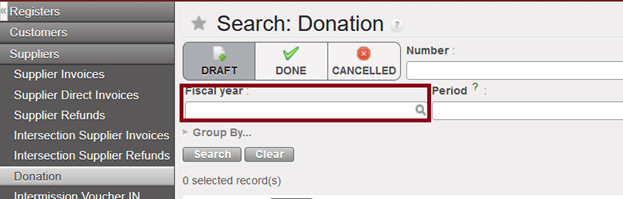
Below the 3 states of donation filters, we have added a new filter named “Fiscal year”, to allow to filter by year:

Search Donation states

The only journal available is now the IKD journal -In kind donations- (it is not possible to select the ODX journal in manual. This  ODX journal will be used just for automatic entries):

5.1 Searching.

Finance User Manual ENG -> 5. Searching, Correcting and Closing -> 5.1 Searching.

LUFI-50101 Searching Filters

LUFI-50102 Register Search

LUFI-50103 Journal Search

LUFI-50104 General Ledger (G/L) Selector

LUFI-50105 The Analytic Selector

LUFI-50106 Saved Queries / Template

LUFI-50107 Combined Journals

LUFI-50108 Multiple Sequences and Related Entries in the Selector

LUFI-50109 Synchronisation of Queries

LUFI-40302 Budget Reports

Finance User Manual ENG -> 4. Imports -> 4.3 Budgets. -> LUFI-40302 Budget Reports

LUFI-40302 Budget Reports

LU Introduction

In UniField you can produce a set of reports depending on the data you need to check. For each report type, we explain which data they show and the function you should use to generate them.

Under the {Actions} menu on the right hand side bar, {Budget Status} allows you to have a quick overview of the budget status. Only validated Budget are displayed. By clicking on any budget, you will be able to drill down into the budget details: you will be able to see the budget, actual and balance amounts on a parent account or account level. By clicking on an account, a new window with related AJIs will be displayed.

Budget Status in {Actions} menu

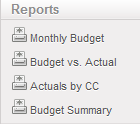
For budget follow-up, you can generate the following budget reports located under the Reports menu on the right hand side bar.

Action Menu Budget Report Options

How to Produce a PO Impact on Budget Report

Before a PO is validated, Supply and Finance users with the appropriate user rights can check the current status of the budget against actual expenses plus outstanding confirmed POs.

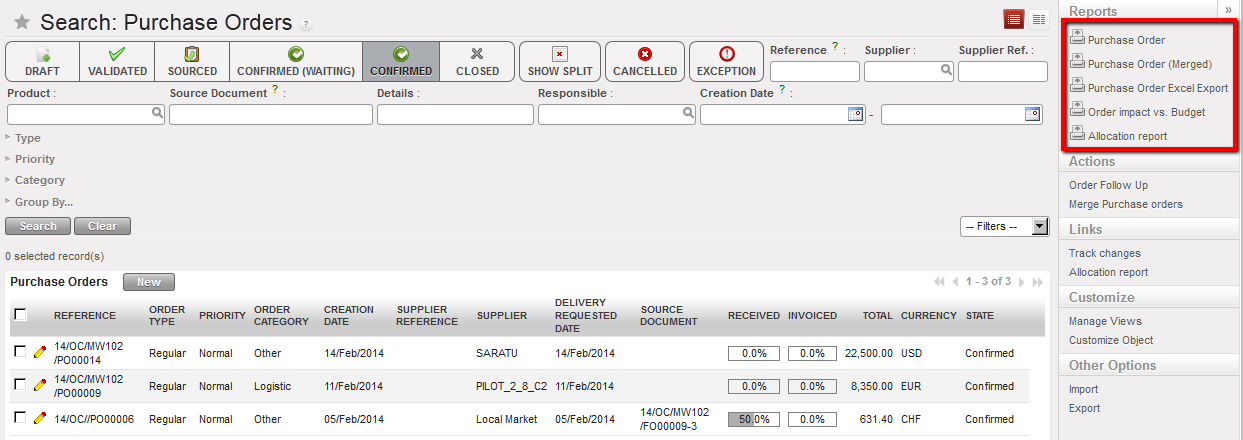
Go to: Purchase

Select the relevant PO and open the {Reports} Menu.

Order impact vs Budget report functionality

Select {Order Impact Vs Budget}

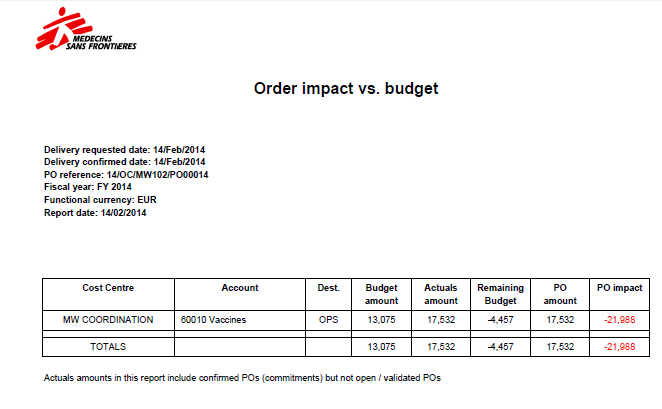
A PDF report will display

The PDF will show the impact of the PO on the budget in functional currency.

Order impact vs Budget report

In this example the order is worth 17’532 and is allocated to one cost center MW COORDINATION.

All amounts presented are in functional currency

  • {Budget amount} is retrieved from the budget uploaded in the system and corresponding to the cost center the PO was assigned to. If several versions of a budget have been uploaded, the report will pick the latest version (highest number) that is not {Draft}.
  • {Actuals amount} are expenses already recorded; this column also includes pending commitments which are confirmed but not validated POs.
  • {Remaining budget} is a calculated column equal to “Budget amount – Actuals amount”.
  • {PO amount} is a subtotal by cost centers, expenses accounts and destination. To retrieve these figures, the system takes the analytic distributions defined at header / line level as well as expense accounts linked to each product / product category and destination.
  • {PO impact} is a calculated column equal to Remaining budget – PO amount.
How to Produce a Monthly Budget Report

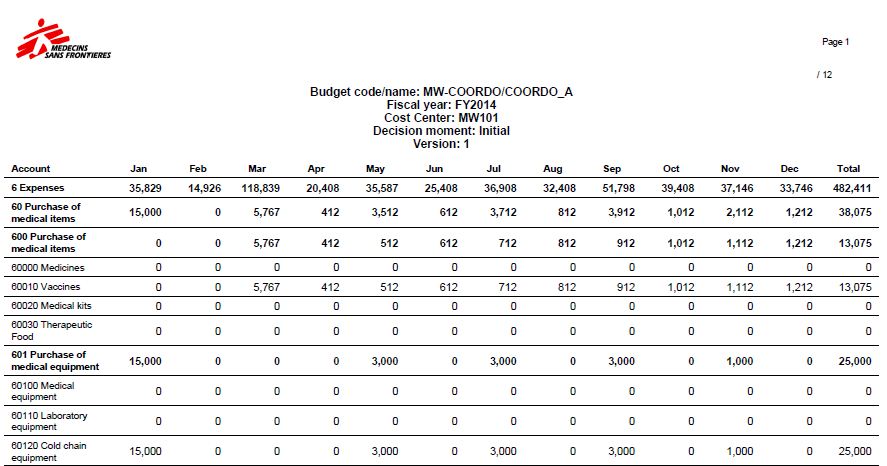
{Monthly budget}, XLS and PDF: this monthly report shows a breakdown of budgeted expenses. This actually reflects the budget displayed on your screen.

Go to Accounting/Budgets

A list of validated budget appears.

  1. Select a budget to open in Form view

The budget displays in Form view and a list of reports displays in the right-hand side menu.

  1. Select a budget display type: parent only, account only or account and destination.
  2. Select {Monthly budget}, XLS and PDF:

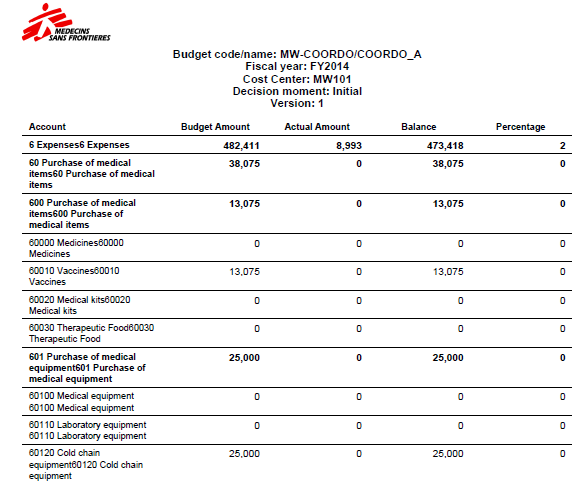
Monthly Budget PDF– Expenses only

How to Produce a Budget vs. Actual Report

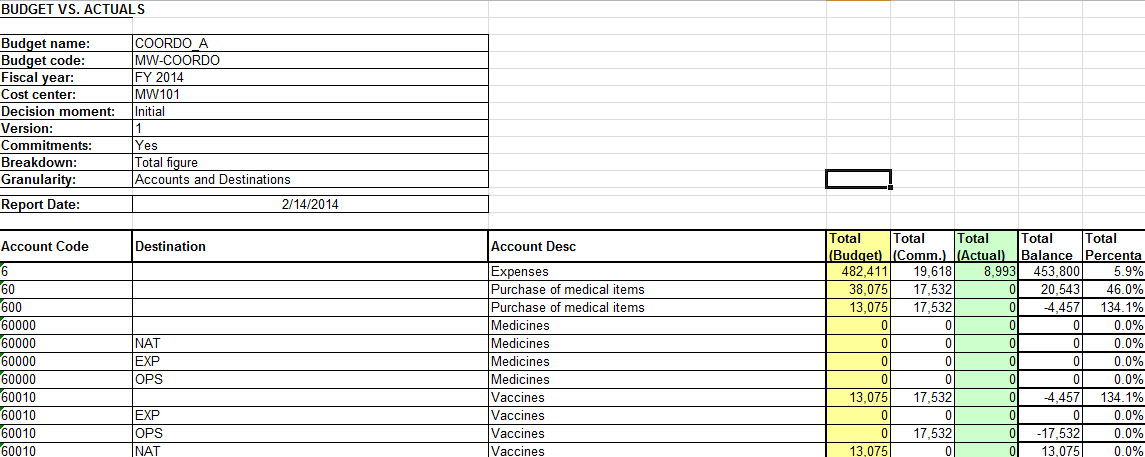
{Budget vs Actual}: this report shows a breakdown of budgeted vs. actual expenses (including commitments). You can choose to display the total figure or monthly figure. This is the most complete report designed to follow-up on budgets.

Go to Accounting/Budgets

A list of validated budget appears.

Select a budget to open

The budget displays in Form view and a list of reports displays in the right-hand side menu.

Select a budget display type: parent only, account only or account and destination.

Select {Budget vs Actual Report}

Select from the following criteria:

  • Currency table: to value budget and actual at budget rates provided by a donor
  • Year-to-date or full year figures,
  • Include or exclude pending commitments
  • Expenses display granularity: By expense and destination, by expense, by parent account
  • Monthly or total figures: Depending on the variances analysis you want to perform.

Budget vs Actual reporting options

Budget vs Actuals (Accounts only)

How to Produce an Actuals by Cost Center Budget Report

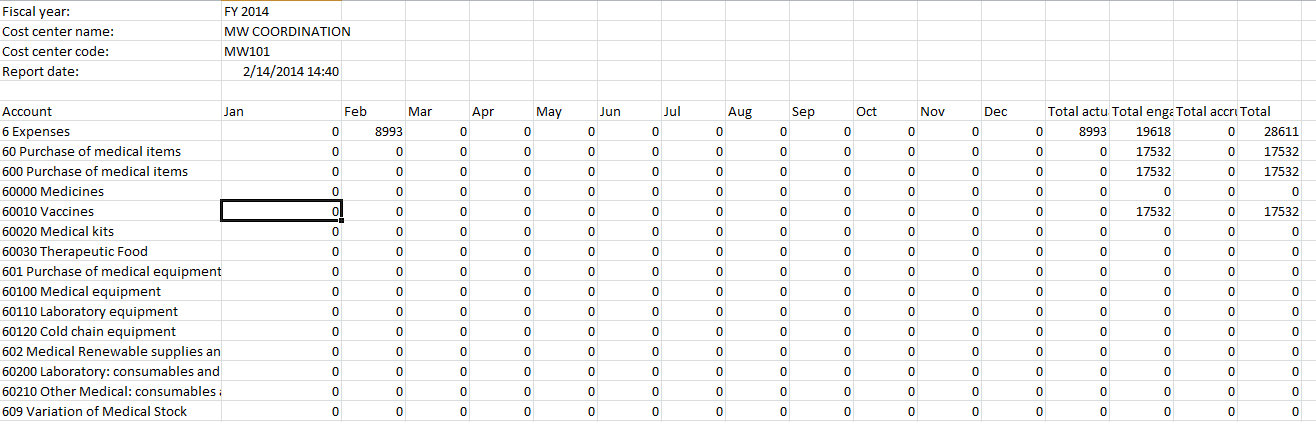
{Actuals by CC}, CSV: this monthly report displays a breakdown of actual expenses per cost center (by expense accounts only). Actual expenses are split into actual, commitment and accruals.

Go to Accounting/Budgets

A list of validated budget appears.

  1. Select a budget to open

The budget displays in Form view and a list of reports displays in the right-hand side menu.

2. Select a budget display type: parent only, account only or account and destination.

3. Select {Actuals by CC}

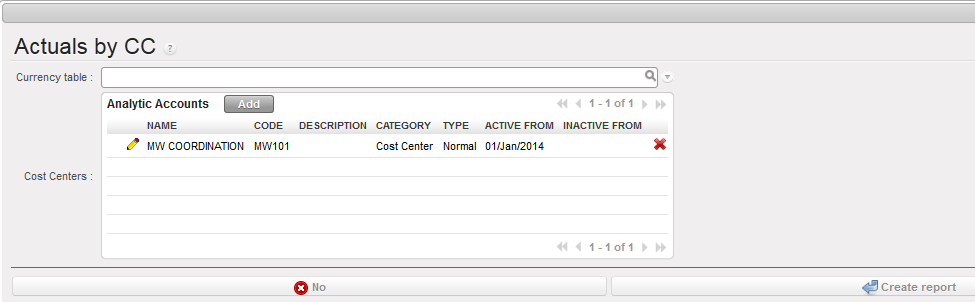
4. Select the following parameters as needed:

  • Currency table is optional and allows the user to apply a currency table that defines the donor currency in the report.
  • Cost Centers is used to select the projects for analysis. It is designed to be imported in a budget follow-up matrix or to produce costs follow-up reports.

Actuals by CC – report parameters

5. Confirm the opening (CSV or PDF)

Actuals by CC – Expenses only

How to Produce a Budget Summary Report

{Budget Summary}, PDF: this report shows the total figure of budgeted vs. actual expenses (including commitment). It also informs on the remaining budget and budget consumption rate.

Go to Accounting/Budgets

A list of validated budget appears.

  • Select a budget to open in {Form} view

The budget displays in Form view and a list of reports displays in the right-hand side menu.

  • Select a budget display type: parent only, account only or account and destination.
  • Select {Budget Summary} PDF

4.3 Budgets.

Finance User Manual ENG -> 4. Imports -> 4.3 Budgets.

BUDGETS

LUFI-40301 Budget Imports

LUFI-40302 Budget Reports

LUFI-40301 Budget Imports

LU Introduction

Within UniField, budget management consists of following actual expenses against expected expenses. Budgets are built outside UniField and imported in the system through a csv file. Each instance (coordination and project) must import its own budgets. Once imported, the budget is created in {Draft} state. An authorised user must review the {Draft} version and validate it. From that moment on, the budget lines cannot be modified and the will synchronize to other instances.

Budgets are imported and validated in each project location and synchronized upwards to Coordination and HQ.

When the period covered by the budget is over or when a new revised budget version is issued, a new budget can be loaded. It is possible to load a new budget while the first budget is still open.

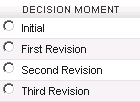
The user can upload up to 4 versions of the same budget at different decisions moments. Default decision moments available in UniField are: Initial, First Revision, Second Revision, Third Revision (as presented below); they can be modified from the HQ instance to match each OC’s terminology. They represent a re-forecast and the number of revisions depends on your OC policy. The budget decision name on the file should be the same as on the excel file otherwise the system will not let import it.

Once the project’s budgets are validated at project level, they are synchronized to the coordination.

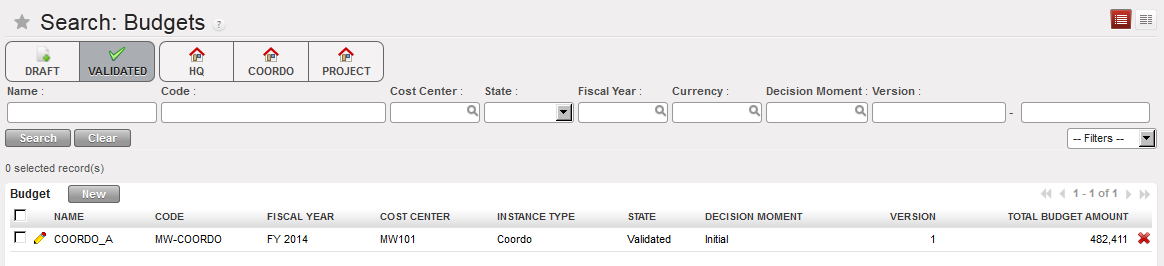
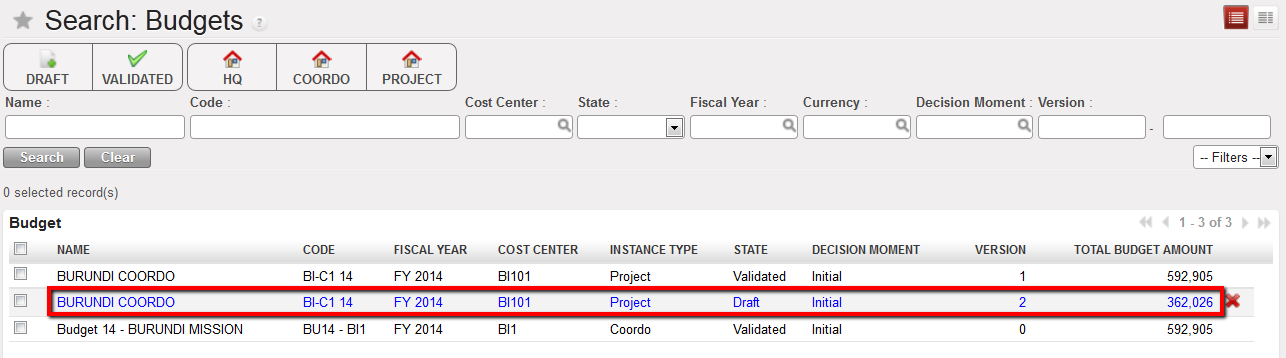
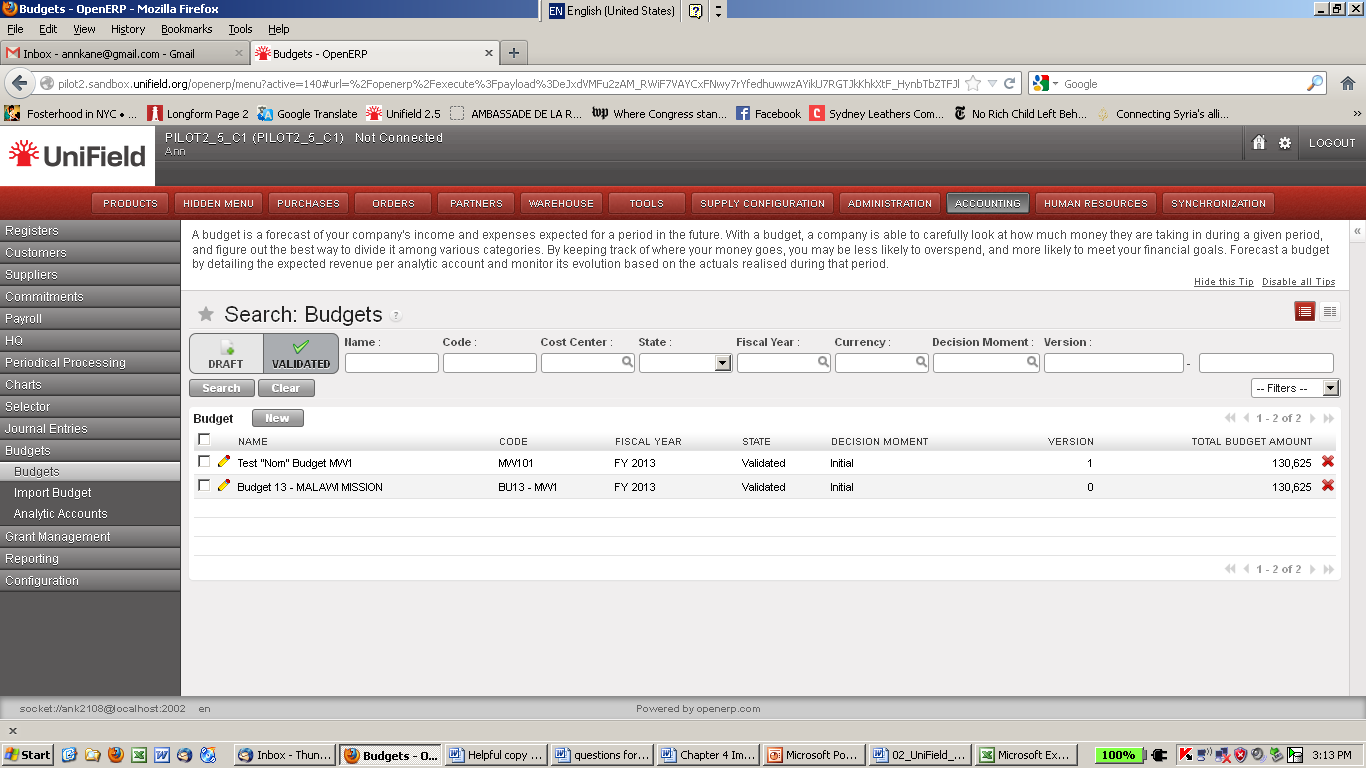
{Budge} Search view. You can retrieve your budget through different filters, including budget states

(Draft, validated or Done)

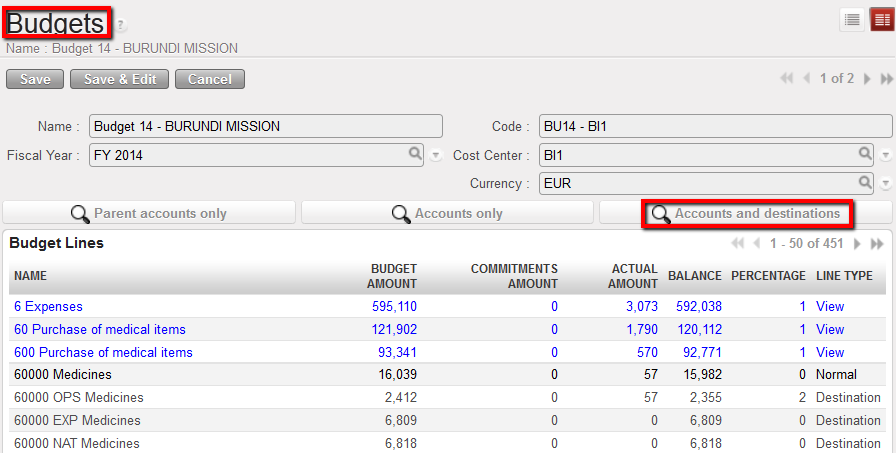
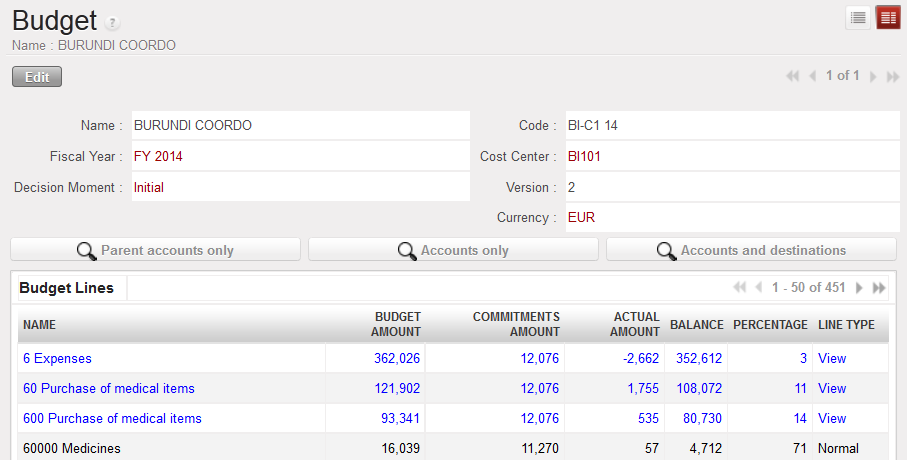
Once uploaded, in {Form} view, you can choose a display type to view the budget in various ways:

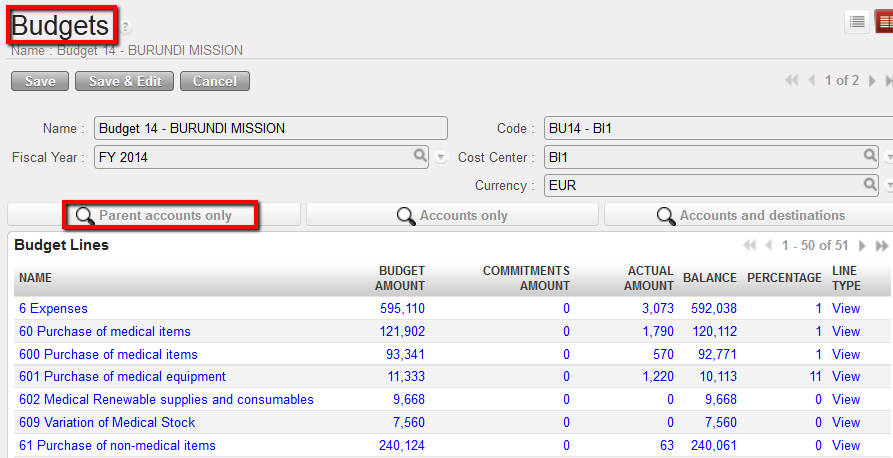
In the Budget display – Parent accounts only, the consolidated budget lines are displayed; it shows a summary of the totals at the Parent accounts level, e.g. 60 Purchase of Medical Items, 61 Purchase of Non-Medical Items etc.

Budget display – Parent accounts only

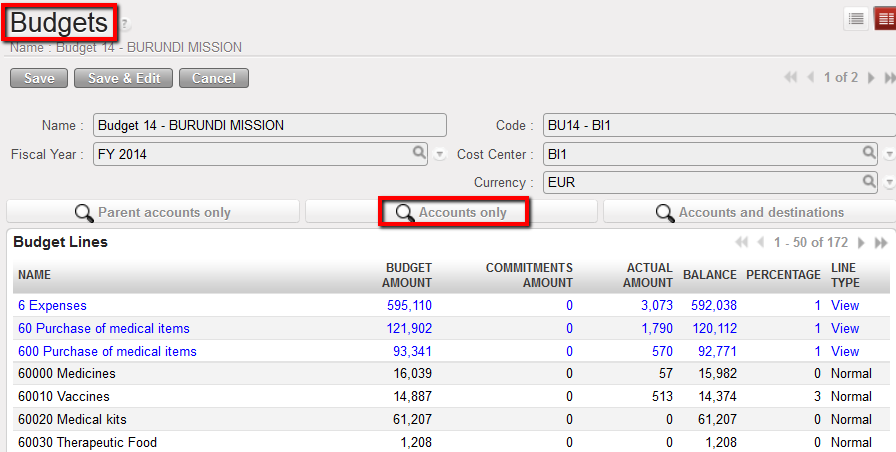
In the Budget display – Accounts only, the summary of the totals at the Parent level budget lines along with the subtotals for each expense account are displayed.

Budget display – Accounts only

In the Budget display – Accounts and destinations expense codes are listed for each expense/destination pair that exists in the system.

Budget display – Accounts and destinations

How to Import a Budget

Go to: Budgets/Import Budget

  1. Click on {add attachment}.
  2. Browse to the file you want to upload. Each section will manage how to create the budget file differently. Please follow your mission’s financial procedures.

One budget import file could contain several budgets to be imported in one instance in the following cases:

  • OCs managing activities in their cost center tree (OCBA, OCG)
  • For locations managing several projects from the same UniField instance

3. Click on {Import Budget} button.

Import Budget wizard

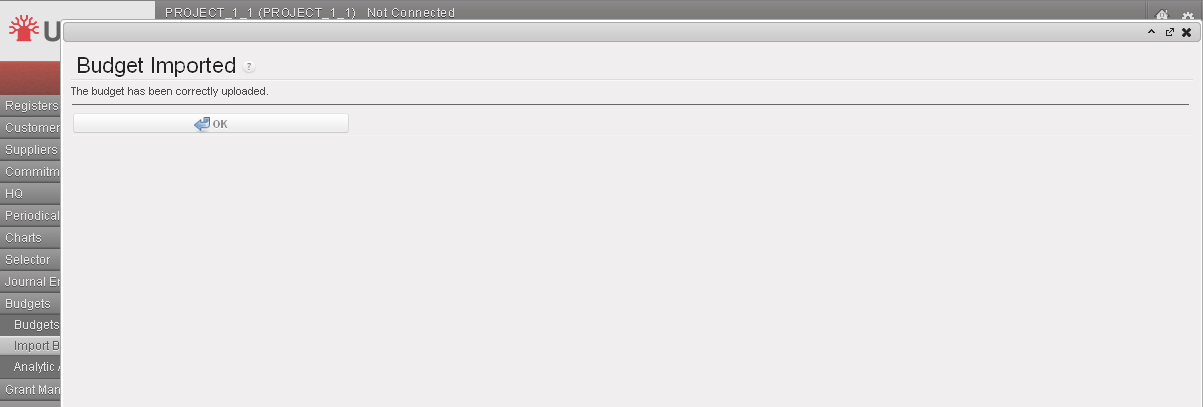
    • The system indicates that the budget has been properly uploaded

4. Click {OK} button.

Budget import confirmation

The budget displays in the Search Budgets view

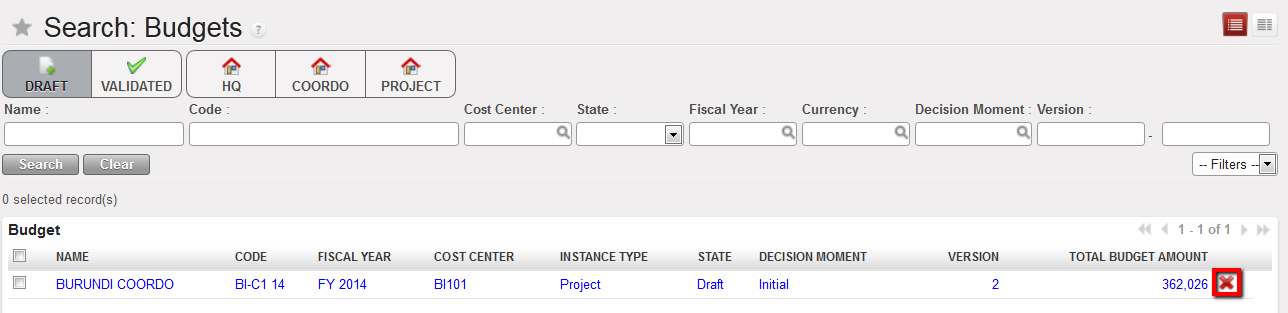
How to Delete a Draft Budget

Go to: Budgets/Budgets

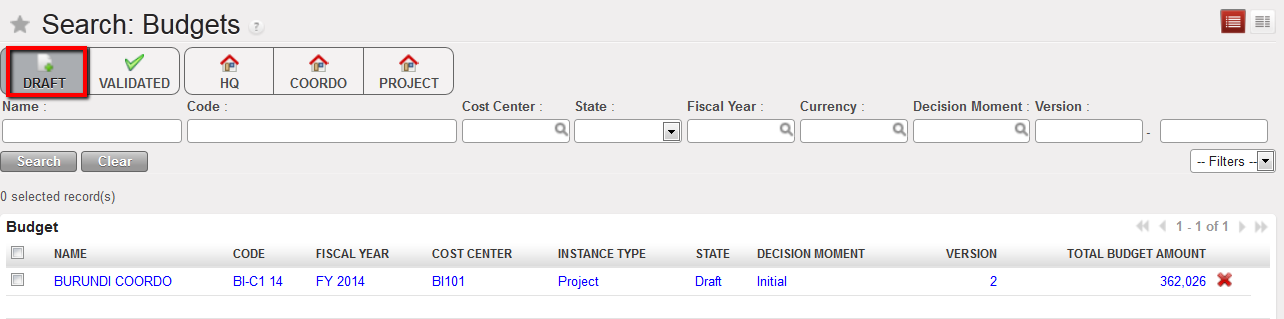
  1. Select the {Draft} filter. DRAFT budgets display
  2. In the Budget section, identify the budget you would like to delete.
  3. Click on the red cross.

The budget is deleted

Deletion icon in the Budgets Search view

–>See the task {How to import a budget} to load the right budget and check it before validation

How to Validate a Draft Budget

Remember, you must validate a budget to display budgeted amounts.

Go to: Budgets/Budgets

  1. Select the {Draft} filter

DRAFT budgets display

Draft budget displayed

Identify the budget to validate and click on it.

    • The budget Form view appears

Budget Form view

Change the budget display type to help you reviewing the budget before approval

Click on the button at the bottom of the form.

    • The budget status has changed to validated

How to Close a Validated Budget

Once a budget period or a decision moment is over, a budget can be closed in the instance where it belongs to, e.g. a project budget can be closed in project level. The status change will then synchronize upwards to coordination and HQ.

Go to: Budgets/Budgets

  1. Select the {Validated} filter. Select the budget you would like to close
  2. Review the budget. If there are no problem click on the {Done} button at the bottom of the page.

LUFI-40202 F: How to Validate HQ Entries

Finance User Manual ENG -> 4. Imports -> 4.2 Headquarter (HQ) Expenses -> LUFI-40202 F: How to Validate HQ Entries

LUFI-40202 F: How to Validate HQ Entries

When HQ entries have been reviewed, an authorised user can validate (Hard-post) and synchronize them.

Once the HQ entries are validated at Coordination level, they become validated at the HQ instance in the HQ entries sub module so that HQ can follow which HQ entries have been validated by each mission.  HQ entries mass or individual validation at coordination will trigger one Journal Item per HQ entry. There will be no more entry sequences containing several HQ entries in the same sequence. (one entry sequence per HQ journal entry)

Go to Accounting/HQ/HQ Entries

  • –>A list of HQ entries to validate displays
List of draft HQ entries displayed in the {HQ Entries List} Search view
  1. Tick the check-boxes of the entries you want to validate. Note that selecting one split entry will lead to validation of lines involved in the split (original entry and all related split entries).

  2. Go to the {Actions} menu and select {Validation}.
{Validation} action

–>A {Validation} wizard displays

 {HQ Entries Validation} wizard

3. Select {Validate}

–>HQ entries are validated. From this moment they become accounting entries and are reflected in the {HQ} journal. After this step changing entries is only possible through accounting corrections.

HQ entries mass or individual validation at coordination will trigger one Journal Item per HQ entry. Same for Analytic Journal Items (one entry sequence per HQ journal entry)

Validated HQ entries displayed in {Journal Items} Search view
Validated HQ entries displayed in {Analytic Journal Items} Search view

When an HQ entry is corrected before validation for account or analytical distribution or when the entry is split, automatic correction entries in OD journal are created. This means that the original HQ entry is reversed and corrected with a separate entry. The original entries have the correction history wizard available.

Corrections History viewed from the Analytic Journal Items

How to track changes on HQ entries:

1. The fields used as headers in the list view of the HQ entries.

2. The transition to “Validated” (the tag on which the filters To Validate and Validated depend), so that we can spot when the HQ entries have been posted.

3. The split and unsplit of entries. Note: lines coming from a split will be identifiable because the “Original HQ Entry” will have a value for these lines (contrary to the “original” lines).

4. Analytic reallocation

5. Change Account

LUFI-40202 D: How to Review Multiple HQ entries

Finance User Manual ENG -> 4. Imports -> 4.2 Headquarter (HQ) Expenses -> LUFI-40202 D: How to Review Multiple HQ entries

LUFI-40202 D: How to Review Multiple HQ entries

1. Go to Accounting/HQ/HQ Entries

    • A list of HQ entries to validate displays

2. Tick the entries you want to modify.

List of draft HQ entries displayed in the {HQ Entries List} Search view

3. If you want to allocate these entries to a new analytical distribution, go to the {Actions} menu.

4. Select {Analytic reallocation}.

{Analytic reallocation} action

5. Here you can change the fields {Destination}, {Cost Center} and {Funding Pool}. Make sure the allocation is identical for your entries and the expense account/destination is correct. Click on the {Validate} button.

{Analytic reallocation} wizard

6. The analytical reallocation is completed. If you have assigned a wrong allocation, entries will appear in red. For example: if the combination expense account/destination is incorrect.

Entries with invalid analytic distribution in red displayed in the HQ Entries Search view

7. If you want to allocate HQ entries to a new expense account, go to the {Actions} menu, and select {Change Account}

{Change Account} action

8. In the {Change Account} wizard, type a new account in the {Account} field.

{Change Account} wizard

9. Validate. The expense accounts will be updated.

LUFI-40202 C: How to Review HQ Entries Individually

Finance User Manual ENG -> 4. Imports -> 4.2 Headquarter (HQ) Expenses -> LUFI-40202 C: How to Review HQ Entries Individually

LUFI-40202 C: How to Review HQ Entries Individually

Analytical and expense account information can be changed at coordination level.

Expenses recorded in the HQ ERP system are initially allocated to cost centers. This allocation is decided at HQ based on Logistics or HR information; it needs to be reviewed at coordination level by advanced users.

Expenses recorded at HQ on behalf of the field are automatically set to the funding pool {PF – MSF private funds}. Advanced Coordination finance users complete the funding pool allocation because the funding dimension is not available or known in the HQ system.

Go to Accounting/HQ/HQ Entries   ->>A list of HQ entries to validate displays

List of draft HQ entries displayed in the {HQ Entries List} Search view

1. Click on the pencil to edit the relevant entry line. Fields in blue are mandatory and editable. Fields in white are also editable.


2. Change the account, destination, cost center or funding pool by deleting the field content and browse or type in the field the right input.

Editing an HQ entry
    • Note! Some sections have decided to set some accounts as not correctable/editable. Please see the financial procedures from your section for further details. However, the analytic distribution on such accounts can still be updated.
{Other staff costs} account set as not correctable by HQ

In the above example, the account {66250} is not correctable. If you try to change this account when it is imported in your instance, an error message will appear. If you need to correct an entry on such an account, contact your financial manager in the Headquarter office.

3. Save the entry line by clicking the floppy disc.

Account changed from 64100 to 64110

4. Proceed to validating the entries