LUFI-40105 I: How to Import Salary Payments into a Register

LUFI-40105_I: How to Import Salary Payments into a Register

The validation of payroll entries recognizes expenses and payable amounts. Mid month salary advances have already been paid via the registers. The end of month net to pay salary amount is still to pay and has not physically impacted your cash or bank balance until you record the payment directly in your registers.

If you made any mid-month salary advance payments, you should have recognized money that was paid from your liquidity account by manually creating an entry in the register (1 register entry could consolidate the payment of salary advances for several employees). Regarding the payable entries remaining to pay at the time of importing the payroll (e.g.: net to pay salary dispersed at the end of the month, social contributions, taxes, etc.), UniField allows you to import these expenses into your registers.

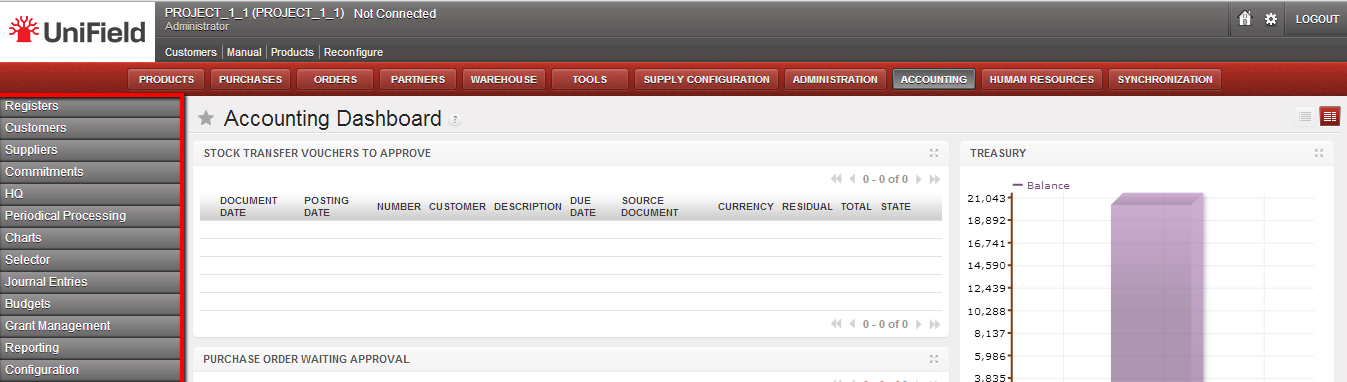
Go to Accounting/Registers

    1. Open the register the payments were made from.
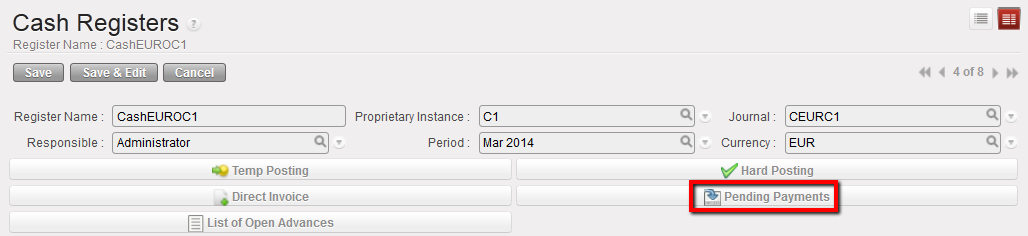
    2. Select the {Pending Payments} button.

Pending Payments button to import A/P entries

    1. In the {Import invoice} window, select and in the {Search Account Entry Line}, select the relevant A/P (only the entries you will pay at this time). Depending on your payroll import file, you will see:

  • 30200 – Social Security Entries. Depending on your Homere settings this could be split into employer contribution and employee contributions entries.
  • 30310 – Income Tax entries.
  • Any other contribution as required by your mission and set in Homere.
  • 30100 – Remuneration (net salary) payable. There should be one entry for the amount of the end of month salary payment.
  • 13210 – Salary Advance for national staff. If your mission entered salary advance in Homere, there will be an additional salary entry from the Homere import. If you followed the instructions above and made a manual entry for mid-month salary advance AND reconciled the entry in journals, the amount will no longer appear here. If the mid-month salary amount is still in the pending payment screen you should NOT import it or your cash/bank balance will be decreased twice for the same expense.

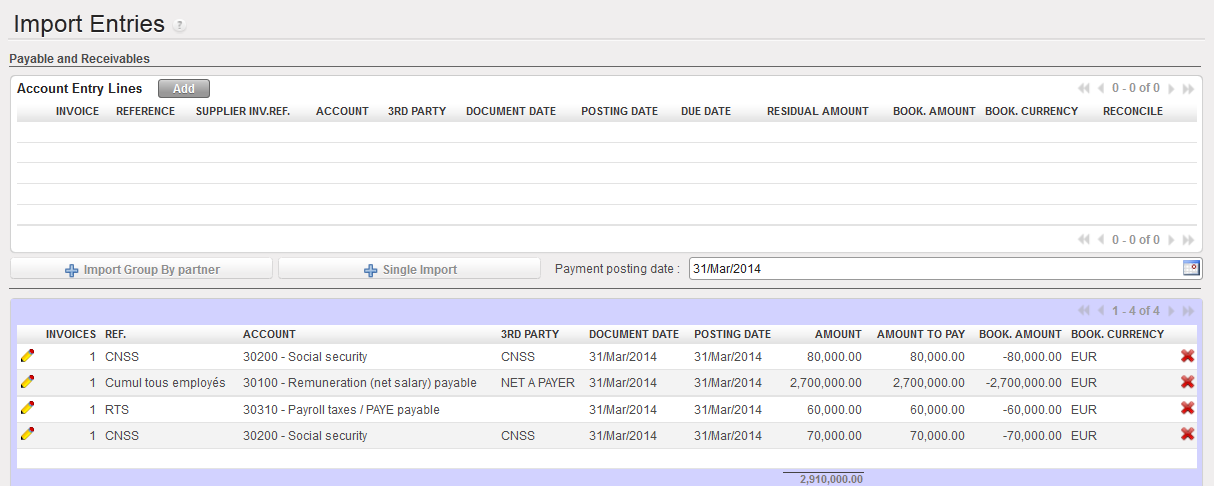
A/P selected to import

    1. Back to the import invoice window, input a payment {Posting date} and select {Single import} if you want the entries to remain separate payments. Select {Import group by partner} if you would like to make one payment for different entries for the same partner.

For example, if you make one employee contribution payment and one employer contribution payment to the social contribution office then you should select {Single import}.

If you combine the employer and employee contribution into one payment then select {Import group by partner}.
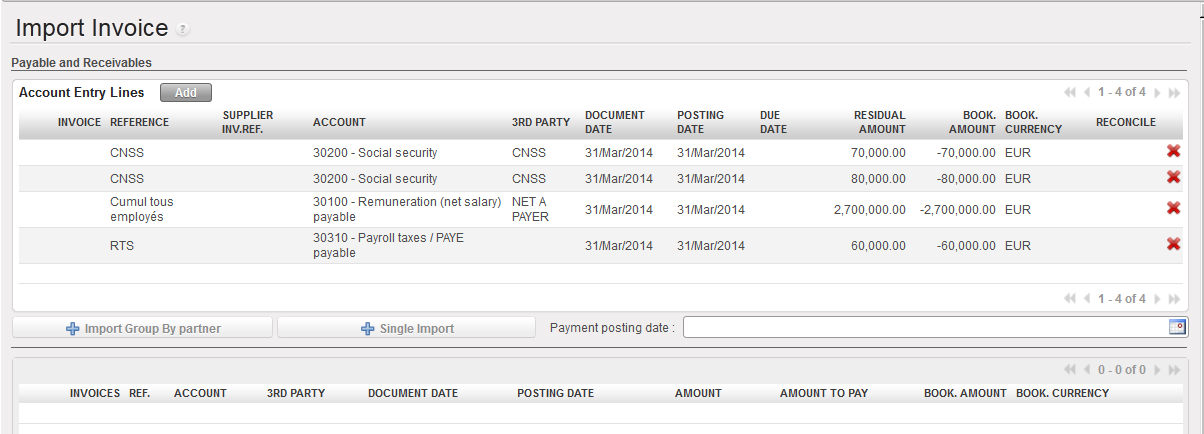
Importing A/P

    1. Then click at the bottom of the screen.

Importing A/P

At this point you can use the pencil to edit lines as needed. For example, if you paid some of the salary via a bank register and some via the cash register you can edit the amount so that you import only the appropriate amount. If you don’t pay all of the taxes at one time you can edit the amounts.

    1. The import has created register lines.
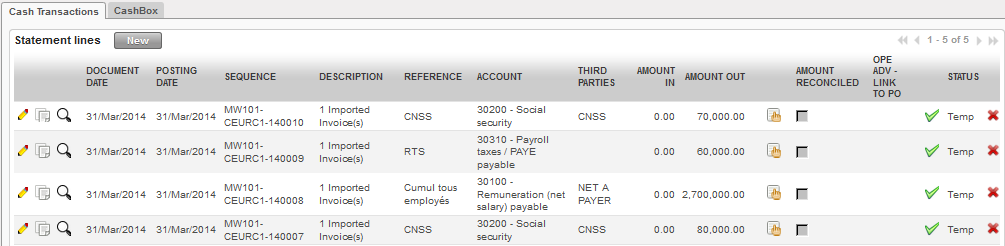
Register lines created in Temp posted state

Once the imported entries are hard posted they will automatically be reconciled with the entries from the Homere import.

If you pay salaries, taxes and contributions at different times in the month, it is possible to select them individually. The expenses you do not pay will remain in the journal as {Unreconciled} until you make the payment entry in your register. As you manually entered the mid-month salary advance it will need to be manually reconciled.

LUFI-40105 H: How to Validate National Staff Payroll Entries.

LUFI-40105_H: How to Validate National Staff Payroll Entries.

Once the payroll entries have been reviewed, you can validate them. The expense lines are validated first, and then a new window is displayed to validate payroll B/S lines. Depending on the account settings, some B/S lines will need to be assigned a Third party if it is not yet automatically filled in by Homere. You can only validate all payroll entry lines at once, because all the lines will for one Journal Entry that needs to be balanced in debit and credit.

Avant d’importer le fichier PAYE SAGA, assurez-vous que toutes les lignes de paie précédemment importées sont validées et ne sont pas en brouillon, car les lignes en brouillon bloqueront l’importation d’autres fichiers PAYE SAGA avec un message d’avertissement :

“Vous ne pouvez pas importer les écritures de paie car il y a XX lignes de dépenses en brouillon et YYY lignes de bilan en brouillon. Veuillez valider les écritures en brouillon ou cliquez sur ‘Supprimer les écritures en brouillon’ pour continuer.”

Go to Accounting/Payroll/Payroll entries

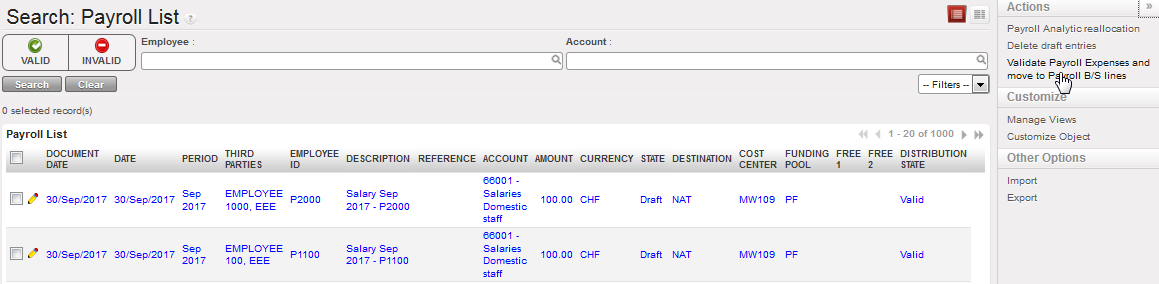
A list of payroll entries booked on expense accounts displays

Go to Actions menu on your right hand side and select {Validate Payroll Expenses and move to Payroll B/S Lines } button. All expense lines are automatically included in the selection.

{Validate draft entries} window displays

{Validate Payroll Expenses and move to Payroll B/S Lines} button

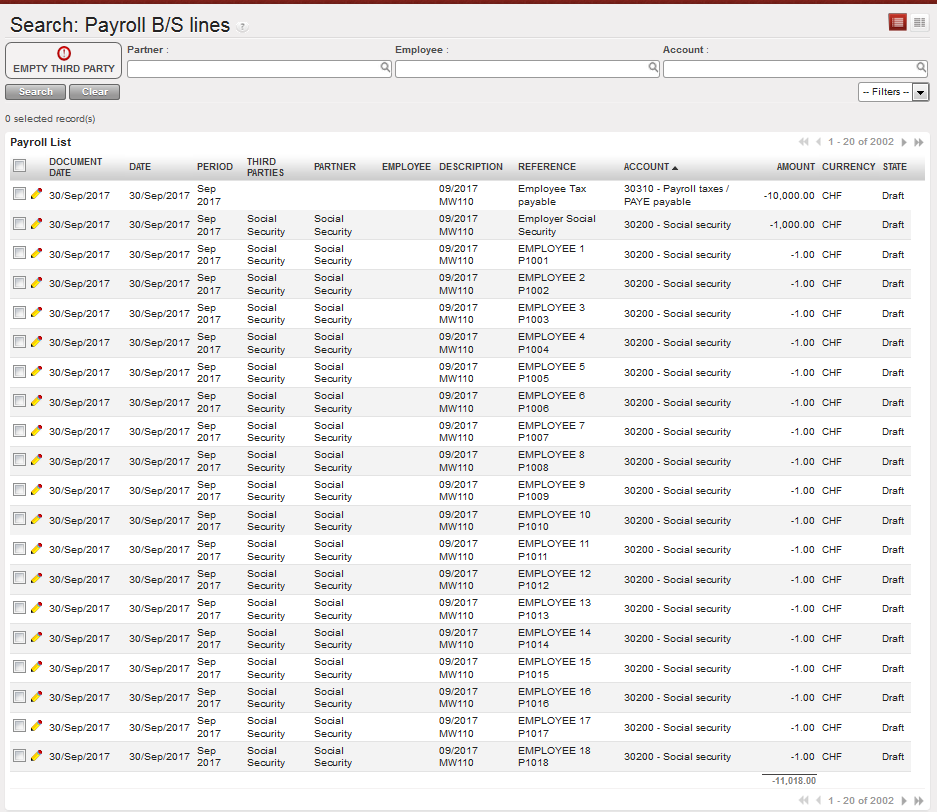
A new window with all the B/S lines opens. The lines without a Third Party are automatically shown first.

Payroll B/S lines to validate and to allocate third Party

Allocate Third Party to missing B/S lines.

B/S line edited to add Third Party

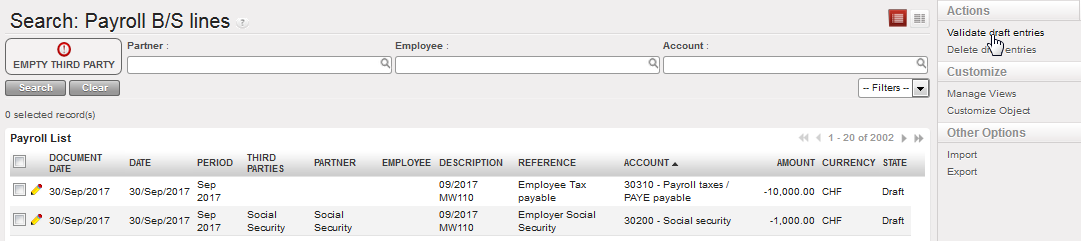
Click on {Validate draft entries} button in the Action Menu

{Validate draft entries} button

{Payroll Validation Confirmation} window displays

Payroll validation wizard

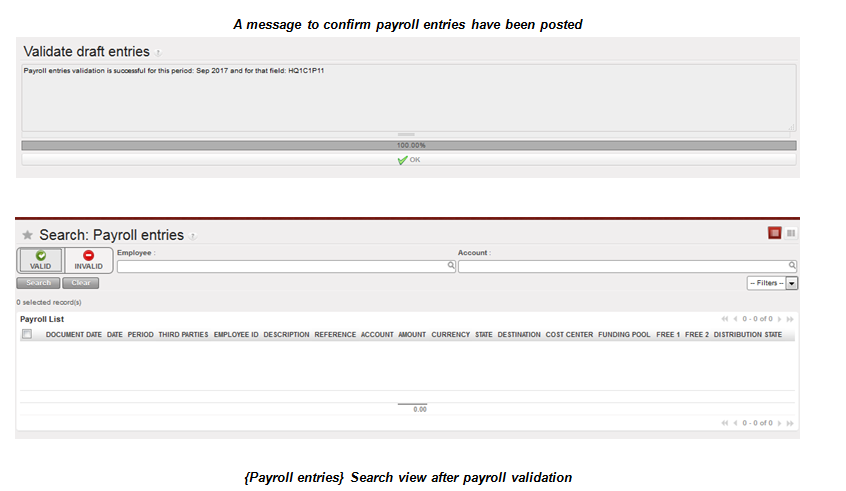
Click on {Validate} and wait for the payroll entries to be posted.

Confirming the validation of payroll entries

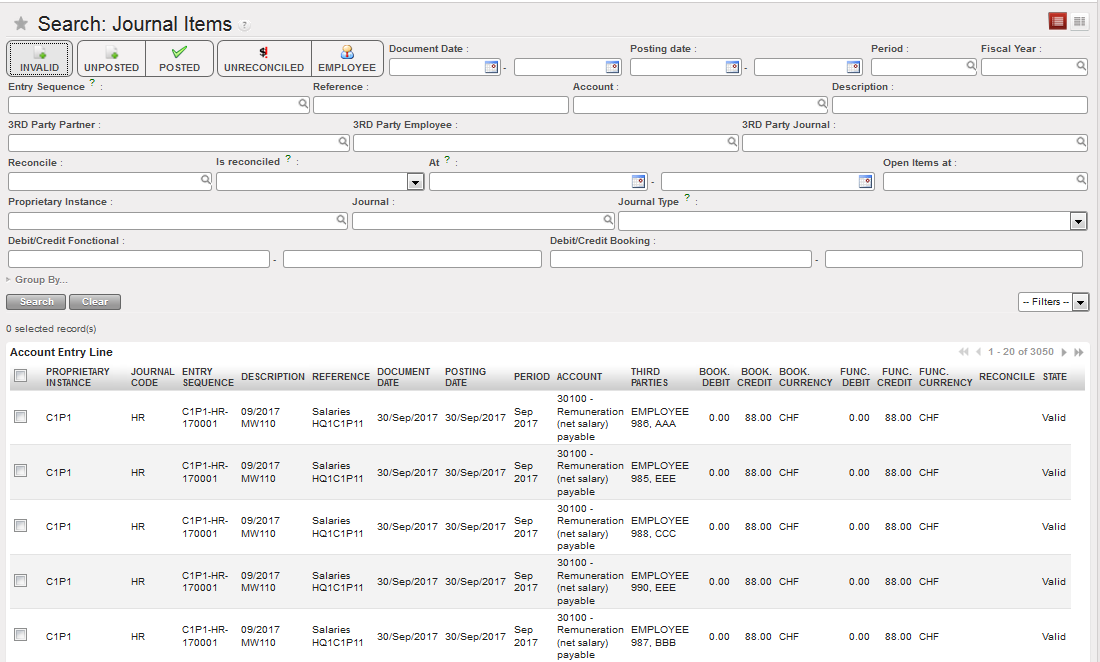
The validate payroll entries are now displayed in the {HR} journal.

Posted payroll entries in the HR Journal

From an accounting perspective, the entries booked in journal on the debit side are composed of:

  • A breakdown of total cost for MSF by employee, to be booked on a regular national staff expense account {66001, 66002 etc.}. The employee name is displayed in the {Third party} field and the employee function in the {Reference} field.

On the credit side, the entries booked in journal are composed of:

  • Consolidated or split by employee net salary booked on account {Remuneration (net salary) payable}.
  • Consolidated or split by employee salary advances for national staff {Salary Advance for national staff}. Advances were entered mid-month in Homere and recorded manually in UniField at time of payment. Salary advances are included in the export. They are therefore not included in the net salary and matched manually at salary payment at the end of the month.
  • Consolidated or split by employee Social security employee / employer recorded under a dedicated payable account {Social security}.
  • Consolidated or split by employee income taxes recorded under a dedicated payable account {Payroll taxes / PAYE Payable}.
  • Any other tax or contribution recorded in the Homere payroll plan.

The validation of payroll entries recognizes expenses and payable amounts. Mid-month salary advances have already been paid via the registers. The end of month net to pay salary amount is still to pay and has not physically impacted your cash or bank balance until you record the payment directly in your registers.

  • Just to mention that whether when importing register lines, Journal entries or Homere payee saga, the Analytic distribution information will be taken from the file imported and not from Employee master data.
  • Before importing of payee saga make sure that all previously imported payroll lines are validated and not in draft state, as draft lines will block importing other payee saga files with a warning message >>”You cannot import payroll entries because there are XX draft expense lines and YYY draft balance sheet lines. Please validate the draft entries or click on ‘Delete draft entries’ to proceed.

LUFI-40105 E-G: How to Change AD on Payroll Entries

LUFI-40105_E: How to Change the Analytical Distribution on Payroll Entries

If you would like to change the analytical information permanently, you can use the employee update sub-module. However, there may be special situations when staff members need update only for one payroll period.


Go to Accounting/Payroll/Payroll entries

    • A list of draft payroll entries booked on expense accounts displays

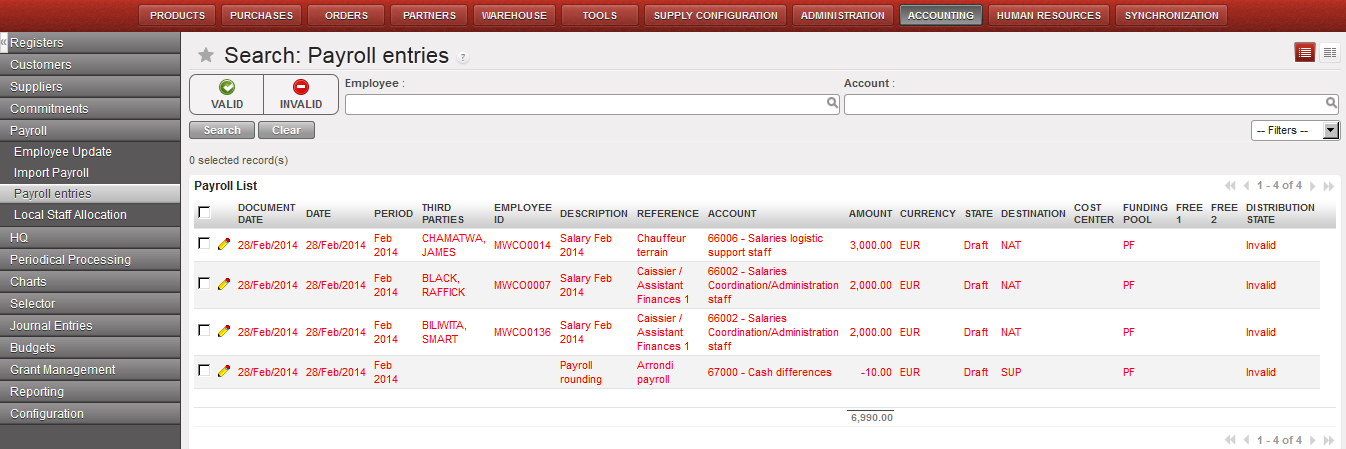
{Payroll List} Search view displayed in {Payroll entries} sub-module

  1. Click on the pencil of the entry you want to change the distribution.

  1. Change the destination, cost center and/or funding pool.
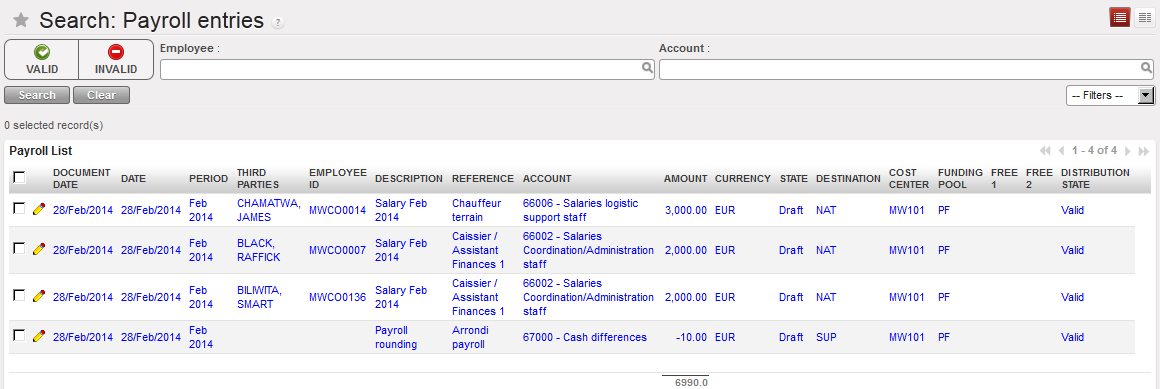
  2. Save the entry. When the payroll entry displays in blue, the allocation is valid.


Valid analytical allocation on payroll entry

LUFI-40105_F: How to Change the Analytical Distribution on Multiple Payroll Entries

If you would like to change the analytical information permanently, you can use the employee update sub-module. However, there may be special situations when staff members need updating for only one payroll. Keep in mind you can change simultaneously only entries that have all the same analytical information.


Go to Accounting/Payroll/Payroll entries

A list of draft payroll entries booked on expense accounts displays

  1. Check the entries which need distribution changes.

Payroll entries to be reallocated

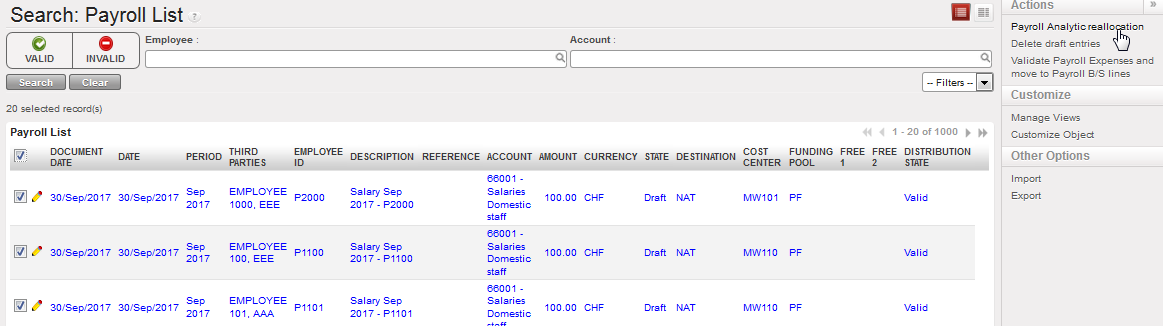
  1. Go to Actions and {Select Payroll Analytical Reallocation}.

A wizard {Payroll Analytic reallocation} displays

{Payroll Analytic reallocation} wizard

  1. Change the destination, cost center or funding pool to make the entries valid.
  2. Click on {Validate} button.

The payroll entries will be allocated to a new analytical dimension

Valid payroll entries

LUFI-40105_G: How to Delete Draft National Staff Payroll Entries


If wrong import files are accidentally used for payroll, the entries can be deleted as long as the entries are still in {Draft} status.

By selecting the action {Delete draft entries} on the right hand side of the screen, you can cancel the whole payroll entry import. Remember that you cannot cancel individual entries to ensure the balance of the payroll entries booked on the credit side matches the balance of entries booked on the debit side.

Go to Accounting/Payroll/Payroll entries

A list of payroll entries booked on expense accounts displays

  1. Tick the checkboxes of all entries.
  2. Go to Actions and select {Delete Draft Entries}.

A {Delete draft entries} window displays


Delete draft entries window

  1. Select {Validate} and the payroll entries will be deleted by cancelling the whole payroll import.

To ensure the balance of payroll entries booked on the credit side matches with the balance of entries booked on the debit side, you cannot delete individual payroll lines.

LUFI-40105: National Staff Payroll Management

LUFI-40105 National Staff Payroll Management

  1. LU Introduction

Once employee data has been updated in UniField, payroll entries can be exported from Homere and imported into UniField.

If one of the payroll entry lines cannot be imported, UniField will reject the whole import. UniField provides a list of entry lines with errors with details of why these entries cannot be imported. If there is no error message, the import was successful.

When national staff payroll entries are imported, they remain in {Draft} state until an authorized user validates them. Once they have been validated, they are booked in the journals.

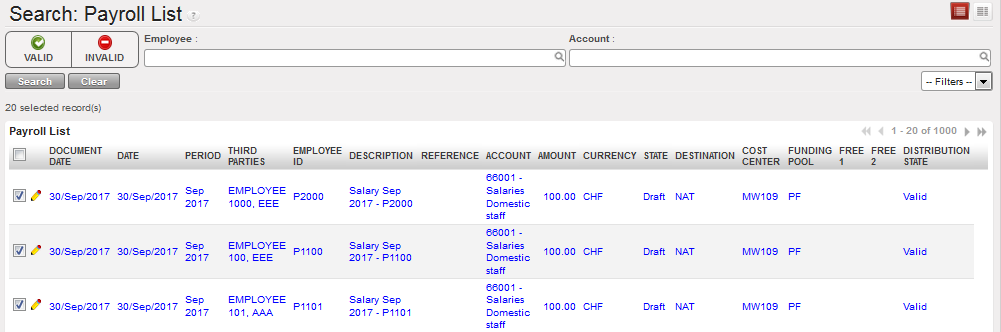
List of valid payroll entries in Draft displayed in the sub-module {Import Payroll}

Before validation, you will need to check if the analytical allocation is correct. Payroll lines in red represent an error and will require a new allocation. This task is performed in the {Payroll entries} sub-module.

Some payroll lines appear in red: you must reallocate them to a valid analytical dimension.

Once the payroll expense entries have been reviewed, they can be validated. You must validate all payroll entries at one time.

After validating the expense entries, you will be directed to a new window to validate the balance sheet (B/S) entry lines. The B/S lines can be either a total amount for all employees or divided by employees (one line per employee). The B/S accounts may require a third party to be set, depending on the account settings. If the third party is correctly set in Homere, it will be automatically taken to UniField in the respective B/S line. The third party for each payroll B/S line is by default taken from the {Third} field in Payee_SAGA file. If the {Third} field is empty, the third party is derived from the {Secondary Description} field. If both of the fields are empty or incorrect, the user has to manually set the {Third party} for each respective B/S lines.

If Homere has rounded up employee salaries according to coins and notes locally available vs. exact payroll calculation, UniField will automatically create a cash difference entry for an amount that does not exceed 1.00 EUR (or equivalent in CHF).

When payroll entries are validated, they become {Posted} and are displayed in the {HR} Journals.

Once the physical payment has taken place, you may import the payment into the register by using the {Pending Payments} function. Keep in mind that you only import the amount of money which is paid at that time.

If some employees are paid in cash and others by bank transfer, you import the corresponding amount in the cash register and the remaining amount in the bank register. The reconciliation in the journals of all the entries on the account {30100} is automatically performed when using the function “Pending Payments”.

As mentioned earlier, the total salary advance amount was already booked as payment entries in the registers. All payroll entries must be manually reconciled on the {Advances on salaries of national staff}.

Below you can find the accounting moves when salaries are paid:

LUFI-40104: Activate/Deactivate Staff

LUFI-40104 Activate/Deactivate Staff

Activation/Deactivation of staff in Human Resources

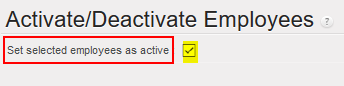
You can deactivate/activate a group of employees in mass (for both expats and national staff). You just need to select all the employees you want => Click on Activate/Deactivate Employees in the right-side menu:

If the purpose was to activate the selected list of employees, then you tick the box of (Set selected employees as active). If the purpose was to deactivate the selected list of employees, then you un-tick this box.

LUFI-40103: National Staff Database Management for Missions Not Using Homere

LUFI-40103 National Staff Database Management for Missions Not Using Homere

  1. LU Introduction

In certain cases Homere may not be used in your mission. In these cases UniField can still be used for national staff management but you must first reconfigure the settings. When the configuration is done, you will import the national staff database and allocate an analytical dimension.

  1. How to Reconfigure the Payroll Module if Homere is Not in Use

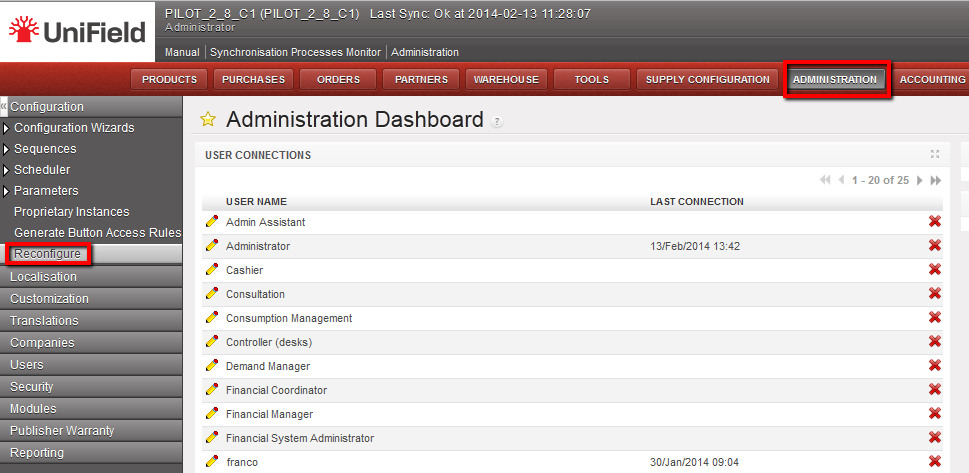
Go to: Administration/ Reconfigure

Welcome menu and {Reconfigure} function
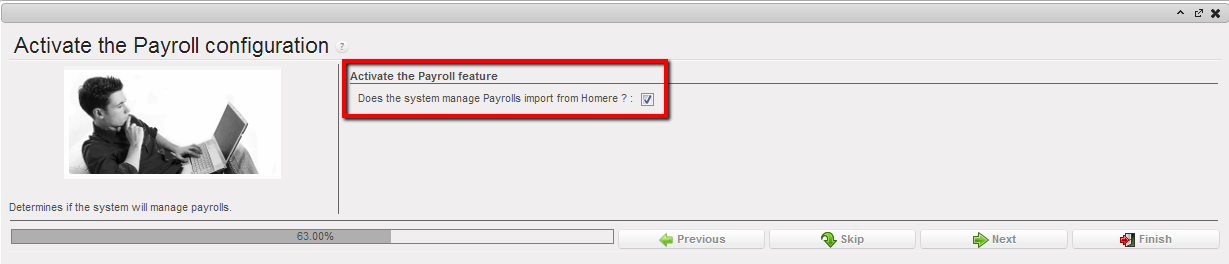
  1. Skip the different parameters window until the {Activate the Payroll} configuration window by selecting {Skip} or {Next}.
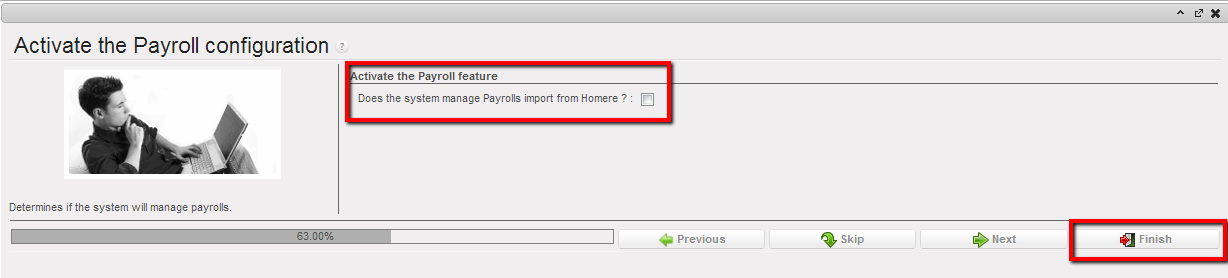
  2. On the {Activate the Payroll} configuration, uncheck the box of the below statement.

Payroll configuration window

  1. Select {Finish} button.

The payroll configuration is disabled

The {payroll} module is disabled

The payroll module is disabled

  1. How to Import the National Staff Master Data if Homere is Not in Use

Go to: Human Resources// Human Resources

  1. Select {Import nat. staff}.

Import nat. staff sub-module

A Wizard {Import nat. staff} appears.

Import nat. staff wizard

  1. Browse the file (xml) you use to import your data and select validate to confirm the import.

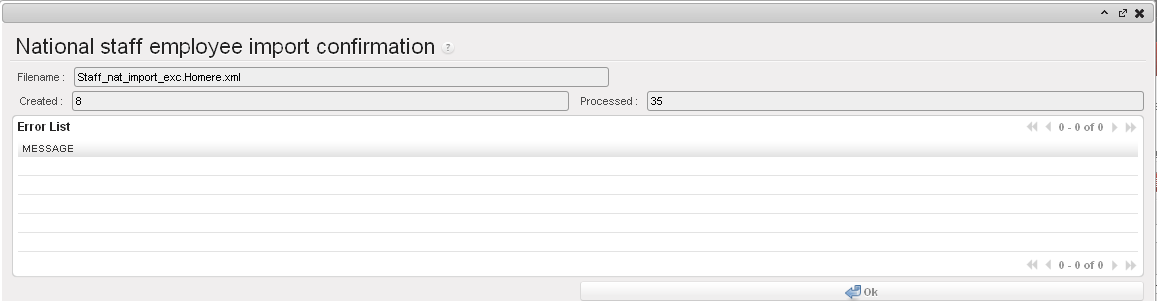
A national staff employee import confirmation wizard appears.
National staff employee import confirmation

  1. Click on {OK}

The list of staff is loaded

  1. How to Re-Allocate National Staff Analytical Distribution When Homere is Not in Use

Go to: Human Resources/ Human Resources

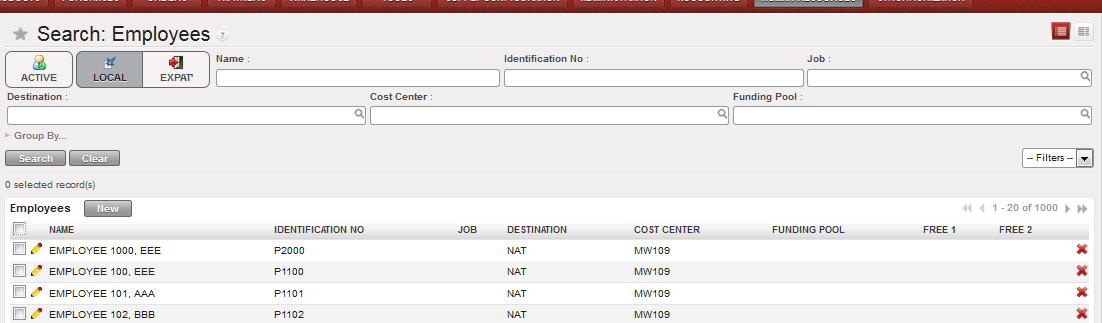
  1. Select the sub-module {Employees} and a list of employees appears.
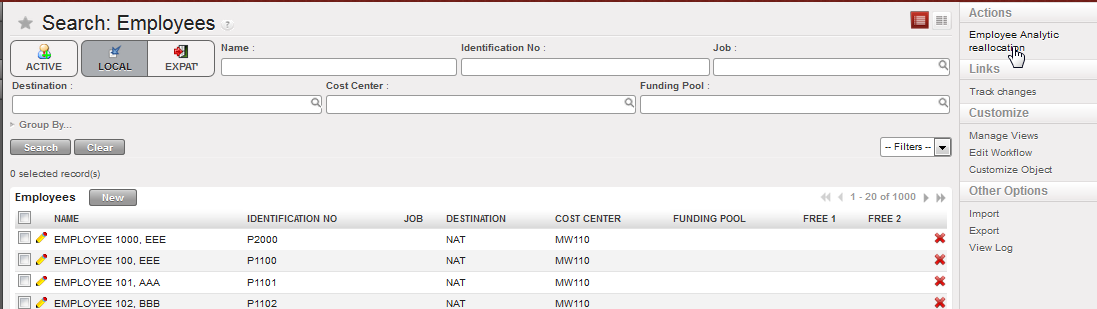
  2. Select the filter {Local} and a list of local employees will display.
  3. Check the box of one entry to assign an allocation individually or the box of multiple entries.

National staff analytical allocation (Sections not using Homere)

  1. Select a destination, cost center and funding pool.

Employee Analytical reallocation

  1. The allocation is finalized.

Employee Analytical reallocation performed on national staff (for sections not using Homer)

LUFI-40102: Expat Staff Database Management

LUFI-40102_A-C: Expat Staff Database Management

  1. LU Introduction

Expat payroll is paid through the HQ accounting system and imported into the headquarter UniField instance. Creating expats as third parties in UniField is still necessary because there are various financial transactions which involve expatriate staff members, such as: per diem payments, security money, reimbursements and food pot contributions (specific for OCA).

The same principle of selecting a {THIRD PARTY} employee applies for national and expatriate staff. Expatriate staff should to be imported and managed at HQ level in order for expats to synchronize to the coordination and project instances. If imported at coordination level, they will not synchronize to HQ. Once imported, an advanced user will set a default analytical distribution which will automatically appear each time the Expat is picked as 3rd party for an expense / income booking.

The following rules apply to the expat database in UniField:

  • Expatriate data is synchronized only downwards
  • When new Expats arrive, they can be manually added or imported at HQ and synchronized down to the coordination and project instances.
  • Expats no longer active can be set as “inactive”. They should not be deleted from the database as they have already been used in transactions.
  • Expats Management should only be controlled by HQ.
  • It is possible to block the use of expatriate staff in the field by ticking the “Not to be used” box in OCXHQ and then synchronizing down, will block any transaction with 3rd party employee _expat with warning message “Employee ‘Johan Rock’ can not be used anymore.”

  1. How to Import the List of Expatriate Staff

Go to: Human Resources/ Human Resources

  1. Select {Import Expats}.
  2. In the {Import Expats} window, browse your file and validate the import.
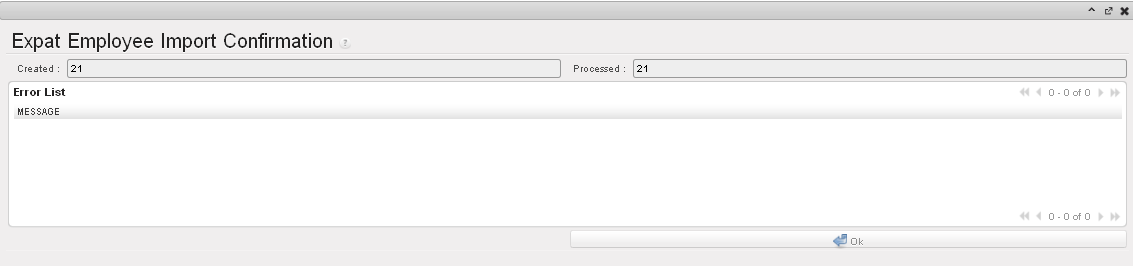
  3. The system confirms the import of the file (No error message displayed).

Expat Employee Import Confirmation

  1. The expat employee list is displayed in the sub-module {Employees}

Expat active employee list

  1. How to Re-Allocate the Analytical Distribution on Expatriate Staff

Go to: Human Resources/ Human Resources

  1. Select the sub-module {Employees} and a list of employees appears.
  2. Select the filter {Expat} and a list of expat employees will be displayed.
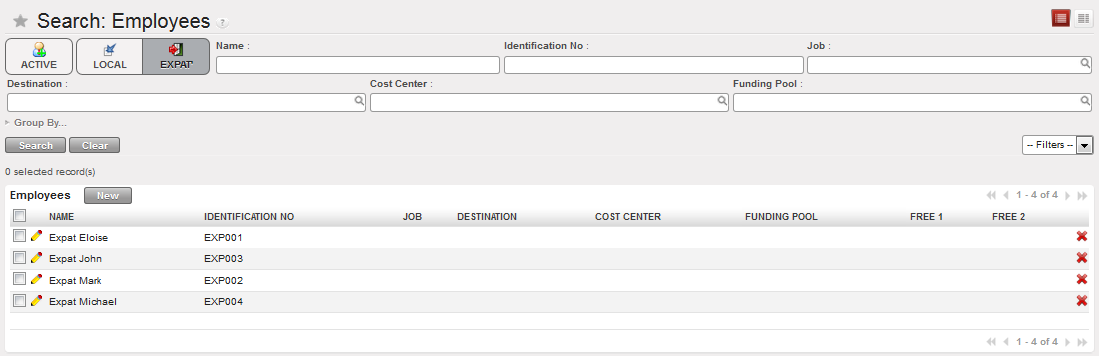
  3. Check the box of one entry to assign an allocation individually or select multiple boxes for multiple entries.

Expat staff analytical allocation

  1. Select a destination, cost center and funding pool.

Employee Analytical reallocation

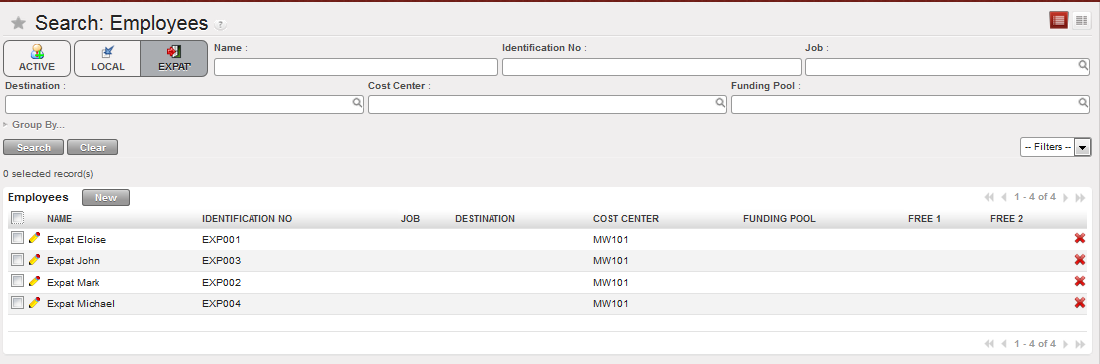
  1. The allocation is finalised.

Employee Analytical reallocation performed on expatriate staff

LUFI-40101 B: How to Re-Allocate the Analytical Distribution on National Staff

LUFI-40101_C: How to Re-Allocate the Analytical Distribution on National Staff

Go to: Accounting/Payroll/Local staff allocation

  1. Check the box of the employee(s) to re-allocate.
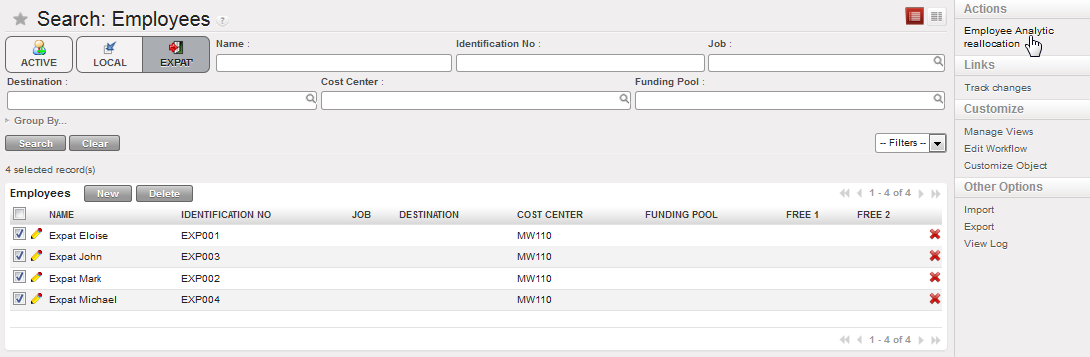
  2. In the {Actions} menu on the right side of the screen, select {Employee Analytic Reallocation}. –>The Wizard {Employee Analytic reallocation} appears.
  3. Enter a cost center and if needed, a new destination and funding pool.
{Employee Analytic reallocation} Wizard
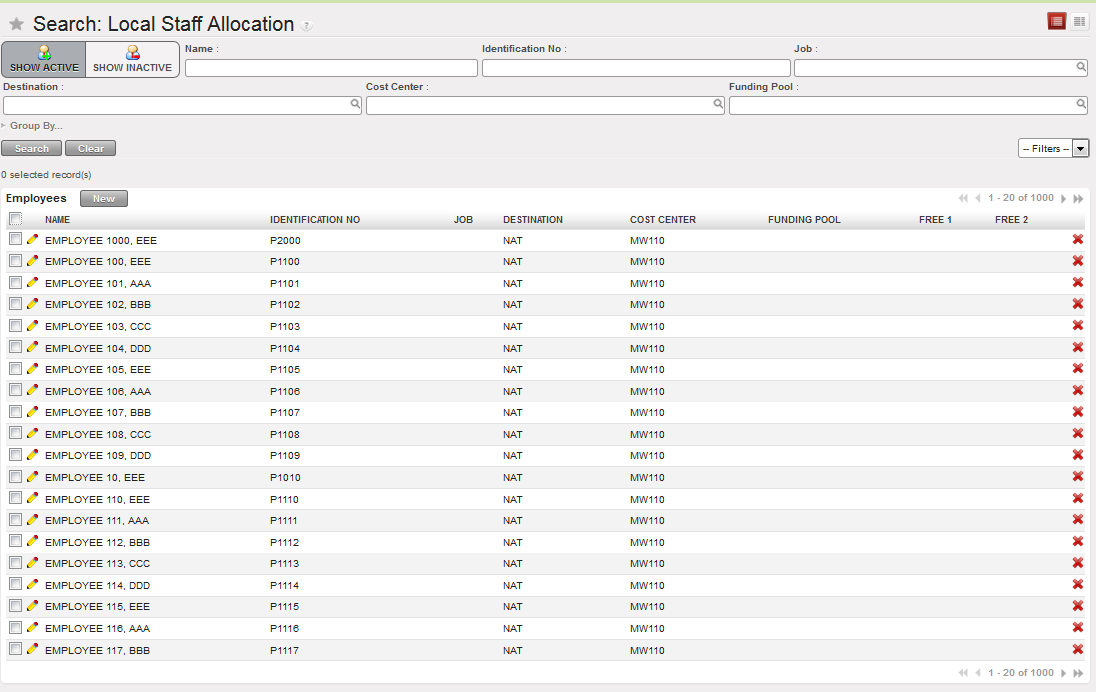
4. Validate the allocation. –>The re-allocation is completed

Analytical re-allocation completed on national staff 

In the payroll entries, the analytic allocation will be based on the information included in payee_saga file or – if this information is not filled or it is incorrect in the file – the initial allocation created in UniField.

You do not need to manually update it each month – unless there is a motive for change.

LUFI-40101_A. How to Import the National Staff Master Data.

How to Import the National Staff Master Data

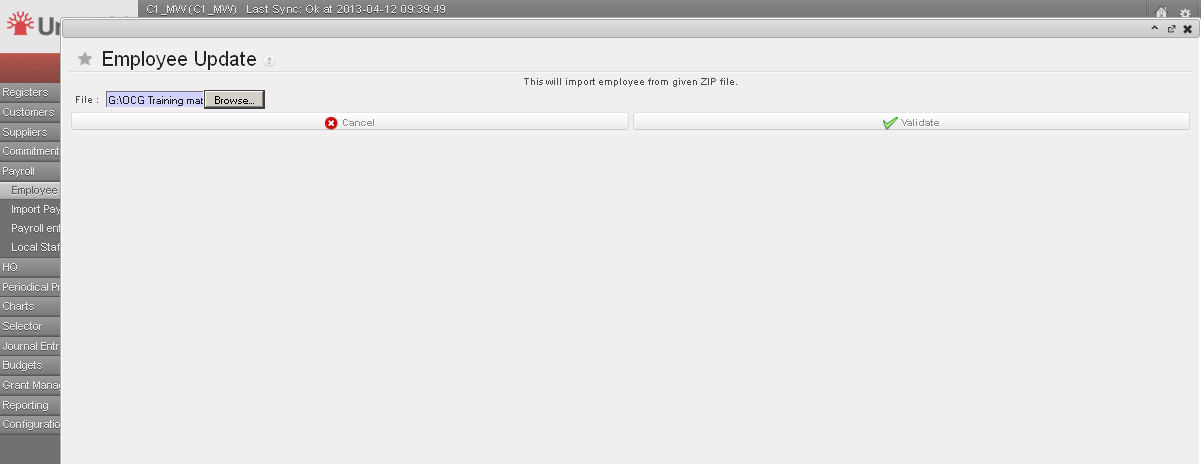
Go to: Accounting/Payroll/Employee Update

  1. Click on {add attachment}.
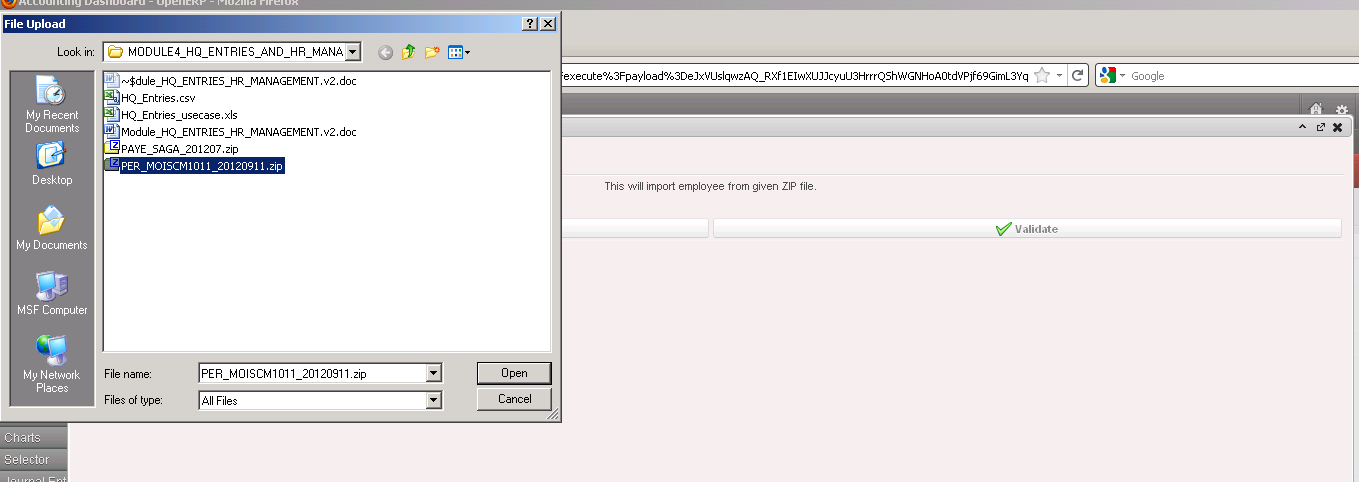
  2. Browse to find the Homere sending file (e.g. PER_MOISXXX).zip
Importing Employees files

3. Click {Validate} to validate the import.

Import files validation

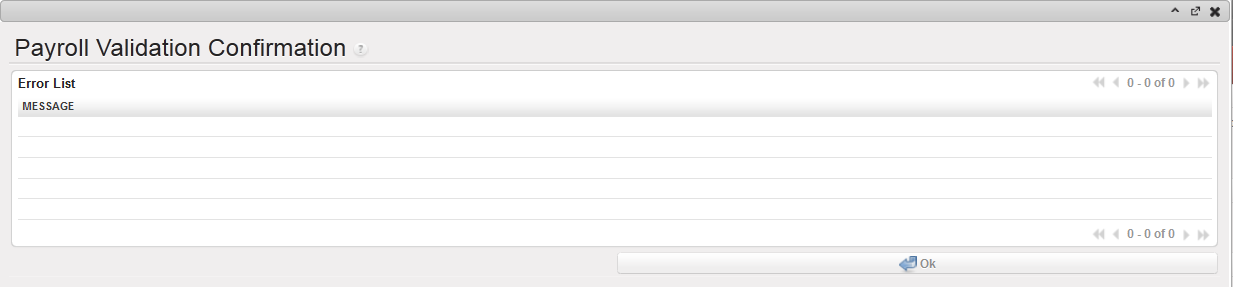
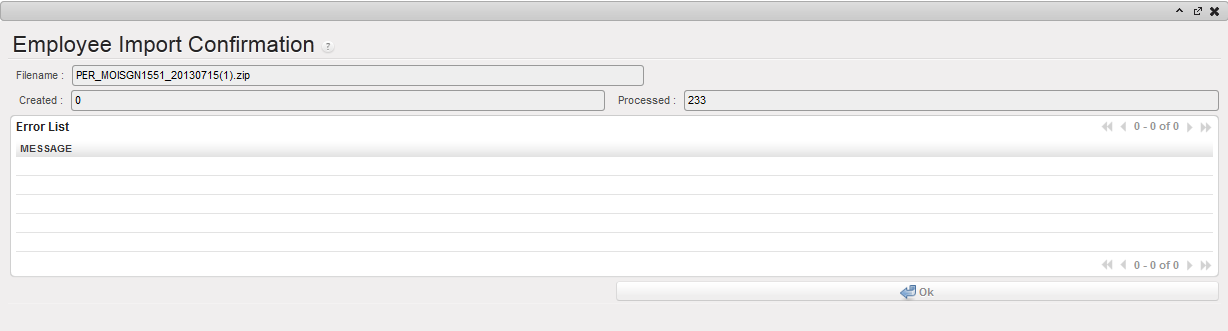
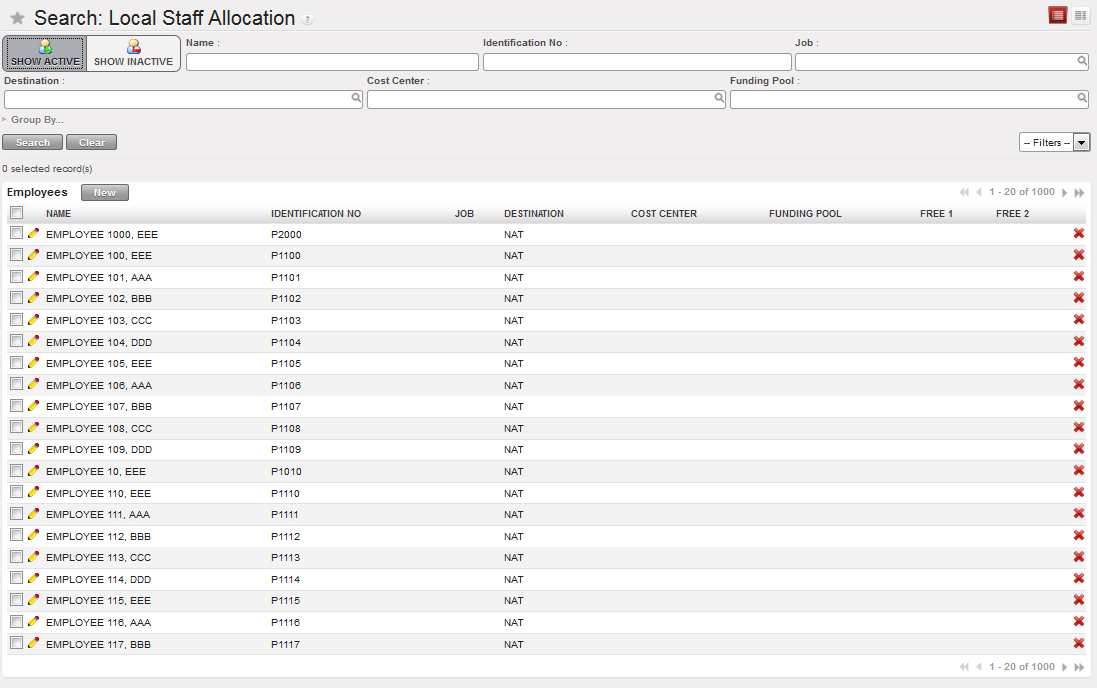
4. The system indicates the employee import was successful as no error message is displayed in the error list section as shown below.

Employee Import confirmation wizard showing an empty Error List view
5. Click on {OK} button.   –>The list of active national staff is loaded.
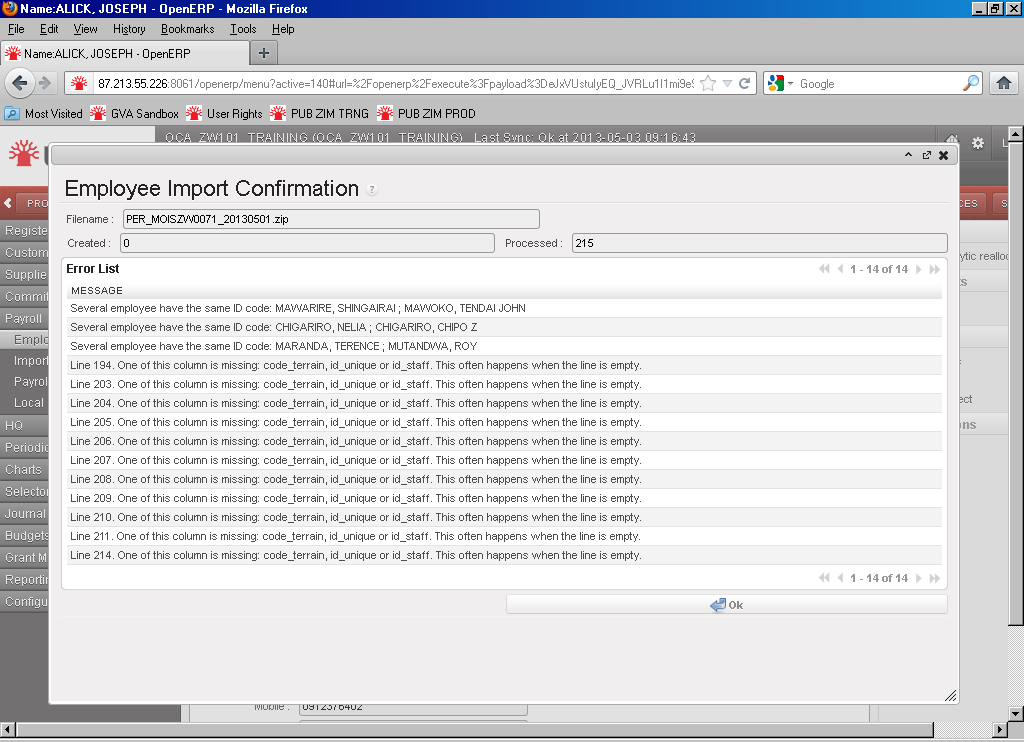
The list of active national staff is loaded
What are typical issues in Homere that could cause the import to fail for an employee record?

  • Two or more employees have the same employee ID. ID must be unique in UniField. If there already is an existing employee with the same ID, UniField will reject the import. Some cleaning may be necessary in Homere before importing the file again.
  • Incomplete employee lines: sometimes an employee is created with almost no information entered in Homere. If these records are not for valid employees they should be removed from Homere. If they are for valid employees, please update the {code_terrain} and {ID_Staff} then re-run the export from Homere.
Import Confirmation window with error messages

LUFI-30210 INACTIVATION LIQUIDITY JOURNALS AND THEIR CORRESPONDING REGISTERS

How to inactivate liquidity journals and their corresponding registers ?

We can create a liquidity journal with its correspondent register and we can also deactivate the journal and its register. The purpose of the journal deactivation is to avoid opening a register by mistake in a new period and also to permit its reactivation in the future if needed.

The conditions to allow the inactivation of liquidity journals are the following:

For liquidity journals, before allowing inactivation check:

  • all registers have been closed.
  • all manual journal entries have been posted.
  • the balance of the last register is zero.

For non-liquidity journals: all entries have been posted on the journals.

If all above requirements are not applied, you will receive the warning message “Please close the registers linked to the journal XXXXX before inactivating it

To do deactivation you have to proceed as below:

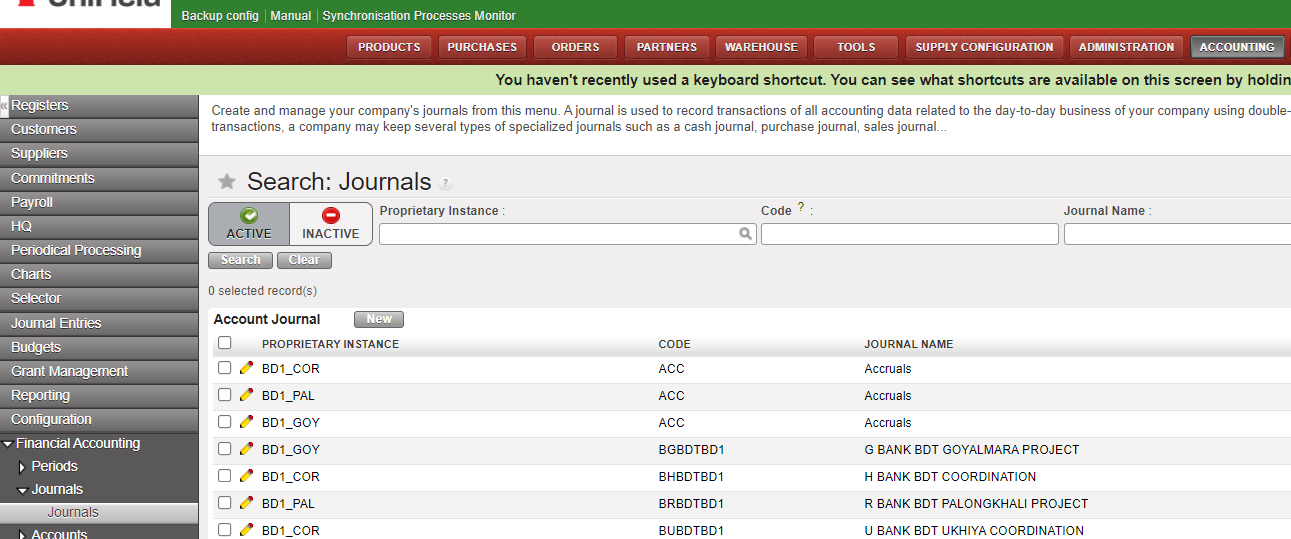
Go to > Accounting > Configuration> Financial Accounting> Journals > Journals

There are 2 filters: “ACTIVE” and “INACTIVE”. You will have the “ACTIVE” filter by default, showing the active journals.

The process of deactivation:

  • Select the register
  • Click on Edit
  • Tick off the box “Active”
  • Click on “Save”

Once the journal changed to [inactive], it can not be used anymore in the interface:

  • as third party of an entry.
  • to book a manual journal entry.
  • we can not import a file to the journal from a manual journal entry.
  • the creation of a journal with the same code as an inactive journal it is not allowed.

It is not allowed :

  • the selection of inactive journals in the invoices.
  • the duplication of JE and invoices on inactive journals (note: we can’t create them with an empty journal as it is a mandatory field).
  • the re-opening of a register on an inactive journal.
  • the selection of inactive journals in the Recurring Models.
  • the inactivation of a journal if a Recurring Plan which isn’t “Done” uses it.
  • the selection of a Recurring Model on an inactive journal, in the Recurring Plans.
  • the duplication of a Recurring Model on an inactive journal / of a Recurring Plan using a Recurring Model on an inactive journal.
  • the selection of inactive journals as Refund Journal in the Refund Wizard.
  • the Refund Type “Modify” for the invoices booked on an inactive journal.