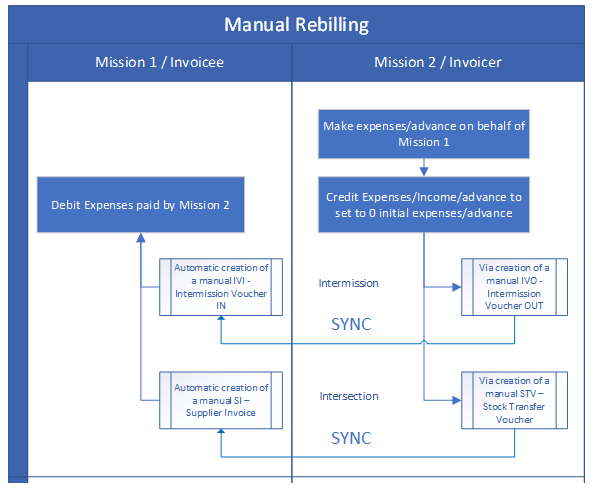
3.5 AUTO REBILLING (INTER-MISSION / INTER-SECTIONAL)

Finance User Manual ENG -> 3. Payments -> 3.5 AUTO REBILLING (INTER-MISSION / INTER-SECTIONAL)

LUFI-30501 Auto Rebilling (inter-mission / inter-sectional)

A. LU Introduction

Intermission and intersection invoices are now synchronized between 2 instances for manual or supply flows so that automatic counterpart invoices are created and match at both sides.

Invoices are created via supply flow or manually by finance at Provider/Invoicer. Once the Provider/Invoicer validates those rebilling invoices, they synchronize from the Provider/Invoicer to the Requester/Invoicee.

Requester/Invoicee can’t change currency, nor prices, nor quantities… This is to ensure amounts and currency matches in both sides.

There are 2 possible cases:

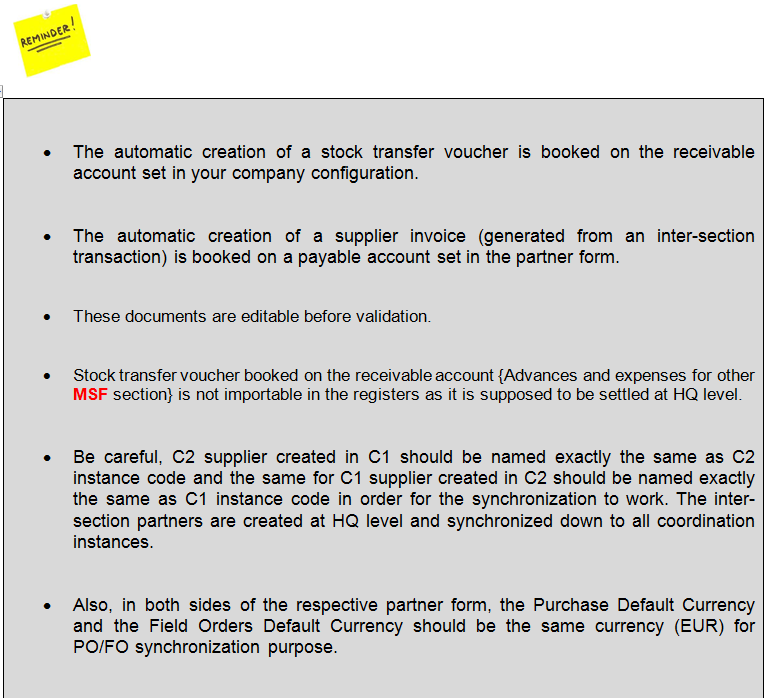
  1. Either the missions decide not to reimburse each other and the settlement will be done at HQ level. In that case, the receivable accounting code to be used for the Stock transfer voucher is {Advances and expenses for other MSF section}. You will have to set it in the company configuration and will be retrieved at the time of creating automatically the stock transfer voucher. For the supplier invoice, the payables account code will be the one linked to your partner and should be too. There will be no matching on these accounts in the UniField HQ instance.
  2. Both missions decide to reimburse each other at mission level. In that case, the counterpart accounting code to be used is {Receivable from other sections} for the Stock transfer voucher and {Payable to other sections} for the Supplier invoice. The receivable account will be set as such in company configuration. For the supplier invoice, the payable account will be the one linked to your partner.

In configuration for inter-mission supplier: Account receivable and Account Payable (14010 – Advances or expenses for other missions)

In configuration for inter-sectional supplier: Account receivable (12010 – Receivable from other sections) and Account Payable (30010 – Payable to other sections)


REBILLING BEHAVIOR

  • Rebilling is created and pushed only from the Provider/Invoicer to the Requester/Invoicee.
  • When linked to supply flows, no rebilling invoices is created at reception of the goods by the requester. The reception of the rebilling invoice is not generated at the same time than the reception of the goods.
  • Invoices are created only by the mission that provides/invoice the goods (automatically created via supply flow or manually created by finance when linked to services).
  • Invoices created are then synced from the invoicer to the invoicee (not the other way around no pushed invoicee invoices).

Invoice edition / validation / approval

  • Only the reinvoicer can create and edit the rebilling invoices and validate them.
  • The reinvoicee will only approve the invoice once received via sync. Only the posting date will be editable by the reinvoicee before approval.
  • In case reinvoicee don’t agree with the invoice, it can validate and then cancel it using the automated function.
  • Invoices created via supply flow will have some restriction on some fields: not possible to change the product nor quantities.
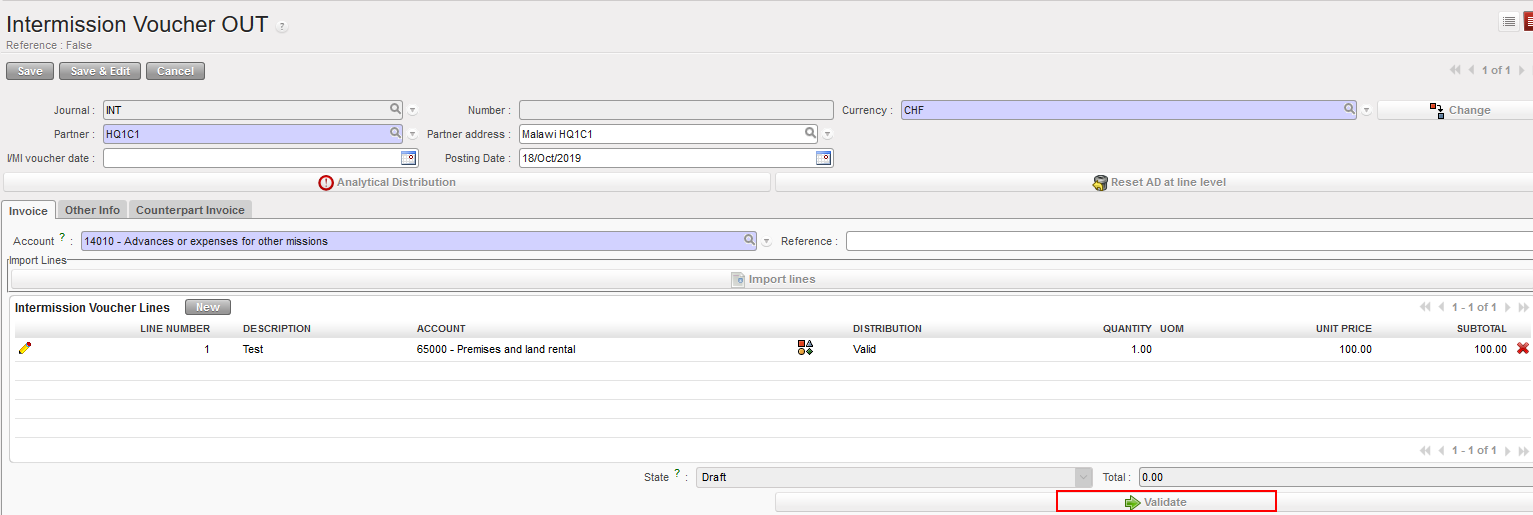
B. Rebilling Inter-mission via Supply Flow

For example, we have the instance HQ1C1 that want to request some items from another mission HQ1C2 within the same OC section.

  1. A PO is created by the requester mission HQ1C1, with the provider mission HQ1C2 as a supplier. (Done by a supply user not a finance user)
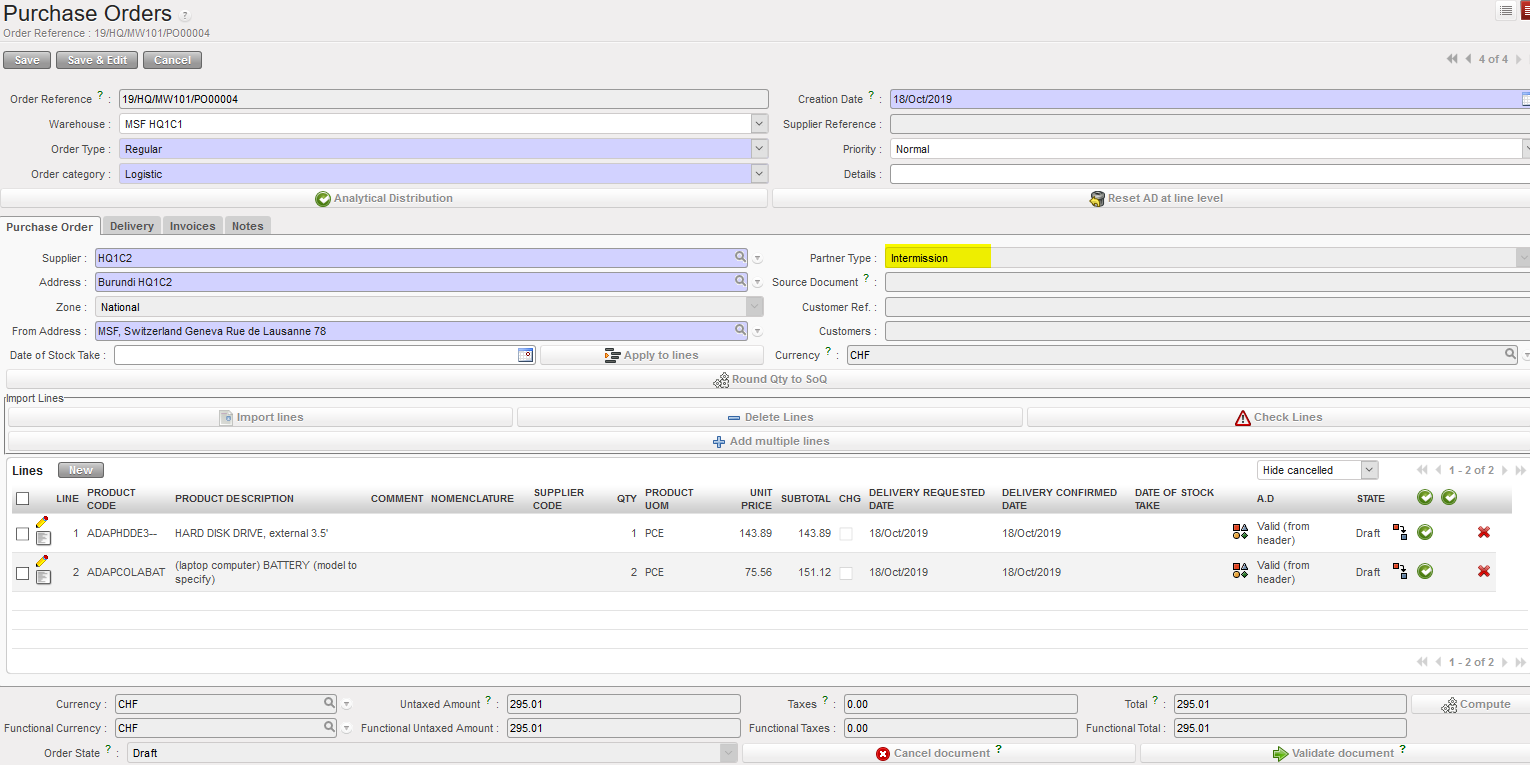
2. After inserting all the required information, the PO should be validated then confirmed. (Done by a supply user not a finance user)
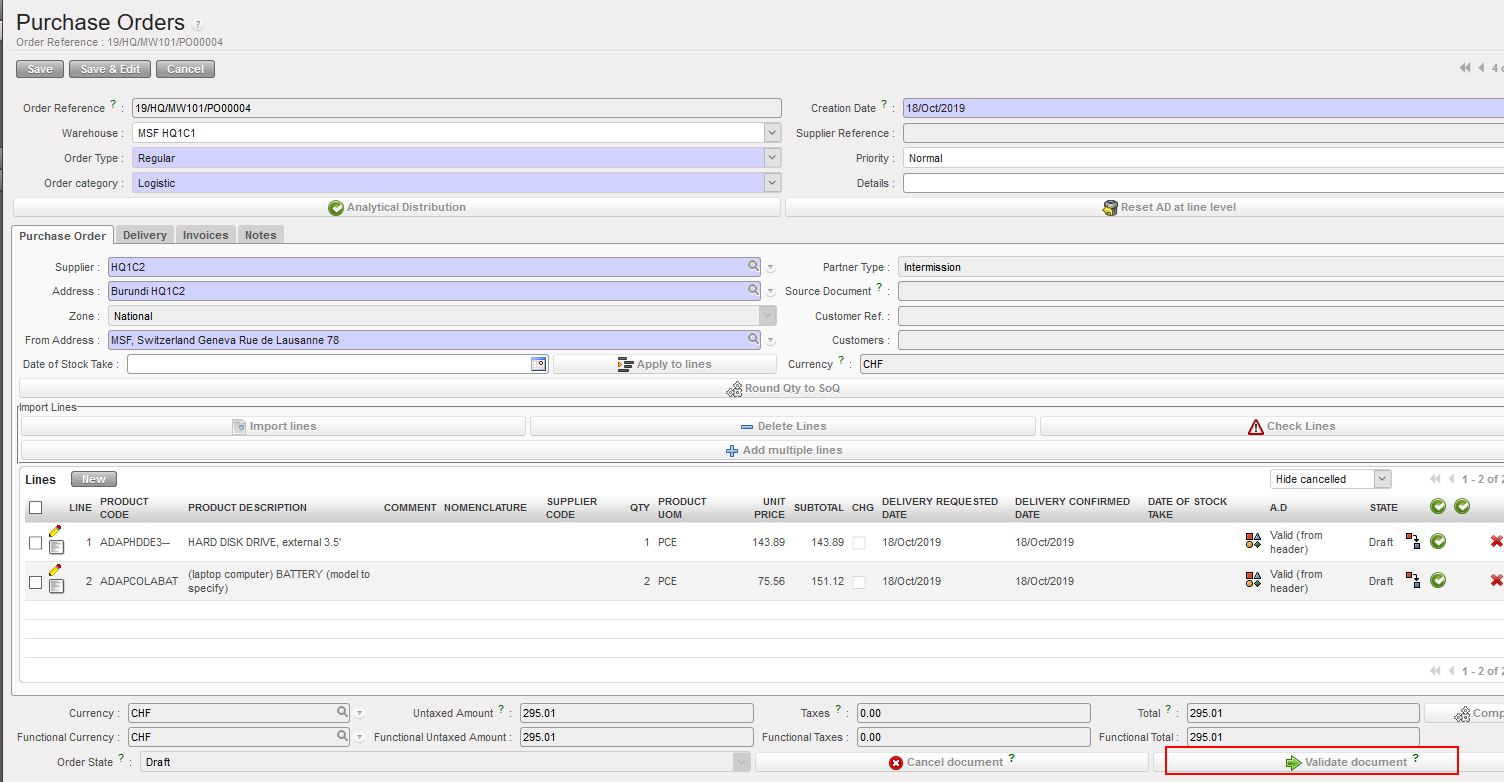
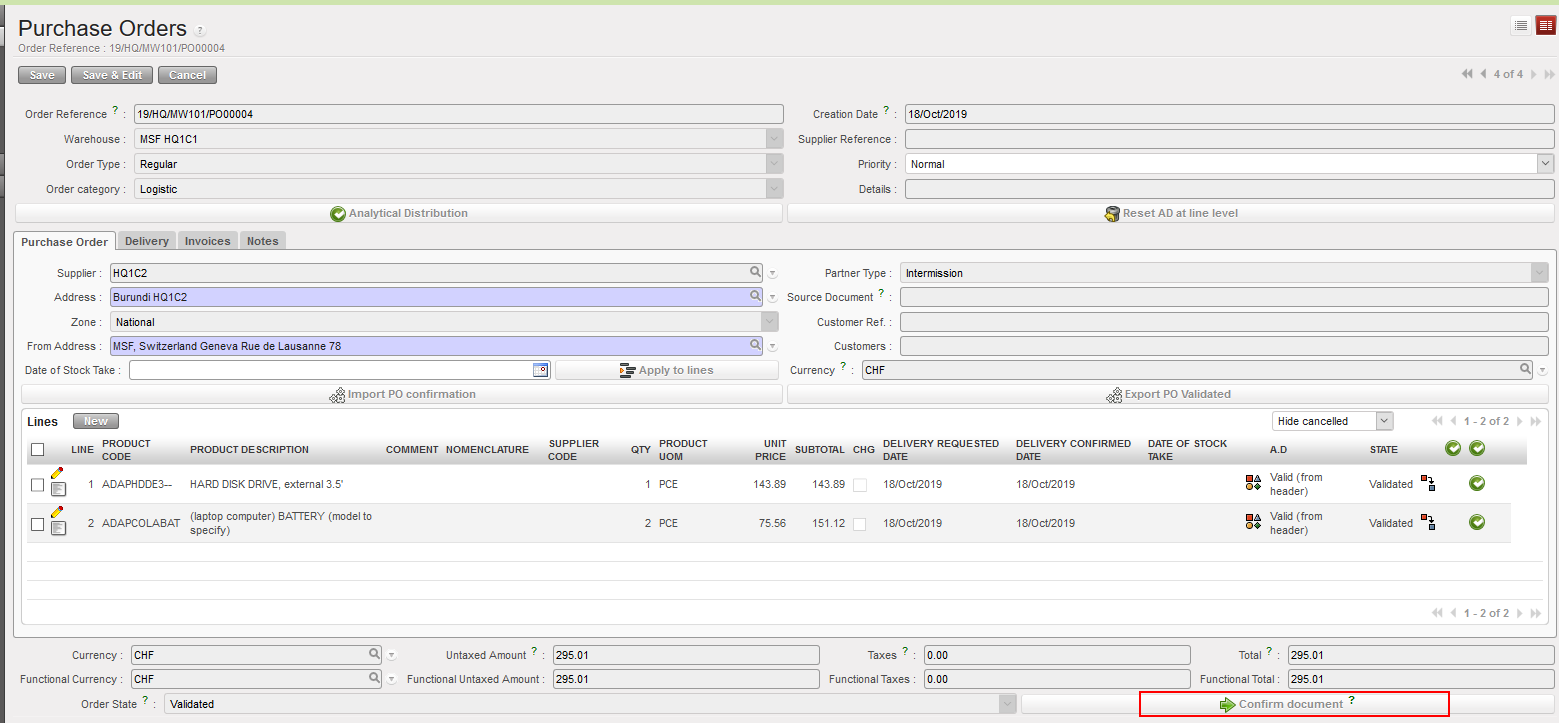
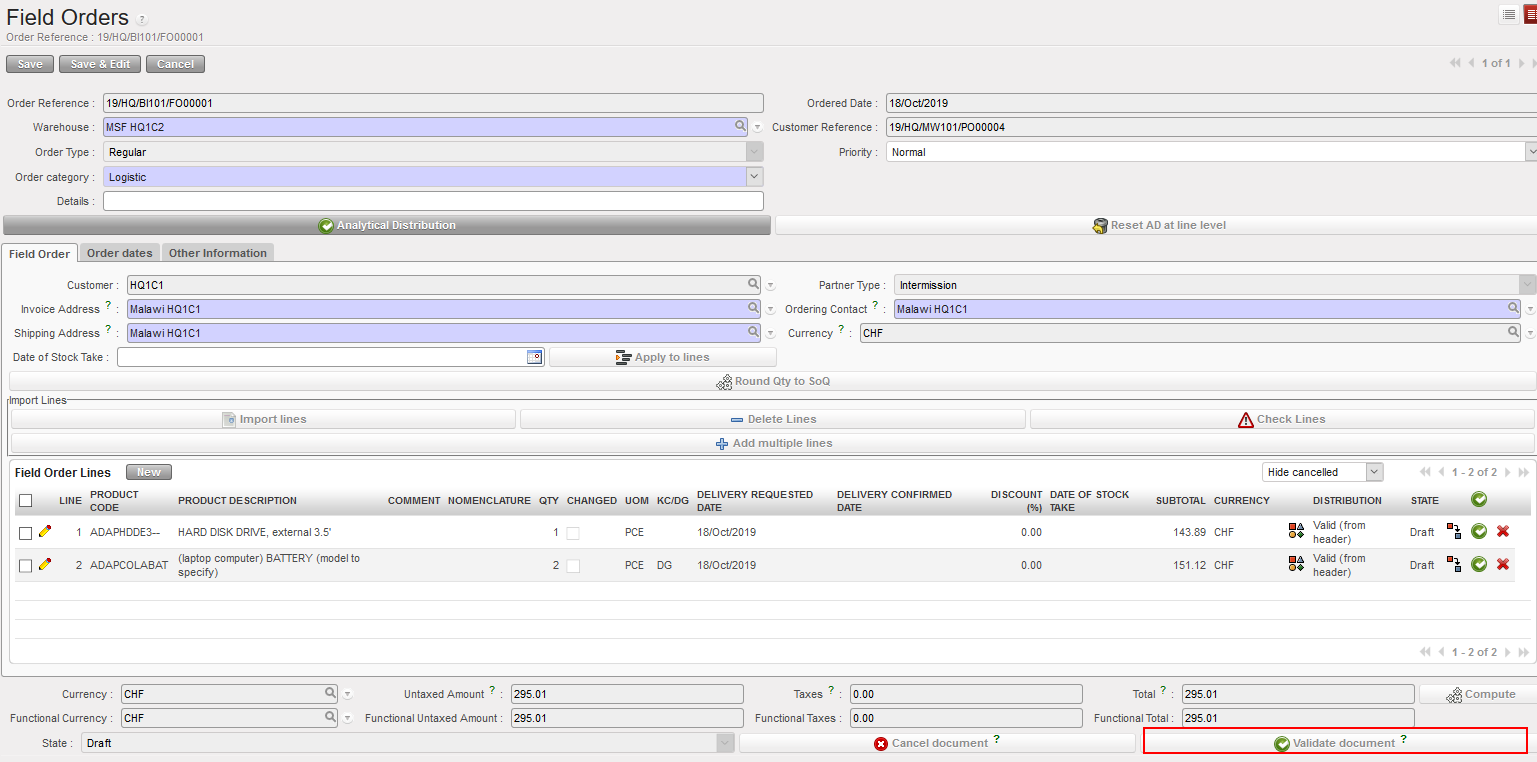
3. After synchronization in the two instances, an FO in Draft state will be created in the provider mission HQ1C2 as a result of the PO created in requester mission HQ1C1. (Done by a supply user not a finance user)

  1. Before validating the FO, you will need to update again the Analytic Distribution and then you validate but don’t confirm the document. (Done by a supply user not a finance user)
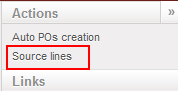
4. Go to Orders Sourcing tool to source the document (Sourcing: is choosing from where you want to order the requested items, either from the warehouse or from an external supplier) in our case here, we will choose to order the items from external supplier. Either you select the supplier on each line separately and then you click on the green arrow to source or select all and click on Source lines in the right side menu in case you want to order the items from the same supplier then save and source. (Done by a supply user not finance user)


5. After that, the FO will be automatically confirmed, the state of the FO will be sourced. (Done by a supply user not a finance user)

6. A PO will be automatically created in Draft sate after the sourcing in the provider mission HQ1C2, with supplier chosen during the sourcing.

7. After checking all the information and apply the delivery confirm dates to all lines, you can validate then confirm this PO. (Done by a supply user not a finance user)
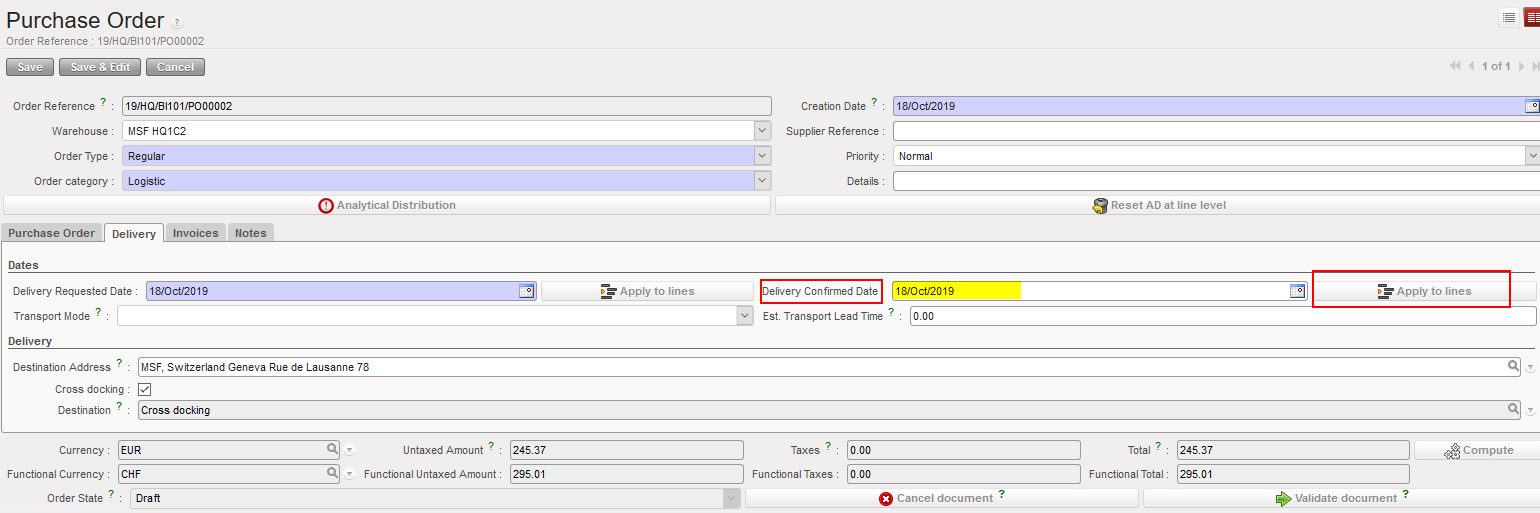
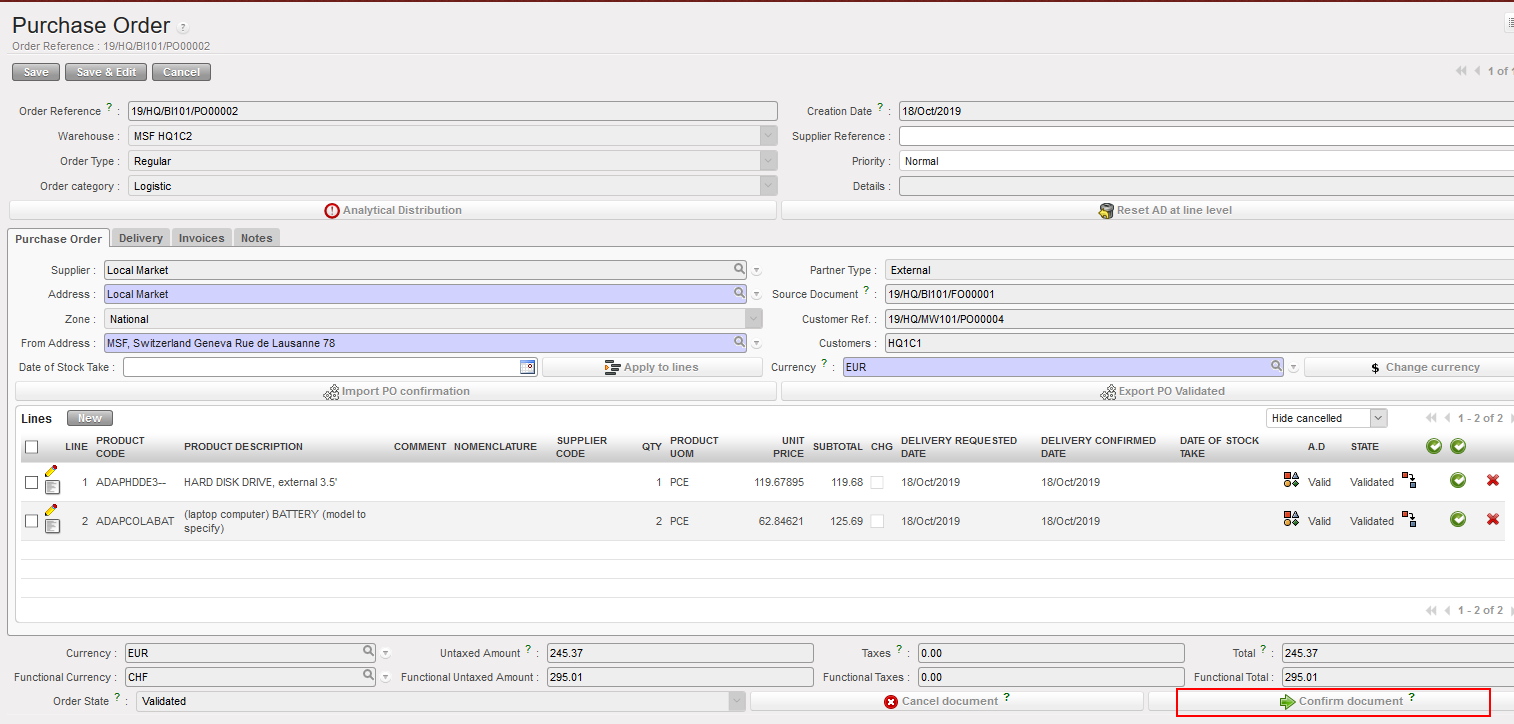
8. Once the PO is confirmed, the incoming shipment will be created. (Done by a supply user not a finance user)
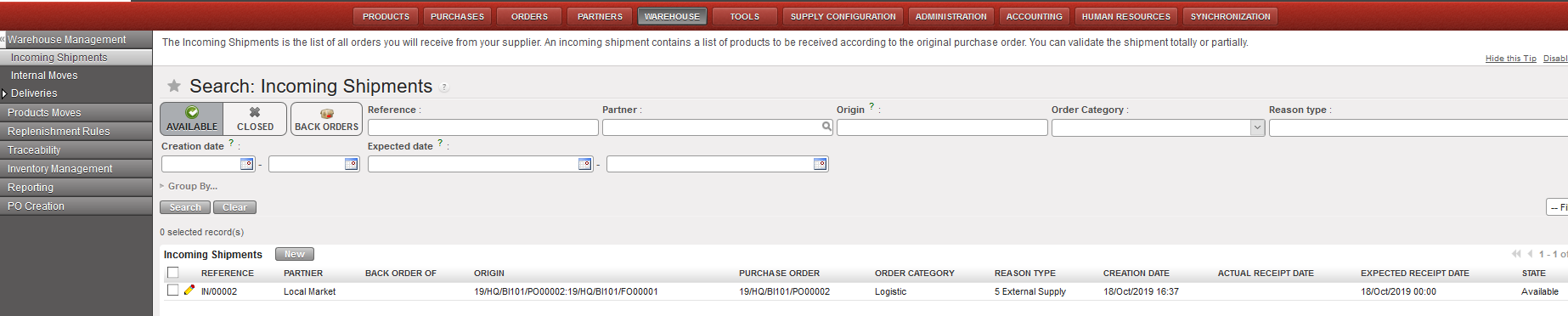
9. Process the incoming shipment when the goods are received in the warehouse. (Done by a supply user not finance user)
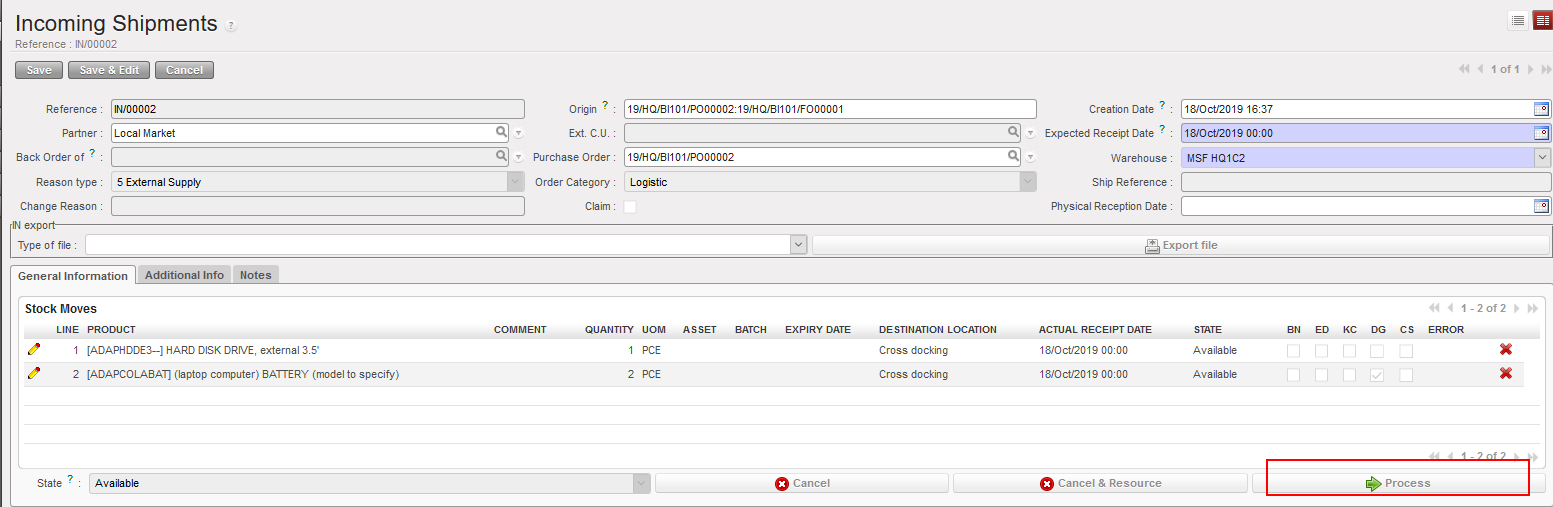
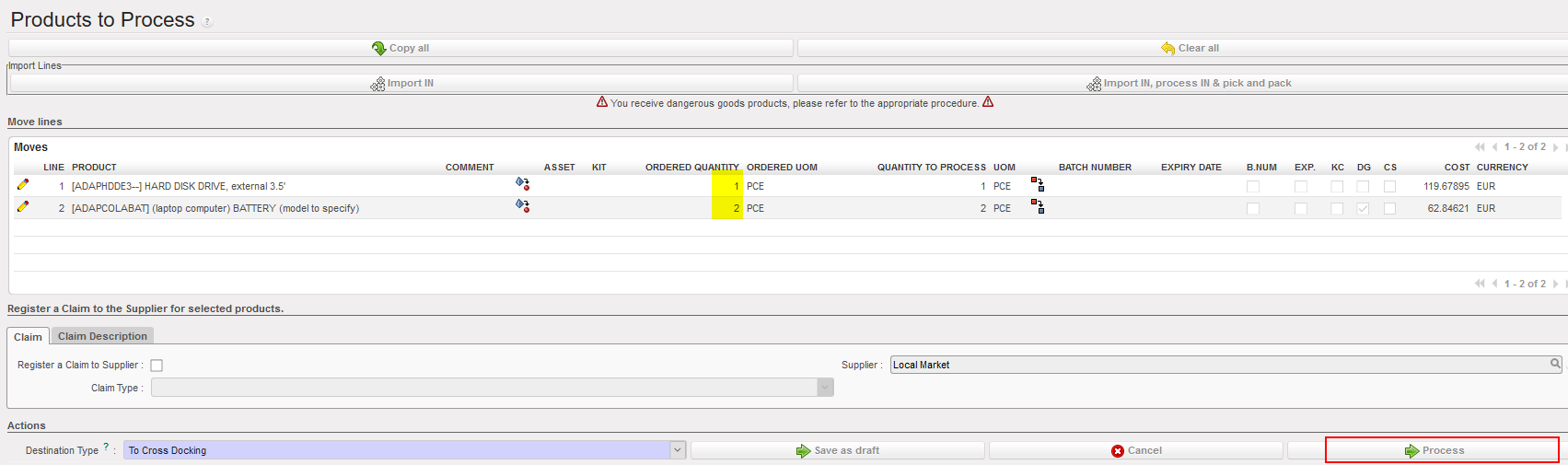
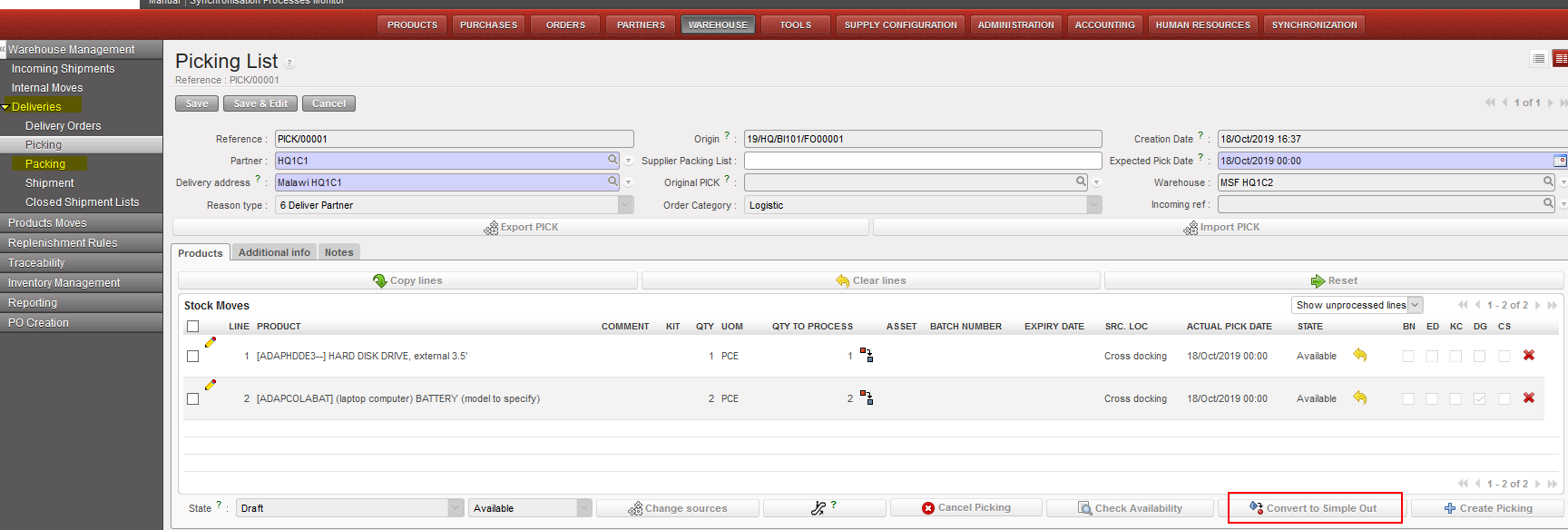
10. To do the picking of the items, go to Warehouse Management/ Deliveries/ Picking/ Convert to Simple Out/ Copy all/Process (Done by a supply user not a finance user)
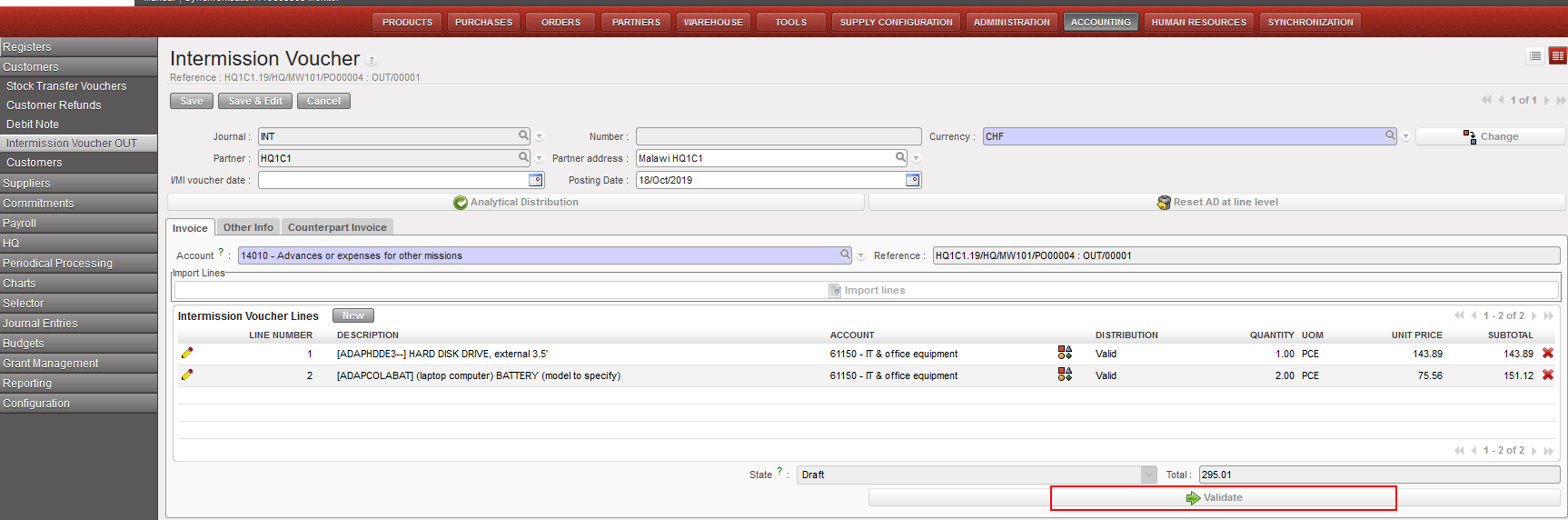
11. The IVO will be created automatically, and it will be accessible for the finance user.

Go to Accounting/ Customers/Intermission Voucher Out

12. In the counterpart Invoice, the Synchronized check box will be already ticked and will be non-editable as the IVO was created throw the supply flow.

13. If all the information were correct, the finance user will validate the IVO. (Done by Finance User)
14. After the synchronization in the two mission, an IVI will be created in a Draft state in the requester mission HQ1C1.

In the requester mission, Go to Accounting/ Suppliers/Intermission Voucher In

15. The finance user should check all the information if all were correct (including accounting code and analytic distribution), then the IVI should be validated. (Done by a Finance user)
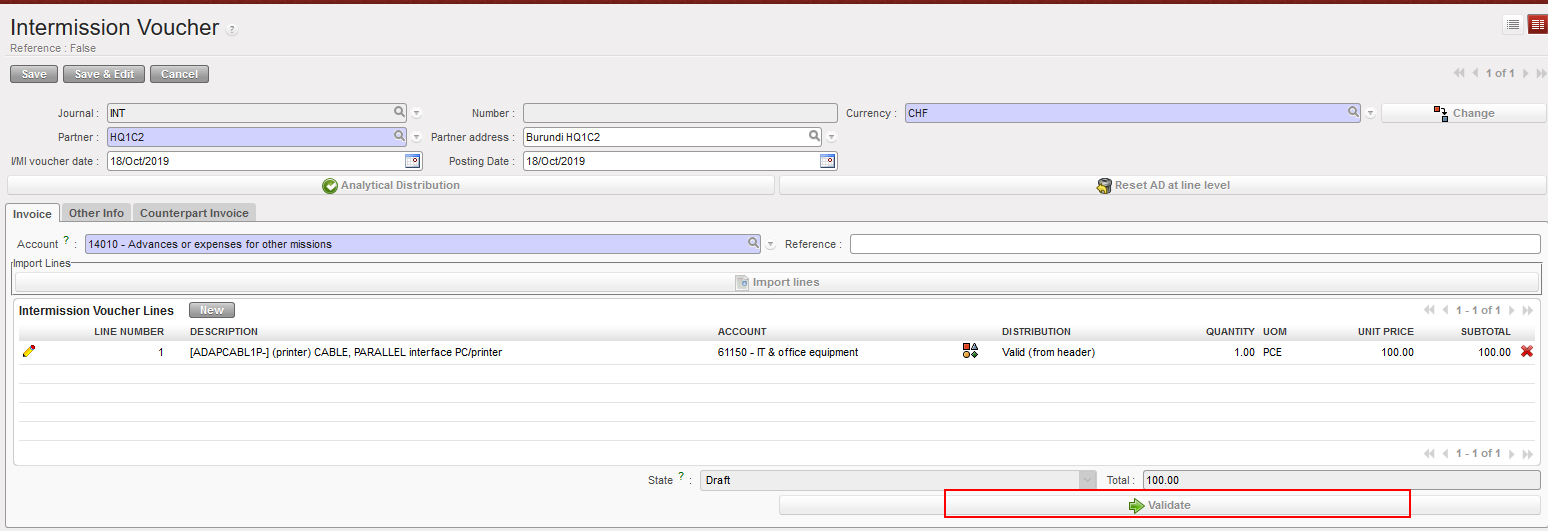
How to Create an Intermission Voucher IN and OUT Manually

Rebilling for non-supply flows is manual in both sides. It relies on processes. What is being done manually in the Invoicer (Provider) instance need to be done also in the Invoicee (Requester) instance.

Here below the process:
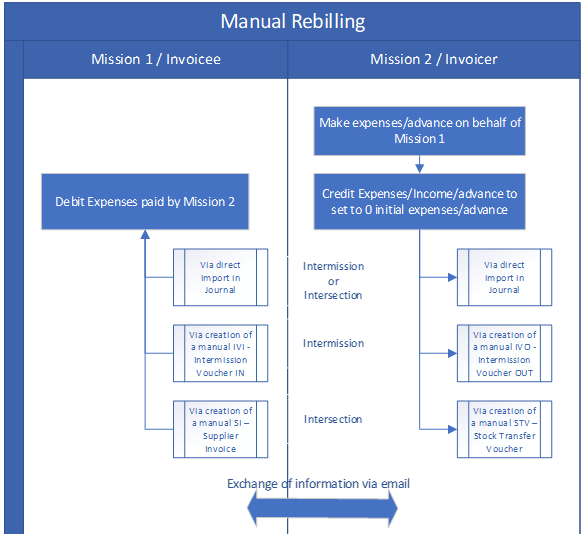

•Invoicer create the rebilling invoices manually or use the import in journal function.

•Invoicer send the elements out of Unifield for the Invoicee to create the counterpart rebilling invoice.

Risks: Both sides can change/edit documents and the risks are that they don’t match in term of prices, products, currencies…

In the invoicer/provider mission (customer) mission, for example HQ1C2:

Go to Accounting/ Customers/Intermission Voucher Out

  1. Click on {New} to open a new form and chose the mission of rebilling ( for example: HQ1C1)

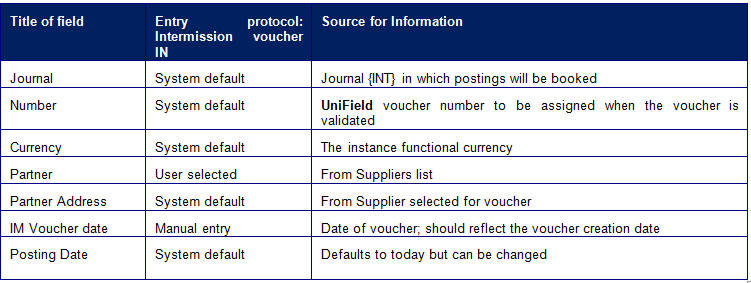
⮡ A form displays to create a new voucher. Fields in blue are required; white fields are optional; grey fields are view only.
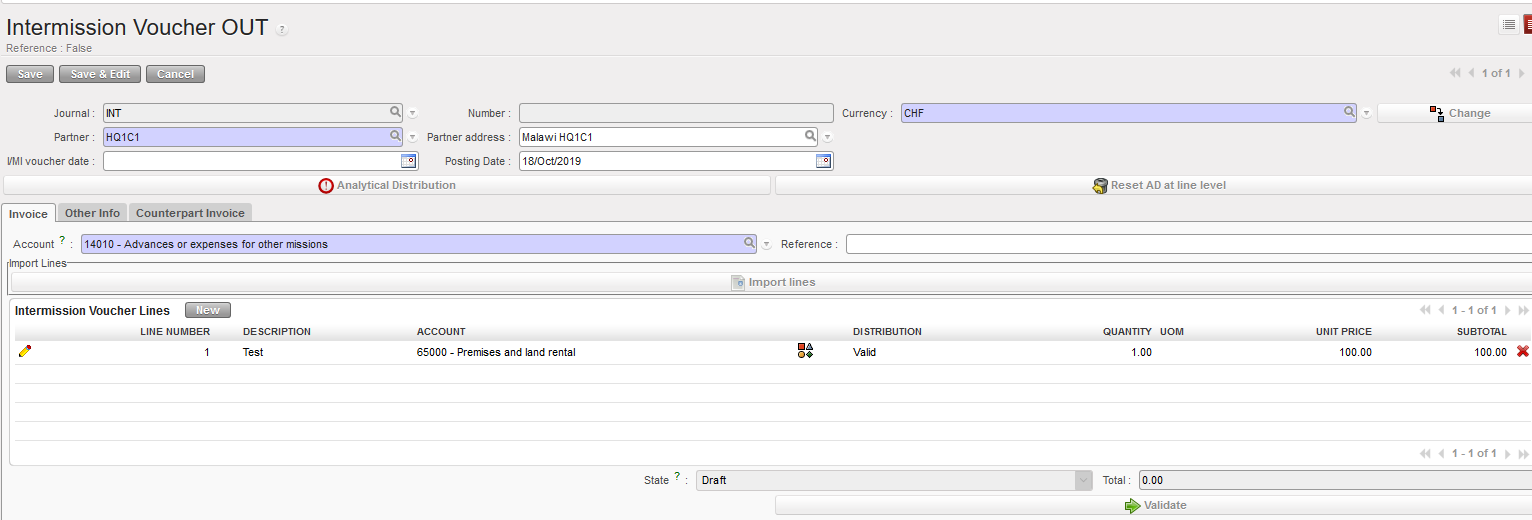
Intermission Voucher OUT creation from the Customers module
is used to apply a global analytic distribution across all lines in the invoice.
On the {Invoice} tab, Selectand complete the {Description}, {Account}, {Quantity} and {Unit Price} to represent the various goods or services on the voucher to be created.

  1. Click button  for additional invoice lines, or click button to return back to the supplier invoice window.

  2. Assign the analytical distribution per line or globally across all invoice lines. Allocate the Cost Center to the correct Cost Center or to the purchasing instance.
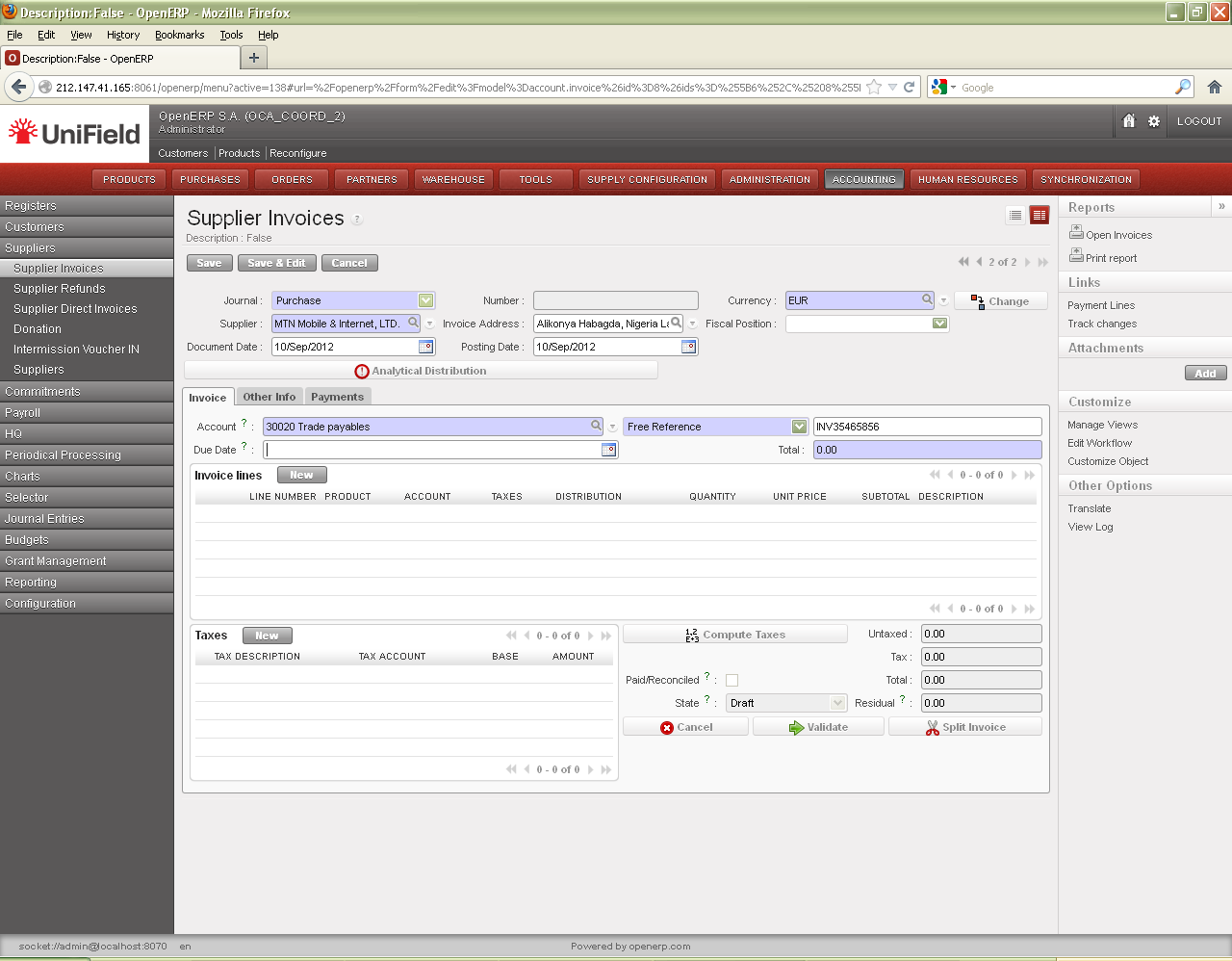

Cost Center allocation

3. From Counterpart invoice, tick the Synchronized check box and then validate the IVO


4. After the synchronization in the two instances, In the supplier mission HQ1C1 (invoicee/requester):

Go to Accounting/ Suppliers/Intermission Voucher IN

You will need to update the analytic distribution again and then validate the IVI if all information were correct.
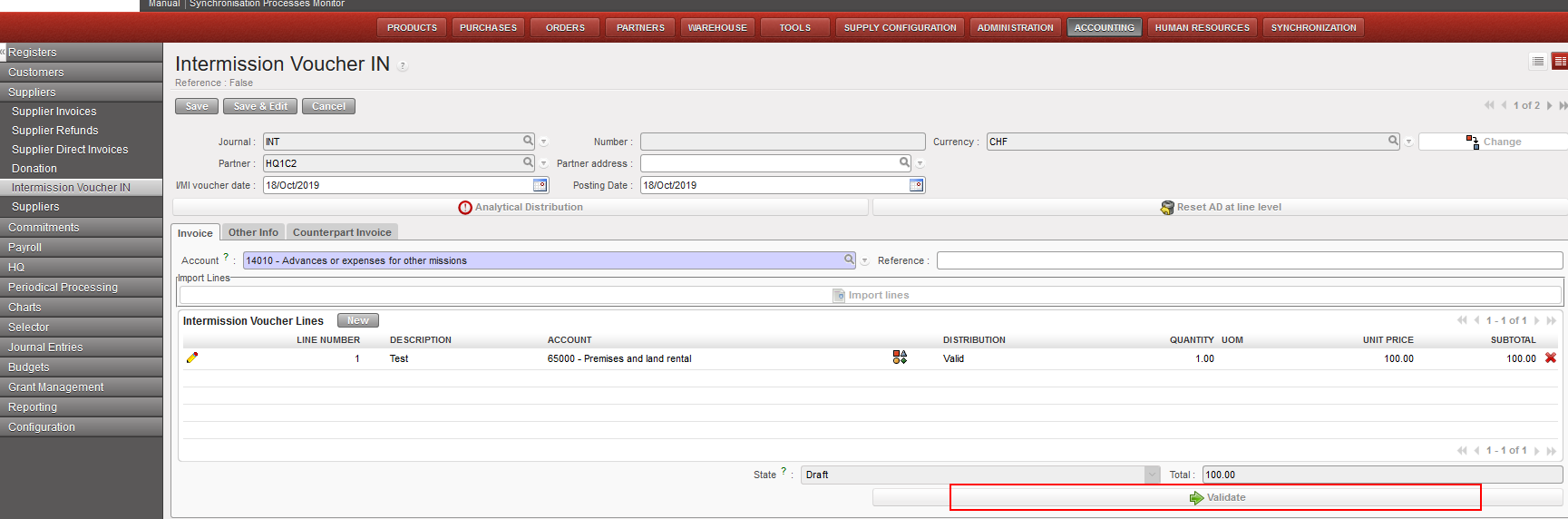

How to Create an Intersection Voucher IN and OUT Manually

The same process can be done for inter-sectional re-billing. The only difference will be having stock transfer voucher to validate instead on IVO.

  1. For instance, a PO was created at HQ1C1 (inter-section). We choose another inter-section partner as a supplier, and then validate and confirm the PO.
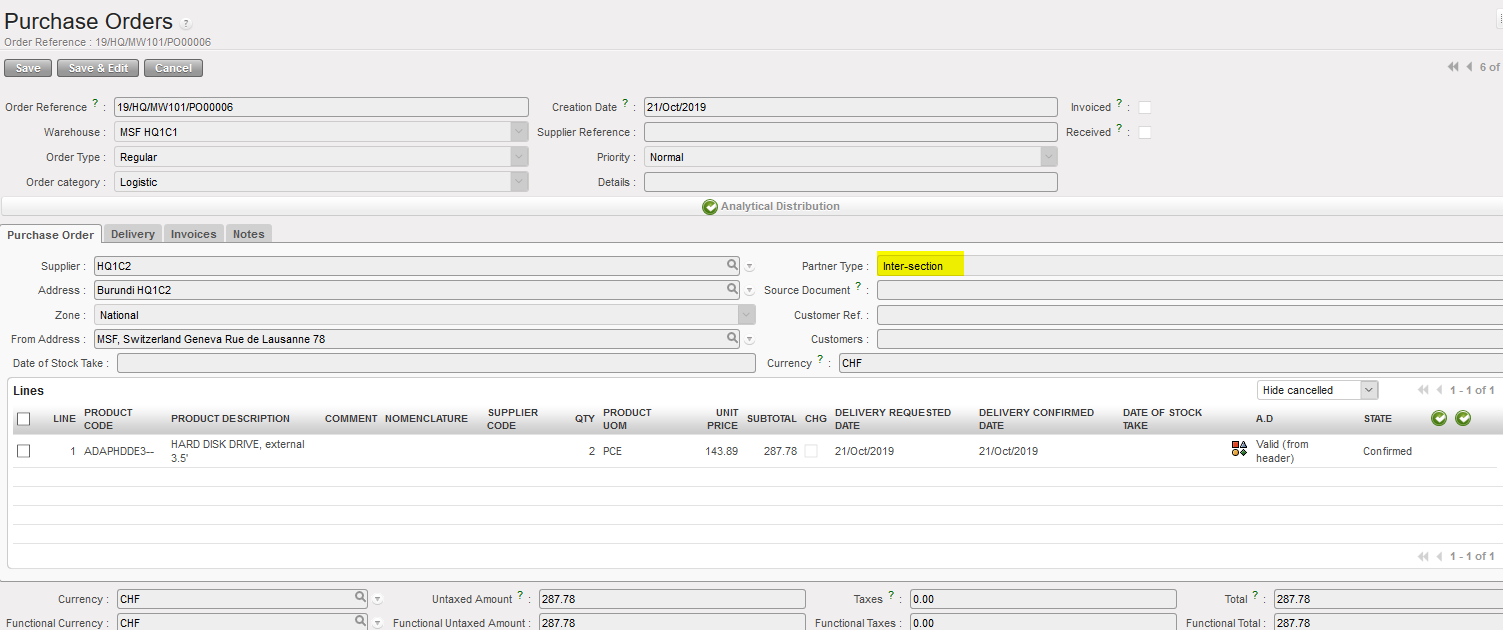
2. After the synchronization in the two instances, an FO will be created in the provider instance ( HQ1C2)

3. The Cost Center should be updated again and after checking all the information => validate the FO but don’t confirm.

4. Source the document from Orders Sourcing Tool, either select available items from the warehouse or order from external supplier. In our case here, we will choose external supplier.

5. After that, the FO will be confirmed automatically, and a new PO will be created to order the requested items from the external supplier.

6. Same process as in inter-mission, validate and confirm the PO after checking all the information => confirm the incoming shipment in the warehouse when the items are received. After doing the picking with convert simple out and process, a stock transfer voucher will need to be validated.
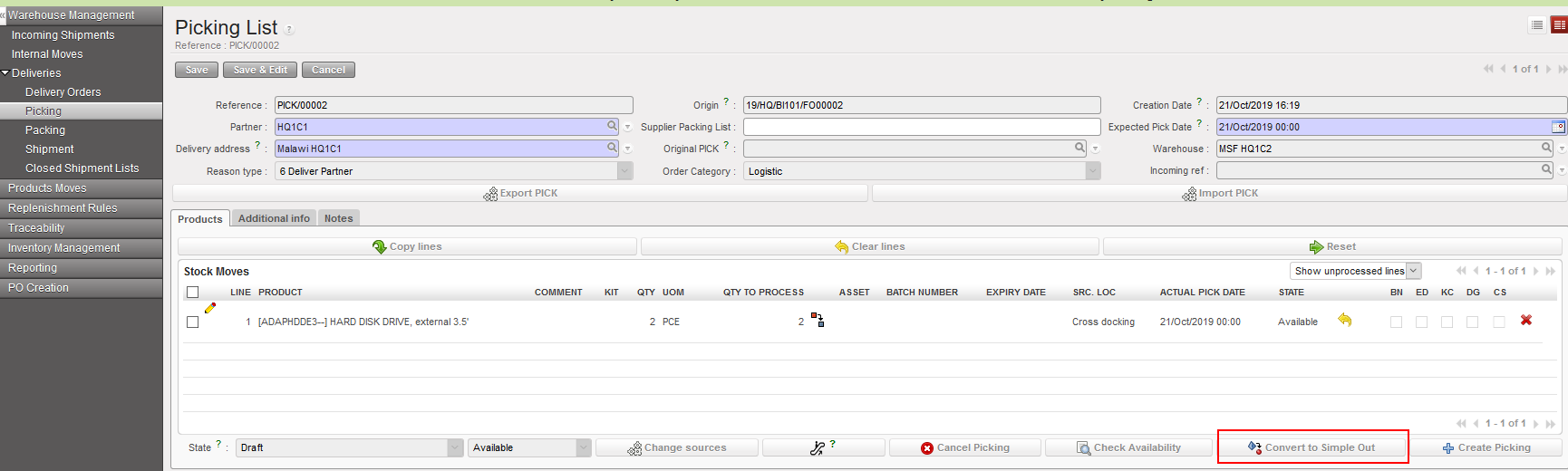
7. Go to Customer/Stock Transfer Voucher/ Check all the information and then validate (Note: the synchronization check box will be already ticked and cannot be edited)
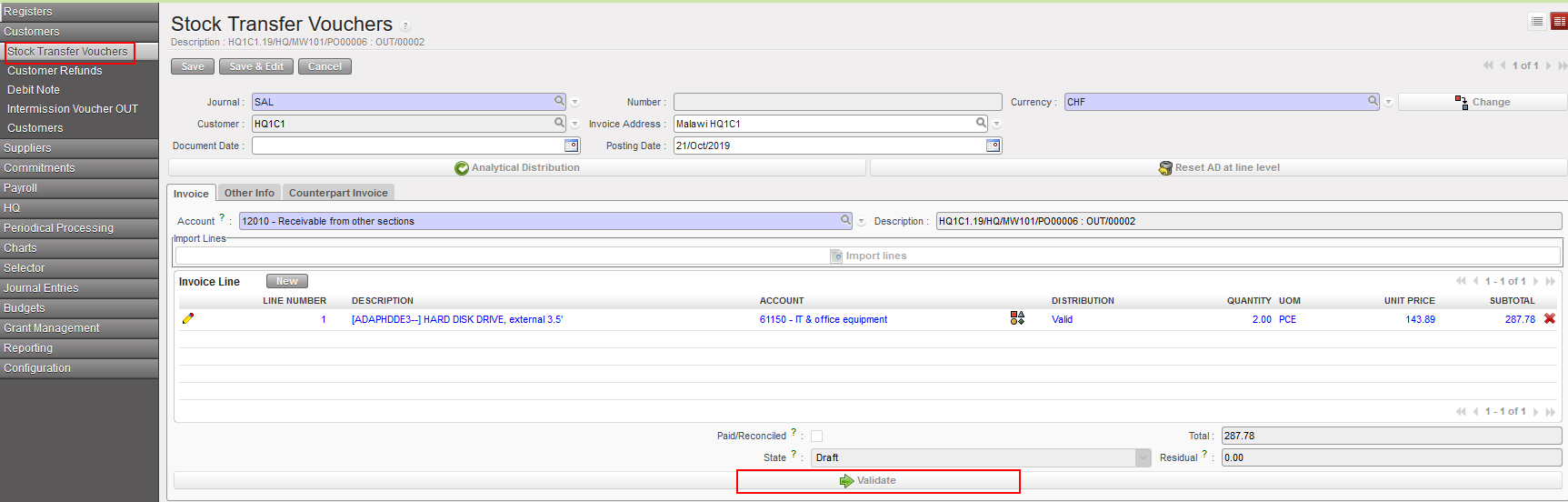
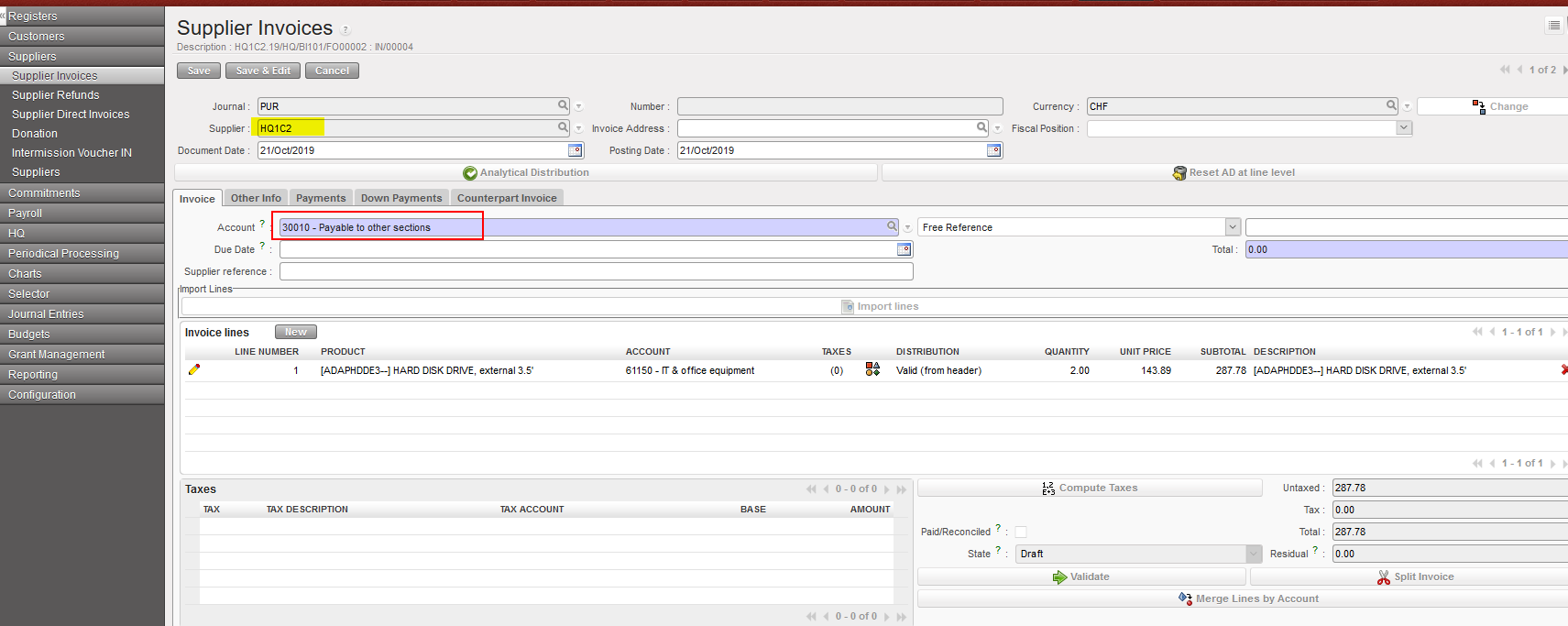
8. After the synchronization is done in the two instances, a supplier invoice will be created automatically in the requester mission HQ1C1 with the provider mission as a supplier. The payable account will be Payable to other sections. The process then as usual, check all the information then validate the invoice.
Manual STV/IVO synchronization check box and Synchronization check box of manual STV/IVO when created from duplicate:

  • if the partner chosen is intermission/intersection, the check box is ticked.
  • if the partner chosen is not intermission/intersection, the check box is Unticked:
  • when the user creates a partner, the user clicks on [validate] button, we will always make a check to ensure the consistency between type of partner at [partner] field and [synch] check box.
  • if the partner is not intermission/intersection and the synch check box is active, we will not allow to validate. Error message: ” You are not allowed to synch an invoice to this partner. Please remove the tick from the check box “synchronization” from the tab Counterpart invoice”.


When an ISI or IVI is created at synch time, the account on each line is taken from (by order of priority) the related CV line if any, else on the product or product category, else directly from the account used on the line in the other instance. In case the account is not found or is inactive, the related line is created without account and is displayed in red (until the account is set). The lines concerned are listed in the related “Synch Message Received” which appears as “Partially Not Run”.

It is not possible to validate the invoice as long as accounts are still missing.

This should be the only UC where invoices can be created with “empty” accounts. Therefore it is not possible to create an invoice by duplicating another invoice with missing accounts: all the accounts must be filled in first.


IVO/IVI “Invoice Excel Export” report for invoice lines

To export the list of IVO/IVI invoice lines (with specific details for each document):

Go to Accounting/ Customers (for IVO lines)-Suppliers (for IVI lines)

  1. Select the lines you want from the IVO/IVI search view.
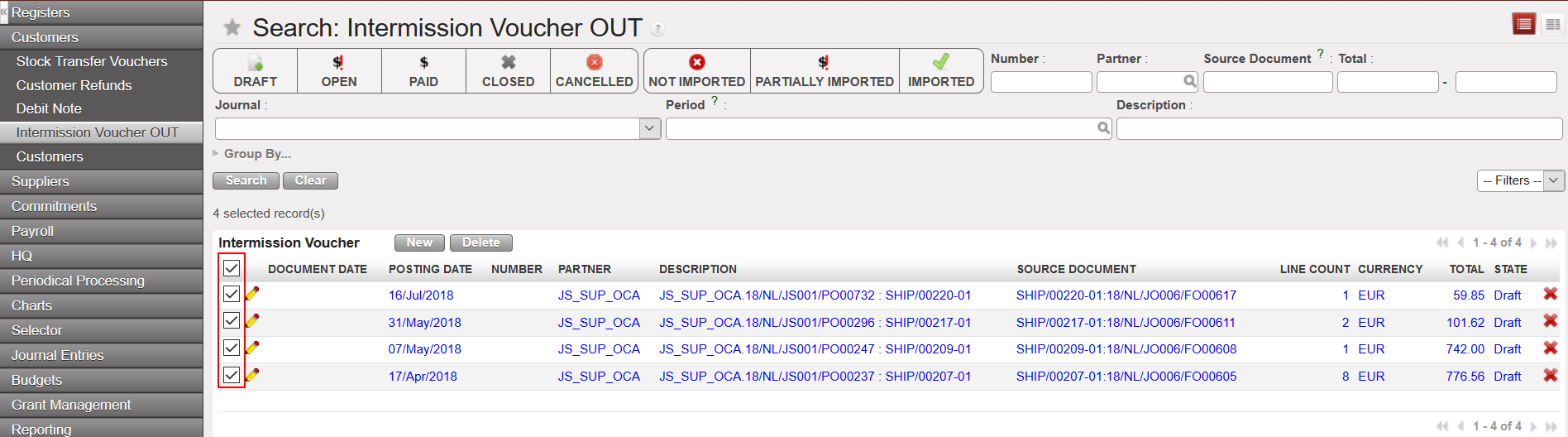
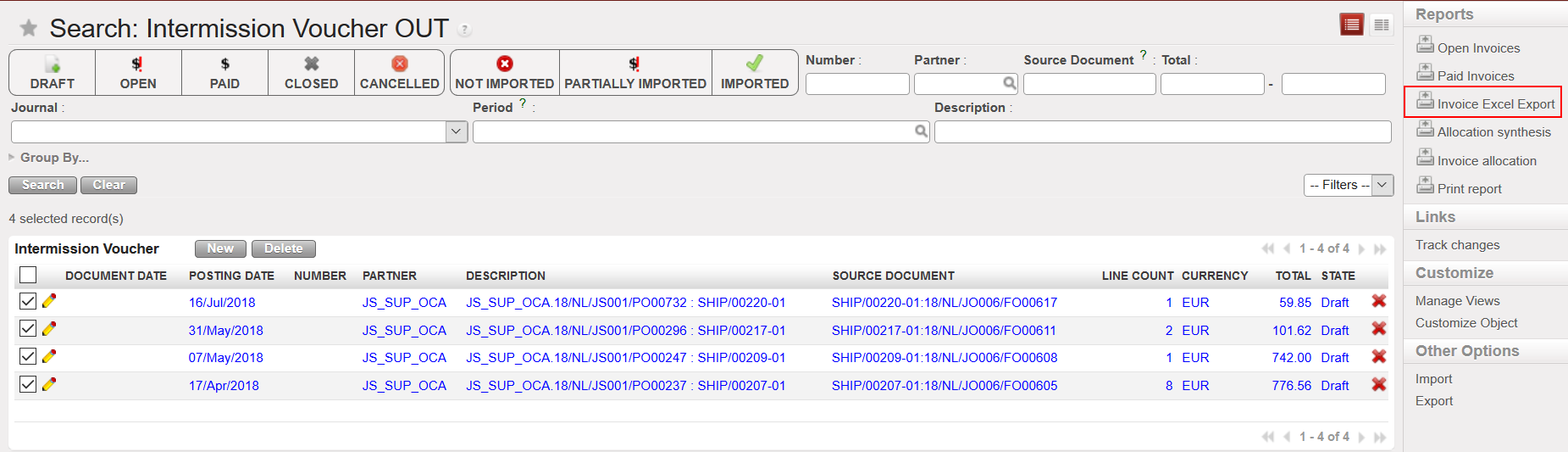
2. From the right-side menu click on {Invoice Excel Report}.
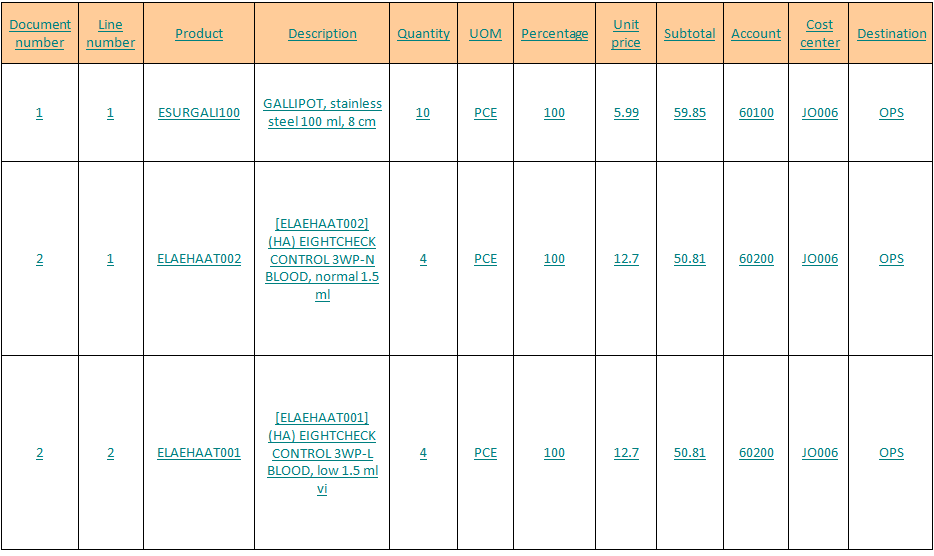
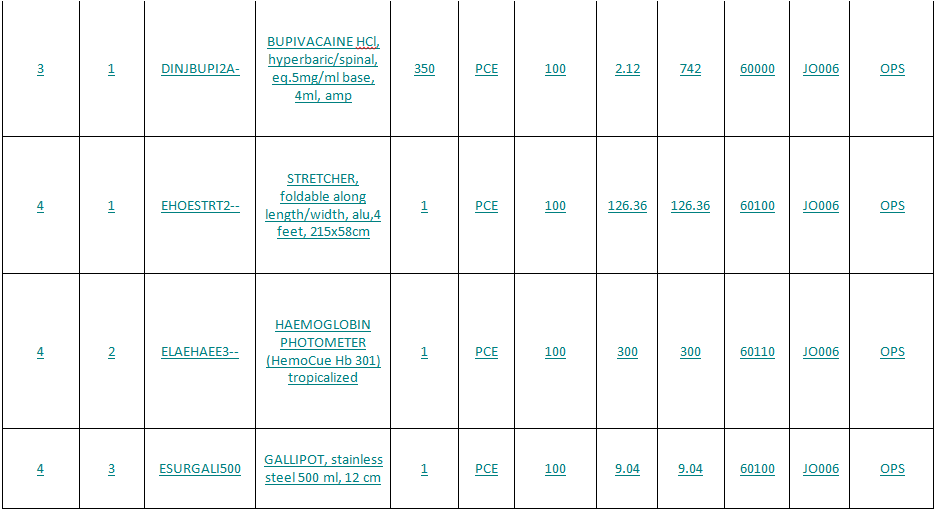
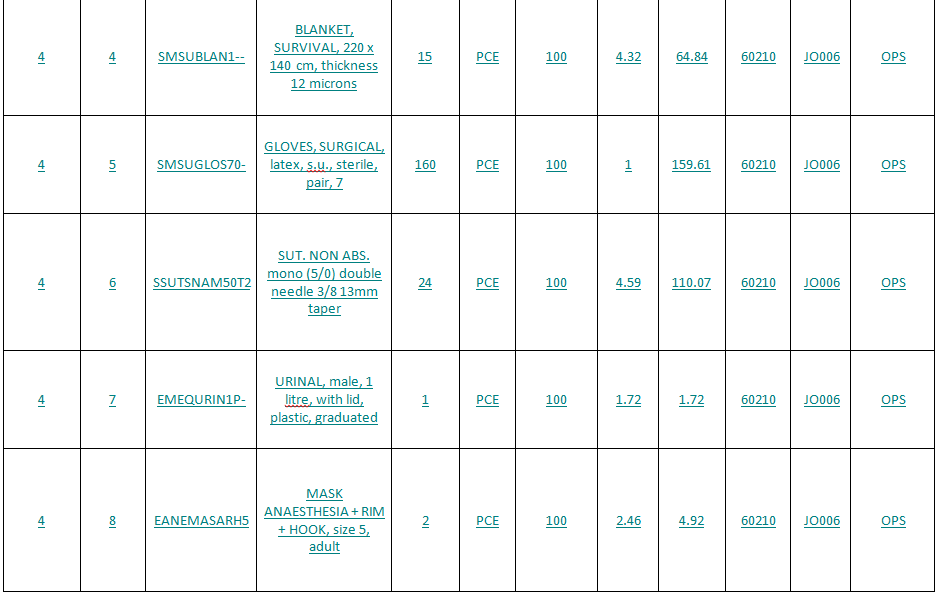
How to Create a Stock Transfer Voucher Manually

We will show below the case in which the mission reimburses the expense directly in the field.

Go to Accounting/ Customers/Stock Transfer Vouchers

  1. Click on {New} to open a new form.

⮡ A form displays to create a new voucher. Fields in blue are required; white fields are optional; grey fields are view only.
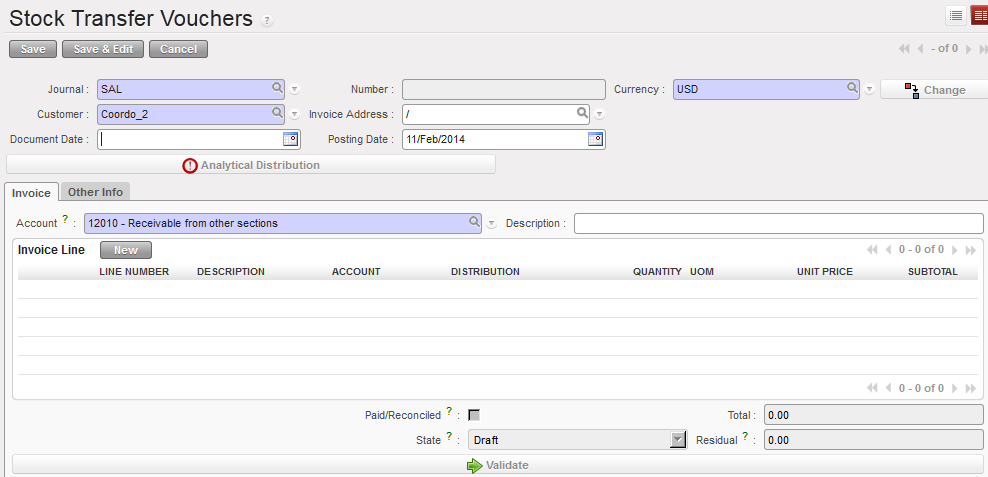
Manual stock transfer voucher creation
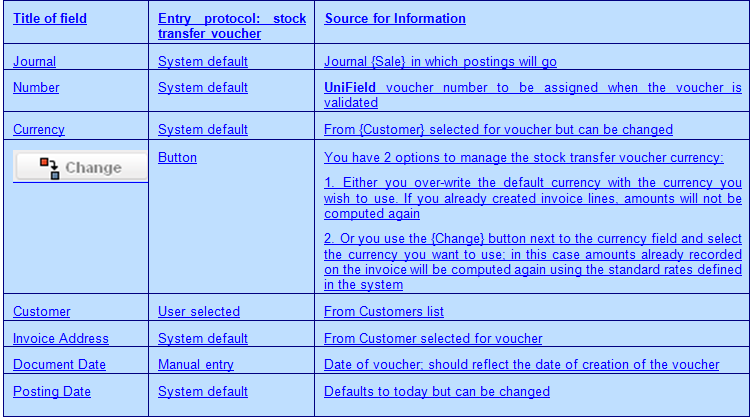
, is used to apply a global analytic distribution across all lines in the invoice.
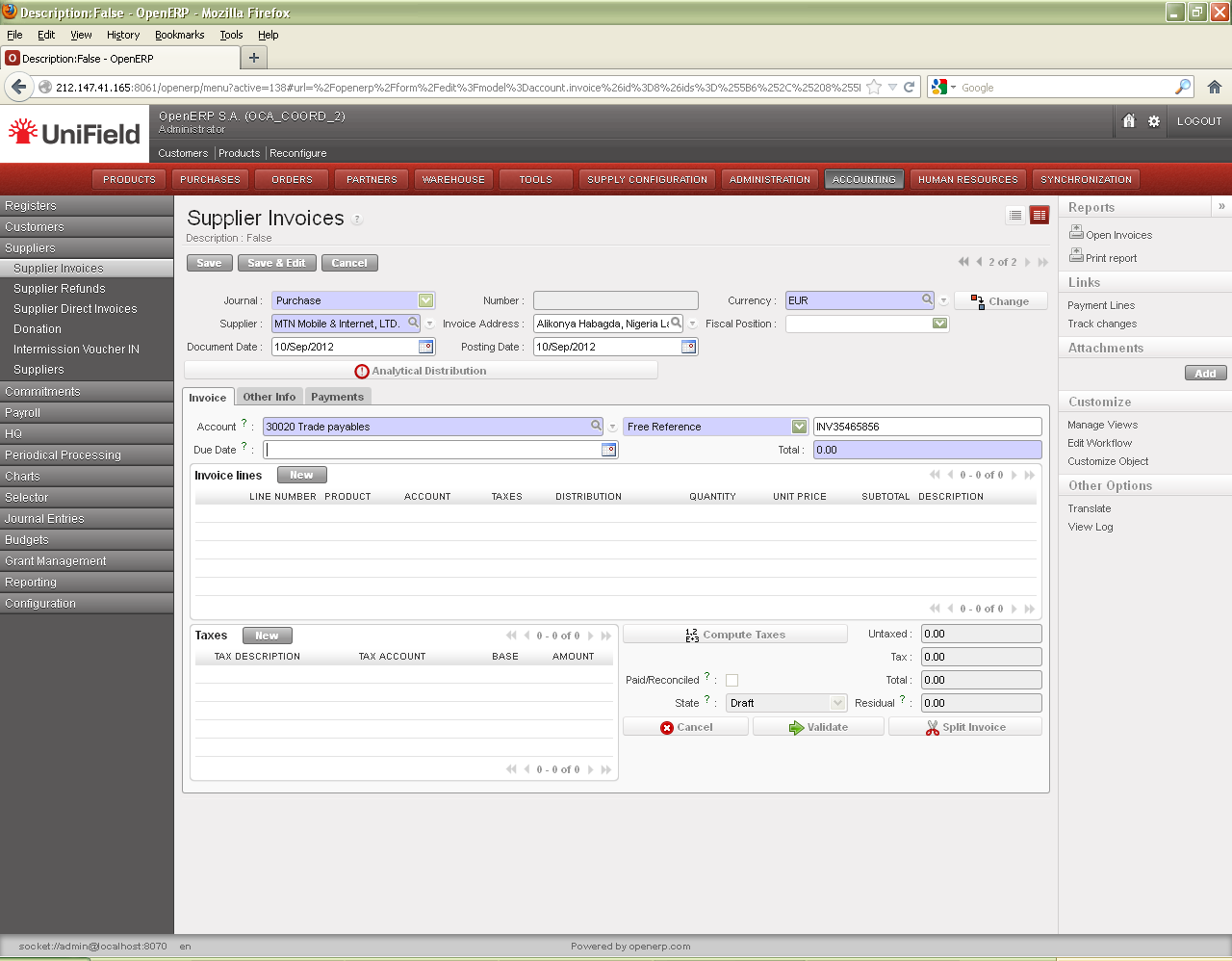
2. On the {Invoice} tab, you complete additional fields and add invoice lines to represent the various goods or services on the invoice to be paid.

3. In the {Invoice Lines} section, click {New} to create a new invoice line.
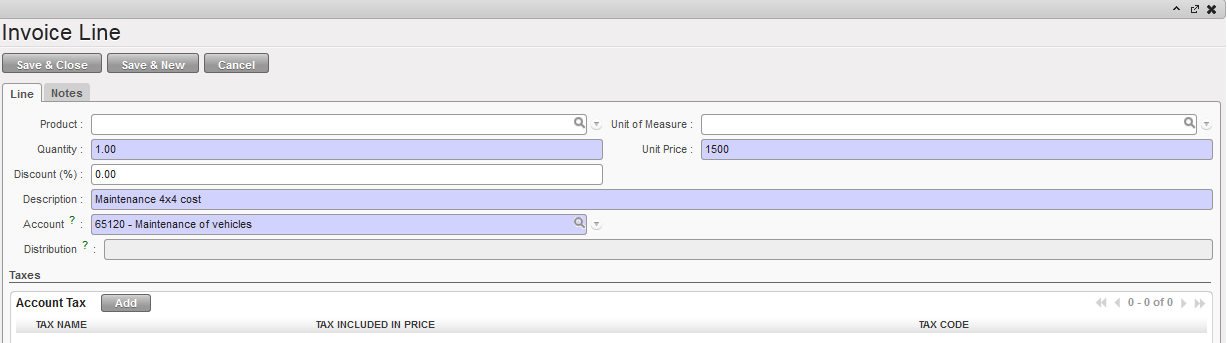
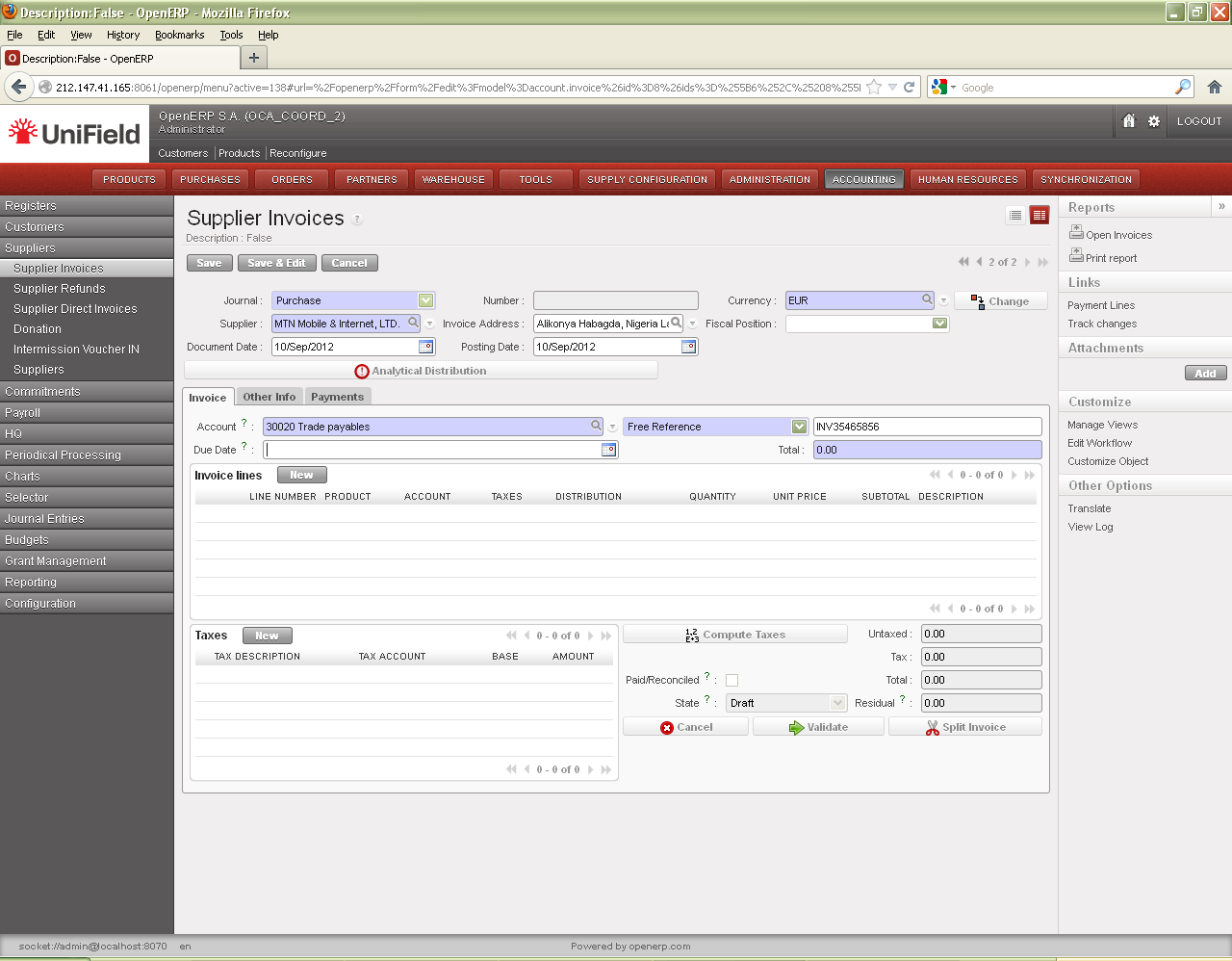
{Invoice Line} window to add line items on a manually created Supplier Invoice.
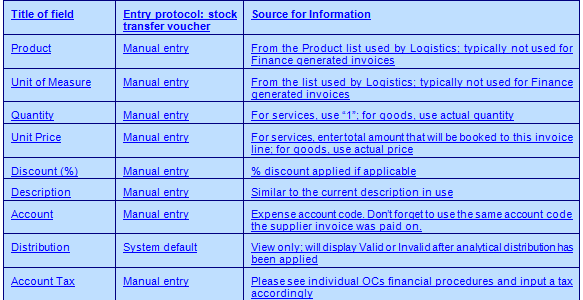
4. Click {Save & New} button for additional invoice lines, or click {Save & Close} button to return back to the supplier invoice window.

5. Assign the analytical distribution per line or globally across all invoice lines. Don’t forget to use the same analytical distribution as when the supplier invoice was validated.

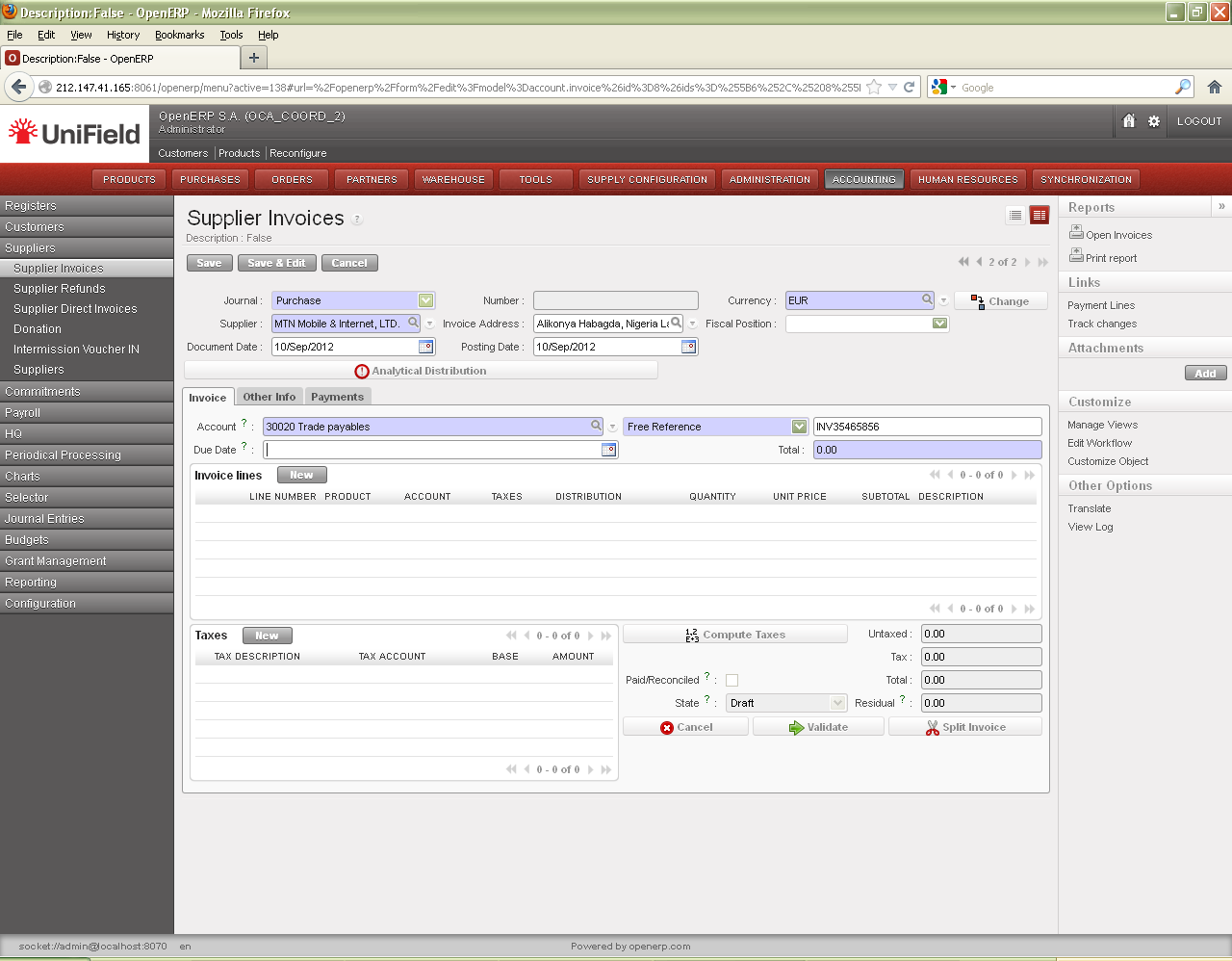
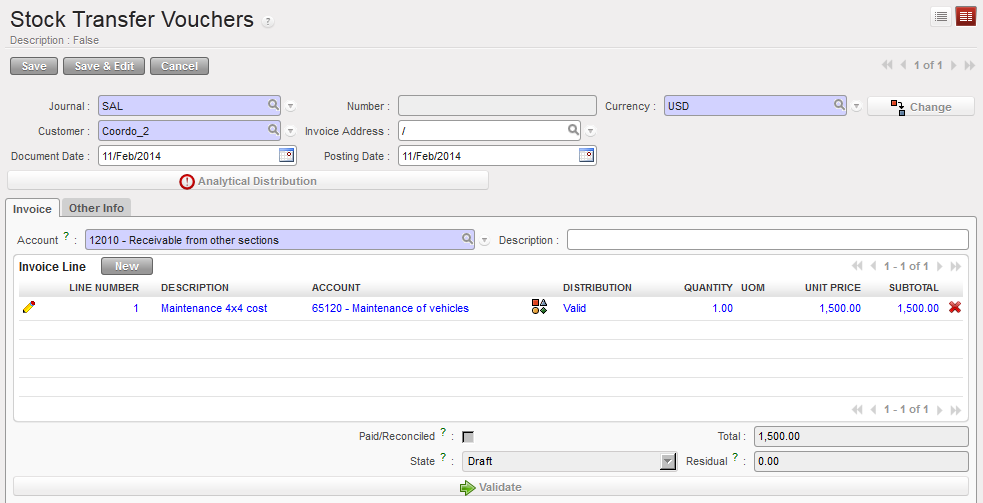
Valid analytical distribution on invoice line

6. In the tab {Other info}, complete the {Due Date}. The {Journal Entry} is linked to the accounting entry booked in the sales journal once the voucher is validated. {Responsible} identifies the user who validated the voucher. The other fields are automatically completed if they were recorded in the client’s form.

Validated stock transfer voucher and {Other info} tab completed

7. Save. The invoice is created in {Draft}, waiting for validation.

Payment of a stock transfer voucher changes state to {Paid} and automatically reconciles the journal items. At this stage you can use the {Refund} option from the stock transfer voucher.

Paid stock transfer voucher

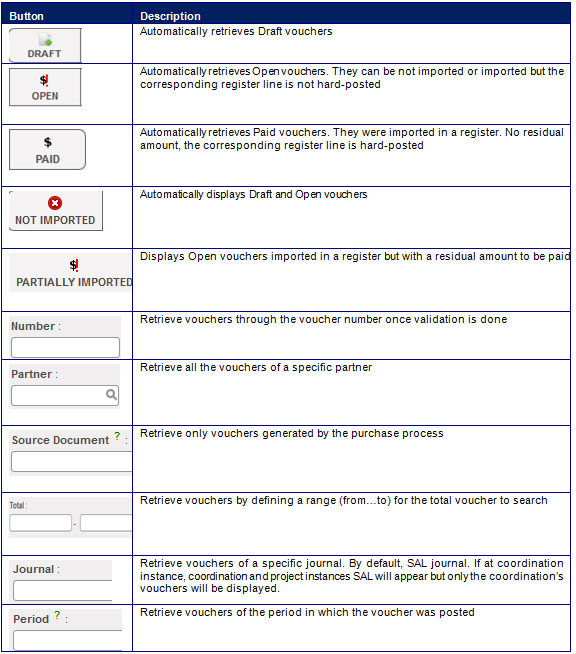
A series of filters is available in the {Stock Transfer Vouchers} Search view to help you retrieve a voucher.
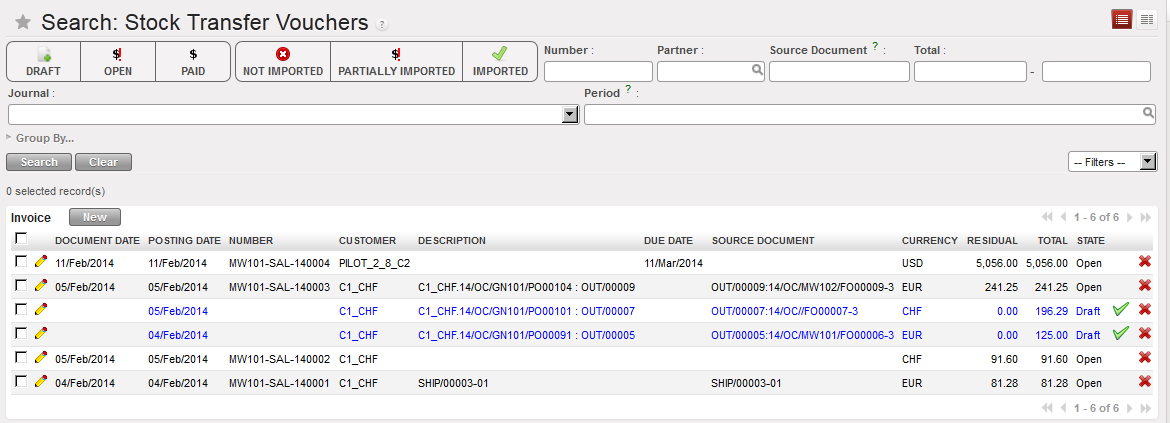
Search Stock Transfer Vouchers view
How to Edit a Stock Transfer Voucher

Like supplier invoices, you can edit a stock transfer voucher if the state is {Draft}

Go to: Accounting/ Customers/Stock Transfer Vouchers

  1. Search for the Draft voucher by selecting the {Draft} filter or any other filters located at the top of the Search view.
  2. When you have located the voucher, click on the pencil to open the form.
  3. In the {Stock transfer voucher} form view, change the relevant fields.
  4. Click the {save} button.

⮡ The voucher is edited

How to Delete a Stock Transfer Voucher

Like supplier invoices, you can delete a stock transfer voucher if the state is {Draft}

Go to: Accounting/ Customers/Stock Transfer Vouchers

  1. Search for the Draft voucher by selecting the {Draft} filter or any other filter located on top of the Search view.
  2. When you have located the voucher, click on the red cross

⮡ The invoice is deleted

How to Validate a Stock Transfer Voucher

Like supplier invoices, validating a stock transfer voucher will create accounting moves in the journals.

Go to Accounting /Customers/Stock Transfer Vouchers

  1. Search for the Draft voucher by selecting the {Draft} filter or any other filters located at the top of the Search view.
  2. When you have located the voucher, click on the pencil to open the form.
  3. Change the relevant fields if necessary. You should carefully review the accounts, destinations, cost centers and funding pools assigned to each product on the voucher invoice. Remember that accounts and analytical distribution must be identical to the supplier invoice you have paid.
  4. Validate it.

⮡ The voucher state becomes {Open}. Validation of the voucher also automatically creates a receivables entry in the {Sale Journal}
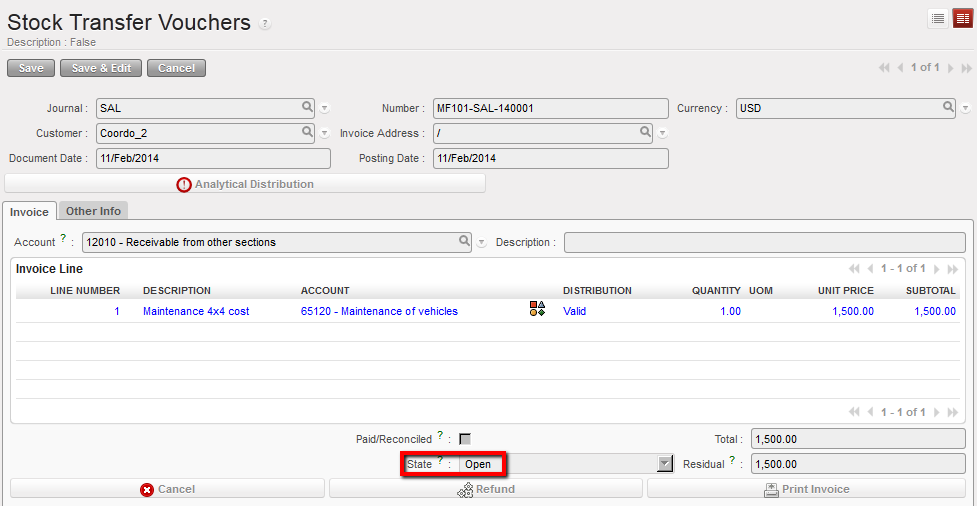
Open stock transfer voucher
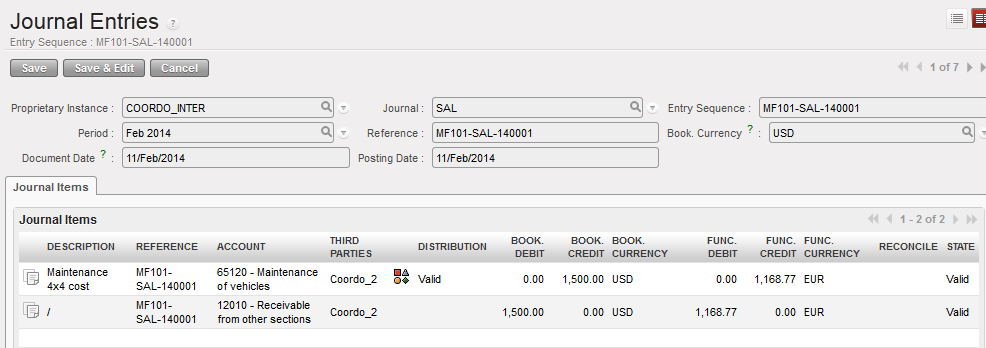
Posted journal items when a stock transfer voucher is validated

When you will receive the payment of this voucher, you will need to import the voucher in the registers.
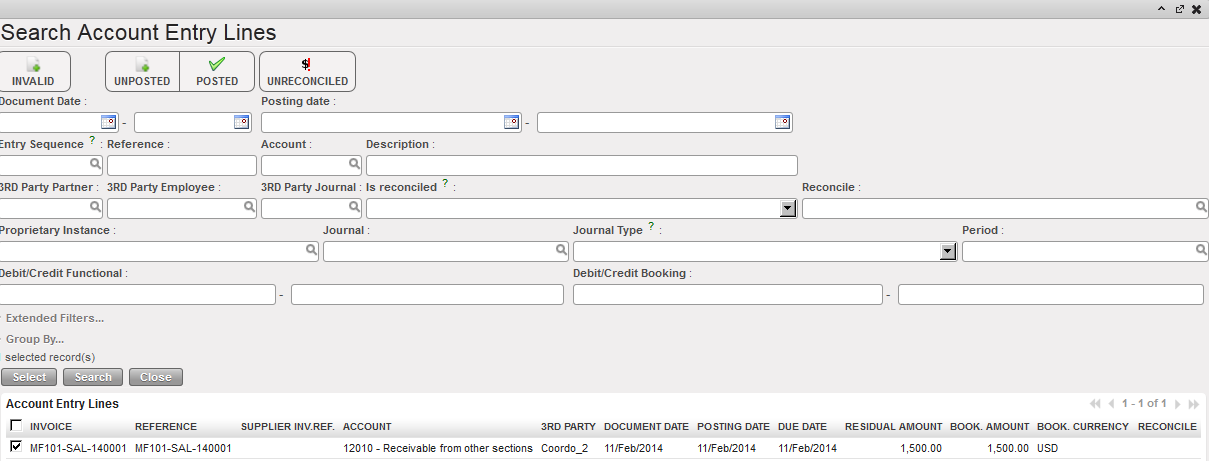
{Search Account Entry Lines} window when importing a stock transfer voucher in a register

Tries will be reflected in the register in {Temp} state.
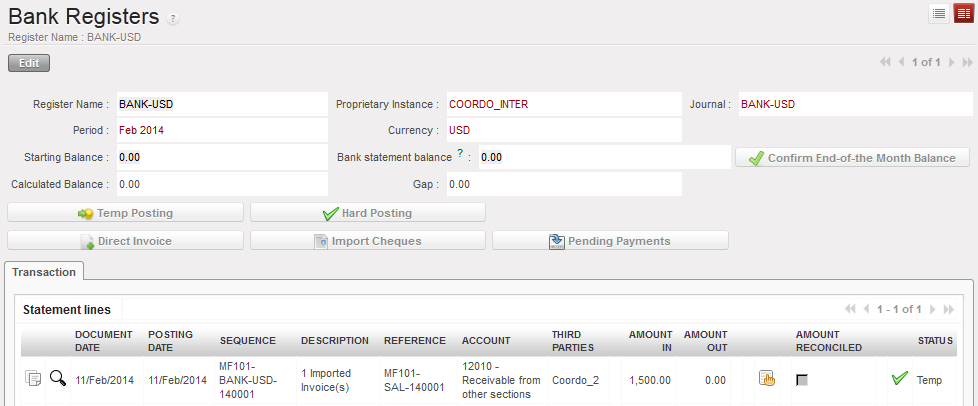
Temp-posted register line corresponding to the stock transfer voucher import in the register

  1. You need to hard-post this entry to create accounting lines in the journals.
  2. In the journals you will view the following accounting moves:
    • Payment of the voucher,
    • 12010 – Receivable from other sections reconciled
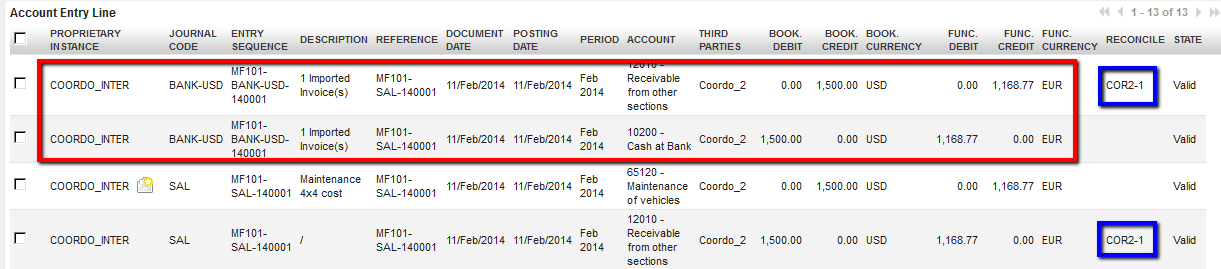
Journal entries of a paid stock transfer voucher in cash

3. The stock transfer voucher becomes {Paid}
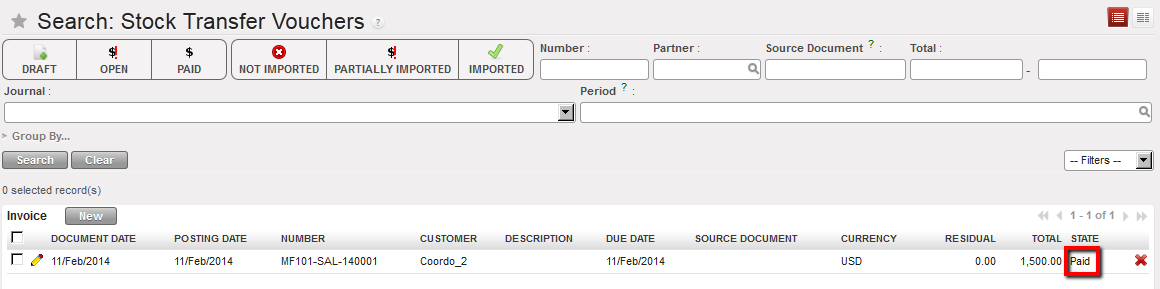
Stock Transfer Voucher Search view displaying a Paid voucher

TIP: To print a stock transfer voucher, go the {Stock Transfer Vouchers} Search view and check the box of the voucher you want to print. Then on the right side of the screen, in the section {Reports}, select {Print report}. A PDF report will display the voucher details. The columns {Description} and {Origin} will be completed if the voucher was triggered by the validation of an incoming shipment OUT (thus generated by a FO).
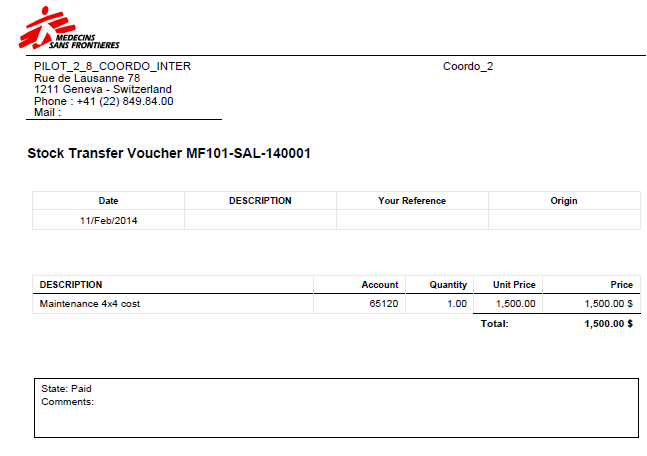
Stock Transfer Voucher report display

On the other side, a supplier invoice will have to be created manually with the same information than the Stock transfer voucher. The counterpart accounting code will be {30010 – Payable to other sections}.

How to cancel Stock Transfer voucher and IVO

You can always cancel the draft STV or IVO if they are still in draft (remember that the Draft STV and IVO do not sync).

Go to Accounting /Customers/Stock Transfer Vouchers or IVO

In the STV or IVO you want to cancel, click on the {Cancel) button.
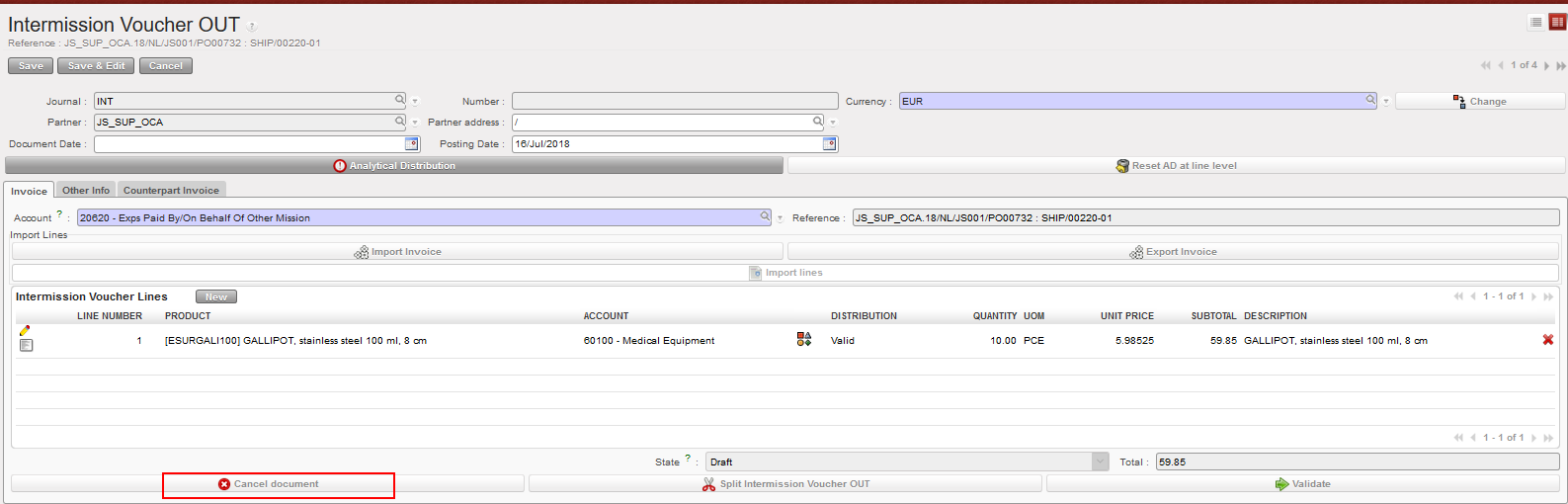
Draft IVO to cancel (same thing is applicable for draft STV)

If the draft IVO or STV were cancelled, they won’t be synchronized to the other counterpart intermission / intersectional instance and no more further actions will be possible on that object (no duplicate, no validate, no refund).

How to extract STV’s invoice Excel Export :

You will be able to have a new excel file called “Invoice Excel Export” from the STV in order to follow the flow.

Go to: Accounting > Customers > Stock Transfer Vouchers > select STV line > go to the right menu “Reports” and you will find the “Invoice Excel Export” report.
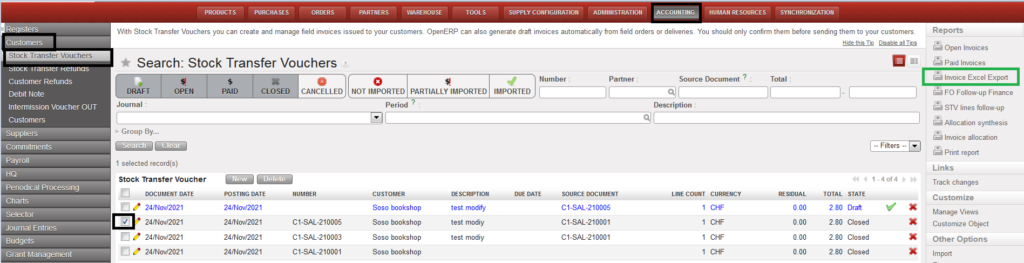
How to extract STV’s invoice Excel Export

How to add a legal entity names in the STV PDF print out form:

In Accounting> customers> STV and then in the first tab “invoice”, we are talking about the report pdf named “print invoice” only related to the STV (intersection flow)that we can find in the actions right menu. The field legal name is placed below the field “Name”.

To have the legal name in this document, it is important to fill the Legal Name in the partners form under the Name.
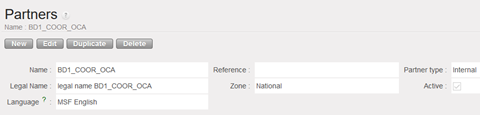
(Note: when we create an instance, the instance must also be created as an internal partner).

It has been decided that the legal name will appear in the PDF document for all partner types (because there are still intersection instances that are not using UniField).

If the legal entity name is not available in the partner’s form, it will be empty, the second line is the Name and this remains the same.
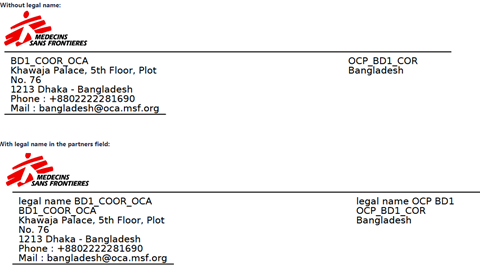
Legal name in the print out of STV

New filter button named “OPEN FY” on STV/IVO/ISI/IVI:

We have added a filter button named “OPEN FY” on STV/IVO/IVI/ISI screens.

Display of new button “OPEN FY”

The Fiscal year to consider is the FY of the posting date.

The following statuses are considered as NOT open: draft, mission closed and HQ closed.

This filter button “OPEN FY” is toggled on by default.

When the filter button “OPEN FY” is toggled off ==> all objects are displayed.

There are four buttons to show the states of the counterparts for the following transactions:

  • Stock Transfer Vouchers
  • Intermission Voucher OUT
  • Intersection Supplier Invoices
  • Intermission Voucher IN

Buttons as below:
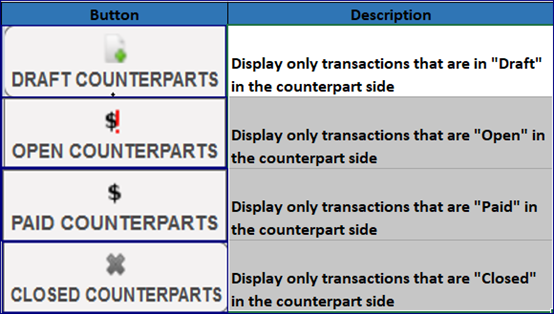
Display of counterparts states

LUFI-30409 Journal Entries

Finance User Manual ENG -> 3. Payments -> 3.4 Specific Payments and Journal Entries -> LUFI-30409 Journal Entries

LUFI-30409 Journal Entries

LU Introduction

On certain occasions it may be necessary for an advanced user to create an entry directly in the journal. Individual section policy will decide on when it is acceptable to create a journal entry directly in Journal Entries.

UniField requires manually created entries to be balanced on the credit and debit sides. Therefore, at least two lines must be created in each Journal Entry, one on the debit and one on the credit side.

If the user needs to create several entries repeatedly e.g. to book intermission transactions when the instance is acting as the main supply center for various missions, the function {Import Entries} located under the {Journal Entries} is available to import entries into the INT journal. In addition, the function is also available for the OD and HR journals.

Finally, it is not possible to change a register’s liquidity balance via a manual journal entry. Therefore, it is not possible to use register related accounts (cash on hand, cash at bank, outstanding cheques) in any manual journal entries. All corrections to these accounts have to be made directly in the registers.

How to Book a Manual Journal Entry

Go to: Accounting/Journal Entries/Journal Entries:

  • Click on the button.

⮡ The Journal Entries Create Screen appears

Journal Entries New Entry screen

  • Fill in all mandatory blue fields to select the journal, the currency, the period and dates of the entries.
  • In the reference field, enter additional identifying information if needed (optional).
  • Click on the button.
  • Fill in all mandatory blue fields in the same way you would create a direct entry in the register.

Journal Entries Manual Entry

  • Save the entry using the {Save} button at the end of the journal entry line.
  • Create the 2nd line by clicking on the {New} button and fill in the mandatory blue fields. The entry lines become valid as soon as the lines are balanced (debit equals credit).
  • For expense and income accounts, assign the analytic information via the wizard.
  • Approve the entry.

A balanced manually created Journal Entry

Both entry lines can be found in the {Search Journal Items}.

Two manual created entries in the Journal Items

How to duplicate a manual entry in a closed period:

  • Click on {duplicate} in the manual entry you want to duplicate. See below example for duplicating manual entry in Aug 2019 period.
  • As Aug 2019 period was already closed, the duplication will take the same document date but not the posting date. The posting date will be in the first opened period which is Sep 2019 in this case.

How to Book a Journal Entry Using the Function Import Entries:

Go to: Accounting/Journal Entries/Import Entries

  • Browse the relevant file to import

Import Entries window. The posting date is the date indicated in the import wizard and the document date and the period are taken from your import file.

  • Select {Import}
  • Select the button to refresh

⮡ A message confirms the import was successful

Import file was successful

  • Close the window

Go to: Accounting/Journal Entries/Journal Entries

  • Check the Journal Entries display

Unposted journal entries on the INT journal:

  • Select the entry and go to {Journal Items} located under {Links}.

Journal Items link selected

⮡ The {Search Journal Entries} show expense entries booked automatically on the debit side and the advance account booked on the credit side. The entry period is taken from the period indicated in the file. The document date is automatically populated from the document date of the import file. The posting date is the import date of the file.

Journal items display

  • The last action to do is to post these entries. Check the entries boxes and select {Post Journal Entries} located under the Action menu

⮡ A {Post Journal Entries} window displays to confirm the posting

Post Journal Entries approval

  • Select {Approve}

⮡ Entries are posted

List of posted entries

LUFI-30408 Register Entries Import

Finance User Manual ENG -> 3. Payments -> 3.4 Specific Payments and Journal Entries -> LUFI-30408 Register Entries Import

LUFI-30408 Register Entries Import

LU Introduction

It is possible to import entries directly into the registers by importing an external XML file that will generate register lines in {Draft} state. UniField will check the import file matching the register under certain conditions (proprietary instance code, journal’s code, currency code) and the requirement for a mandatory third party if accounts were set as such in configuration.

How to Import Register Entries

Go to: Accounting/Registers:

  • Select the appropriate register.
  • Go to the action menu and select {Import Register Lines}.

⮡ The Import Register Lines Screen appears

Import Register Lines Screen

  • Add an XML file attachment using the template as shown on the {Import Register Lines} Screen. If the entries are balance sheet / non-expense entries, leave the analytical information empty. Do not complete the field “Cheque number” for Bank and Cash register imports. Free 1 and 2 remain optional. Note! If the funding pool is missing or incorrect in the import file analytical distribution, the system automatically applies PF as the default funding pool.
  • If there are problems in the XML file, UniField provides a list of errors. Corrective actions must be taken to be able to import the file, which can be re-imported.
  • If import is successful, UniField displays an import confirmation

Import Successful Screen

  • UniField automatically creates the entries in your register in {Draft} state.

Example Imported Entry

LUFI-30407 Debit Note

Finance User Manual ENG -> 3. Payments -> 3.4 Specific Payments and Journal Entries -> LUFI-30407 Debit Note

LUFI-30407 Debit Note

LU Introduction

In UniField, you can create a debit note to cumulate several customer invoices (Stock transfer vouchers and Intermission Vouchers OUT) and proceed to the payment in one go.

How to Create a Debit Note:

Confirm first that the re-billing inter-section account is set to {Expense re-invoice to other sections}. This action prevents the system from importing the STVs booked on this account code in the partner form into the registers.

Choose account code 12011 in the Re-billing Inter-section account field when you Plan to pay multiple STV through a debit note.

Next, proceed to the creation of the debit note.

Suppose we want to consolidate the payment of the below STVs:

Stock Transfers Vouchers Search view

Go to: Accounting/Customers/Debit Note

  • In the Debit Note Search view, select {New}

New button to create a Debit Note

  • Complete the {Customer} field and in the {Currency} field populate the currency set into the Customer form. Choose a {Document Date} and {Posting Date}. Then in the invoice section, select account {12010 – Receivable from other sections}.
  1. Select to import the relevant STVs, then click {Add}

Creating a Debit note

Import invoice window

  • Select the STVs to import, then {OK}

Selecting STVs to import

OK” Button

  • The STV lines display in the {Invoice Line} section. The debit note is {Draft}. After checking all the fields are correct, you can validate it.

Debit note waiting for validation

Debit note becomes Open

Next, proceed to payment of the debit note in the register by using the {Pending Payments} function

Pending Payments used to import the debit note into a cash register

LUFI-30406 Recurring Entries

Finance User Manual ENG -> 3. Payments -> 3.4 Specific Payments and Journal Entries -> LUFI-30406 Recurring Entries

LUFI-30406 Recurring Entries

LU Introduction

In order to recognise the same expense every month during several months, a periodical processing function called Recurring Entries can be used in UniField. These are entries entered in to a recurring entries Model which enables to equally spread the expenses over each period. For example, we pay the rent for the 1st quarter of the year on January, all the money is paid on January but the expenses are actually for January, February and March.

Recurring entries follow this standard:

  • Create the supplier invoice

First, the user records the booking using a pre-paid expense account (in the supplier invoice line) – so the transaction debits Prepaid account and credits A/P Accounts Payable.

  • Pay the supplier invoice

The user records the supplier invoice payment importing the invoice into a register – so the movement is debit A/P (accounts payable) and credit on the liquidity account.

  • Create the accounting Model (= Recurring Model)

The user sets up a recurring Model, defining the journal entries to be repeated. The movement is debit expenses and credit prepaid expenses.

The user needs to perform an analytic distribution for the expense account leg of the Model.

  • Create the periodic Model (= Recurring Plan)

The user defines the periodicity at which the postings should occur (e.g. weekly, monthly) and the number of periods during which this entry will be repeated.

  • Generate the entries in the journal (= Generate Entries)

The user generates accounting entries based on the recurring Model and the recurring Plan – Prepaid to Expense. The creation of these entries is not automatic. The user must use the recurring Model to generate these entries at the end of each period. These entries are created and become {un-posted}; the user must review them and post them in the journal. If these entries are not generated and posted, UniField will not allow you to close the period.

  • Reconcile the prepayment entries (pre-paid account) in the journal

Manually reconcile the Supplier Invoice with the recurring entry. The prepayment account will be partially reconciled until all entries in the Model are generated.

Accounts move for a 3 months rental paid (EUR 3,000) starting from August (EUR 1,000)

DescriptionAccountDeCrEntries matching
Supplier Invoice Booking    
Trade Payables30020 3,000A1
Pre-paid expenses rental13300/13620 (OCA)3,000 A2
   (2,000)  
Supplier Invoice payment (August)    
Cash account10100 3,000 
Trade Payables30020/15600 (OCA)3,000 A1
     
Recurring entry generated (August)    
Pre-paid expenses rental13300/ 13620 (OCA) 1,000A2
Expat housing: rent & running costs611101,000 (2,000) 
     

How to Book a Recurring Entry Expense:

Assume we are in a situation where we paid 800 USD for upfront office rent. We would like to record it as 4 expenses which take place every month.

Create the supplier invoice

Go to: Supplier/Supplier Invoice

  • Create manually a supplier invoice using a pre-paid expense account {15600 – Prepaid expenses rentals} for some OCs or for OCA in the example 13620 for an amount of 800 USD.

Invoice line booking on a prepaid account

  • Validate the supplier invoice. The invoice becomes {Open}

Draft supplier invoice and {Validate} button

Pay the supplier invoice:

  • Go to a register to proceed with the supplier invoice payment.
  • When the register is open, import the supplier invoice and hard-post the register entry.

Imported invoice and entry hard posted

Create the accounting Model (= recurring Model)

Go to: Periodical Processing/Recurring Entries/Recurring Models

  • Click on {New} to create a Model.
  • Enter a {Model Name} and Journal {Purchase}.
    • Tip! If you include text “%(year)s”, “%(month)s” or “%(date)s” in to the Model name, the entries will pick the year, month or date in to the entry reference when they are posted!
  • Select the Model currency. For this example, it is {USD}.
  • Enter two (2) Journal Entry Model Lines (Prepaid on Credit and Expense on Debit).
    • For example, we want to pay 800 USD in 4 payments. Therefore, we debit 200 USD on the expense account and credit 200 USD on the 13310 account or 13620 account for OCA. Do not forget to select the appropriate third party in order to reconcile entries.
  • Record an analytical distribution on the expense account.
  • Click on {Save} button. The recurring Model is created as shown below.
  • If the Model lines are unbalanced, they will appear in blue! If they are balanced, they will appear in black.

Recurring Model created balanced (lines in black)

Recurring Model created unbalanced (lines in blue)

Recurring Model states:

The recurring Models has three different states:

  • Draft State = when no Recurring lines have been computed

When the Model is created and it has not been added in any Plan, it can be edited and deleted.

When the Model is created and added in a draft Plan without [computed] lines, it can be edited but can not be deleted.  The warning message will be:

This allows to make easy clean for Models which have been created per mistake/forgotten one which has never been used.

The Draft Models are in blue color. Same color for the Draft recurring Plans.

  • Running state = when subscription lines have been computed in a recurring Plan (entries un-posted OR posted).

If the Model is used in one recurring Plan in running state (so dates computed), and the entries have been generated or not and there is no recurring Plan in state done related to the Model, the Model can still be edited but not deleted.

  • Done state = once all subscription lines have been generated and posted.

A recurring Model in done state is not anymore selectable when creating a new or editing existing recurring Plan.

You cannot duplicate a Recurring Plan using a Done Model. You will have a warning message.

For a Model used for 2 different Plans where one Plan is in done state and the second one is in running state: The Model will be in state done. The second Plan, in running state, will have the field Model in read only.

The Done Models are in grey color as for the Done Recurring Plans.

Recurring Model states workflow

Create the Recurring Plan (= recurring entries via recurring Plan):

Go to: Periodical Processing/Recurring Entries / Recurring Plans

  • Click on {New} to create new recurring lines.
  • Enter a {Name} and select the {Recurring Model}.
  • Select the starting date of the Model (= date of the first expense booking).
  • As we want to spread the cost over four (4) months and book the expense every month, choose Repeat {1} Number of Periods {4} and Period Type {month}. The final expense booking will take place in 4 months from your start date.
  • Fill in a reference if desired.
  • Click on {Compute} to display automatically the subscription lines.
  • Click {Save} button.

Recurring entries Plan expenses will be booked according to the subscription lines schedule.

Recurring Plan states:

The recurring Plan has three different states : Draft, Running and Done.

  • Draft state = when no Subscription lines have been computed. The button Compute is available
  • Running state = when Subscription lines have been computed (entries un-posted OR posted).

Buttons available are Delete Unposted Entries and Compute

In Running State, we can still change the fields: Name, Start Date, Number of periods, Repeat and Period type.

Example: we can decide to change the number of months at this stage: from 4 months to 6 months.

We tick Compute and two new subscription lines will be created and a recalculation will be done consequently.

  • Done state = once all lines have been generated and posted. No buttons are available. All fields are set as not editable.

When a Recurring Plan is set to done using one Model, the related Model is set as done and is not editable anymore nor erasable.

States of the Recurring Plan:

Generate the entries in the journal

Go to: Periodical Processing/Recurring Entries/Generate Entries

  • Choose the date to select entries to be generated before a specific date.
    • For example, if you want to generate September entries, you can set the date in September.
    • Entries to be generated in December should be created in the standard December period and not in the special periods 13 to 16 (this possibility has been blocked).
  • Click on {Generate Entries}.

⮡ A new window {Generate Entries} will appear.

Post entries in the journal

  • The entries are generated as unposted. To post your entries, you must first select {Post Journal Entries} in the Action menu:

When clicking on {Generate Entries}, you have the list of all entries to post according to the period chosen. Not just for the Model that you are in. You can choose those entries you want to post. Select the line with X and go to the right Action menu and click to Post Journal Entries.

⮡ The Recurring Entries to Post window appears

Generated unposted journal entry

  • Remember that the entries are still unposted and as long as they are still unposted, you still can delete the unposted entries from the Recurring Plan. To know if it’s posted or not, you can click directly on the entry generated in the subscription lines in the recurring Plan window.

The unposted subscription Line in the Recurring Plan

Post Recurring Entries:

Go to: Periodical Processing/Recurring Entries/Recurring Plan

  • If the entries are not immediately posted after being created, the user can return to the {Recurring Plan} menu, open the {Actions} menu and select the {Recurring Entries to Post}.

Recurring Entries to Post button

  • Select the entries you want to post, then click on {Post Journal entries} on the action menu.

⮡ A new search window {Generate Entries} will appear where can select the entries you want to post and post them by clicking on {Recurring Entries to Post} from the action menu.

  • Click on {Approve}.
  • The recurring Entries are posted now.
  • You won’t be able to click and to use the {Delete unposted Entries button} in the concerned recurring Plan if the recurring entries were posted.

Reconcile the prepayment entries in the journal:

Go to: Journal Entries/ Journal Items:

  • Tick the original invoice line and the posted recurring entry line to reconcile.
  • Click on {Reconcile Entries} in the right-hand menu.

Posted and unreconciled journal items and Reconcile entries action

⮡ The {Reconcile Entries} window appears proposing a partial reconciliation as the journal items selected do not allow for a full reconciliation.

Reconcile Entries window

  • Click on {Partial Reconcile} button.
  • In the Search Journal Items view, the account 13300 is partially reconciled with an outstanding balance of 600 USD.

Account 13300 partially reconciled

Reset AD at line level button to input a valid AD

Editing the AD on a recurring Model when it became invalid.

How to Delete a Recurring Model and a Recurring Plan:

ENTRIES IN DRAFT (NOT GENERATED YET)

How to delete a Recurring Model:

  • Go to Periodical processing/Recurring entries /Recurring Models
  • Delete the recurring Model by clicking on the red cross.
  • You can not delete a Model which is used already in a Plan. You will have an error message:

How to delete a Recurring Plan:

  • Go to Periodical processing/recurring entries/Recurring Plan
  • Delete the recurring Plan by clicking on the red cross.

Recurring Entries module for management of Fixed Assets

A new Analytic journal DEP has been created in order to use the recurring entries module for the management of the fixed assets. 

This is optional per OCs. OCA will not use that for the moment.

  • Go to Accounting > Configuration > Analytic Accounting > Analytic Journals
  • The Journal code is named DEP, the Journal Name is Depreciation, and the type is also named Depreciation:

This is optional per OCs. OCA will not use that for the moment.

  • Go to Accounting > Configuration > Analytic Accounting > Analytic Journals
  • The Journal code is named DEP, the Journal Name is Depreciation, and the type is also named Depreciation:

The process to create a depreciation entry follows these steps:

  • Go to Accounting >Configuration > Financial Accounting > Accounts> Accounts, activate the GL codes for the accumulated depreciation (example code 21200 for the Non-Medical Equipment).
  • Go to Accounting > Periodic processing > Recurring entries > Recurring models.
  • Click on the button “New” to create a “Recurring Model”
  • Go to Recurring Plan and create a “New” Recurring Plan by selecting the Recurring model previously created in the Recurring Model screen.
  • Go to “Generate entries” and click on “Generating entries”: it will create entries with the “Journal code” DEP.

LUFI-30405 Down Payments

Finance User Manual ENG -> 3. Payments -> 3.4 Specific Payments and Journal Entries -> LUFI-30405 Down Payments

LUFI-30405 Down Payments

LU Introduction

A down payment is a cash advance to a supplier made at the time of ordering goods when the purchase is not yet invoiced.

In UniField, a down payment is recorded in a bank, cash or cheque register to ensure the money out impacts the register’s balance. It is recorded under the account {Advances done to third parties} with a mandatory third party. This icon helps user link the approved Purchase Order to the down payment recorded in the register. It appears once you saved the register line.

The down payment is displayed in the Purchase Order {Invoices} tab once the down payment accounting line is hard-posted in the register. At this point there is no supplier invoice because no goods have been received yet.

After the goods are received, a supplier invoice is automatically created in {Draft} in UniField for the total amount of the goods purchased. It is then possible to see the down payment on the {Down Payments} tab in the draft supplier invoice to be validated. The down payment is only displayed on the tab if the down payment entry is hard-posted.

{Supplier invoice} Form view

When an authorized user validates the invoice, the supplier invoice takes into account the part of the payment that has already been done. The user finds this information in the {Payments} tab in the supplier invoice form additionally to the {Down payments} tab. The validated invoice shows a residual amount to pay based on what was already disbursed as down payment.

{Payments} tab showing a down payment in a supplier invoice Form view

{Down Payments} tab showing a down payment in a supplier invoice Form view

Residual amount to pay displayed in a supplier invoice

Accounts move related to down payment and supplier invoice validation

  • When the down payment is delivered, the account {Advances done to third parties} is debited and the account {10100 – cash on hand} is credited in the liquidity journal.
  • When the invoice is validated, the expense account is debited and Trade Payables account credited for the total cost in the purchase journal.

Automatic account reconciliation: In the liquidity journal, the advances to third parties account are reconciled (M1-9) and the Trade Payables account is partially reconciled (M1-10) showing a residual amount to pay.

Note! These entries are not reflected in the register; therefore a gap of sequence can be expected when creating a new register line. However, these entries can be followed up on the Full Report.

Invoice to import showing a residual amount

The final payment is done by importing the supplier invoice into the register.

Once the payment is done and hard-posted in the register, UniField automatically creates a new reconciliation reference.

This is what you will see in journal items:

Journal items when the imported invoice register line was hard-posted. A new reconciliation reference was created.

How to Record a Down Payment:

(Same procedure applies to record a Down Payment in a cash, cheque or bank register)

Go to: Accounting/Registers:

  • Select the register used to pay the down payment.
  • Click on {New} to create a register line.
  • Complete the line. In the {Account} field, select the account {Advances done to third parties}. Select the supplier in the {partner} field
  • Save the line.

⮡ The line is saved in {Draft}. The icon appears.

  • Click on the icon to link the down payment to the purchase order.

⮡ A {Down payment} wizard appears

A {Down payment} wizard appears

  • In the {Purchase Order} field, select the relevant purchase order to link it with the advance and validate it. Remember, no supplier invoice will exist because goods have not been received yet. If you do not see your purchase order, confirm you are in the register corresponding to the correct currency and you have selected the correct supplier. Also, check the PO lines status; only POs lines in status {Confirmed} can be linked to a Down Payment and the total amount of any confirmed PO lines minus any validated Supplier Invoices for the same PO cannot be exceeded.
  • Back to the register line, save it.

⮡ The down payment is booked in your register. Only after the down payment is hard- posted will the down payment be recorded in the associated purchase order in the {Invoices} tab.

Down payment displayed in a purchase order

LUFI-30404 Operational Advance Management

Finance User Manual ENG -> 3. Payments -> 3.4 Specific Payments and Journal Entries -> LUFI-30404 Operational Advance Management

LUFI-30404 Operational Advance Management

LU Introduction

An operational advance is defined as money provided to an employee from cash or bank registers to be used to purchase goods or services from third parties on behalf of MSF. The employee returns with the goods or services and a receipt for payment. Any unused cash is returned to the petty cash box or bank account and the payment is booked for the expense.

UniField can manage operational advances from the moment the advance is disbursed until it is returned. To create operational advance entries select the suspense account {Operating Advance}. The cash handed to the employee is booked on his/her name as third party.

If the advance payment relates to a Purchase Order, the advance can be linked to the confirmed PO when creating the register line. This action allows you to select the automatic supplier invoice in the advance return wizard later in the process. Operational advances can be closed once the reception is processed and the related supplier invoice validated. The {Advance Return} wizard is triggered by selecting this icon located on the advance register line as soon as the line is hard posted.

Cash advance and return

How to Book an Operational Advance:

Go to: Accounting/ Registers/Cash Registers:

  • Open the cash or bank register of the currency in which the operational advance is given.
  • In the {Cash transactions} tab, create a new statement line and complete the statement fields. In the {account} field, choose the account {Operating Advance}.
  • As {Third Party}, enter/select the name of the employee receiving the advance (mandatory).
  • Enter an {Amount Out}.
  • In the {OPE ADV-LINK TO PO} box, you link the advance to the PO for which the advance was requested if the PO is Regular or DPO. This PO must have been confirmed, but not closed yet, to show up in the Search Purchase Orders view.

Booking an operational advance linked to a PO not of type Purchase List

Searching for the PO to link to the advance

  • Save the line. The advance is now in {Draft} status. You will need to hard post it to be able to close the advance. The field Reference is mandatory, where you should add the advance number.

Operating advance booked in draft state in the cash register

How to Generate a List of Open Advances:

Once the advance is booked, you need to close it in UniField. You can use the button {List of Open Advances} to help you retrieve the advance. Both hard posted and temp posted advances will be displayed. A list generated at Coordination level will display open advances of coordination and project instances. A list generated at project level will only display open advances of the project instance.

Go to: Accounting/Registers/Cash Registers:

  • Open the cash or bank register where the money will be returned.
  • Click on the button {List of Open Advances}.

List of Open Advances button on a cash register used to retrieve hard/temp-posted operating advance

Search Open Advances window displaying hard/temp-posted advances not returned yet

How to Settle an Operational Advance:

  • You need to click on the wizard.
  • When the advance return wizard is used, use this reference in the field “Advance Return Reference” => the field is read only and not editable.
  • The advance can be linked to a supplier invoice in case of purchasing or services from an external partner. If the type of the invoice should be a direct invoice, this is an exceptional case where you should create the invoice as supplier invoice instead of direct invoice (it’s in case you want to use the invoice to settle an operating advance).
  • You can use a direct entry type as well to settle the operating advance in case of direct expenses to staff or daily workers …etc. You can add that in the Advance line section.
  • Both direct entry type and supplier invoice can be used if required at the same time to settle the operating advance.
  • Indicate the amount of cash returned (if any) and enter the date of cash return. The date must be in the same month as the register.
  • Indicate an advance return amount if needed.
  • Select {Compute} button to calculate the Justified Amount = advance lines + advance return amount. This should equal the Initial Advance amount.
  • Click {OK} button.

Advance return wizard and invoice lines automatically added

Advance closed and reconciled in the register

Notes:

  • The reference at the level of the advance return lines which is in the column “Reference” (to the right of description) will be removed from the lines of the wizard.
  • Both Initial advance and advance return JIs will have the same reference based on the initial advance. Note that it won’t be possible to change the reference once the initial advance is posted.

How to Settle an Operational Advance combining a Supplier Invoice and a Manual Expense line:

Go to: Accounting/ Registers:

  • Open the register where you want the advance to be returned.
  • Ensure the advance line is hard posted.
  • Select the button {List of Open Advances}, and once you have located your advance in the {Open Advances} Search view, click on the below button {Advance return}located on the advance line.
  • Enter in the {Advance return amount} the amount of cash returned and the date of the cash return:
  • Leave it blank if no cash is returned.
  • If you linked the advance to a PO when the register line was booked, the invoice details are automatically retrieved and displayed in the invoice lines section when calling for the Advance Return wizard (see point D). If not, select the desired supplier invoice with the “Add button”
  • In the Search Invoice view, choose the invoice to import and press on “Select” to close the window.

Search Invoice view when calling for invoices to import in the Advance Return wizard

  • Then press “Add Invoice” to display the invoice in the invoice line section
  • To add a manual expense line, follow the steps described in point E from step 5

Manual expense line saved in the advance return wizard

All these actions have closed the advance in the register and created two new sequences in journals (only the liquidity journal sequences are visible in the register). Accounts 13000 and 30020 are reconciled. If the imported invoice’s details have to be checked, use the icon located on the payables line.

Advance closed in the register

In the journals, we have:

  • Operating advance booked in the liquidity journal:
    • 10100 Cash on hand on credit (150 UGX)
    • 13000 Operating advance on debit (150 UGX)- reconciled CD1AD-3
  • Trade payables reconciled (CD1AD-1) when the invoice is imported. We have account moves in the purchase and liquidity journals.
  • Trade payables reconciled (CD1AD-2) when the manual expense is input, impacting only the liquidity journal.
  1. Advance return in cash, impacting the liquidity journal

How to Close an Advance when the Actual Cost Exceeded the Advance:

We will use the example of a manual advance closing.

Go to: Accounting/ Registers:

  • Open the register where you want the advance to be returned.
  • Ensure the advance line is hard posted.
  • Select the button {List of Open Advances}, and once you have located your advance in the {Open Advances} Search view, click on the button {Advance return} located on the advance line.
  • In {Additional amount}, enter the amount of additional cash used by the employee. Leave the {Advance return amount} to 0.00 and fill in the date for cash return even if no cash is returned. This is the date when the advance is justified and when the advance return is posted in the journals (expense and cash accounts).
  • In the {Advance line} field, select {New} and complete the fields in blue. You can select a generic partner called {Local Market} or record it on a specific partner. UniField will automatically reconcile it. Save the line.

Expense amount equals the initial advance amount plus the additional advance amount. This will represent the justified amount.

  • Proceed now to the allocation of this cost. Select the button located on the advance line if you need to assign different analytical accounts to several advance lines. If not, use the button at the header. The destination is set by default.
  • Save the line . The line becomes blue. The allocation is valid.

Valid analytical distribution in a cash return wizard:

  • Indicate an {Advance Return Reference} if needed
  • Click {Compute} button to calculate the Justified Amount = advance lines + additional advance amount. This should equal the Initial Advance amount.
  • Click {OK} button.

⮡ The window closes. The advance is closed in the register. Use the {Return to register} action to check the entries created.

Advance closed and operating advance account automatically reconciled

In the G/L journals, we have:

  • Operating advance booked in the liquidity journal:
    • 10100 Cash on hand on credit (300 MWK)
    • 13000 Operating advance on debit (300 MWK)
  • Return operating advance closed in the liquidity journal (1):
  1. 13000 Operating advance on credit (310 MWK)- reconciled GN101-19
  2. 13000 Operating advance on debit (10 MWK)
  3. 13000 Operating advance on debit (300 MWK)
  • Return operating advance closed in the liquidity journal (2)
    • 10100 Cash on hand on credit (10 USD), entry sequence
    • 61170 Furniture on debit (310 USD), entry sequence
  • Trade payables reconciled in the liquidity journal when the cash return is booked
  • 30020 Trade Payables on credit (310 MWK)- reconciled GN101-18
  • 30020 Trade Payables on dedit (310 MWK)- reconciled GN101-18

Warning message on the cash return wizard

Advance return wizard: show the third-party liquidity journal if account code type is “internal transfer”.

You are be able to select Journal 3rd party on Return advance entry if the account codes “14120 – Internal Transfer Same Currency” or “14130 – Internal Transfer With Currency Exchange” are selected:

LUFI-30403 Deposits or Guarantees

Finance User Manual ENG -> 3. Payments -> 3.4 Specific Payments and Journal Entries -> LUFI-30303 Deposits or Guarantees

LUFI-30403 Deposits or Guarantees

LU Introduction

Sometimes suppliers request a guarantee (e.g. to rent houses, for a phone line, etc.) which should normally be returned at the end of the agreement. When cash is given to the supplier, you will record a transaction in the register on an account {Guarantee and Deposits}.

Depending on your section’s policy, you can differentiate if the guarantee is more or less than one year and use a different account depending on the case.

When the cash will be returned at the end of the renting contract you will record it in the register. A manual reconciliation on the {Guarantee and Deposits} account needs to be done to settle the balance. The reconciliation can be done once both entries are hard-posted.

USD 3,000 Short-term deposits for Expat house rental

DescriptionAccountDeCrEntries matching
Deposit paid to supplier    
Cash on hand10100 3,000 
Short-term deposit110003,000 A1
     
Deposit return    
Cash account101003,000  
Short-term deposit11000 3,000A1

How to Record a Guarantee or a Deposit to a Supplier

Go to: Accounting/ Registers:

  • Open the appropriate register to record the money out.
  • Click on {New} to create a register line.
  • Complete the line. In the {account} field, select the account {Guarantee and Deposits}. Select your supplier in the {partner} field.
  • Save this entry.
  • After the money is returned, repeat the process with money coming in. Save this entry. Ensure both entries are hard posted.
  • These two entries can now be reconciled in the journals.

LUFI-30402 Security Advances

Finance User Manual ENG -> 3. Payments -> 3.4 Specific Payments and Journal Entries -> LUFI-30302 Security Advances

LUFI-30402 Security Advances

LU Introduction

In certain missions, security advances will need to be given to expatriate or national staff. It is assumed these advances will be returned when they are no longer needed.

How to Record a Security Advance:

Go to: Accounting/ Registers:

  • Open the appropriate register to record the money out.
  • Click on {New} to create a register line.
  • Complete the line. In the {account} field, select the account {Security envelopes}. Select the appropriate employee in the {partner} field.
  • Save this entry.
  • Hard Post this entry. The advance return wizard will now appear.
  • After the money is returned, find your entry by using the List of Open Advance Button
  • select the Advance return wizard

⮡ The advance return screen appears

  • Enter the amount of returned cash into {Advance Return Amount}. If the whole amount is not returned, fill in the partial return amount and record the expenses incurred in the {Advance Lines} below as detailed in step 10.
  • Complete the {Additional Advance Amount} field in case the employee had to disburse cash from his pocket.
  • If the advance was returned with an invoice, you can record a supplier invoice and import it using the magnifying glass. Then select the {Add Invoice} button. Another option to record the return is to input manually the advance return lines by clicking on {New} in the {Advance Lines} section.
  • Enter a partner if relevant. Below is explained which accounting moves you get if you complete or not this field.
  • Insert Analytical distribution

Advance return wizard with expense lines and amount returned:

  • Click Ok.

The Advance Return Wizard creates a second entry to reconcile the original advance and book the actual expense in the register

  • Entries will be automatically reconciled. Below is what you can see in the liquidity journals:
DescriptionAccountDeCrEntries matching
Advance delivered    
Cash account10100 100 
Advance account13010100 M1-17
     
Advance returned    
Expense account6120095  
Cash account101005  
Advance account13010 100M1-17
Trade Payables3002095 M1-16
Trade Payables30020 95M1-16

Accounting moves when the {Partner} field is filled when booking the advance return

DescriptionAccountDeCrEntries matching
Advance delivered    
Cash account10100 356 
Advance account13010356 M1-18
     
Advance returned    
Expense account61200350  
Cash account101006  
Advance account  356M1-18

Accounting moves when the {Partner} field is left blank when booking the advance return. Of course no moves on the Trade Payables account.

LUFI-30401 Internal Transfers

Finance User Manual ENG -> 3. Payments -> 3.4 Specific Payments and Journal Entries -> LUFI-30301 Internal Transfers

LUFI-30401 Internal Transfers

  • LU Introduction

Monetary transfers are performed from any kind of registers (bank, cash and occasionally cheque). They consist of two entries; one in the origin (sending) register and another in the destination (receiving) register, for example a transfer from the Coordination main safe to a Project’s main safe. These transfers can involve the same currency or two different currencies.

On the sending side the {Third Party} is the journal receiving cash. At the recipient side the {Third Party} is the journal sending cash.

A manual reconciliation needs to be done on the {internal transfer account}. For project-coordination transfers, the coordination performs the reconciliation in the coordination instance. At project level entries on the transfer account are not balanced as coordination B/S entries do not sync to project instances.

FX loss/gain are automatically calculated and recorded in the FXA {FX Adjustment} journal if the disbursing internal transfer is recorded in a different period than the recipient internal transfer or if the bank exchange rate is different from the system rate.

N.B. Suppose you need to withdraw cash at the bank using a cheque. Please check your OCs procedure to know whether you should record the amount OUT from the Bank or Cheque register and adjust the third party in the Cash register accordingly.

How to Book an Internal Transfer Same Currency:

Sending side

Go to: Accounting/ Registers :

  • Open a register to record an internal transfer sent out. Internal transfers are recorded the same in each register type.
  • Create and complete a statement line by selecting the account {Internal transfer same currency}.
  • The {Third Party} is set automatically to {Journal}. Choose the journal you transferred the funds to.
  • Save the entry.

⮡ The entry is saved in {Draft}. The entry must be changed to hard-posted so that it can be reconciled at a later stage.

Receiving side

Go to: Accounting/ Registers:

  • Open the recipient register to record an internal cash transfer received.
  • Create and complete a statement line by selecting the account {Internal transfer same currency}.
  • The {Third Party} is set automatically to {Journal}. Choose the cash journal you sent the cash from.
  • Select a {Third Party}: it will be the cash journal. Save the entry.

⮡ The entry is saved in {Draft}. The entry must be changed to hard-posted so that it can be reconciled at a later stage.

How to Book Internal Transfer with Currency Exchange

For transfers with a currency exchange it is not mandatory to know the amount the other side will receive at the time of booking.

Go to: Accounting/ Registers:

  • Open a register to record an internal transfer sent out
  • Create and complete a register line by selecting the account {Internal transfer with currency exchange}
  • The {Third Party} is set automatically to {Journal}. Choose the journal you transferred the funds to.
  • Save this entry.

⮡ This icon appears :

This allows you to enter the actual amount received in the other currency, which may be different from the exchange rate stored in UniField. Remember: entering this information is not mandatory. If you do not have this information simply leave this field blank.

  • Click on below icon to record manually the corresponding value of the currency changed locally.

⮡ A {transfer with change} wizard appears

{Transfer with change} wizard from disbursement side, optional

  • Record manually the local currency value received in the field {Transfer amount converted at real rate}.
  • Validate and Save your entry.

⮡ The entry is saved in {Draft}. The entry must be set to hard-posted so that it can be reconciled at a later stage.

Receiving side

Go to: Accounting/ Registers:

  • Open the receiving register to record an internal transfer received.
  • Create and complete a statement line by selecting the account {Internal transfer with currency change}.
  • The {Third Party} is set automatically to {Journal}. Choose the journal you sent the money from.
  • Select a {Third Party}: it will be the journal you sent the money from.
  • Save this entry.

⮡ This icon appears. This allows you to enter the amount of the money sent in the other currency, which may be different from the exchange rate stored in UniField.

  • Click on the icon to record manually the original value of the currency that was changed.

⮡ A {transfer with change} wizard appears.

{Transfer with change} wizard from recipient side, optional

  • Record manually the value that was sent in the field {Transfer amount converted at real rate}.
  • Validate and Save your entry.

⮡ The entry is saved in {Draft}. The entry must be set to hard-posted so that it can be reconciled at a later stage.

Account move for a 10,000 USD bank transfer to a USD cash box

DescriptionAccountDeCrEntries matching
Transfer sent from bank register    
Internal transfer same currency1412010,000 A1
Cash at Bank10200 10,000 
     
Transfer received in cash register    
Internal transfer same currency14120 10,000A1
Cash on hand1010010,000  

Account move for a bank transfer of 10,000 USD to a KGS cash box (471,440 KGS)

DescriptionAccountDeCrEntries matching
Transfer sent from bank register    
Internal transfer with currency exchange1413010,000 A1
Cash at Bank10200 10,000 
     
Transfer received in Cash Register    
Internal transfer with currency exchange14130 471,440A1
Cash on hand10100471,440  
     

How to Book a Transfer from HQ

Money sent to the field by HQ is recorded in the receiving register on a suspense account {Bank Transfer with HQ} or {Cash Transfer with HQ} usually at coordination level. The third party field should remain blank.

Go to: Accounting/ Registers:

  • Open the appropriate register to record the HQ transfer.
  • Create a new transaction using the account {Bank Transfer with HQ} or {Cash Transfer from HQ}.
  • Save this entry.

How to Book an Intermission Money Transfer:

  • A money transfer from one mission to another one is recorded in the registers on both sides as an “Out” move and “In” move.
  • There is no settlement done at mission level but at HQ instance level because there is no physical reimbursement between missions of a same section.
  • A manual reconciliation is needed on the {Transfer to/from another financial mission: Same section} account at the HQ instance level.

Accounts move at disbursement and receiving side for a USD 34,000 cash transfer without local reimbursement

DescriptionAccountDeCrEntries matching
Cash Out disbursement side    
Cash account10100 34,000 
Transfer to/from another financial mission: same section1414034,000 HQ
     
Cash IN receiving side    
Cash account1010034,000  
Transfer to/from another financial mission: same section14140 34,000HQ

How to Book an Inter-sectional Money Transfer:

  • A money transfer from one section to another one is recorded in the registers on both sides as an “Out” move and “In” move.
  • The booking of this transaction depends on the way the reimbursement will be done. If done at the field level, the transaction will be booked on a receivable and payable account in the registers on both side and the settlement booked by recording the reverse movement in the registers on both sides too when the money is returned. The accounts used will be {Receivable from other sections} and {Payable to other sections} or another one depending of your section policy.
  • A manual reconciliation will be needed on the {Receivable from other sections} or on the {Payable to other sections} account code, depending on which side of the transfer you are acting.
  • If the reimbursement is done at HQ level, there is no settlement done at mission level but at HQ system level and the account used when booking the transaction in the field will be {Transfer to/from another financial mission: Other section}.
  • There is no reconciliation to be done and the entry on the account {Transfer to/from another financial mission: Other section}, which will remain unbalanced.

Accounts move for a USD 34,000 cash transfer and reimbursement settle at mission level

DescriptionAccountDeCrEntries matching
Cash Out disbursement side    
Cash account10100 34,000 
Transfer to/from another financial mission: Other section1201034,000 A1
     
Cash IN receiving side    
Cash account1010034,000  
Transfer to/from another financial mission: Other section30010 34,000A2
     
Cash IN disbursement side    
Cash account1010034,000  
Transfer to/from another financial mission: Other section12010 34,000A1
     
Cash OUT receiving side    
Cash account10100 34,000 
Transfer to/from another financial mission: Other section3001034,000 A2

INTERNAL TRANSFER IN UNIFIELD – RECORD OF CHANGE

A-       Internal Transfer Definition   1

B-       Old Behaviour For Internal Transfer Between Unifield Instances   1

C-       New Behaviour For Internal Transfer Within One Unifield Instance   1

1-         Automatic Counterpart Booking  1

2-         Automatic Reconciliation   2

3-         When Automatic Reconciliation Does Not Work  2

D-       Consequences Of The Changes   3

4-         Before Booking An Internal Transfer  3

5-         Modification After Temp Posting Initial Entry  3

6-         Manual Reconciliation   3

7-         How To Book An Entry Without Counterpart  3

A-   Internal Transfer Definition

Internal transfer is the process of transferring liquidity (money) from one liquidity journal/register to another, within a Country Program. There are two types of internal transfers:

  1. Account code 14120 / 21600 – Internal Transfer Same Currency. Sending and receiving journal/register currency is the same.
  2. Account code 14130 / 21610 – Internal Transfer Currency Exchange. Sending and receiving journal/register currencies are different.

Transfers could occur within one UniField instance (e.g. safe to cash box), or between two UniField instances (e.g. coordination bank to project bank).

Exclusion: Cash/bank transfers from/to HQ or from/to intermission/intersection are not considered as internal transfer and not part of this QRC. They have not been changed.

B-   Old behaviour for internal transfer between UniField instances

Internal Transfers (same currency or with currency exchange) are register entries booked manually. One transfer consists of two entries: one in the origin (sending) register and another in the destination (receiving) register. Reference to user manual: LUFI-30401 Internal Transfers

  • Entries: two entries are booked manually.
  • Description and reference should be the same. It is manually filled and maintained outside of UF
  • Third Party: At the sending side the “Third Party” is the journal receiving cash. At the recipient side the “Third Party” is the journal sending cash.
  • Amount: On the sending side, the amount is OUT. In the receiving side, the amount in IN.
  • Reconciliation is manual.

Above described behaviour is still applicable for internal transfers between two UniField instances: e.g. Coordination sending cash to project, or between two project instances.

Regarding internal transfers within one instance (proprietary instance of the journals/registers involved is the same), see below.

C-   New behaviour for internal transfer within one UniField instance

This change meant to ease the booking of internal transfers, one of most frequent register entries, via automatic booking of second transfer entry and auto reconcile. There are still two register entries per transfer.

1-       Automatic counterpart booking

When internal transfers occur within one instance (proprietary instance of the journals/registers involved is the same), e.g. Bank withdrawal to safe or transfer from Safe to Petty Cash, the following change is applicable.

Note that transfer between a project office and a sub-location of the project office which is using the same UniField instance is also considered as “within one UniField instance”.

After UF30 release, when an internal transfer entry is “temp” or directly “hard” posted in the register, UniField creates automatically the counterpart booking in the Third-Party register.

E.g. The cashier books the transfer IN #584 received from the Safe CA001 in the CA002 – Petty cash register.

When this entry is temp posted (or directly hard posted), UF creates automatically in CA001 the following counterpart entry in draft:

UF takes from initial booking all information to populate the fields of the counterpart booking:

  • Document and posting dates from initial entry.
  • Description and reference from the initial entry.
  • Third- party is the sending register of the initial entry.
  • Amount is in opposite field. If the initial entry is OUT, the counterpart is IN. It is possible that the transfer IN is booked as initial entry and temp posted. UniField will create the counterpart OUT.
  • The entry is in draft status. It could be edited (all fields), it could be deleted.

2-       Automatic reconciliation

Internal transfer entries having a counterpart are marked with a link  next to third-party field. Click on the link to see the counterpart booking. This link is visible on register screen and journal item screen and also synched to Coor.

When both entries are hard posted, UF reconcile automatically them (at the time of hard-posting the last one). This reconciliation could be undone. It is not possible to manually reconcile (at project or Coor) a transfer entry with a link (= having a counterpart booking).

In case one of the two entries is deleted, the link is broken and the remaining entry could be manually reconciled.

3-       When automatic reconciliation does not work

When the booking amounts do not match in internal transfer same currency, the hard-posting process of the second entry will display error message mentioning the “description- Reference” of the entry. UniField proposes two options

  • “NO”= The entry will not be not hard-posted. The user could then edit the amount and later hard post. This check is a final review of amount before posting. Use this when the change of amount from initial entry (e.g. due to typo) was not reflected in counterpart.
  • “YES”= The entry will be hard posted. There is no auto reconciliation (no partial). The link is broken. Both entries could be manually reconciled with other entries without counterpart. Use this if a transfer OUT is received in 2 or more smaller IN (e.g. The local transfer provider did not have enough cash).

This check applies only on internal transfer same currency. For currency exchange, the reconciliation always goes.

D-   Consequences of the changes

4-       Before booking an internal transfer

Always refresh the register before booking new internal transfer manually. Good coordination within the team helps also to know who is usually/always booking the initial entry. The following scenarios are for inspiration. Each Country Program /Office could define what is more suitable. E.g.:

  • Cashier/FinAssist is in charge of booking the transfer received in Petty Cash from Safe. FinCo/Admin will have draft counterparts ready to post.
  • Cheque entries are booked first, as the cheque needs to be issued for cash withdrawal using cheque. Counterpart in safe will be in draft.

5-       Modification after temp posting initial entry

Both initial and counterpart entries could be edited and deleted. UniField does not send update to the other entry. Any modification applied both sides after temp posting the initial entry should be communicated to the other register owner and applied on the other entry.

Major modifications: If the modification is on Third-Party or account code, it is better to delete both initial and counterpart and start from new. To do so, click on the link  to access the counterpart entry and delete it with the red x  before deleting the initial entry. Then book the correct entry.

Modification on Third-Party or account code meant that the counterpart register is not correct. As consequence, the counterpart entry created could not be used as it is not possible to move it to other register.

Tips: Review those fields before “temp” posting an initial transfer entry – especially the third party (frequent mistake).

Minor Modifications: If the modifications are on dates, description, reference, amount, both entries could just be edited. Those modifications need to be communicated to the owner of the counterpart register and applied on the counterpart entry. It is possible to click on the link  and access the counterpart entry in order to check if the modifications have been applied.

If one of the entries is deleted, the link is broken, and the remaining entry could be reconciled with other entries without counterpart.

6-       Manual reconciliation

After hard posting of all register entries, all transfers with counterpart will be automatically reconciled. The list of transfers non-reconciled should be reviewed among other manually reconcilable entries as per procedures. Those transfers are:

  • To/from other instances
  • Within the same instance but the counterpart has been deleted.

7-       How to book an entry without counterpart

If a correction transfer without counterpart is needed (e.g. To replace a counterpart which has been deleted), book a transfer entry in the appropriate register. Then using the link , delete the counterpart immediately after temp post. The link is broken. The entry is reconcilable with other entries without counterpart.