In addition to direct entries, direct invoices and supplier invoice payments, UniField is designed to handle all specific payments types required by MSF operations.
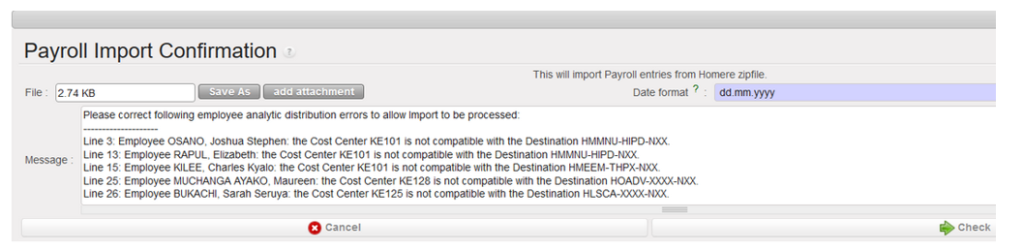
PAYE_UNIFIELD and PAYE_SAGA Import: request to have all the import error messages at once
When we import the payroll file in Unifield, the file import can be unsuccessful because of errors in Budget lines in the import file and Unifield was reporting the error messages one by one bringing confusion for the users
In this request we have requested to have all the wrong messages at once when the import fails:
This will help to spot the errors to correct in HOMERE.
When a register line is created, the state is draft. You can review and post it temporarily in the journals, pending for final approval. The register line becomes {Temp} in the register and the corresponding journal entries created unposted in the journals. Hard-posting the {Temp} register line will change the register line state to {Hard} and post the journal entries.
How to Temp-Post Register Entries
UniField allows you to temp post a register entry individually using the button located on the entry line, but you can also temp post entries by grouping several entries. The below task description explains how to temp post a group of draft entries.Go to: Accounting/Registers
Select the register where you want to temp post entries.
Click on the button to retrieve draft entries booked in your register. A list of {Draft} entries appears
Check the entry box to select it.
Temp-posting entries search wizard
Selecting the action of {Temp Posting} will only temp post the entries you can see directly from the list. For instance, if you have 29 lines to be temp posted, you will only see 20 lines of 29 and if you clicked on {Temp Posting} you will only temp post the 20 visible lines unless you extend the list if you wanted to temp post the 29 lines.
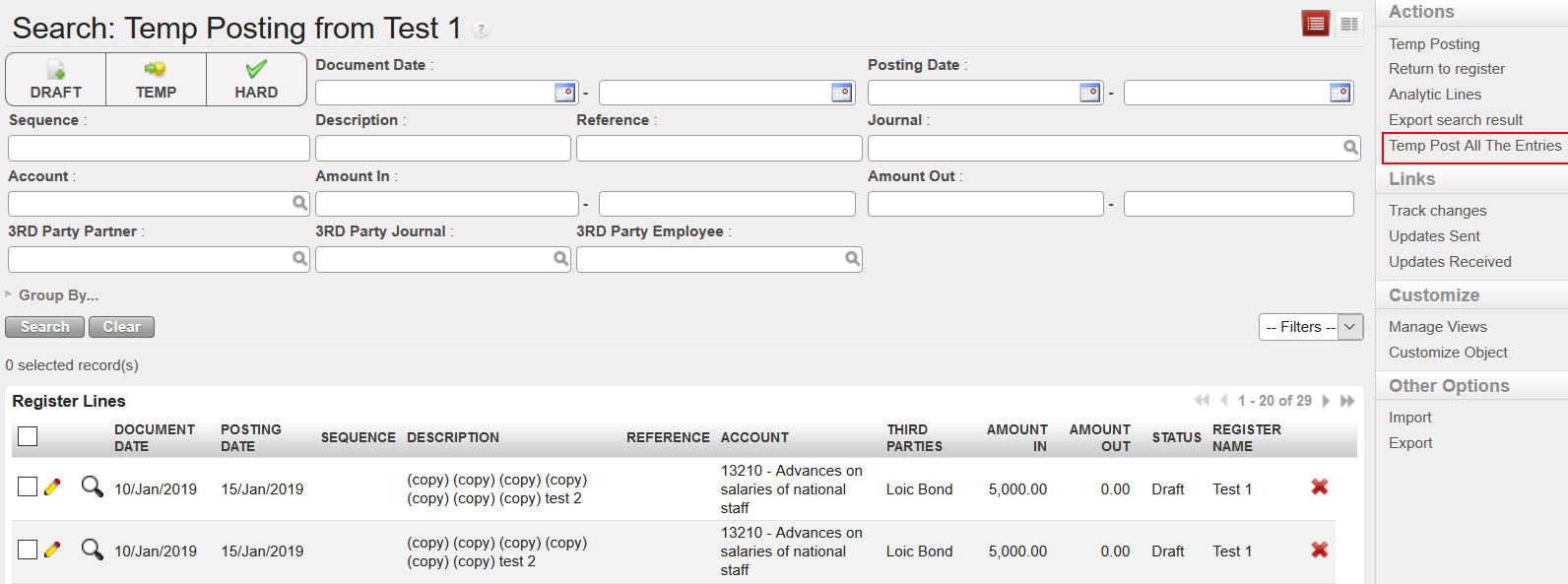
Extending the list in order to temp post all draft entries
If you have many lines to be temp posted and you are sure you want to temp post all of them, you can select the option of {Temp Post All the Entries} from the right side menu and all the draft entries will be temp posted without the need to extend the list of lines.
Temp post all the entries with the need to extend the list
4. Go to the Action menu on the right side of the screen and select the action {Temp Posting}.
Temp-posting confirmation
5. Confirm the action selecting {Temp Post}.
The window closes. The entries are now in {Temp} state. An authorized user can still edit and delete them in the register. The entries became accounting entries and are reflected in the {Journal items} as valid but unposted.
Temp posted register entries
To look at the entries created in the {Journal Items}:
In the {Journal Entries} module, you select {Journal Items} and the {Journal Items} Search view appears. You will see unposted and valid double entry accounting per transaction in booking and functional currencies.
{Journal item} view displayed unposted journal items corresponding to the register line which was temp posted
How to Hard-Post Register Entries
UniField allows you to hard post a register individually using the button located on the entry line, but you can also hard post entries by grouping several entries. The below task description explains how to hard post a group of temp posted entries.
Go to: Accounting/Registers
Select the register where you want to hard post entries.
Click on the button to retrieve temp and draft entries booked in your register. A list of {Temp} and {Draft} entries appears
Check the entries boxes.
{Hard-posting entries search} wizard
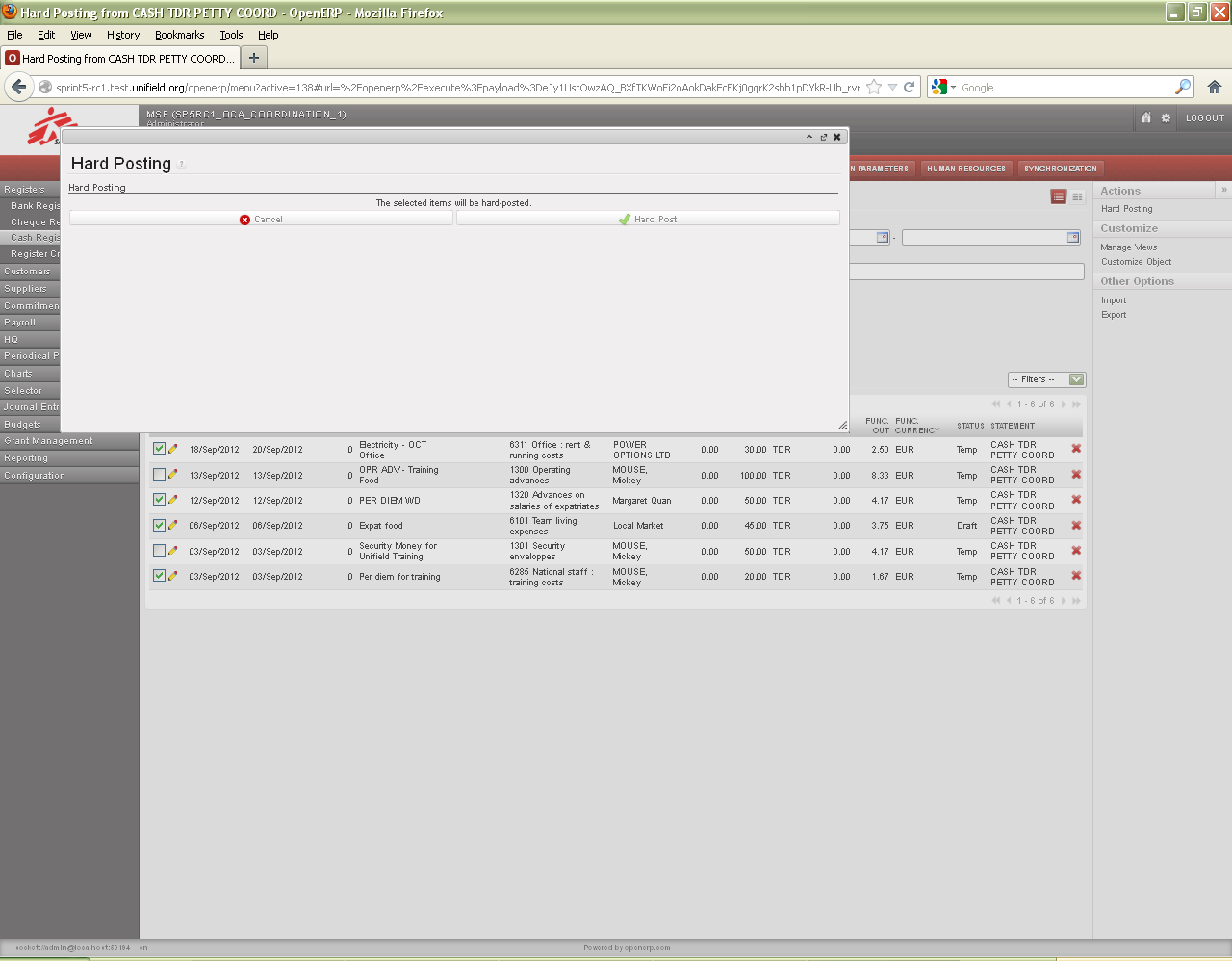
4. Go to the Action menu on the right side of the screen and select the action {Hard posting}.
Hard-posting confirmation
5. Confirm the action selecting {Hard Post}.
The window closes. The entries are now in {Hard} state. The entries are reflected in the {Journal items} as valid AND posted.
Selecting the action of {Hard Posting} will only hard post the entries you can see directly from the list. For instance, if you have 42 lines to be hard posted, you will only see 20 lines of 42 and if you clicked on {Hard Posting} you will only hard post the 20 visible lines unless you extend the list if you wanted to hard post the 42 lines.
Extending the list in order to hard post all draft entries
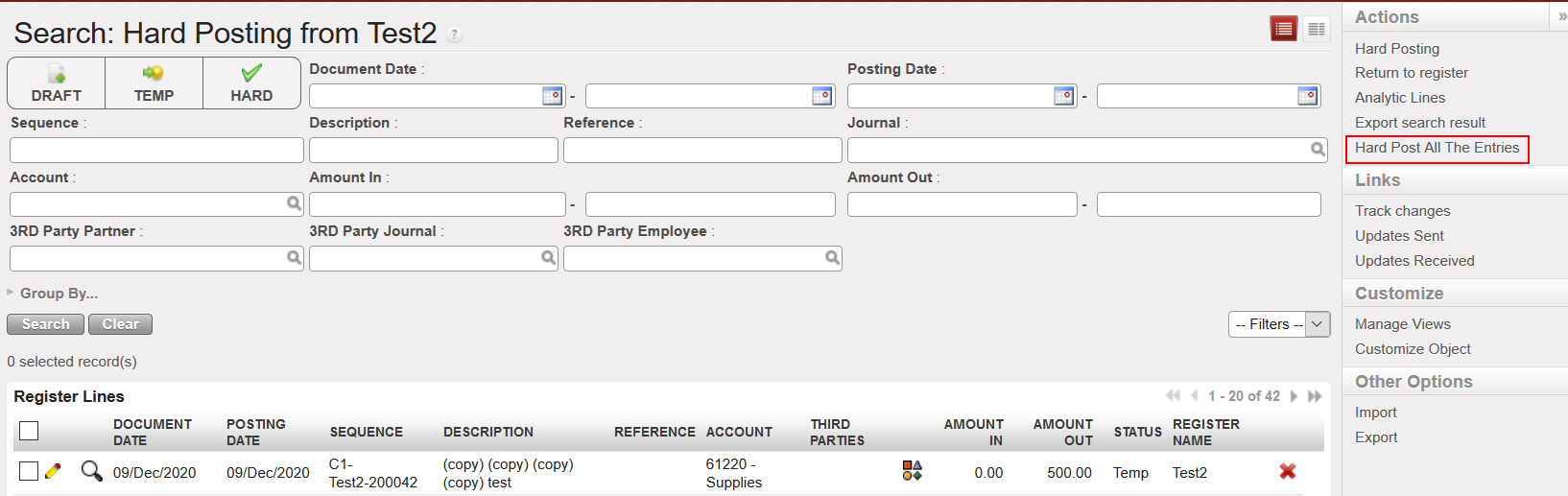
If you have many lines to be hard posted and you are sure you want to hard post all of them, you can select the option of {Hard Post All the Entries} from the right side menu and all the Temp posted entries will be hard posted without the need to extend the list of lines.
Hard Post all the Entries
Hard posted register entries
In the {Journal Entries} module, you select {Journal Items} and the {Journal Items} Search view appears. You will see valid AND posted double entry accounting per transaction in booking and functional currency.
Posted journal items corresponding to the register line which was hard posted. A/P was reconciled
Another type of payment within UniField is the Direct Invoice. Finance can create a direct invoice which is a stand-alone invoice in the {Accounting} module that can be created in the cash, bank or cheque registers.
It is important to remember that Direct Invoices can’t be linked with a product and that Direct Invoices don’t support any tax handling.
How to Create a Direct Invoice
Go to: Accounting/ Registers
Open the register in which you want to record a direct invoice payment. Don’t forget to select the register with the correct currency.
Click on {Direct Invoice} button.
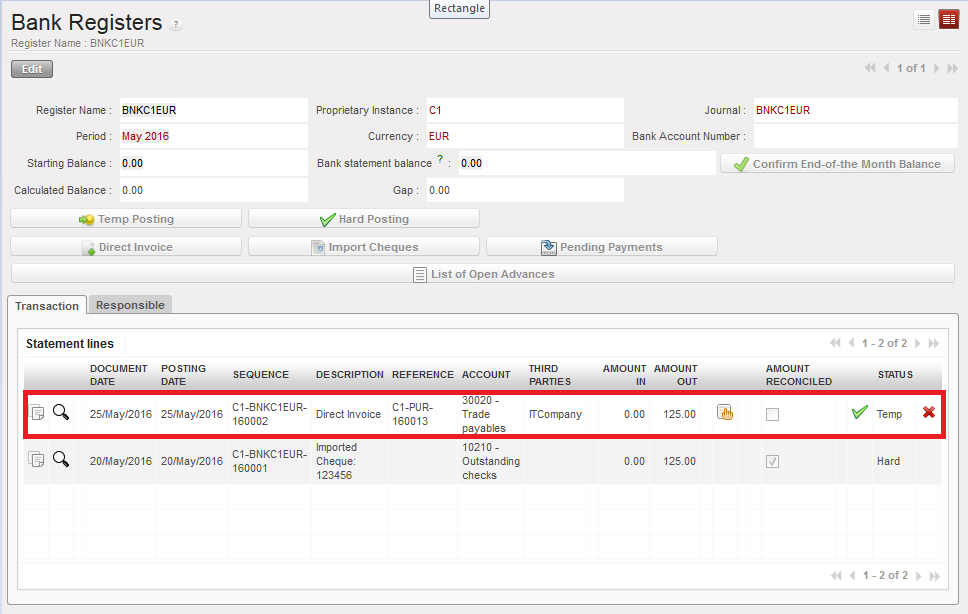
Bank register and {Direct Invoice} button
A {Supplier Direct Invoice} wizard appears
Complete the fields by selecting a supplier, filling in a document date. The posting date and register posting date default to today’s date and can be changed. Insert a reference if relevant. However the invoice number will be automatically used as purchase and liquidity journals entries references.
In the invoice tab, click on {New} to create invoice lines.
Insert a description and select an account. Fill in quantity and unit price. Save the line.
Allocate the expense to an analytical dimension by clicking on the analytical wizard; the destination will be set by default based on the account code but can be modified.
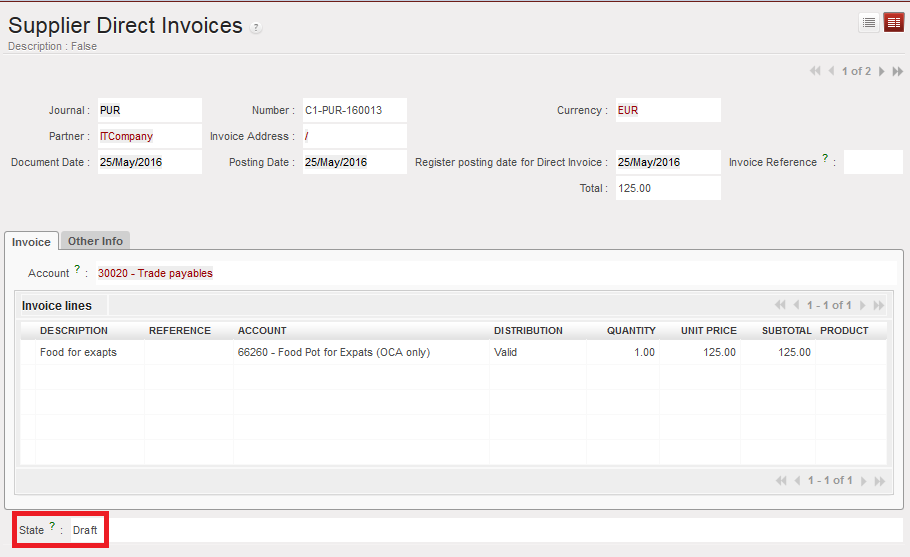
{Supplier Direct Invoice} creation.
5. Click on {Validate} button.
The Direct invoice is created in Temp status in the register but the invoice state is still in Draft. The total amount of the invoice is booked on the account code 30020 {Trade payables}. A supplier invoice number is created.
Register entry is created in Temp when the Direct Invoice is validated
The invoice is draft and has a reference (number)
In the journals, journal entries are created at the same time as unposted:
In the purchase journal:
Credit to 30020 Trade Payables
Debit to expense account
In the liquidity journal:
Credit to cash account if the invoice was paid in cash
Debit to 30020 Trade Payables
Unposted Journal Items generated when the Direct Invoice is validated. The invoice reference is the booking reference of the purchase and liquidity journals entries.
Should you need to edit, re-compute the total or review the invoice before validating the register line (hard post), click on, proceed to the edition and validate the invoice. The register line and journal entries will automatically be updated.
When you hard post the register line, it becomes {Hard}. The invoice is marked as {Paid} and the journal entries are {Posted}. Entries on account 30020 are automatically reconciled.
Hard posted direct invoice entry
Paid Direct Invoice
Posted Journal entries when a Direct Invoice register line is hard-posted. The A/P account is reconciled.
LUFI-30306 Cheque Entries Imported into a Bank Register
LU Introduction
When you write the cheque, you will need to create one entry in the cheque register to the appropriate account code. When this entry is temp posted, this triggers the creation of two balanced accounting entries in the Journal Items: one credit entry to {outstanding cheques, 1021} and one debit entry to the expense account.
After receiving confirmation from the bank that the cheque has been cashed in (through the bank statement sent by the bank), you may import the cheque register entry into the corresponding bank register. Only then will your bank account balance be affected. This system allows MSF to maintain a more accurate record of the liquidity on each bank account at a specific point in time.
UniField automatically reconciles the cheque register entry with the bank register entry. Once reconciled, a cheque still appears in the cheque register but will be listed as reconciled. In case a cheque has not been cashed in at the end of the month, the cheque register can still be closed (with an open cheque). The cheque will still be available for import into the bank register in the following months.
How to Import a Cheque into a Bank Register
Go to: Accounting/Registers/Bank Registers
Open the associated bank register.
Click on {Import Cheques}. The {Import Cheque} wizard opens.
Click {Add}.
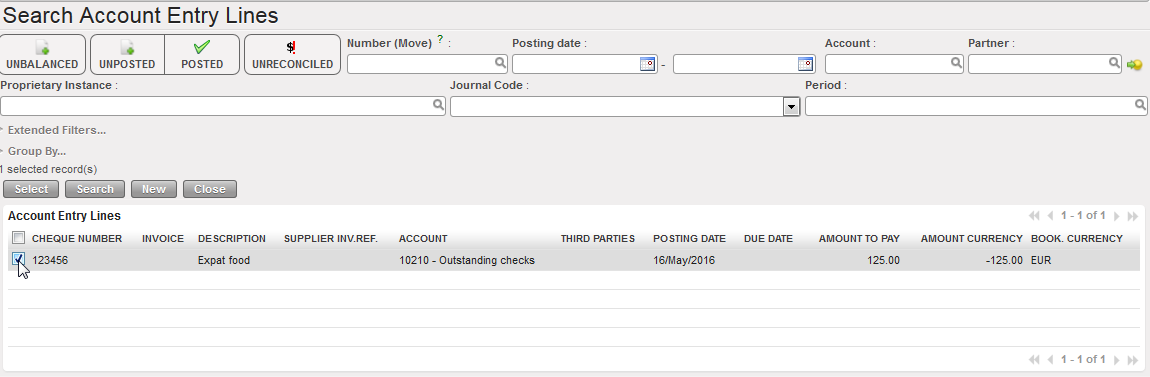
4. In the {Search Account Entry Lines} window, select the cheques that were cashed, then click {Select}. If you cannot find a cheque in the list, then it is possible that the cheque was not hard posted, the cheque is a different currency than the register, it has not been entered in the cheque register, or the cheque register was linked to a wrong bank register.
Selecting cheques to import
5. The selected cheques appear at the top section of the {Import Cheque} wizard. Enter the {Document Date} and {Posting Date} which will be applied to all cheques on the list.
6. Select {Import} button.
{Import Cheque} wizard
7. The selected cheques appear in the lower section of the {Import Cheque} wizard. Here you can edit the imported cheques by clicking on to change the {Document Date} and/or the {Posting Date} to the actual date when the cheque was cashed in.
Verifying the information of the cheque to be imported
8. Click {Ok} and Save
The cheque entry lines are created as temp posted entries in the bank register
1. Payment by cheque: Debit account moves on {expense account, 66260} and Credit {outstanding cheques, 10210}.
2. Cheque reconciled when entry hard-posted in the bank register: Credit account moves on {Cash at Bank, 10200} and debit {Outstanding cheques, 10210} and associated unique reconciliation reference {C1-5}.
Direct Entries allow the finance team to book an entry directly in the register. The appropriate financial account is selected by the user. Direct entries are useful when Finance is paying for goods or services not purchased by Logistics. The double booking entries are automatically created in the liquidity journals as soon as the entry is temp or hard posted.
How to Book Direct Entries in a Register
Same procedure applies to booking entries in cash, bank or cheque registers.
Go to: Accounting/Registers
Select the register where you want to record your expense. We will use a cash register for this example but the cheque and bank register will be laid out the same way.
Click on the edit pencil to open the register form.
In the cash transactions box click on {New} to create a new statement line.
Cash Register Statement Line Creation
4. The fields in blue are mandatory, in white optional and in grey view only. Complete them as follow:
Title of field
Entry protocol: register entry
DOCUMENT DATE
Blue field. Click on the calendar icon to select a date or manual entry as dd/mm/yyyy. The {Document Date} can be before or within the period. Remember that UniField picks the {posting date} rather than {the document date} to define the conversion rate to functional currency.
POSTING DATE
Blue field. Click on the calendar icon to select a date or manual entry as dd/mm/yyyy. Defaults to today’s date. The {Posting Date} must be within the Period and > or = to the {Document Date}
CHEQUE NUMBER
Only for cheque registers: Blue field. A unique cheque number is mandatory
SEQUENCE
Grey field. Automatic input. Register code and incremental number. There is no sequence number for draft entries.
DESCRIPTION
Blue field. Similar to the description of your current system (max 64 characters length)
REFERENCE
White field. If the field {Reference} of an invoice is filled, it is automatically reported in the {Reference} field of a register line when importing an invoice.
ACCOUNT
Blue field. You can enter the account code if you know it or type the code name and a list of codes will appear. See figure below.
THIRD PARTIES
White field. Drop down values Partner, Journal, and Employee. Once selected, you search for the supplier/journal/employee name in the next field. Remember if you need to create an entry on an inactive employee, you will need to uncheck the {Active} filter in the {Search Employee} view.
AMOUNT IN
White field. Amount of cash received in booking currency
AMOUNT OUT
White field. Amount of cash paid out in booking currency
AMOUNT RECONCILED
Automatic input. The check indicates that the record has been reconciled e.g. for internal transfers and operating advances
OPE ADV-LINK TO PO
Link an operating advance register line to a PO not of type Purchase List (i.e. regular or DPO).
STATUS
Grey field. Automatic input. Can be Draft, Temp or Hard
Remember to check the date and period! For instance if you create and open a register in March and then enter transactions of February, remember to change the posting date which defaults to today’s date.
If you make a payment through the cheque register, the cheque number will need to be entered. It is a mandatory field.
Cheque number input, mandatory field
When selecting {Account}, just by entering a few digits of the code or a key word in the account description, UniField will display the options that match your search as shown below. If you move your mouse over a selection, the entire description displays.
Or you can click on the magnifying glass to open up the {Search Chart of Accounts} wizard. The accounts will appear in numerical order. To select only expense accounts type 6 into the filter as showed below.{Search Chart of Accounts} wizard
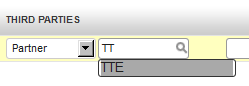
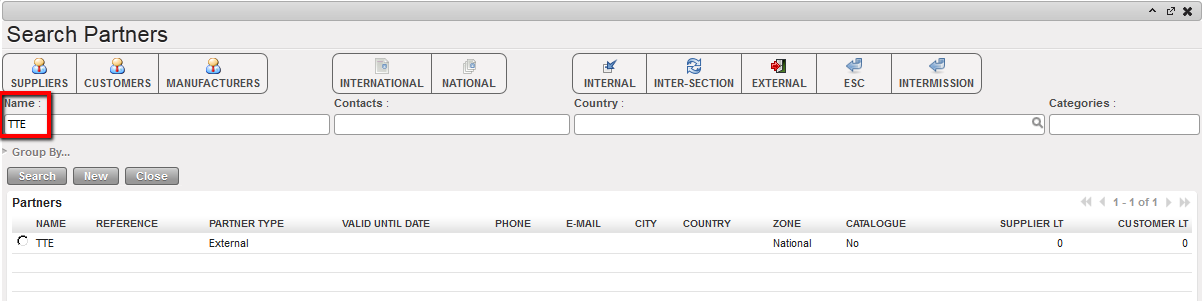
When selecting {Third Party}, you can enter part of the name. UniField will display the search that matches as shown below. If you move your mouse over a selection, the entire description displays. The third party field is optional for some entries and required for others.
Entering values to search in the {THIRD PARTY} name field
{Search Partners} wizard
5. Save by clicking on the floppy disc or pressing the enter button.
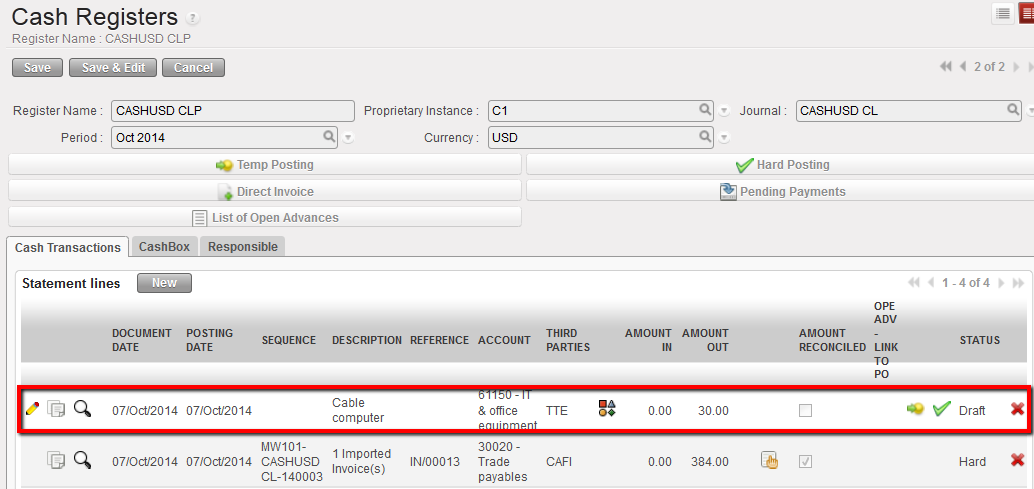
The entry appears in {Draft} status. If you selected an expense account, the button will appear and the entry will be in red. A red entry is an indication that the analytic distribution has not been assigned or has not been assigned properly.
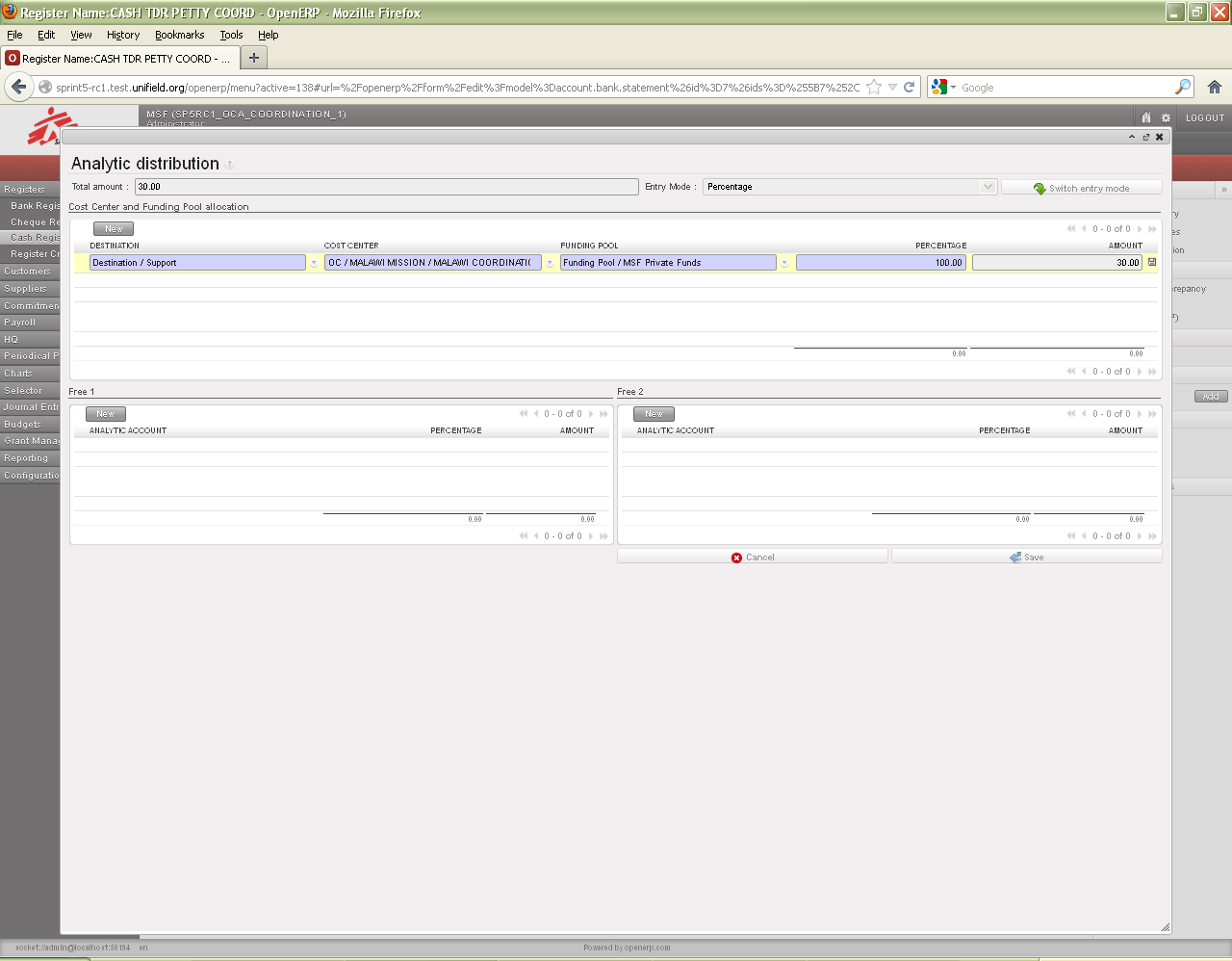
6. Click on the button to open the {Analytic distribution} wizard.
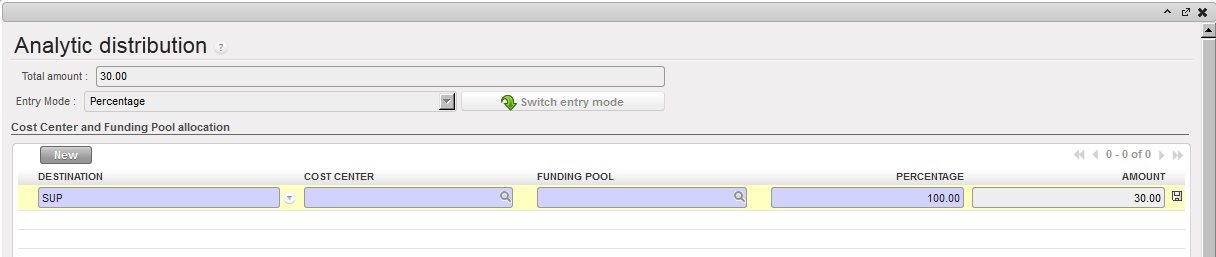
7. In the wizard, select {New} to create a new allocation. The destination is set by default.
{Analytic distribution} wizard
8. Select a {Destination}, {Cost Center} and {Funding Pool}. If you know the code, enter it. Otherwise, click on the magnifying glass to retrieve it.
9. Click on the floppy disk to save the allocation line.
10. Click at the bottom right of the window to save the analytic distribution and close the window.
The allocation is done; the entry appears now in black. The register line is {Draft}.
Title of field
Entry protocol: analytic distribution wizard
Total amount
The total amount of the expense to be allocated
Entry Mode
If the expense needs to be distributed across multiple destinations, cost centers or funding pools, the user can split by Percentage or Amount
Clicking switches between entry mode Percentage or Amount
DESTINATION
The destination will be a default option based on the account code in the register entry but it can be changed.
EXP: expenses for expatriates, i.e. 61xxx expense codes
NAT: expenses for national staff, i.e. 62xxx expense codes
SUP: expenses in support of the project activities, e.g. office supplies
OPS: expenses directly related to operations (project activities)
COST CENTER
Cost center tree
FUNDING POOL
Donor tree. If there are no donors in the project, expenses are allocated to “PF” (MSF Private Funds)
PERCENTAGE/ AMOUNT
If the expense is distributed across multiple destinations, cost centers or funding pools, this indicates the allocation amounts
FREE1
Potential additional analytic dimension
FREE2
Potential additional analytic dimension
Direct entry created in Draft in a cash register. No acccounting moves.
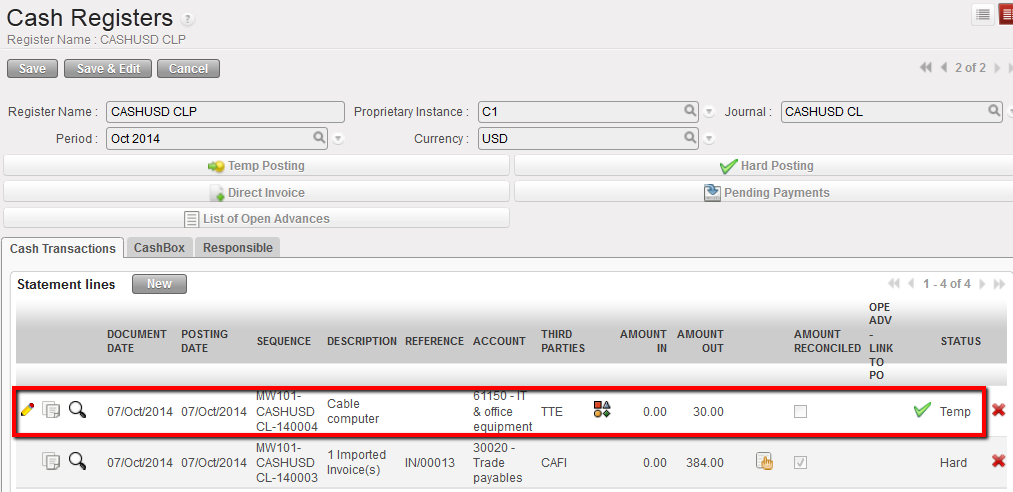
To go further, temp-posting a direct entry would create in the liquidity journal the below entries:
Expense to Cash
Temp Direct entry in the cash register
Expense to cash in the Liquidity journal
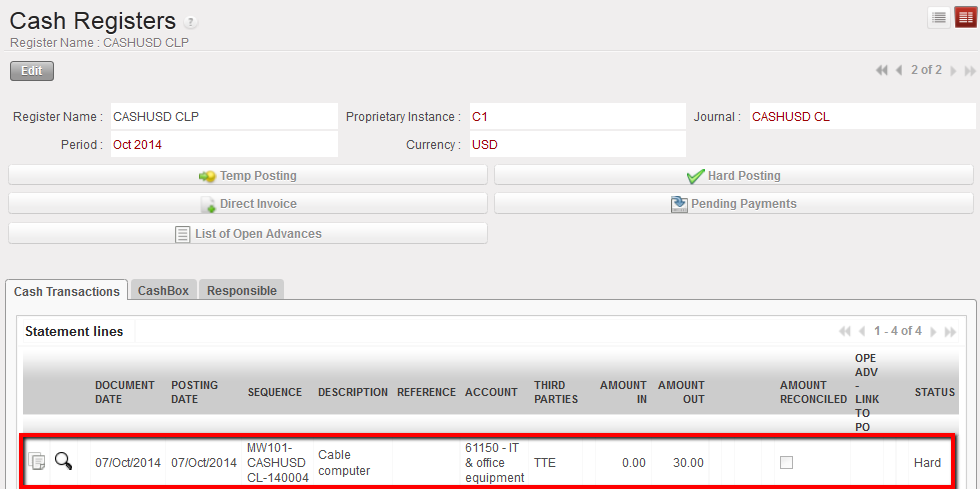
Hard-posting a direct entry would create in the purchase journal the below entries:
Payable to Payable
Hard direct entry in the cash register
Corresponding journal entries booked in the purchase journal
Internal transfer within the same instance
Overview:
A- Internal Transfer Definition
B- Old Behaviour For Internal Transfer Between Unifield Instances
C- New Behaviour For Internal Transfer Within One Unifield Instance
1- Automatic Counterpart Booking
2- Automatic Reconciliation
3- When Automatic Reconciliation Does Not Work
D- Consequences Of The Changes
4- Before Booking An Internal Transfer
5- Modification After Temp Posting Initial Entry
6- Manual Reconciliation
7- How To Book An Entry Without Counterpart
Internal transfer is the process of transferring liquidity (money) from one liquidity journal/register to another, within a Country Program. There are two types of internal transfers:
A- Internal Transfer Definition
Account code 21600 – Internal Transfer Same Currency. Sending and receiving journal/register currency is the same.
Account code 21610 – Internal Transfer Currency Exchange. Sending and receiving journal/register currencies are different.
Transfers could occur within one UniField instance (e.g. safe to cash box), or between two UniField instances (e.g. coordination bank to project bank).
Exclusion: Cash/bank transfers from/to HQ or from/to intermission/intersection are not considered as internal transfer. They have not been changed.
B- Old behaviour for internal transfer between UniField instances
Internal Transfers (same currency or with currency exchange) are register entries booked manually. One transfer consists of two entries: one in the origin (sending) register and another in the destination (receiving) register. Reference to user manual: LUFI-30401 Internal Transfers
Entries: two entries are booked manually.
Description and reference should be the same. It is manually filled and maintained outside of UF
Third Party: At the sending side the “Third Party” is the journal receiving cash. At the recipient side the “Third Party” is the journal sending cash.
Amount: On the sending side, the amount is OUT. In the receiving side, the amount in IN.
Reconciliation is manual.
Above described behaviour is still applicable for internal transfers between two UniField instances: e.g. Coordination sending cash to project, or between two project instances.
Regarding internal transfers within one instance (proprietary instance of the journals/registers involved is the same), see below.
C- New behaviour for internal transfers within one UniField instance
This change meant to ease the booking of internal transfers, one of most frequent register entries, via automatic booking of second transfer entry and auto reconcile. There are still two register entries per transfer.
1- Automatic counterpart booking
When internal transfers occur within one instance (proprietary instance of the journals/registers involved is the same), e.g. Bank withdrawal to safe or transfer from Safe to Petty Cash, the following change is applicable.
Note that transfer between a project office and a sub-location of the project office which is using the same UniField instance is also considered as “within one UniField instance”.
After UF30 release, when an internal transfer entry is “temp” or directly “hard” posted in the register, UniField creates automatically the counterpart booking in the Third-Party register.
E.g. The cashier books the transfer IN #584 received from the Safe CA001 in the CA002 – Petty cash register.
When this entry is temp posted (or directly hard posted), UF creates automatically in CA001 the following counterpart entry in draft:
UF takes from initial booking all information to populate the fields of the counterpart booking:
Document and posting dates from initial entry.
Description and reference from the initial entry.
Third- party is the sending register of the initial entry.
Amount is in opposite field. If the initial entry is OUT, the counterpart is IN. It is possible that the transfer IN is booked as initial entry and temp posted. UniField will create the counterpart OUT.
The entry is in draft status. It could be edited (all fields), it could be deleted.
2- Automatic reconciliation
Internal transfer entries having a counterpart are marked with a link next to third-party field. Click on the link to see the counterpart booking. This link is visible on register screen and journal item screen and also synched to Coordination.
When both entries are hard posted, UF reconcile automatically them (at the time of hard-posting the last one). This reconciliation could be undone. It is not possible to manually reconcile (at project or Coor) a transfer entry with a link (= having a counterpart booking).
In case one of the two entries is deleted, the link is broken and the remaining entry could be manually reconciled.
3- When automatic reconciliation does not work
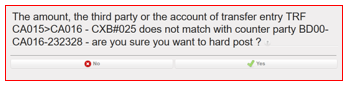
When the booking amounts do not match in internal transfer same currency, the hard-posting process of the second entry will display error message mentioning the “description- Reference” of the entry. UniField proposes two options
“NO”= The entry will not be not hard-posted. The user could then edit the amount and later hard post. This check is a final review of amount before posting. Use this when the change of amount from initial entry (e.g. due to typo) was not reflected in counterpart.
“YES”= The entry will be hard posted. There is no auto reconciliation (no partial). The link is broken. Both entries could be manually reconciled with other entries without counterpart. Use this if a transfer OUT is received in 2 or more smaller IN (e.g. The local transfer provider did not have enough cash).
This check applies only on internal transfer same currency. For currency exchange, the reconciliation always goes.
D- Consequences of the changes
4- Before booking an internal transfer
Always refresh the register before booking new internal transfer manually. Good coordination within the team helps also to know who is usually/always booking the initial entry. The following scenarios are for inspiration. Each Country Program /Office could define what is more suitable. E.g.:
Cashier/FinAssist is in charge of booking the transfer received in Petty Cash from Safe. FinCo/Admin will have draft counterparts ready to post.
Cheque entries are booked first, as the cheque needs to be issued for cash withdrawal using cheque. Counterpart in safe will be in draft.
5- Modification after temp posting initial entry
Both initial and counterpart entries could be edited and deleted. UniField does not send update to the other entry. Any modification applied both sides after temp posting the initial entry should be communicated to the other register owner and applied on the other entry.
Major modifications: If the modification is on Third-Party or account code, it is better to delete both initial and counterpart and start from new. To do so, click on the link to access the counterpart entry and delete it with the red x before deleting the initial entry. Then book the correct entry.
Modification on Third-Party or account code meant that the counterpart register is not correct. As consequence, the counterpart entry created could not be used as it is not possible to move it to other register.
Tips: Review those fields before “temp” posting an initial transfer entry – especially the third party (frequent mistake).
Minor Modifications: If the modifications are on dates, description, reference, amount, both entries could just be edited. Those modifications need to be communicated to the owner of the counterpart register and applied on the counterpart entry. It is possible to click on the link and access the counterpart entry in order to check if the modifications have been applied.
If one of the entries is deleted, the link is broken, and the remaining entry could be reconciled with other entries without counterpart.
6- Manual reconciliation
After hard posting of all register entries, all transfers with counterpart will be automatically reconciled. The list of transfers non-reconciled should be reviewed among other manually reconcilable entries as per procedures. Those transfers are:
To/from other instances
Within the same instance but the counterpart has been deleted.
7- How to book an entry without counterpart
If a correction transfer without counterpart is needed (e.g. To replace a counterpart which has been deleted), book a transfer entry in the appropriate register. Then using the link , delete the counterpart immediately after temp post. The link is broken. The entry is reconcilable with other entries without counterpart.
Some examples:
Internal transfer the same currency
When booking transaction as internal transfer with the same currency the counterpart transaction will create automatically based on 3rd party “Journal” that used in the transaction based on below specifications:
Booked transaction must be temp posted to create counterpart transaction.
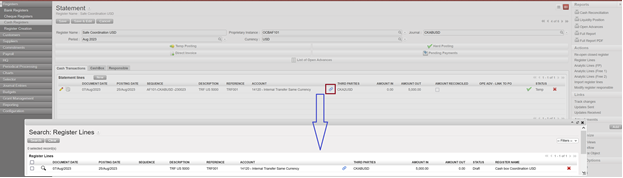
Once the internal transfer temp posted it will create link named as “Linked to a counterpart line” between columns “Account” and “THIRD PARTIES” as below:
By click on the link it will open popup “Search: Register Lines” show the draft counterpart entry with popup:
In our example the counterpart with CKA2USD, so check in CKA2USD, the draft entry is available as draft:
We need to consider the following:
If original entry created with wrong “Document date” the correction should be done manually at both sides.
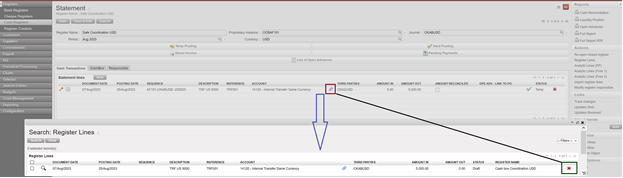
In case 3rd party of journal that used is wrong so is possible to click on the link of the original entry and delete through X, click on Save, when checking the counterpart entry is deleted.
Internal Transfer with Currency Exchange
When booking transaction as internal transfer with currency exchange the counterpart transaction will create automatically based on 3rd party “Journal” that used in the transaction based on below specifications:
Booked transaction must be temp posted to create counterpart transaction.
Once the internal transfer temp posted it will create link named as “Linked to a counterpart line” between columns “Account” and “THIRD PARTIES”
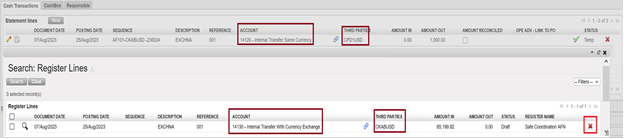
By click on the link it will open popup “Search: Register Lines” show the draft counterpart entry with popup showing amount booked in the equivalent amount:
The same like transfer with the same currency consider the following:
If original entry created with wrong “Document date” the correction should be done manually at both sides.
In case 3rd party of journal that used is wrong so is possible to click on the link of the original entry and delete through X, click on Save, when checking the counterpart entry is deleted.
For both “Internal transfer with the same currency” and “Internal transfer with exchange” if the account changed is going automatically to change 3rd party of journal, so for the counterpart entry it should be deleted through X:
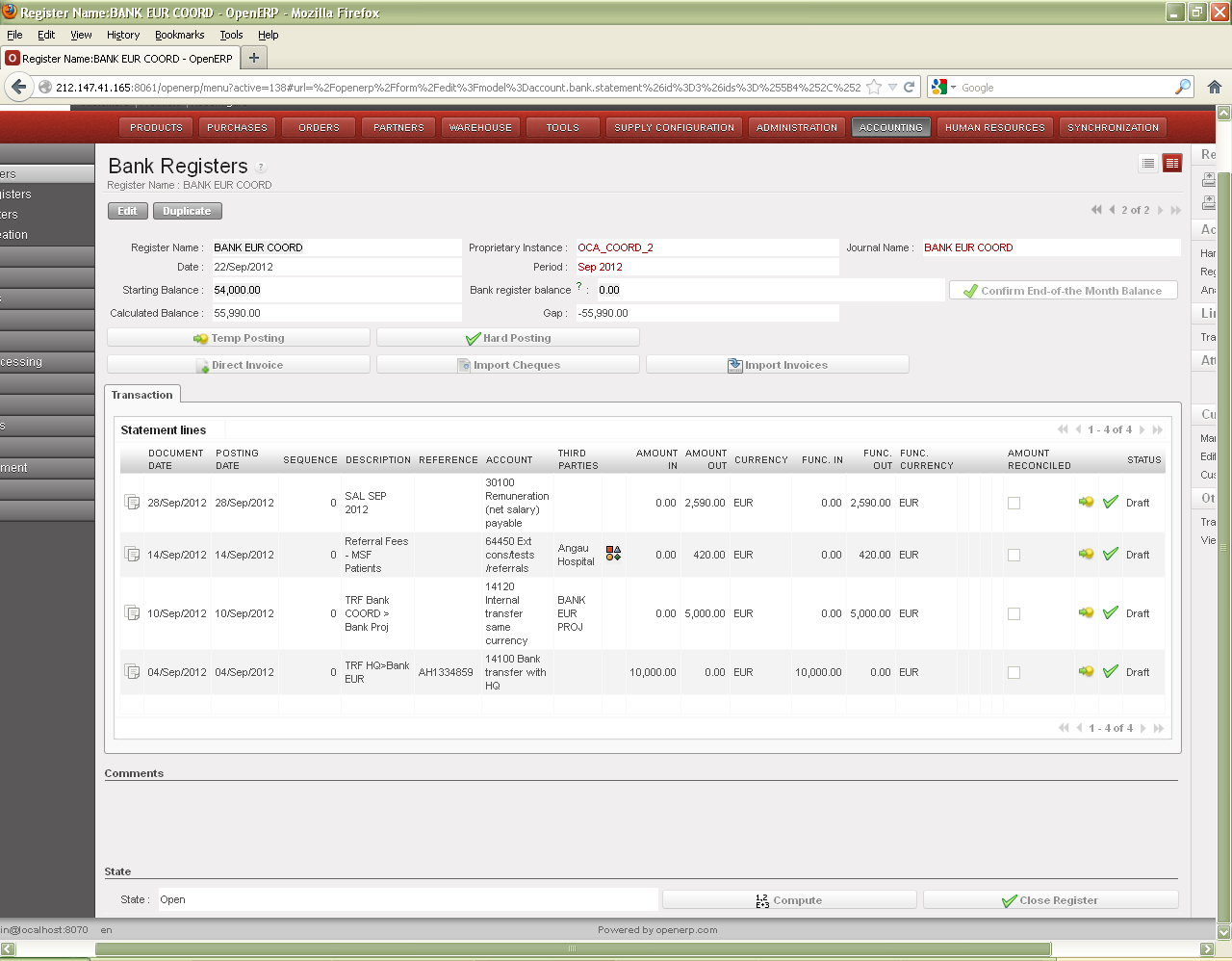
Bank Registers are used to import all cheque register payments from the cheque register and to record bank payments which do not involve cheques. For example transfers or bank fees entries can be manually added directly into the bank register.
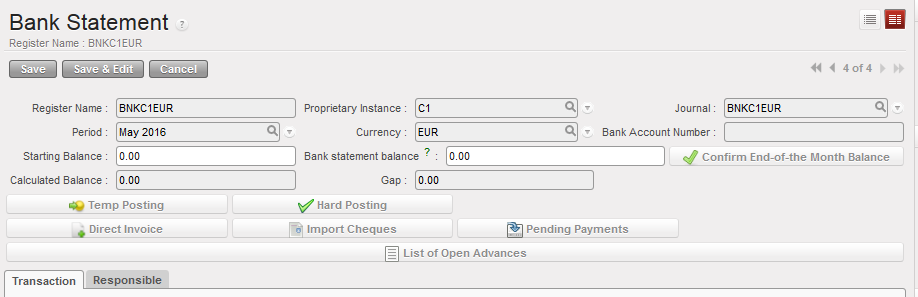
Two (2) tabs are located in the middle of the Bank Register the form. They are called the {Transaction} and the {Responsible}. The {Responsible} tab reflects the list of authorized users to access the register. The {Transaction} tab is used to record entries in this register.
Many screens in the bank register are similar to the cash and cheque register. However, some information is specific to the bank register.
Header fields of Register form
Title of field
Entry protocol
Source for Information
Register Name
System default
Journal from which it was created
Proprietary Instance
System default
UniField instance or database
Journal
System default
Journal from which it was created
Period
System default
Defaults to current period; can be changed in Draft but fixed after register is opened
Currency
System default
Currency for which the journal was created
Starting Balance
Manual entry only on first creation; system default thereafter
Bank closing balance from previous period
Bank statement balance
Manual entry
Balance from bank statement at the end of the month; entered as part of bank reconciliation and month end closure
Calculated balance
System generated
Starting balance – sum of bank entries
Gap
System generated
Bank register balance – Calculated balance
Button
Description
Automatically retrieves unreconciled cheques
This wizard shows all open advances given to employees. The advances can be directly returned through selecting the correct entry through this list.
This wizard shows a list of all payables that can be imported in registers (payables that are of same currency than the register). The payables can be imported into the register individually or by group (same third party).
Finally the lower half of the form shows the following fields:
Title of field
Entry protocol
Opening Date
Automatic input. System default to the date the register was opened
Closed On
Automatic input. System default to the date the register was closed
State
System generated; Draft, Open or Closed
System recalculate all balances
WARNING! This button {Close Register} should only be used when closing the register at the end of the period. It does not delete the register. Once closed, only a user with an Administrator profile can re-open the register and the related cash count.
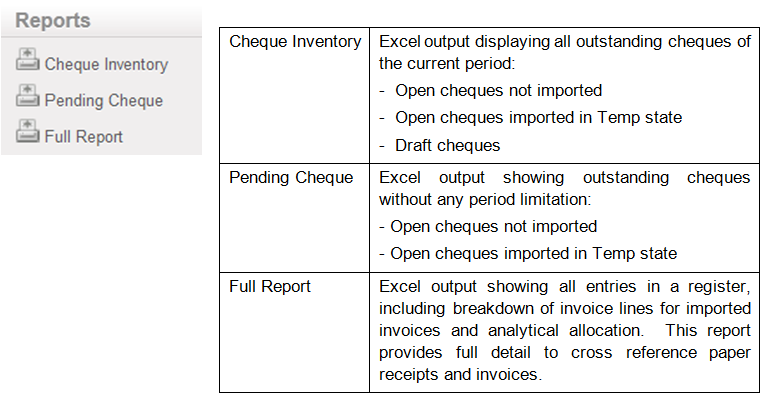
BANK REGISTER REPORTS
The Reports menu on the right side bar contains reports that can be run in Bank Registers:
For further information on bank register reports, see UniFieldChapter 5 – Searching, Correcting and Closing
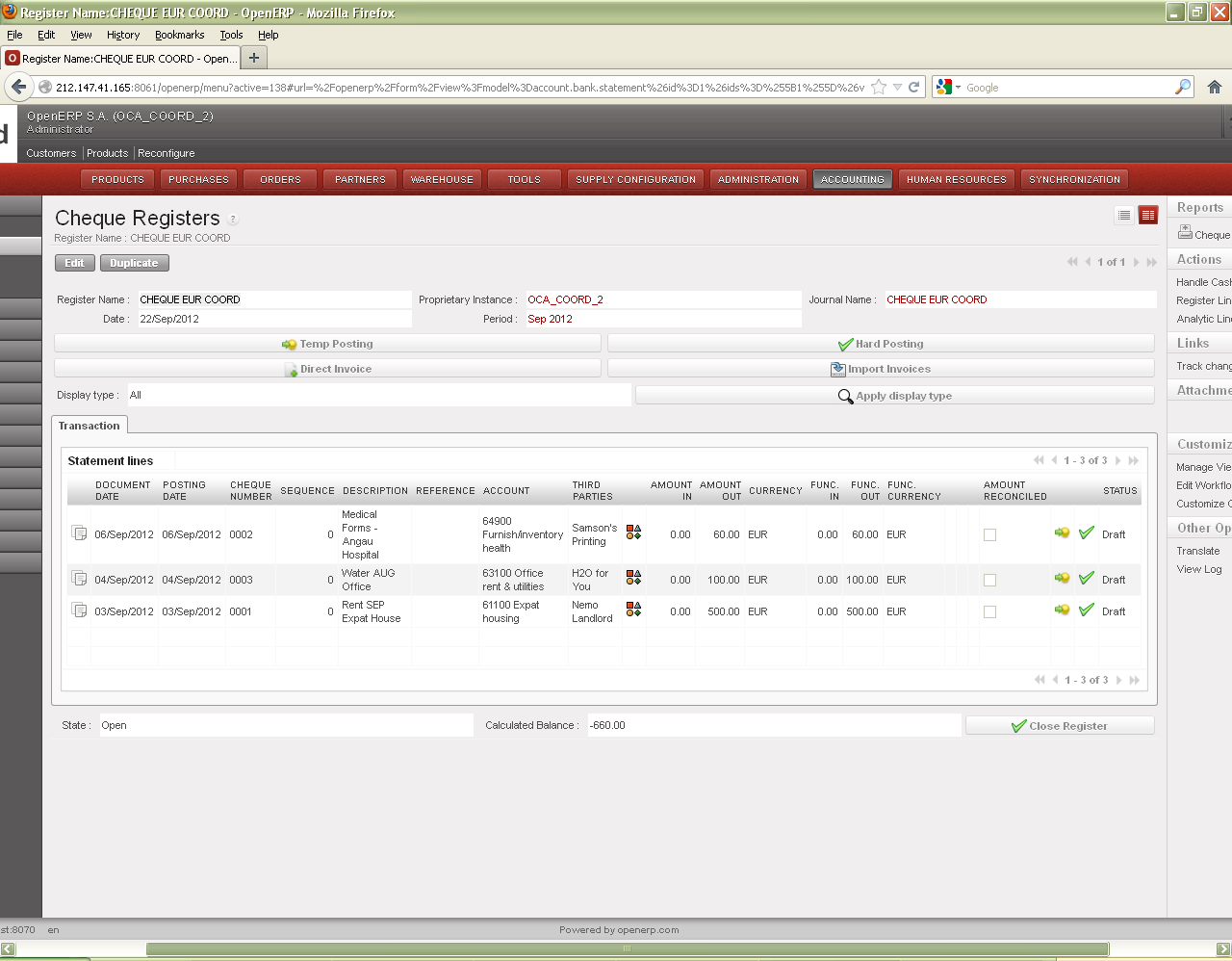
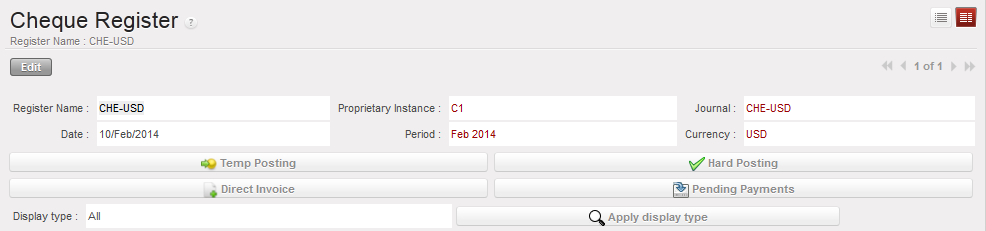
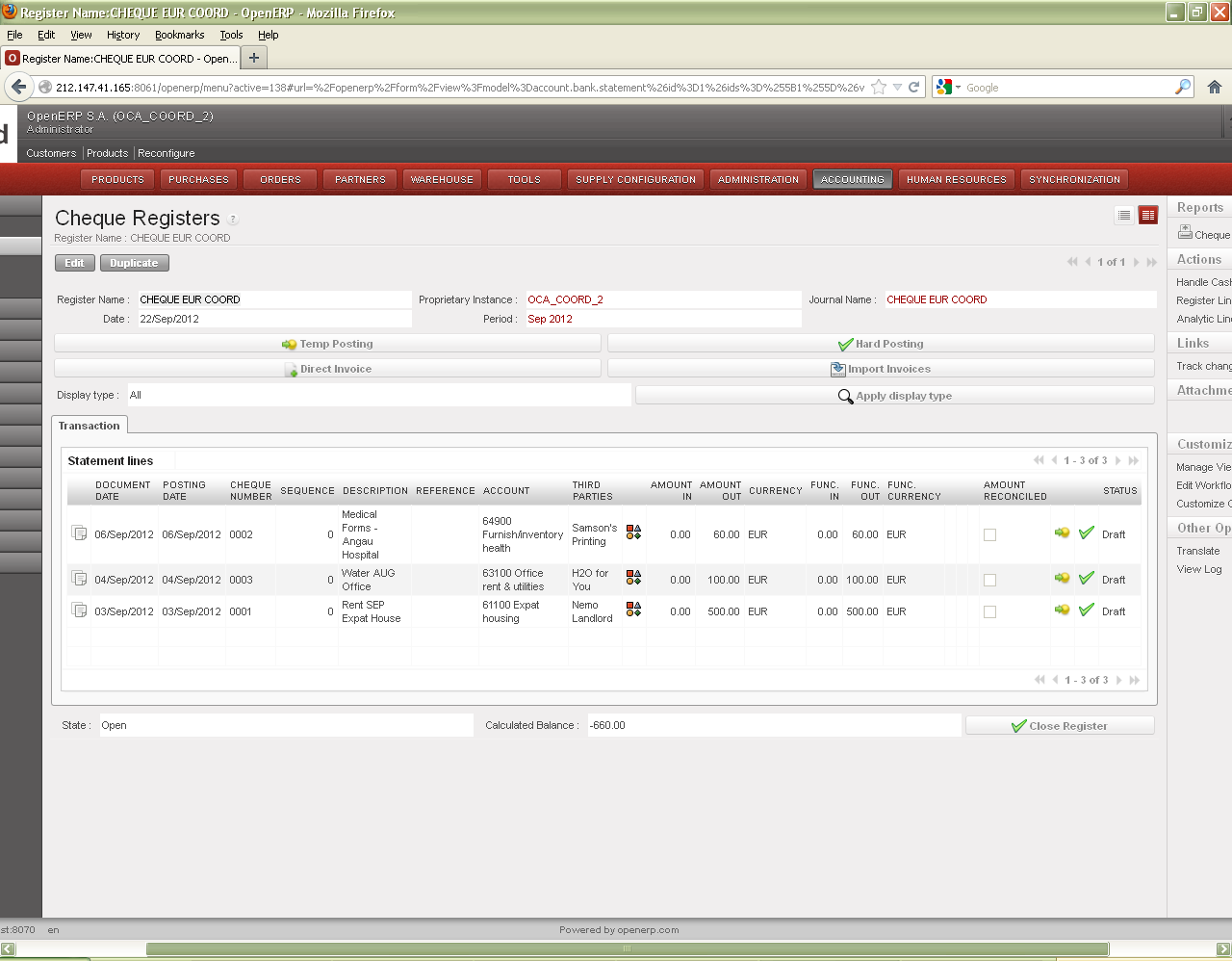
Each bank register with a physical cheque book should have a corresponding cheque register. The cheque register is used to distinguish the moment when a cheque is issued from the moment a cheque is cashed in and the money is removed / received from/to your bank account. In the system, a cheque register is tied to a bank register at time of creation.
Two (2) tabs are located on the middle of Cheque Register the form. They are called the {Transaction} and the {Responsible}. The {Responsible} tab reflects the list of authorized users to access the register. The {Transaction} tab is used to record entries in this register.
When a cheque entry is created, the cheque number of the physical cheques must be recorded otherwise it cannot be saved.
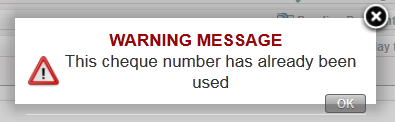
Additionally, the system performs a check on the cheque number to make sure it is not duplicated.
The user is trying to record a cheque payment using a cheque number already input. This is the warning message displayed.
When you receive the bank statement to confirm the cheque has been cashed, you import the cheque entry into the bank register. See LUFI-30206 Cheque entries imported into a bank register.
Header fields of Register form
Many screens in the cheque register are similar to the cash and bank register. However, some information is specific to the cheque register.
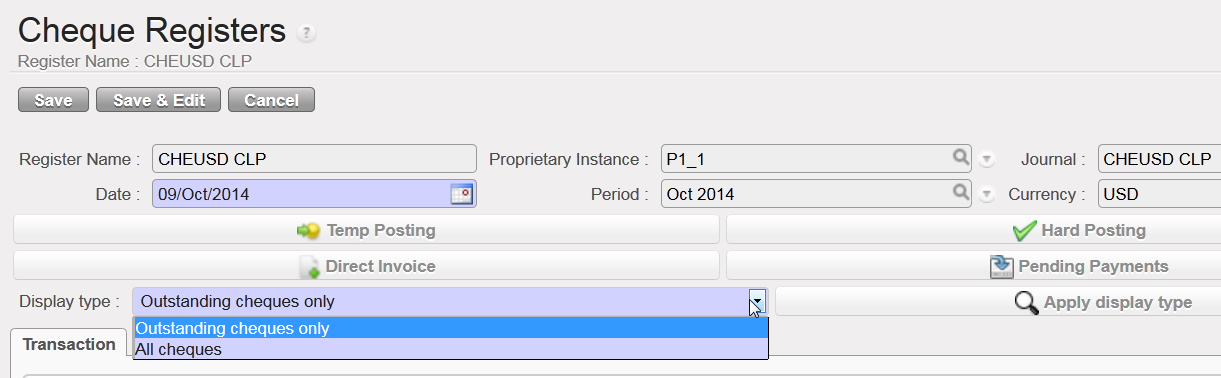
Once a cheque has been imported into the bank register, it is reconciled – in other words, it is matched with the bank register entry. A cheque being reconciled is another way of saying it has been cashed/paid from the bank account. The cheque screen allows you to view all cheques. A quicker way to identify which cheques were not reconciled is to use the field “Display Type” and select “Outstanding cheques only”. This will display cheques which were not imported AND imported cheques not hard posted yet.
Changing display in Cheque Register
Fields on lower half of Register form
Title of field
Entry protocol
State
System generated; Draft, Open or Closed
WARNING! This button {Close Register} should only be used when closing the register at the end of the period. It does not delete the register. Once closed, only a user with an Administrator profile can re-open the register and the related cash count.
CHEQUE REGISTER REPORTS
The Reports menu on the right side bar contains reports that can be run in Cheque Registers.
For further information on these reports, see UniField Chapter5 –Searching, Correcting and Closing
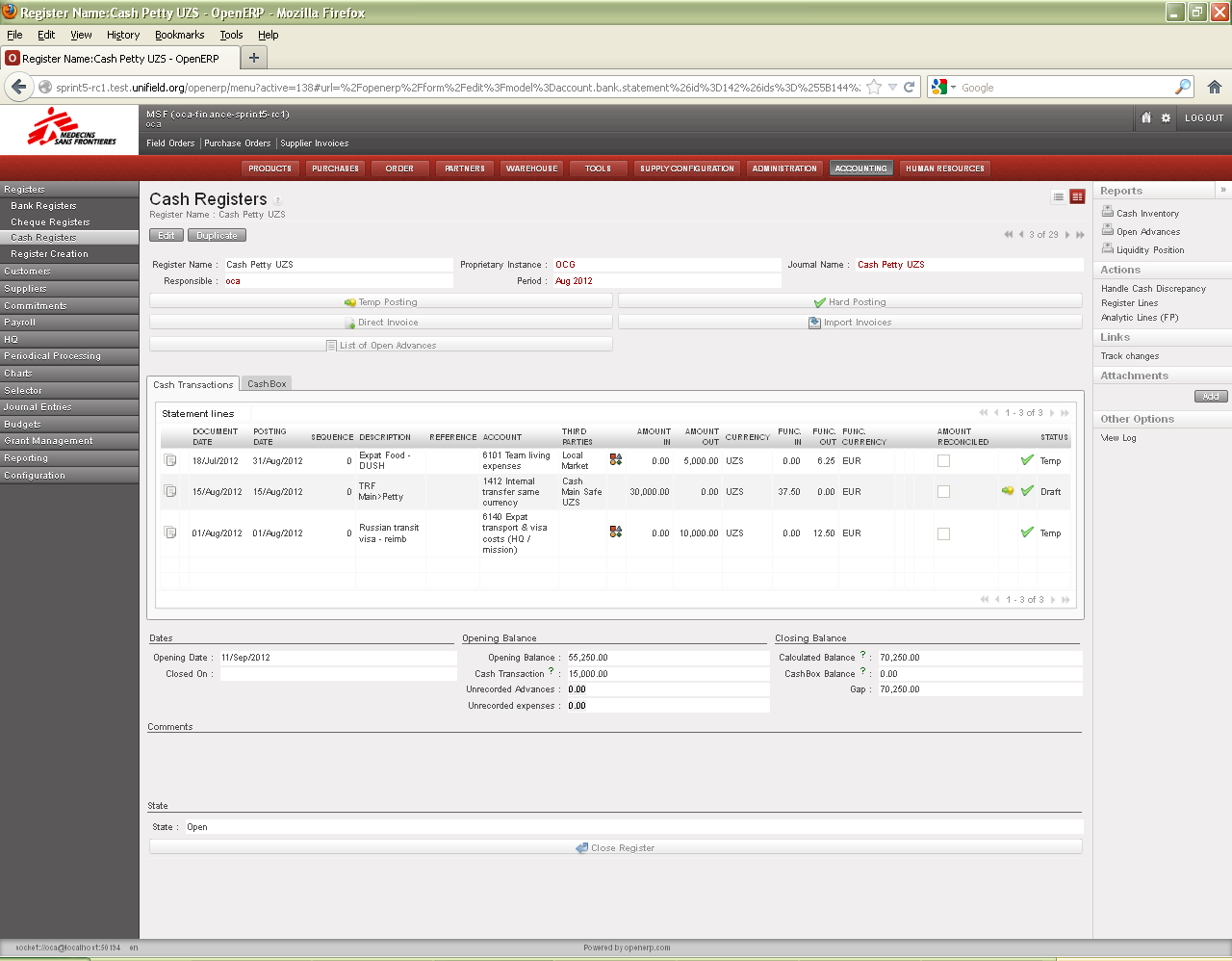
Now that you understand the concept of a register, let’s take a look at the various fields and buttons of the cash register form. In the {Cash Registers} search view, click on the pencil of the register to open the form. The header fields are displayed as follows:Header fields of a {cash register} form
Title of field
Entry protocol: cash register form
Source for Information
Register Name
System default
Journal from which it was created
Proprietary Instance
System default
UniField instance or database
Journal
System default
Journal from which it was created
Responsible
System default
User who has created the journal
Period
System default
Current month in which the journal was created
Currency
System default
Currency for which the journal was created
Button
Description
Automatically retrieves Draft or Temp-Posted Entries in a separate window to be Hard-posted
Opens a window to retrieve and import invoices (in the register’s currency) created by Supply or Finance, then automatically creates a payment in the register booked to payables/receivables and cash account
Automatically retrieves Draft Entries in a separate window to be Temp-posted
Opens a window to create a Direct Invoice for immediate payment and booking of multiple items to multiple expense codes. Direct invoices are not generated by Supply. One register entry is booked to payables/receivables and cash/expense accounts
Opens a window to list operational advances taken by the staff
Please note all of these topics will be covered in more detail in the specific sections related to their usage.
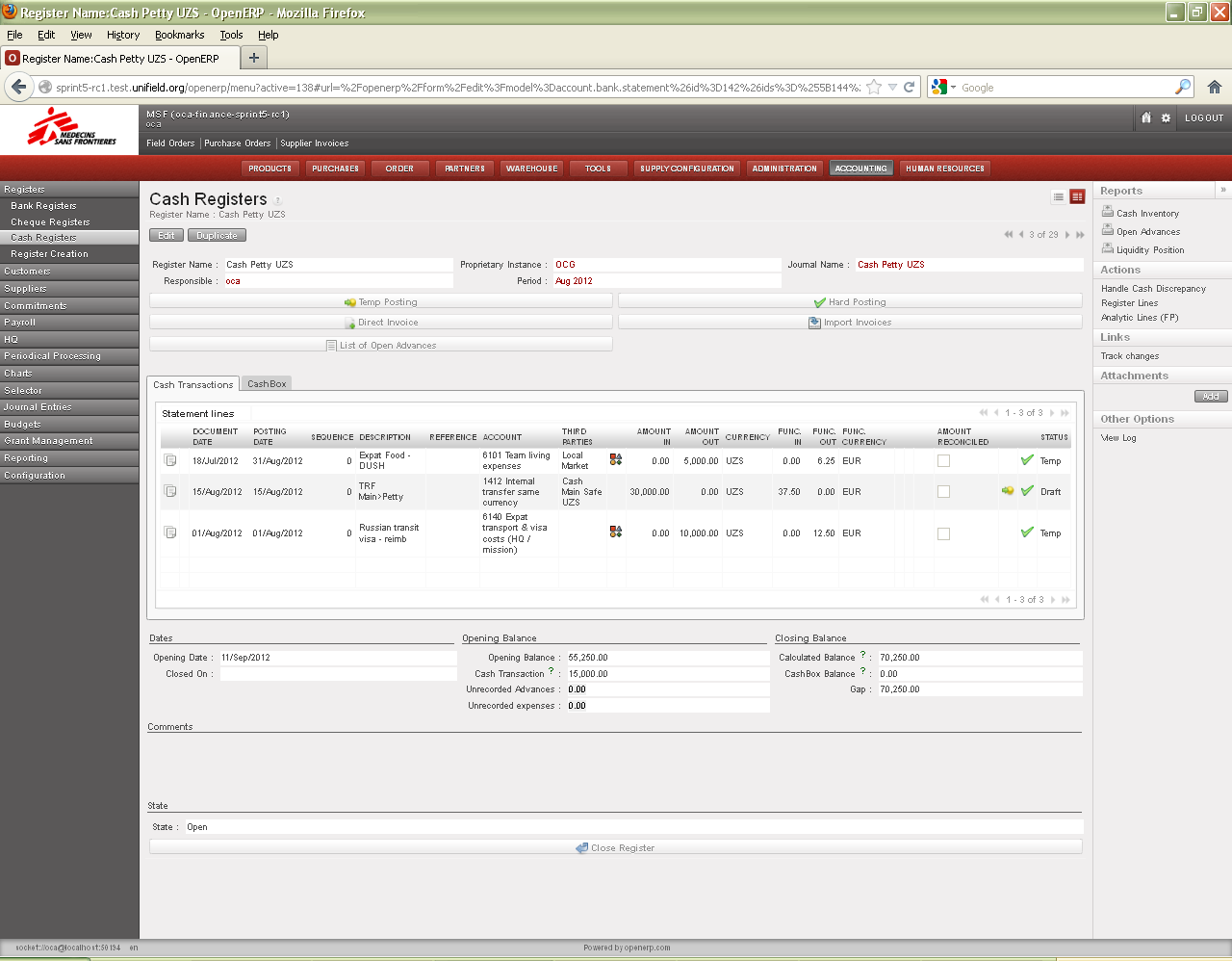
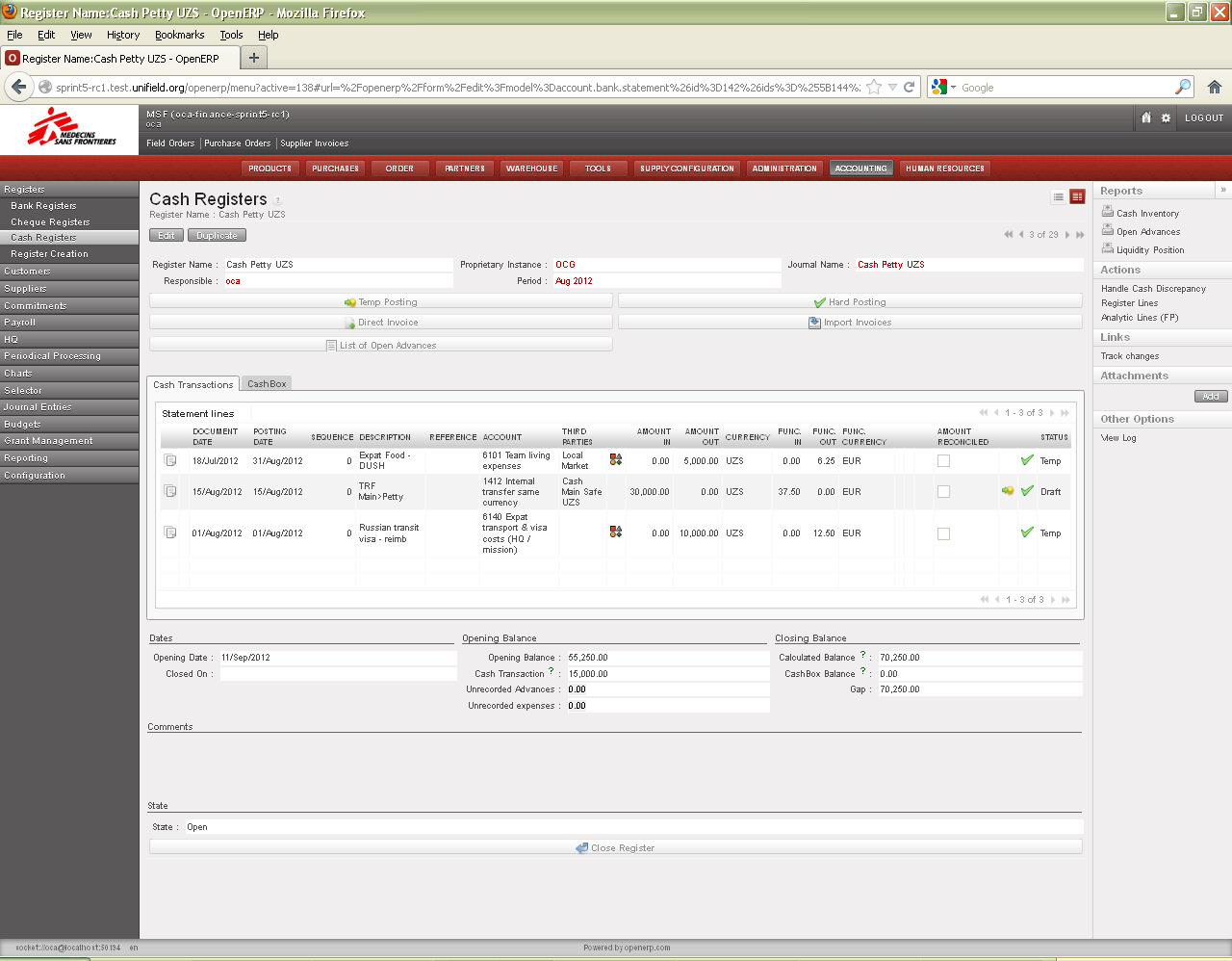
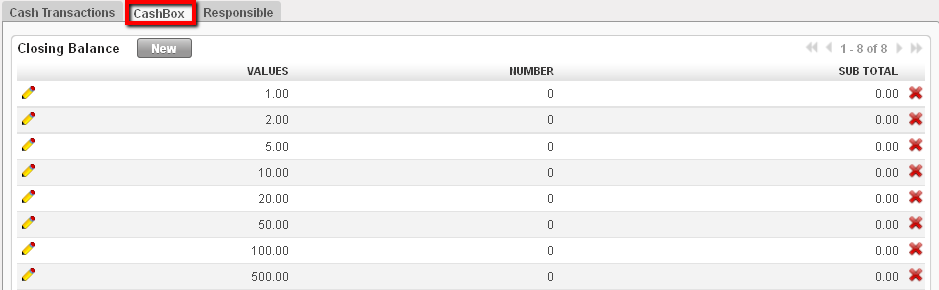
Three (3) tabs are located on the middle of the form. They are called the {Cash transactions}, the {CashBox} and the {Responsible}.
In the cash transactions, you will record manually or by importing register lines reflecting Cash In and Cash Out.
{Cash Transactions} tab
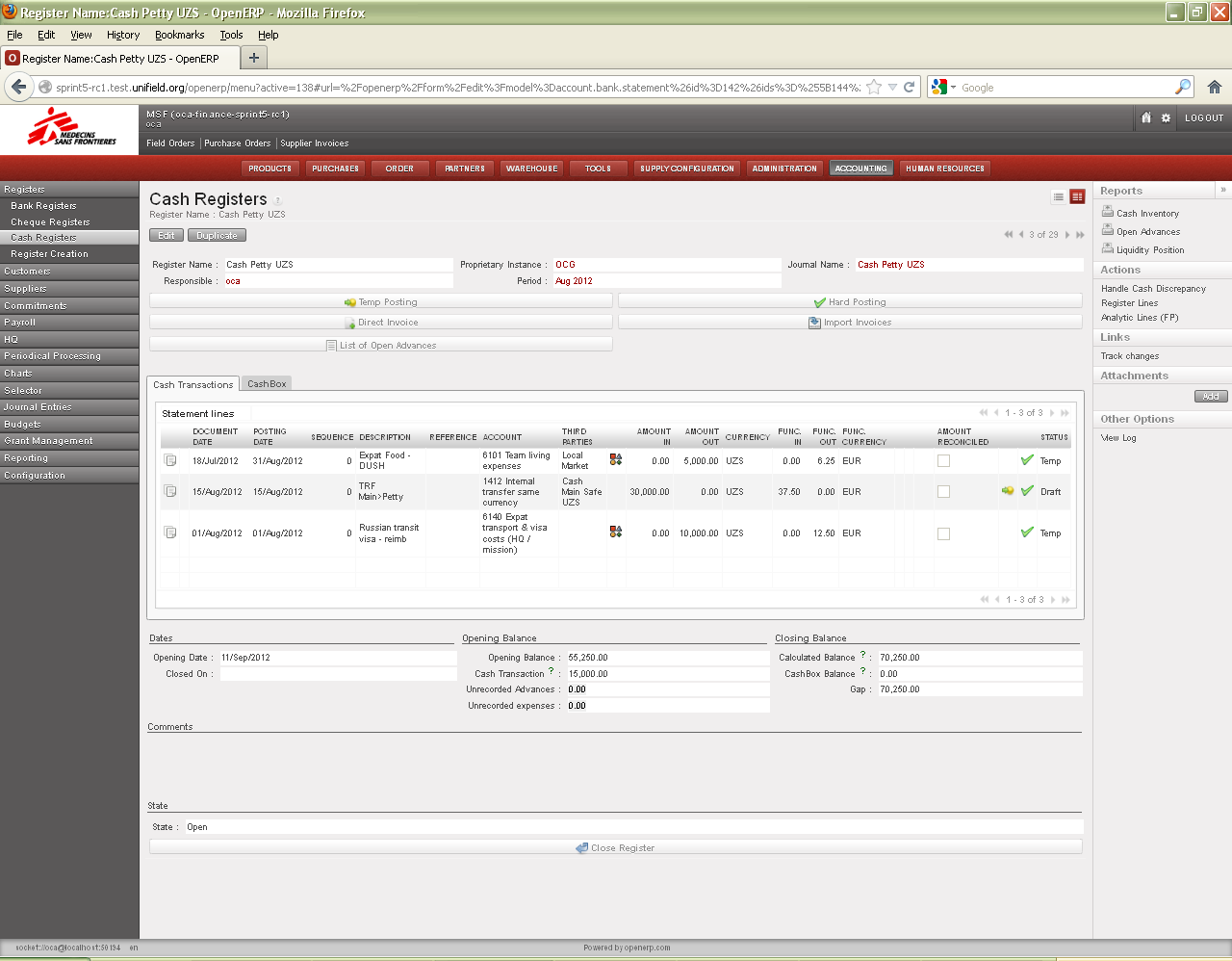
In the {CashBox} tab you will periodically carry out cash counts to confirm the cash balance in UniField is the same as the balance of your physical cash box.
{CashBox} tab
The {Responsible} tab reflects the list of authorized users to access the register.
{Responsible} tab
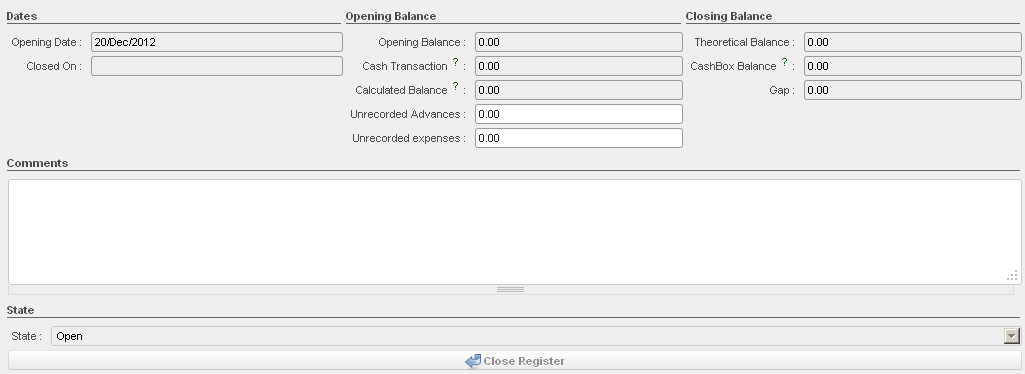
Finally, the lower half of the form shows the following fields:
Fields on lower half of a {cash register} form
Title of field
Entry protocol: cash register form
Opening Date
Automatic input. System default to the date the register was opened
Closed On
Automatic input. System default to the date the register was closed
Opening Balance
Automatic input. Zero if it is a new register created from a journal or the closing balance of the previous period
Cash Transaction
Automatic input. The sum of the amounts in and out for all register transactions during the period
Calculated Balance
Automatic input. Opening balance + sum of cash transactions
Unrecorded Advances
Manual input. For some sections not recording advances in UniField and tracked on a separate spreadsheet, the total amount of outstanding advances is manually entered here when performing cashbox inventory.
Unrecorded expenses
Manual input. The total amount of unrecorded entries is manually entered here when performing cashbox inventory
Theoretical Balance
Automatic input. Calculated Balance – sum of unrecorded advances and expenses
CashBox Balance
Automatic input. The physical cash balance in your cash box reported in the cashbox tab when closing the cashbox
UniField manages 3 types of register entry statuses:
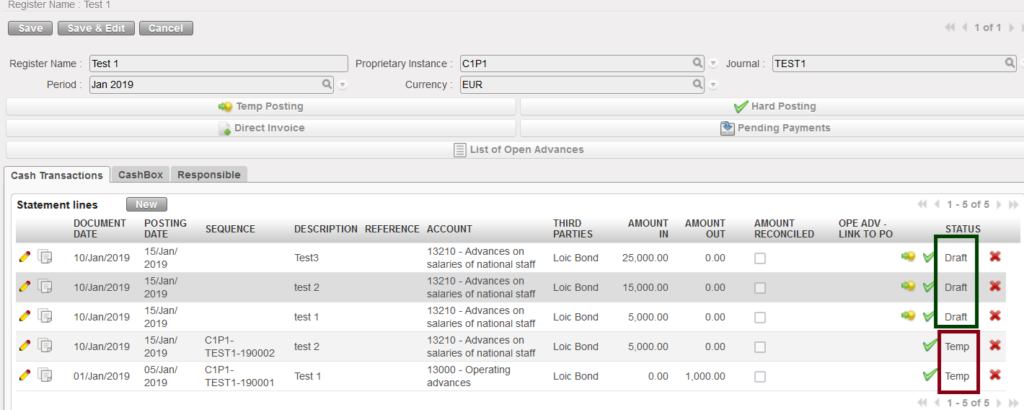
Draft entries : When created, direct register entries are recorded as Draft. They are created in the register only, are not posted, and do not exist in the journals. They are editable and can be deleted; they don’t have a sequence number yet.
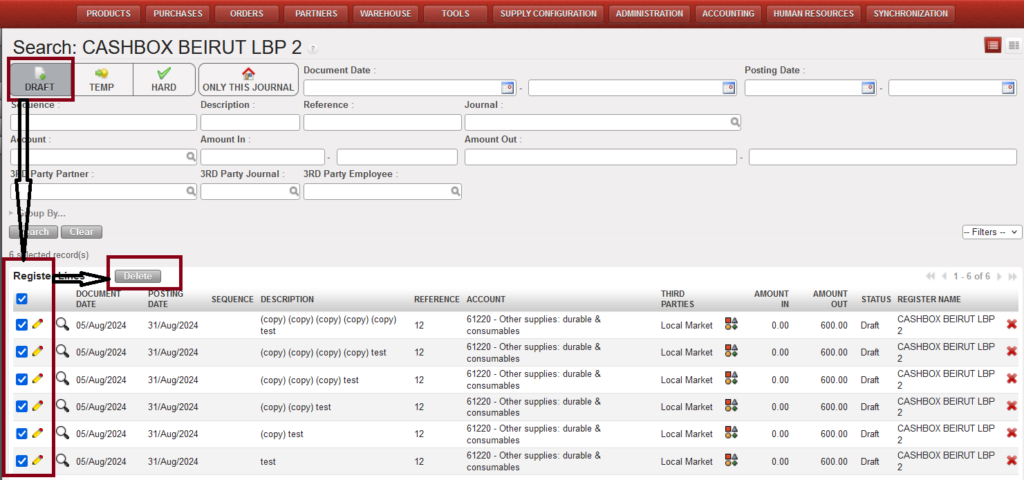
Only in draft entries you have the option to do mass delete of draft entries as below: • In the register go to the right menu list, under “Actions” click on “Register lines”
• In the “Search view” toggle on “Draft” button, select all draft lines and click the “Delete” button, all lines will be deleted.
Temp-posted entries : Entries are created in the register and assigned a sequence number. They are reflected in the corresponding journals and the accounts balances with their counterpart accounts (double-entry bookkeeping). They are editable and can be deleted. Temp posting means that an authorised user is validating an accounting entry. The user can do it individually or by grouping several entries.
Hard-posted entries : Entries are created in the register. They are reflected in the corresponding journal and the account balances with their counterpart accounts (double-entry bookkeeping). They are not editable (except through accounting corrections performed by an authorized user). The user can change the status of an entry to {Hard} individually or by grouping several entries together.
The below table summarizes the impact of register entries statuses on the creation of accounting lines in a journal and the possibility to edit them.
Register lines state
Journal entries state
Modification allowed?
Draft
None
Yes (in register)
Temp-posted
Valid / Unposted
Yes (in register)
Hard-posted
Valid / Posted
No, only via the correction system process. See chapter 5
Correspondence between register entries status and journal entries status
Draft entries always shown in the top of the statement lines as below:
We use cookies to ensure that we give you the best experience on our website. If you continue to use this site we will assume that you are happy with it.

 button located on the entry line, but you can also temp post entries by grouping several entries. The below task description explains how to temp post a group of draft entries.Go to: Accounting/Registers
 button to retrieve draft entries booked in your register. A list of {Draft} entries appears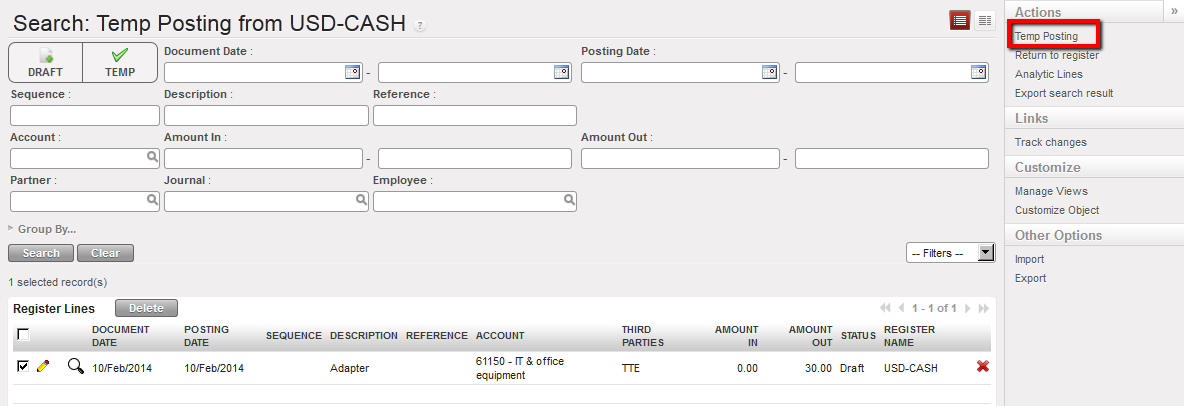

 Temp post all the entries with the need to extend the list
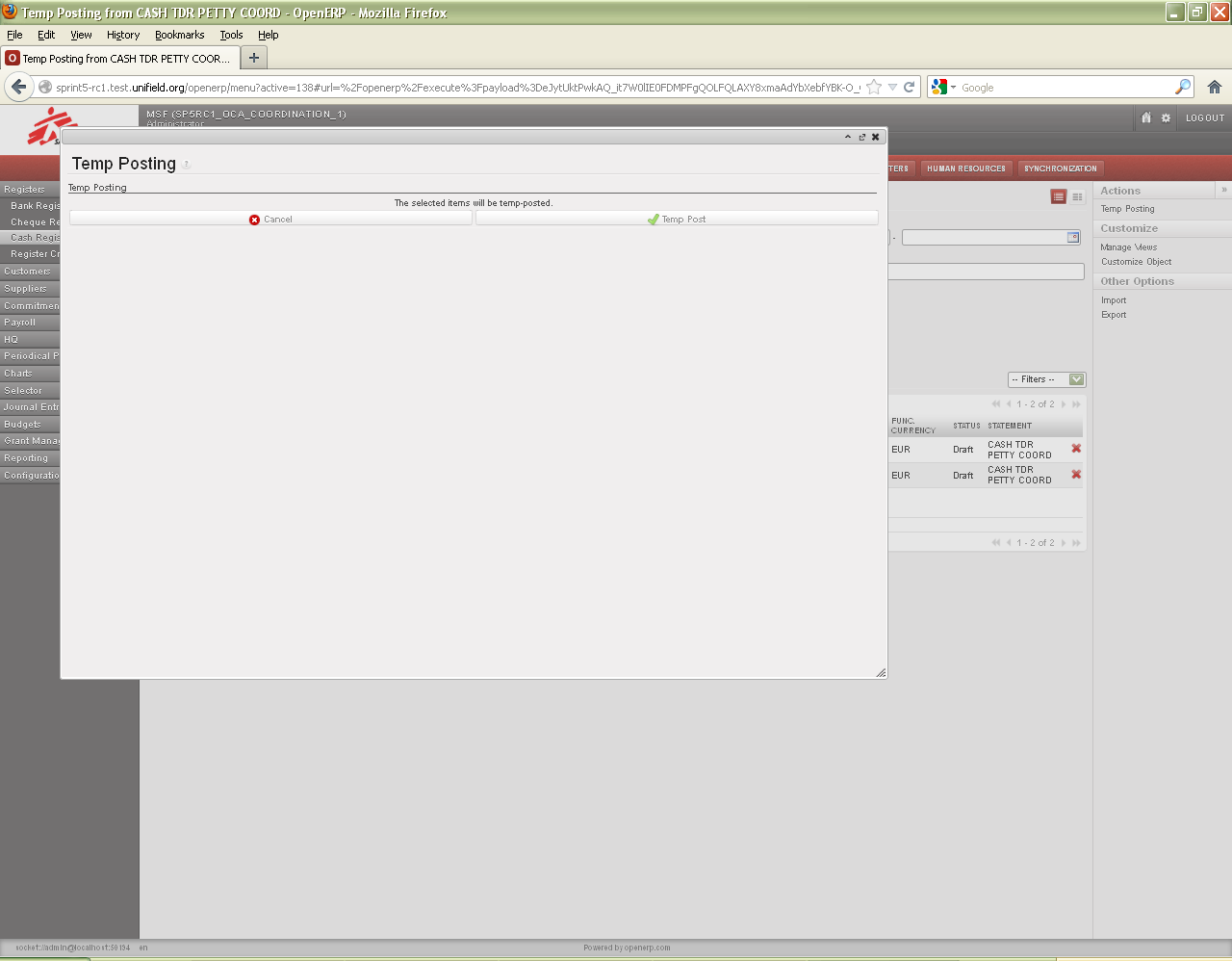 Temp-posting confirmation
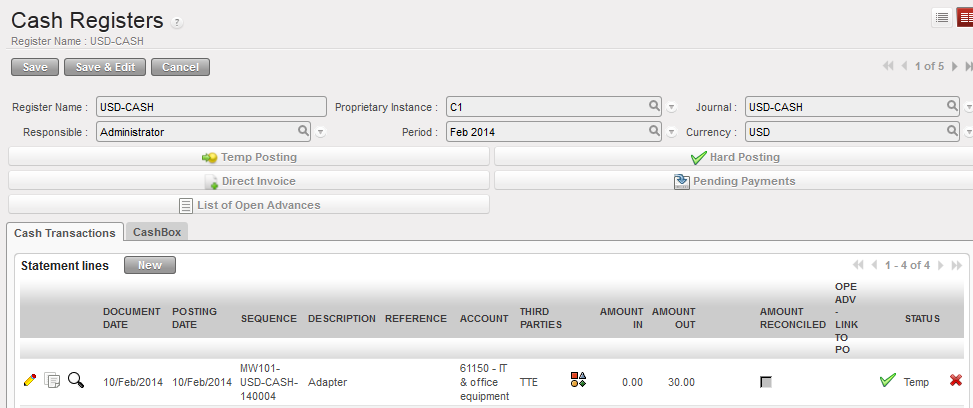 Temp posted register entries
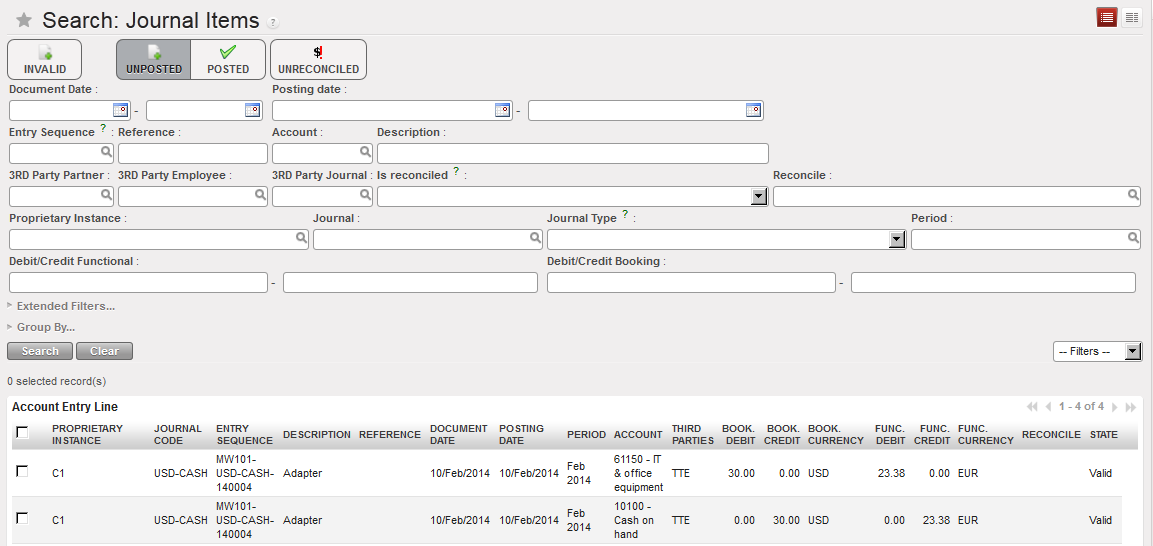 {Journal item} view displayed unposted journal items corresponding to the register line which was temp posted
 button located on the entry line, but you can also hard post entries by grouping several entries. The below task description explains how to hard post a group of temp posted entries.
 button to retrieve temp and draft entries booked in your register. A list of {Temp} and {Draft} entries appears
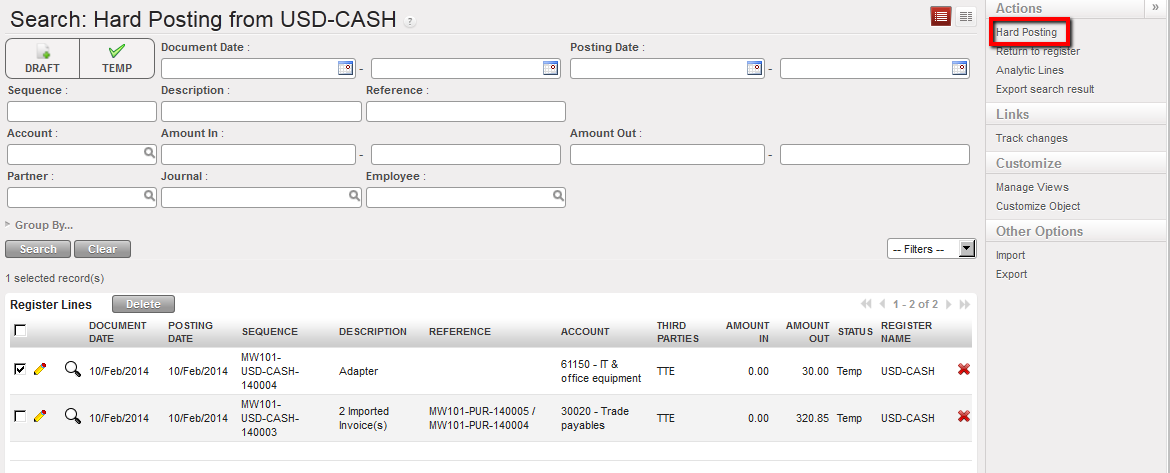 {Hard-posting entries search} wizard
 Hard-posting confirmation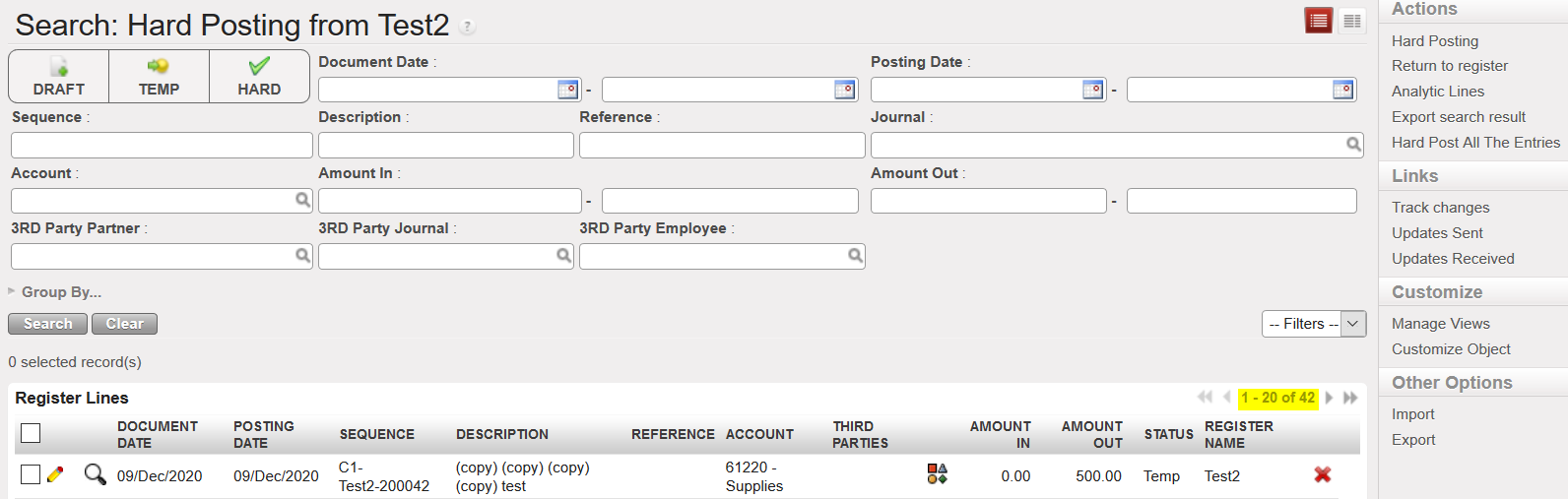
 Hard Post all the Entries
 Hard posted register entries
 Posted journal items corresponding to the register line which was hard posted. A/P was reconciled
 Bank register and {Direct Invoice} button
 The invoice is draft and has a reference (number)

 Hard posted direct invoice entry
 Posted Journal entries when a Direct Invoice register line is hard-posted. The A/P account is reconciled.



 to change the {Document Date} and/or the {Posting Date} to the actual date when the cheque was cashed in.
 Register line reflecting the imported cheque
 to open the register form.
 Cash Register Statement Line Creation
 Cheque number input, mandatory field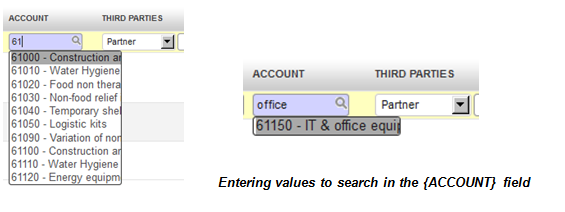
 to open up the {Search Chart of Accounts} wizard. The accounts will appear in numerical order. To select only expense accounts type 6 into the filter as showed below.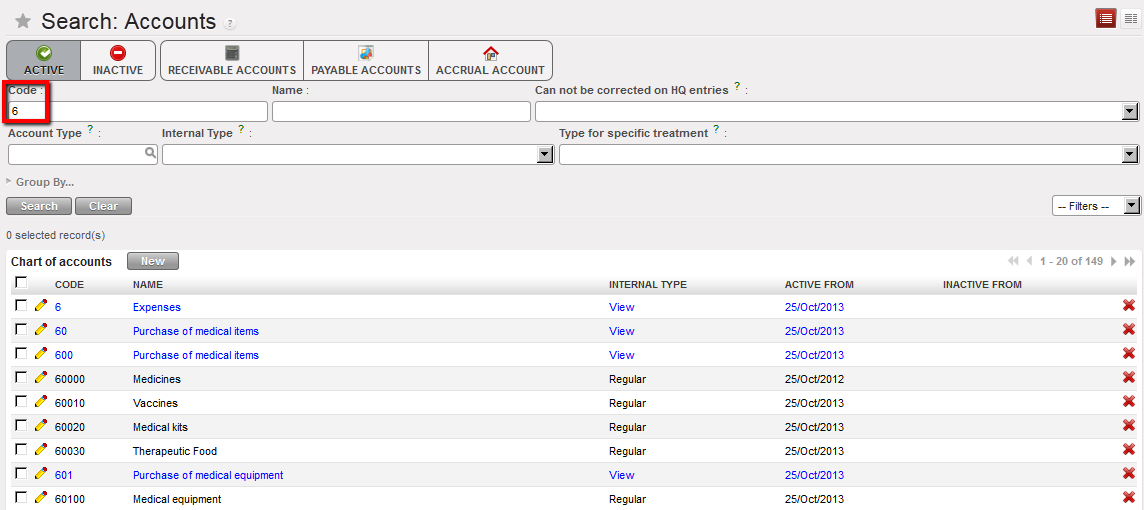
 {Search Partners} wizard
 or pressing the enter button.
 button will appear and the entry will be in red. A red entry is an indication that the analytic distribution has not been assigned or has not been assigned properly.
 button to open the {Analytic distribution} wizard.
 {Analytic distribution} wizard
 to retrieve it.
 to save the allocation line.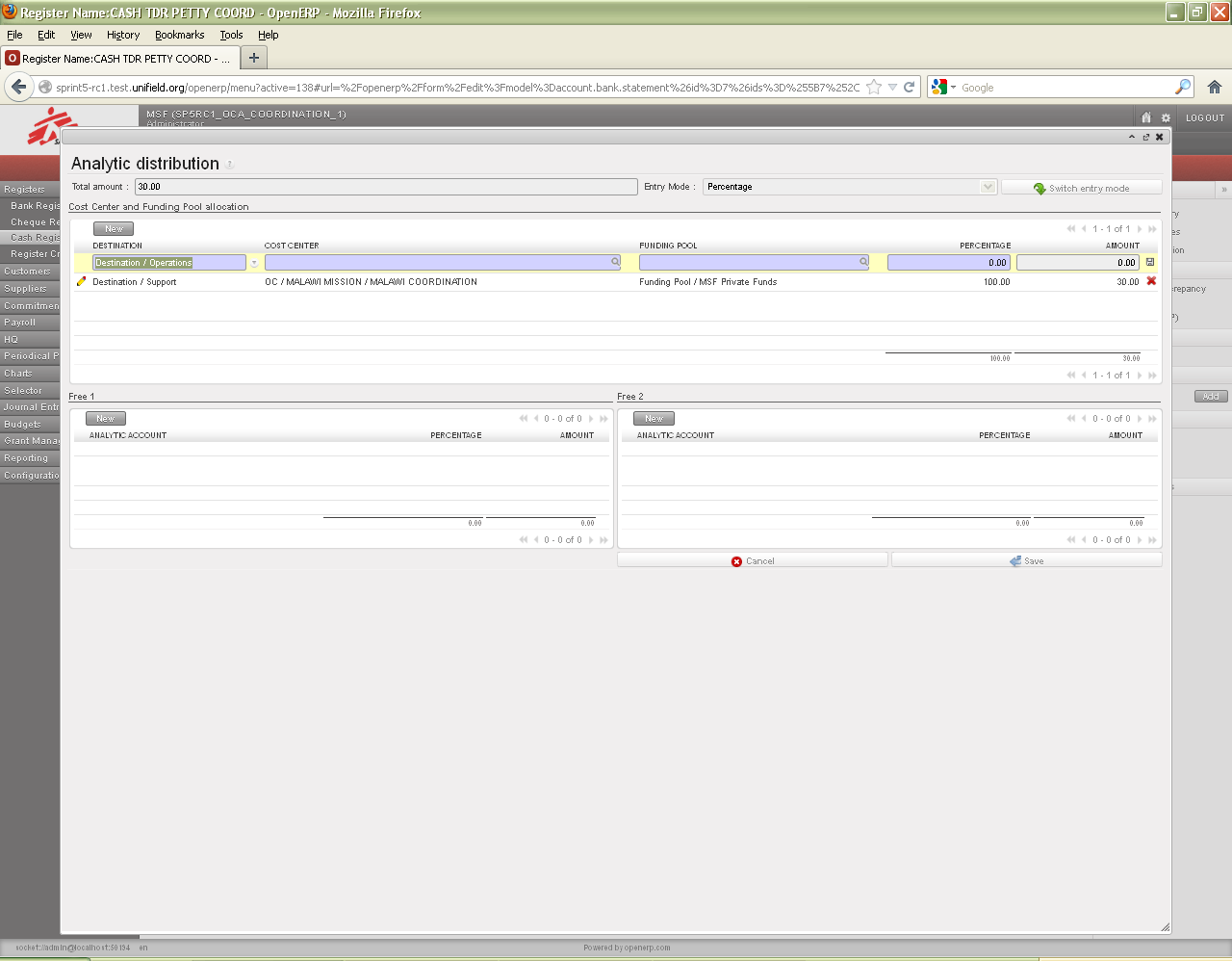
 Direct entry created in Draft in a cash register. No acccounting moves.
 Temp Direct entry in the cash register
 Expense to cash in the Liquidity journal
 Hard direct entry in the cash register
 Corresponding journal entries booked in the purchase journal









 of the register to open the form. The header fields are displayed as follows: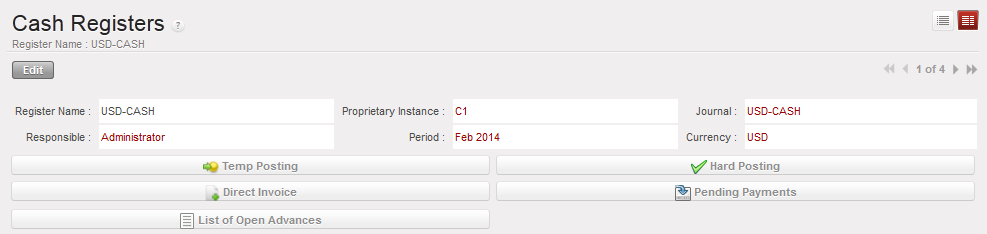


 {CashBox} tab
 {Responsible} tab
 Fields on lower half of a {cash register} form
 CASH REGISTER REPORTS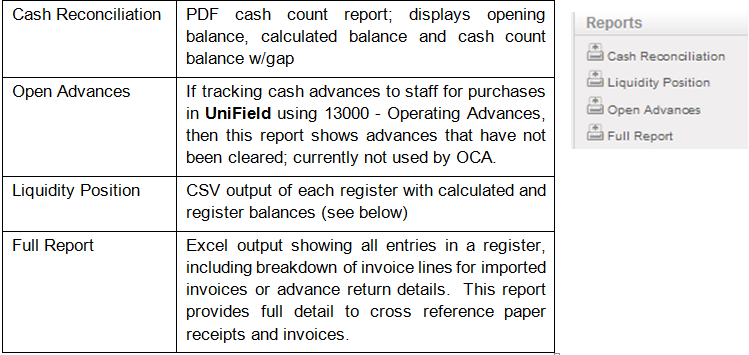
 : When created, direct register entries are recorded as Draft. They are created in the register only, are not posted, and do not exist in the journals. They are editable and can be deleted; they don’t have a sequence number yet.
 : Entries are created in the register and assigned a sequence number. They are reflected in the corresponding journals and the accounts balances with their counterpart accounts (double-entry bookkeeping). They are editable and can be deleted. Temp posting means that an authorised user is validating an accounting entry. The user can do it individually or by grouping several entries.
 : Entries are created in the register. They are reflected in the corresponding journal and the account balances with their counterpart accounts (double-entry bookkeeping). They are not editable (except through accounting corrections performed by an authorized user). The user can change the status of an entry to {Hard} individually or by grouping several entries together.