Registers are used to encode all accounting entries linked to cash movements. These entries are called Register lines. Registers should be used any time a cash movement occurs.
Any time a register line is made on an expense or income account, the analytical distribution needs to be determined. This is performed by means of the analytical wizard button , located at the register line level.
The following transactions can be performed through the registers:
Direct expenses
Direct Invoices, using the {Direct invoice} button
Guarantees or deposits
Down payments to a supplier, linking a PO to an advance
Internal Transfers
Supplier Invoice, tax and Payroll Payments, using the {Pending payments} button
Cash and bank reconciliations
Operational Advances, using the {List of open advances} or {Advance return} button
Cash, bank and cheque registers need to be reconciled at the end of each period. At the end of each month the user needs to close their register(s) and create new registers for the following month. All existing cash and bank registers created for the new period are populated with an opening balance automatically set to the previous periods’ closing balance.
Users have the ability to work on several periods at the same time as the following period’s register opening is not linked to previous period’s register closing. This means, a new register can be opened before the previous one is closed BUT a new register can’t be closed before the previous period’s register is closed. Also, a new register can’t be opened if the previous one is still in {Draft}.
The liquidity journal associated with the register remains open at all times.
Finally, a register Search view will display a list of registers as shown below. You will be able to use a set of filters to easily retrieve the register in which you want to record your entries.
LUFI-30207 Supplier Invoice Payment: Step Five in the Purchase Process
LU Introduction
A supplier invoice can be paid from the cash, bank or cheque registers via the {Pending Payments} function. In order to make the payment, the supplier invoice must be imported into the appropriate register. Importing the payment into the register automatically creates a temp posted register entry. In the liquidity journal, the payable account is debited to cancel the debt and the liquidity account (cash, cheque or bank depending on type of payment) is credited to recognize the money out.
Note that a supplier invoice can be paid before the invoice posting date provided the payment is done in the same (monthly) period or in a later period.
How to Import a Supplier Invoice into a Register
In the below example the payment is done in a cash register.
Go to: Accounting / Registers
Open the relevant register to import the invoice
Click on the Button {Pending Payments}
Pending Payments invoice on a register form
An {Import invoice} window display
3. Click on {Add} and select the relevant invoice.
Add button to select an invoice
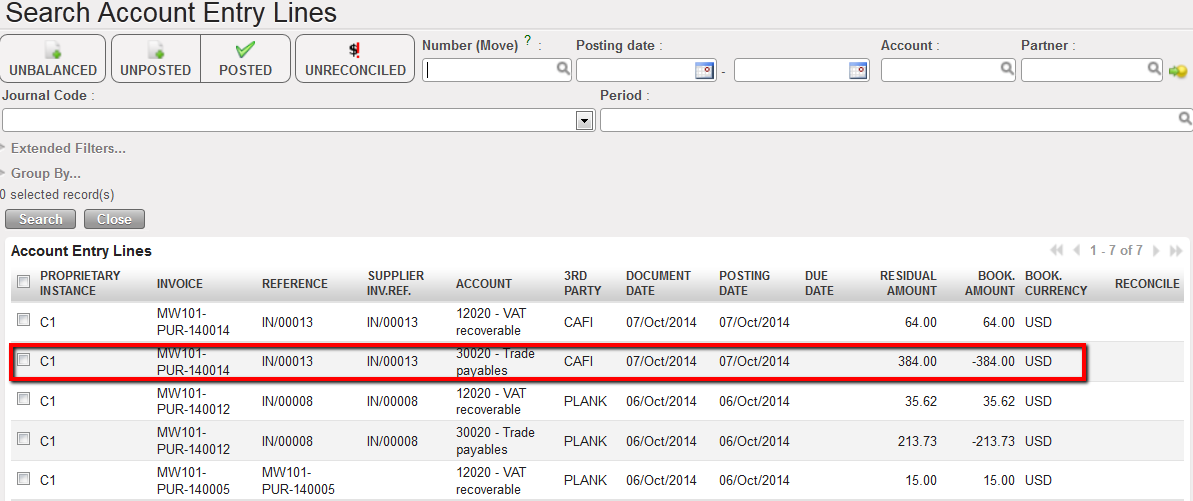
Search Account Entry Lines window opens to select the invoice to import in the register
4. Remember the PO/Supplier invoice process we saw before. Here, we will import only the supplier invoice booked on the Trade Payables account. The VAT will be paid later on.
5. Add a Payment posting date and click on {Single import} because in this illustration we only have to import one invoice from one supplier.
Invoice imported in the Import Entries window
6. The invoice moved down to the bottom half of the {Import Invoice} window. Changes can be made here as well. However, the document date must be changed on the top screen. If making a payment through the cheque register, the cheque number will need to be entered. Once verified, click {Ok}. The window closes.
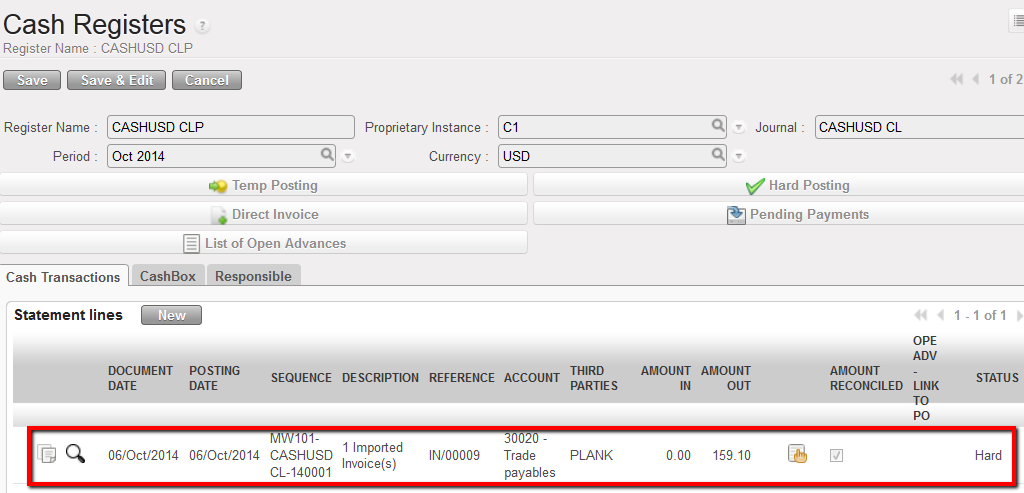
An entry is created in the register and booked to {30020 – Trade Payables} to pay the amount owed to the Supplier. The description defaults to {Imported Invoice}. The reference is automatically retrieved from the reference of the supplier invoice. There is no automatic reconciliation on the A/P account until the register line is hard posted.
Payment entry displayed in the register in Temp state
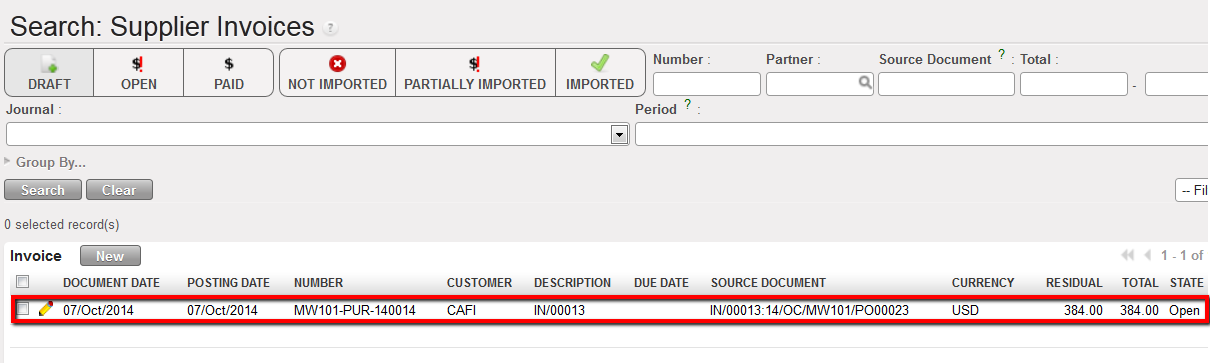
7. The link will take you to the supplier invoice; if user clicks on this line, the Supplier Invoice list view will display.
Invoice Lines displays when the link is clicked in Register. Click on line to open Supplier Invoice.
As soon as the supplier invoice is imported, the register line is Temp posted and the entries created in the liquidity journal items are:
Credit to 10100 Cash on Hand (the invoice was imported into a cash register) to reduce the cash balance by the amount of the invoice.
Debit to 30020 Trade Payables to reconcile the outstanding A/P entry created when the supplier invoice was validated
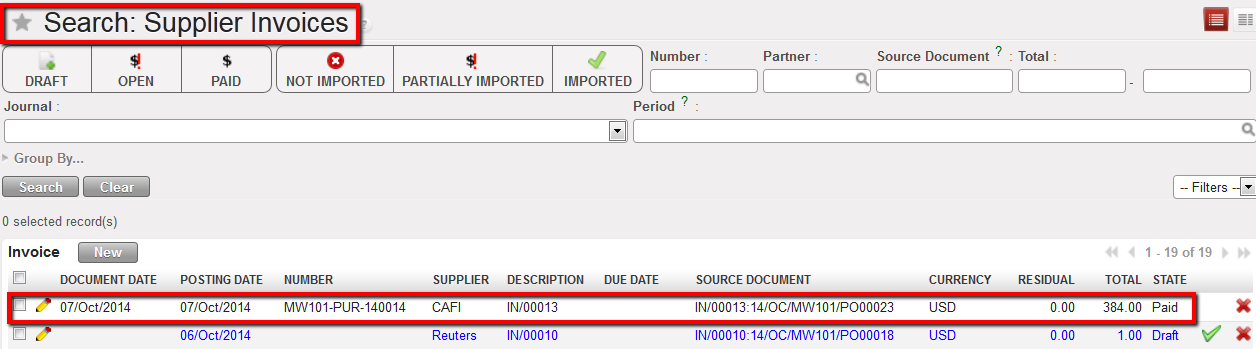
Once the register entry is hard posted, the payable entries are reconciled (M1-8). The supplier invoice status changes to {Paid}.
The entry corresponding to the imported invoice was hard posted.The entry state is Hard.
Created Journal Items of the paid supplier invoice when the register line became hard posted.
Supplier Invoice becomes paid when its corresponding register entry is hard-posted
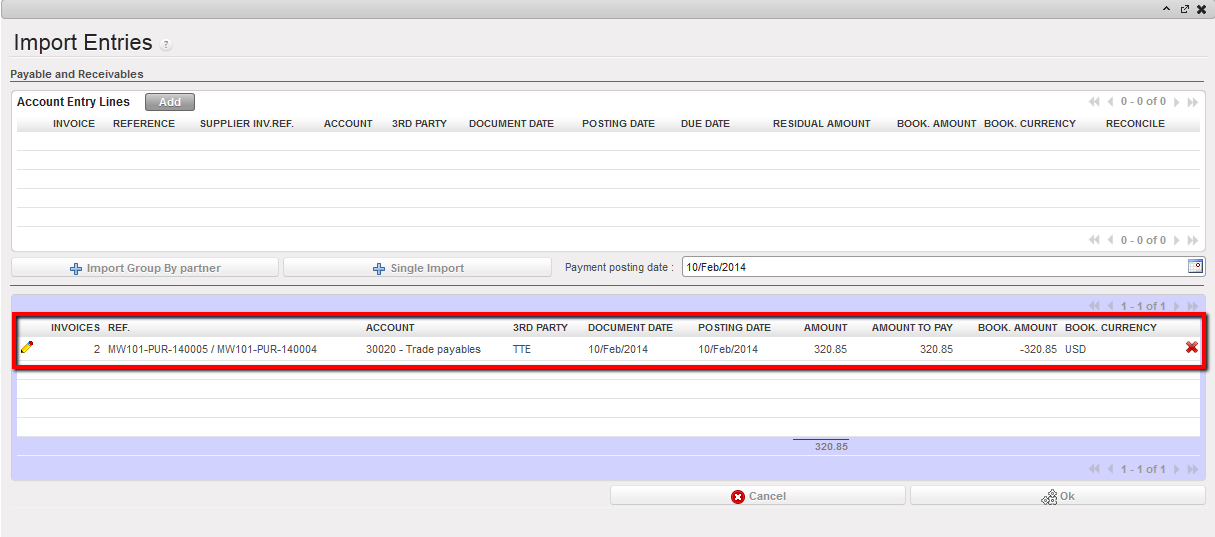
In case you want to import several invoices from the same supplier in one entry, you can use the {Import Group by partner} function.
Selection of 2 invoices to pay to a same supplier before importing in a register
Invoices references are displayed in the Ref. field
Register line reflecting the import of 2 supplier invoices.
In case there are more than 3 invoices embedded in the payment, all references may not be fully displayed in the payment reference field as the system will cut off the text string to bypass display issues. But the payment will be processed for all selected invoices.
In chapter 02 – Configurations, we have seen how a VAT code was set in UniField.
Once a VAT code is set, you can :
Associate a VAT to a product in the product form (LUFI-20902). We explained it in Chapter 2 – Configuration.
Associate automatically a VAT to a whole invoice.
Now we will see how to compute a VAT code on a Supplier Invoice when the code was associated to a product.
How to Apply a VAT Code to a Supplier Invoice When the VAT Is Associated to a Product
Go to: Accounting/Suppliers/Suppliers Invoices
Select to open a new invoice form.
Complete the mandatory blue fields and allocate the invoice lines to analytic accounts. Make sure the product you chose is associated to a tax code.
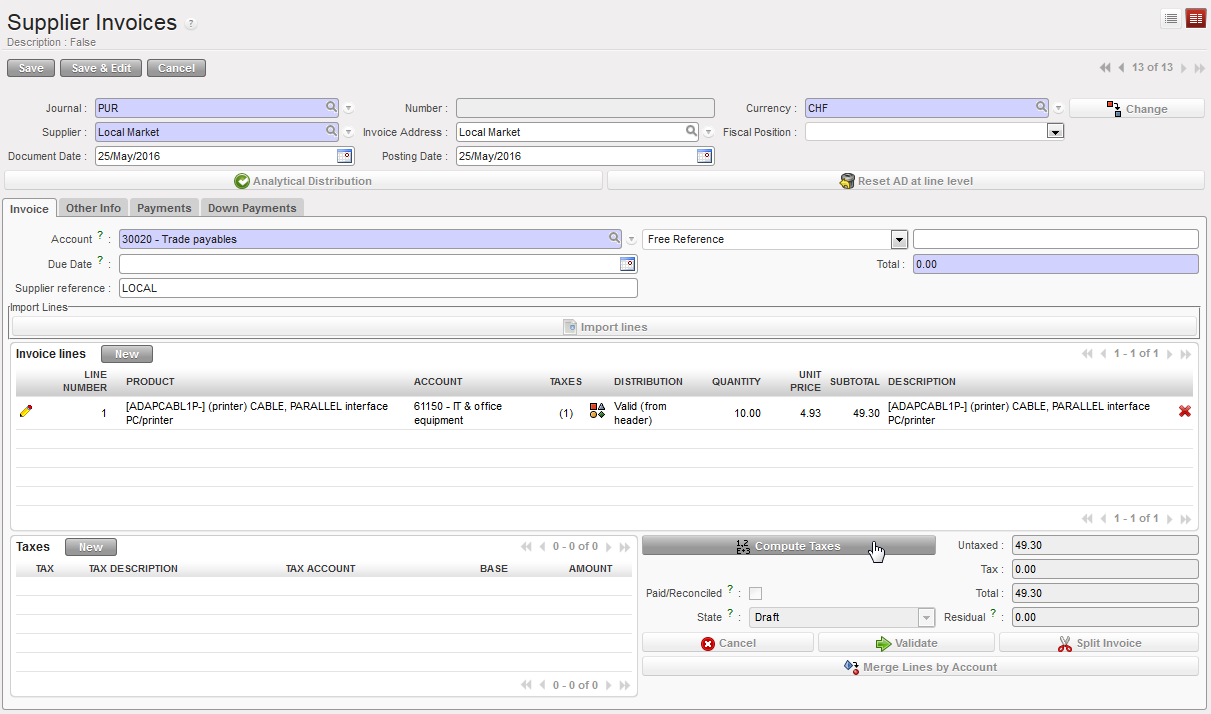
Select {Compute Taxes} to calculate the VAT applied to this invoice.
Compute Taxes button for automatic calculation of the VAT applied to this invoice
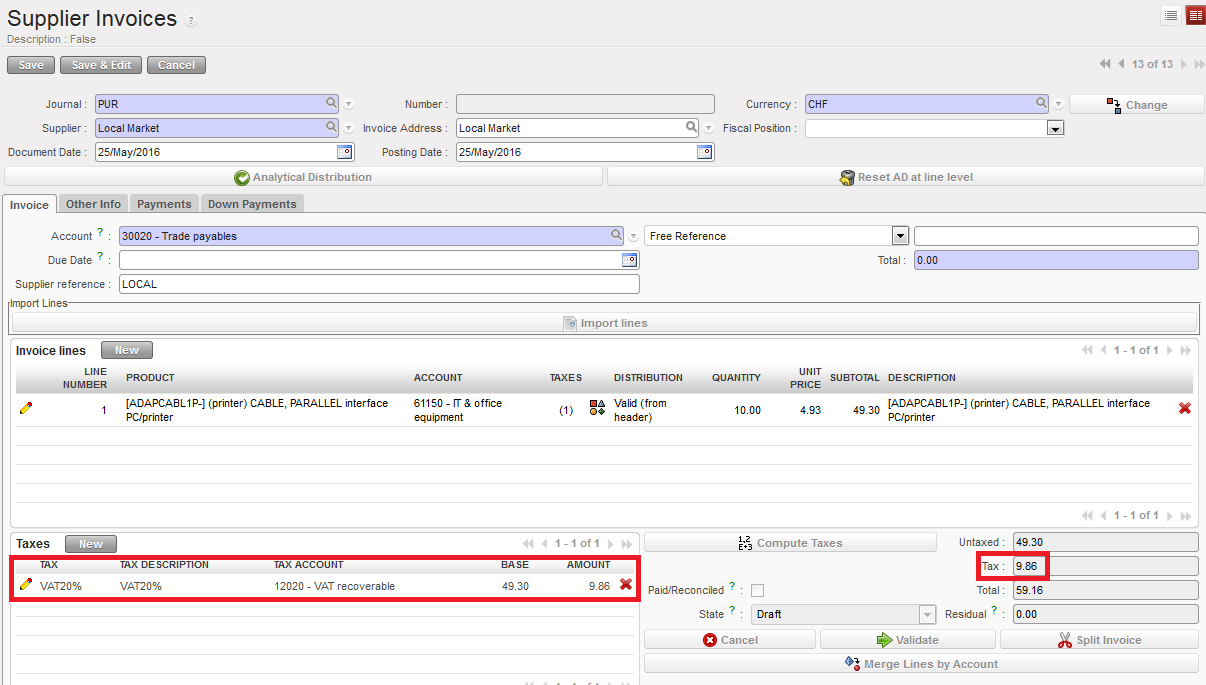
The tax displays automatically.
The tax is calculated automatically. Amount excluding and including VAT are split.
4. Now suppose you want to validate the supplier invoice. Select the {Validate} button.
In the Purchase journal, entries are booked as follow:
Posted journal entries when an invoice to which a VAT is applied is validated
Box 1: On the Debit side:
– Expense accounts, 61150 corresponding to the invoice lines
– VAT Recoverable account, 12020
Box 2: On the Credit side:
Trade Payables account, 30020 corresponding to the outstanding debt towards the supplier (including VAT)
Advice: Supply or Finance can write down the UniField invoice number on the hardcopy invoice provided by the Supplier to make cross-referencing easier.
How to Apply a VAT Code to a Whole Invoice
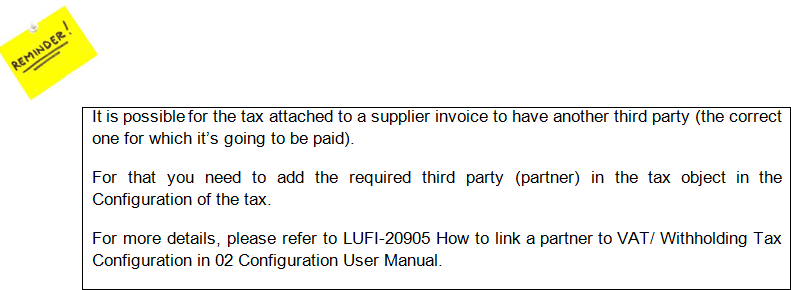
It is possible to assign a VAT code directly to a whole invoice if you choose not to link a product to a VAT code. In this case, the VAT code has to be “excluded from price” type meaning that the VAT amount is always fully applied on top of the invoice line amounts.
Go to: Accounting/Suppliers/Suppliers Invoices
Select to open a new invoice form.
Complete the mandatory blue fields and allocate the invoice lines to analytic accounts.
Select to populate the invoice amount.
Go to the Taxes section and select to link the invoice to a tax code
{New} button to insert a tax code applicable to the supplier invoice
5. In the {Tax} field, select a tax code set in the system using the magnifying glass
TAX code selection and automatic input of TAX DESCRIPTION, ACCOUNT and AMOUNT field
The {Tax Description}, {Tax Account} and {Amount} fields are populated automatically
6. Save
7. Save the form
8. Press
9. Finally, you can manually input a tax code in the Tax section:
From step 4, in the {Tax Description} field, input a description
In the {Tax Account} field, select the account Tax recoverable
In the {Amount} field, insert the VAT amount calculated manually, usually based on the untaxed amount
LUFI-30205 Supplier Invoices Manually Created by Finance
LU Introduction
Previously, we explained the automatic creation of supplier invoice through the purchase process initiated by supply. In addition, finance can create a supplier invoice as a stand-alone invoice in the Accounting Suppliers sub-module when finance is paying for goods or services not purchased by supply. Items listed on the manual supplier invoices will not be reflected in the UniField warehouse stock.
The validation of a manual supplier invoice automatically creates the expense and payable entries in the purchase journal.
B. How to Create Supplier Invoices Manually
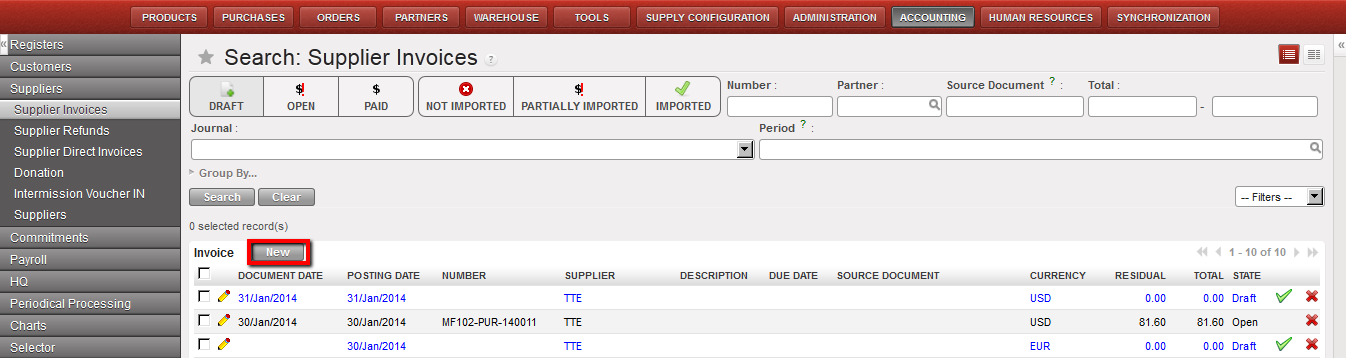
Creating a supplier invoice in the {Supplier invoice} Search view
Go to: Accounting/Suppliers/Supplier Invoice
Click on {New} to create an invoice
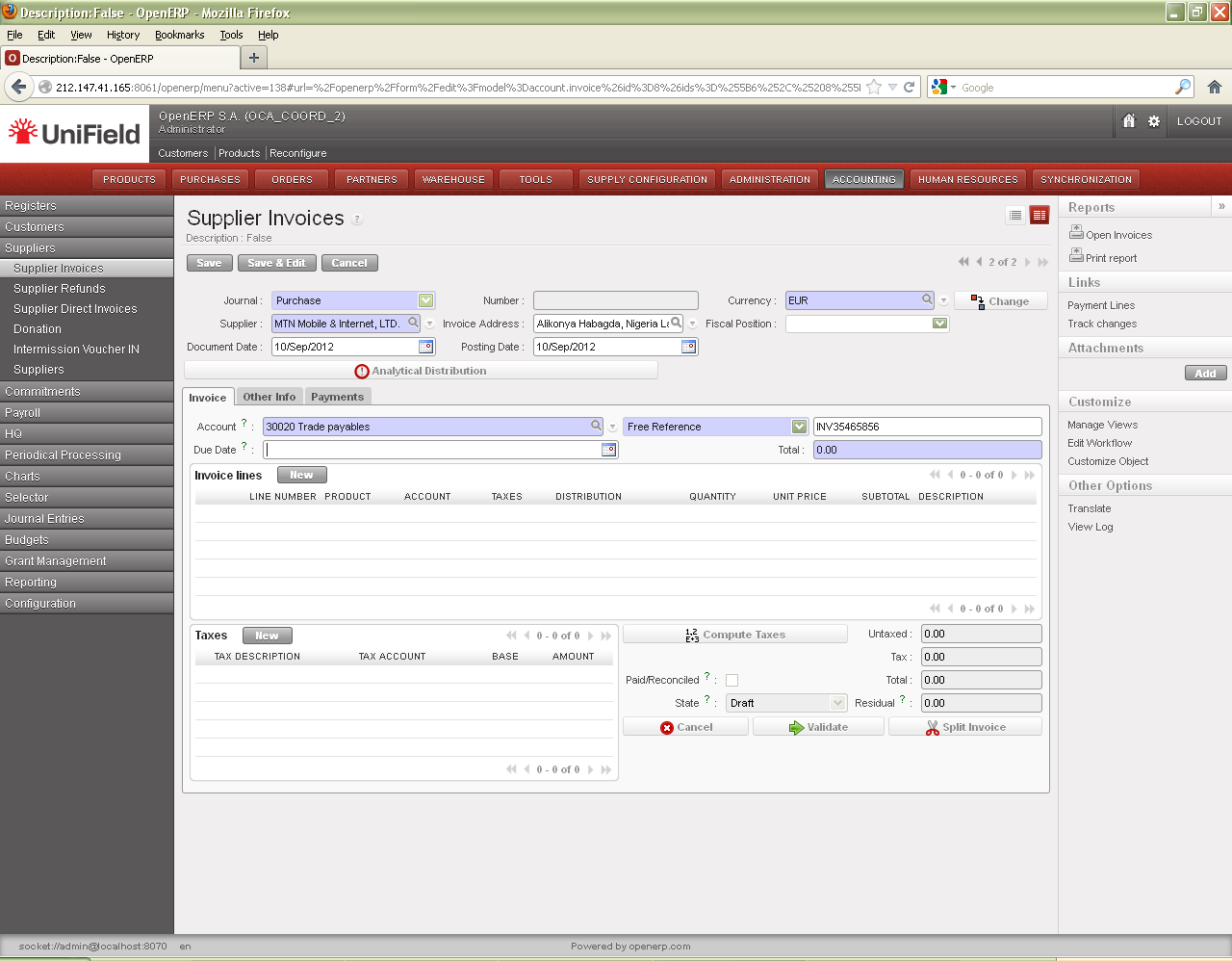
A form displays to create a new invoice. Fields in blue are required; white fields are optional; grey fields are read only.
{Supplier invoices} header
Title of field
Entry protocol: supplier invoice
Source for Information
Journal
System default
Journal in which the entries will be booked
Number
System default
UniField invoice number to be assigned when the invoice is validated
Currency
System default
The currency is by default selected based on the {Supplier} selected for the invoice
Button
You have 2 options to manage the supplier invoice currency:
Either you overwrite the default currency with the currency you wish to use and if you already created invoice lines, amounts will not be computed again
Use this button to change the currency of the invoice if the default currency from the Supplier record is not correct. Amounts already recorded on the invoice will be computed again using the standard rates defined in the system.
Supplier
User selected
From Suppliers list
Invoice Address
System default
From Supplier selected for invoice
Fiscal Position
System default
Depends on specific OC procedure
Document Date
Manual entry
Date of invoice
Posting Date
System default
Defaults to the date of the incoming shipment that has been entered. It can be changed
is used to apply a global analytic distribution across all lines in the invoice. This can be used as a time saver if all lines on the invoice use the same destination, funding pool, cost center, etc. If most of the lines have the same information it is possible to use the analytical distribution line to allocate all and then individually update the few lines with variances.
2. On the {Invoice} tab, you complete additional fields as explained below
Invoice tab on a supplier invoice
Title of field
Entry protocol: supplier invoice
Source for Information
Account
System default
From Supplier selected for invoice
Free Reference
Manual entry
Indicate the invoice number of the hardcopy supplier invoice. It will be displayed in the reference field of the payment line.
Due Date
Manual entry
When the payment is due; some suppliers require net 30, net 60 or immediately upon receipt or a certain due date. This is good to enter if you want to search for open invoices based on due date.
Supplier Reference
Automatically taken from Supplier form
If the Supplier reference is filled out in the Supplier form, it will automatically be taken into this field
Total
Manual entry
To be entered right before validating the invoice and should match the calculated total of the invoice lines; this is just a check for the user to confirm the total amount
3. In the {Invoice Lines} section, click {New} to create a new invoice line.
Example: In February we have received an invoice from the company TTE for printer. The printer and cables are used by two different projects. Thus, we want our invoice to have 2 invoice lines allocated to 2 different projects.
{New} button to input invoice lines
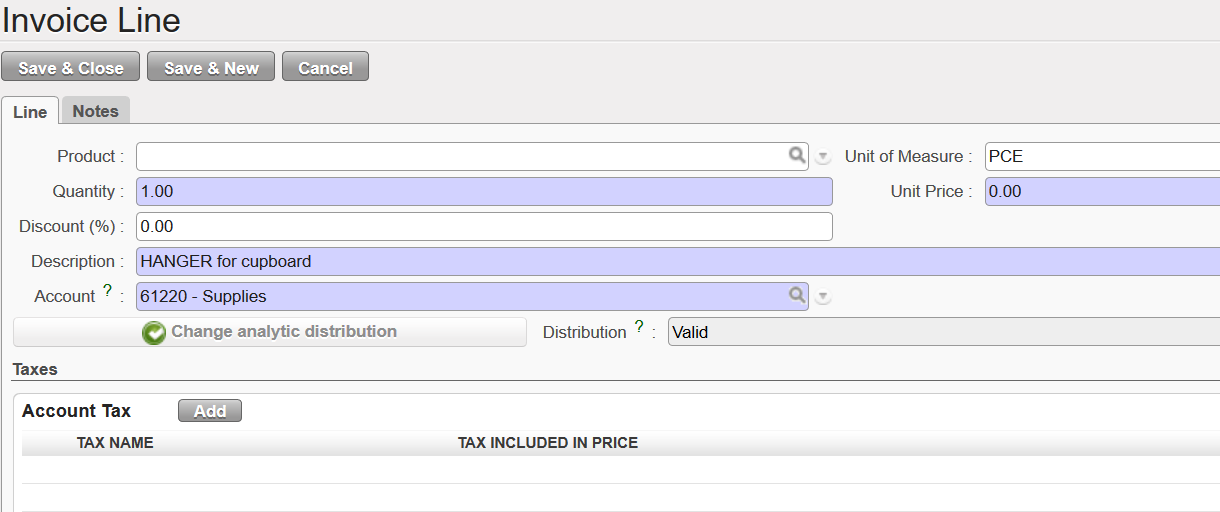
{Invoice Line} window to add line items on a manually created Supplier Invoice
Title of field
Entry protocol: supplier invoice
Source for Information
Product
Manual entry
From the Product list used by Logistics
Unit of Measure
Manual entry
From the list used by Logistics
Quantity
Manual entry
For services, use “1”; for goods, use actual quantity
Unit Price
Manual entry
For services, enter total amount that will be booked to this invoice line; for goods, use actual price
Discount (%)
Manual entry
% discount applied if applicable
Description
Manual entry
Similar to the current description in use
Account
Manual entry
Expense account code
Distribution
System default
View only; will display Valid or Invalid after analytical distribution has been applied
Account Tax
Manual entry
Please see individual OCs financial procedures and input a tax accordingly
4. Click {Save & New} button for additional invoice lines, or {Save & Close} button to return back to the supplier invoice window.
5. Assign the analytical distribution per line or globally across all invoice lines. Valid analytical distribution on invoice lines
6. Enter {Total} and verify that it matches the total on the hardcopy invoice.
7. Click {Save} button.
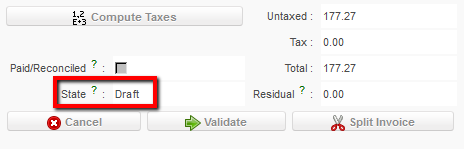
The invoice is created in {Draft}, viewable at the bottom of the document.
Invoice state viewable at the bottom of the document
Further, the {Other Info} tab shows the {Amount to be paid} on the supplier invoice which could be adjusted through changes or partial refunds to the original amount. The {Journal Entry} is a link to the entries in {Journal Items} associated with the supplier invoice once the invoice is validated. {Responsible} identifies the user who validated the invoice. The other fields come by default from the supplier record if that information had been entered.
{Other Info} tab
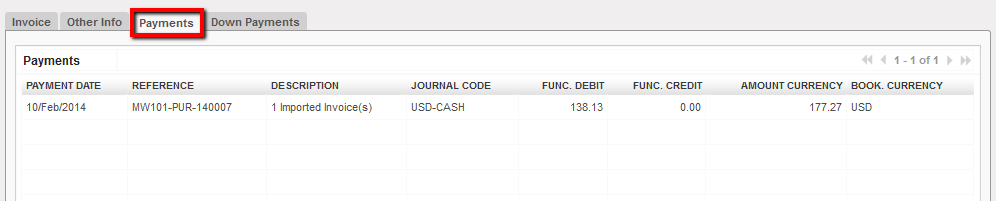
The {Payment} tab will show payments made for this supplier invoice. Thus it could show for instance an advance delivered to a third party (down payment), if so it will be displayed in the down payment tab too.
{Payments} tab of a Paid supplier invoice
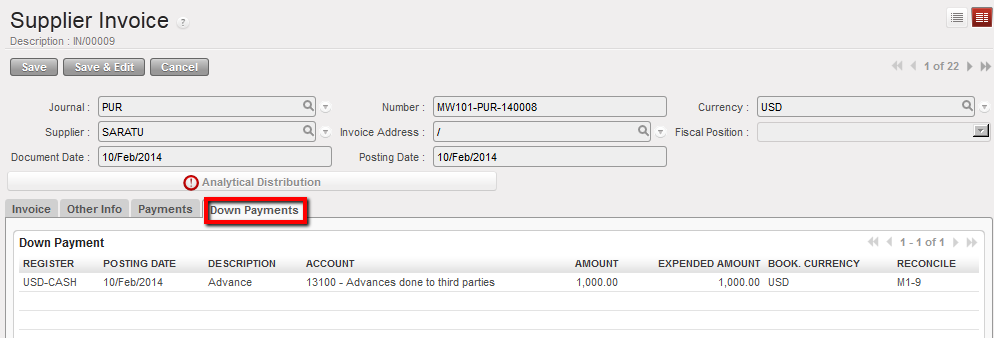
Finally the {Down Payment} tab as you might expect displays advance payments done to suppliers.
Down Payments tab of a supplier invoice
For editing, validating and printing a supplier invoice created manually, please read LUFI- 30104 as the tasks description are identical.
How to Delete Manually Created Draft Supplier Invoices
Go to: Accounting/Suppliers/Supplier Invoices
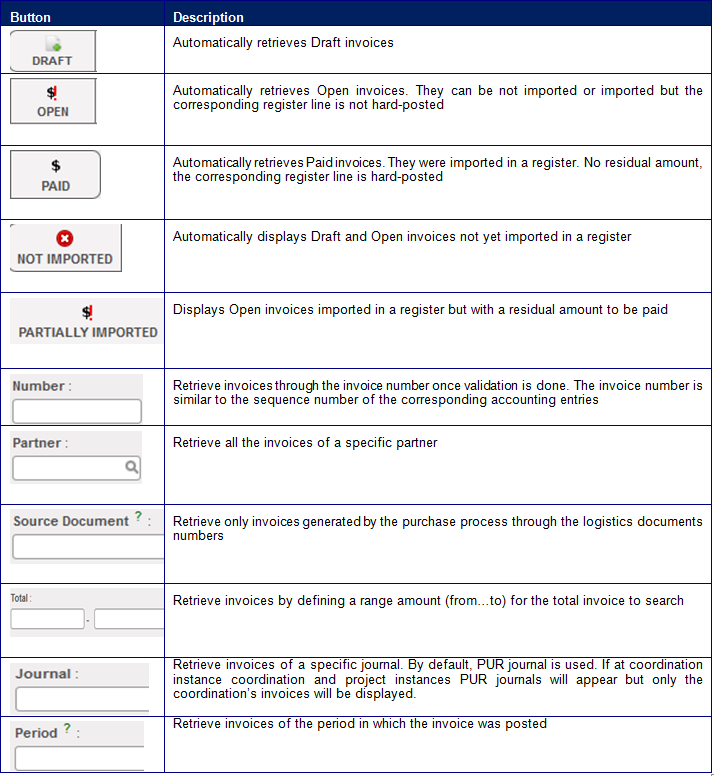
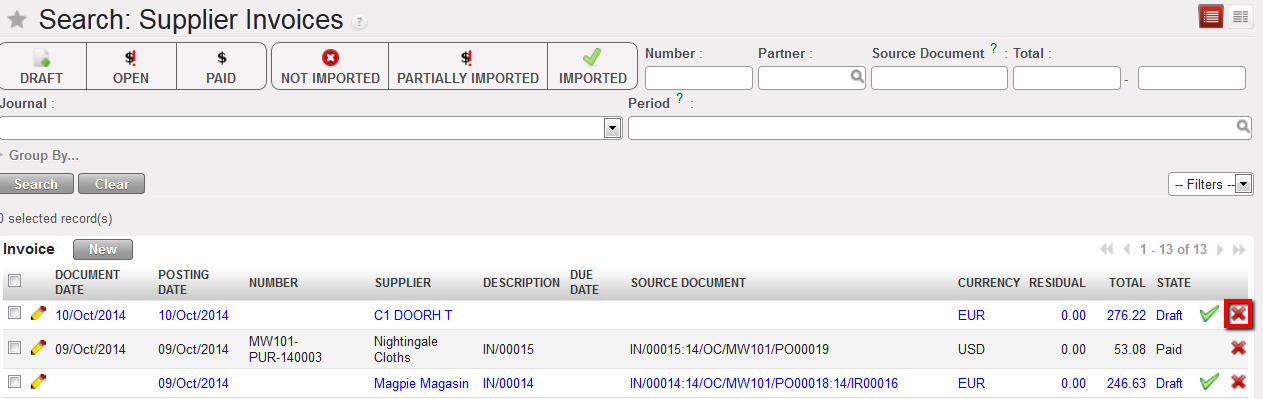
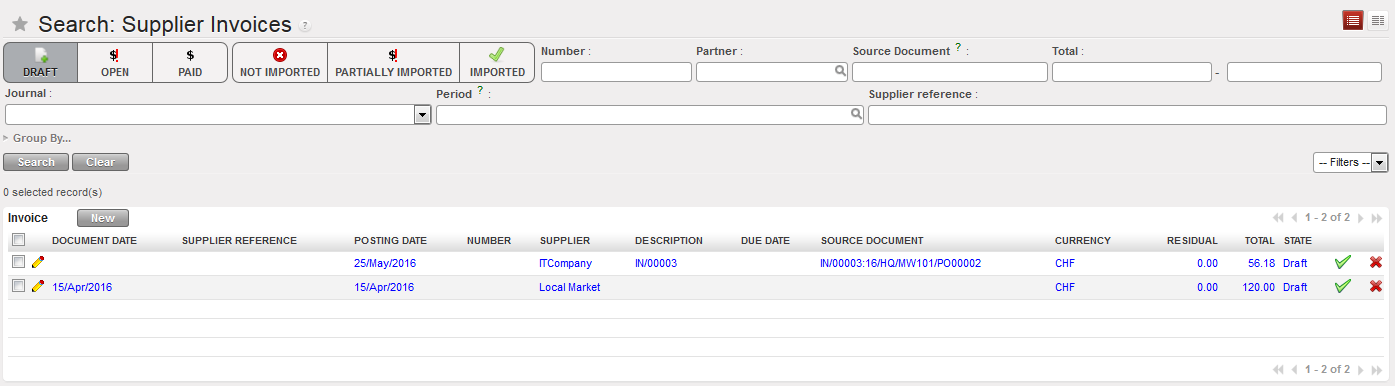
Search for the draft supplier invoice to delete either by selecting the {Draft} filter or any other filter located at the top of the view.
Delete button to erase a draft supplier invoice in the Search Supplier Invoices view
2. Locate the draft supplier invoice to edit, and select the red cross to delete the supplier invoice.
LUFI-30204 Supplier Invoices: Step Four in the Purchase Process
LU Introduction
A draft Supplier Invoice is created in UniField when the Incoming Shipment is validated. The quantities to the supplier invoice are coming from the incoming shipment, while the prices are coming from the purchase order.
The supplier invoices in {Draft} status can be edited. Finance can review and edit all allocation (accounting code and analytical distribution) before validation as all fields can be modified on the invoice line. From the accounting side, it is important to check if the account code and analytic distribution are assigned correctly.
In general, user will compare the hardcopy invoice from the supplier against the supplier invoice in UniField and make any corrections if needed before validation.
As some fields are linked to Supply POs, they should be changed only after an approval from supply. For example, if the products, quantities or prices on the paper invoice are different from the system invoice, then supply should inform finance that these changes are correct. Only then should Finance correct the price or quantity.
The validation of the supplier invoice changes the invoice status from {Draft} to {Open}, sets the related commitment voucher to {Done} or updates the amount left accordingly, deletes ENG journal entries and creates the expense and payable entries in the PUR journal.
Validating the supplier invoice does not affect the balance of the register. This means that the recognition of the expense and of the supplier payable is booked upon receiving the goods and the paper invoice but the invoice can be paid at a later point of time. The register balance is affected only at the time of payment.
Status of Invoice
Stage in Process
Status in Journals
Modification allowed?
Draft
Invoice initially created
None
Yes, Edit invoice
Open
Invoice validated and imported or not into Registers
as temp posted
Valid / Posted
Yes, only through a correction – Chapter 5
Paid
Invoice validated and imported into Registers
and hard posted
Valid / Posted
Yes, only through a correction – Chapter 5
Supplier Invoice Statuses
How to Edit Draft Supplier Invoices
Go to: Accounting/Suppliers/Supplier Invoices
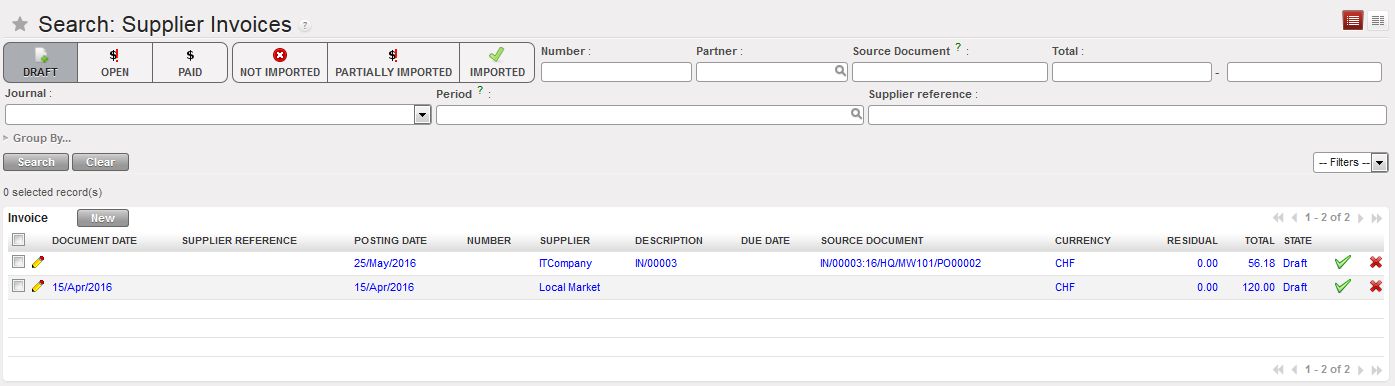
Search for the draft supplier invoice to edit either by selecting the {Draft} filter or any other filter located at the top of the view.
Draft supplier invoice
2. You can use the {Pencil} to change the account, description, quantity, amount or tax on the invoice line level, select. When you are finished with the changes, select
3. or you can use the {form} for the same modification but it will give you more details.
4. To change the analytical distribution, click on on line level or globally using the button
5. Add a Due date (optional) and a Document Date if it is not done yet.
Edit button located on each invoice line, document date and due date fields
6. Click {Save} button. The supplier invoice is saved in {Draft} state.
Note! A quick way to edit the analytical distribution on a Draft supplier invoice is to select the button located on the Supplier Invoice header. It allows removing all analytic distributions done at line level so that the header distribution prevails.
How to Split Supplier Invoices
Sometimes a Purchase Order containing several different products is invoiced with multiple physical invoices. In these cases you can split a draft Supplier Invoice into multiple invoices.
Go to: Accounting/Suppliers/Supplier Invoices
Locate the draft supplier invoice to edit, and select to open the supplier invoice form.
In the bottom of the invoice, press
Screen “Split invoice” will be displayed, Select the lines to be split ; the wizard will create a new invoice and adjust the original one.
Split supplier invoice
4. Select the invoices lines to be deleted
5. Delete the lines from button “Delete”
7. Click “Confirm” as below
8. After deletion “ Confirm”
9. The deleted lines will create new invoice as below:
How to Import/Export Invoice Lines in the invoice objects.
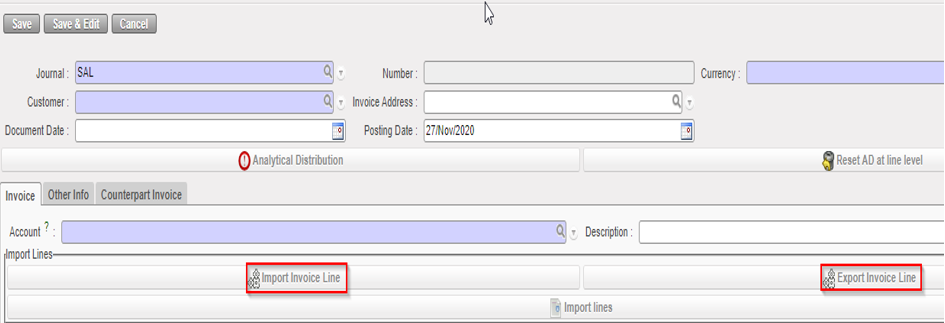
You can Export the invoice lines from the supplier invoice through {Export Invoice Lines}. You can modify several fields in the Export file including the amounts and descriptions, and you can import the file (for invoice lines) through {Import Invoice Lines}.
If the invoice line has been split, you will have the word “SPLIT” in the excel file and the analytical distribution will be empty.
Display split lines in “Export Invoice Line”
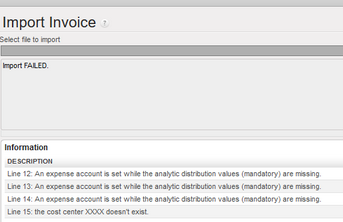
If we try to import incorrect values (cost center that does not exist, mandatory values not reported…), the import will fail, and we will have error messages:
Split invoice lines through import:
If more than one line of the Supplier Invoice needs to be split, this can be done as detailed below:
Open “Supplier Invoice”
Click on button “Export Invoice line”
In the exported file update columns from H to K which covers respectively (Percentage, Cost center, Destination and Funding Pool)
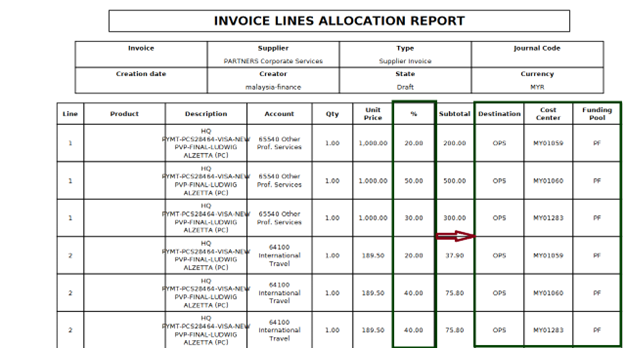
The split must be with semicolon (;) character, in column percentage update with numbers, then other columns will take the percentages according to column percentage respectively, see below:
How to split invoice lines in XML file with semicolon character
Import the update file through “Import Invoice line”
Click on “Invoice Allocation” it will produce “INCOICE LINES ALLOCATION REPORT” the same allocation as what exported as below:
“INVOICE LINES ALLOCATION REPORT” after lines split in the file
How to Validate Supplier Invoices
When the invoice is in {Draft} and reviewed, it can be validated.
Go to: Accounting/ Suppliers/Suppliers Invoice
Search for the draft supplier invoice to validate either by selecting the {Draft} filter or any other filter located at the top of the view.
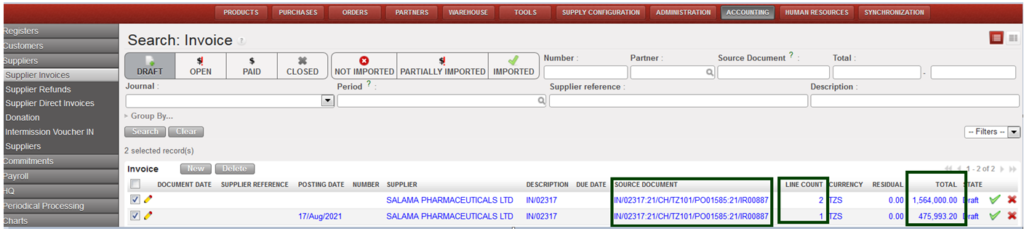
Supplier invoices Search view
2. When the invoice is located, click on the pencil to open the form.
3. Validate it by pressing
The invoice state becomes {Open}.
Validation of the invoice automatically deletes the engagement lines created by the commitment voucher as the promise to pay is now a formal obligation represented by the automatic creation of a payable entry in the Purchase Journal.
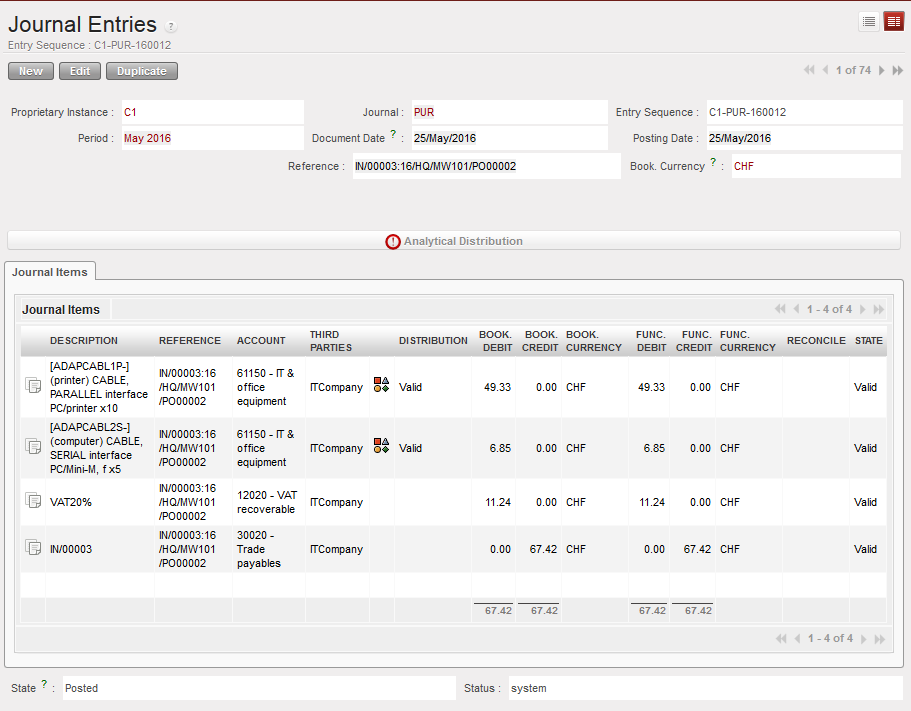
Posted journal items resulting from the validation of a supplier invoice. In this example, the VAT is recoverable.
In the Purchase journal, entries are booked as follow:
On the Debit side:
Expense accounts, 61150 corresponding to the invoice line
VAT recoverable, 30300 (the VAT was added on invoice level)
2. On the Credit side:
Trade Payables account, 30020 corresponding to the outstanding debt towards the supplier
Advice: Supply or Finance can write down the UniField invoice number on the hardcopy invoice provided by the supplier to make cross-referencing easier.
How to Print Supplier Invoices
Go to: Accounting/Supplier Invoices
Tick the box of the invoice you want to print.
In the Action Menu on the right side of the screen, in the section {Reports}, select {Print report}.
A PDF report will display the invoice details.
The columns {Description} and {Source Document} will be filled only if the supplier invoice originated from a supply flow.
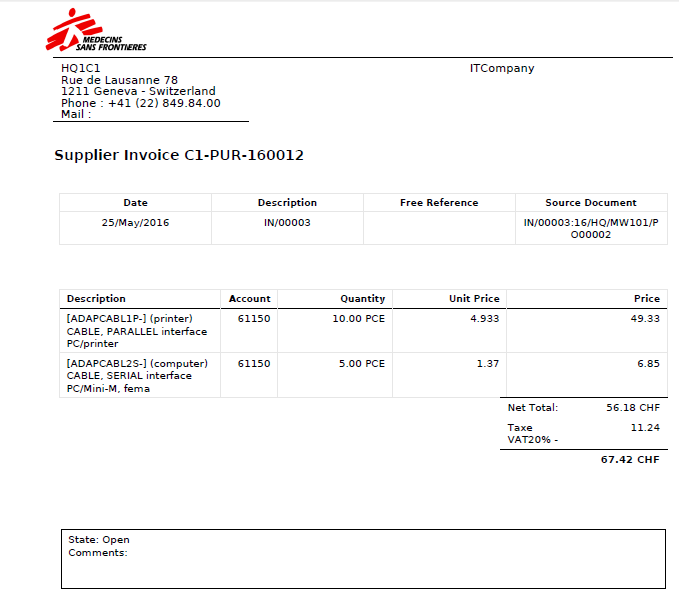
Supplier invoice report displayed. This invoice is Open.
LUFI-30203 Confirmation of Goods: Step Three in the Purchase Process
LU Introduction
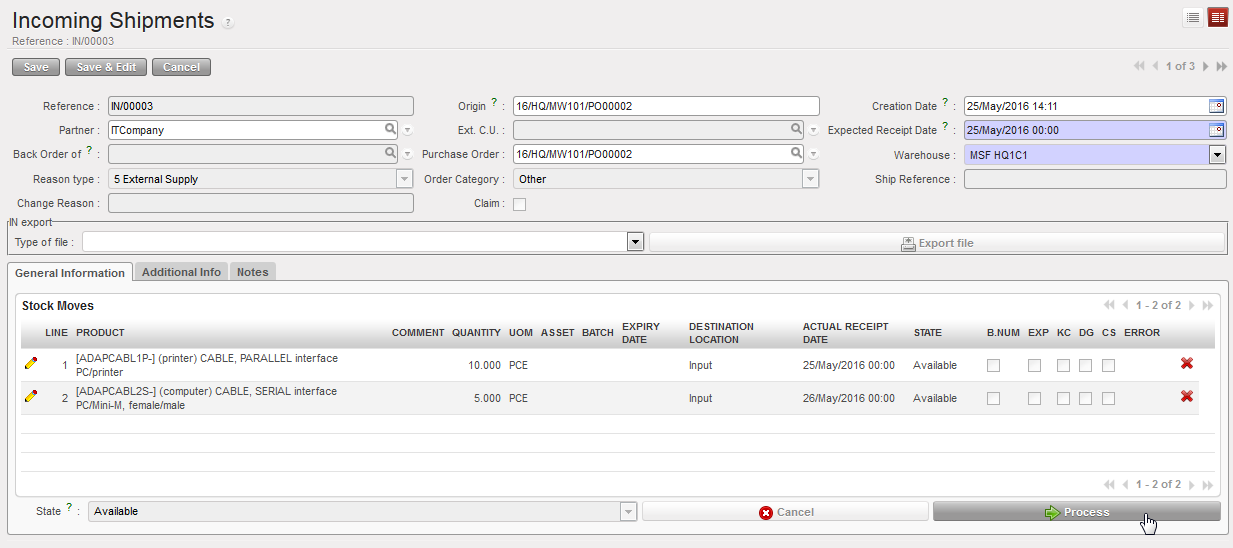
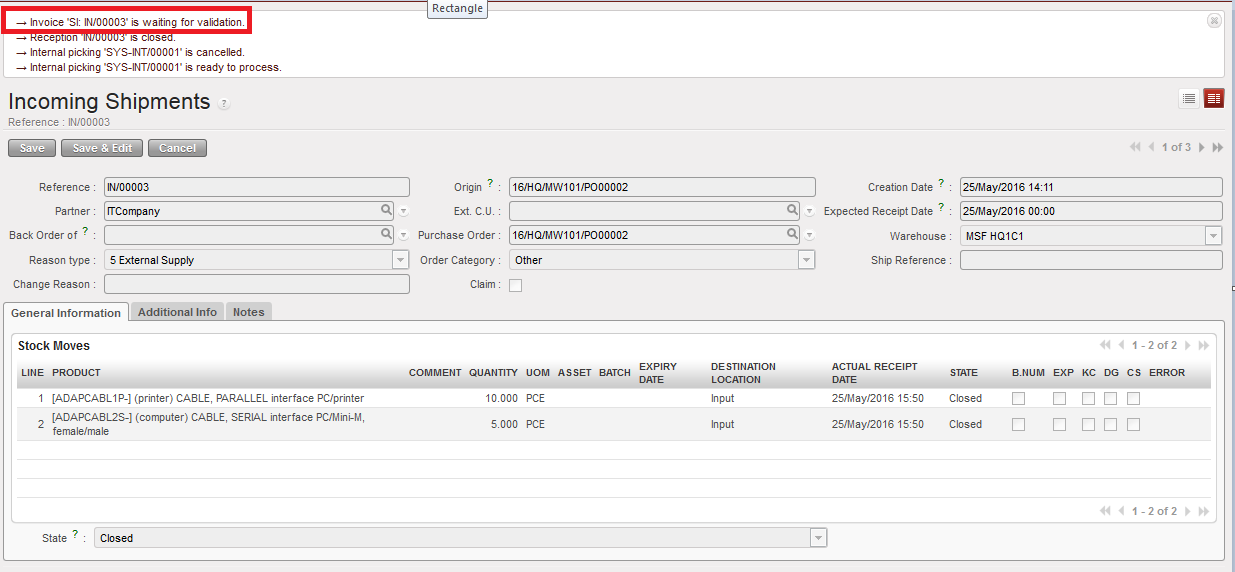
When the goods are received, supply processes the reception in the UniField warehouse sub module. Supply confirms product item and quantity received, and makes changes if needed, e.g. change in product, etc. The supply validates the incoming shipment (it becomes closed) and a draft supplier invoice is created.
Validation of the incoming shipment results in three actions in UniField:
Reception is closed.
Supplier Invoice is in {Draft}, waiting for validation.
Internal picking is ready to process so the goods can be used.
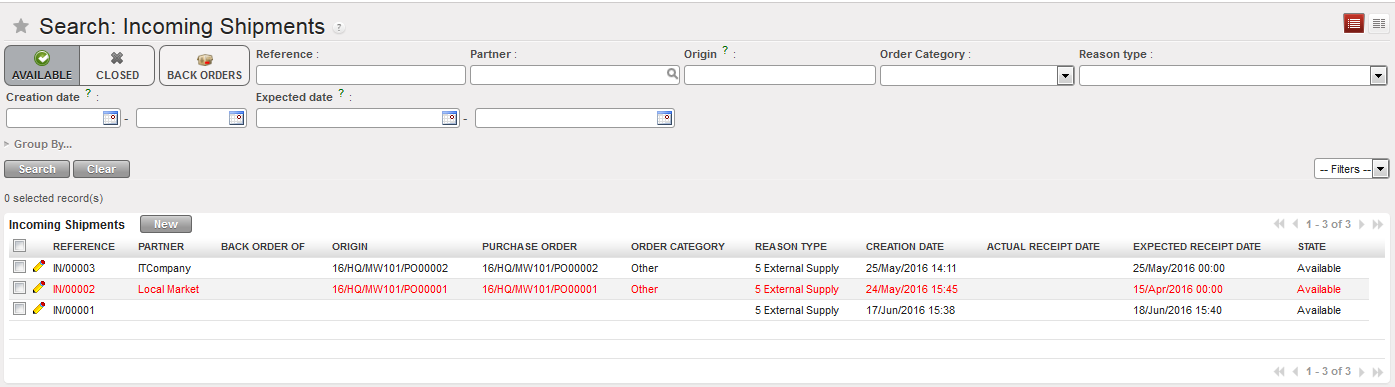
Supply identifies Incoming Shipment for reception
Supply processes Incoming Shipment
Logistics validates Incoming Shipment. Reception is Closed and a Supplier invoice is generated
LUFI-30202 Commitment Vouchers: Step Two in the Purchase Process
LU Introduction
When a regular order is placed to an external supplier , inter-section or intermission, MSF has an engagement (or promise to pay) towards the supplier. The commitment voucher helps us monitor our budgets and cover the gap of time from the moment MSF agrees to buy an item to the moment MSF pays for it (upon reception of the goods). UniField automatically creates a Commitment Voucher (CV) in {Draft} state when a full PO or an individual PO line to an external partner ,inter-section or intermission is confirmed. Once checked and validated by an appropriate finance staff member, this voucher is included in the budget as a commitment to pay and the related extra accounting lines are created in the engagement journal. The commitment voucher is set to {Done} when the supplier invoice,inter-section or intermission are validated by the finance team.
Below we will see how to validate a Commitment Voucher once it was issued via the Supply flow. Then we will explain the creation of a manual commitment voucher in case the purchase did not go through the supply process and you still want to reflect the engagement into your budget.
How to Validate Commitment Vouchers:
Go to: Accounting/ Commitments/Commitment Voucher
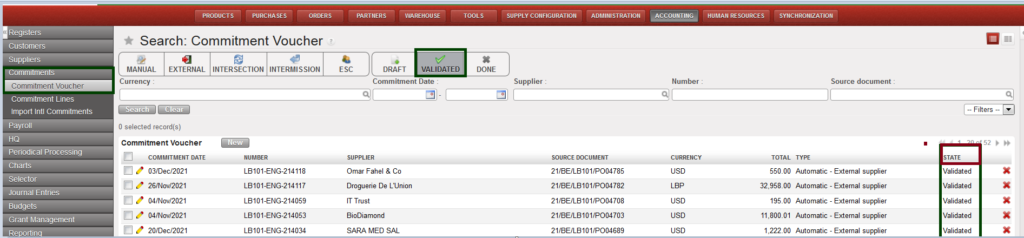
Search for the {Draft} voucher to validate either by selecting the {Draft} filter or any other filters located on top of the view.
2. When you have located the voucher, click on the pencil icon to open the form
The voucher opens in Form view
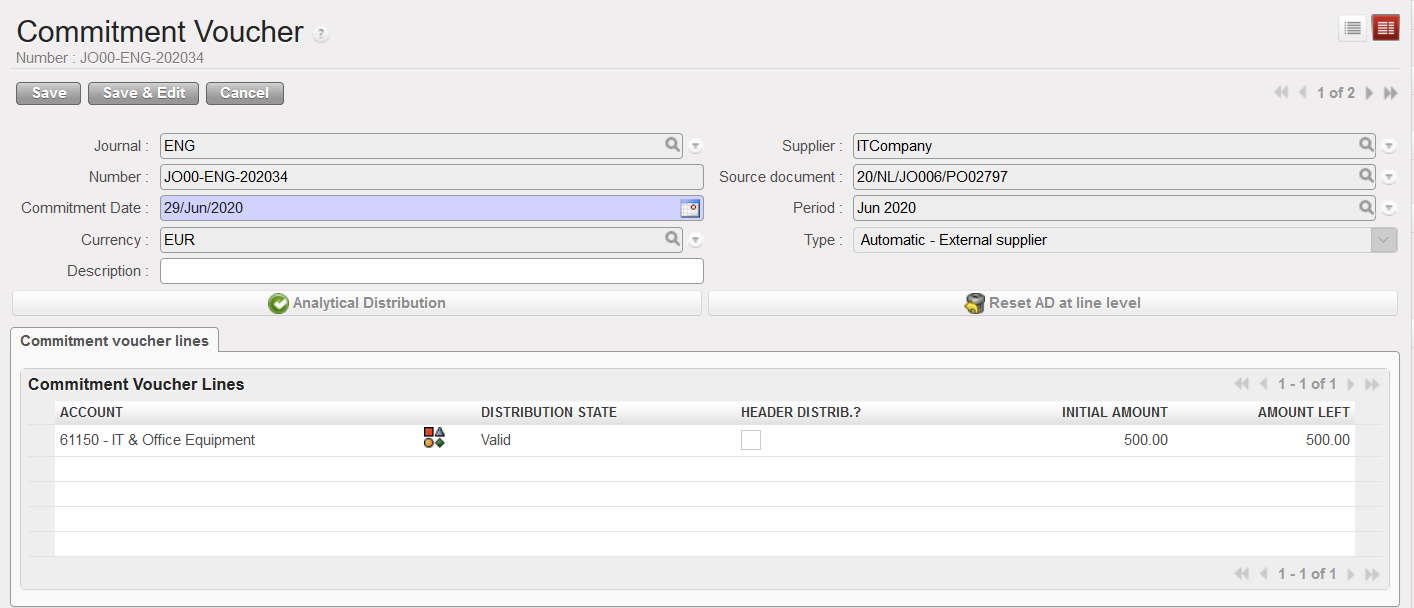
Commitment voucher in Form view where the analytical distribution can be changed
3. Click on AD wizard if you want to change the analytical distribution. Please remember this does not update the information on the PO but it does on the supplier invoice,inter-section or intermission,. The analytical distribution wizard appears
4. Select the button to edit the fields. Note that the funding pool was not a field which Supply entered in the PO; it defaults to {PF – MSF Private Funds}. Thus, you must change the funding pool if there are donors to be considered. Account codes and amounts cannot be changed if the commitment voucher was created automatically by the confirmation of a Regular type PO. Save the line and to close the window.
5. You can update the {Description} at the header level of the Commitment Voucher. This field will be empty and editable (even after CV validation). If nothing was written and the field {Description} was left empty, the value per default would be the same as the entry sequence.
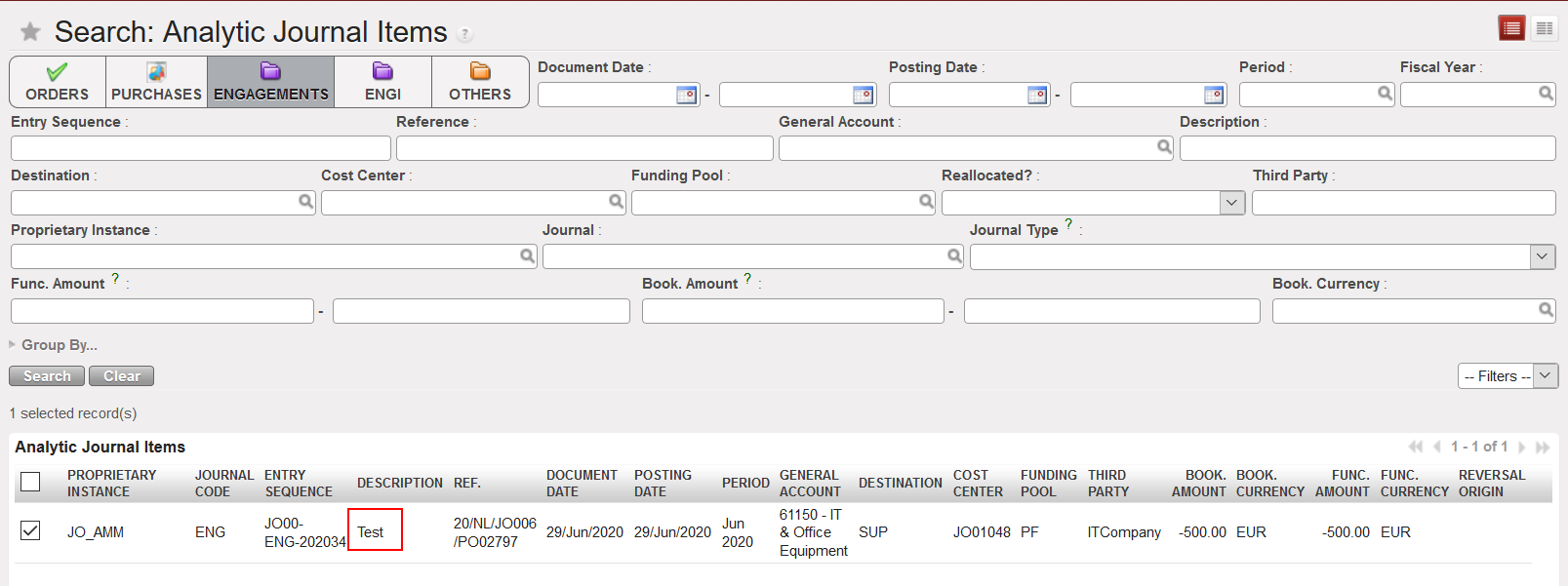
Click {Validate} at the bottom of the screen when finished. The commitment voucher is validated and analytic journal items reflected in the {Engagement} Journal and the amounts will appear as Engagements in the Budget reports.
Analytic journal items reflected on the Engagement journal. These lines are not editable
How to Manually Create Commitment Vouchers
There may be occasions when purchases or payment will not go through the PO process (e.g. services) in which case an advanced user can manually create a commitment voucher. Once the voucher is created, you can validate it.
Go to: Accounting/Commitments/Commitment Voucher
Click on
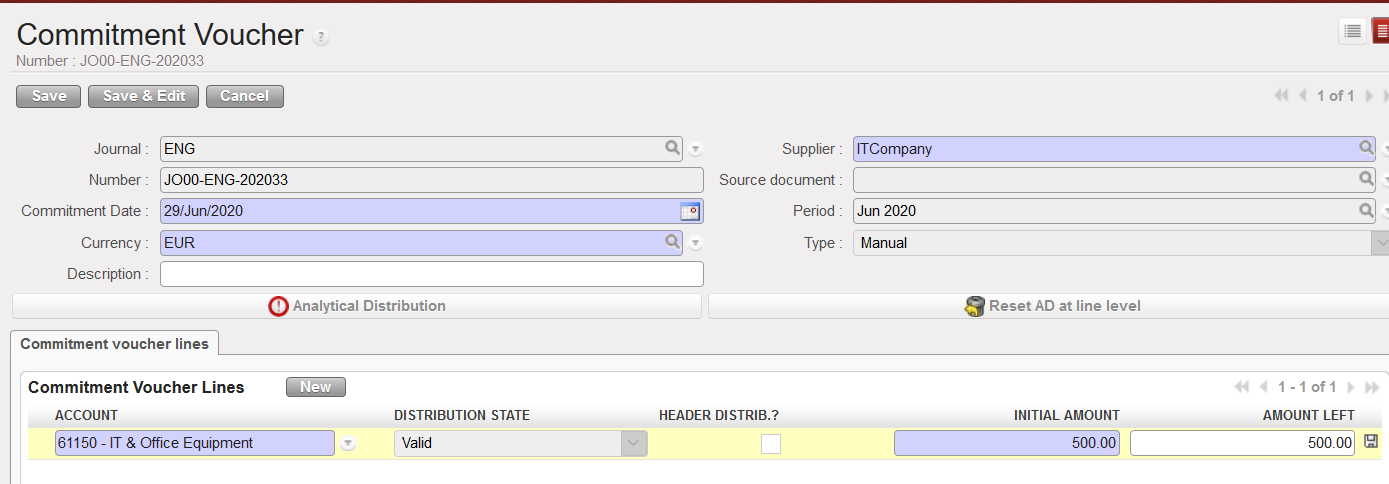
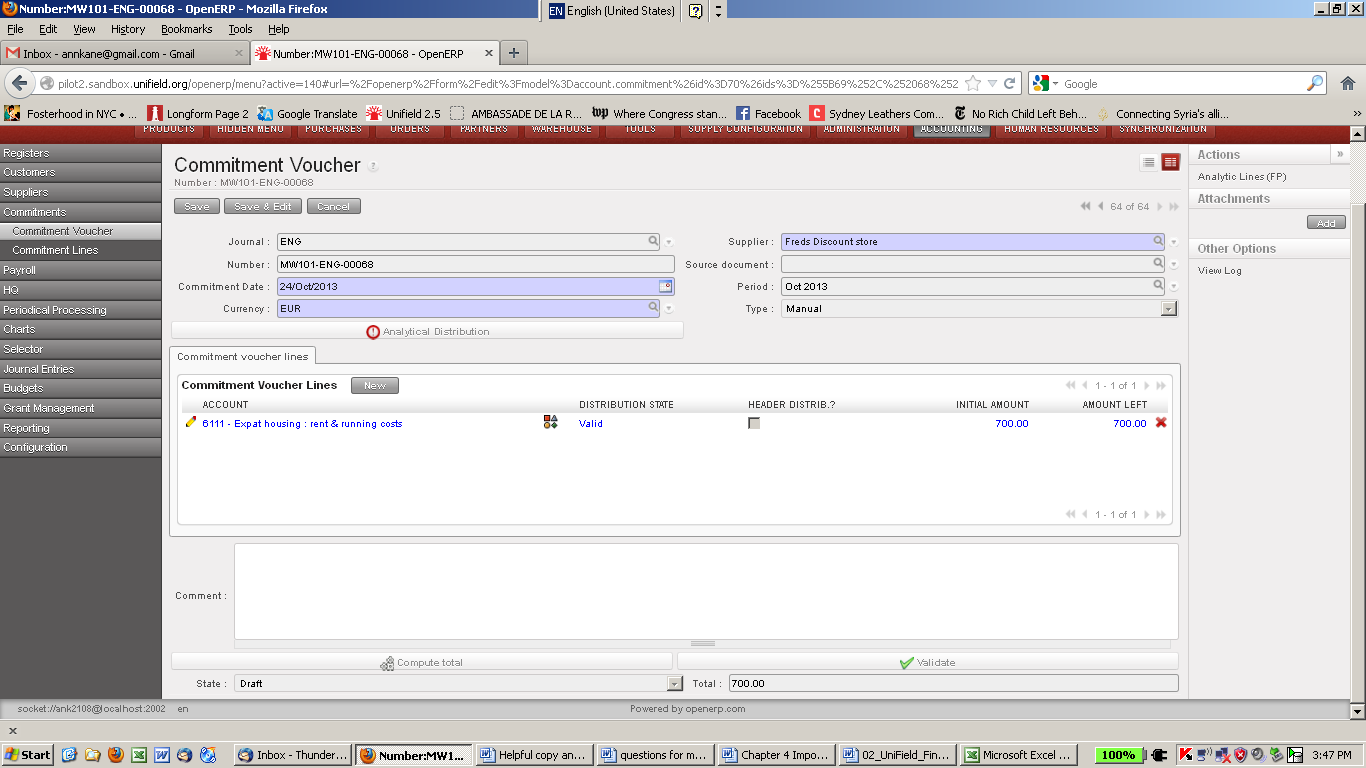
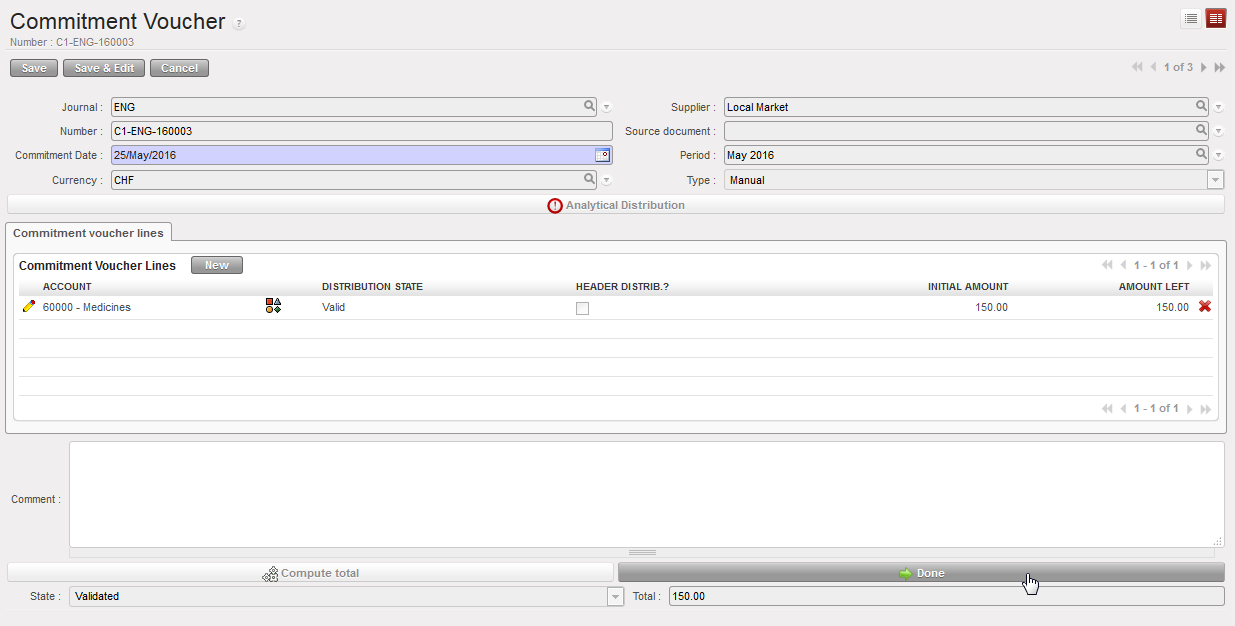
The Commitment Voucher creation Screen will display
Commitment Voucher Screen
Fill in all mandatory blue boxes: Supplier, Commitment date and Currency.
Insert commitment lines by selecting the account and initial amount.
You can update the {Description} at the header level of the Commitment Voucher. This field will be empty and editable (even after CV validation). If nothing was written and the field {Description} was left empty, the value per default would be the same as the entry sequence.
Save by clicking save button
5. Add analytical information individually or with the mass allocation button.
The Commitment Voucher can now be seen in the commitment voucher screen and is listed in the budget as a committed amount
How to Import/Export Invoice Lines in the Commitment Voucher objects:
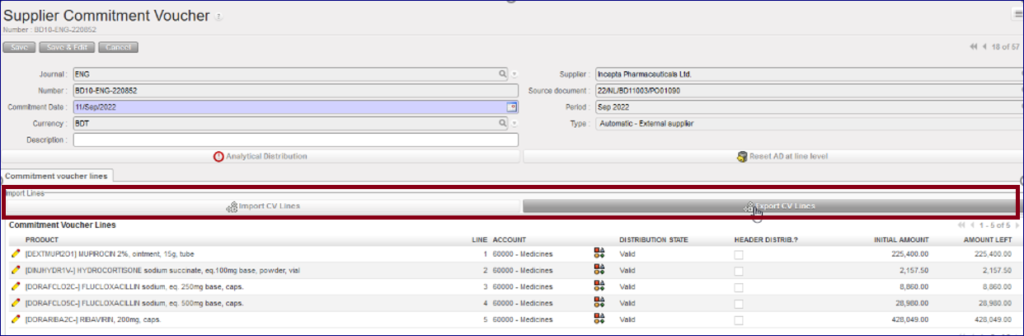
You can Export the invoice lines from the supplier invoice through “Export CV Lines”, You can modify several fields in the Export file including the amounts and descriptions, and you can import the file (for CV lines) through “Import CV Lines”.
The file includes 10 columns: 4 columns are editable: “Account” and the columns related to the analytic distribution.
Each line has its own ID defined in the column “Internal ID”.
In the case that a line of the commitment voucher has been split in several lines, the AD will be empty. We will have the word “SPLIT” in the column “Analytic distribution”. The 3 last columns Cost Center, Destination and Funding Pool will be empty.
Display of “Export CV Lines”
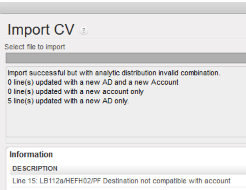
You can export the information, change the data and import the file with the data in Unifield. The import fails in case one of the main components do not match: “CV Number, Currency, Supplier, Source Document and CV Type“: an error message will be shown:
Validated Commitment Voucher displayed in the Search Commitment Voucher view
How to Set Manually Created Commitment Vouchers to Done
Go to: Accounting/Commitments/Commitment Voucher
Use the filters to find the appropriate commitment voucher.
Select the button to edit the fields.
The commitment voucher creation screen will display
Button Done to set a commitment to Done
4. Click on the {Done} button.
The Commitment Voucher will be set to {Done} and no longer appears in the budget or on the commitment voucher screen.
LUFI-30201 Purchase Order: Step One in the Purchase Process
LU Introduction
A Purchase Order is a procurement document created, validated and confirmed by supply which lists the requirements of products requested to a given supplier.
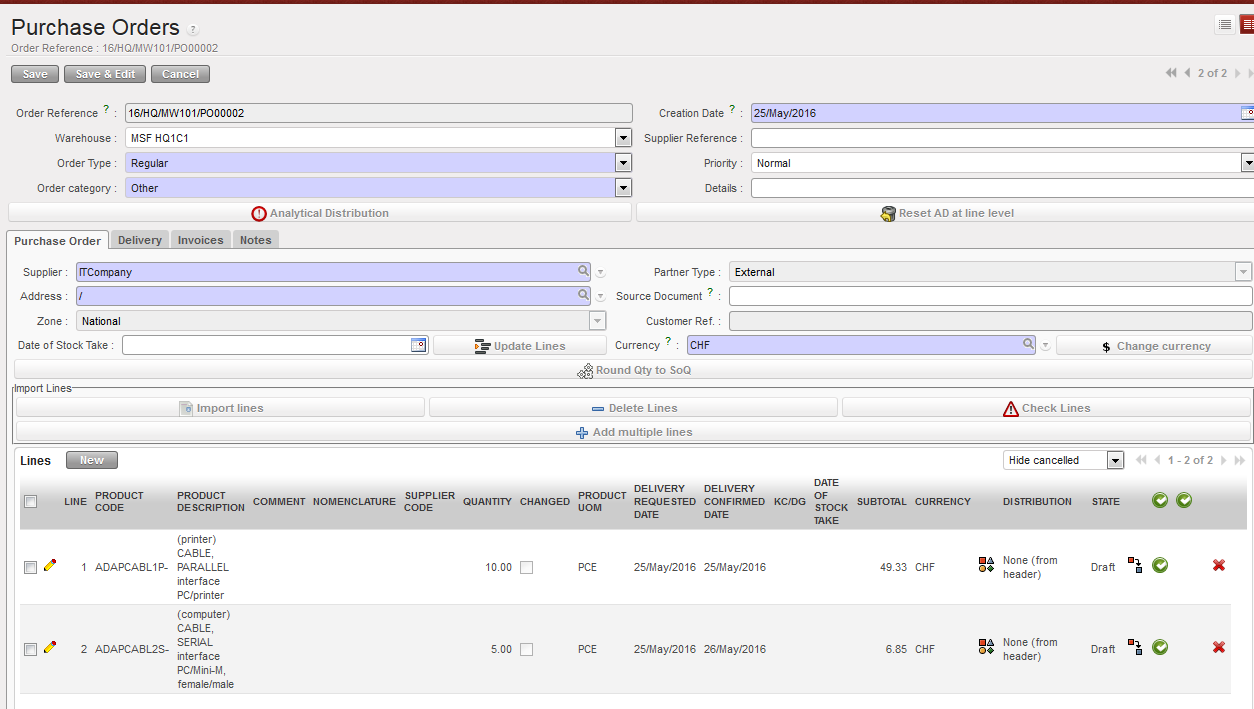
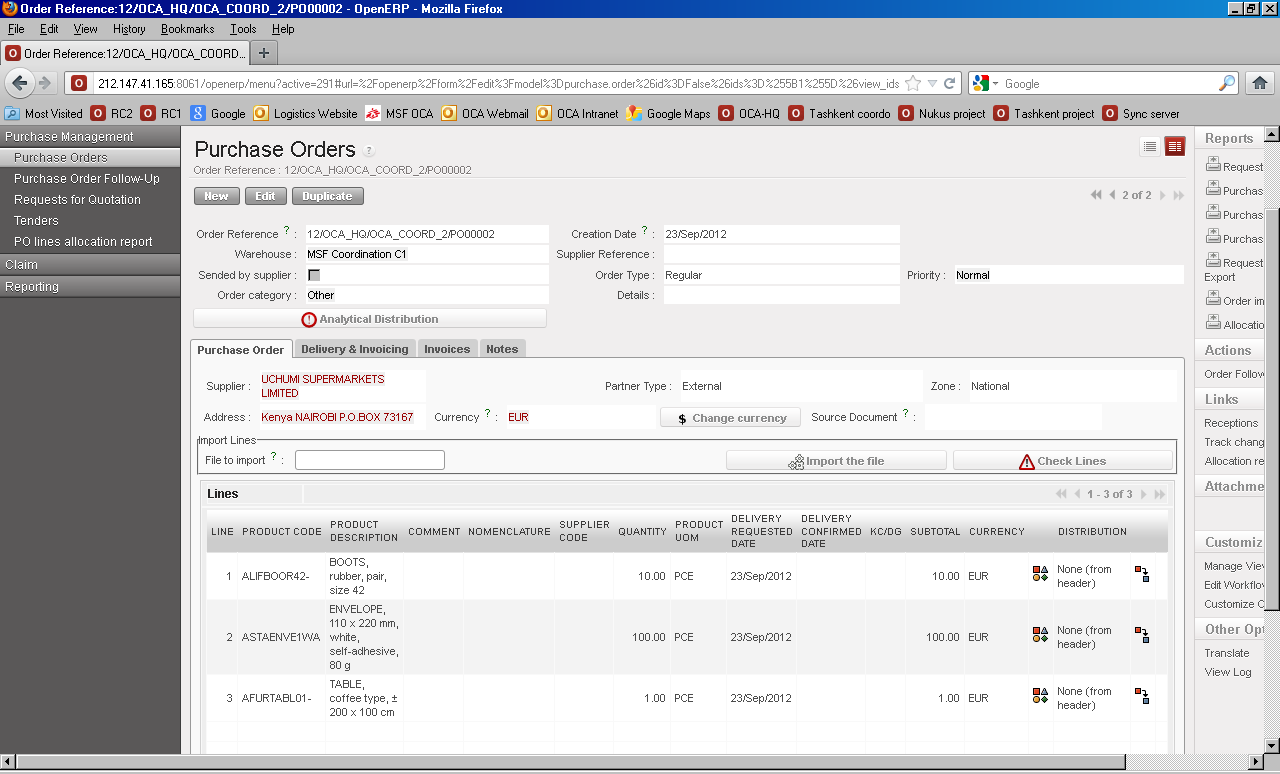
Purchase Order type regular with external partner
Product
Product data is part of the master data loaded at installation and is shared by all OCs. Each product has a category assigned by default. Each OC has the capability to add new products and assign the appropriate category. The expense code is picked by default based on the product category of the product selected. (Further exPlanation on Products can be found in Chapter 2 Configurations).
The expense account code is not visible on the PO. Supply cannot change the account code. Finance can’t modify the account code on the related commitment voucher but can modify and confirm it when validating the supplier invoice.
Analytic Distribution
The Analytic Distribution (AD) on the PO is fill in by the supply department and can be assigned and split per order line by clicking or globally using the button. In supply, the analytic distribution input only consists of destination and cost center. The AD is also displayed in the PO allocation report. If necessary, finance can change any of this information on the commitment voucher and supplier invoice.
Analytic distribution wizard
If AD is allocated on line level, the default destination is set up according to the expense account code in the chart of accounts. In the global AD, destination needs to be inserted manually.
The cost center field is a manual input. There is no funding pool assigned on the PO level.
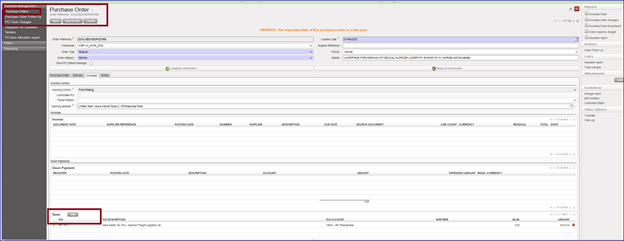
Taxes
There is a tax part in the PO (the same part as we have already in the Supplier invoice).
Go to PURCHASES > Purchase Management > Purchase Orders:
Click Edit “yellow pen” in any PO
Click on tab “invoices”
There is a box added in the bottom named “Taxes”
Display of PO with tax lines
To consider the points below:
The box “Taxes” is available for the external PO only.
If relevant, there is a new button on PO footer to remove the taxes at line level.
Adding a tax line or removing it, will affect in the total amount of PO.
SI Tax corner is populated from the PO Tax box.
Validating the PO
The PO is in Draft state until the Logistics user clicks “Validate” either on an individual PO line or at header level. The different PO lines can be validated at different points of time.
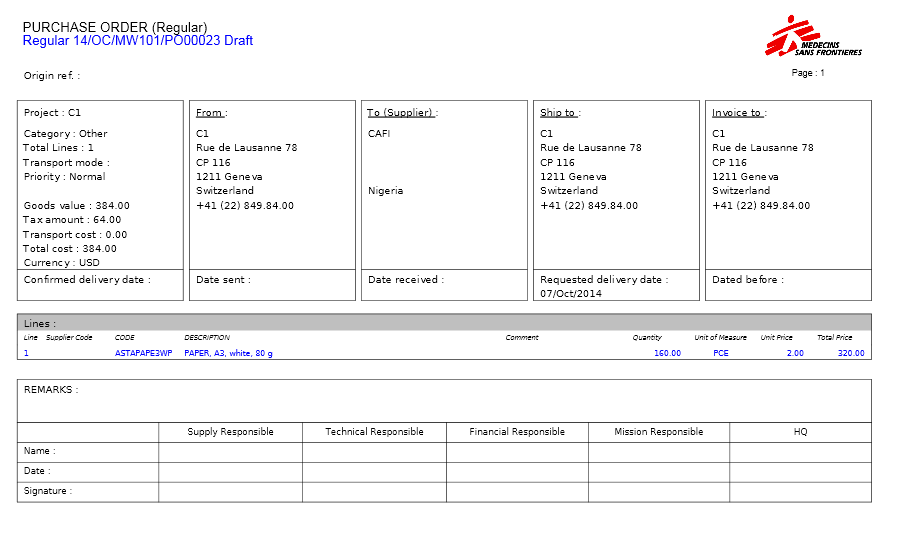
Following specific OC procedures, supply has the option to print out the PO in order to get the necessary approvals to comply with the authorization table.
PO printed out for approval of a purchase of paper
Confirming the PO
The PO lines can be changed to {confirmed} after all necessary approvals for the PO have been received and after the delivery dates are confirmed with the supplier. Different PO lines can be confirmed at different times – each line can be assigned a different “Delivery Confirmed Date”. When some of the lines are confirmed while others are still in draft, the PO status remains in {draft-p}. The status will change to {Confirmed} when all lines within the same PO have been confirmed. Confirming an individual PO line or the whole PO results in the following actions in UniField:
A new Commitment Voucher is created or an existing one is updated
Purchase order line is confirmed.
Reception is ready to process.
How to Check Analytical Allocation on a PO
Finance users with the appropriate user rights can check if the cost center and destination accounts assigned to a PO are correct. Check your OC’s procedures.
Go to: Purchase/Purchase Management/Purchase Orders
Select a PO, open the Action menu.
{Allocation report} functionality
2. Select “Allocation report”
A PDF report will display
PO lines allocation report for a purchase order
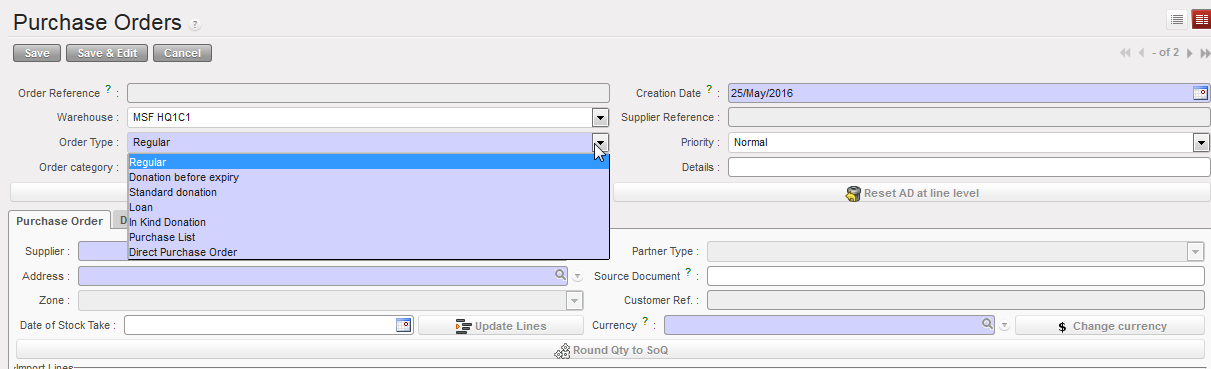
Purchase Order Types
Order type on POs
Types of Purchase Orders:
Regular Purchase Order: General PO which must be attributed to a specific supplier, which can be internal, intersection, intermission or external.
External partners: PO line approval triggers a Commitment Voucher in the budget corresponding to the cost centers selected in the analytic distribution. When goods are received and the incoming shipment validated, a draft invoice is created; when it is validated, the commitment voucher is updated or set to done and the corresponding expenses are recognised and reflected in the financial and analytical journals.
Internal partner: At project level a Regular PO is created on the project’s cost center. The partner type is {Internal}. When validation and synchronization are done at project and coordination level, the PO is received as a Field Order (FO) in the coordination instance. An incoming shipment is ready to be processed at project level if the delivery is programmed to happen there. No commitment voucher is created at the project instance. Here we have 2 possibilities:
Coordination sources the need externally:
Another PO is created to an external supplier (automatically linked to the FO) and the analytical distribution is allocated to the project.
Once approved, the engagement is reflected in the project’s budget.
When the delivery is confirmed either in the project or coordination instance, coordination settles the invoice and expenses the goods directly to the project (financial move at coordination level but the coordination budget is not impacted, as the expenses are registered on project cost centers)
The validation of the reception of goods closes the initial PO at project level (no financial move at project level but the project budget is impacted, as the corresponding expenses are reflected at project level)
Coordination uses existing stocks:
In this case there is no cost reallocation unless user creates a manual entry to reallocate goods on the cost centre corresponding to their consumption. This operation has to be done according to your OC policy and should only concern material amounts.
Inter-section: An inter-section transaction is performed in both instances in EUR. PO approval from one coordination to another coordination from a different section does not trigger a commitment voucher. A financial document called {Stock transfer voucher} will be created at the delivery instance, comparable to a customer invoice in a standard system.
Inter–mission: An intermission transaction is performed in both instances usually in functional currency. A commitment voucher is created in the delivery instance making the purchase to an external supplier (if not sourced from stock) and cost can be either allocated to a specific cost center {inter-mission} or to the cost center receiving the goods. A financial document called {Inter-mission voucher OUT} is created at the delivery instance and {Inter-mission voucher IN} at the recipient instance.
Purchase List is a Regular purchase order not attributed to a specific supplier but to a default {Local Market} partner. The {Local Market} supplier can be changed to a different vendor. It is normally used for products bought at the local market with an operational advance. No commitment voucher is created because purchase lead time is short and amounts are not significant vs. total budget
Direct Purchase Orders (DPO) is used when the order is delivered to a different instance than the requesting instance: Project places and order to Coordination (PO internal partner) and Coordination places an order to an external supplier requesting to deliver the goods directly to the project (DPO). Financial impacts are slightly different from regular orders. The trigger for the commitment voucher and draft invoice creation is the DPO (lines) confirmation at Coordination level as the invoice is be paid from the ordering instance (Coordination) and the delivery done at project level.
Donation before Expiry is usually an internal transaction. This donation type is a “forced” Field Order (FO) of a UniField instance to another partner. The giving instance creates a FO type {Donation before Expiry} that automatically creates a “Donation before expiry” PO in the receiving instance. The PO is closed once goods are received. There are no accounting movements (no commitment voucher or invoice created). The goods remain expensed in the donating instance. In principle a “gift certificate” needs to be issued by the giving instance. The recipient instance registers this transaction as a donation before expiry.
Standard donation is a PO usually used for an internal or inter-section transaction. UniField behaviour is identical to a Donation before expiry. There are no accounting movements.
In-Kind Donations (only received) are for free-of-charge goods provided by donors (i.e. mosquito nets from Unicef). The creation of an {in-kind donation} PO triggers the creation of an incoming shipment ready for approval. Finance has to check if supply has selected a partner linked to an account type 81 {Contribution in kind} in the Donation Payable Account, either for medical or non-medical goods. To validate the reception, the supply users should attach a donation certificate from the donor (check your OC’s procedure). The validation of the reception triggers the creation of a financial document called {Draft Donation Received} accessible to financial users only in the supplier invoice sub module. Once reviewed financial users can validate it and set the document to “Open”. This action creates extra-accounting entries in the {in-kind donations} Journal and off-balance sheet accounts classes 81 and 91 (Contribution In-kind).
Cancellation of Donation Received created through supply process
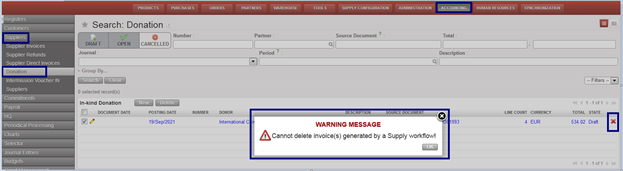
Not allowed to delete with the red X the IKD (In-kind Donations) lines as far as the IKD is from supply:
Go to Accounting > Suppliers > Donation Received
Select any of draft IKD
Try to delete from red X
You will receive message “Cannot delete invoice(s) generated by a Supply workflow”
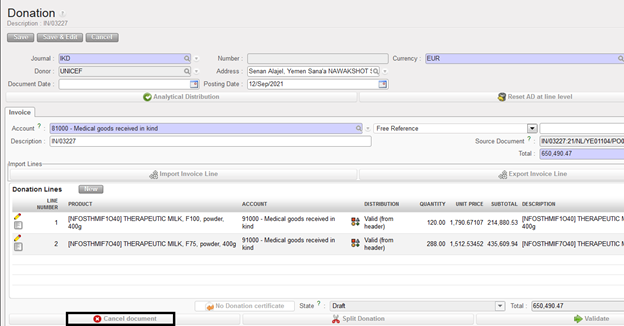
2. To cancel the IKD (In-kind Donations) through button “Cancel document”
To do:
Select any draft the IKD (In-kind Donations) , edit from yellow pen
Click on below tab:
Deleted IKD (In-kind Donations) will not be removed ,will appear in grey color when click on the header button “Cancelled”
Display of “Cancel document” button
Display of cancelled IKD
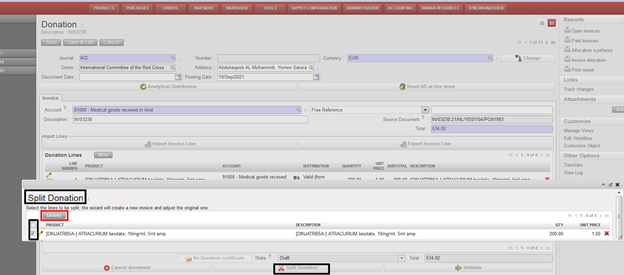
3. To split donation through button “Split Donation” as the following:
Select any draft the IKD (In-kind Donations) , edit from yellow pen
Click on below tab :
It will appear new window “ Split Donation”
Tick on IKD (In-kind Donations) should split and remove by clicking on button “Delete”, then “Confirm”
The deleted lines of IKD will create new draft the IKD (In-kind Donations) with the same details of “Description” and “Source Document”
Display of “How to split donation”
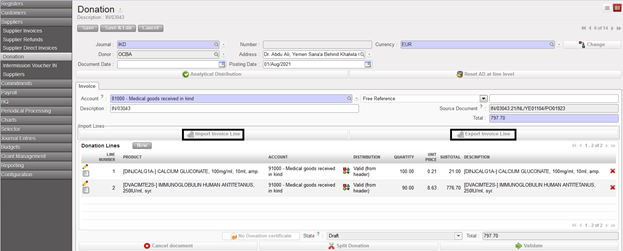
4. New tabs created in Donation “Export Invoice Line” and “Import Invoice Line” by exporting the lines and importing negative amounts for the correction inorder to book the correction in “IKD Journal” not “ ODX Journal”
Display “Export Invoice Line” & “Import Invoice Line” in Donation
5.Possibility to change product, account, quantity, unit price and description of a donation coming from a supply flow
Users should allocate in-kind donations to the “MSF private funds” funding pool so as to exclude them from Donor reporting.
Manual Donation is only a financial document that does not have a link to the purchasing process. Manual Donations do not impact the inventory levels of products. A manual donation can be created directly in the Accounting / Suppliers / Donation Received sub module. Please note, only accounts with a Type for specific treatment: “Donation” (8 and 9 accounts) can be used. Also, only the Journals “In Kind Donation” and “OD-Extra Accounting” are selectable to record the manual donation entries.
Loan
A loan is a PO usually used for an internal partner borrowing goods from another instance. These goods are expected to be returned. At borrowing side A, an approved {Loan} PO is created and automatically triggers the creation of a PO at B side to make sure the borrowed goods will be returned at some point. There are no financial impacts as the goods are meant to be returned.
INTRODUCTION TO PURCHASE TO PAYMENT PROCESS: SUPPLY & FINANCE LINKS
Purchase to Payment Process: Supply & Finance Links.
UniField integrates the ordering/procurement/supply/warehouse processes managed by the Logistics department with the budgeting/payment/financial management processes performed by the Finance department. This all-in-one program provides better transparency between the two departments and views the ordering to cash process as one.
The below figure summarizes the workflow between Supply and Finance in UniField at the time of placing a regular order to an external partner.
A regular type of Purchase Order with external partner and its impact on Finance
The purchase process may contain additional steps prior to the Purchase Order creation. As they do not impact Finance, we will detail the Order to cash process in UniField starting from the Purchase Order:
SUPPLY: Purchase order is created and validated in the Purchase Module after assigning an accounting code (automatic with the product selection) and an analytical distribution. For further information: LUFI-30201 Purchase Order: Step One in the Purchase Process.
FINANCE: Supplier Invoice is automatically created by UniField. Supplier Invoice confirmed and validated by Finance. It sets the related Commitment Voucher to done and books the expenses and the debt in the journals. For further information: LUFI-30204 Supplier Invoices: Step Four in the Purchase Process.
UniField operates under the basic principles of double-entry bookkeeping system moving MSF closer to international accounting standards. For example, when a supplier invoice is sent to MSF after the goods have been ordered and finally received in stock, the expense is booked with its counterpart set as a MSF debt to the external supplier and before any money actually leaves a MSF cash, cheque or bank account.
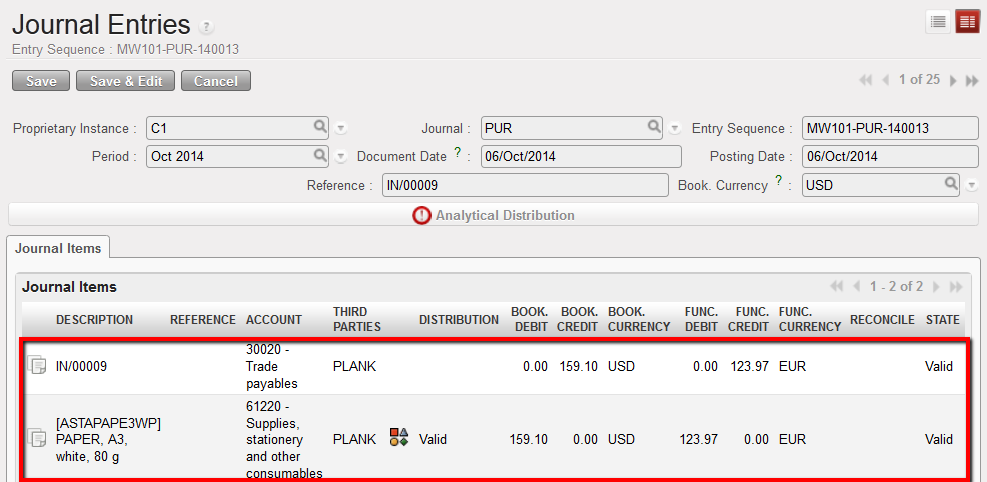
The following example shows what happens in the journals when the supply team creates a purchase order for Paper in account “61220 – Supplies, stationery and other consumables”. After the supply team confirms the goods have arrived in the warehouse module, UniField automatically creates a supplier invoice.
When the finance team validates this supplier invoice, UniField automatically creates two entries in the journals:
Debit to the expense account “61220 – Supplies, stationery and other consumables”
Credit to the “30020 – Trade Payables” to show a debt owed to the supplier
Journal Entries once a supplier invoice is validated
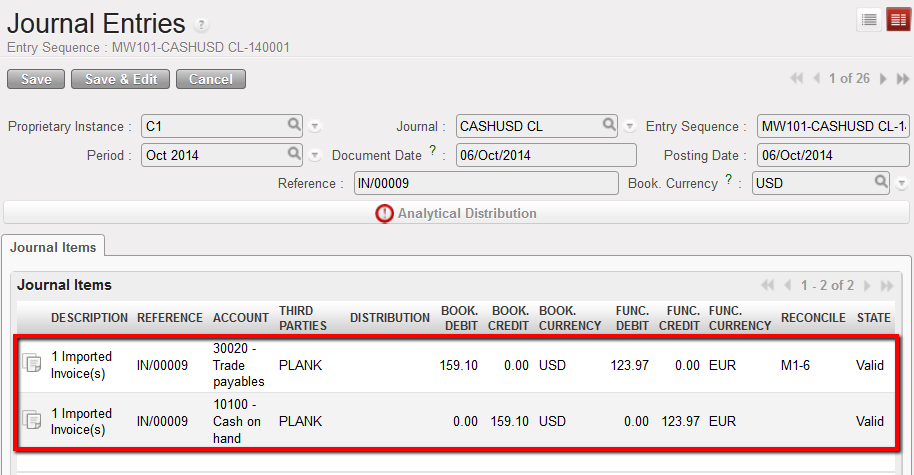
When Finance makes the payment, they import the supplier invoice into a register. In the journals UniField automatically:
Debits the account “30020 Trade Payables” to cancel the debt owed to the supplier because MSF no longer owes anything to this supplier. This entry is automatically reconciled with the original 30020 entry.
Credits the “10100 – Cash at Hand, 10200 – Cash at Bank, or 10210 – Outstanding Cheques” depending on which payment means was used. This entry automatically reduces the balance of the register.
Journal Entries once a supplier invoice is paid in cash. The register line is hardposted
In the Register, only one line is created for the one payment made to the Supplier
The purchase process and link with payment as well as the link between registers and journals will be explained in greater details in this chapter.
We will also see how to manage the register entries according to their state and finally address how to handle different kinds of payments such as direct entries, internal transfer, operational advances, and payments between missions and sections.
After completing the reading of this chapter you will be able to:
Understand the link between finance and supply and documents generated in the purchase process
Manage supplier invoices
Manage direct entries and direct invoices in the registers
Post entries in the journals
Manage specific payments such as advances to suppliers and employees, as well as intermission and intersection payments
We use cookies to ensure that we give you the best experience on our website. If you continue to use this site we will assume that you are happy with it.

 , located at the register line level.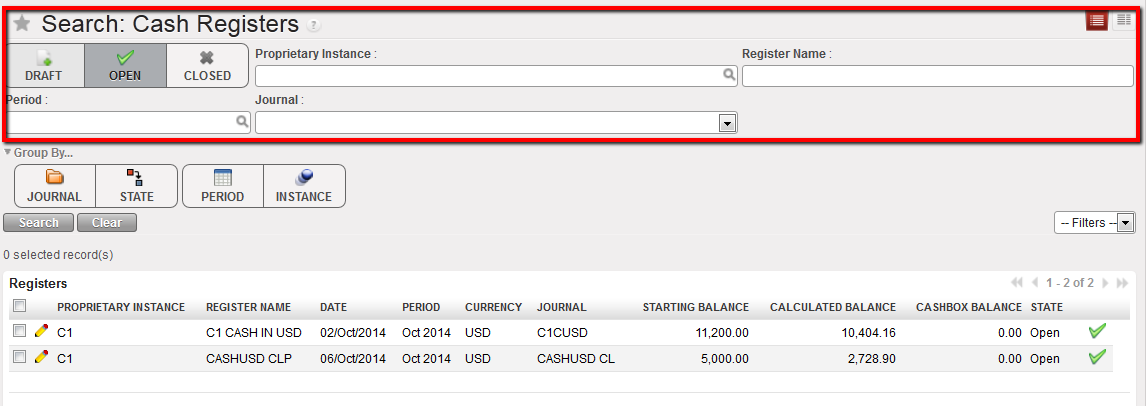
 Pending Payments invoice on a register form
 Add button to select an invoice
 Search Account Entry Lines window opens to select the invoice to import in the register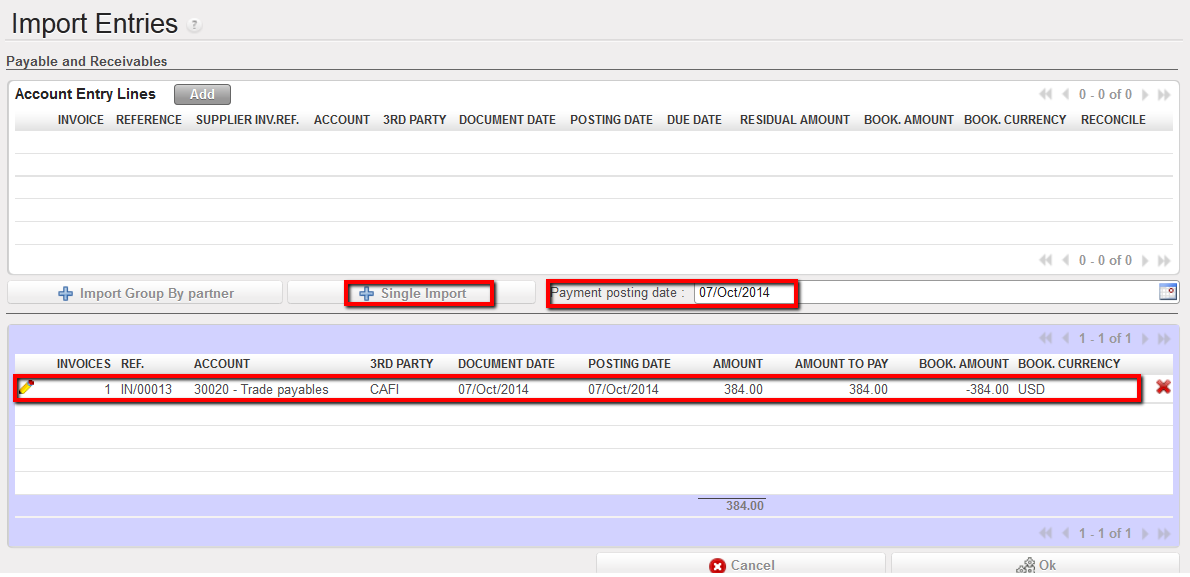

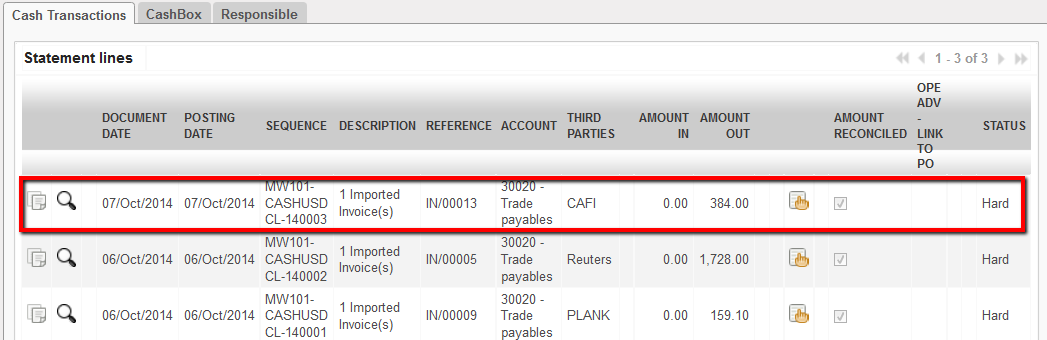 The entry corresponding to the imported invoice was hard posted.The entry state is Hard.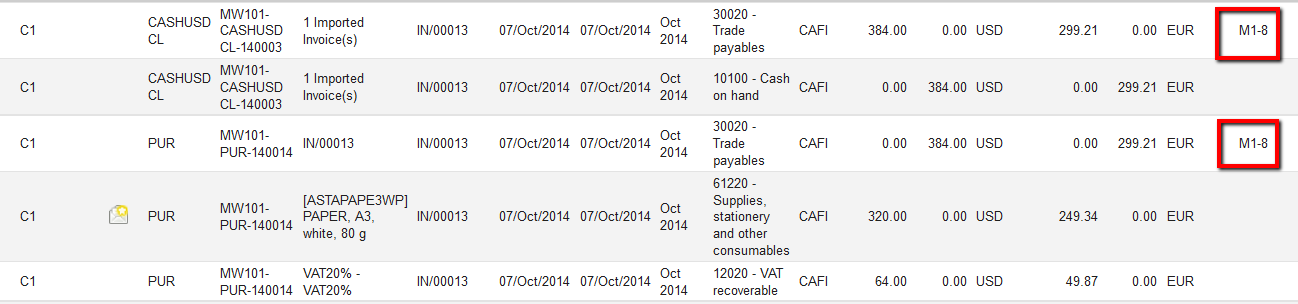

 Register line reflecting the import of 2 supplier invoices.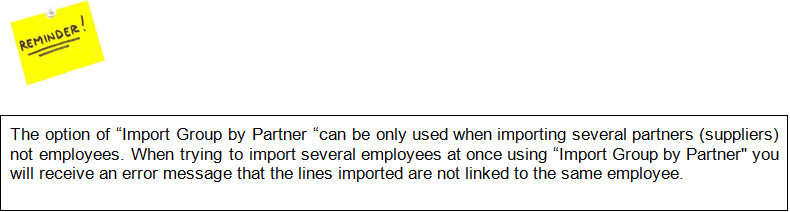
 to open a new invoice form.
 Compute Taxes button for automatic calculation of the VAT applied to this invoice
 The tax is calculated automatically. Amount excluding and including VAT are split.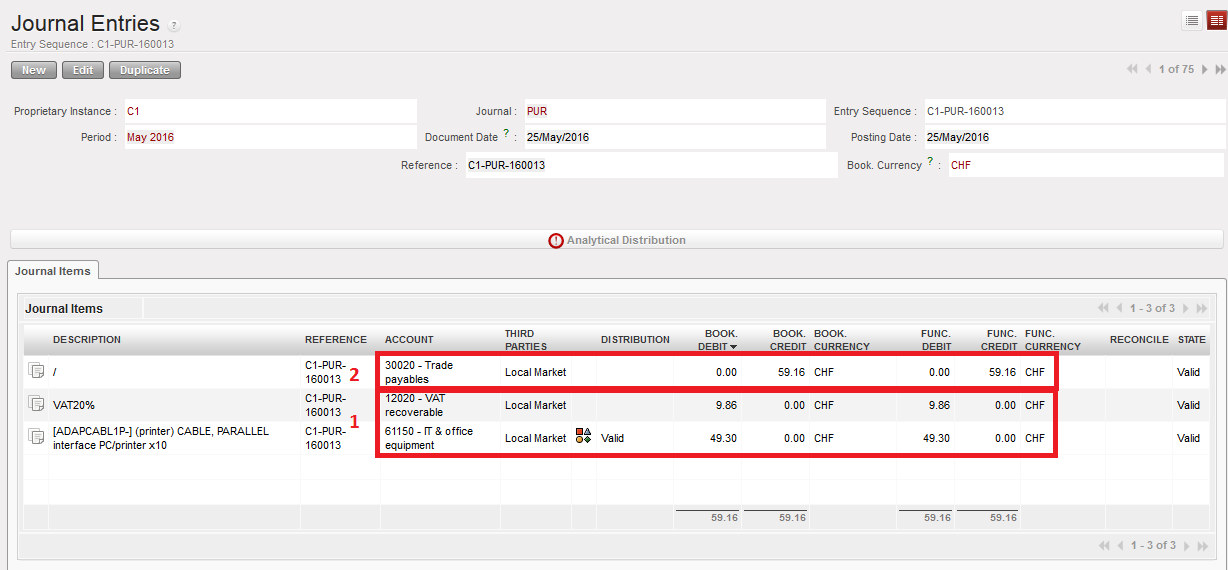
 to open a new invoice form.
 to populate the invoice amount.
 to link the invoice to a tax code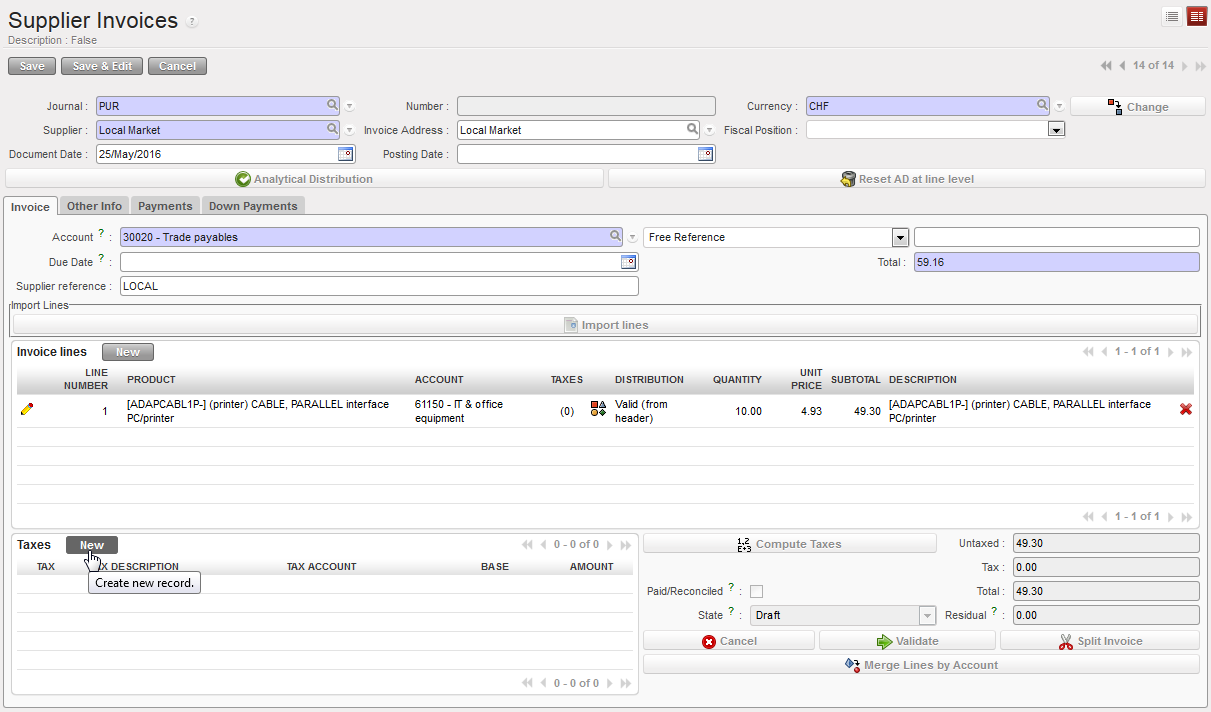
 TAX code selection and automatic input of TAX DESCRIPTION, ACCOUNT and AMOUNT field
 the form
 Manual input and calculation of the VAT



 {New} button to input invoice lines
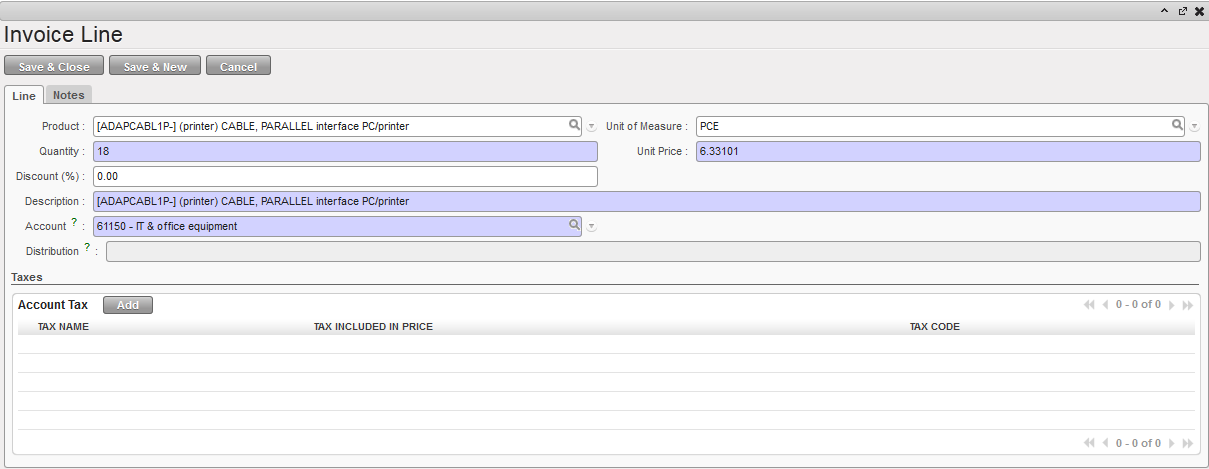 {Invoice Line} window to add line items on a manually created Supplier Invoice
 per line or globally across all invoice lines.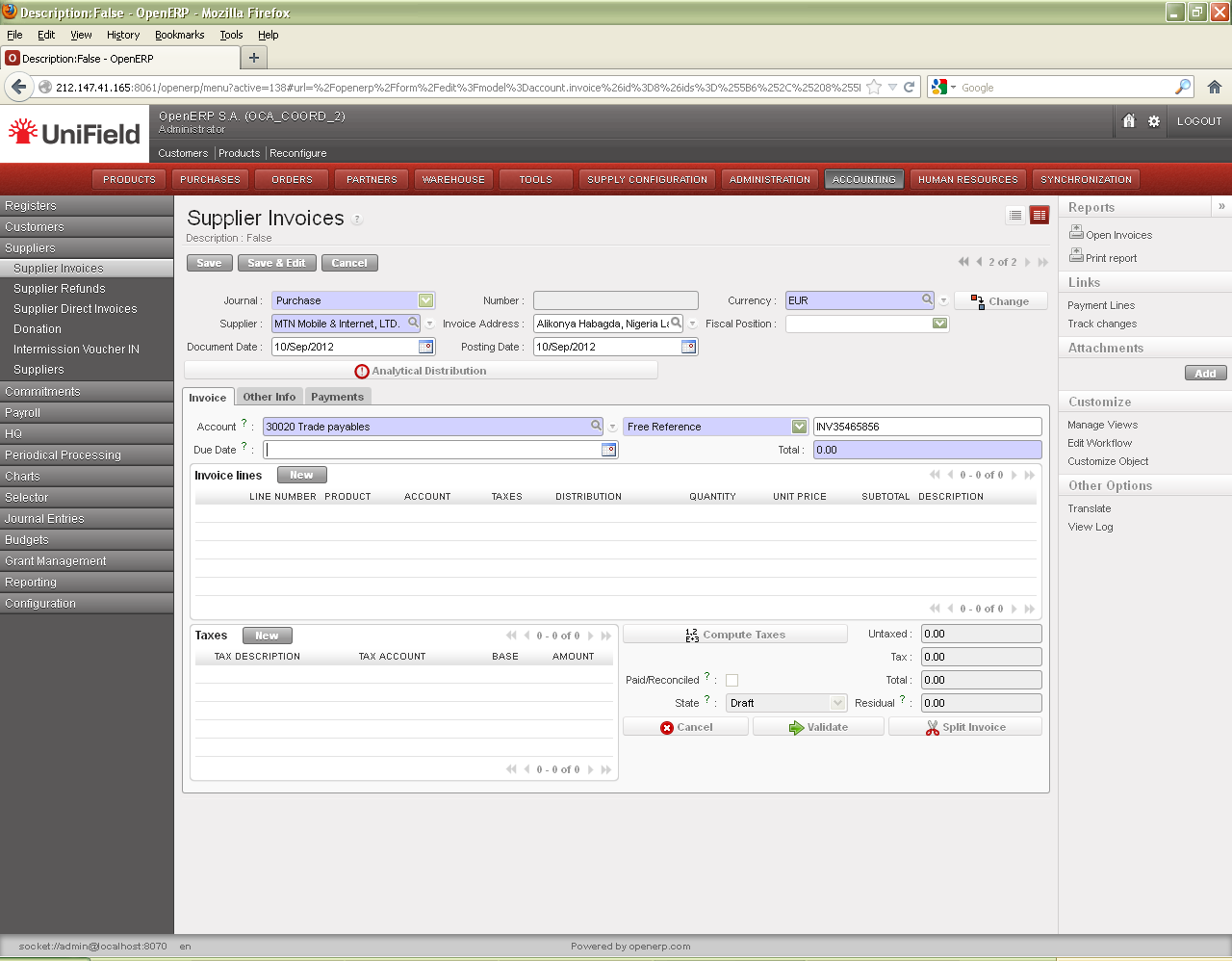
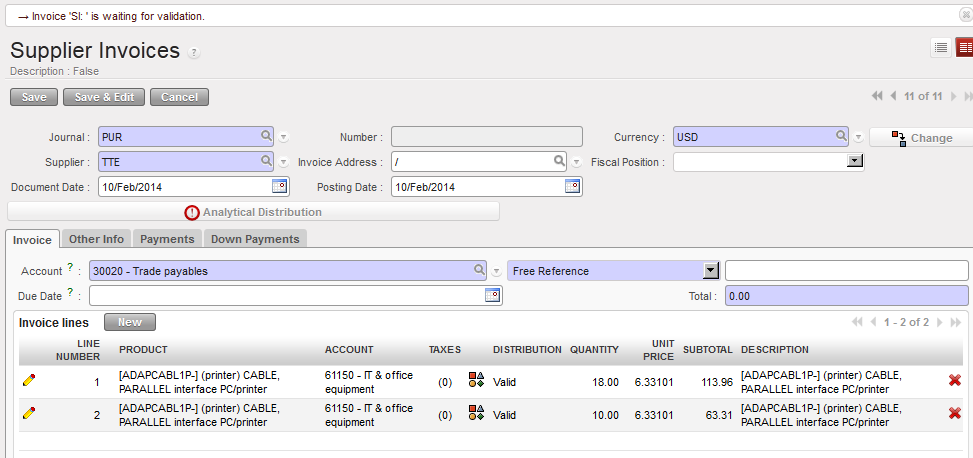
 {Other Info} tab
 {Payments} tab of a Paid supplier invoice
 Down Payments tab of a supplier invoice
 Delete button to erase a draft supplier invoice in the Search Supplier Invoices view
 to delete the supplier invoice.
 Draft supplier invoice
 {Pencil} to change the account, description, quantity, amount or tax on the invoice line level, select. When you are finished with the changes, select


 on line level or globally using the button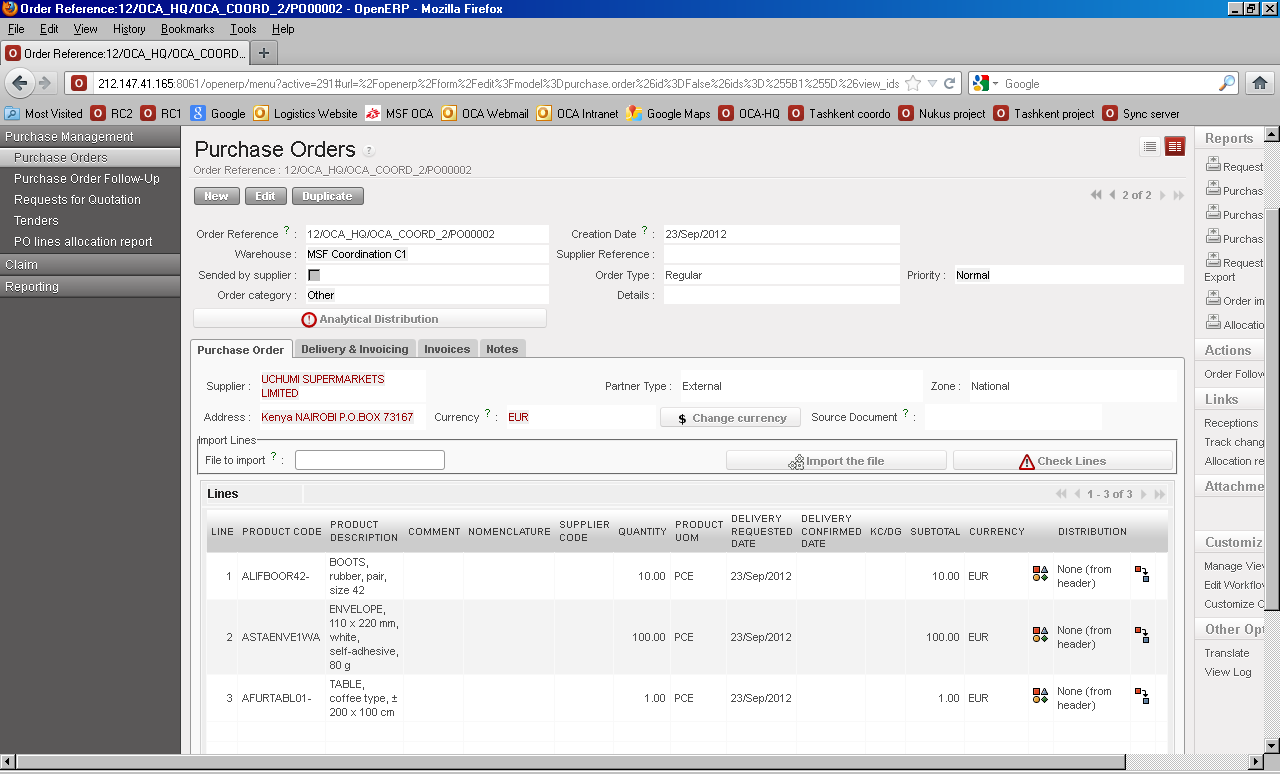
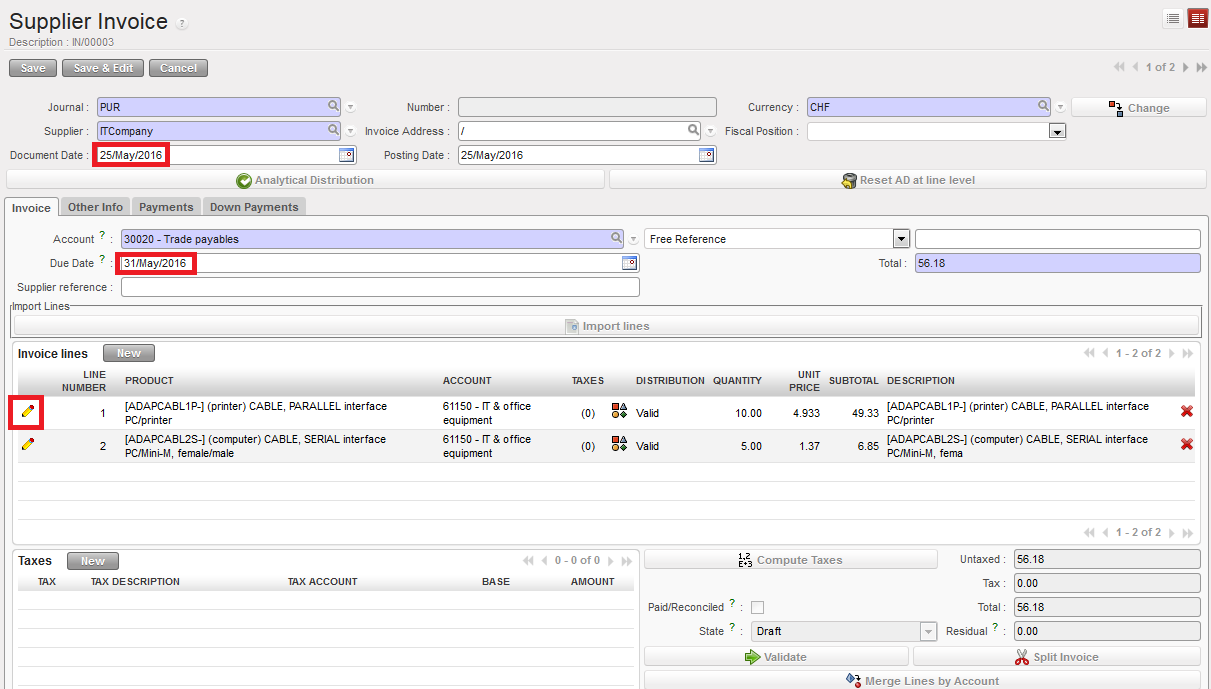 Edit button located on each invoice line, document date and due date fields
 button located on the Supplier Invoice header. It allows removing all analytic distributions done at line level so that the header distribution prevails.
 to open the supplier invoice form.





 to open the form.
 Supply processes Incoming Shipment
 Logistics validates Incoming Shipment. Reception is Closed and a Supplier invoice is generated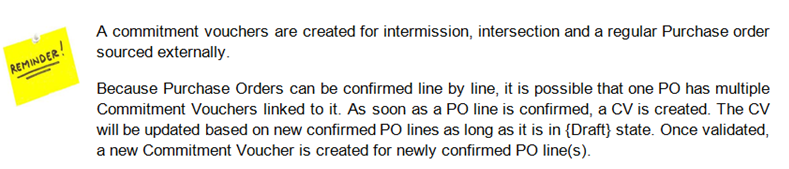

 Commitment voucher in Form view where the analytical distribution can be changed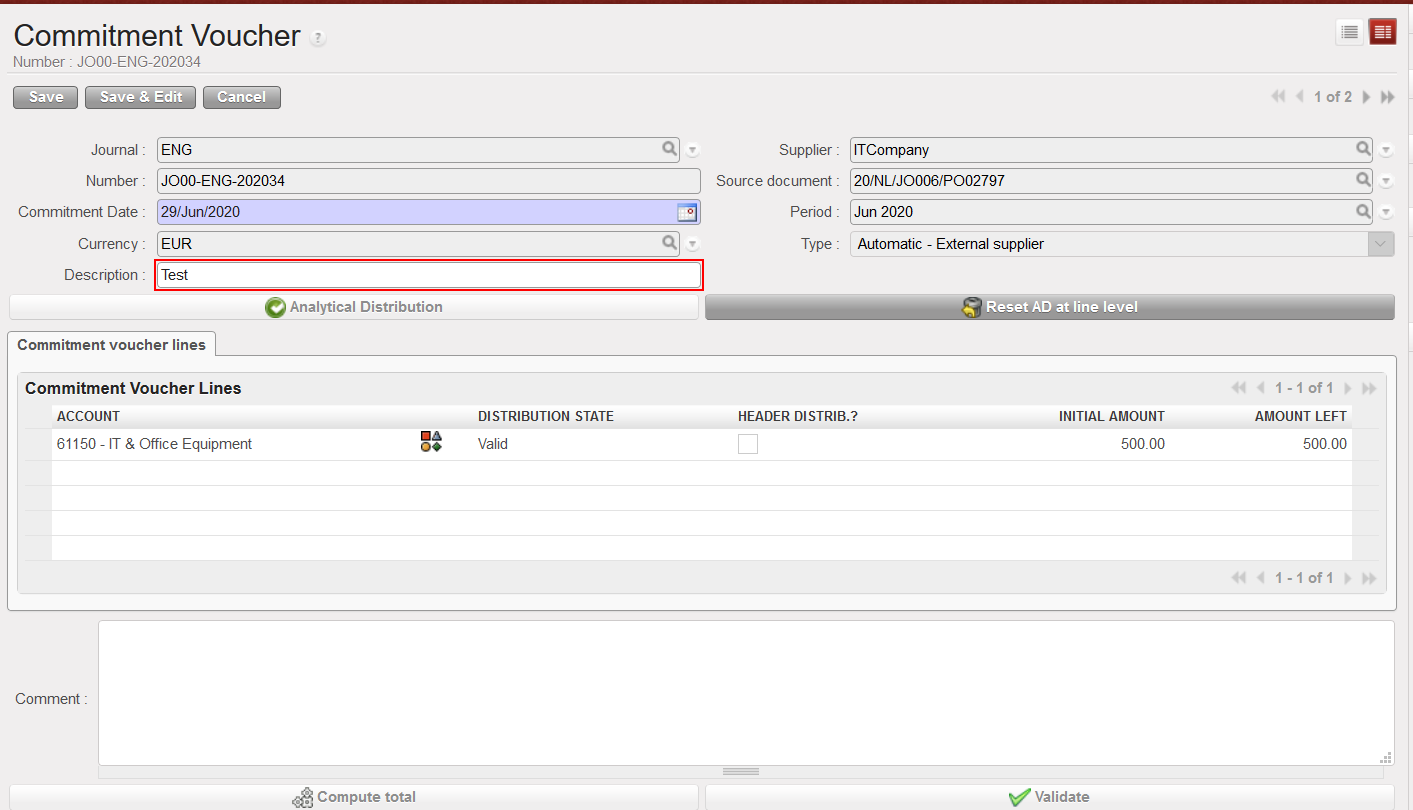
 Analytic journal items reflected on the Engagement journal. These lines are not editable
 Commitment Voucher Screen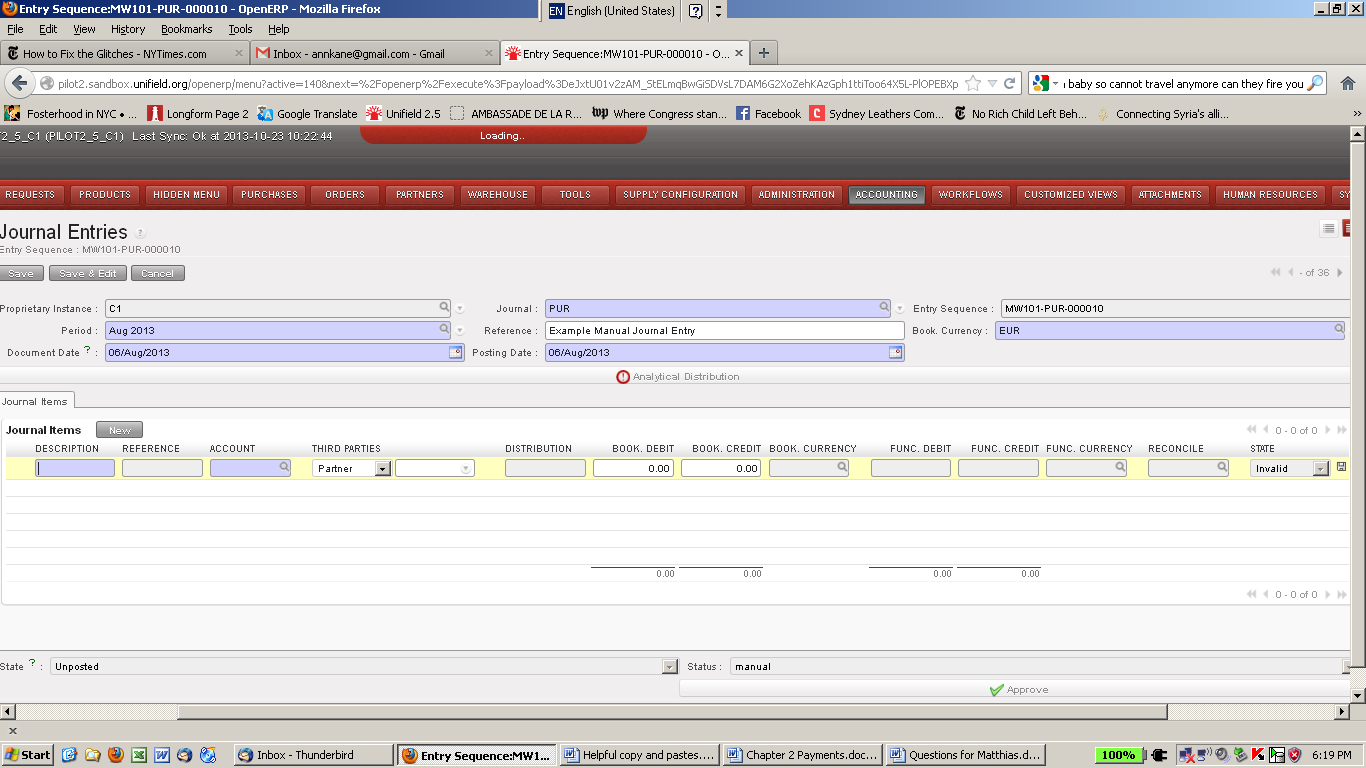


 Purchase Order type regular with external partner
 Analytic distribution wizard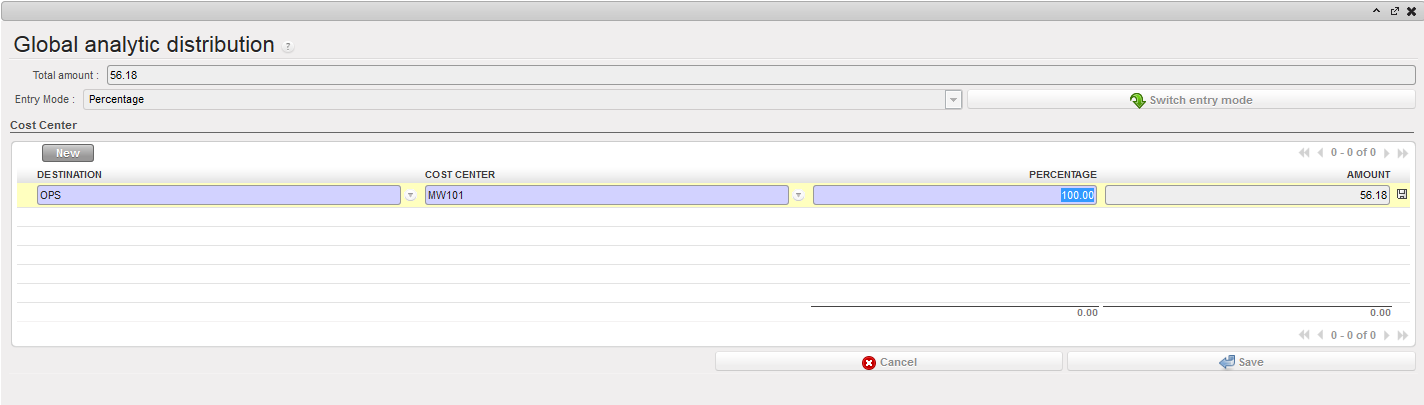
 PO printed out for approval of a purchase of paper
 {Allocation report} functionality
 PO lines allocation report for a purchase order
 Types of Purchase Orders: