C. HOW TO CREATE A CLAIM FROM AN INTERNAL MOVE (after reception in the “Input” location).

Supply User Manual ENG -> 5. Warehouse -> 5.9 LU-SU4202: Claims-> C. HOW TO CREATE A CLAIM FROM AN INTERNAL MOVE (after reception in the "Input" location).

C. HOW TO CREATE A CLAIM FROM AN INTERNAL MOVE (after reception in the “Input” location).

As the “Input” location is used to perform qualitative checks following suppliers deliveries, claims should actually be raised when products transit through this location. This will only happen if the “Direct to Requesting Location” checkbox is unticked during goods reception.

Go to: Warehouse / Warehouse Management / Internal Moves

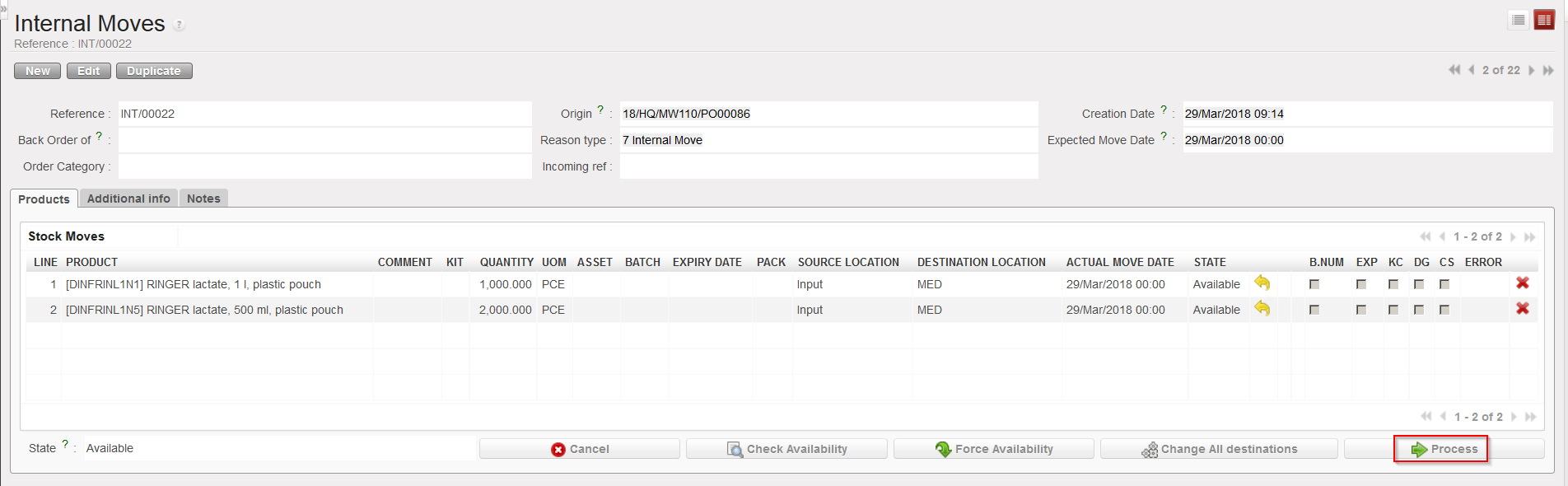
  1. Locate and open the Internal Move which was created when you processed the Incoming Shipment (with the “Direct to Requesting Location” checkbox unticked).
  2. Click on the “Process” button.
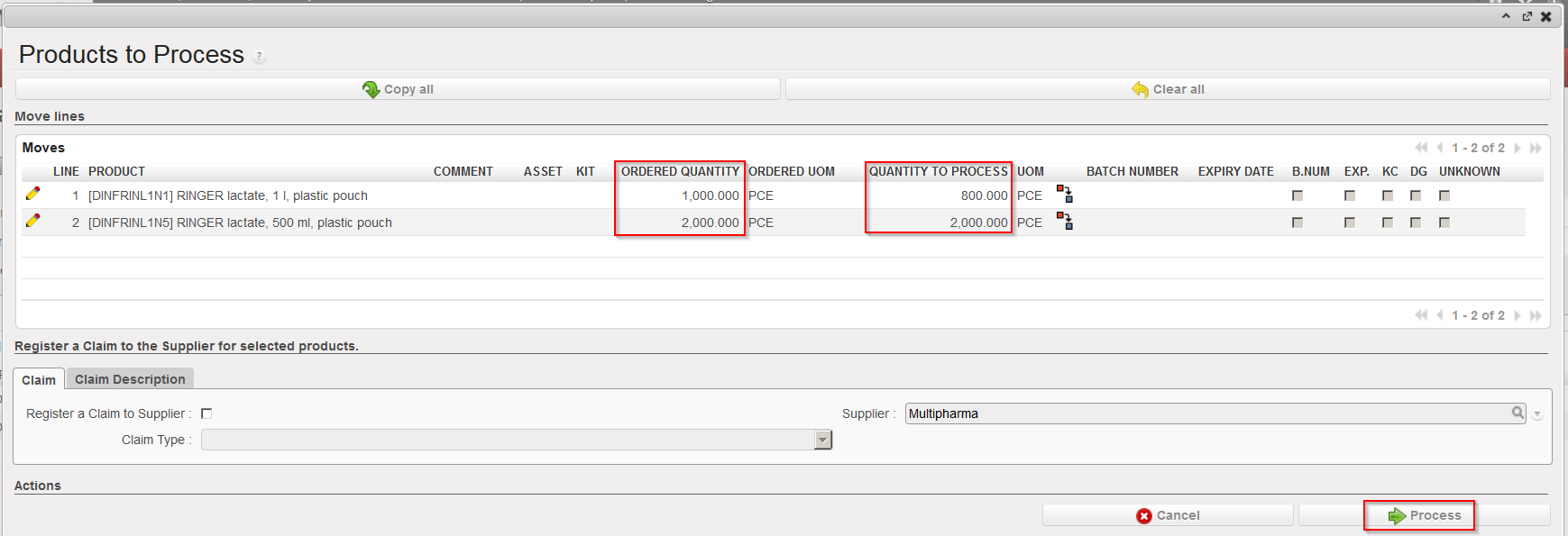
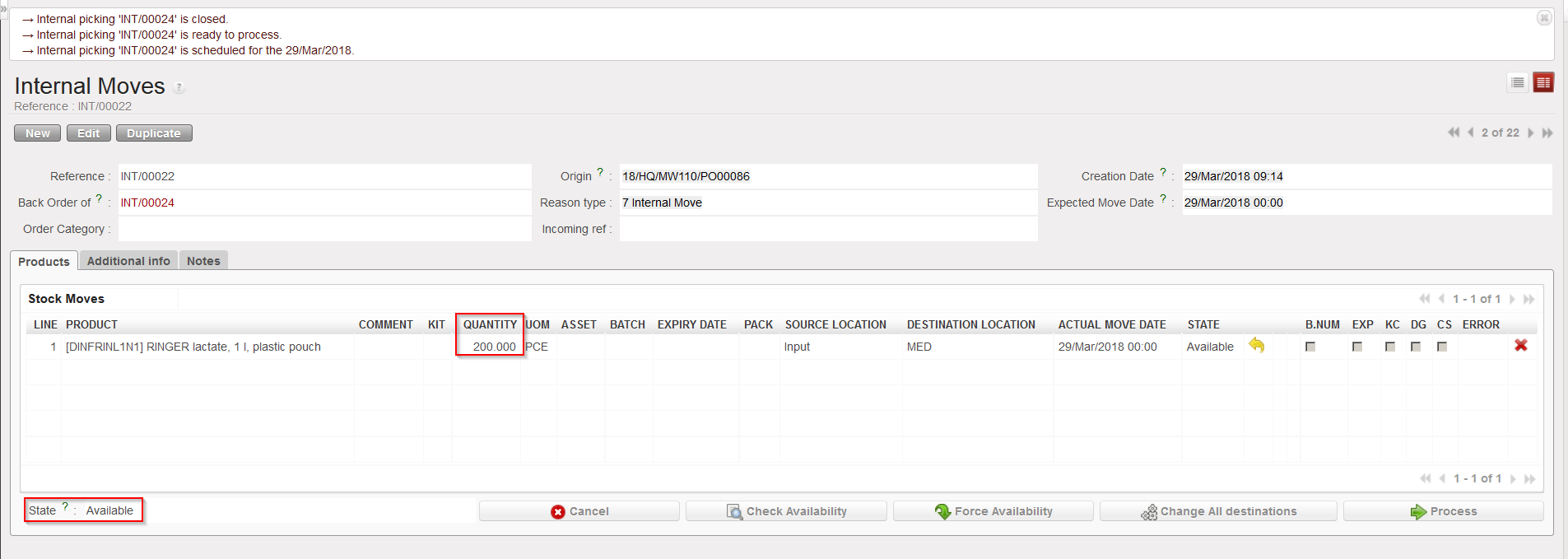
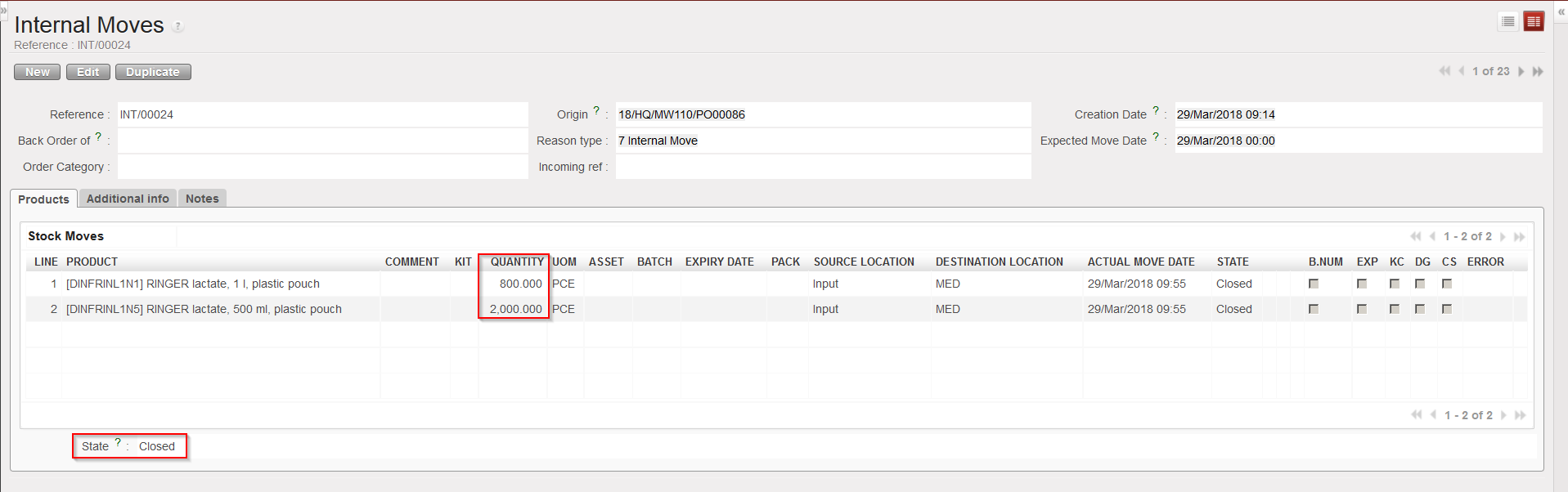
  3. Transfer the goods which are conformed to their final destination but not the ones which are not conformed. The system will create (and process and close) a new INT with the conformed products while the initial INT will stay open as a back-order with the non-conformed products.

Processing the Internal Move

Transferring the conformed goods to their final destination

Initial INT with non conformed goods in back-order

New INT with conformed goods in state “Closed

4. On the initial INT, click again on the “Process” button.

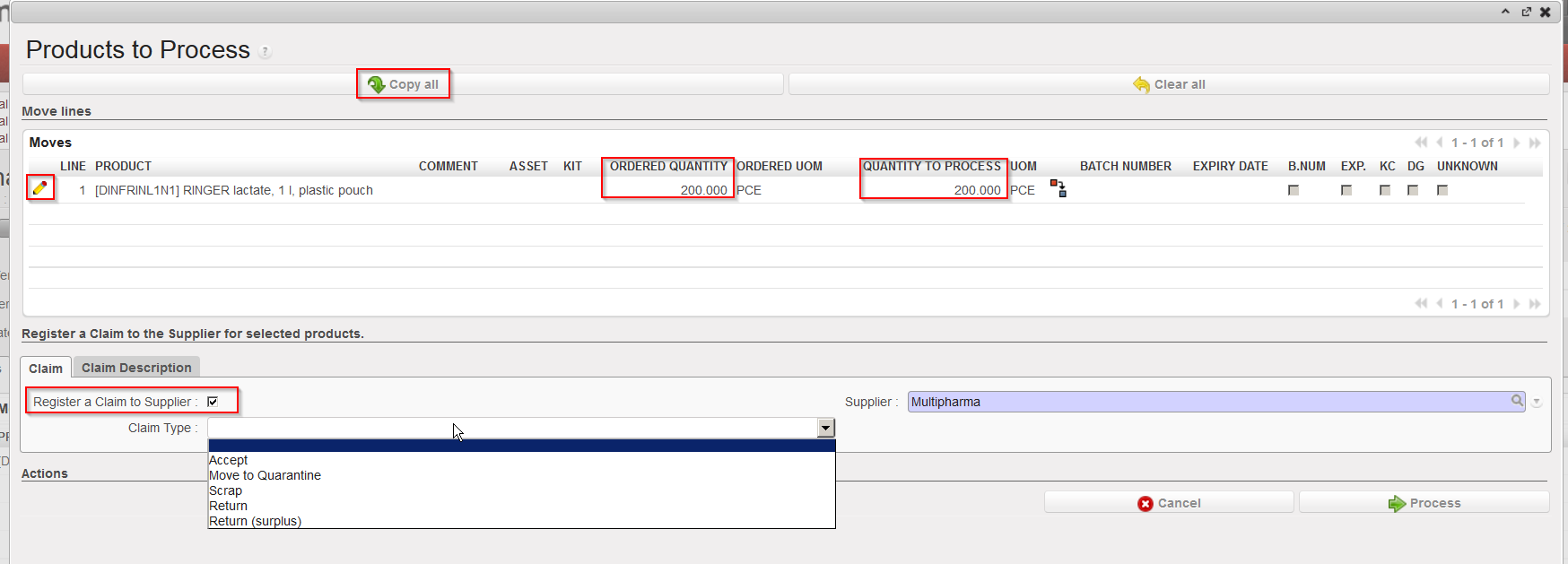
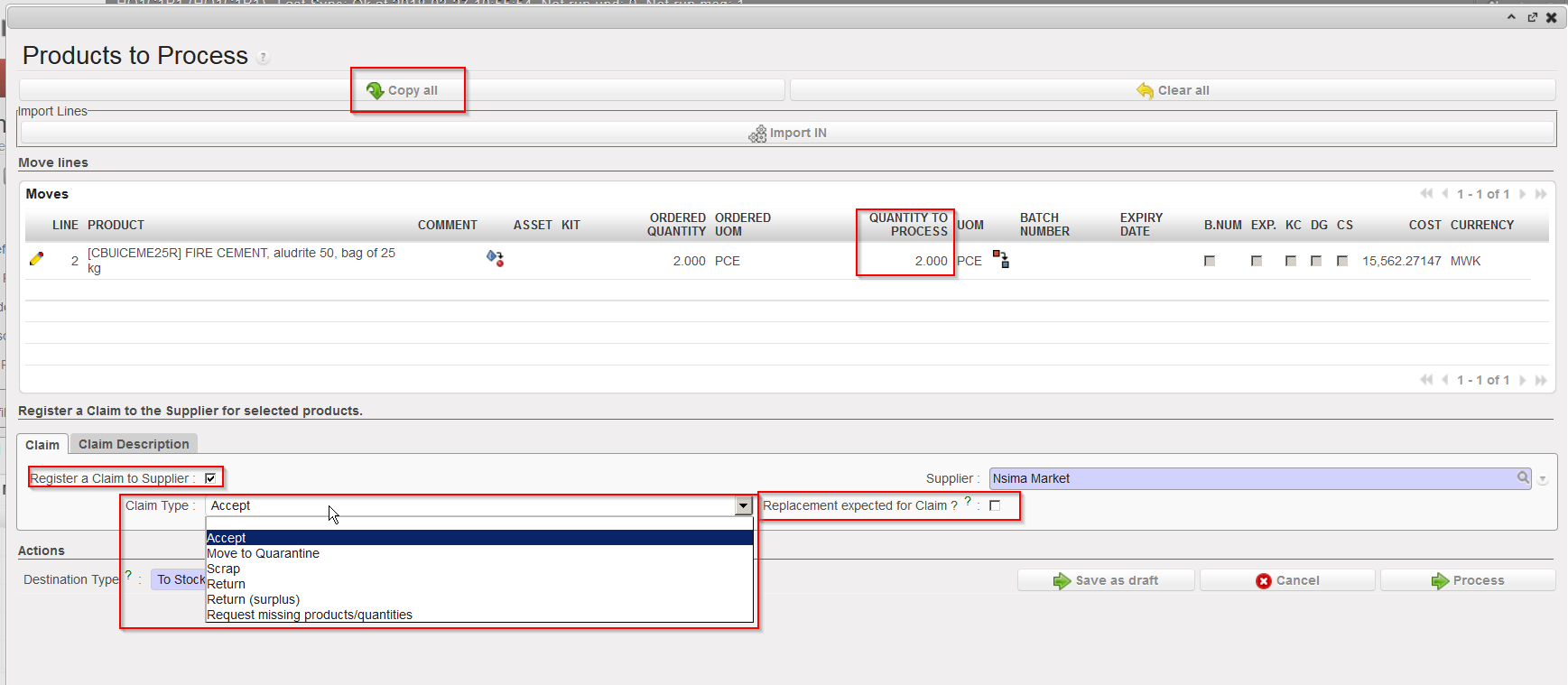
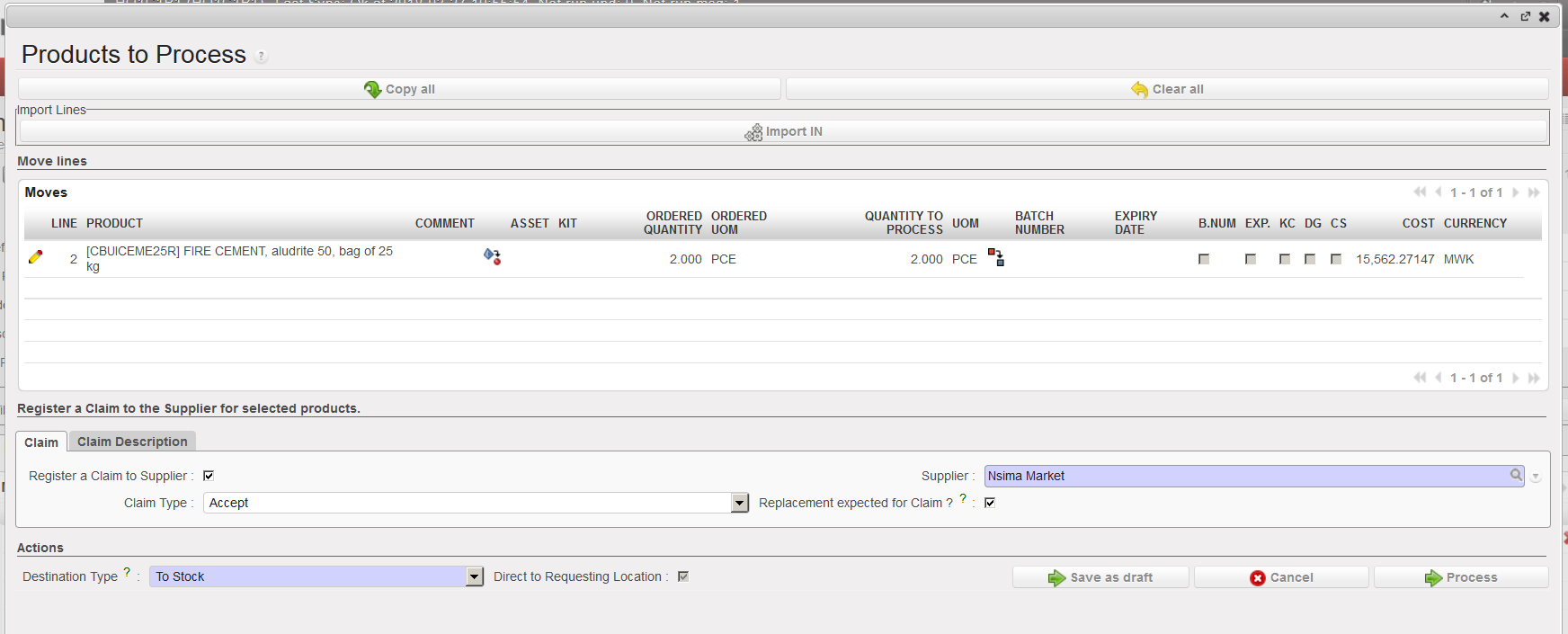
5. On the “Products to Process” screen, click on the “Copy all” button if all remaining product lines and quantities should be included in a claim. Otherwise, use the pencil icons and select products/quantities you want to make a claim for.

6. Tick the checkbox “Register a Claim to Supplier“.

Processing the non conformed goods

7. If empty, enter the supplier.

8. As Claim Type, select from the drop down list one of the following options:

    • “Accept”, if you have decided to accept the goods.
    • “Move to Quarantine”, if you are quarantining the goods.
    • “Scrap”, if you have decided to destroy the goods.
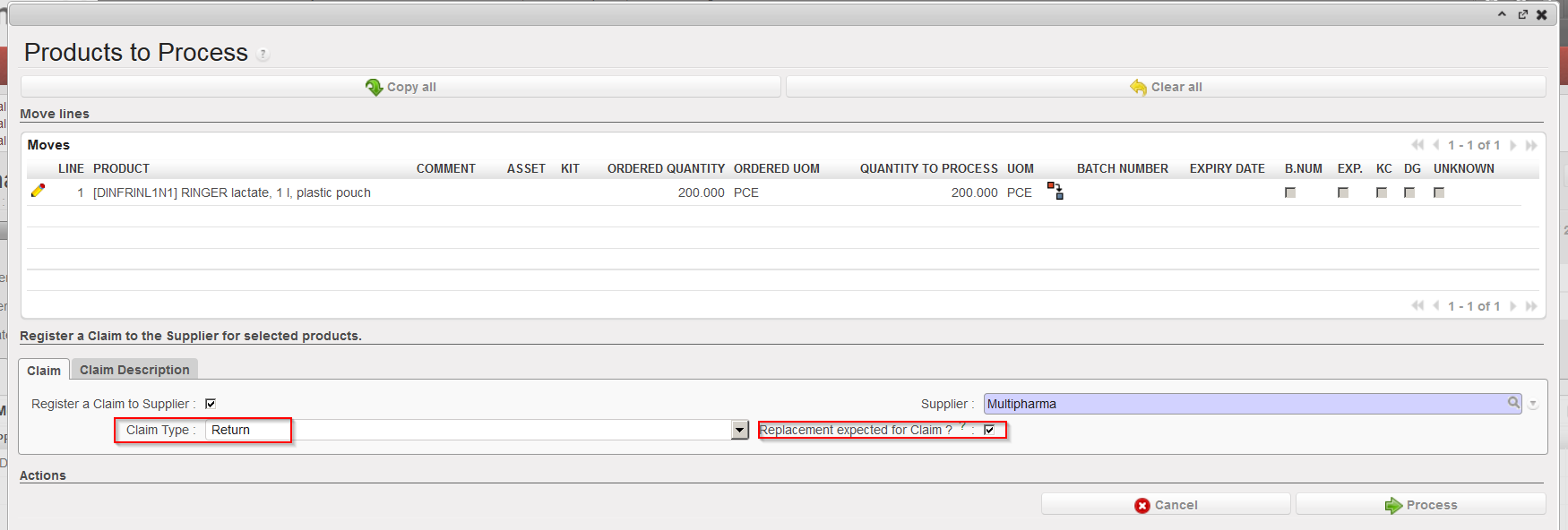
    • “Return”, if you are returning the goods to the supplier
    • “Return (surplus)” if you are returning goods because the supplier delivered an excessive quantity.

9. Tick the “Replacement expected for Claim” checkbox if you have already agreed with the supplier that the products will be replaced.

10. Use the “Claim Description” tab if you want to enter a description for the claim.

Requesting replacement for non conformed goods

Note that if you want to create different claim types for a same INT (e.g. if you want to return some goods but scrap others) you will have to process the above transaction in several steps (i.e. repeat it).

11. Click on the “Process” button.

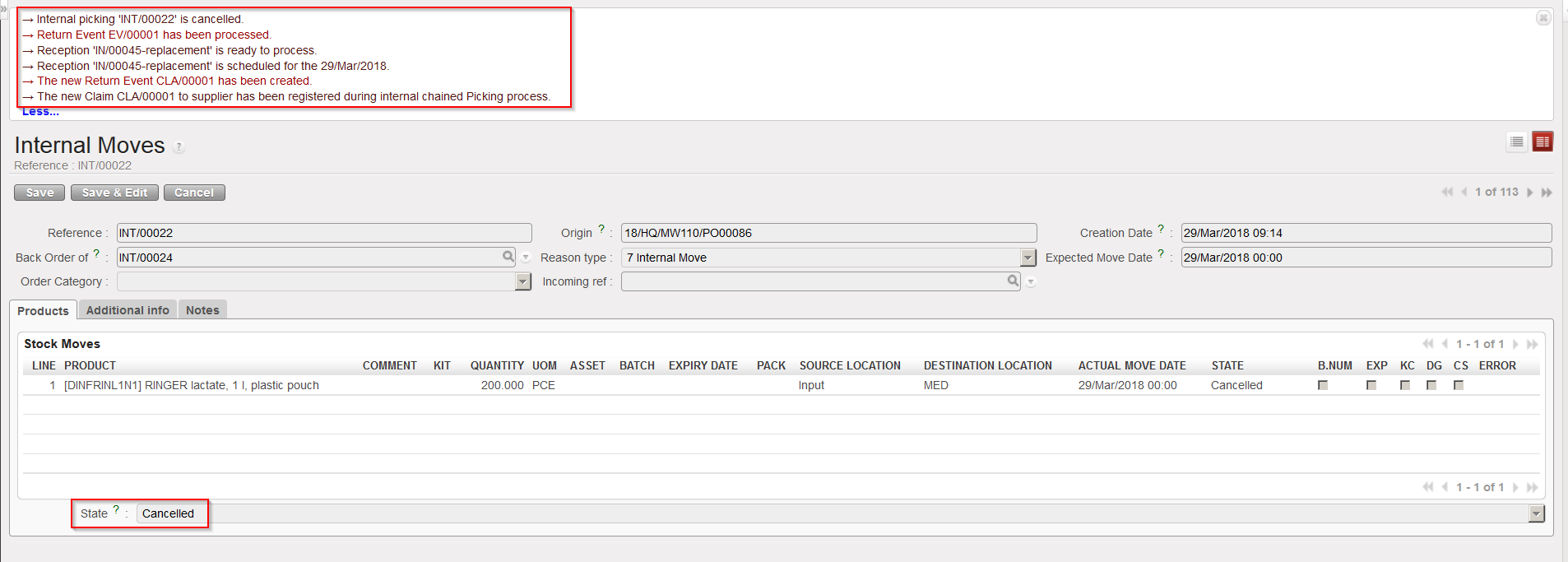
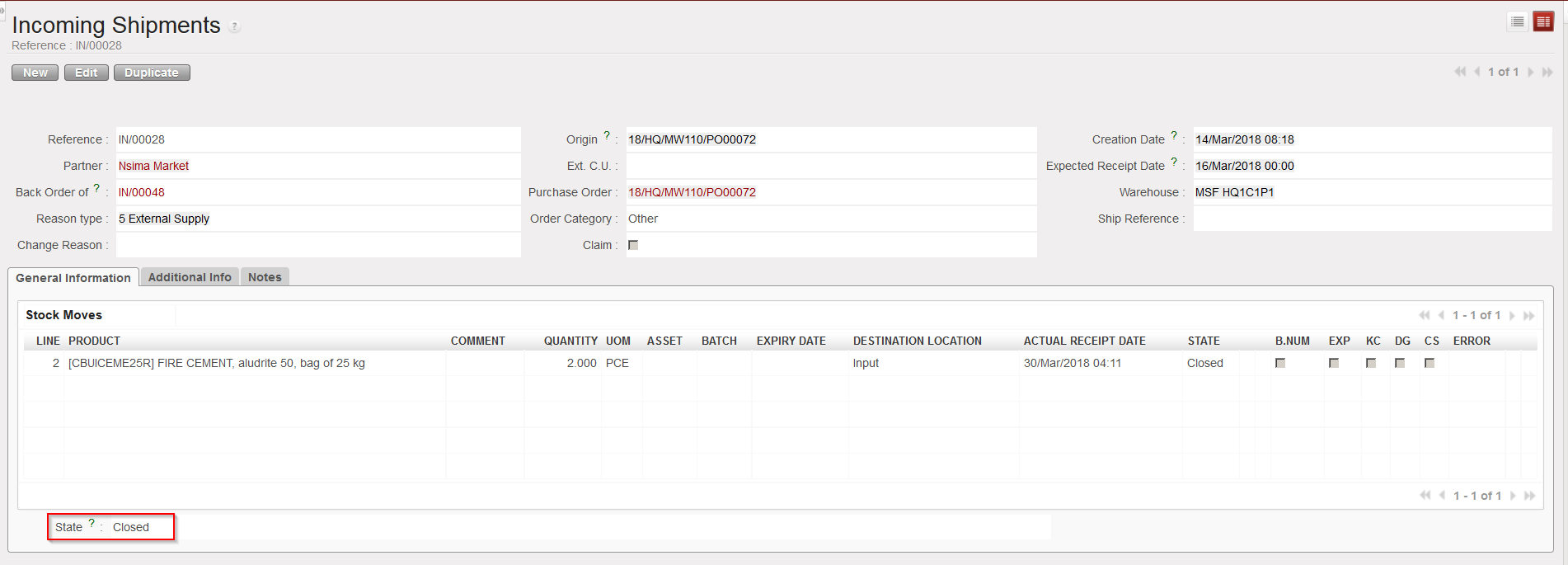
INT cancelled

With the above selected options (claim type = Return and replacement of goods requested), the system:

  • Cancels the INT.
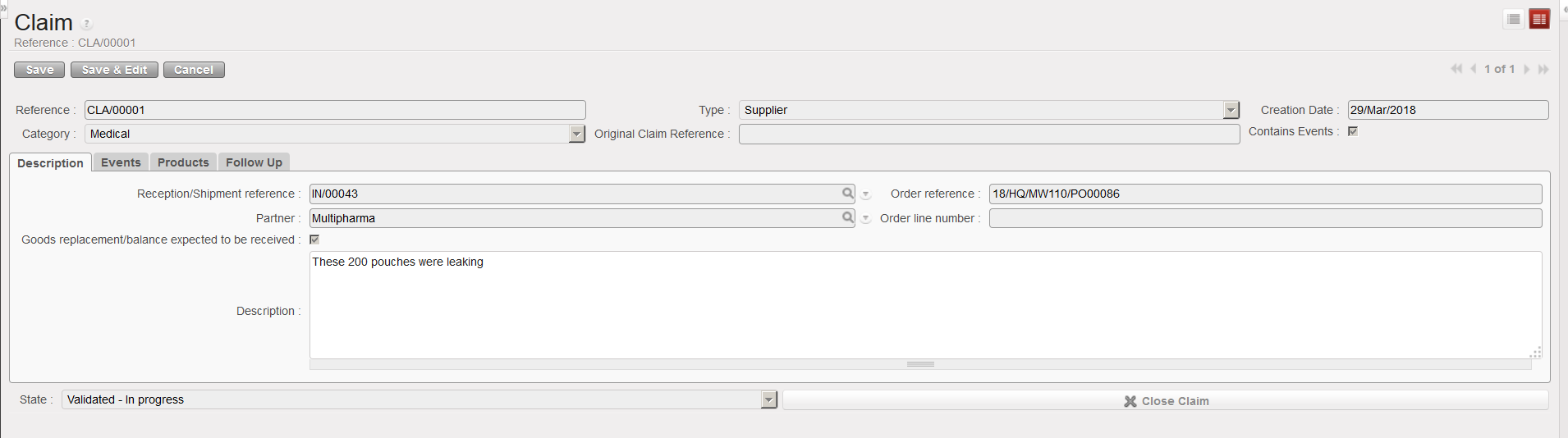
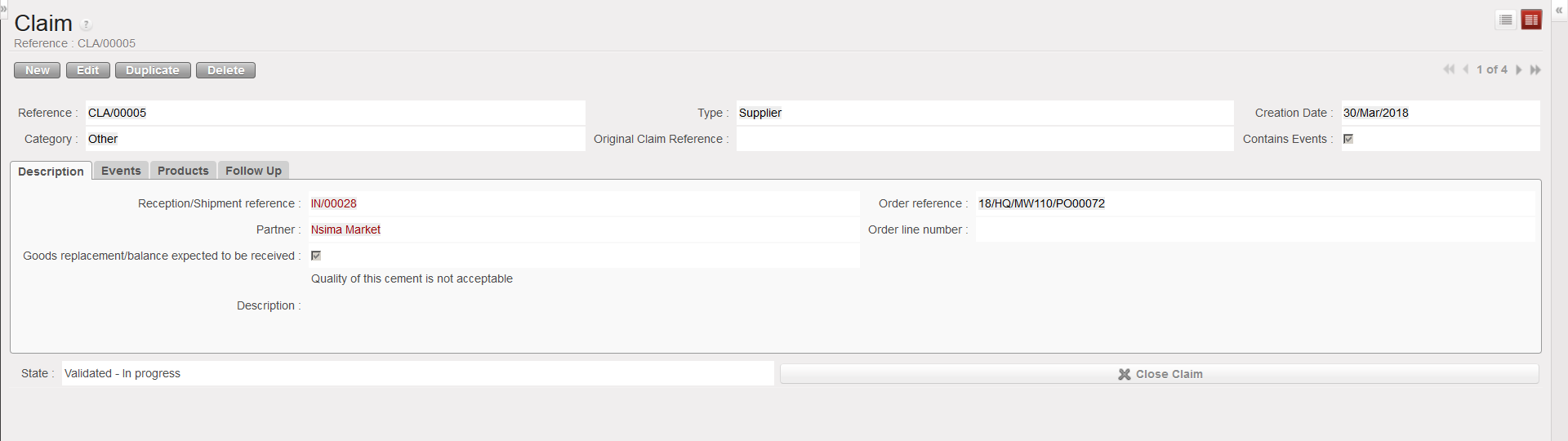
  • Creates a supplier claim with an event and process this event.
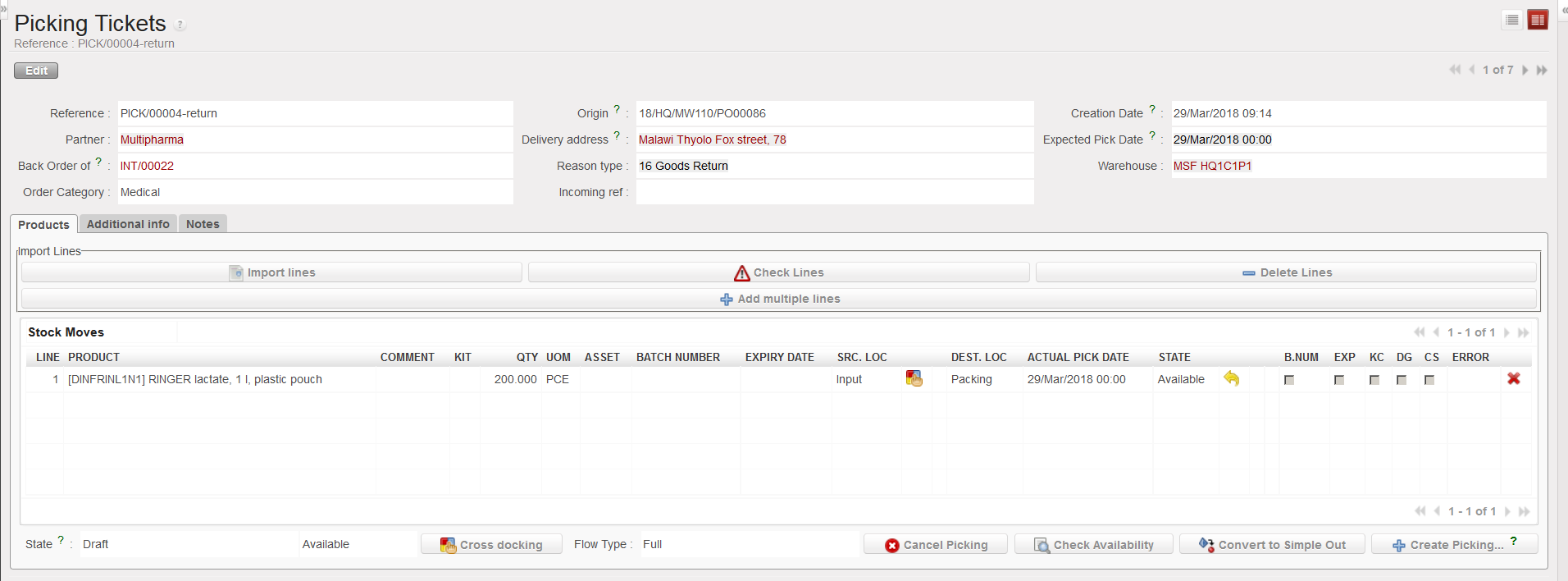
  • Creates a Picking Ticket (PICK-return) to pick the goods from the “Input” location and return them to the supplier.
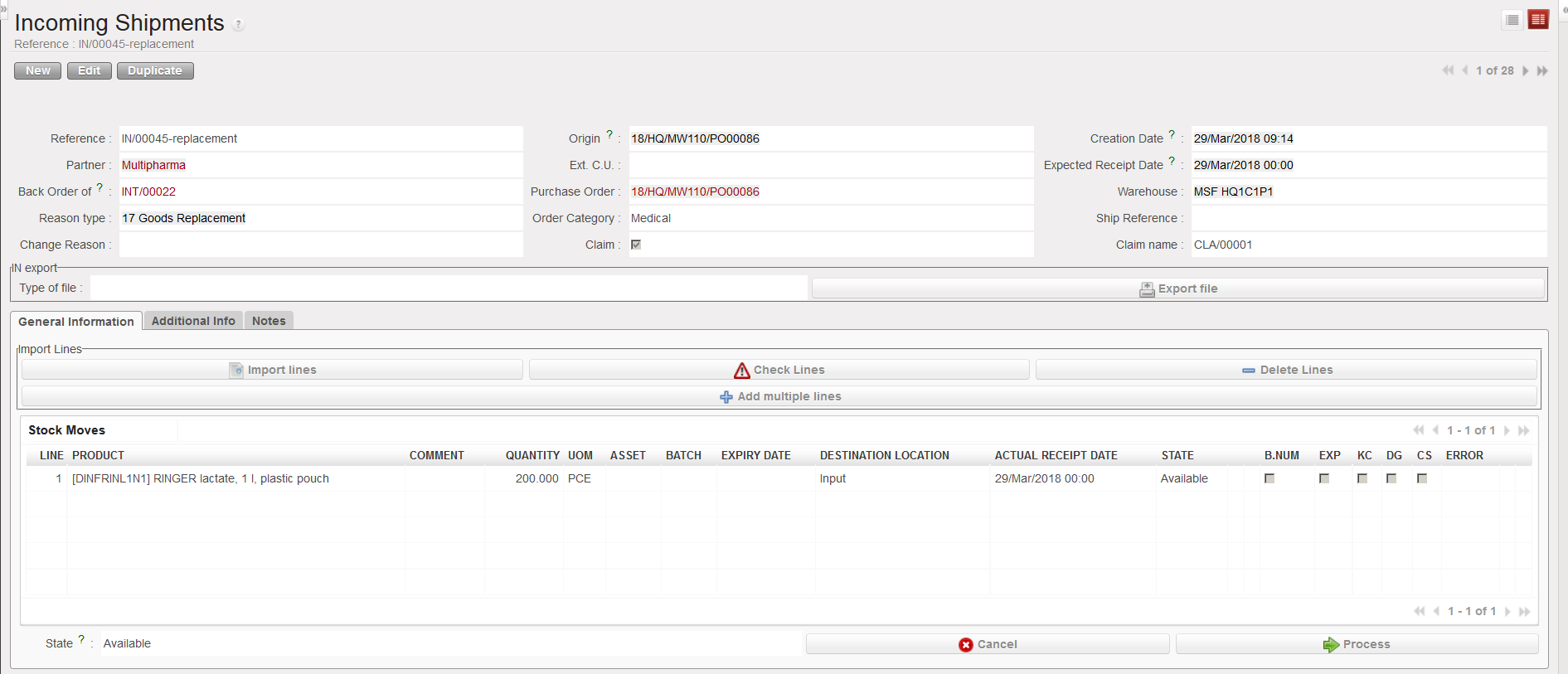
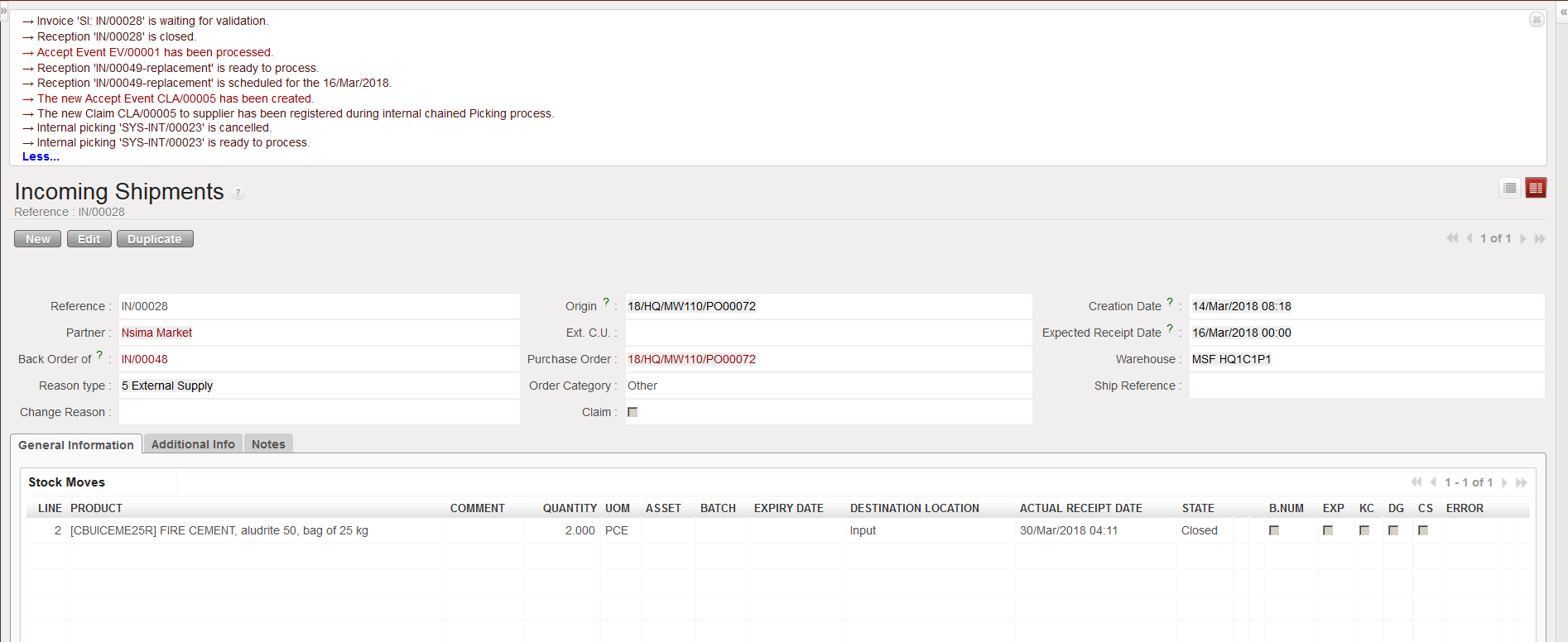
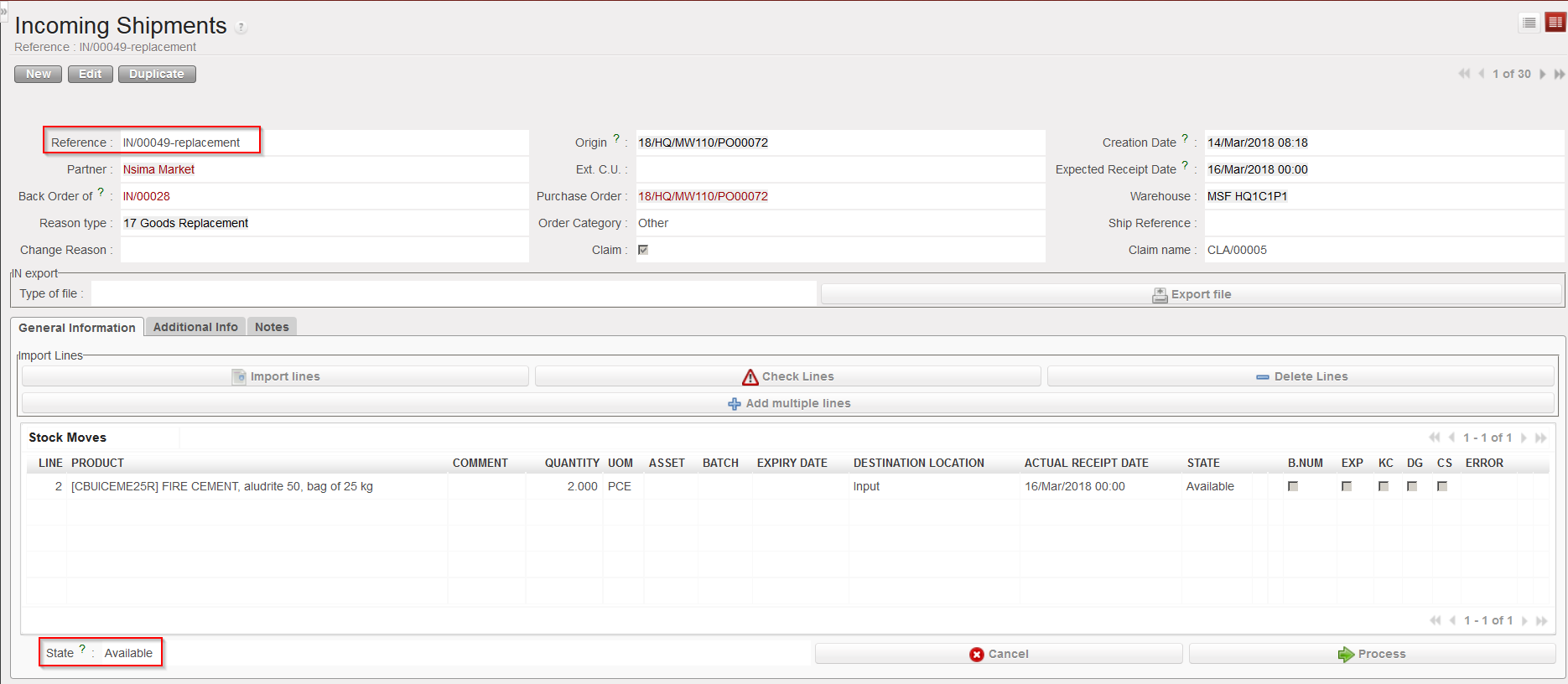
  • Creates an Incoming Shipment (IN-replacement) for the replacement of the goods.
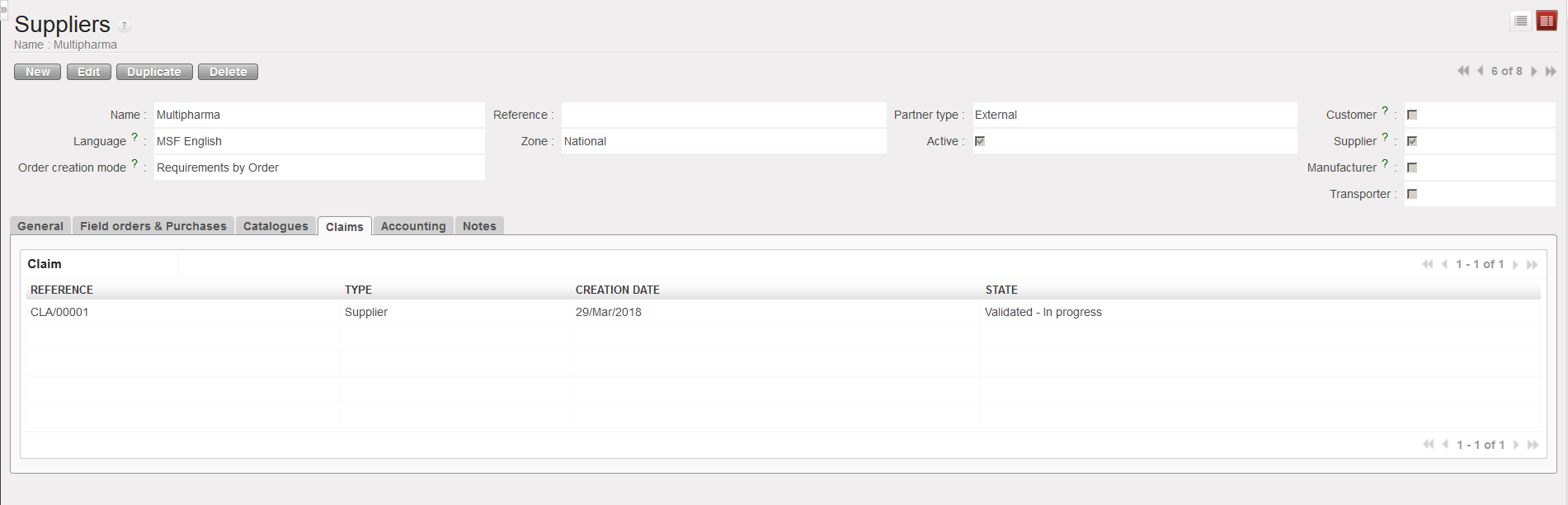
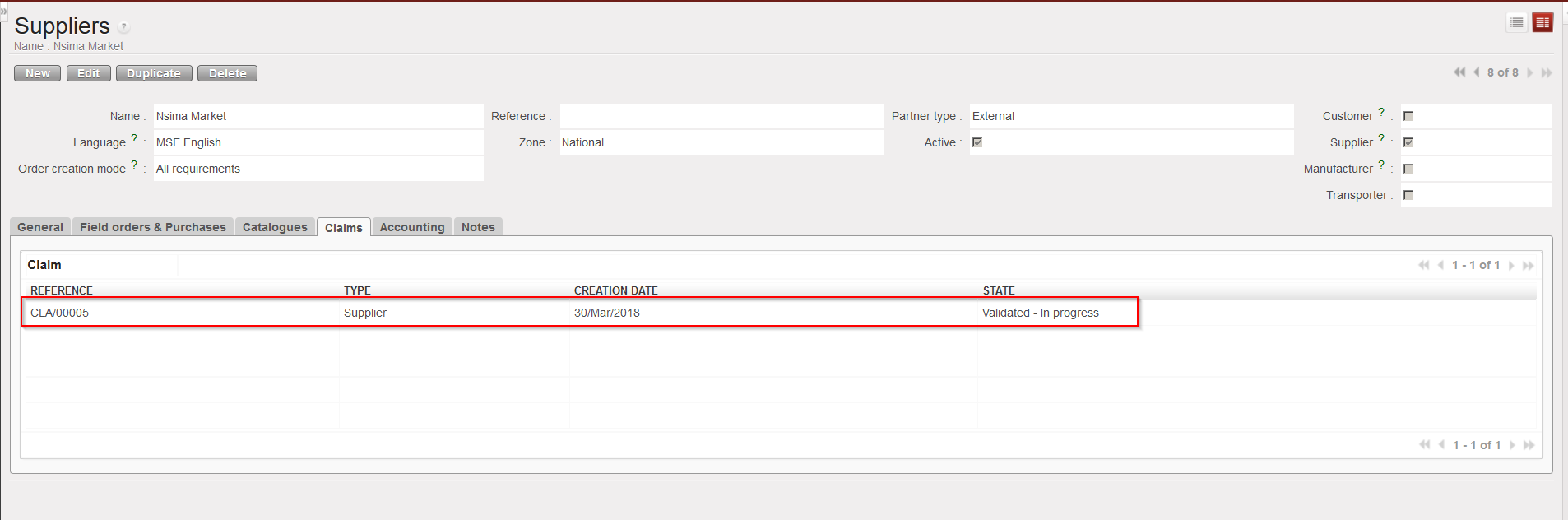
  • Updates the partner master data sheet of the supplier (“Claims” tab) to show that a claim was raised to this supplier.

Claim created

PICK-return created

IN-replacement created

Supplier master data sheet updated

B. HOW TO CREATE A CLAIM FROM AN INCOMING SHIPMENT.

Supply User Manual ENG -> 5. Warehouse -> 5.9 LU-SU4202: Claims-> B.HOW TO CREATE A CLAIM FROM AN INCOMING SHIPMENT

B. HOW TO CREATE A CLAIM FROM AN INCOMING SHIPMENT

It may happen that you realize that goods delivered by a supplier dot not conform with the confirmed order before any reception is done. In this case you may raise the claim from the IN.

Go to: Warehouse / Warehouse Management / Incoming Shipments

  1. Locate and open the Incoming Shipment corresponding to the supplier delivery.
  2. Click on the “Process” button.
  3. Receive the conformed goods but not the non-conformed goods. The system will create (and process and close) a new IN with the received conformed products while the initial IN will stay open as a back-order with the non-conformed products. Note that conformed goods may be received in the “Input” location, directly in the requesting location or in cross docking according to the situation.
  4. On the initial IN, click again on the “Process” button.
  5. On the “Products to Process” screen, click on the “Copy all” button if all remaining product lines and quantities should be included in a claim. Otherwise, use the pencil icons and select products/quantities you want to make a claim for.
  6. Tick the checkbox “Register a Claim to Supplier“.

Processing the non conformed goods

7. If empty, enter the “Supplier“.

8. As “Claim Type“, select from the drop down list one of the following options:

    • Accept“, if you have decided to accept the goods.
    • Move to Quarantine“, if you are quarantining the goods.
    • Scrap“, if you have decided to destroy the goods.
    • Return“, if you are returning the goods to the supplier.
    • Return (surplus)” if you are returning goods because the supplier delivered an excessive quantity.
    • Request missing products/quantities” if some products or some quantities are missing in the supplier delivery (i.e. do not conform with the supplier packing list)

9. Tick the “Replacement expected for Claim” checkbox if you have already agreed with the supplier that the products will be replaced.( note that this will consequently split the related line in the related PO)

10. Use the “Claim Description” tab if you want to enter a description for the claim.

Requesting replacement for non conformed goods

Note that if you want to create different claim types for a same IN (e.g. if you want to return some goods but scrap others) you will have to process the above transaction in several steps (i.e. repeat it).

11. Click on the “Process” button.

INT cancelled

With the above selected options (claim type = Accept and replacement of goods requested), the system:

  • Processes and closes the IN.
  • Creates a supplier claim with an event and process this event.
  • Creates an Incoming Shipment (IN-replacement) for the replacement of the goods. This is actually the consequence of the processing of the event.
  • Updates the partner master data sheet of the supplier (“Claims” tab) to show that a claim was raised to this supplier.

Closed IN

Claim created

IN-replacement created

Supplier master data sheet updated

A. LU INTRODUCTION (LU-SU4202)

Supply User Manual ENG -> 5. Warehouse -> 5.9 LU-SU4202: Claims-> A. LU INTRODUCTION (LU-SU4202)

A. LU INTRODUCTION (LU-SU4202)

Quantitative and qualitative analysis of products may happen at different times. In most cases, the products will be counted and nominally checked at the point of reception, and if they do not correspond to the confirmed order at this point, the supplier should be contacted and a claim should be raised.

Claims raised during reception, can be created at two steps: from the Incoming Shipment or from an Internal Move.

An exception to this is the situation where the goods have been delivered directly into the “Cross docking” location or into Stock if the “Direct to Requesting Location” checkbox was left ticked when processing the IN. In these cases the claim should be raised from scratch.

Another situation is the one in which goods have been in stock for a certain period after reception. If there is an issue with these goods and if you realize that this is due to the supplier, a claim from scratch can also be created at this point.

In some cases, you may need to create a claim for the supplier of the transport, for example because the goods were damaged as a result of transportation and this would be a claim type transport.

Creating a claim will allow us to record what is wrong with the delivery received, and what we have decided to do with the products (e.g. return them to supplier, destroy them,…). It may be necessary to contact the supplier before creating the claim. Any claim created will also be recorded in the Supplier’s record. If the products are sent back to the supplier (via a return event being created within the claim), this will impact the final invoice to pay to the supplier to ensure that we do not pay for goods which we have not kept.

Note that if a claim is created by a UniField instance and addressed to another (supplier) UniField instance, the synchronization will create a customer claim on the supplier instance.

5.9 CLAIMS.

Supply User Manual ENG -> 5. Warehouse -> 5.9 LU-SU4202: Claims.

LU-SU4202: Claims.

A. LU INTRODUCTION

B. HOW TO CREATE A CLAIM FROM AN INCOMING SHIPMENT

C. HOW TO CREATE A CLAIM FROM AN INTERNAL MOVE (after reception in the “Input” location)

D. HOW TO CREATE A SUPPLIER CLAIM FROM SCRATCH

E. HOW TO RETURN CLAIMED PRODUCTS TO SUPPLIER AND REPLACE THEM

F. CUSTOMER CLAIMS

G. TRANSPORT CLAIMS

H. CLAIMS AND SYNCHRONIZATION

G. INTERNAL MOVES REFERENCES

Supply User Manual ENG -> 5. Warehouse -> 5.8 LU-SU4201: Internal Moves -> G. INTERNAL MOVES REFERENCES

G. INTERNAL MOVES REFERENCES

If you look at the INT screens, you will find various types of references (document numbers):

  1. INT/XXXXX. This type of reference is generated

a) for movement from the “Input” location to the final destination of the goods. These INT will be automatically/manually processed if the “Direct to Requesting Location” checkbox is ticked/not ticked.

b) for Internal Move created from scratch

2. INT/KITXXXXX. This type of reference is used in case of kit substitution or de-kitting (see the section on kits for details)

3. SYS-INT/XXXXX. This type of reference is used for these very special Internal Moves which have been introduced in the previous section

F. SYSTEM INTERNAL MOVES

Supply User Manual ENG -> 5. Warehouse -> 5.8 LU-SU4201: Internal Moves -> F. SYSTEM INTERNAL MOVES

F. SYSTEM INTERNAL MOVES

Explanations in this section are quite technical. Skip them if you do not want to enter into this. The section on virtual stock in LU-SU4302 may help to understand them as these SYS-INTs are used to impact the virtual stock levels. More specifically they are used in order to insure that Replenishment Rules can work. See specific section on RR as well.

In any case, bear in mind that you should not touch these Internal Moves. SYS-INTs should always be created, confirmed updated and cancelled by the system, never touched by a user.

These special Internal Moves are created by the system when a PO (or PO-line) with “Input” as planned destination location is confirmed. This confirmation triggers the creation of an Incoming Shipment with “Input” as destination location.

This means that SYS-INT are created in 2 cases:

  • When a PO (or PO-line) created from scratch is confirmed.
  • When a PO (or PO-line) created following the sourcing of an IR with a stock or an ICU as Location Requestor is confirmed.

The lines of the created IN (which is in state “Available” with all its lines “Available”) have “Input” as destination location. This means that the virtual stock level of the “Input” location will be directly impacted by this IN.

However, the virtual stock level of the final destination location (stock or ICU) is not impacted by the IN.

The SYS-INT (created in the state “Confirmed” with its lines “Not available”) is actually simulating a movement between the “Input” location and the final destination location. It decreases the virtual stock level of the “Input” location (which is increased by the IN) and increases the virtual stock level of the final destination location.

With this feature, users are able to have a better view on where the virtual stock levels will be. They can see “further” than the “Input” location.

The processing of the IN will update (in case of partial reception) or cancel the SYS-INT according to the situations. In addition, this will also create the Internal Move as usual, to move goods (manually or automatically) from the “Input” location to the final destination location.

E. INTERNAL MOVES WITH “Input” AS SOURCE LOCATION.

Supply User Manual ENG -> 5. Warehouse -> 5.8 LU-SU4201: Internal Moves -> E. INTERNAL MOVES WITH "Input" AS SOURCE LOCATION.

E. INTERNAL MOVES WITH “Input” AS SOURCE LOCATION.

If you source an IR whose Location Requestor is an ICU on order (PO), an INT will be automatically created after the reception of the PO (the processing of the IN). It will have “Input” as source location and the ICU as destination location.

If the “Direct to Requesting Location” checkbox is ticked when the IN is processed, the INT will be processed automatically, and goods will reach directly the ICU. This will be transparent for the user. However, an INT will still exist but will directly appear in the state “Closed“.

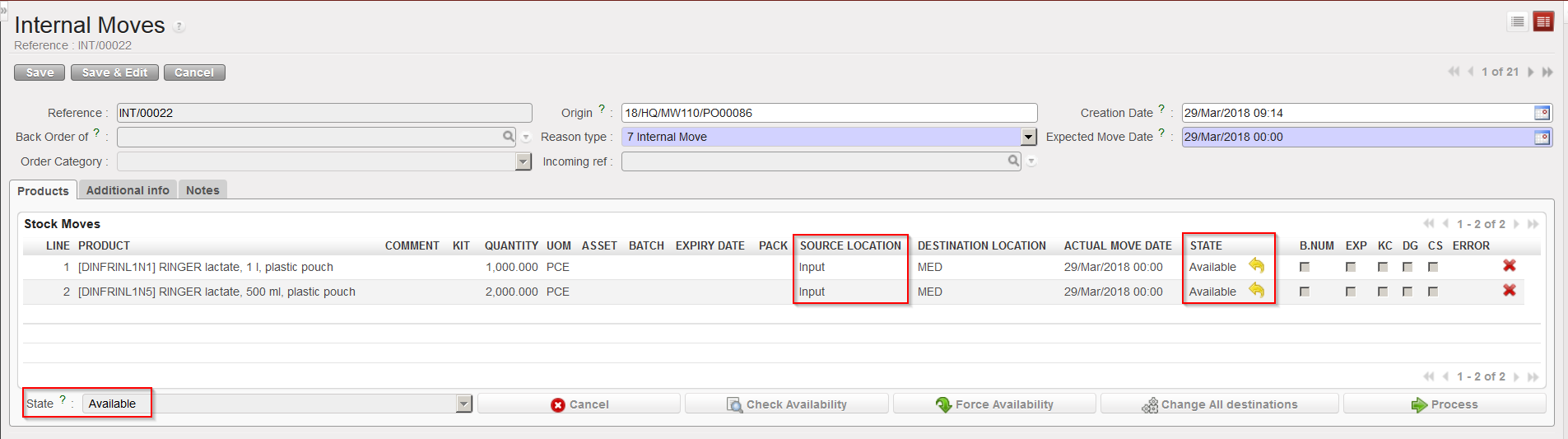
If the “Direct to Requesting Location” checkbox is not ticked, goods will be received in “Input”, the same INT will be created but you will need to process it manually. This INT will directly have the state “Available” with all its lines “Available“.

The same principle will apply with POs created from scratch or when the Location Requestor of the IR will be a stock (e.g. “LOG” or “MED”).

Example of INT created automatically by the system

D. HOW TO EXPORT AN INTERNAL MOVE

Supply User Manual ENG -> 5. Warehouse -> 5.8 LU-SU4201: Internal Moves -> D. HOW TO EXPORT AN INTERNAL MOVE

D. HOW TO EXPORT AN INTERNAL MOVE

An Internal Move can be exported to PDF or Excel. This may be useful if you want to communicate about a planned transfer or to get a needed validation (signature).

Go to: Warehouse / Warehouse Management / Internal Moves

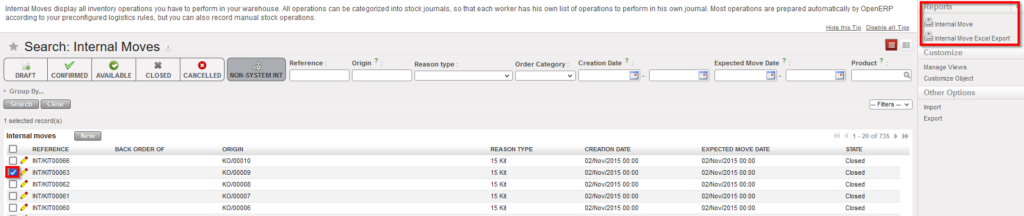
  1. Using a checkbox, select the Internal Move you wish to export.
  2. In the action menu, select the option “Internal Move” to export the INT to PDF or the option “Internal Move Excel Export” to export the INT to Excel.

Exporting an Internal Move to PDF or Excel

Internal Move in PDF format

Internal Move in Excel format

Note that these export options are also available in the action menu from within the INT.

If you tick several check-boxes in the “Search: Internal Moves” screen, you may export several INTs in one step. In PDF, you will get one page per INT. In Excel, you will get one sheet per INT.

C. HOW TO CREATE AND PROCESS AN INTERNAL MOVE

Supply User Manual ENG -> 5. Warehouse -> 5.8 LU-SU4201: Internal Moves -> C.HOW TO CREATE AND PROCESS AN INTERNAL MOVE

C. HOW TO CREATE AND PROCESS AN INTERNAL MOVE

An Internal Move can be created manually to transfer products from one location to another. You will have to specify source and destination locations. Note that all locations cannot be used as sourced or destination on an INT as this document should only be used to transfer goods internally within the warehouse (e.g. you will not be able to put an ECU as destination location on an INT).

Go to: Warehouse / Warehouse Management / Internal Moves

  1. Click on the “New” button to create a new Internal Move.
Creating a new Internal Move

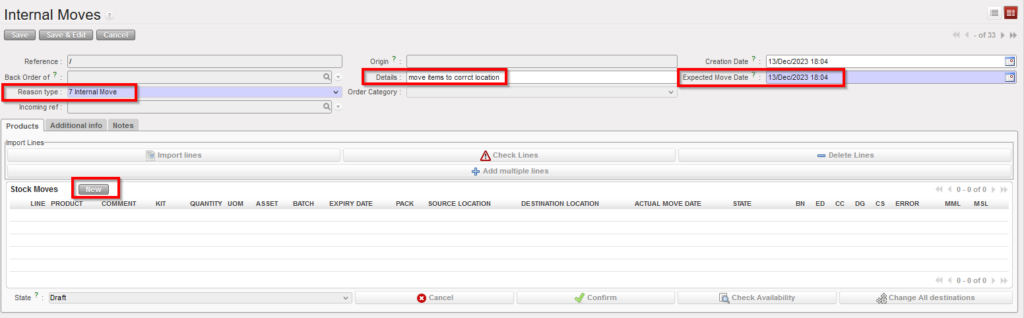
2. Enter the appropriate reason for the movement in the “Reason type” field and the “Expected Move Date“. In addition, you may add information in the “Details” field, on the “Additional info” tab or on the “Notes” tab.

Completing the Internal Move header
  • “Reason type” drop list includes “Internal Return” this is for products which have been returned from another internal location and this will be used in RR-AMC calculations in the same way as INs with RT “Return from Unit”.
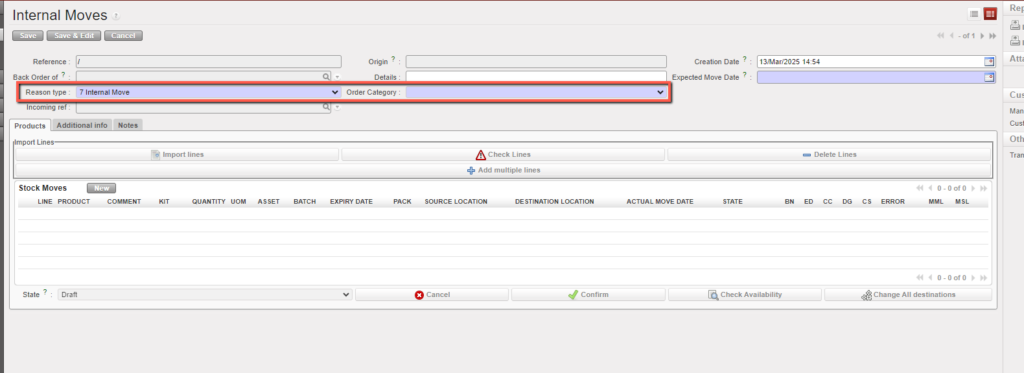
  • Select Order Category .The default value is empty, and the user can select one of the following options: Logistic, Medical, Service, Transport, or Other.

3. Click on the “New” button at the top of the “Stock Moves” table to insert a product line on the INT. Note that product lines may also be inserted via the “Add multiple lines” button or the “Import lines” button.

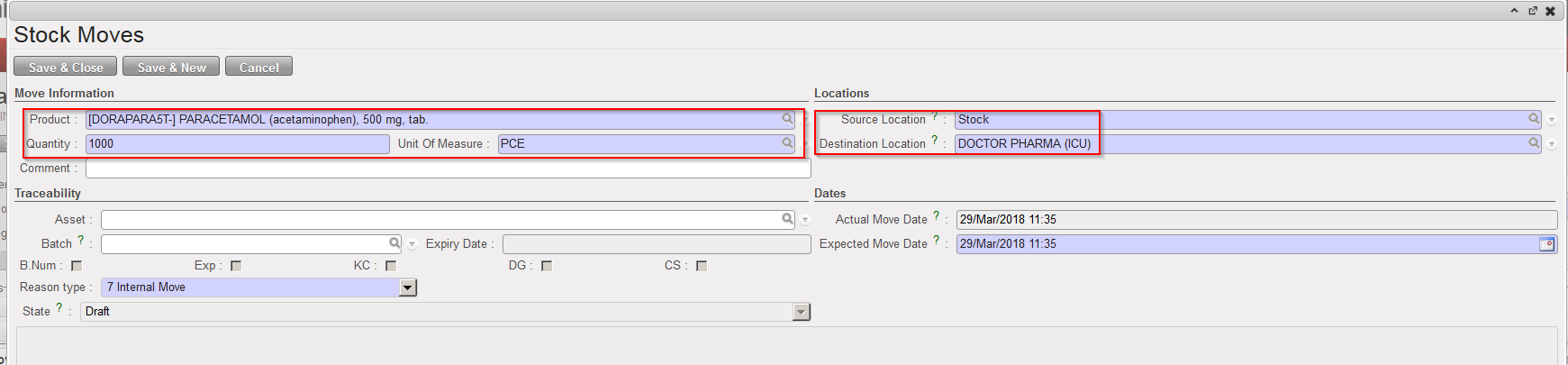
4. Enter a product code, a quantity and a unit of measure if needed. Note that if the product entered is managed by BN/ED, the system will warn you about this.

Inserting a line on the Internal Move

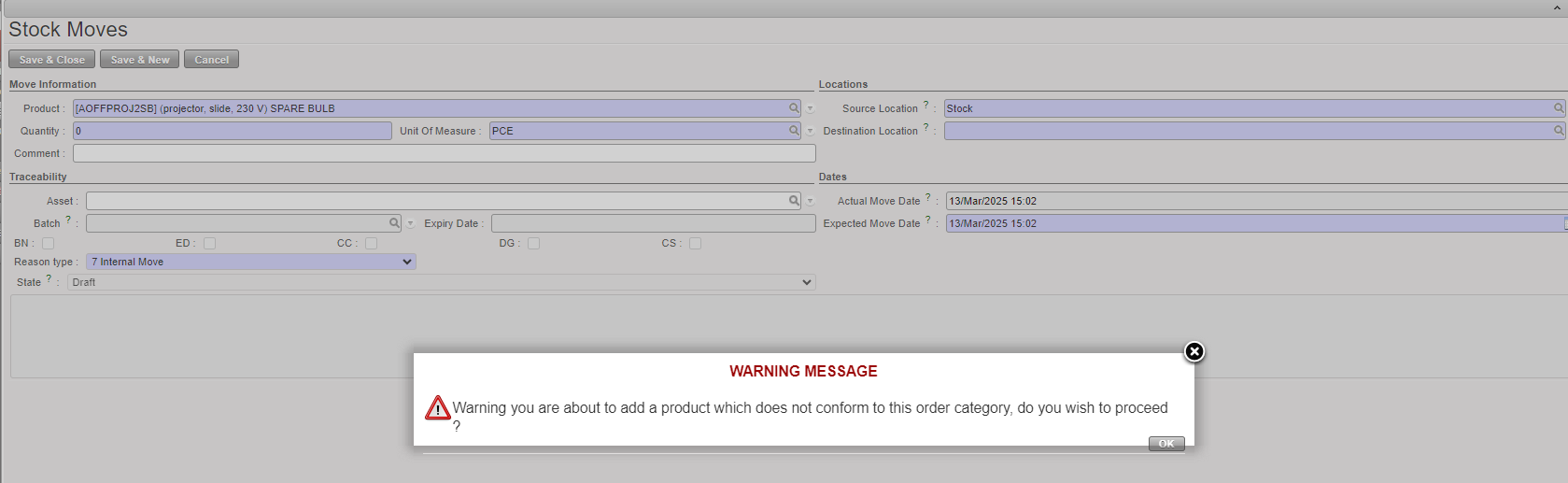
If a product does not correspond to the selected category, the user will receive a non-blocking warning message.

5. Select the “Source Location” (from where the product has to be taken) as follows:

  • “Input” to transfer a received product (this stock move should be automatically created)
  • “Stock” to transfer the product out of the stock
  • “MED” / “LOG” or another stock location to transfer the product out of this specific location
  • An Intermediate Stock to transfer the product out of this specific location
  • An Internal Consumption Unit to transfer the product out of this ICU
  • “Cross docking” to transfer the product out of the “Cross docking” location. This can be used to transfer a product to a client other than the one who ordered it (e.g. product initially purchased for a project but finally delivered to an Internal Consumption Unit)

6. Select the “Destination Location” (where the product has to be delivered) as follows:

  • “Stock” to transfer the product to the stock – it will be transferred to the “MED” / “LOG” location according to the product main type
  • An Intermediate Stock to deliver the goods to an intermediate stock location
  • An Internal Consumption Unit to deliver the product to an ICU
  • “Cross docking” if you need to transfer received products (from the “Input” location) to the “Cross docking” location to reimburse an exchange

Please note that “Input” location can never be used as a “Destination location” for INT from scratch.

7. If the product is managed by BN/ED, you may already select the batch master data on this screen.

8. Click on the “Save & Close” button to save your line and return to the main INT screen. Another option is to click on the “Save & New” button to save your line and add another one or on the “Cancel” button to discard your changes.

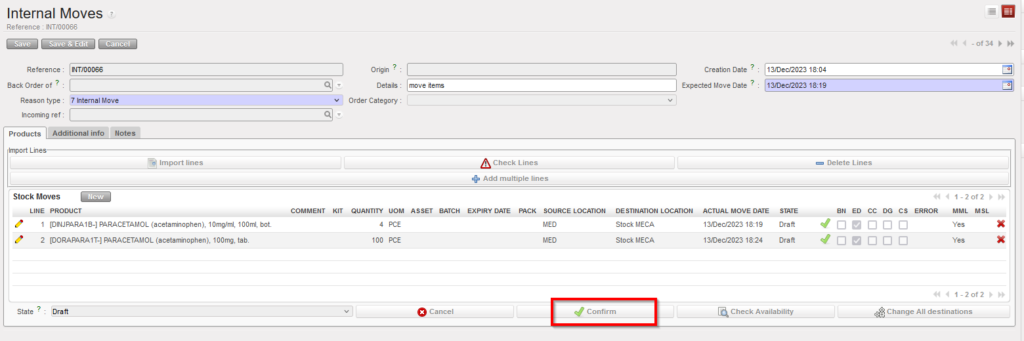
9. Once all lines have been inserted, click on the “Confirm” button located at the bottom of the main INT screen.

Confirming the Internal Move

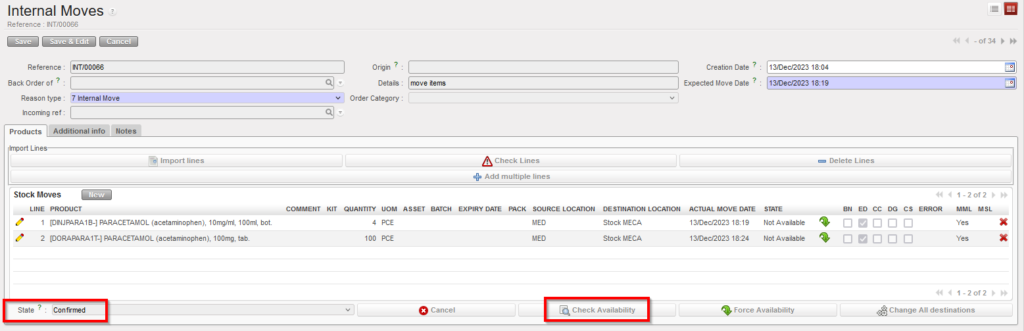
10. The INT switches from “Draft” to ”Not Available”. Click on the “Check Availability” button located at the bottom of the main INT screen.

Checking the availability of the products on the Internal Move

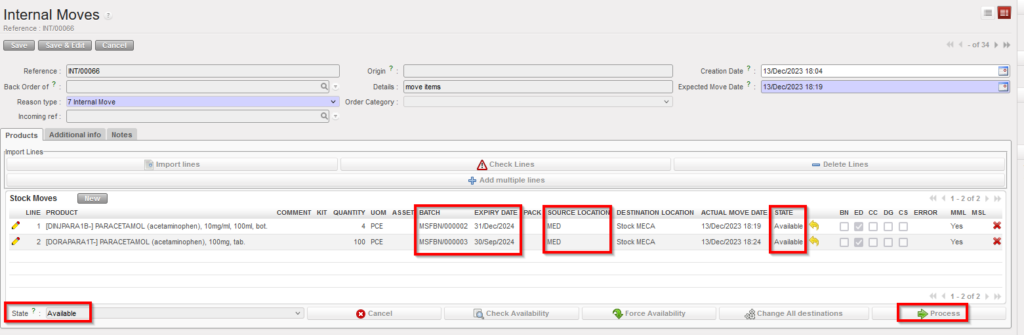
11. The availability check has been done. Batches have been selected if needed. The INT switches from ”Not Available” to “Available“. Click on the “Process” button located at the bottom of the main INT screen.

Internal Move ready to be processed

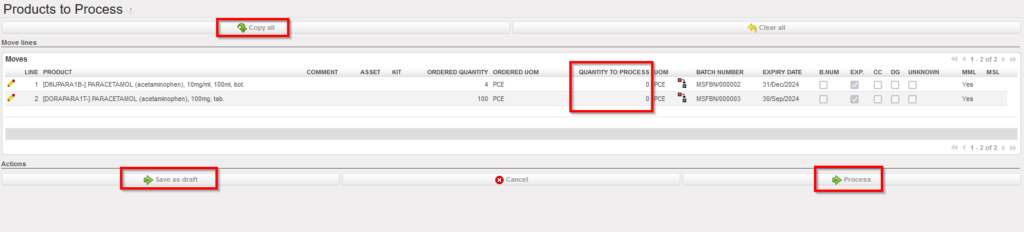
12. On the “Products to Process” screen, click on the “Copy all” button and on the “Process” button.

Processing the Internal Move

Please note that all the encoded information can be saved in case you need to process the INT at a later stage using the “Save as draft” button.

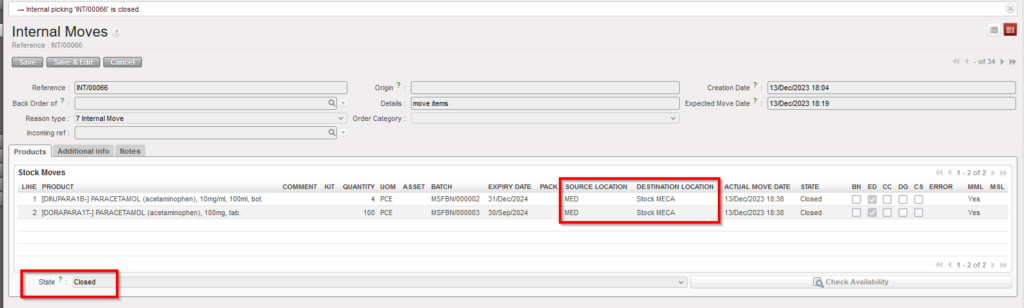
13. The INT is now “Closed” all products/batches have been transferred from source to destination location(s).

Internal Move in state “Closed”

Note that INT can be confirmed at line level. However, you should not do this as it will block the process.

Some product lines could be in the state “Not Available” following the availability check. These product lines won’t be transferred to the “Products to Process” screen when you will process the INT.

An INT can be partially processed. In this case, processed product lines will be registered on a new “Closed” INT while product lines left behind (back-order) will stay on the initial INT, ready to be processed. That’s what will happen if some lines of an INT are “Available” while others are “Not Available“.

An INT takes the state “Available” if at least one of its lines is in the state “Available“.

If a product line is “Not Available“, its availability may be forced (and this action can be done at line or header level). However, if you force the availability of a product which is managed by BN/ED, you could be blocked at the next step. If the product is not managed by BN/ED, you will be able to proceed but could create negative stocks. In any case, forcing the availability should only be done with great care.

The button “Change All destinations” which is located at the bottom of the main INT screen (if the INT is “Draft“, ”Not Available” or “Available“) allows changing all the destination locations in one step.

If you want to update an INT-line on a ”Not Available” or “Available” INT, you may only do this if the line has the state “Not Available“. Therefore, if the line is “Available” but you still want to change it, click on the yellow arrow to cancel the availability of the line and update the line as needed. After this you may recheck its availability.


B. HOW PRODUCTS MOVE THROUGH THE UNIFIELD LOCATIONS

Supply User Manual ENG -> 5. Warehouse -> 5.8 LU-SU4201: Internal Moves -> B.HOW PRODUCTS MOVE THROUGH THE UNIFIELD LOCATIONS)

B. HOW PRODUCTS MOVE THROUGH THE UNIFIELD LOCATIONS

For processing day to day transactions, it may not be necessary to know the technical aspects of Internal Moves, but the following table may be useful to understand how each transaction in UniField will move products from one location to another. In the pick/pack/ship full shipment process, products will usually initially be in a stock (e.g. “LOG” or “MED”) or in cross docking.

The picking process will transfer them from this location to the “Packing” location. The packing process will transfer them from the “Packing” location to the “Dispatchlocation“. Finally, the shipping process will transfer them from the “Dispatch” location to the “Distribution” location and from the “Distribution” location to a customer (partner) location.

 Source locationDestination locationRemark
PickingStock or Cross dockingPackingWhen sub PICK is “Closed”
PackingPackingDispatchWhen PPL is “Closed”
ShipmentDispatchDistributionWhen shipment is “Shipped”
ShipmentDistributionMSF Customer/Other CustomerWhen shipment is “Closed”

Stock levels of each product in each location can be analyzed thanks to the “Stock by Location” functionality.

Go to: Products / Products / Products

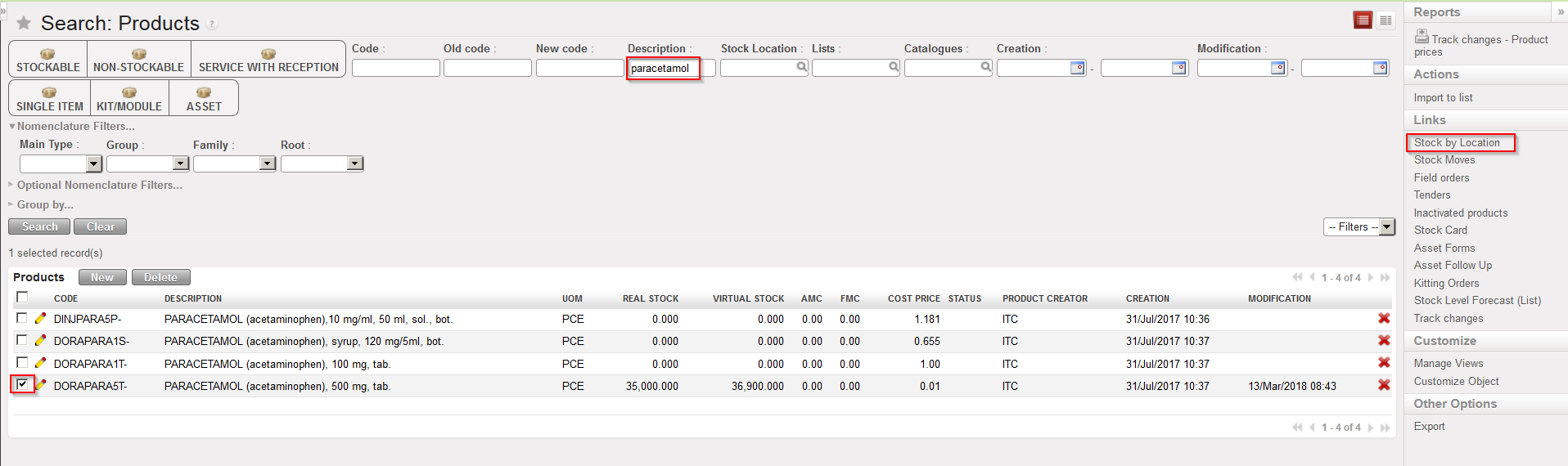
  1. Using the filters and a checkbox, select the product for which you want to see the stock levels.
  2. In the action menu, select the option “Stock by Location”.
Opening the “Stock by Location” screen for a specific product

3. The “Stock by Location” screen appears. The “Instance Full View” is shown. Note that you may see here real and virtual stock levels. Click on the “Expand all” button to see all locations from the “Instance Full View”.

“Stock by Location”, Instance Full View collapsed

4. The “Instance Full View” is expanded. All locations belonging to this view appear and real and virtual stock levels in all these locations are showed.

“Stock by Location”, Instance Full View expanded

During the pick/pack/ship full shipment process, if you check this “Stock by Location” screen step after step, you can see your products moving through these locations as stock levels are changing at each step.

Note that on top of the “Instance Full View“, you may choose to show the “Partners Location” view which will show locations related to supplier and customers.

Another option is to select the “Virtual Locations” view which will show locations related to inventories, services, non-stockable products, …