D. HOW TO RETURN PARCELS TO STOCK FROM A “Draft” shipment

Supply User Manual ENG -> 5. Warehouse -> 5.5 LU-SU4104: Shipment -> D. HOW TO RETURN PARCELS TO STOCK FROM A "Draft" shipment

D. HOW TO RETURN PARCELS TO STOCK FROM A “Draft” shipment

Products can also be put back in stock from a “Draft” (main) Shipment. This may be needed if parcels have been left behind and no shipment for customer X is planned in the near future. Instead of keeping the products in parcels on a “Draft” (main) Shipment (with approaching expiry dates) it might be wise to put them back in stock and to ship them to another project or use them locally, while other items will be picked when a shipment will be organized for customer X.

Note that parcels can be returned from a “Ready to ship” (sub) Shipment to a “Draft” (main) Shipment (as described in previous section) and then directly returned from the “Draft” (main) Shipment to the stock. However, this should be done in 2 steps.

Go to: Warehouse / Warehouse Management / Deliveries / Shipment

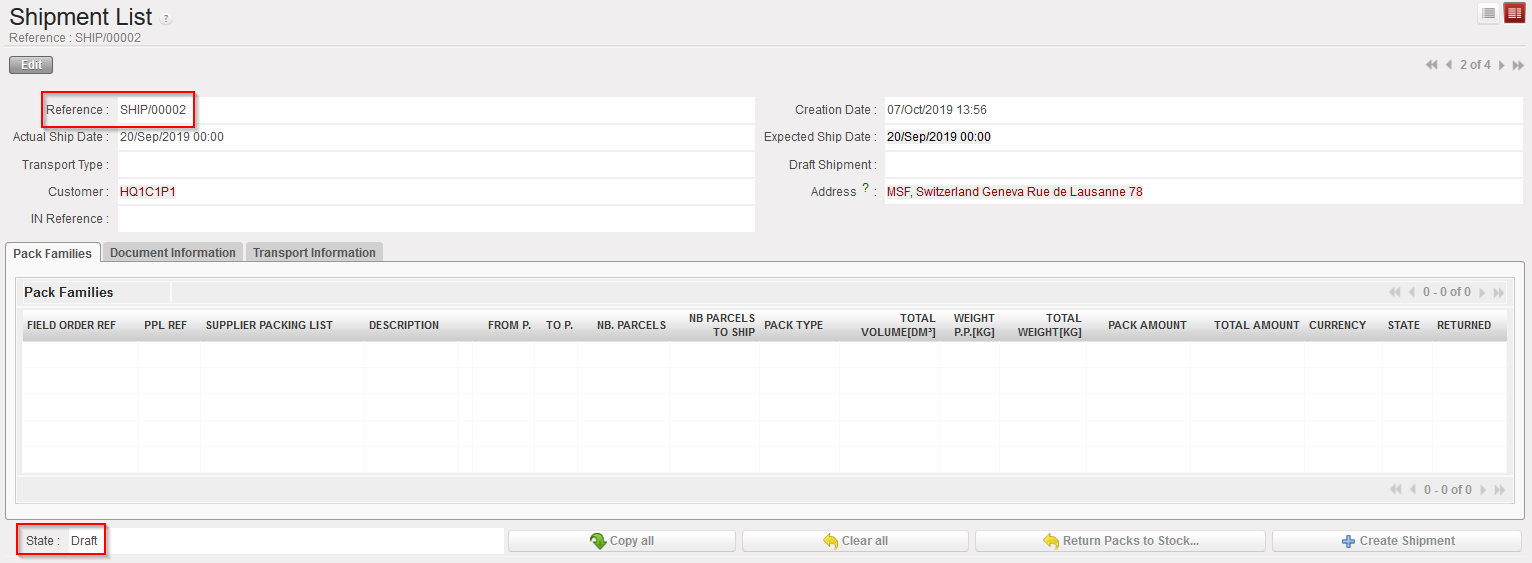
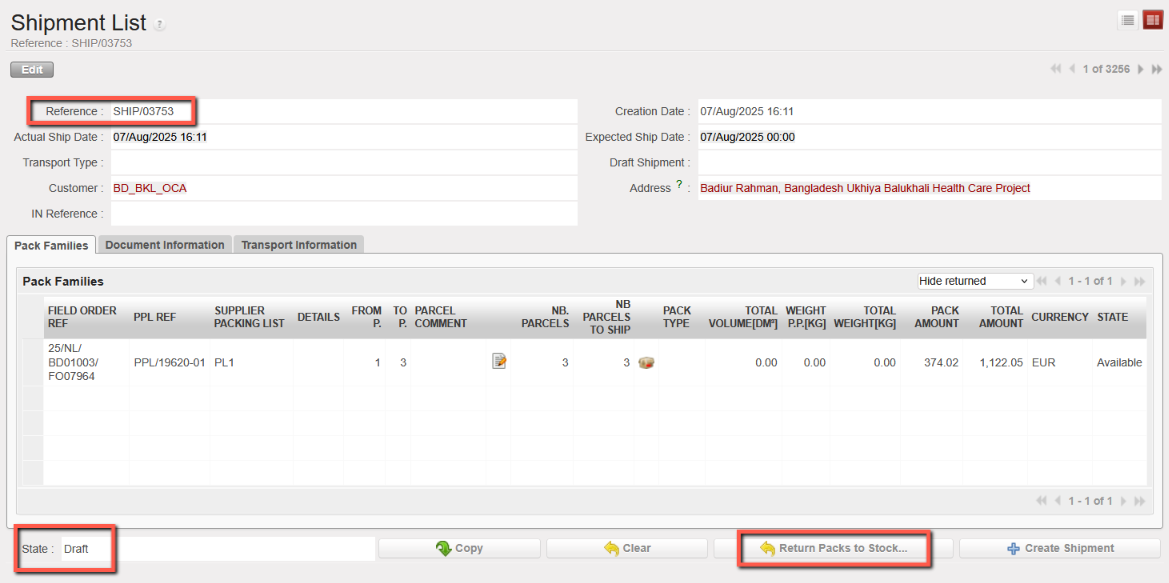
  1. Open the “Draft” (main) Shipment from which you would like to return parcels. The state of the Shipment should be “Draft” and it will necessarily be a main SHIP.
  2. Click on the “Return Packs to stock…” button at the bottom of the screen.

Returning parcels to stock from a Shipment

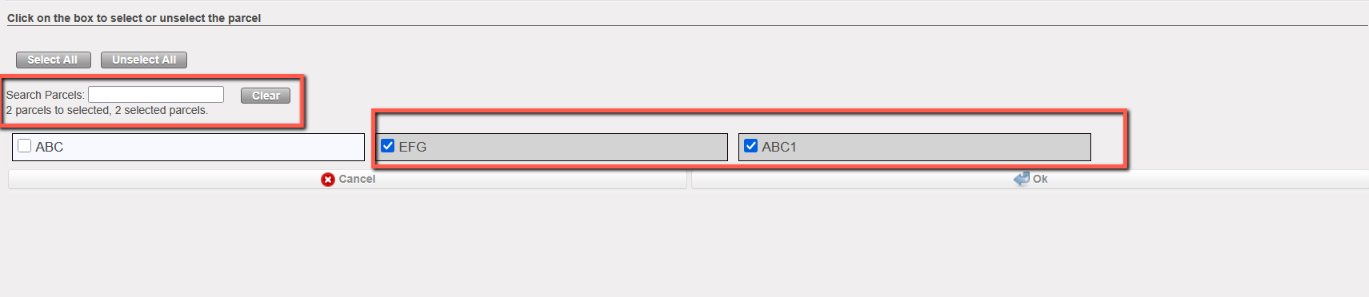
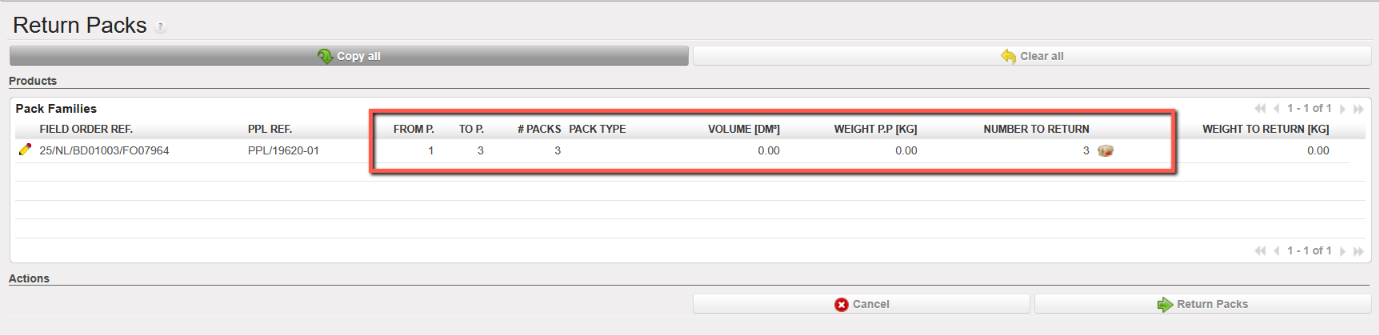
     3. Using the pencil icons, select the parcels you wish to return to stock. If Parcel ID is defined for parcels, the user need to select Parcels ID to return

     4. Click on the “Return Packs” button.

Returning parcels to stock from a Shipment

This image has an empty alt attribute; its file name is sraft-ship-3-1024x369.png

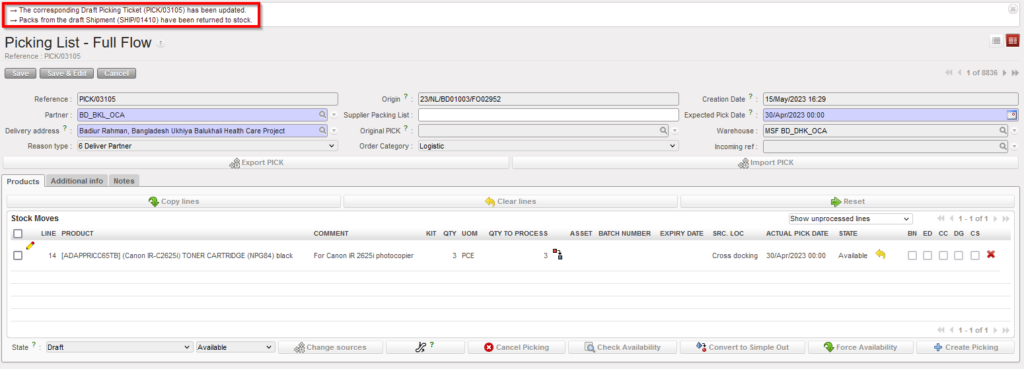
Corresponding main PICK after return

This image has an empty alt attribute; its file name is draft-444-1024x329.png

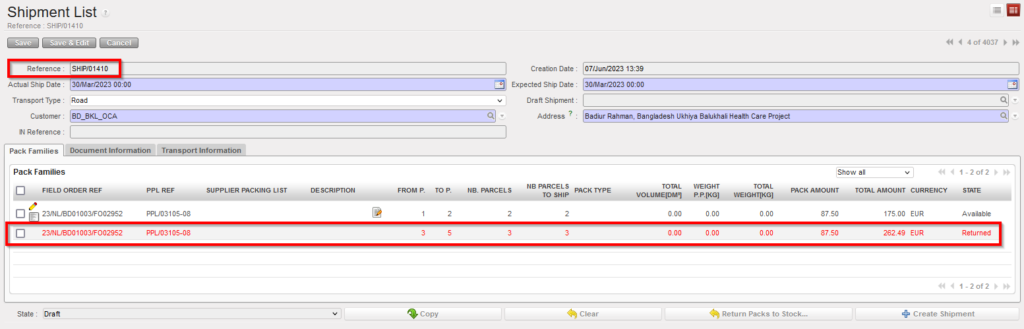
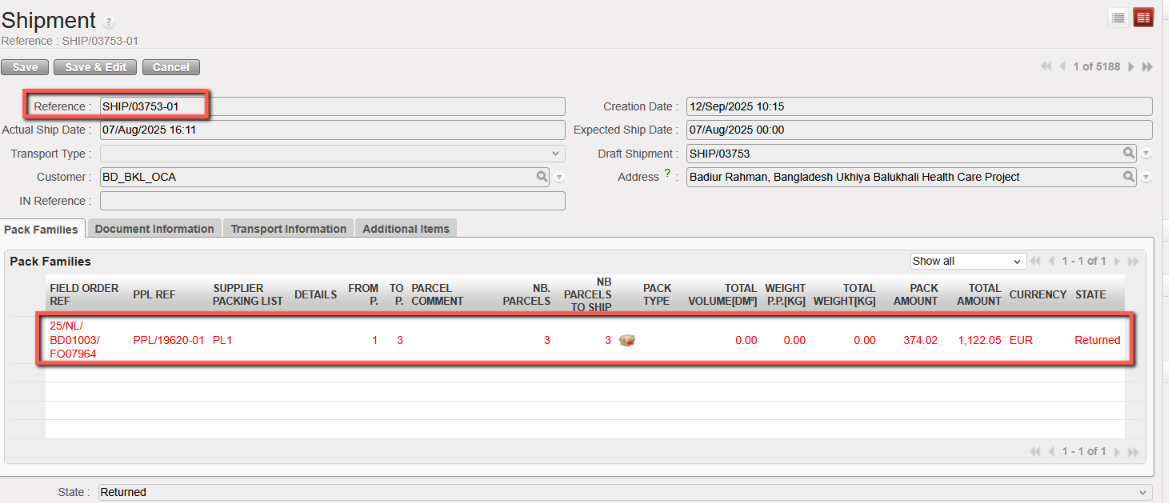
Shipment from which parcels were returned

The system updates an open the corresponding main PICK. Returned items have been moved from “Shipment” back to the stock. Returned items are “Available” on the initial Picking Ticket(s), ready to be picked when a shipment will be organized.

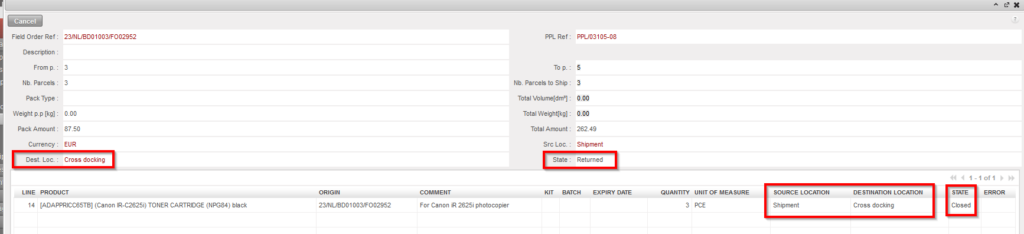
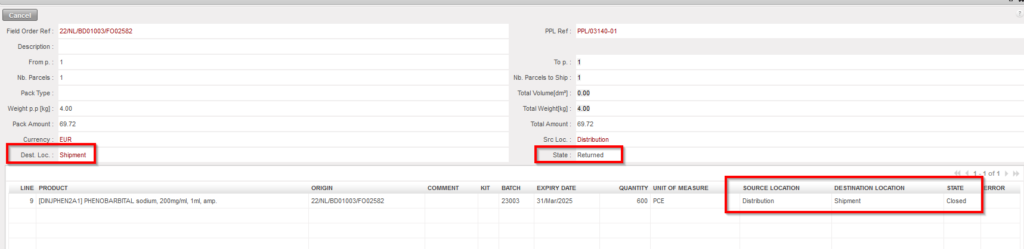
On the main SHIP, the returned parcels are still visible, but their destination location has changed (see below) and is now the stock (Cross docking in this case). The State of the returned parcel are now “Returned“, indicating that the parcels have been returned to stock.

This image has an empty alt attribute; its file name is draft-666-1024x234.png

Returned line on main SHIP

C. HOW TO RETURN PARCELS FROM A “Ready to ship” shipment

Supply User Manual ENG -> 5. Warehouse -> 5.5 LU-SU4104: Shipment -> C. HOW TO RETURN PARCELS FROM A "Ready to ship" shipment

C. HOW TO RETURN PARCELS FROM A “Ready to ship” shipment

It is still possible to remove parcels from a “Ready to ship” (sub) Shipment. This may happen if, for example, after preparing the (sub) Shipment, you realize that all parcels could not fit in the truck and some of them were left behind. You may then return these parcels from the “Ready to ship” (sub) Shipment to the “Draft” (main) Shipment. They will be shipped with the next (sub) Shipment.

Go to: Warehouse / Warehouse Management / Deliveries / Shipment

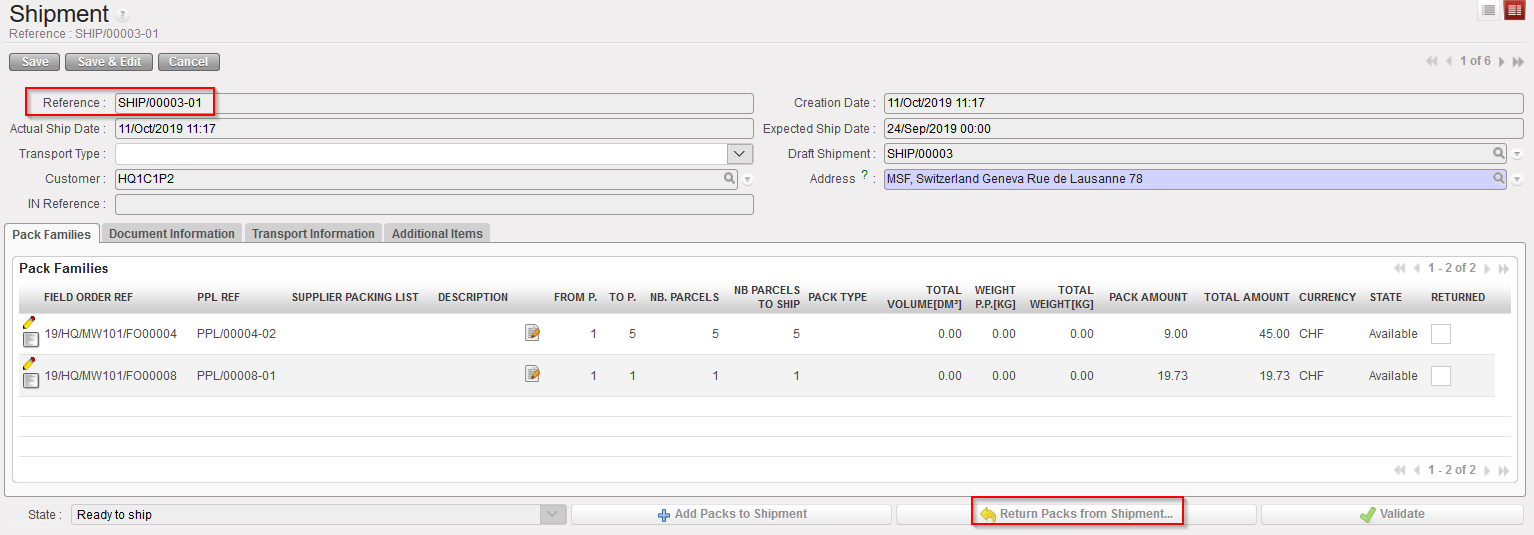
  1. Open the “Ready to ship” (sub) Shipment from which you would like to return parcels. The state of the Shipment should be “Ready to ship” and it will necessarily be a sub SHIP.
  2. Click on the “Return Packs from Shipment…” button at the bottom of the screen.

Returning parcels from a “Ready to ship” Shipment

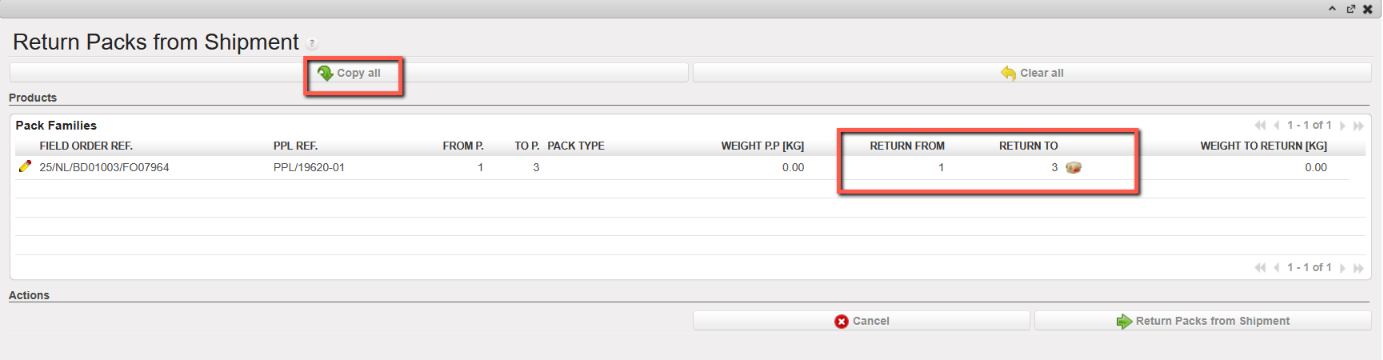
    3. Using the pencil icons, select the parcels that you wish to return. Alternatively, you may select all parcels using the “Copy all” button if needed.

Returning parcels from a “Ready to ship” Shipment

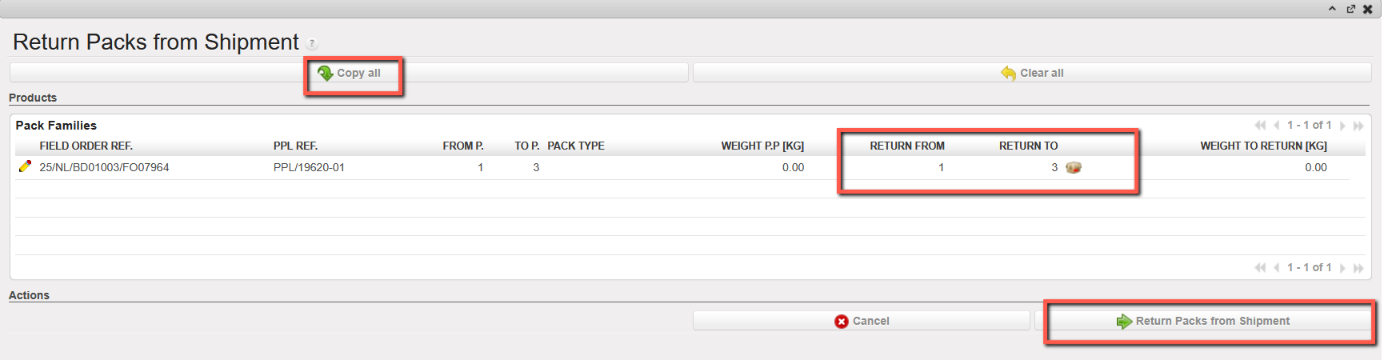
     4. Click on the “Return Packs from Shipment” button.

Returning parcels from a “Ready to ship” Shipment

If Parcel ID is defined for parcels, the user needs to select Parcels ID to return

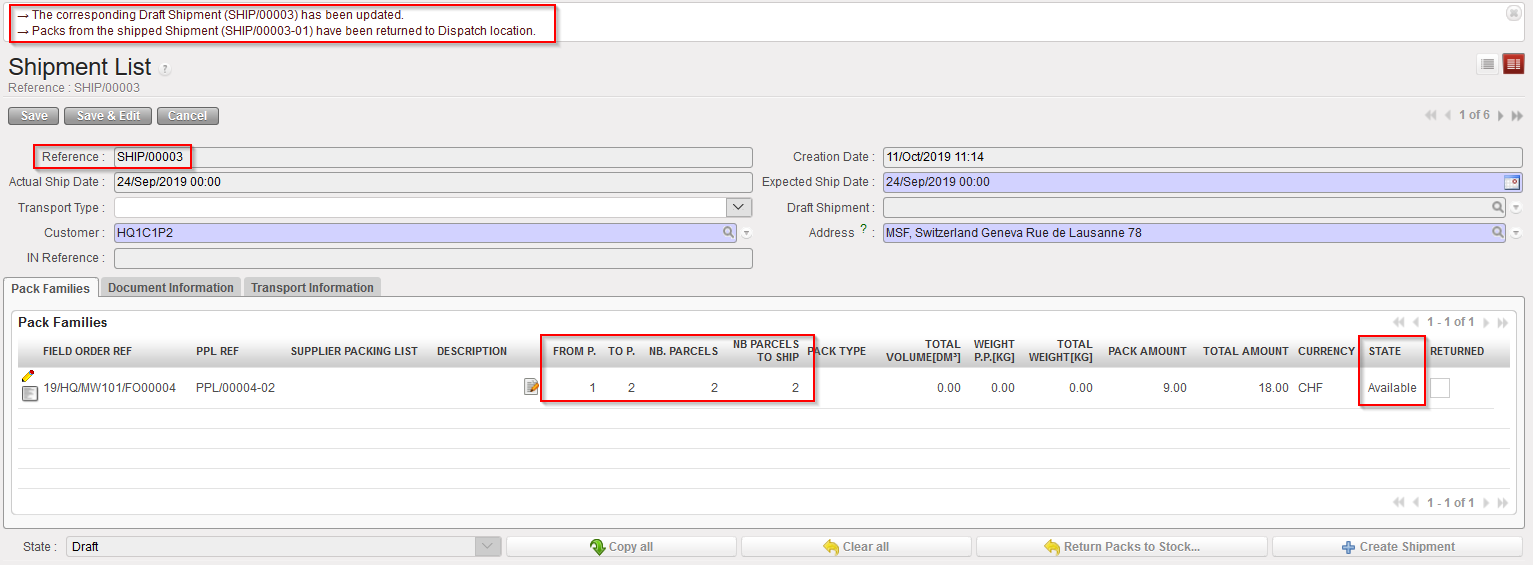
Sub SHIP after return

The system updates and opens the (main) Shipment.

The selected parcels have been sent back to the main SHIP. They are available in the “Shipment” location, ready to be shipped with the next (sub) Shipment.

On the sub SHIP, it is still possible to see the returned lines by adjusting the filter to “Show All” or show “Returned Only”. Their destination location is “Shipment” (see below) and the State is “Returned“, indicating that the parcels have been returned.

This image has an empty alt attribute; its file name is sub-ship-line-2222-1024x249.png

Returned line on sub SHIP

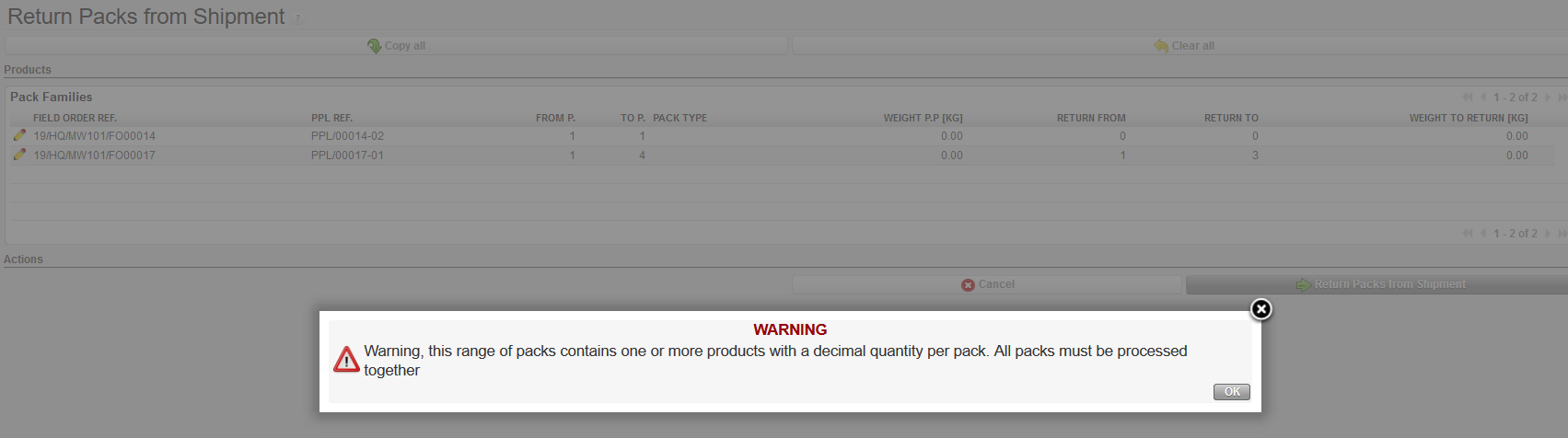
Please note that in case the user tries to return integer products partially with decimal quantities per boxes, the system will display the following blocking message:

The user tries to return 1 to 3 packs out of an initial range of 1 to 4 with decimals

The user will have to return either all packs or none.

B. HOW TO CREATE AN OUTGOING DELIVERY

Supply User Manual ENG -> 5. Warehouse -> 5.5 LU-SU4104: Shipment -> B. HOW TO CREATE AN OUTGOING DELIVERY

B. HOW TO CREATE AN OUTGOING DELIVERY

All parcels from processed Pre-Packing Lists are automatically added on a draft (main) Shipment. It is possible to either validate the full shipment (i.e. select all the parcels), or to proceed with a partial shipment (i.e. select only some parcels). In the case of a partial shipment, parcels left behind will remain on the (main) Shipment, ready to be shipped with a future shipment. Products can also be returned to stock, should they not need to be shipped anymore.

Go to: Warehouse / Warehouse Management / Deliveries / Shipment

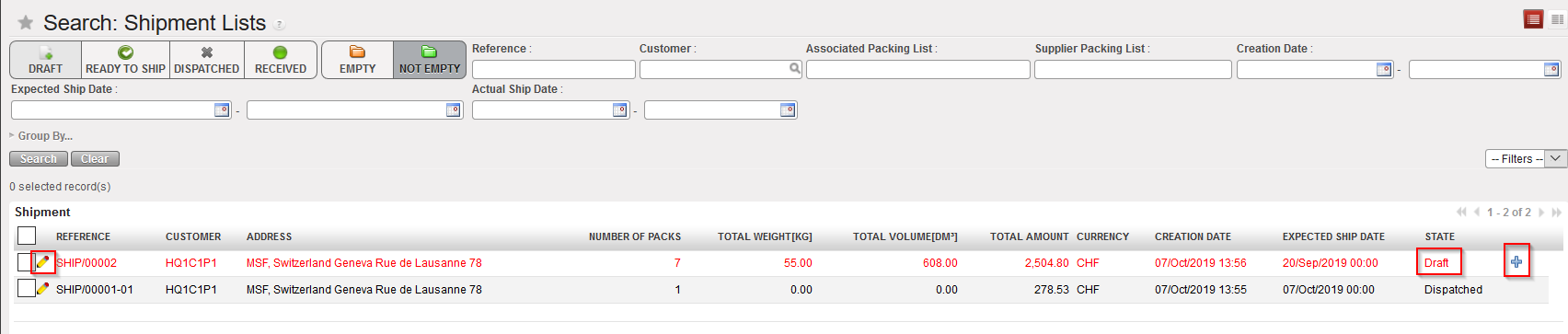
  1. Locate the (main) Shipment you wish to ship to a project/customer. It should be in “Draft” state.
  2. Click on the icon located at the right side of the appropriate line. Another option is to open the Shipment and click on the “Create Shipment” button at the bottom of the screen.

Processing a Shipment

Processing a Shipment

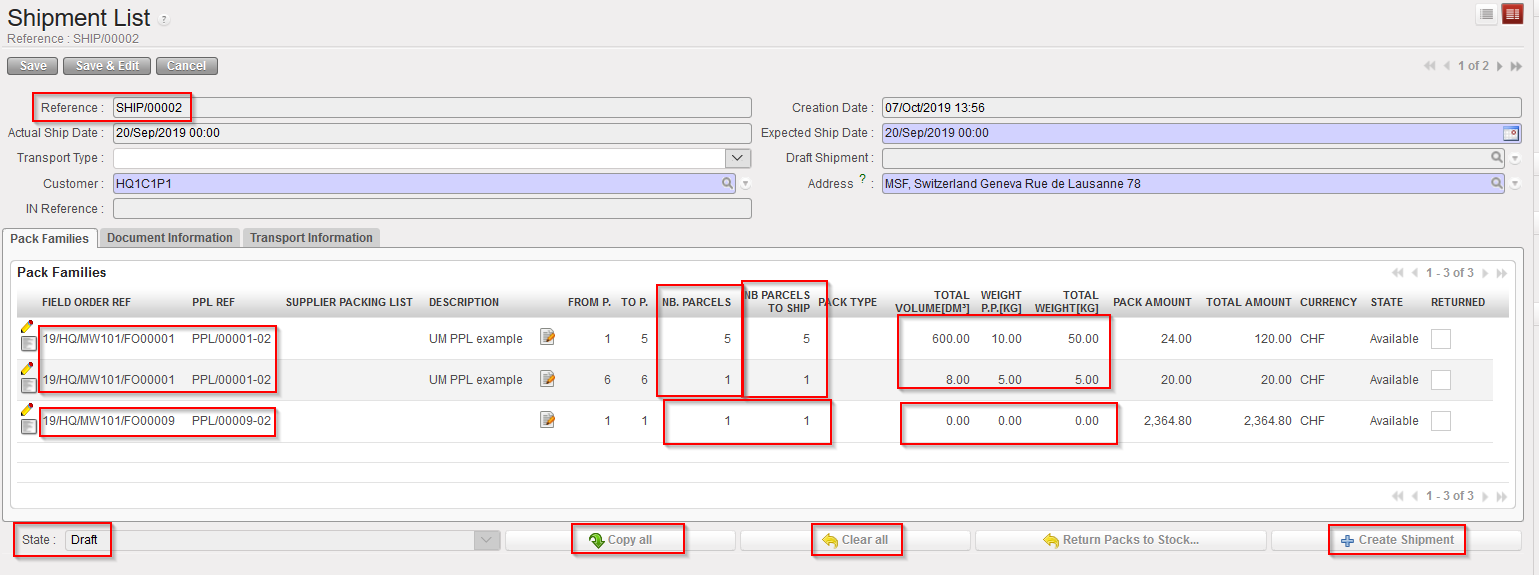
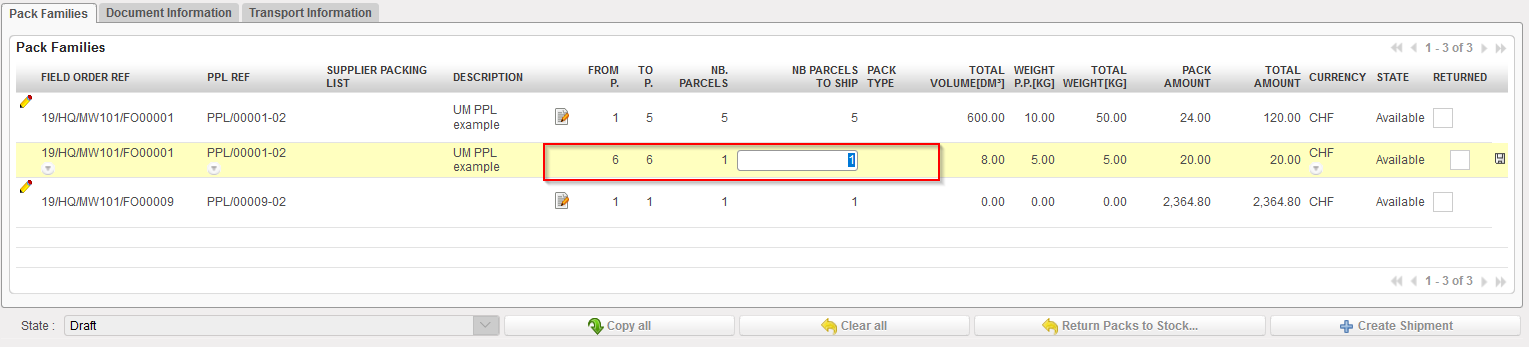
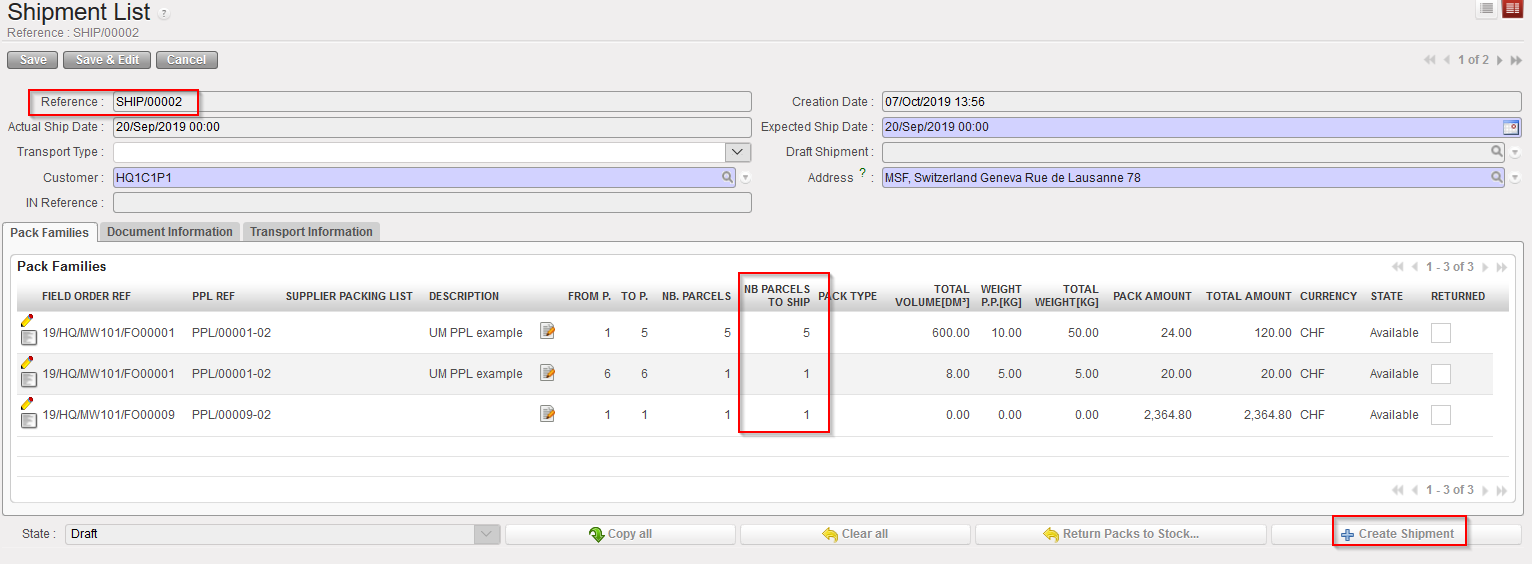
3. The “NB Parcels to Ship” is by default set to the same as “Nb Parcels” however, this can be edited/updated in case you need to ship only some parcels (using the pencil icon ).

Note that buttons “Copy all “ and “Clear all” are related to this field “Nb Parcels to Ship”.

4. The “Total volume” and “Total weight [KG]” are retrieved from the PPL processed before. These fields can only be edited here in case the information has not been updated in the PPL (remember that these are not mandatory fields in the PPL) – in the example above only line from “PPL/00009-02” can be updated for Weight and Volume since their value is at “0”. Edition can be done using the pencil icon

5.  The “To P.” is also retrieved from the PPL processed before.

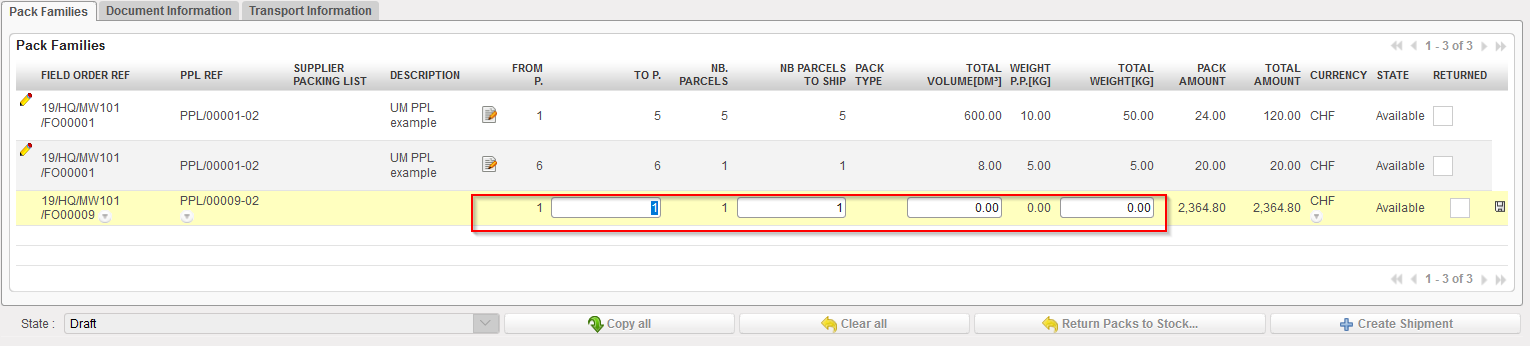
However, when the “Quick flow(2 steps – PICK to SHIP with no PPL) is used, the default value is “From P. =1” and “To P. =1”. In this specific case user still has the possibility to edit/update the “To P.” to set the number of parcels needed. User needs to click on the pencil icon (in case the PPL comes from the Full flow, the field “To P.” will not be editable anyway).

Editing line from Full flow (3 steps) – with all PPL info registered (including Volume and weight) – only “Nb parcels to ship” editable

Editing line from Quick flow (2 steps) – “To P.”, “Nb Parcels to ship”, “Total Volume” and “Total weight” editable

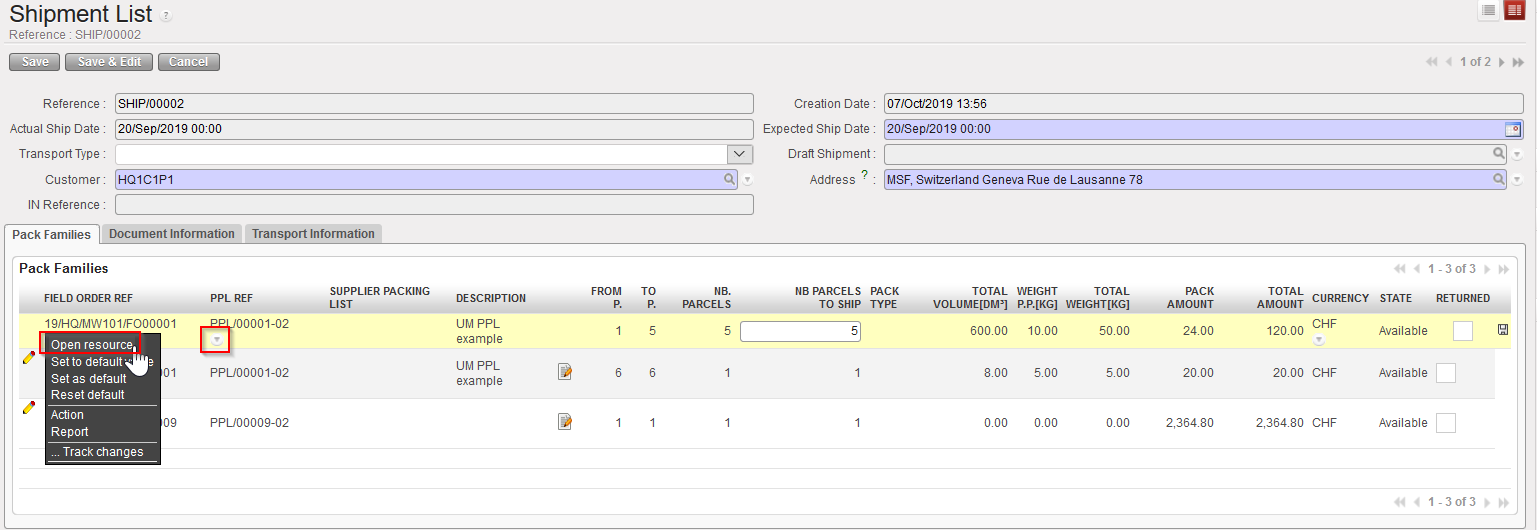
Note that you may choose the number of parcels to ship for each line. One line represents a certain number of identical parcels (same content, same dimensions, and same weight). The detail of a FO or PPL can be viewed by clicking on the “Open a resource” icon (down arrow) located at the right of the FO/PPL and by clicking on the “Open resource” option in the drop-down list.

Looking at the details of a FO or PPL

6.  Once the parcels have been selected, click on the “Create shipment” button to create a sub SHIP. In the below example, all parcels available on the main SHIP are selected.

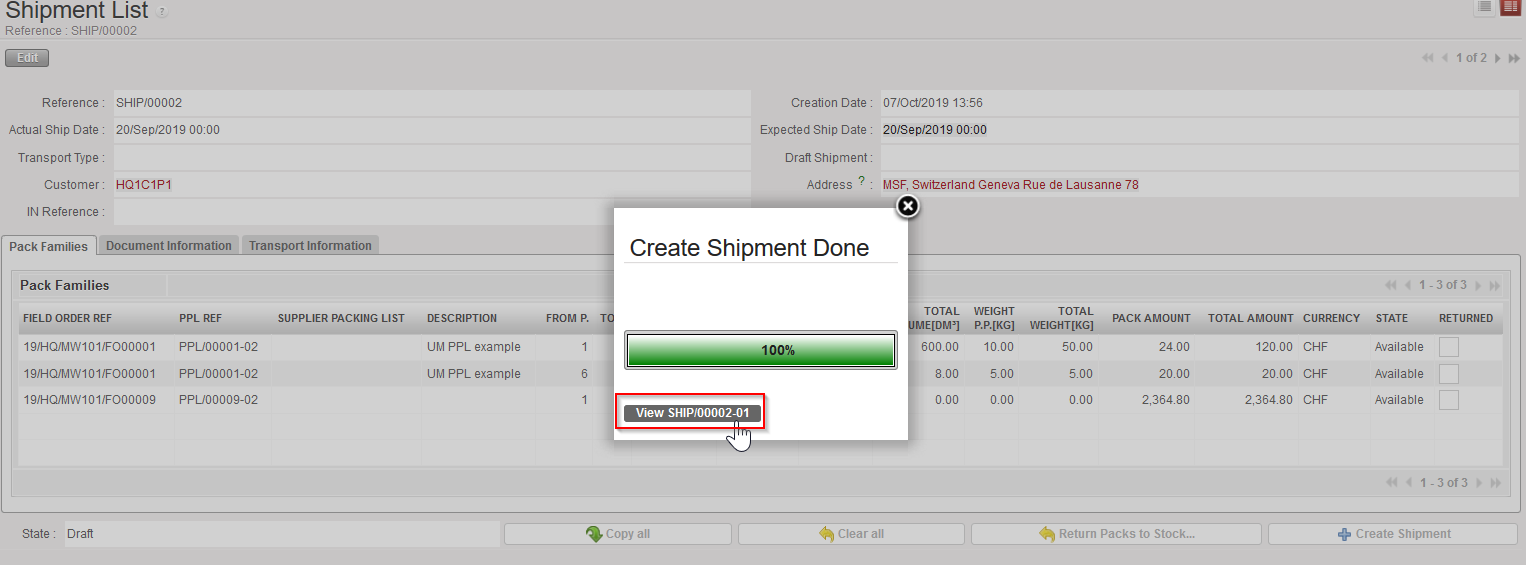
7.  Then click on the button“View SHIP/000XY-AB” from the pop up “Create Shipment Done

Creation of sub SHIP

Intermediate pop up to reach the newly created Sub-SHIP

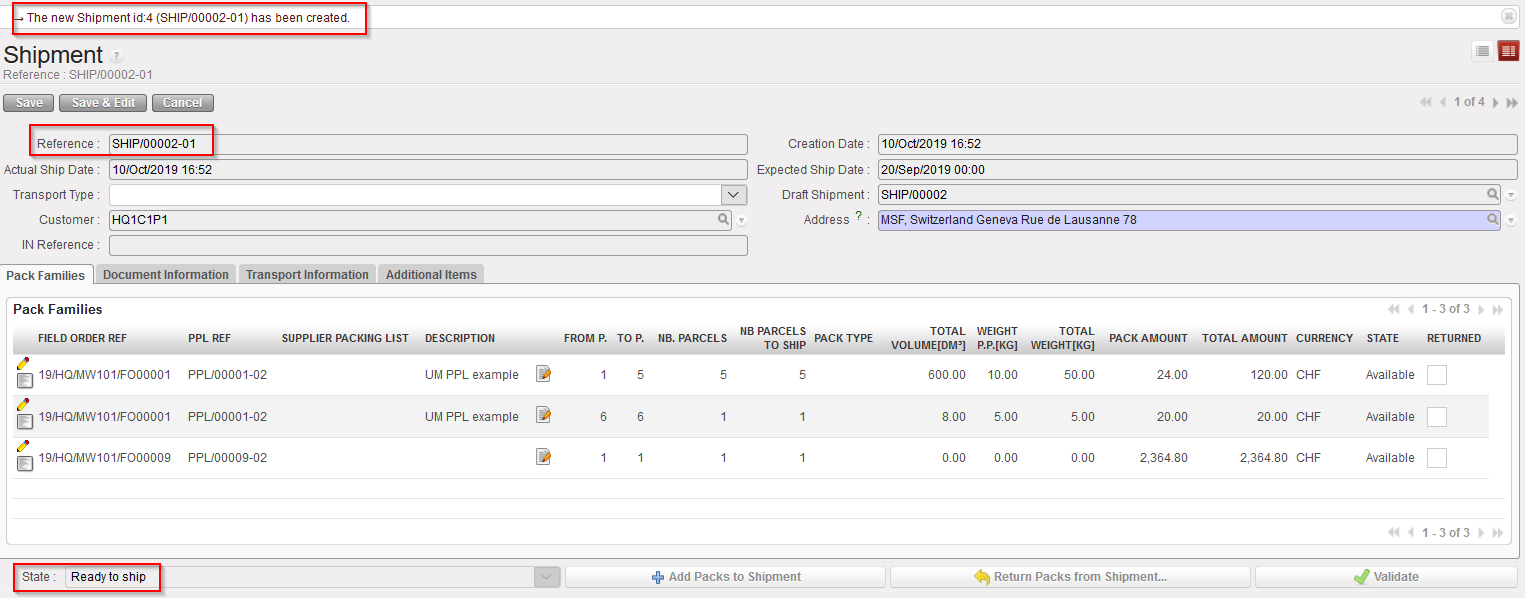
Sub SHIP created by the system

Main SHIP after creation of the sub SHIP

A sub SHIP (reference SHIP/000XY-AB) is created by the system and includes all parcels selected from the main SHIP (reference SHIP/000XY). The state of the sub SHIP is “Ready to ship“.

As all parcels have been selected from the main SHIP, this one is now empty. Note that the main SHIP stays in “Draft” to allow returns of products and welcome other parcels from PPLs for the same customer which could be processed.

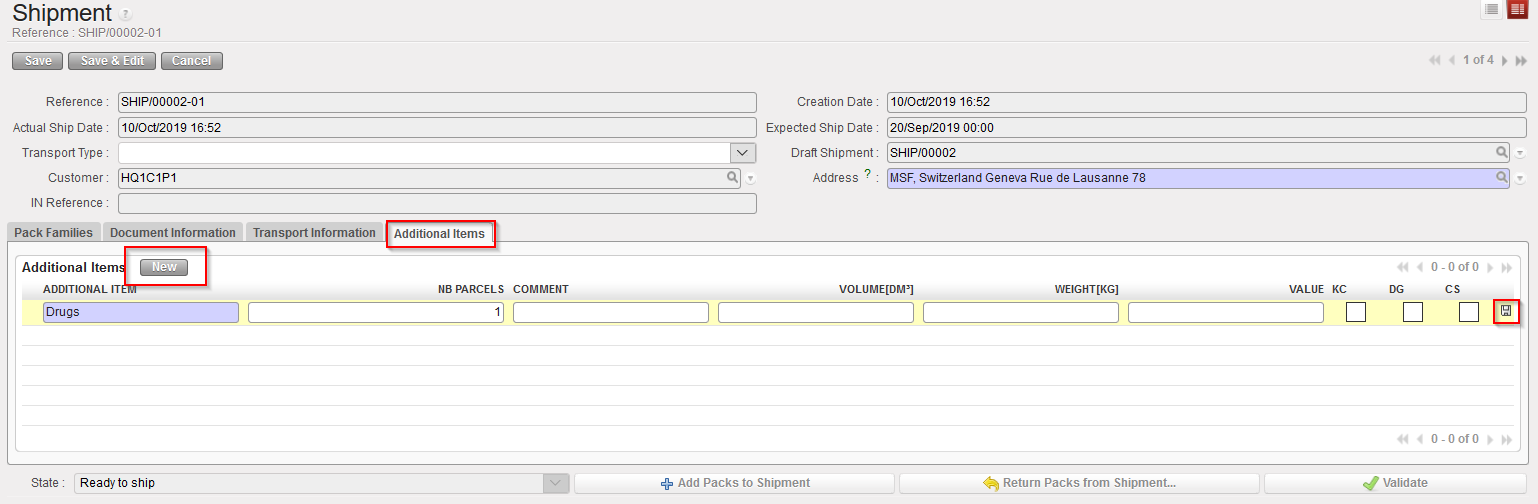
8.  Note that the “Additional Items” tab can be used to indicate items which should have been added to the Shipment but were not part of the previously processed documents (PPLs, PICKs, FOs). This tab is only editable in “Ready to ship” Status.

Adding new items to the shipment

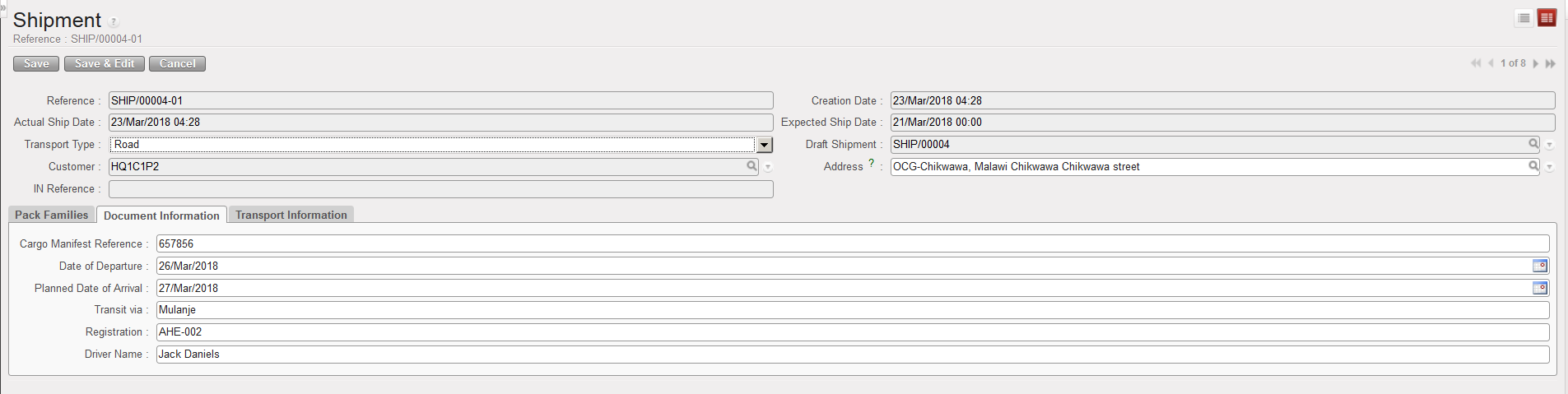
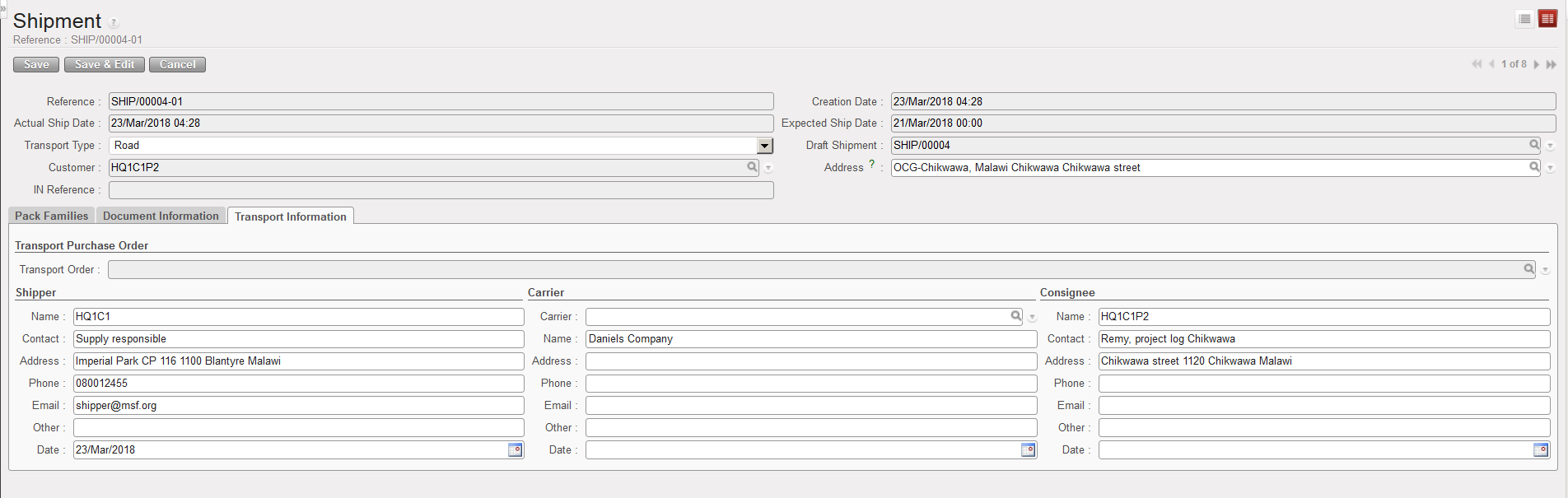
9. On the sub SHIP, you should complete the “Document Information” tab and the “Transport Information” tab with all necessary information needed such as reference of the cargo manifest, departure and arrival dates, driver and vehicle information, shipper information, carrier information and consignee information. Please note that Transport Order can be linked to the sub-Ship.

“Document Information” tab on a Shipment

“Transport Information” tab on a Shipment

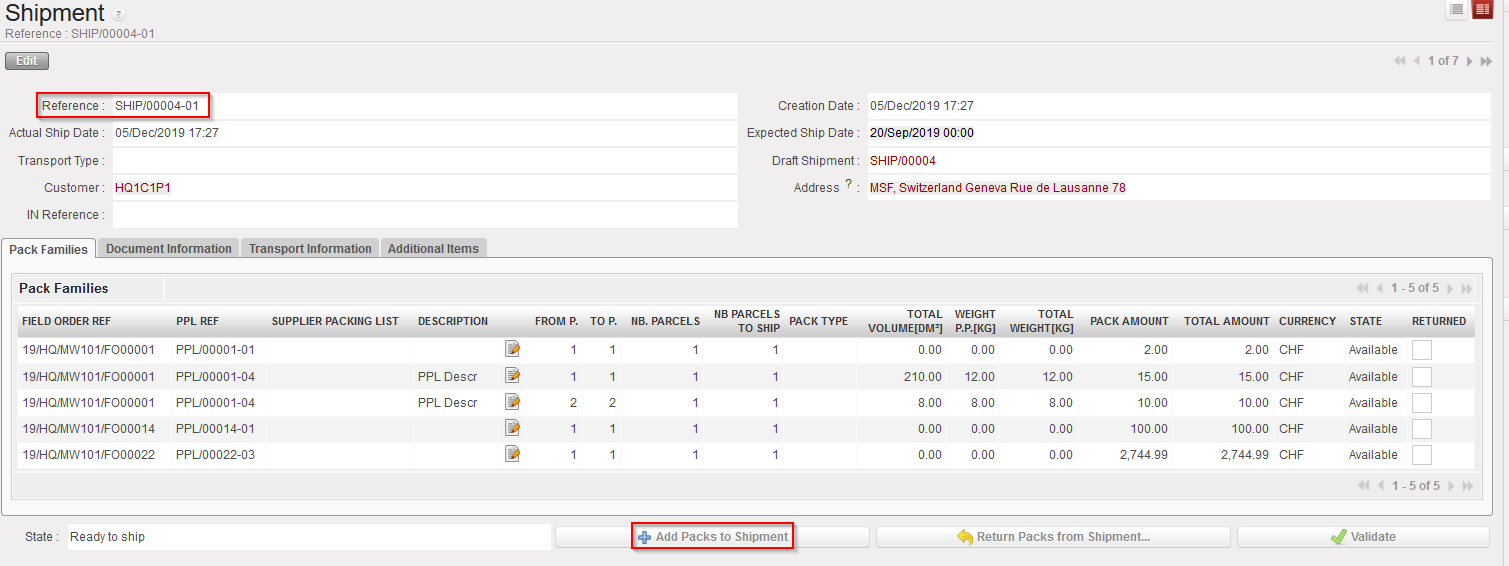
10. The “Add Packs to Shipment” button enables to add existing Packs to the Sub-Ship in “Ready to ship” status (button not displayed for other statuses).

All Packs for this customer from the Draft main Shipment are listed and can be selected.

By default the “Selected Number” field is set to “0” and can be updated line by line or by using the “Copy all” button (“Clear all “ button will be used to clear this field in case you need to correct the entered information).

Click on the “Add Packs to Shipment” button to add the selected PPLs.

Add Packs to the Shipment – Sub-SHIP

Add Packs to Shipment – List of PPL from the Main PICK

The sub-Ship main screen will be updated with these new additional Packs.

11. Click on the “Validate” button.

12. Click on the pop up “View SHIP/XXXX-AB

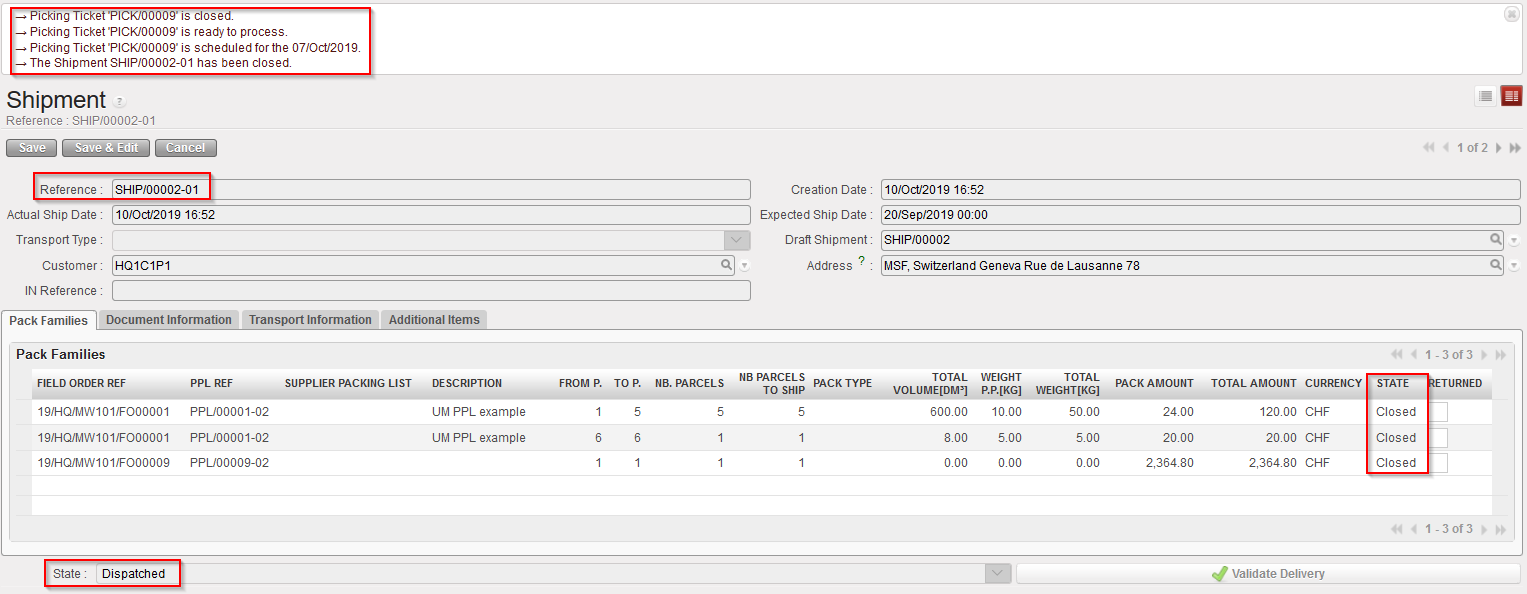
Closed sub SHIP – Dispatched

The sub SHIP switches to “Dispatched”.

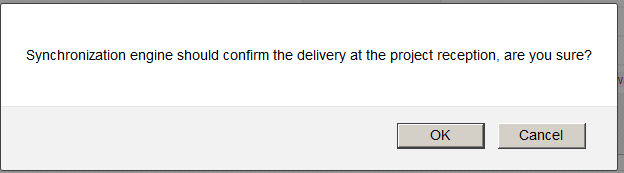
Note that for shipments sent to other UniField instances, the validation of the sub SHIP will be automatically done by the synchronization, when the reception will be done on the receiving instance. This means that you should not click on the “Validate Delivery” button for those ones. If you click on it, you will get the below (non-blocking) message.

Please also note that the Validation of the sub-Pick (when status turns to Dispatched) closes the related picked lines.

Warning message when trying to “Validate Delivery” which is for a UniField instance

For shipments sent to External customer, you will have to validate the shipment manually once the customer confirms reception of the goods by clicking the “Validate Delivery” button.

A. LU Introduction (LU-SU4104)

Supply User Manual ENG -> 5. Warehouse -> 5.5 LU-SU4104: Shipment -> A. LU Introduction (LU-SU4104)

A. LU Introduction (LU-SU4104)

Remember that the previous section (packing) left parcels on a (main) Shipment after the processing of the PPL. Products were actually moved from the “Packing” location to the “Dispatch” location.

The shipment process consists of selecting parcels which are ready to be shipped to a customer and group them in a (sub) Shipment.

It is possible to select all parcels from all ready to be shipped PPLs and include them into a single (sub) Shipment.

It is also possible to select specific parcels from specific PPLs to include them in a (sub) Shipment while other parcels will be left behind and stay on the (main) Shipment. This may happen if, for example, there is no sufficient space available in a truck to ship the full consignment (i.e. all parcels ready to be shipped) or if some parcels need to be sent by plane while others will be sent by truck.

Parcels from Pre-Packing Lists which are for the same customer are automatically grouped on a same (main) Shipment once the PPL is processed, whatever the type of products involved or the transport mode specified in the previous documents.

The shipment process can also be seen as an internal stock move, transferring the products from the “Dispatch” location to the “Distribution” location when a sub SHIP is processed, then transferring them from the “Distribution” location to the “MSF Customer” or “Other Customer” (partner) location when validating/closing a sub SHIP.

The shipment process is similar to the picking process as main SHIPs and sub SHIPs will be used (similar to main PICKs and sub PICKs). The process will always start from the main SHIP from which sub SHIPs will be created. Shipments actually shipped to customer will always be sub SHIPs. The main SHIPs will stay open to welcome additional parcels from subsequent validated PPLs, to deal with partial shipments (back orders) and to be able to handle returns.

A. LU INTRODUCTION (LU-SU4105)

Supply User Manual ENG -> 5. Warehouse -> 5.6 LU-SU4105: Delivery Orders -> A. LU INTRODUCTION (LU-SU4105)

A. LU INTRODUCTION (LU-SU4105)

Delivery Orders are commonly used with IRs to deliver products to External Consumption Units such as offices; clinics, the car workshop, (IR with an External Consumption Unit as “Location Requestor”). In that case, the OUT will automatically be created upon sourcing of the IR when sourced from stock and upon confirmation of the PO (or PO-line) when sourced on order. It is actually the confirmation of the IR-line which triggers the creation of the corresponding OUT-line.

The whole picking/packing/shipment process which has been introduced in the previous Learning Units and which is, by default, initiated by the sourcing of an FO from stock or on order, can be simplified significantly by delivering the products via “Delivery Orders” (simple OUT process). The 3 steps (pick/pack/ship) delivery process will be reduced to a 1 step (OUT) delivery process.

Note that it is possible to configure an instance so that all goods are automatically dispatched in this way (i.e. the delivery process will be simple OUT in all cases). See Administration chapter, Reconfigure.

However, shipping goods to a customer with the simple OUT process will be done with 1 (OUT) document only. As a consequence, documentation you will be able to print with a simple OUT process will be limited compared to the usual cargo documentations you may print if you use a pick/pack/ship/process.

H. PRE-PACKING LISTS REFERENCES

Supply User Manual ENG -> 5. Warehouse -> 5.3 LU-SU4102: Picking -> H. PRE-PACKING LISTS REFERENCES

H. PRE-PACKING LISTS REFERENCES

All Pre-Packing Lists have a reference which looks like PPL/XXXXX-YY.

This reference matches with the reference of the Picking Ticket (sub PICK). Once processed, the Picking Ticket PICK/XXXXX-YY generates the Pre-Packing List PPL/XXXXX-YY.

In case of full picking, the main PICK has the reference PICK/XXXXX, the sub PICK has the reference PICK/XXXXX-01 and the corresponding Pre-Packing List has the reference PPL/XXXXX-01.

In case of partial picking, YY takes the value 01 for the first partial picking, 02 for the second partial picking, 03 for the third partial picking,… The Pre-Packing List PPL/XXXXX-01 matches with the partial picking PICK/XXXXX-01, the Pre-Packing List PPL/XXXXX-02 matches with the partial picking PICK/XXXXX-02, the Pre-Packing List PPL/XXXXX-03 matches with the partial picking PICK/XXXXX-03,…

On some reports (see, at the end of the chapter, sections on reporting), references PACK/XXXX-YY-ZZ may appear. The “PACK” reference is actually the reference of a Packing List. We refer to Packing List (and not to Pre-Packing List) when a PPL is on a Shipment (sub SHIP) which is in the state “Shipped“, “Closed” or “Delivered”. The Packing List PACK/XXXXX-YY-ZZ matches with the Pre-Packing List PPL/XXXXX-YY which matches with the Picking Ticket (sub PICK) PICK/ XXXXX-YY. ZZ always takes the value 01. Note that a PACK is not a new document but is just another way to name a PPL.

G. HOW TO UNPACK PRODUCTS AND RETURN THEM TO STOCK

Supply User Manual ENG -> 5. Warehouse -> 5.3 LU-SU4102: Picking -> G. HOW TO UNPACK PRODUCTS AND RETURN THEM TO STOCK

G. HOW TO UNPACK PRODUCTS AND RETURN THEM TO STOCK

It is possible to return to stock products which have been picked and are ready to be packed. The PPL has to be in “Available” state (i.e. the products should not be declared as packed yet or the parcels should not be included on a shipment yet). The return can be total or partial.

Go to: Warehouse / Warehouse Management / Deliveries / Packing

  1. Open the PPL from which you wish to return products to stock.
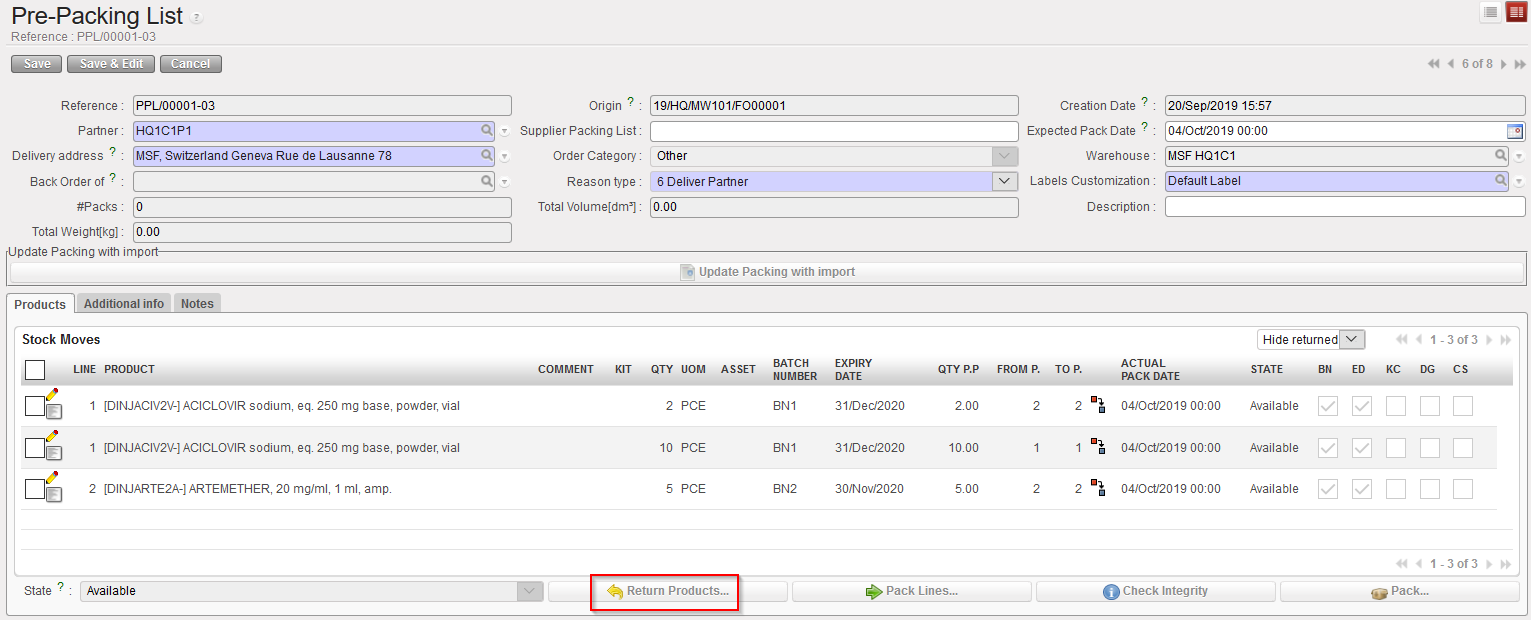
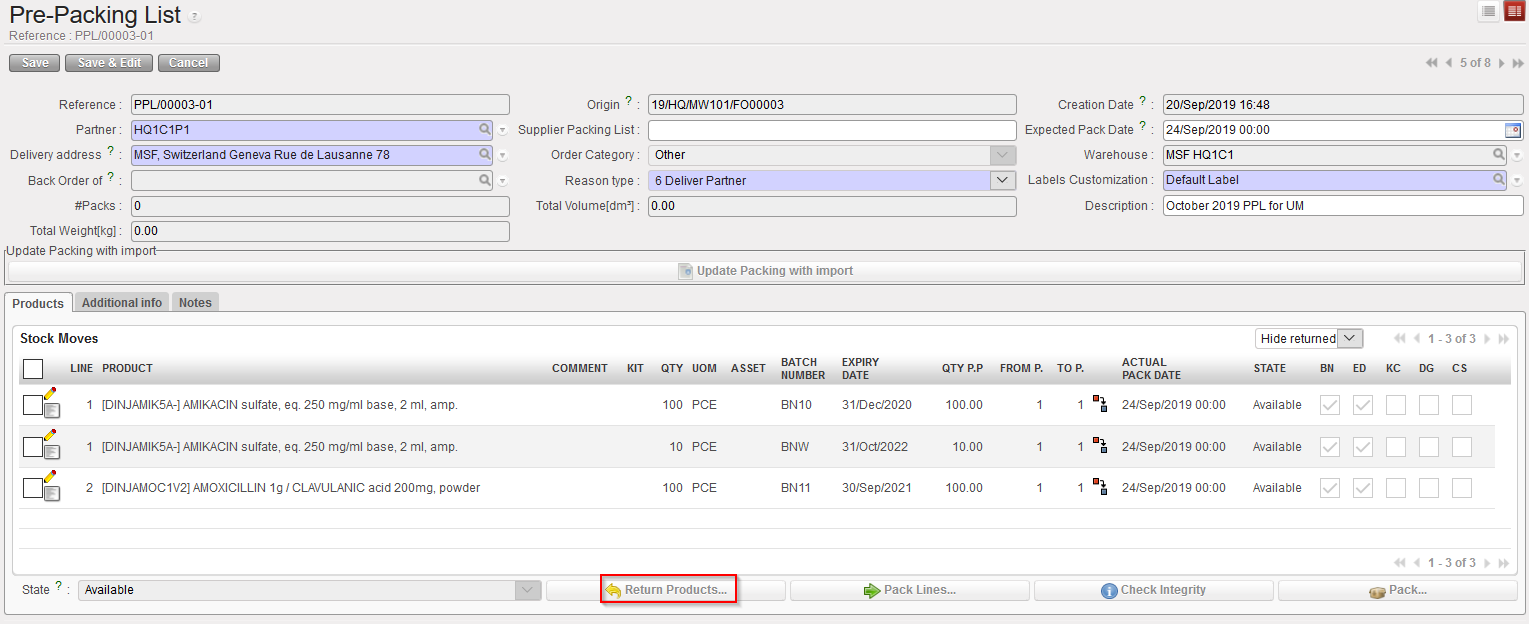
  2. Click on the “Return Products…” button.
Returning products to stock from a PPL

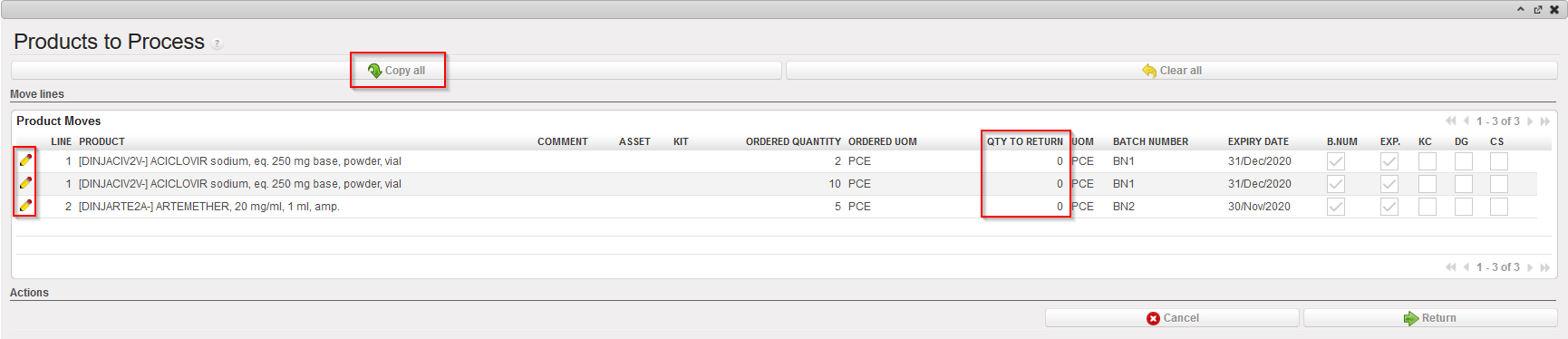
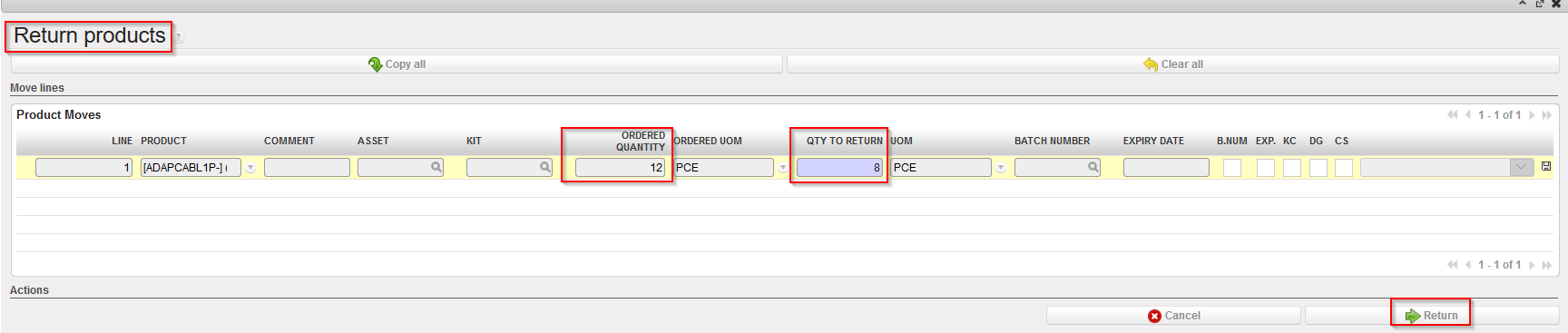
3. Click on the “Copy all buttons” to return all the products from the PPL to the stock. Alternatively, you may use the pencil icons if you want to specify which products/batches/quantities you wish to return to stock (i.e. return the goods partially to stock).

Returning products to stock from a PPL

4. Click on the “Return” button located at the bottom of the screen.

Returning products to stock from a PPL
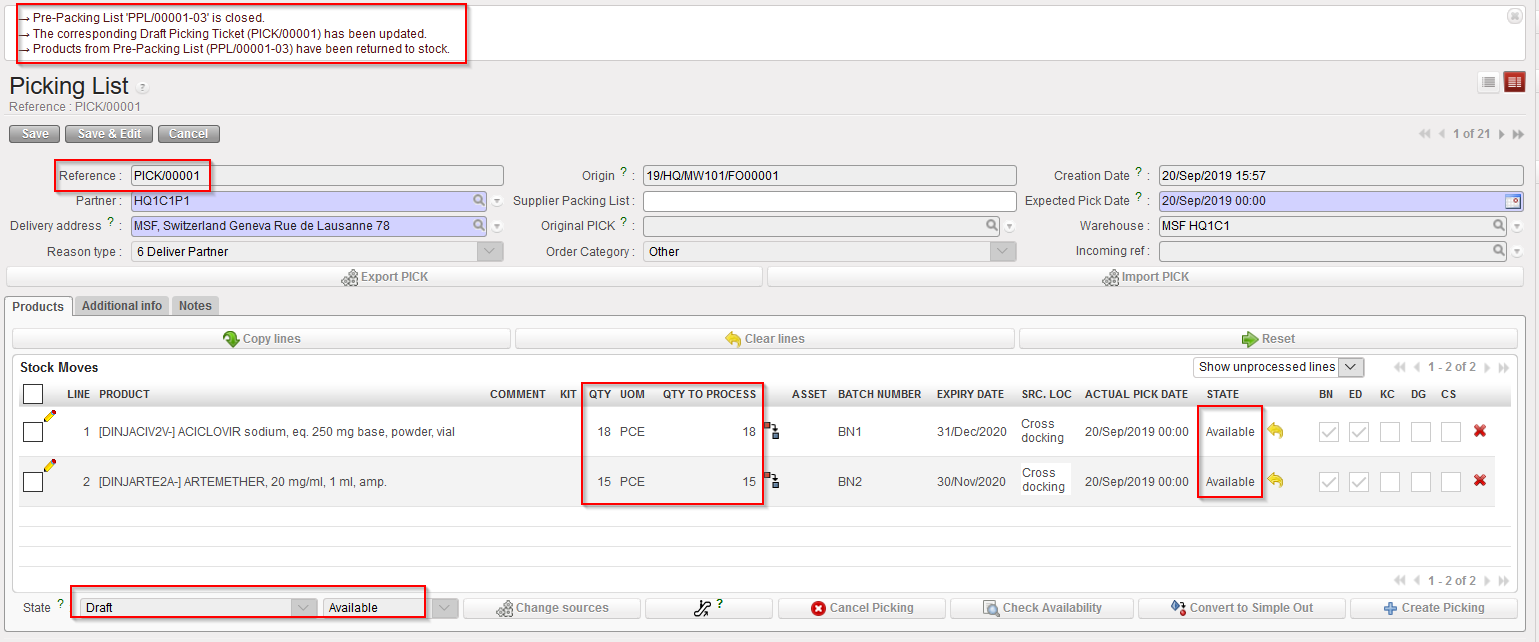
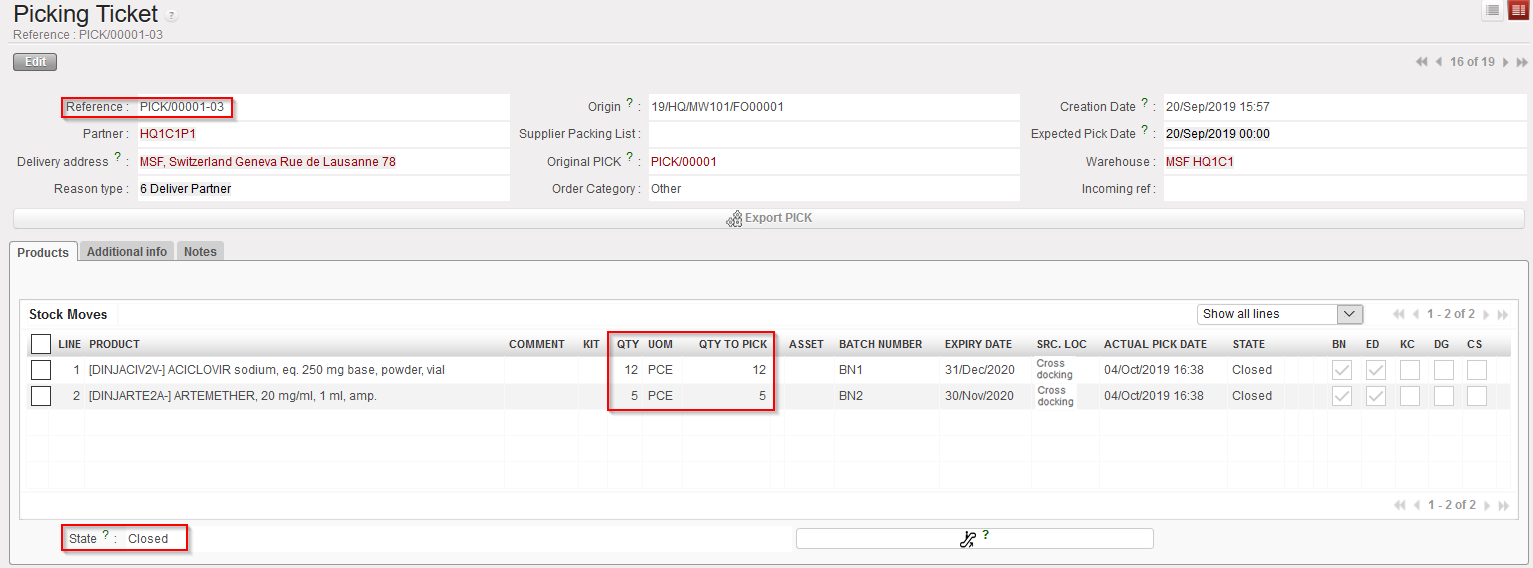
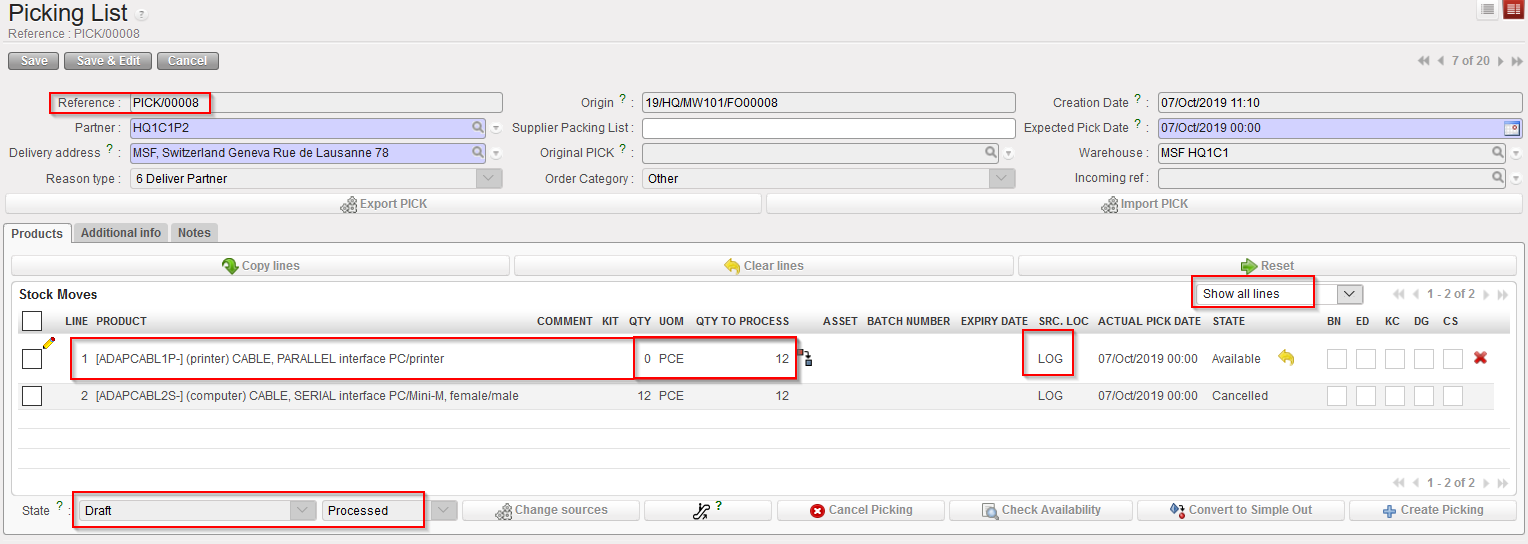
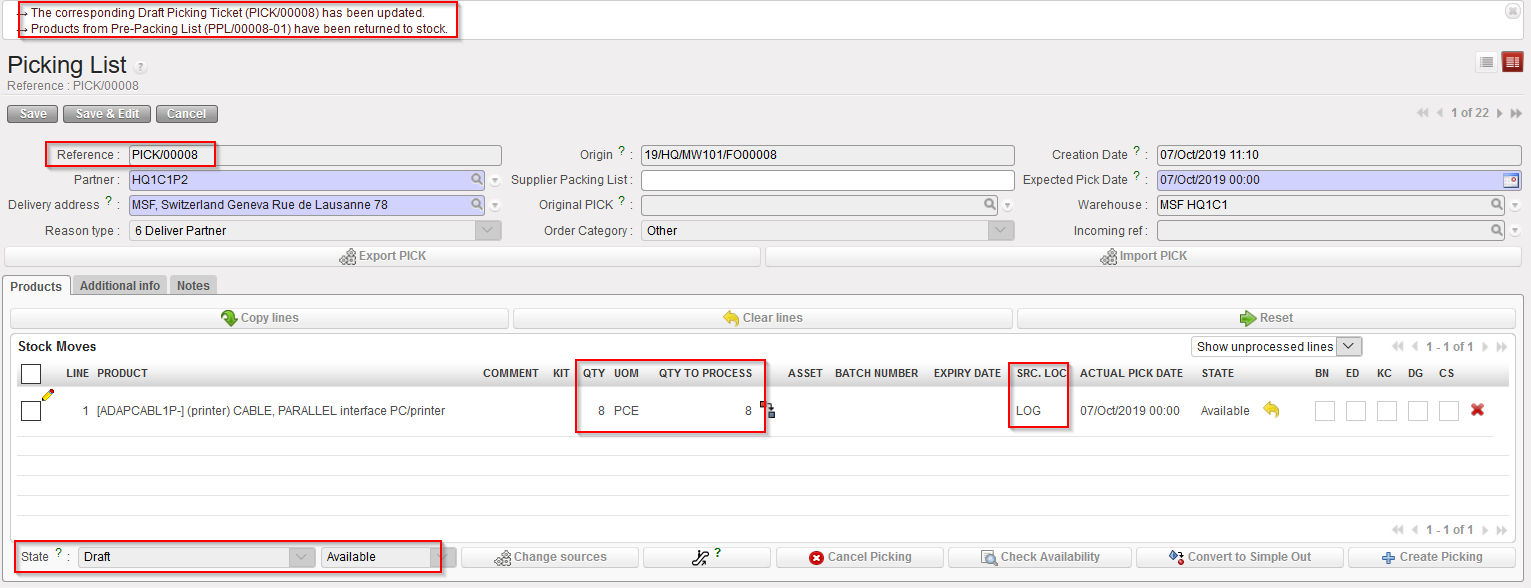
Main PICK corresponding to the PPL from which products were returned

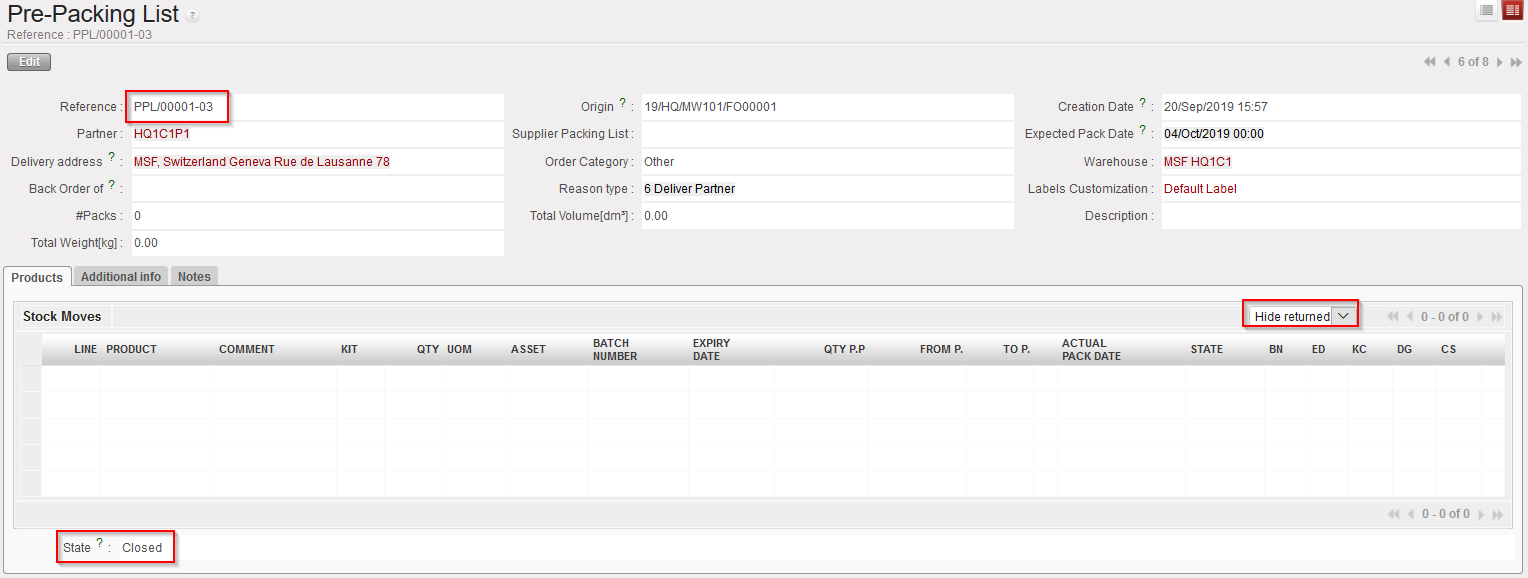
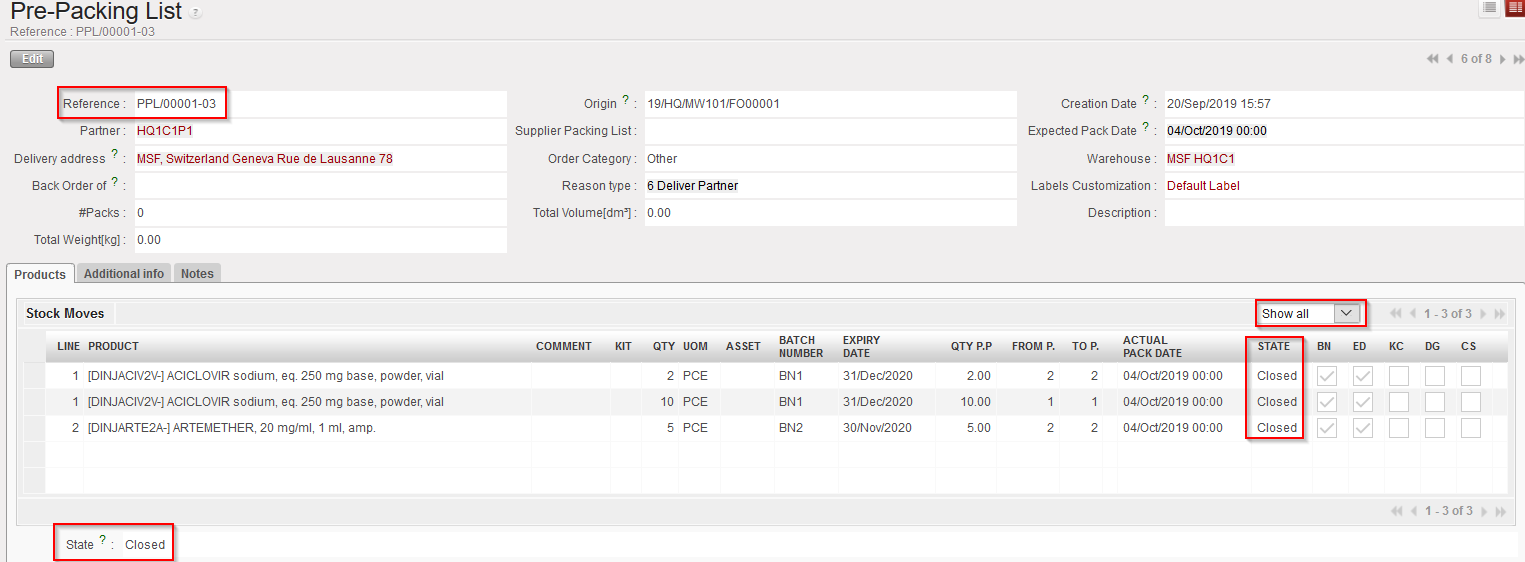
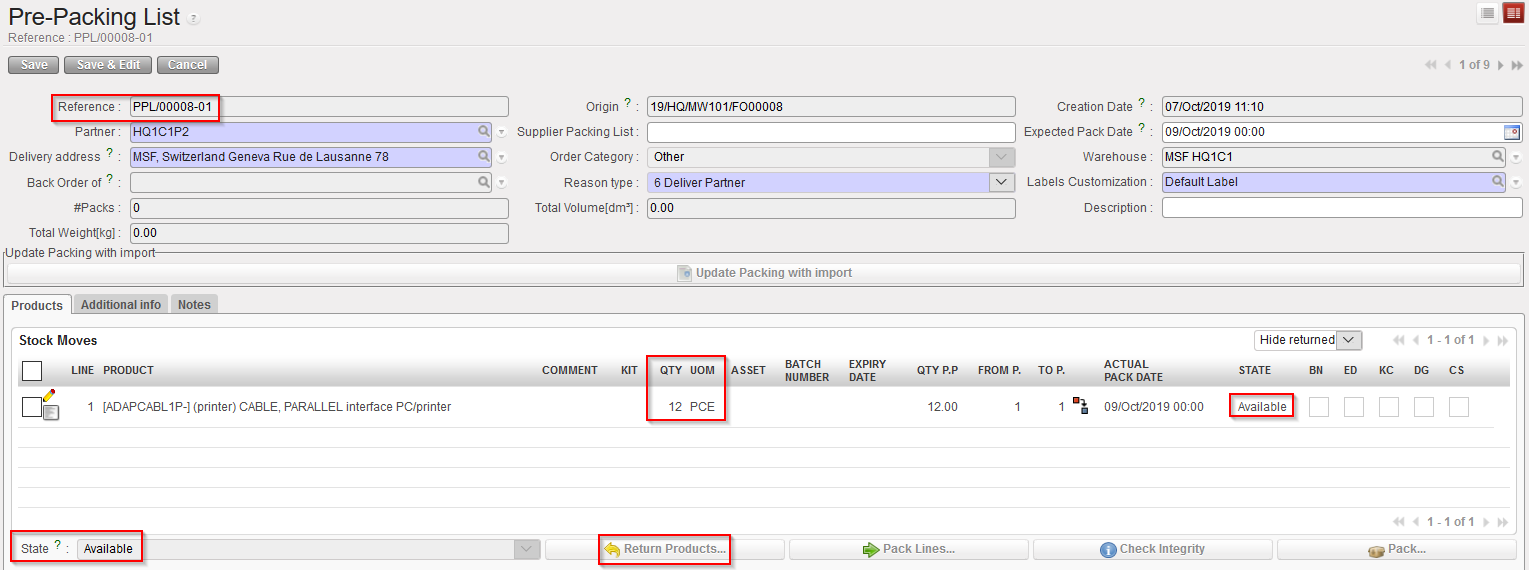
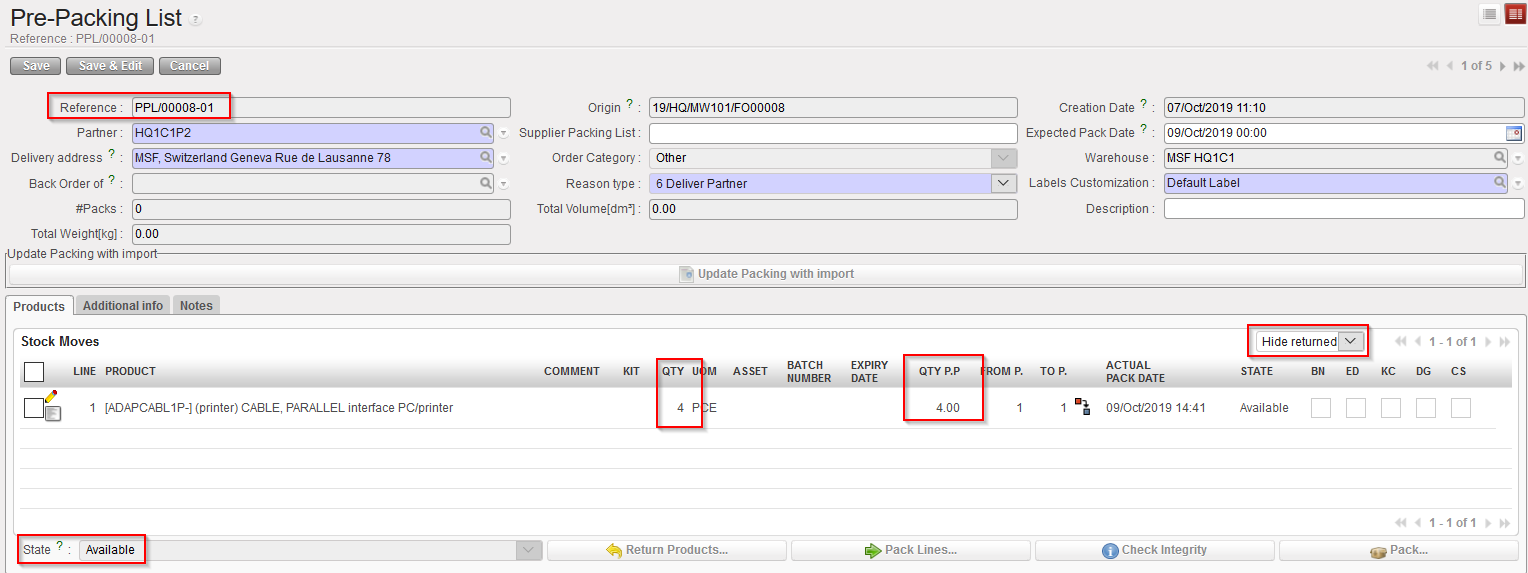
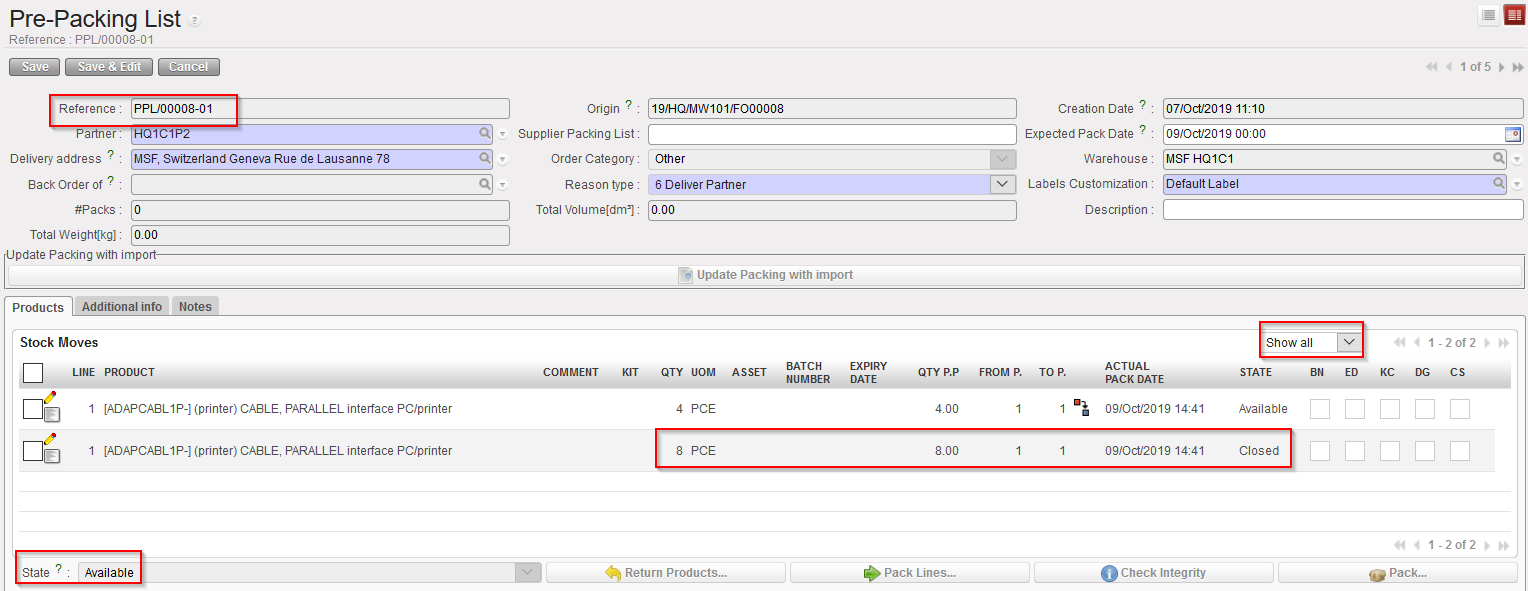
PPL after goods have been returned to stock – Note that you will have to change the filter from “hide returned” line to “Show all” in order to see the returned lines
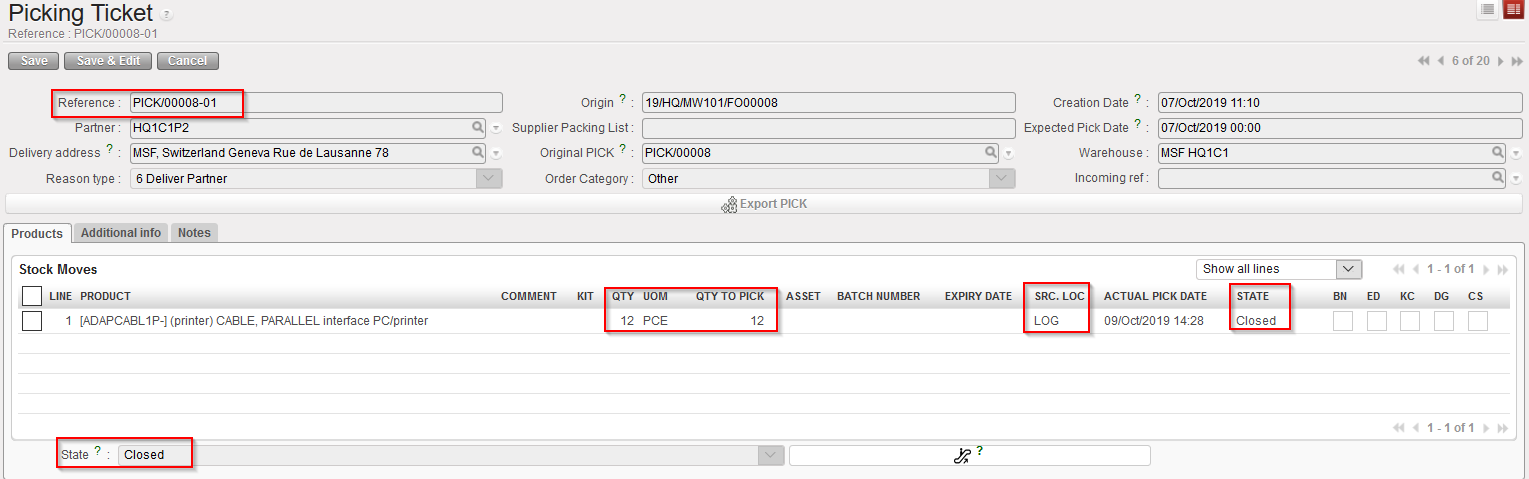
Sub PICK which was used to move the goods to the “Packing” location

The system switches back to the main PICK corresponding to the PPL from which a return was done. In the above example, products are sent back to this main PICK which is in state “Draft” with all its lines “Available“. Products have actually been returned from the “Packing” location to the “Cross Docking” location (as the picking was done following the sourcing of an FO on order).

The PPL is now closed with all its lines closed. After updating the “Hide returned” line filter, we can see the returned lines.

Note that the sub PICK which was used to move the goods from “Cross docking” to “Packing(before they were returned) did not change. Its state is “Closed” with all its lines “Closed” as this movement has been done.

Picking should be repeated. For this you need to start from the main PICK and create a new sub PICK.

Below, you find an example of a picking done from stock (FO sourced from stock) with goods partially returned to stock from the PPL to the stock.

  1. Situation before partial return.
PPL before return
Corresponding main PICK before return – note that “Show all lines” filter is on
Sub PICK which was processed to pick the goods

2. Goods are partially returned to stock.

Returning partially the products from PPL to stock

3. Situation after partial return.

Corresponding main PICK after partial return

PPL after partial return – please note the change after using filter “Show all

Again, many alternative scenarios may exist involving partial validation of FOs, partial sourcing of FOs, partial validation of POs, partial confirmation of POs, partial reception of INs, partial picking, cancellation, cancel & resource, … All scenarios could not be described here but the most common were outlined.

F. HOW TO CANCEL A PRE-PACKING LIST (it is actually impossible to do)

Supply User Manual ENG -> 5. Warehouse -> 5.3 LU-SU4102: Picking -> F. HOW TO CANCEL A PRE-PACKING LIST (it is actually impossible to do)

F. HOW TO CANCEL A PRE-PACKING LIST (it is actually impossible to do)

You cannot cancel a Pre-Packing List. However, you can return the products to stock; this will close the PPL and update the Picking Ticket. See next LU to return items to stock.

Returning products to stock from a PPL

E. HOW TO PRINT THE PRE-PACKING LIST

Supply User Manual ENG -> 5. Warehouse -> 5.3 LU-SU4102: Picking -> E. HOW TO PRINT THE PRE-PACKING LIST

E. HOW TO PRINT THE PRE-PACKING LIST

Printing a document from an available PPL can be useful as it allows the storekeeper to write on it how picked items have been packed. Once done, this will be encoded in the system through the steps 1 & 2 described in the previous section.

Go to: Warehouse / Warehouse Management / Deliveries / Packing

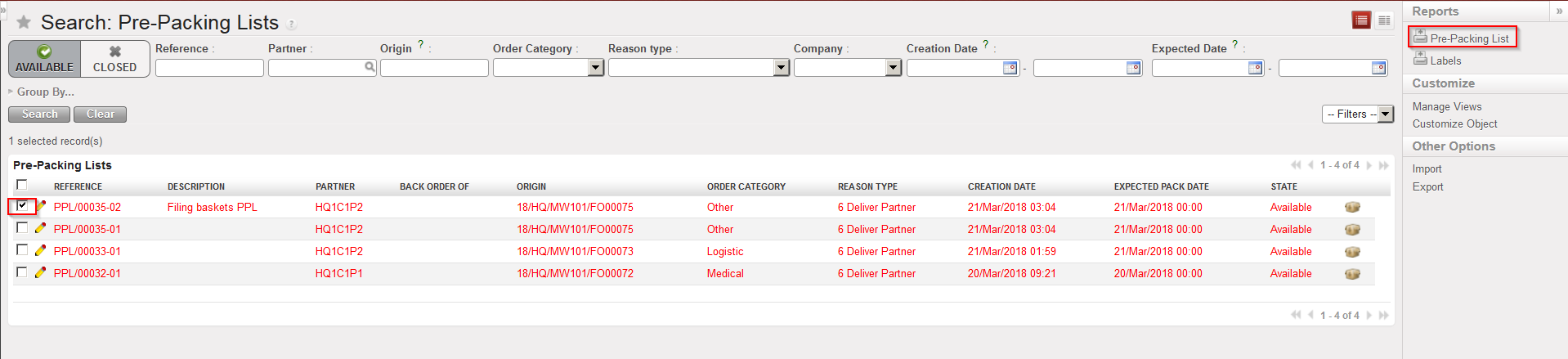
  1. Using the check boxes, tick the PPL you wish to print
  2. Select the “Pre-Packing List” option in the action menu to export the PPL to PDF

Selecting a PPL an exporting it to PDF

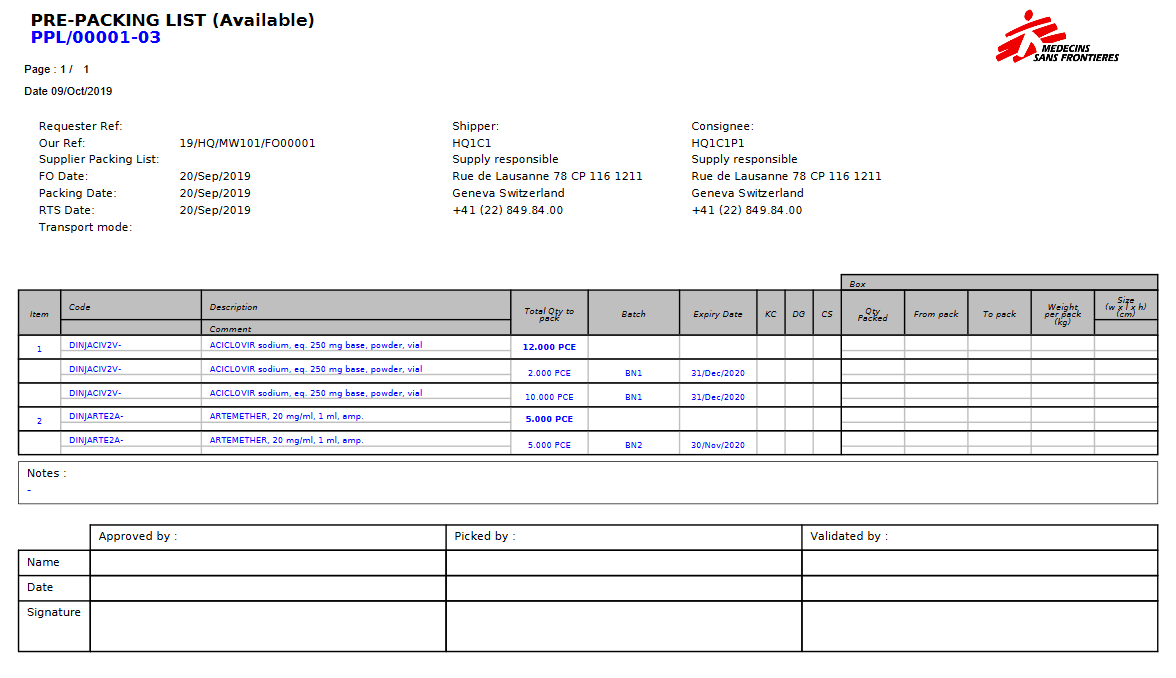
PPL in PDF

The “Pre-Packing List” option is also available in the action menu from within the PPL.

PPL can be exported to PDF in the state “Available” or “Closed“. However, if a “ClosedPPL is exported to PDF, the parcel information will not appear on the PDF document.

Note that labels may also be printed from a “Closed” PPL. Use the option “Labels” in the action menu to print them. You will get a PDF file with one page per parcel. Labels can be put on parcels in order to allow the shipper and the customer to properly identify them.