I. b) From RFQ

I. b) From RFQ

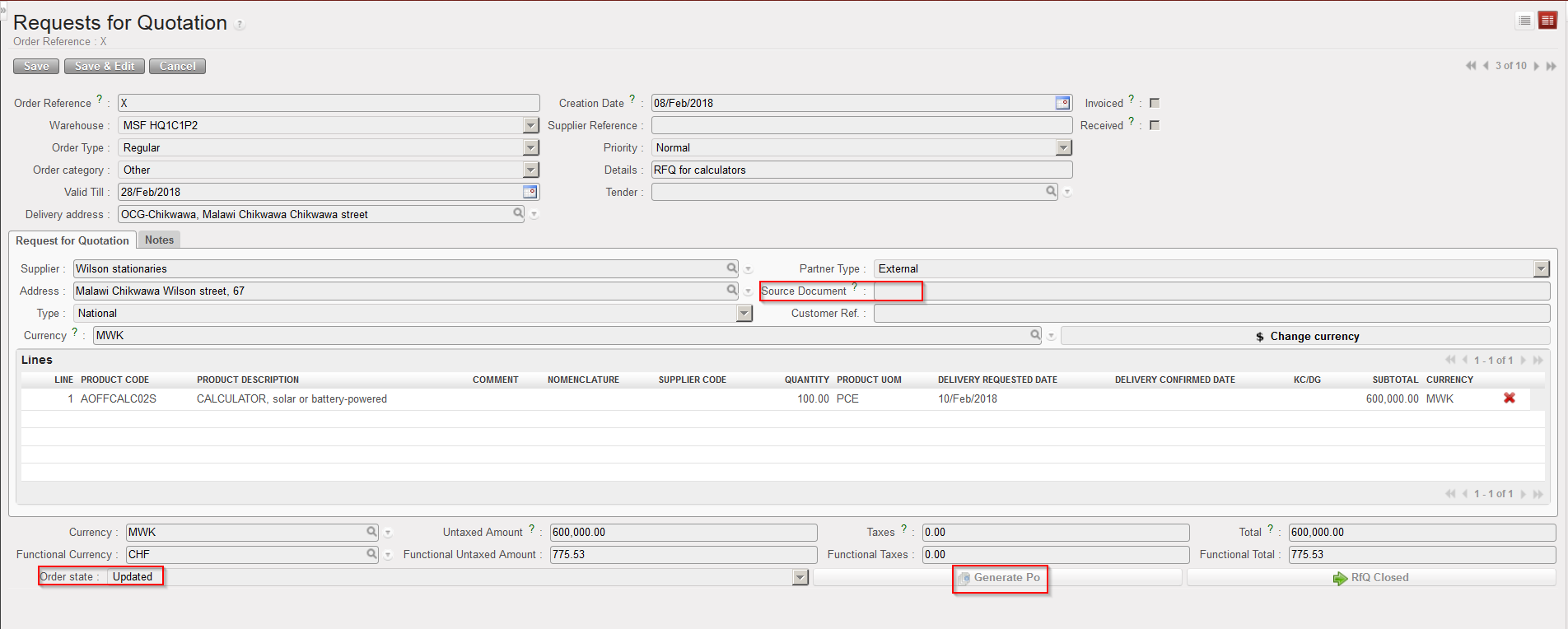
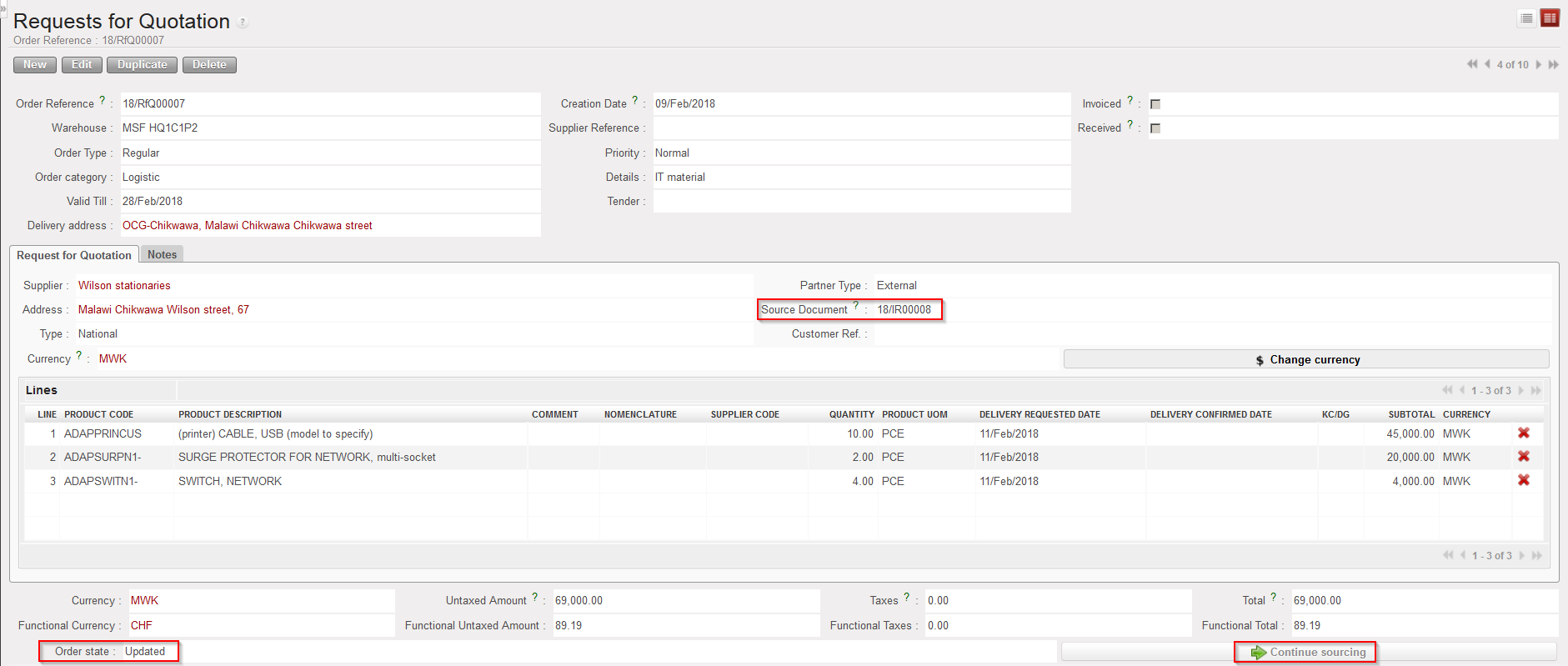
RFQs not created from a Tender (but from scratch or by the OST) may also trigger the creation of a PO as soon as the RFQ is in the state “Updated“. For RFQs created from scratch, use the button “Generate Po” at the bottom of the screen. For RFQs created by the OST, use the button “Continue sourcing” at the bottom of the screen.

Creating a PO from an RFQ created from scratch
Creating a PO from an RFQ created by the OST

Note that the generation of the PO will also update the PMD sheet of the involved products (see below).

Once the PO has been generated, RFQs created from scratch should be closed manually. It will be automatic for RFQs created by the OST.

I. a) From a Tender

I. a) From a Tender

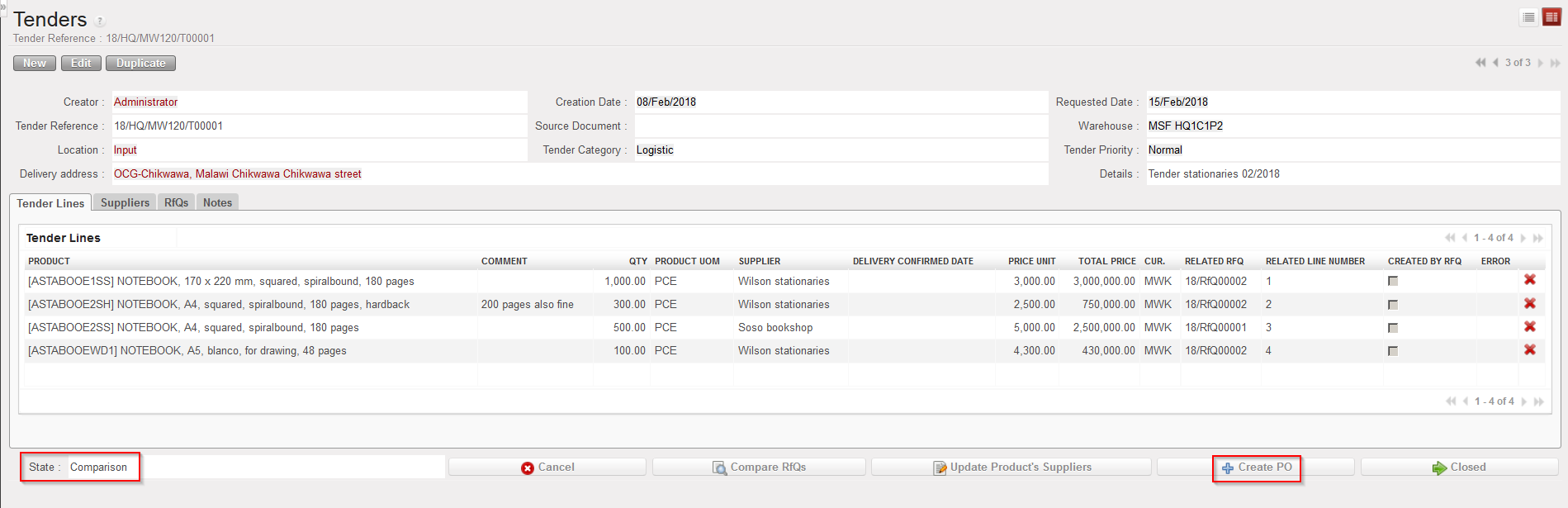
When quotes comparison has been done on a Tender, the Tender switches to state “Comparison“. From this stage, one (or several) PO(s) can be created from the Tender (according to the number of suppliers selected) via a click on the “Create PO” button.

Creating PO(s) from a Tender

The Tender will switch to the status “Closed“.

H. How to resource a Tender

Supply User Manual ENG -> 4. Procurement -> 4.8 LU-SU3203: Tenders (CFTs) and Requests for Quotations (RFQs) -> H. How to resource a Tender

H. How to resource a Tender

In case you need to resource a whole Tender or Product line/s from a Tender because you made a mistake on the product you want to prospect or you need to ask another supplier, you can use the resourcing process.

It works just like for the resourcing of PO (see “how to resource a PO” in LU_SU3201).

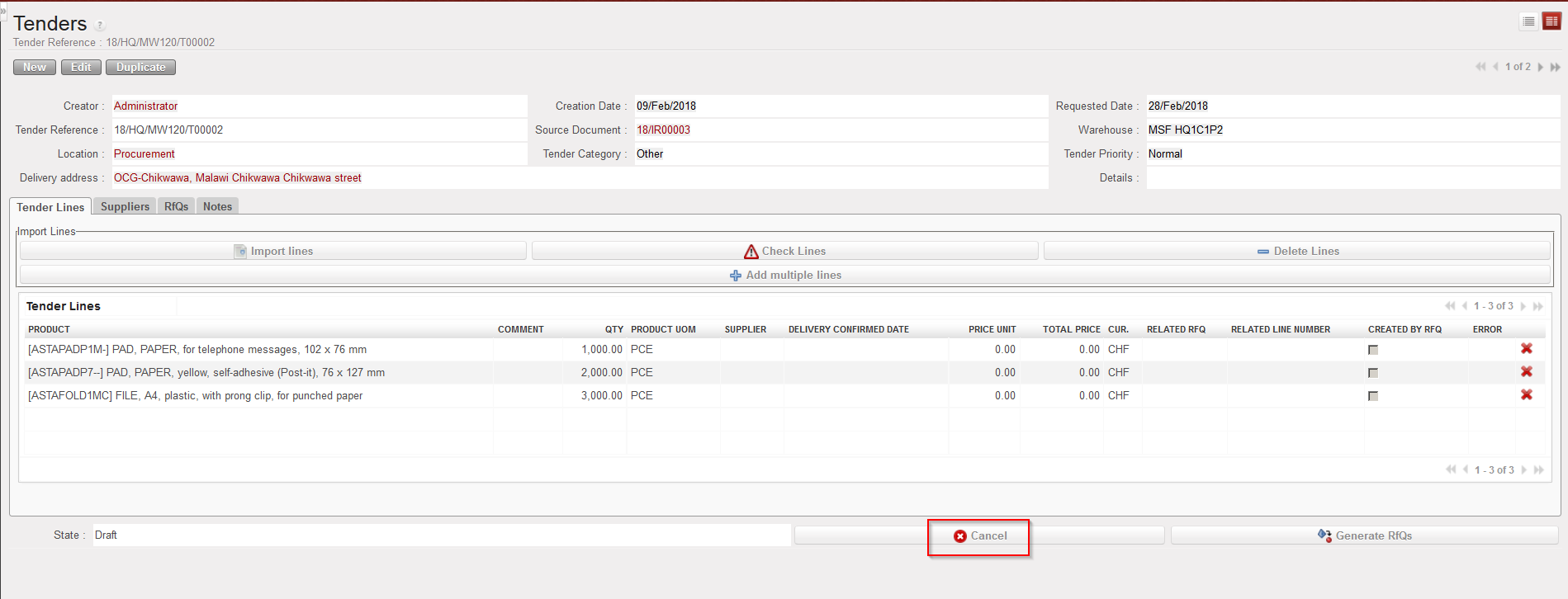
You will need to either click on the “Cancel” button to cancel & resource the whole Tender or on the red cross at the product line level.

Cancelling a Tender at header level

Cancelling & Resourcing a Tender at header level

NB: Cancellation of a Tender line will trigger Cancellation of the related RfQ lines in case RfQ have been generated (user will we reminded of this impact by a warning message). RfQ lines can only be Cancelled and Resourced from Tender (but regular Cancellation can still be done at RfQ level if needed)

G. How to compare supplier quotations on a Tender

Supply User Manual ENG -> 4. Procurement -> 4.8 LU-SU3203: Tenders (CFTs) and Requests for Quotations (RFQs) -> G. How to compare supplier quotations on a Tender

G. How to compare supplier quotations on a Tender

Once all Requests for Quotation have been updated with the relevant supplier quotation information and are in the state “Updated“, the user will be able to compare the different suppliers’ offers and select the appropriate supplier for each requirement (in the Tender lines).

To compare the different RFQ responses, go to: Purchases / Purchase Management / Tenders

1.Click on the appropriate Tender line.

2. Click on the “RFQs” tab to see the supplier quotations with the total amount of each quotation.

Note that “Currency for Comparison” field enables to select a currency from local currency, functional currency or a second local currency. This currency will be displayed in the “Comparison” popup once you click on “Compare RfQs” so that user can compare in his preferred comparison currency.
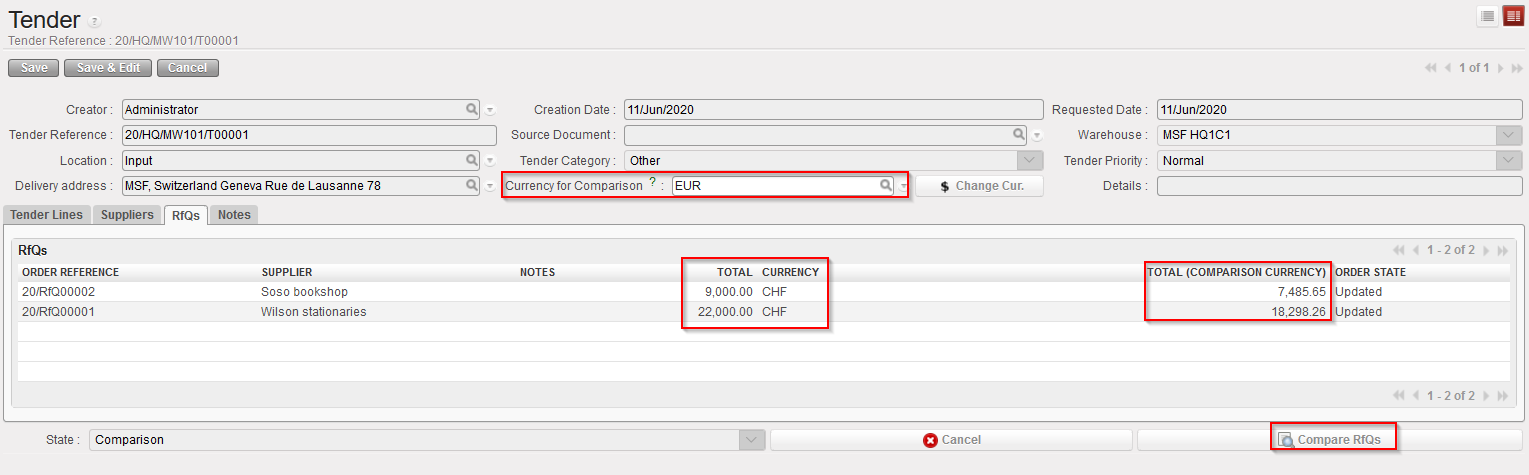
Comparing RFQs on a Tender

3. Click on the “Compare RfQs” button to select a supplier for each product included in the Tender.

In the resulting comparison pop-up , you can see the unit price and Quantity proposed by each supplier as well as the original Tender quantity, any discrepancy for this is displayed in red. The same elements are displayed in the excel “Comparison RFQ” in the action menu.  
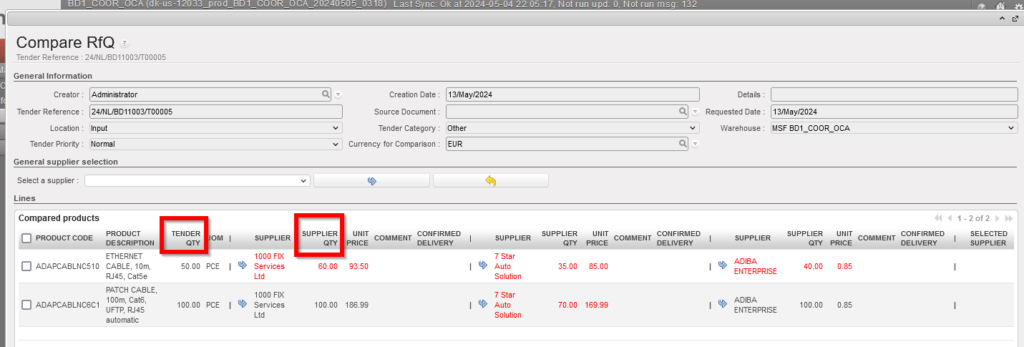
This image has an empty alt attribute; its file name is rn-1024x347.png 

4. Compare the quotations of each supplier and select the most appropriate one (following the supply procedure, taking into account price, quality, lead time, validity of the quotation,…)

5. You have two options to select the supplier per products:

a) Multiple selection: you can tick all the lines or only tick some specific lines then use the “Select a supplier” field, select a supplier from the drop down list and click on the “blue arrownext to it. (1)

b) Product Line level selection : click on the “blue arrowpointing to the supplier you want to select at product line level. Repeat for each line. (2)

6. The selected supplier will be displayed on the “Selected Supplier” column at the end of the product line with a “yellow arrow” on its left. The “yellow arrow can be clicked if you want to unselect the supplier and change it for another one.(3)

Selecting a supplier on a Tender at header level or at line level

7. Once the supplier selection has been done (at header or line level), click on the “Update Tender” button to save the selections.

The currency displayed will be the one of the RfQ supplier selected.
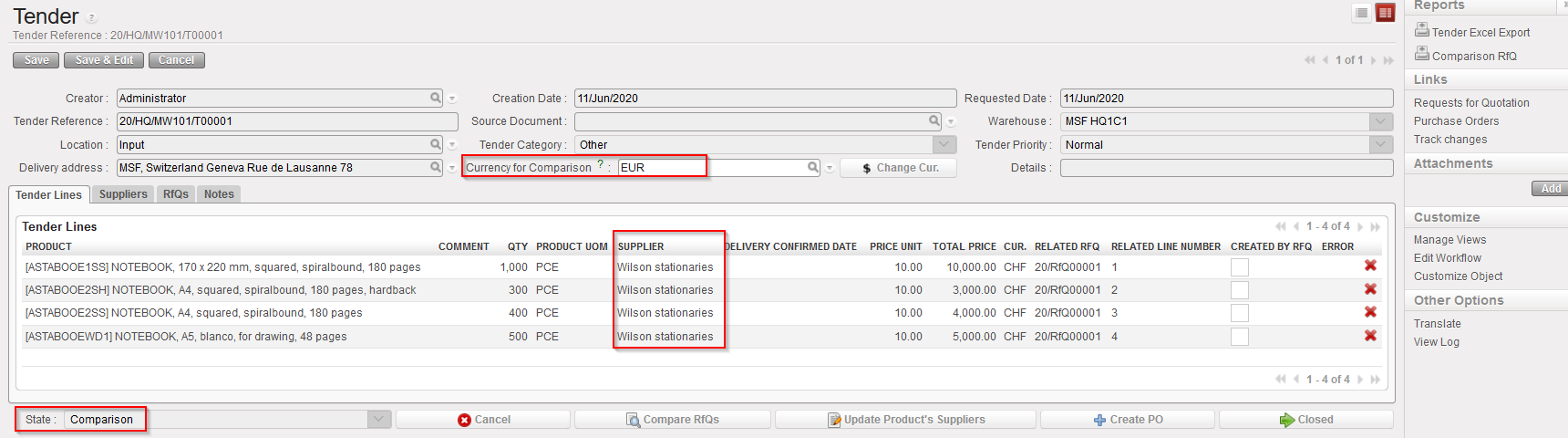
Selected supplier displayed on the Tender

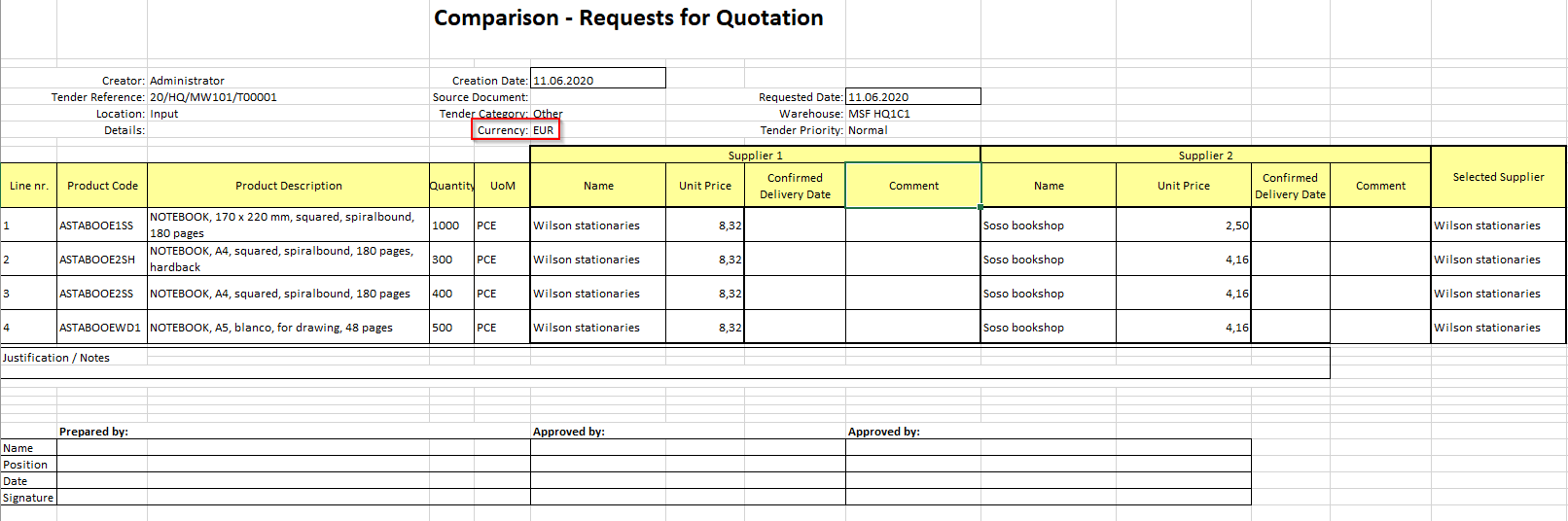
The “Comparison RfQ” option available in the action menu allows exporting the Comparison to Excel. This comparison sheet will display the currency for comparison.
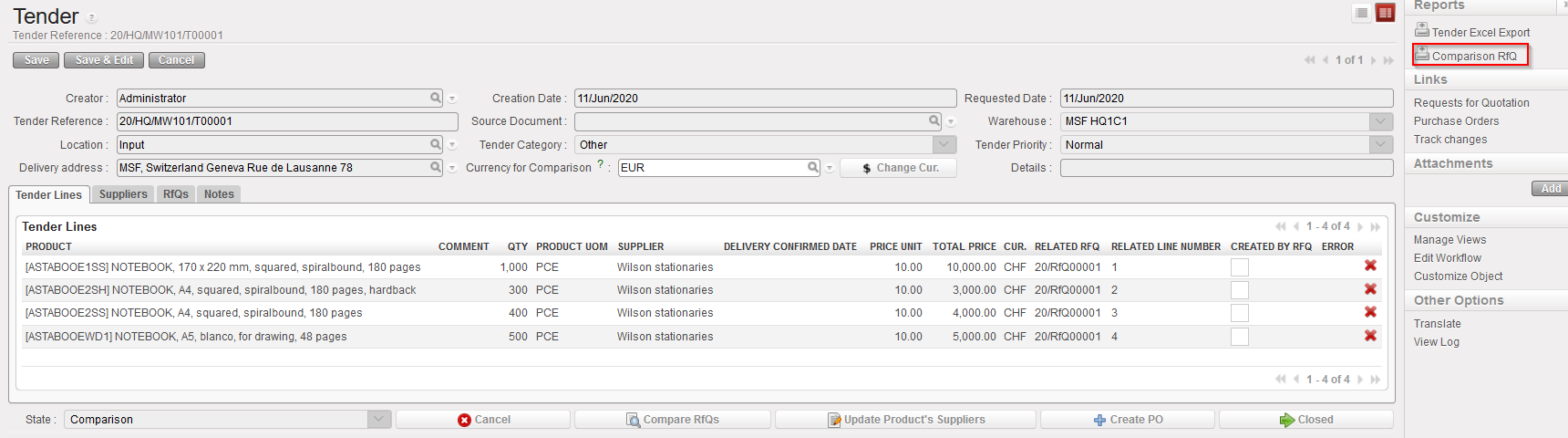
Exporting the Comparison to Excel
Comparisons Excel export

F. How to update a sent RFQ via an import file

Supply User Manual ENG -> 4. Procurement -> 4.8 LU-SU3203: Tenders (CFTs) and Requests for Quotations (RFQs) -> F. How to update a sent RFQ via an import file

F. How to update a sent RFQ via an import file

Updating each line of each RFQ with the updated price sent by the supplier can be a quite time consuming process if done manually, especially for large RFQs.

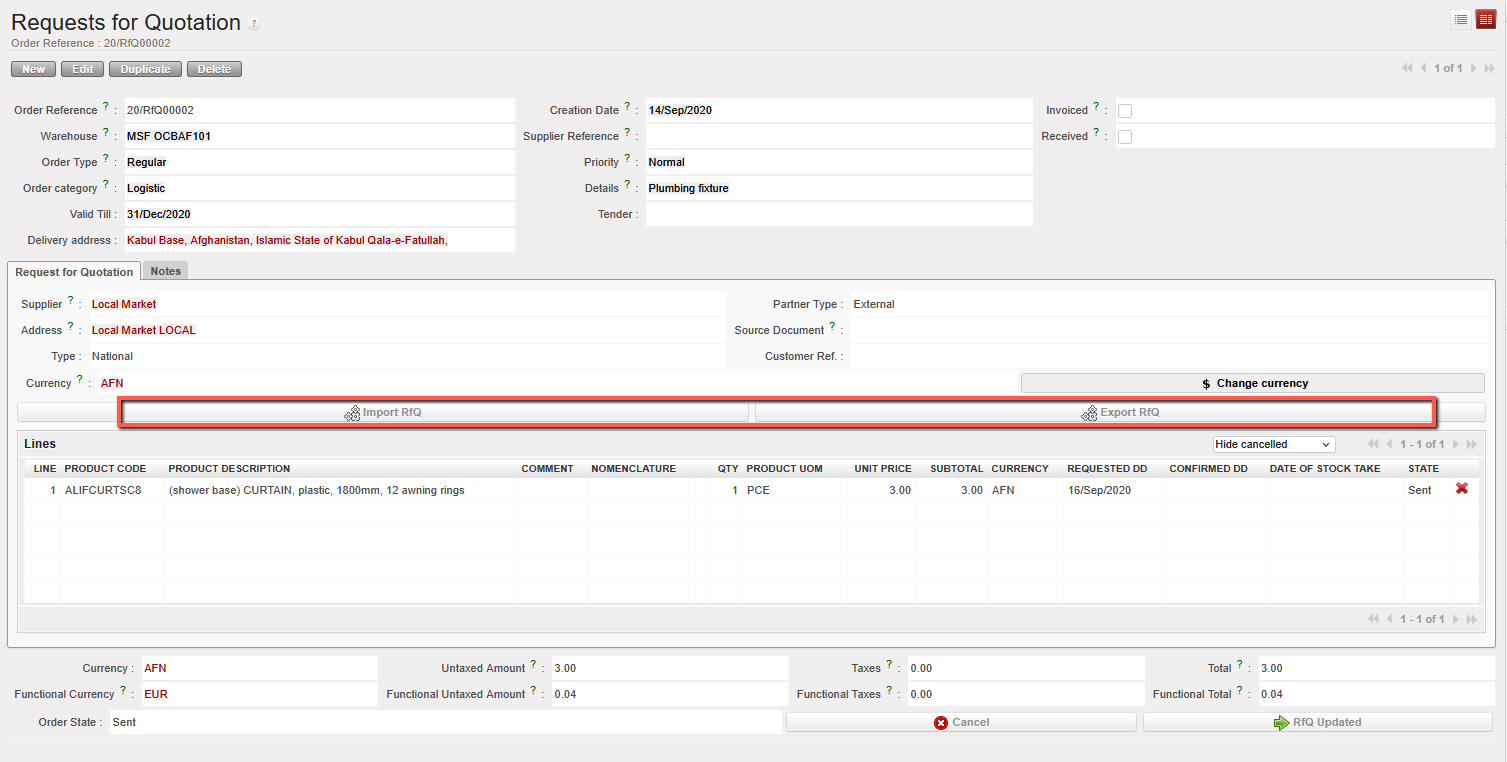
Instead of editing and saving each product line, UniField offers the possibility to update the sent RFQ via an import file. The template of this import file can be obtained by using the export file from the action menu.

Go to: Purchases / Purchase Management / Request for Quotations

  1. Open the RfQ you wan to export. The RFQ should be in “Sent” status
  2. Click the button “Export RfQ”
  3. An Excel file (XML Spreadsheet 2003 format) with the RfQ lines is exported on your computer.
  4. Open the Excel file and update the prices (and products, quantities or dates if necessary).
  5. Save the Excel file.
  6. Open the RFQ in UniField.
  7. Click on the “Import RfQ lines” button.
  8. Click on “add attachment“.
  9. Browse for your Excel file.
  10. Click on “Import file” (and “Update” if needed).
  11. Check the import “Information” to ensure that the import was done as expected.
  12. Click on “Close window“. Prices are now updated (and any other updated information such as Delivery Confirmed date).
  13. Fill the “Valid Till” date field.
  14. Click on “RfQ Updated“.
“Export/Import RfQ lines” button to update a sent RFQ

E. b) If the RFQ was created from scratch

E. b) If the RFQ was created from scratch

Once the RFQ has been created and sent to the supplier, you can enter the supplier’s answer.

Go to: Purchases / Purchase Management / Request for Quotations

1.Select the Request for Quotation to be updated by clicking on the pencil at the left of the appropriate row.

2. In the “Lines” table of the “Request for Quotation” tab, click on the pencil at the left of the product line you want to update.

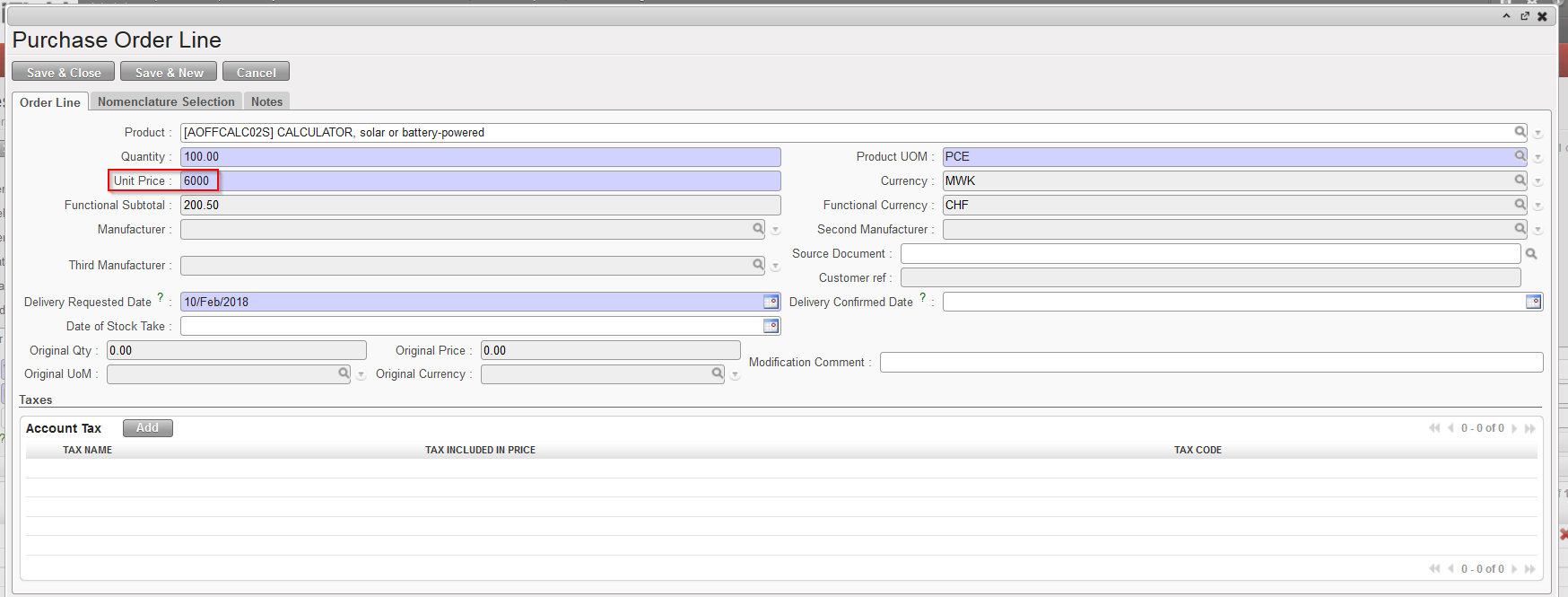
3. Update the price provided by supplier in the “Unit Price” field.

4. Optional to update currency if needed

Updating an RFQ line

4. Click on “Save & Close” to return to the main Request for Quotation screen and update another line if needed.

5. When all product lines prices have been updated, in the header, enter the expiry date of the quotation in the “Valid till” field.

6. Enter any additional information in the “Notes” tab if needed.

7. Save the changes by clicking on the “Save” button.

8. Click on “RfQ Updated“, the state of the RFQ switches to “Updated“.

Unlike the RFQs related to a Tender, it is still possible to change the product on the RFQs created from scratch when updating it. However, when cancelling a RFQ from scratch, there will be no resourcing process possible but the RFQ could still be reset to Draft even after cancellation.

E. a) If the RFQ was generated from a Tender

E. a) If the RFQ was generated from a Tender

Go to: Purchases / Purchase Management / Requests for Quotation

  1. Use the search tools to search for the Requests for Quotations linked to the appropriate Tender.
  2. For each linked Request for Quotation, click on the pencil icon on the left side of the screen.
  3. In the “Lines” table, click on the pencil in front of each line to open the “Purchase Order Line” screen and update the unit price. Save the changes by clicking on the “Save & Close” at the top of the “Purchase Order Line” screen.
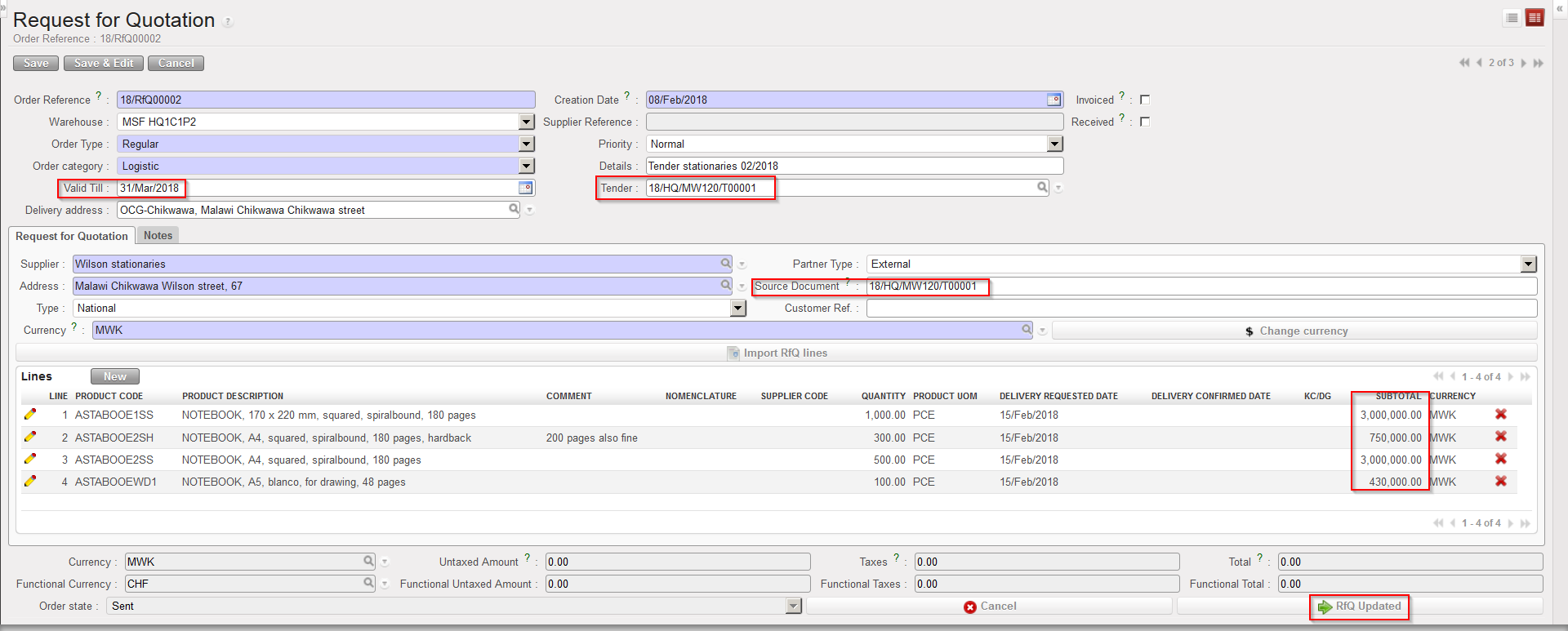
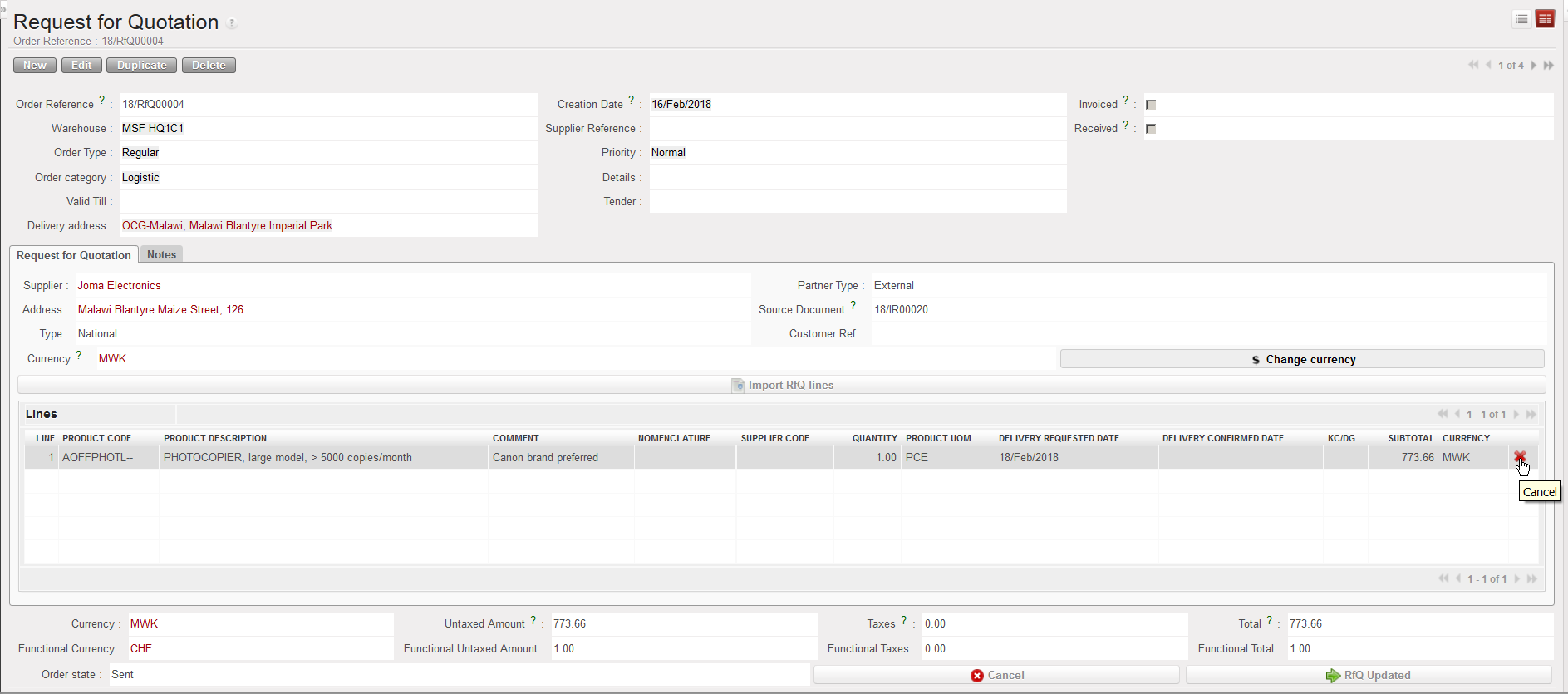
  4. Enter the “Valid Till” date of the quotation on the RFQ header.
  5. Click on the “RFQ Updated” button at the bottom of the screen.
  6. Optional to update currency if needed

Updating an RFQ

Note that the “Valid Till” date is mandatory before clicking on “RfQ Updated“.

E. How to update a Request for Quotation.

Supply User Manual ENG -> 4. Procurement -> 4.8 LU-SU3203: Tenders (CFTs) and Requests for Quotations (RFQs) -> E. How to update a Request for Quotation.

E. How to update a Request for Quotation.

This section will explain how to update RFQs. This will be done when the supplier will send his offer/quotation (in answer to the RFQ) in order to update prices, validity, …

a) If the RFQ was generated from a Tender

b) If the RFQ was created from scratch

D. How to cancel & resource RFQ lines generated from the Orders Sourcing Tool.

Supply User Manual ENG -> 4. Procurement -> 4.8 LU-SU3203: Tenders (CFTs) and Requests for Quotations (RFQs) -> D. How to cancel & resource RFQ lines generated from the Orders Sourcing Tool.

D. How to cancel & resource RFQ lines generated from the Orders Sourcing Tool

If an RFQ was generated by the OST, it will be possible to cancel & resource this RFQ or some RFQ-lines. Cancelled & resourced lines will be available in the OST, ready for resourcing.

We start from a situation where an RFQ was generated by the OST (from an IR) and we assume it was sent to the supplier.

Go to: Purchases / Purchase Management / Requests for Quotation

1.Use filters to find the RFQ on which you wish to cancel & resource a line and open it.

2. Click on the red cross at the right of the line you want to cancel & resource.

3. On the pop-up, select “Cancel & Resource” (alternatively you can simply cancel the RFQ-line, but the resourcing of the item won’t be possible).

Cancelling an RFQ-line
Cancelling & Resourcing an RFQ-line

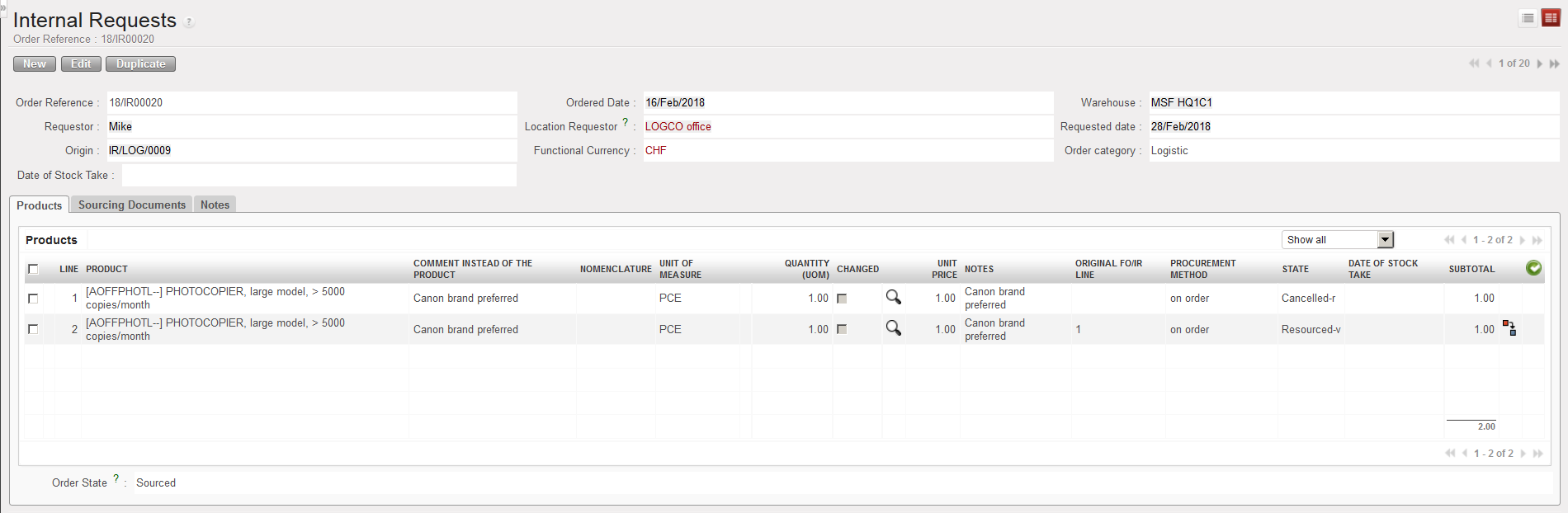
4. On the IR that was sourced on order to create the RFQ, the line which was C&R on the RFQ is now in state “Cancelled-r” while a new line (copy of the other one) has been created in state “Resourced-v” and is ready for resourcing in the OST.

IR after Cancelled & Resourced RFQ

NB : RfQs generated from Tenders cannot be Cancelled and Resourced, they can only be Cancelled.

However, RfQ lines can still be Cancelled and Resourced from the linked Tender.