D. How to create a Theoretical Kit Mass Import

Supply User Manual ENG -> Products -> 3.6 LU-SU2105: Kits/Modules -> D. How to create a Theoretical Kit Mass Import

D. How to create a Theoretical Kit Mass Import

In order to be able to download easily numerous Theoretical Kits, a Theoretical Kits Mass import feature has been developed.

Starting at HQ user will be able to download a significant number of Theoretical Kits via import and once created at HQ and set to Completed, this TKL can be synchronized down to all missions as Draft.

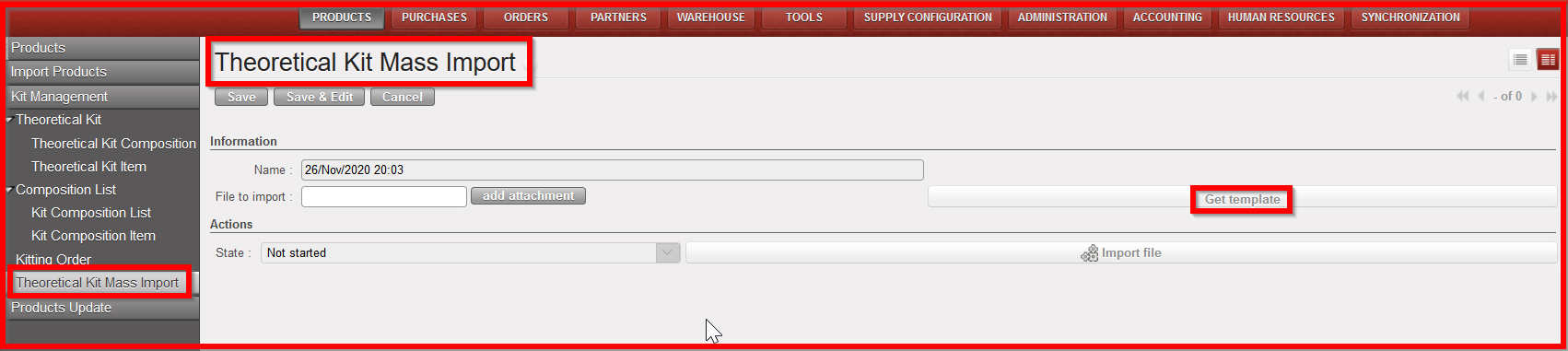
Go to: Products/ Kit Management / Theoretical Kit Mass Import

  1. Click on the “New” button to start the process
  2. Click on “Get template” to get a template of the import file to update

Theoretical Kit Mass import

Theoretical Kit Mass import template to be updated at HQ

3. Once template updated (do not forget to set “Active” column to “True”), click on “add attachment” and add the file to import

4. Click on “Import file”

5. A message will inform that import has been successful and the the TKL has been created

6. Go to sub- menu “Theoretical Kit Composition” and check that TKL has been created as Draft.

7. In order for the TKL to be synchronized down to all missions, the TKL will have to be set to “Completed”.

Kit composition List

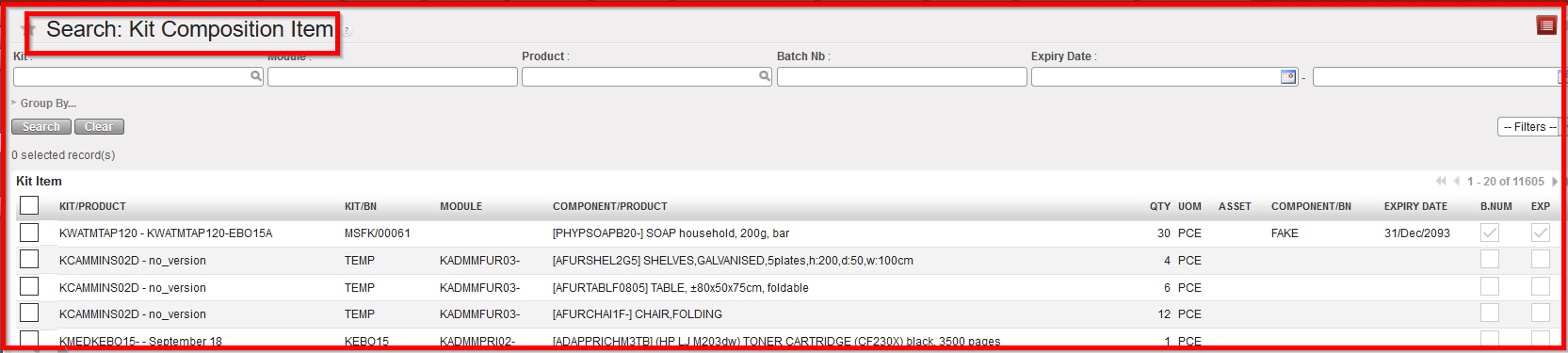
Unlike the Theoretical Kit Composition list, the Kit Composition List identifies actual products composing a kit.

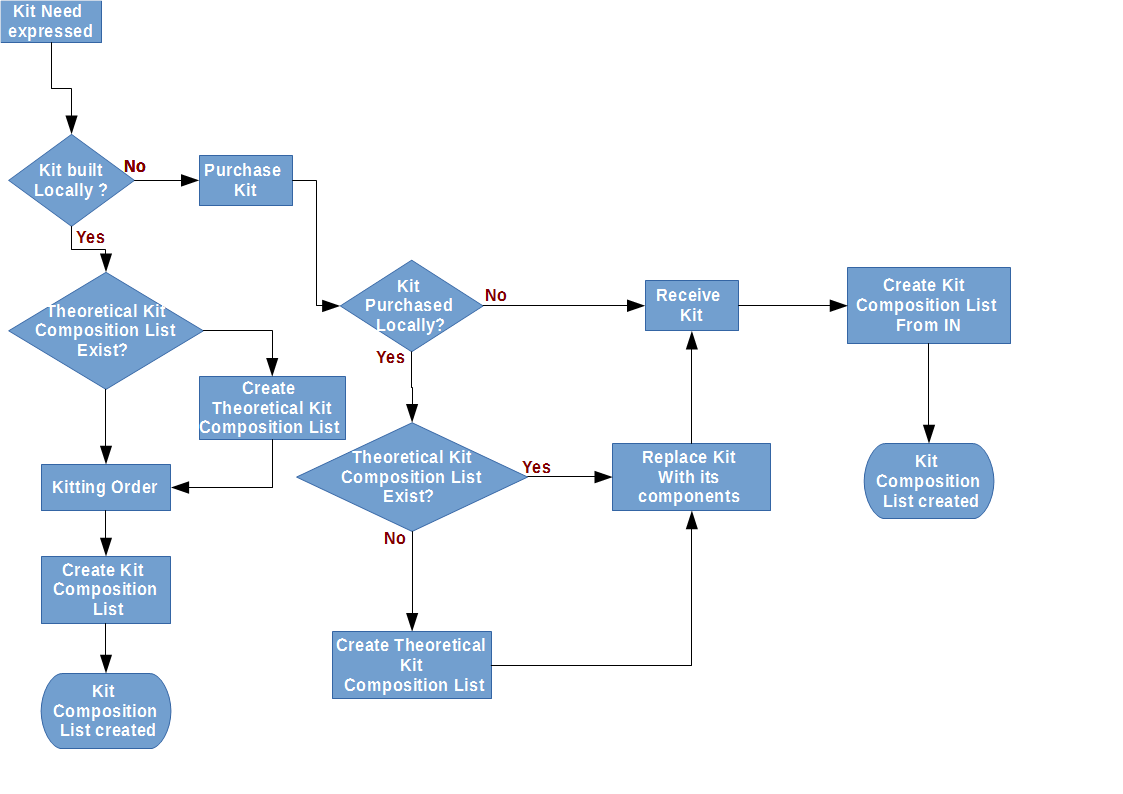
A kit composition list can be created during the reception process from an incoming shipment or after a kiting order. Please refer to Chapter Warehouse, LUSU-4101 Incoming Shipments How to receive and add a kit composition list.

However in some circumstances (de-kitting) or action deemed to your procedures you will need to create a Kit Composition List from scratch.

C. How to create a Theoretical Kit Composition

Supply User Manual ENG -> Products -> 3.6 LU-SU2105: Kits/Modules -> C. How to create a Theoretical Kit Composition

C. How to create a Theoretical Kit Composition

Go to: Products/ Kit Management / Theoretical Kit / Theoretical Kit Composition

  1. Click on the “New” button to start the process
  2. Enter the Kit Product created earlier or search for it and select it from the database by clicking on the magnifying glass
  3. Enter the Version of the kit: The version of the Kit allows differentiating between an old and a new version of the same Kit. It can happen that some items in the Kit are replaced by newer ones or more advanced one and the Kit name doesn’t change. Then instead of creating a new TKCL, a new version of the same Kit is created. Whenever a TKCL is used in the system, the version to use will automatically be asked
  4. The Creation date will have been populated automatically with today’s date but can be modified

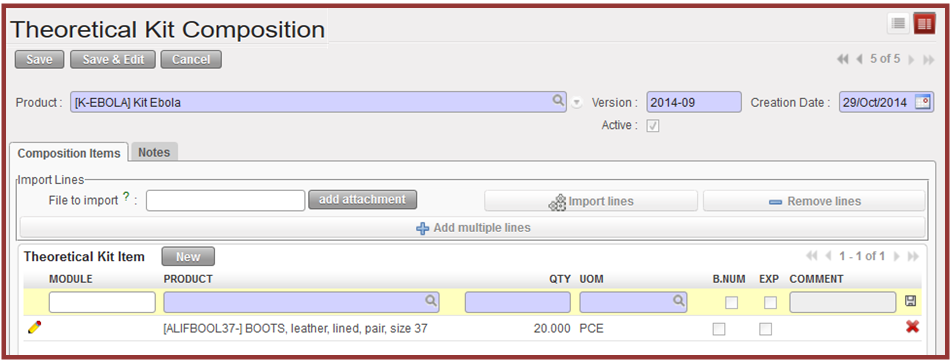
Theoretical Kit Composition

5. Add the products to your kit, either by importing them by clicking on the “add attachment button” and follow the import process, or manually:

5:A Add the products manually steps:

5.1 Click on the New button, a theoretical kit item line will appear

5.2 Enter the number of the module

5.3 Enter the name of your product or search for it and select it by clicking on the magnifying glass.

5.4 Enter the quantity of the product which should be present in each kit, and check that the UoM is correct.

5.5 Click on the floppy disk icon at the end of the line to save the product details and continue, adding all relevant products and their details in this way.

5.B Add the products by importing products from existing TKC:

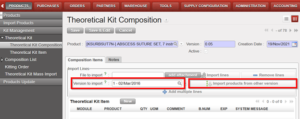
The new TKC can have products from existing TKCs by importing them directly when you click in Import products from other version, and then these products can be removed or more added directly in the screen.

6. Click on the Save button to save your Theoretical Kit Composition

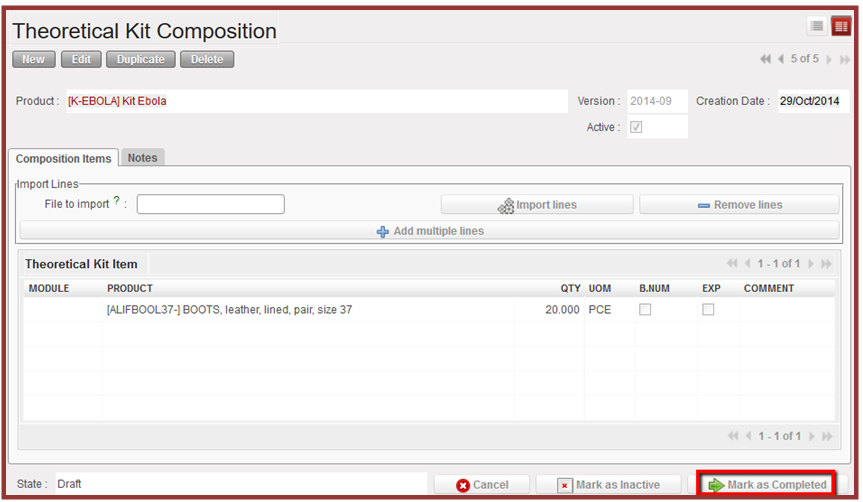
7. When your Theoretical Kit Composition has been completed, Click on the “Mark as Completed” button, and will pass from Draft to Completed status.

Completion button for Theoretical Kit composition list creation

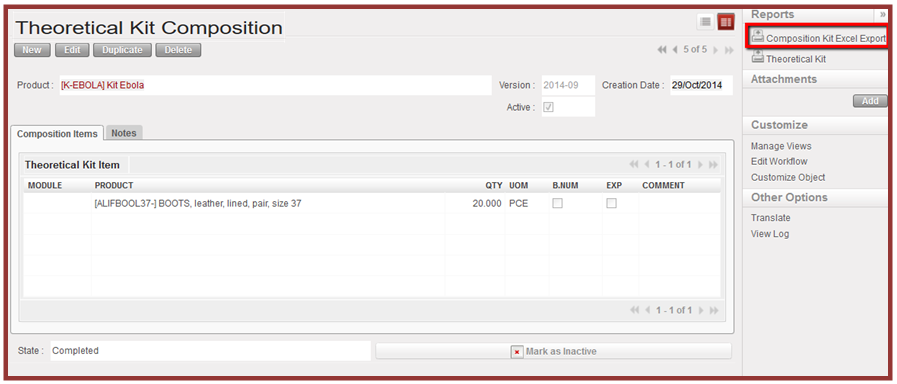
8. If needed, this version of Theoretical Kit Composition can be exported by clicking on the link “Composition Kit Excel Export” in the Action Menu.

Kit composition list export

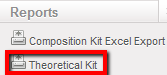
A PDF Version is available as well by selecting

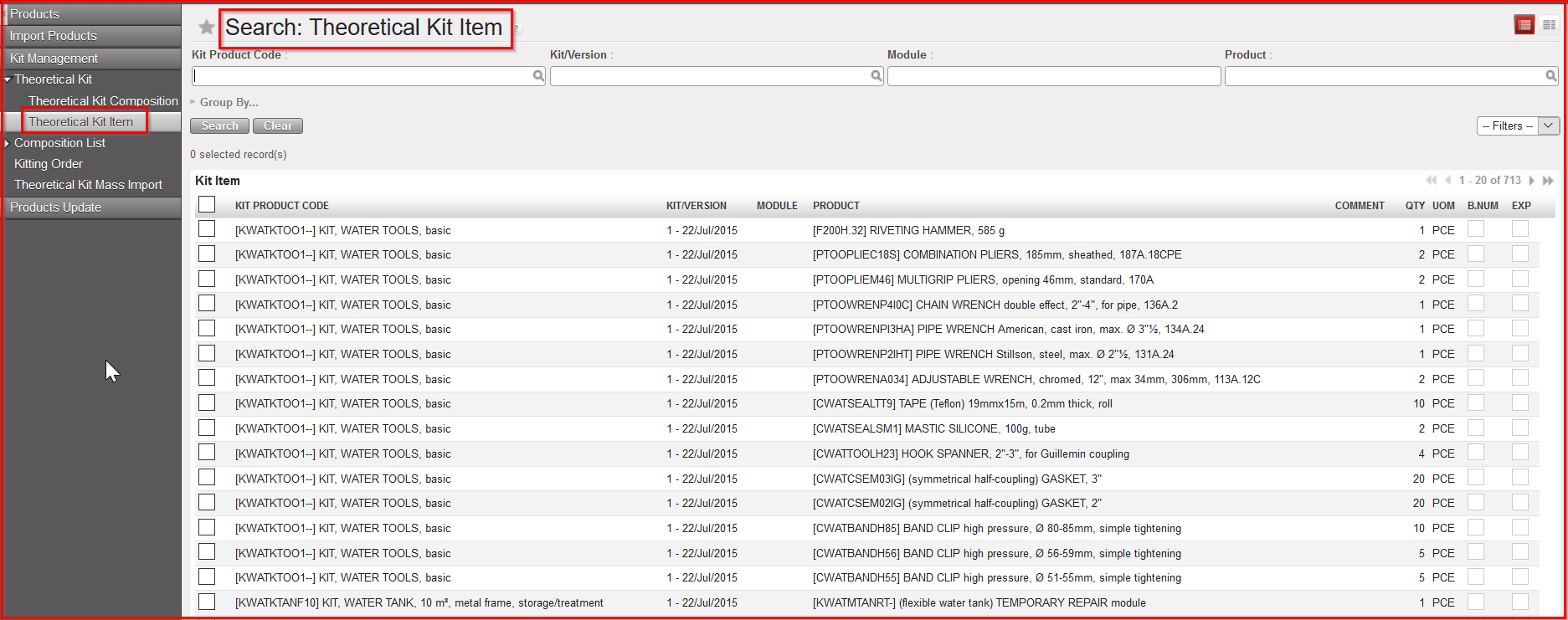
Also if you need to check which items are associated to a TKL, Go to: Products/ Kit Management / Theoretical Kit / Theoretical Kit Item

A list of items will be displayed with their associated theoretical kit reference. Please note that these lines are non-editable.

Theoretical Kit Item

B. How to create a Kit Product

Supply User Manual ENG -> Products -> 3.6 LU-SU2105: Kits/Modules -> B. How to create a Kit Product

B. How to create a Kit Product

A Kit is created the same way as a product, so the product creation procedure seen earlier can be followed here. However, normally there will be no need to create the Kit as a product because products will be automatically synchronized from HQ.

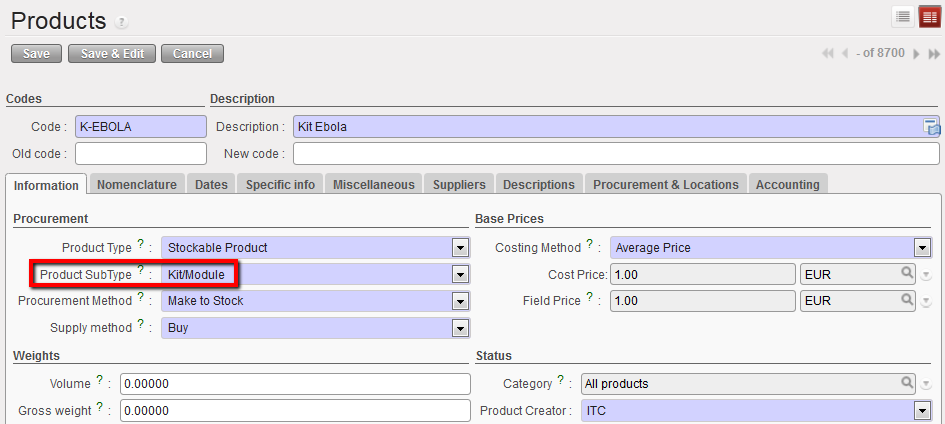
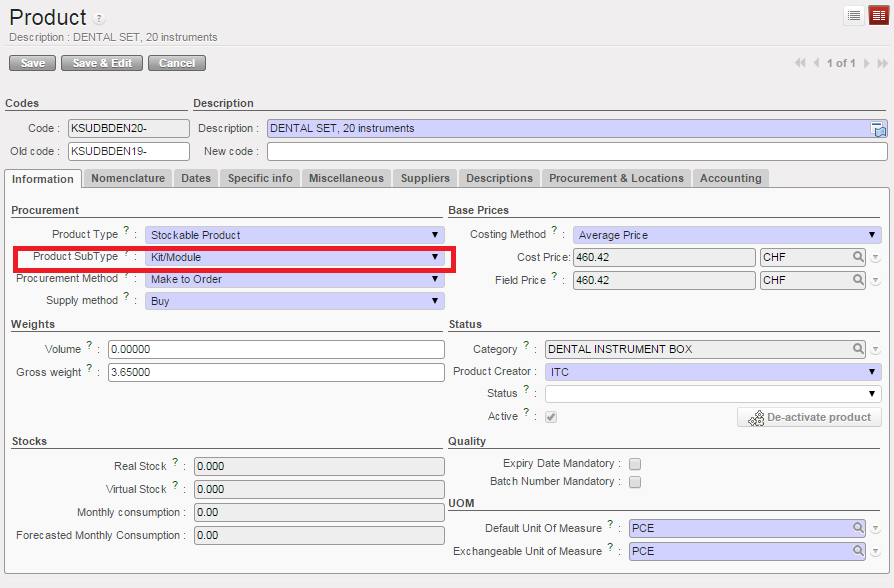
Remember, if you need to create a Kit as a product, the only difference will be on the product sub-type which should begin with the letter K to indicate that the product is a kit.

KIT Sub-Type

Theoretical Kit composition List

A Theoretical Kit Composition List (TKCL) represents the list of items that are supposed to compose the KIT. It can be manually created or imported at HQ once and synchronized downwards to all projects and coordination. The main purpose of the Theoretical Kit Composition List is to give an overview of the theoretical content of a Kit when it is being ordered or when we want to produce Kits locally.

It is not always practical to manually enter all the lines of a Theoretical Kit Composition List especially when there are a lot of lines to process. To speed up the process, use an import file to import all the lines at once.

Remember, a Theoretical Kit Composition List can only be used when its status is “completed”. However, having a Theoretical Kit Composition List in status “completed” in the system doesn’t trigger any process and doesn’t affect the related kit in any way. It just means that there is a list ready to be used.

A. LU Introduction (LU-SU2105)

Supply User Manual ENG -> Products -> 3.6 LU-SU2105: Kits/Modules -> A. LU Introduction (LU-SU2105)

A. LU Introduction (LU-SU2105)

Kit as a product

Products are the main items used in UniField. In order to be ordered, purchased, delivered, stocked or dispatched in UniField, an item needs to be registered as product in the system. In consequence, Kits are considered as single products, despite being groups of products on their own (i.e. kits for cholera for 10,000 people)

They are treated as single products throughout the whole supply chain (from order to reception) and their content is managed in a dedicated separated submenu called Kit Management, under the menu Products.

Kits content are not visible in the warehouse but can be displayed when the Kit is being purchased or after its reception.

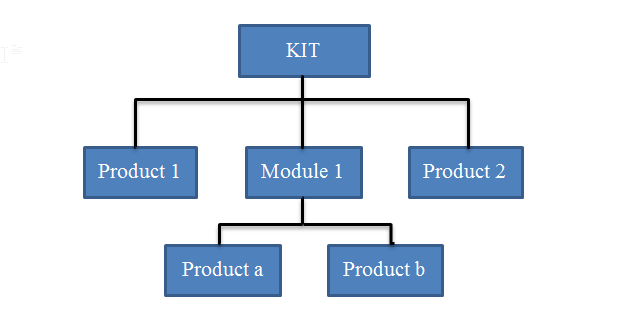
When some products are inter-related, they may be called a module: for example, a laptop and a charger cable may be called a module (i.e. Module 1 showed in the below graph). There may be several modules in a kit.

General Structure of a Kit

For a product to be considered as a Kit in UniField, the product Sub-Type should be “Kit/Module” on the product page.

The LEFO (Last expiry, first out) rule will apply when creating KITs. When creating a KIT, Unifield allows you the option of selecting items based on FEFO (First Expired First Out) or LEFO rule.

Choosing LEFO will select the products with the longest expiry date, allowing the kit to stay  “fresh” longer, reducing the frequency of updating kits by UF user.

FEFO is applied automatically to all other stock operations.  The advantage for using LEFO for KIT production is that KIT stays “fresh” and ready to use longer. It also requires less workload for the KIT refresh.