A. LU-SU1104: INTRODUCING UNIFIELD INSTANCE DATA MIGRATION.

Supply User Manual ENG -> Supply Configurations -> 2.4 LU-SU1104:Unifield instance data migration -> LU Introduction

LU Introduction

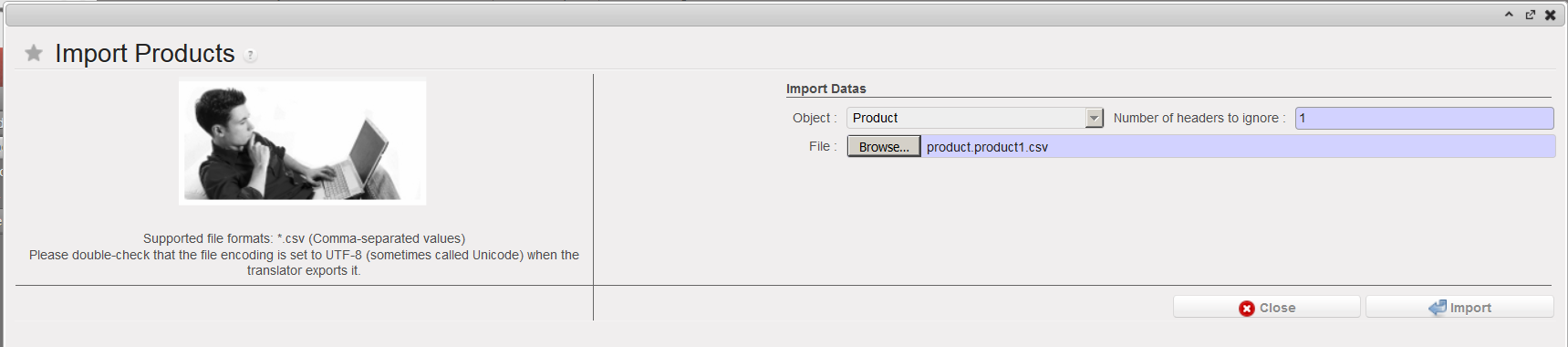
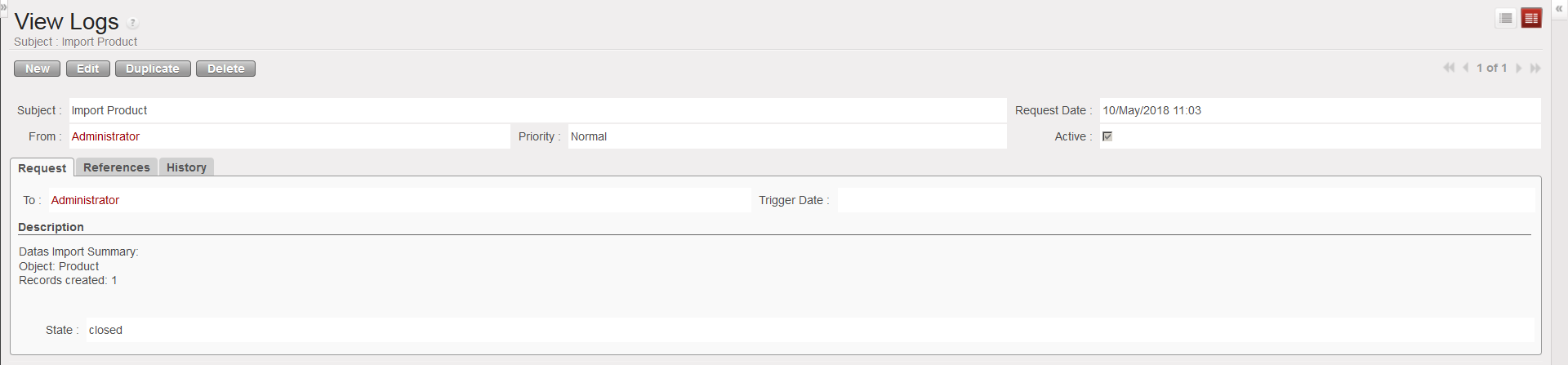
This Learning Unit is focusing on the preparation of an instance before to start using it (go-live). In most cases data from a legacy system (LogistiX,..) will be migrated to UniField during the preparation phase.

In order for an MSF mission to continue its daily operations without any cut off or disturbance after the go-live of UniField, some data from the legacy system should be imported or created in UniField. Before starting to use UniField, the following data need to be imported or created:

  • Local mission products
  • Suppliers
  • Stock levels
  • Open orders

H. Re-synch diagrams.

Supply User Manual ENG ->Supply Configurations -> 2.3 LU-SU1103:Synchronization -> H. Re-synch diagrams.

H. Re-synch diagrams.

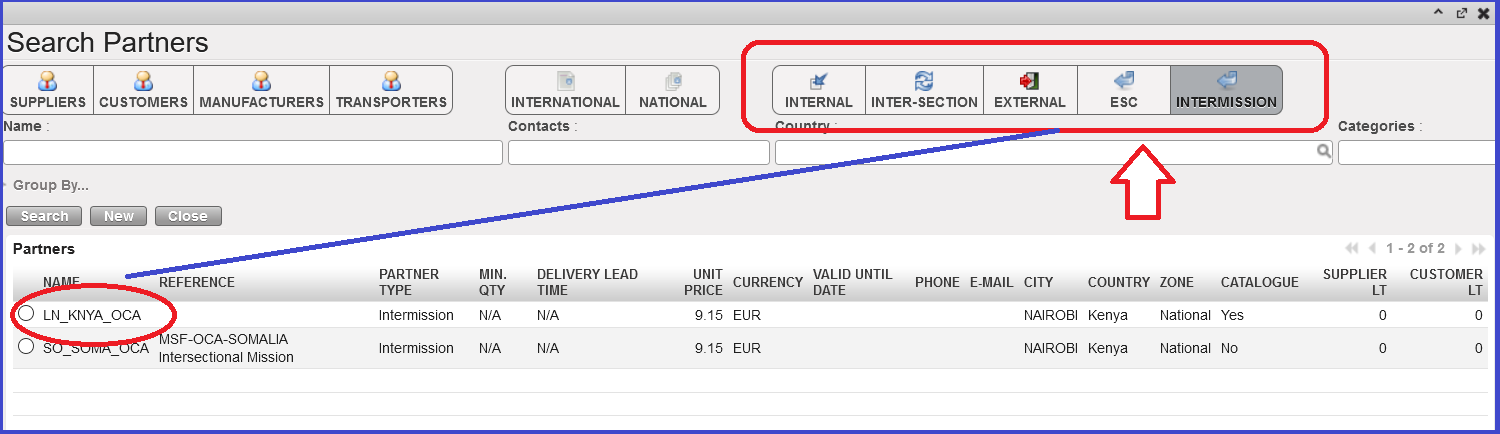
Print screen of how Unifield allows sourcing a Field Order to an inter-section or intermission partner.

Print screen with DPO (Direct Purchase Order) scenario. The final instance involved in the flow can place a DPO to a supplier. Delivery is then to the instance, which is a customer of the last FO.

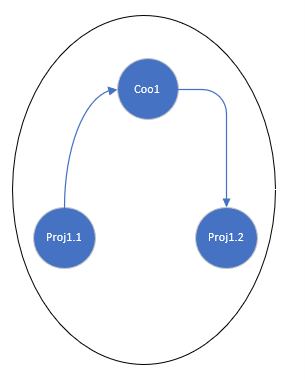
Diagrams for Re-synch flows


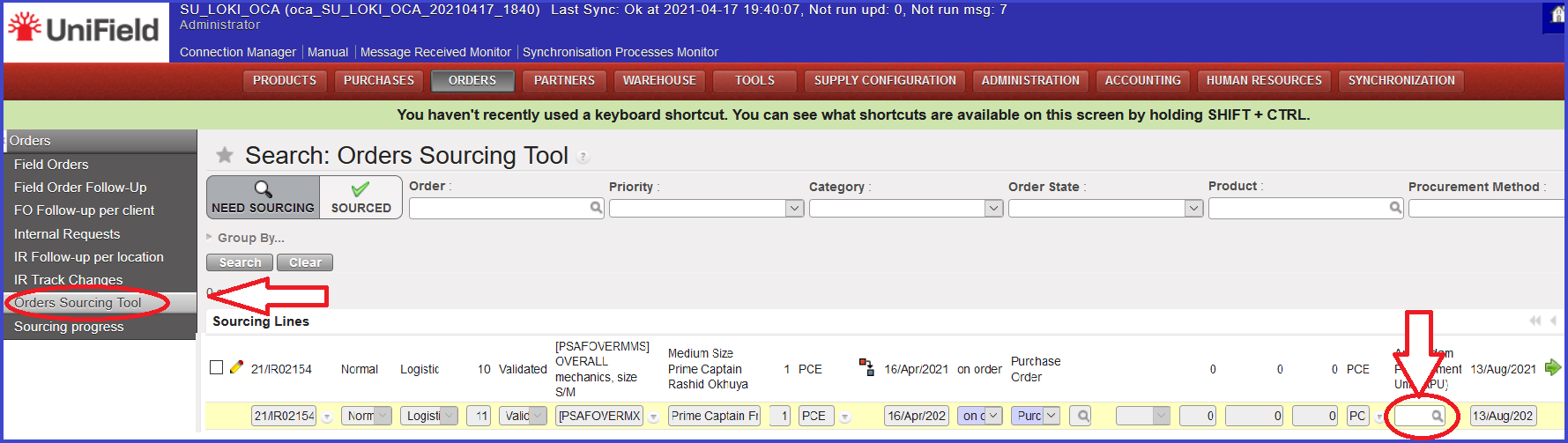
Screenshots describes options of sourcing FO to the 3rd partner (original IR on the project level, sourced through “Coordination” to the 3rd partner based in different country) , shows OST (Order Sourcing Tool) line with an already synched lined to be sourced.

Go to: Order Sourcing Tool > Edit line > Select the 3rd partner where to source FO through magnifier

New “Search Partners” window pops up where there are different Partners options to be toggled: Internal, Inter-Section, External, ESC and Intermission. Select the one and source the FO.

G. Re-synch Mechanism

Supply User Manual ENG ->Supply Configurations -> 2.3 LU-SU1103:Synchronization -> G. Re-synch Mechanism

G. Re-synch Mechanism

There are certain restrictions on the “re-synch” mechanism, including the following:

  • The main aim of the re-synch is to facilitate multiple sync instances flows. So an example of an expected flow would be OC1C1P1>OC1C1>OC2C1 (project internal>Coordo internal>Coordo Intermission or Intersection). or OC1P1>OC1C1>OC1P2, (project internal>Coordo internal>2nd project internal).
  • The same flow can be between a maximum of 3 UniField synced partners (see diagrams in “Diagrams chapter”). It is not expected for the synch to support a 4th UniField synced partner in the flow.
  • Flows where the delivery is sent via a fourth partner/instance which is not included in the ordering flow are not intended to be covered by the re-synch mechanism. E.g. if order flow is P1.1 > P1.2 >C1 then delivery flow cannot be C1>C2>P1.1 as C2 was not included in the ordering flow.
  • The type of flows for the re-synch mechanism are restricted to Regular and Direct Purchase Order (DPO).
  • Loans, In-Kind-Donation, Donations and Donations before Expiry type flows should not be used with the re-synch mechanism
  • Push flow” is not an expected trigger for the re-synch unless it is initiated by the “middle” partner (e.g. for the case of flow P1 > C1 > C2, if there is a Push flow this could be initiated only by C1, creating the mirror PO at P1, and C1 can then source their FO to C2)
  • For “Pull” flows (standard flow direction) the flow can be initiated by either an IR, PO, or FO from external partner.
  • As with the previous “standard(2 partner) synch mechanism, the flow of information and updates is to be sent according to status change at line / document level. The same level of detail in information is expected for the re-synched flows as for the standard (2 internal partner) flows, including addition of lines, cancellation or cancel & resource of lines, and split of lines.
  • The Vertical Integration mechanism basically works in the same way as in the 2 partner flow.
  • Finance concepts for Supplier Invoices and Stock Transfer Vouchers are the same as per the “standard” synched flow.

F. Re-Synch Introduction

Supply User Manual ENG ->Supply Configurations -> 2.3 LU-SU1103:Synchronization -> F. Re-Synch Introduction

F. Re-Synch Introduction

The “Re-synch” mechanism permits a synched flow between 2 MSF syncing-instances to be continued and sourced to an additional (3rd) UniField synced partner.

Previously the synch mechanism permitted a flow to connect only two Unifield synced partners, for example a Project can order to a Coordo (e.g. P1 > C1). The Re-synch mechanism allows this flow to be extended to a 3rd UniField synced partner, which would allow, for example, a flow where a Project sends order to a Coordo, and this Coordo sends order to another Coordo, the 3rd partner ( P1 > C1 > C2).

E. LU-SU1103: How to configure automatic synchronization

Supply User Manual ENG ->Supply Configurations -> 2.3 LU-SU1103:Synchronization -> E. LU-SU1103: How to configure automatic synchronization

E. LU-SU1103: How to configure automatic synchronization

Go to: Synchronization / Synchronization / Automatic

  1. The synchronization wizard opens.
  2. Select an “Interval Number”, the “Interval Unit” and leave the “Number of Calls” to the default value, which is -1.
  3. Tick the “Active” checkbox to activate automatic Synchronization.
  4. Click on the “Save” button.

Automatic synchronization

D. LU-SU1103: How to view documents created by synchronization

Supply User Manual ENG ->Supply Configurations -> 2.3 LU-SU1103:Synchronization -> D. LU-SU1103: How to view documents created by synchronization

D. LU-SU1103: How to view documents created by synchronization

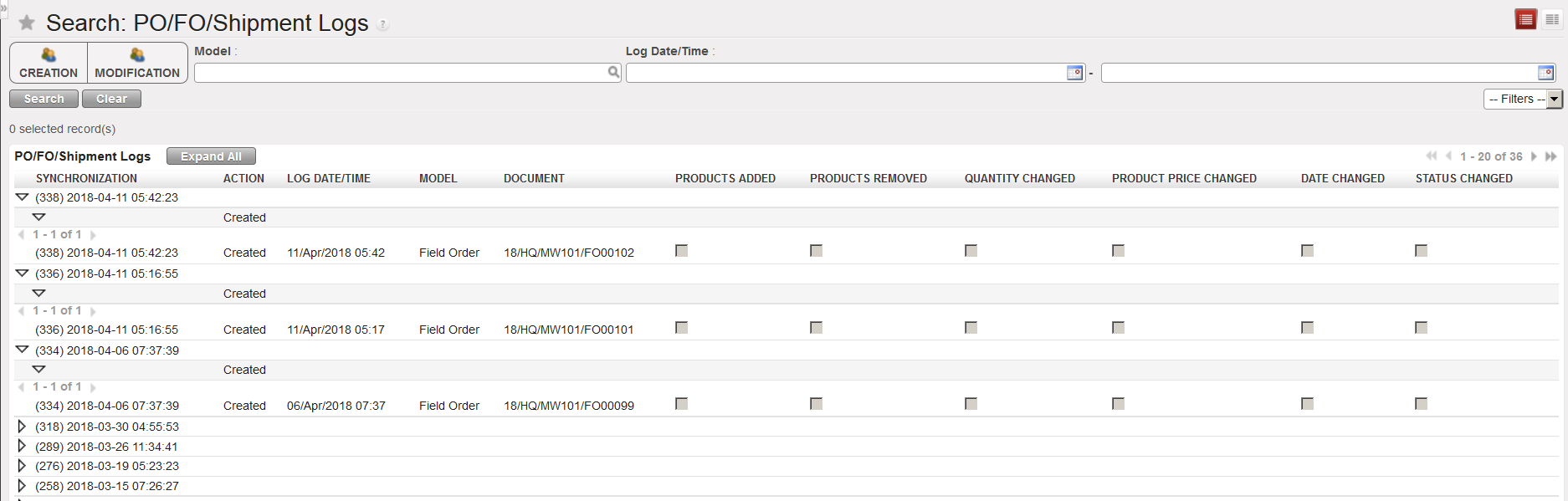
It is also possible to view which exact documents have been created by synchronization and when. It allows a user to know at a glance which documents have been created or modified by the synchronization and what was modified in these documents (change of price, date or quantity, products removed or added, etc.).

Go to: Synchronization / Monitoring / PO/FO/Shipment Logs

PO/FO/Shipment Logs

C. LU-SU1103: How to synchronize manually

Supply User Manual ENG ->Supply Configurations -> 2.3 LU-SU1103:Synchronization -> C. LU-SU1103: How to synchronize manually

C. LU-SU1103: How to synchronize manually

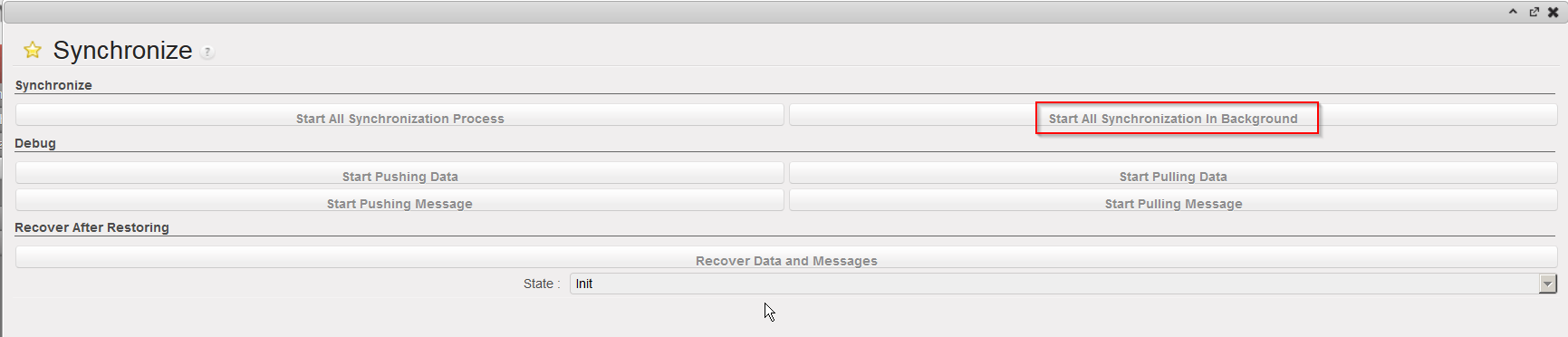
Go to: Synchronization / Synchronization / Manual

  1. The synchronization wizard opens.
  2. Click on “Start All Synchronization In Background”. This launches the synchronization process in background.

Launch a manual synchronization

When the synchronization is running, the message “Syncing…” is displayed at the top of the screen.

Synchronization in process

After the synchronization has finished, the system displays the following message at the top the screen, to indicate when synchronization finished.

Synchronization done

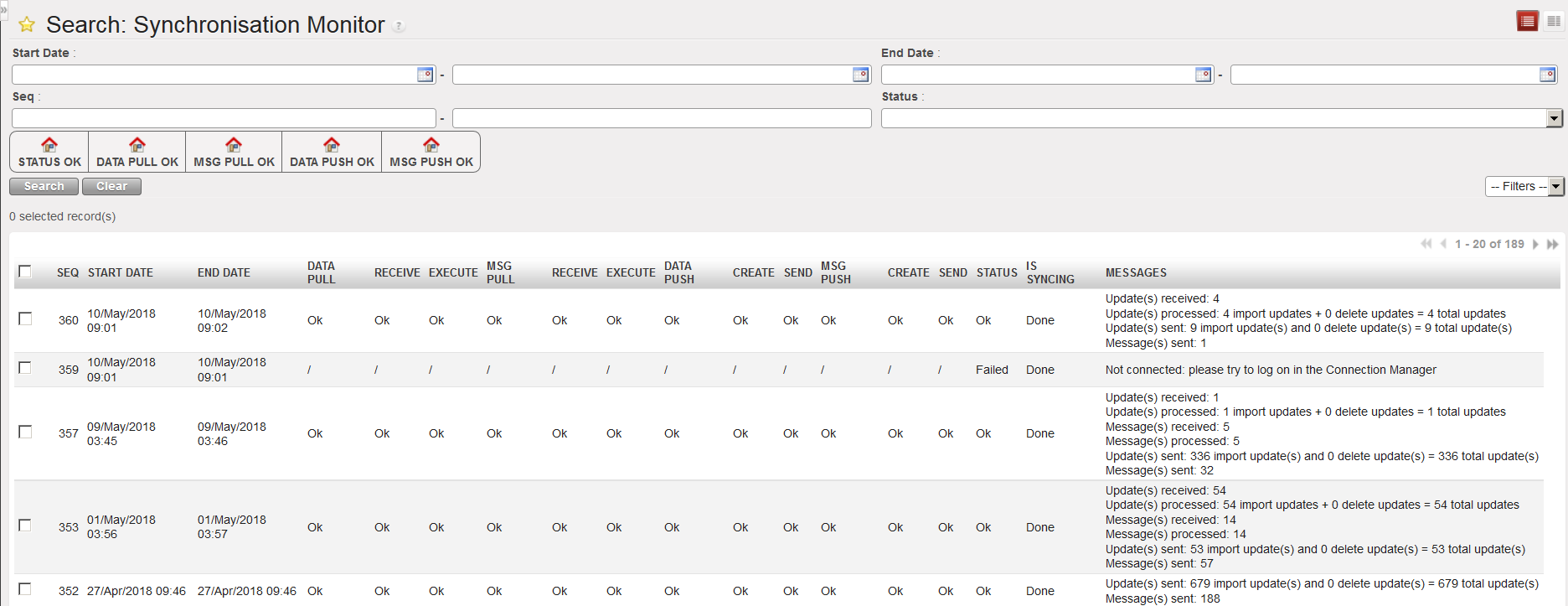
To get more details on the synchronization completed (amount of data pushed and pulled, error and/or warning messages, etc.),

Go to: Synchronization / Monitoring / Synchronization Processes Monitor.

You will see the results of the latest synchronizations carried out, ordered from the latest to the earliest. You can also use filters to search for specific synchronization runs.

Synchronization monitor

B. LU-SU1103: Connection to the synchronization server

Supply User Manual ENG ->Supply Configurations -> 2.3 LU-SU1103:Synchronization -> B. LU-SU1103: Connection to the synchronization server

B. LU-SU1103: Connection to the synchronization server

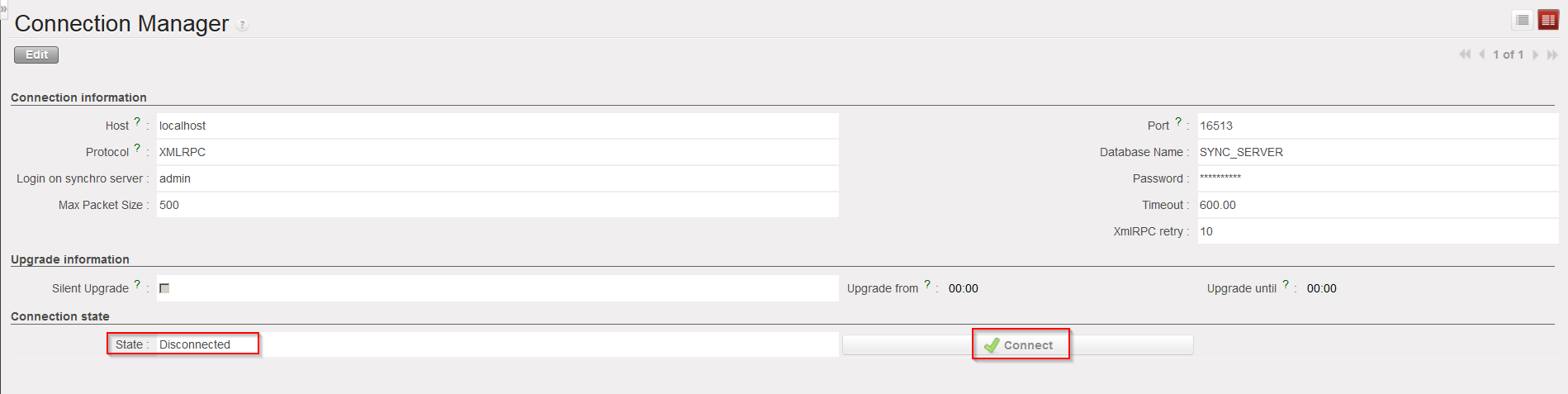
To be able to synchronize, the UniField instance needs to be connected to the synchronization server. The connection to the synchronization server is done through the Connection Manager.

Go to: Synchronization / Registration / Connection Manager

There should be one line appearing which represents the connection to the synchronization server.

Connection to synchronization server

  • Click on the line to open it and check the “Connection state“. If the “State” is “Disconnected“, click on the button “Connect” to connect the instance to the synchronization server.

Connection to synchronization server

A. LU-SU1103: SYNCHRONISATION

Supply User Manual ENG ->Supply Configurations -> 2.3 LU-SU1103:Synchronization -> LU Introduction

LU Introduction

In UniField, it is possible for one instance to send goods or orders to another instance or to receive goods or orders from another instance. This can be done thanks to the synchronization mechanism during which all the instances send data to (push) and receive data from (pull) the synchronization server.

When two UniField instances need to exchange data, the sending instance has to synchronize first to send (push) the data to the synchronization server, after which the receiving instance can synchronize to receive (pull) the data from the synchronization server. It is possible to do the synchronization manually or schedule it to happen on a regular basis (automatic synchronization).