G. How to update an Internal Request.

Supply User Manual ENG -> 4. Procurement -> 4.2 LU-SU3101: Internal Requests (IRs) -> G. How to update an Internal Request.

G. How to update an Internal Request.

Internal Request updates can be done manually in the IR in “Draft” , “Draft-p“, “Validated” or “Validated-p” status.

Go to: Orders / Orders / Internal Requests

  1. Enter the necessary information in the filters to find your IR and click on Search, then click on the pencil icon next to the IR you wish to update to open it in edit mode.
  2. Update some information on the header of the IR if needed (some header fields can only be updated when in Draft/Draft-p).
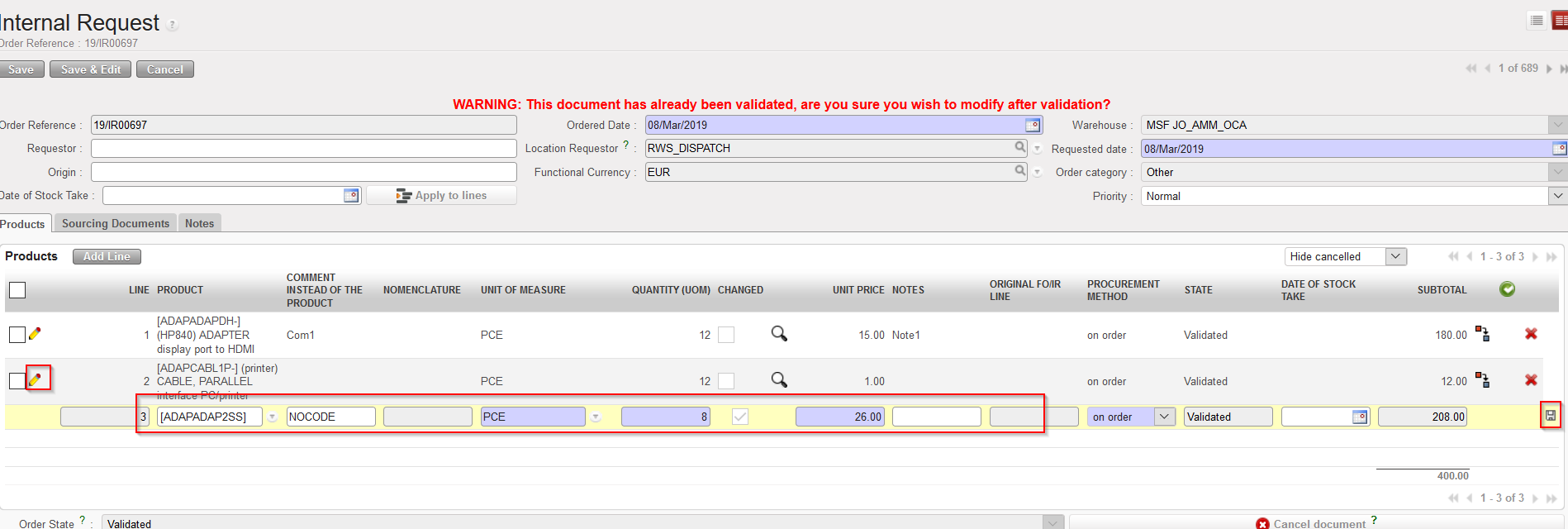
  3. To update a specific line, click on the pencil icon at the left of the line you wish to update.
  4. Update the line as needed (UoM, quantity, unit price, notes,…).
  5. Save the line by clicking on the floppy disk at the right of the line or via a click on “Enter“.

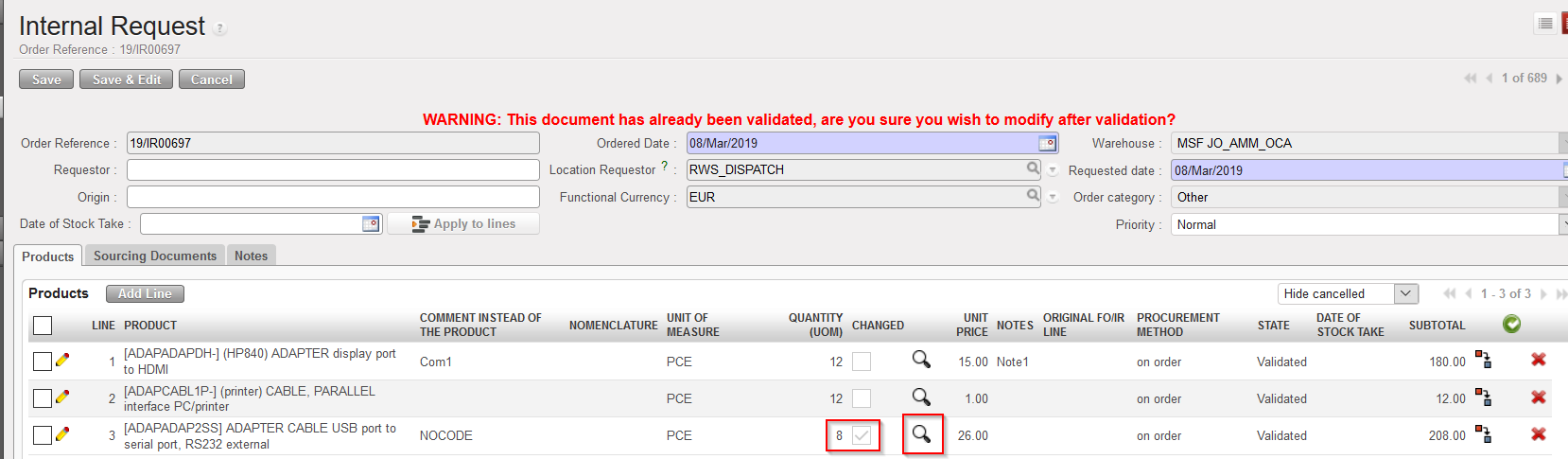
Please note that any change on “Product”, “Quantity”, “Price” and “UoM” to a “Validated” line will trigger the ticking of the “Changed” checkbox. Changes can be seen by clicking on the “Magnifier” icon; once clicked , a pop up will display the changes on the specific product line with “current value” vs “original value”.

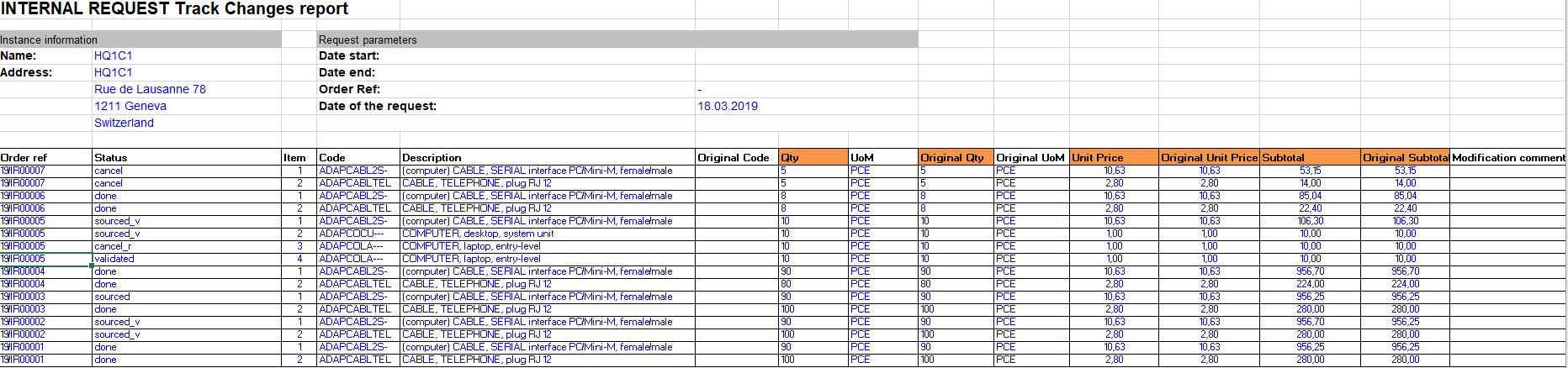
Please note that there is as well a new report that enables to see all these “track changes” which can be find under “Order> Orders” IR Track Changes

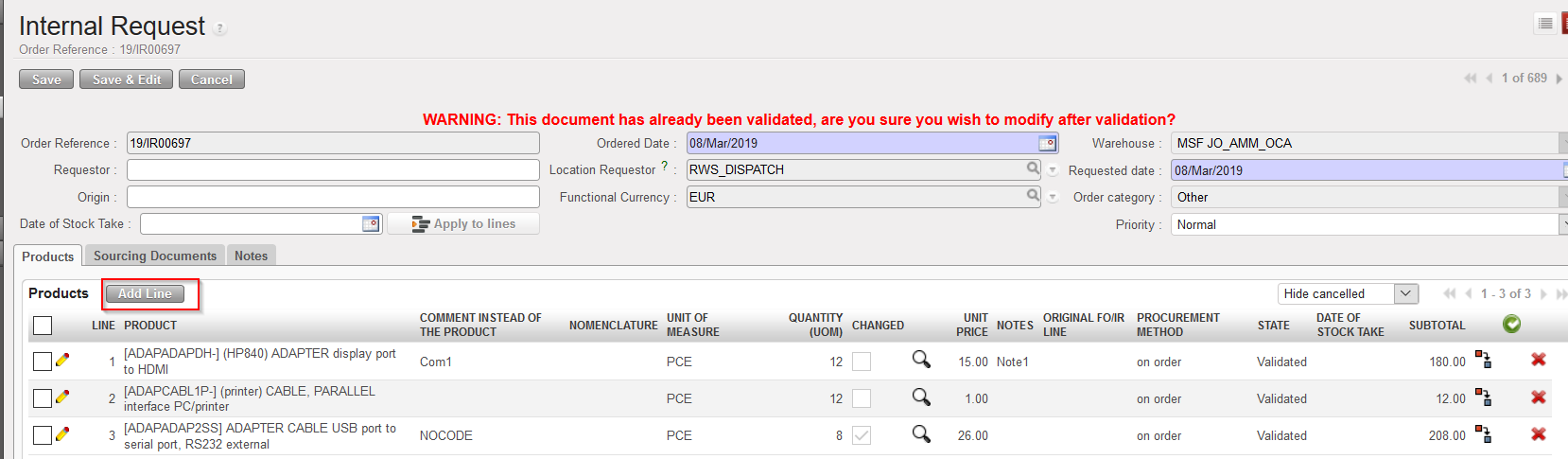
As long as the IR is in “Validated” status, it is still possible to add new line to the order however this will trigger the “Changed” checkbox.

The addition of new lines to a “Validated” IR is conditioned by User rights. A new button named “Add line” will replace the “New” button which is only used for Draft IR. New lines added at “Validated” state will still be created as “Draft” and will need validation from authorized user.

F. b) How to validate an Internal Request at line level.

Supply User Manual ENG -> 4. Procurement -> 4.2 LU-SU3101: Internal Requests (IRs) -> F. b) How to validate an Internal Request at line level.

F. b) How to validate an Internal Request at line level.

  1. Search for and open (in edit or display mode) the IR you wish to validate.
  2. You may then

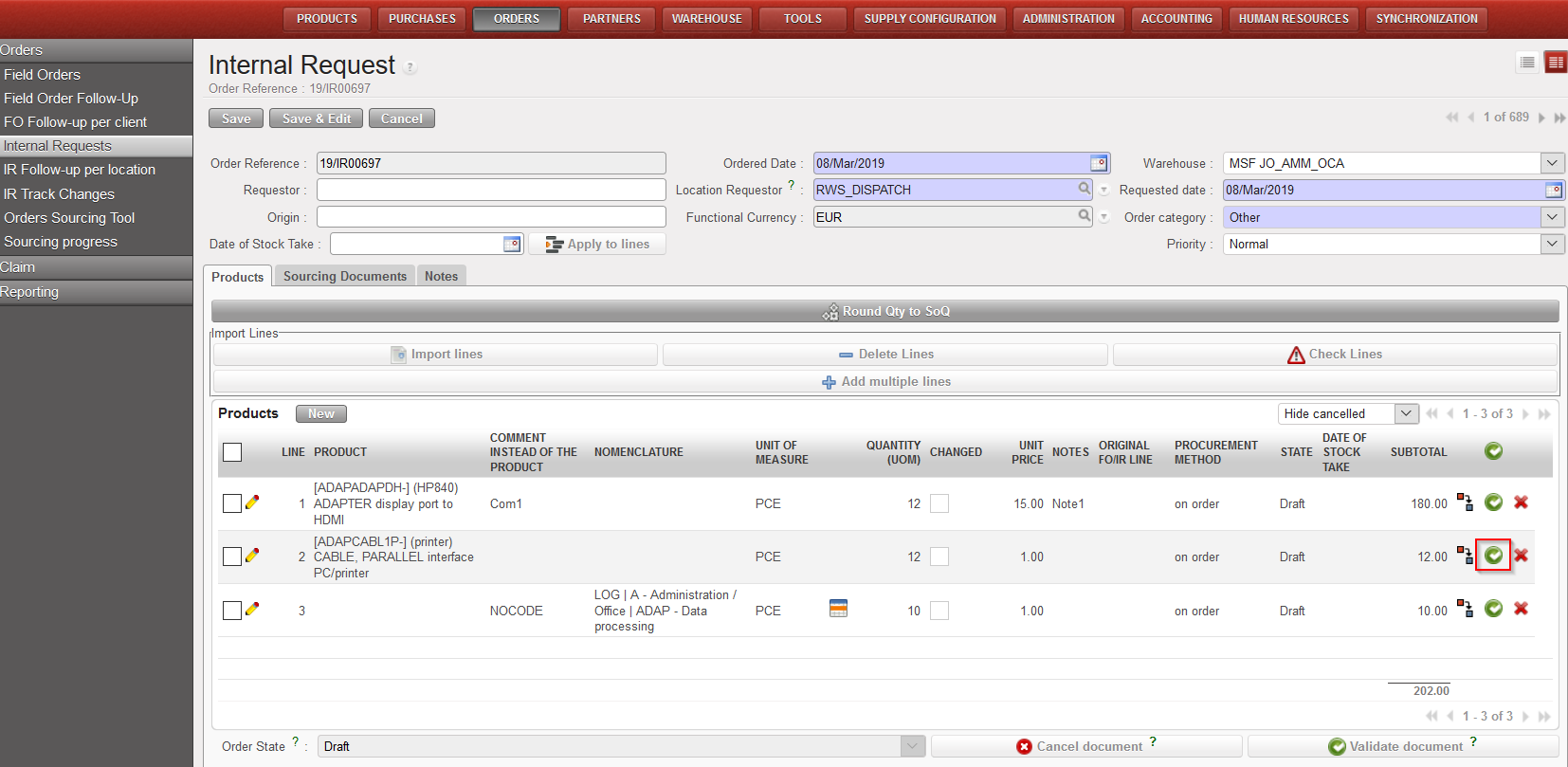
1.1 Validate only 1 line of the IR by clicking on the green icon at the right of the line you want to validate.

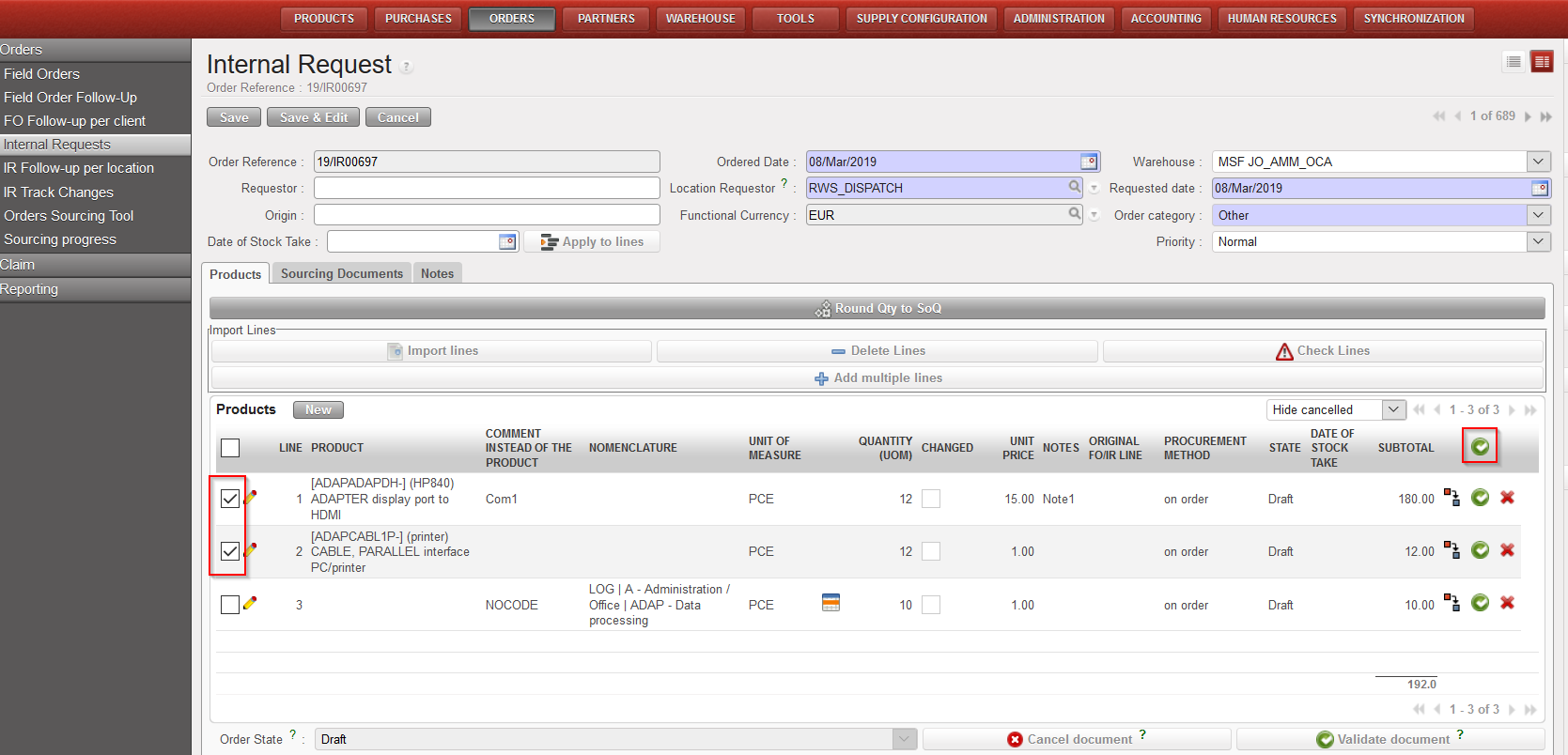
1.2 Validate several lines of the IR by selecting the lines you want to validate (use the check boxes on the left of the lines) and validating the selected lines (use the green icon at the top of the products table, next to “SUBTOTAL”).

Validate 1 line on an IR
Validate several lines on an IR

Once Validated:

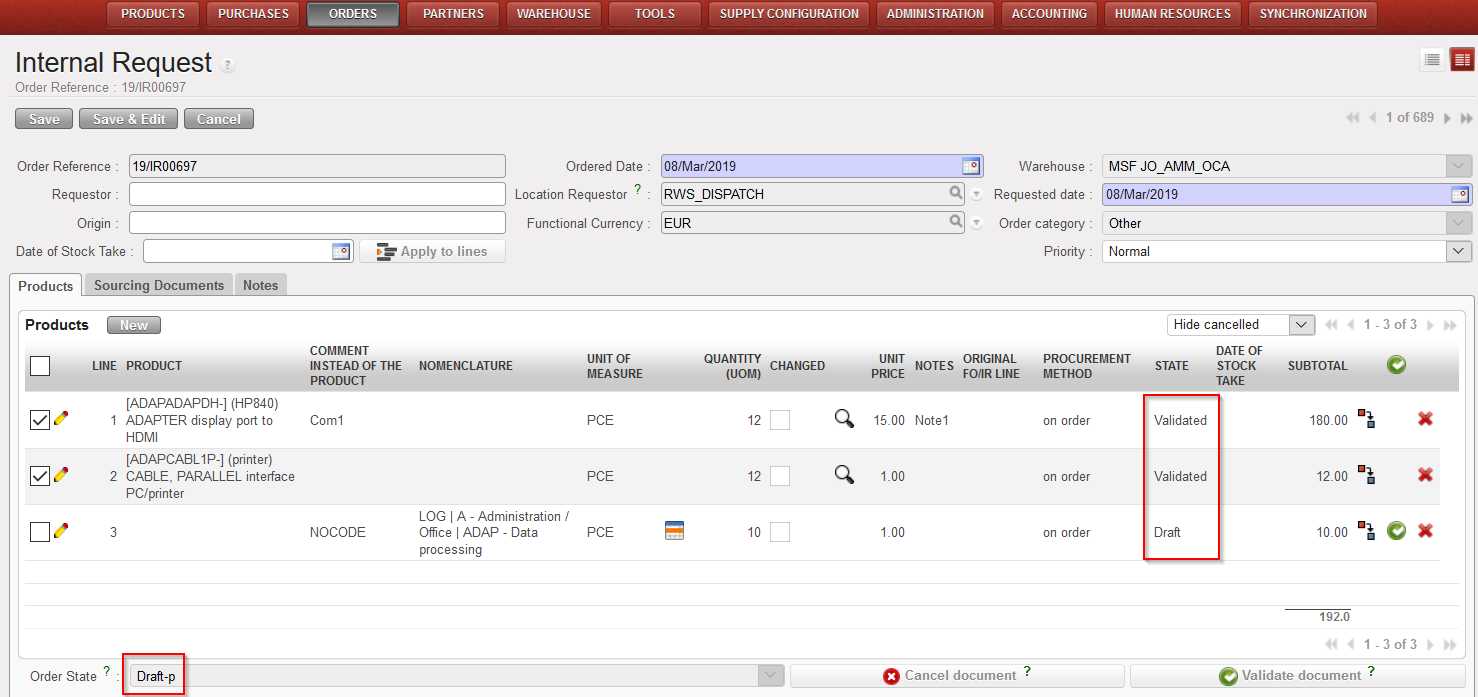
-The validated line(s) of the IR switch to the state “Validated” (while the other lines stay in the state “Draft”).

-The IR switches to the state “Draft-p“.

-No warning message is displayed as the lines of the IR which remain in the state “Draft” can still be modified.

IR partially validated

Remember that to be able to validate partially an Internal Requests, your user must have the appropriate user rights.

F. a) How to validate an Internal Request at header level.

Supply User Manual ENG -> 4. Procurement -> 4.2 LU-SU3101: Internal Requests (IRs) ->F. a) How to validate an Internal Request at header level.

F. a) How to validate an Internal Request at header level.

  1. Search for and open (in edit or display mode) the IR you wish to validate.
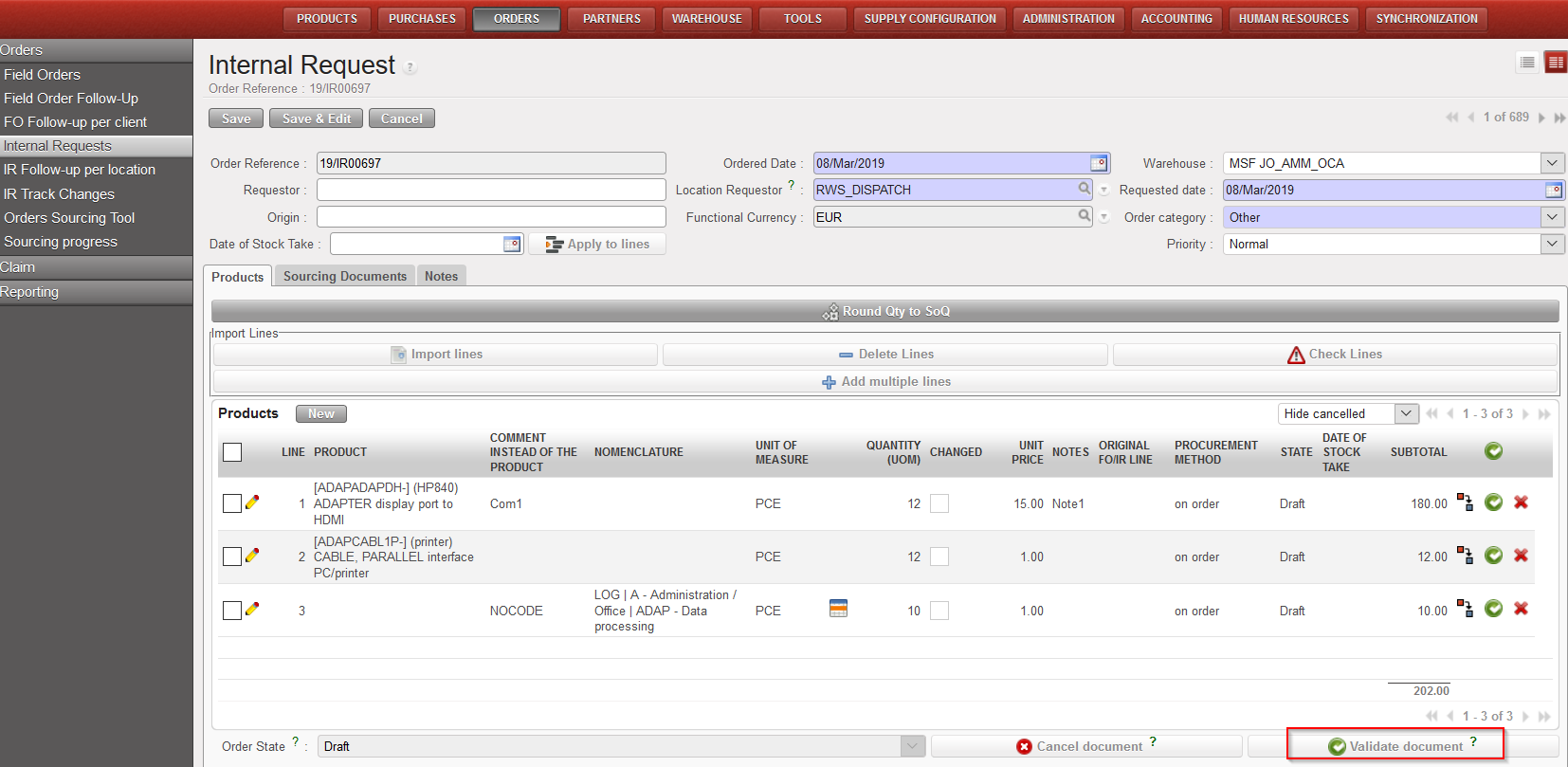
  2. Click on the “Validate Document” button at the bottom of the screen.
IR validation

Once Validated:

-All the lines of the IR switch to the state “Validated“.

-The IR switches to the state “Validated“.

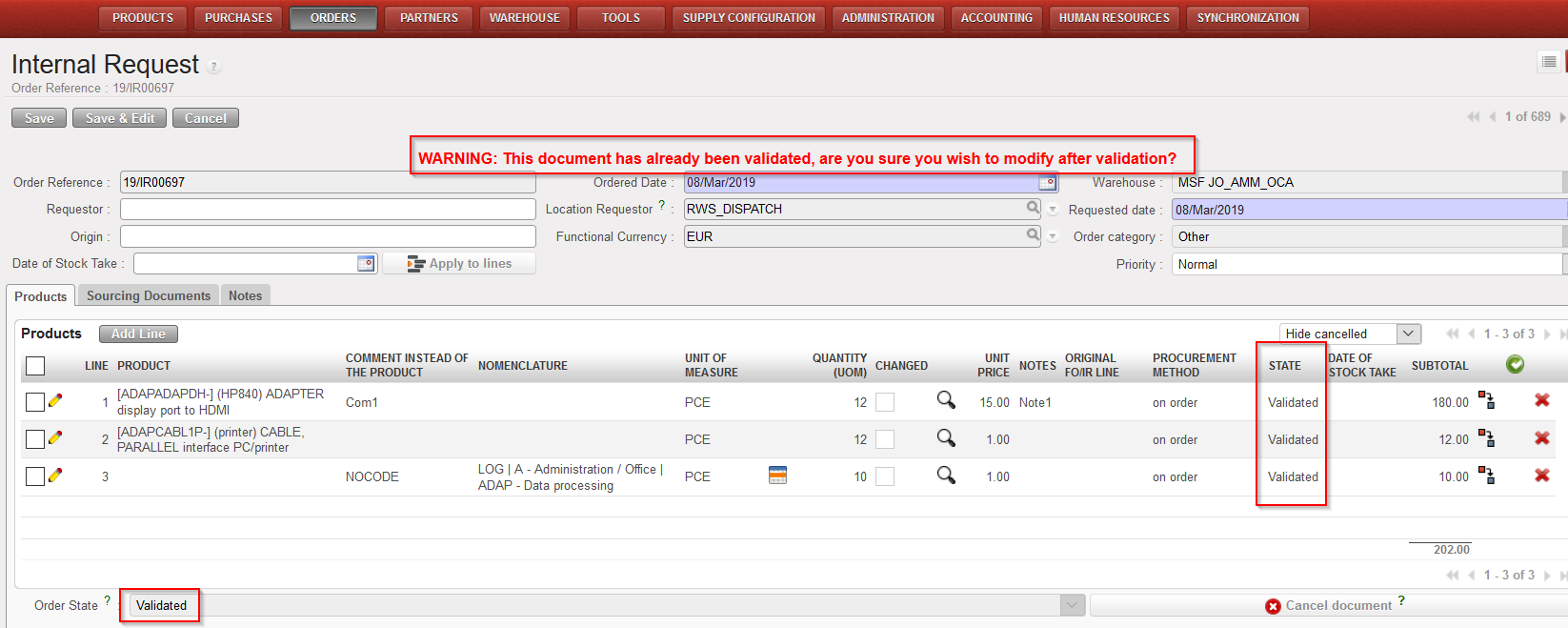
-A red non-blocking warning message is displayed to remind that changes are not recommended after validation.

IR validated

F. How to validate an Internal Request.

Supply User Manual ENG -> 4. Procurement -> 4.2 LU-SU3101: Internal Requests (IRs) -> F. How to validate an Internal Request.

F. How to validate an Internal Request.

An Internal request can be validated at header level (validation done for all the lines of the IR in one click) or at line level (validation done for one or some lines of the IR only).

In the first case, the validation will have as consequence that all the lines of the IR will switch to the state “Validated” and the IR itself (at header level) will also switch to the state “Validated“. In the second case, the validation will have as consequence that one or some lines of the IR will switch to the state “Validated” while the IR itself (at header level) will switch to the state “Draft-p“.

Note that to be able to validate an IR at line level, a user must be granted specific user rights. User should have the group Sup_Valid_Line_IR.

Go to: Orders / Orders / Internal Requests

a) How to validate an Internal Request at header level

b) How to validate an Internal Request at line level

E. How to export an Internal Request.

Supply User Manual ENG -> 4. Procurement -> 4.2 LU-SU3101: Internal Requests (IRs) -> E. How to export an Internal Request.

E. How to export an Internal Request.

As for the import, the system offers several options to export the lines from an Internal Request to an Excel file. Depending on whether you need to export only product lines or product lines AND header information you will need to choose the correct link in the right action menu.

Go to: Order / Order / Internal Requests

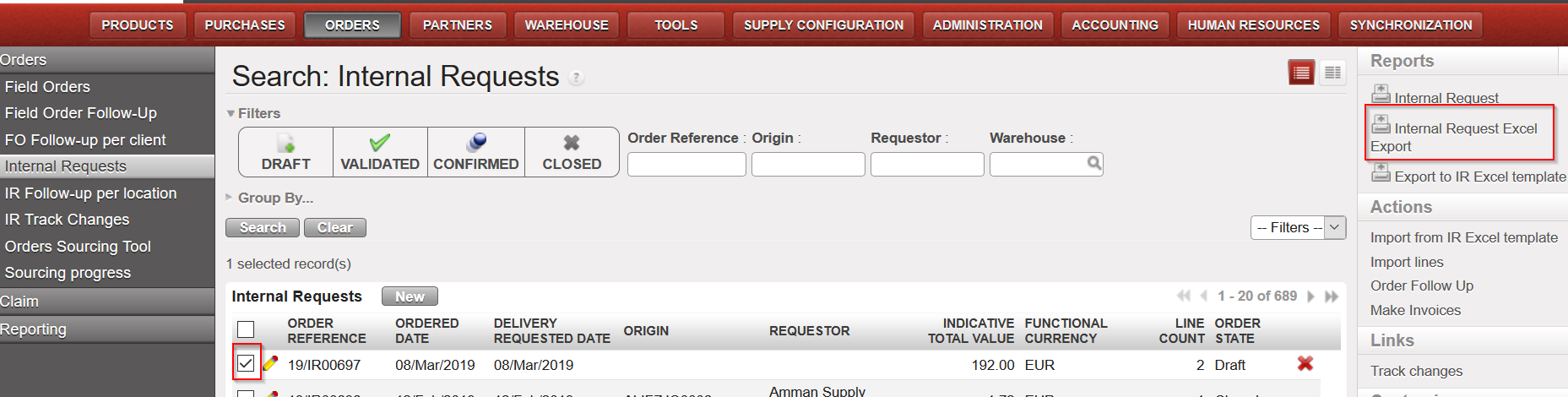
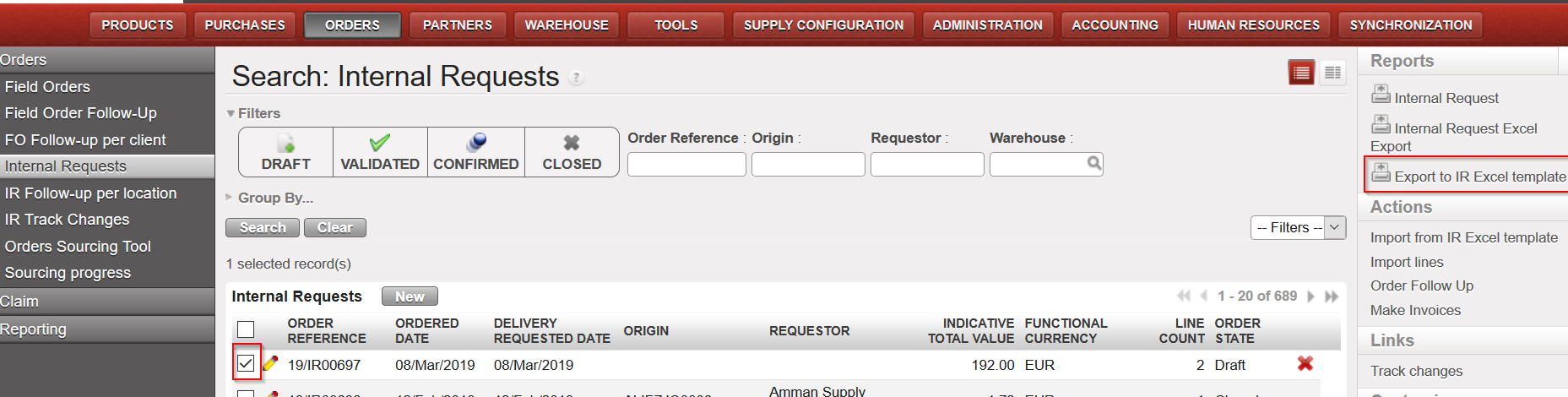
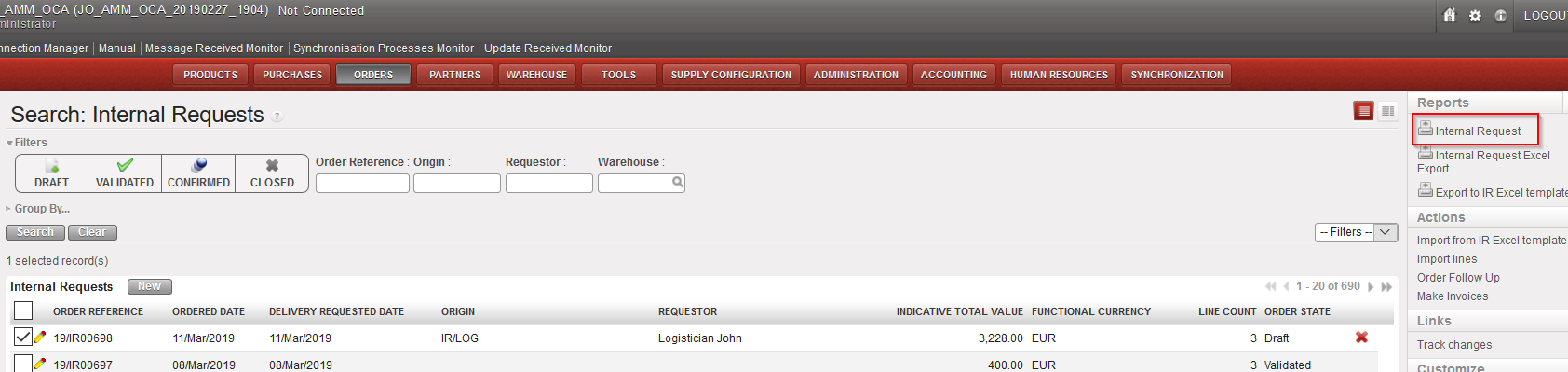
  1. Click on the check box on the left side of the line corresponding to the Internal Request to be exported.
  2. The Action menu on the right-hand side is displayed.
  3. Click on the

3.1 “Internal Request Excel Export” link to export product lines only

3.2 “Export to IR Excel template” link to export product lines AND header information

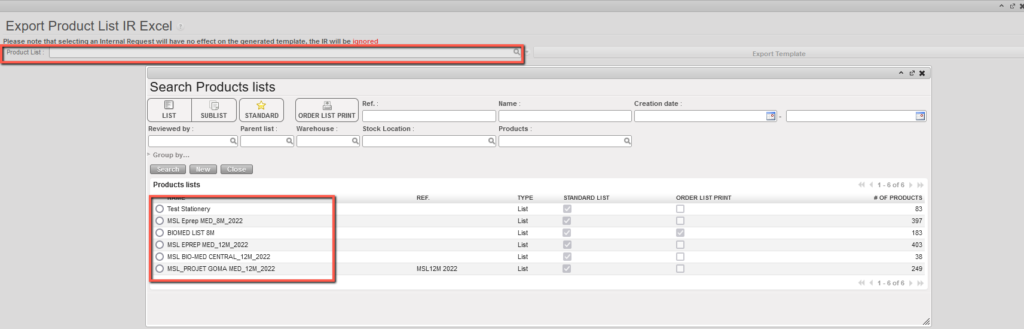
3.3 “Export Product List IR Excel” can be accessed in the IR List view Action menu (without any IR being selected). In the intermediate pop-up, the user can select an existing Product list. 

4. The IR will be exported to Excel.

3.1 Exporting an IR to Excel

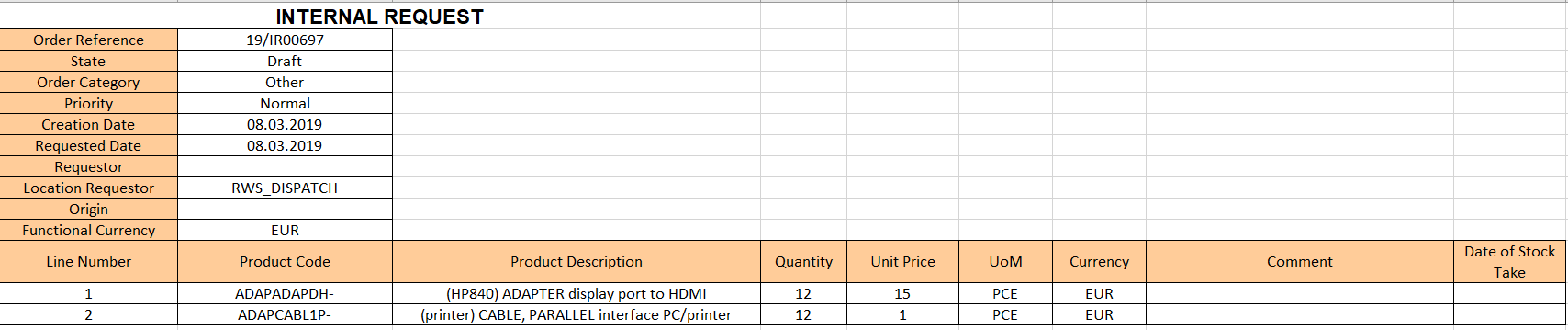
All the information of the IR you chose will be exported to Excel with the following format:

3.1 IR Excel export
3.2 Exporting to IR Excel template
3.2 Export to IR Excel template

Do not mix-up these 2 export options with the “Export” option available at the bottom of the action menu which will export all the headers of the IRs appearing on the screen (without the details of the product lines).

3.3 Export Product List IR Excel template ( select Product list to export)
3.3 “Export Product List IR Excel”

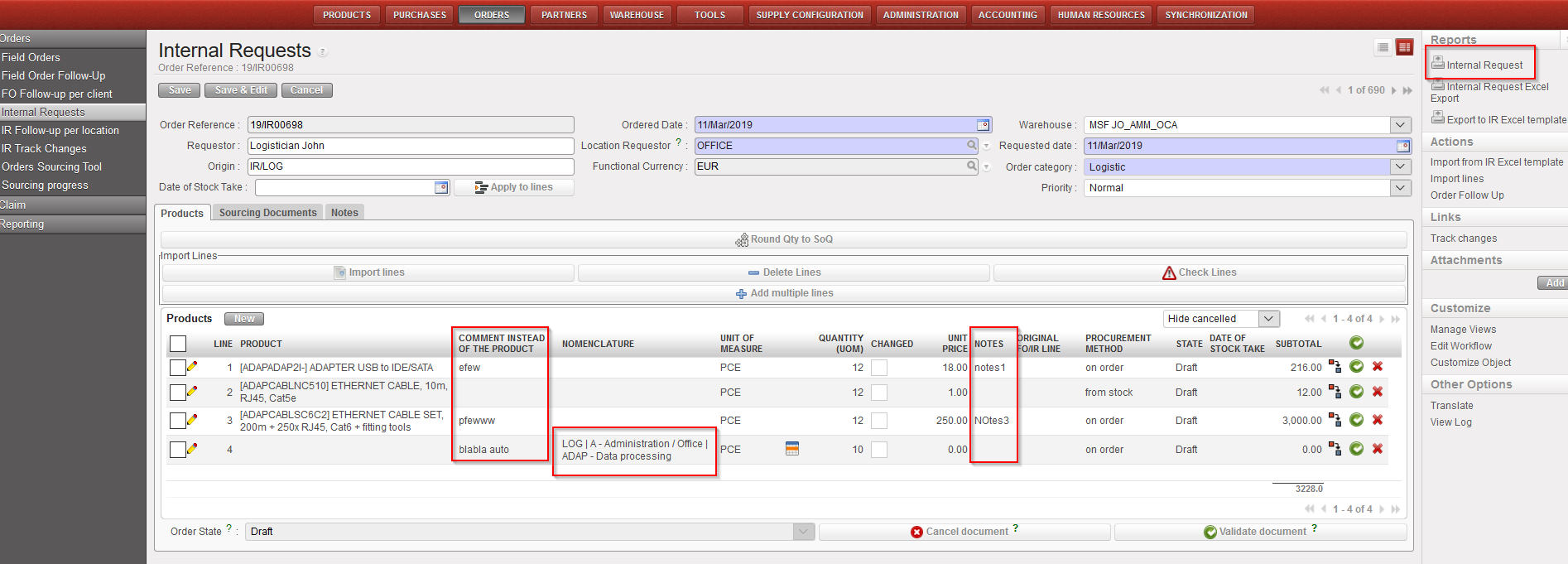
From the same screen, you can produce (and print) a PDF report for validation purpose using the option “Internal Request” also located in the action menu (under “Reports“). Note that these exports can also be done from within the IR.

Exporting an IR to PDF from the “Search: Internal Requests” screen
Exporting an IR to PDF from within the IR
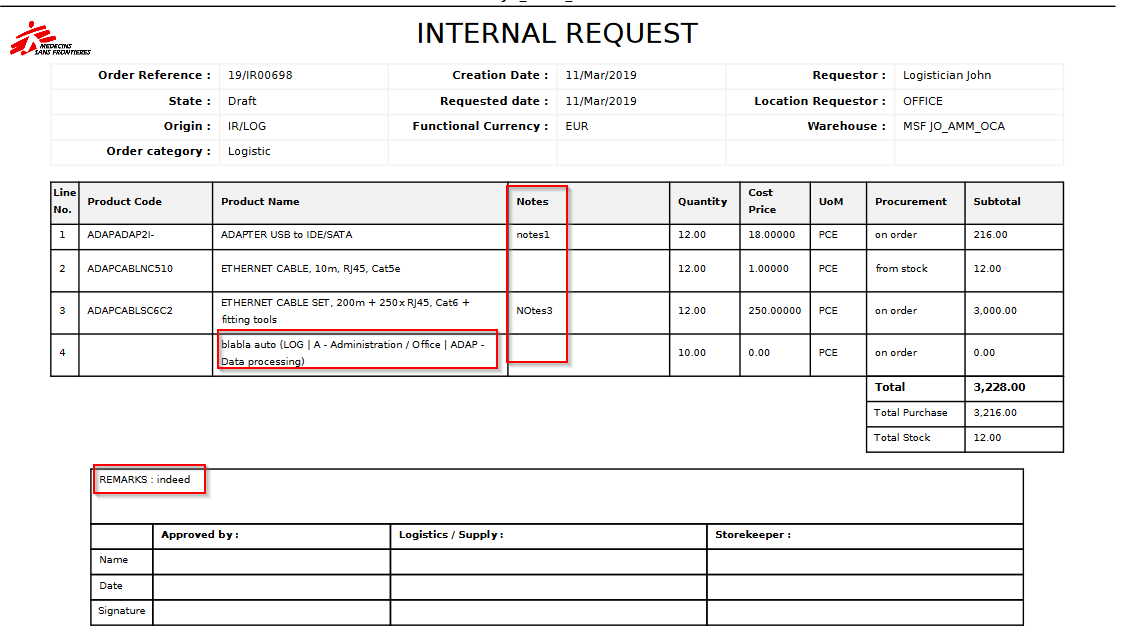
Internal Request in PDF format

Note 1: It is possible to select several IRs at the same time on the “Search: Internal Requests” screen (using several check boxes) and export them in one click to Excel or PDF. In Excel, you will get one IR per sheet. In PDF, all the selected IRs will be exported on one PDF file.

Note 2: The export to Excel and PDF can also be done from within the IR as the “Internal Request Excel Export“, “Export IR Excel template” and the “Internal Request” options are also available in the action menu (under “Reports“).

Note 3: On the Excel, the comment included in the “Comment instead of the product” column of the IR will appear in the column “Comment“. Note that the notes included in the “Notes” column of the IR are not exported to excel.

Note 4: On the PDF, at header level, the notes inserted on the “Notes” tab of the IR will appear (at the bottom of the PDF, behind “REMARKS“). At line level, the notes included on each line of the IR will appear (in the column “Notes” of the PDF) but the “comment instead of the product” information won’t appear except for lines with “product by nomenclature“.

Note 5: On the PDF, “Cancelled” lines will not be displayed

D. How to import lines on an Internal Request.

Supply User Manual ENG -> 4. Procurement -> 4.2 LU-SU3101: Internal Requests (IRs) -> D. How to import lines on an Internal Request.

D. How to import lines on an Internal Request.

UniField offers several options for importing information on an IR, either from an Excel file (XML Spreadsheet 2003 format) or from a pre-encoded Product list.

First and historical option only include import of product lines information and requires having header information of IR to be populated manually in the system. The columns should be in this exact following order and spelling: Product Code*[1], Product Description, Quantity*, Cost Price, UoM*, Currency*, Comment.

IR Excel Import format and columns order

Option 1 (import lines): Go to: Orders / Orders / Internal Requests

  1. Create a new IR or open an existing IR (note that for an existing IR, this should only be done if the IR is in “Draft” or “Draft-p” status and saved first).
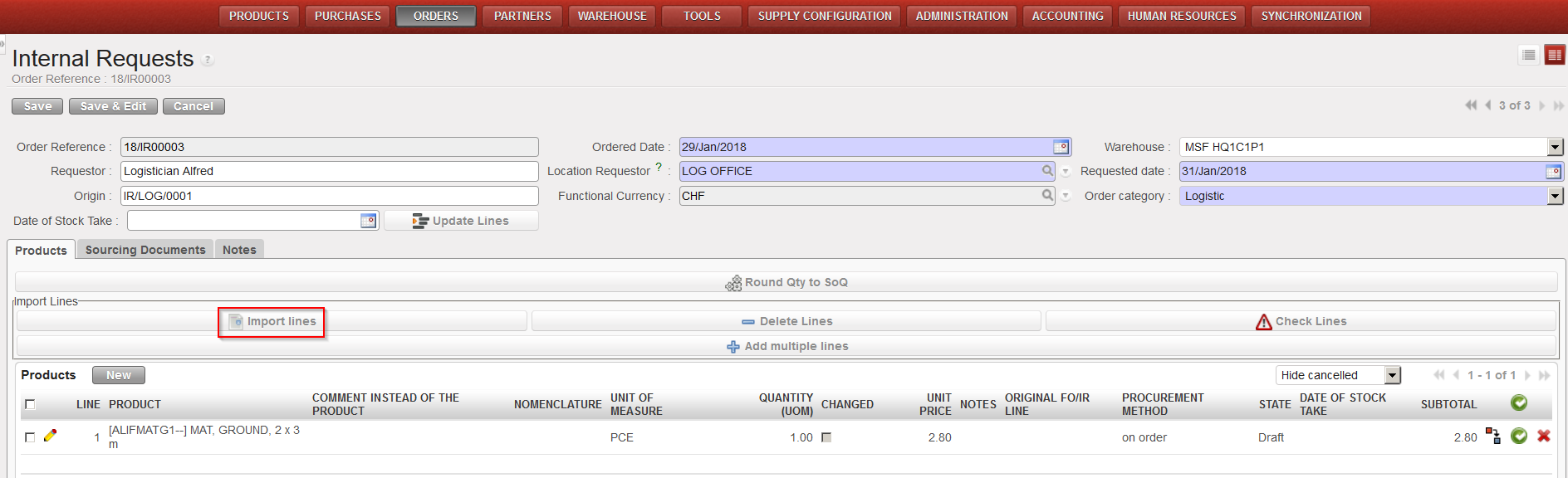
  2. Click on the “Import lines” button.
  3. Click on the “Add attachment” button then “Browse” and search on the computer for the file to import.
  4. Select the file you want to upload and click on “Open” in the browse window.
  5. Click on the “Import file” button to import the file, then click “Update” (Click again on “Update” if the process is not 100% complete). A message will indicate if lines have been imported successfully.
  6. Click on the “Close Window” button.
  7. Save the IR.
Importing lines on an IR

The second option introduced with UF11 enables to import, additionally to product line, header information such as Order reference (in case of update), Order Category, Priority, Requested date*, Requestor, Location requestor*, Origin and Functional currency.

This import can only be done to create Draft IR or update existing Draft IR.

Option 2 (Import from IR Excel template): Go to: Orders / Orders / Internal Requests

  1. Click on the “Import from IR Excel template” link on the right action menu.
  2. Click on the “Add attachment” button then “Browse” and search on the computer for the file to import.
  3. Select the file you want to upload and click on “Open” in the browse window.
  4. Click on the “Import file” button to import the file, then click “Update” (Click again on “Update” if the process is not 100% complete). A message will indicate if lines have been imported successfully. Please note that if mandatory fields are not filled or incorrect, a non-blocking message will inform about it and correction can still be made on screen.
  5. Click on the “Validate Import” button.
  6. Save the IR.

Note that comments can also be imported in the IR if you populate the “Comment” column of the Excel.

Note that “product by nomenclature” lines can also be imported from Excel into an IR. Leave the “Product Code” (and “Product Description“) columns empty and populate the “Comment” column. Afterwards, use the “Configurator” icon to complete the line.

From the “Import from IR Excel template” import pop up, you can check the box “Change Product to a Comment if Product is not found” in case you need to import product by nomenclature.

To get a template of the correct Excel format needed, you may export an existing IR to Excel as explained below (see How to export lines from an Internal Request).

Option 3 (import from product list): Go to: Orders / Orders / Internal Requests

  1. Create a new IR or open an existing IR (note that for an existing IR, this should only be done if the IR is in “Draft” status). The header information of IR must be filled and saved.  
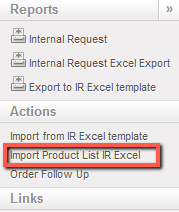
  2. Open an action menu and select on “Import Product List IR Excel”.                       
  3. Click on the “Add attachment button then “Browse” and search on the computer for the file to import. 
  4. Select the file you want to upload and click on “Open” in the browse window. 
  5. Click on the “Import file” button to import the file, then click “Update” (Click again on “Update” if the process is not 100% complete). A message will indicate if lines have been imported successfully. Please note that lines will be imported only if quantity is >0. 
  6. Click on the “Close Import” button.
  7. Save the IR. 


  1. *Indicates a mandatory field in the XML file.

B. How to create an Internal Request

Supply User Manual ENG -> 4. Procurement -> 4.2 LU-SU3101: Internal Requests (IRs) -> B. How to create an Internal Request

B. How to create an Internal Request

Go to: Orders / Orders / Internal Requests

  1. Click on the “New” button.
  2. Type the requestor’s name in the “Requestor” field.
  3. Enter the “Location Requestor“. This is actually the destination location, where the goods should be delivered. You may enter a regular stock location (LOG/MED), an intermediate stock, an internal consumption unit or an external consumption unit.

NB: These different locations types are explained in details in the Warehouse chapter It is important to determine correctly from the beginning where the goods are expected to be received since this information will follow through the whole procurement process till delivery and it will impact on other transactions such as IN or OUT (see LU-SU4101 Incoming Shipments and LU-SU4105 Delivery Orders in the Warehouse chapter).

4. Enter the requested (delivery) date in the “Requested date” field using the calendar button (i.e. when the goods are expected to be received by the requestor).

5. As “Origin”, you may type an information explaining what triggered the creation of the IR (paper request form reference, e-mail reference, …).

6. Select an order category available from the drop-down list next to the “Order category” field. Encoding the proper category will help you to better classify your Internal Requests. Note that if you try to include in an IR a product whose main type does not comply with the order category (i.e. if you try to include a LOG product on a MED IR), you will get a -non blocking- warning message.

Warning message on IR

7. If the IR is created following an inventory that was done before, you may enter as “Date of Stock Take” the date at which this inventory was done. This information will be useful to measure key performance indicators (KPIs) in a later stage.

8. In the “Details” field, you can enter the order name or any details of the Internal Request and will be transferred to following documents including OUT (or Pick if converted).

9. On the “Notes” tab you may enter a description of the IR if needed. This text will appear on the PDF file if you decide to print the IR (but won’t be transferred to subsequent documents).

10. Insert product lines manually by clicking on the “New” button in the “Products” tab to add products one by one or on the “Add multiple lines” button to add several products at once.

10.1 “New” button: enter (part of) the product’s code or (part of) the description in the “Product” field and select the product you need or click on the magnifying glass icon to open the “Search Products” screen. Search and select the product you need by its name, nomenclature or any other filter available.

10.2 “Add multiple lines” button: click “Add” on the pop-up screen and search for the products you want to add from the “Search Products” screen. Use the relevant filters: Nomenclature, Description, Code, Lists, Catalogues,… Select the products you need by ticking the boxes at the left of the corresponding products lines and click on “Select” to add them in the list of products you want to include in your IR. Once you have all the products you need click on “Add products”. Note that quantities can already be entered on the “Add multiple products” pop-up screen.

NB: We will see later that it is also possible to import product lines from an Excel file (via the “Import lines” button). This may highly facilitate the encoding as requestors often transfer their requests to the supply department via Excel file.
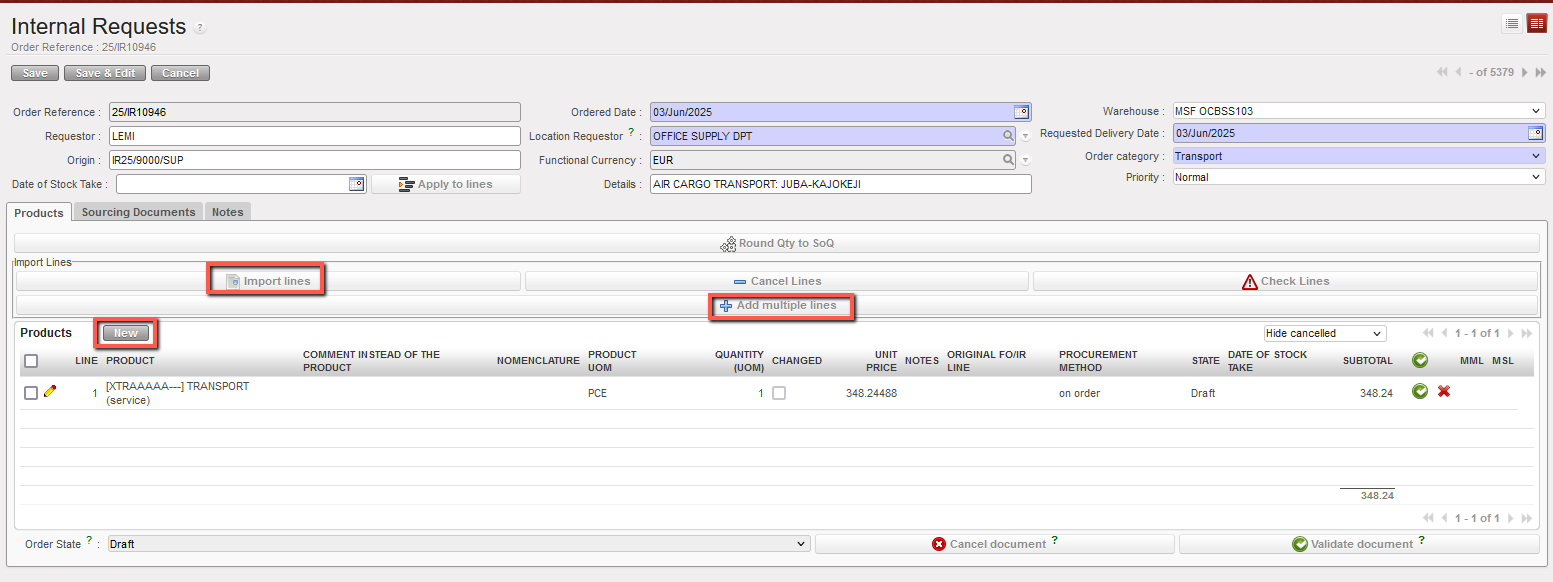
 
Adding lines on an Internal Request

11. If you want to enter in the IR a generic (non-codified) product to be specified (codified) later, encode its description in the “Comment instead of the product” field (see below for more details on this). This comment will be carried out through all the documents of the supply flow from the ordering process till the final stock movement (and will be transmitted via synchronization). Note that this field is also available if you have entered a regular (codified) product and can be used to further clarify your request. This comment will be printed on the IR (PDF) if no codified product has been entered but won’t appear on the print-out (PDF) if a codified product has been entered.

12. On the product line, check and change the UoM (Unit of Measure) if necessary. This is usually not needed as most of the products are managed in pieces (PCE).

13. Enter the required quantity in the “Quantity” field.

Note: Note that “Quantity” and “Unit Price” can not exceed a certain number of digits (but still quite large numbers are allowed and a warning message will be displayed in case you reach that maximal capacity).

14. Enter a price or modify the price proposed by the system if needed. The price proposed by the system is coming from the PMD sheet. Note that the price which appears on IR will not be pulled through to any following document (so is for visibility within IR document only).

15. In the “Notes” field you may enter additional information if required. This information will appear if you print the IR (PDF) but will not be transferred to subsequent supply documents.

16. If you wish to change the procurement method (from stock/on order) proposed by the system (and coming from the PMD sheet), modify it in the “Procurement Method” field. Note that this method will be decided definitively at a later stage in the Orders Sourcing Tool.

17. The date of stock take can be specified at line level as inventories may have been done at different dates according to the products.

18. Save the line by clicking on the floppy disk at the right of the line or via a click on “Enter”.

19. For multiple items, repeat for as many lines as needed.

20. Click on the “Save” button at the top of the screen to save the Internal Request.

21. Optionally, you can click on “Round qty to SoQ” (see LU-SU3401 for further details on this feature).

22. The Internal Request is saved in “Draft” status and all the lines of the IR are in “Draft” status.
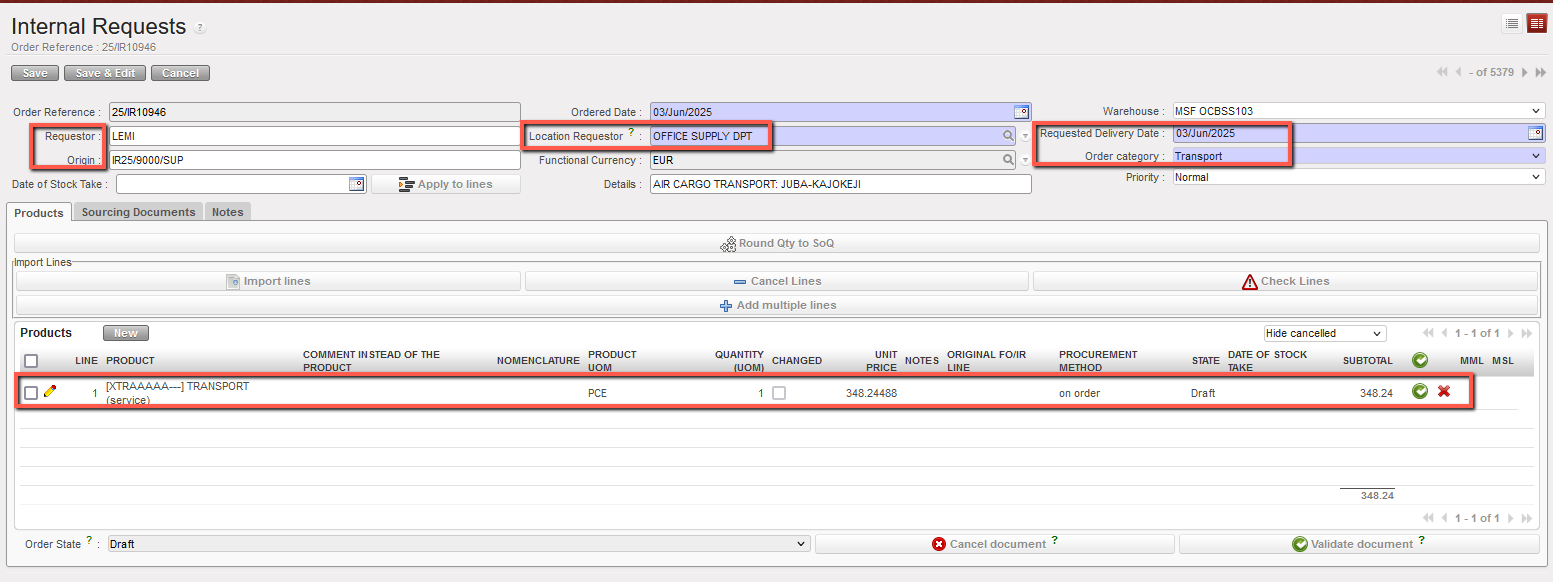
 
Adding a product line on an IR

In case you made a mistake and need to delete some lines you can delete them either by clicking on the red cross at the end of the product line or by clicking on the “Delete lines” button if you want to delete several lines in one click .
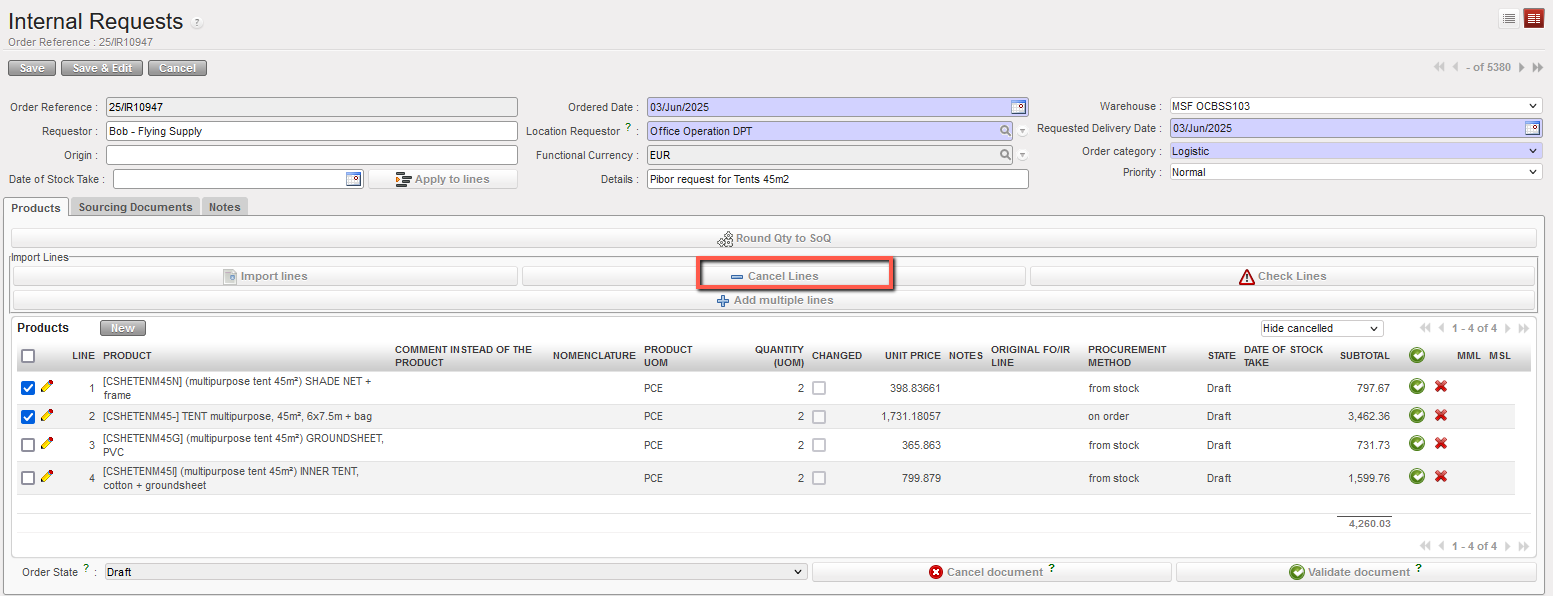

 
Editing a “Draft” IR

A. LU Introduction (LU-SU3101).

Supply User Manual ENG -> 4. Procurement -> 4.2 LU-SU3101: Internal Requests (IRs) -> A. LU Introduction (LU-SU3101)

A. LU Introduction (LU-SU3101).

An Internal Request (IR) is a document used to express a requestor’s needs. It is the electronic equivalent of the paper Request Form and replaces the LogistiX “Document IN”. It should be used according to OC procedures.

The needs can come from a user at project or coordination level, it will trigger most procurement documents (if needed) to deliver the goods to the instance where the IR has been created and to the destination location indicated on the IR. The IR has to be reviewed and validated before going through the sourcing tool (and being confirmed).

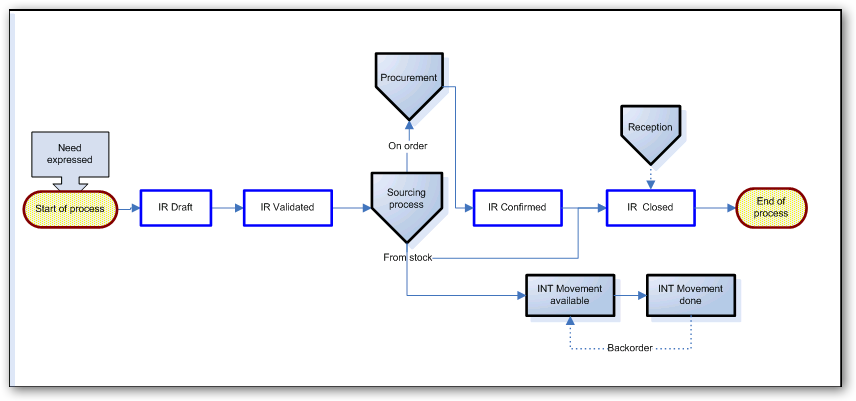
Process flow of an Internal Request (internal requester)

4.2 Internal Requests (IRs).

Supply User Manual ENG -> 4. Procurement -> 4.2 Internal Requests (IRs).

LU-SU3101: Internal Requests (IRs)

A. LU Introduction

B. How to create an Internal Request

C. How to create an Internal Request with Products by Nomenclature

D. How to import lines on an Internal Request

E. How to export an Internal Request

F. How to validate an Internal Request

G. How to update an Internal Request

H. How to cancel or delete a whole Internal Request

I. How to cancel a line or multiple lines from an Internal Request

J. How to follow-up an Internal Request

4.1 CHAPTER OVERVIEW: ORDERS, PURCHASES AND REPORTING.

Supply User Manual ENG -> 4. Procurement -> 4.1 Orders, Purchases and Reporting. 

Orders, Purchases and Reporting.

This chapter covers the different types of orders available in UniField, as well as each different stage of sourcing and procurement. The process will start as an expression of needs, and this may be followed by procurement, sourcing from stock, loan, which may involve both internal (via synchronization) and external partners.

It is essential to understand how product orders and procurement are processed in UniField, as an order line may pass through several different stages until the product reaches its final destination. All these stages, up to the point of product reception, are covered in depth in this chapter.

This chapter also covers the relationship between projects and coordination and the role which the synchronization can play in the order flows between them.

This chapter is introducing gradually the different functionalities of UniField needed in procurement, starting with Internal Requests, continuing with the Orders Sourcing Tool before to focus on Field Orders and Purchase Orders. As these functionalities are highly interconnected within UniField, it was not possible to keep them completely separated; reason why some functionalities such as Field Orders and Purchase Orders are already introduced before their dedicated learning units.

As of UF7.0 (released in January 2018), documents used in procurement (Internal Requests -IR-, Field Orders -FO- and Purchase Orders -PO-) can be processed at header level (for the whole document) or at line level (for specific items in the document). This is a major change that has been introduced in UniField to allow -among others- partial sourcing and partial confirmation of orders.

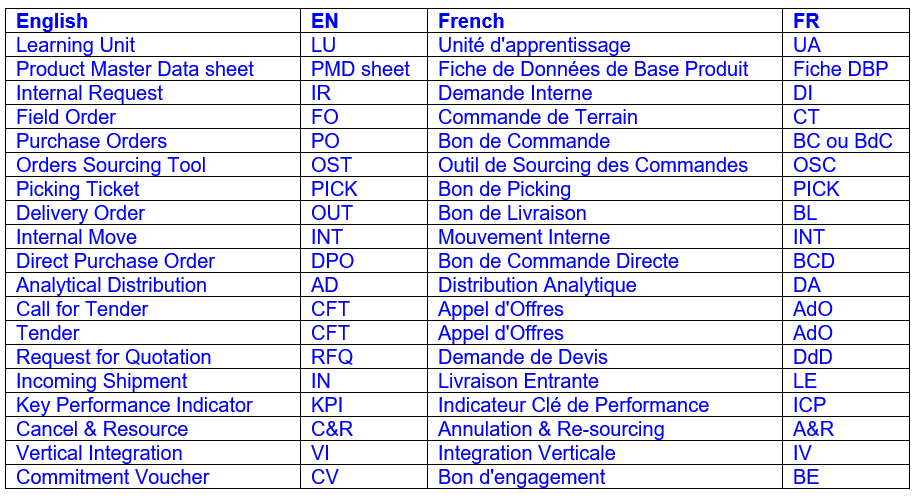
Throughout this chapter, you will find many acronyms. They are mostly used to shorten English words but can be used in the English manual or the French manual (i.e. you may find the acronym PO in the French version of the manual). In the below table, you find the main acronyms used in this chapter with their meaning.

French acronyms, such as the names of the documents in French in a less extend, are barely used. English acronyms and documents names are usually preferred. In the software, references of documents are often built with the English acronyms of the documents (e.g. 18/IR00019, 18/HQ/MW101/FO00033, 18/HQ/MW101/PO00045…), independently of the language in which the software is used.

The language in which UniField is developed is English. The software is then translated in French. That’s the reason why, even if you are connected in French, you could still find some English terminology (on screens, in messages,) while working on UniField. The translation of the software in French is a work in process and some improvements are still needed on this side.