
F. How to export asset records to excel
Supply User Manual ENG -> Products -> 3.5 Assets -> F. How to export asset records to excel
F. How to export asset records to excel
Go to: Products/ Assets /Asset Forms
- Select one asset or several assets by ticking the check box next to each asset. If no asset is selected the system will export the details of all assets.
- In the actions menu ( on the right), click on “export”
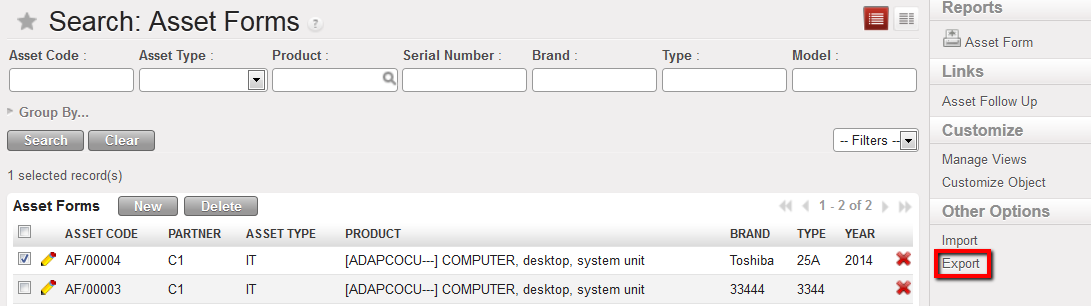
Exporting asset information using the Action Menu
3. The export wizard will appear.
3.1 Check the default fields suggested by the system, that will be exported in the right hand window
3.2 If necessary, select new fields to be exported
3.3 To add or remove any fields according to your export preferences use the “Add” and “Remove” buttons
4. Click on the “Export to File” button
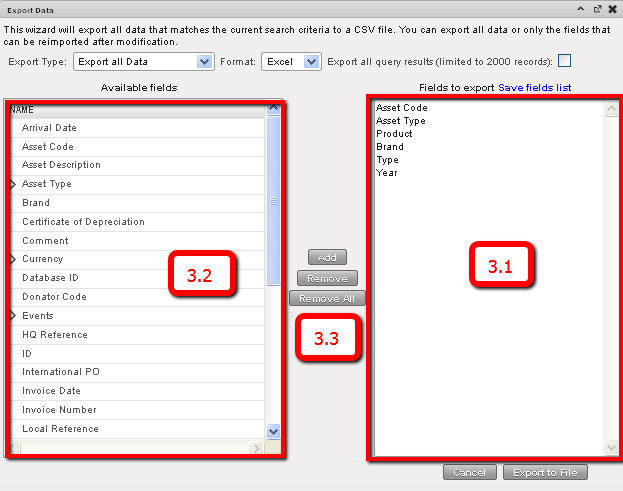
Asset Export Data wizard, with default fields which will be exported
5. Click on “Ok” ;the file options which appear (by default this will be opened with Microsoft Office Excel)
6. The Excel file will be generated.

Example view of excel export file
E. How to print asset records
Supply User Manual ENG -> Products -> 3.5 Assets -> E. How to print asset records
E. How to print asset records
Go to: Products/ Assets /Asset Forms
- Use the search fields in the header to find the assets that you want to see the records
- Tick the checkbox of all those you wish to see (to select all assets from search result, tick the checkbox immediately below Asset Forms)
- In the Action menu on the right, click on Asset Form under Reports
- The system will display all of the asset forms of the selected assets in printable format
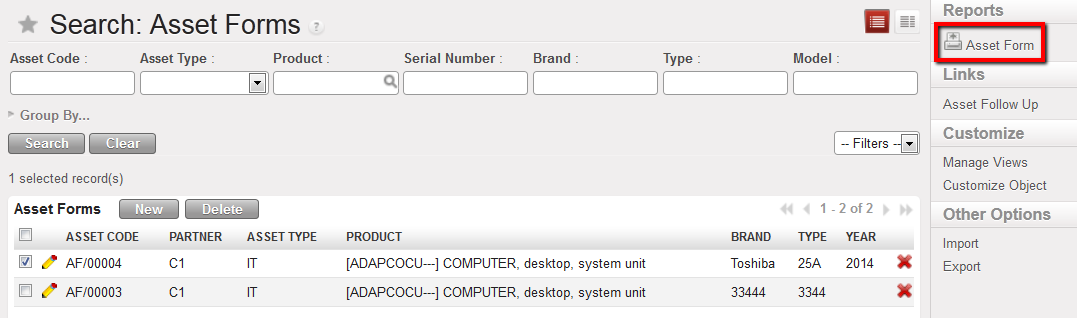
Assets for which the Asset Forms can be printed
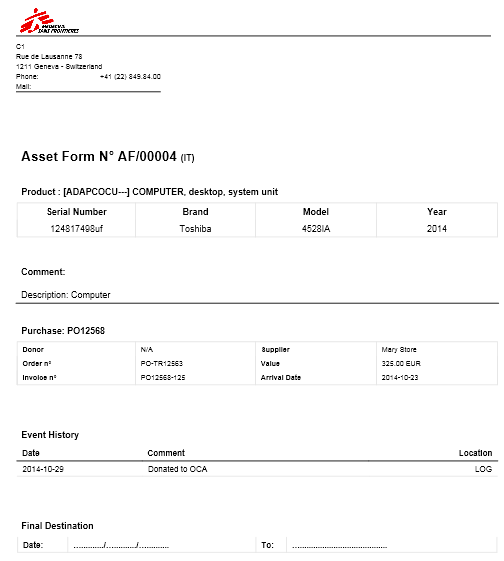
Print view of example Asset Form
D. How to view the events and follow up (history) of an asset
Supply User Manual ENG -> Products -> 3.5 Assets -> D. How to view the events and follow up (history) of an asset
D. How to view the events and follow up (history) of an asset
Go to: Products/ Assets /Asset Forms
- Use the search fields in the header to find the asset that you want to see the history
- Click anywhere on the line of the asset you would like to see (except on the pencil/edit icon!) the record of this asset will open
- Click on the “Event History” tab at the top of the page to view the history for this specific asset
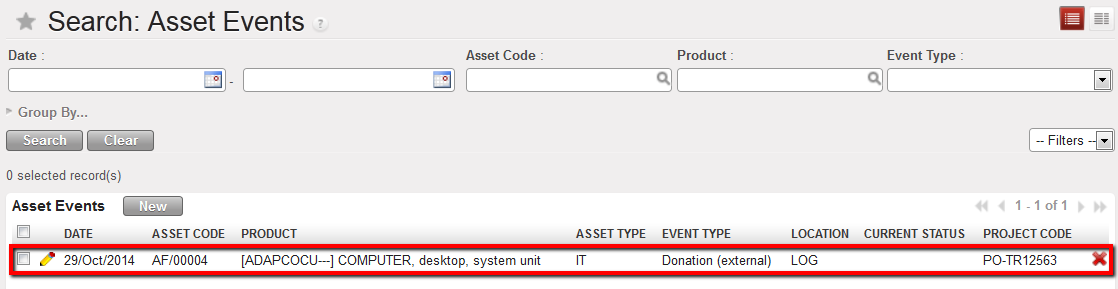
Asset follow-up
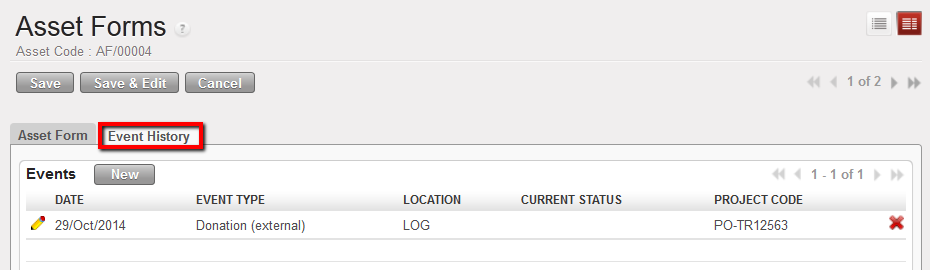
Asset Event History tab showing history/events for asset selected

Please note: It is important for the asset to be treated as a product when receiving it (e.g. in an incoming shipment), it needs to be processed the same way (and the appropriate documents created and managed) as for products for the stock when they are ordered, sent, stored etc,
C. How to record an asset event
Supply User Manual ENG -> Products -> 3.5 Assets -> C. How to record an asset event
C. How to record an asset event
Every status or move of the asset is considered an event and should be recorded in the system in adherence with each OC’s asset registration guidelines.
Go to: Products/ Assets /Assets events & follow up

Asset Event list view
- Click on the “New” button to create a new Asset event
- In the Asset Event record, the date will have been populated with today’s date, but it is possible to edit this, so enter the date when the event took place (which should correspond to the date on any other relevant document e.g. Incoming Shipment date)
- Enter the Location where the event took place
- Enter the Project Code for which the asset is being used / allocated to at the time
- For Event type select from these options:
- Reception, when the asset is being received. This is mandatory if you are receiving a product which is categorised as an asset.
- Start Use, when the asset is starting to be used
- Repairing, when the asset is not in use and has been sent to be repaired
- End Use, when the asset is no longer being used
- Obsolete, when the asset is no longer useful or there are more relevant versions available
- Loaning, when the asset is being loaned to another internal entity
- Transfer (internal), when the asset is being transferred to another MSF entity
- Donation (external), when the asset is being donated to an external entity
- Other, to record any event not covered above (e.g. for disposal if assets are destroyed etc )
- Select the Current status of the asset:
- In Use, if the asset is being used currently
- Stock, if the asset is in stock
- Repair, if the asset is being repaired
7. In the Selection section, enter the Asset Code, or click on the magnifying glass to open a window listing all current asset forms. Use the filters at header level if necessary to find and select the relevant asset
8. When you have entered the Asset Code, the remaining fields (Product, Serial Number, Brand and Model) will pull through. Check that these correspond to the physical asset.
9. In the Comment section, add any relevant remarks, (e.g. if you are loaning the asset, who are you loaning it to and any relevant references etc)
10. Click on the Save button
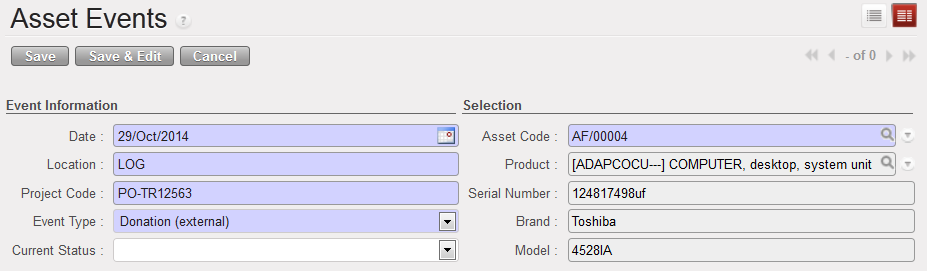
Assets follow up
B. How to complete an Asset Form
Supply User Manual ENG -> Products -> 3.5 Assets -> B. How to complete an Asset Form
B. How to complete an Asset Form
The process described below should be carried out as soon as the asset is received in capital, to ensure continued system follow up. In most cases this process should be initiated automatically by the system at point of reception. (See LU-SU4101 Incoming shipments, “How to Receive an Asset”)
To complete an Asset reception form, go to: Products/ Assets /Asset Forms
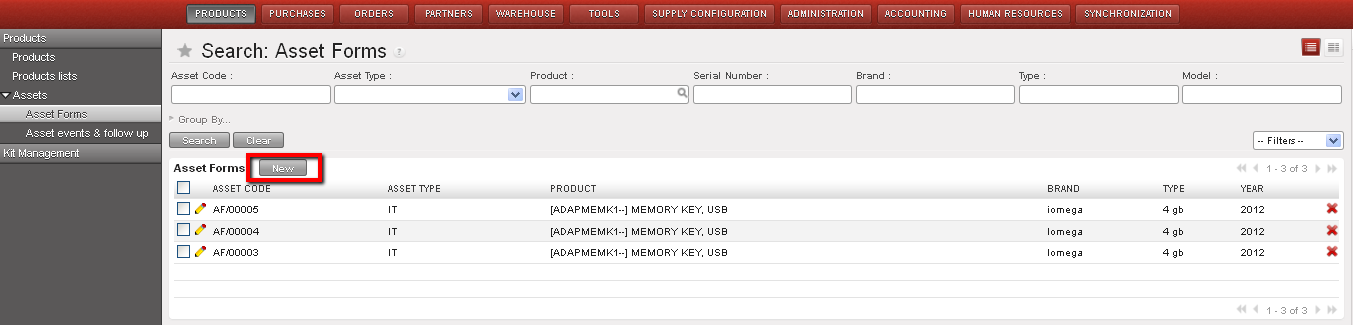
Asset Record list view
- Click on the “New” button to open a new form
1.1 Asset Code: the system generated a unique asset code for the item.
1.2 Asset Type: It will be generated once the product list is added (either IT, Transport, Medical, Telecommunication or General) (see step 2)
1.3 Add any relevant details to the Asset Description
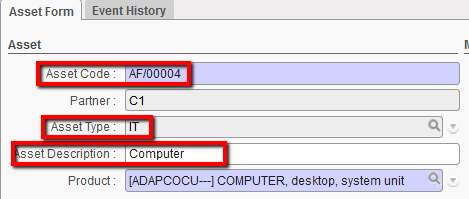
Asset form creation-1
2. Enter which product the asset represents. You can either type this (code or description) directly into the field, or, if you would like to see all items which are classified as assets, click on the magnifying glass to open a search & list view window. Note that the system will have already filtered products to only show products marked as assets. Enter any other relevant filters, search and select the relevant product.
If you cannot find the product representing your asset, you may need to check that it corresponds to the asset criteria, and if this the case, request for the product master file to be updated to reflect this.. Notice that when you have entered the Product, the Asset Type will have been generated according to the product nature.
In the MSF Codification Section, the Product Code, Description and Nomenclature will have pulled through for the relevant product.
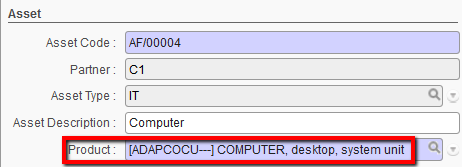
Asset form creation-2
3. HQ Reference and Local Reference: Depending on who is responsible for the initial registration of the asset, these fields can be filled with any useful information which will help to track the asset (e.g. the number / reference of asset sticker on the item).
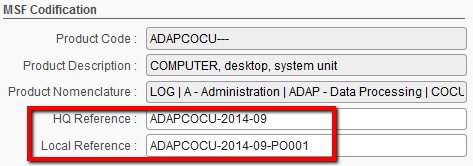
Asset form creation-3
4. In the Asset Reference section, enter the Serial Number of the asset. This is the Manufacturer’s number to help identify the physical asset
5. Enter the brand and model of the asset
6. Enter the year of the asset if relevant
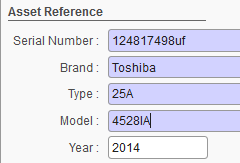
Asset form creation-4
7. Enter any relevant comments in the Comments field
8. In the Traceability section, enter any Project PO reference
9. Enter the Original Mission code
10. Enter the International PO reference
11. The Arrival date, will have been populated with today’s date but is editable so this should reflect the date when you received the asset
12. Enter details of the Receipt Place (Country/Project/Activity)
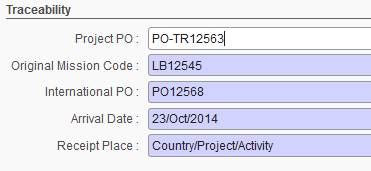
Asset form creation 5
13. In the Invoice Section, enter the Supplier Invoice Number (this should be related to the International PO) and Invoice Date. If no invoice has been received yet, enter a value and then update it when the invoice has been received.
14. Enter the Value & Currency of the amount and the currency in which the invoice was made
15. Enter the name of the Supplier (the one on the International PO)
16. Enter the Donator Code for the name of the donor if funded on external funding (Finance should be able to provide this)
17. Enter the reference of the Certificate of Depreciation, this is for the reference (from Finance) if the value of this asset is to be depreciated (see finance regulations on how assets are managed)
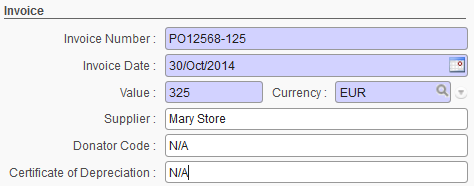
Asset form creation 6
18. Click on Save to save your new Asset Form
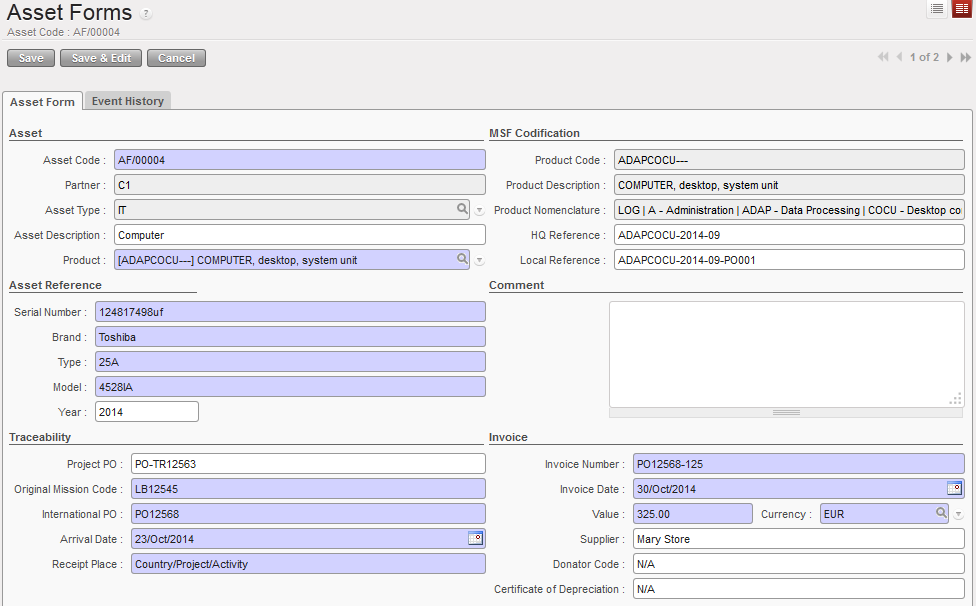
Asset form creation 7
You can print an asset form by going to the Reports menu and select Asset Form
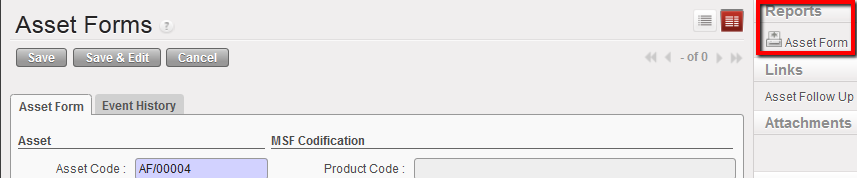
Asset Form report
A. LU Introduction (LU-SU2104)
Supply User Manual ENG -> Products -> 3.5 Assets -> A. LU Introduction (LU-SU2104)
A. LU Introduction (LU-SU2104)
Assets are a sub type of stockable product. They are considered as a kind of product which is important to track and have visibility of. A product is classified as an asset due to various criteria, principally the value of the product, although other criteria may apply.
Often assets will be a type of equipment (e.g. vehicles, fridges, generators etc) and some will have a defined life span, for example vehicles may have a life span of 5 years. For more details on the classification of assets, see the Supply Guidelines of your OC.
It is necessary to track assets to a greater degree, partly due to their high value, and partly to ensure, for equipment in particular, that they are regularly maintained to be in good condition for use, and in order to make the best use of MSF resources. This is why the system allows us to record and track assets on an individual basis. Finance are also involved in asset management and tracking, and there will be a UniField functionality for Finance to use for the depreciation of assets which will be developed in the second phase and added to the Finance User Manual.
Asset forms
The way that we manage assets is different of other types of stock, namely we need to track them individually. As soon as we receive them, we will want to register them as assets and record extra details. In UniField, we would record these details in the asset form. The Asset form is a form which corresponds to specific item of a product. E.g. even if you have 3 identical Toshiba laptops in your office, you would need to have 3 asset records, one for each, and each one will detail the unique details of that asset.
Asset tracking
There are several stages in the lifecycle of an asset which need to be tracked. UniField offers this possibility to make it easy to maintain a complete record of these events and follow up of assets.
Asset movements
In the case where an asset is physically sent somewhere (e.g. from the coordination to a project) the system will provide the ability to attach the asset form onto the picking/transport transaction, which will then be synchronised so that the receiving instance can view all details of the individual asset record and update it as necessary.
Asset verification
It is best practice to carry out a physical verification of all assets in a location on a regular basis. For more details on the frequency, what should be checked and who is responsible for this physical verification refer to your OC guidelines. To facilitate this process, it is possible to print an individual asset record, or to print the entire asset records according to the filter(s) used.