D. How to export a supplier product catalogue price list

Supply User Manual ENG -> Products -> 3.4 LU-SU2103: Products in Supplier Catalogues -> D. How to export a supplier product catalogue price list

D. How to export a supplier product catalogue price list

Go to: Partners/Suppliers/ Supplier Catalogue

  1. Tick the box of the Catalogue you want to export
  2. Click on “Export lines (csv)” on the right action menu

Please note that this same export file can be updated and used to import updated data fro the Catalogue.

C. How to update a supplier product catalogue price list.

Supply User Manual ENG -> Products -> 3.4 LU-SU2103: Products in Supplier Catalogues -> C. How to update a supplier product catalogue price list.

C. How to update a supplier product catalogue price list.

Go to: Partners/Suppliers

  1. Click on the pencil icon dit record next to the Supplier whose Catalogue list you want to update to open it in edit mode
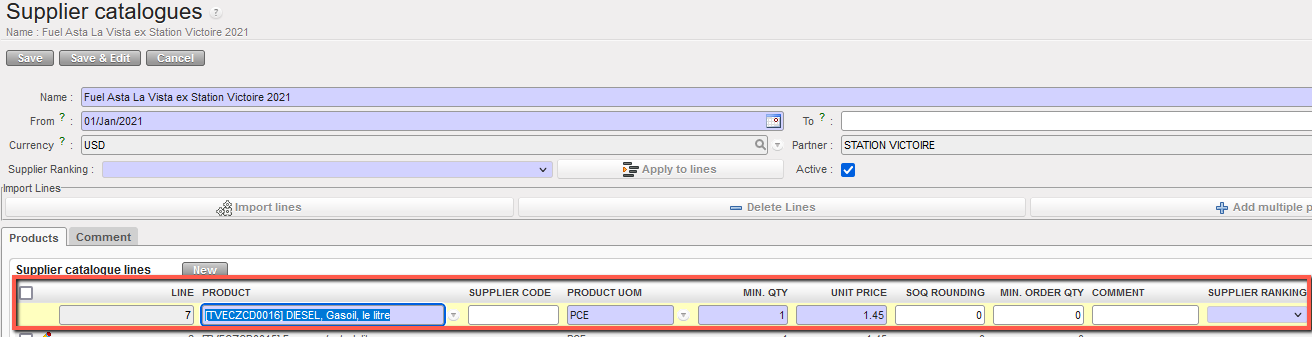
  2. You can add a new line to an existing catalogue. When a new line is added directly to an existing catalogue, this new line must have its ranking assigned unless there is already a ranking at header level
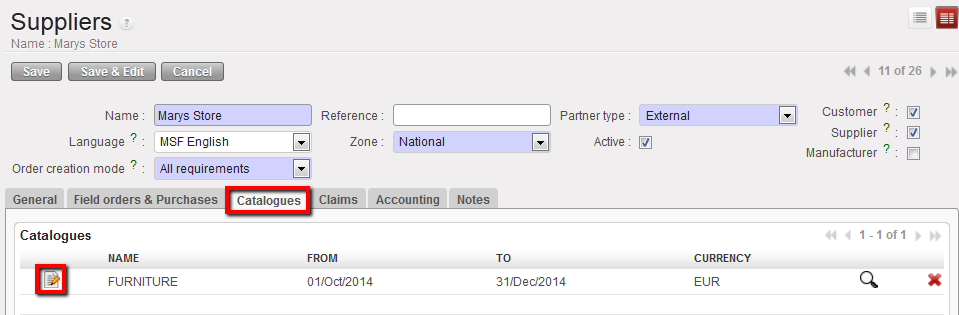
  3. Click on the Catalogues tab
  4. Click on the Edit Catalogue icon gtk-edit next to the version/name of the catalogue you wish to update, this will open the Supplier Catalogue in a new screen

Edit tab

  1. Click on the pencil icon dit record next to the product that you want to update and make the appropriate changes. (NB the system will keep a record of the original and all previous versions of this catalogue list)
  2. Click on the floppy disk icon ave record next to the product line to save and repeat for all products as required.
  3. Click on the Save button to save all changes to this Supplier Catalogue.

Update records

The supplier catalogues are linked to the supplier and can be synchronized. The supplier in each instance must be active in order for the catalogue to be synchronized and directly activated. Any product added / changed, or any change of price can be synchronized this way.

It is possible to see Track Changes for Catalogues which are for external suppliers. This is available via the Action menu in an excel format. This includes entries for any changes to the rankings of the catalogue & its lines. 

ESC’s catalogues are created by HQ and only synchronised to coordination. ESC partner must be activated as well as the catalogue by coordination. For catalogues for other external suppliers, these are synched down to project level, but the same rule applies for activating supplier and catalogue to have visibility of these.

N.B : It is not possible to add a product to a valid catalogue if the product is already included in another valid catalogue of the same supplier, otherwise you will receive a blocking warning message.

B. How to create a supplier product catalogue price list

Supply User Manual ENG -> Products -> 3.4 LU-SU2103: Products in Supplier Catalogues -> B. How to create a supplier product catalogue price list

B. How to create a supplier product catalogue price list

In order to create a Supplier Catalogue Price List for a supplier, the user should follow the relevant MSF procedures outlined for gathering this sort of information, commonly known as market analysis (which may involve a Tendering process) before entering this data into the system. To make this inputting process as efficient as possible, it is possible to both enter this information directly into the Supplier/Product record as well as to import the data into the system via an excel file.

To enter the Supplier Catalogue Price List directly into the system, Go to: Partners/Suppliers

  1. Enter the relevant search values in the header fields to find the Supplier you want
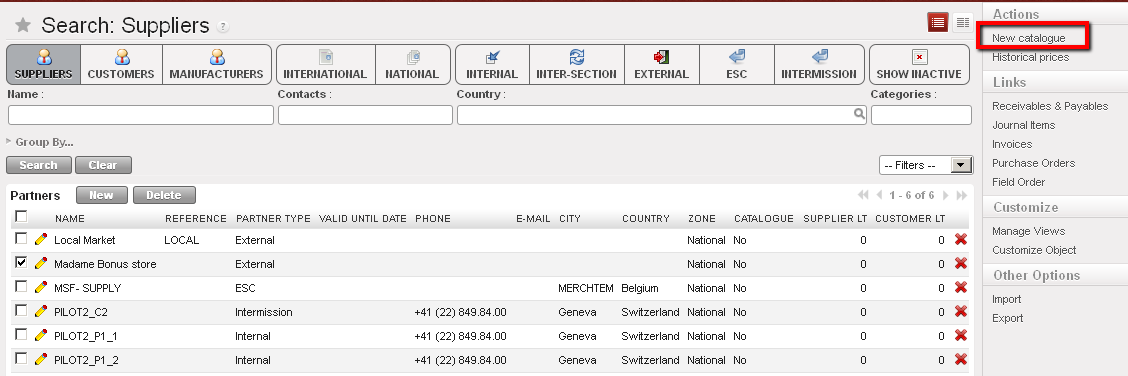
  2. Tick the checkbox next to the supplier in the list view
  3. In the Actions Menu on the right-hand side, click on New Catalogue. A screen displaying New

Catalogue will appear.

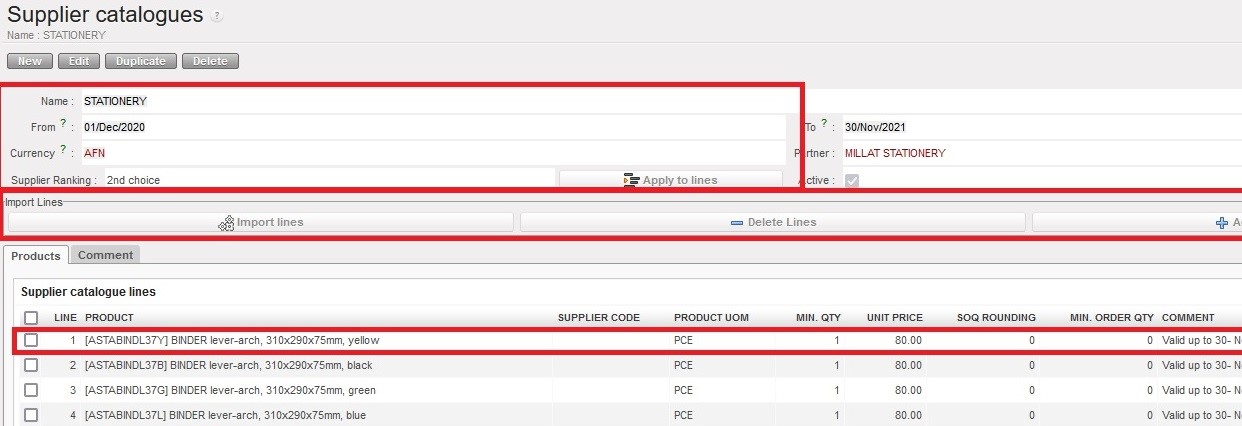
Product catalogue – 1

  1. Enter the Name (how you want to call this Supplier’s catalogue)
  2. The “From” field will automatically display today’s date but can be edited
  3. Enter the “To” date using the calendar button. This should reflect the last day on which the information you are entering is valid (e.g. if the price is fixed how long it is fixed at this price according to the supplier’s bid). This field is not mandatory.
  4. The currency will pull through from the currency entered for this supplier
  5. Each new catalogue must have a ranking. A default “3rd choice” ranking is automatically assigned for catalogues created via synch or auto VI import but can be changed.
  6. The Partner field will display the name of the Supplier that for which you are adding the catalogue price.
  7. The Active box will reflect the state from the Supplier record (i.e. this should have been ticked if we are considering using them and have asked for product pricing etc)
  8. In the Import Line section, the Add Attachment button will allow us to browse and select the excel file that we want to import, and next to this is the “Import file” button which will import the data from the excel file.
  9. To Add products individually to the catalogue, in the Products tab, click on the New button
  10. Click on the magnifying glass icon earchto bring up the search products window and enter the relevant values to find the product(s).
  11. Select all relevant products, and check that the default UoM is correct (or changing it if need be)
  12. Enter the minimum quantity which the supplier had based their price on. If there is none then 1 can be entered. If you try to save a line with 0 as a minimum quantity, the system will display an error message
  13. Enter the Unit Price (which should be related to currency selected)
  14. Enter any SoQ Rounding figure (e.g. if Pens are the product, the UoM and price may be per pen (i.e. pce), but the supplier sells the pens in packets of 50, in which can the rounding would be 50.)
  15. Enter the minimum order quantity – depending on the supplier, the lowest quantity of the goods they would accept to supply per order
  16. Enter any other comment
  17. Click on the floppy disk icon ave record to save the line and either repeat the steps to add another product or click on the Save button to save the catalogue list.
  18. When catalogue is complete and all lines are saved, user can confirm catalogue by clicking on the Confirm button. This means all data it contains will be used by system for relevant transactions.

Product catalogues – 2

N.B: It is possible to have 2 active catalogues for the same supplier in the same instance as long as the products are different in each catalogue. If one supplier has more than one catalogue for the same product, user will receive a warning message.

Please note that it is possible to create a Catalogue of the Coordination instance at coordination instance. This function has been added to enable the related projects, to which this catalogue is synchronized down, to have a Coordination Supplier Catalogue. This will help to get more accurate estimation prices for intra-mission orders.

A. LU Introduction (LU-SU2103)

Supply User Manual ENG -> Products -> 3.4 LU-SU2103: Products in Supplier Catalogues -> A. LU Introduction (LU-SU2103)

A. LU Introduction (LU-SU2103)

One optional characteristic of the Supplier record is the supplier catalogue product list. This allows the user to view a list of the products which the supplier is able to supply, together with the prices and other relevant information of these products.

The advantage for users is that as soon as they request, or receive a request for any product which is listed in a supplier catalogue price list, the system will automatically be able to indicate which suppliers are able to source this product, at what price they offer it and other information such as standard packaging types, lead times etc, which can help the user to plan their supply activity more efficiently, as well as facilitating supplier management by providing current and historical information about supplier activities and pricing.

D. How to update a product list via import file

Supply User Manual ENG -> Products -> 3.3 LU-SU2102: Product List -> D. How to update a product list via import file

D. How to update a product list via import file


Go to: Products/Products

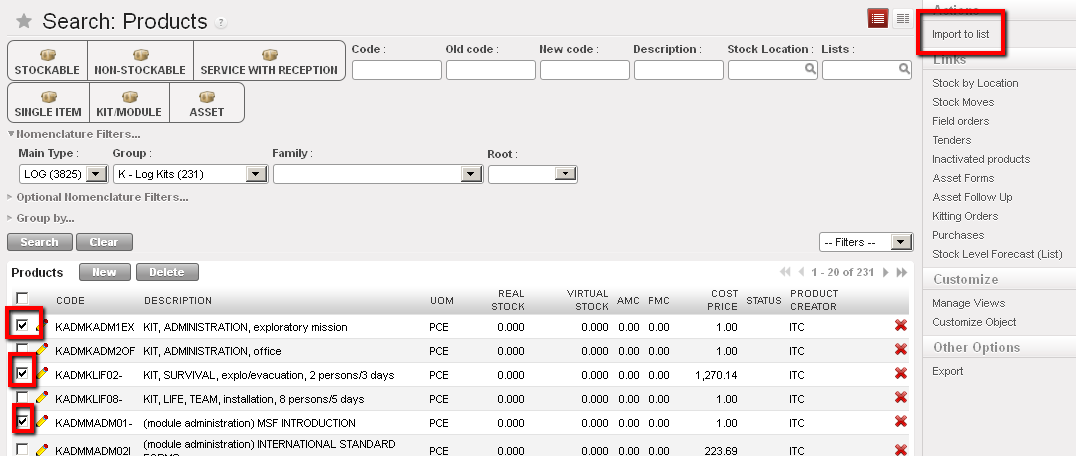
  1. In the Products Search view, enter the appropriate values in the filters in order to view as many as possible of the products you want to add to the list.
  2. Click on Search
  3. From the results, select the checkbox next to each of the products that you want to add, or click on the checkbox at the top of the products lists to select all the products on the same page (but do NOT progress to any other pages)
  4. In the Action Menu on the right-hand side, click on Import to list

Import to a product catalogue

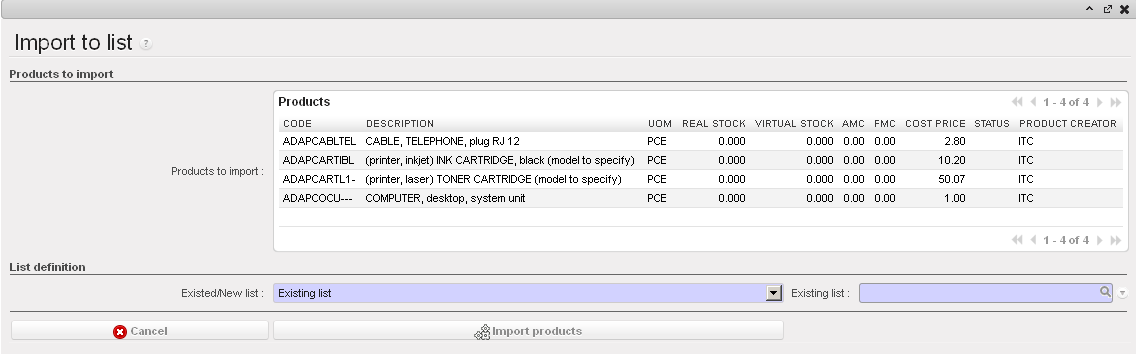
  1. The “Import to” list screen will open and display the list of products you have selected
  2. In the List definition section, select from the options:
    • Existing list, if you want to add these products to an existing list
    • New list, to create a new list
    • Replace list, to replace a list which is already in existence
  3. If you have selected either the Existing or Replace options, you will need to select the Existing list that you want to add to or replace.
  4. If you have selected the New list option, enter the Name of the new list
  5. And Enter the type
  • List, if for a list
  • Sub-list, if for a sub list which belongs to a “parent” list
  1. Click on Import products button to import products to list
  2. In the Product list screen enter all relevant details:

The fields Type and Name will have already been populated according to the information already in the system.

Import product list

C. How to update a product list or sub-list

Supply User Manual ENG -> Products -> 3.3 LU-SU2102: Product List -> B. How to create a new product list or sub list

C. How to update a product list or sub-list

Go to: Products / Products / Products List

  1. Use the search tools to filter values to find the list or sub-list you want to edit
  2. Click on the pencil icon next to the list to open it in edit mode
  3. Make the necessary changes
  4. Click on the “save” button

B. How to create a new product list or sub list

Supply User Manual ENG -> Products -> 3.3 LU-SU2102: Product List -> B. How to create a new product list or sub list

B. How to create a new product list or sub list

To view product lists or sub-lists in the system, Go to: Products / Products / Products List

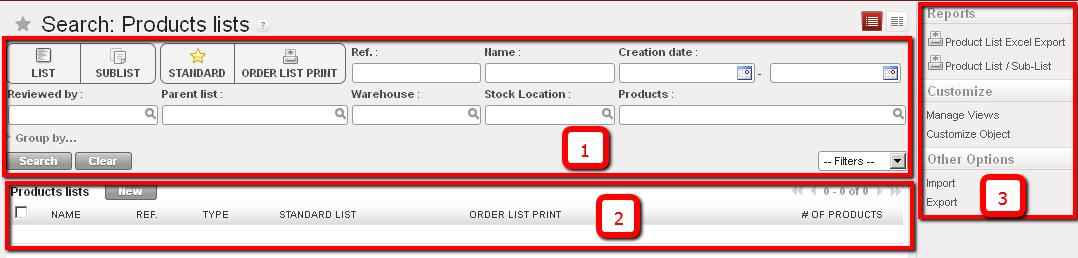
The product list dashboard displays.

It contains three different areas:

  1. Searching and grouping options
  2. Existing Lists or sub lists in the system
  3. Printing, import and export options once a list has been selected

List and sub-list dashboard

To create a new product lists or sub-list:

  1. Click on the “New” button to begin the creation process.
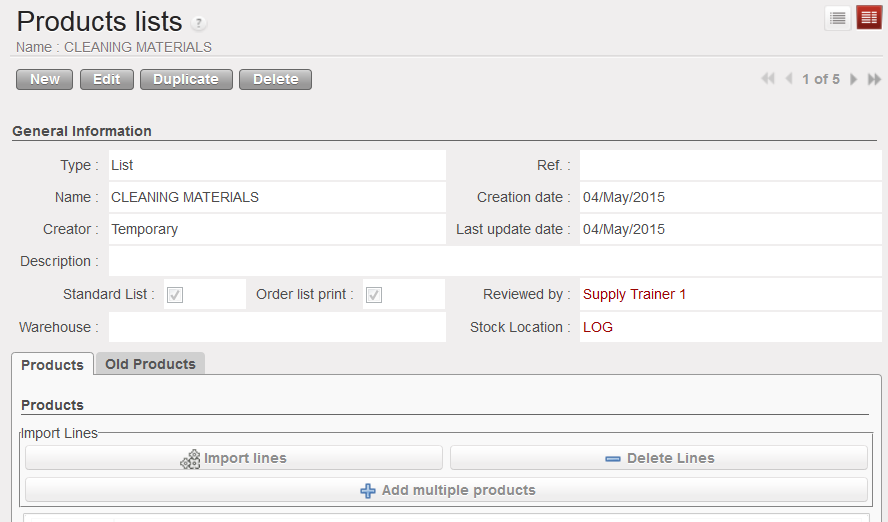
  2. Select the type of list you want to create (list or sub list), enter name, reference, description, Creator will be Temporary by default. Here you should select the level at which you are creating the list (HQ, Coordo, Project), for future modification of this list, this will be limited only to the level where the list was created. Select if the list is a standard or an order list. If we are creating a sub list, select the parent list; in this case only products on the parent list will appear; select warehouse and location related to the list.
  3. You can import a list of products by selecting Add attachment or, add multiple products using the button “Add multiple products” otherwise use the “new button” to individually add new products to the list.
  4. Click on Save.

Product list creation

A. LU Introduction (LU-SU2102)

Supply User Manual ENG -> Products -> 3.3 LU-SU2102: Product List -> A. LU Introduction (LU-SU2102)

A. LU Introduction (LU-SU2102)

Products lists and sub lists are very useful to automate tasks. They are useful when the same products are regularly ordered in different quantities. A product list (and sublist) means that we already have an outline of the products needed as a template, which will speed up the process for creating the order.

A product list can be used to define the products required by a mission, project or a particular activity; they can also be used to list products that a supplier may be able to provide.  Lists are always related to a warehouse and a location optionally can be linked to a supplier or customer.

Lists which are marked as Standard will be synchronised to all instance levels below. Any products added or removed from existing listed will also update the relevant lists below via synch, and will appear in the Old Codes tab of the Product List.

A sub-list has to be linked to a list, therefore at the time of choosing products for a sub-list, only those products appearing in the parent list will be available. For example: let’s imagine that an MSF project (project 01) contains 3 activities (OPD, Vaccination and Nutrition). By creating a list for project 01 and 3 sub-lists for each of the activities, the user will be able to benefit from using UniField tools such replenishment, forecasting, re-ordering and more.

L. How to merge a UniField local product with a UniData product (Coordination only)

Supply User Manual ENG -> Products -> 3.2 LU-SU2101: General Product Management -> L. How to merge a UniField local product with a UniData product (Coordination only)

L. How to merge a UniField local product with a UniData product (COOrdination only)

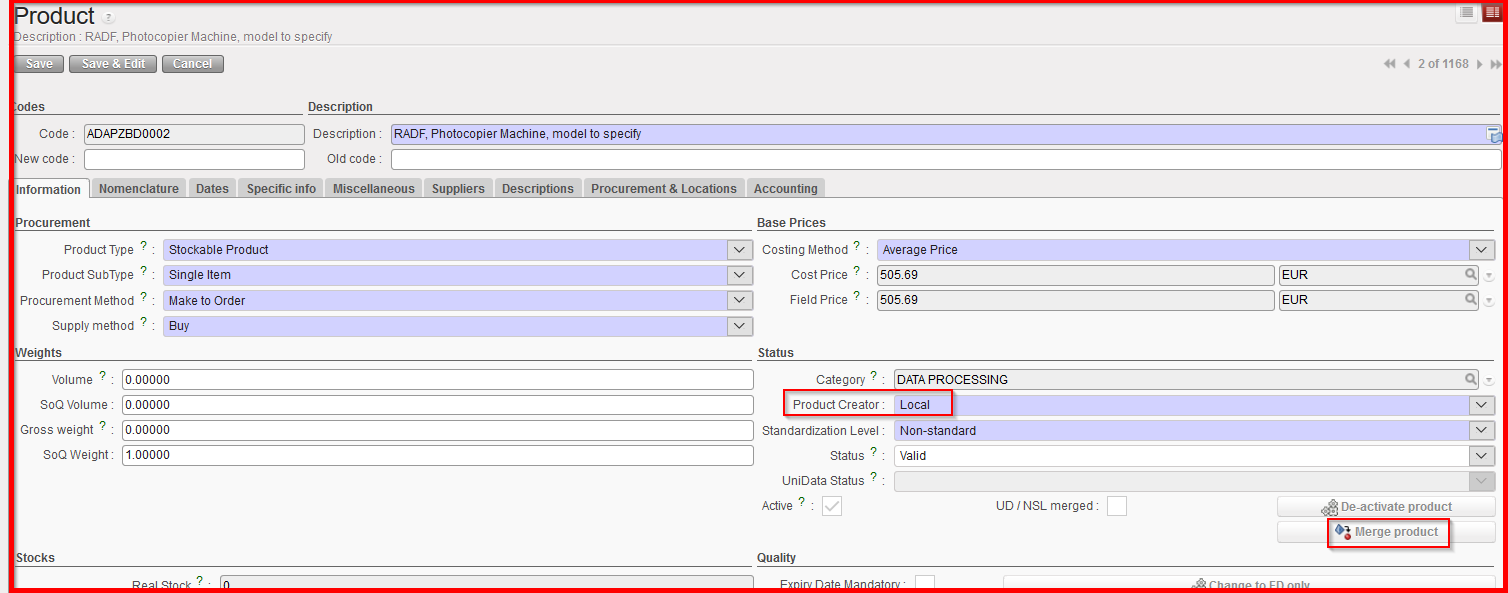
Creation of local product is moving from a UF scope to a UD management scope. In order to smooth this transition, the “Merge” feature has been developed. The main goal is to eventually replace all the UF products with “Product Creator” = “Local” to UD product (“Product Creator” = “UniData“).

The process of migration of Local products is outlined by UniData/Spinco documents, and is to be managed, and overseen by each OC’s HQ level in consultation with UniData. The merging of products is a tool in this larger process and therefore its scope is to be used in line with agreed protocols, and only following a clear decision, with full recognition of the outcome.

The merge is intended to be done on a one to one basis and only from Coordination instance. Therefore, the button “Merge product” will be found on the local UF product only and can only be merged to one UD product. It will be a one shot action meaning that once merged the local product cannot be un-merged and will be deactivated for good (its only reference will remain in the “old code” field from the related UD merged product and obviously in the “Track changes”) while the new merged UD product will be active.

The new merged UD product can also be merged only once and should have no history.

Any merge done at Coordo level will automatically be pushed to project level after next synchronization, and products in lower instance level should be merged in the same way.

To merge a UF local product, go to: Products/ Products

  1. Use the search tools to filter values to find the product you want to edit (it has to be a product with “Product Creator” = “Local”)
  2. Click on the product line to open it
  3. Click on the “Merge product” button

       4. From the wizard, select the UD product to be merged by clicking the magnifier from the                 “UD product” field

a) By default, only NSL products can be selected to be merged

b) To be able to select a Standard or Non-Standard UniData product to merge, the checkbox “Use Standard/ Non-Standard UD product” must be ticked (only products which are Active).
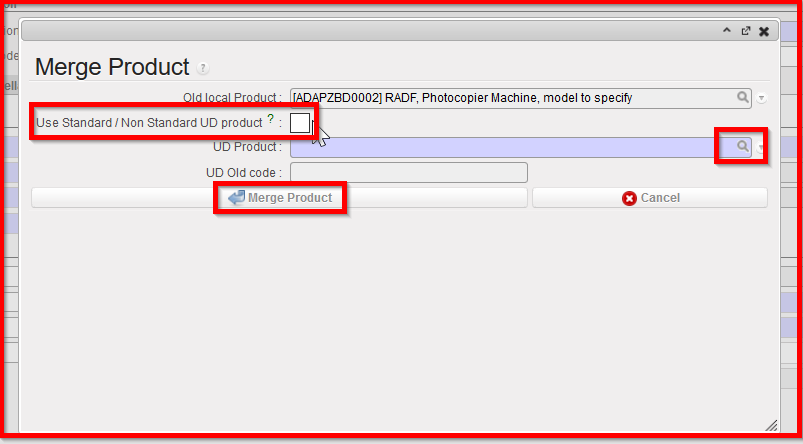
5. Click on “Merge Product” on the wizard
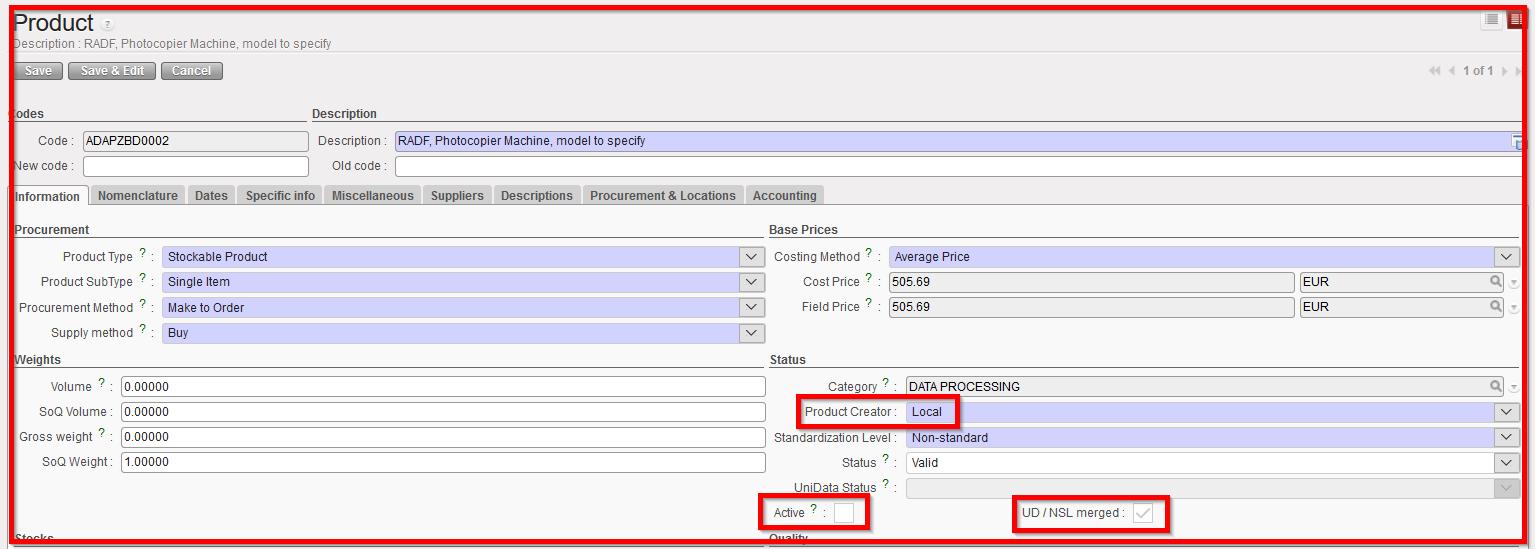
The UF local product is now Inactive and cannot be reactivated. It is also now ticked as “UD/NSL merged”.

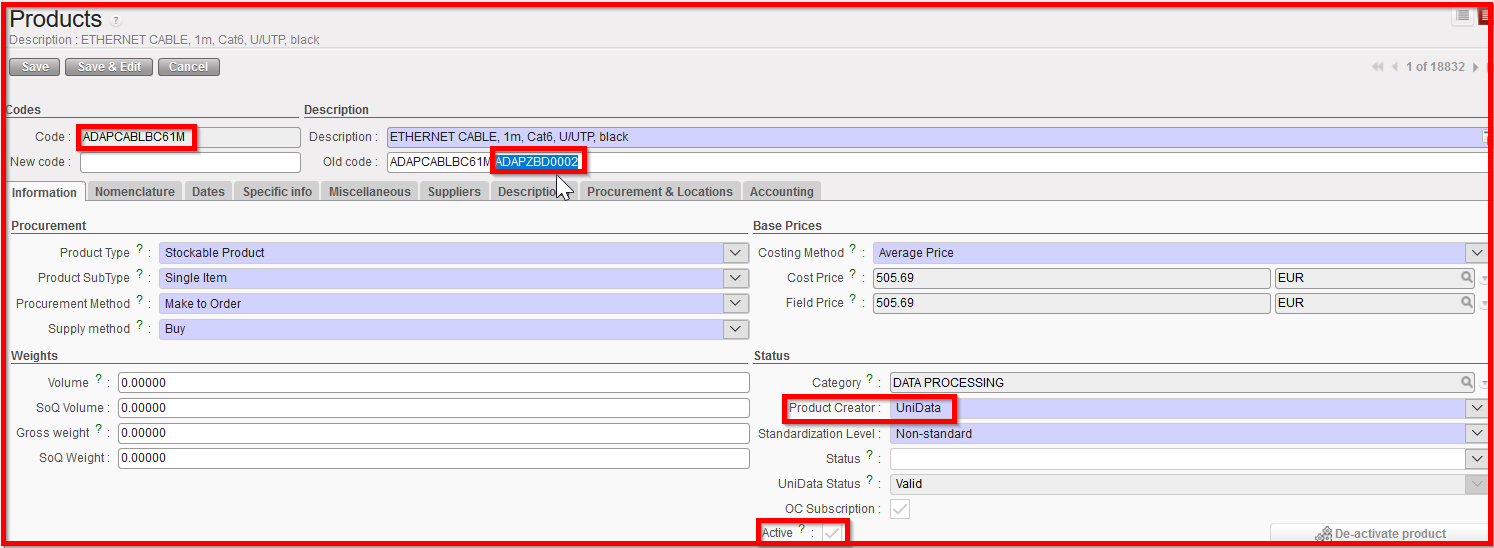
The new UD merged product has now replaced this UF local product an all existing open or closed document and has the UF local product referenced in the “Old code” field:
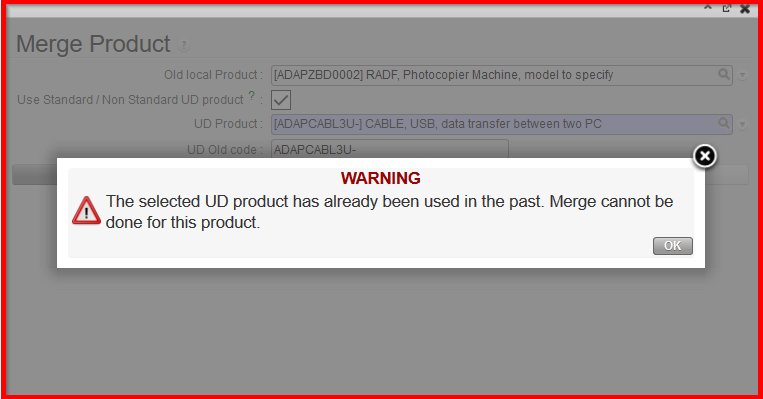
Please note that after clicking on “Merge Products” from the wizard, some checks are done on the products history, presence in Stock mission report and some attributes (i.e: BN/ED) then a blocking explicit message can prevent the merge when necessary. In case of blocking message related to attributes, user can still update the UF product so that merge can be done.
Note that there can also be non-blocking message for attributes and that UD products attributes will prevail in case of discrepancies ( “Nomenclature” or “Temperature sensitive” or “Product type”).

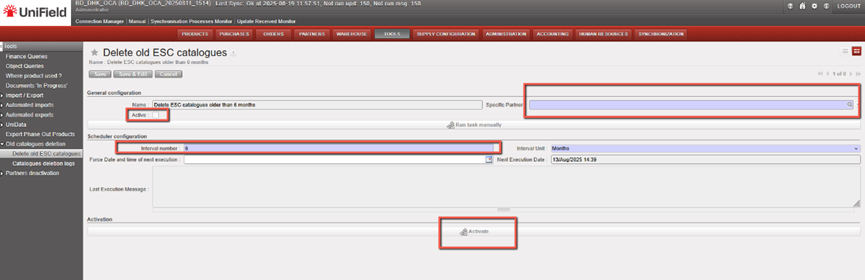
K. How to specify procurement lead time for a product

Supply User Manual ENG -> Products -> 3.2 LU-SU2101: General Product Management -> K. How to specify procurement lead time for a product

K. How to specify procurement lead time for a product

Lead times are a parameter usually associated to a supplier; the system requires this parameter in order to calculate procurement time accurately and also to calculate timing for reordering according to all the possible replenishment rules within the system. Procurement lead time can be also applied to a product although it is usually more accurate when it is applied directly to the supplier. This parameter is also used in the system KPI’s (Key Performance Indicators).

To enter a lead time for a product –> Go to: Products/ Products

  1. Use the search tools to filter values to find the product you want to edit
  2. Click on the pencil icon next to the product line to open it in edit mode
  3. Select “Procurement & Locations” tab
  4. Enter the amount (days) in the “Procurement lead time” field
  5. Click on Save

It is important to always enter a lead time for the product in the system if the replenishment settings have been configured (See Configuration Chapter). If no supplier has been associated with the product, then the system will use the general lead time (either the default of 60 days, or the time which has been entered manually) in order to be able to generate any replenishment POs.

Product procurement lead time