J. How to add supplier details to a product

Supply User Manual ENG -> Products -> 3.2 LU-SU2101: General Product Management -> J. How to add supplier details to a product

J. How to add supplier details to a product

A product can be associated to one or several qualified and approved suppliers for different reasons such as lead time, quality, references etc. This option becomes extremely important if replenishment rules are to be created for this product.

To add supplier details for a product –> Go to: Products/ Products

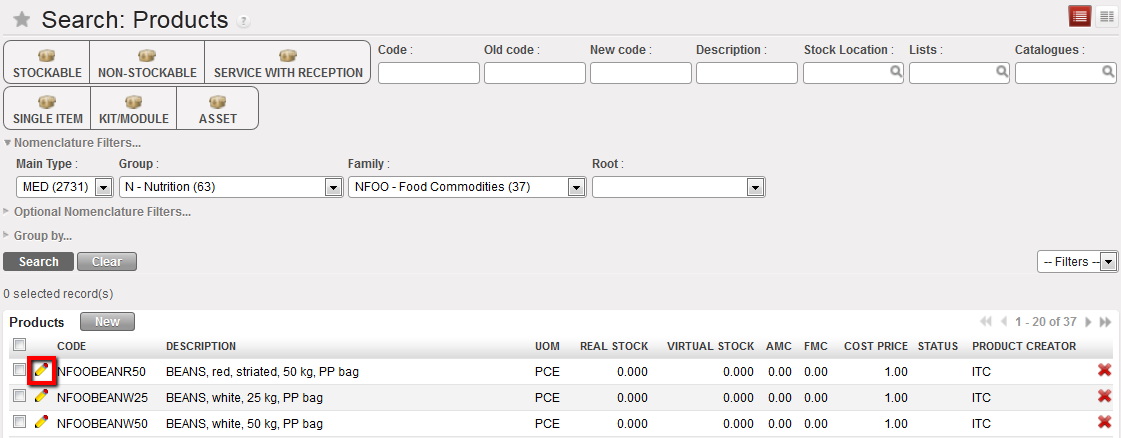
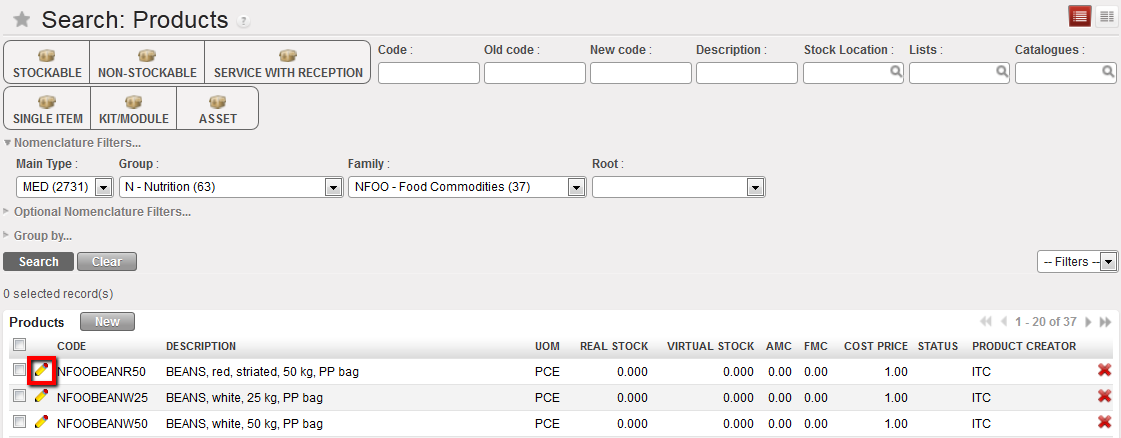
  1. Use the search tools to filter values to find the product you want to edit
  2. Click on the pencil icon next to the product line to open it in edit mode
  3. Click on the “Suppliers” tab
  4. Click on “New” button to associate a supplier to the product
    • Select the supplier
    • Select Supplier UoM (Unit of Measure)

Associating a supplier to a product

5. When more than one supplier is associated with a product, the system will use the sequence of suppliers to select the default (i.e. preferred or most highly ranked) supplier for any orders it generates, either through the sourcing tool or for POs created automatically due to the replenishment rules configuration for certain products.

The lower the number, the better the rating, so “1” is considered a better supplier than “2“and ”-1” is better than “1”. This field should be entered manually, although it has been agreed that the following conventions will be used:

  • When a suppliers’ information comes from an RfQ which has been identified as the chosen supplier for this product (through a tender process), the system will automatically assign a “-99” rate. This is based on the assumption that a supplier selected from a tender process will be the preferred one.
  • When a supplier’s information comes from a catalogue, then the system will automatically assign a 0 rate.

All ratings can be changed manually if another supplier should be by default selected for automated orders.

Supplier sequence, rating

I. How to declare a new product as a service

Supply User Manual ENG -> Products -> 3.2 LU-SU2101: General Product Management -> I. How to declare a new product as a service

I. How to declare a new product as a service

This option is to create / convert a product into a service in UniField; this is required in order to create Purchase Orders for services like transport, construction, electricity or any other service needed to be contracted.

Each type of service needs to be entered as a product in the database. The price can be edited in the actual purchase order itself.

Service with reception

Please note: The UoM in the purchase order service with reception can be percentage (100%) as this will facilitate payment in installments for a service if this was the payment term agreed with the supplier.

To indicate that a product is a service –> Go to: Products / Products

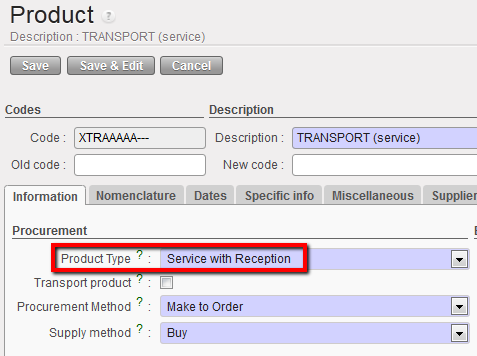
  1. In the “Information” tab, go to “Product Type field” and select the option “Service with Reception”

Service with Reception Product Type

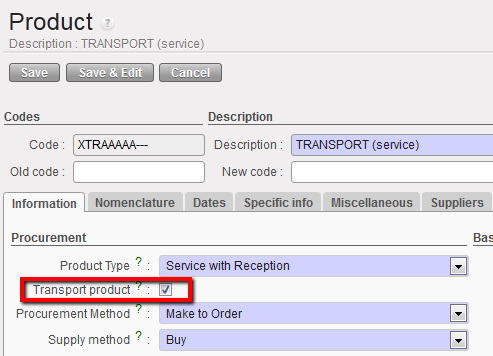
2. Tick the “Transport product” checkbox if the service is transport-related such as car rental or   transport services.

3. Click on Save

H. How to activate a product to be recognized as an asset

Supply User Manual ENG -> Products -> 3.2 LU-SU2101: General Product Management -> H. How to activate a product to be recognized as an asset

H. How to activate a product to be recognized as an asset

All assets must be registered in the system at their time of arrival (Reception). The setting should be set for the product so that the system recognises if it is an asset. As with batch numbers, this attribute should only be activated on a new product and not one which is already in use. To do this, follow these steps:

Go to: Products/Products

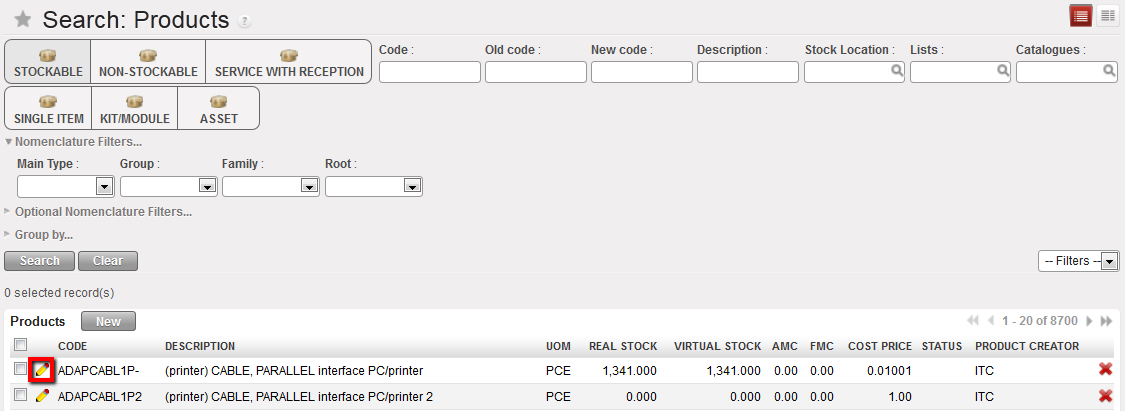
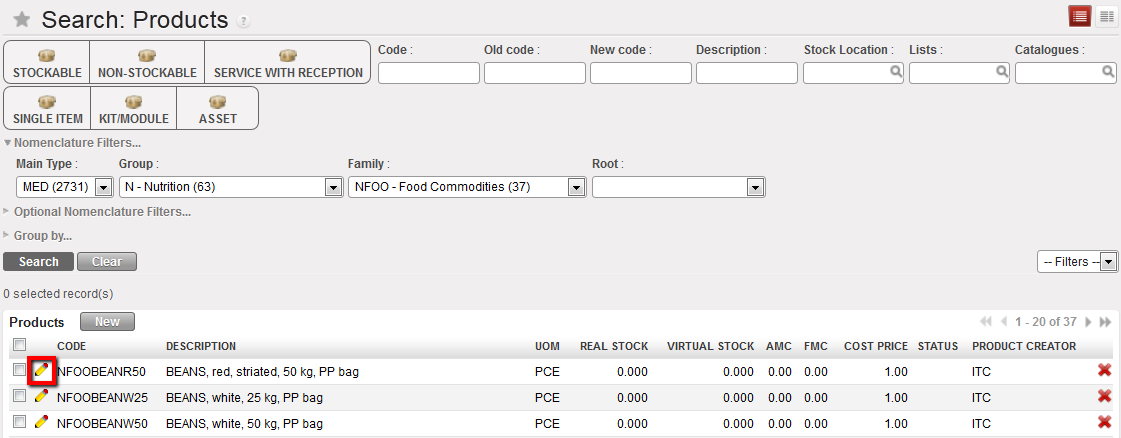
  1. Use the search tools to filter values to find the product you want to edit
  2. Click on the pencil icon next to the product line to open it in edit mode

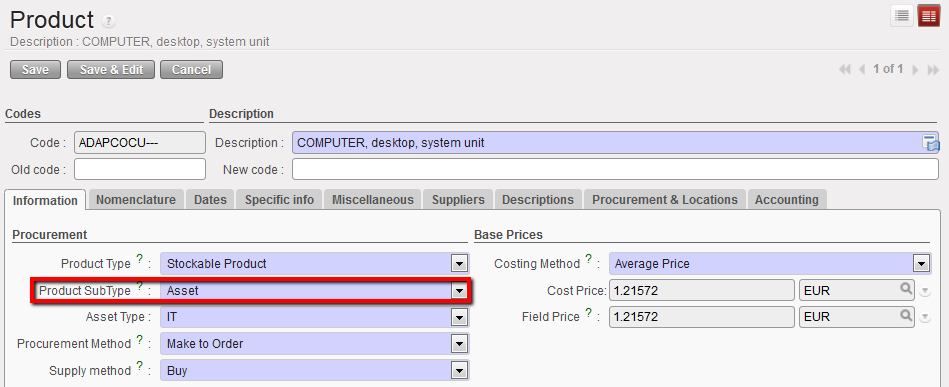
Setting a product to an asset type

3. In the “Product sub type” field, select “Asset”

4. In the “Asset Type” field, select the category from the drop-down menu

5. Click on “Save”

6. The product specificities such as brand, model, etc. will be recorded in the assets database during the asset reception.

Received product as an asset

G. Product BN/ED Mass Update.

Supply User Manual ENG -> Products -> 3.2 LU-SU2101: General Product Management -> G. Product BN/ED Mass Update.

G. Product BN/ED Mass Update.

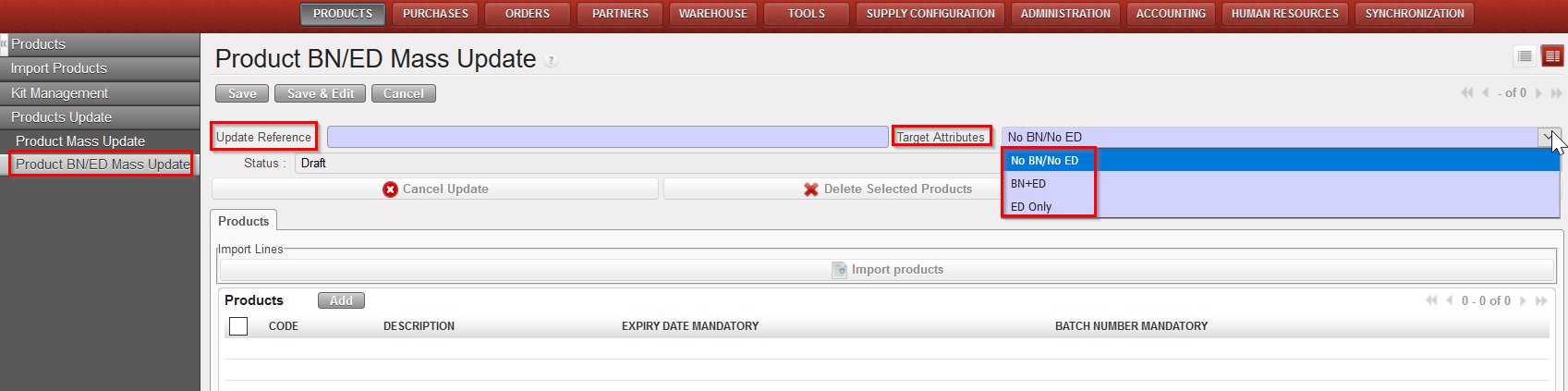
When multiple products need to be updated for BN/ED, the BN/ED mass update function can be used. This functionality can only be used at HQ for non-local product or Coordination for local products (under specific user rights).

Go to: Products/ Products Update/ Product BN/ED Mass update

  1. Click on “New”
  2. Fill the “Update Reference”
  3. Select the type of update among the following “Target attributes”:
    • No BN/No ED: to remove BN/ED attributes
    • BN + ED: to add BN/ED attributes
    • ED only: to add ED attributes

Mass update of BN/ED attributes

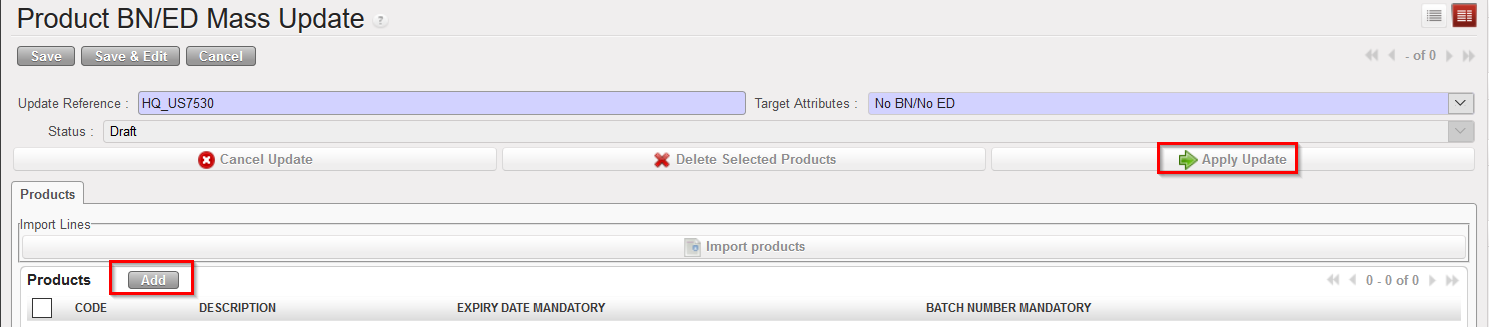
4. Click on “Add” to add product one by one or use the “Import products” to upload a list of product (template can be found by Clicking on “Import products” > “Save as”)

5. Click on “Apply Update” to apply to all lines once finished. (When in “Draft” update can still be Cancelled)

Mass update of BN/ED attributes

6. On the right-hand action menu, an Excel file can be exported to view the list of updated products with their old attribute value.

Mass update of BN/ED attributes

F. How to activate the batch numbers being mandatory for a product

Supply User Manual ENG -> Products -> 3.2 LU-SU2101: General Product Management -> F. How to activate the batch numbers being mandatory for a product

F. How to activate the batch numbers being mandatory for a product

All the batch numbers of a product must be entered in the system database. Most of the UniData/ITC products will have this option enabled. Update of this attribute can only be done at HQ for non local products and only at Coordination for local products (providing some specific user rights) and will be synchronized down to children instances. To activate this option manually follow these steps:

Go to: Products/ Products

Activating a batch number-1

  1. Use the search tools to filter values to find the product you want to edit
  2. Click on the pencil icon next to the product line to open it in edit mode
  3. In the “Information” tab, click on the “Make Mandatory” button aside the “Batch Number mandatory” check box to enable it
  4. Click on Save

The system will now require that the specific batch number(s) for this product are recorded in the system during the product reception.

Activating a batch number 2

Please note: This attribute needs to be changed cautiously especially if product is in Stock or is in transaction document.

If product with BN is changed to product without BN then the BN will be erased for existing product in the system (for any Stock; document…) and products quantity will be aggregated in Stock (in case you had several BN for the same product).

If product without BN is changed to product with BN a “False” BN (TO-BE-REPLACED) will be automatically added to the existing product in Stock/document. This “false” BN will have to be updated by the user later.

E. How to activate the expiry date

Supply User Manual ENG -> Products -> 3.2 LU-SU2101: General Product Management -> E. How to activate the expiry date

E. How to activate the expiry date

The expiry date of any product that expires must be entered in the system database. Update of this attribute can only be done at HQ for non-local products and only at Coordination for local products (providing some specific user rights) and will be synchronized down to children instances.

To activate this option, follow these steps:

Go to: Products/ Products

  1. Use the search tools to filter values to find the product you want to edit
  2. Click on the pencil icon next to the product line to open it in edit mode

Expiry date activation 1

3. In the “Information” tab, click on the “Make mandatory” button aside the “Expiry Date Mandatory” checkbox to enable it.

Expiry dates management 2

4. Click on “Save” to save your changes

5. The system will now request that the specific expiry date of this product be recorded in the system during the product reception.

Please note: This attribute needs to be changed cautiously especially if product is in Stock or is in a document in progress.

If product with ED is changed to product without ED, then the ED will be erased from the system and for existing product in the documents/ Stock. Also, products quantity will be aggregated in Stock (in case you had several ED for the same product).

If product without ED is changed to product with ED a “False” ED (31/12/2999) will be automatically added to the existing product in Stock/document. This “false” ED will have to be updated by the user later.

D. How to change the product type

Supply User Manual ENG -> Products -> 3.2 LU-SU2101: General Product Management -> D. How to change the product type

D. How to change the product type

Go to: Products / Products

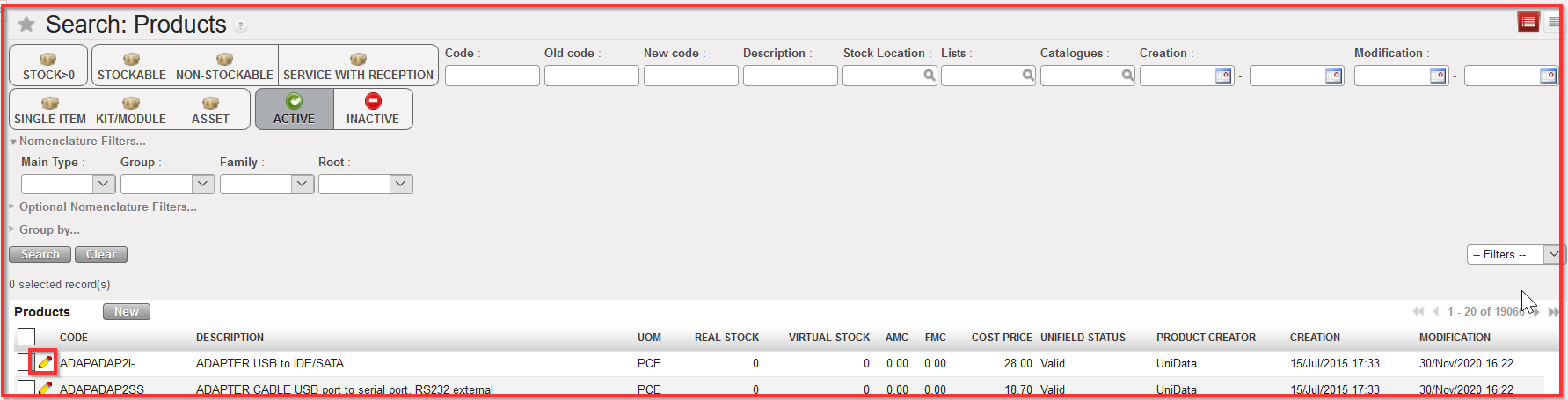
  1. Use the relevant filter values to find the product you want to edit.
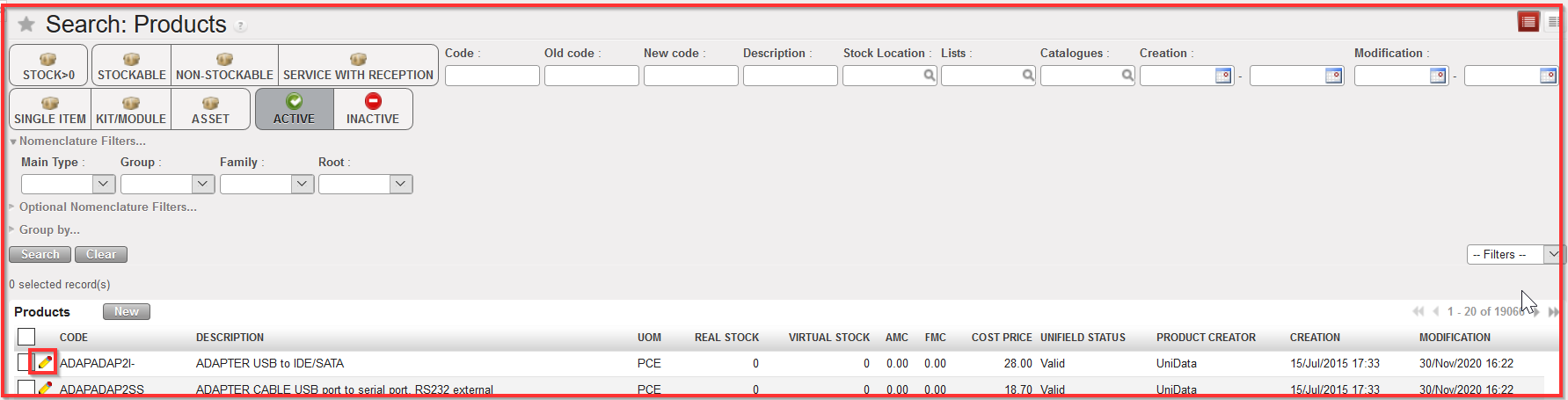
  2. Click on the pencil icon of the selected product to open it in edit mode

Changing a product type

3. Go to the information tab and change the product type.

4. Click on “Save” when you have finished, or if there are several changes, click on the “Save & Edit“ button to save changes regularly and then remember to Save your final changes.

C. How to activate and deactivate a product

Supply User Manual ENG -> Products -> 3.2 LU-SU2101: General Product Management -> C. How to activate and deactivate a product

C. How to activate and deactivate a product

It may be necessary to de-activate a product in your instance, for example because it should no longer be used or has been replaced. Before the system can deactivate a product, it will check if there is any open Supply document containing the product, and also for some Finance documents, or if it exists in any internal stock location. In that case, the product should not and cannot be de-activated.

Please note that thanks to the UniData linkage, the product de-activation can also been done automatically via synchronization when product is “Unsubscribed” or Archived in UD and that no Stock/ Pipeline are in the instance (otherwise it will be Phased Out).

To de-activate a product –> Go to: Products / Products

  1. Use the relevant filter values to find the product you want to edit.

Editing a product form to de-activate it

2. Click on the pencil icon
of the selected product to open it in edit mode.

3. In the Status section in the Information tab, click on the “De-activate product” button.
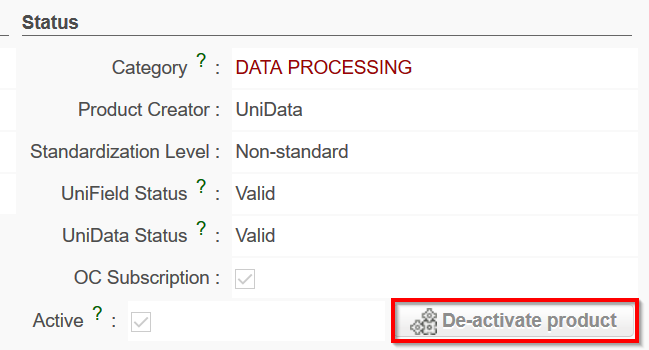
De-activate product

4. If the product is not in any open Supply transaction documents nor in restricted Finance documents, or present in any internal stock location of your instance, the “Active” checkbox will now be empty, and the “De-activate product” button will have been replaced by a “Re-activate product” button (see picture below). This button will leave the option to reactivate the product if needed. Note that this reactivation can also be triggered by a UD update.

Also, after deactivation “UniField status” is set to “Archived”.
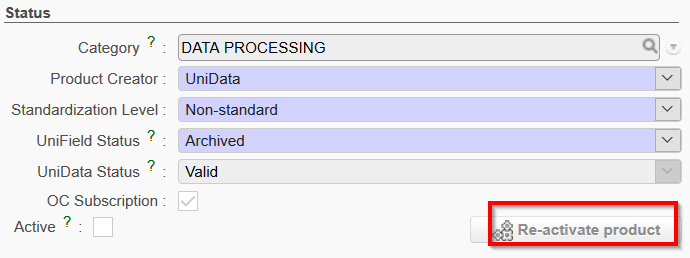
However, if the product happens to be in any open Supply or certain Finance transaction documents and/or is present in any internal stock location of your instance or on an active Product list, a “Product De-activation Error” screen will appear (see next picture).
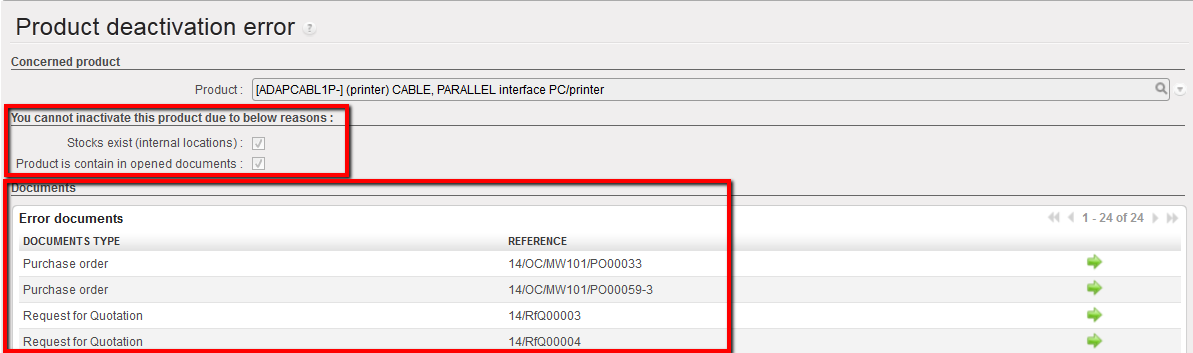
Product de-activation Error

5. This indicates why you cannot de-activate the product via the checkboxes which will show whether the product is present in any internal stock location of your instance “Stocks exist” and / or if the Product is contained in any open (transaction) documents.

6. In the “Documents” section, all documents which contain the product will be displayed, and at the end of each line, there will be a green arrow which opens the document when clicked on.

Please note: When a product has been successfully de-activated, this means it cannot be viewed or selected from the database when creating transaction documents (e.g. Purchase Orders etc), but can still be seen by searching directly in the “Products” business application. If you wish to see all de-activated products, this can be seen from the Products Action Menu Link “Inactivated Products” or filter button “Inactive” (header right hand)

Note: When a product is de-activated in one instance, the status changed from Active to Inactive, will be synched to any below instances, and if their is no stock or transaction open, the product will be set to be Inactive.

In case of synched flows between Instances with different products (e.g. Intermission or Intersection), when PO or FO is created by synch and includes a product which does not exist in the receiving instance, there will be a message onscreen on the relevant document (PO or FO) and a clear Not Run message created, warning the user that (PO/FO) product lines could not be created.
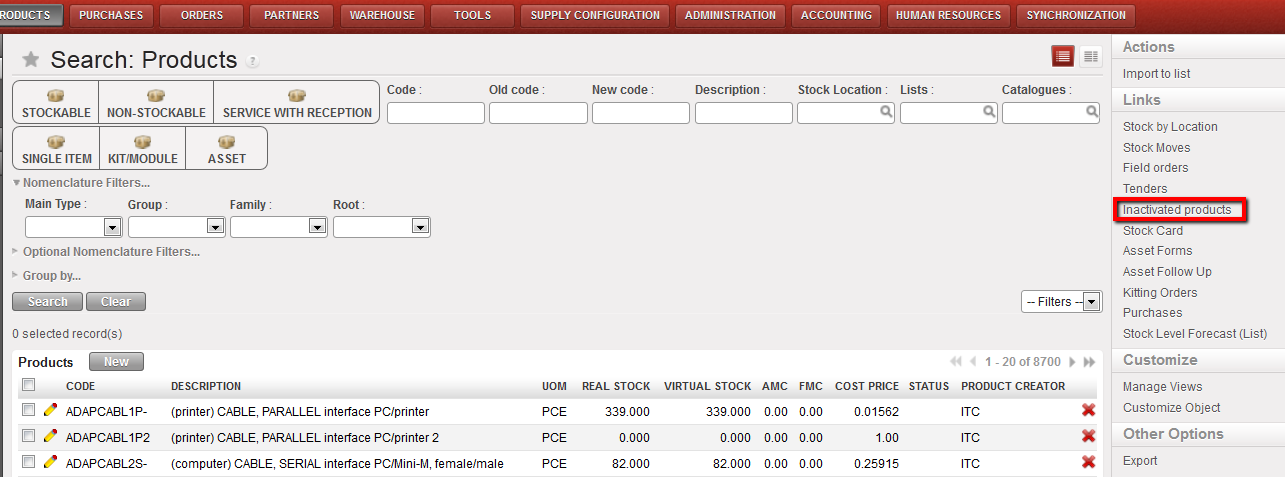
De-activated /Inactivated Products link
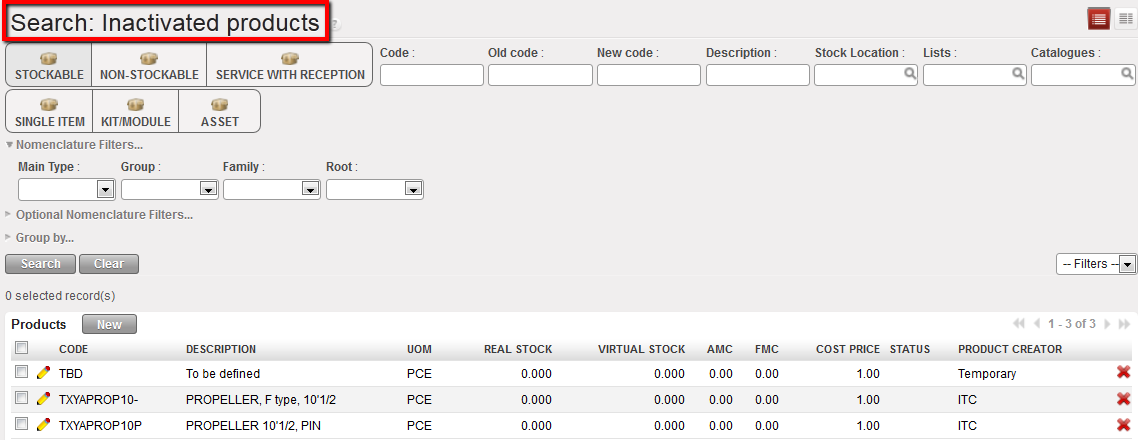
List of Inactivated products

Inactive button filter

Please note: Non-Standard Local UniData product are first synchronized down from HQ to mission (COO/project) as Inactive. They can only be activated at Coordination, in the condition that product is subscribed by the OC, if NSL product has been unsubscribed by the OC, it cannot be activated at mission level unless the product code is resubscribed.

When activating these NSL products, the following warning message is displayed:

Warning!
This is an NSL product, please ensure that there is no duplicate “Local” product with which this product should be merged. If you activate and start to use this product it will no longer be possible to merge it with another.” (see “Merge” feature below in section L).

 

B. How to update and change product attribute

Supply User Manual ENG -> Products -> 3.2 LU-SU2101: General Product Management -> B. How to update and change product attribute

B. How to update and change product attribute

(Specific examples of this will be covered in this Learning Unit)

Update of product attributes can be done directly on the selected product form or via a mass products update.

Product form update:

Go to: Products/ Products / Products

  1. Use the filters at header level to search for and find the product you want to update.
  2. Select the product by clicking on the pencil icon
    of the product to edit
  3. Make the necessary amendments
  4. Save

Editing a product form

Products mass update:

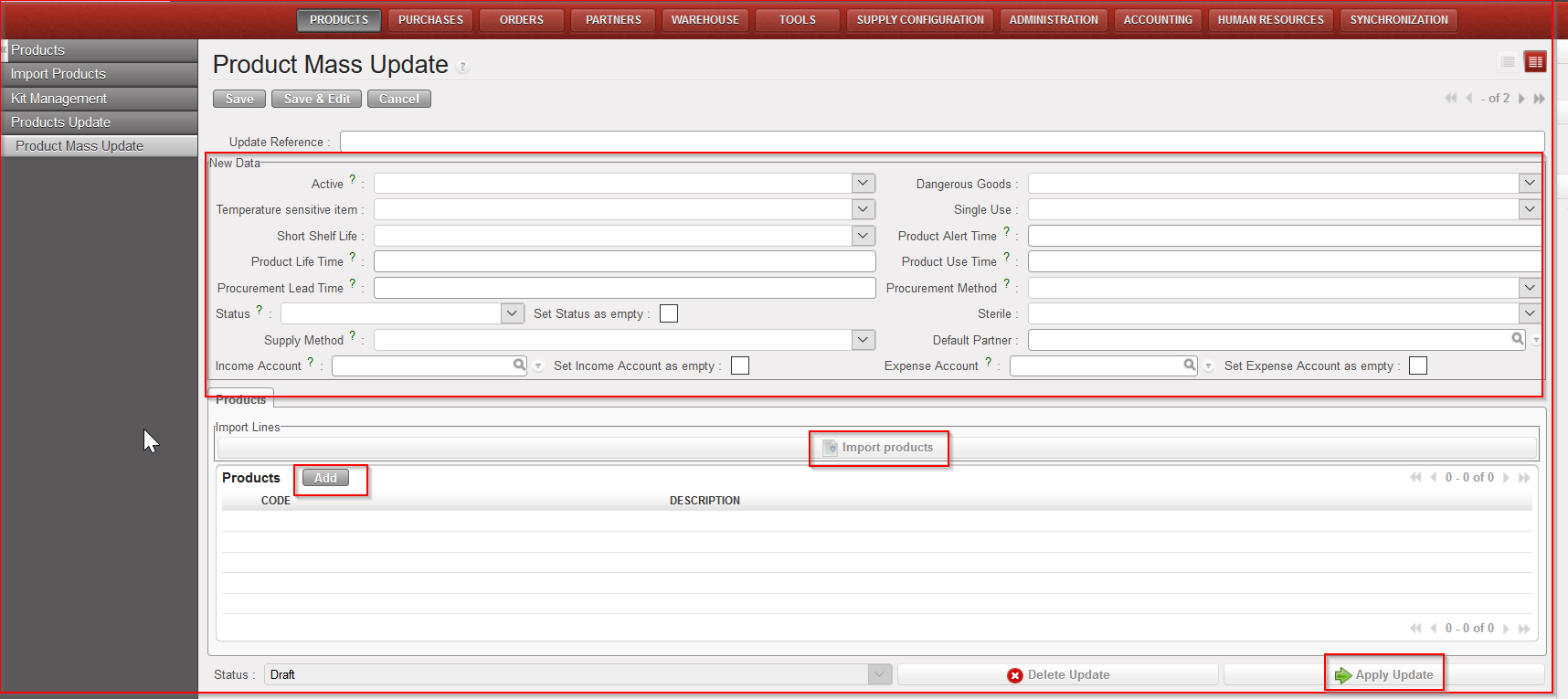
Please note that this mass update can only be done for Local products and HQ, ITC and ESC products. Local products can only be updated from Coordination and HQ, ITC and ESC ones only from HQ.

Go to: Products/ Products update / Product mass update

  1. Click on “New”
  2. Enter an “Update reference” (not mandatory)
  3. Select among the different fields (Active, Dangerous goods, Temperature sensitive, Status, Supply method…) the ones you need to update similarly for several products
  4. Add products
    1. Click on “Add” to select the products to update
    2. Click “Import products” to upload the products via an Excel file
  5. Click on “Apply Update”

A. How to create a new local product

Supply User Manual ENG -> Products -> 3.2 LU-SU2101: General Product Management -> A. How to create a new local product

A. How to create a new local product

Products can only be created at coordination level and above; the process for new products is quite similar for local and international products.

The last developments with UniData and the management of UD Non-Standard Local product should considerably reduce the creation of local product at Coordination level if not suppress it. It should remain exceptional and subject to specific user rights.

Go to: Products/ Products / Products

  1. Click “New” button to begin the process
  2. Fill in all the blue mandatory fields (see the relevant headings in this Learning Unit for detailed explanations on fields, options etc)
  3. Fill in any additional information
  4. Save

Create a new local product

Please note that Local products can also be managed for intermission and intersection flows.