LUFI-40202 E: How to Split HQ Entries

LUFI-40202 E: How to Split HQ Entries

You can also split entries one by one if you want to link the cost to various invoice references.

Go to Accounting/HQ/HQ Entries

    • A list of HQ entries to validate displays
  1. Select an entry and go to the Actions to choose the Action {Split}
Split Action in the Actions menu

2. In the HQ Entry split wizard, Select {New}

 New Button to split the original HQ entry

3. The original line displays and can be modified

4. Once the original line is modified, click on the {New} button to proceed to the creation of the lines.

You cannot edit the {Description} but you can edit the {Reference}, {Account}, {Amount}, and analytical accounts. Save each line.

Creating an additional HQ entry to split the original one

5. click when you are finished.

    —The original HQ entry displays in grey. The lines created in black.

Original HQ entry in grey and created split lines in black

If later on you need to retrieve original HQ entries which were split, you can select the button:

If later on you need to retrieve split HQ entries, you will select the button

Original HQ entries

Split HQ entries
LUFI-50107 COMBINED JOURNALS

Finance User Manual ENG -> 5. Searching, Correcting and Closing -> 5.1 Searching -> LUFI-50107 COMBINED JOURNALS

LUFI-50107 COMBINED JOURNALS

LU Introduction

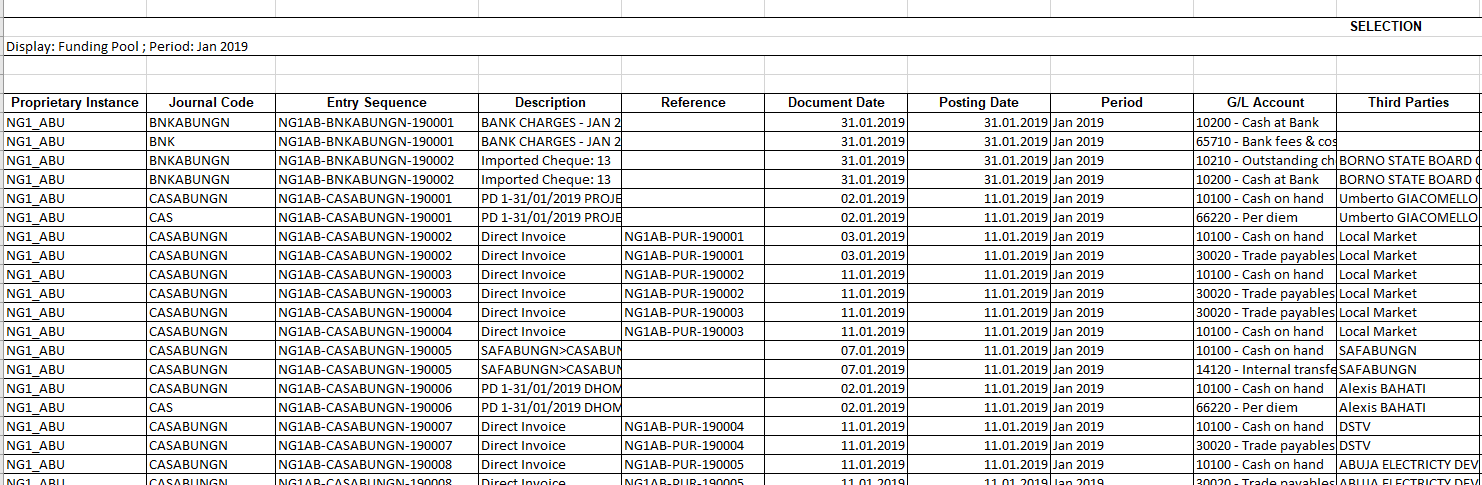
This report will combine all the JI and the AJI entries. The main purpose of this report is to display in one report all entries’ sequences in order, whether they were existing only in the JI, or only in the AJI or in both. In addition to that, it will help when doing the checking of the accounting documents when archiving per journal.

How to Produce Combined Journal Report

Go to: Accounting/Selector/Combined Journal reports

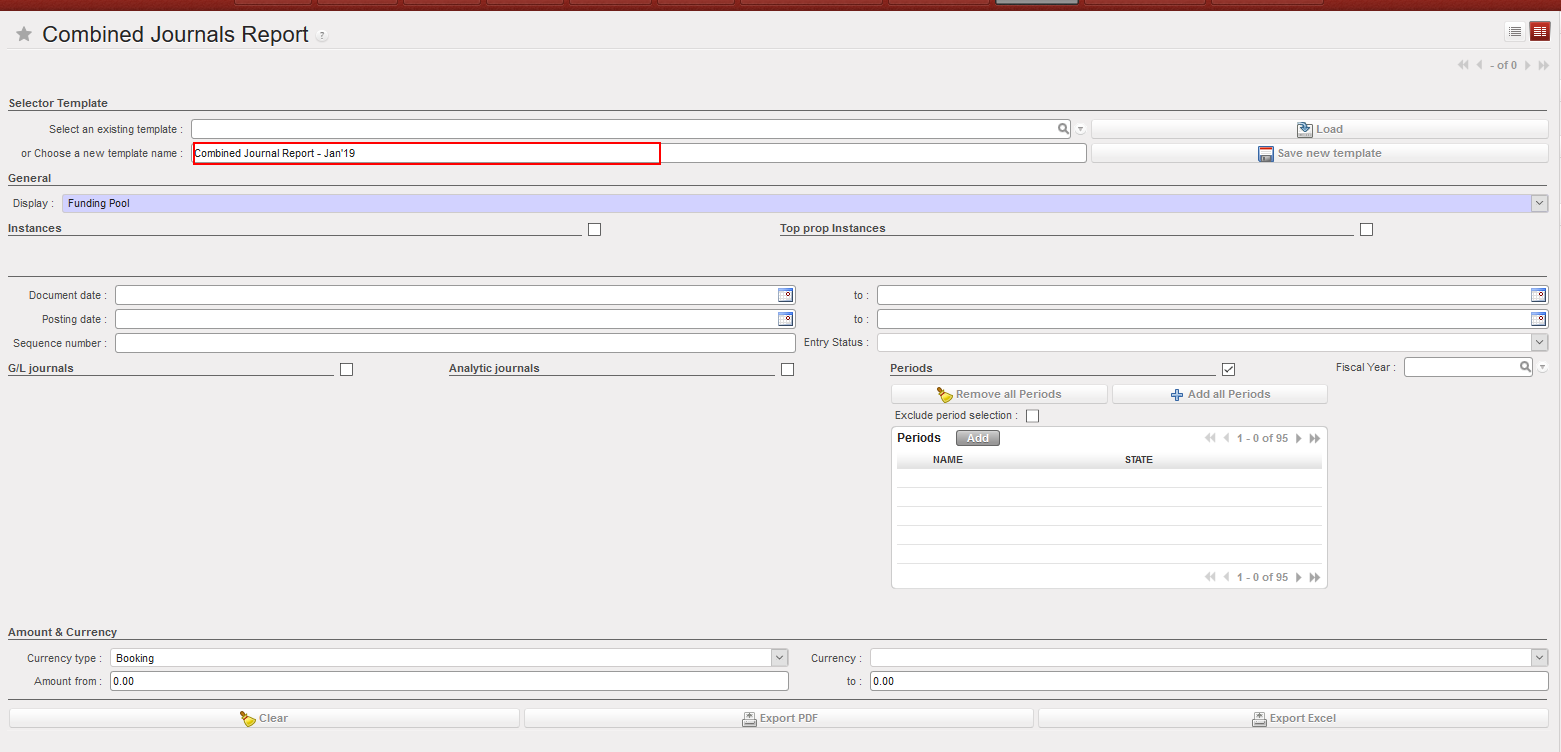
You have a wide range of possibilities to search for data. Ticking the checkbox for a certain heading will expand the screen for the user to select specific criteria. Similar to default search fields in other modules, you can enter data manually or use the magnifying glass to select from a drop-down list.

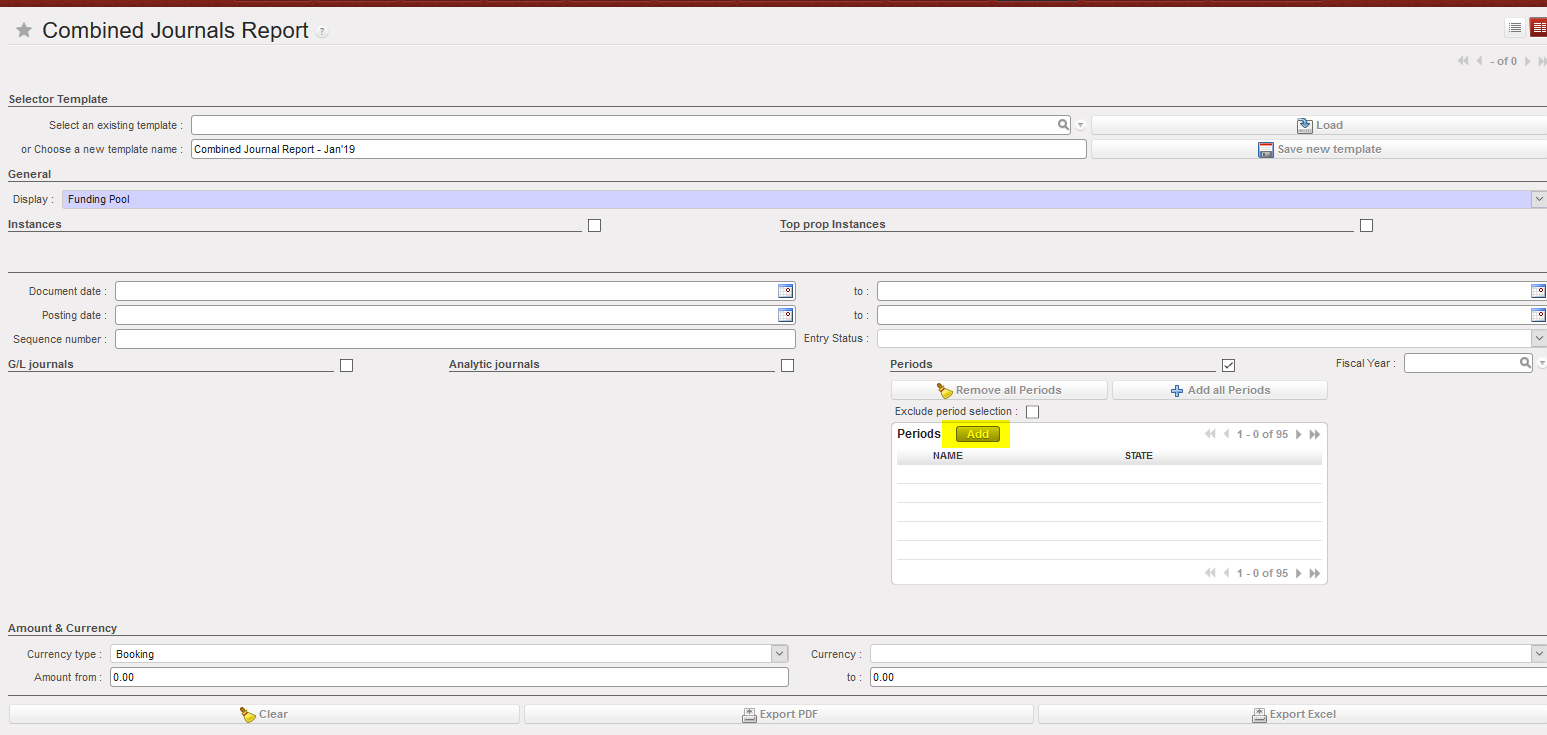
  • Create your template.
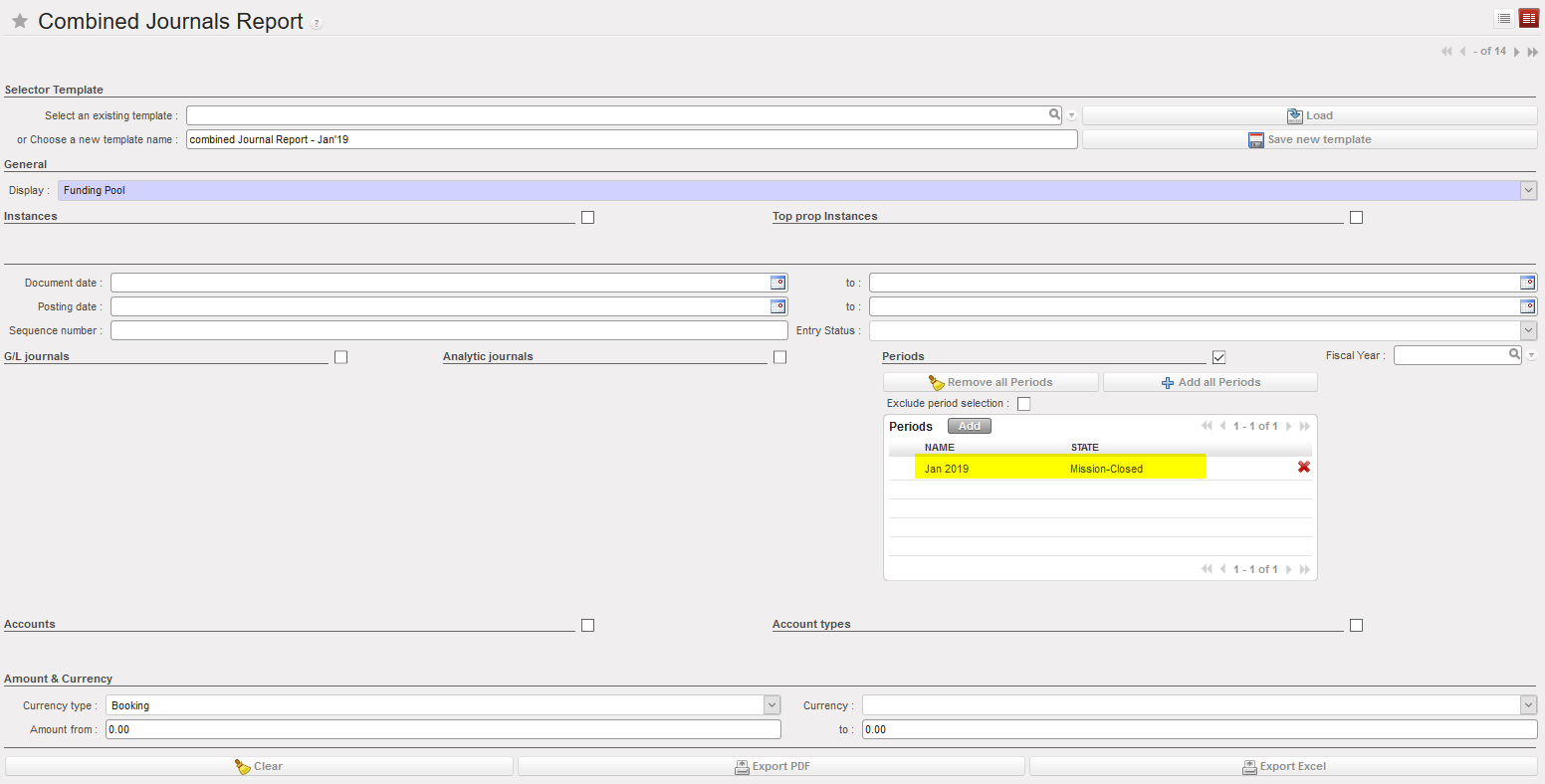
  • Select the period you want.
  • You will have a list of all periods, select all periods you want.

Also the field Sequence Numbers has a limit of 360 characters, and you can specify about 26 entries. Note that the total number of characters includes the character ( , )

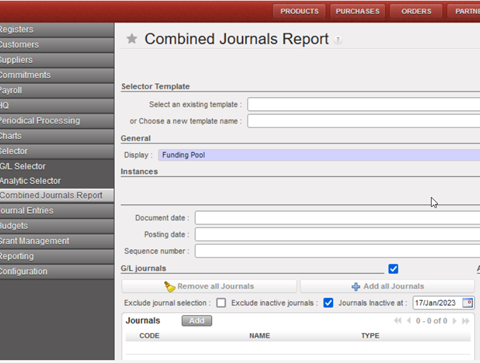
  • Also you can exclude inactive journals by dates by ticking on checkbox “Excluded inactive journals” and also a date on the Combined Selector:
Excluded inactive journals by date
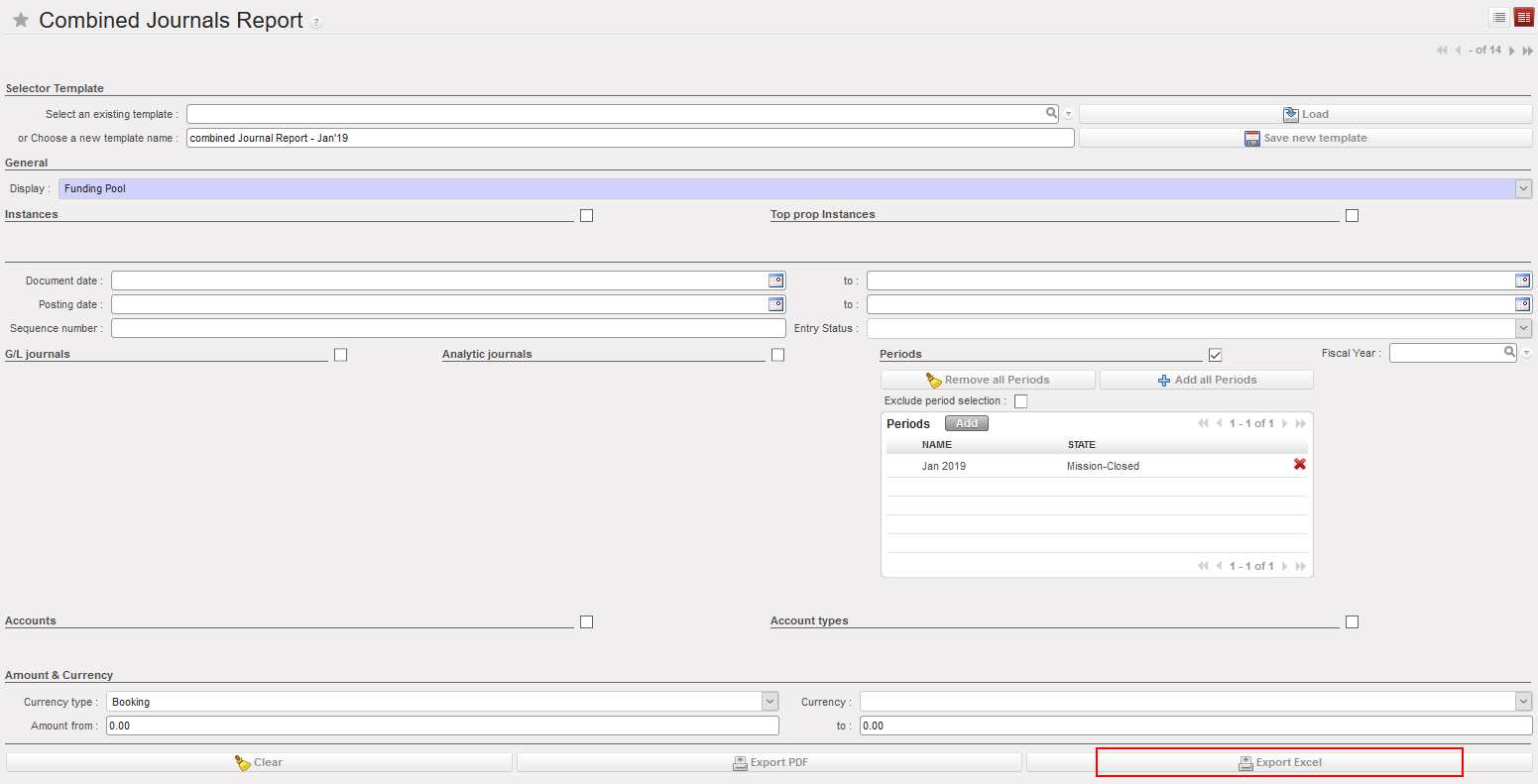
  • Click on {Export Excel} or {Export PDF}
  • Click on {Download Report}
  1. In the report you will find all entries’ sequences (both JI and AJI) organized by order based on the sequence number.

LUFI-21101 Manual Synchronization

LUFI-21101 Manual Synchronization

LU Introduction

In UniField, it is possible to synchronize data manually or automatically. An automatic daily synchronization can be configured by the IT staff. If your section chooses a manual synchronization, someone in each instance should be responsible to launch it on a regular basis. Only this user will have access to the synchronization business application.

How to Synchronize Manually

Go to Synchronization/Synchronization/Manual

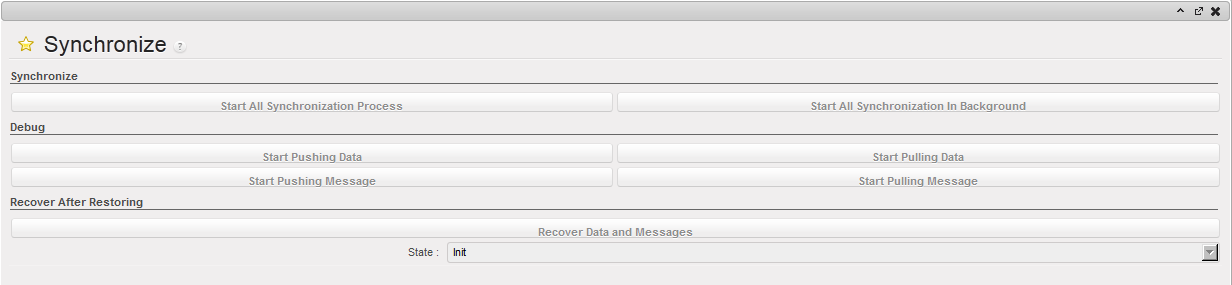
  1. Select {Start all synchronization in the background}


Synchronization Menu