Manuel de l’Utilisateur Supply -> 3. Produits -> 3.6 LU-SU2105: Kits/Modules -> F. LU-SU2105 Gestion des Kits : Comparer LCK et TCK
1. Vue d’ensemble
La fonction Comparer LCK et TCK est un outil de reporting au sein du module Gestion des Kits qui permet de générer un rapport sur les Composants Manquants. Elle compare le contenu réel d’une Liste de Composition du Kit (LCK) avec la Composition Théorique du Kit (TCK) — la composition standard attendue pour ce type de kit.
Le rapport est exporté sous forme de fichier Excel (.xlsx) et est conçu pour aider les équipes d’approvisionnement et d’entrepôt à :
- Évaluer rapidement le statut de complétude des kits détenus en stock.
- Identifier les articles manquants ou en quantités inférieures à celles attendues.
- Soutenir la planification du réapprovisionnement et les évaluations des besoins.
- Suivre la qualité des kits à l’aide d’indicateurs d’écart (KPIs).
Compréhension des deux documents comparés :
|
LCK — Liste de Composition du Kit |
TCK — Composition Théorique du Kit |
|
|
Définition |
Le contenu réel d’un kit physique actuellement en stock |
La composition standard / attendue pour ce type de kit (le modèle) |
|
Objectif |
Enregistre ce qui se trouve dans le kit |
Définit ce qui devrait se trouver dans le kit |
|
Statut pour la comparaison |
Doit être Terminé ou Clôturé |
Référencé via la version TCL liée dans la LCK |
|
ASTUCE : Les LCK Clôturées comprennent des kits ou modules faisant partie d’un kit parent — ceux-ci sont éligibles à la comparaison. |
|
REMARQUE : La correspondance entre les lignes LCK et TCK utilise une approche dégressive : d’abord par Produit + Quantité + N° Lot/Date d’expiration, puis Produit + N° Lot/Date d’expiration, puis Produit uniquement. Cela garantit la comparaison la plus précise possible. |
2. Étape par Étape : Générer le Rapport
Suivez les étapes ci-dessous pour générer le Rapport de Comparaison LCK vs TCK.
|
1 |
Ouvrir le module Approvisionnement Connectez-vous à UniField et cliquez sur Approvisionnement dans le menu de navigation principal. |
|
2 |
Accéder à la Gestion des Kits Sélectionnez Gestion des Kits dans la barre de navigation de gauche ou supérieure. |
|
3 |
Ouvrir les Listes de Composition des Kits Cliquez sur Listes de Composition des Kits (LCK) pour afficher la liste de toutes les LCK. |
|
4 |
Filtrer et localiser votre LCK Utilisez les options de recherche et de filtre pour trouver la LCK que vous souhaitez analyser. Recherchez les LCK ayant le statut Terminé ou Clôturé. |
|
AVERTISSEMENT : Les LCK en brouillon ou en cours ne peuvent pas être utilisées pour la comparaison. Si votre LCK est encore en cours, terminez-la ou clôturez-la d’abord. |
|
5 |
Ouvrir la LCK Cliquez sur la ligne LCK pour ouvrir l’enregistrement et consulter ses détails. |
|
6 |
Confirmer que la version TCK est liée Dans l’en-tête de la LCK, vérifiez qu’une version TCK (TCL) est référencée. Il s’agit du standard par rapport auquel votre rapport sera comparé. |
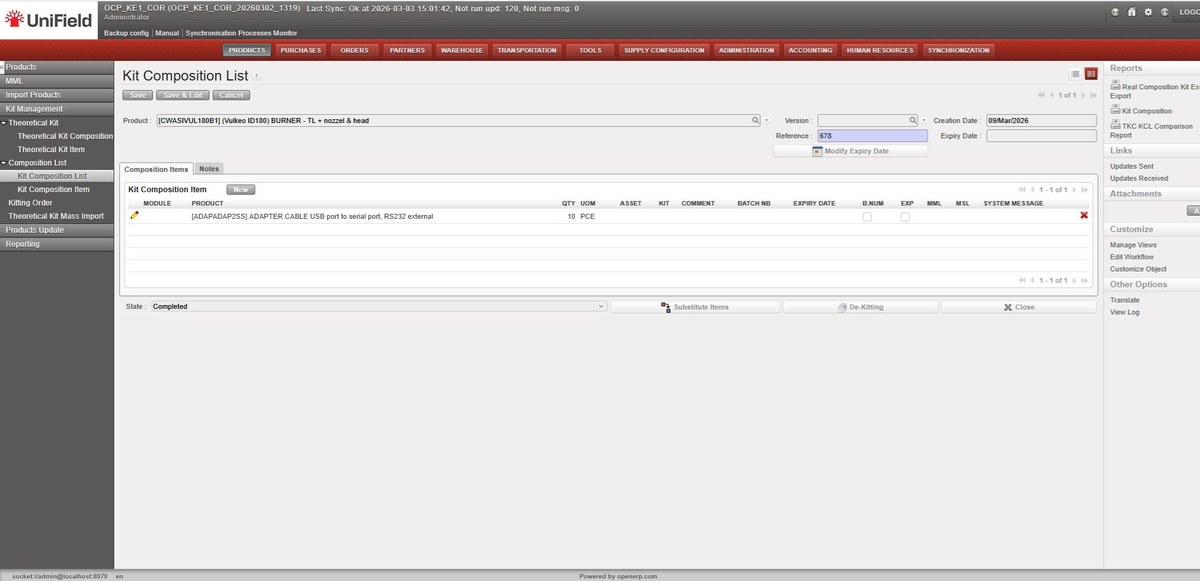
L’écran ci-dessous montre un enregistrement LCK typique au statut Terminé, prêt pour la comparaison :
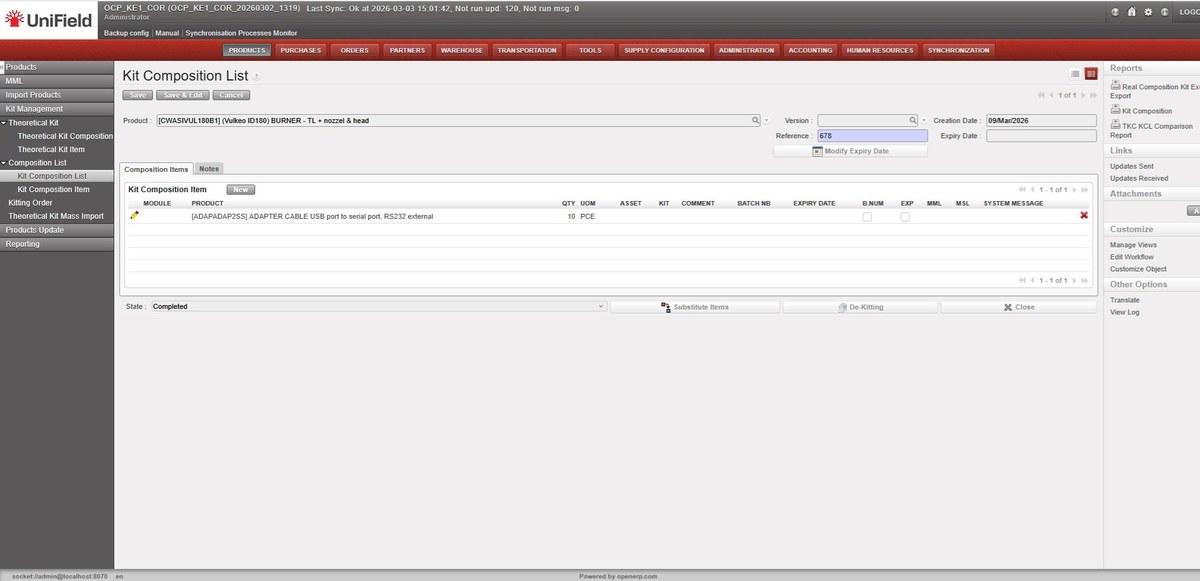
Figure : Liste de Composition du Kit — statut Terminé, affichant le produit, la version, la référence et les articles de composition
|
7 |
Ouvrir le menu d’actions latéral Avec la LCK ouverte, localisez le panneau Actions ou le menu latéral droit. |
|
8 |
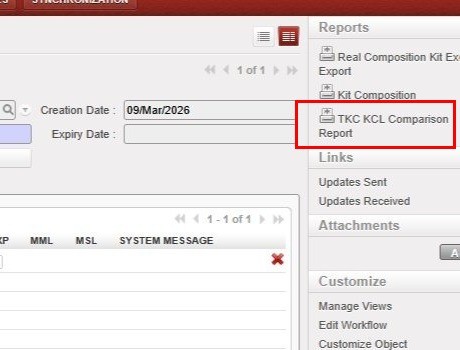
Cliquer sur “Rapport de Comparaison TCK LCK” Sélectionnez cette option dans la section Rapports du panneau latéral droit. Elle n’est visible que pour les LCK au statut Terminé ou Clôturé. |
Le lien vers le Rapport de Comparaison TCK LCK se trouve dans la section Rapports du panneau latéral droit (mis en évidence ci-dessous) :
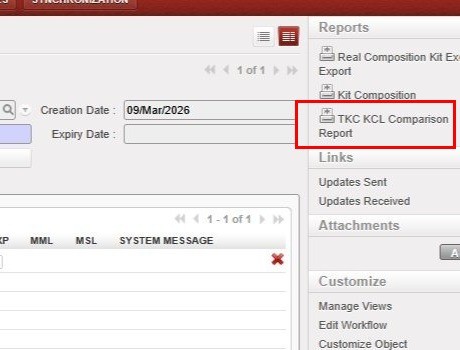
Figure : Panneau Rapports latéral droit — bouton Rapport de Comparaison TCK LCK (mis en évidence)
|
9 |
Enregistrer ou ouvrir le rapport Excel UniField générera automatiquement le rapport et vous invitera à télécharger ou ouvrir le fichier .xlsx. |
|
ASTUCE : Le rapport est généré au format Excel (.xlsx) afin que les équipes d’approvisionnement puissent l’utiliser pour le filtrage, une analyse plus approfondie ou le partage avec d’autres parties prenantes. |
3. Mise en Page et Contenu du Rapport
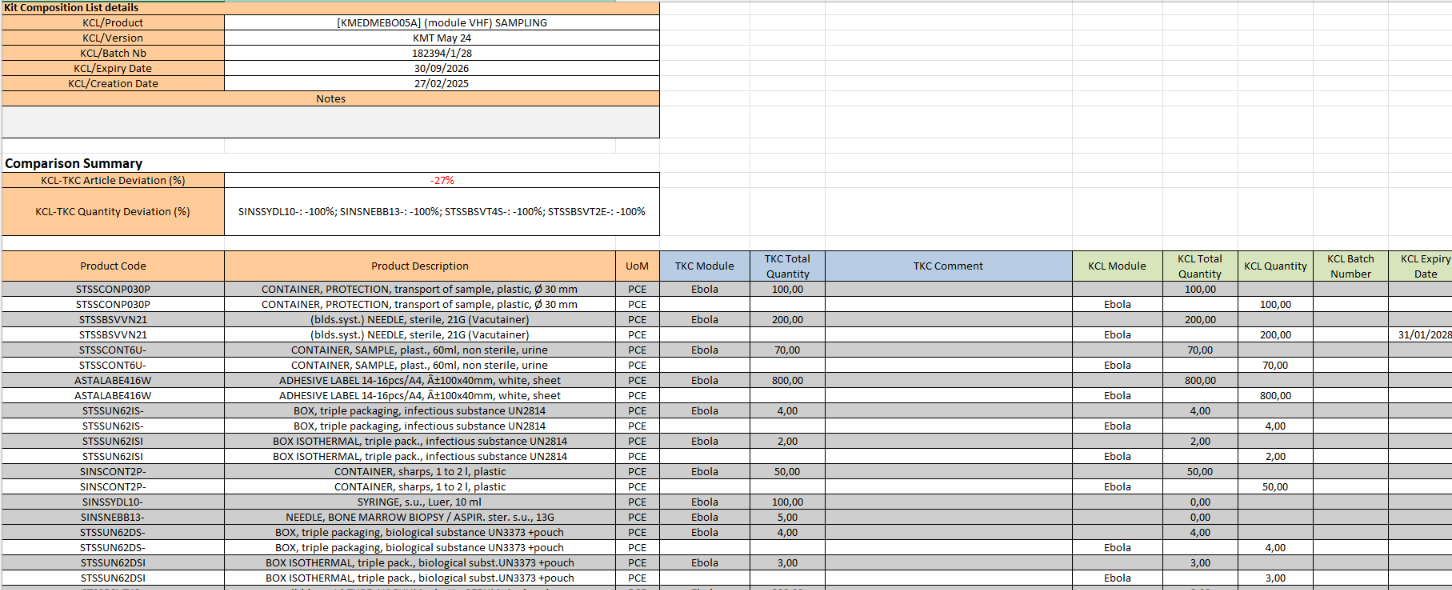
Le rapport Excel généré utilise la mise en page suivante : les colonnes TCK apparaissent en premier (colonnes A–F), suivies des colonnes LCK (colonnes G–M, surlignées en vert clair). Cet ordre reflète la logique opérationnelle utilisée par les équipes d’entrepôt — en partant de ce qui est attendu dans un kit, puis en comparant avec ce qui est réellement présent.
En-tête du Rapport
La partie supérieure du rapport affiche des informations récapitulatives sur le kit :
- Référence du Kit (Produit)
- Date de Création du Kit
- Version TCK (TCL)
- Numéro de Lot et Date d’Expiration
- Date de Génération du Rapport
La capture d’écran ci-dessous montre un exemple de rapport généré pour le kit KMEDMEBO05A (module d’échantillonnage Ebola FHV), incluant les détails TCK et LCK ainsi que la section Résumé de Comparaison :
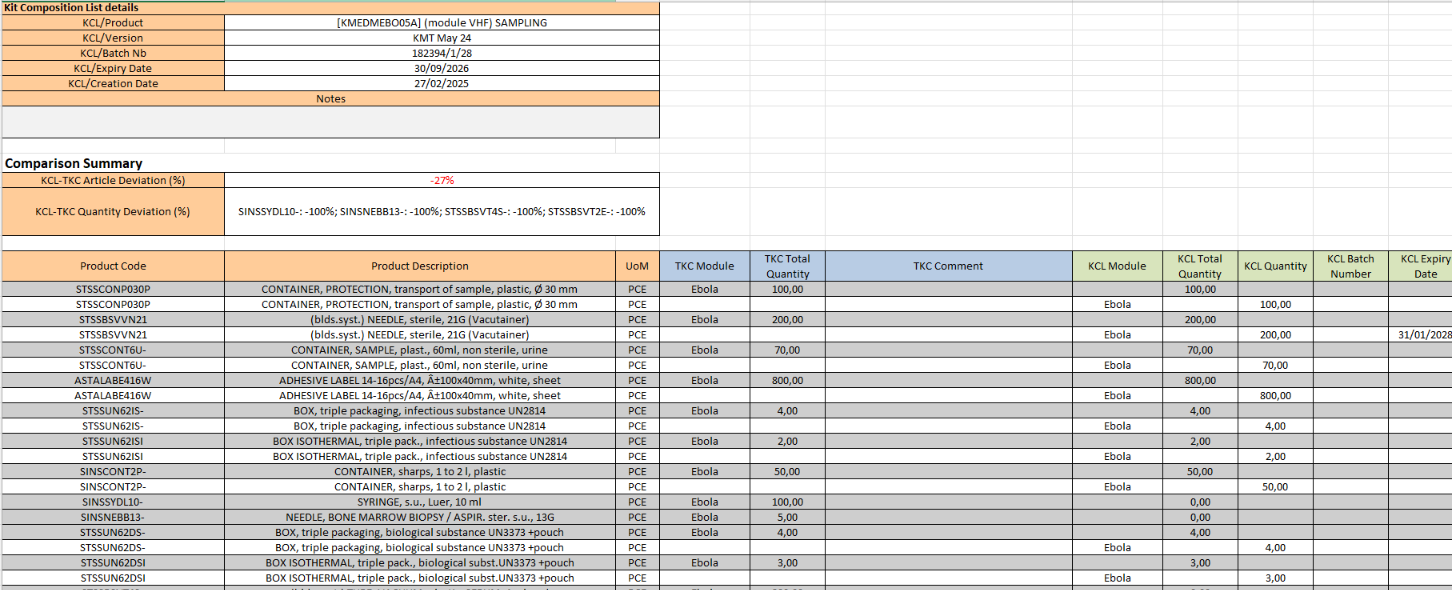
Figure : Rapport de Comparaison TCK LCK — en-tête, détails TCK & LCK, Résumé de Comparaison et lignes produits (KMEDMEBO05A, lot 182394/1/28)
Colonnes du Rapport
Chaque ligne du rapport représente une ligne produit. Les colonnes sont réparties entre les données TCK (attendues) et LCK (réelles) :
|
Colonne |
Section |
Description |
|
Code Produit |
TCK |
Référence produit issue de la Composition Théorique du Kit |
|
Quantité TCK |
TCK |
Quantité attendue selon la norme TCK |
|
N° Lot TCK / Date d’expiration |
TCK |
Numéro de lot et date d’expiration issus du TCK |
|
Commentaire TCK |
TCK |
Tout commentaire saisi sur la ligne TCK |
|
Module LCK |
LCK |
Le module au sein de la LCK — positionné entre le Commentaire TCK et la Qté Totale LCK |
|
Quantité Totale LCK |
LCK |
Quantité totale réelle du produit trouvé dans le kit |
|
N° Lot LCK / Date d’expiration |
LCK |
Lot/expiration réels des produits dans le kit |
|
Écart |
Résumé |
Différence entre la quantité LCK et TCK (+/−) |
|
REMARQUE : La colonne Emplacement de Stock LCK n’est pas incluse dans le rapport. L’accent est mis sur les références et quantités de produits, et non sur les emplacements de stockage physiques. |
4. Résumé de Comparaison et KPIs
Le rapport inclut une section Résumé de Comparaison avec deux indicateurs de performance clés (KPIs) qui offrent une vue d’ensemble du statut de complétude du kit. Ces KPIs suivent la même logique que les rapports d’écart BC vs Catalogue déjà familiers aux utilisateurs d’UniField.
|
KPI |
Formule |
Ce que cela indique |
|
Écart d’articles LCK–TCK (%) |
((# codes dans LCK − # codes dans TCK) / # codes dans TCK) × 100 |
Positif = plus de types de produits dans la LCK qu’attendu. Négatif = des types de produits manquent dans la LCK. |
|
Écart de Quantité LCK–TCK (%) par produit |
((Qté dans LCK − Qté dans TCK) / Qté dans TCK) × 100 |
Affiché par produit. 0% est exclu. Les valeurs négatives apparaissent en rouge dans le résumé du rapport. |
Écart de Quantité — Exemples pratiques :
|
Scénario |
Qté LCK |
Calcul |
Écart |
|
Kit complet |
100 (correspond au TCK de 100) |
(100 − 100) / 100 × 100 |
0% — exclu du résumé |
|
Léger manque |
95 (TCK requiert 100) |
(95 − 100) / 100 × 100 |
−5% (mis en évidence en rouge) |
|
Surplus |
110 (TCK requiert 100) |
(110 − 100) / 100 × 100 |
+10% |
|
Manque important |
60 (TCK requiert 100) |
(60 − 100) / 100 × 100 |
−40% (mis en évidence en rouge) |
|
REMARQUE : Les valeurs d’écart négatives sont surlignées en rouge dans le Résumé de Comparaison. Les écarts de 0% sont exclus du champ Écart de Quantité pour garder le résumé lisible. |
|
ASTUCE : Si tous les articles correspondent exactement au TCK, le résumé affichera un écart de 0% ou un message confirmant que le kit est complet sans articles manquants. |
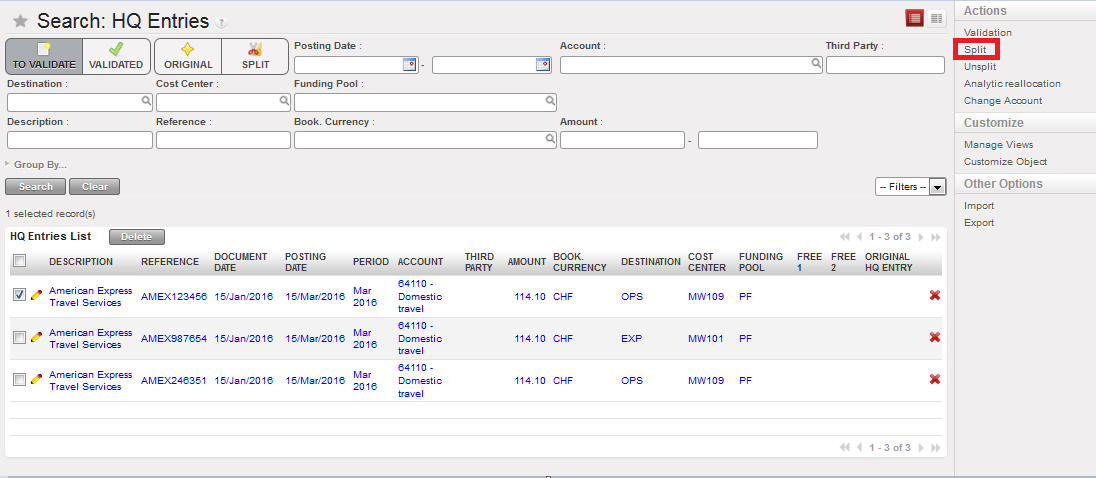 Split Action in the Actions menu
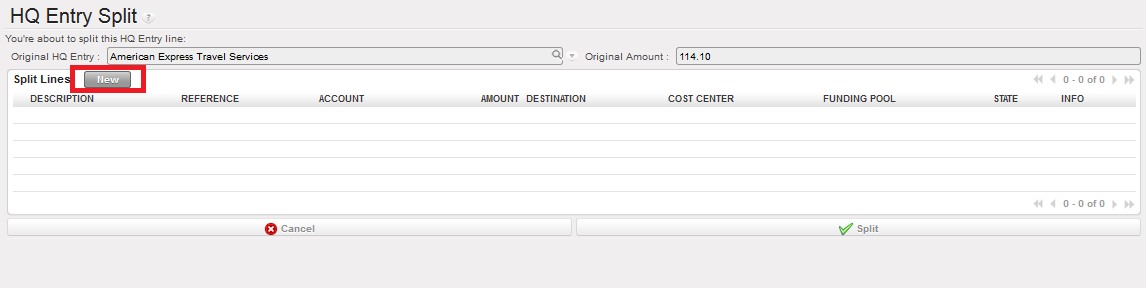 New Button to split the original HQ entry
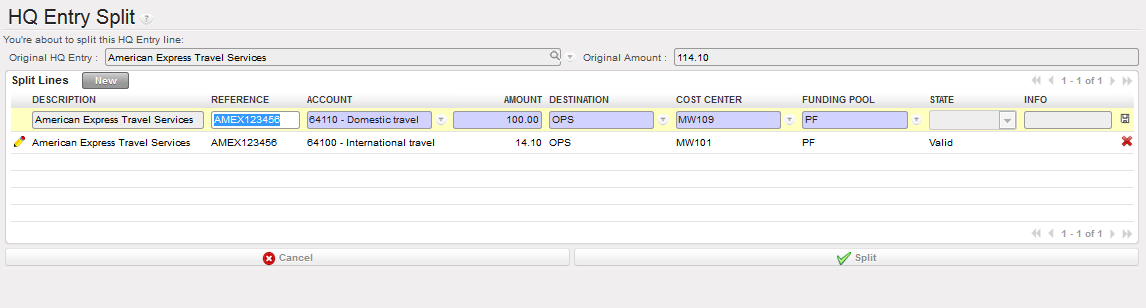 Creating an additional HQ entry to split the original one
 —
—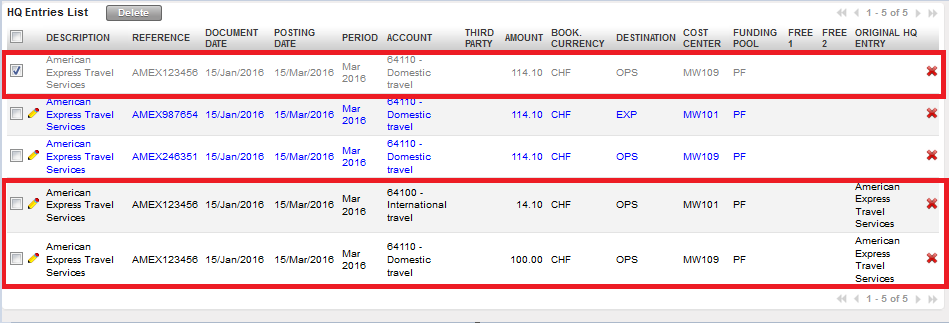 Original HQ entry in grey and created split lines in black

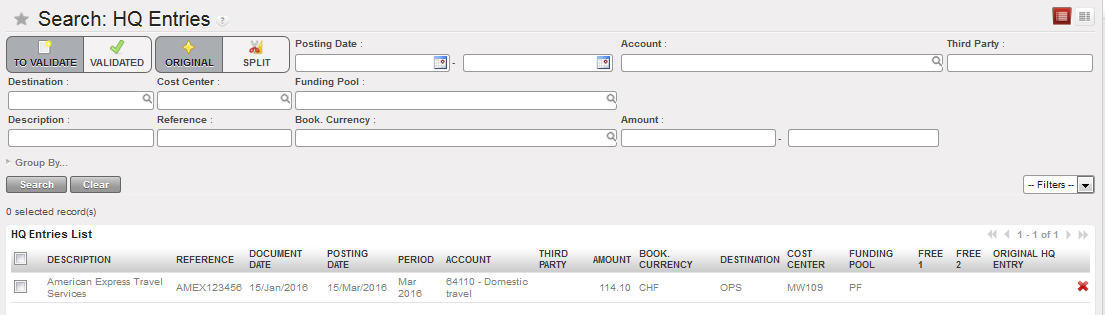 Original HQ entries
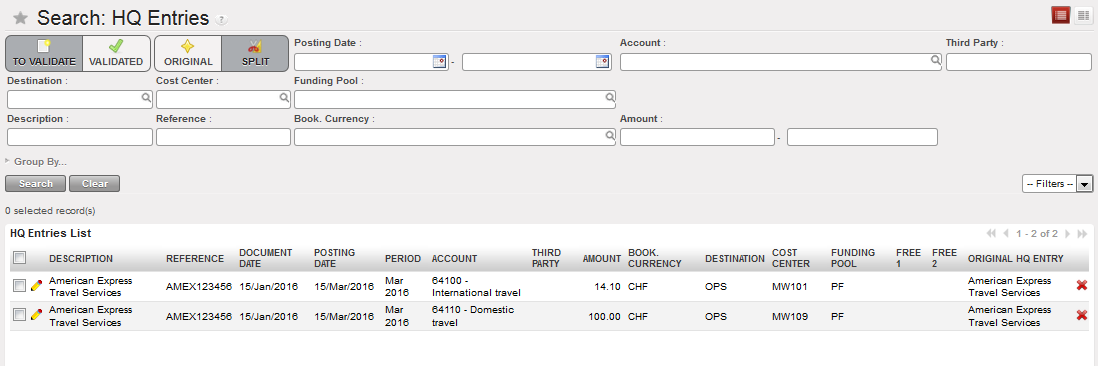 Split HQ entries