
Supply User Manual ENG -> 4. Procurement -> 4.2 LU-SU3101: Internal Requests (IRs) -> E. How to export an Internal Request.
E. How to export an Internal Request.
As for the import, the system offers several options to export the lines from an Internal Request to an Excel file. Depending on whether you need to export only product lines or product lines AND header information you will need to choose the correct link in the right action menu.
Go to: Order / Order / Internal Requests
- Click on the check box on the left side of the line corresponding to the Internal Request to be exported.
- The Action menu on the right-hand side is displayed.
- Click on the
3.1 “Internal Request Excel Export” link to export product lines only
3.2 “Export to IR Excel template” link to export product lines AND header information
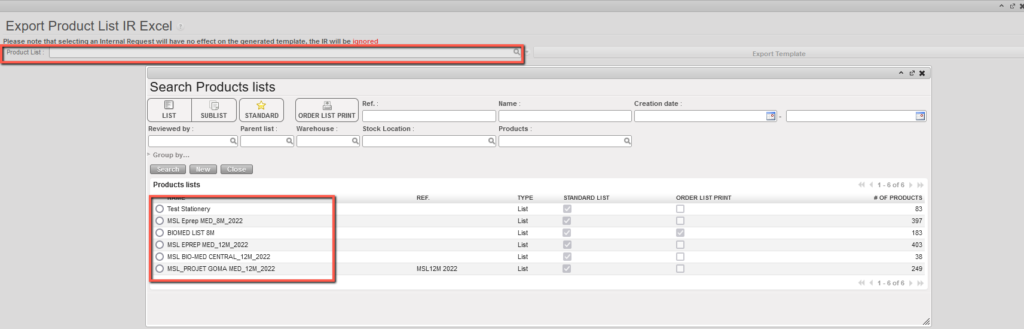
3.3 “Export Product List IR Excel” can be accessed in the IR List view Action menu (without any IR being selected). In the intermediate pop-up, the user can select an existing Product list.
4. The IR will be exported to Excel.
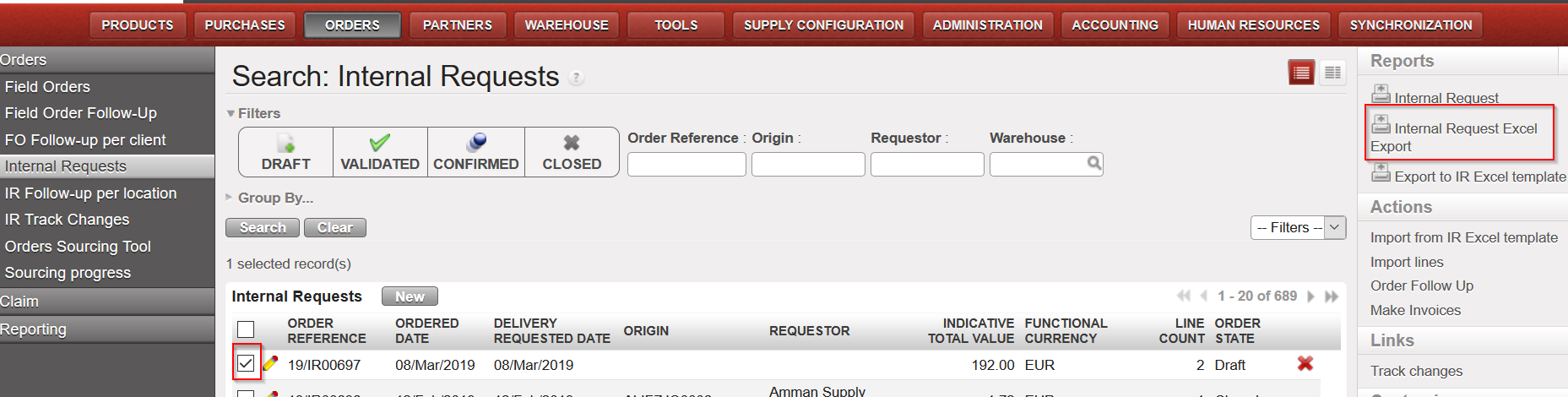 |
| 3.1 Exporting an IR to Excel |
All the information of the IR you chose will be exported to Excel with the following format:
 |
| 3.1 IR Excel export |
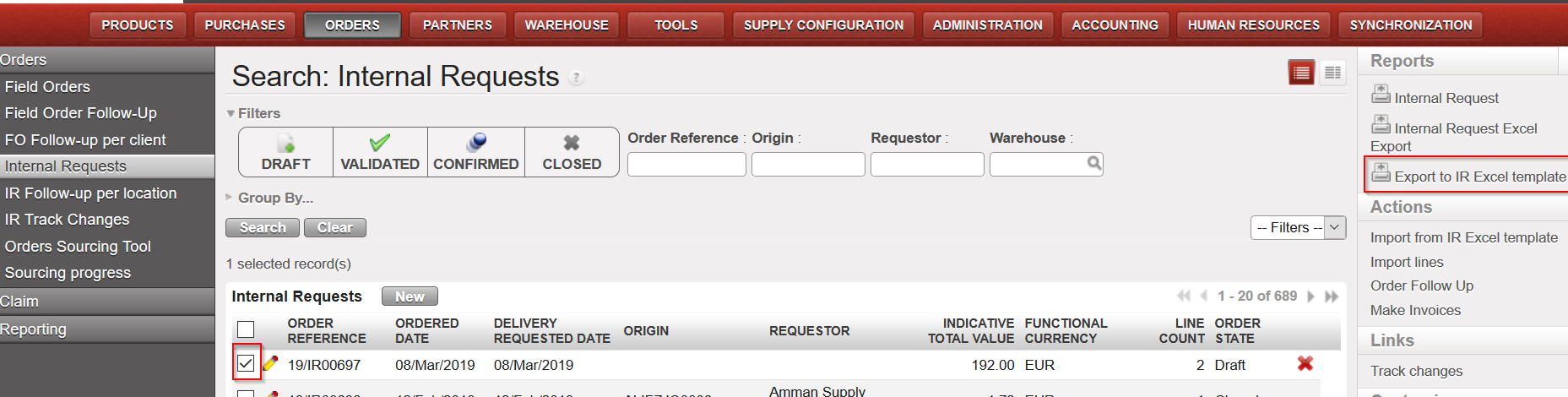 |
| 3.2 Exporting to IR Excel template |
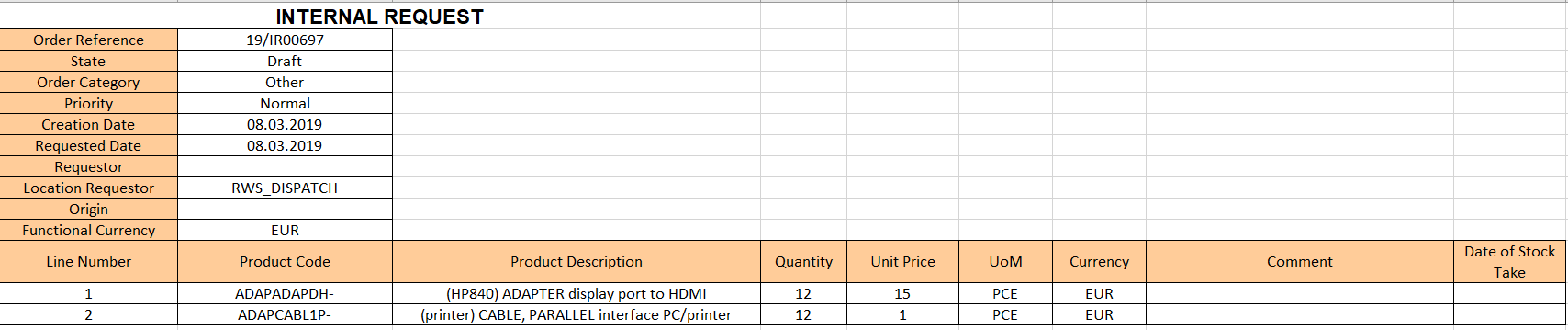 |
| 3.2 Export to IR Excel template |
Do not mix-up these 2 export options with the “Export” option available at the bottom of the action menu which will export all the headers of the IRs appearing on the screen (without the details of the product lines).

From the same screen, you can produce (and print) a PDF report for validation purpose using the option “Internal Request” also located in the action menu (under “Reports“). Note that these exports can also be done from within the IR.
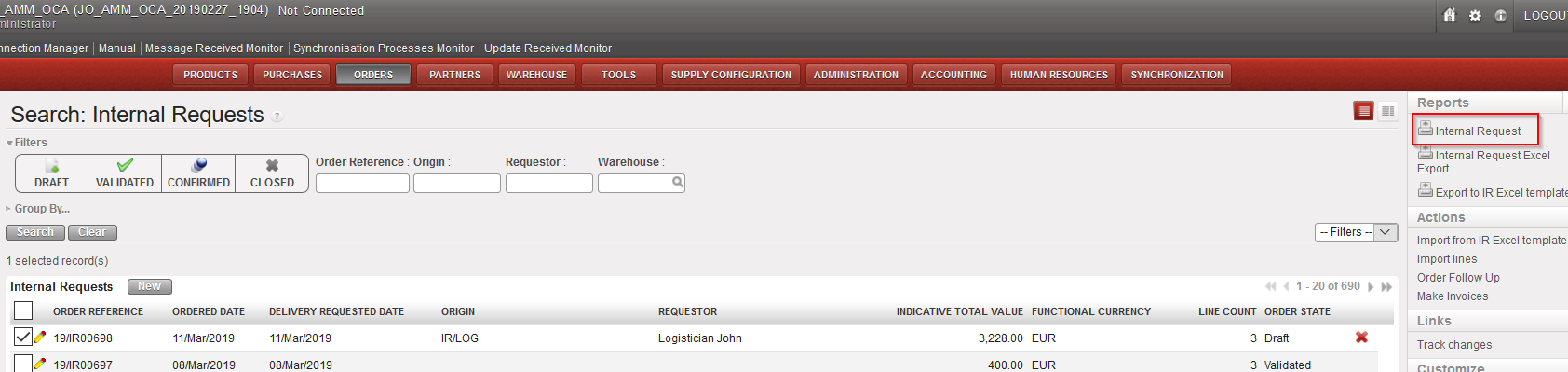 |
| Exporting an IR to PDF from the “Search: Internal Requests” screen |
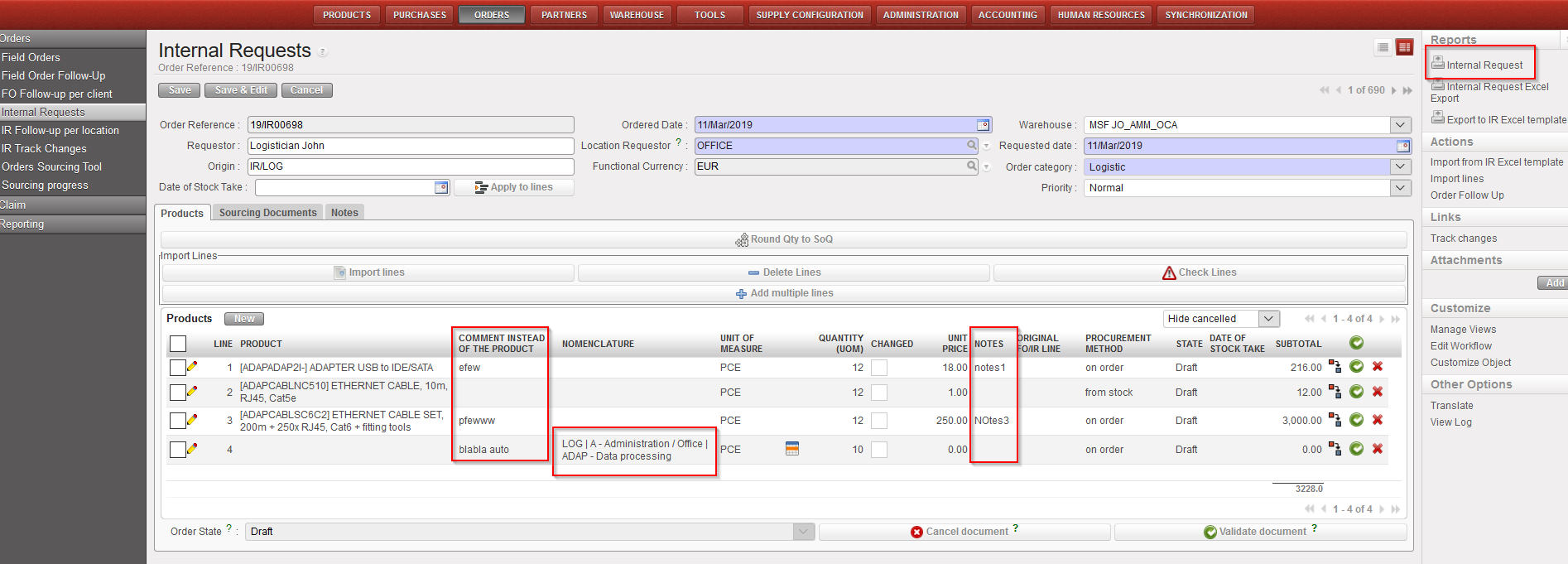 |
| Exporting an IR to PDF from within the IR |
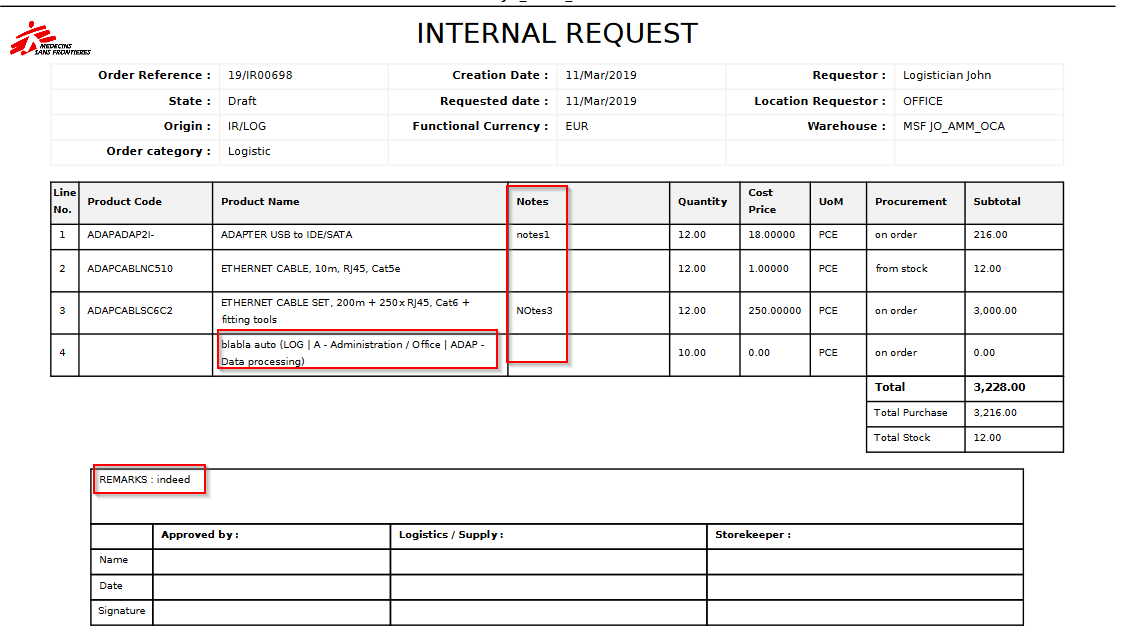 |
| Internal Request in PDF format |
Note 1: It is possible to select several IRs at the same time on the “Search: Internal Requests” screen (using several check boxes) and export them in one click to Excel or PDF. In Excel, you will get one IR per sheet. In PDF, all the selected IRs will be exported on one PDF file.
Note 2: The export to Excel and PDF can also be done from within the IR as the “Internal Request Excel Export“, “Export IR Excel template” and the “Internal Request” options are also available in the action menu (under “Reports“).
Note 3: On the Excel, the comment included in the “Comment instead of the product” column of the IR will appear in the column “Comment“. Note that the notes included in the “Notes” column of the IR are not exported to excel.
Note 4: On the PDF, at header level, the notes inserted on the “Notes” tab of the IR will appear (at the bottom of the PDF, behind “REMARKS“). At line level, the notes included on each line of the IR will appear (in the column “Notes” of the PDF) but the “comment instead of the product” information won’t appear except for lines with “product by nomenclature“.
Note 5: On the PDF, “Cancelled” lines will not be displayed
