Supply User Manual ENG->Supply Configurations->2.2 LU-SU1102:Partners(customers and suppliers)-> E. LU-SU1102: Supplier catalogues
E. LU-SU1102: Supplier catalogues
You can see how to create a supplier catalogue in section :
Supply User Manual ENG -> Products -> 3.4 LU-SU2103: Products in Supplier Catalogues.
Supplier catalogues
The creation of a supplier catalogue is done from the partner master data sheet. The maintenance of a supplier catalogue is done from the Supplier catalogues menu.
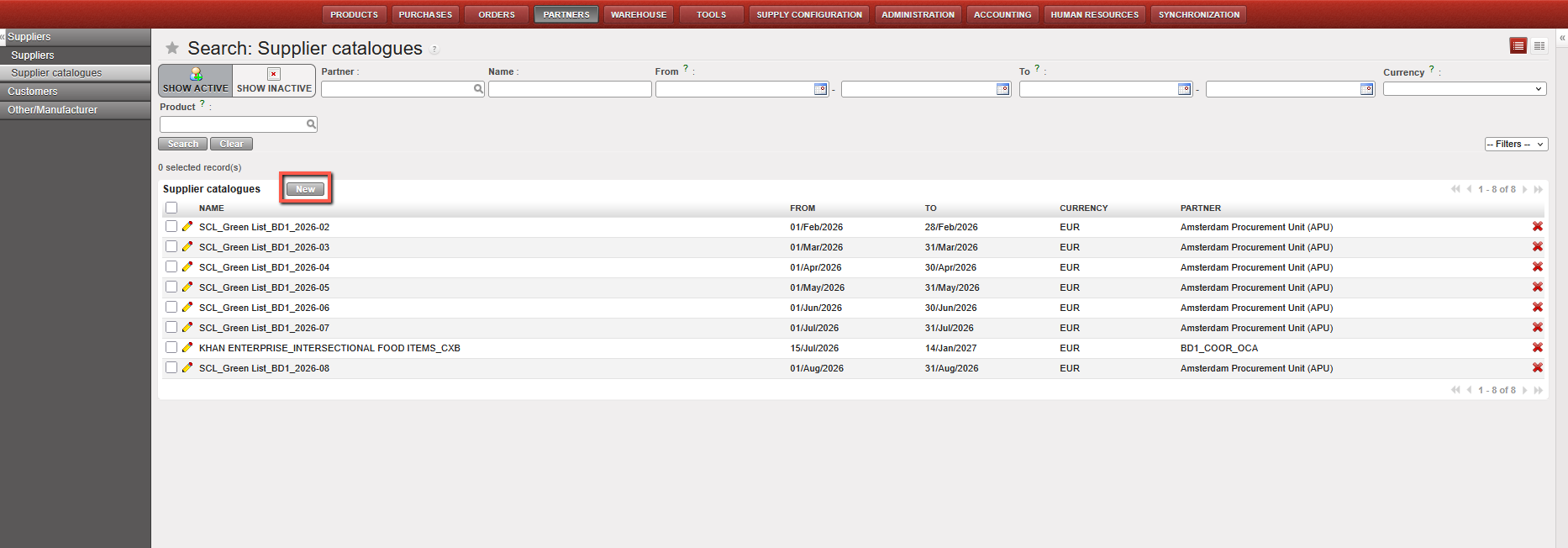
Go to: Partners / Suppliers / Supplier Catalogue
- Click “New”
OR
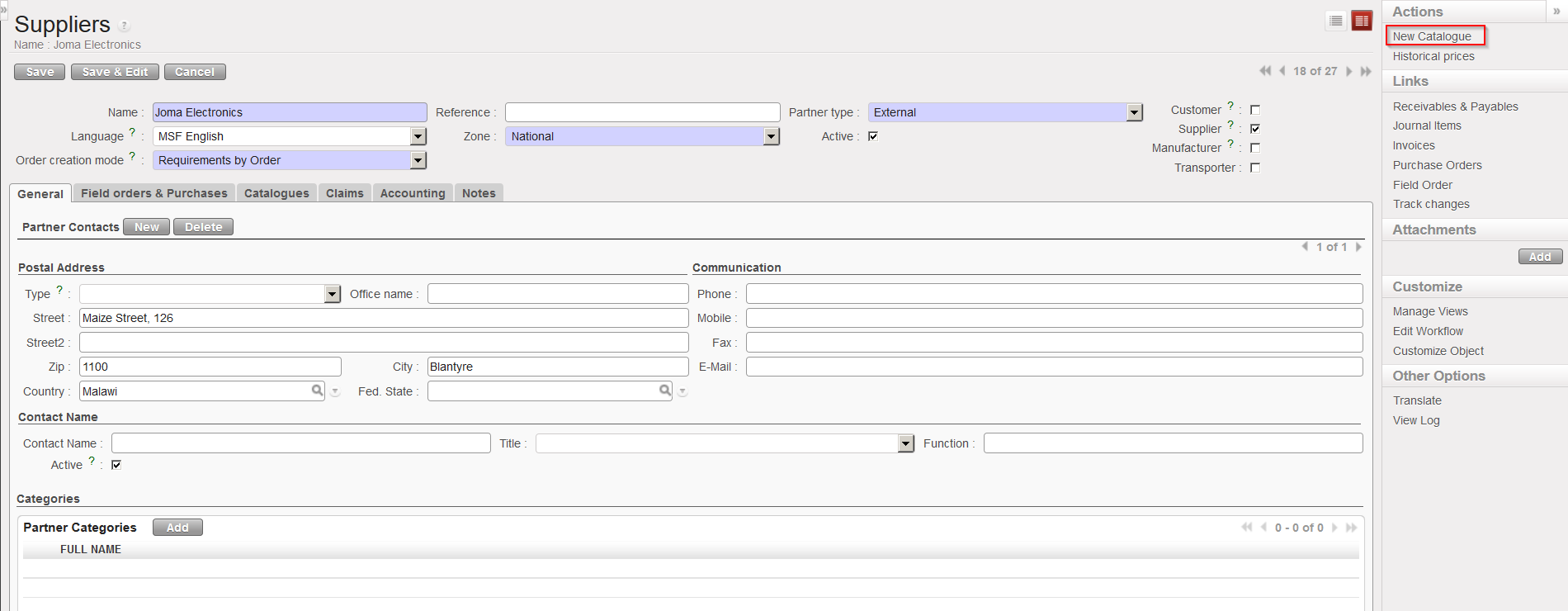
Go to: Partners / Suppliers / Suppliers
- Edit the supplier for which you want to create a catalogue.
- In the action menu, select the “New Catalogue” option.
|
|
|
Creation of a supplier catalogue |
- Enter a “Name” for the catalogue.
- Enter the validity period for the catalogue using the “From” and “To” fields.
- Enter the “Currency” used in the catalogue (it must be the same for all lines).
|
|
|
Supplier catalogue header |
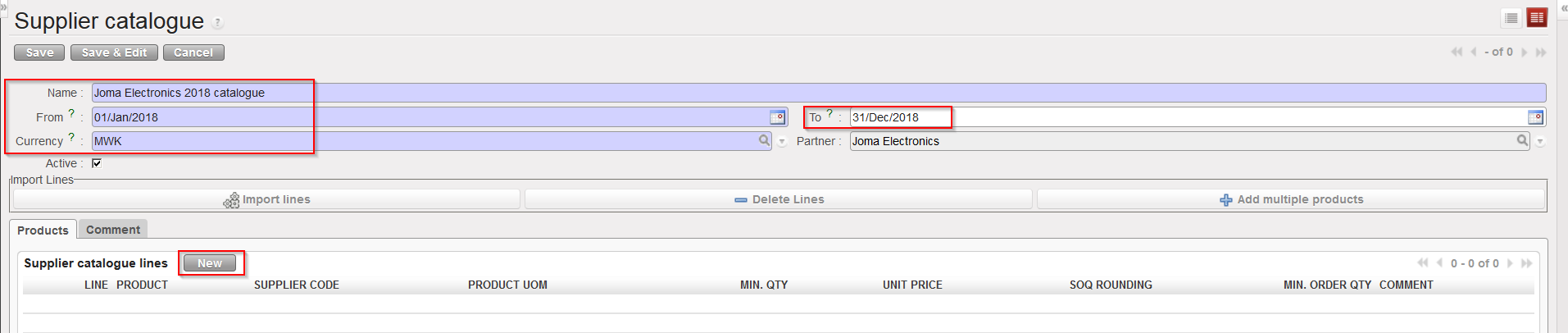
- Click on the “New” button located on top of the “Products” tab
- Enter a product code in the “PRODUCT” field.
- Enter the supplier code in the “SUPPLIER CODE” field. This is the code used by the supplier for this product.
- Enter the minimum quantity in the “MIN. QTY” field. This is the quantity from which the unit price indicated in the catalogue applies.
- Enter a unit price in the “UNIT PRICE” field.
- Enter the Standard Ordering Quantity in the “SOQ ROUNDING” field. This is the typical ordering quantity. It may correspond to the packaging offered by the supplier.
- Enter the minimum order quantity in the “MIN. ORDER QTY” field. This is the quantity from which the supplier accepts a Purchase Order.
- Enter a comment in the “COMMENT” field if needed to include any additional useful information.
- Click on the floppy disk icon to save the line.
- Repeat the steps from 6 to 14 to enter additional lines in the catalogue.
|
|
|
Supplier catalogue line |
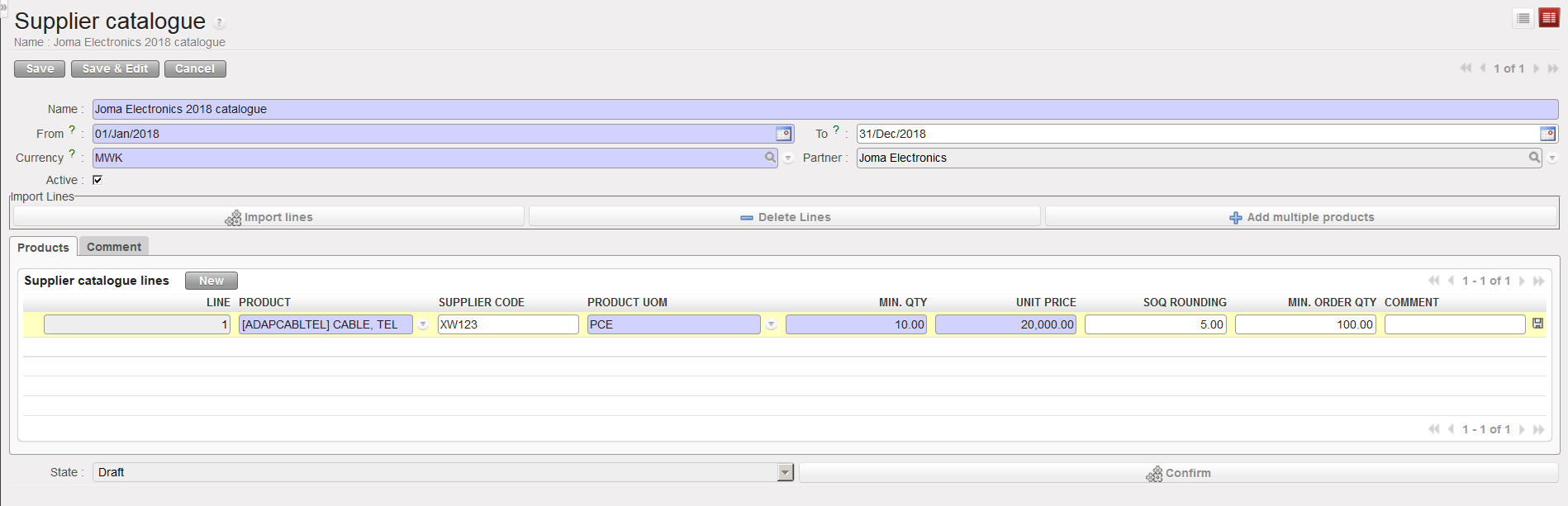
- Once all lines have been included, the catalogue must be confirmed via the “Confirm” button.
To include several products in one step in a catalogue, use the “Add multiple products” button. After inclusion of the products, you will need to update all the lines to enter the correct information (unit price, min.qty, SOQ,…).
The content of a catalogue may be imported from an Excel file via the “Import lines” button. To get the correct file template, export an existing catalogue using the option “Export lines (csv)” from the action menu of a supplier catalogue.
ESC catalogues are created and maintained on the HQ instance and are synchronised down to coordination instances. This allows having a central update of ESC prices and conditions recorded at HQ level shared with all missions thanks to the synchronisation mechanism.
A coordination catalogue can be created at coordination level on the internal partner coordination. After synchronisation, this catalogue will be available in all related projects. Such a catalogue can be useful to create if a coordination wants to share its prices with customers (projects).
To update an existing supplier catalogue, another menu must be used.
Go to: Partners / Suppliers / Supplier catalogues
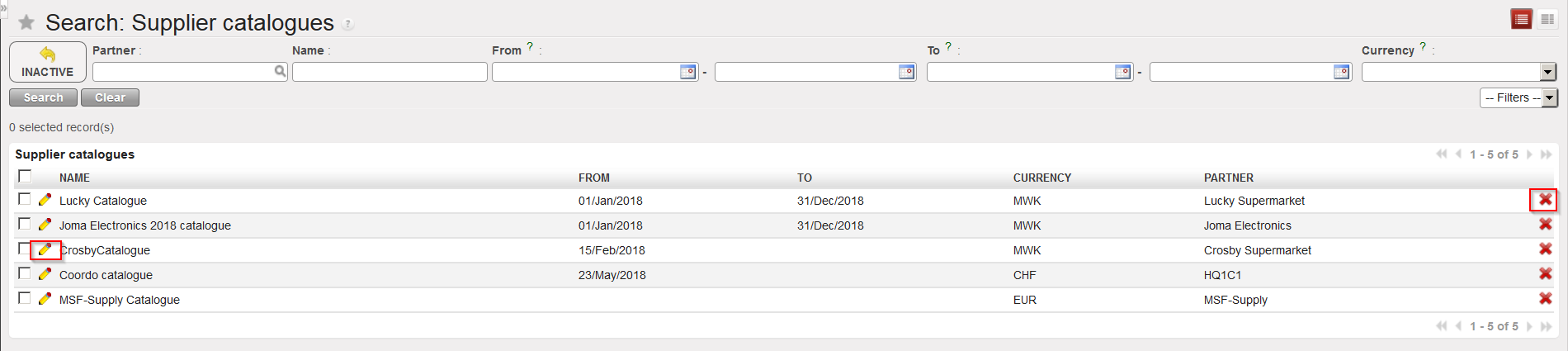
Supplier catalogues can be deleted (via the red cross) or updated (via the pencil icon).
|
|
|
Supplier catalogues |