Finance User Manual ENG -> 2. Finance Configurations -> 2.5 Analytic Accounts -> LUFI-20501 Destinations
LUFI-20501 Destinations
LU Introduction
The Analytical Destination is used to complete the information linked to an expense account (G/L accounts). With UniField you will associate each expense line entry to one of the four (4) analytical destinations (depending on how this expense/cost is going to be used). These destinations are:
- Operations
- Support (e.g. office cost, evaluation study, training, consultant)
- National Staff
- Expatriates
The analytical destination is an analytical dimension defined in the {Analytic Accounts} sub-module. When it is set, this dimension is reflected by default in the related expense accounts.
One expense account is linked to at least one default destination and one destination can be used in several expense accounts.
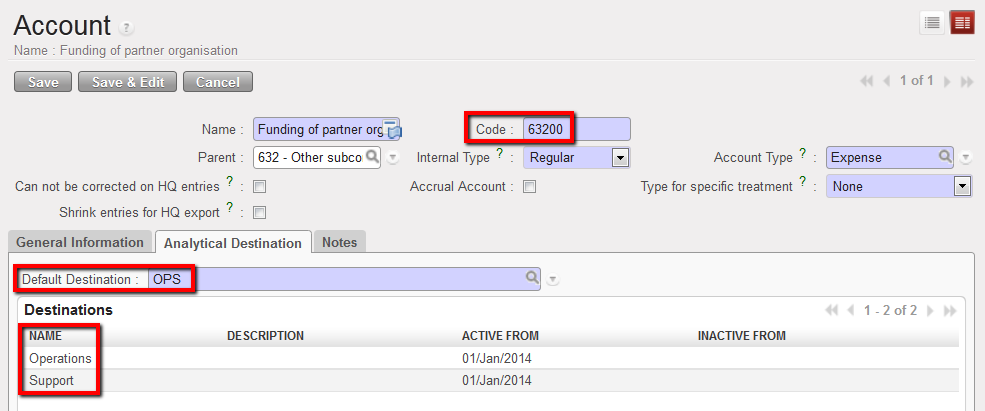
In this example, the account 63200 is associated to 2 destinations and defaults to Operations destination.
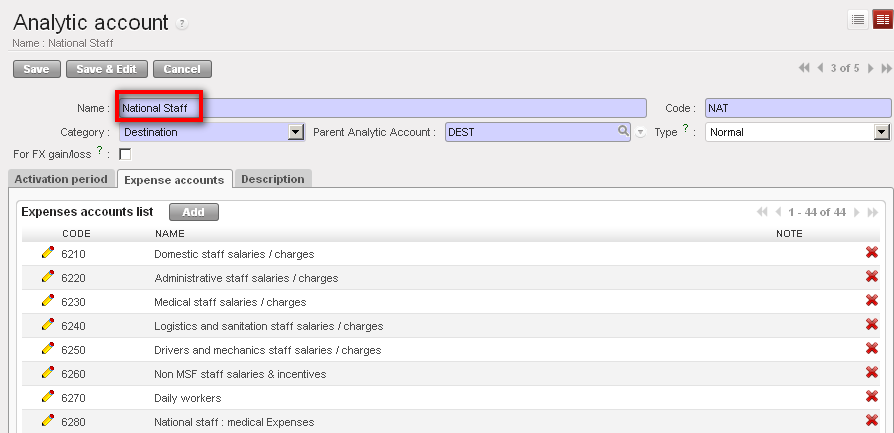
{National staff} destination and associated expenses accounts

How to Manually Create a Destination
As mentioned above, destinations are set up at time of the creation of the HQ instance and any modification, update or creation should be done at HQ. Manual creation of a destination should remain exceptional.The user will learn how to create manually destination accounts if for any reason they cannot be uploaded.
Go to: Accounting/Configuration/Analytic Accounting/Analytic Accounts
- To create a new destination, select {New} button.
- In the {Category} field, select {Destination}.
- In the {Name} field, enter a destination name. In the {Code} field, select a destination code.
- In the {Parent Analytic Account} field, select the associated parent analytical account using the magnifying glass
 . To do so, check your destination tree.
 - In the {Type} field, select {Normal}. You would select {View} if you were creating a Parent account.
- In the {Activation period} tab, select a date.
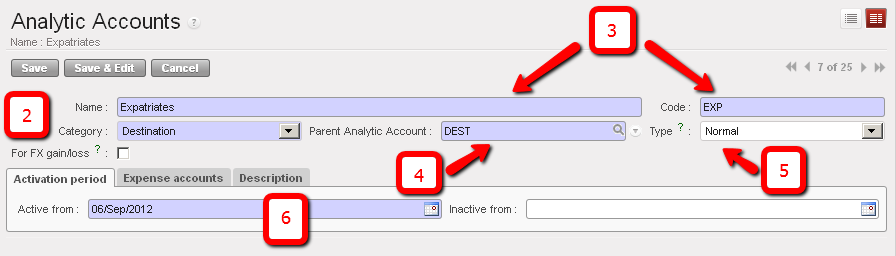 Destination creation. In this example we are creating a destination type Expatriates
7. In the {Expense accounts} tab click {Add} to open the {Search Charts of Accounts} window and check the boxes of the {expense} accounts you want to associate to this destination. Click {Select} to close the Search window.
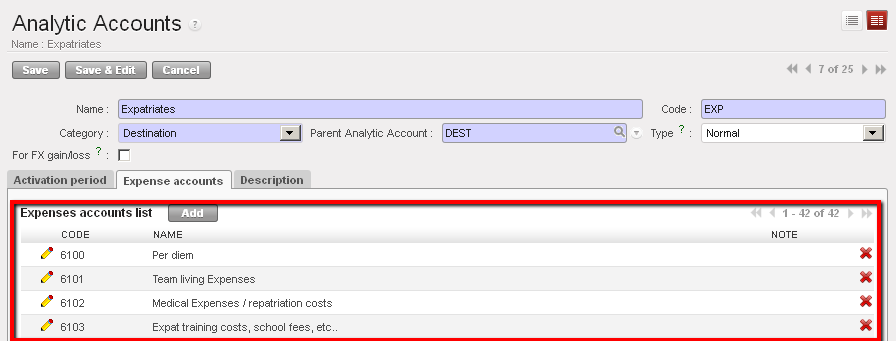 Expatriate destination and associated {Expense accounts}
8. Save the form
The destination is created
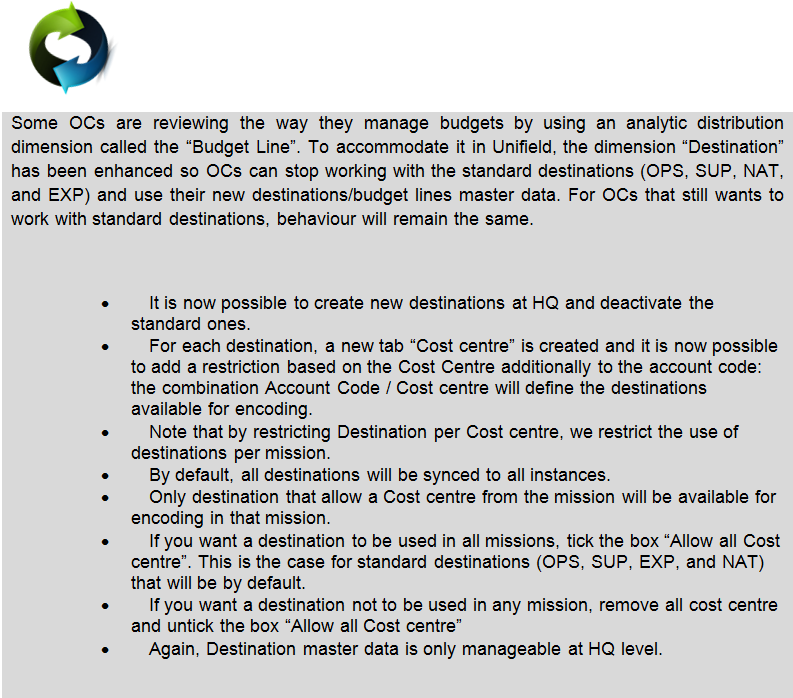
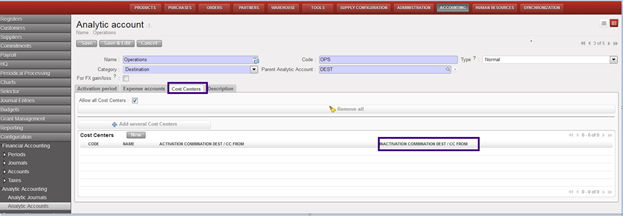
Inactivation Date for the combination “Dest / CC”

Go to Accounting >Configuration >Analytic Accounting>Analytic Accounts > Account category > search by Destinations
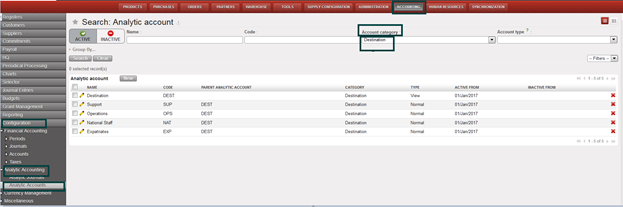
How to access new function of “Inactivation combination DEST/CC From”:
- Edit from yellow pen
- Click on “Cost Centers” tab
- You will find new list view “Inactivation combination DEST/CC From”: