
Finance User Manual ENG -> 2. Finance Configurations -> 2.5 Analytic Accounts -> LUFI-20503 Free Axis
LUFI-20503 Free Axis
A. LU Introduction
Free 1 and Free 2 axis are optional and can be set freely according to the specific needs of a mission. Once expenses have been allocated on these dimensions user can display them through the selector and export the outcome in Excel. Analytic lines booked on “Free1” and “Free2” accounts sync within the mission but do not sync up to HQ.
B. How to Create a Free Analytical Axis
Suppose you pay 2 rental houses’ and you want to split the rental cost allocation per house. You will allocate the rental to the cost center tree of your instance and create 2 additional analytic accounts inside the “Free 1” category. In the below example we show you the creation of Free 1.
Go to: Configuration/Analytic Accounting/Analytic Accounts
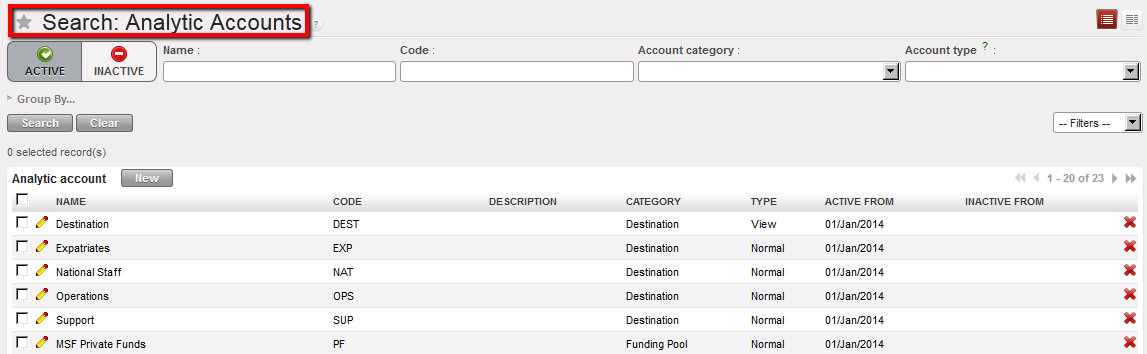 Analytic Accounts Search view displaying Active accounts
The Analytic Accounts Search view displays.
- Select
 to open an analytic account form view.
 - Complete the form. Make sure the Account Category is set to Free 1 and Type is Normal. The account should be linked to the parent Analytic Account FREE 1.
- Save
 the form.
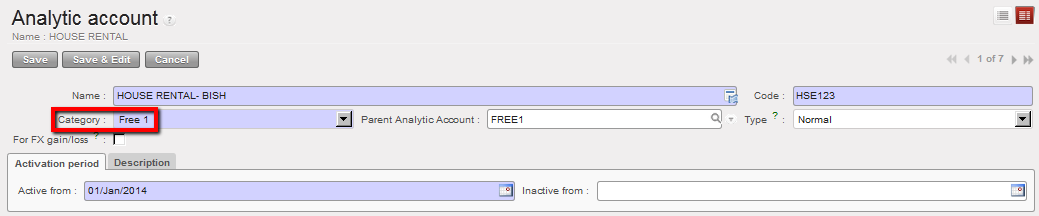 Analytic Account Free 1 is created
Suppose you want to pay now the houses rental. You record a transaction in the registers and allocate the cost splitting it into 2 additional analytic accounts. The allocation will look like this in the analytic distribution wizard.
More precision on payments will be given in Chapter 3 – Payments.
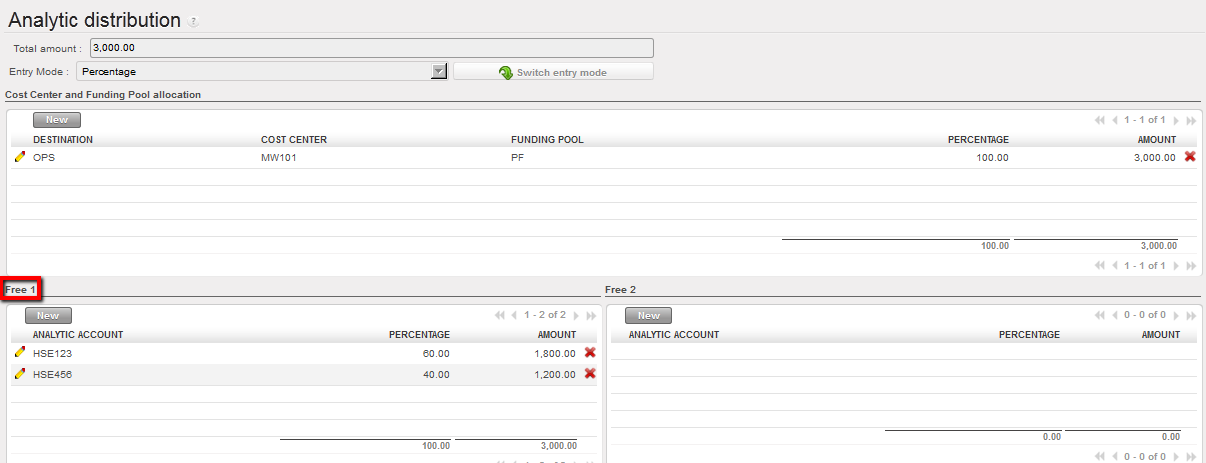 Analytic distribution wizard used to increase the cost allocation accuracy
