
Finance User Manual ENG -> 3. Payments -> 3.2 Purchase to Payment Process: Supply&Finance Links -> LUFI-30204 Supplier Invoices: Step Four in the Purchase Process
LUFI-30204 Supplier Invoices: Step Four in the Purchase Process
LU Introduction
A draft Supplier Invoice is created in UniField when the Incoming Shipment is validated. The quantities to the supplier invoice are coming from the incoming shipment, while the prices are coming from the purchase order.
The supplier invoices in {Draft} status can be edited. Finance can review and edit all allocation (accounting code and analytical distribution) before validation as all fields can be modified on the invoice line. From the accounting side, it is important to check if the account code and analytic distribution are assigned correctly.
In general, user will compare the hardcopy invoice from the supplier against the supplier invoice in UniField and make any corrections if needed before validation.
As some fields are linked to Supply POs, they should be changed only after an approval from supply. For example, if the products, quantities or prices on the paper invoice are different from the system invoice, then supply should inform finance that these changes are correct. Only then should Finance correct the price or quantity.
The validation of the supplier invoice changes the invoice status from {Draft} to {Open}, sets the related commitment voucher to {Done} or updates the amount left accordingly, deletes ENG journal entries and creates the expense and payable entries in the PUR journal.
Validating the supplier invoice does not affect the balance of the register. This means that the recognition of the expense and of the supplier payable is booked upon receiving the goods and the paper invoice but the invoice can be paid at a later point of time. The register balance is affected only at the time of payment.
| Status of Invoice | Stage in Process | Status in Journals | Modification allowed? |
| Draft | Invoice initially created | None | Yes, Edit invoice |
| Open | Invoice validated and imported or not into Registers
as temp posted | Valid / Posted | Yes, only through a correction – Chapter 5 |
| Paid | Invoice validated and imported into Registers
and hard posted | Valid / Posted | Yes, only through a correction – Chapter 5 |
Supplier Invoice Statuses
How to Edit Draft Supplier Invoices
Go to: Accounting/Suppliers/Supplier Invoices
- Search for the draft supplier invoice to edit either by selecting the {Draft} filter or any other filter located at the top of the view.
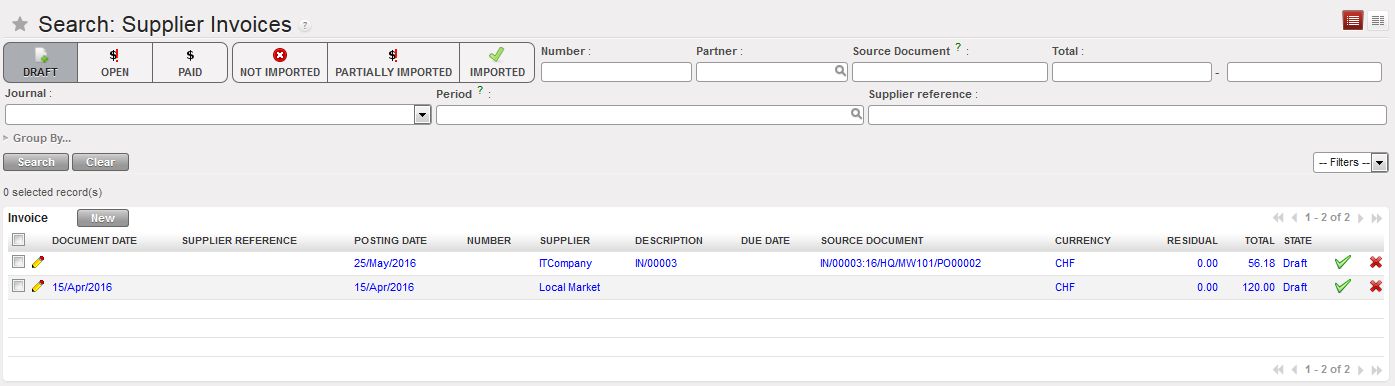 Draft supplier invoice
2. You can use the  {Pencil} to change the account, description, quantity, amount or tax on the invoice line level, select. When you are finished with the changes, select

3. or you can use the {form} for the same modification but it will give you more details.

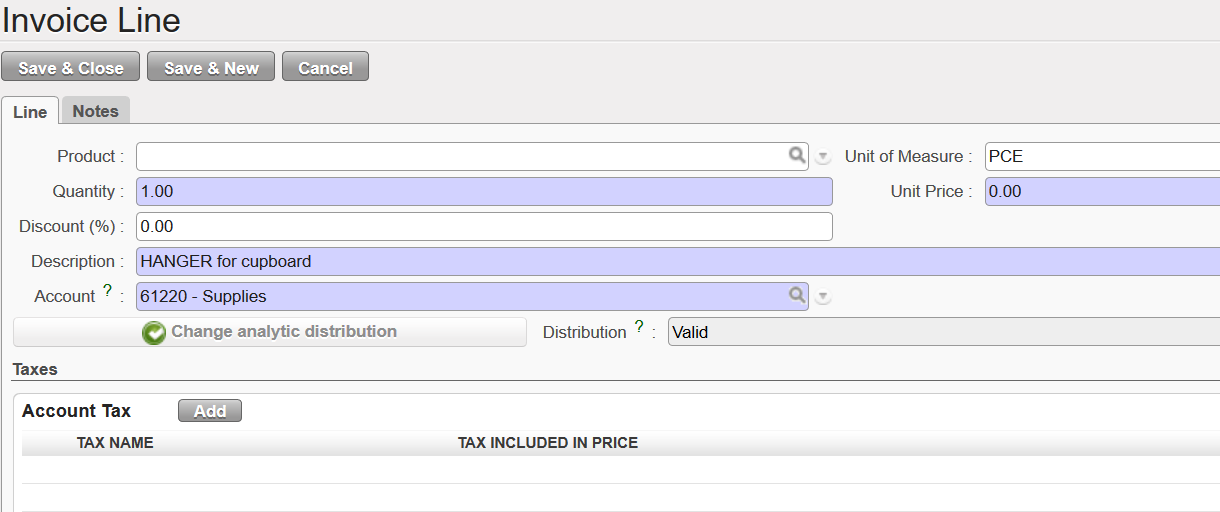
4. To change the analytical distribution, click on  on line level or globally using the button
5. Add a Due date (optional) and a Document Date if it is not done yet.
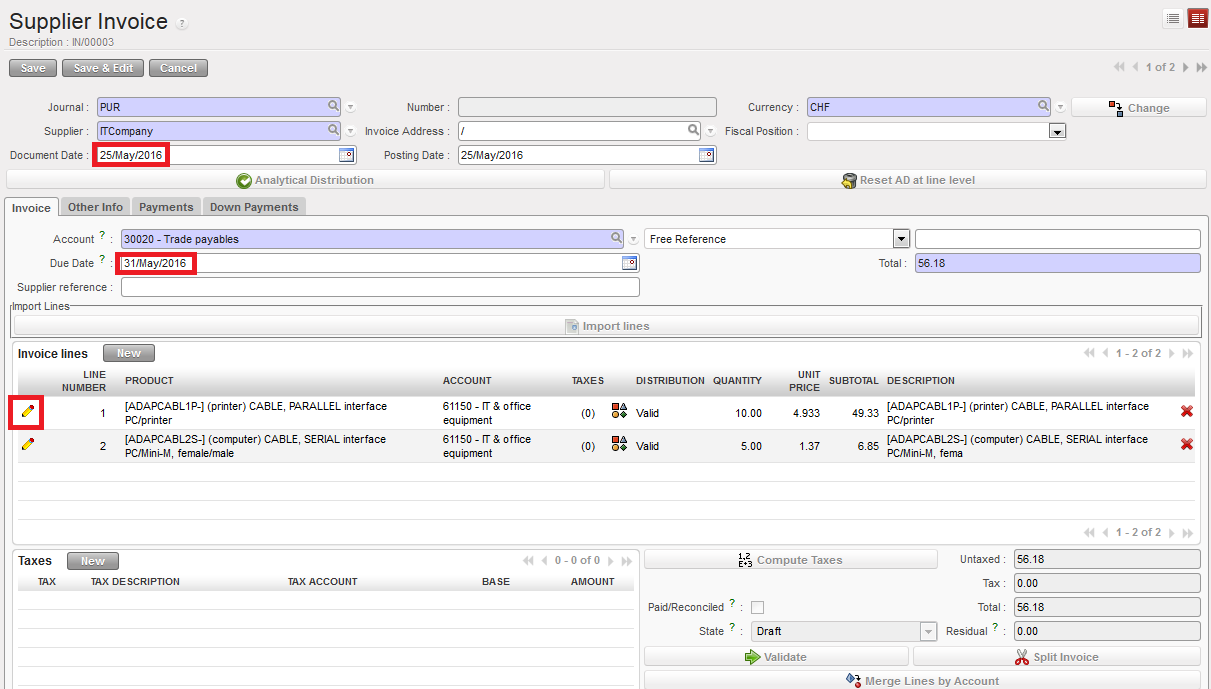 Edit button located on each invoice line, document date and due date fields
6. Click {Save} button. The supplier invoice is saved in {Draft} state.
Note! A quick way to edit the analytical distribution on a Draft supplier invoice is to select the  button located on the Supplier Invoice header. It allows removing all analytic distributions done at line level so that the header distribution prevails.
How to Split Supplier Invoices
Sometimes a Purchase Order containing several different products is invoiced with multiple physical invoices. In these cases you can split a draft Supplier Invoice into multiple invoices.
Go to: Accounting/Suppliers/Supplier Invoices
- Locate the draft supplier invoice to edit, and select
 to open the supplier invoice form.
 - In the bottom of the invoice, press

- Screen “Split invoice” will be displayed, Select the lines to be split ; the wizard will create a new invoice and adjust the original one.

4. Select the invoices lines to be deleted
5. Delete the lines from button “Delete”
7. Click “Confirm” as below

8. After deletion “ Confirm”
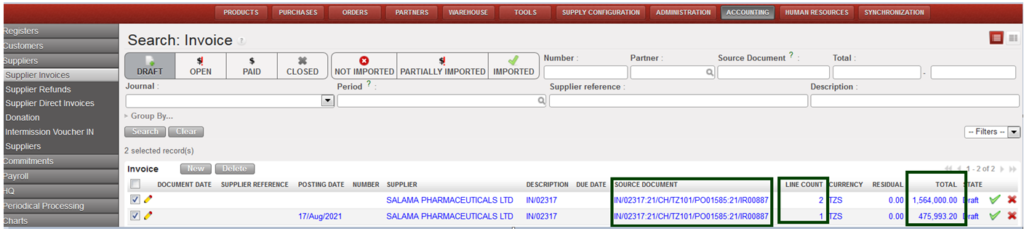
9. The deleted lines will create new invoice as below:
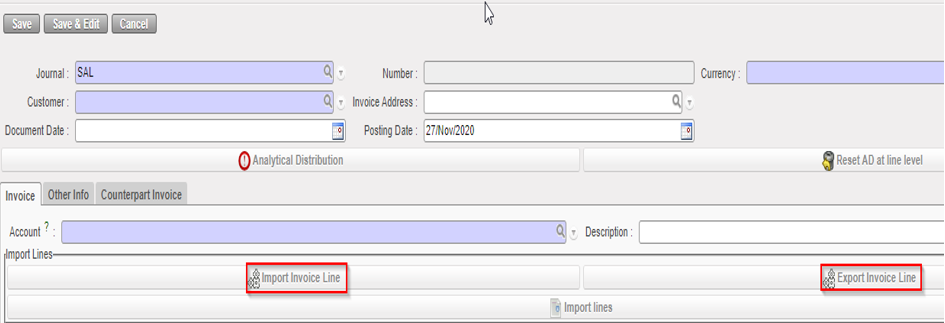
How to Import/Export Invoice Lines in the invoice objects.
You can Export the invoice lines from the supplier invoice through {Export Invoice Lines}. You can modify several fields in the Export file including the amounts and descriptions, and you can import the file (for invoice lines) through {Import Invoice Lines}.
- If the invoice line has been split, you will have the word “SPLIT” in the excel file and the analytical distribution will be empty.

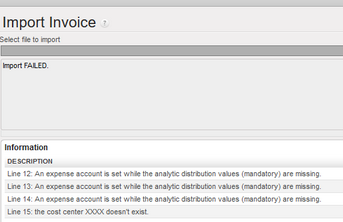
- If we try to import incorrect values (cost center that does not exist, mandatory values not reported…), the import will fail, and we will have error messages:

Split invoice lines through import:
If more than one line of the Supplier Invoice needs to be split, this can be done as detailed below:
- Open “Supplier Invoice”
- Click on button “Export Invoice line”
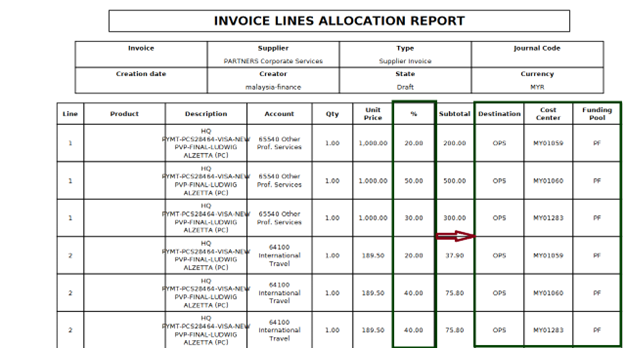
- In the exported file update columns from H to K which covers respectively (Percentage, Cost center, Destination and Funding Pool)
- The split must be with semicolon (;) character, in column percentage update with numbers, then other columns will take the percentages according to column percentage respectively, see below:

- Import the update file through “Import Invoice line”
- Click on “Invoice Allocation” it will produce “INCOICE LINES ALLOCATION REPORT” the same allocation as what exported as below:
How to Validate Supplier Invoices
When the invoice is in {Draft} and reviewed, it can be validated.
Go to: Accounting/ Suppliers/Suppliers Invoice
- Search for the draft supplier invoice to validate either by selecting the {Draft} filter or any other filter located at the top of the view.
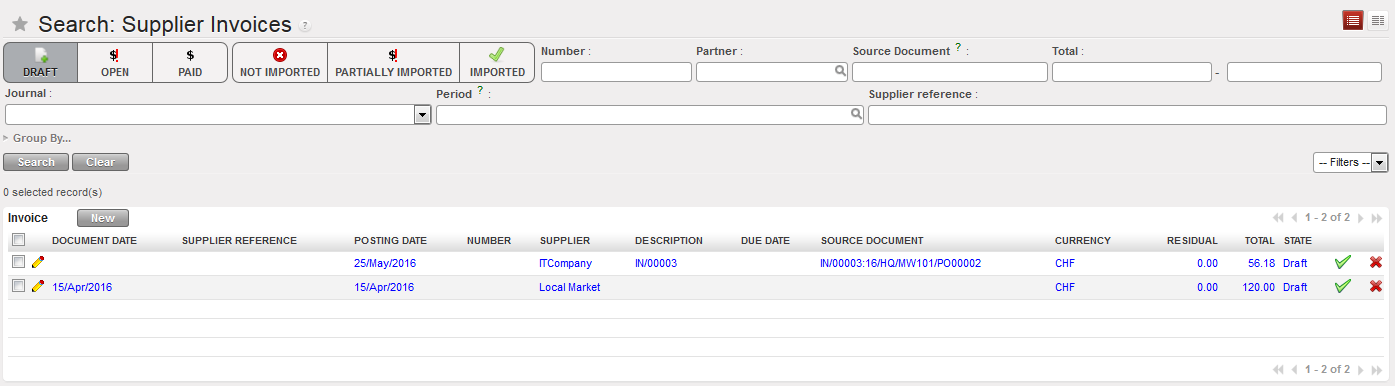
2. When the invoice is located, click on the pencil  to open the form.
3. Validate it by pressing 
The invoice state becomes {Open}.
Validation of the invoice automatically deletes the engagement lines created by the commitment voucher as the promise to pay is now a formal obligation represented by the automatic creation of a payable entry in the Purchase Journal.
Posted journal items resulting from the validation of a supplier invoice. In this example, the VAT is recoverable.
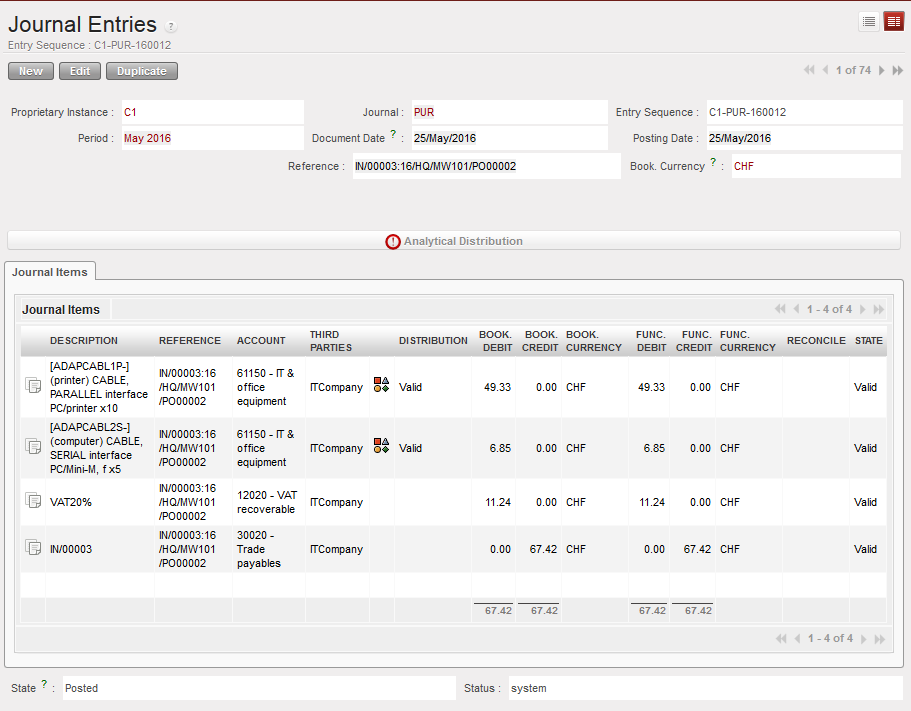
In the Purchase journal, entries are booked as follow:
- On the Debit side:
Expense accounts, 61150 corresponding to the invoice line
VAT recoverable, 30300 (the VAT was added on invoice level)
2. On the Credit side:
Trade Payables account, 30020 corresponding to the outstanding debt towards the supplier
Advice: Supply or Finance can write down the UniField invoice number on the hardcopy invoice provided by the supplier to make cross-referencing easier.
How to Print Supplier Invoices
Go to: Accounting/Supplier Invoices
- Tick the box of the invoice you want to print.
- In the Action Menu on the right side of the screen, in the section {Reports}, select {Print report}.
- A PDF report will display the invoice details.
The columns {Description} and {Source Document} will be filled only if the supplier invoice originated from a supply flow.
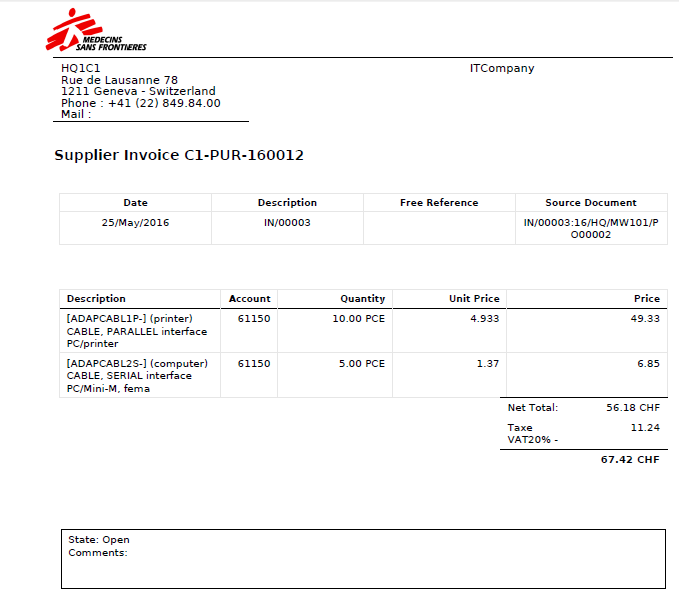
Supplier invoice report displayed. This invoice is Open.
