
Finance User Manual ENG -> 3. Payments -> 3.2 Purchase to Payment Process: Supply&Finance Links -> LUFI-30205 Supplier Invoices Manually Created by Finance
LUFI-30205 Supplier Invoices Manually Created by Finance
LU Introduction
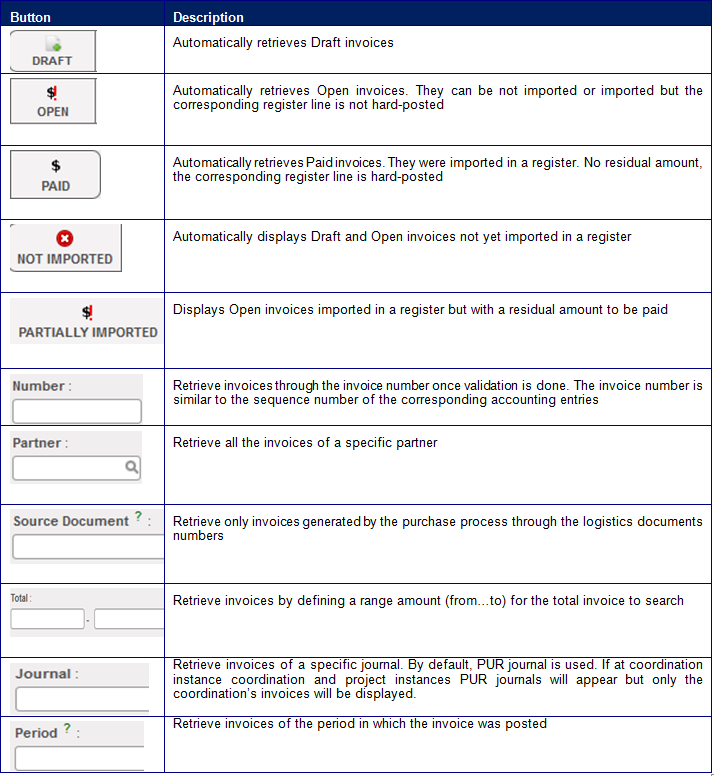
Previously, we explained the automatic creation of supplier invoice through the purchase process initiated by supply. In addition, finance can create a supplier invoice as a stand-alone invoice in the Accounting Suppliers sub-module when finance is paying for goods or services not purchased by supply. Items listed on the manual supplier invoices will not be reflected in the UniField warehouse stock.
The validation of a manual supplier invoice automatically creates the expense and payable entries in the purchase journal.
B. How to Create Supplier Invoices Manually
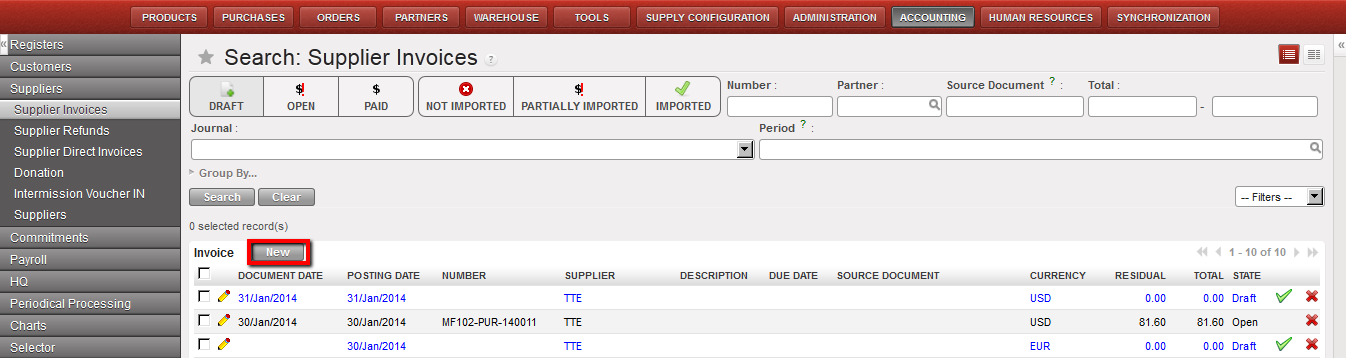
Creating a supplier invoice in the {Supplier invoice} Search view
Go to: Accounting/Suppliers/Supplier Invoice
- Click on {New} to create an invoice
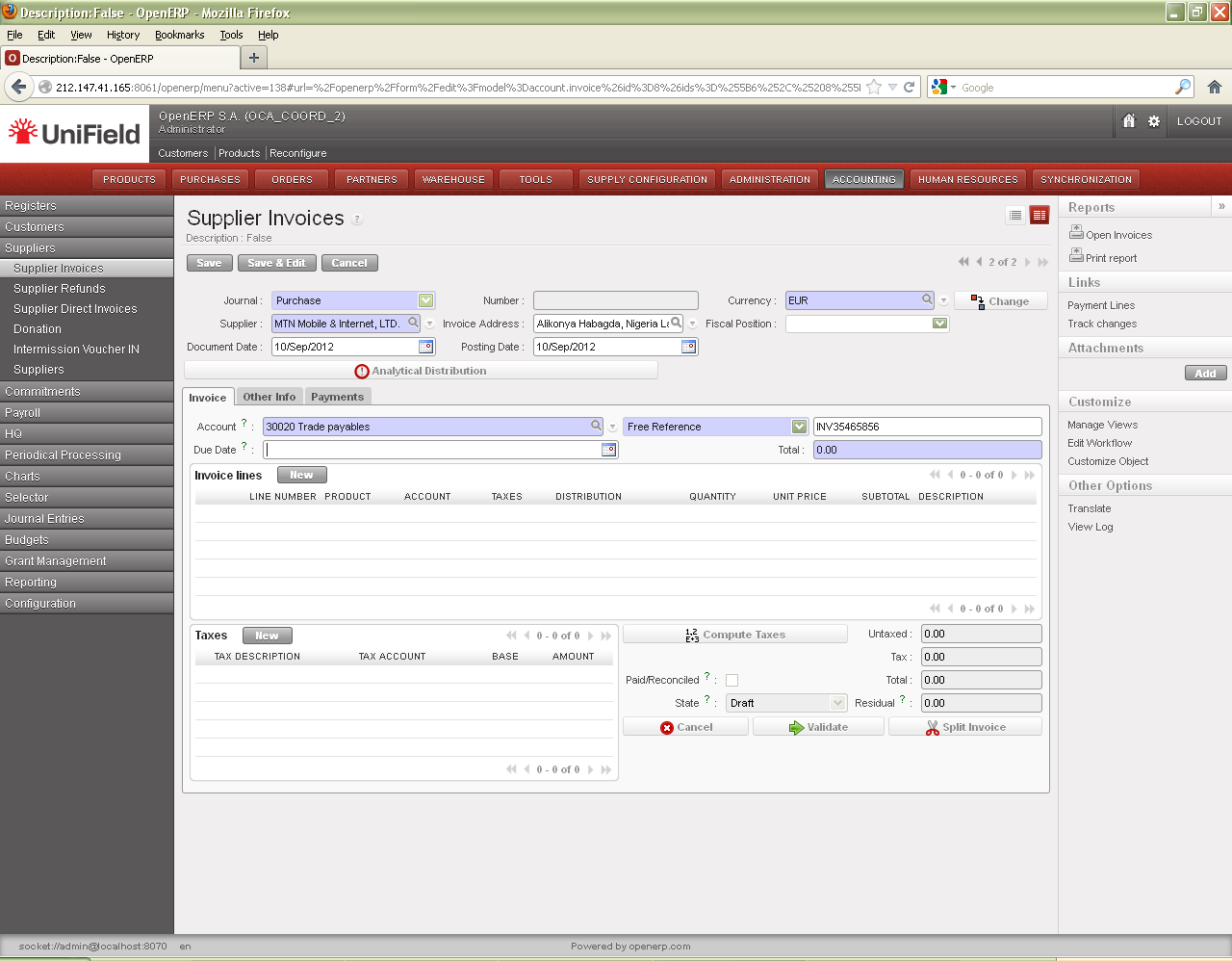
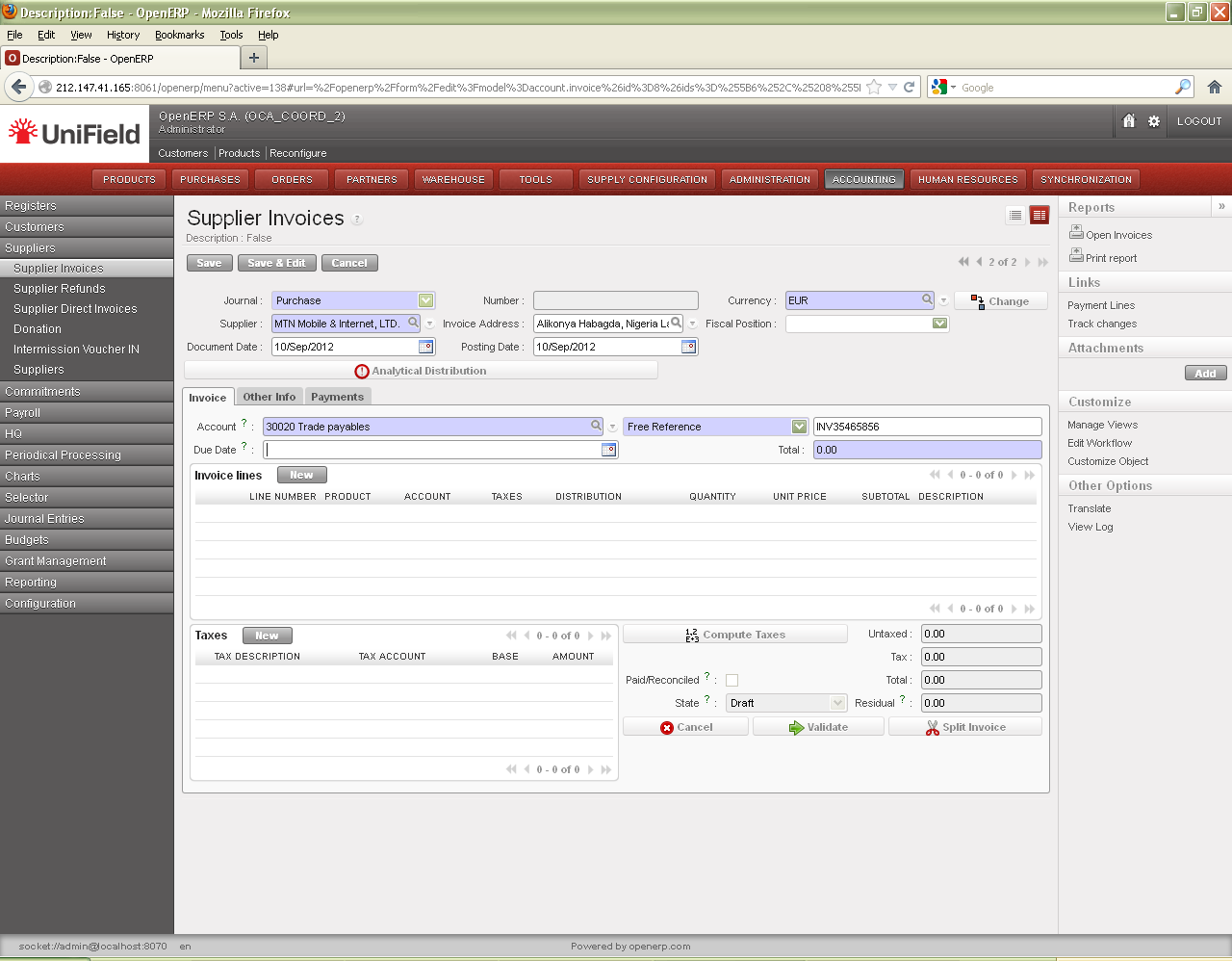
A form displays to create a new invoice. Fields in blue are required; white fields are optional; grey fields are read only.

| Title of field | Entry protocol: supplier invoice | Source for Information |
| Journal | System default | Journal in which the entries will be booked |
| Number | System default | UniField invoice number to be assigned when the invoice is validated |
| Currency | System default | The currency is by default selected based on the {Supplier} selected for the invoice |
 |
Button | You have 2 options to manage the supplier invoice currency:
|
| Supplier | User selected | From Suppliers list |
| Invoice Address | System default | From Supplier selected for invoice |
| Fiscal Position | System default | Depends on specific OC procedure |
| Document Date | Manual entry | Date of invoice |
| Posting Date | System default | Defaults to the date of the incoming shipment that has been entered. It can be changed |
is used to apply a global analytic distribution across all lines in the invoice. This can be used as a time saver if all lines on the invoice use the same destination, funding pool, cost center, etc. If most of the lines have the same information it is possible to use the analytical distribution line to allocate all and then individually update the few lines with variances.
2. On the {Invoice} tab, you complete additional fields as explained below
 Invoice tab on a supplier invoice
| Title of field | Entry protocol: supplier invoice | Source for Information |
| Account | System default | From Supplier selected for invoice |
| Free Reference | Manual entry | Indicate the invoice number of the hardcopy supplier invoice. It will be displayed in the reference field of the payment line. |
| Due Date | Manual entry | When the payment is due; some suppliers require net 30, net 60 or immediately upon receipt or a certain due date. This is good to enter if you want to search for open invoices based on due date. |
| Supplier Reference | Automatically taken from Supplier form | If the Supplier reference is filled out in the Supplier form, it will automatically be taken into this field |
| Total | Manual entry | To be entered right before validating the invoice and should match the calculated total of the invoice lines; this is just a check for the user to confirm the total amount |
3. In the {Invoice Lines} section, click {New} to create a new invoice line.
Example: In February we have received an invoice from the company TTE for printer. The printer and cables are used by two different projects. Thus, we want our invoice to have 2 invoice lines allocated to 2 different projects.
 {New} button to input invoice lines
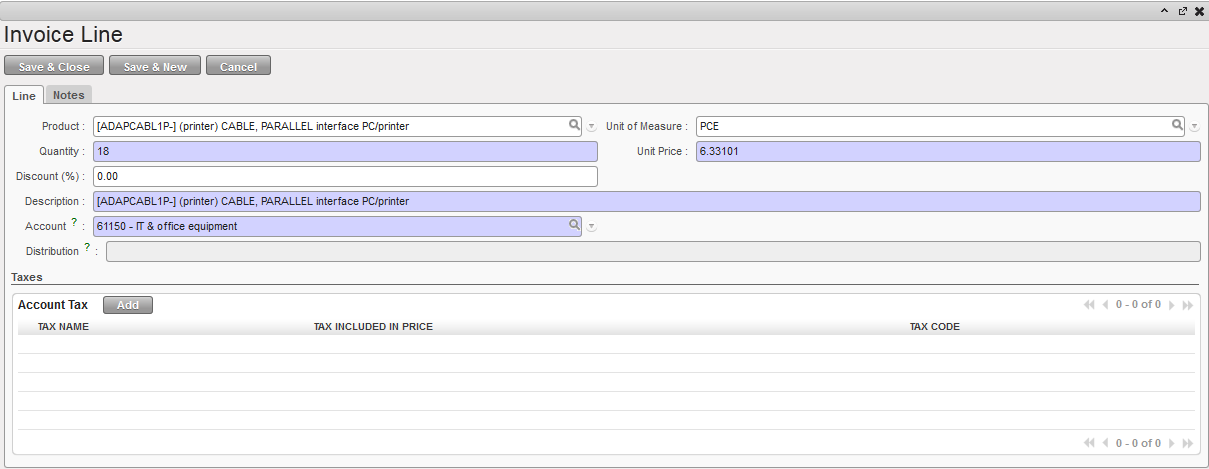 {Invoice Line} window to add line items on a manually created Supplier Invoice
| Title of field | Entry protocol: supplier invoice | Source for Information |
| Product | Manual entry | From the Product list used by Logistics |
| Unit of Measure | Manual entry | From the list used by Logistics |
| Quantity | Manual entry | For services, use “1”; for goods, use actual quantity |
| Unit Price | Manual entry | For services, enter total amount that will be booked to this invoice line; for goods, use actual price |
| Discount (%) | Manual entry | % discount applied if applicable |
| Description | Manual entry | Similar to the current description in use |
| Account | Manual entry | Expense account code |
| Distribution | System default | View only; will display Valid or Invalid after analytical distribution has been applied |
| Account Tax | Manual entry | Please see individual OCs financial procedures and input a tax accordingly |
4. Click {Save & New} button for additional invoice lines, or {Save & Close} button to return back to the supplier invoice window.
5. Assign the analytical distribution  per line or globally across all invoice lines.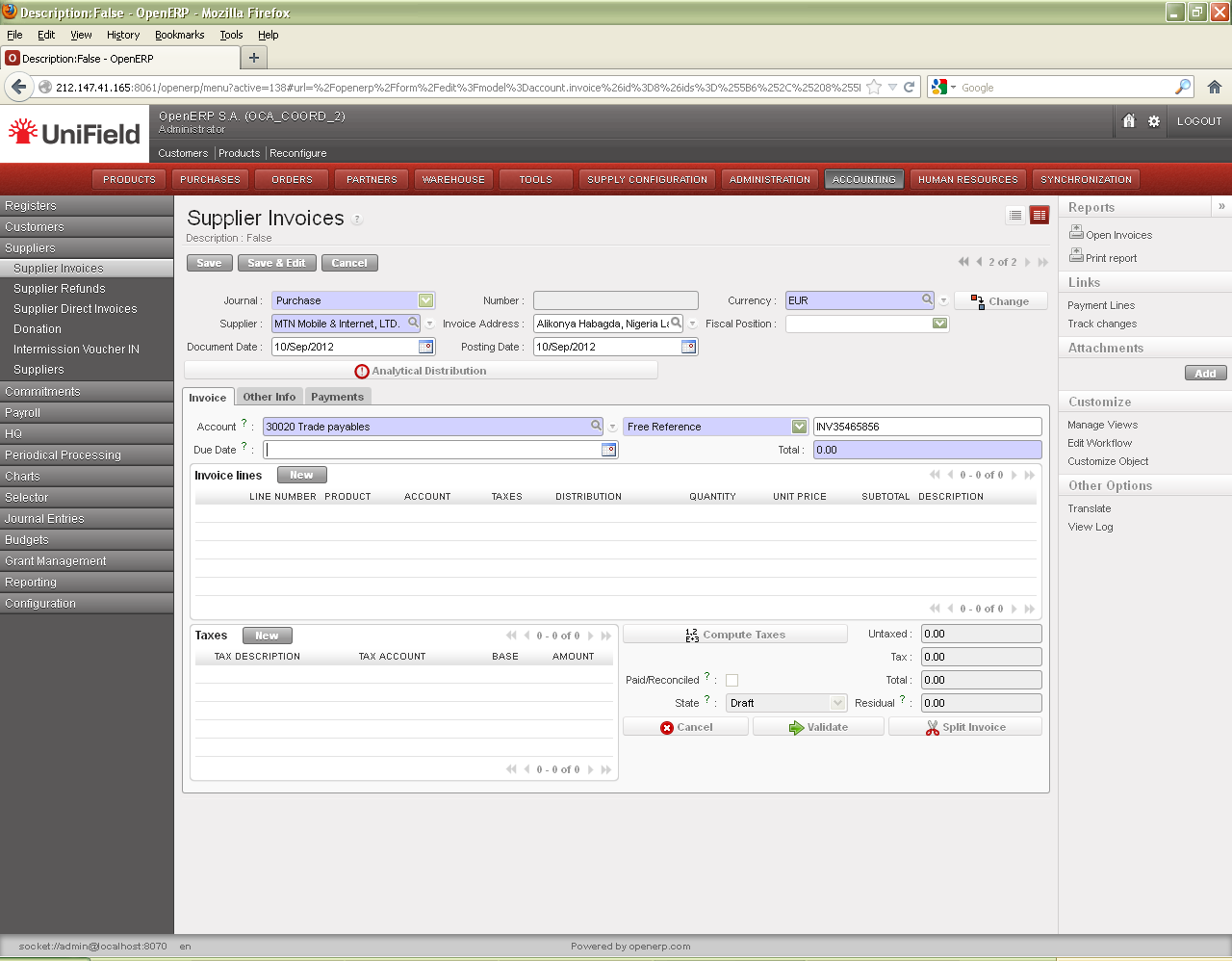
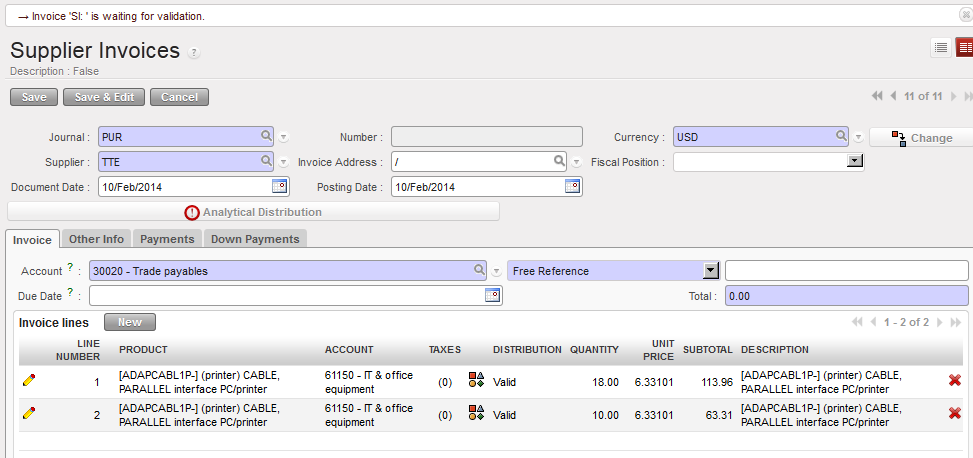 Valid analytical distribution on invoice lines
6. Enter {Total} and verify that it matches the total on the hardcopy invoice.
7. Click {Save} button.
The invoice is created in {Draft}, viewable at the bottom of the document.
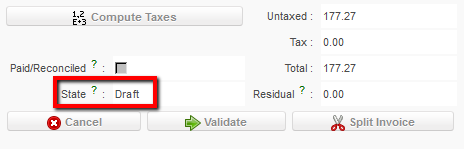
Invoice state viewable at the bottom of the document
Further, the {Other Info} tab shows the {Amount to be paid} on the supplier invoice which could be adjusted through changes or partial refunds to the original amount. The {Journal Entry} is a link to the entries in {Journal Items} associated with the supplier invoice once the invoice is validated. {Responsible} identifies the user who validated the invoice. The other fields come by default from the supplier record if that information had been entered.
 {Other Info} tab
The {Payment} tab will show payments made for this supplier invoice. Thus it could show for instance an advance delivered to a third party (down payment), if so it will be displayed in the down payment tab too.
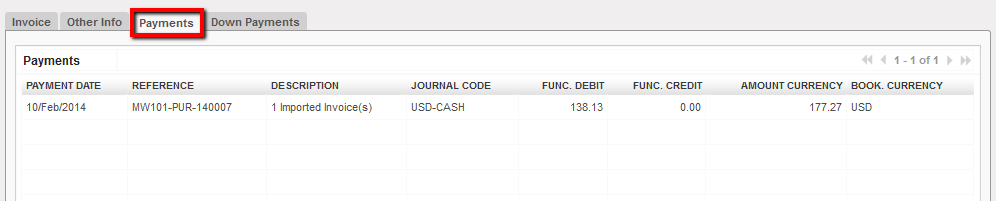 {Payments} tab of a Paid supplier invoice
Finally the {Down Payment} tab as you might expect displays advance payments done to suppliers.
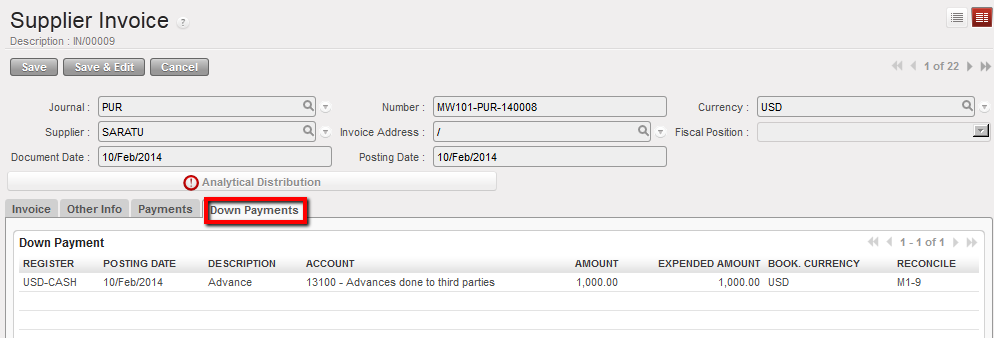 Down Payments tab of a supplier invoice
For editing, validating and printing a supplier invoice created manually, please read LUFI- 30104 as the tasks description are identical.
How to Delete Manually Created Draft Supplier Invoices
Go to: Accounting/Suppliers/Supplier Invoices
- Search for the draft supplier invoice to delete either by selecting the {Draft} filter or any other filter located at the top of the view.
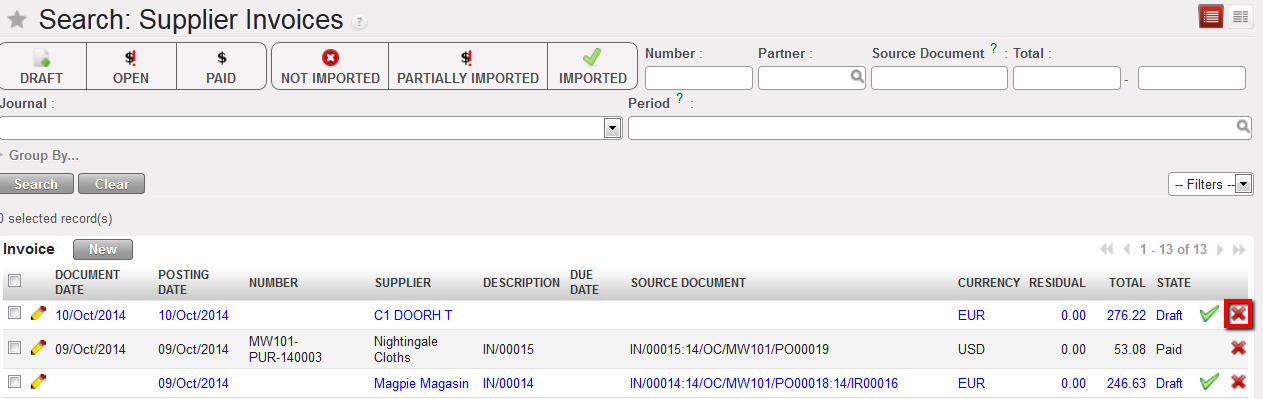 Delete button to erase a draft supplier invoice in the Search Supplier Invoices view
2. Locate the draft supplier invoice to edit, and select the red cross  to delete the supplier invoice.

