Finance User Manual ENG -> 3. Payments -> 3.2 Purchase to Payment Process: Supply&Finance Links -> LUFI-30206 Supplier Invoices and VAT
LUFI-30206 Supplier Invoices and VAT
LU Introduction
In chapter 02 – Configurations, we have seen how a VAT code was set in UniField.
Once a VAT code is set, you can :
- Associate a VAT to a product in the product form (LUFI-20902). We explained it in Chapter 2 – Configuration.
- Associate automatically a VAT to a whole invoice.
Now we will see how to compute a VAT code on a Supplier Invoice when the code was associated to a product.
How to Apply a VAT Code to a Supplier Invoice When the VAT Is Associated to a Product
Go to: Accounting/Suppliers/Suppliers Invoices
- Select
 to open a new invoice form.
 - Complete the mandatory blue fields and allocate the invoice lines to analytic accounts. Make sure the product you chose is associated to a tax code.
- Select {Compute Taxes} to calculate the VAT applied to this invoice.
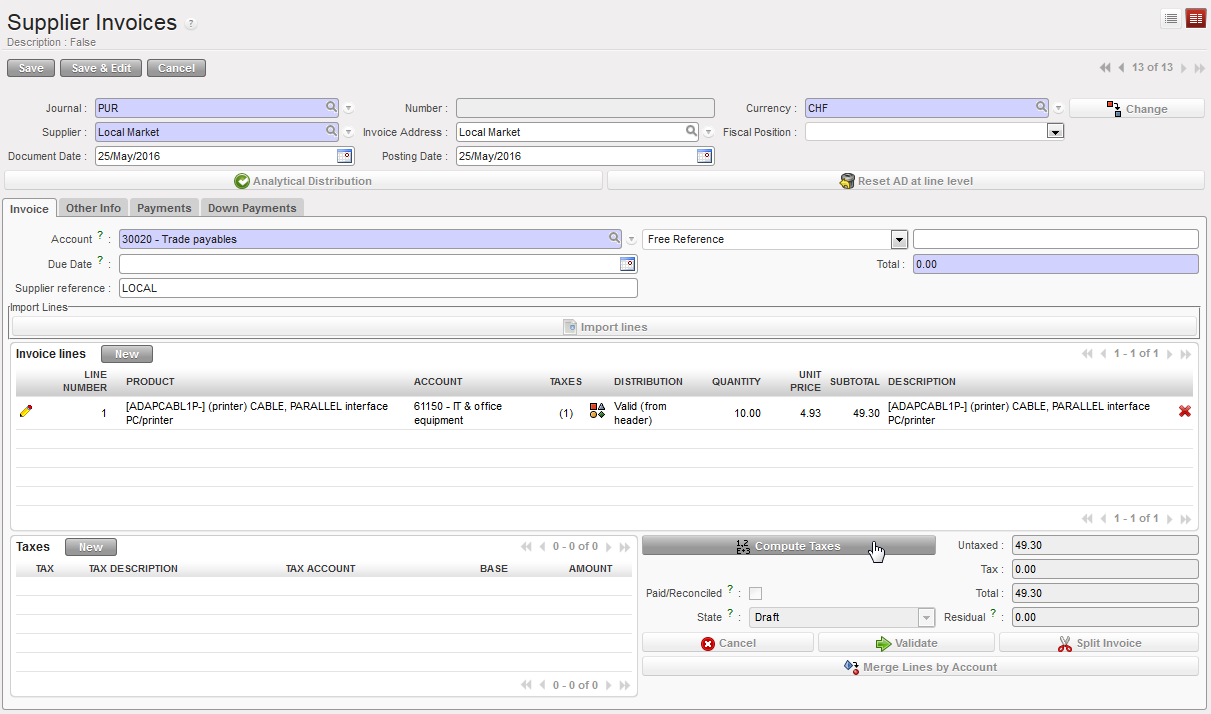 Compute Taxes button for automatic calculation of the VAT applied to this invoice
The tax displays automatically.
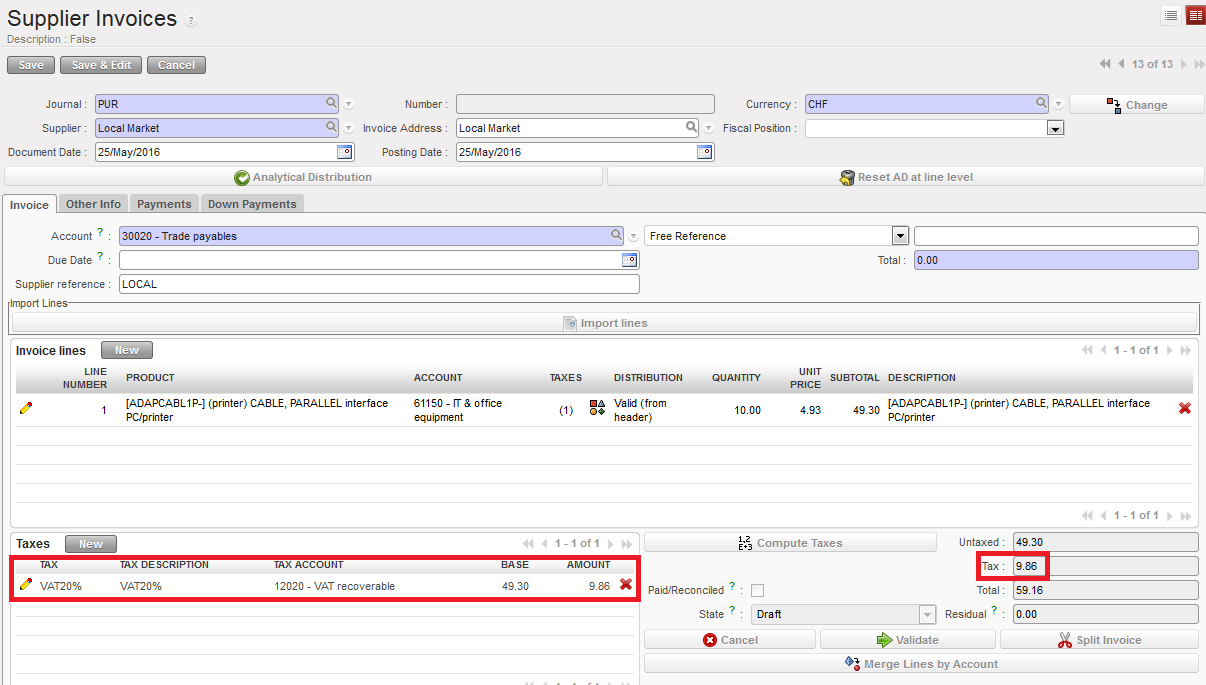 The tax is calculated automatically. Amount excluding and including VAT are split.
4. Now suppose you want to validate the supplier invoice. Select the {Validate} button.
In the Purchase journal, entries are booked as follow:
Posted journal entries when an invoice to which a VAT is applied is validated
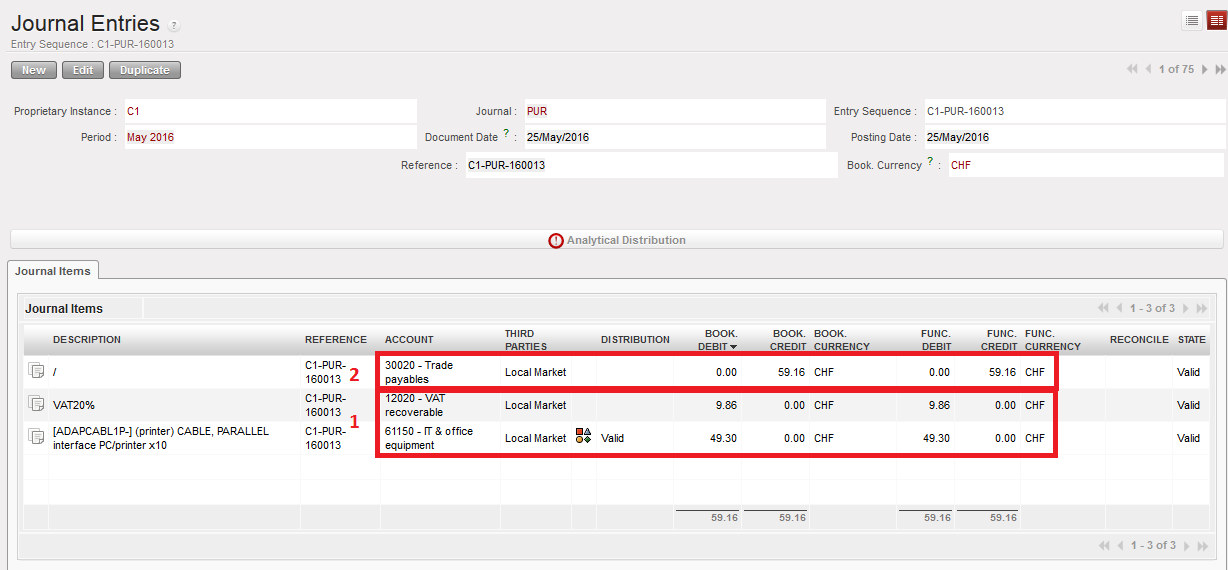
- Box 1: On the Debit side:
– Expense accounts, 61150 corresponding to the invoice lines
– VAT Recoverable account, 12020
- Box 2: On the Credit side:
Trade Payables account, 30020 corresponding to the outstanding debt towards the supplier (including VAT)
Advice: Supply or Finance can write down the UniField invoice number on the hardcopy invoice provided by the Supplier to make cross-referencing easier.
How to Apply a VAT Code to a Whole Invoice
It is possible to assign a VAT code directly to a whole invoice if you choose not to link a product to a VAT code. In this case, the VAT code has to be “excluded from price” type meaning that the VAT amount is always fully applied on top of the invoice line amounts.
Go to: Accounting/Suppliers/Suppliers Invoices
- Select
 to open a new invoice form.
 - Complete the mandatory blue fields and allocate the invoice lines to analytic accounts.
- Select
 to populate the invoice amount.
 - Go to the Taxes section and select
 to link the invoice to a tax code
{New} button to insert a tax code applicable to the supplier invoice
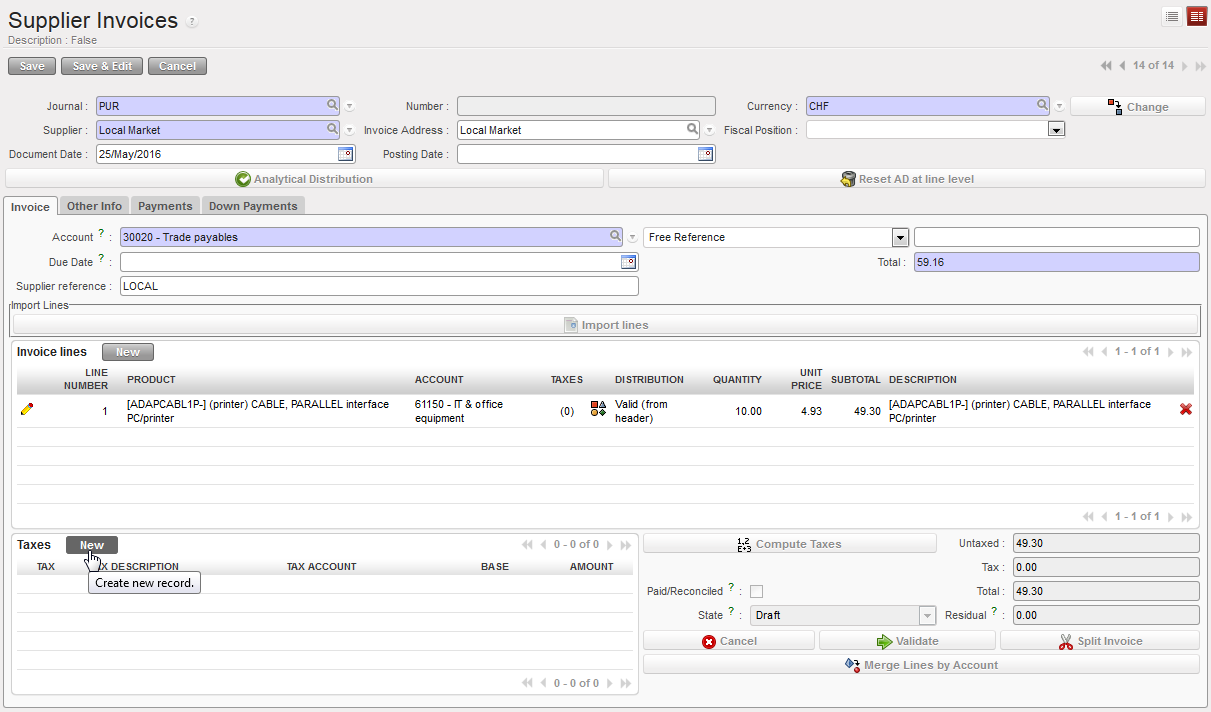
5. In the {Tax} field, select a tax code set in the system using the magnifying glass
 TAX code selection and automatic input of TAX DESCRIPTION, ACCOUNT and AMOUNT field
The {Tax Description}, {Tax Account} and {Amount} fields are populated automatically
6. Save 
7. Save  the form
8. Press 
9. Finally, you can manually input a tax code in the Tax section:
- From step 4, in the {Tax Description} field, input a description
- In the {Tax Account} field, select the account Tax recoverable
- In the {Amount} field, insert the VAT amount calculated manually, usually based on the untaxed amount
 Manual input and calculation of the VAT
- Save

- Press
- Save

- the form