
Finance User Manual ENG -> 3. Payments -> 3.2 Purchase to Payment Process: Supply&Finance Links -> LUFI-30202 Commitment Vouchers: Step Two in the Purchase Process
LUFI-30202 Commitment Vouchers: Step Two in the Purchase Process
LU Introduction
When a regular order is placed to an external supplier , inter-section or intermission, MSF has an engagement (or promise to pay) towards the supplier. The commitment voucher helps us monitor our budgets and cover the gap of time from the moment MSF agrees to buy an item to the moment MSF pays for it (upon reception of the goods). UniField automatically creates a Commitment Voucher (CV) in {Draft} state when a full PO or an individual PO line to an external partner ,inter-section or intermission is confirmed. Once checked and validated by an appropriate finance staff member, this voucher is included in the budget as a commitment to pay and the related extra accounting lines are created in the engagement journal. The commitment voucher is set to {Done} when the supplier invoice,inter-section or intermission are validated by the finance team.
Below we will see how to validate a Commitment Voucher once it was issued via the Supply flow. Then we will explain the creation of a manual commitment voucher in case the purchase did not go through the supply process and you still want to reflect the engagement into your budget.
How to Validate Commitment Vouchers:
Go to: Accounting/ Commitments/Commitment Voucher
- Search for the {Draft} voucher to validate either by selecting the {Draft} filter or any other filters located on top of the view.

2. When you have located the voucher, click on the pencil icon to open the form
The voucher opens in Form view
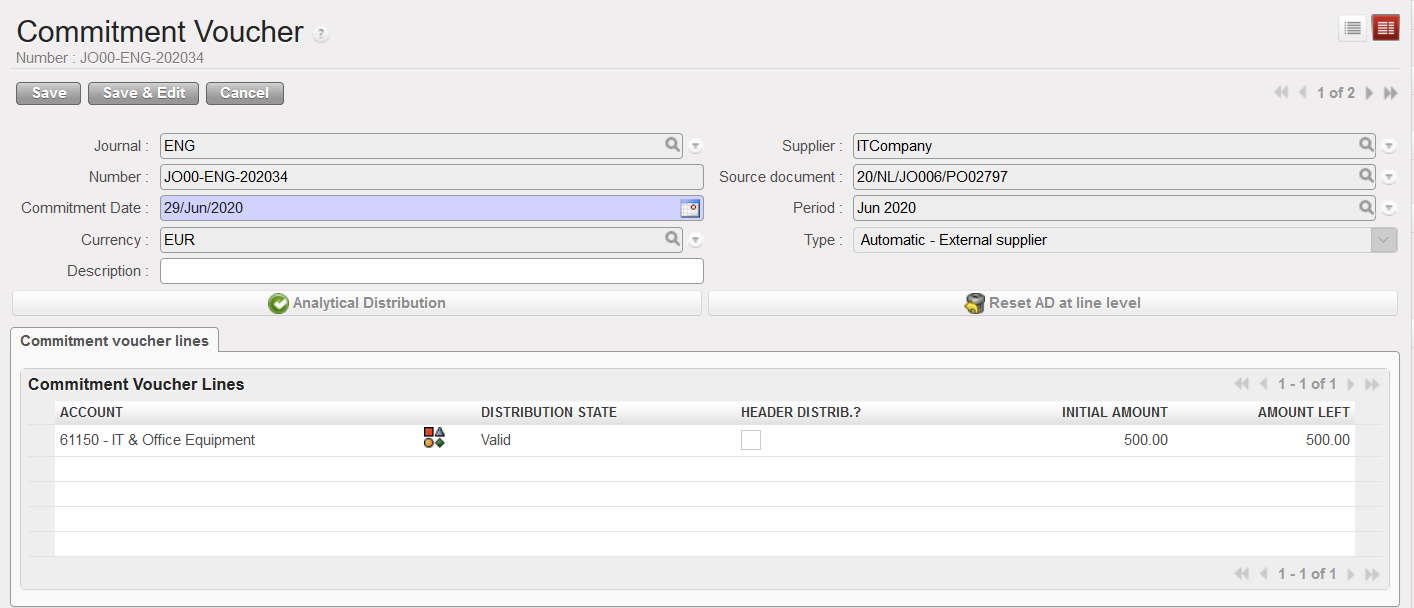 Commitment voucher in Form view where the analytical distribution can be changed
3. Click on AD wizard if you want to change the analytical distribution. Please remember this does not update the information on the PO but it does on the supplier invoice,inter-section or intermission,.
The analytical distribution wizard appears
4. Select the button to edit the fields. Note that the funding pool was not a field which Supply entered in the PO; it defaults to {PF – MSF Private Funds}. Thus, you must change the funding pool if there are donors to be considered. Account codes and amounts cannot be changed if the commitment voucher was created automatically by the confirmation of a Regular type PO. Save the line and to close the window.
5. You can update the {Description} at the header level of the Commitment Voucher. This field will be empty and editable (even after CV validation). If nothing was written and the field {Description} was left empty, the value per default would be the same as the entry sequence.
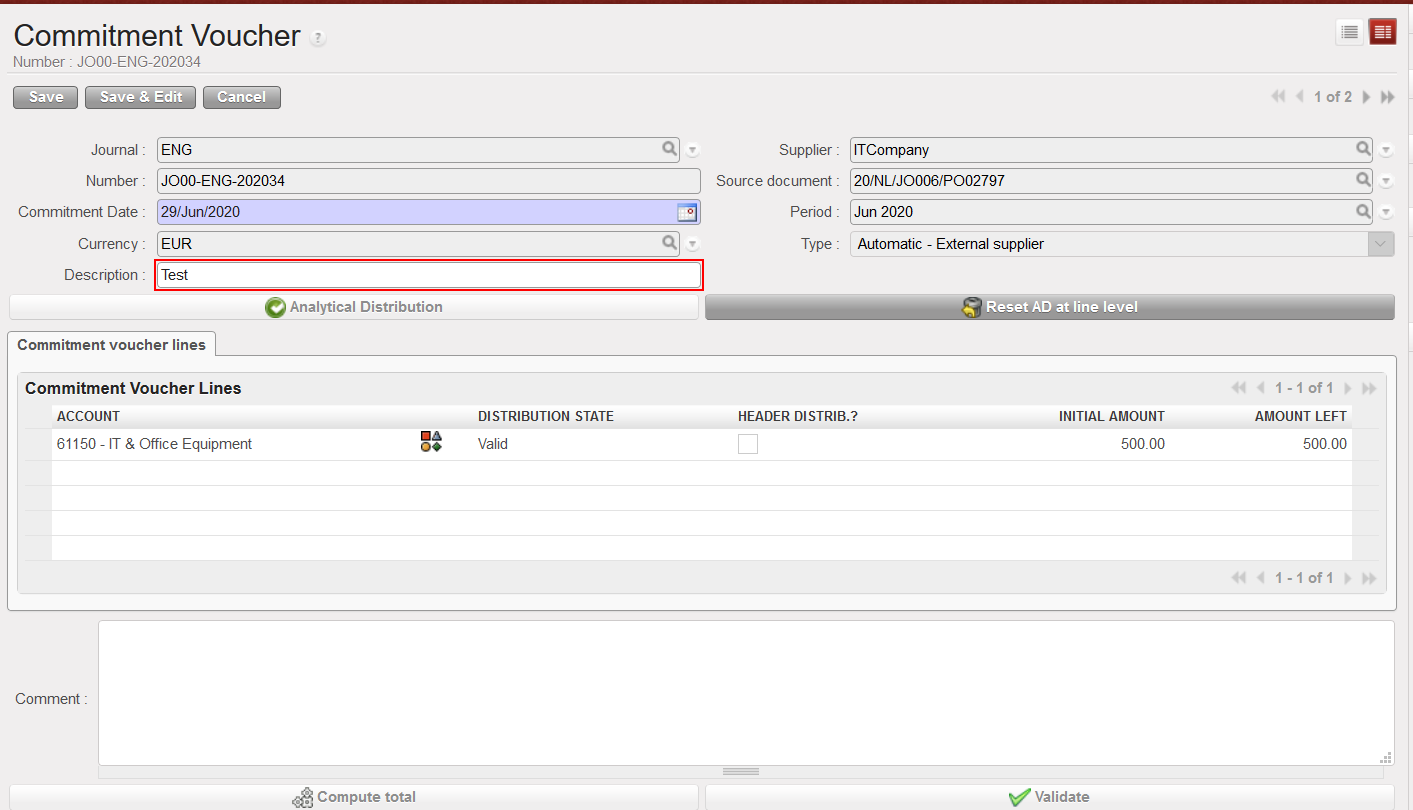
Click {Validate} at the bottom of the screen when finished. The commitment voucher is validated and analytic journal items reflected in the {Engagement} Journal and the amounts will appear as Engagements in the Budget reports.
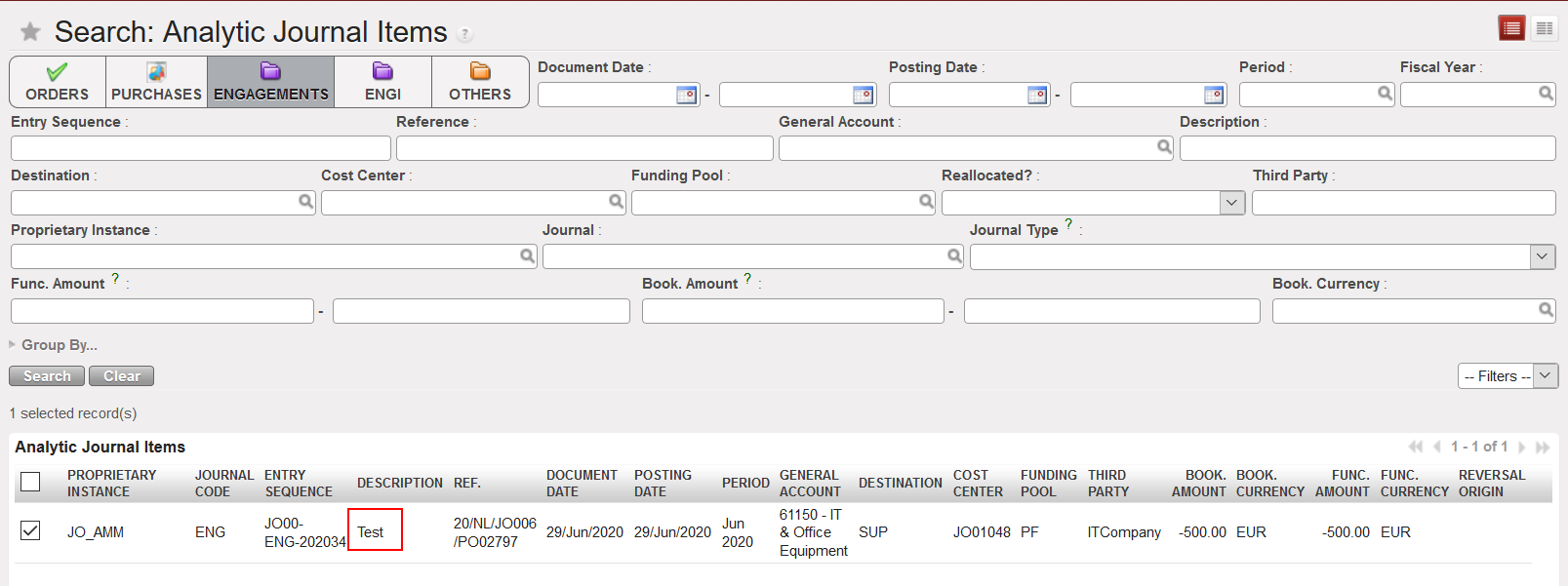 Analytic journal items reflected on the Engagement journal. These lines are not editable
How to Manually Create Commitment Vouchers
There may be occasions when purchases or payment will not go through the PO process (e.g. services) in which case an advanced user can manually create a commitment voucher. Once the voucher is created, you can validate it.
Go to: Accounting/Commitments/Commitment Voucher
- Click on
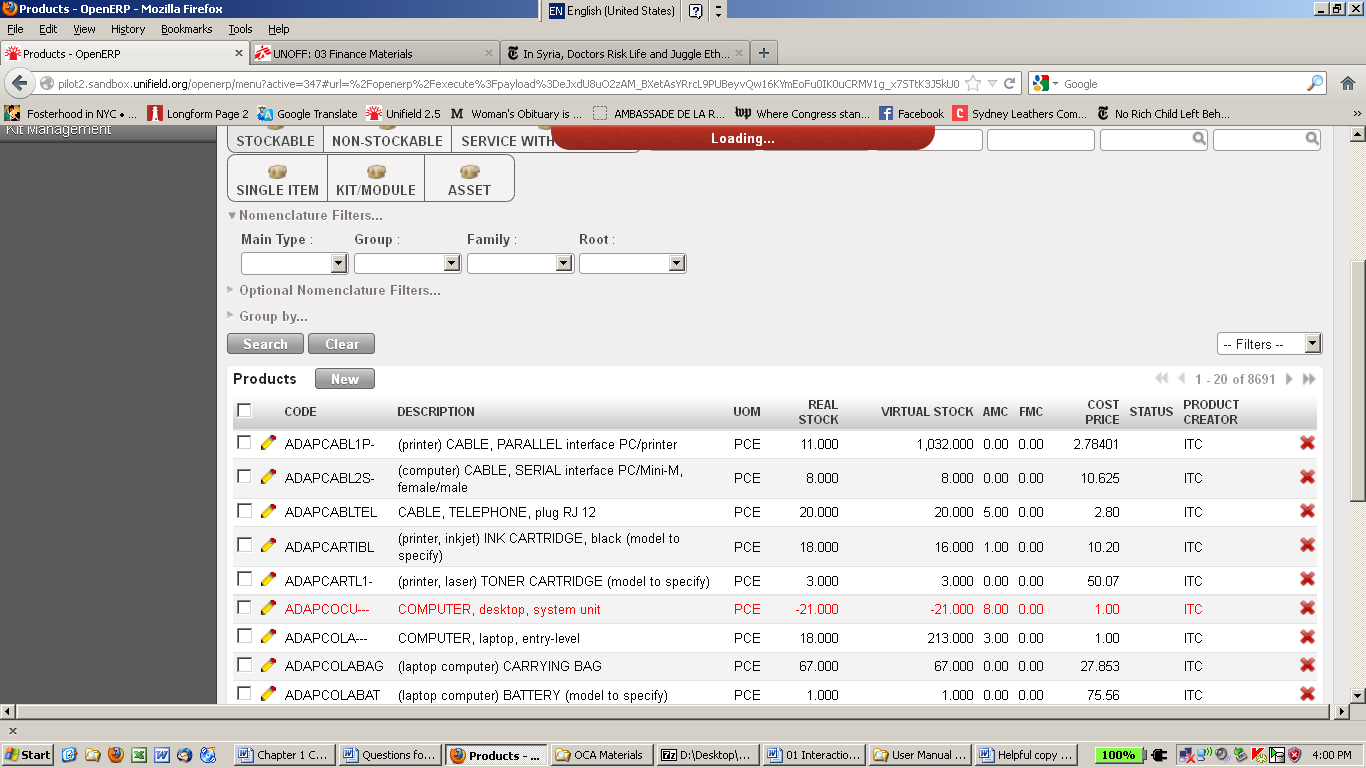
The Commitment Voucher creation Screen will display
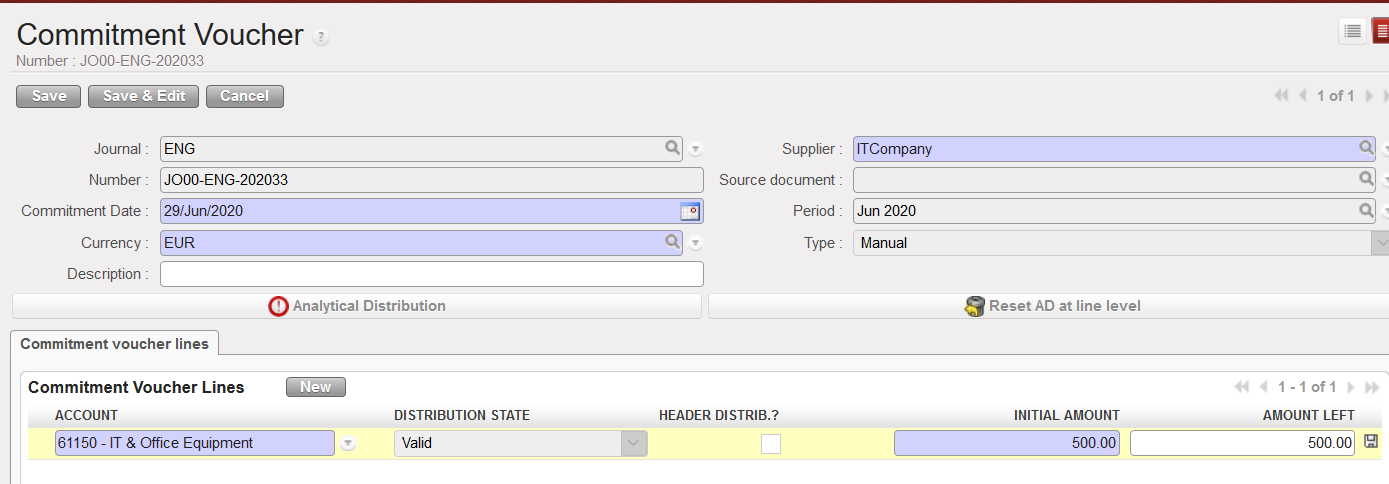 Commitment Voucher Screen
- Fill in all mandatory blue boxes: Supplier, Commitment date and Currency.
- Insert commitment lines by selecting the account and initial amount.
- You can update the {Description} at the header level of the Commitment Voucher. This field will be empty and editable (even after CV validation). If nothing was written and the field {Description} was left empty, the value per default would be the same as the entry sequence.
- Save by clicking save button
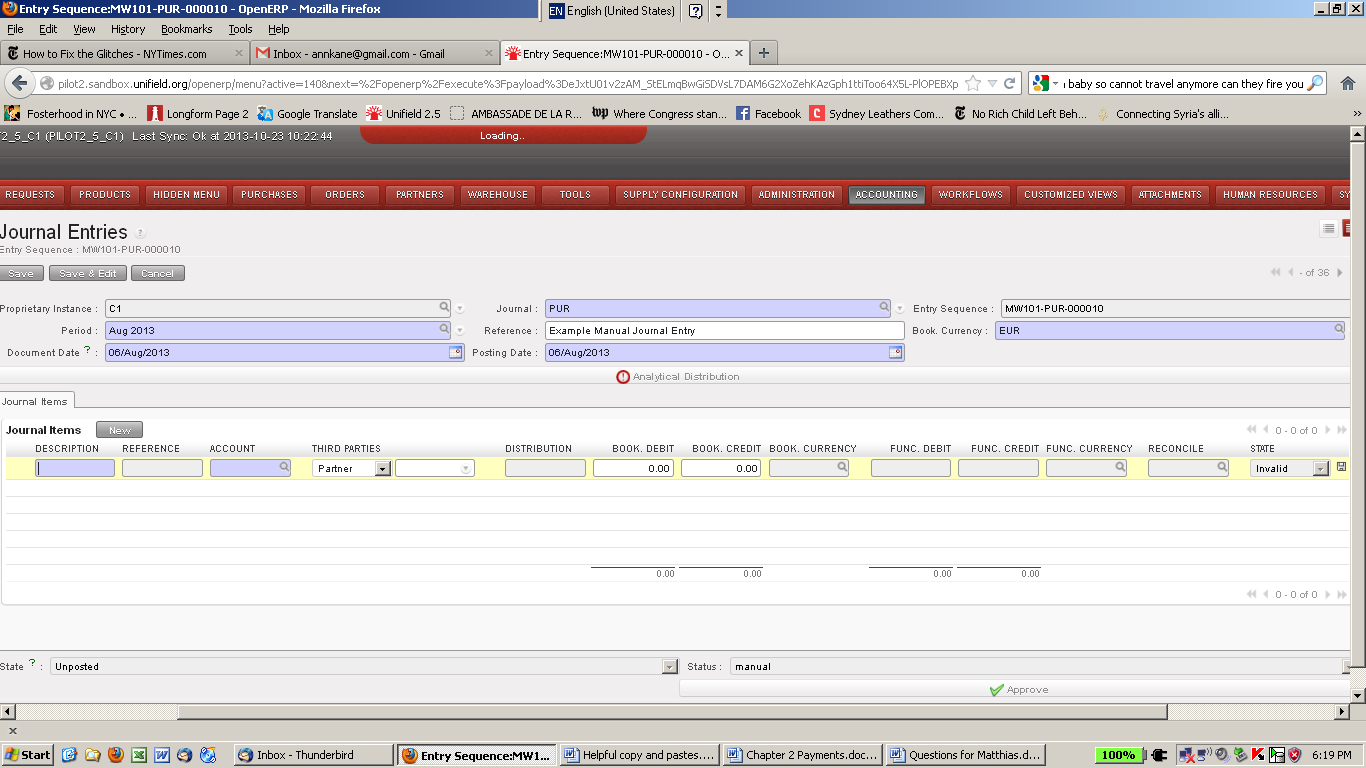
5. Add analytical information individually or with the mass allocation button.
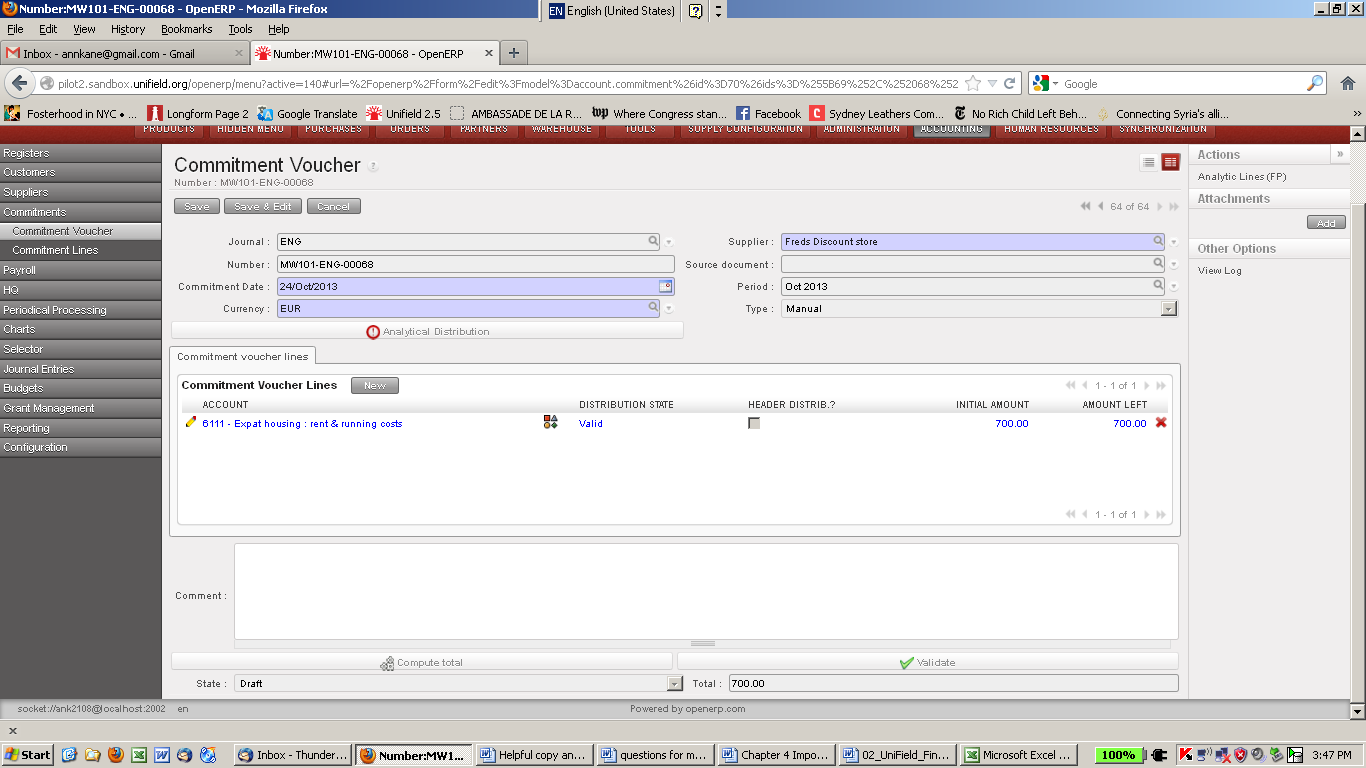
The Commitment Voucher can now be seen in the commitment voucher screen and is listed in the budget as a committed amount
How to Import/Export Invoice Lines in the Commitment Voucher objects:
You can Export the invoice lines from the supplier invoice through “Export CV Lines”, You can modify several fields in the Export file including the amounts and descriptions, and you can import the file (for CV lines) through “Import CV Lines”.
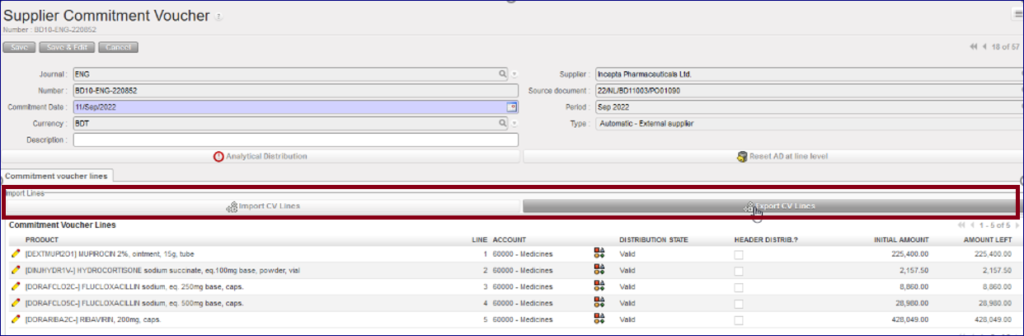
- The file includes 10 columns: 4 columns are editable: “Account” and the columns related to the analytic distribution.
- Each line has its own ID defined in the column “Internal ID”.
- In the case that a line of the commitment voucher has been split in several lines, the AD will be empty. We will have the word “SPLIT” in the column “Analytic distribution”. The 3 last columns Cost Center, Destination and Funding Pool will be empty.

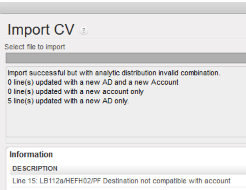
You can export the information, change the data and import the file with the data in Unifield. The import fails in case one of the main components do not match: “CV Number, Currency, Supplier, Source Document and CV Type“: an error message will be shown:

Validated Commitment Voucher displayed in the Search Commitment Voucher view
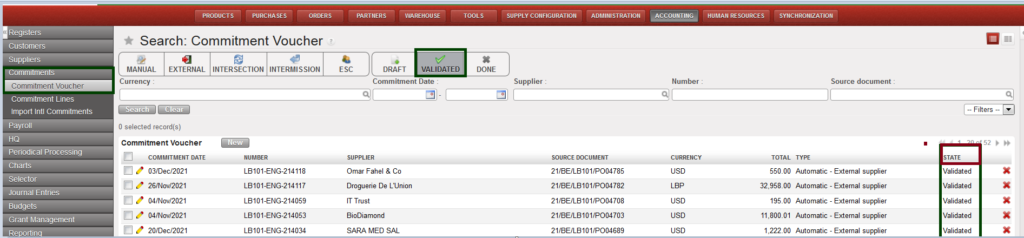
How to Set Manually Created Commitment Vouchers to Done
Go to: Accounting/Commitments/Commitment Voucher
- Use the filters to find the appropriate commitment voucher.
- Select the button to edit the fields.
- The commitment voucher creation screen will display
Button Done to set a commitment to Done
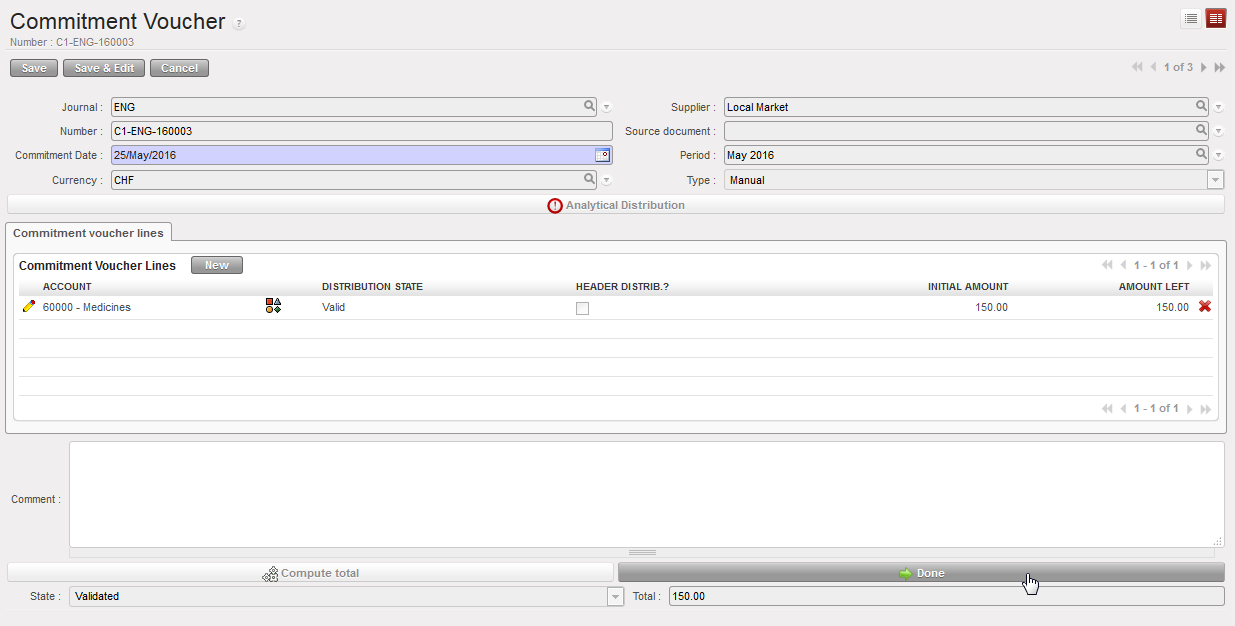
4. Click on the {Done} button.
The Commitment Voucher will be set to {Done} and no longer appears in the budget or on the commitment voucher screen.
