
Finance User Manual ENG -> 3. Payments -> 3.3 Finance Payments and Registers -> LUFI-30306 Cheque Entries Imported into a Bank Register
LUFI-30306 Cheque Entries Imported into a Bank Register
LU Introduction
When you write the cheque, you will need to create one entry in the cheque register to the appropriate account code. When this entry is temp posted, this triggers the creation of two balanced accounting entries in the Journal Items: one credit entry to {outstanding cheques, 1021} and one debit entry to the expense account.
After receiving confirmation from the bank that the cheque has been cashed in (through the bank statement sent by the bank), you may import the cheque register entry into the corresponding bank register. Only then will your bank account balance be affected. This system allows MSF to maintain a more accurate record of the liquidity on each bank account at a specific point in time.
UniField automatically reconciles the cheque register entry with the bank register entry. Once reconciled, a cheque still appears in the cheque register but will be listed as reconciled. In case a cheque has not been cashed in at the end of the month, the cheque register can still be closed (with an open cheque). The cheque will still be available for import into the bank register in the following months.

How to Import a Cheque into a Bank Register
Go to: Accounting/Registers/Bank Registers

- Open the associated bank register.
- Click on {Import Cheques}. The {Import Cheque} wizard opens.
- Click {Add}.

4. In the {Search Account Entry Lines} window, select the cheques that were cashed, then click {Select}. If you cannot find a cheque in the list, then it is possible that the cheque was not hard posted, the cheque is a different currency than the register, it has not been entered in the cheque register, or the cheque register was linked to a wrong bank register.
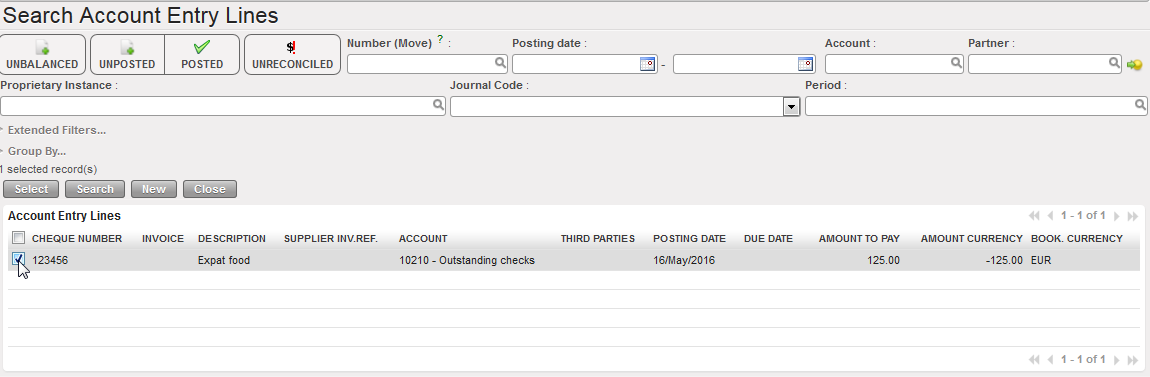
5. The selected cheques appear at the top section of the {Import Cheque} wizard. Enter the {Document Date} and {Posting Date} which will be applied to all cheques on the list.
6. Select {Import} button.

7. The selected cheques appear in the lower section of the {Import Cheque} wizard. Here you can edit the imported cheques by clicking on  to change the {Document Date} and/or the {Posting Date} to the actual date when the cheque was cashed in.

Verifying the information of the cheque to be imported
8. Click {Ok} and Save
The cheque entry lines are created as temp posted entries in the bank register
1. Payment by cheque: Debit account moves on {expense account, 66260} and Credit {outstanding cheques, 10210}.
2. Cheque reconciled when entry hard-posted in the bank register: Credit account moves on {Cash at Bank, 10200} and debit {Outstanding cheques, 10210} and associated unique reconciliation reference {C1-5}.
 Register line reflecting the imported cheque

Account moves in Journals
