
LUFI-40102_A-C: Expat Staff Database Management
Expat payroll is paid through the HQ accounting system and imported into the headquarter UniField instance. Creating expats as third parties in UniField is still necessary because there are various financial transactions which involve expatriate staff members, such as: per diem payments, security money, reimbursements and food pot contributions (specific for OCA).
The same principle of selecting a {THIRD PARTY} employee applies for national and expatriate staff. Expatriate staff should to be imported and managed at HQ level in order for expats to synchronize to the coordination and project instances. If imported at coordination level, they will not synchronize to HQ. Once imported, an advanced user will set a default analytical distribution which will automatically appear each time the Expat is picked as 3rd party for an expense / income booking.
The following rules apply to the expat database in UniField:
- Expatriate data is synchronized only downwards
- When new Expats arrive, they can be manually added or imported at HQ and synchronized down to the coordination and project instances.
- Expats no longer active can be set as “inactive”. They should not be deleted from the database as they have already been used in transactions.
- Expats Management should only be controlled by HQ.
- It is possible to block the use of expatriate staff in the field by ticking the “Not to be used” box in OCXHQ and then synchronizing down, will block any transaction with 3rd party employee _expat with warning message “Employee ‘Johan Rock’ can not be used anymore.”

Go to: Human Resources/ Human Resources
- Select {Import Expats}.
- In the {Import Expats} window, browse your file and validate the import.
- The system confirms the import of the file (No error message displayed).
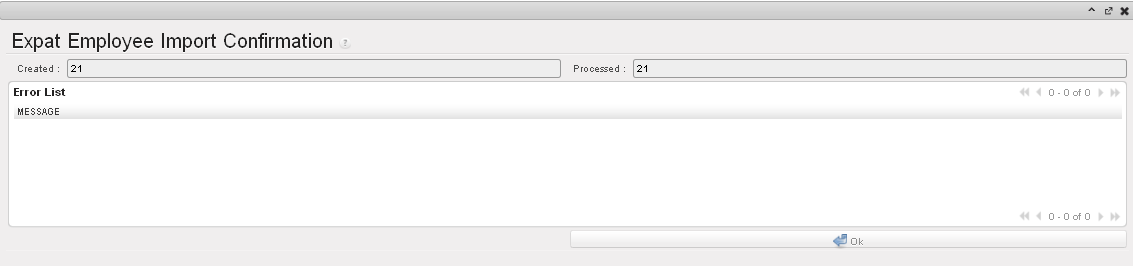 Expat Employee Import Confirmation
- The expat employee list is displayed in the sub-module {Employees}
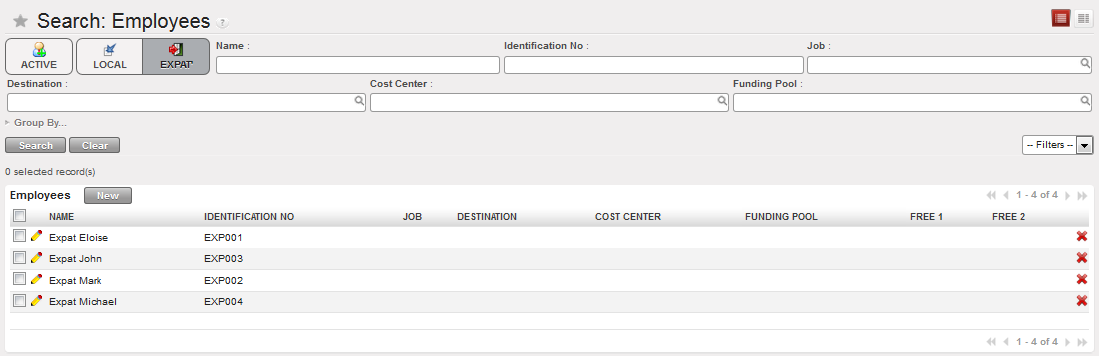 Expat active employee list
Go to: Human Resources/ Human Resources
- Select the sub-module {Employees} and a list of employees appears.
- Select the filter {Expat} and a list of expat employees will be displayed.
- Check the box of one entry to assign an allocation individually or select multiple boxes for multiple entries.
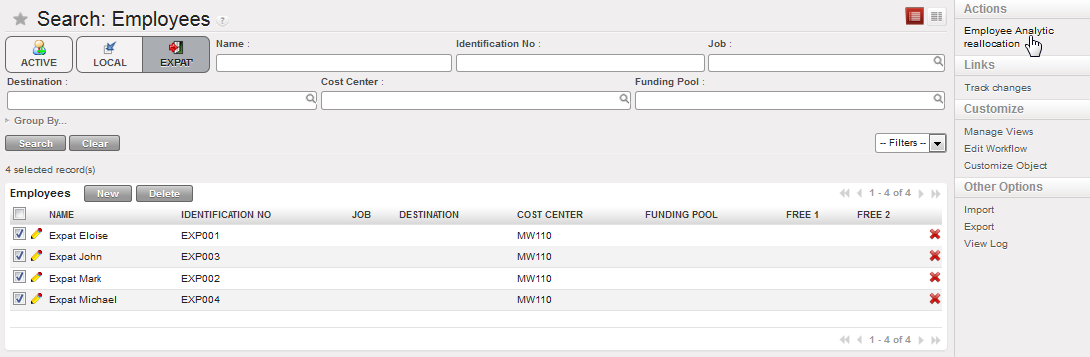 Expat staff analytical allocation
- Select a destination, cost center and funding pool.
 Employee Analytical reallocation
- The allocation is finalised.
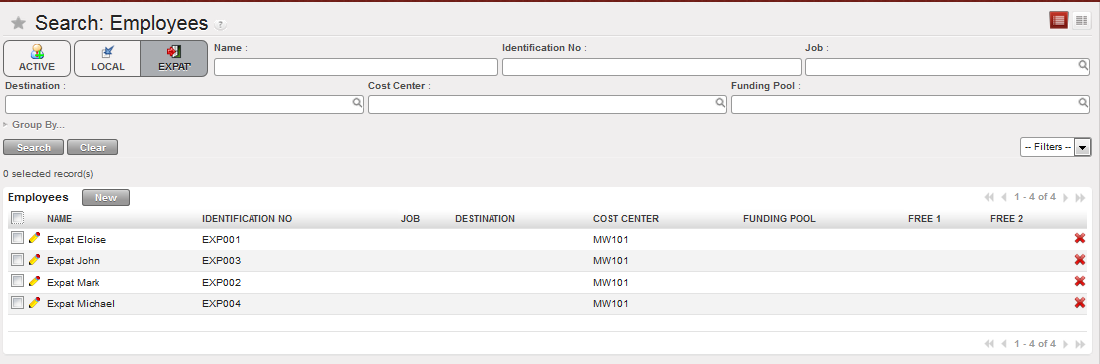 Employee Analytical reallocation performed on expatriate staff
