LUFI-40105_E: How to Change the Analytical Distribution on Payroll Entries
If you would like to change the analytical information permanently, you can use the employee update sub-module. However, there may be special situations when staff members need update only for one payroll period.
Go to Accounting/Payroll/Payroll entries
-
- A list of draft payroll entries booked on expense accounts displays

{Payroll List} Search view displayed in {Payroll entries} sub-module

- Change the destination, cost center and/or funding pool.
- Save the entry. When the payroll entry displays in blue, the allocation is valid.

Valid analytical allocation on payroll entry
LUFI-40105_F: How to Change the Analytical Distribution on Multiple Payroll Entries
If you would like to change the analytical information permanently, you can use the employee update sub-module. However, there may be special situations when staff members need updating for only one payroll. Keep in mind you can change simultaneously only entries that have all the same analytical information.
Go to Accounting/Payroll/Payroll entries
A list of draft payroll entries booked on expense accounts displays
- Check the entries which need distribution changes.
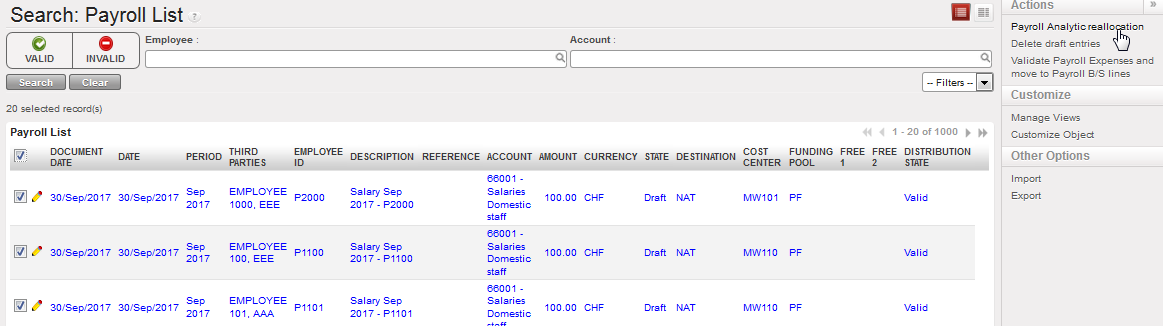
Payroll entries to be reallocated
A wizard {Payroll Analytic reallocation} displays

{Payroll Analytic reallocation} wizard
- Change the destination, cost center or funding pool to make the entries valid.
- Click on {Validate} button.
The payroll entries will be allocated to a new analytical dimension
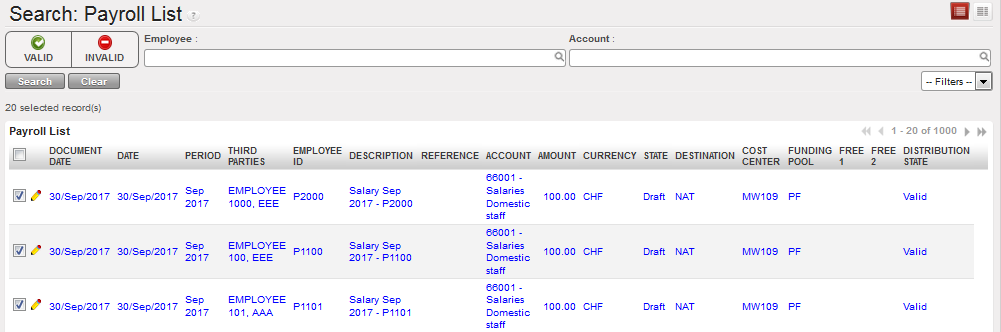
Valid payroll entries
LUFI-40105_G: How to Delete Draft National Staff Payroll Entries
If wrong import files are accidentally used for payroll, the entries can be deleted as long as the entries are still in {Draft} status.
By selecting the action {Delete draft entries} on the right hand side of the screen, you can cancel the whole payroll entry import. Remember that you cannot cancel individual entries to ensure the balance of the payroll entries booked on the credit side matches the balance of entries booked on the debit side.
Go to Accounting/Payroll/Payroll entries
A list of payroll entries booked on expense accounts displays
A {Delete draft entries} window displays

Delete draft entries window
To ensure the balance of payroll entries booked on the credit side matches with the balance of entries booked on the debit side, you cannot delete individual payroll lines.