
LUFI-40105 National Staff Payroll Management
Once employee data has been updated in UniField, payroll entries can be exported from Homere and imported into UniField.
If one of the payroll entry lines cannot be imported, UniField will reject the whole import. UniField provides a list of entry lines with errors with details of why these entries cannot be imported. If there is no error message, the import was successful.
When national staff payroll entries are imported, they remain in {Draft} state until an authorized user validates them. Once they have been validated, they are booked in the journals.
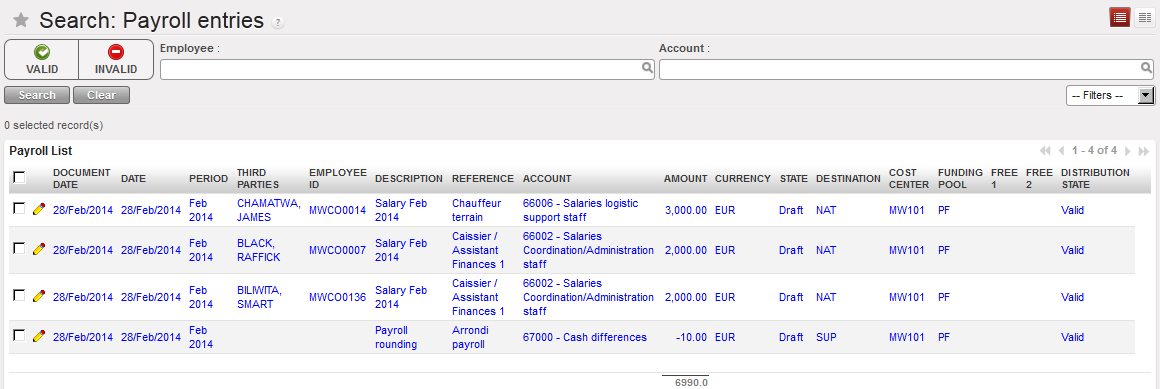
List of valid payroll entries in Draft displayed in the sub-module {Import Payroll}
Before validation, you will need to check if the analytical allocation is correct. Payroll lines in red represent an error and will require a new allocation. This task is performed in the {Payroll entries} sub-module.
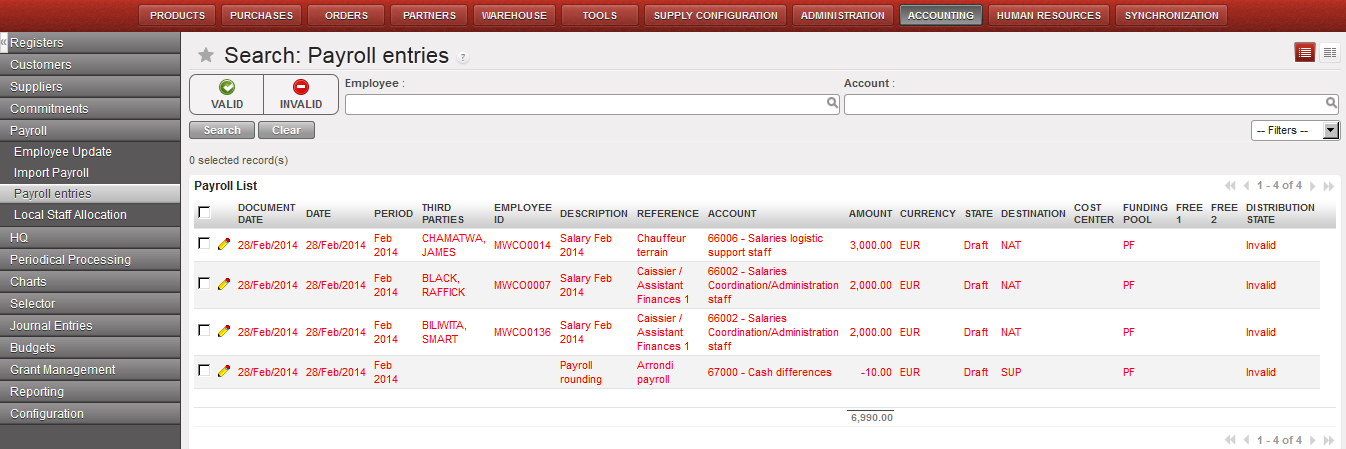
Some payroll lines appear in red: you must reallocate them to a valid analytical dimension.
Once the payroll expense entries have been reviewed, they can be validated. You must validate all payroll entries at one time.
After validating the expense entries, you will be directed to a new window to validate the balance sheet (B/S) entry lines. The B/S lines can be either a total amount for all employees or divided by employees (one line per employee). The B/S accounts may require a third party to be set, depending on the account settings. If the third party is correctly set in Homere, it will be automatically taken to UniField in the respective B/S line. The third party for each payroll B/S line is by default taken from the {Third} field in Payee_SAGA file. If the {Third} field is empty, the third party is derived from the {Secondary Description} field. If both of the fields are empty or incorrect, the user has to manually set the {Third party} for each respective B/S lines.
If Homere has rounded up employee salaries according to coins and notes locally available vs. exact payroll calculation, UniField will automatically create a cash difference entry for an amount that does not exceed 1.00 EUR (or equivalent in CHF).
When payroll entries are validated, they become {Posted} and are displayed in the {HR} Journals.
Once the physical payment has taken place, you may import the payment into the register by using the {Pending Payments} function. Keep in mind that you only import the amount of money which is paid at that time.
If some employees are paid in cash and others by bank transfer, you import the corresponding amount in the cash register and the remaining amount in the bank register. The reconciliation in the journals of all the entries on the account {30100} is automatically performed when using the function “Pending Payments”.
As mentioned earlier, the total salary advance amount was already booked as payment entries in the registers. All payroll entries must be manually reconciled on the {Advances on salaries of national staff}.
Below you can find the accounting moves when salaries are paid:
