Finance User Manual ENG -> 5. Searching, Correcting and Closing -> 5.1 Searching -> LUFI-50101 Searching Filters
SEARCHING
LUFI-50101 Searching Filters
LU Introduction
Many options are given to users to optimize their searches. The system facilitates filtering and searching for groups of important documents using the relevant buttons.
Filter buttons on a supplier invoice form
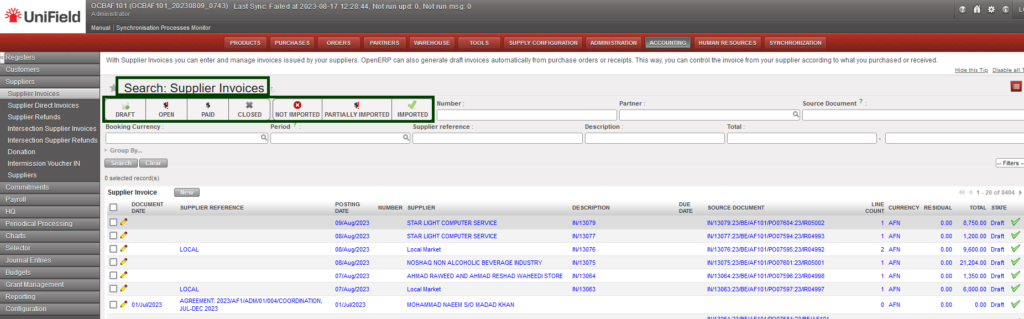
When active, filter buttons turn dark grey; click again to deselect. The system’s searching options are based on “And”, not “Or”, so in this example pressing the filter buttons {Draft} and {Paid} will not return any result as an invoice cannot be both Draft and Paid.

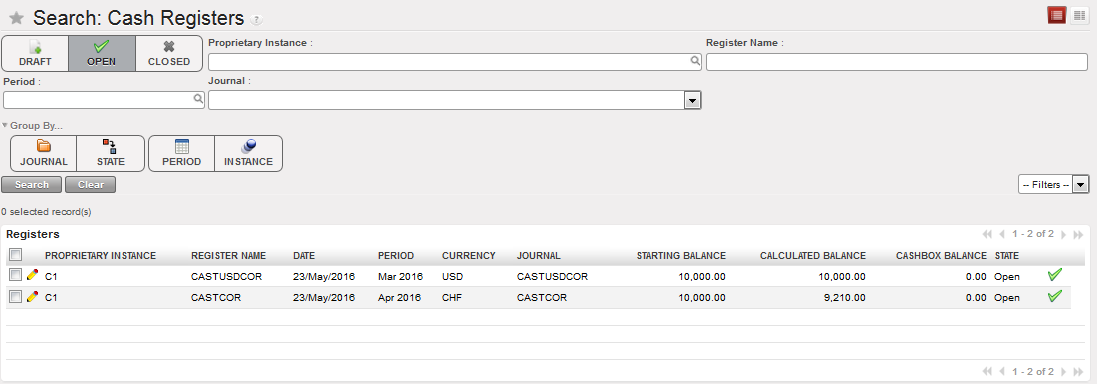
Cash registers Search view and Open filter button activated when the view opens
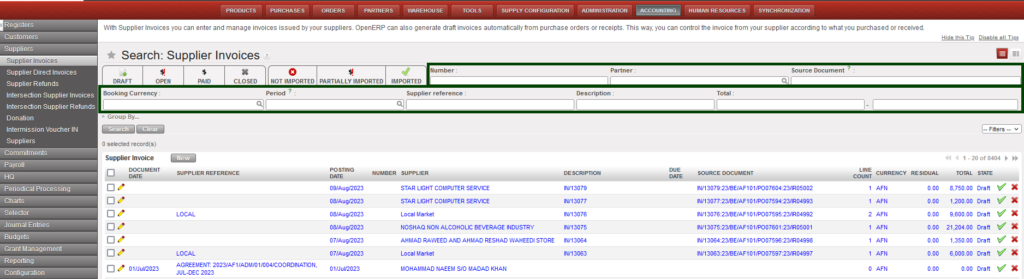
Search fields on a supplier invoice form
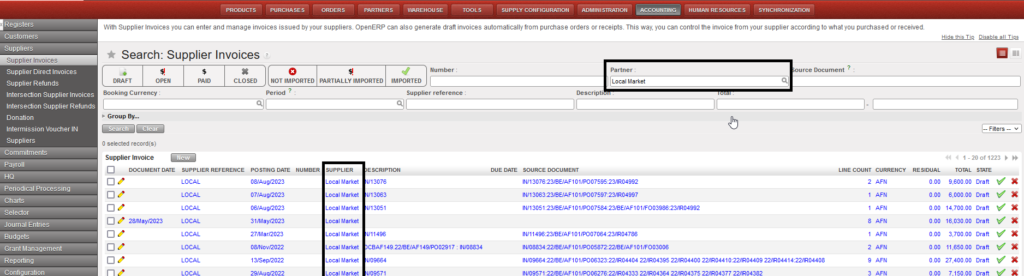
Searching the supplier invoices of Local Market
In all search views, there are default search fields which provide a quick way to search. Because UniField has the capacity to search for free text, you can enter any text into a search field. By entering a few characters, the system will display a list to choose from as can be seen in the next figure. To search the database, the user can also use the magnifying glass to get a full list of options available.
- Only one value per search field is allowed
- Text fields execute a “contains” search
- Date or numeric ranges: if the ending value is left blank, there is no maximum limit; if the starting value is left blank, there is no minimum limit on the search
- If multiple fields have search values, then all criteria must be satisfied, i.e. operates as an “and” search
- Filter buttons and search fields can be used together and operate as an “And” search
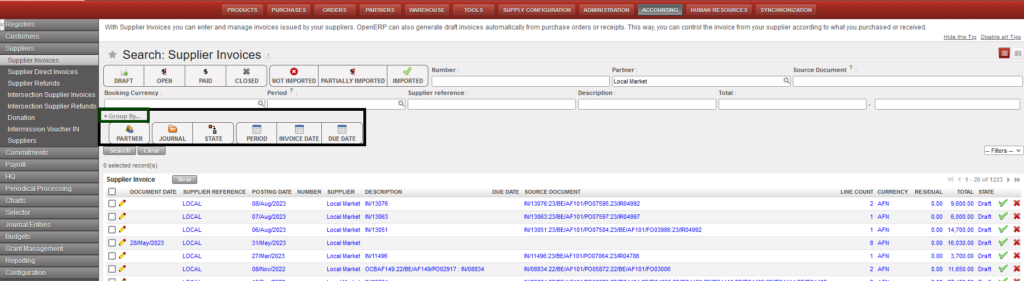
Group by filters
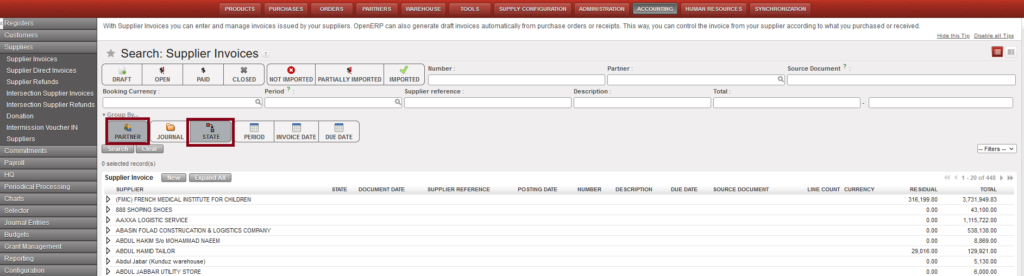
Group filters output: Grouping by PARTNER and DUE DATE
Clicking on the arrow next to {Group by} displays options to group the search results by particular fields.
- These buttons behave similar to the filter buttons, i.e. they are active when grey, and clicking again deselects the filter and turns the button back to white.
- Subtotals per grouping are displayed where numeric fields are applicable, e.g. Residual and Total for Supplier Invoices.
- Selecting multiple buttons groups the next level of records within your initial grouping. In the example below, supplier invoices are first grouped by Partner then by State {Draft}, {Open}, {Closed} within each Partner.
- Clicking {Expand All} will display all search results by grouping.
- Group by can be used in conjunction with filter buttons and search fields and operates as an “And” search.
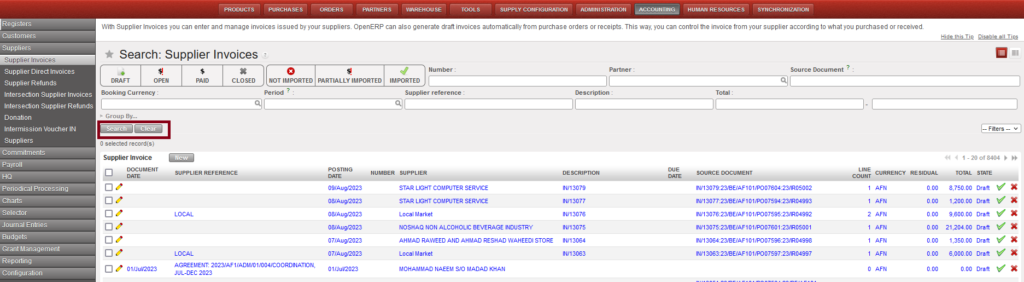
Search and Clear buttons
{Search} button executes the search, while the {Clear} button clears all filters so all records are returned.
How to Create a Custom Search Filter
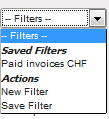
UniField allows creating custom filters, which can be used repeatedly. Clicking on the arrow next to {–Filters–} displays the possible actions.
- Click on the arrow next to {–Filters–} to open the drop-down list.
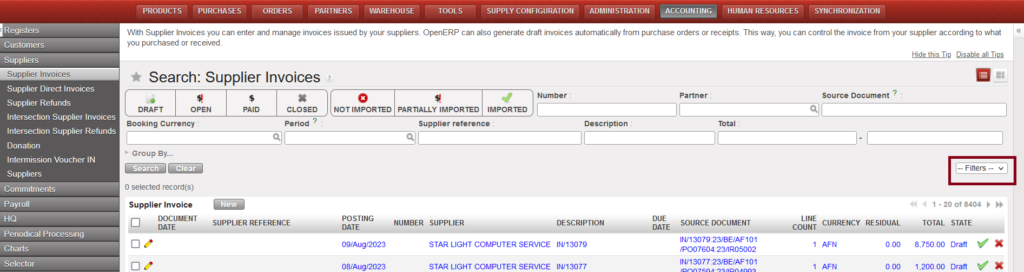
Creating a custom filter
- From the list, select {New Filter}.

Filter Actions
- Two extra search fields will appear: “And” and “Or”.

Custom filter – selecting search field
- In the “And” field, select from the drop-down list of available fields to search.
- In the next drop-down list, select how you would like it to search e.g. “less than” “doesn’t contain”, “is equal to”, etc.
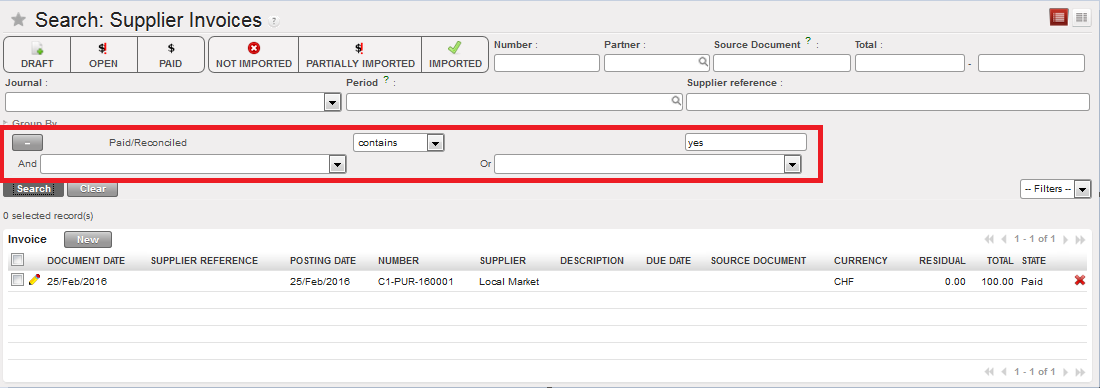
Custom filter – search expression
- And in the final field, enter the value which you would like the system to use to perform the search. In the example above, the system will search for all reconciled supply invoices for which the {Paid/Reconciled} field contains “yes”.
- The user can add multiple search expressions using the And or Or operators. To delete an expression, use the button.
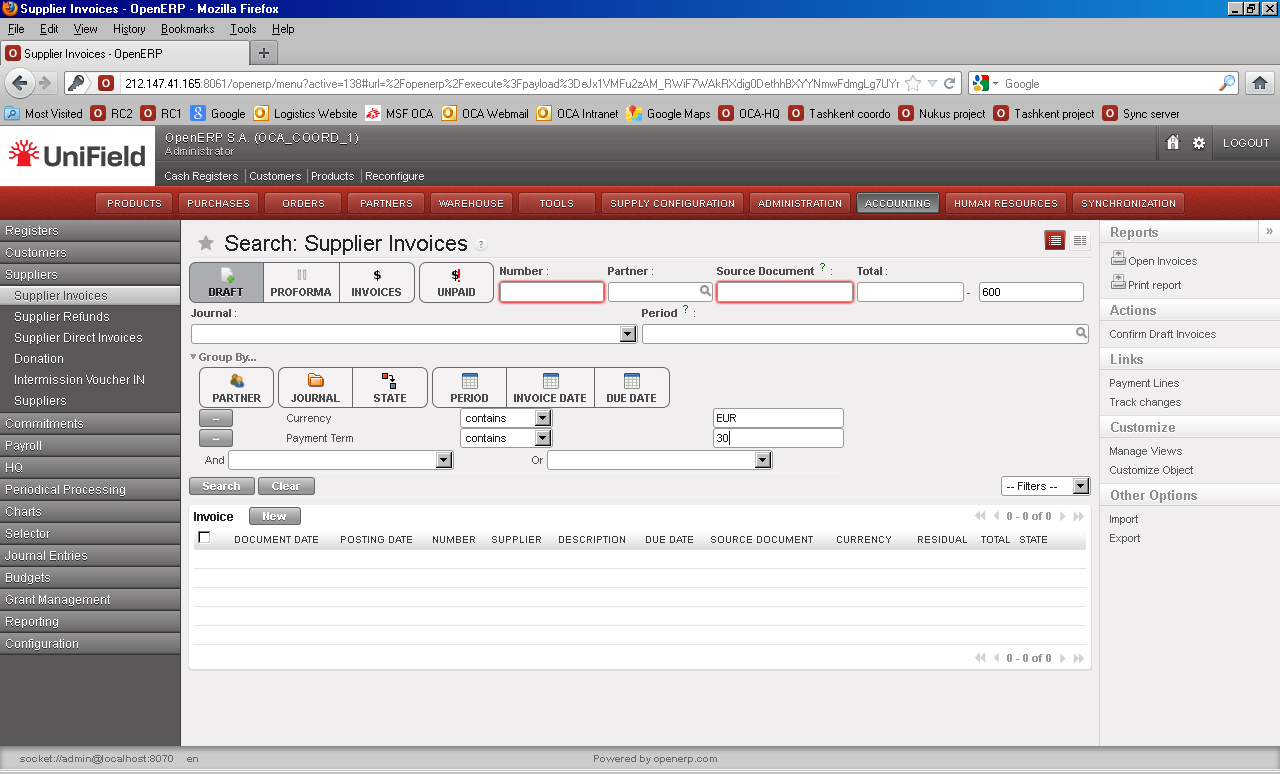
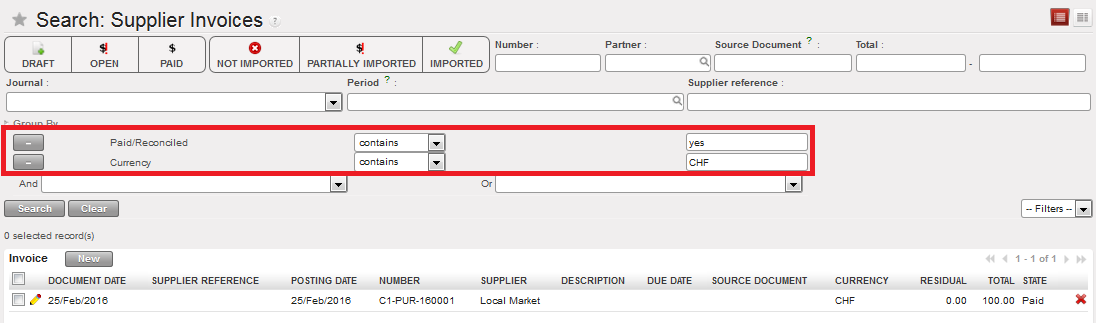
Multiple search expressions
- Save the filter by clicking again on the Filters drop-down list, and select {Save filter}. Enter the name that you would like to call this filter, and then click {Save}.
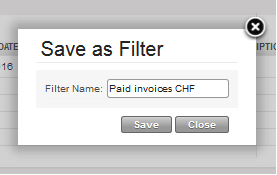
Saving new search filters
- Saved filters are then available to select from the Filters drop-down list.
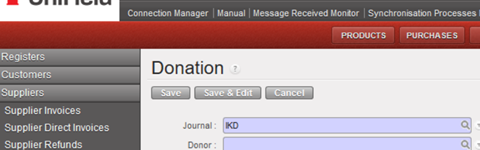
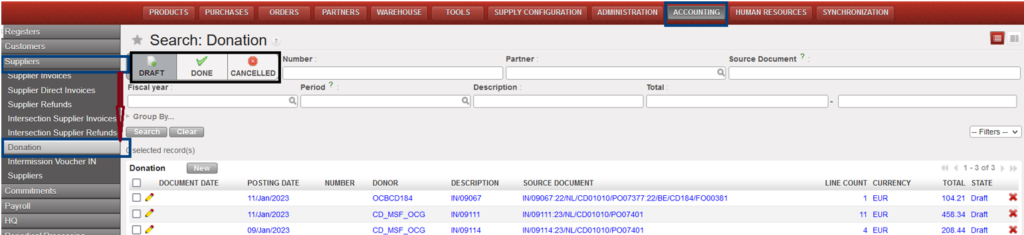
Go to Accounting > Suppliers > Donation:
How to search in Donation:
- The default search of the donations is the “Draft” state:
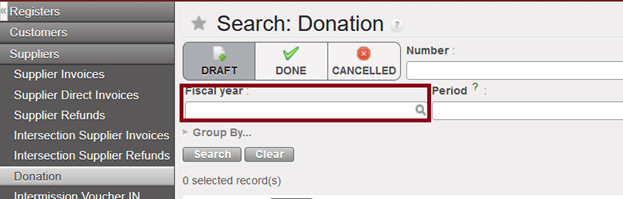
Below the 3 states of donation filters, we have added a new filter named “Fiscal year”, to allow to filter by year:
The only journal available is now the IKD journal -In kind donations- (it is not possible to select the ODX journal in manual. This ODX journal will be used just for automatic entries):