
Finance User Manual ENG -> 5. Searching, Correcting and Closing -> 5.1 Searching -> LUFI-50102 Register Search
LUFI-50102 Register Search
LU Introduction
In Registers, there are two types of searches. You can search for registers, but more importantly, you can search the register lines, i.e. the entries made within a register. This is useful when you need to correct or review specific entries in a register with a large number of lines.
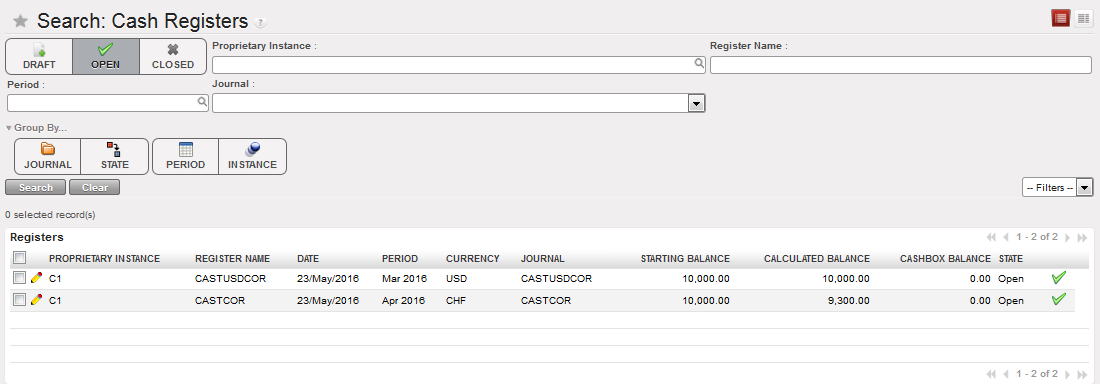
When any register module is opened (cash, bank or cheque), the {Open} filter button is active by default so only open registers are listed. This allows you to easily find a register to make or review entries. Otherwise, without this filter, all registers for closed periods and draft registers will display. You can further refine your search by entering criteria in the search fields, using the Group by buttons, or creating a custom filter.
Cash registers Search view and Search options
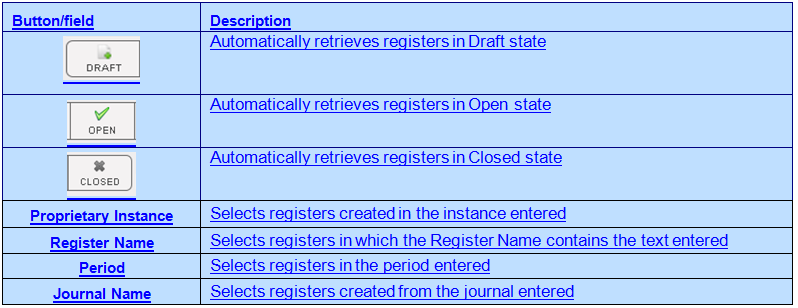
Button/field
Description
How to Search Register Lines
In this example, we want to select all register lines made in a specific cash register for invoice payments and export the results to Excel.
Go to: Accounting/Registers/Cash Registers
- Open a register in Form view
- Click on {Register Lines} on the Actions menu on the right side.
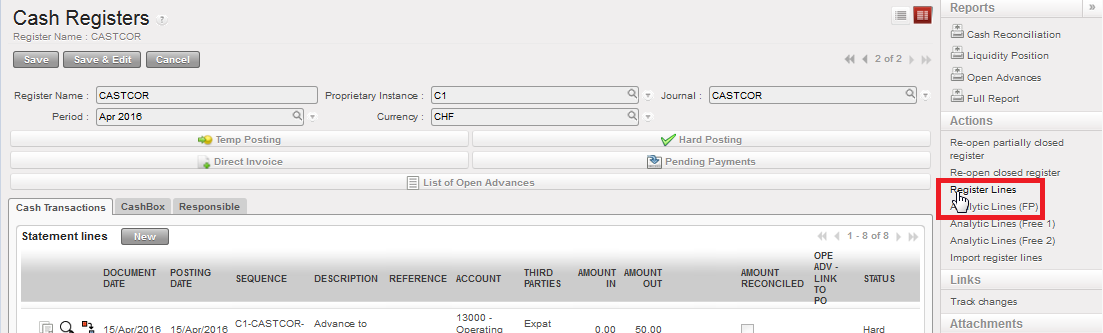
Cash Register – Form view and Actions menu
- A new search tab displays with the entries (register lines) in your selected register. You can enter criteria using the filter buttons, search fields, custom filters and group by options to search for specific entries made in this register. For invoice payments, we enter {30020 – Trade payables} in the Account search field. Click {Search}.
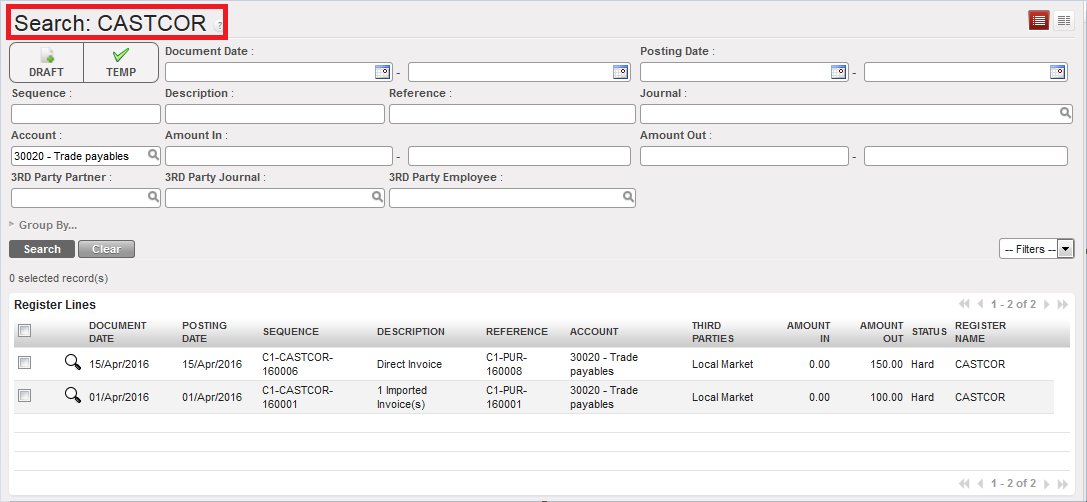
Cash Register Lines – search options
- By default, the first 20 lines will display. If necessary, change the limit to display up to 500 entries. You can choose to sort by a column header by clicking on the column header.
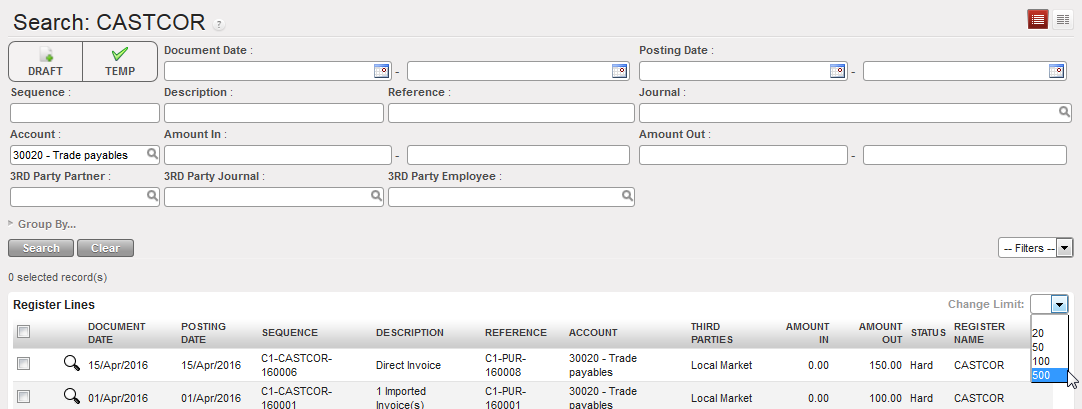
Change Limit
- To select all entries, tick the checkbox in the header row on the top left of the screen. Unticking will deselect all entries.
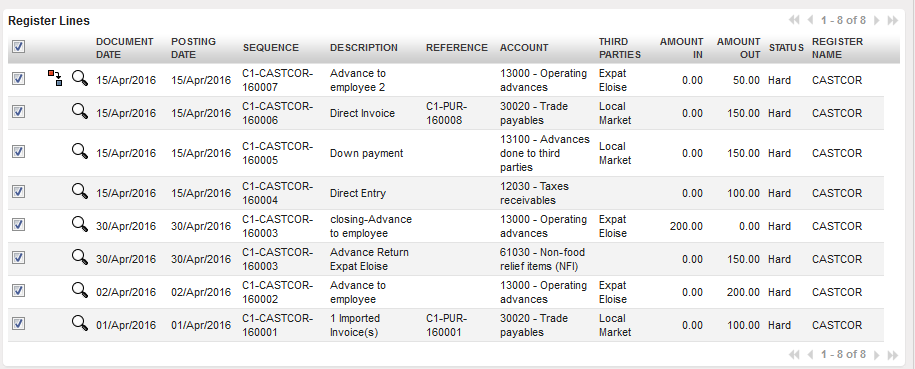
Tick top checkbox to select all entries
- To export, go to the {Actions} menu and select {Export search results}.
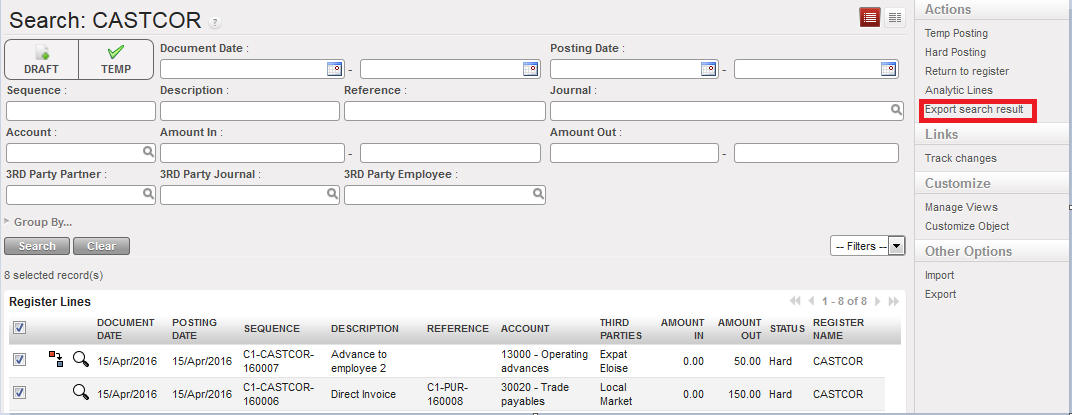
Export search results
- A new window will display with additional export options to select. Click {Validate} once you have input the relevant criteria.
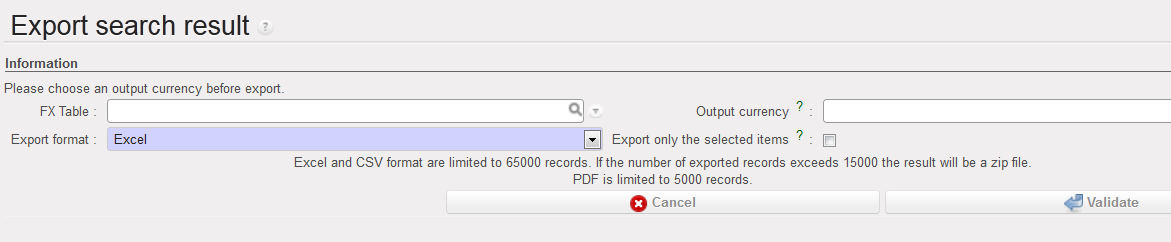
Options for export
–Button/field
–Description
–FX Table
If you would like the export to display amounts converted to a currency on a currency table, then select the table and select the currency in Output Currency
Output Currency
In the “Output Currency” column of the export, the amount converted to selected currency will display; if this field is left blank, the “Output Currency”column in the export will display the amount in the functional currency
Export format
Select from Excel, CSV or PDF
Export only the selected items
If the checkbox on the register line is ticked, it will be exported
- Selected entries are exported to Excel.
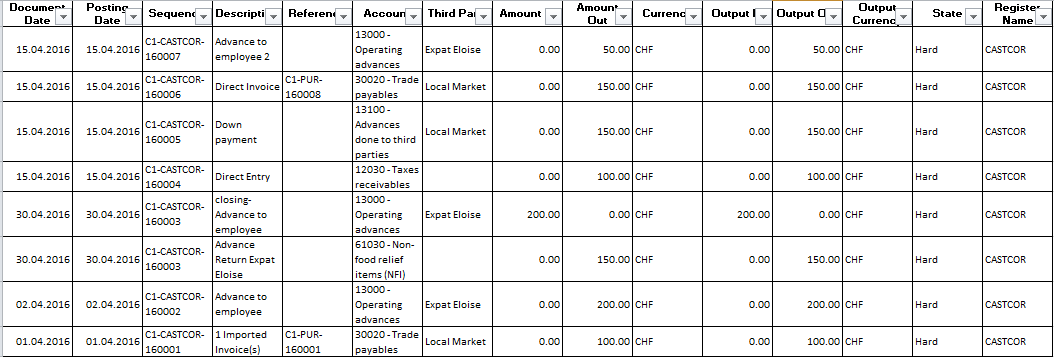
Excel export of selected register lines
