Finance User Manual ENG -> 5. Searching, Correcting and Closing -> 5.1 Searching -> LUFI-50104 The General Ledger (G/L) Selector
LUFI-50104 The General Ledger (G/L) Selector
LU Introduction
The General Ledger Selector is available in Accounting/Selector/G/L Selector
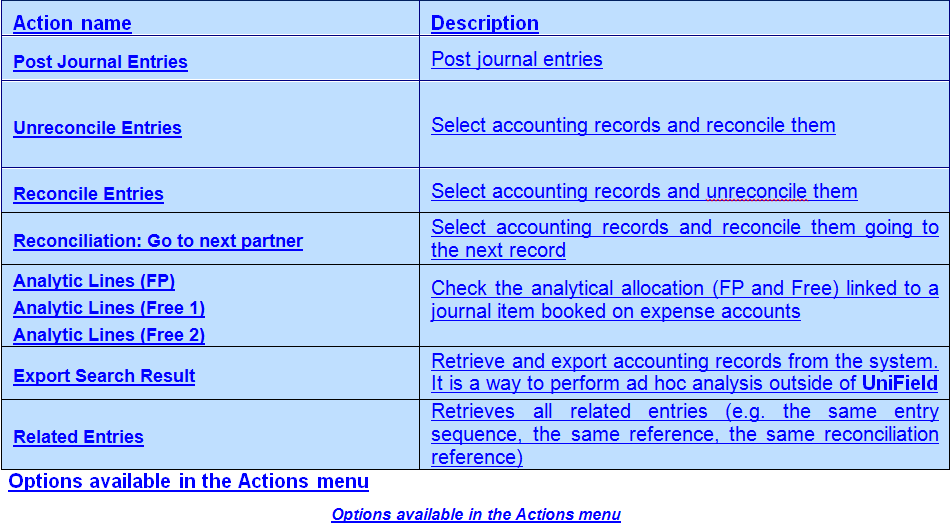
The G/L Selector is a tool to search Journal items when you need to use multiple or complex criteria that cannot be easily done in Journal Items. You can use it for the following actions once the Search G/L selector was performed:
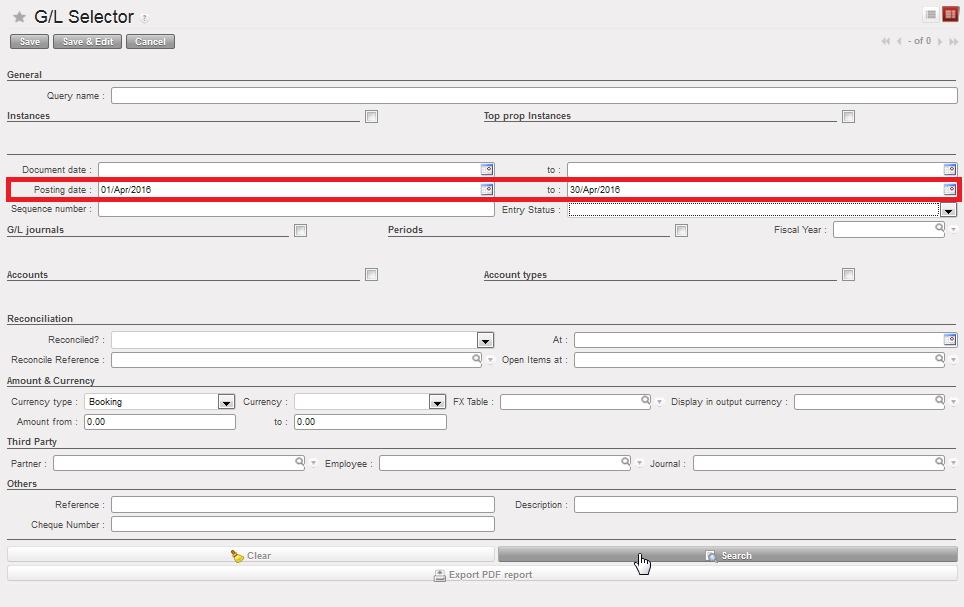
G/L Selector used to look for entries based on the posting dates
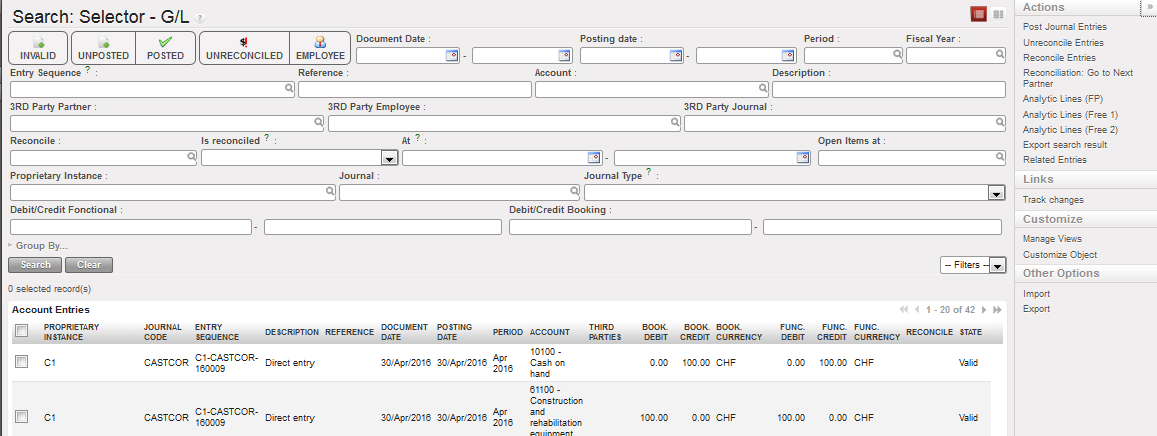
G/L Selector search output and related Actions menu
Action name
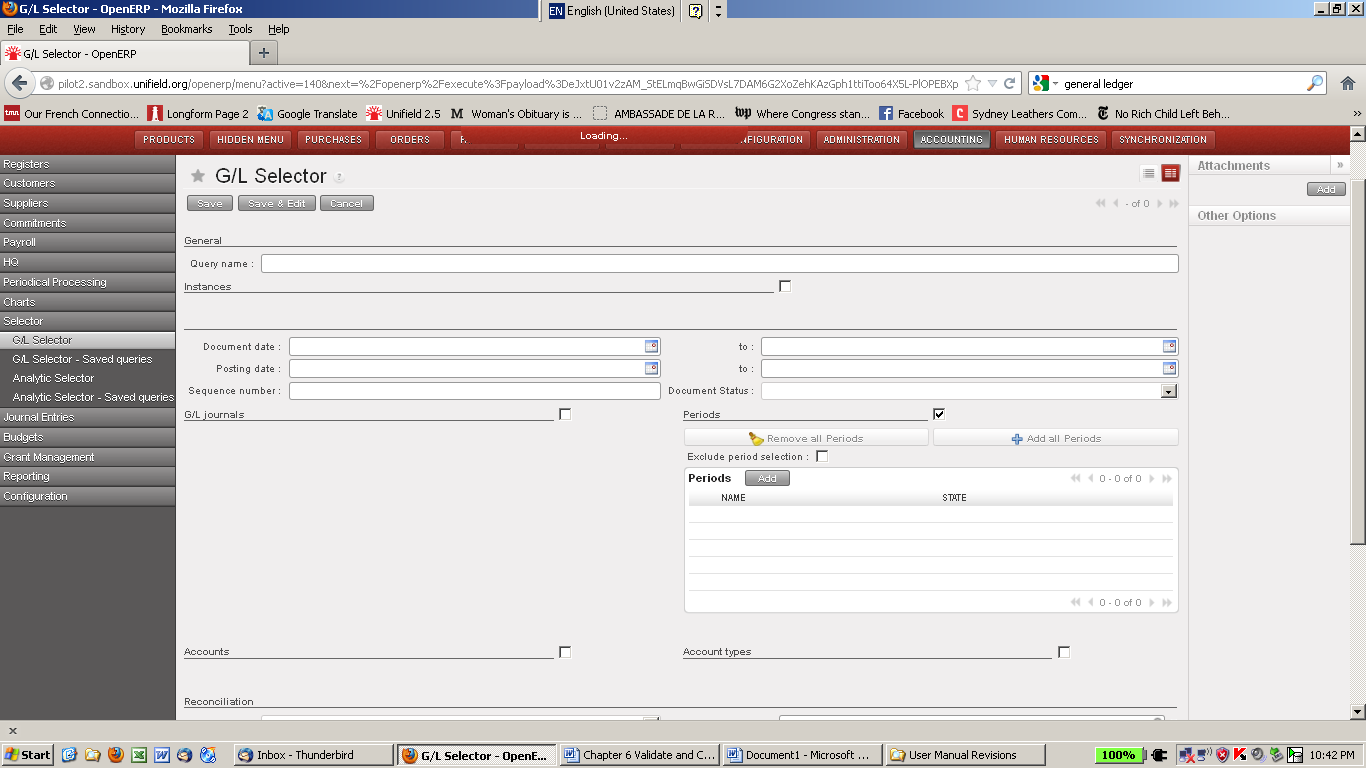
You have a wide range of possibilities to search for data in the G/L selector. Ticking the checkbox for a selected heading will expand the screen for the user to select specific criteria (e.g. periods, proprietary instances, accounts). Similar to default search fields in other modules, you can enter data manually or use the magnifying glass to select from a drop-down list.
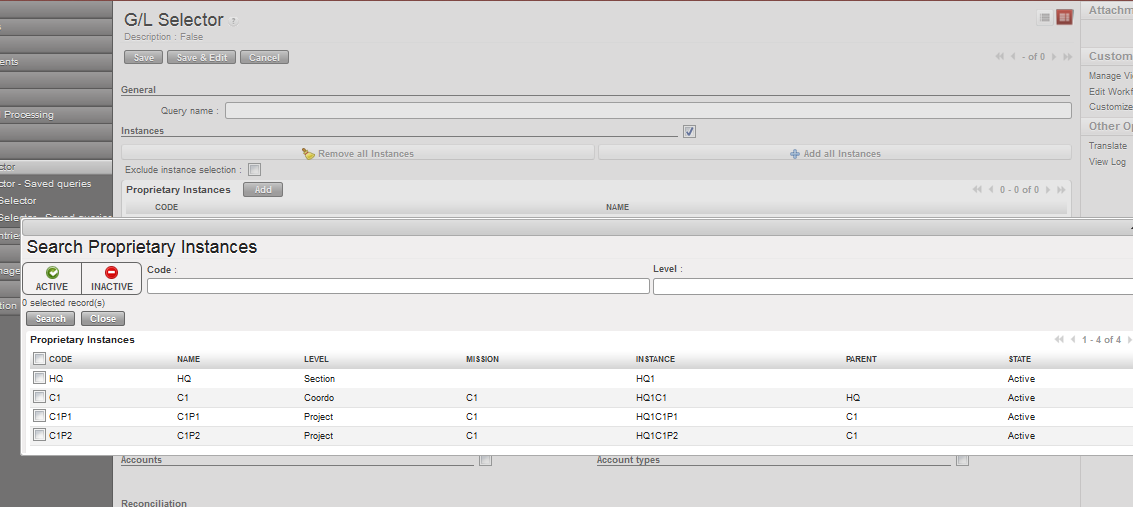
Ticking the Instances checkbox in the G/L Selector expands the view to select criteria for Instances
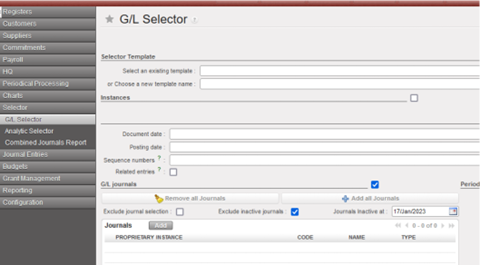
Also you have the option to exclude inactive journals by ticking on checkbox “Excluded inactive journals” by defining the date also:
Search criteria
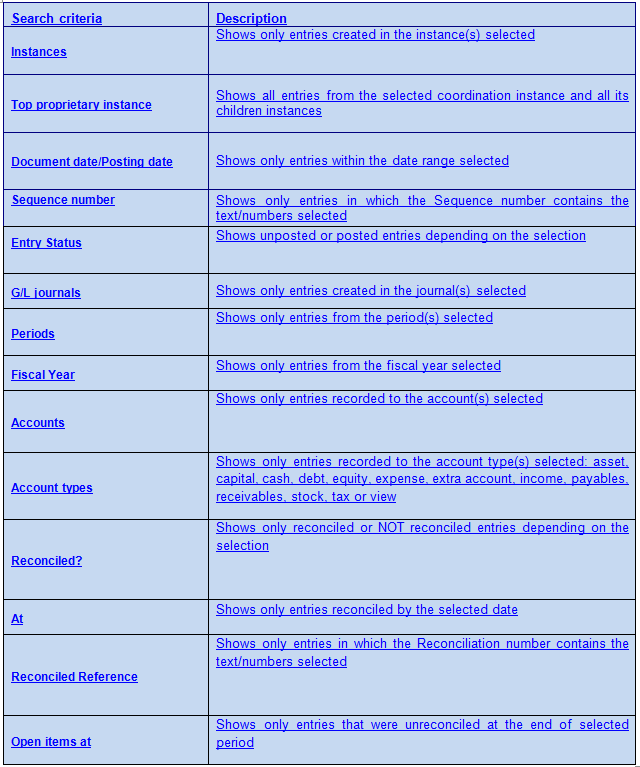
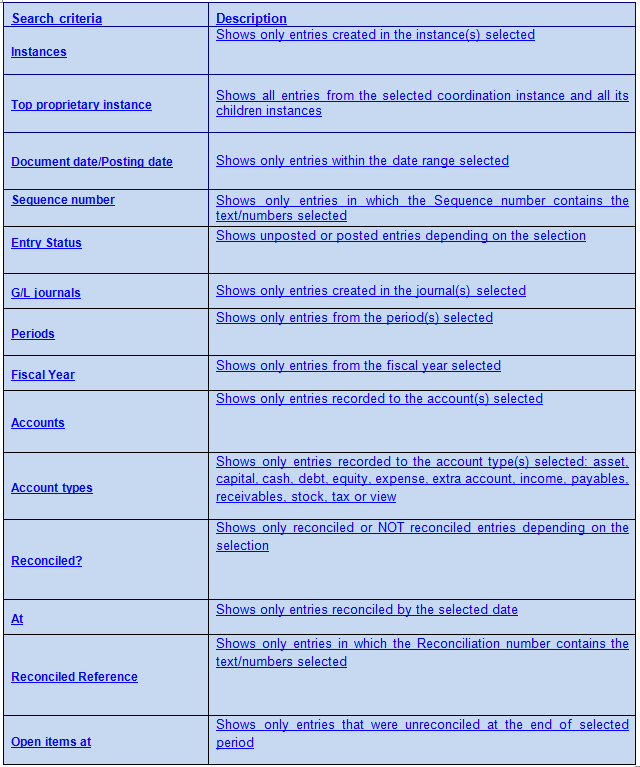
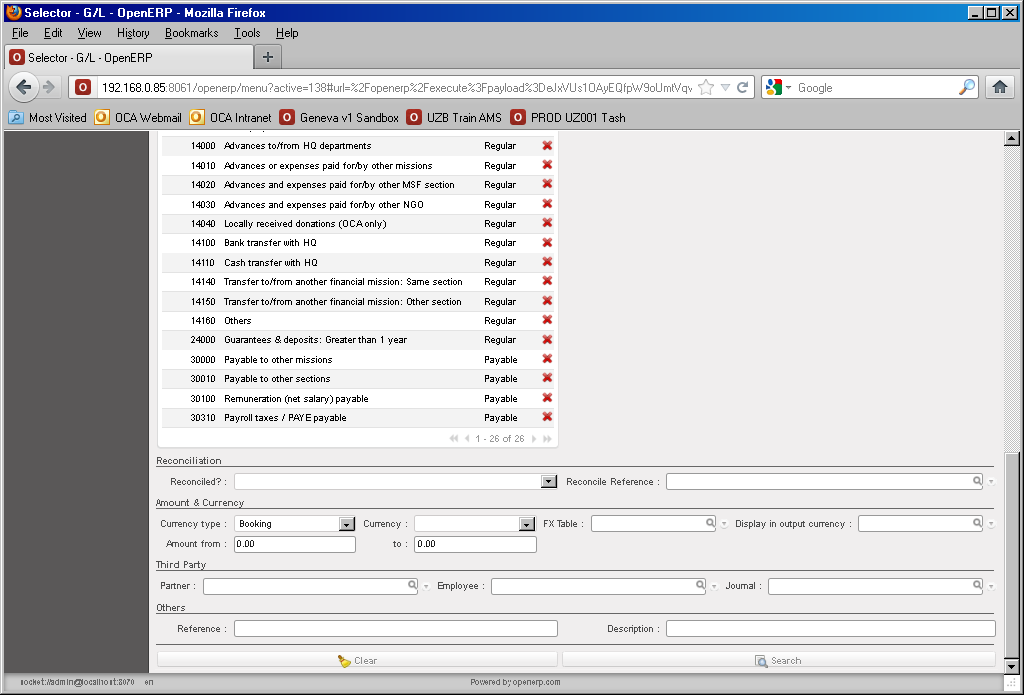
The field Sequence Numbers has a limit of 360 characters, and you can specify about 26 entries. Note that the total number of characters includes the character ( , )
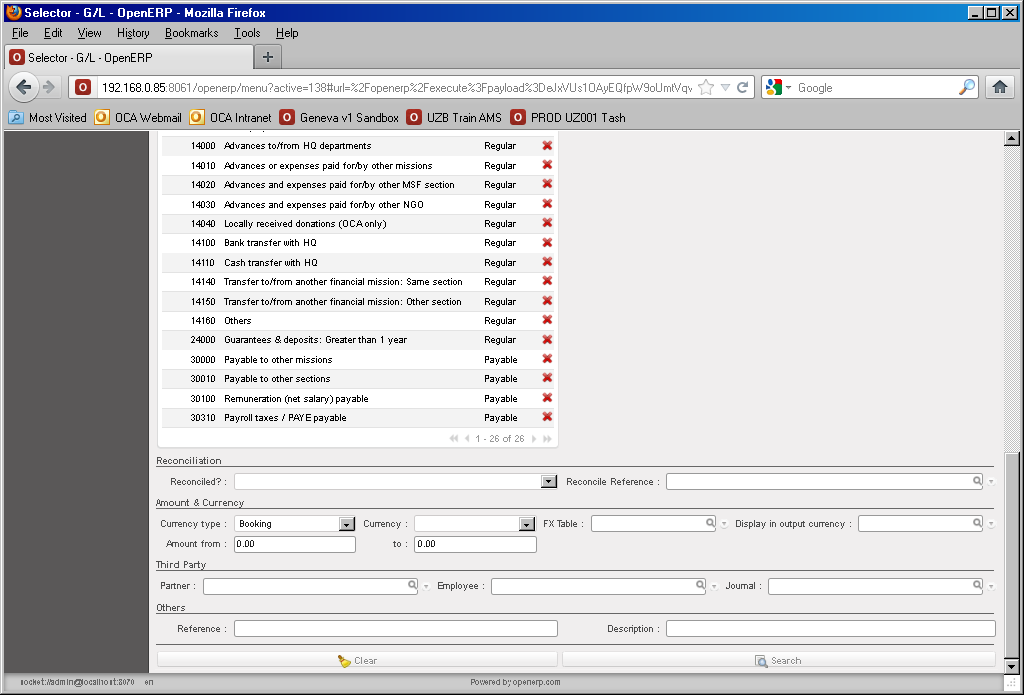
The search results will be displayed on a new tab as showed next page.
How to Perform a G/L Selector Search
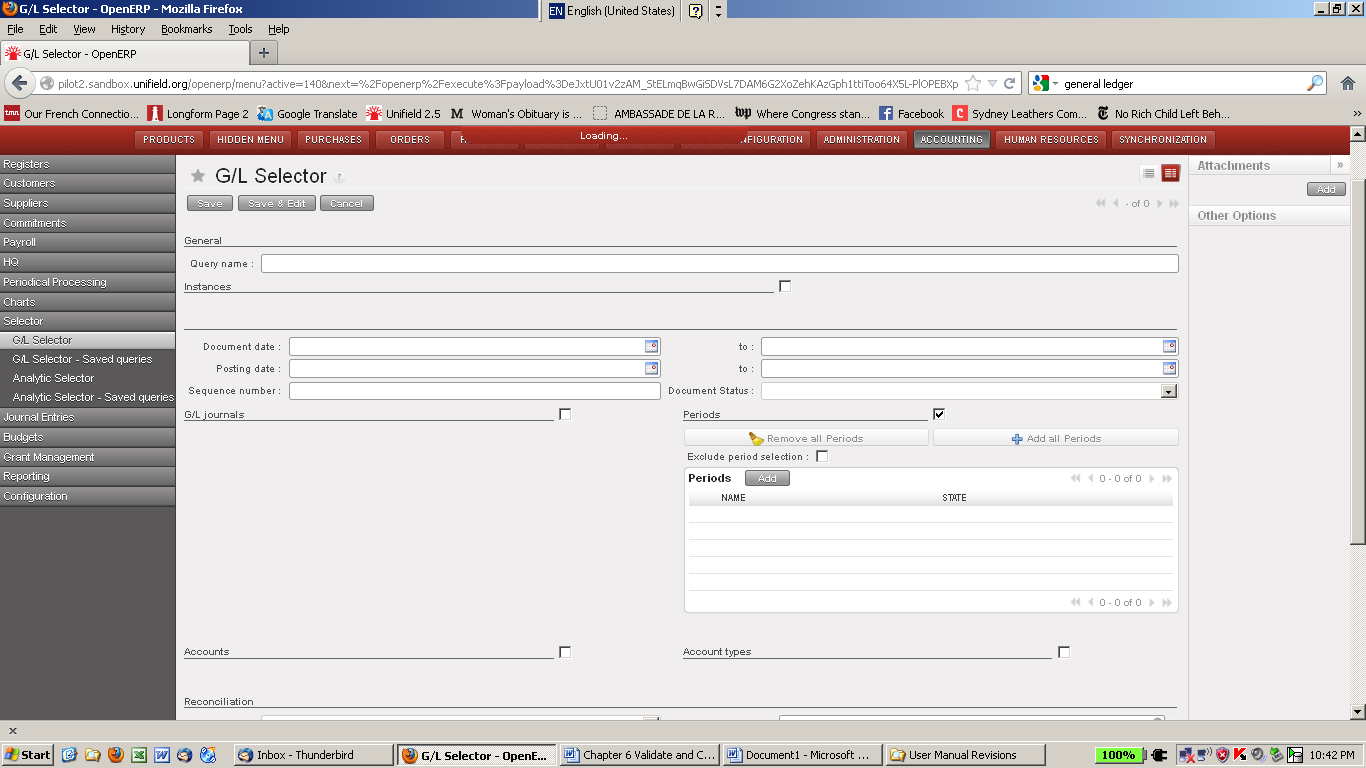
Go to: Accounting/Selector/Selector G/L
In this example we will search for entries for a specified period for a specific journal and export the search results.
- Tick the checkbox next to Periods to expand the search view.
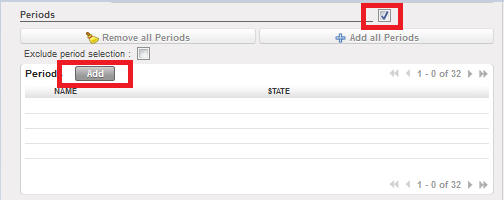
Expand search view in the G/L Selector to set period criteria
- Click the button and select the period(s) you would like to view.
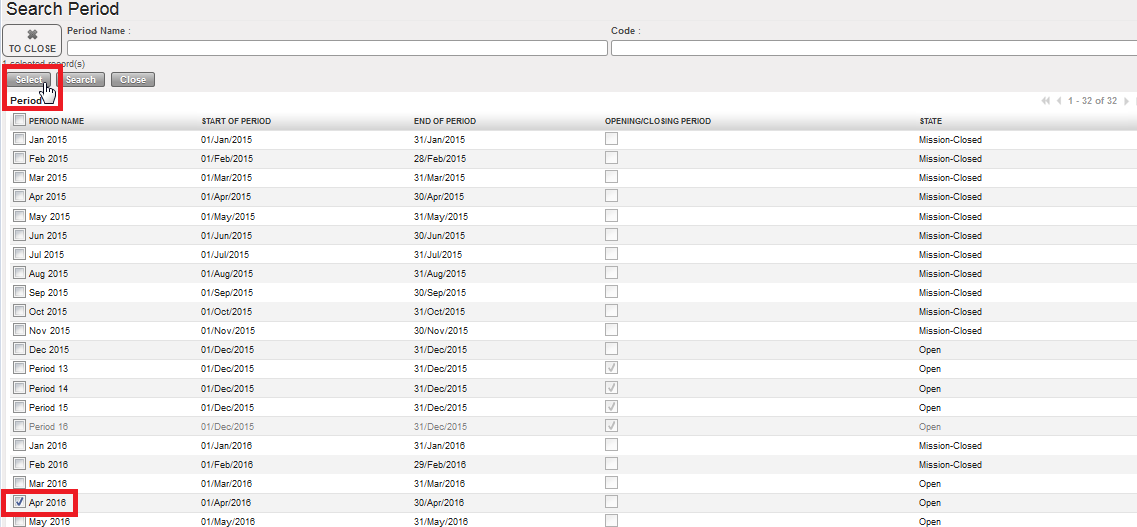
Select period in G/L Selector
- Tick the checkbox next to G/L Journals to expand the search view.
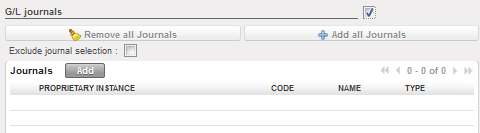
Expand search view in the G/L Selector to set G/L journals criteria
- Click the button and select the account (s) you would like to view.
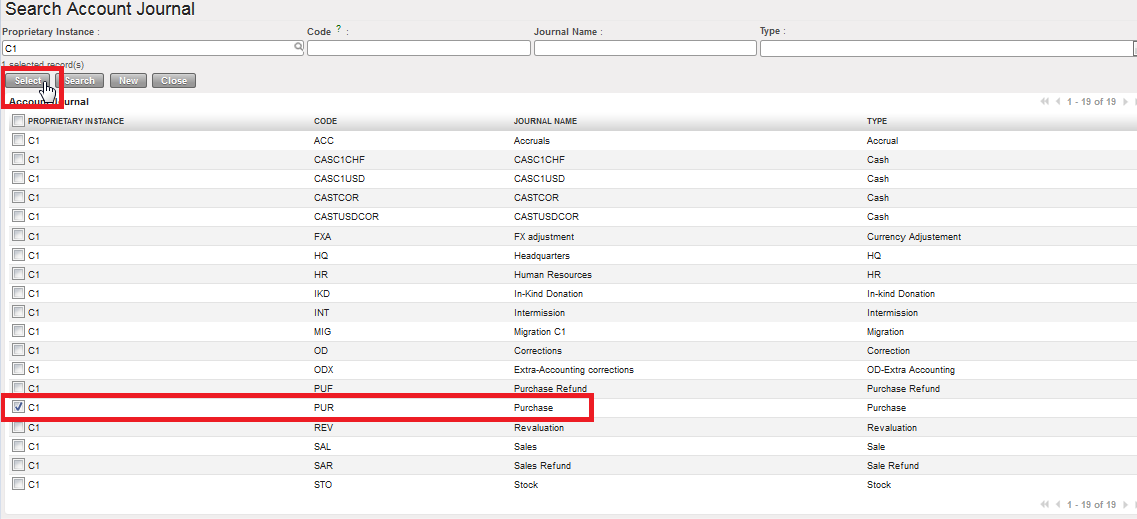
Select Purchase journal in the G/L Selector
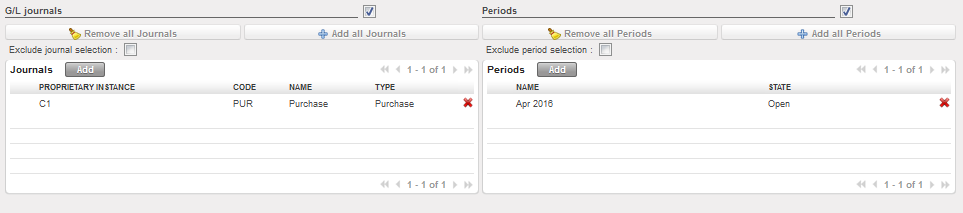
Search criteria Periods and G/L Journals set

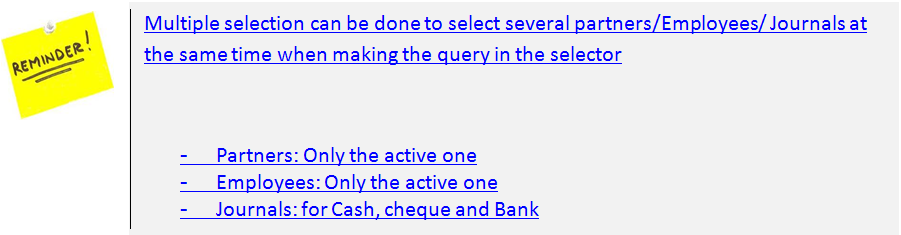
Optional search to display both columns “Output amount” & “Output curr.”:
- Go to Accounting > Selector > GL Selector,
- Update “Display in output currency “ with a currency.
- Both “Analytic Journal Items” & “Journal Items” interfaces will appear with two columns and their totals “Output amount” & “Output curr.”:
- Total output amount at the end in the entries interface when using the Analytic selector
- Total Output Credit and Output Debit at the end in the entries interface when using the G/L Selector
- Now that you have filtered by period and expense accounts, click {Search} at the bottom of the screen.
- A new tab opens to display the search results.
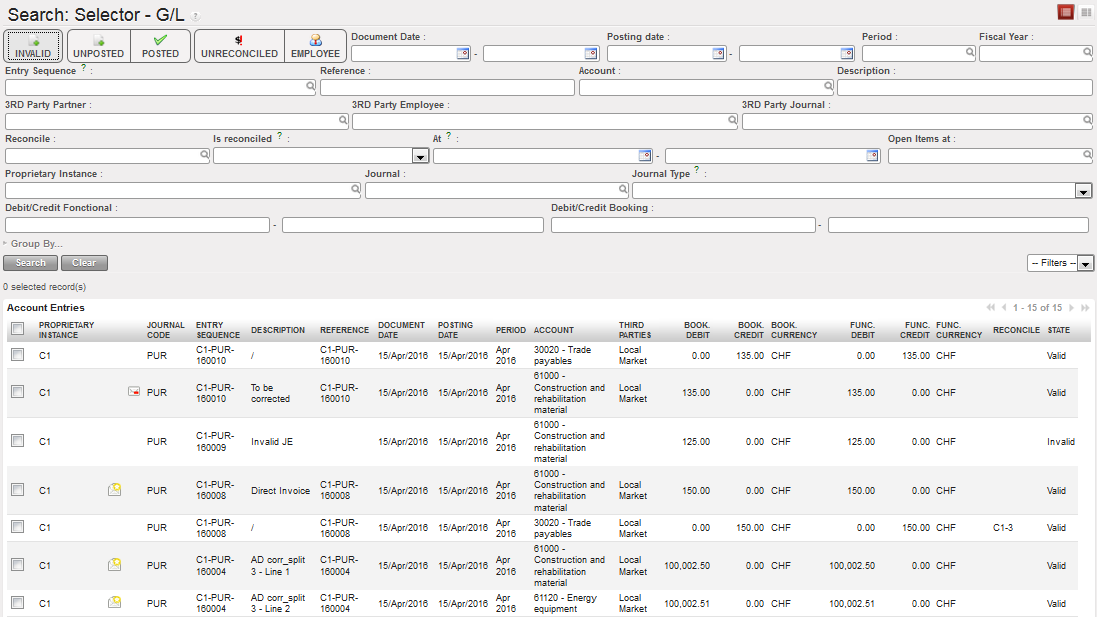
G/L Selector – Search output
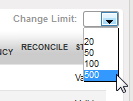
- Change limit to display more records. You can display up to 500 records at a time. You can choose to sort by a column header by clicking on the column header.
- Go to the Actions menu and select {Export search result}
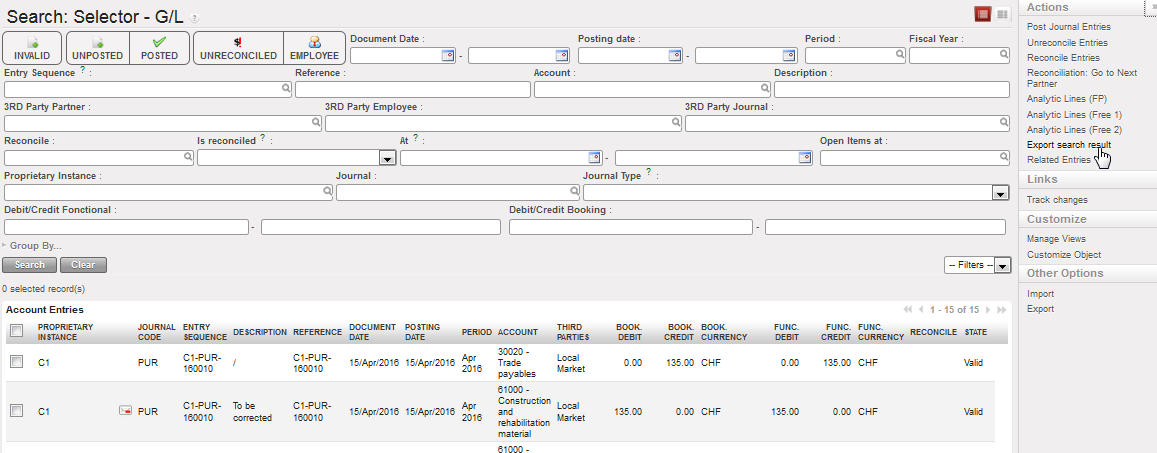
Click the top checkbox to select all entries and select {Export search result}
A new window will display with additional export options to select if desired, e.g. currency, format. Click {Validate}.
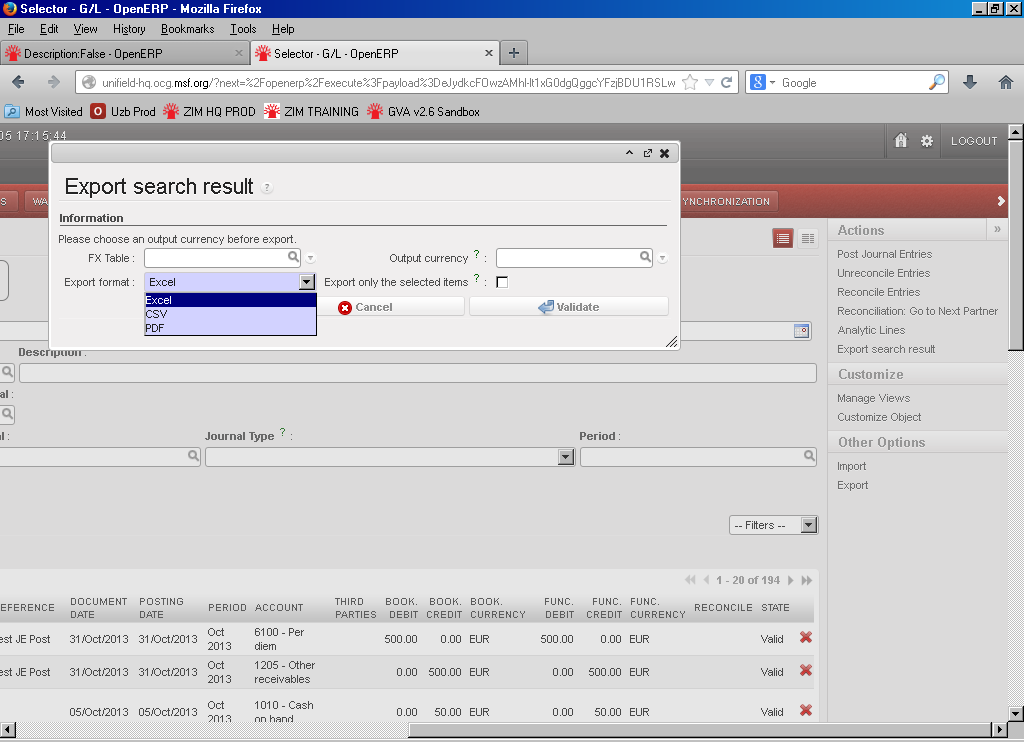
Export options
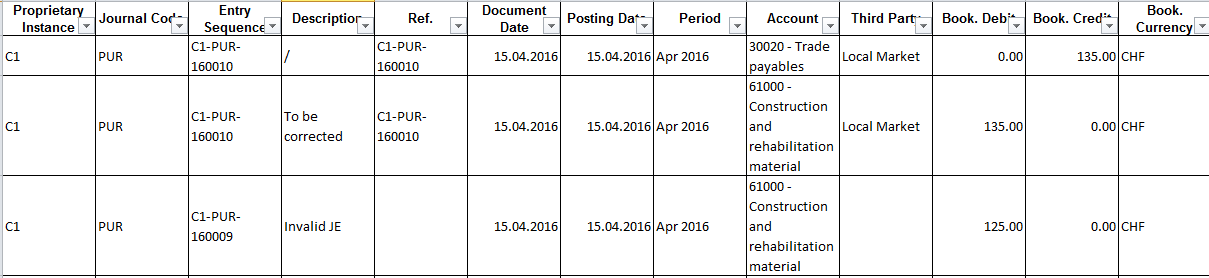
G/L Selector – Excel export file
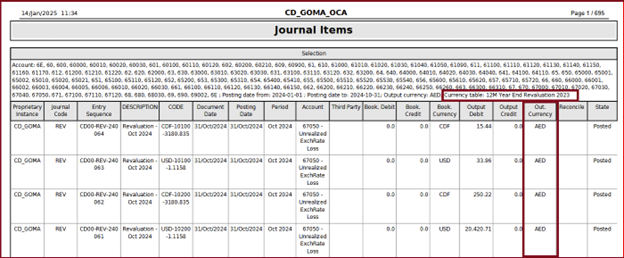
In GL Selector it is possible to extract PDF report including both Output currency and currency table as below:
- To include currency table add it through filter in FX Table
- To include Output currency add it through filter Display in output currency.
Then the extract appears as below in PDF: