Finance User Manual ENG -> 5. Searching, Correcting and Closing -> 5.2 Corrections. -> LUFI-50201 Direct Entries
LUFI-50201 Direct Entries
LU Introduction
Direct entries are made directly in the register and not through other interfaces like Supplier Invoice or Direct Invoice. For further information on what is a direct entry and how to book it, see Chapter 3 -Payments LUFI-30205.
The edition and deletion of Draft and Temp direct entries is addressed in Chapter 3 – Payments LUFI-30209.
If you need to change a data of a direct entry in Hard-posted state, you will perform an accounting correction as shown below.
How to Correct Hard-Posted Direct Entries
Hard-posted direct entries cannot be edited or deleted in the register. How the correction is done depends on the field that needs to be corrected. If you need to correct the below fields:
- Amount
- Description
- Third Party
- Document date
You will make a reversal entry and a correction entry directly in the Register.
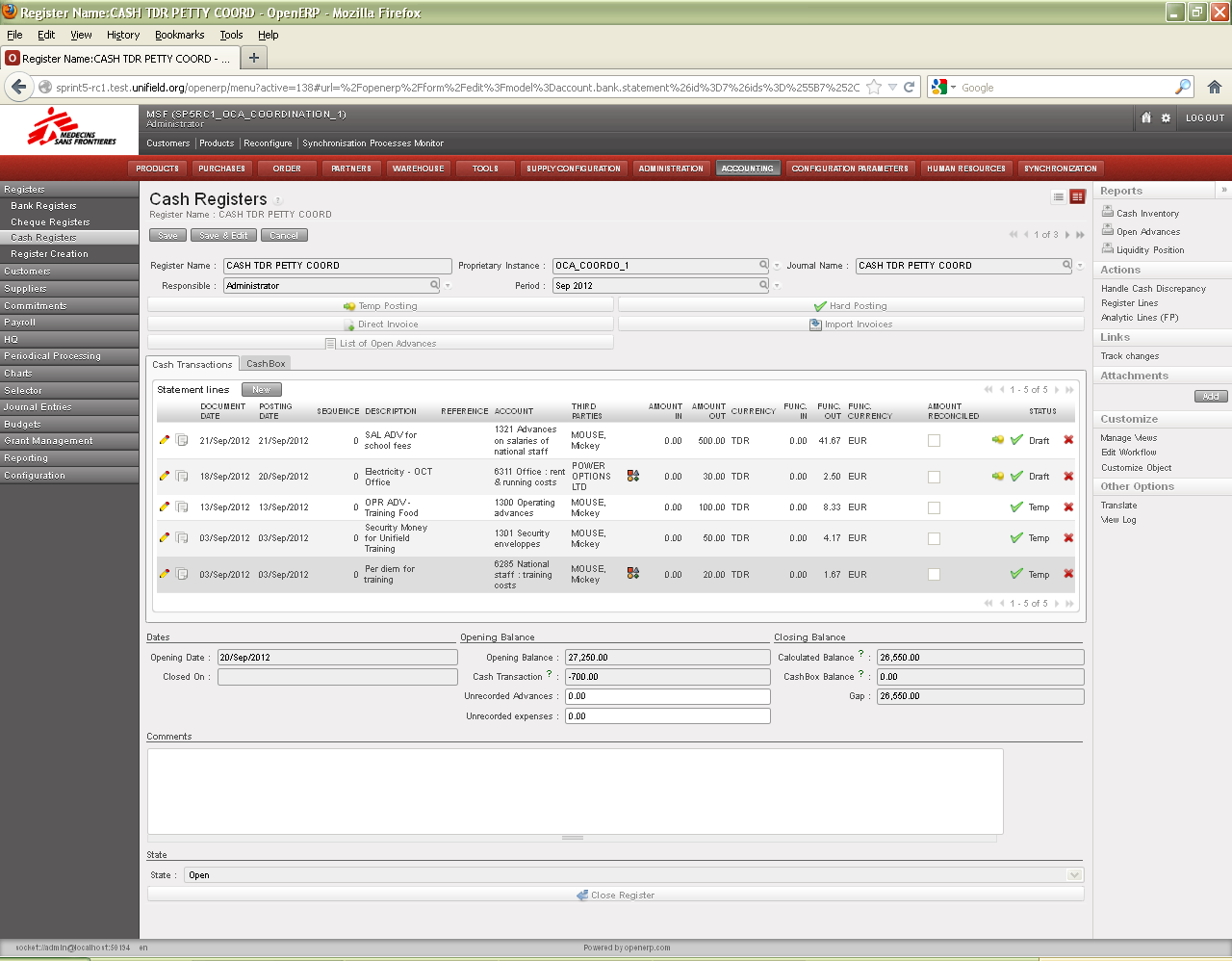
Go to: Accounting/Registers/Cash Registers
- Find the hard-posted register entry for which the amount needs to be corrected, Click on the duplicate button
- A copy of the original entry is created. Click
 to edit.
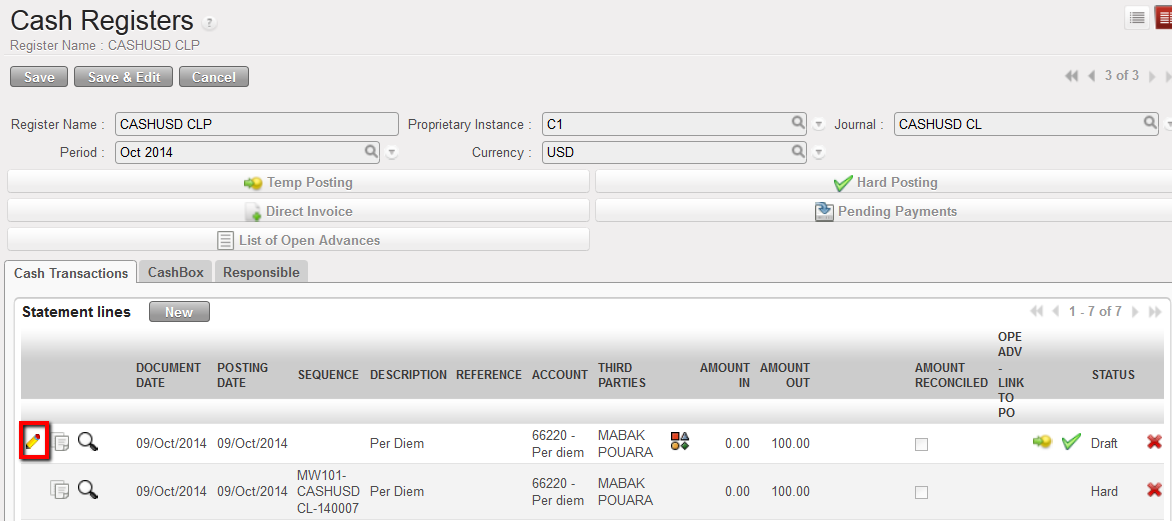
Reversed entry being created by using the Edit button
Edit the duplicate entry to reverse the original entry:
- Revise the field {Description} to indicate this is a reversal entry and why, e.g. “REV – PER DIEM wrong amt, should be 95”. The original description is retained to make it easy to match it with the initial entry.
- Delete the amount in the field {Amount Out} or {Amount In} and enter the same amount in the opposing field {Amount In} or {Amount Out}. This cancels the amount to zero and will update the register balance.
- If you are correcting the {Third Party} or {Document Date}, then you should not change it in this copy. You will correct it in the correcting entry.
- Click
 to save the entry
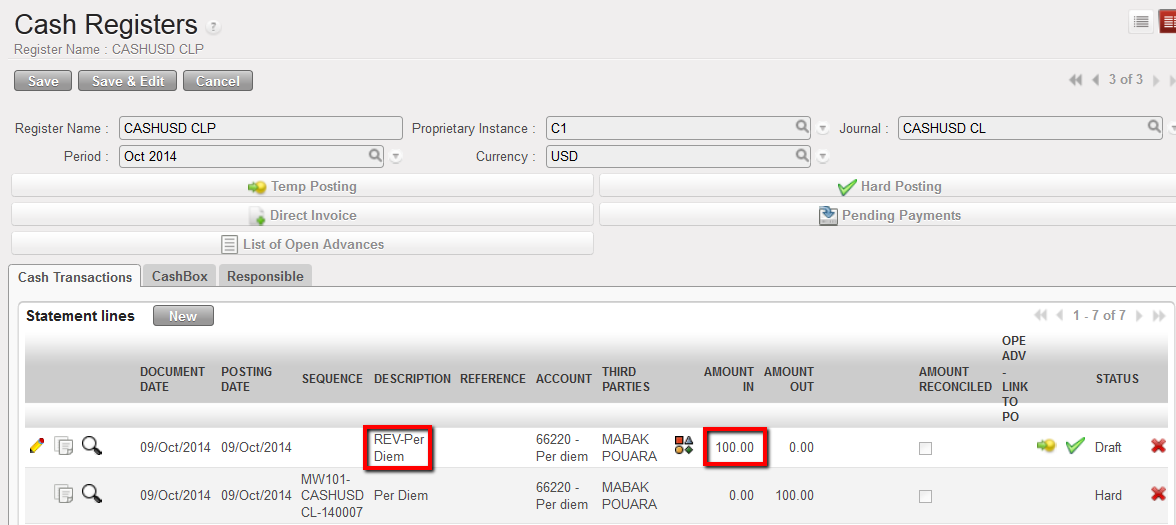

Reversal entry is saved and Temp posted
Now, you need to create the correcting entry with the right amount, or document date, or description. Click on the duplicate button of the initial entry.
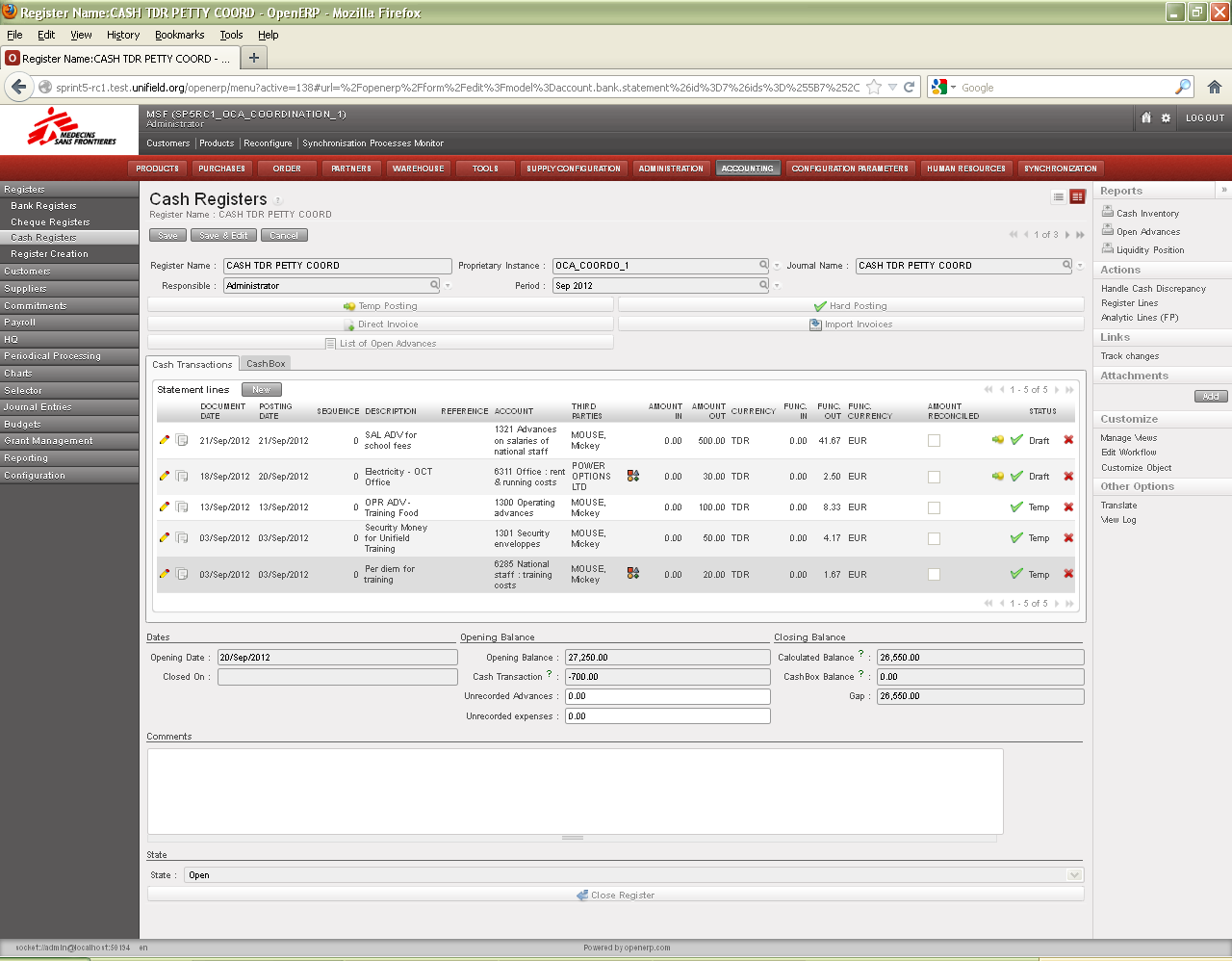
- A copy displays. Click
 to edit.
 - The second entry corrects the error:
- Revise the field {Description} to indicate this is a correcting entry and why, e.g. “COR – PER DIEM wrong amt, should be 95”. The original description is retained to make it easy to match it with the initial entry.
- If correcting amount, change it in the field {Amount Out} or {Amount In}
- If you are correcting the {Third Party} or {Document Date}, enter the correct value
- Click
 to save the entry

Revise the duplicate entry to correct
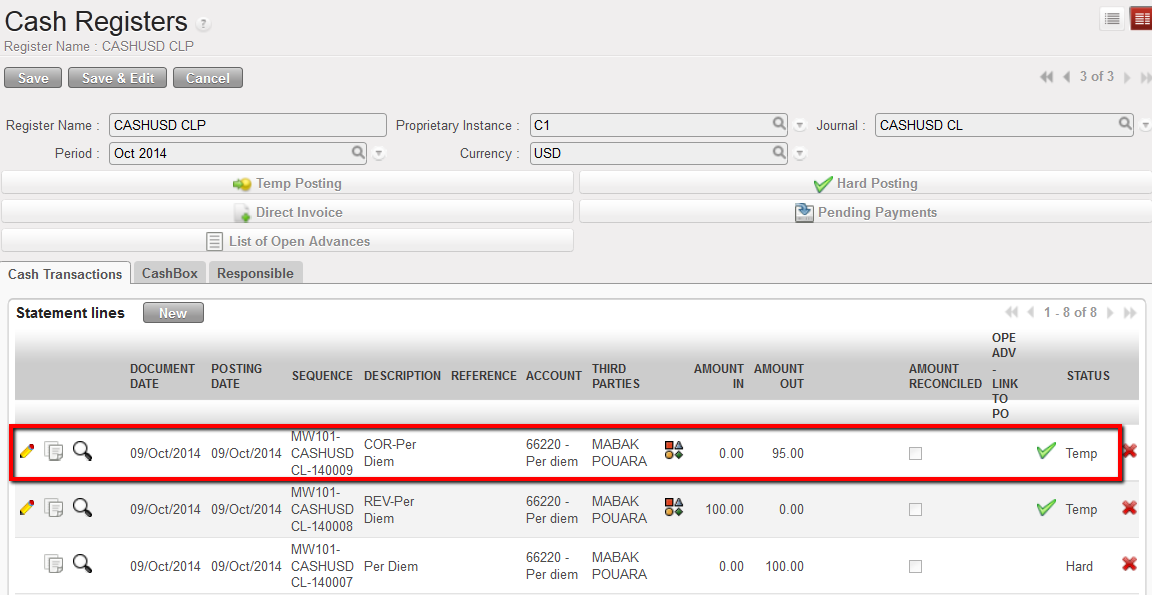
Correcting entry is created using the Duplicate button on the reversing entry
- Now, you should be able to view:
- The original register entry in which you made an error
- The reversing register entry
- The correcting register entry
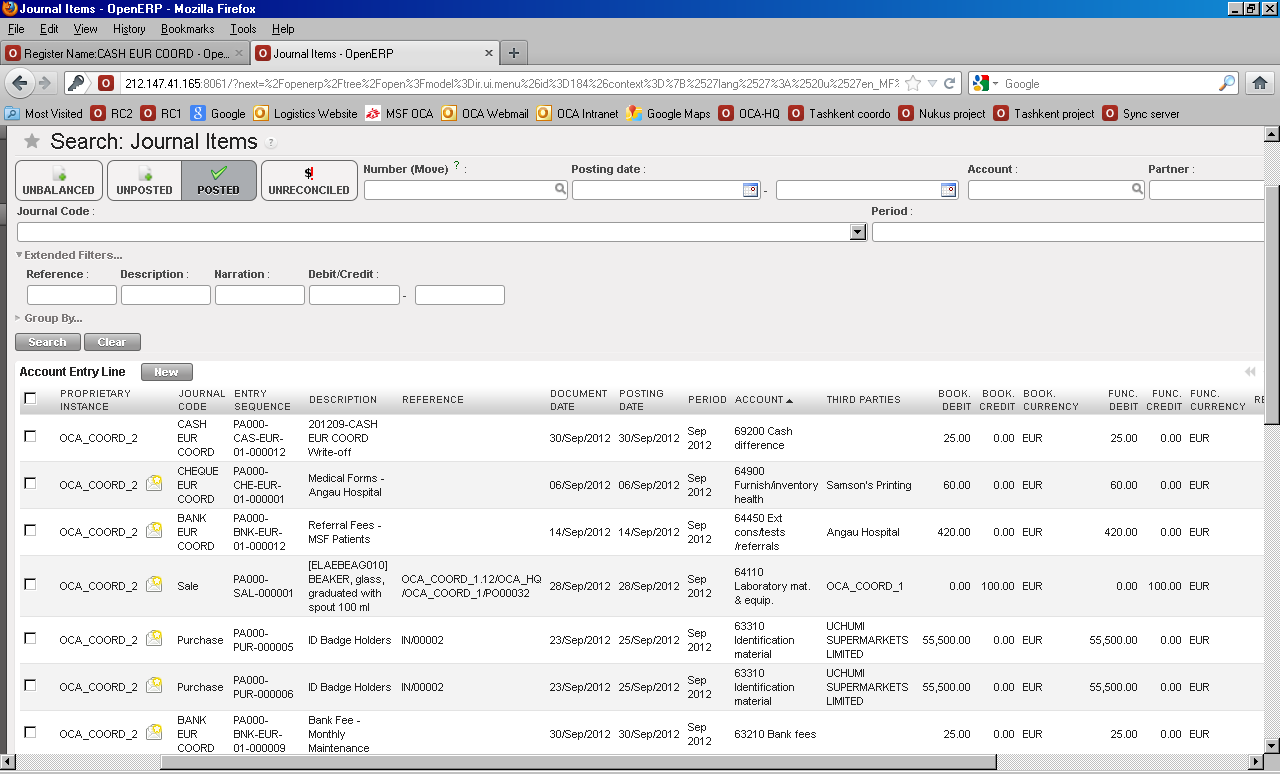
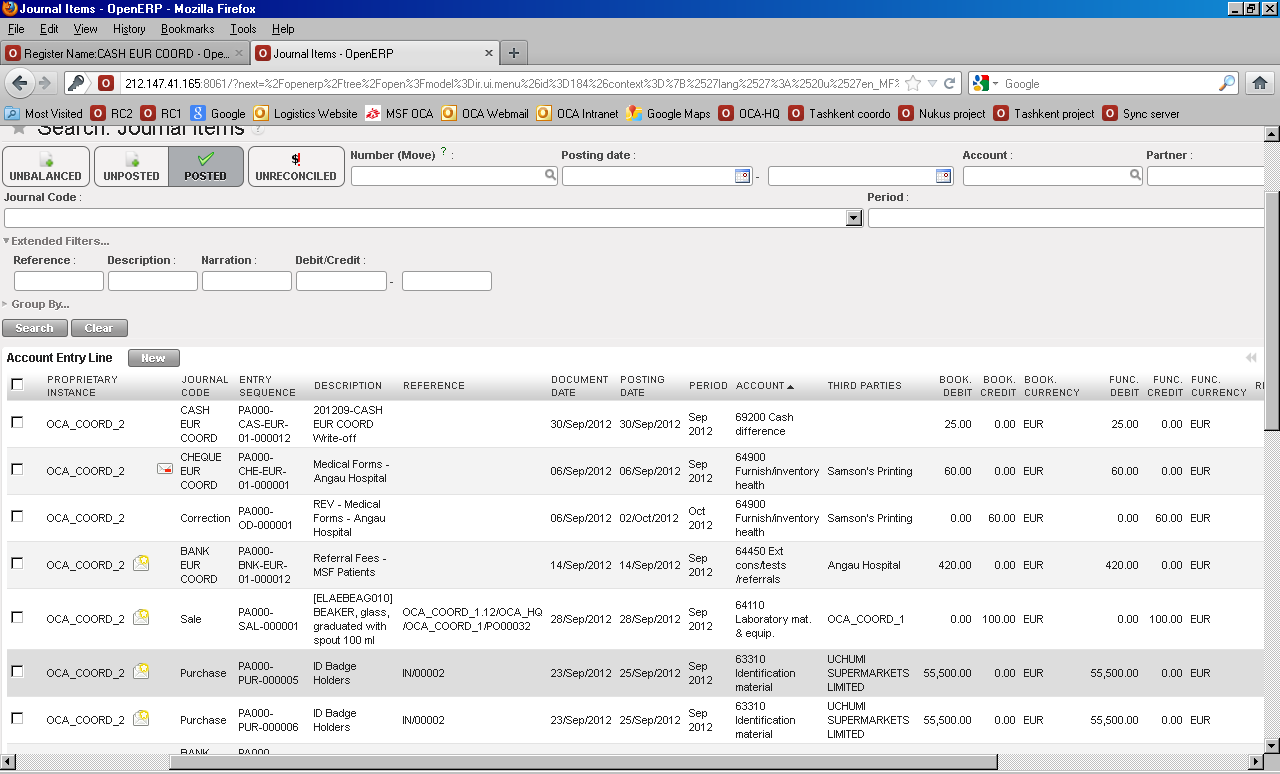
- In Journal Items, you can see the double accounting moves that correspond to the register entries which reverse and correct on the relevant journals and accounts:
- Original entry:
Credit -10100 Cash on hand (100 USD)
Debit – 66220 Per Diem (100 USD)
- Reversing entry:
Credit – 66220 Per Diem (100 USD)
Debit – 10100 Cash on hand (100 USD)
- Correcting entry:
Credit – 10100 Cash on hand (95 USD)
Debit – 66220 Per Diem (95 USD)
Accounting entries are editable until they are Hard-posted. Only unreconciled entries can be corrected. Entries need to be manually unreconciled before correction (on manually reconciled entries). Once the correction is validated, the corrected entry can be manually reconciled with its counterpart entry (if relevant).

For the following fields, the user with appropriate access rights can open a link from the registers to the Analytic Journal Items to make reversing and correcting entries using the Corrections Wizard:
- Expense accounts
- Destination
- Cost Center
- Funding Pool
Corrections can be performed on entries belonging to open or closed periods. If correction takes place in a different period than the initial entry, the exchange rate in the reversal and correction entries is the rate of the original entry (based on the posting date). Also, keep in mind that corrections in Journals do not impact cash balances (no register line created).
Go to: Accounting/Registers/Cash Registers
- Find the hard-posted direct entry for which the expense account needs to be corrected. In this example, drinks ordered for the team were booked to {60030 – Therapeutic Food} but should be {61020 – Non Therapeutic Food}. Click on the magnifying glass to link to the analytic lines associated with the register entry.
From Registers, link to the analytic journal items
- A new tab opens to display the analytic lines. Click on the envelope next to the entry.
Corrections using the link to Analytic Lines from Registers
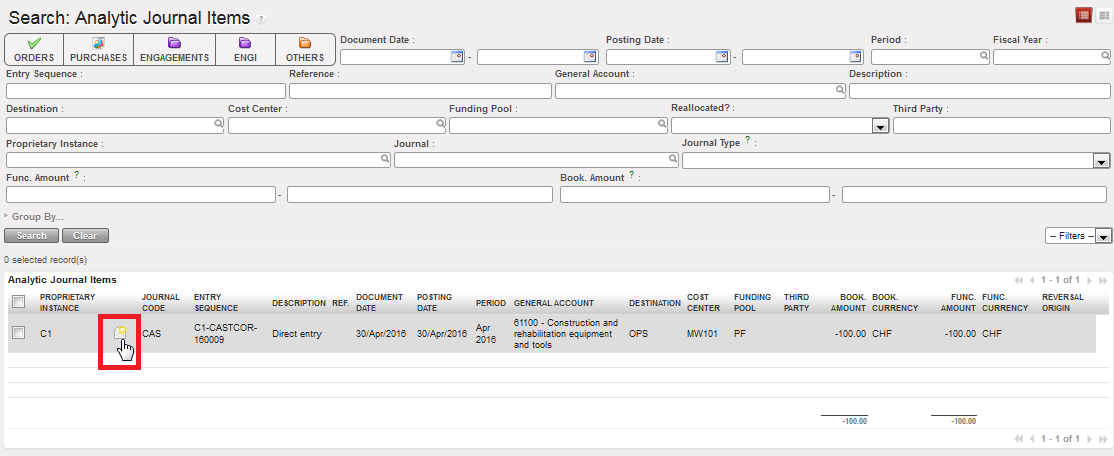
- The {Accounting Corrections Wizard} opens. Enter the date on which the correction was made. To make a correction to account code, click on the pencil
 to edit the entry.
- Click on the pencil to correct account code or the AD icon to correct analytic distribution
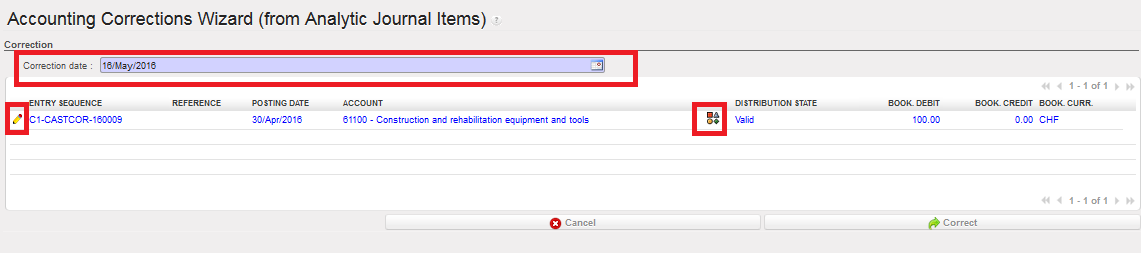 Change the account code and click
  to save. The new code is saved.
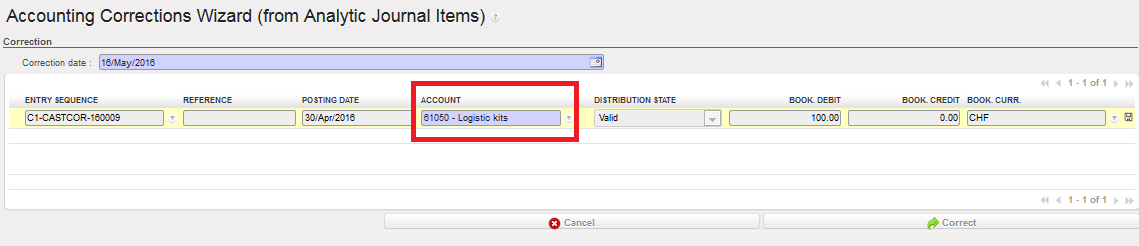 Correcting the account code:
- If a correction is made on an expense account, you should review the analytical distribution to confirm that the new expense account is assigned to a proper destination and funding pool. If assigned properly, you can click {Correct}.
- If the new expense account is not assigned properly, the correction entry will display in red font and the user will not be able to validate the correction until the analytical distribution is changed. Click on the {AD} icon to assign the expense correctly.
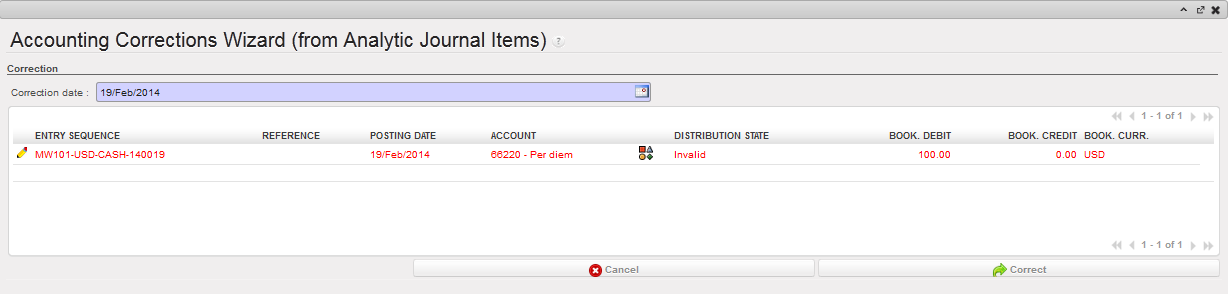
Analytic distribution is invalid after account code is corrected
- The Analytic distribution window opens. Click on the pencil to change the destination, cost center or funding pool as needed. When you are done, Click to save and then click. The {Cancel} button will return you back to the Accounting Wizard.

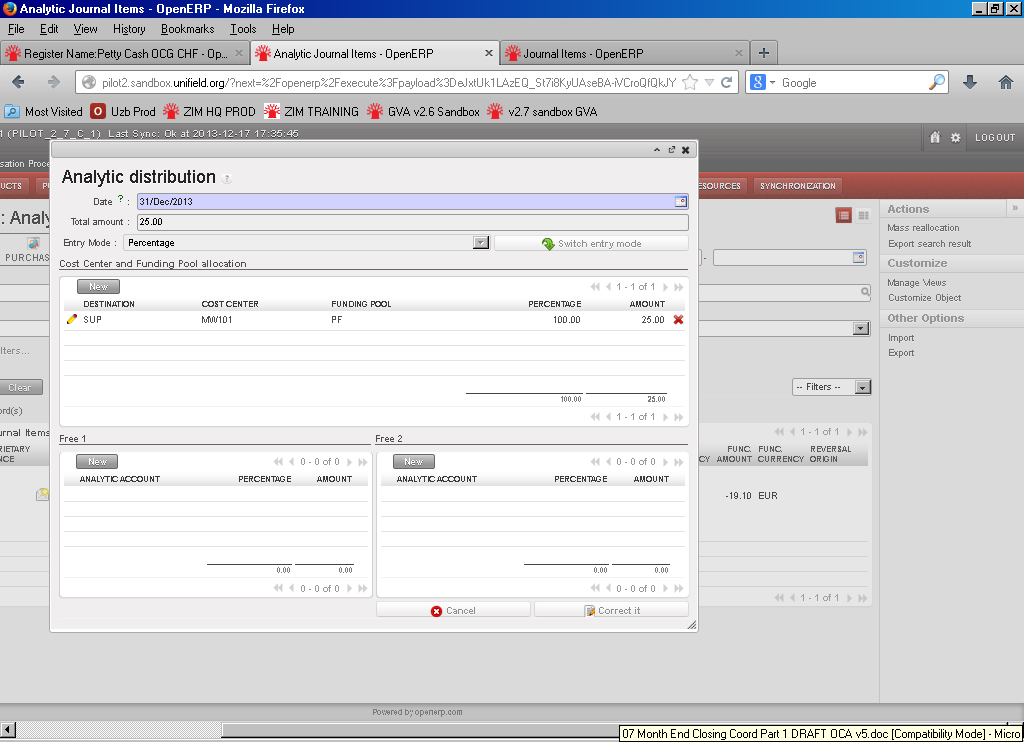

Edit button to change the analytic allocation
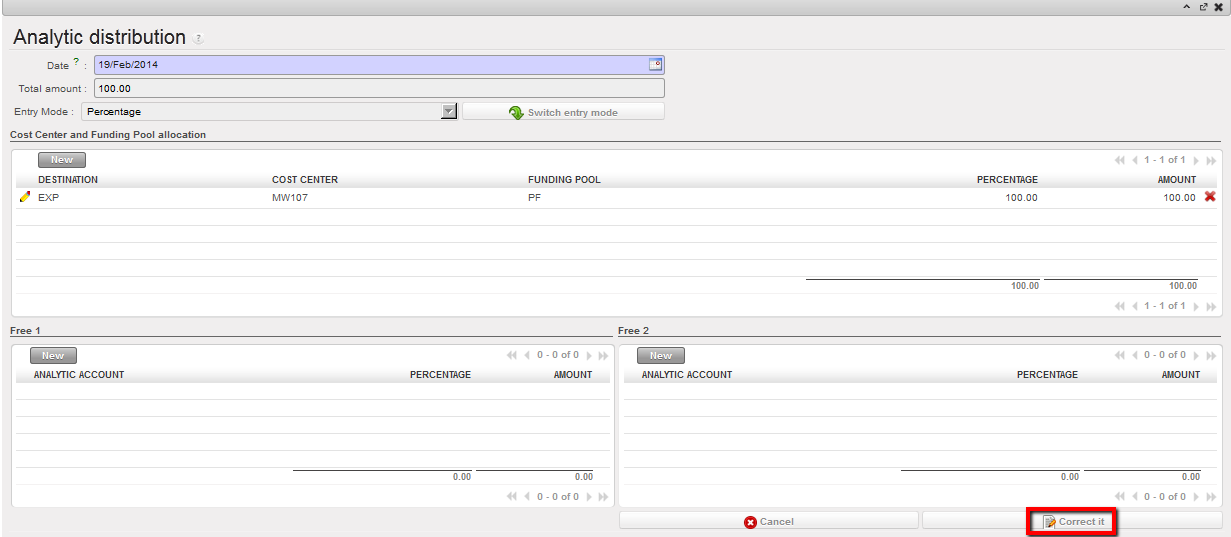 Correct button to save the correction
- Back in Analytic Journal Items, the original entry will now display a closed envelope icon to indicate that the entry has been corrected. When this envelope is clicked, a window will open to show the history of changes (original, reversing and correcting entries) in Analytic Journal Items.
Closed envelope icon indicating the entry has been corrected
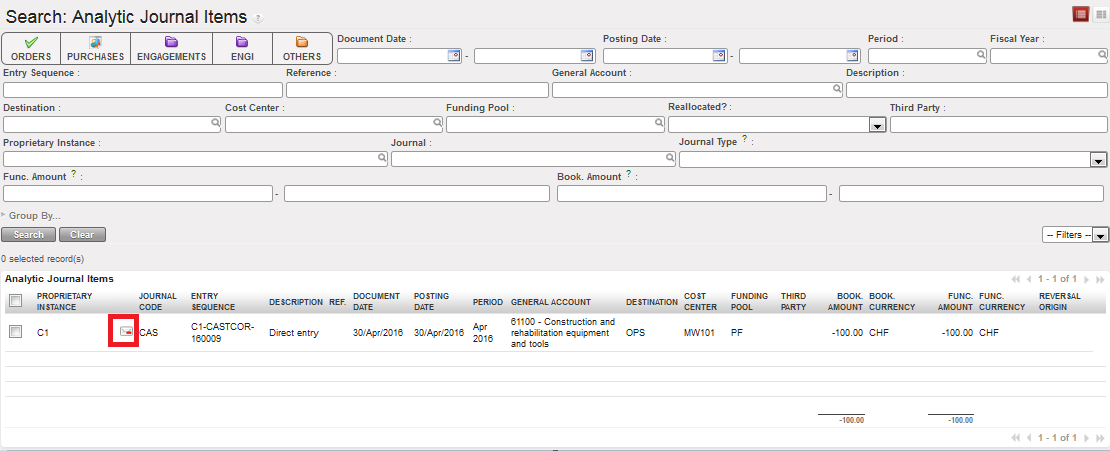 Correction history on an accounting code
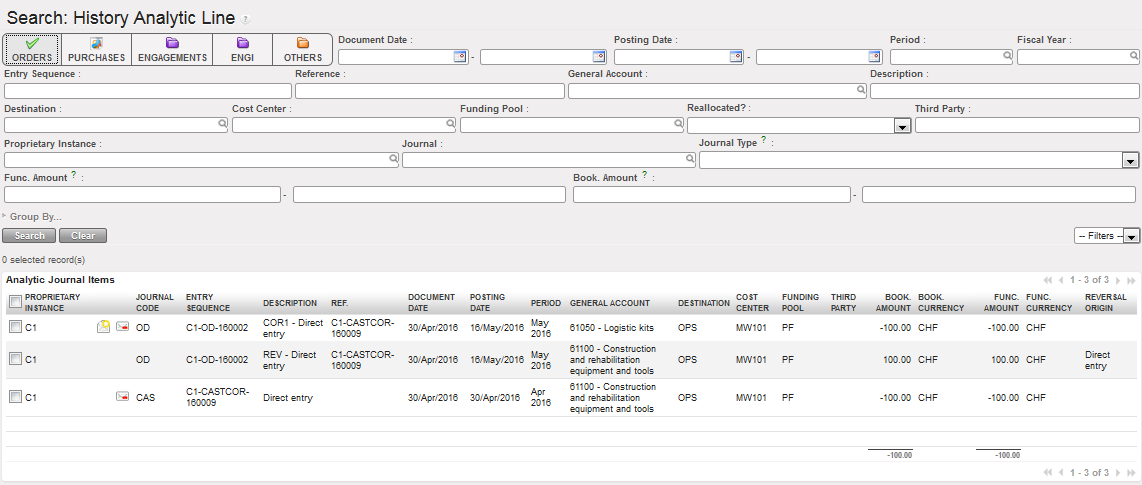
- The entries associated with this correction can also be searched directly in Analytic Journal Items. The original entry and the correction entry both display the icon to show the corrections history. The envelope icon is no longer displayed next to the original expense entry in Journal Items since a correction has been made. The envelope icon is now next to the corrected entry and is to be used if user needs to correct the corrected entry.
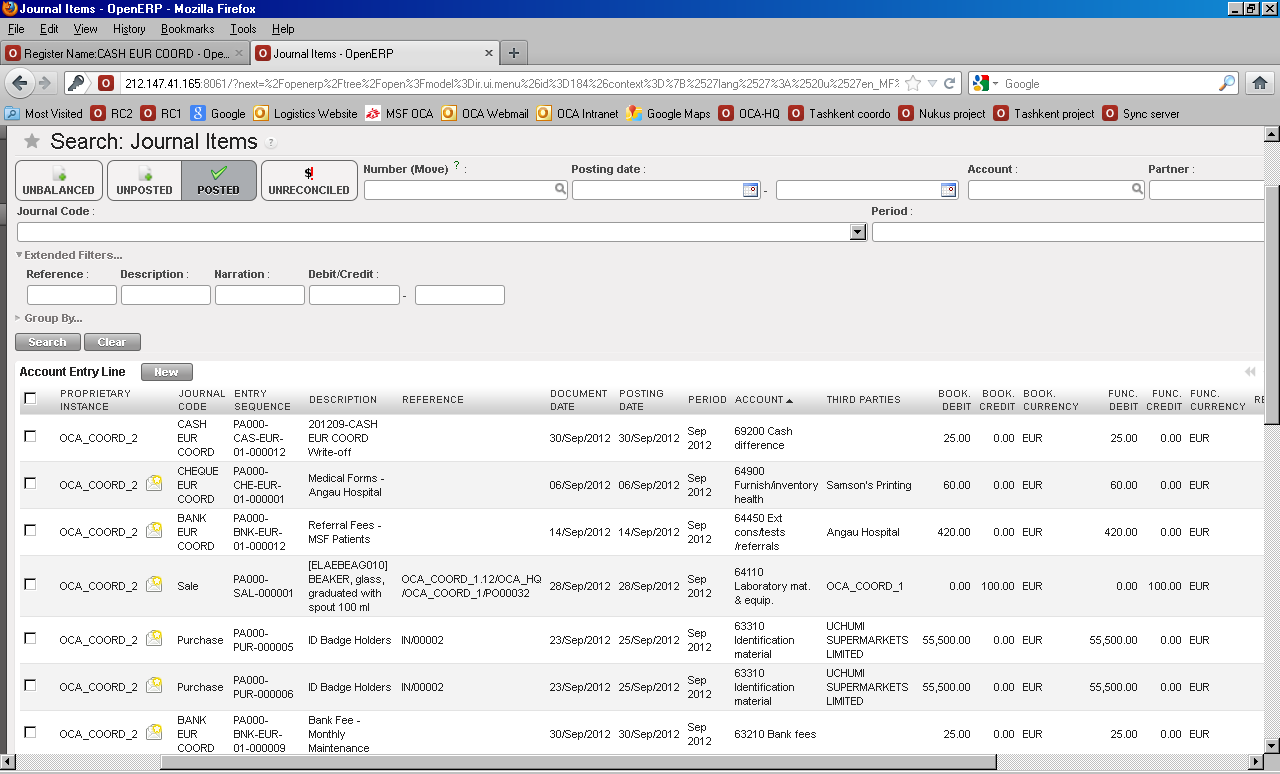
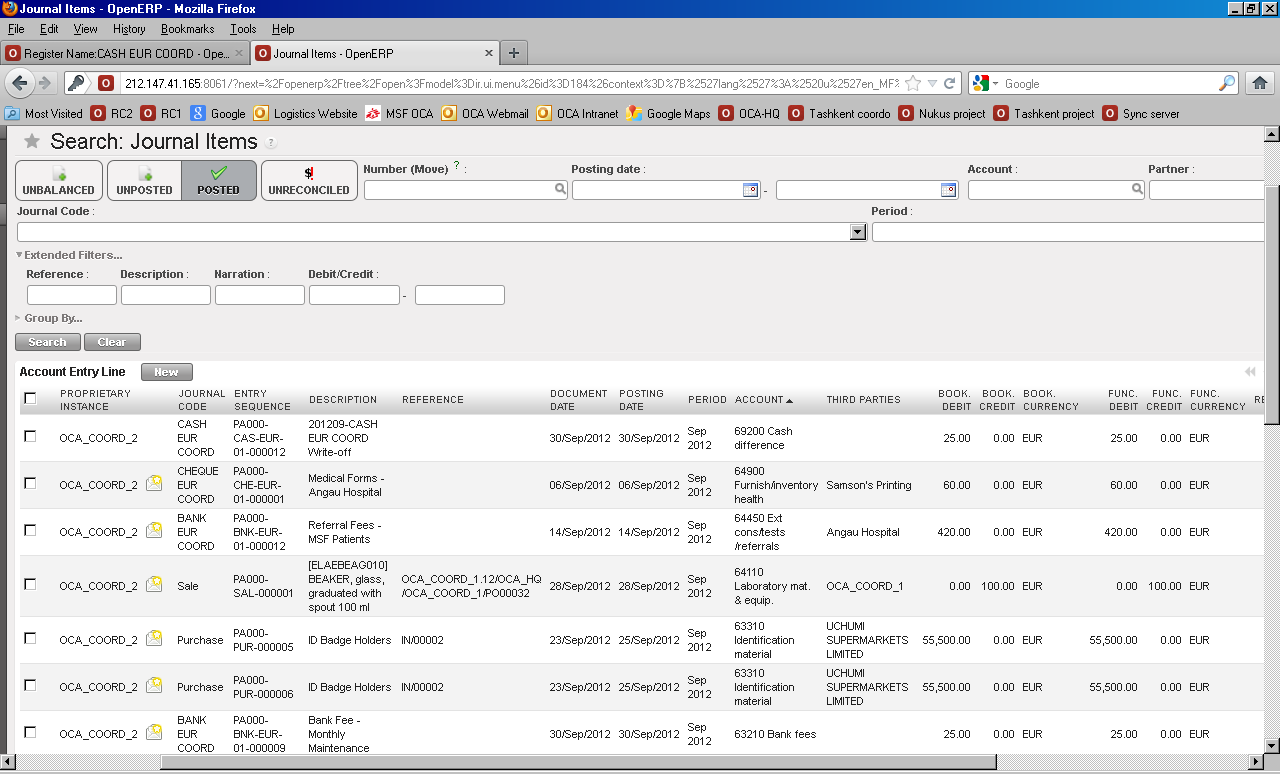
Note that for the reversing and correcting entries created from the Corrections Wizard:
- The same description as the original entry is used but prefixed by REV and COR<#> where <#> tracks the corrections made to the original analytic journal item and will be incremental as subsequent corrections are made (“correction of the correction”).
- They are automatically posted to the Corrections journal (OD)
- The Reversal Origin of the reversal entry is the description of the original entry
- The Reference of the reversal and correcting entries is the entry sequence number of the original analytic journal item allowing you to easily trace back to the initial entry.
Original, reversed and corrected journal item. Reversed and Corrected entries show the accounting corrections to debit and credit amounts:

- Back to the Registers, the correction on the account will show on the register line
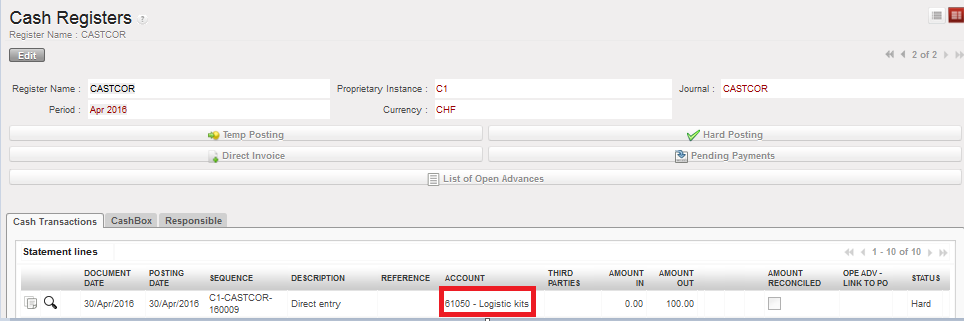
Correction on the account code displayed in the register line
- If Coordination has made the correction to a project entry, the change will be reflected upon synchronization at project level. Remember, Project will not be able to correct this entry again.
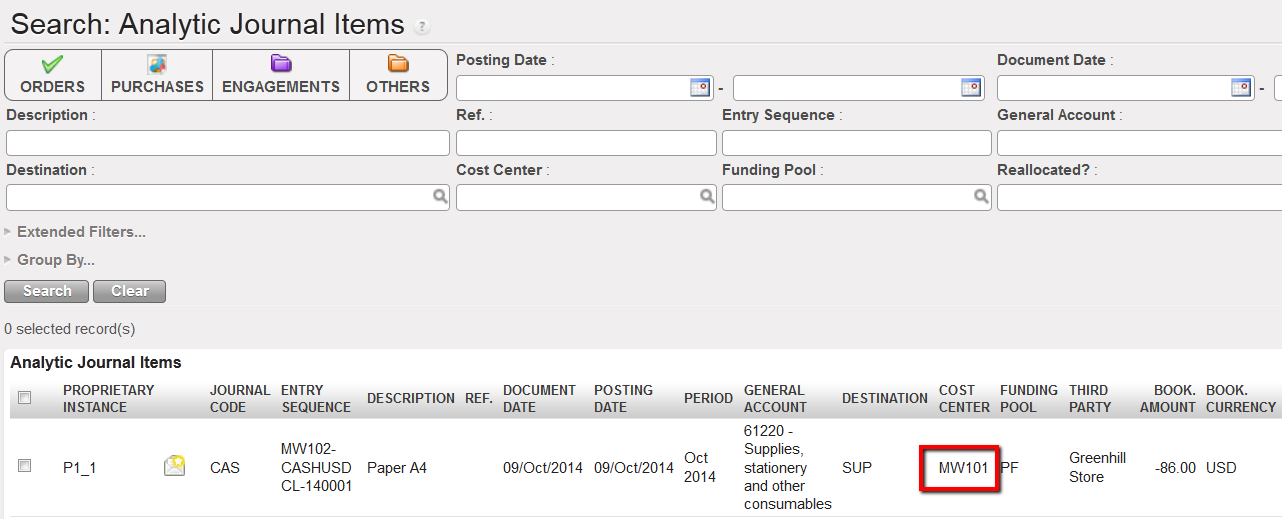 Entry recorded at project level and booked on the cost center MW101 instead of MW102.
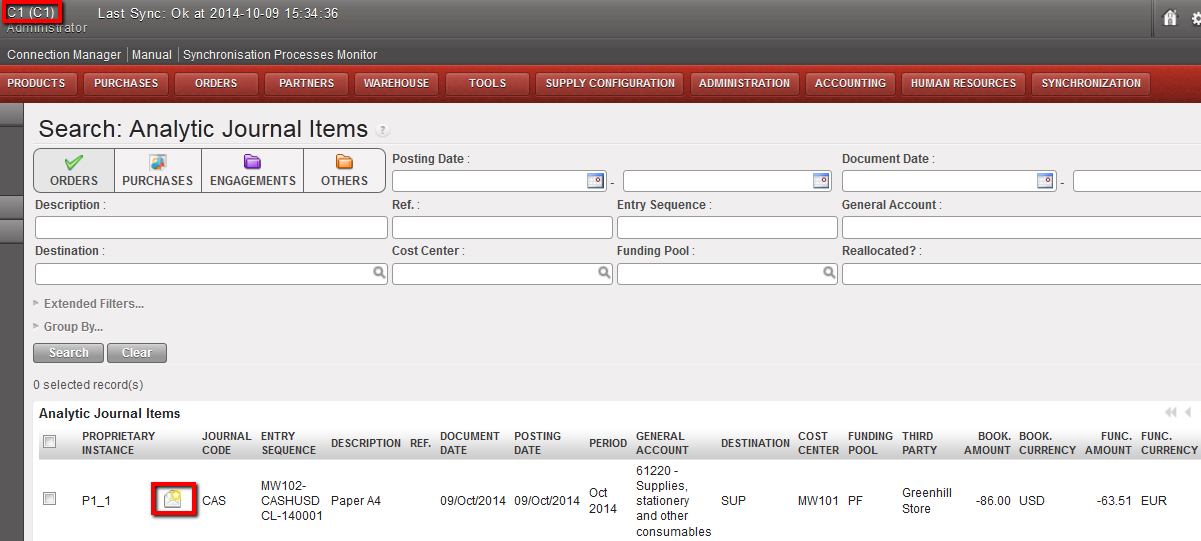 Synchronized entry to correct visible at Coordination instance
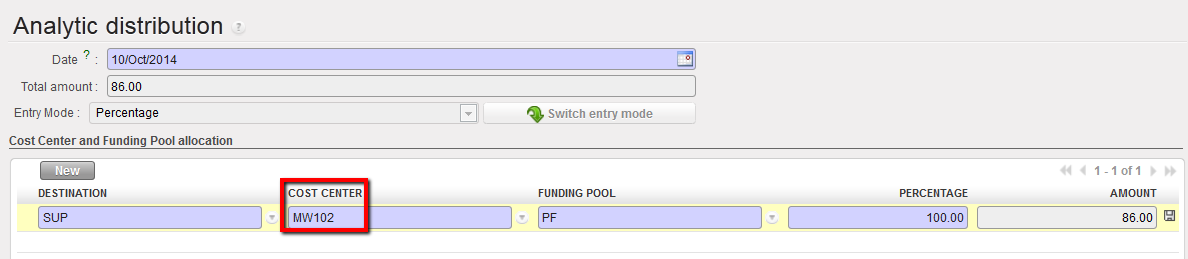 Cost Center being changed by Coordination to MW102
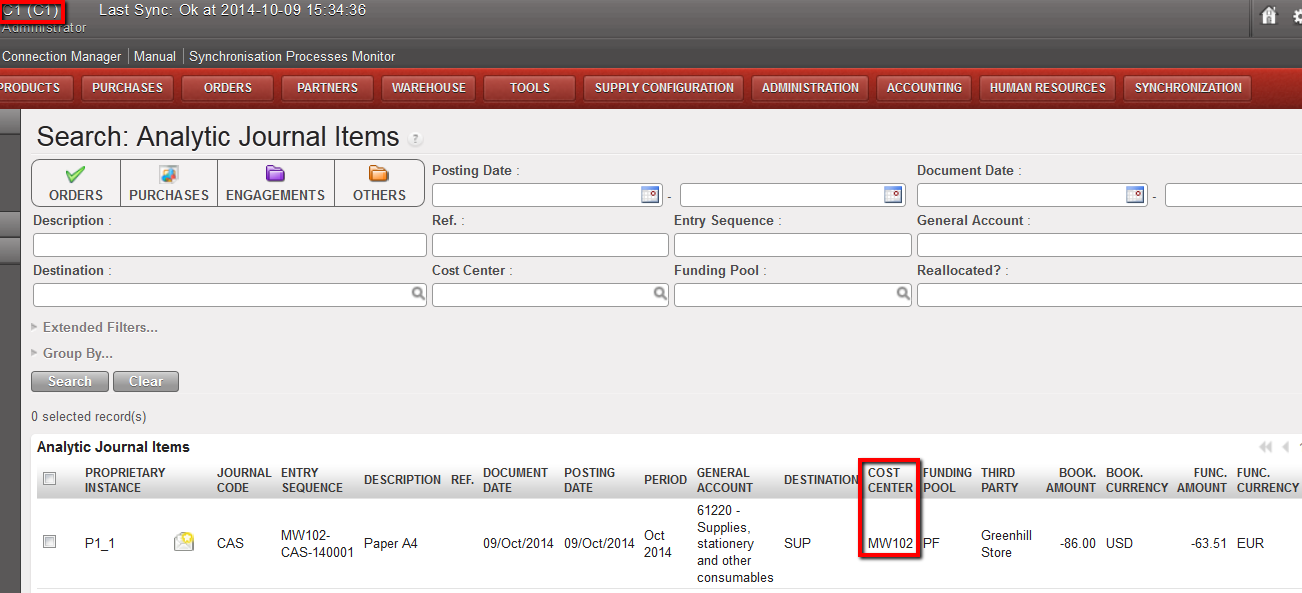 Cost center changed to MW102, visible at Coordination instance
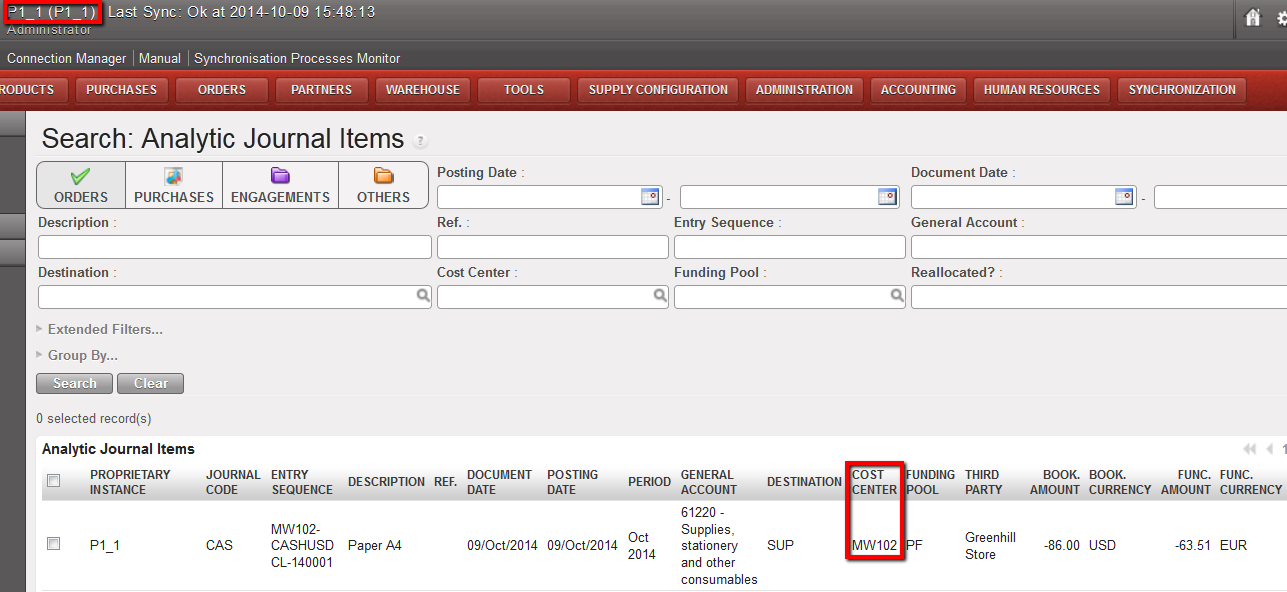 Cost center changed to MW102, visible at Project instance after being synched. This entry cannot be corrected anymore (no envelope icon = correction wizard disabled).
If a correction is made only to the analytic distribution (destination, cost center, funding pool) in an open period, the Correction Wizard will override the original analytic journal item. Reversing and Correcting entries are not created since the accounting journals are not affected, so you are not able to track if any change was made. The original entries in Registers and Journal Items remain unchanged.

Original cost center to correct
Corrections to the AD update the original analytic journal item
If the period is closed, entries are created in the Corrections Analytic Journal to reverse the analytical distribution and then to correct it. Back in Registers, you cannot view the correction to the analytic distribution because the entry has been hard-posted. There is no AD icon available.
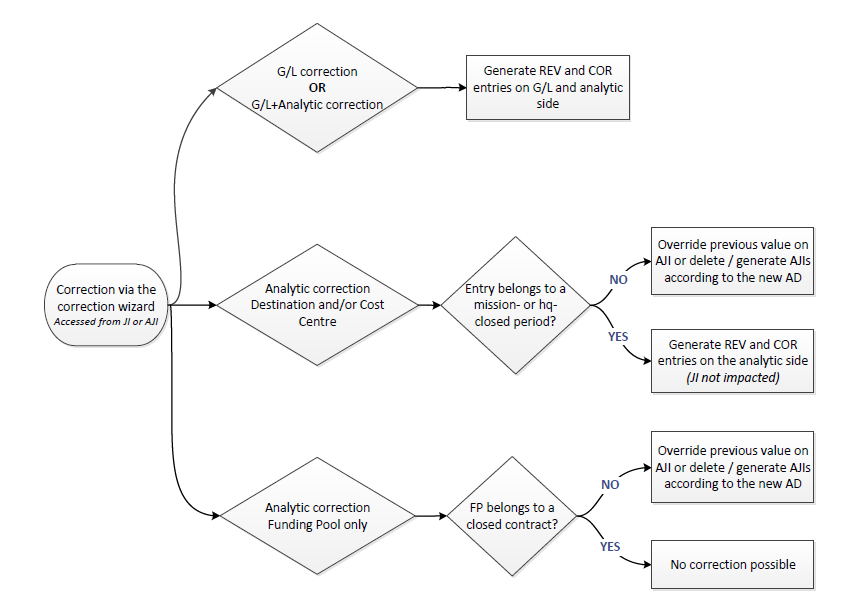
Below is a chart summarizing the system behavior when the correction wizard  is used: