
Finance User Manual ENG -> 5. Searching, Correcting and Closing -> 5.2 Corrections. -> LUFI-50202 Supplier Invoices
LUFI-50202 Supplier Invoices
LU Introduction
Supplier invoices are created when an incoming shipment from a logistics purchase order is validated by Supply or when created manually by Finance. How corrections are made depends on the status and if the supplier invoice has been paid in Registers.
How to Correct Open Supplier Invoices Not Yet Paid
Once a supplier invoice has been validated, the status changes from {Draft} to {Open} and is pending of payment in Registers. The invoice cannot be edited and the related journal items are posted.
The user with appropriate access rights can correct the expense account and analytical distribution (Destination, Cost Center and Funding Pool) from the Journal Items or Analytic Journal Items view to make reversing and correcting entries using the Corrections Wizard:
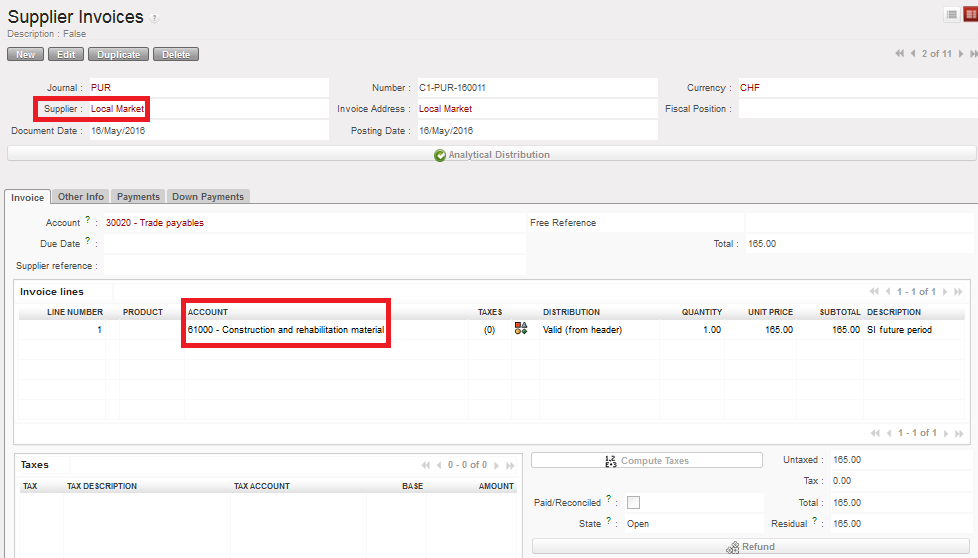 Open supplier invoice displayed in the Supplier Invoices sub-module
Go to: Accounting/Journal Entries/Journal Items
- Search for the entries (expense and payables accounts) corresponding to the supplier invoice you want to correct
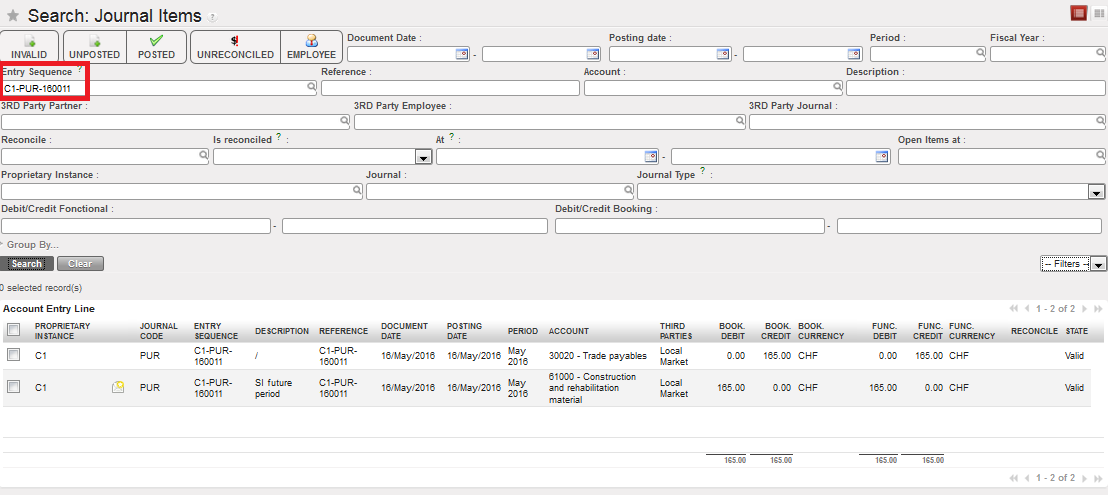
Corresponding Journal Items
- 2. Select the icon to open the Accounting Corrections Wizard
 Accounting Corrections Wizard
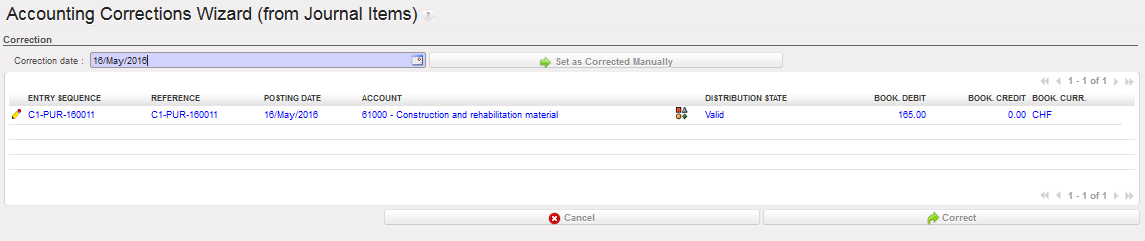
- Insert a correction date (=posting date of the correction entry) in the {Correction date} field
- Select the icon to edit the account code or the icon to modify the analytical distribution. In this case we will change the cost center. The analytical distribution wizard opens.


- In the wizard, select the icon to edit the analytical line

 Edition button to change the analytical distribution
- Change the distribution and save the line

 Cost center changed
- At the bottom of the screen, select to apply the correction. The window closes.

- As we modified a cost center, Go to Accounting/Journal Entries/Analytic Journal Items and check if the correction was done.
- Note! Depending on the period status of the entry that was corrected, either the original AJI is updated (=period is still open) or correction entries in OD journal are created (=period is closed)
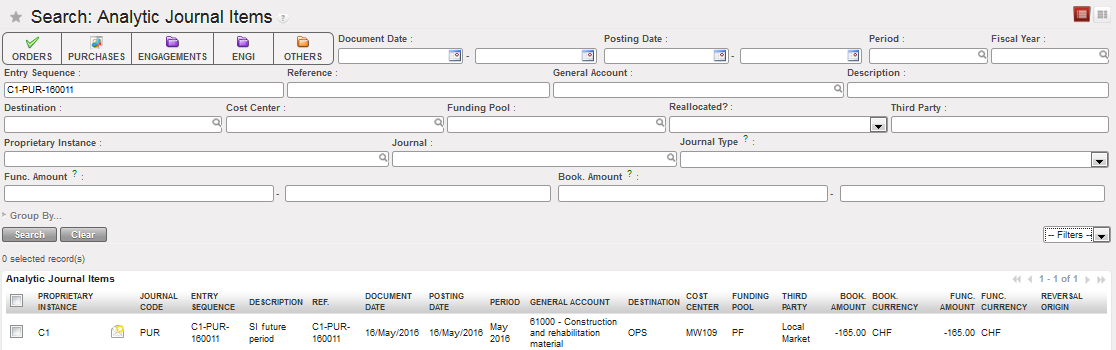 The cost center was changed and the original AJI was updated.
If you need to make a correction on product, price, quantity, supplier, document date or currency, you will use the function called {Refund} located on the supplier invoice.
In the Refund wizard, 3 options are possible: Modify Refund and Cancel. They can all be used according to the situation you are facing.
Modify is used if for instance goods were received and checked but some of them are damaged at the time of consumption and they are sent back to the supplier. In case the initial invoice was validated but not yet paid (status is {Open}), you will modify the new invoice and pay the right amount accordingly i.e. deduct the damaged goods from your payment.
Note! Refund-Modify function is not available for partially paid invoices even if the status is “Open”.
You can also use this option if you realize an accounting correction must be done on this invoice.
Since the open invoice is not yet linked to any liquidity account (cash on hand, cash at bank), the Refund/Modify option will change that state of the initial invoice to Closed and not Paid
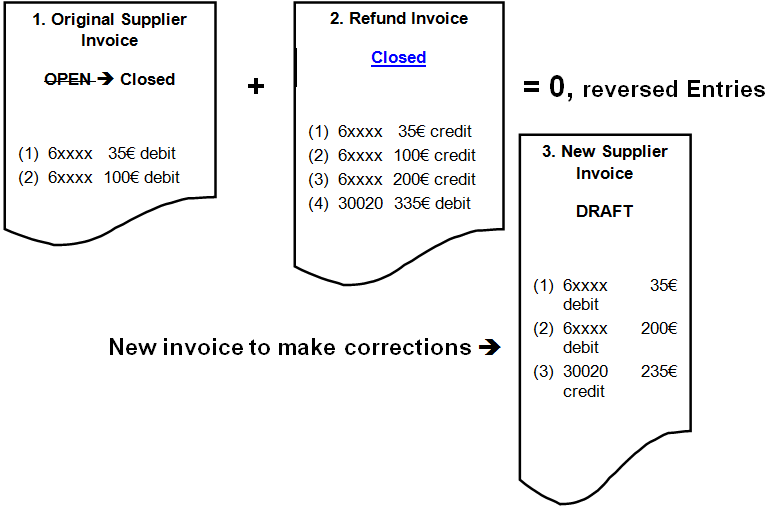
Modify executes three actions:
- Original Supplier Invoice is marked {Closed}
- Supplier Refund document is created and marked {Closed} to cancel the original Supplier Invoice, with which it is reconciled
- A copy of the original Supplier Invoice is created in {Draft} to prepare a corrected version for validation and payment
Go to: ACCOUNTING/Suppliers/Supplier Invoices
- Open the Supplier Invoice in Form view to modify it
- Click {Refund}
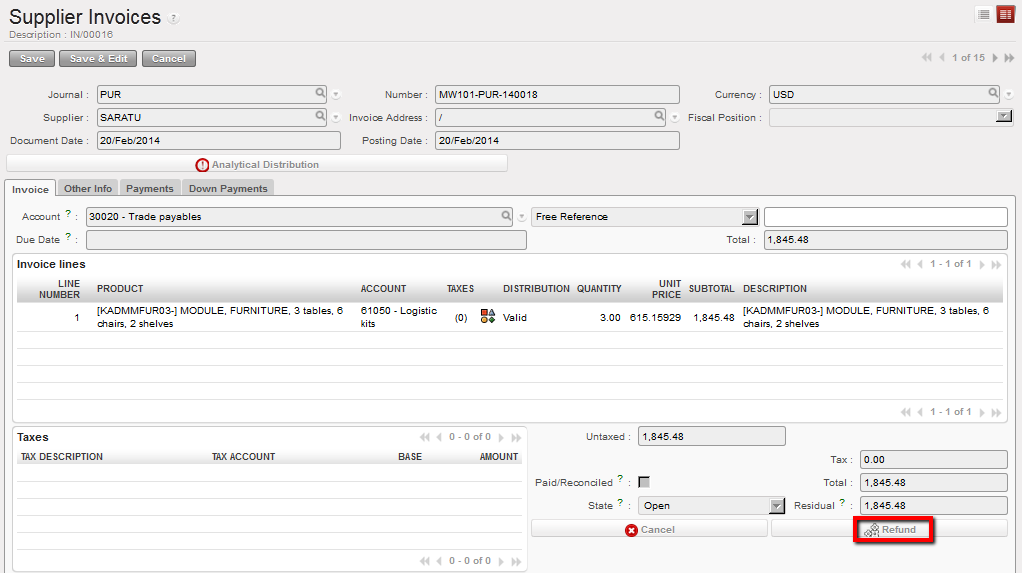
Refund functionality in Supplier Invoice
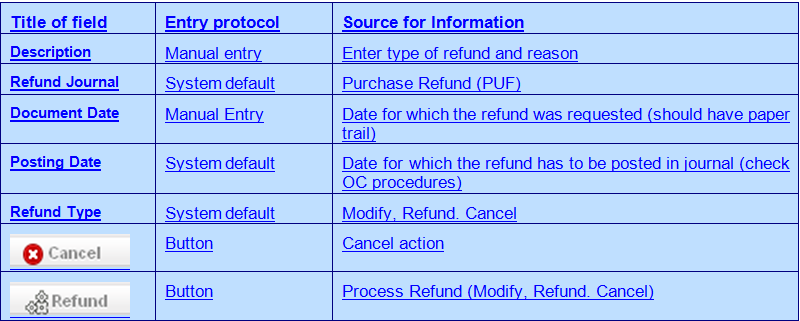
- A Refund window opens for the user to complete the fields.

Refund window
- A new tab appears with the Supplier Refund search window. A copy of the original Supplier Invoice is created with status {Closed}. Click on the pencil to open in Form view.

Supplier Refunds search window
- In the Supplier Refunds sub-module, the Supplier Refund is in {Closed} status. Its purpose is to create reversing entries in the Purchase Refund Journal to reconcile the Journal Items entries made from the original Supplier Invoice, thus cancelling it. The {Closed/Reconciled} checkbox is ticked.
Supplier Refund created is a copy of the original Supplier Invoice
- The Journal Items are as follows:
- The original Supplier Invoice:
- Debit to the expense account
- Credit to 30020 Trade Payables M1-17
- The Supplier Refund reverses the entries created above:
- Credit to the expense account
- Debit to 30020 Trade Payables M1-17
- The original Supplier Invoice:

Journal Items resulting from original Supplier Invoice and Supplier Refund
- In the Supplier Invoices sub-module, the original Supplier Invoice is marked {Closed}. The {Paid/Reconciled} checkbox is ticked.
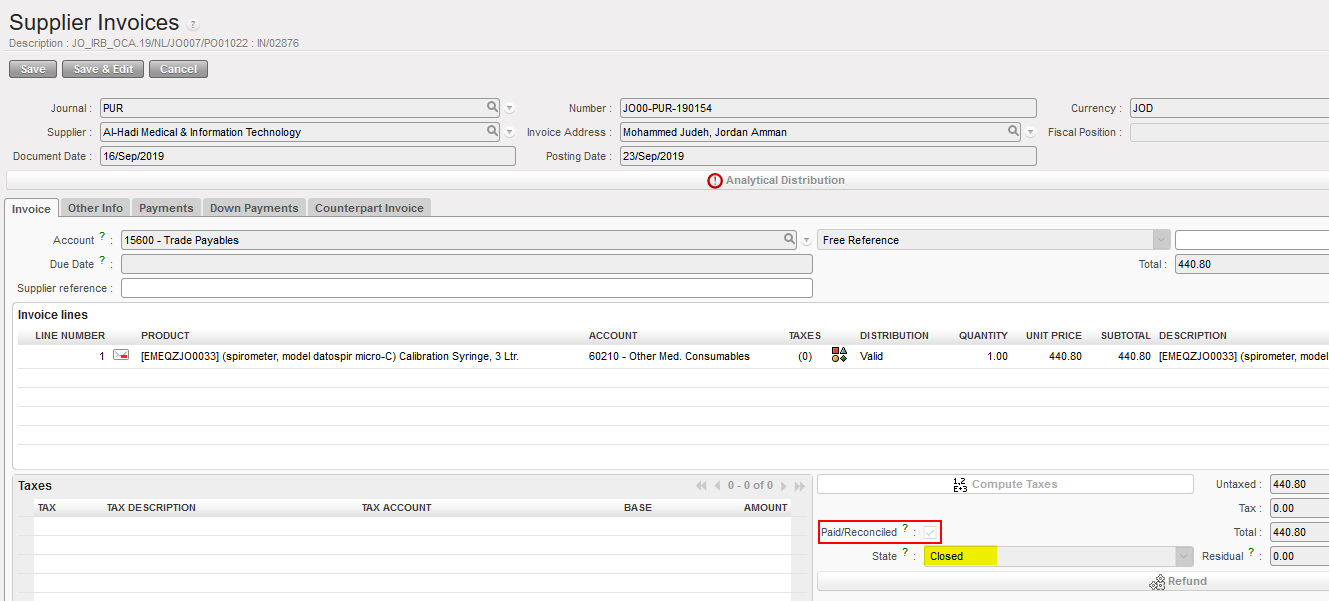
Original Supplier Invoice is marked Paid and reconciled after Modify applied
- In the final step, in Supplier Invoices sub-module too, a copy of the original Supplier Invoice is created in {Draft} status for the user to modify and validate as usual. The Description refers back to the Purchase Refund, and the Free Reference field refers back to the original invoice, but there are no links in the system or accounting entries that tie back.
Modified Supplier Invoice is in draft status for corrections to be made
Cancel is used if for instance goods were received and checked but all of them are damaged at the time of consumption. They will be sent back to the supplier. We don’t expect any replacement. You will then cancel the invoice, thus cancel the debt towards this supplier.
Note! Refund-Cancel function is not available for partially paid invoices even if the status is “Open”.
Cancel executes two actions:
- Original Supplier Invoice is marked {Closed}
- Supplier Refund record is created and marked {Closed} to cancel the original Supplier Invoice

Go to: ACCOUNTING/Suppliers/Supplier Invoices
- Open the Open Supplier Invoice in Form view to modify it
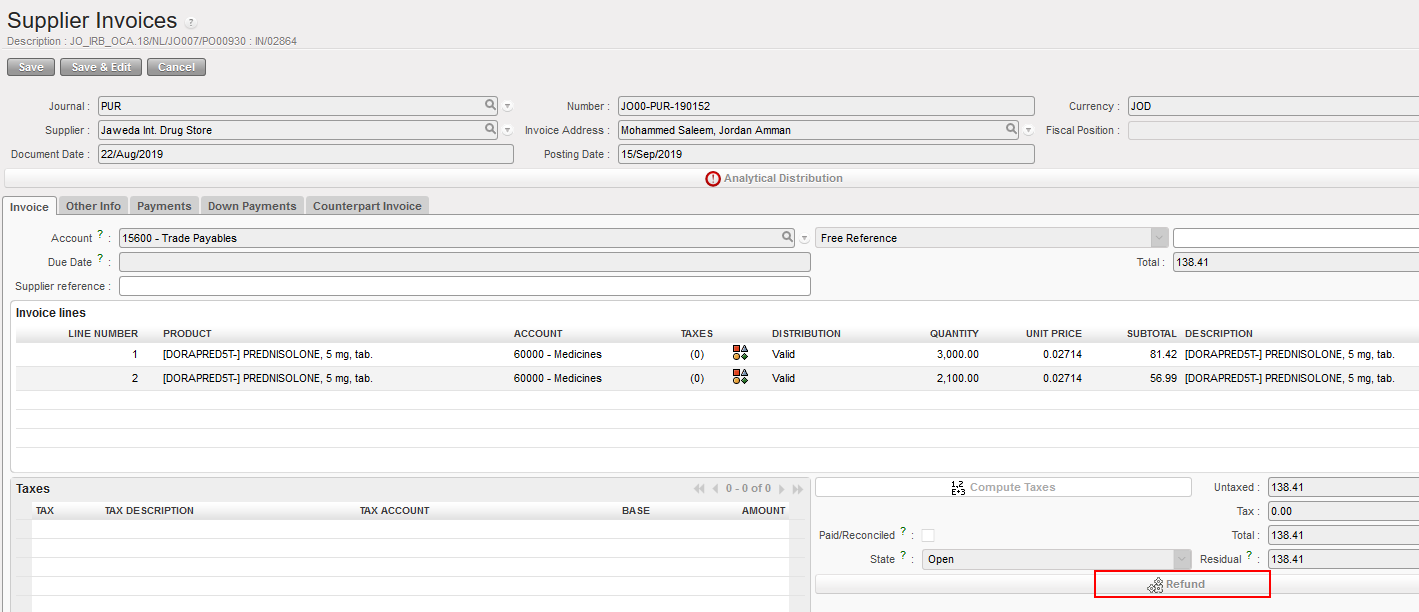
Refund functionality in Supplier Invoice
- Click {Refund}. A Refund window opens for the user to complete the fields. In Description, explain what and why is being refunded. Select {Cancel} for Refund Type
Refund window
- A new tab appears with the Supplier Refund search window. The Supplier Refund is in {Closed} status. Its purpose is to create reversing entries in the Purchase Refund Journal to reconcile the Journal Items entries made from the original Supplier Invoice, thus cancelling it.

Supplier Refund is in Closed status when created

The original Supplier Invoice changes from Open to Closed status
- The Journal Items are as follows:
- The original Supplier Invoice:
- Debit to the expense account
- Credit to 30020 Trade Payables M1-18
- The Supplier Refund reverses the entries created above:
- Credit to the expense account
- Debit to 30020 Trade Payables M1-18
- The original Supplier Invoice:

Journal Items resulting from original Supplier Invoice and Supplier Refund
How to Correct Supplier Invoices Paid in Registers, Temp-Posted
The payment of invoices is made in Registers (cash, bank or cheque depending on the method of payment). An entry is created in Temp status and booked to {Trade Payables} to pay the amount owed to an external Supplier.
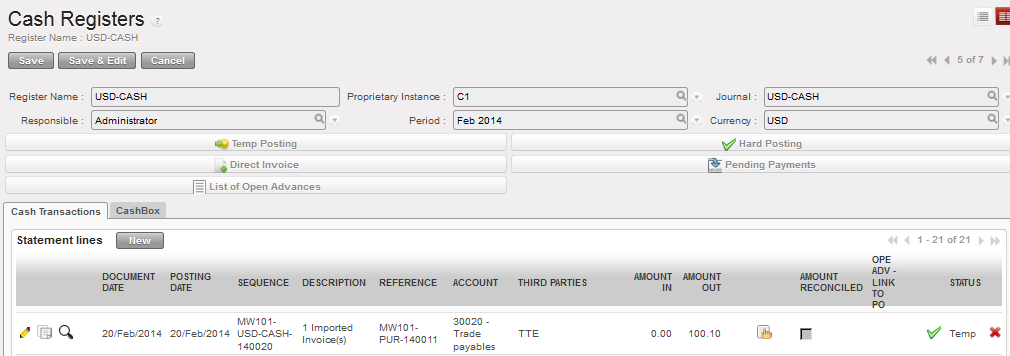
Open Supplier Invoice imported into Registers
The correction of the invoice will depend on the situation:
- If you need to proceed with a correction on an expense account or analytical distribution, you will use the accounting correction wizard (same as the correction for Direct entries and Open Supplier Invoice).
- As the invoice was paid (the invoice is imported into the register to reflect the physical cash was given), the only possibility we can find in this situation is a refund. We can suppose for instance goods were paid and some of them will be sent back for which a refund was requested. In this case you will hard-post the register line and use the function Refund on the supplier invoice to correct the amount. You will select the option {Refund}.
Refund executes three actions:
- Original Supplier Invoice is marked Paid. However as it makes sense to make a refund on a paid supplier invoice, the invoice will be already marked Paid.
- Supplier Refund record is created to reflect what is being refunded and validated. It is a duplication of the original supplier invoice and will need to be adjusted.
- The Supplier Refund is essentially a credit note, available in {Pending Payments} to adjust the cash balance and take the refund into consideration in the register.

Go to: Accounting/Registers/Cash Registers
In the below first example we see how to correct an account code or analytical distribution on a paid supplier invoice, temp-posted in a register:
- Find the temp posted register entry for the imported invoice. Click on the magnifying glass to link to the analytic lines associated with the invoice.
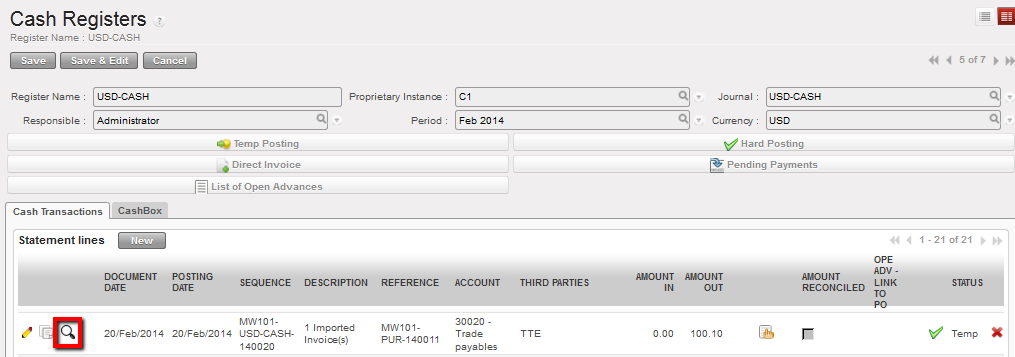
From Registers, link to the analytic journal items
- A new tab opens to display the analytic lines associated with the supplier invoice lines. Click on the envelope next to the entry that needs to be corrected.
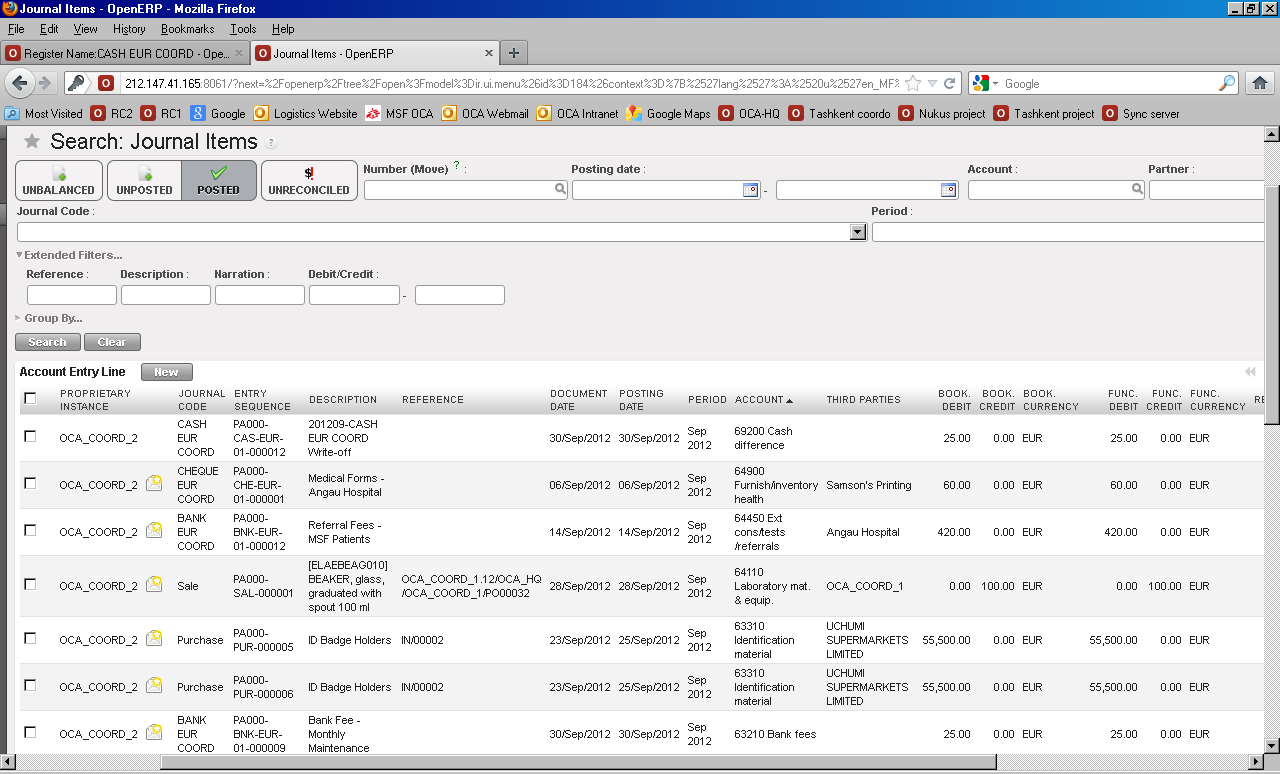
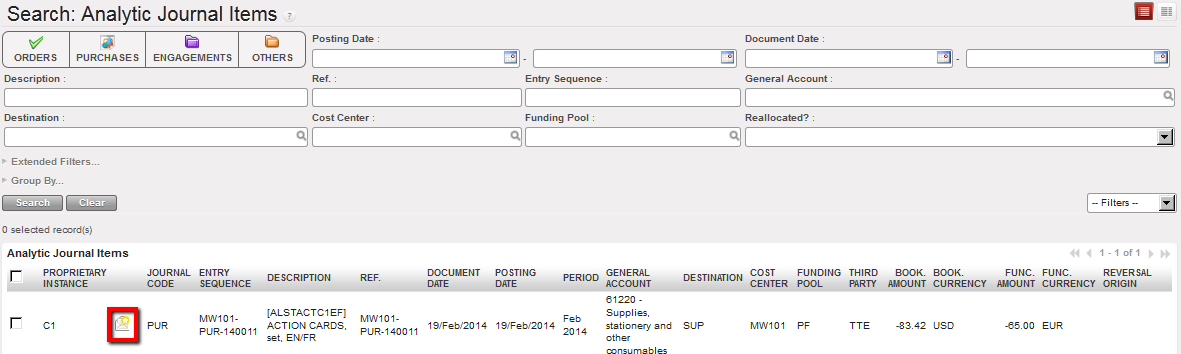 Analytic Journal Items associated to the Open supplier invoice
- The {Accounting Corrections Wizard} opens. Enter the date on which the correction was made. To make a correction to account code, click on the pencil to edit the entry.

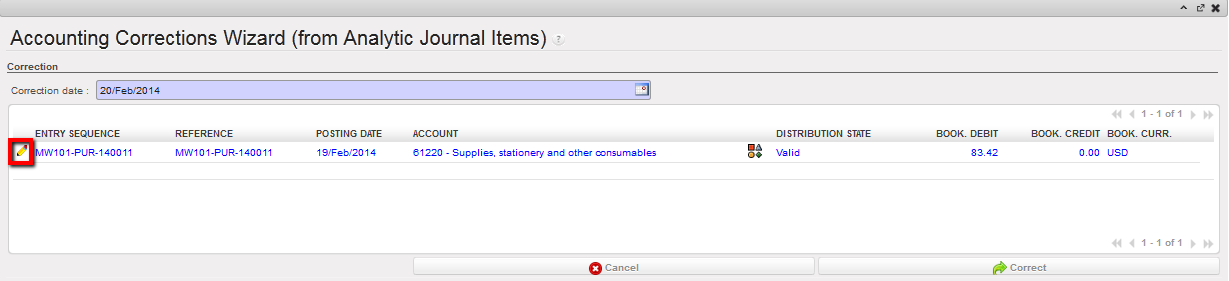
Click on the pencil to correct account code or the AD icon to correct analytic distribution
- 4. Change the account code and click to save.

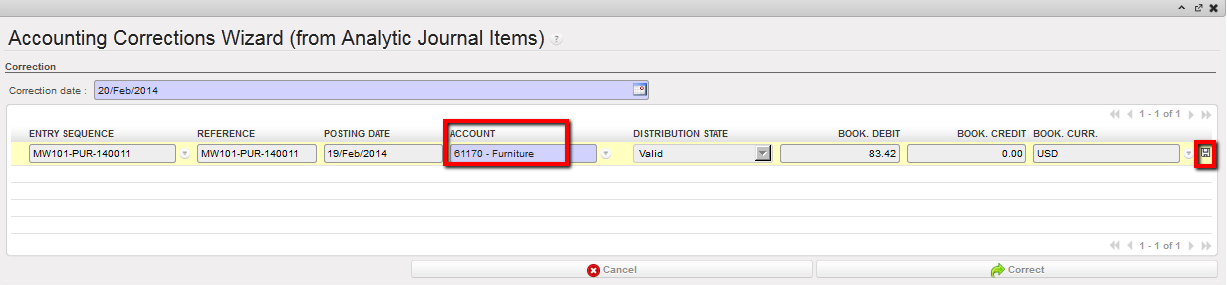 Changed account in Accounting Corrections Wizard
- If a correction is made on an expense account, you should review the analytical distribution to confirm that the new expense account is assigned to a proper destination or funding pool. If assigned properly, you can click {Correct}. If the new expense account is not assigned properly, the correction entry will display in red font and the user will not be able to validate the correction until the analytical distribution is changed. Click on the {AD} icon to assign the expense correctly.
- The Analytic distribution window opens. Click on the pencil to change the destination, cost center or funding pool as needed. Click to save and then click. The {Cancel} button will take you back to the Accounting Wizard.

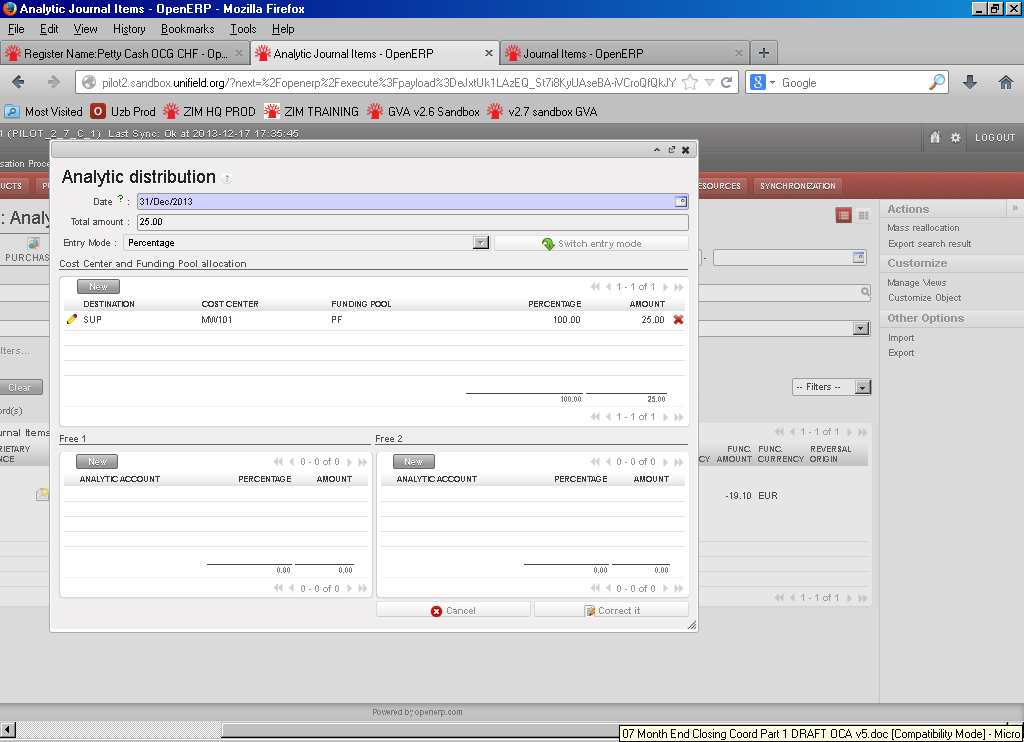
- Back to Analytic Journal Items, the original entry will now display a closed envelope icon to indicate that the entry has been reallocated. If you click on this envelop, a window will open to show the history of changes (original, reversing and correcting entries) in Analytic Journal Items.
History of changes on an analytic journal item reallocated using the Corrections Wizard
- Back in the Supplier Invoice, the invoice line will display a closed envelope icon to indicate that the entry has been reallocated. If you click on this envelope, a window will open to show the history of changes (original, reversing and correcting entries) in Analytic Journal Items.
Corrections made in Analytic Journal Items are reflected in Supplier Invoice
If a correction is made only to the analytic distribution (destination and/or cost center and/or funding pool) in an open period, then the Correction Wizard will update the original analytic journal item. Reversing and Correcting entries are not created since the accounting journals are not affected, so you are not able to track if any corrections were made. Note: the supplier invoice line will still show the original AD and not the correction allocation.
If the period is closed, entries are created in the Corrections Journal to reverse the analytical distribution and then to correct it.
In the second example below we see how to create a refund invoice on a Temp posted register line.
Go to: Accounting/Registers/Cash Registers
- Find the temp-posted register entry for the imported invoice.
- Hard-post the line. The invoice becomes {Paid}.
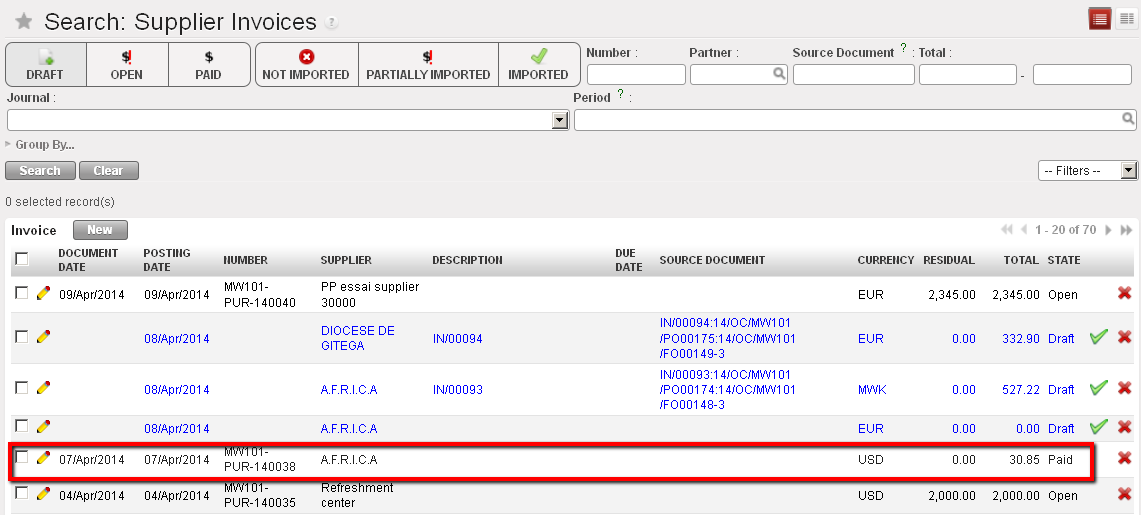
In the Liquidity journal, we have:
- Credit to the cash account (30.35 USD)
- Debit to 30020 Trade Payables (30.35 USD)

- On the register line, select the icon opening the supplier invoice and the search supplier invoices display.
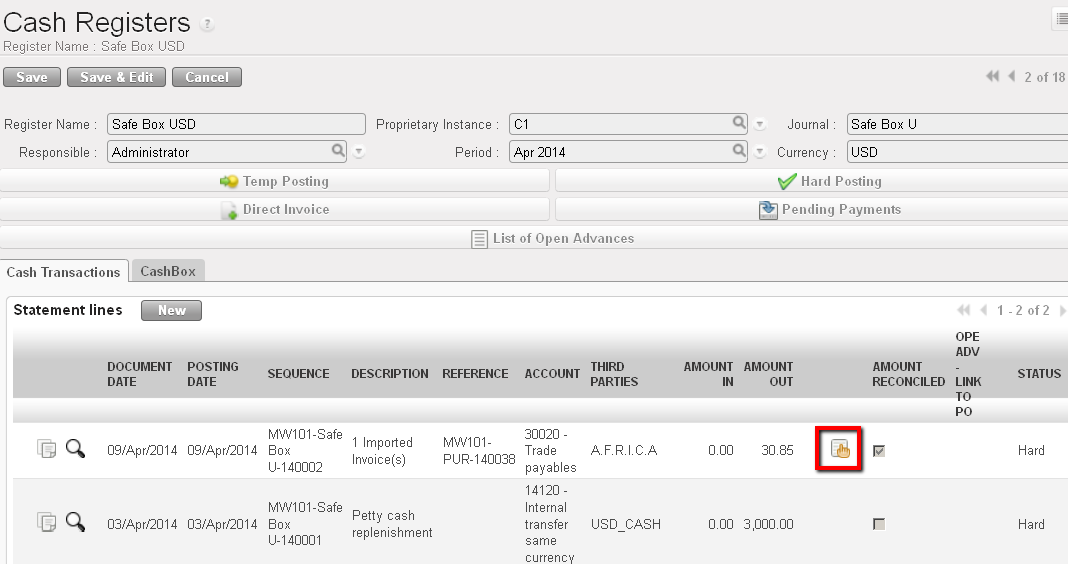 Opening a supplier invoice hard-posted in a register
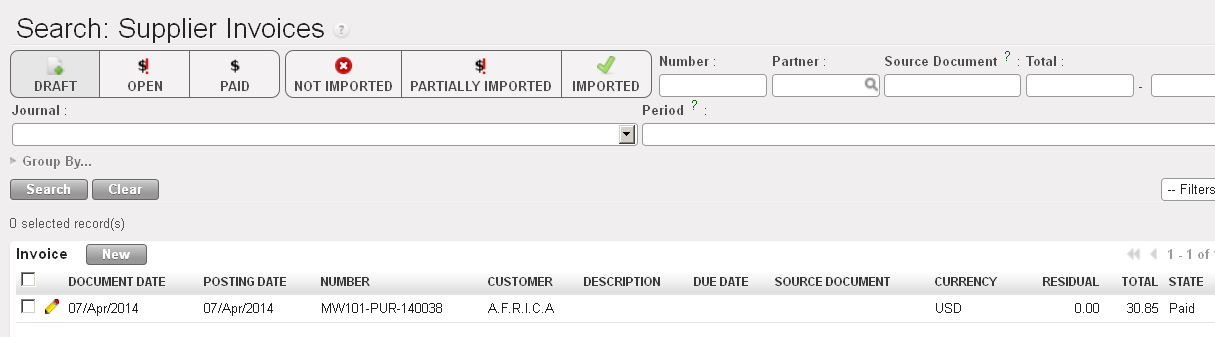 Search Supplier Invoices displays
- Select the {Edit}
 button and the supplier invoice form view appears.
 - At the bottom of the view, select

- In the Refund wizard, select the option {Refund} and describe the refund type and reason. The refund journal is automatically set to PUF:
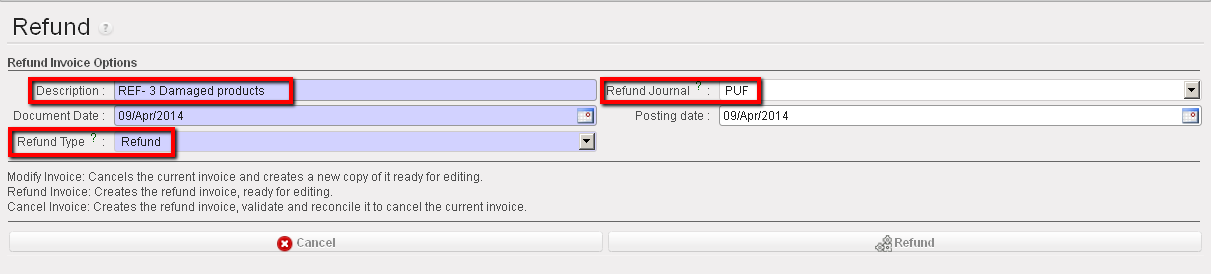 Refund wizard
- Select {Refund}.
- Now proceed to the edition of the supplier refund invoice. In this case, we will request a refund for 3 damaged products. We will modify the refund accordingly.
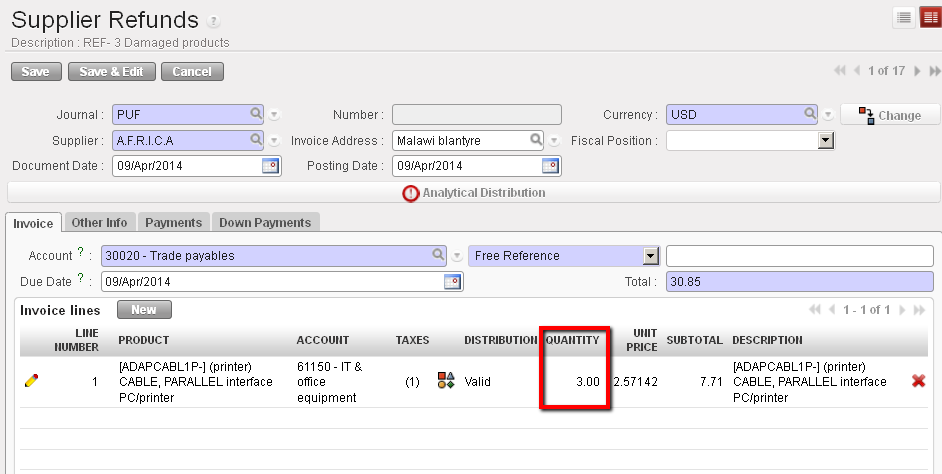 Refund supplier invoice
- Save the form and the invoice is saved in {Draft} state.
- Select the {Validate} button
 to validate it.
In the PUF journal, we have the validated supplier refund displayed as such:
- Credit to the expense account (7.71 USD)
- Credit to VAT recoverable (1.54 USD); this is optional. The invoice was applied a VAT code in this case.
- Debit to 30020 Trade Payables (9.25 USD)
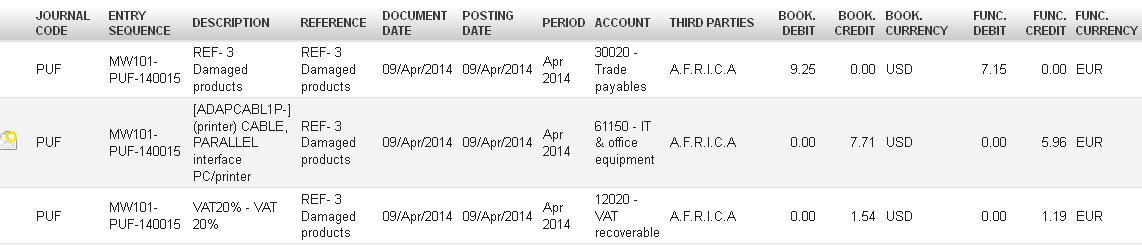
The next step is to import the refund invoice into the register as soon as the payment from the supplier is received.
How to Correct Supplier Invoices Paid in Registers, Hard-Posted:
Once a payment for an invoice is made in the register and hard posted, the status of the supplier invoice changes from {Open} to {Paid}.
Status of Supplier Invoice changes to Paid
If a correction needs to be made on the account code or analytic distribution of an invoice line, you can click on the journal items or analytic lines associated with the supplier invoice to use the Corrections Wizard. (See example 1 of Supplier Invoice paid in Registers, temp posted).
Link to analytic journal items to make correction to account or AD
If you need to correct a paid supplier invoice (i.e. to mark the fact that a refund was agreed for paid products) you will use the {Refund} option of the Refund wizard. (See example 2 of Supplier Invoice paid in Registers, temp posted).
