
Finance User Manual ENG -> 5. Searching, Correcting and Closing -> 5.2 Corrections. -> LUFI-50205 Mass Re-Allocation
LUFI-50205 Mass Re-Allocation
How to Do a Mass Re-Allocation in Analytical Journal Items
The mass reallocation functionality allows you to change the analytic distribution on analytic journal items en masse, e.g. correcting cost center, destination, funding pool and free axis for multiple entries.
Go to: Accounting/Journal Entries/Analytic Journal Items
- Search for the analytic journal items that you need to reallocate. You can also search in Analytic Selector. Select the entries by ticking the checkbox.
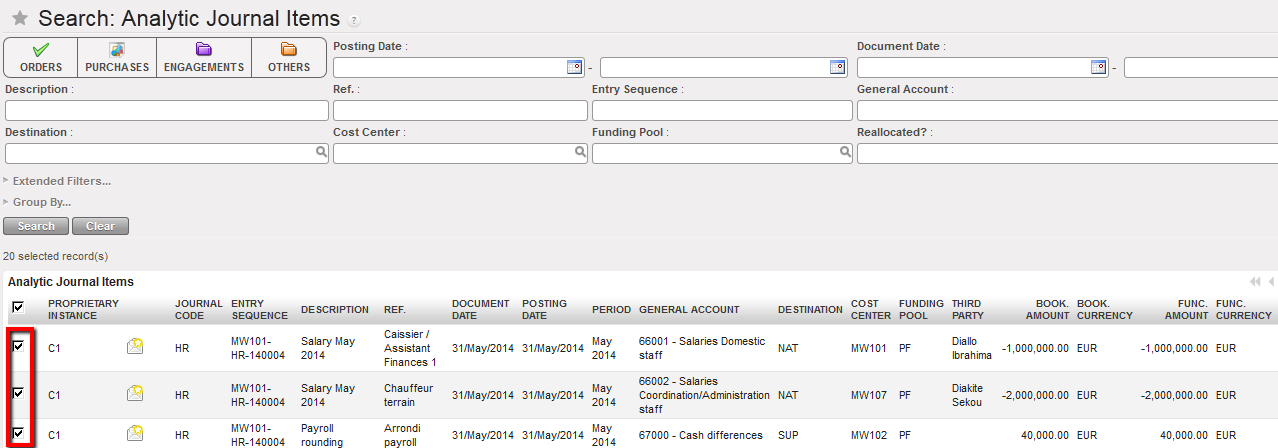
Selecting analytic journal items to reallocate
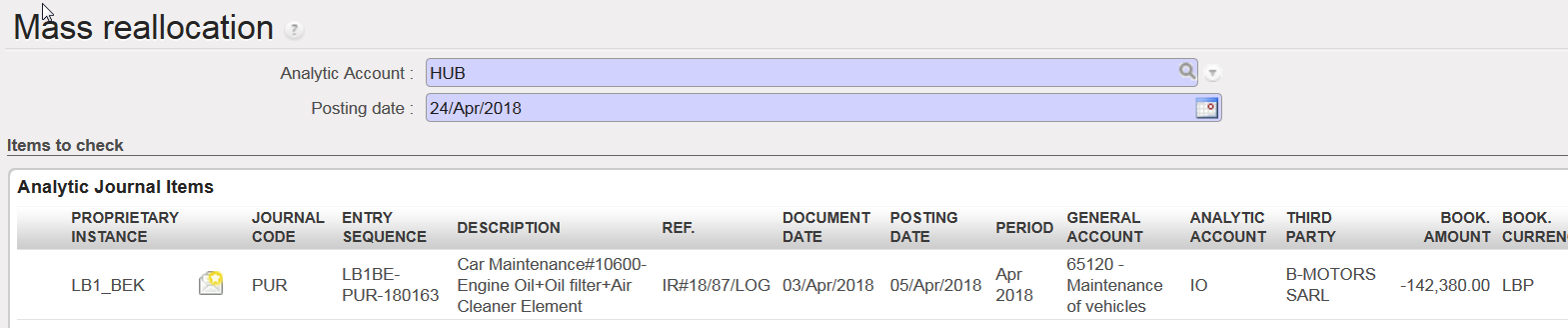
- In the Actions menu on the right-hand side bar, click on {Mass reallocation} to allocate tick box selected items or {Mass re-allocation – All search results} to allocate all search results matching your search criteria. The selected entries display in the top pane of the window. Enter a posting date. Click on the magnifying glass on Analytic Account.
- Select the desired analytic account.
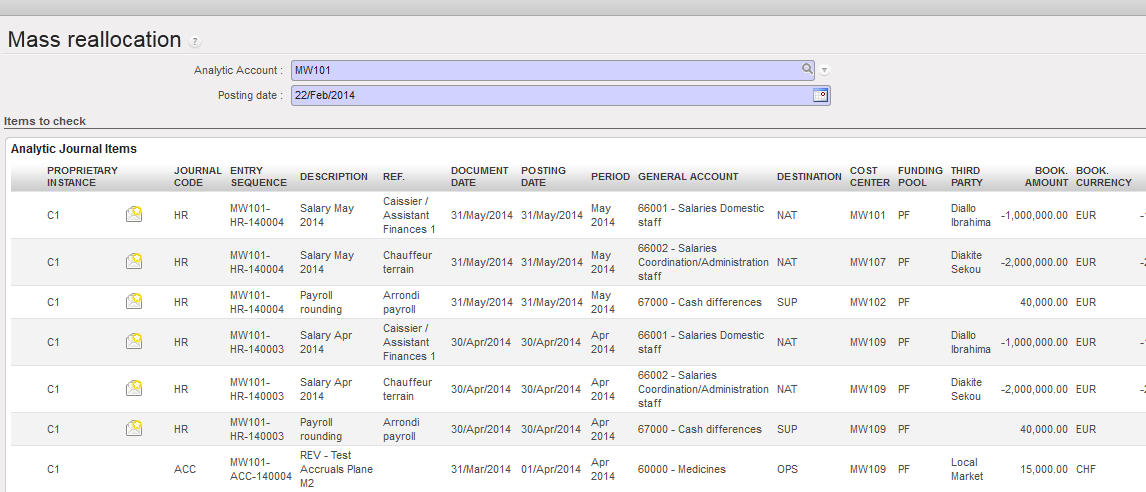
Mass reallocation window
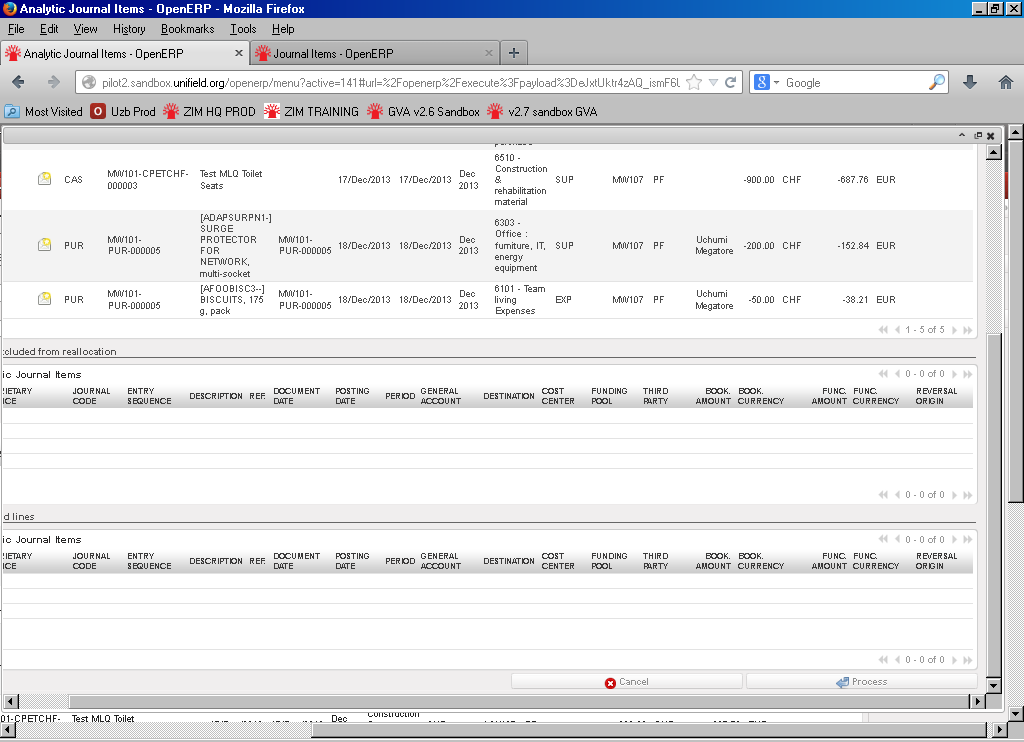
- Click on . UniField will perform a check on all selected entries to confirm that the reallocation can be applied. A Verification Result window will open showing the items to allocate in the top pane and the items not part of the selection in the bottom pane. Items not considered in reallocation include:
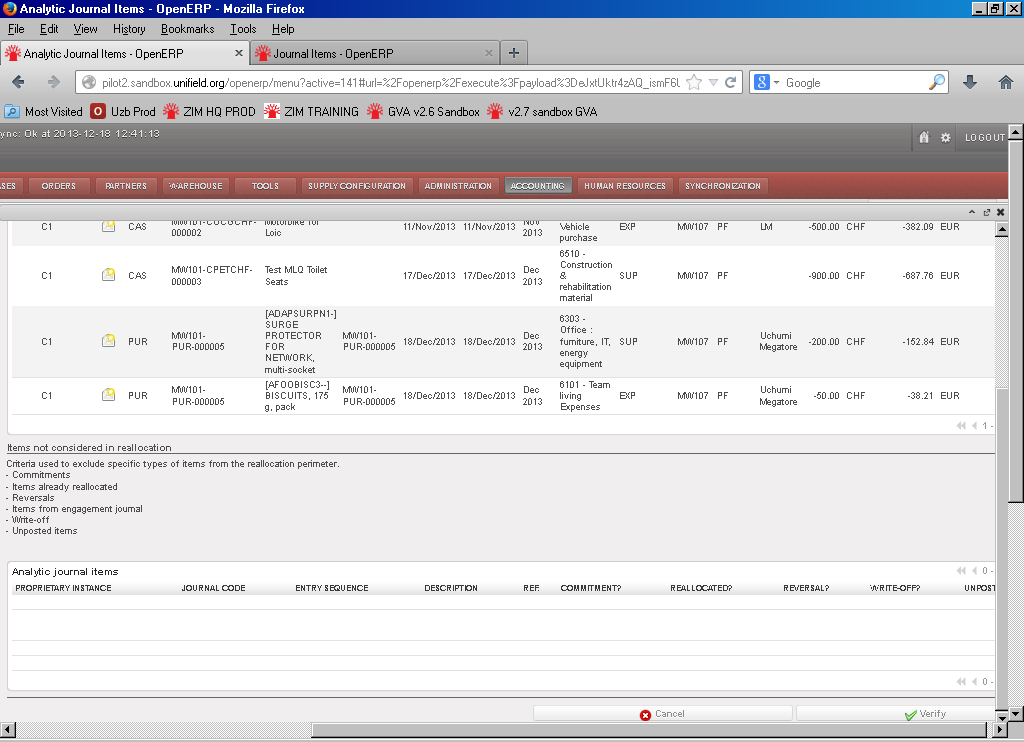
- Commitments
- Items already reallocated
- Reversals
- Items from engagement journal
- Write-off
- Unposted items
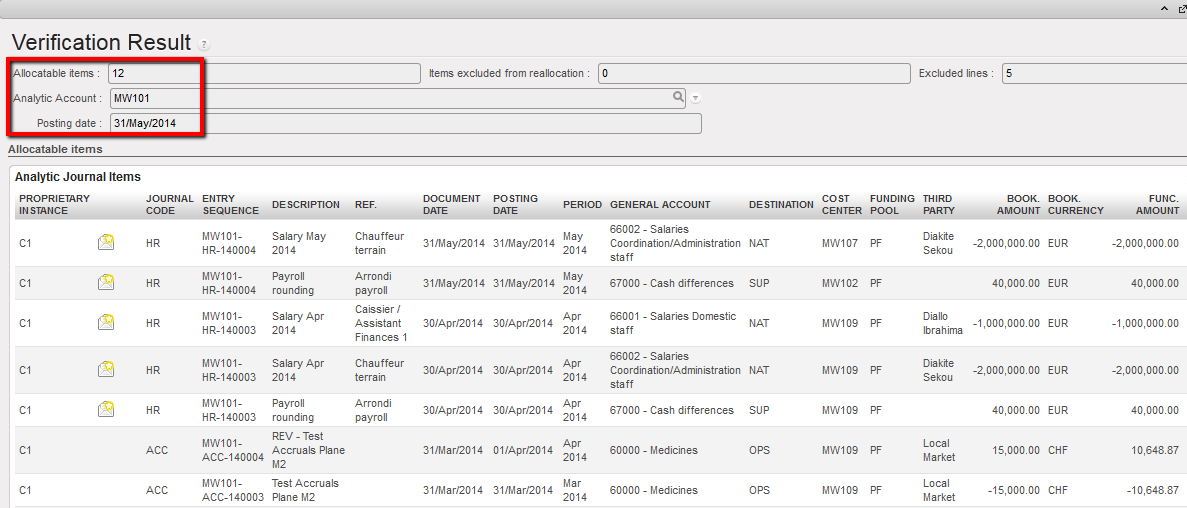
Verification result window
- Click on to reallocate the entries. In Analytic Journal Items, you can search for the entries to confirm the change has been made.
There is another way to perform mass reallocation on funding pools:
- From the analytic accounts list view, select the analytic account (funding pool) to which entries should be reallocated
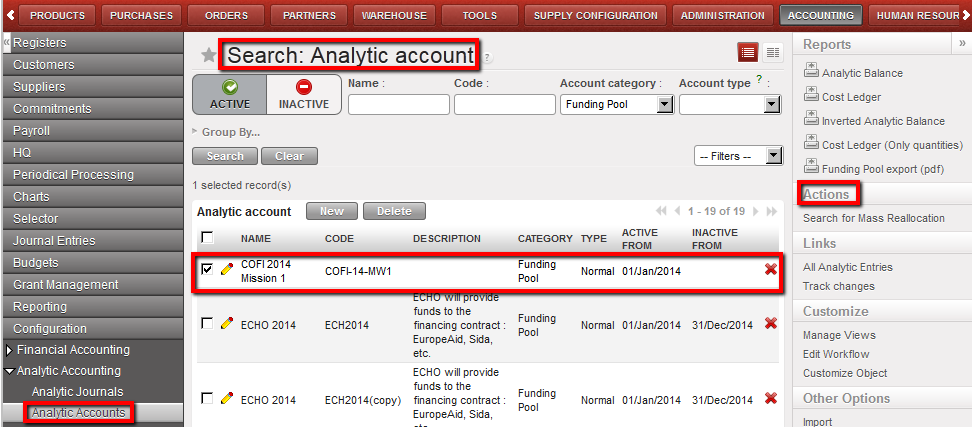 Selection of a funding pool in the Search Analytic Account view and Reports menu opening
- On the right-hand side panel, in the Actions menu, click on .
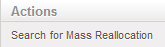
The system will look for all entries that can be reallocated to this analytic account.
- Follow the same mass reallocation steps: select the items to reallocate and process.
You can also perform a mass reallocation on free axis following these steps:
- From the Free 1 (or 2) view, select the analytic journal items that you need to reallocate
- On the right-hand side panel, in the Actions menu, click on .
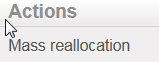
If you reallocate a Free 1 axis, the system will look for all analytic accounts set as Free 1 existing in the database. The same applies for Free 2 axis. Select an account and press “Verify” to check if the account is valid and “Process” to record the new allocation.
 Analytic account selection for a Free 1 mass reallocation
