
Finance User Manual ENG -> 5. Searching, Correcting and Closing -> 5.3 Month End Closing -> LUFI-50303 Accruals Management
LUFI-50303 Accruals Management
LU INTRODUCTION
It is possible to handle both, accrued and deferred expenses in the Accruals Management module. Accrued expenses are expenses recognized before they are recorded with proper supporting documents. They are recorded as liabilities based on the best estimation of the expected charge. For MSF, accrued expenses mainly concern purchases received but not yet invoiced by the supplier, employee costs (like severance costs), and payroll taxes. For accrued expenses, the accrual entry amount is positive.
Deferrals are expenses that are already entered in accounting (e.g. invoice is already paid and expense booked) but where the expense amount belongs partially or fully to a following period. An example of deferred expenses is insurance fees that may concern multiple periods. For deferred expenses, the accrual entry amount is negative.
Accruals are managed at coordination level. There are two possible ways of creating accruals: Reversing Accrual and One Time Accrual.
In Reversing Accrual, accrual entries booked in one period are automatically offset at the beginning of the following period. The automatic reversal can only be created if the next period is open. The automatic reversal is created once the accrual lines are posted. Booking an accrual with an automatic reversal helps users re-think their accruals each month and decide if they should be repeated or not, lowered or increased.
In One Time Accrual, the system does not create any automatic reversal entries. The user will manually set the Document and Posting Date for the reversal entry and post it at a selected point of time. The reversal entry can only be booked on an open period.
The accrual should be either repeated (Reversing Accrual) or remain unreversed (One Time Accrual) until the expense is booked in the accounting and the accrual can be offset.
Account moves for an accrued electricity bill of USD 5,650 booked in December 2022. Automatic reversal created in January 2023. The accrual is re-estimated and re-booked (USD 5,000) at end-January 2023 as the invoice is not received and its reversal created in February 2023. The invoice is received and booked in February 2023 and paid the next month.
| Description | Account codes | De | Cr | Entries matching | |
| Accruals booking Dec-22 | |||||
| Other Accrued Liabilities | 31300 or 15690 | 5650 | R-1 | ||
| Utilities & other energy consumable | 65200 | 5650 | |||
| Reversal created next period Jan-23 | |||||
| Other Accrued Liabilities | 31300 or 15690 | 5650 | R-1 | ||
| Utilities & other energy consumable | 65200 | 5650 | |||
| Accruals re-booking Jan-23 | |||||
| Other Accrued Liabilities | 31300 or 15690 | 5000 | R-2 | ||
| Utilities & other energy consumable | 65200 | 5000 | |||
| Reversal created next period Feb-23 | |||||
| Other Accrued Liabilities | 31300 or 15690 | 5000 | R-2 | ||
| Utilities & other energy consumable | 65200 | 5000 | |||
| Invoice booking Feb-23 | |||||
| Trade Payables | 31300 or 15690 | 4500 | R-3 | ||
| Utilities & other energy consumable | 65200 | 4500 | |||
| Invoice payment Mar-23 | 30020 or 15600 | 4500 | R-3 |
2. Description and definition of the accrual fields and behaviour
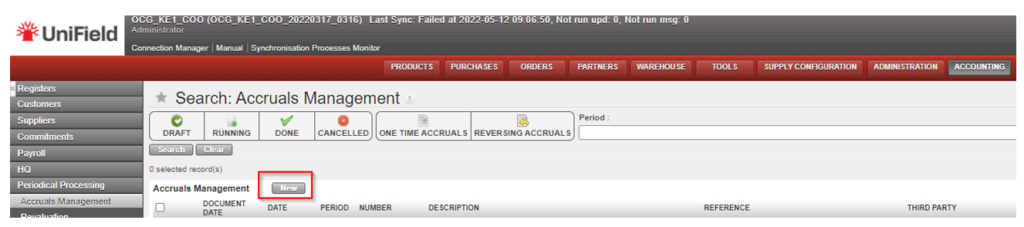
Go to Accounting/Periodical Processing/Accrual Management
Two filter bubbles per “status” and “per type” are available on Accrual Management list view allowing to display the accrual objects depending on their status or type.:
- Status: draft, running, done, and cancelled.
- Type: One-Time Accruals and Reversing Accruals.
The standard display is per date of creation: the newest accruals on top.
Click on the {New} button to create new accrual entry.
a. Accrual object header.
The accrual header is organized in 3 columns with the following fields:
blue fields are mandatory and white fields are optional.

Note: When editing a draft accrual, the header update is not automatically saved. A warning message is shown when leaving the page or posting the accrual:
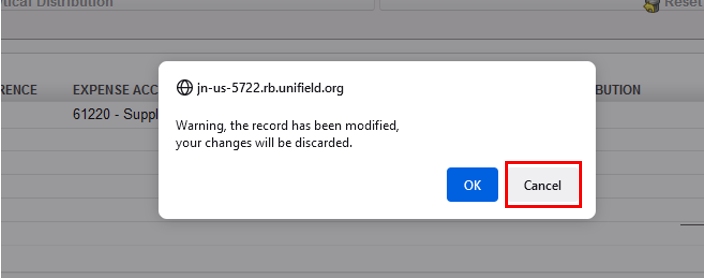
Click on {Cancel}, then click on {Save and Edit} button from the screen, if not the changes will be lost.
| Field | Description |
| Journal | System defaults to ACC journal, this cannot be changed. |
| Number | Automatically filled when the accrual entry is posted. |
| Booking currency | Select the booking currency of the accrual entry. Active currencies are available. |
| Third party type | Drop-down selection. Default display is “partner”: – Empty – Partner – Employee Select the Third Party if needed Third party requirement per header account code applies. |
| Third party | Select a third party based on type selected before. |
| Period | Select the booking period of the accrual entry. The period should be in open status: Jan-Dec and P13-P15 are available. P0 and P16 are not available. |
| Document Date | Document date is automatically set to the last day of the selected period. The document date can be changed. |
| Posting Date | System defaults to last day of the period and cannot be changed. If need to change the posting date, change the period field. |
| Accrual Type | Select the type of accrual to book: there are two options – Reversing Accrual (the reversal is booked immediately in next period) – One Time Accrual (only the accrual is booked. To be reverse manually) |
| Accrual account | Select an accrual account. Account codes ticked as “accrual account”, as per account codes configuration, are available. |
| Description (header) | Enter a description of the accrual entry. Header description is mandatory free typing field. Header description is populating: – Description field of the JI related to the header account. – Description field on the accrual list view. – Automatically populating the description at line level (but editable) |
| Reference (header) | Enter a free reference for the accrual entry. Header reference is optional free typing field. Header reference is populating: – Reference field of the JE related to the accrual entry. – Reference field of the JI related to the header account. – Reference field of accrual list view. – Automatically populating the reference at line level (but editable) |
| Expense account | Choose an expense account. Account codes type expense, as per account codes configuration, are available. |
| AD header | Analytic distribution from header. If the analytic distribution is filled from header, it will apply to all the lines. |
| Reset AD at line level | Button to rest AD at line level. This button allows to reset Analytic distribution to line level. |
b. Accrual tab.
The accrual lines are booked from the “Accrual” tab. It allows to create multiple expense lines related to one accrual entry: e.g. an accrued invoice with two or more expense accounts could be managed via a single accrual entry.
Click on {New} button to create new expense line. Blue fields are mandatory, white fields are optional. Save the line with the floppy disc.

| Field | Description |
| Edit button | Edit (pencil) button is available on draft accruals. |
| Line number | System counts of lines. There is jump of line number in case a line has been deleted while the entry was still in draft status. |
| Description | Mandatory field, automatically filled from header but could be edited. Description at line level populates the description field of the JI/AJI on the expense account of related line. |
| Reference | Mandatory field, automatically filled from header but could be edited. Reference at line level populates the reference field of the JI/AJI on the expense account of related line. |
| Expense accounts | Select the expense account related to the accrual entry line. Account codes type expense, as per account codes configuration, are available. |
| Distribution | Line level analytic distribution. Analytic distribution could also be filled from line level. |
| Accrual amount | Line amount in booking currency. |
| Functional amount | Line amount in functional currency |
| Floppy disc | Save icon to save the line in edit mode. Press on {enter} key saves also the line. |
| Delete button | x is available to delete draft accrual line. |
c. Journal Items tab
A second tab was added to the accrual screen after UF25.0. This tab lists the Journal Items from the accruals as per standard display of journal items. The sequence numbers and reconciliation codes are visible in this screen. It does not however allow to export the list in Excel.
All entries booked on ACC journal and related to the accrual are listed in this tab. The oldest number on top of the screen.
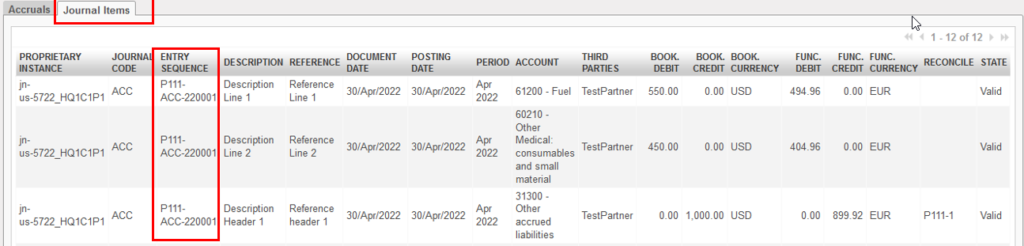
Depending on the status of the accrual object, the Journal Items tab is filled with:
- Draft status: No related Journal items.
- Running status: For One-Time accruals only. 1 JI sequence numbers is displayed: accrual entry.
- Done status: 2 JI sequence numbers are listed, related to the accrual and its reversal. The reversal journal items are displayed below the accrual journal items. The description of the reversal is preceded by REV-

- Cancelled status: 4 JI sequence numbers are listed,
- Accrual entry
- Reversal entry.
- Cancellation of the accrual entry.
- Cancellation of reversal entry.
- The description of the cancellation is preceded by CANCEL- and cancellation of the reversal is CANCEL-REV-

Any entry booked on other journals and reconciled/related to the accrual account at header is not visible from this screen. To search them, use the reconciliation number on the accrual account.
d. Accrual object footer

| Field | Description |
| Total amount | Accrual lines total amount is displayed at the bottom of the screen in booking and functional amounts. This field is updated when the lines are edited and saved. |
| State | The status of the accrual object is displayed at the bottom of the screen. – Draft: just created/edited and not posted – Running: only for accrual type “One-time”, when posted and not reversed. – Done: when posted and reversal is posted. – Cancelled: when posted and then cancelled. |
e. Color code at accrual list view
| Colour | Description |
| Blue | Draft status with valid analytic distribution |
| Red | Draft status with invalid analytic distribution. |
| Black | Running or done status |
| Grey | Cancelled status. |
f. Accrual action menus:
There are 2 action menus available in accrual screen: “Post Accruals” and “Post Accrual Reversal”.
| Field | Accrual type | Consequences |
| Post Accruals | One-Time Accruals | Working on One-Time Accruals in draft status only. Post the accrual entry in the selected booking period. The related JI is visible in “Journal Items tab” The One-Time Accrual object becomes in “Running” status. |
| Post Accruals | Reversing Accruals | Working on Reversing Accruals in draft status only. Post the accrual entry in the selected booking period and related reversal entry in next period. The next period should be in open status. The related JIs (accrual and reversal) are visible in “Journal Items tab” The Reversing Accrual object becomes in “Done” |
| Post Accruals reversal | One-Time Accruals | Working on One-Time Accruals in “running” status only. Post the reversal entry in the selected booking period. The related JIs(accrual and reversal) are visible in “Journal Items tab” The One-Time Accrual object becomes in “Done” status. |
| Post Accruals | Reversing Accruals | This action does not work on Reversing Accruals. |
g. Cancel button
{Cancel} button is available on both accrual types in “Done” status. To cancel a One-Time Accrual in “Running status”, reverse it in the same booking period. The booking period should be in open status.
h. Accruals and period status
The period has to be in open status to allow creation, posting, reversing, cancellation of accruals.
It is possible to duplicate an accrual from closed period. The duplication being a draft exact match of the initial accrual object will have a posting date in closed period. Having draft accrual object is not blocking the closing of the period nor the fiscal year.
It will however not possible be to post a draft accrual object in closed period. Either change or reopen the posting period to allow the posting of the accrual entry.
i. Accruals journal entries, journal items and analytic journal items
The accrual journal entries (and related items and analytic items) are booked in the journal code “ACC” – journal type “Accrual”. It is possible to search them via the selector or the journal search methods.
3. Similar process for One-Time and Reversing accruals
a. How to create One-Time or Reversing Accruals in draft
Go to Accounting/Periodical Processing/Accrual Management. Click on {New} button.
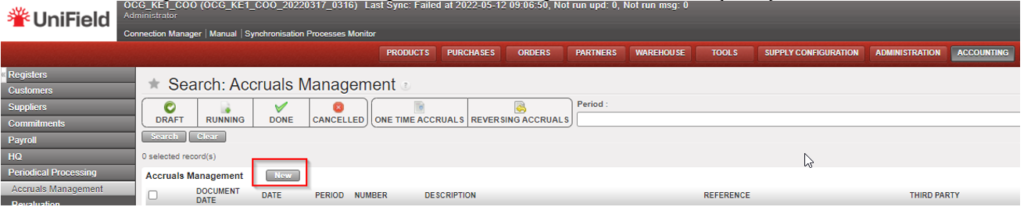
Fill the header, blue fields are mandatory. While fields are optional. Select accrual type “One-Time Accrual” or “Reversing Accrual”

For more details about the definition of each field see Description and definition of the accrual fields above.
Create the accrual lines, blue fields are mandatory, white fields are optional.
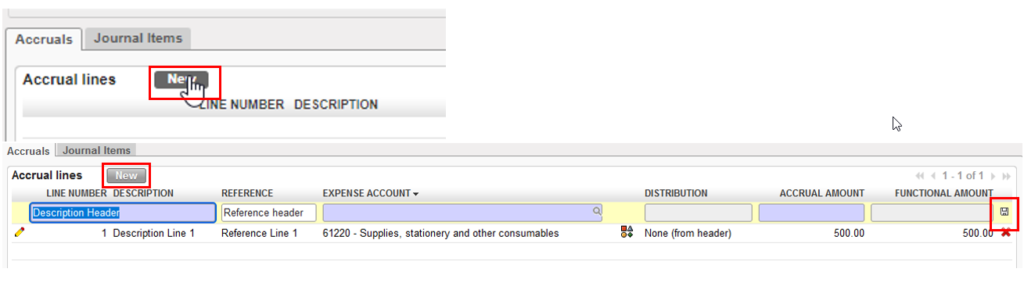
Save the change with the floppy disc or by pressing on the {enter} key. It is possible to have multiple lines. Click on {New} button to add new lines. Total amount is updated when new line is added.
Fill the analytic distribution from header or line level.
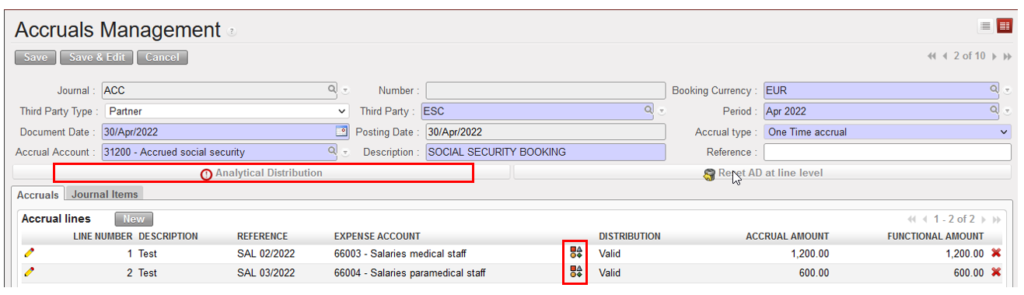
If the analytic distribution is not valid, the line will turn in red.

Fill valid analytic distribution and save before posting.
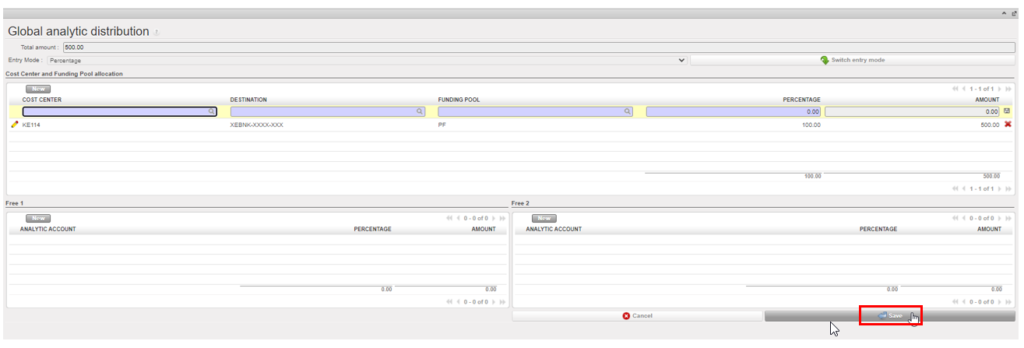
Save the accrual in draft status. It turns to blue = “Draft”+ valid analytic and is now ready for posting.

b. How to edit a draft One-Time or Reversing accruals
Locate the accrual line to change and click on the pencil to edit the fields on the form.

Notes:
- The changes on line level are automatically saved after clicking on the floppy disc.
- The change at header is saved via a header {save} or {save and edit} button. User {cancel} button to discard the changes.

c. How to duplicate a One-Time or Reversing accruals (all statuses)
Duplicate is possible for all statuses of accrual objects. There are 2 ways of duplicating an accrual.From the list view, click on the duplicate icon.

From the form view, click on {duplicate} button at screen header. If duplicate button is now shown, click on {save} button to make it appear.
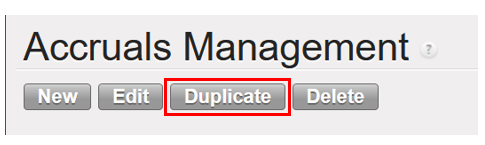
A new draft accrual object is created. The duplication is the exact match of the accrual including the analytic distribution and is always created in draft status. The only difference between the original and the copy is that the header description field of the copy is followed by “(Copy)”.
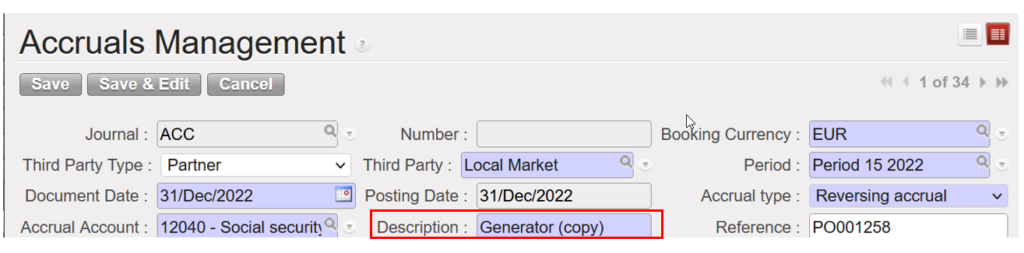
The draft copy could be edited and later posted. Do not forget to save the changes on the header (e.g. removal of “(Copy)”) with the {save} or {save and edit} button before posting a duplicated accrual.
d. How to delete a draft One-Time or Reversing accruals
Click on the {delete} button from the accrual form view or red X icon on list view to delete draft accruals. Later statuses (running, done, cancelled) could not be deleted.
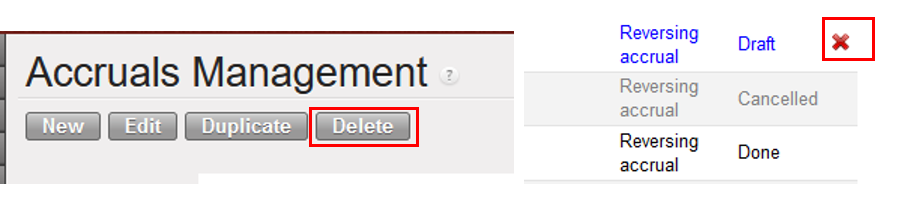
A deleted accrual is removed from the system and not visible anymore.
e. How to cancel a “done status” One-Time or Reversing accruals
When an accrual (One-Time or Reversing) is “done status” the {cancel} button is available.

A pop up button shows. Click on {OK}. The posting and reversing periods should be in open status to allow cancelation.
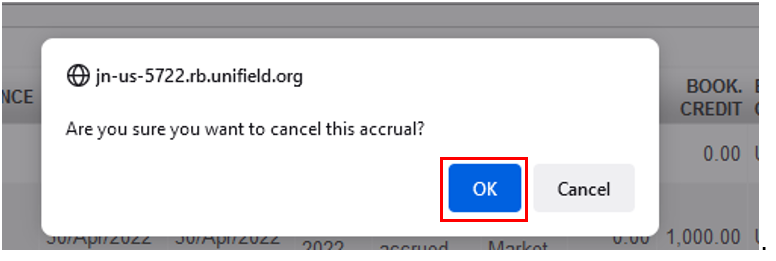
If one of the periods are not open, an error message will pop up. Reopen the period to allow the cancellation.
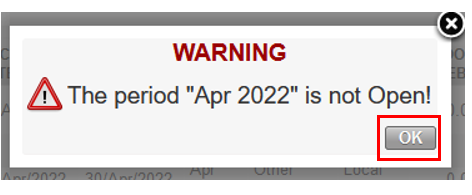
As consequence of cancellation of a “done” accrual,
- The accrual entry is cancelled in its booking period. The reversing entry is cancelled in the reversing period.
- The functional value of the cancellation entries is the same as the accrual and its reversal. There is no FXA created
- The cancellation of the accrual is reconciled with the cancellation of the reversal.
- The accrual status becomes “Cancelled”.
A cancelled accrual is listed in the accrual management screen in grey. It can be duplicated.

4. Specific process related to One-Time Accruals
Go to Accounting/Periodical Processing/Accrual Management and click on the {New} button, fill the header, select accrual type: One-Time Accrual. Fill the analytic distribution and accrual lines. Save the accrual in draft. More details on how to create or to edit an accrual see above.
a. How to post One-Time accruals in order to turn it to “Running” status
When the One-Time accrual is in draft status, the action menu “Post Accruals” allows to post the “One-Time Accruals” in the ACC journal. The posting period should be in open status. Click on {YES} to process or on {No} to cancel the action.

If the posting period is not open, an error message appears. Click on {OK} and either change the period of the accrual or (re)open the period.
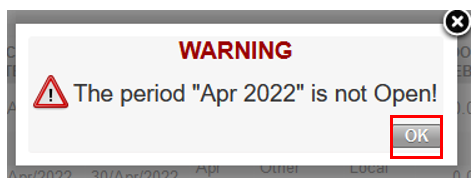
As consequence of posting of One-Time Accrual:
- The accrual turns to “Running” status.
- Accrual journal entry is posted in ACC journal with related Journal Items and Analytic journal items.
- The related JI are listed in “Journal Items” tab of the accrual.
- The accrual is not anymore editable. It is not possible to delete nor to cancel.
- It is possible to use the “Post accrual reversals” action menu to reverse the accruals.
A “Running” One-Time Accrual is listed in the accrual management screen in black.

Notes: When posting an edited accrual, ensure changes have been saved before clicking on {Post Accrual Reversals”. To do so, click first on {save and edit} button at header before {Post Accrual Reversals}
To cancel a “running” One-Time Accrual, reverse it in the same posting period.
b. How to reverse a One-Time accrual in order to turn it to “Done” status
When an accrual type One-Time is in “Running” status, the action menu “Post Accrual Reversals” allows to post the reversing entry, in the ACC journal. The reversal posting period should be in open status. Select the document and posting date of the reversal. Click on {YES} to process or on {No} to cancel the action.

If the posting period is not open, an error message appears. Click on {OK} and either change the period of the accrual or (re)open the period.
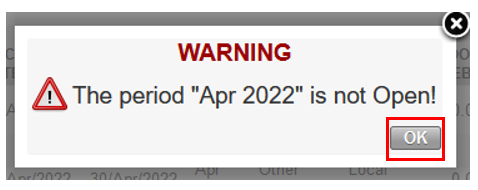
As consequence of reversing of One-Time Accrual:
- The accrual turns to “Done” status.
- Reversing Journal entry is posted in ACC journal with related Journal Items and Analytic journal items. The functional value of the reversing entry is the same as the accrual entry.
- The B/S account is reconciled with the B/S account of the accrual entry.
- The related JI are listed in “Journal Items” tab of the accrual, below the JI of the accrual entry.
- The accrual is not anymore editable. It is not possible to delete.
- It is possible to use the “cancel” button in order to cancel the accrual entry and its reversal.
A “Done” One-Time Accrual is listed in the accrual management screen in black.

c. Manual reconciliation of “Running” One-Time Accrual
It is possible to manual reconcile the B/S journal item from the accrual entry. When the item is fully reconciled:
- The One-Time accrual status turns to “Done”.
- In the “Journal items” tab of the accrual object, the B/S line bears the reconciliation code. The related entries which are not from ACC journal is not listed.
- The {cancel} button appear. It is however not possible to cancel the accrual because there is no reversing entry in ACC journal.
Click on {ok}. If the B/S entry is unreconciled, the accrual object will turn to “Running” status and could be reversed and later cancelled.

5. Process specific related to Reversing Accruals
Go to Accounting/Periodical Processing/Accrual Management and click on the {New} button, fill the header, select accrual type: Reversing Accrual. Fill the analytic distribution and accrual lines. Save the accrual in draft. More details on how to create or to edit an accrual see above.
a. How to post Reversing Accruals in order to turn it to “Done” status.
When the Reversing Accrual is in draft status, the action menu “Post Accruals” allows to post the “Reversing Accrual” in the ACC journal with the reversing entry at the same time. The posting period and the next period should be in open status. Click on {YES} to process or on {No} to cancel the action.

If one of the posting periods is not open, an error message appears. Click on {OK} and either change the period of the accrual or (re)open the period.
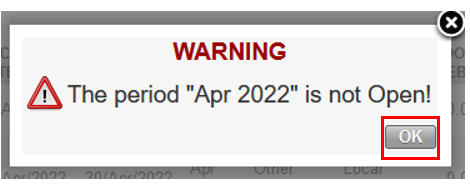
As consequence of posting of Reversing Accrual:
- The accrual turns to “Done” status. There is no “Running” status for Reversing Accruals.
- Accrual journal entry and its reversal are posted in ACC journal with related Journal Items and Analytic Journal Items. The functional value of the reversing entry is the same as the accrual entry.
- The B/S account of the reversal is reconciled with the B/S account of the accrual entry.
- The related JI are listed in “Journal Items” tab of the accrual object.
- The accrual is not anymore editable. It is not possible to delete. It is possible to duplicate.
- It is possible to use the “cancel” button in order to cancel the accrual entry and its reversal.
- It is NOT possible to use the “Post accrual reversals” action menu in reversing accruals.
A “Done” Reversing Accrual is listed in the accrual management screen in black.

Notes: When posting an edited accrual, ensure changes have been saved before clicking on {Post Accrual Reversals”.
To do so, click first on {save and edit} button at header before {Post Accrual Reversals}
