
Finance User Manual ENG -> 5. Searching, Correcting and Closing -> 5.3 Month End Closing -> LUFI-50305 Cash Request
LUFI-50305 Cash Request
LU Introduction
The Cash Request function allows missions to plan their cash needs based on UniField data and synchronize the request directly to HQ. The Cash Request is always created at coordination level, where an automatic input from the liquidity position, pending payables and engagements calculates the needed cash amounts by proprietary instance. In addition to the automatically filled data, a manual input for planned expenses not yet in UniField can be included in the Cash Request.
The Cash Request also includes the details of all past internal transfer entries. This makes it easy for the mission to follow up all the transfers between the HQ and the mission.
At coordination level, go to Accounting/Periodical Processing/Cash Request
The search view for Cash Request is opened
- Click on {New} to start creating a new Cash Request
A new Cash Request form is opened
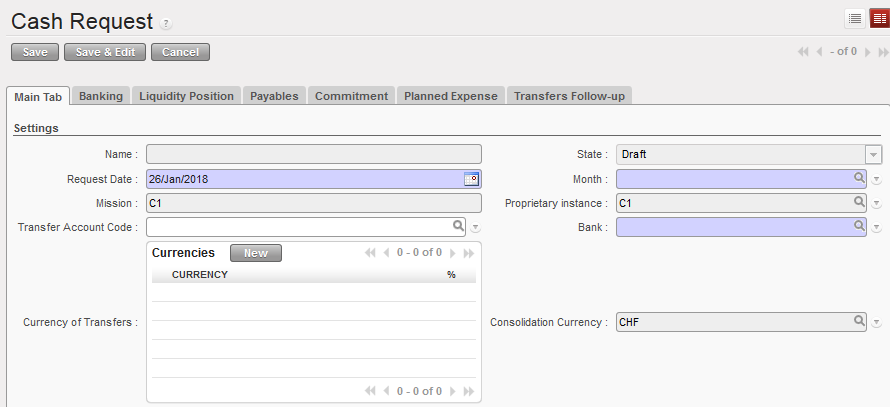 A Cash Request form waiting to be filled out
- Fill in the mandatory fields of {Request Date}, {Month} and {Bank}.
- The {Request Date} needs to be the date of today, i.e. the date on which the request amounts are calculated.
- The {Month} is therefore a future period until which the pending payable amounts are taken into account.
- The {Bank} is the bank account into which the money will be transferred to.
- Fill in the currency in which the transfer is to be made.
- If past transfers from HQ are to be followed on the cash request, the {Transfer Account Code} needs to be filled in.
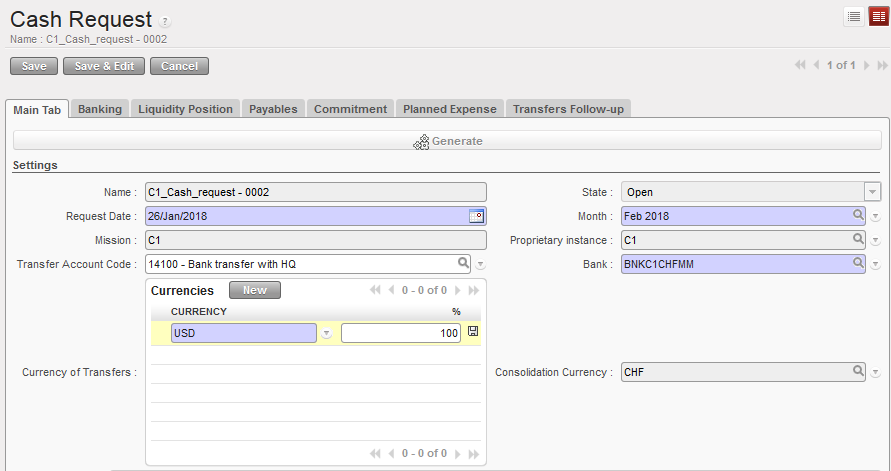 Main Tab with basic information filled in
- Click on {Save} and a {Generate} button along with the mission details will appear. Calculate the Cash Request amounts by clicking on {Generate}.
The Cash Request amounts are ready to be generated
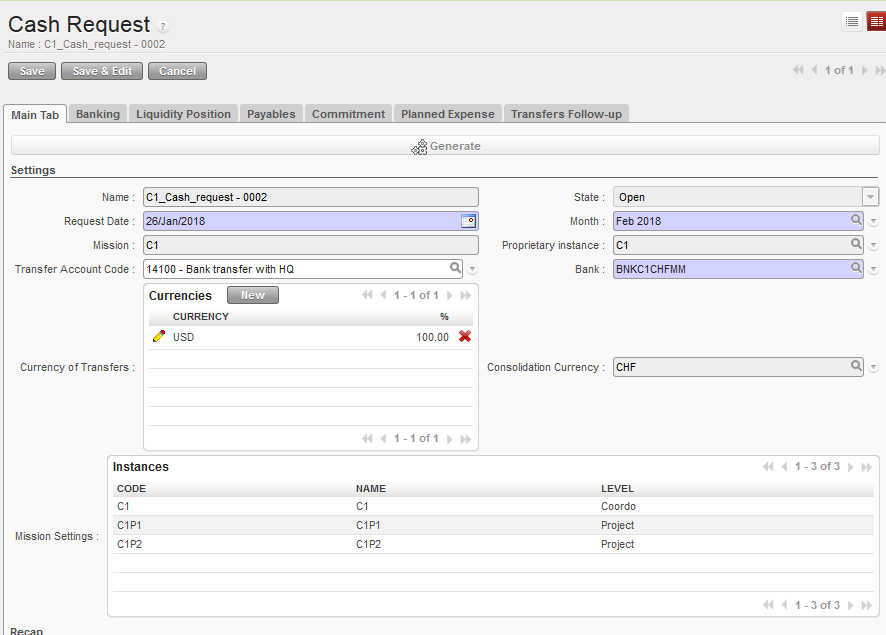
- At this point the Cash Request is in {Open} status and it will synchronize to the projects and to HQ
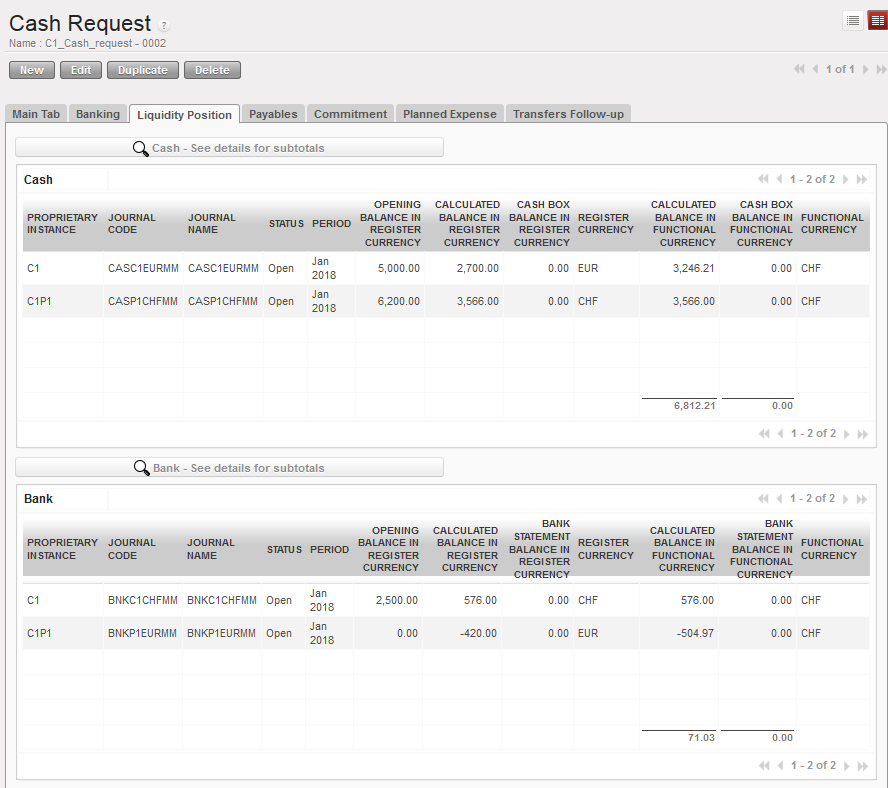
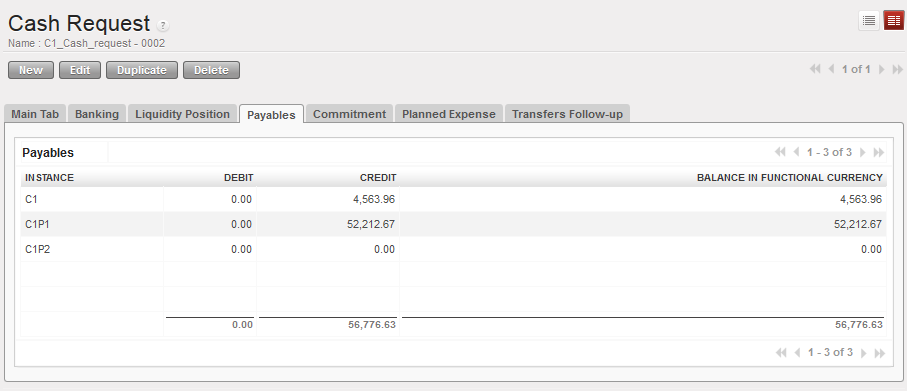
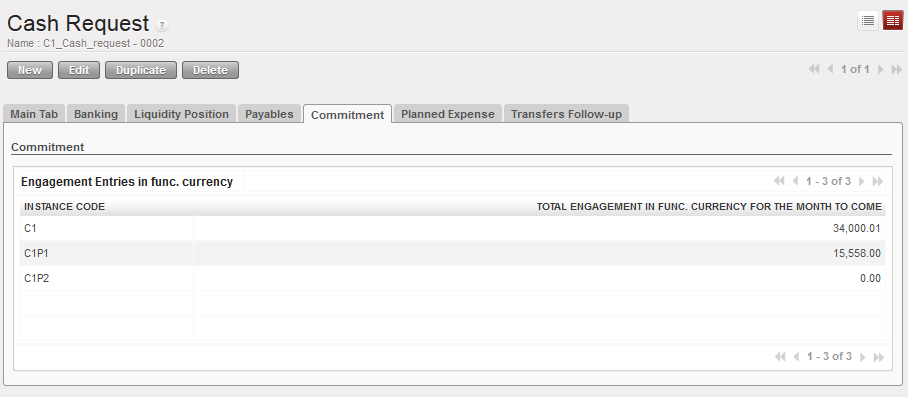
- The data is automatically generated in the different tabs:
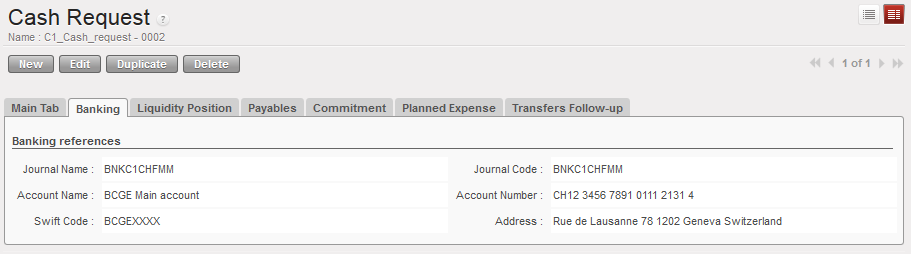 Data automatically filled in in {Banking} tab
Data automatically filled in in (Liquidity Position} tab
 Data automatically filled in in {Payables} tab
 Data automatically filled in in {Commitment} tab
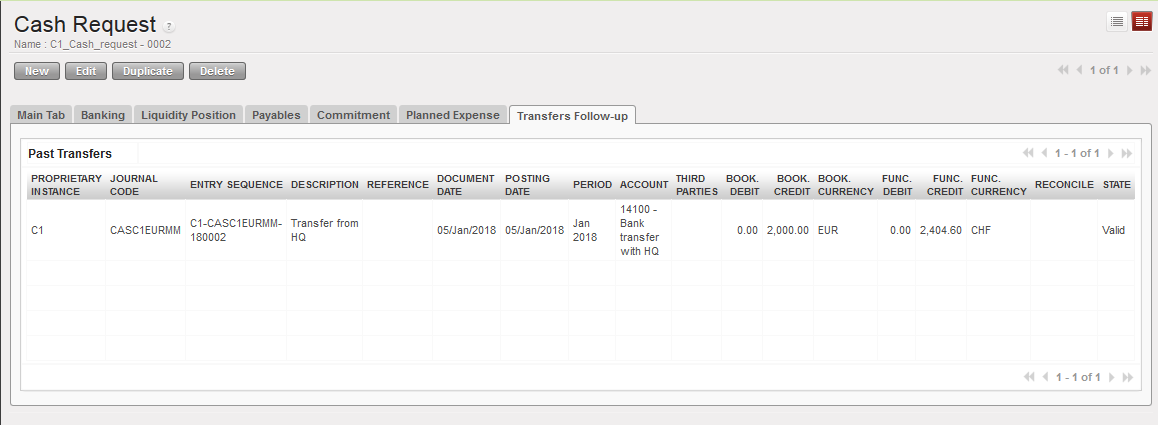
 Data automatically filled in in {Transfer Follow-up} tab
- The {Planned Expense} tab remains empty at this point as it requires manual input. This tab should be filled in separately in all the mission’s instances, e.g. coordination fills out their own planned expenses, and projects fill out their own planned expenses. In case the projects do not fill out their expenses, coordination instance can fill these in on the project’s behalf, but the data will not synchronize down to the project.
To fill out the planned expenses at coordination, click on “New”
Creating planned expenses at coordination level
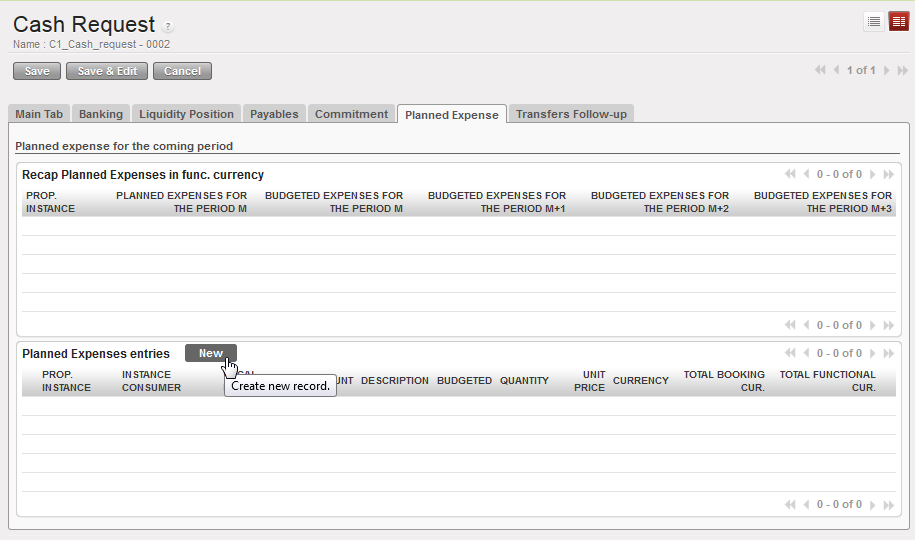
2. Fill out each expense line that is not yet recorded in UniField as pending payments or commitments and that will occur in the month the Cash Request is made for. You can add as many lines for as many accounts and currencies you need.
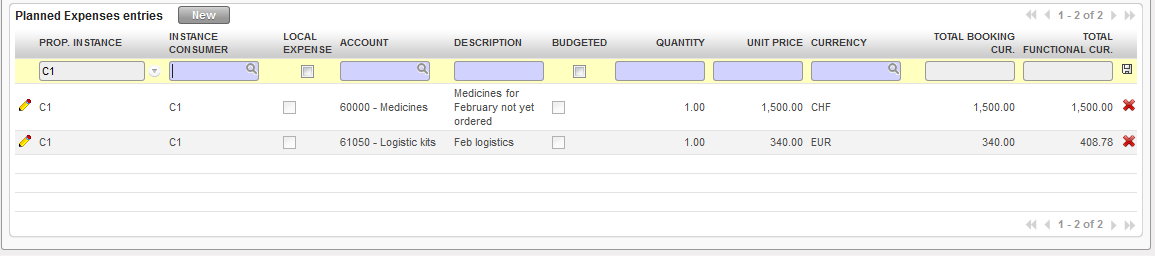 Adding planned expense lines at coordination level
3. After finishing encoding the planned expenses, go back to the {Main Tab} where you still see an empty field for the transfer amounts
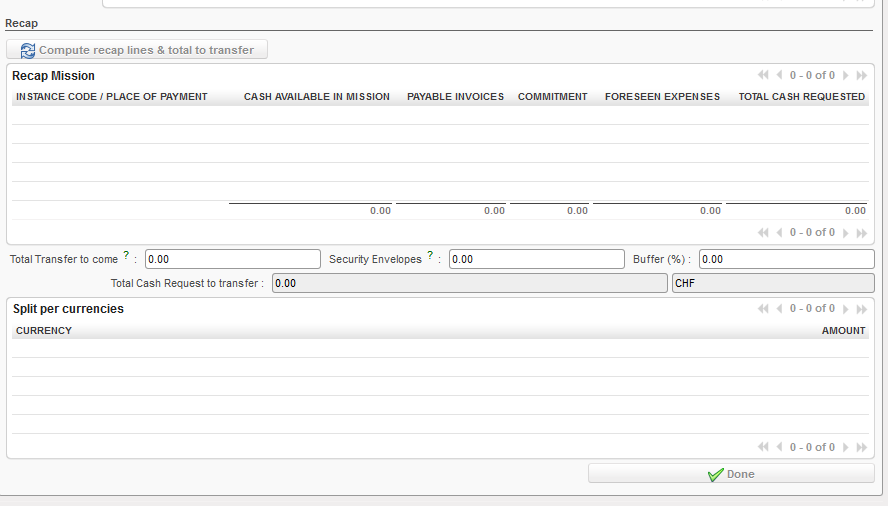
4. Click on {Compute recap lines & totals to transfer}
The total amounts by instance are created
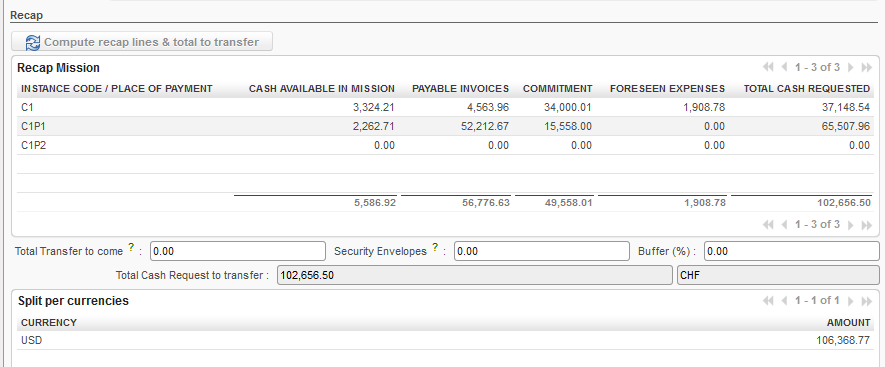 Total transfer amounts are computed without planned expenses from the projects

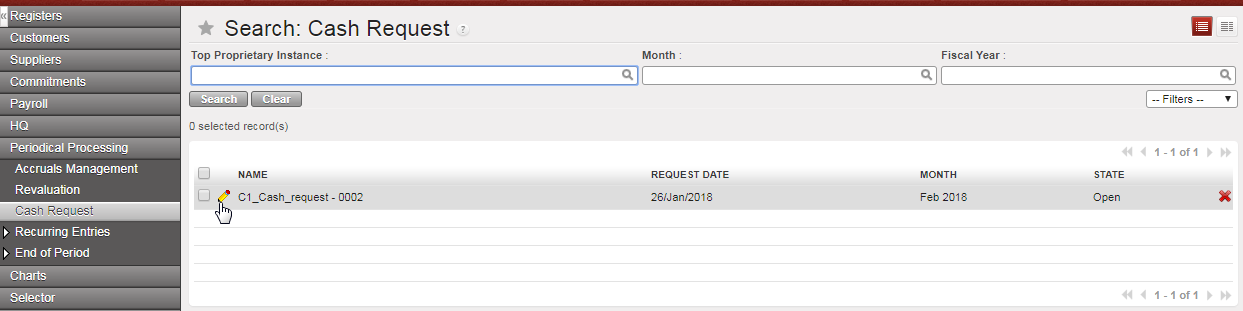
5. At project level, after the Cash Request is synchronized, click {Edit} to open the correct Cash Request
Cash Request search view at project level
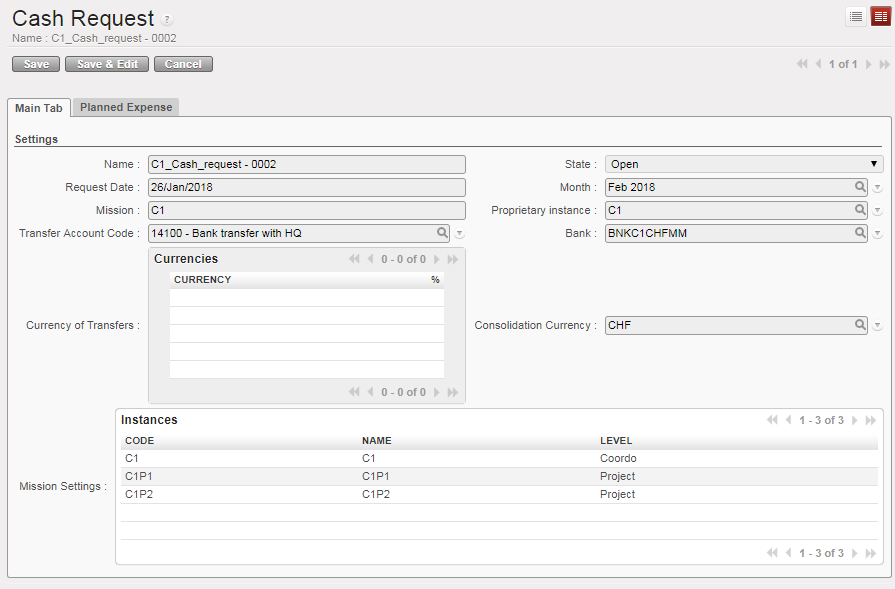
 Cash Request at the project level with only {Main Tab} and {Planned Expense} tab
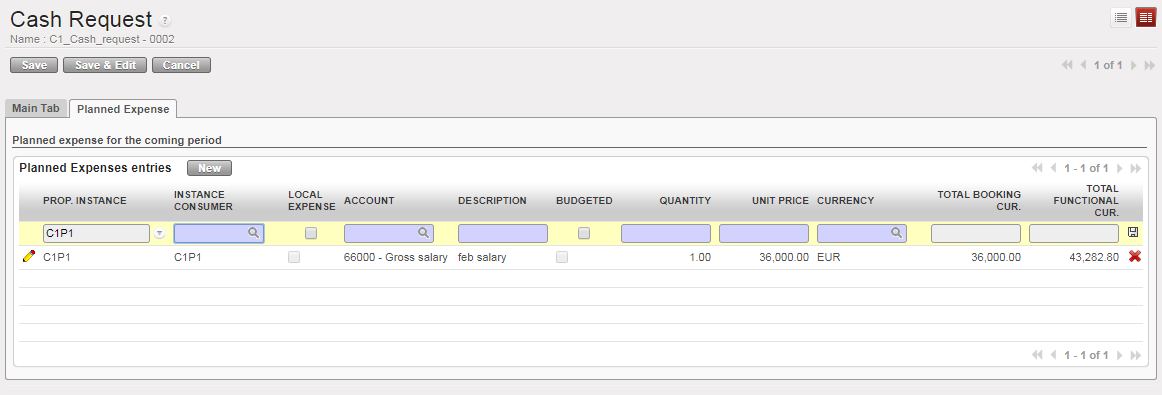
6. In the {Planned Expense} tab, fill in the expense lines
Planned expenses at project level
7. Save the expense lines and synchronize. The coordination will then receive the amounts entered.
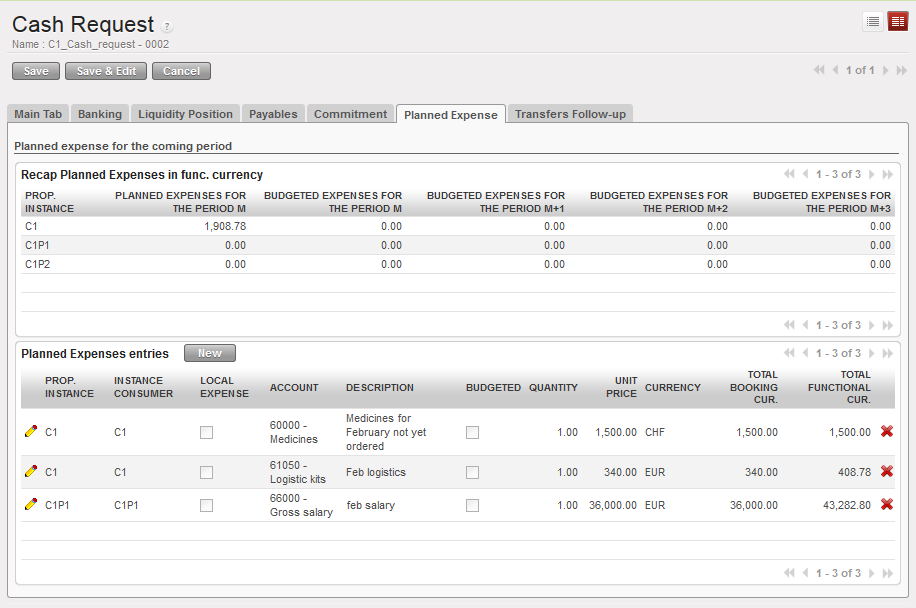
8. After synchronization at coordination level, the planned expenses from the project are now visible:
Planned expenses at coordination level after receiving amounts from the project
9. In the {Main Tab}, click on {Compute recap lines & total to transfer}

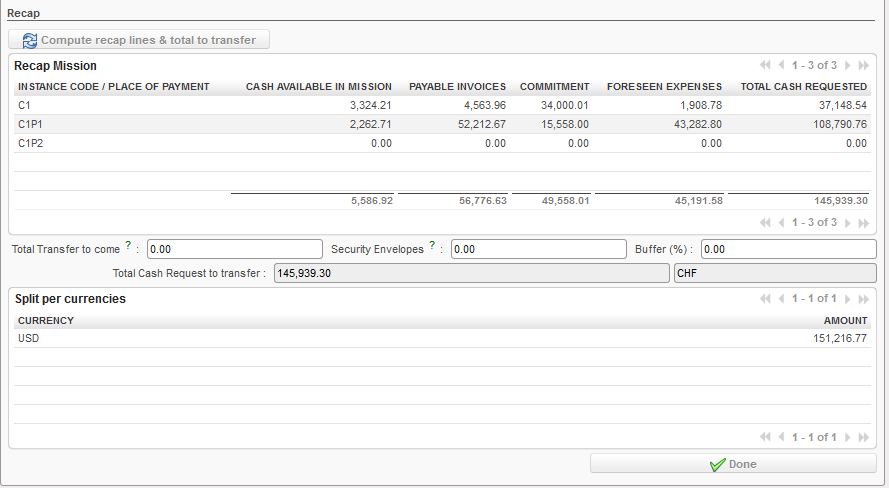
10. The total recap amounts per instance are now computed and the final transfer amount is computed. This data will now synchronize to HQ level, in which a transfer can be prepared.
The total transfer amount seen at coordination level
11. A PDF report can be run in the Action menu to get appropriate validations for the Cash Request

Cash Request Export in the Action menu
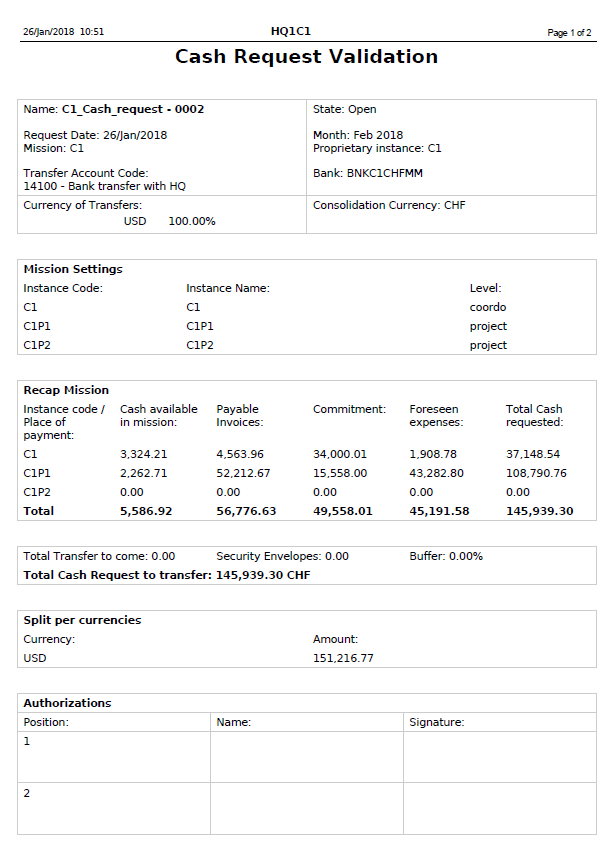
Cash Request Report ready to be authorized
12 . When the Cash Request has been authorized, it can be set to {Done}. It is up to each OC to decide when the Cash Requests are closed (e.g. upon validation, upon transferring the money). Until it is set to {Done}, the Cash Request can still be edited.
