
Finance User Manual ENG -> 6. Donor Management -> LUFI-6.5 Donor Reports.
LUFI-6.5 Donor Reports.
UniField offers various report formats in order to meet the needs of Donors and also to provide internal control tools to make sure financing contract parameters are set correctly. The system allows an accurate follow-up of actual costs vs. budgets submitted to Donors according to their reporting guidelines. You will find an explanation on which data is showed per report type and how to produce them. All the reports are available in printable version.
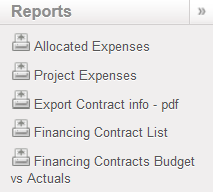
Financing Contract Reports
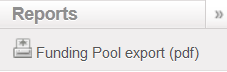
Analytic Account Report
How to Produce an Allocated Expense Donor Report
The {Allocated expense} report is a list of analytical journal items allocated to an earmarked grant (in other words a list of actual earmarked expenses) included in a selected financing contract. It will select all the expenses allocated to the funding pool set as {earmarked} in the financing contract and included in the reporting lines of the financing contract. As a consequence this report is useless for financing contracts defined as {Total project only}.
Go to Accounting/Grant management/Financing Contracts
- In the {Search Financing Contracts} view, tick the checkbox of the contract you want to open
⮡ The Reports menu displays on the right hand side of the screen
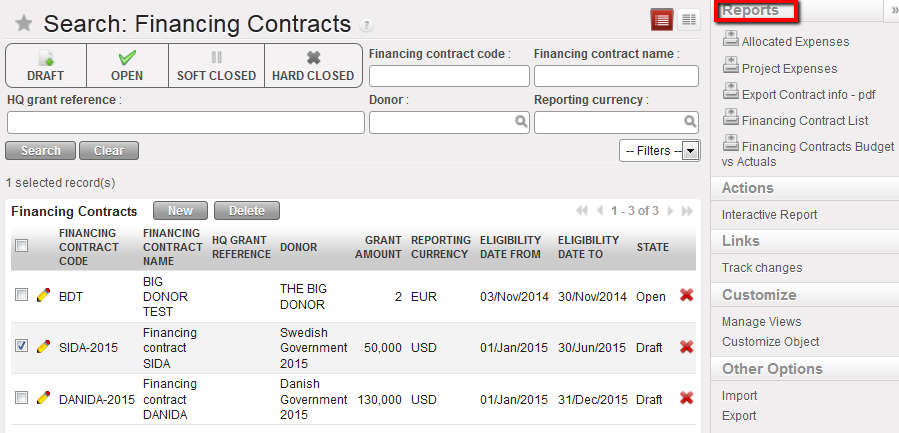
Reports menu displays as soon as a financing contract in selected in the Search Financing Contracts view
2. Select {Allocated expenses} and select {OK} in the Allocated Expenses window
⮡ The contract displays in xls format in both booking and reporting currency
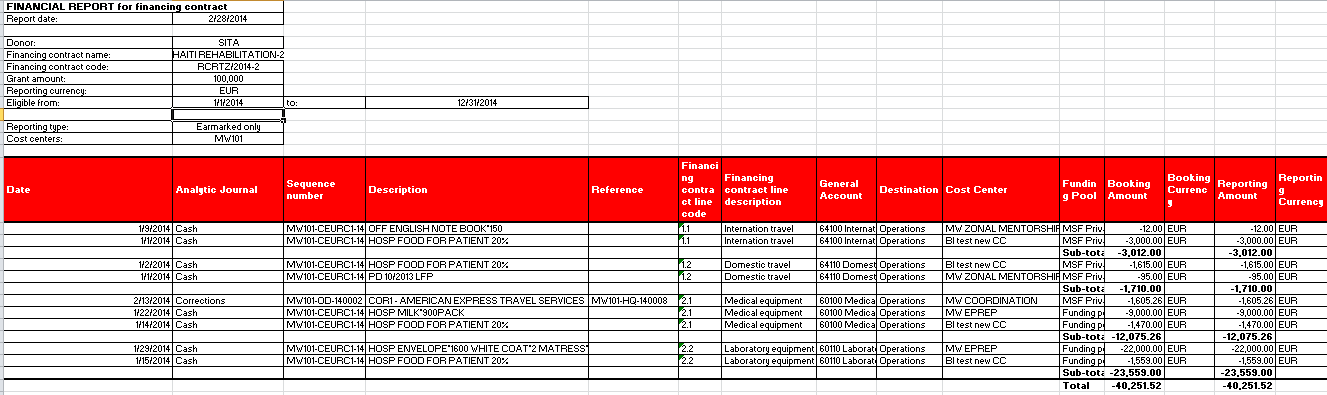
Allocated expense report
How to Produce a Project Expense Donor Report
The {Project Expense report} is a list of analytical journal items allocated to one of the cost centers selected in the financing contract (in other words, a list of all actual project expenses included in the financing contract). It will select all the expenses allocated to the Funding pool set as {Total Project} in the Financing contract and included in the reporting lines of the Financing Contract. As a consequence this report will not need to be issued for financing contracts defined as {Earmarked only}.
Go to Accounting/Grant management/Financing Contracts
- In the {Search Financing Contracts} view, tick the checkbox of the contract you want to open
⮡ The Reports menu displays on the right hand side of the screen
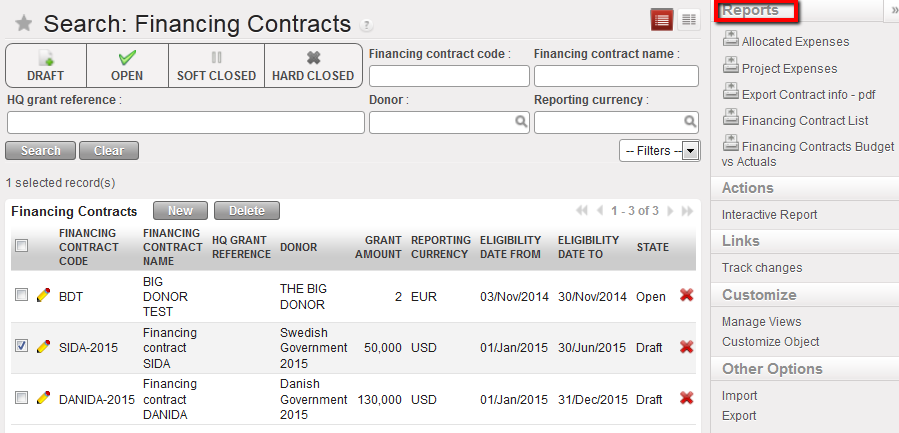
Reports menu displays as soon as a financing contract in selected in the Search Financing Contracts view
2. Select {Project Expenses} and select {OK} in the opening Project Expenses window
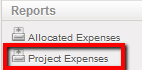
⮡ The contract displays in xls format in both booking and reporting currency
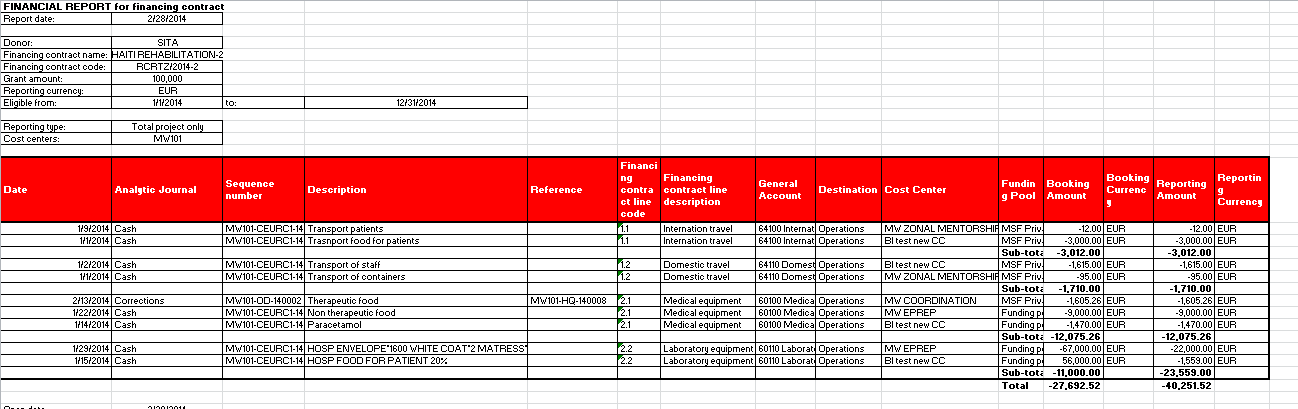
Total project only expense report
How to Produce an Export Contract Report
The {Export Contract} is a PDF internal report with a summary of the financing contract set-up. You can use it to check the overall set-up or more detailed information i.e. expenses accounts and associated destinations linked to a financing contract.
Go to Accounting/Grant management/Financing Contracts
- In the {Search Financing Contracts} view, tick the checkbox of the contract you want to open
⮡ The Reports menu displays on the right hand side of the screen
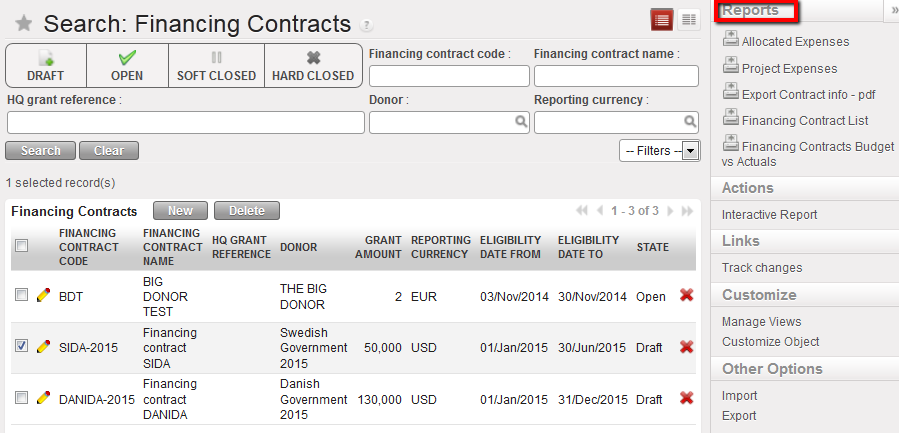
Reports menu displays as soon as a financing contract in selected in the Search Financing Contracts view
2. Select {Export Contract info – pdf} and select {OK} in the opening Allocated Expenses window
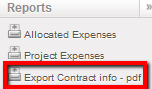
- A PDF displays showing general contract information as well as the reporting lines set up
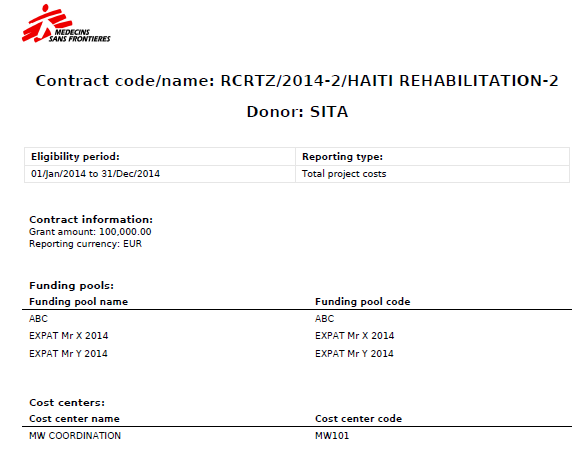
Export contract information (p1) report
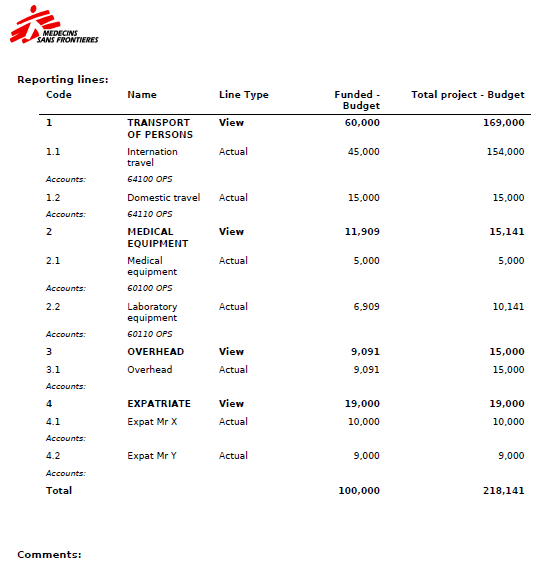
Export contract information (p2) report
How to Produce a Financing Contract List Report
The {Financing Contract list} is an internal report in pdf or excel format used to review the contract parameters (excluding reporting lines). This will help you to get a quick overview of the contract set-up.
Go to Accounting/Grant management/Financing Contracts
- Open the {Reports} menu
- Select {Financing Contract List – pdf}
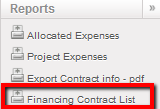
- Select OK in the opening Financing Contract List window
⮡ A PDF displays showing a detailed list of financing contracts set in your instance. You can select 3 reports out of 5 listed if need be.
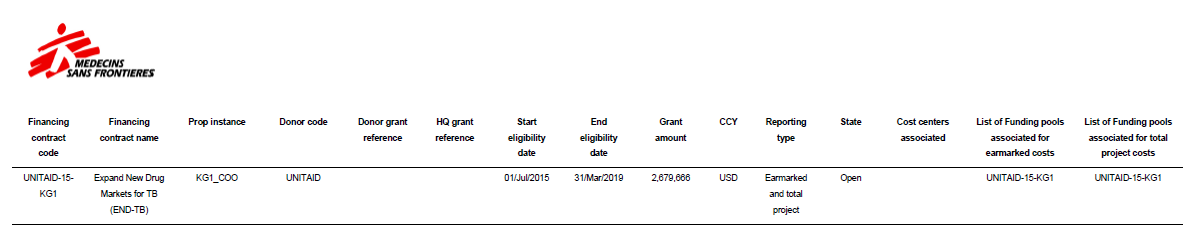
Financing contracts list report
How to Produce a Financing Contracts Budget vs. Actuals Report
This report displays actuals vs budget follow up allocated per reporting lines by earmarked or by total project or both depending on the reporting type set. This report is designed to follow-up on funding consumption: it helps user identify if the budget agreed with a Donor within a particular financing contract is consumed.
Go to Accounting/Grant management/Financing Contracts
- In the {Search Financing Contracts} view, tick the checkbox of the contract you want to open
- In the {Reports} section, select {Financing Contracts Budget vs Actuals}
- Select the desired output currency and click {Create Report}
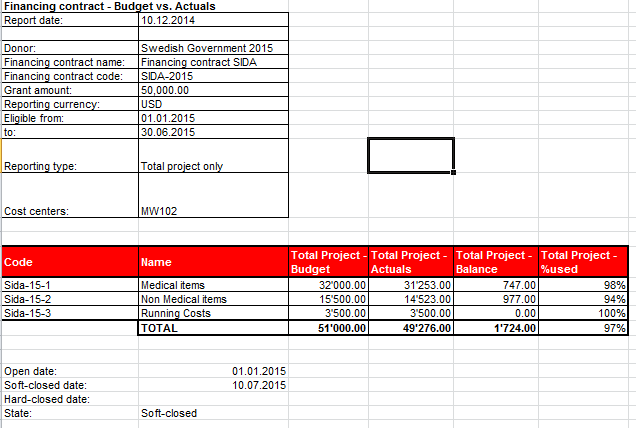
Financing Contracts Budget vs Actuals
How to Produce an Interactive Report
This report is a display on the screen of the financing contract budget vs actuals report.
Go to Accounting/Grant management/Financing Contracts
- In the {Search Financing Contracts} view, tick the checkbox of the contract you want to open
- In the {Reports} section, select {Interactive report}
- Select the desired output currency and click {Create Report}

Interactive report displayed on the screen. No budgetted and actaul expenses were recorded yet.
How to Produce a Funding Pool Export
The {Funding Pool export} is an internal PDF report used to review all the Funding Pool parameters (Cost Centers and Couple Account/Destination).
Go to Accounting/Grant management/Analytic Accounts
⮡ A list of funding pool appears.
- Select one of the funding pools.
⮡ A report menu displays in the right-hand side menu
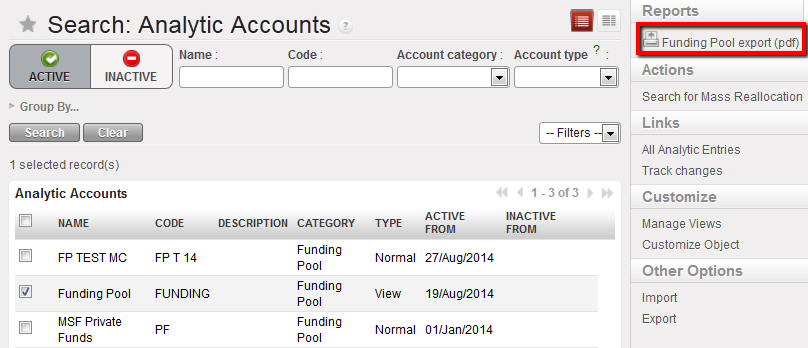
- Select the report type {Funding Pool Export (pdf)}
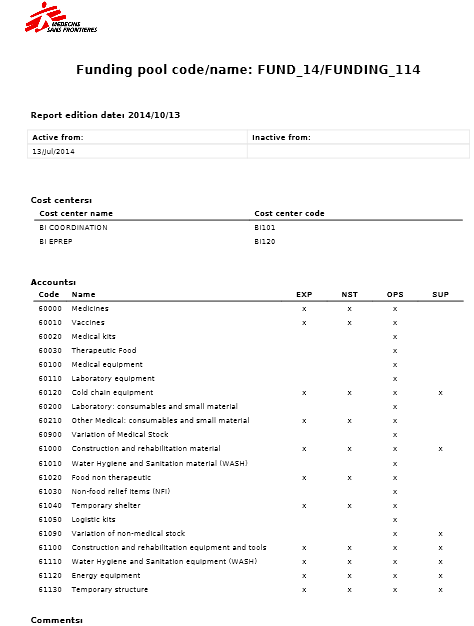
Summary of funding pool
