Configuration and set up of Supply in Unifield

3. Configuration and set up of Supply in Unifield

3.1 Unifield stock locations & stock movements

UniField supports the double entry principle for stock movements. Any product which moves through the system will have a location where it appears (+1), and a location from which it is taken (-1) therefore any movement will have an impact on at least 2 locations. This principal applies to both movements within the instance (from one internal location to another) and also movements where products are entering or leaving the instance.

The set-up of the basic (main warehouse) internal instances is as follows:
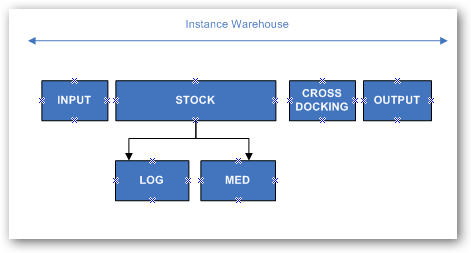
Warehouse set up

Each instance will have a warehouse created by default at the instance creation, and the default locations are: Input, Stock (with children locations Log & Med), Cross-Docking and Output. These in theory represent locations in a physical warehouse where stock may be present. The Output location is further divided for the purposes of outgoing stock movements;
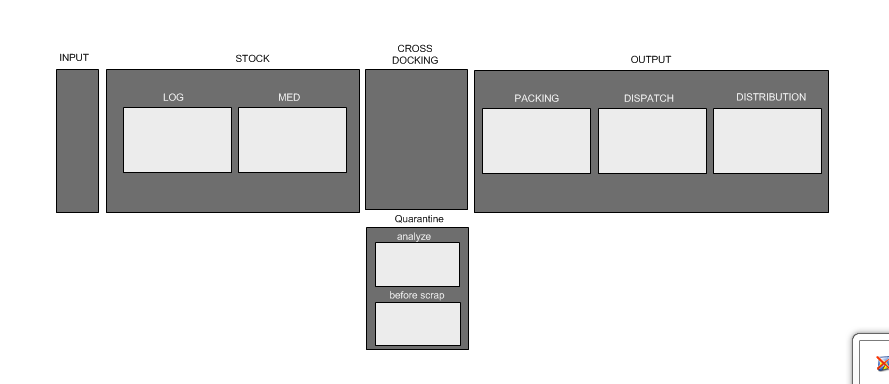
Input represents a transition location which will reflect any stock which the instance receives before being available in the main stock (= destination location of Purchase Order when not cross docking if the checkbox “Direct to Requesting location” has been unticked before the IN is processed).

Stock reflects the physical stock which is available in the instance’s warehouse location. Products can be directly present in this location, but according to agreed processes should only be in one of the child locations – Log or Med, as all products will have a main type of either LOG or MED, and as such should be directed to the relevant child location.( some constraints on some documents updates have been added in order to avoid having any stock in the main “Stock” location)

Output is a transit location reflecting goods which may physically still be in the warehouse, but which have already been allocated for a dispatch and possibly partially processed.

Within Output, there are further divisions to reflect what stage the goods are at in the process of being prepared and dispatched (only full PICK/PACK/SHIP process), this includes sub divisions for Packing, Dispatch and Distribution steps.

Cross Docking represents a location of the Instance’s warehouse which reflects goods that are in transit to another instance (typically destination of PO made to fulfill FO requirements, or needs of IR (external requesting location) (“on order”) to speed up the IN/OUT process).

Quarantine represents a location where goods are placed when under analysis, either before scrapping or for analysis prior to use. Goods are automatically sent here if a Claim is raised and the relevant option is selected, or if there is an Internal movement created and processed with this destination location.

3.2 Configurable Locations

In addition to the standard warehouse set up (Input, Stock (Log & Med), Cross-Docking and Output.)- It is possible for a user to create extra locations.

Configurable locations can be either internal or external.

Internal: In the system there are 2 options for configurable internal locations – Intermediate stocks and Internal Consumption units. There is full visibility of stock (qty, batches, value etc) in any internal location, and this location can be selected also for sourcing purposes (see section on Order Sourcing Tool). In this context, internal consumption units are not considered as “last customers”, as the products are still within the instance. Technically there is no difference between Intermediate stocks and internal Consumption Units, but they are named differently to assist end users in understanding flows and last internal point in instance.

Functionally to help visualise the slight difference; an Intermediate Stock would be more like a physical section in the actual Warehouse where the products are allocated to a specific project for example while the Internal Consumption Unit would be more like a Pharmacy stock in a local clinic for instance (but that we still want/need to track in the system).

External: The possibility to have external consumption units as configurable locations was more recently developed, with the idea of enabling a flow for Internal Requests for which the final destination would be external (this due to OC’s choice). If the destination is external, as soon as the stock has been dispatched, the stock will leave the UniField instance, and in this case, external consumption units are considered as “last customers” (when goods are delivered to an external consumption unit, they are assumed to be consumed). The main use for External Consumption Units is to act as requestor/consignee in Internal Request flows or for Consumption Reports, where IR flow is not used.

There are multiple different set ups possible for configurable locations, please see diagrams for some examples.
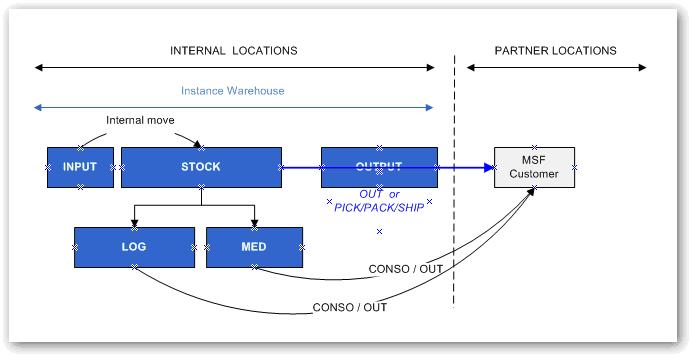
No extra locations configured
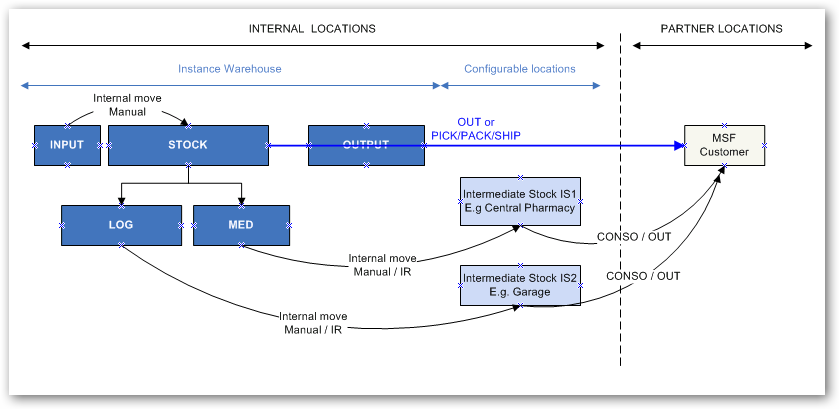
Intermediate stocks
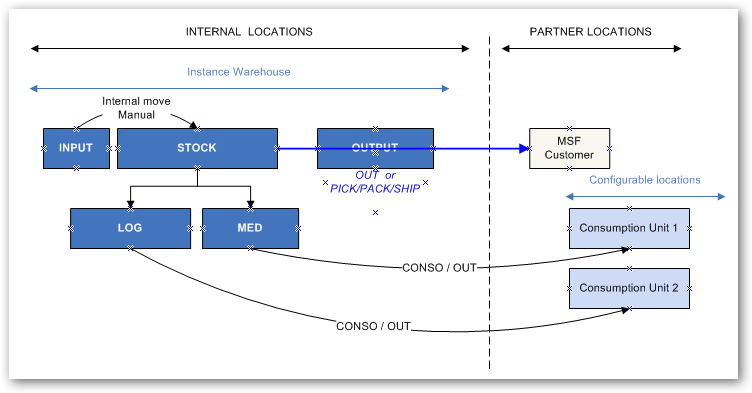
External Consumption Units
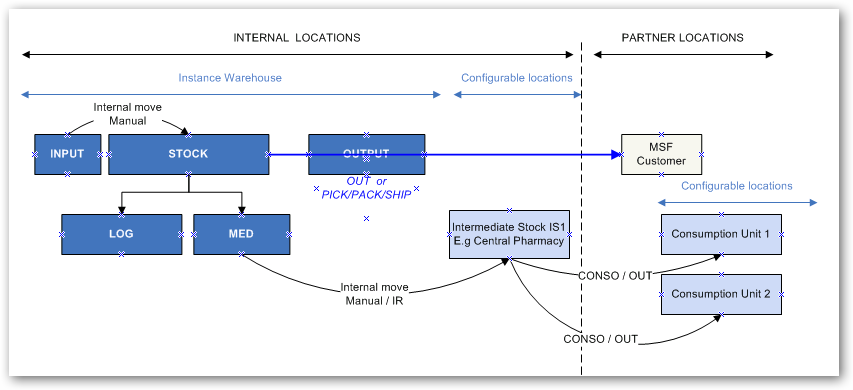
Intermediate stock and external consumption units
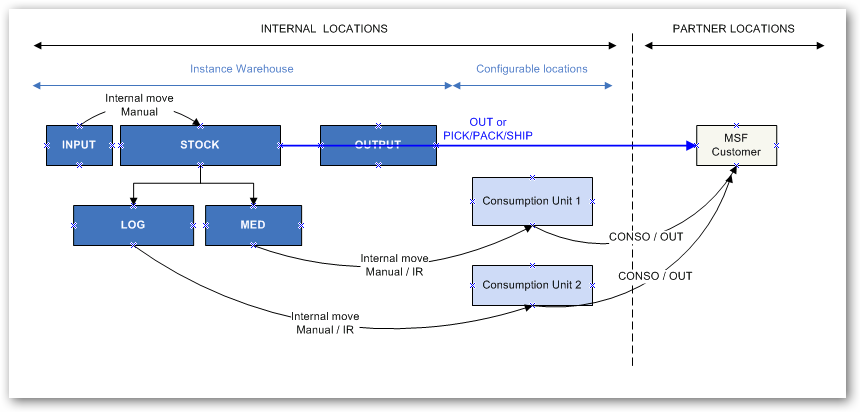
Internal Consumption Units
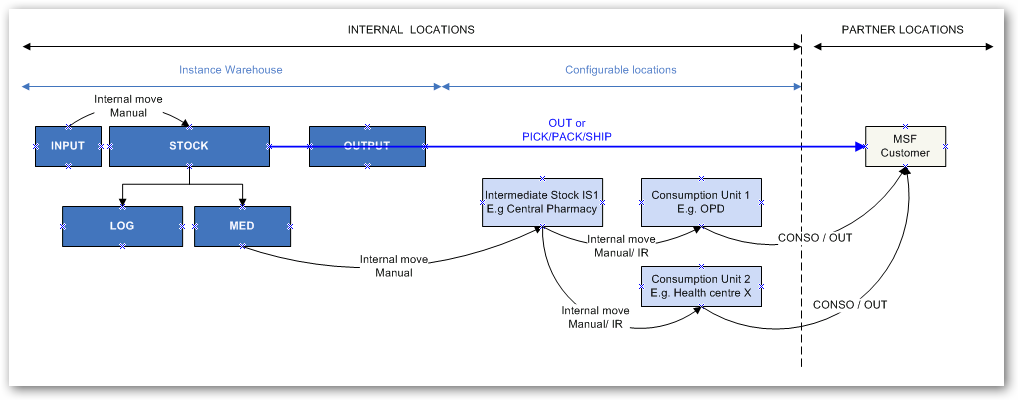
Full set up

3.3 Other Locations (partner locations and virtual locations)

In order for the double entry mechanism to work for goods which are arriving in and leaving the internal locations, there are also several partner locations and virtual locations which may act as the origin or destination of goods. The two main Partner locations are Supplier and Customer, and for these, goods which are entering and leaving the internal instance will have a relevant stock movement in one of these also. The main virtual locations are; Procurement, Kitting, Inventory Loss & Profit, Service and Non-stockable, and the system will use these for movements internal to the instance.

For example for a product on an order, once the Incoming Shipment has been processed, the Qty in stock (Log or Med) will be +1, and the Quantity in the Partner location “Supplier” will be -1. This reflects that the product has been passed from supplier to internal stock.

The same is true for products which leave the instance, in which case the quantity in the internal stock location will be reduced -1, and then quantity +1 will be added to the partner location Customer. The same mechanism exists for virtual locations.

All of these locations can be viewed in the Stock by location screen for each product (“Products” > select a product > “Stock by location” in right action menu), and they are also displayed as origin or destination of product moves in the report Stock moves (Warehouse>Stock moves).

Supplier – MSF Supplier – Partner location reflecting MSF (internal) suppliers

Supplier – Other Supplier – Partner location reflecting suppliers external to MSF

Customer – MSF Customer – Partner location reflecting MSF customers (including any configured locations – external consumption units)

Customer – Other Customer – Partner location reflecting external customers

Procurement – virtual location, but display has been changed in ticket BKLG-22 so qty will always be zero in Stock by location but is still visible as product origin in Stock moves as alternative to Supplier location.

Kitting – Virtual location reflecting where kit products are sent or taken from when a kit is created via a kitting order from components (kit product is -1 in kitting location and +1 in stock location), or when de-kitted into components (+1 in kitting location and -1 from stock location)

Inventory Loss & Profit – Virtual location reflecting origin or destination of goods according to changed inventories (Qty + or Qty -)

Inventory Loss & Profit – Destruction – Virtual location reflecting destroyed products

Service – Virtual location reflecting where Service type products are sent (when they are received in Incoming Shipment)

Non-stockable – Virtual location reflecting where non-stockable type products are sent (when they are received in the Incoming Shipment of the final consignee instance).

Any stockable products received will be part of the internal inventory until they are issued to an external party at which point they will be removed from any internal locations and will exit UniField. Products which are Non Stockable or Services with reception will not figure in internal locations but will be received in specific virtual locations. The exception is where non-stockable products are in transit to another internal partner (e.g project), in which case they will be stocked in the Coordo Cross Docking location until they are dispatched.

3.4 Virtual Stock

UniField offers a view of “virtual stock” as well as real stock, which can help manage supplies more efficiently as this gives visibility of stocks and their likely availability.

Please note, it is not necessary to understand this in order to process day to day transactions, but it may be useful in understanding stock movements and how the system works.

  • Products which are in the pipeline with stock moves will appear as additional virtual stock in the stock views (for instance Draft INcoming Shipment).
  • Products which have already been reserved or are due to leave a location due to the relevant document being in draft will reduce the quantity of “virtual stock” in the system stock views (for instance Draft PICK; INT; Delivery Order).

The Virtual stock quantities give a “snapshot” of what the quantities of stock are likely to be in the future, based on the transactions in the system.

The table shows the locations and quantities for an example product at a certain point in time::
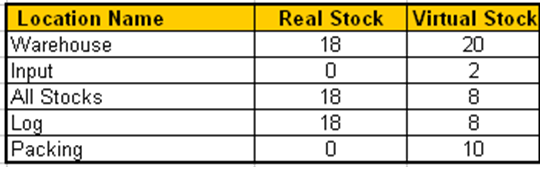
 Table showing quantities for real stock and virtual stock for a product (scissors)

Or, to represent this visually, these are the locations of the Real Stock:


Diagram showing Internal Stock Locations – Real Stock
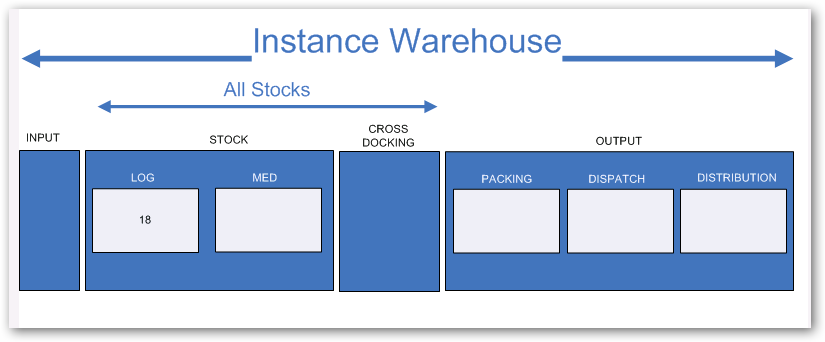
In the overall warehouse (shown as “Instance Warehouse” in the diagram above) there are a total of 18 items, all of which are within the “All Stocks” location, in Stock, and specifically in the “LOG” location.

And these are the locations with quantities of the Virtual Stock (i.e. the system’s forecast of where the stock will be in the future):
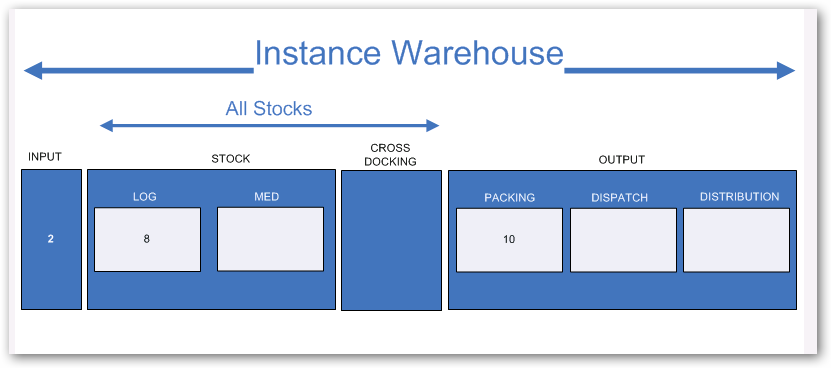
 Diagram showing Internal Stock Locations – Virtual Stock

There is a virtual total of 20 items in the (instance) warehouse: 2+8+10 =20

There are 2 items in the input location, in “All stocks” there is a total of 8, all of which are in “stock”, and specifically in the “LOG” location, and there are 10 items in the “Packing” location.

System calculates that there will be 2 items in the input location – because there is an available Incoming Shipment (created due to a PO being confirmed) for these 2 items.

System calculates that there will only be 8 items in LOG, but that 10 will now be in PACKING – because there is a Picking in draft status (created when a validated FO was sourced from stock) for 10 of these items.

3.5 Calculation of product quantity in stock:

The figure for the quantity of products in stock (real, available and virtual) is calculated each time it is displayed. This means system takes baseline qty of zero for a product, then adds all stock movements made since the instance was activated to arrive at the balance of the current stock. As more movements exist for a product, so the time taken to arrive at this figure will increase. This has been raised as an element which in the long term needs to be modified to prevent unreasonable calculation times.

Calculation/display of quantity in stock in transactions

Specific transactions where when product master data shown (e.g. via clicking magnifying glass for Product field) the quantity displayed in window will reflect quantity for specific selected location of that transaction.

Picking Ticket line: source location + child locations

Pre-Packing list (PPL) line: source location + child locations

Internal move line: source location + child locations

Incoming shipment line: source location + child locations

Delivery order line: source location + child locations

Real average consumption report line: consumer location

Wizard to change product on incoming processing: destination location + child locations

Wizard to change product on outgoing delivery processing: source location + child locations

Kit product substitution: Source location + child location

Physical Inventory: Selected location

Initial Stock Inventory: Selected location

Introduction and Glossary

I. Circulation

This memo is circulated to Unifield stakeholders active in the supply functional domain.

  • Unifield supply referents for review
  • Unifield supply implementers for review
  • Unifield Deployment Managers for information

#Resources in charge of field supply tools maintenance and evolution in all OCs

II. Introduction to Supply System Documentation.

This document is designed to give an overview of Unifield Supply functionalities, concepts and flows. Where a specific feature has been developed I have tried to explain the rationale. This document aims to cover master data and each document in the Supply flow with an outline of specific functionalities. In addition, this document describes the configuration and set up of Supply in Unifield, and details how products pass through these locations and their impact on flows. This document is not intended to explain the full synchronisation mechanism as this will be explained in the IT Documentation. User rights will also not be included in this document as they are separate to Unifield Supply functionalities.

There are other systems which impact flows in Unifield, for Supply these include UniData and OCs and HQs’ Portal and ESC systems. This document lists where relevant the impact and interaction with these, but does not aim to include in its scope processes beyond those of UniField.

The targeted audience for this document is those who already have good knowledge of the system. This document does not aim to replace the User Manual, nor provide any step-by-step guidance. Its aim is to provide background information and rationale of why certain functionalities exist in their current form, and how they are structured beyond the user interface.

Finally this document will continue to evolve and be enriched due to:

  • Evolution of the tool and integration of new tickets;
  • Missing information raised by OCs.

III. Glossary

AD Analytic Distribution

AMC Average Monthly Consumption

BN Batch number Mandatory

BO Back Order

CC Cost Centre

CD Cross Docking (Location)

CP Central Platform

DB Data Base

DPO Direct Purchase Order

IKD In Kind Donation

IN Incoming Shipment

INT Internal Movement

IR Internal Request

KCL Kit Composition List

ESCEuropean Supply Centre

ED Expiry Date

FEFO First Expired First Out

FMC Forecasted Monthly Consumption

FO Field Order

HQ Headquarters

LT Lead Time

OC Operational Centre

OST Order Sourcing Tool

OUT Delivery Order

PL Purchase List

PO Purchase Order

PICK Picking Ticket

PPL Pre-Packing List

RAC Real Average Consumption

REF Reference

RFQ Request for Quotation

RR Replenishment Rules

RTS Ready To Ship

Qty Quantity

SHIP Shipment

SLL Status at Line Level

Sync Synchronisation

T Tender

UF Unifield

UoM Unit of Measure

PCE Piece

VI Vertical Integration

WAC Weighted Average Price

1. UniField – Introduction

For Supply, UniField is intended to be used in conjunction with Finance modules at field level; Coordo and Project. UniField is therefore based on the nuclear structure of having an HQ, Coordo and project. The synchronisation engine was developed in order for instances to communicate necessary data (see IT documentation for more detail on this). For Supply, the key master data is products which are necessary for every transaction. The type of product (product attributes) will affect how the product is treated and managed in the system. Products pass through the Supply flows of Ordering, Purchasing, Receptions, Deliveries and are managed through warehousing transactions. In addition this document describes the configuration and set up of Supply in Unifield, and details how products pass through these locations and how they affect the flows.

1.1  List of Supply System Master Data

  • Products
  • Product Nomenclatures
  • Batch numbers and expiry dates
  • Asset Forms
  • Theoretical Kit composition list
  • Partners (Suppliers / Customers / Manufacturers)
  • Packs
  • Units of measure
  • Categories of Unit of measure
  • Product lists
  • Supplier catalogues
  • Country Restrictions

For creation, please see synch rules in system documentation, and where manually created/updated please see relevant section in this document


UniField v21.1 Release Notes

Release Details

Release version: UF 21.1

Date of production synchronization server patch: 07-July-2021 / 18:00 Geneva time

Latest user rights files updated: UF21.0 can be found here with record of changes here

Note that no user rights need to be loaded at each HQ. This will be done at the Sync Server by the Core team and will update the user rights via Sync for all HQs and missions.

JIRA filter for all integrated tickets: https://jira.unifield.org/issues/?filter=12380

Supply

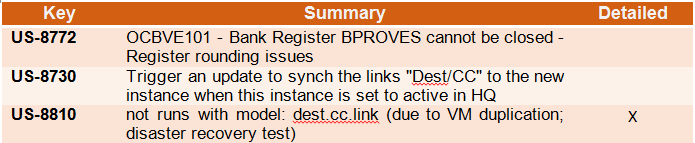
(US-8812) OUT import not working

This issue, raised by Pharma, meant that it was no longer possible to import line information into an OUT (Delivery Order) created from scratch. This was caused by US-8010 released in UF20. This is now corrected so the import is now working.

(US-8795) VI import on PO Stock Take Date check

This issue raised by OCG and linked to US-8638 meant that when a VI import in XML format was done either manually or via Auto VI on a PO, for new lines added via import a Stock Take Date could be added which was after the PO Creation date. This was not conforming to the expected range of STDate and meant the PO lines were then blocked after. With this ticket, the check is done on the STDate in import file, a warning is raised and line not imported if STDate is not conforming. It is still not mandatory to add a Stock Take Date on new lines, and in the case there is no STDate, then the system will take the same date as the creation date of the PO.

(US-8650) Check on Inactive products at document level > line level

This issue raised by multiple OCs, was due to the system making a check at document level that all product lines contained Active products. There were many cases where a document contained a now Inactive product, and the line for this product was closed, but due to this check the other lines in the transaction were being blocked from progressing. The check has now been transferred from being at document level to the specific line(s) being processed. This means that Inactive products in already processed (closed) lines will no longer block the processing of lines with Active products in the same document.

All Supply tickets integrated in UF21.1

Finance

(US-8810) OCG_XX1_COO : not runs with model: dest.cc.link (due to VM duplication; disaster recovery test)

Due to a OCG IT Virtual Machine test recovery, OCG HQ has been duplicated, creating sync issues between the fake and the production HQ, creating not runs on the combination destinations and cost centers in several missions. This ticket fixes the not run.

All Finance tickets integrated in UF21.1

Non- functional

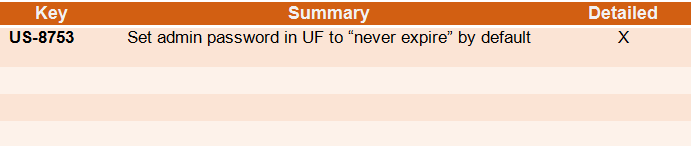
(US-8753) Set admin password in UF to “never expire” by default

Following improvement in password policy US-7019 (UF21.0 release), all production passwords were set to expire every 6months with the exemption of sync users and unidata users. In this UF21.1 patch, we added admin user accounts to the short list of users set by default to “Password never expires”. This means that when the 6months elapse, administrator accounts will not be prompted by the system to change password.

All Non-functional tickets integrated in UF21.1

UniField v20.1 Release Notes

Release Details

Release version: UF 20.1

Date of production synchronization server patch: 5th May 2021 / 18:00 Geneva time

Latest user rights files updated: UF20.1 can be found here with record of changes here

Note that no user rights need to be loaded at each HQ. This will be done at the Sync Server by the Core team and will update the user rights via Sync for all HQs and missions.

JIRA filter for all integrated tickets: https://jira.unifield.org/issues/?filter=12370

Supply

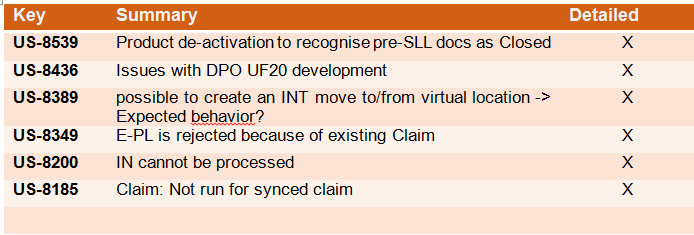
(US-8539) Product de-activation mechanism on split documents

When a user/synch tries to de-activate a product, the system will check if it was in stock or in any open document, and if so, the de-activation would be blocked.

The issue flagged by OCA was that if the document was an old FO or PO and was split (with a suffix -1, -2 or -3) because it was created & processed pre-SLL (Ticket allowing status to be different at line level), then the de-activation of a product in one of these documents was blocked even if the line/document was Closed or Cancelled. With this ticket, the system will no longer block for the case of these split documents, so the product can be de-activated if it meets the originally defined criteria.

(US-8436) Change to Direct Purchase Order linked documents

In UF20 release, the tickets US-7617 & US-7552 were included which meant that when Incoming Shipments (INs) linked to a Direct Purchase Order (DPO) are processed or cancelled at requestor (project) instance, the details of this reception/cancellation are synched up to the DPO instance.

OCG identified that this was not always the case, and specifically for when an FO was sourced to multiple DPOs the linked IN information was not correctly synched up. With this ticket, this issue is corrected so that in the case of an FO being sourced to multiple DPOs, each of these will have a separate IN created at project to ensure the accurate data is synched back.

For FOs sourced in this way between UF20 and UF20.1 (this release) a separate ticket, US-8554 has been created to ensure correction of these flows via Data Fix after this release.

(US-8389) Block moves to Virtual locations via INTs

This issue identified by OCB was that users could create Internal Movements (INTs) from a stock location to a virtual location (such as “Inventory Profit &Loss”) therefore bypassing the correct procedures such as doing a Physical Inventory to adjust stock levels. This has now been corrected and is no longer possible.

(US-8349, US-8185) Claims issues

These 2 issues meaning that VI auto IN import was blocked due to Claim in progress, and there being an unclear Not Run synch message when a Claim was raised and then closed in the same instance before it was synched to the Supplier instance have now been corrected. The VI auto import is no longer blocked in this case, and for the second, the Not Run synch message now clearly communicates the issue with related document Ref.

(US-8200) IN processing issue

For a specific user case, when the Outgoing Transport document had been processed with a quantity already in stock (Crossdocking) in advance of the ordered quantity being actually received via the Incoming Shipment, the VI import of this Incoming Shipment was blocked. This has now been corrected.

All Supply tickets integrated in UF20.1

Finance

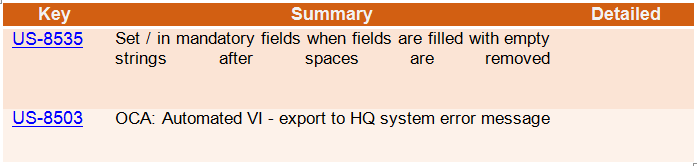
(US-8535) OCA: Automated VI – export to HQ system error message

To fix an error message linked to OCA automated VI, we have added a configurable pause in the process between the generation and the push of the VI files to the sftp server.

All Finance tickets integrated in UF20.1

Non- functional

(US- 8487): Certificate Renewal Issues

Certificate renewal issues were identified in some instances due to a failure in the auto-renewal. These instances were forced to renew certificates manually because the revprox code that automatically renews certificates on instances failed. This is due to a bug introduced by US-8158 and the new LE authority causing revprox not to consider the certificates as certomat ones. This bug is fixed and resolved in this release.

All Non-functional tickets integrated in UF20.1

UniField v21.0 Release Notes

Release Details

Release version: UF 21.0

Date of production synchronization server patch: 16-June-2021 / 18:00 Geneva time

Latest user rights files updated: UF21.0 can be found here with record of changes here

Note that no user rights need to be loaded at each HQ. This will be done at the Sync Server by the Core team and will update the user rights via Sync for all HQs and missions.

JIRA filter for all integrated tickets: https://jira.unifield.org/issues/?filter=12374

Supply

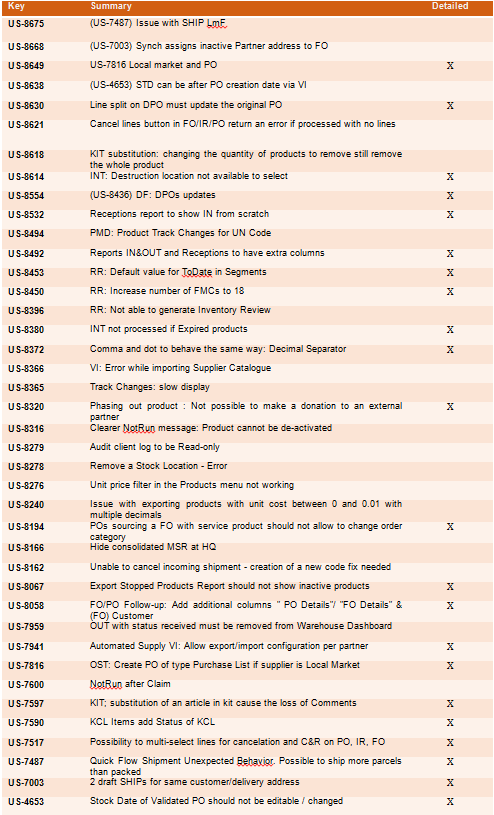
(US-7517) IR, PO, FO multi line cancellation

With this ticket comes an improvement in usability allowing users to select multiple lines directly in the IR/PO/FO or still to use the same pop-up window as before to select products for either Cancel or Cancel & Resource.

(US-7590, US-7597) Kit improvements on KCL status & comments

In these 2 tickets raised by OCB, the system now displays the status of each of the Kit components via Products>Kit Management>Kit Composition List, along with some filter buttons for each of these statuses.

In the Kit Composition list, when using the Substitute Item functionality it is now possible to see the comments linked to each KCL line, and in the substituting items, it is possible to keep the same comment as per the line removed or also to add a new comment for the replacing line.

(US-8320) Phase Out status products can be shipped out

This is a modification linked to previous alignment of UniData and UniField status of products (US-7158). UniData products with “Phase Out” status can now be consumed and sent out of the instance. This includes donations and regular outs to internal, external, intermission and intersection partners as well as Real consumption.

(US-7487, US-7003) Ship improvements – delivery address & surplus packs

Now there is a check at processing PPL and SHIPs that the partner’s delivery address exists/is active, and warning to change this if not. There is also a warning on the Partner file if user tries to delete an address which is currently used in a PPS open document.

There is an addition to the PPS flow to complement US-5859 which limits the modification/addition of packs to being done in “quick flow” in the Draft Shipment so that it is not possible to ship more parcels than exist in shipment.

(US-8194, US-7816) Sourcing/POs – Local market & Service product

Some modifications so that if “Local Market” supplier is selected in the OST, the type of PO will automatically be switched and created as Purchase List. This can be manually changed back if needed.

When an FO with a Service product is sourced to a Direct PO, it is now no longer possible to change the DPO to a regular or purchase list type PO.

(US-8372) Supply documents product price, non-acceptance of comma

When User Interface (UI) is in English, unit price fields in documents IR, PO, FO, IN, Product cost revaluation and Initial Stock Inventory will no longer accept comma “,”. Only full stop/period “ . “ will be accepted as decimal marker. No change to how French UI works or to any imports.

(US-8450, US-8453) Replenishment Rules: increased FMCs & default dates

Two improvements to the Replenishment Rules functionality, both affecting the Replenishment Segment. It is now possible to fill in up to 18 FMC values per line/product, which gives a longer planning horizon if needed. For FMC dates, when the calendar button is used to enter them, the calendar displayed will no longer show a default of “today’s” date but rather, the date of the column entered previously in order to minimise clicks for user to select future dates.

(US-7941) Vertical Integration: Auto VI multiple ESCs possible

For automated Vertical Integration, both import and export for Supply (PO, IN and Catalogue) it is now mandatory to define the specific ESC supplier for each job. This means that auto vi jobs can be active for multiple ESC Suppliers, one job for each supplier and each action.

(US-8058, US-8067, US-8492, US-8532) Reports additions

As requested by Pharma, extra columns will now be displayed in the IN&OUT and Receptions reports, and the Receptions report will now show INs created from scratch (not from PO).

Reports FO follow-up per Client and PO follow-up per supplier will also have extra columns. The Export Stopped products report is now renamed to Export Phase Out products, and will no longer display inactive products.

(US-4653, us-8162) Stock Take Date improvement & IN correction

It is now not possible to change the Stock Take Date on POs which are validated or a status after. The STDate after PO validation can only be updated by the Synch in the case of a synched flow. For products added on POs sourced to external Supplier (e.g. to ESC) then new lines will accept a STDate if date value is on/before PO creation date. Split lines will automatically take date of original line.

The issue raised where lines in Incoming Shipments (INs) could not be cancelled due to system checking Stock Take Date of POs which for historical reasons were not conforming to expected STDate. This has now been corrected.

(US-8554, US-8630) Direct Purchase Order corrections

In previous release, US-7617 meant Direct Purchase orders can now be closed/cancelled by synch when project/receiving instance process/cancel the Incoming Shipment. In a follow up ticket US-8436 on an intermediate release, the behaviour of INs was changed to allow for FOs split across multiple DPOs. However the DPOs created in this way between the 2 releases remained not being updated correctly by the synch. This ticket acts in the same way as a Data Fix would to allow the Not Run messages to be executed across all instances with this issue so the DPOs receive the correct updates.

In a second ticket, the flow where a DPO was created and then a line was split and then confirmed was corrected so that at project/requester instance, the PO split line is no longer displayed as Draft status but in Confirmed status to match its DPO counterpart.

(US-8614, US-8380) Internal moves, destruction location & expired products

Correction made to internal moves (INT) allowing only virtual location of “Destruction” to be selected as destination location. Other virtual locations were previously made inaccessible for this in US-8389.

Another issue corrected is that where an IN is processed for expired goods, the chained INT linked to it will automatically be processed in the normal way and expired goods will arrive at destination location.

All Supply tickets integrated in UF21.0

Finance

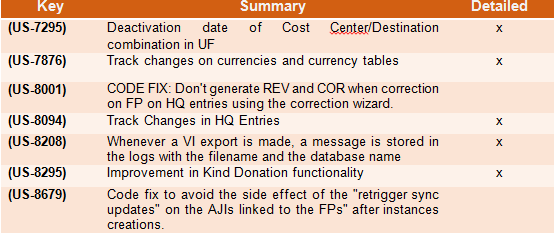
(US-7295) Deactivation date of Destination/ Cost Center combination in UF.

  • In this ticket we have added the activation and deactivation date of the combinations of destinations / cost centers.
  • Additionally to the checks on the activation dates of Destination and Cost Center individually, system will also check the activation dates of their combinations.
  • The display of this combination inactivation date will be in the Destination Analytic Account configuration in the Cost Center (CC) tab. It can be filled manually.
  • There is the possibility to fill these dates by import via Tools.
  • All parametrization is always done at HQ level.

(US-8295) Improvement in Kind Donation functionality

New functions have been added to the In Kind Donations functionality as below:

1. Do not allow to delete with the red x the IKD lines as far as the IKD is from supply.

  • If IKD comes from supply (regardless of the partner types): allow to create additional lines which are editable and that can be deleted.
  • Allow to delete/edit lines when IKD is manually created.

2. We did a new cancel button on IKD like on STV/IVO when we have a donation in draft. The object is not removed, just greyed. Similar to STV/IVO the object and details is visible but not useable.

3. We created the split function in IKD.

  • If we try to split a line with 0 amount we will be blocked (also via de wizard).
  • If we want to split an invoice that has one line amounted 0, it will be possible just if we delete this line.

4. Now we can change product, account, quantity, unit price and description from a donation coming from a supply flow. ==> we frozed the donor, the source document, the product and the quantity fields of a donation coming from a supply flow.

5. We created the import-export functionality as the one created for the supplier invoices in 2020: “Import Invoice Line / Export Invoice Line”.

The field “notes” that is in a tab of the invoice lines of a SI/IVI/IVO/STV will be also available in the excel spreadsheet.

6. There were no changes in the behavior of the ODX journal nor in the “duplication” behaviour: If the donation comes from a supply flow the source document will not be copied if we duplicate the document. If the donation is manual, the source document will be copied if we duplicate the document.

(US-7876) Track changes on currencies and currency tables

We implemented the track changes on currencies in these screens:

  • Accounting/configuration/currency management/currencies.
  • Accounting/configuration/currency management/currency tables.
  • on the currencies we can track:
    • the creation of the currency
    • the editions of every field, including the changes on the rates.
  • on the currency tables we can track:
    • the creation of the currency table
    • the editions of the code, the name, the state, the addition and deletion of currencies
    • to see the changes on a currency itself: click on the button on the right of the currency line.

(US-8001) CODE FIX: Don’t generate REV and COR when correction on FP on HQ entries using the correction wizard.

We did a code fix to correct a wrong behaviour: If the AD (analytical distribution) of an HQ entry is edited using the correction wizard to change either its Funding Pool and/or its Free1/2 account, REV/COR entries were generated, whatever the period state. This is not the case anymore, no REV/COR entries are generated.

(US-8094) Track Changes in HQ Entries

Thanks to this ticket, we will trace:

  • the fields used as headers in the list view of the HQ entries.
  • the transition to “Validated” (the tag on which the filters To Validate and Validated depend), so that we can spot when the HQ entries have been posted.
  • the split and unsplit of entries. Note: lines coming from a split will be identifiable because the “Original HQ Entry” will have a value for these lines (contrary to the “original” lines).
  • the analytic reallocation
  • the change of the account

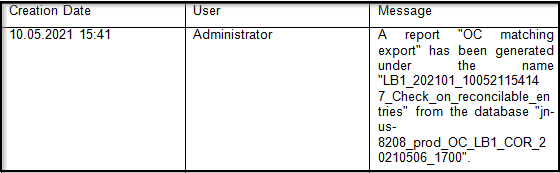
(US-8208)Whenever a VI export is made, a message is stored in the logs with the filename and the database name

Whenever a VI export is made, a message is stored in the logs only (i.e. nothing is displayed in the interface) with the filename and database name. Logs are visible under Administration => Reporting => Audit => Client Logs.

This applies for these reports:

  • OCP matching export
  • Export to HQ system (OCP)
  • OCB matching export
  • OCB matching export Access Interface
  • Export to HQ system (OCB)
  • Export to HQ system (OCB) Access Interface

Example of log:

All Finance tickets integrated in UF21.0

Non- functional

(US-7019): Password policy best practices

Following a request to improve the UniField password policy, the following best practices have been integrated in this release as follows:

  • Unifield user password has been enhanced with the following requirements -> 8 Characters : 1 capital letter, 1 number, 1 special character.
  • Expiration of passwords: Users will be forced by the system to change their passwords every 6 months after their last password update. This rule will not apply for:
    • production sync users, generic sandboxes, and testing environments (runbots and VMs for core team and dev)
    • Administrator user
    • UniData users

NB: After the release, all users in production (including admin) will be prompted to change their passwords at login.

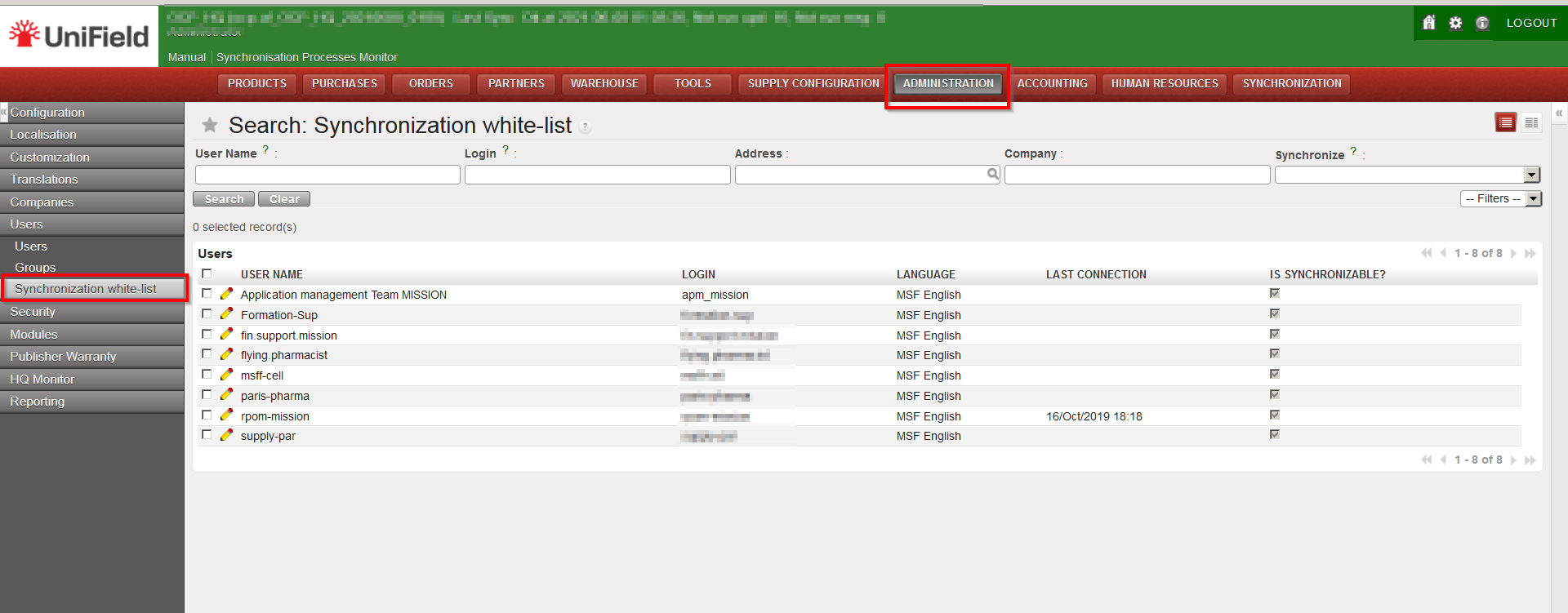
Each OC IT referent will be responsible for changing passwords for the synchronised users (synchronization white list) at HQ except for the apm user which will be updated by core team. Below is a screenshot guide on where to find the synchronisation white list in UF.

(US-8172): Most secure/efficient ways for auto clean-up of UF DB backups

The current 20.1 and older versions of UF allowed for failed backup files to be valid and kept which consumes disk space. This issue is fixed in this version 21.0. UF will no longer keep failed backup files (all dumps that complete with a non-zero exit code will be considered as a failure by the system). The failure generates a report of an empty KO file in the “Get Backup Files” view

(US-8403): UF All-In-One setup may corrupt pre-existing PostgreSQL configuration files if not ending with new-line

The postgres configuration file was being corrupted causing postgres service to stop. This was due to an erroneous appendage of lines in the postgres.conf file. UF21.0 fixes the issue by adding a new line break before the parameters added by UF in the config file.

All Non-functional tickets integrated in UF21.0

C. HOW TO SCRAP/DESTROY PRODUCTS

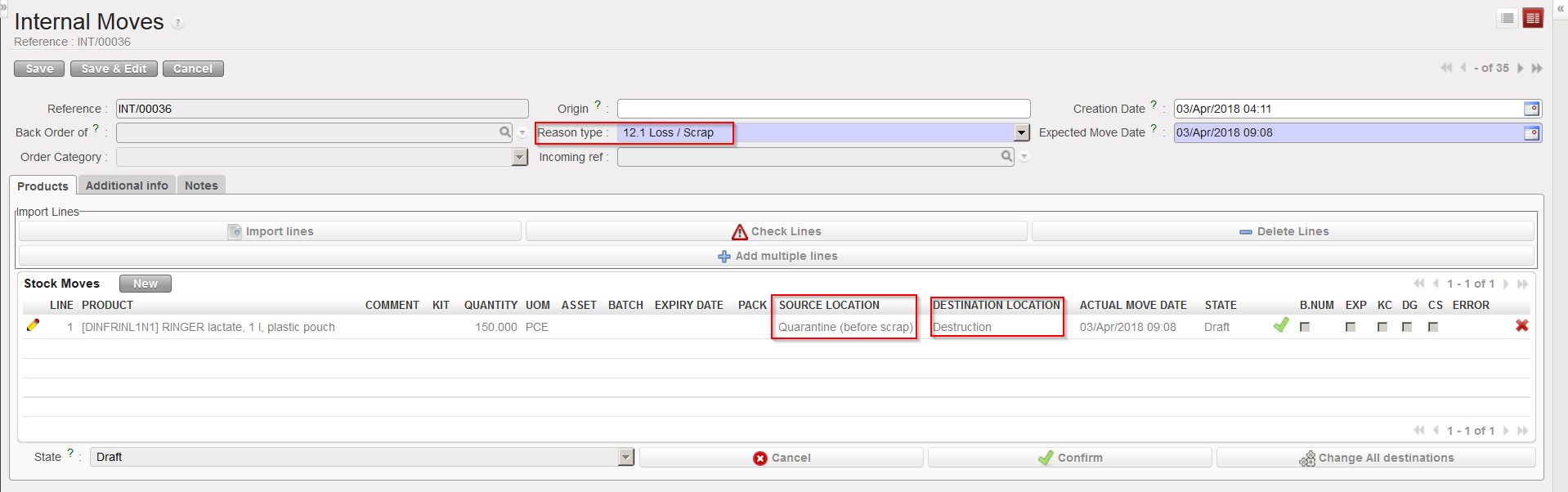
The decision and process to destroy any product should be in adherence with your OC procedures. In UniField, the destruction process will usually be done in two steps. The first step will move the goods to quarantine. The second step will move the goods from quarantine to the “Destruction” location.

One of the likely triggers for this will be when a supplier claim has been created, and the decision has been taken to scrap the product. See previous section and LU on claims for details.

If the product being scrapped is not linked to any claim, it will still have to be moved out of the internal warehouse location to quarantine. This will be done through an Internal Move (INT) as explained in the previous section.

In order to complete the process of scrapping a product (second step), it is necessary to create an Internal Move to move the goods to the “Destruction” location. Again, an appropriate “Reason type” should be selected on the INT.

Internal Move to destroy products


F. HOW TO GENERATE THE “Deliveries Report”

Supply User Manual ENG -> 5. Warehouse -> 5.18 LU-SU4304: Movements Reports -> F. HOW TO GENERATE THE "Deliveries Report"

F. HOW TO GENERATE THE “Deliveries Report”

Following the development of the “Receptions report(see section above), this new report mirrors this latest report by gathering all together all the major information regarding processed deliveries.

The report should only export lines from OUT (and OUT-CONDO) which are in the state Closed or Delivered and from SHIP which are in the state Dispatched or Received.

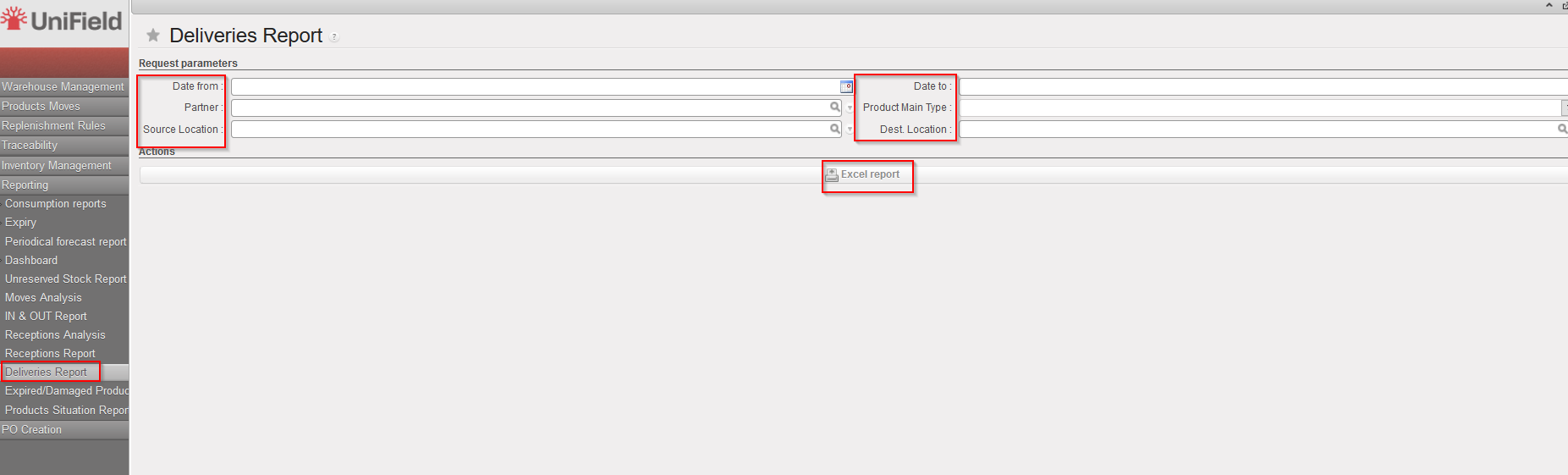
Go to: Warehouse / Reporting / Deliveries Report

  1. Select any filter you need among the following: Date from; Date to; Partner; Source location; Product Main Type and/or Destination Location.
  2. Click on the “Excel report” button.

Deliveries Report

Deliveries Report – Excel Export

D. RECEPTIONS ANALYSIS

Supply User Manual ENG -> 5. Warehouse -> 5.18 LU-SU4304: Movements Reports -> D. RECEPTIONS ANALYSIS

D. RECEPTIONS ANALYSIS

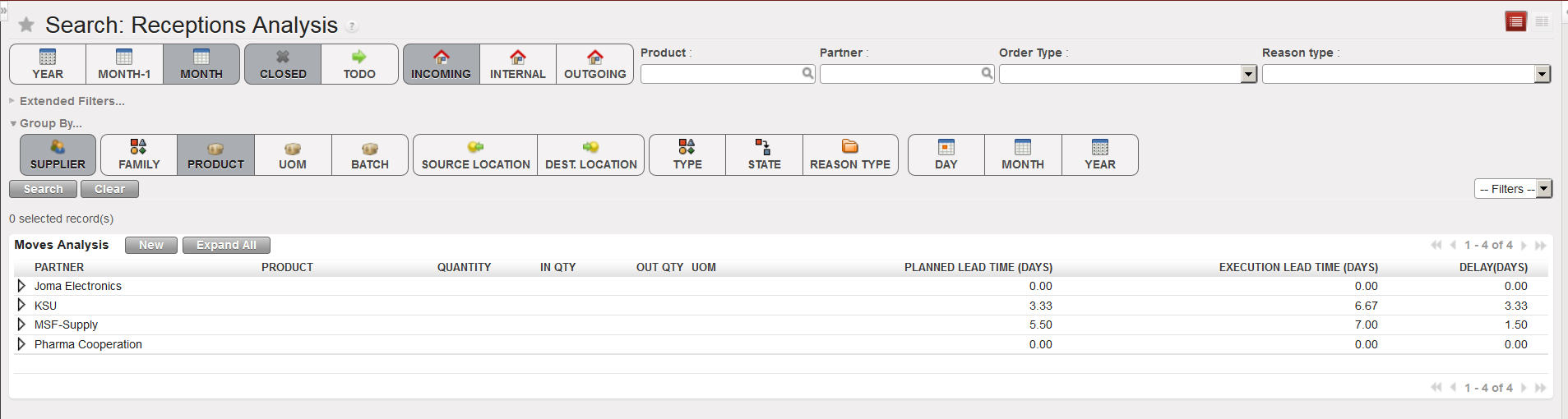
This functionality is similar to the “Moves Analysis” but focuses on Incoming Shipments.

Go to: Warehouse / Reporting / Receptions Analysis

Receptions Analysis

  1. Clear the current filters by clicking on the “Clear” button
  2. Use filters and “Group by” options to select which Incoming Shipments you want to select and define how you want organize them.
  3. Click on the “Search” button.

C. MOVES ANALYSIS/IN & OUT REPORT

Supply User Manual ENG -> 5. Warehouse -> 5.18 LU-SU4304: Movements Reports -> C. MOVES ANALYSIS/IN & OUT REPORT

C. MOVES ANALYSIS/IN & OUT REPORT

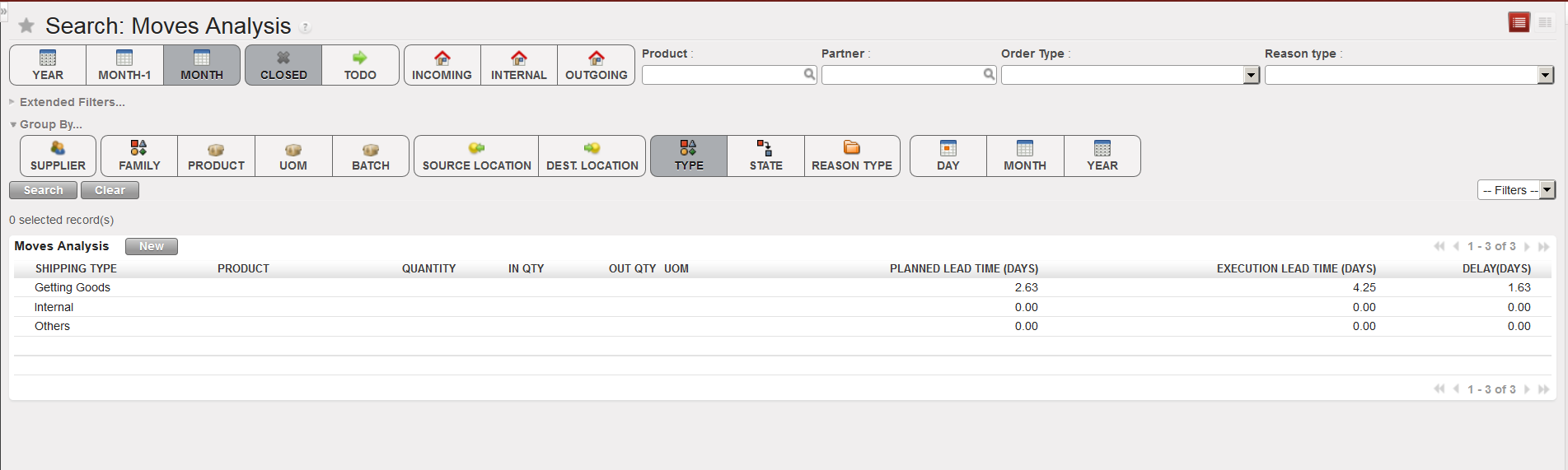
The “Move Analysis” functionality is another tool which allows investigating on all movements.

Go to: Warehouse / Reporting / Moves Analysis

Move Analysis

  1. Clear the current filters by clicking on the “Clear” button.
  2. Use filters and “Group by” options to select which movements you want to see and how you want to see them.
  3. Click on the “Search” button.

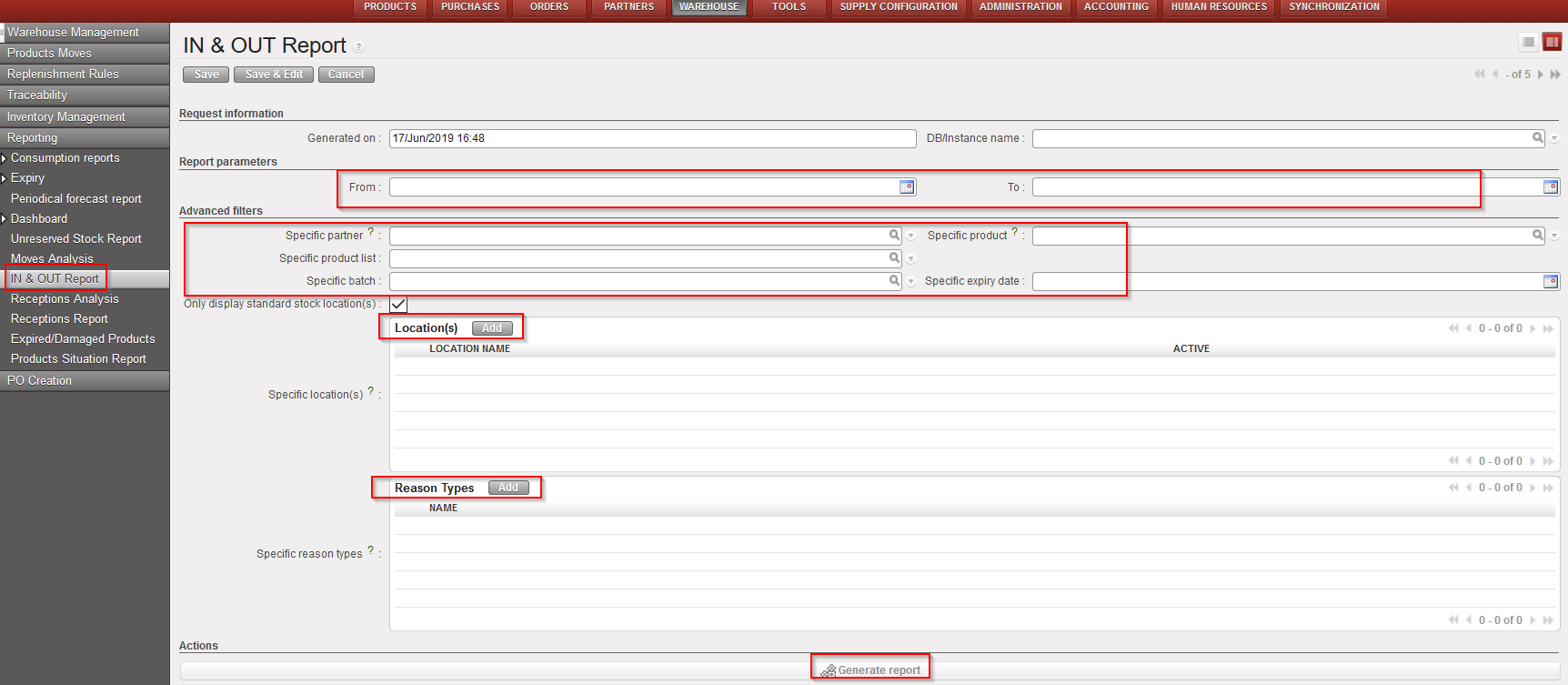
The “IN & OUT Report(previously named “Export Moves analysis”) is producing a similar report based on several selection criteria but the report is generated in Excel.

Go to: Warehouse / Reporting / IN & OUT Report

1.Click on the “New” button.

2. In the selection screen, enter parameters for the movements selection:

a) By date: even though it is not mandatory and performance has been increased, it is still recommended to use this filter set on movement’s date.

b) Advanced filters such as Partner, Product, Product list, BN or ED can also be used

c) Specific location can be selected: you have the option to select one, several or no location.

If no location are selected and the “Only display standard stock location” box is ticked, then movement between non-standard locations such as Input; Cross Docking; Packing, Shipment, Distribution and Quarantine will not be displayed.  Note that even Deactivated location can be selected.

d) Reason type

IN & OUT Report

3. Click on the “Generate report” button.

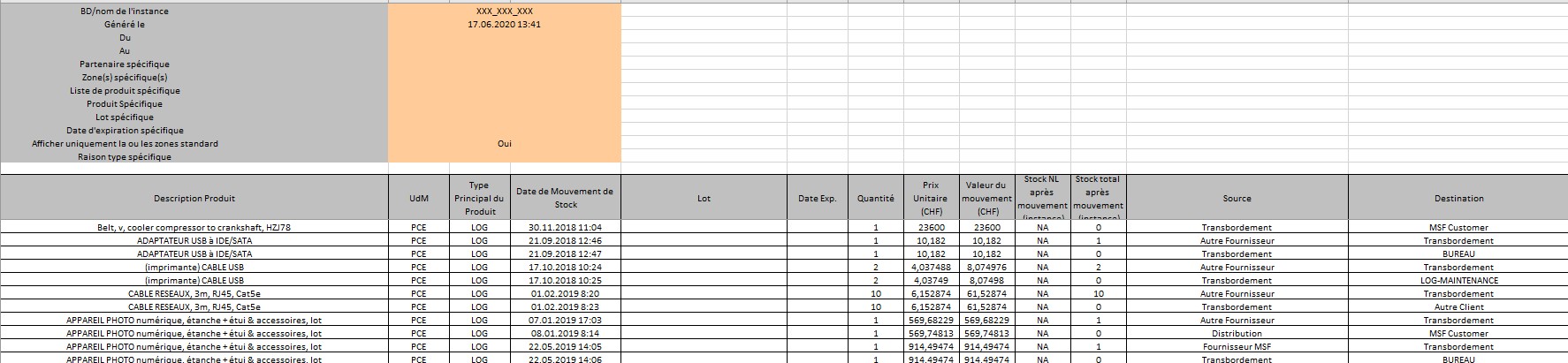
4. Open the Excel file via the action menu.

IN & OUT –Excel report generated

Please note that the “Total stock after movement” is done for all instance in case no location is selected while it will be per location-s selected if a/some location-s are selected (if several locations – quantities will be aggregated). The location will be indicated between brackets under the column header of “Total Stock…”.

B. DELIVER PRODUCTS

Supply User Manual ENG -> 5. Warehouse -> 5.18 LU-SU4304: Movements Reports -> B. DELIVER PRODUCTS

B. DELIVER PRODUCTS

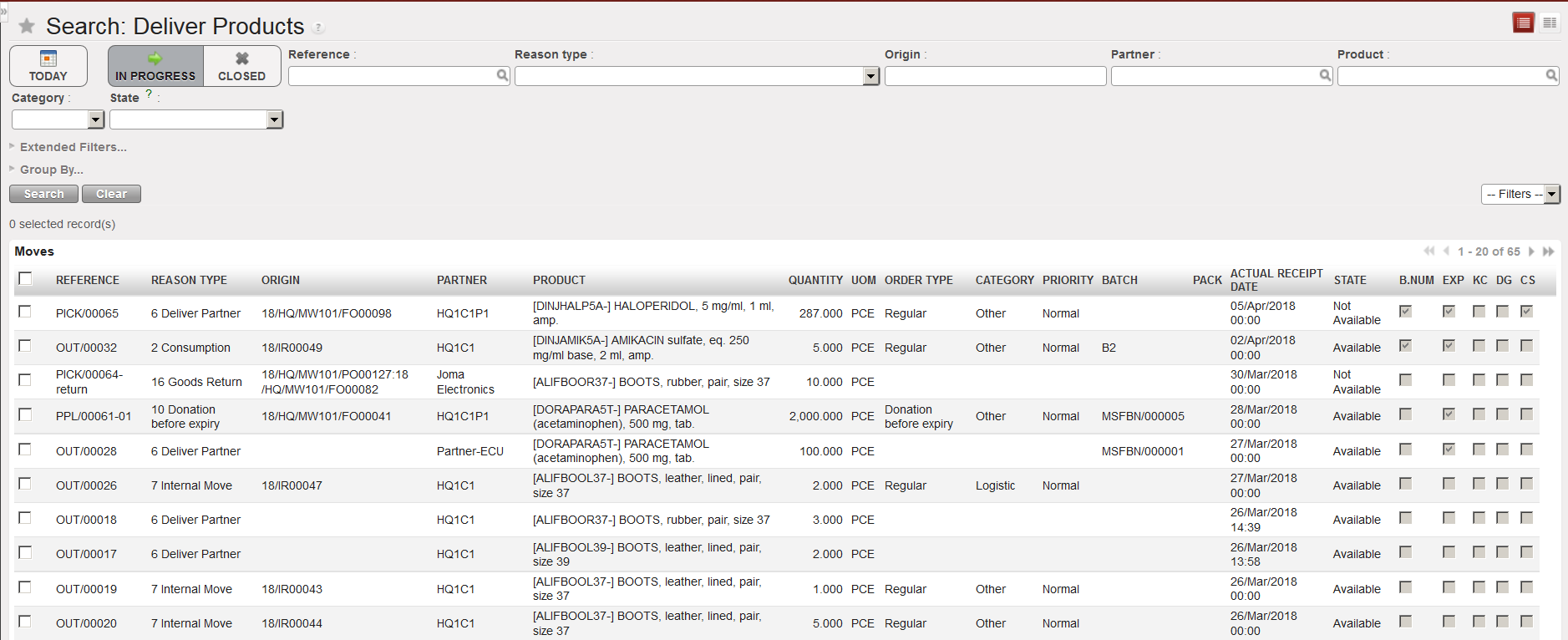
This functionality focuses on Picking, Packing and Delivery Orders (PICK/PACK/OUT). It may be used to see which products have been /are being delivered. According to the filters applied, the user can search by products, but also by partner, which could be useful to see what has been or is due to be delivered to a specific project.

Go to: Warehouse / Product Moves / Deliver Products

Deliver Products

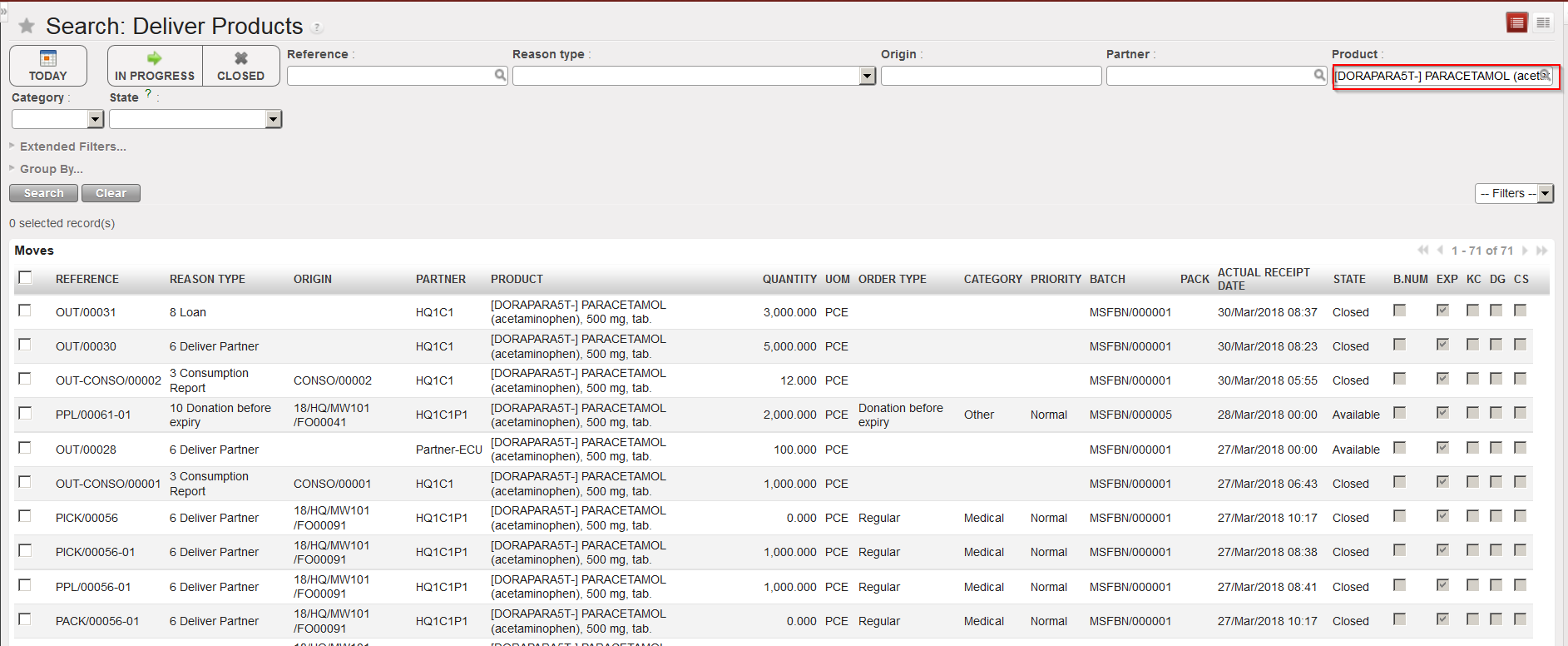
  1. The system will by default show all deliveries which are in progress. Clear this default selection by clicking on the “Clear” button.
  2. Enter your selection criteria (partner, product,…).
  3. Click on the “Search” button.

Deliver Products