F. HOW TO IMPORT AN EXCEL PICKING FILE

Supply User Manual ENG -> 5. Warehouse -> 5.3 LU-SU4102: Picking -> F. HOW TO IMPORT AN EXCEL PICKING FILE

F. HOW TO IMPORT AN EXCEL PICKING FILE

Picking ticket and Sub-Picking ticket can be imported to Excel file.

Go to: Warehouse / Warehouse Management / Deliveries / Picking

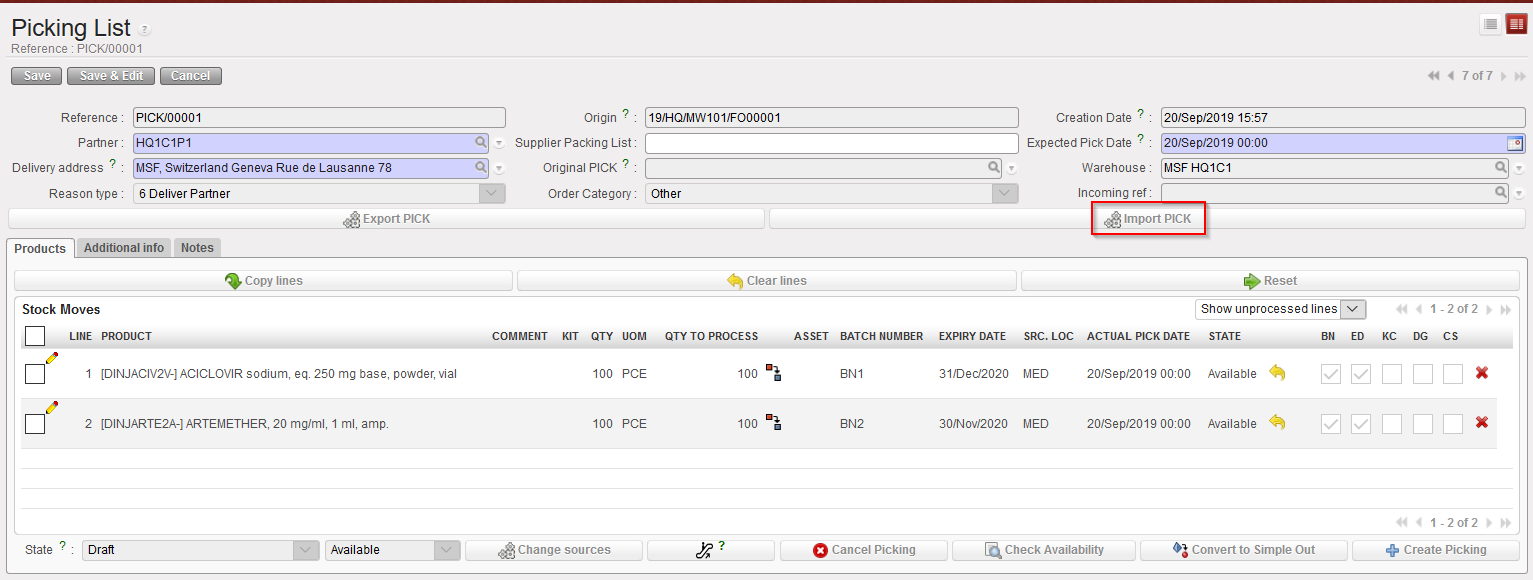
  1. Click “Edit” on the Picking Ticket that you wish to import
  2. Click on “Import PICK”.

Import Picking Ticket from Excel

Note that there is a check to ensure that “Quantity to process” is lower than “Qty” .

Import Picking Ticket file

Other checks ensure that the import data done in the pop up is consistent with the data from the main PICK screen (BN/ED; line number; Code; Available line only, Document reference, split line quantity…)

    3.  Click on “Import PICK

Picking Ticket Excel Import

The data is imported to the main screen and manual validation is still needed to process the document forward.

E. HOW TO EXPORT AN EXCEL PICKING FILE

Supply User Manual ENG -> 5. Warehouse -> 5.3 LU-SU4102: Picking -> E. HOW TO EXPORT AN EXCEL PICKING FILE

E. HOW TO EXPORT AN EXCEL PICKING FILE

Picking ticket and Sub-Picking ticket can be exported to an Excel file.

Go to: Warehouse / Warehouse Management / Deliveries / Picking

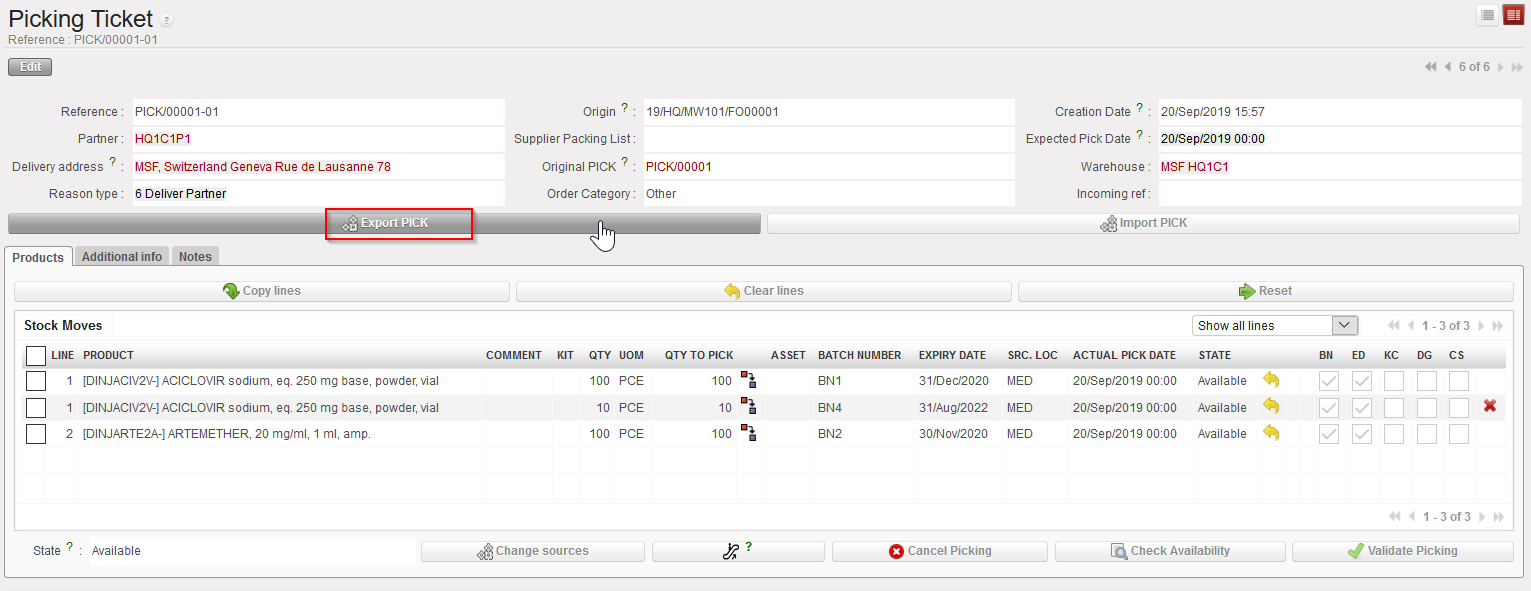
  1. Click “Edit” on the Picking Ticket that you wish to export
  2. Click on the button “Export Pick” on the form view of your ticket

Exporting a Picking Ticket to Excel

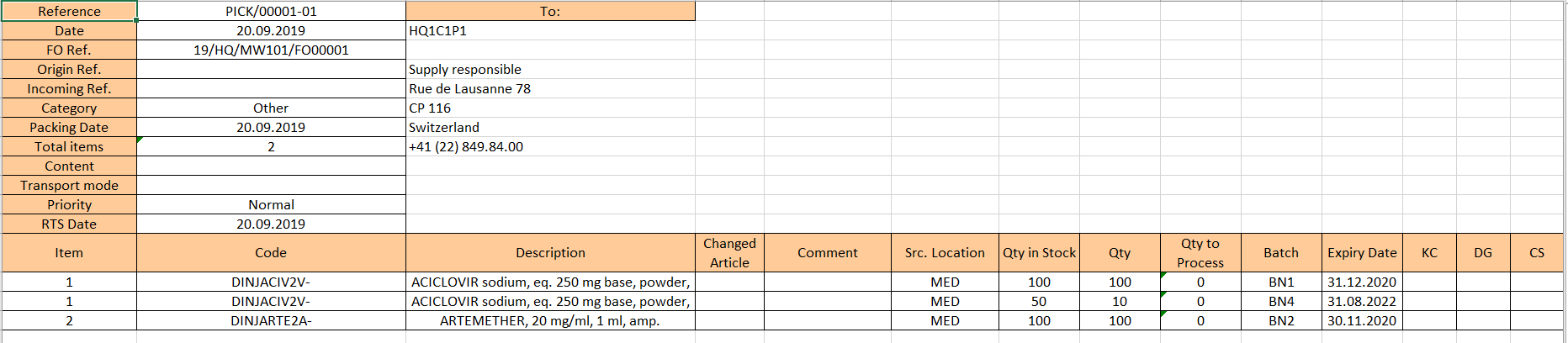
         3. An Excel version of the Picking Ticket is open. You may save or update it as needed.

Picking Ticket Excel Export

D. HOW TO DO A PARTIAL PICKING

Supply User Manual ENG -> 5. Warehouse -> 5.3 LU-SU4102: Picking -> D. HOW TO DO A PARTIAL PICKING

D. HOW TO DO A PARTIAL PICKING

A partial picking can be done if some products or some quantities indicated as “Available” in stock by the system are actually not available or if, for any other reason, you do not wish to pick all the products or all the quantities.

When a sub PICK is created from a main PICK, all available lines will be included on the sub PICK. However, it may happen that you do not want to include all lines or all quantities if, for example, lines and/or quantities said “Available” by the system are actually not available.

Go to: Warehouse / Warehouse Management / Deliveries / Picking

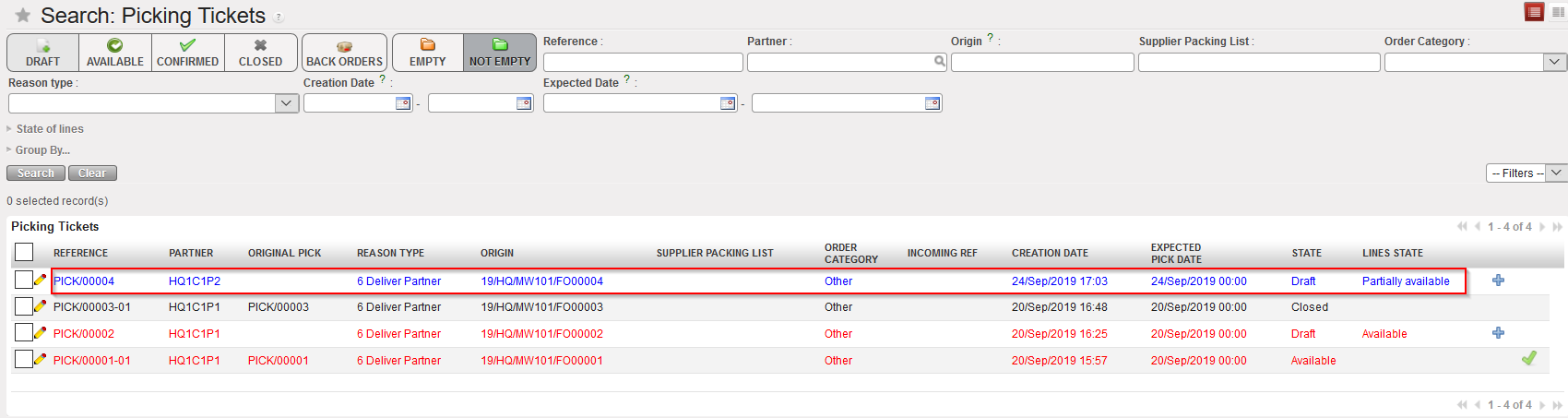
  1. Locate the relevant Picking Ticket for the picking you are about to process.
  2. Click on the line corresponding to the Picking Ticket you want to process.

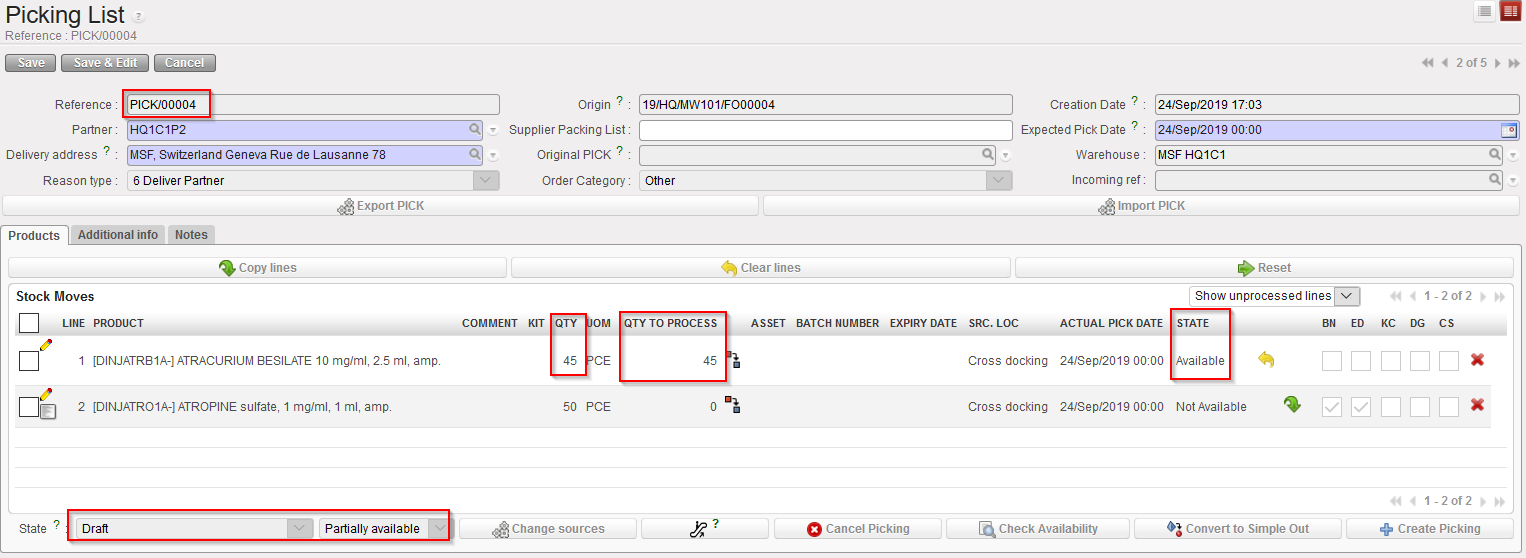
Main PICK

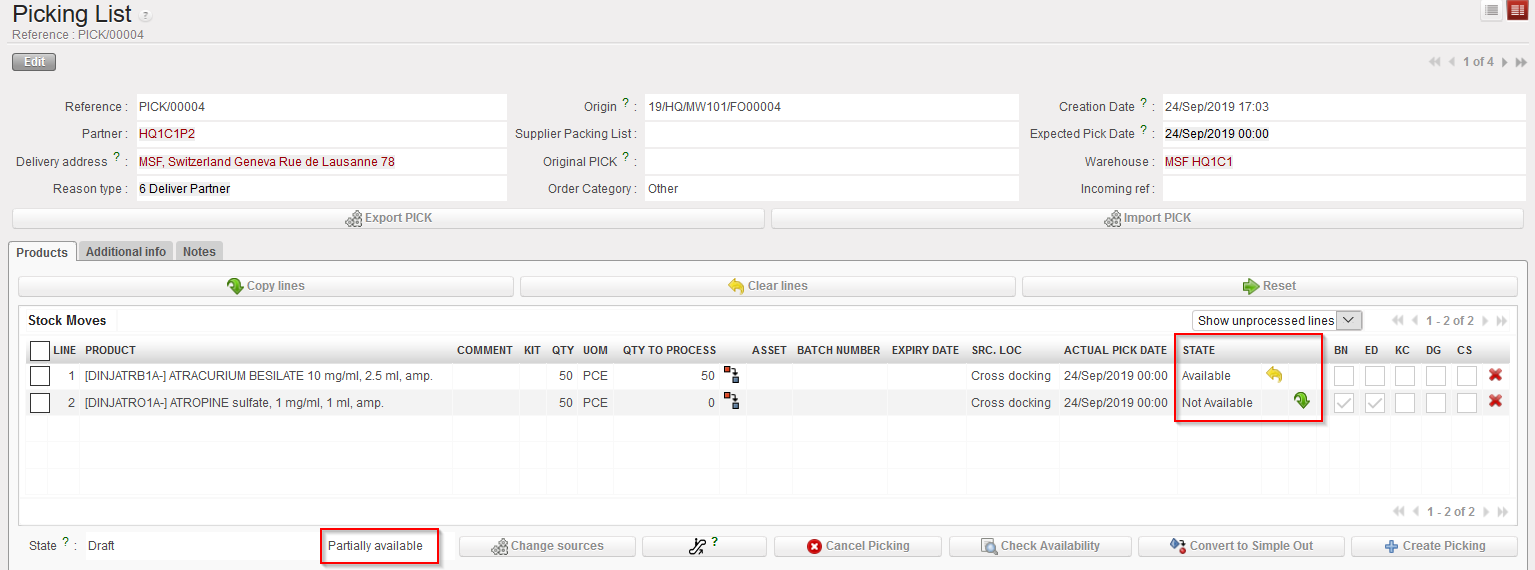
Detail of the main PICK

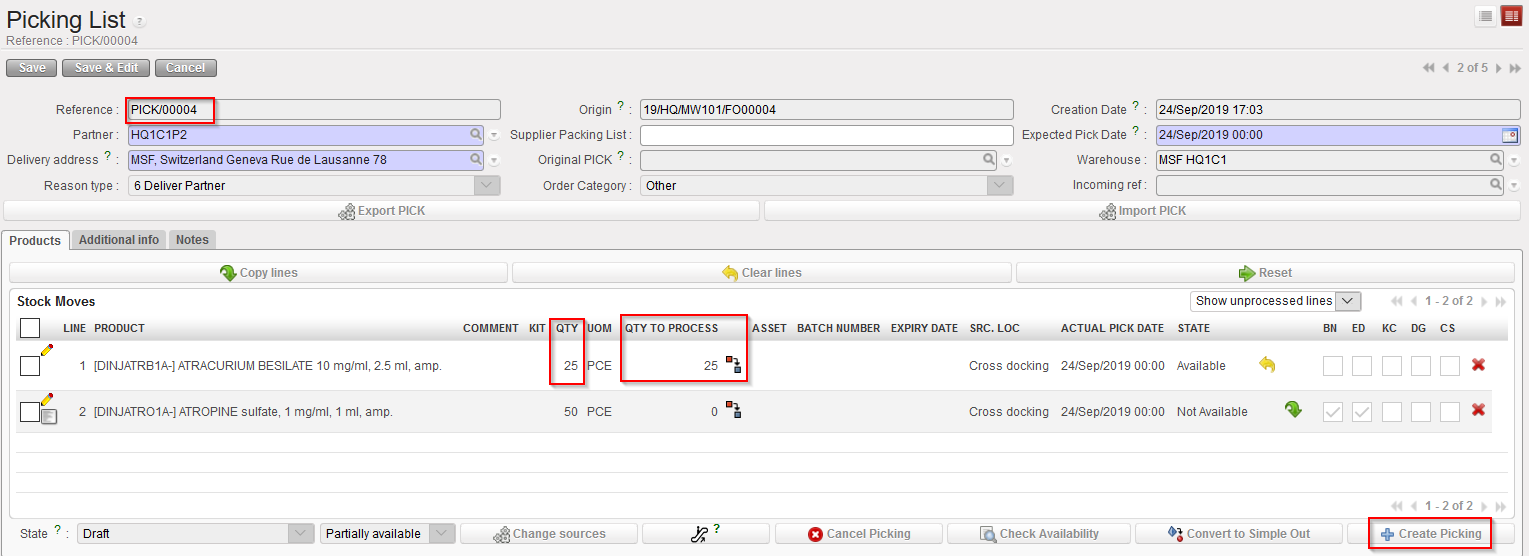
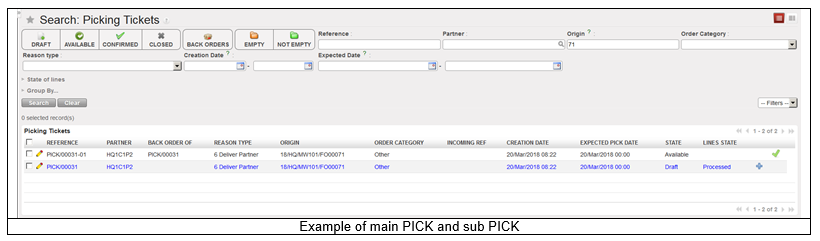
In the above example, the main PICK was created following a PO confirmation. This main PICK is “Partially available“. One of its line is “Available” as products have already been received in Cross docking. The other line is “Not Available” as products have not yet been received.

The system includes in the sub PICK the lines which are “Available” in the main PICK. This means that you have the possibility to include in a sub PICK quantities which are not available if you force the availability on the main PICK. This should only be done with great caution.

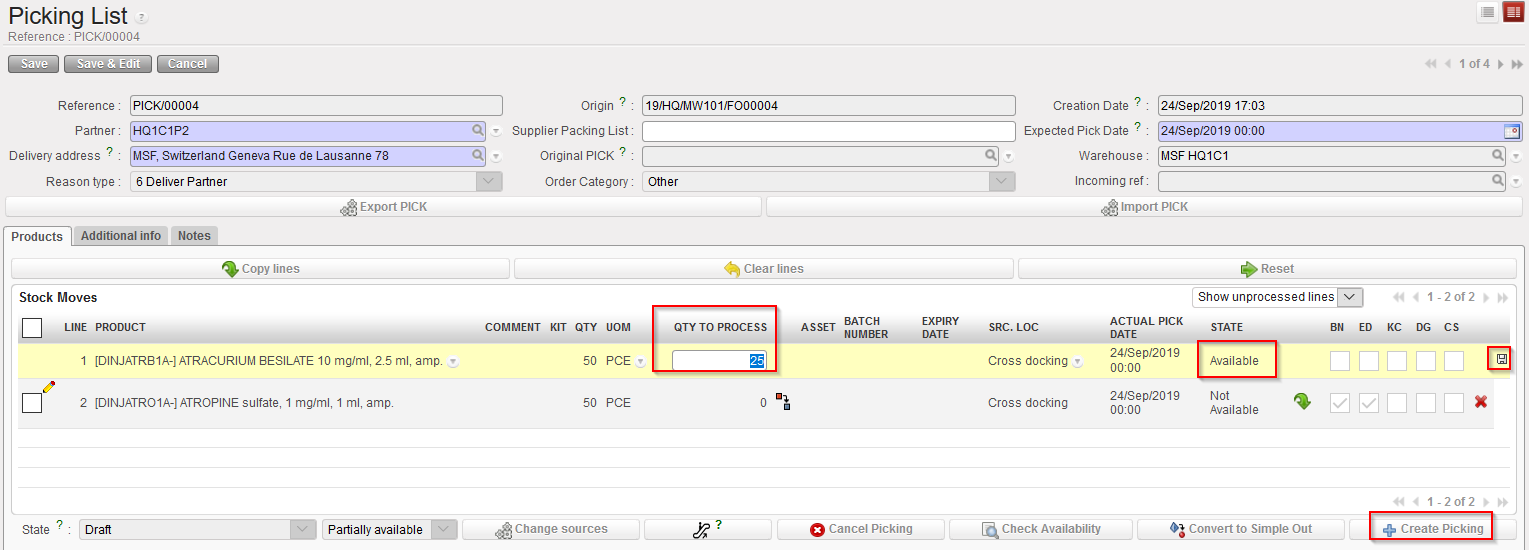
3. Edit the line via the pencil icon and enter the quantity you which to include in the sub PICK. In this scenario, we decide to include only half of the quantity. Save the line and click on “Create Picking” in order to create the sub PICK.

Creation of the sub PICK

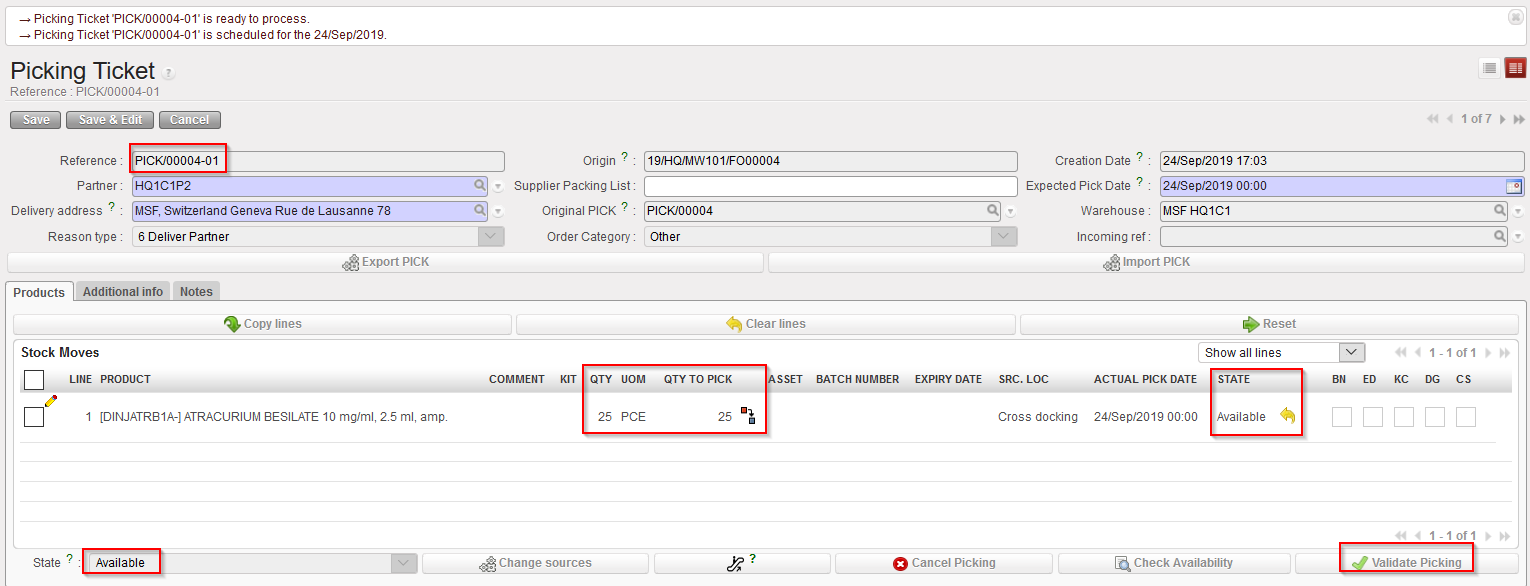
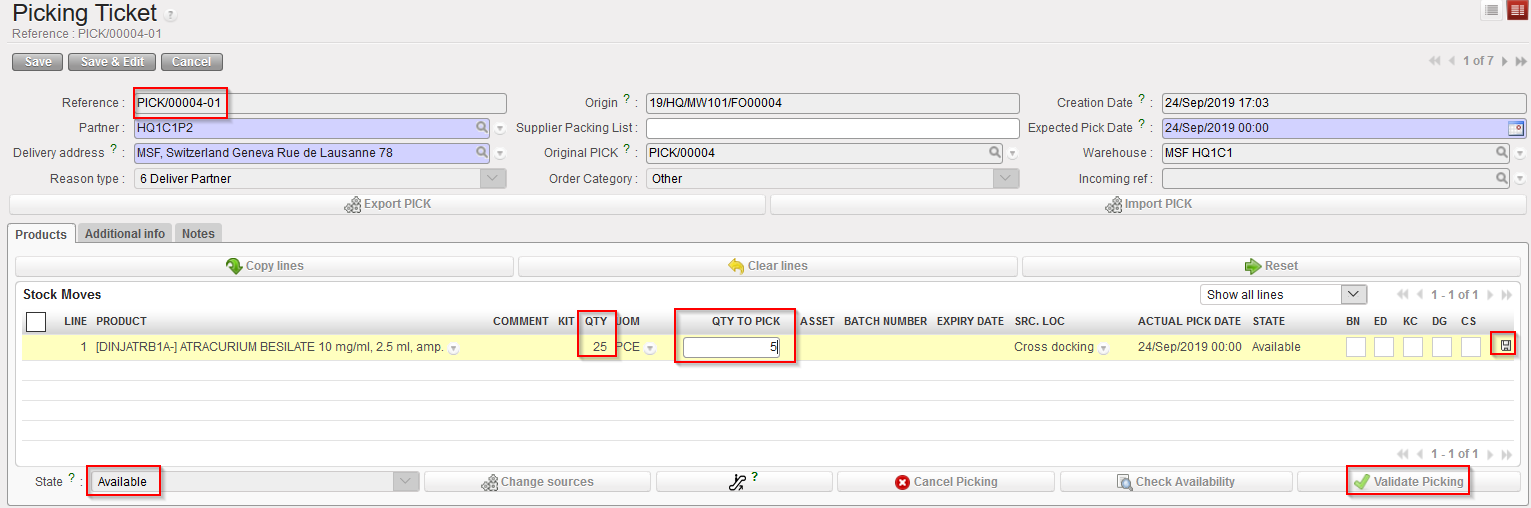
Sub PICK created

Main PICK updated

The sub PICK is created and includes the quantity which was entered on the previous step. This quantity is “Available“. Note that the reference of the sub PICK is PICK/00004-01. The sub PICK may be printed in order to instruct the storekeeper to pick the selected items.

The main PICK is updated. The first line includes the quantity which remains to be picked (still “Available”) while the second line did not change (and is still “Not Available”). This main PICK is actually a back-order (i.e. what remains to be picked).

Again, the system includes in this screen the available quantities from the sub PICK but it may happen that physically, these quantities are actually not fully available.

4. Use the pencil icon to enter the quantities which have actually been picked. In this example we assume that the full quantity was not picked (100 out of 25 products are picked). Save the line. Click on the “Validate Picking” button to register the picking done.

Validation of the sub PICK

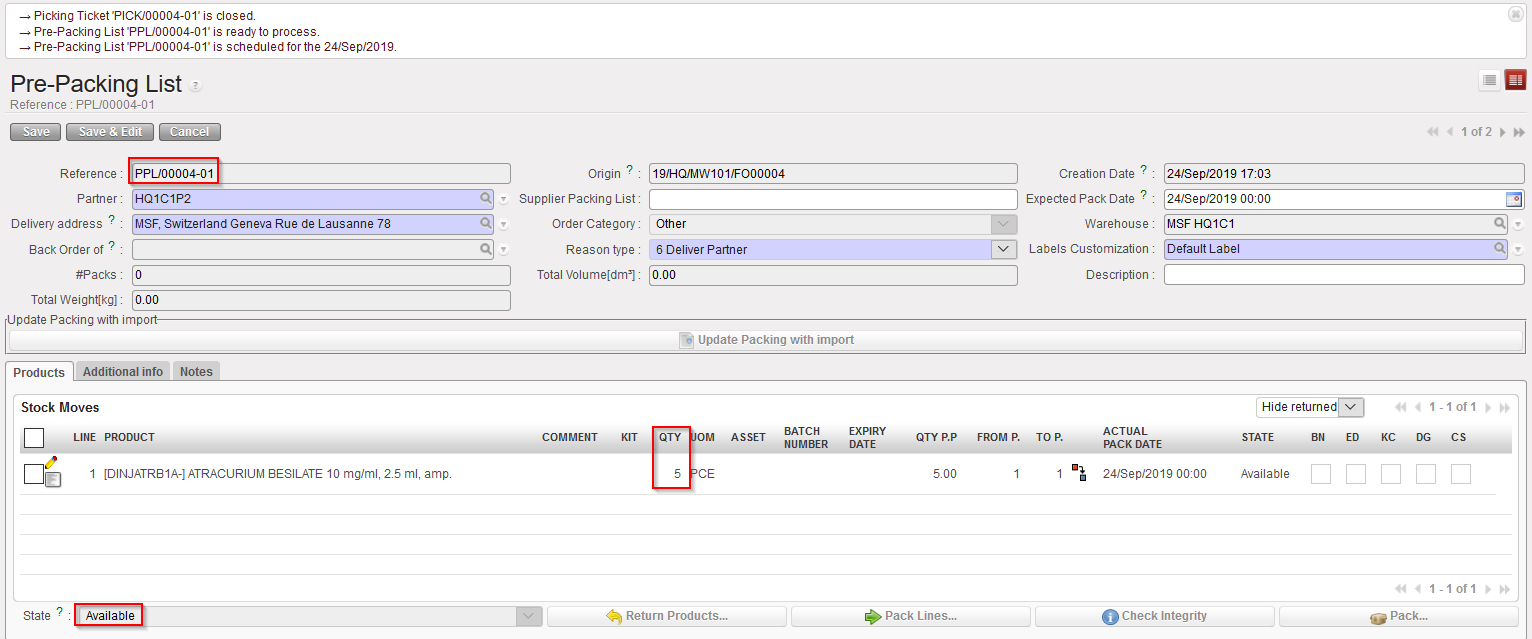
Pre-Packing list created following partial picking

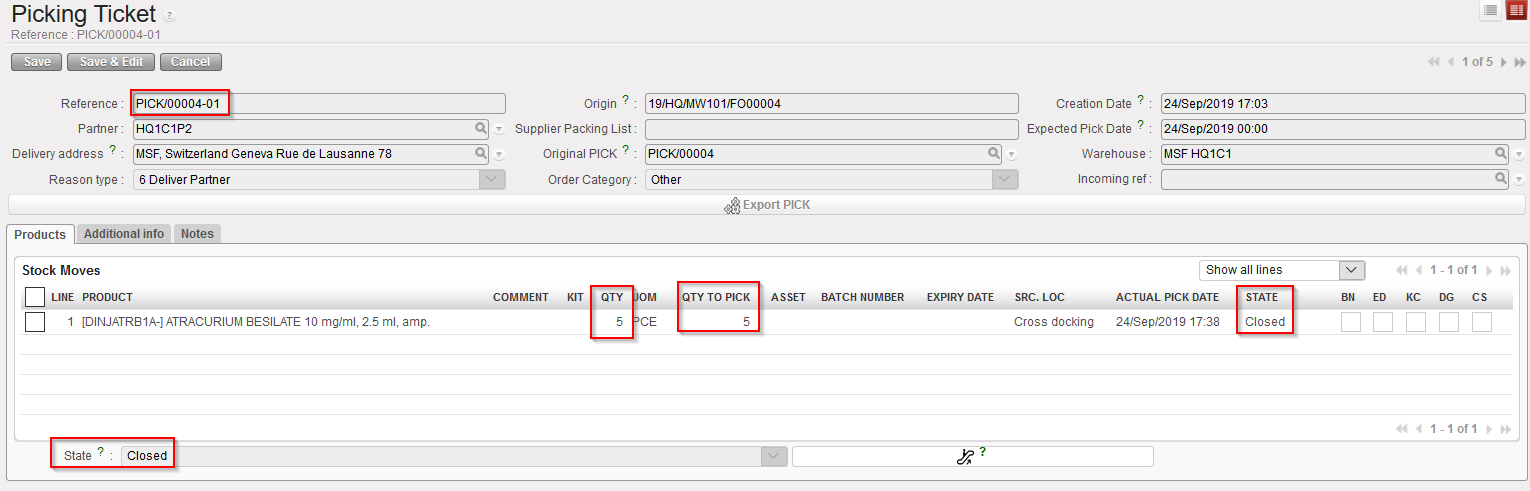
Sub PICK following partial picking

Main PICK following partial picking

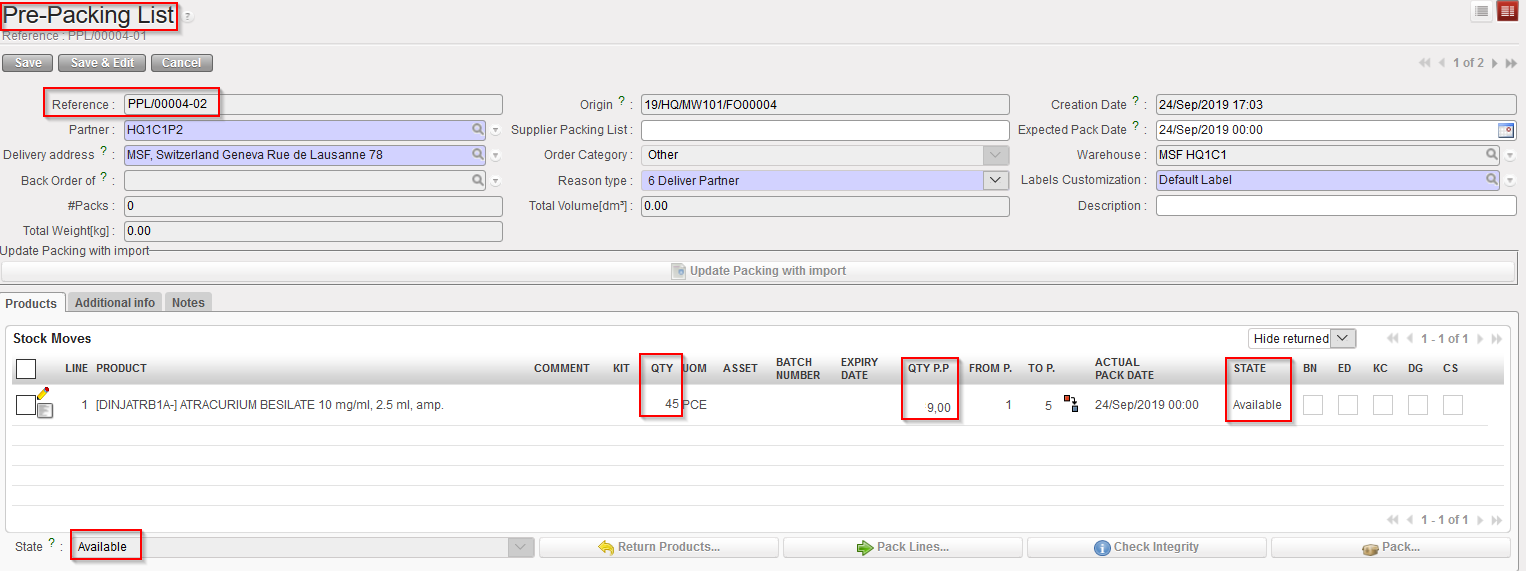
A Pre-Packing list is created by the system in order to prepare the next stage (packing the picked goods in parcels). Note that the reference of the PPL (PPL/00004-01) matches with the reference of the sub PICK (PICK/00004-01). The PPL is in state “Available” and all its lines are “Available”.

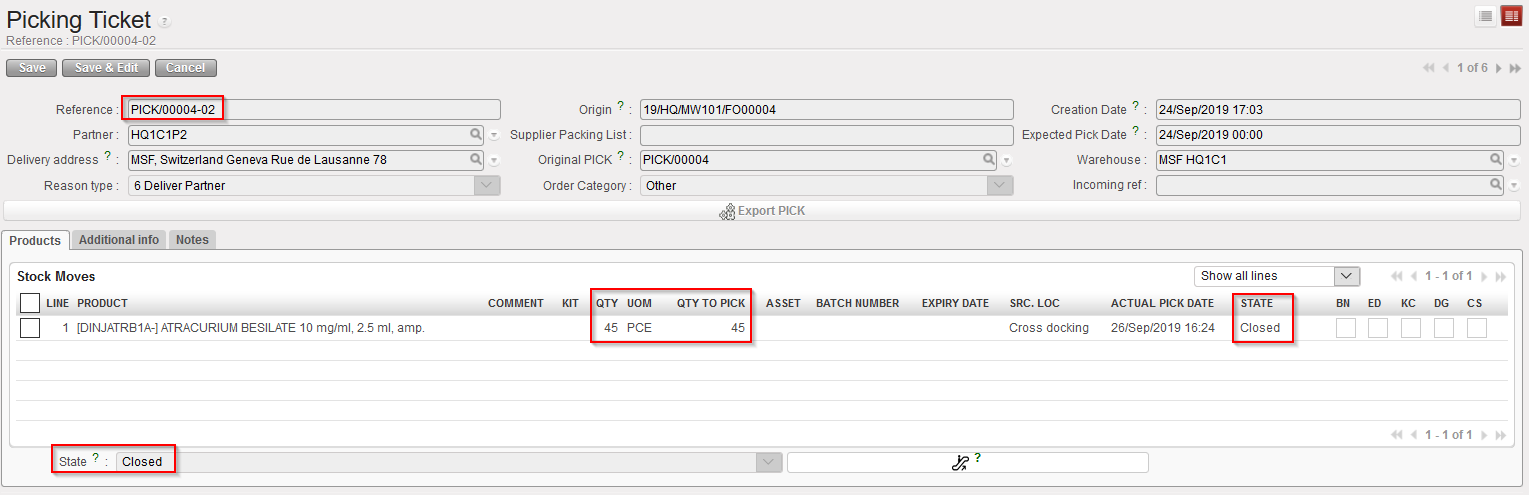
The sub PICK is now “Closed“. Quantities have been updated to what was actually picked.

The main PICK has been updated. Quantities which were not picked on the sub PICK return to the main PICK (the first line changes from 25 to 45 pces). This main PICK will be used when subsequent pickings related to the same transaction will be done (i.e. when the back-order will be processed).

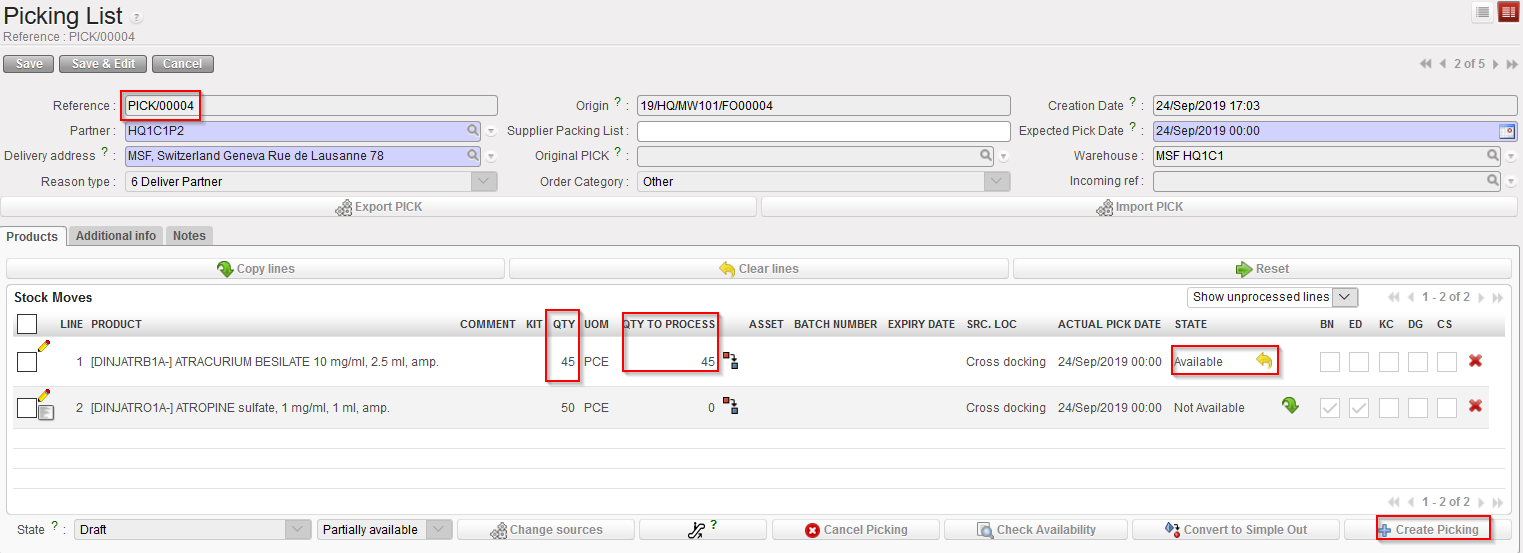
5. Open the main PICK and create a new sub PICK via the button “Create Picking”

Creation of a second sub PICK

Again, available quantities from the main PICK are transferred to the sub PICK. You may choose to follow this (use the button “Copy all”) or to transfer only a partial quantity (use the pencil icon”).

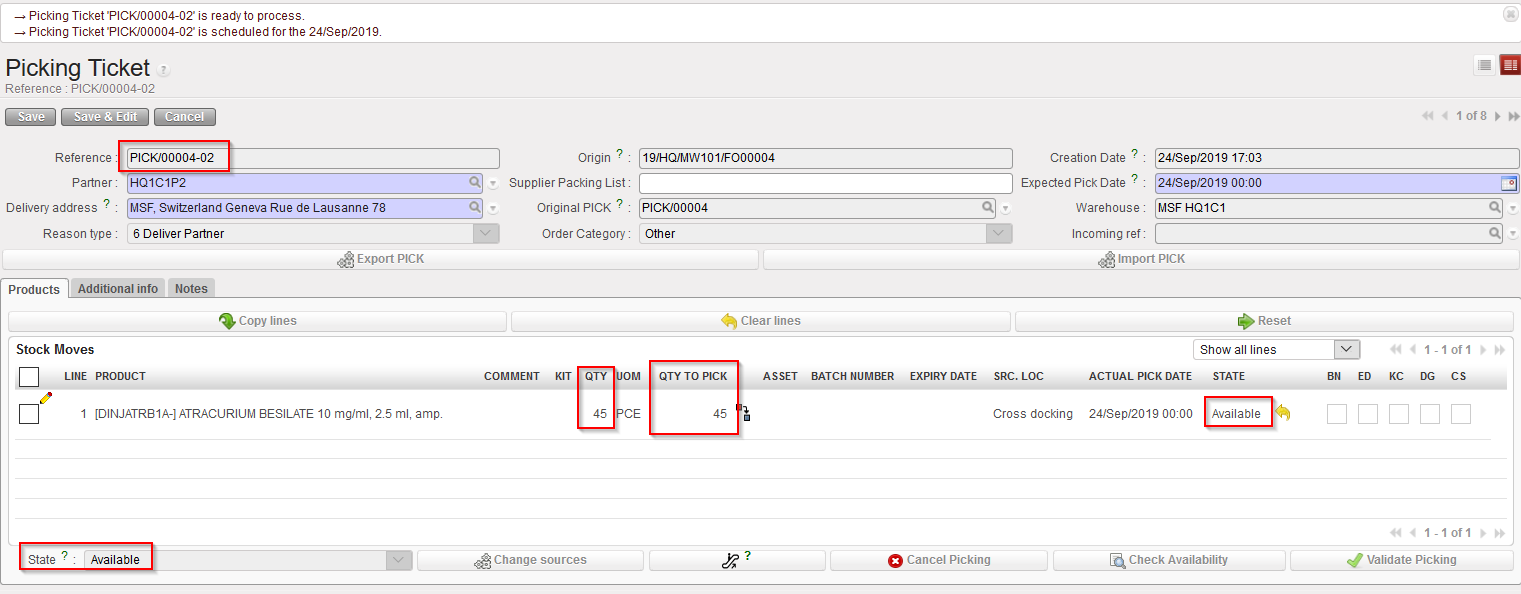
Sub PICK created

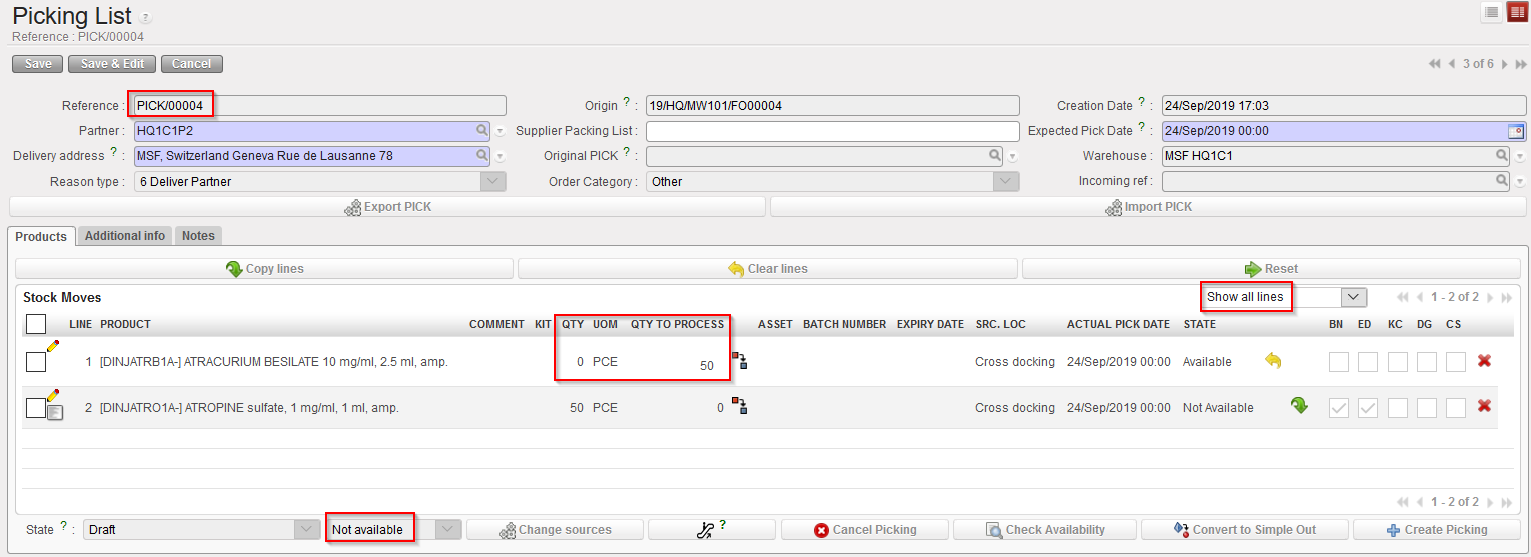
Main PICK updated

A second sub PICK is created. It includes all lines/quantities selected in the previous step. Note the reference PICK/00004-02. The state of this second sub PICK is “Available”.

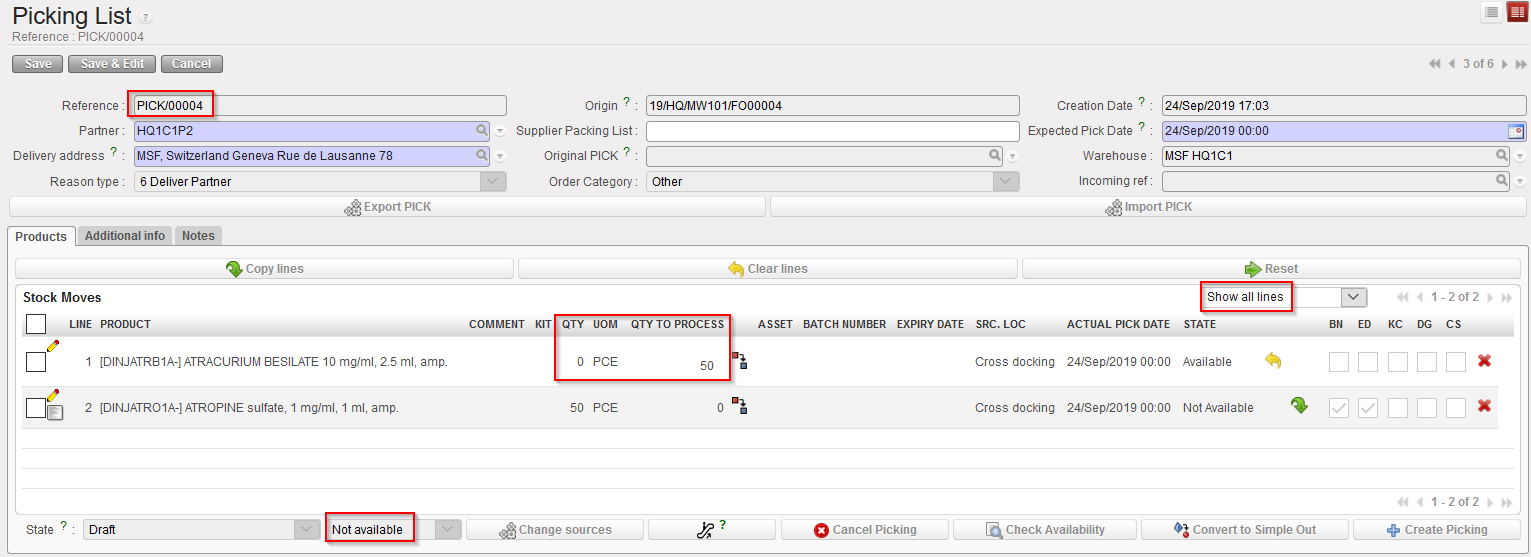
The main PICK is updated. The first line is now at zero “QTY” = 0 as all quantities has the full quantity been selected) while the second line did not change (and is still “Not Available”). Please note that filter has been set to “Show all lines” in order to show this processed line #1 and “QTY” is set to “0” and “QTY TO PROCESS” = “50”.

6. Again, the created sub PICK can be printed to instruct the storekeeper on the picking to be done. Click on “Validate Picking” to actually register the picking done.

Pre-Packing list created

Sub PICK updated

Main PICK

Another Pre-Packing list is created by the system in order to prepare the next stage (packing the picked goods in parcels). Note that the reference of the PPL (PPL/00004-02) matches with the reference of the sub PICK (PICK/00004-02). The PPL is in state “Available” and all its lines are “Available”.

The sub PICK is now “Closed”.

The main did not change as full quantities were actually picked on the sub PICK. However it stays in the state “Draft” as additional products are expected but is “Not available” as these products were not received yet.

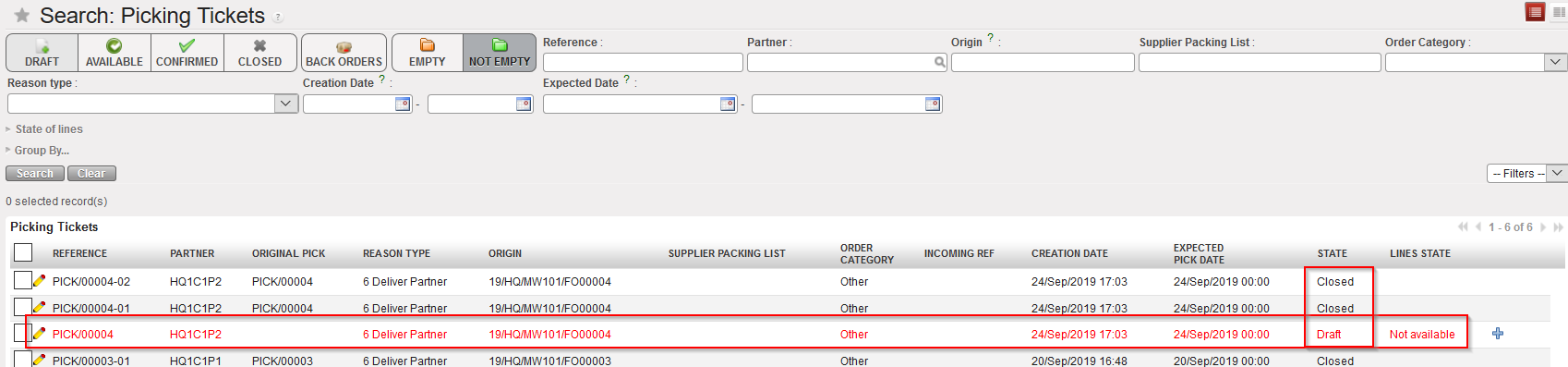
Picking Tickets created in this process

Pre-packing lists created in this process

Sub PICKS created via this process are now closed. However, the main PICK stays in draft as further actions are expected to happen on this Picking Ticket.

Two Pre-Packing Lists have been created in this process and still need to be handled.

Conclusion of the section:

In this section, we explained how the partial picking in UniField is working. However, as many scenario are possible, we could not go into all details but preferred to use an example where partial picking was done. This scenario used a Picking Ticket related to a PO (created following FO sourcing).

Another possible scenario could be to use a Picking Ticket created following the sourcing of an FO to stock.

Remember that partial picking may be registered on main PICKS and sub PICKS.

C. HOW TO PICK PRODUCTS FROM CROSS DOCKING

Supply User Manual ENG -> 5. Warehouse -> 5.3 LU-SU4102: Picking -> C. HOW TO PICK PRODUCTS FROM CROSS DOCKING

C. HOW TO PICK PRODUCTS FROM CROSS DOCKING

If an FO (or FO-line) is sourced on order (and to a PO), a Purchase Order is created. When this PO (or one of its lines) is confirmed, the corresponding FO (or FO-line) is also confirmed and a Picking Ticket is created in order to prepare the delivery to the customer.

The system creates a Picking Ticket as by default the system considers that the full shipment process (and not the simple out) will be used to deliver the goods to the customer. This Picking Ticket has the state “Draft”. As products are not yet available (they still have to be received in cross docking), the state of the Picking Ticket will be “Not Available“.

Note that the confirmation of the PO (or PO-line) triggers

-PO confirmation

-IN creation

-FO confirmation

-PICK creation

As soon as the IN is processed and goods are received in cross docking, the lines of the Picking Ticket corresponding to the received lines will become “Available“.

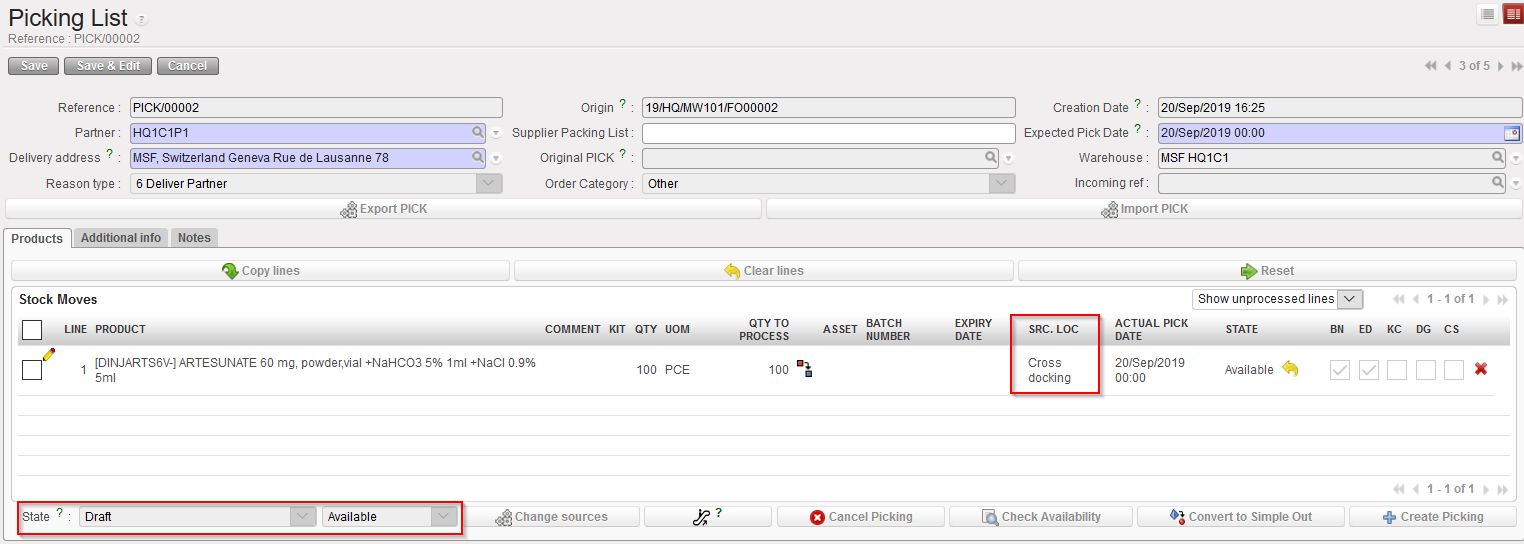
From this point, the process is similar to the one described in the previous section. The main PICK will be used to create sub PICK(s). The main difference is the source location of the PICK which in this case is “Cross docking”.

Go to: Warehouse / Warehouse Management / Deliveries / Picking

Main PICK after reception of the Incoming Shipment in Cross docking

A. LU INTRODUCTION (LU-SU4102)

Supply User Manual ENG -> 5. Warehouse -> 5.3 LU-SU4102: Picking -> A. LU INTRODUCTION (LU-SU4102)

A. LU INTRODUCTION (LU-SU4102)

The outgoing delivery is the final step of the process for delivering Field Orders to customers. UniField offers two main options to send goods to customers:

  • Simple out, also known as Delivery Order or OUT enables simple and rapid shipments (it takes the goods from stock and ships them directly to customers in a one-step transaction) with very basic documentation.
  • Full shipment process offers 2 options:
    1. Full flow” progresses through Picking, Packing and Shipment (three-steps transaction) – more common
    2. Quick flow” progresses through Picking and Shipment (2-steps) – less common

Both these flows enable to reverse the flow at any stage (returns) and allows the generation of all necessary documentation.

By default, the simple out process is used when goods are delivered internally (to External Consumption Units) while the full shipment process is used when goods are delivered to other instances or to external customers.

However, this can be changed at any time as Delivery Order can be converted into Picking Tickets and Picking Tickets can be converted into Delivery Orders.

Note that the configuration of an instance can be changed so that the full shipment process is not used. In this case, all deliveries will be done with the simple out process.

Picking is the process of taking products off the shelves of the warehouse and preparing to pack them. Picking Tickets are created in “Draft” when Field Orders (or Field Order lines) are confirmed. Then they need to be processed manually. In UniField a Picking Ticket cannot be created from scratch, but is created by the system as it is always directly linked to a specific FO.

  • If an FO (or FO-line) is sourced from stock, a Picking Ticket is created in the state “Draft” and is “Available (provided that the products are indeed available in stock).
  • If an FO (or FO-line) is sourced on order and to a PO, a Picking Ticket is created in the state “Draft” and is “Not Available(but only when the related PO (or PO-line) is confirmed as it will also confirm the corresponding FO (or FO-line)).

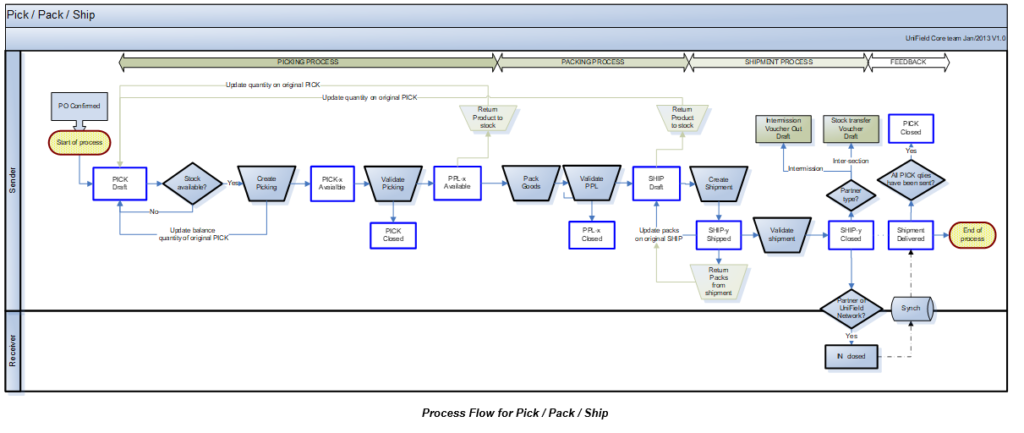
In both cases, the Picking Ticket created is named main PICK or parent PICK and will have a reference which looks like PICK/000XY. When this main/parent Picking Ticket will be processed, sub PICKs will be created with a reference which looks like PICK/000XY-AB.

The main/parent PICK will always remain open in “Draft” state (until final shipment is done). It will be used to create additional sub PICKs in case of partial pickings, or to manage the return of the products back to stock, in case of an unpacking process.

The picking process is done in several steps:

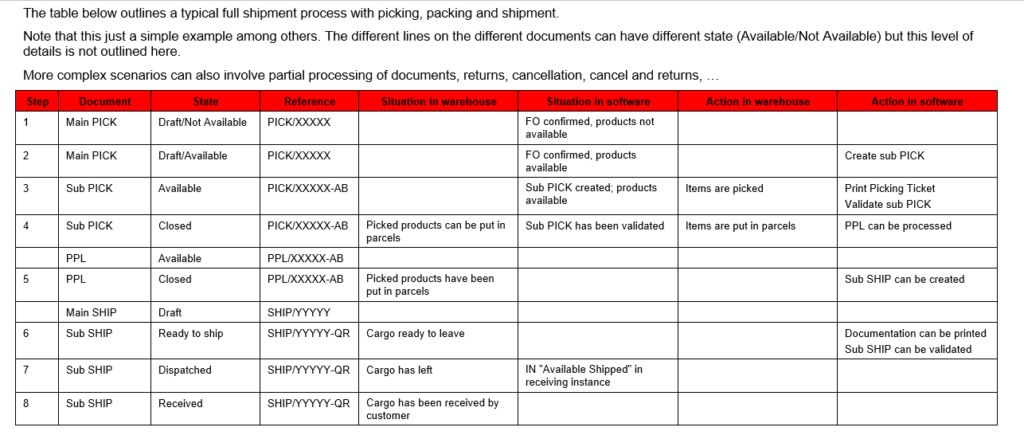
  1. A main Picking Ticket is created (or updated) by the confirmation of the FO (or FO lines). This allows the warehouse team to see in the system which products/quantities/batches will have to be picked in the coming days or weeks. Virtual stock levels are updated.
  2. A sub Picking Ticket is created from this main Picking Ticket in order to instruct the storekeeper to actually pick products/quantities/batches.
  3. Once the actual picking has been done in the warehouse, the sub Picking Ticket is validated (and possibly updated) with the actual quantities and batches which have been picked. Picked products/quantities/batches are transferred on a Pre-Packing List. Real stock levels are updated accordingly.

The creation of the main PICK updates the virtual stock levels, decreasing the virtual stock level of the source location (from where the goods will be picked) and increasing the virtual stock level of the “Packing” location. The validation of the sub PICK updates the real stock levels of both locations.

Main PICKs are actually never validated. They are just used to initiate the picking process, allow partial picking on main PICKs, allow partial validation on sub PICKs and allow returns from Pre-Packing Lists.

5.3 PICKING.

Supply User Manual ENG -> 5. Warehouse -> 5.3 LU-SU4102: Picking.

LU-SU4102: Picking.

A. LU INTRODUCTION

B. HOW TO PICK PRODUCTS FROM STOCK

C. HOW TO PICK PRODUCTS FROM CROSS DOCKING

D. HOW TO DO A PARTIAL PICKING

E. HOW TO EXPORT AN EXCEL PICKING FILE

F. HOW TO IMPORT AN EXCEL PICKING FILE

G. HOW TO PRINT A PICKING TICKET

H. HOW TO VALIDATE A PICKING

I. HOW TO CANCEL A PICKING

J. HOW TO CANCEL & RESOURCE ON PICKING TICKETS

K. PICKING TICKETS REFERENCES

L. HOW TO PICK A KIT COMPOSITION LIST (KCL)

U. INCOMING SHIPMENTS REFERENCES

Supply User Manual ENG -> 5. Warehouse -> 5.2 LU-SU4101: Incoming Shipments -> U. INCOMING SHIPMENTS REFERENCES

U. INCOMING SHIPMENTS REFERENCES

When an Incoming Shipment is created, a “Reference” (document number) is given to the document by the system. Two types of references are possible:

  1. IN/XXXXX is used when
    1. An Incoming Shipment is created from scratch.
    2. An Incoming Shipment is generated following the confirmation of a PO (or PO-line).
    3. An Incoming Shipment is created following the partial processing of another Incoming Shipment (back order).
  2. IN/XXXXX – replacement is used when an Incoming Shipment is created following a claim, when the replacement of the goods is requested (see LU on claims for further details).

T. HOW TO MOVE RECEIVED PRODUCTS FROM THE INPUT LOCATION TO A STOCK (DESTINATION LOCATION)

Supply User Manual ENG -> 5. Warehouse -> 5.2 LU-SU4101: Incoming Shipments -> T. HOW TO MOVE RECEIVED PRODUCTS FROM THE INPUT LOCATION TO A STOCK (DESTINATION LOCATION)

T. HOW TO MOVE RECEIVED PRODUCTS FROM THE INPUT LOCATION TO A STOCK (DESTINATION LOCATION)

As explained earlier in this LU, goods may be received in a one-step process. In this case they will directly go the requesting location. But goods may also be received in a two-steps process. In this case, they will stop in the “Input” location where a quality check will be performed before to move them to the requesting location with an Internal Move. Note that in both case an INT is actually used but in the first case, this INT is processed automatically by the system.

When receiving products which were ordered for the receiving instance or internally, the system always tries to receive them with the one-step process by default. All Incoming Shipments move the goods to the “Input” location. But an Internal Move is directly automatically created and processed to transfer the products from this temporary “Input” location to the final destination of the goods.

However, you may decide to receive the products in the “Input” location and stop the process at this stage in order to be able to correctly check quality of the goods received. For this, you simply need to uncheck the checkbox “Direct to Requesting Location“. Goods will be received in “Input“. An Internal Move will automatically be created by the system to prepare the move from this “Input” location to the final destination of the goods but will not be processed automatically. This will be done manually by the user once the quality check has been performed.

This two-steps process may also be useful if you want to change the planned destination of the goods as illustrated below.

Go to: Warehouse / Warehouse Management / Incoming Shipments

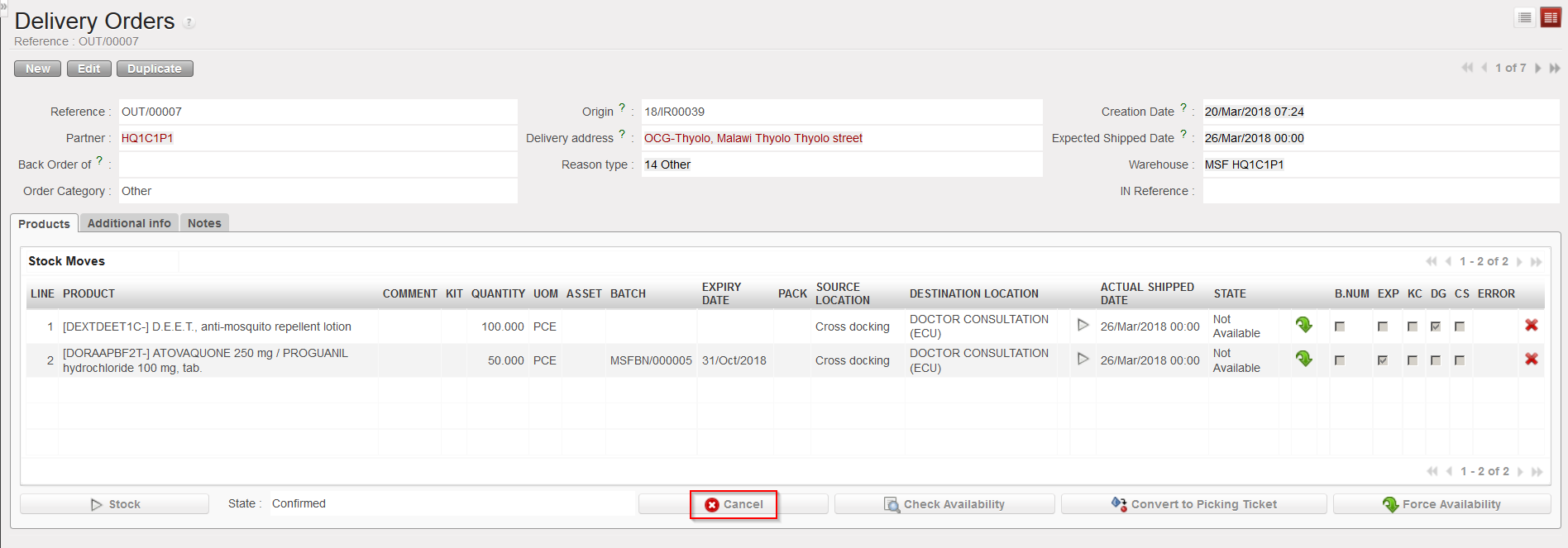
  1. Open the Incoming Shipment you wish to receive. In the below example, the IN is related to a PO which was created by the OST following sourcing of an IR with Location Requestor = ECU. As a consequence, an OUT has been created to prepare the delivery of the goods to the ECU. The Destination location at line level will be pulled from the destination in the IR or FO (Input, Crossdocking, Service, Non stockable)
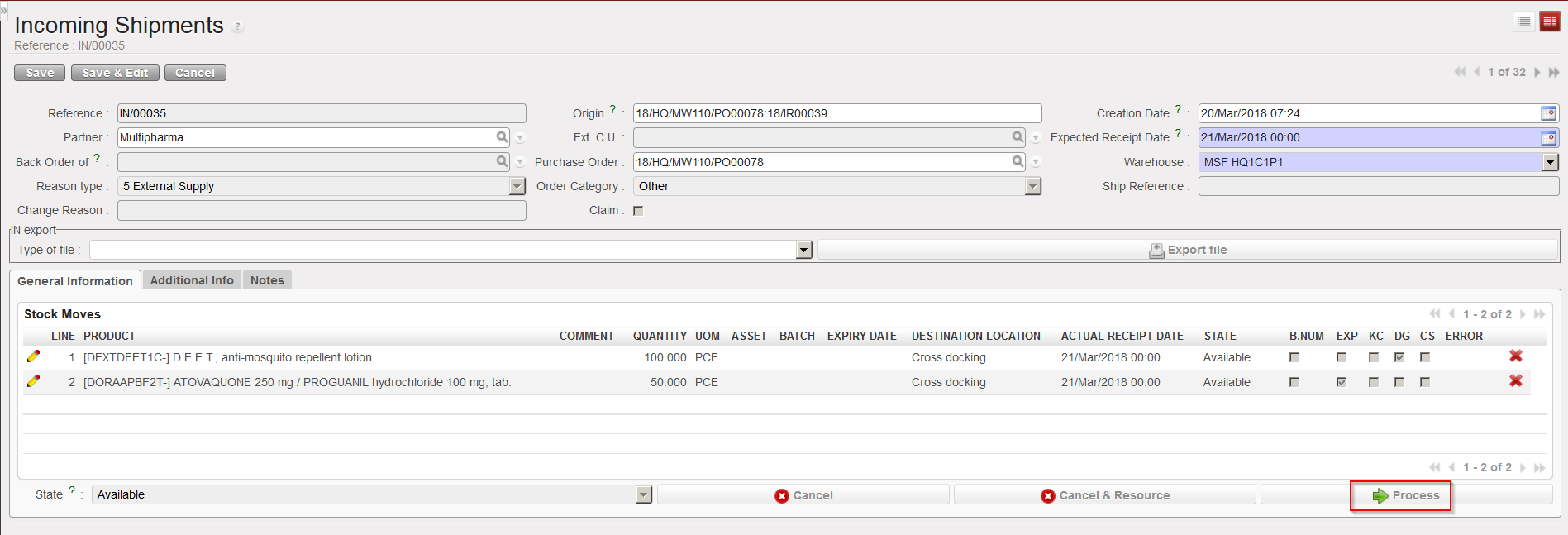
  2. Click on the “Process” button to initiate the reception process.

Processing an Incoming Shipment

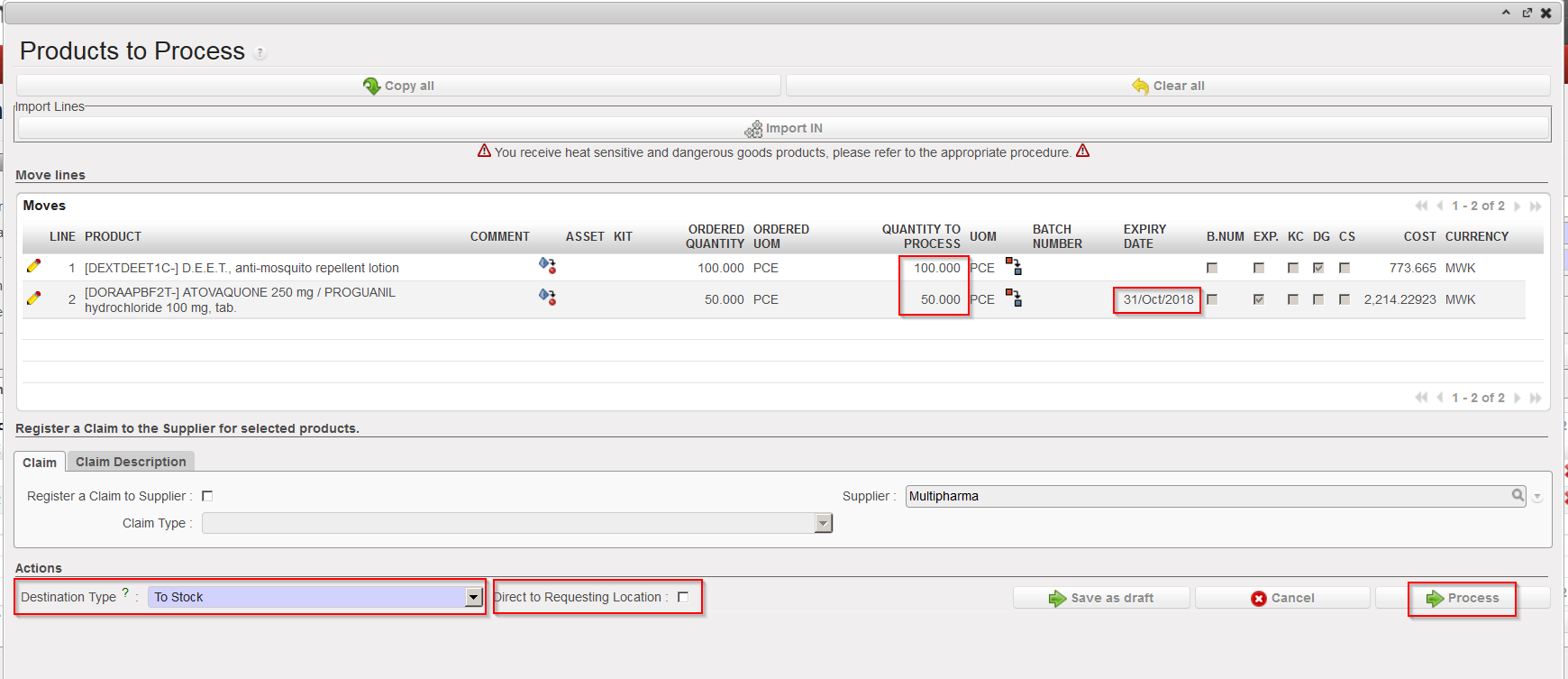
      3. On the “Products to Process” screen, complete the received lines, change the “Destination Type”           from “To Cross Docking” to “To Stock” (you will get a warning message, click “OK“) and untick the           “Direct to Requesting Location” checkbox.

      4. Click on the “Process” button.

Completing the received lines and changing destination type on IN

The goods have now been received in the “Input” location and the Internal Move is ready to be processed.

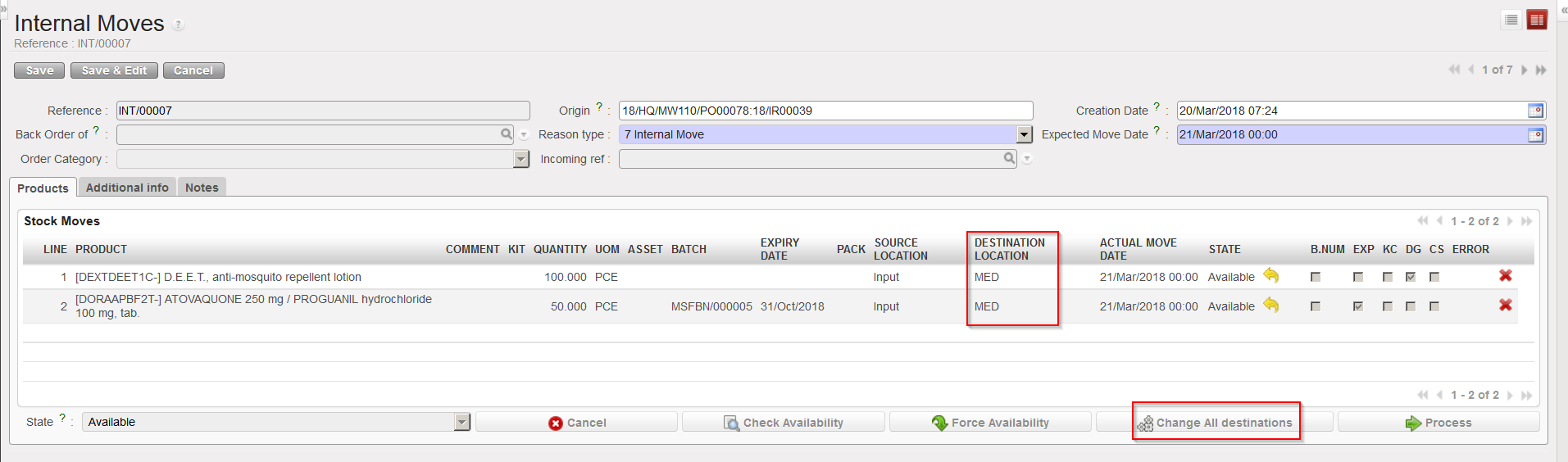
       5. Open the Internal Move. Note that the destination location of the goods is “MED“.

       6. Click on the “Change All destinations” button

Changing the destination location on an Internal Move (step1)

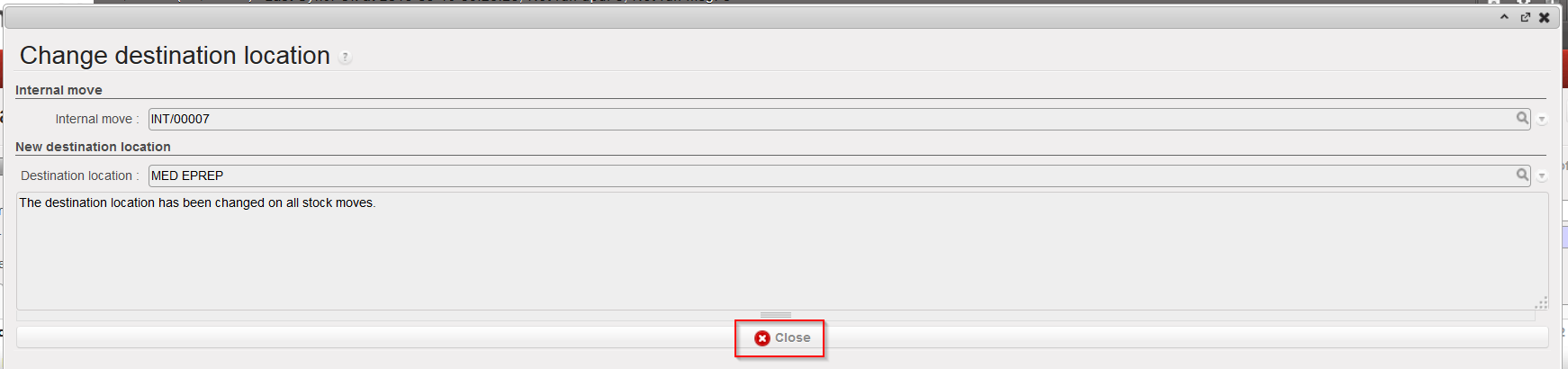
        7. In the “Change destination location” window, enter the location to which you want to direct the            goods in the “Destination location” field and click on the “Change location” button. A window             informs you on the change done, click on the “Close” button.

Changing the destination location on an Internal Move (step2)

Destination location changed on INT

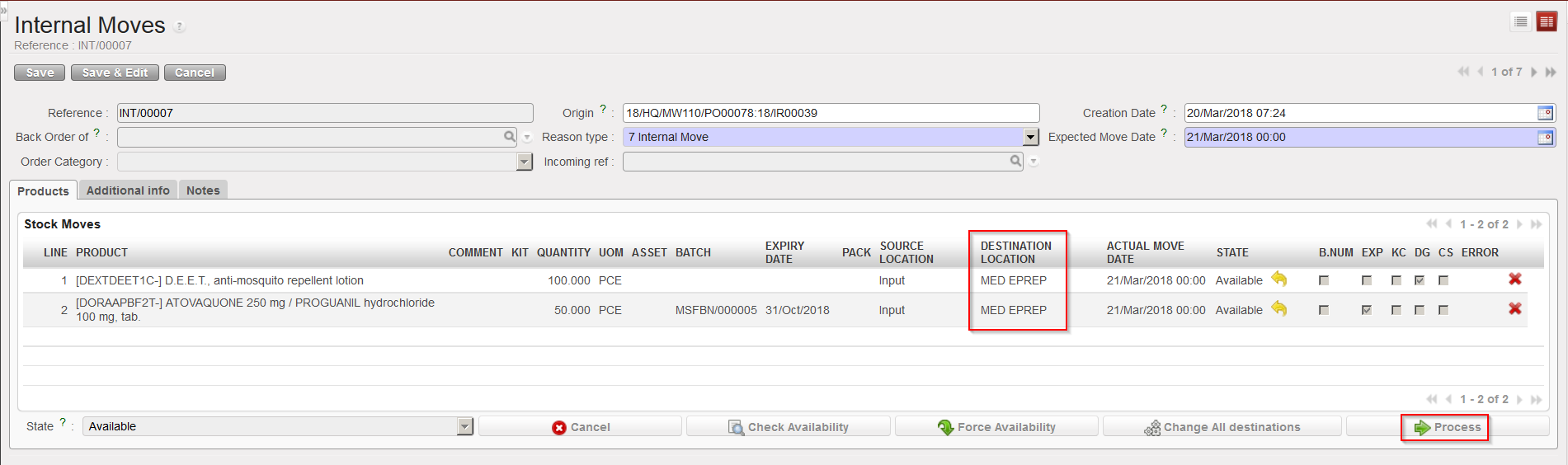
       8. The destination location on the INT is now “MED EPREP“. You may process the Internal Move as            usual via a click on the “Process” button.

Processing the INT with the new destination location

        9. The last step is to cancel the OUT as it has now been replaced with the INT.

Cancelling the OUT

S. HOW TO HANDLE RECEPTION OF SERVICES

Supply User Manual ENG -> 5. Warehouse -> 5.2 LU-SU4101: Incoming Shipments -> Q. HOW TO RECEIVE A PRODUCT IN CROSS DOCKING

S. HOW TO HANDLE RECEPTION OF SERVICES

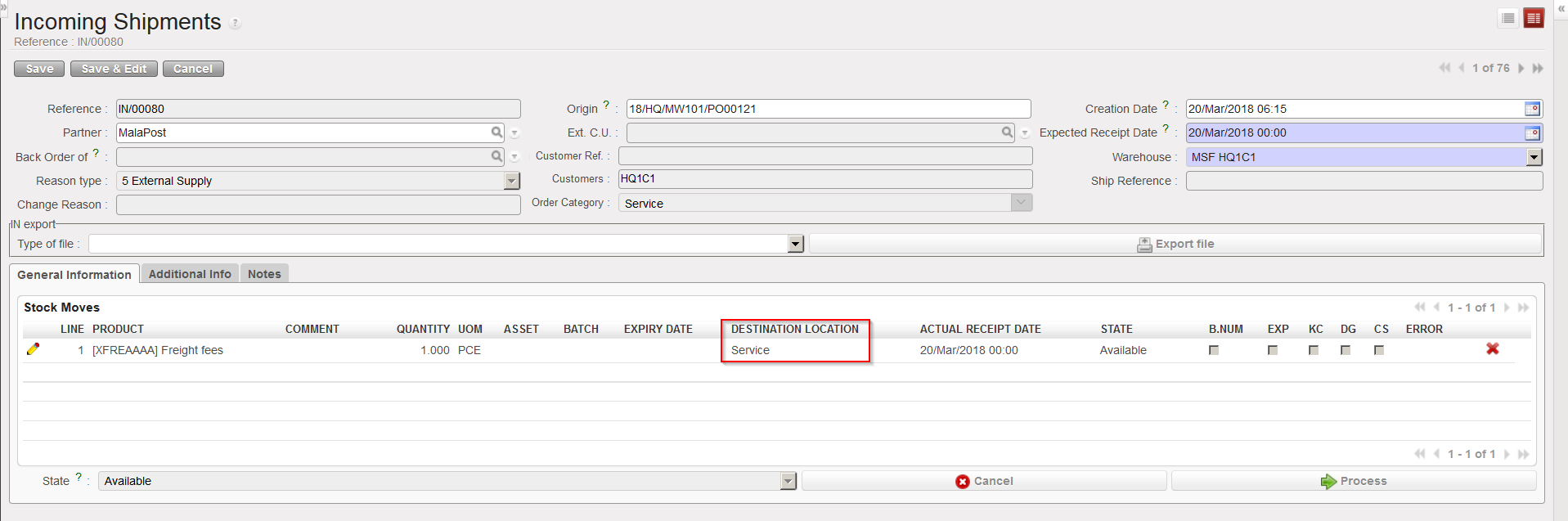
Purchases can be for goods or services. Receiving services is similar to receiving non-stockable products but the destination location will be “Service” which is also a virtual location.

Incoming Shipment involving service products

In cases of services, the Purchase Order category should be “Service“, “Transport” or “Other“.

R. HOW TO RECEIVE A NON-STOCKABLE PRODUCT

Supply User Manual ENG -> 5. Warehouse -> 5.2 LU-SU4101: Incoming Shipments -> R. HOW TO RECEIVE A NON-STOCKABLE PRODUCT

R. HOW TO RECEIVE A NON-STOCKABLE PRODUCT

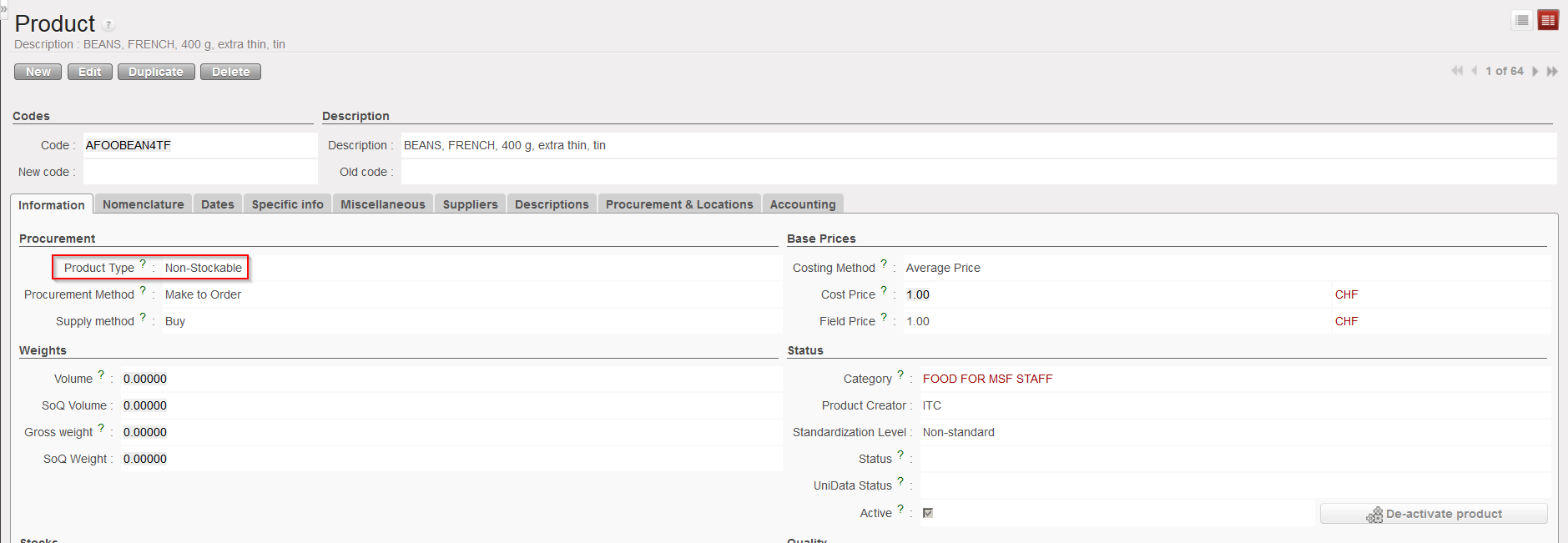
Non-stockable products are products which will not be tracked in stock management. This is defined in the PMD sheet of the products (product type).

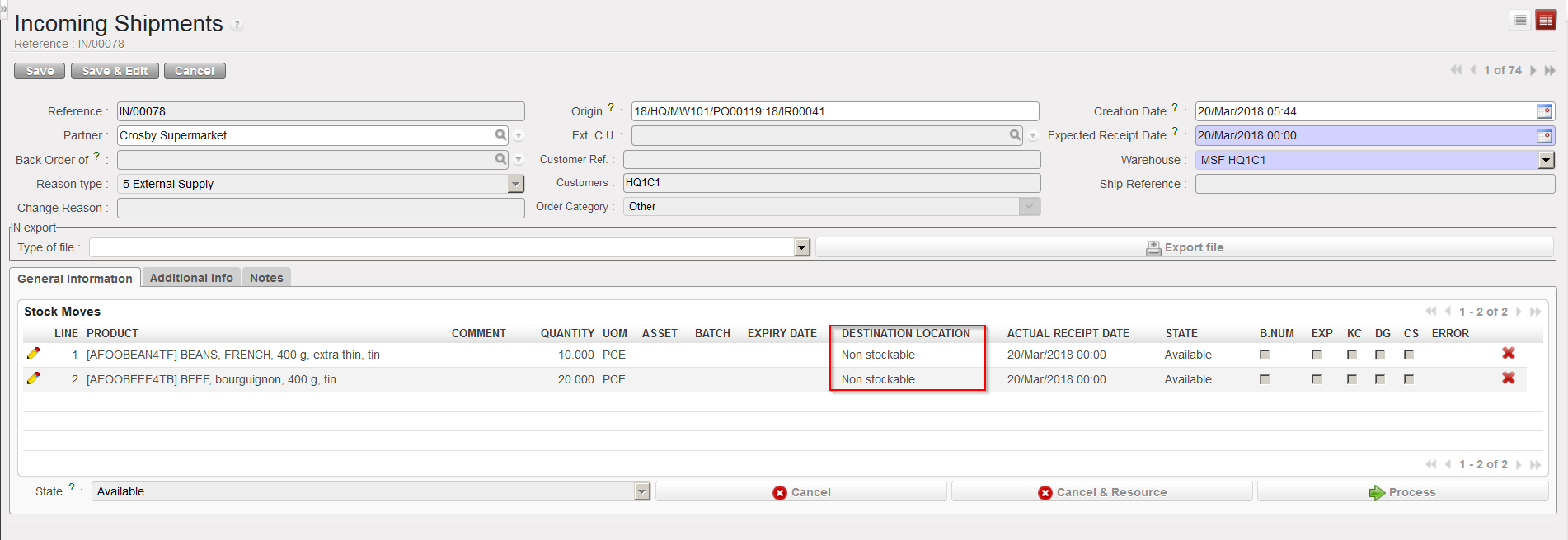
If non-stockable products are included on Incoming Shipments, the destination location for these products will always be “Non stockable“.

PMD sheet of a non-stockable product

Incoming Shipment involving non-stockable products

The “Non stockable” location is a virtual location where these types of products will be transferred.

Non-stockable products will always be stored in the virtual location “Non stockable” once they have arrived at the consignee instance.

Note that non-stockable products included in IRs or FOs cannot be sourced from stock.

If a non-stockable product is ordered via an IR and this IR is sourced on order (PO), when the corresponding IN will be processed, it will (unlike other products) not be sent via an Internal Move or Delivery Order to the Location Requestor specified on the IR but it will be diverted to the “Non stockable” location.

However, if a non-stockable product is included on a FO and if this FO is sourced on order (PO), when the corresponding IN will be processed, the product will be received in cross docking. It is only when the product will be received on the requesting instance that it will be diverted to the “Non stockable” location.